Half Pill – a Minimal Smart Desk Pill Reminder
by gokux in Circuits > Gadgets
193 Views, 5 Favorites, 0 Comments
Half Pill – a Minimal Smart Desk Pill Reminder
.gif)

Missing medication schedules is more common than we think, especially for those with busy routines or elderly family members. I want to design something easy to use—a simple device that gently reminds users to take their medication at the right time.
So I built HALF PILL, a smart Wi-Fi enabled Pill Reminder using the Seeed Studio XIAO ESP32-C3 and their beautiful Round Display for XIAO. The device connects to your home Wi-Fi, syncs time using NTP servers, and allows pill schedules to be configured directly from a modern mobile web interface.
All pill schedules are configured through a mobile web interface that can be accessed from any phone connected to the same Wi-Fi network. The interface allows users to view existing schedules and add new medications easily, while the ESP32 stores the data securely in EEPROM.
The user can schedule up to 20 pills using this device
So let's go build one
Supplies
Designing in Autodesk Fusion 360

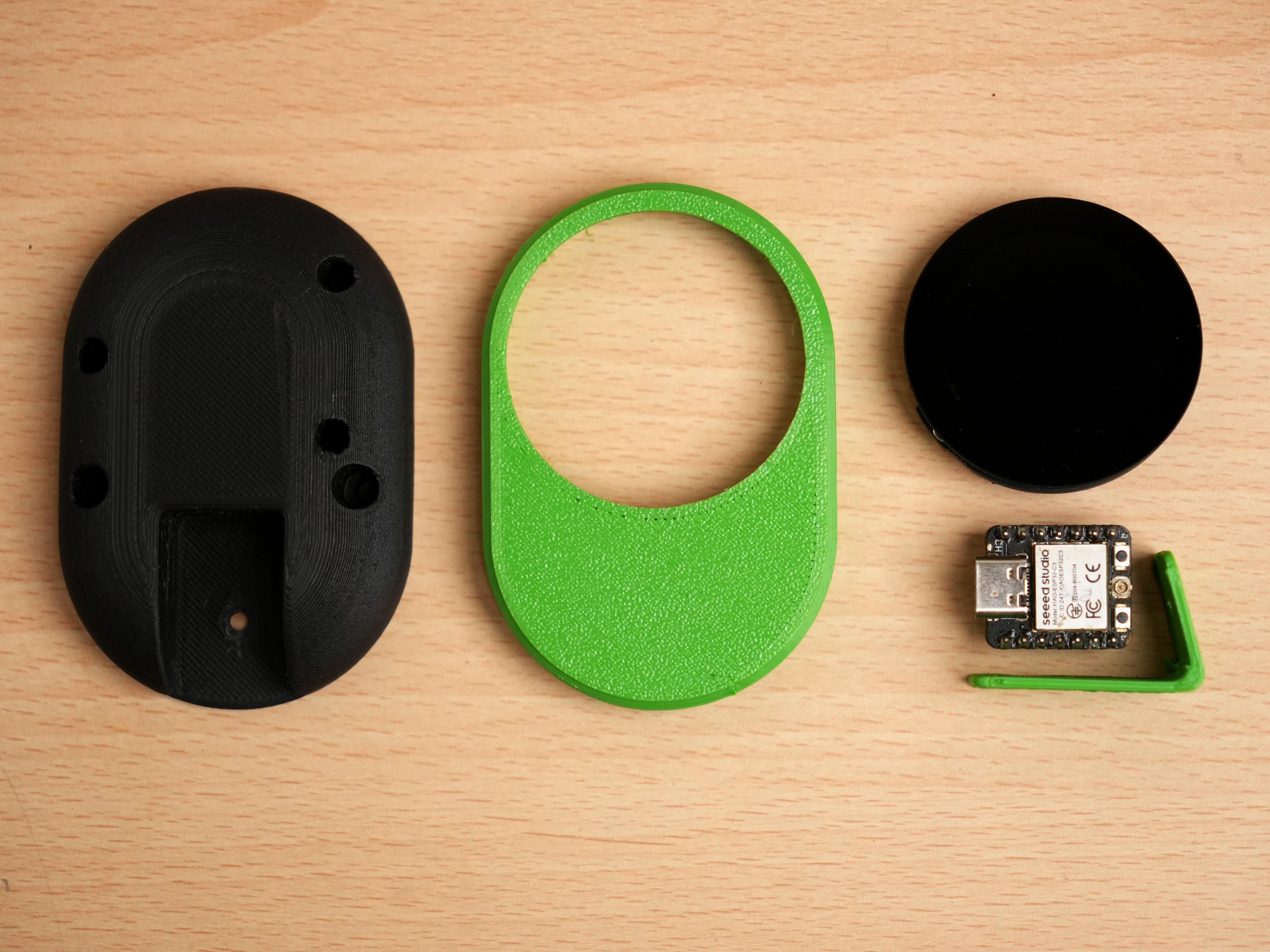
I utilised Fusion 360 to plan and design my project, which required careful space optimization. I needed to fit all the parts into the smallest form factor possible while ensuring practicality, including sufficient space for wiring and easy assembly. First, I imported all the 3D models of the parts and tried different configurations by placing the parts in various positions. Once I found the optimal configurations, I built the enclosure around them. All design files are provided below.
3D Printing

After exporting all the models into.STL files, I 3D printed them using my Anycubic printer. For this project, I used Numakers PLA+ filaments. You can find the.STL files from step one.
Round Display for Seeed Studio XIAO + XIAO ESP32-C3


For this project, there's no need to solder anything, as everything is plug-and-play. We will be using the Round Display from Seeed Studio for the XIAO as our display. All of our programming will run on the XIAO ESP32-C3.
Make sure to pre-solder the male header pins to the XIAO ESP32-C3. After soldering, connect the XIAO to the display. Also, make sure the power button is turned ON. On the next step, we will talk about the flashing of the code
Code

To use round display, we need to install two libraries in advance. One is the round display device driver library, which is used to drive the screen and touch functions of the device. The other is the graphics display library, which provides some very common interfaces for drawing graphics.
Download the Seeed_Arduino_RoundDisplay library from GitHub:’
https://github.com/Seeed-Studio/Seeed_Arduino_RoundDisplay
Download the Seeed_GFX library from GitHub:
https://github.com/Seeed-Studio/Seeed_GFX
Install the library by adding the ZIP file in Arduino IDE. Go to Sketch > Include Library > Add .ZIP Library and select the downloaded ZIP file.
The only thing need to be changed is entering your Wi-Fi SSID and password into the code, then we are good to go,
Make sure to put the .ino and .h files in the same folder where you find all the programming files below.
Antenna


Remove the sticker from the antenna, place it in the main enclosure, and connect the antenna to the Xiao.
Enclosure Assembly


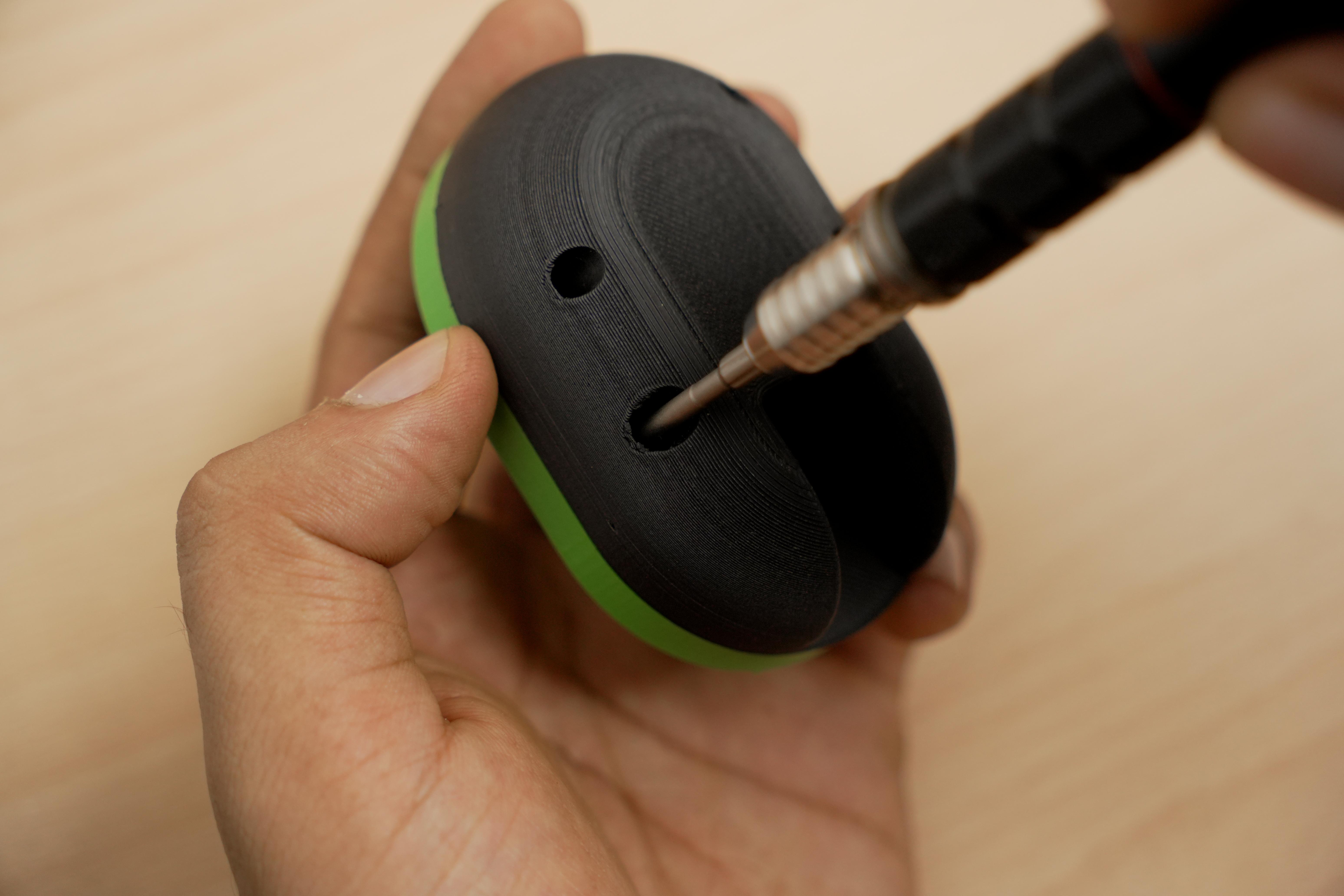
Place the full display assembly on the main boady alight the screw holes, and use three M2 screws to secure the display
Now, place the front part and use two M3 screw to secure it
Desk Stand

Position the 3D printed stand component and secure it with an M3 screw.
USB Cable


Due to the position of the USB port, it is recommended to use a 90-degree angled USB cable. I have provided a link to this USB cable in the parts list. Use this cable to power up and program the device.
How to Use It

.gif)
After powering up, the device will connect to your local network. Once the connection is successfully established, the drive will display an IP address. 192.168.1.75
You can then configure the device by connecting another device to the same network and entering the IP address into a web browser.
Through this app user can
- Add pill name and schedule time
- Delete the pill schedule.
- Check pre-existing schedules.
- Change the time zone.
After completing all configurations, users can press the "Configure" button to save all entered data onto the Half Pill. You can watch the making video to understand how to configure this device.
Final Thought

This is a simple project to remind you to take your pills. Some people have suggested setting this up on a mobile phone, but I don’t keep my phone on my work desk due to distractions, so this option works best for me. Another concern is the lack of audio indication, such as a buzzer. To include that feature, we might need to add some additional components. I built this as a plug-and-play solution since some people prefer silent reminders. I hope you like this project!