Having Fun | Blender Animation
by GalaxyCon in Design > Animation
470 Views, 0 Favorites, 0 Comments
Having Fun | Blender Animation
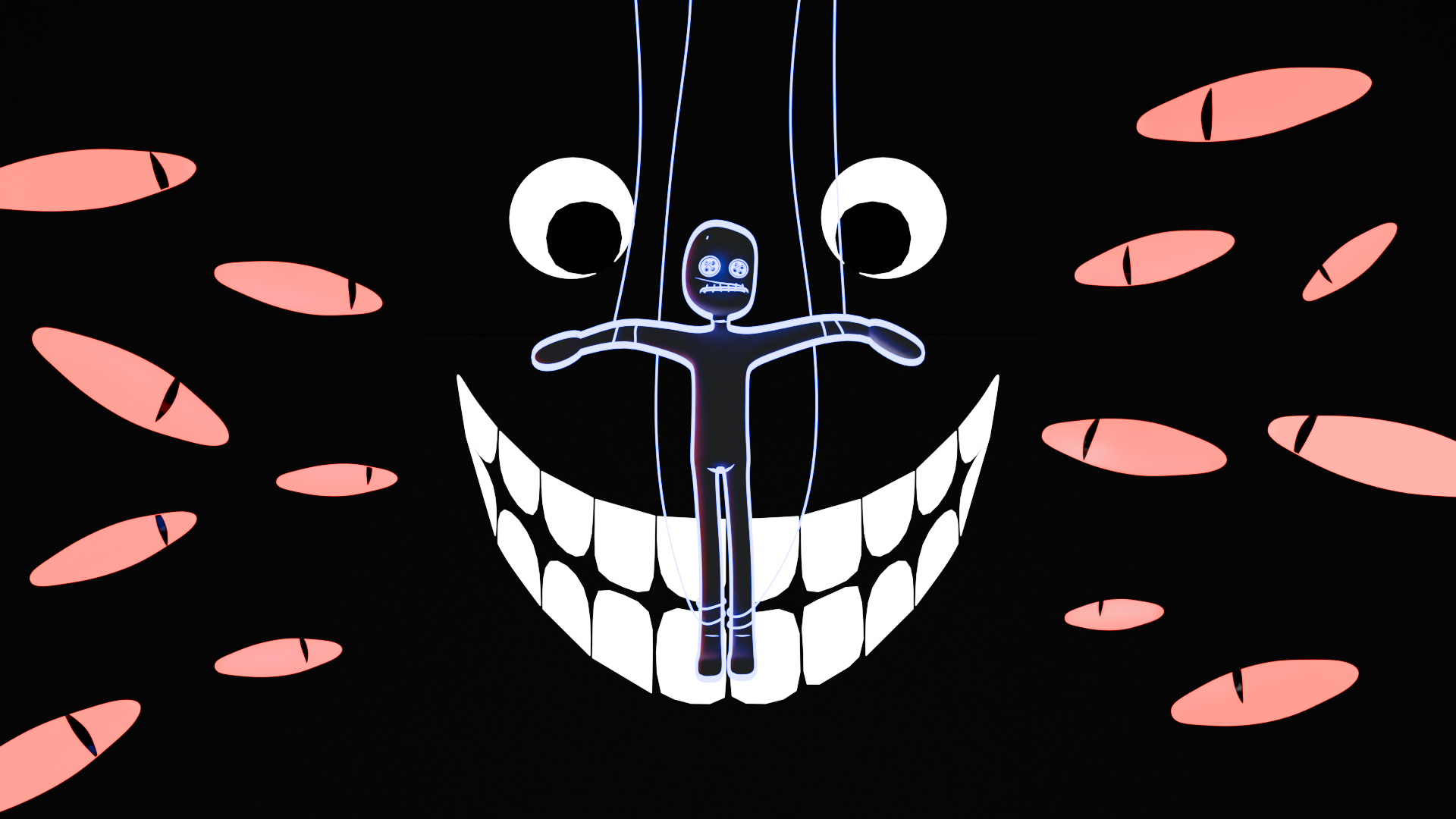
Hello! I'm Connor, an EE major. I've only ever designed things in CAD with a functional purpose under strict tolerances/constraints. So I decided that I want to explore more of the mystical world of 3D designing and animation. What better way to explore this than with a challenge like the Instructables' Make It Float contest. I'm expecting this to be a fun experience. Especially since I've never actually used Blender before. But there's no better day then the present to start!
Just a fair warning this is a beginner's level tutorial made by a beginner. So, please understand that not everything I do will be optimal nor truly coherent. However, if your just starting Blender like me then you will probably find this helpful. Also, when I refer to images like image 1 or as seen in image 2 then I'm refering to a specific image in the step it's mentioned with the first image always being the one farthest left going right. The count for each step always starts counting from 1 upwards.
Without further ado, let's get started!
Downloads
Supplies

For this project we're only going to be using Blender V5.0.1(latest version), a free open-source 3D software. I've only heard good things about it and it's free. So, I figured it was the best software to use. Plus, the amount of beginner guides out there for literally everything really swayed a novice like me.
Download Link:
Ideation
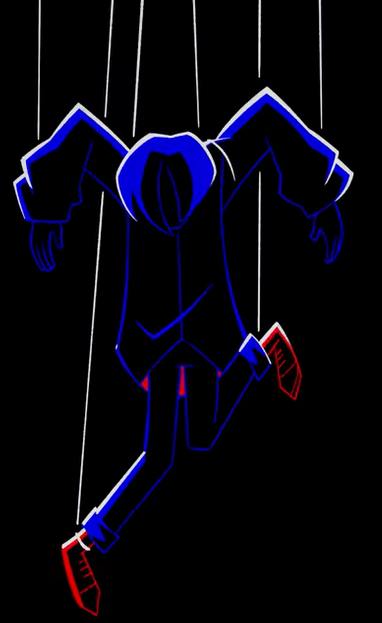
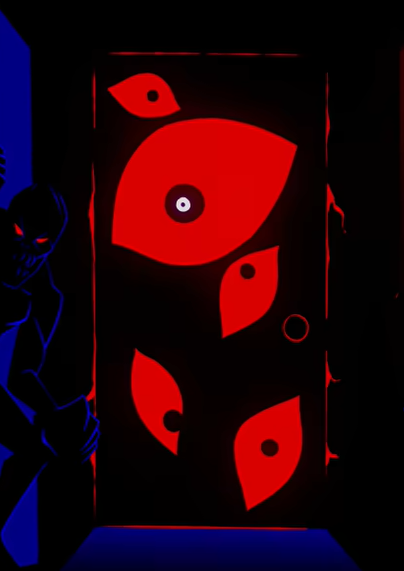
Welcome to Step 1: Ideation! Argueably the most important step out there as this will influence everything that my poor little smooth brain will need to figure out. To start off we need ideas! Which I'm severly lacking in... HOWEVER, I happened to have watched a really awesome animated music video from SIAMES called "Alone In The Darkness" that left me itching to create. If you want to watch the video yourself I'll leave the URL down below, absolutely recommend checking it out.
I absolutely love the style. Look at the simple yet effective color pallet!! I'm a minimalist at heart so it really speaks to me. So, I'm thinking of making something along that style for this project. A simple yet effective use of colors and lighting on a black background.
The puppet/doll motif also really interests me. Now imagine having those red eyes from image 2 surrounding our character hanging by strings, floating in an abyss. I'm starting to get a good grasp of how I want my scene to look in my head.
Though, how do we address the core call to action for the Make It Float challenge though? To me personally, when I think of making something float I think of being adrift in infinite nothingness like space. So for my world the character will be stuck in a world where directions and position are meaningless. To the point where your unable to tell specificly if the string are keeping the character from falling or floating into the abyss. Your only point of reference is through the camera, but is it correct?
Enough of that nonsense. Let's move onto the next step while our scene is still fresh in our minds!
Music video link:
Story Boarding
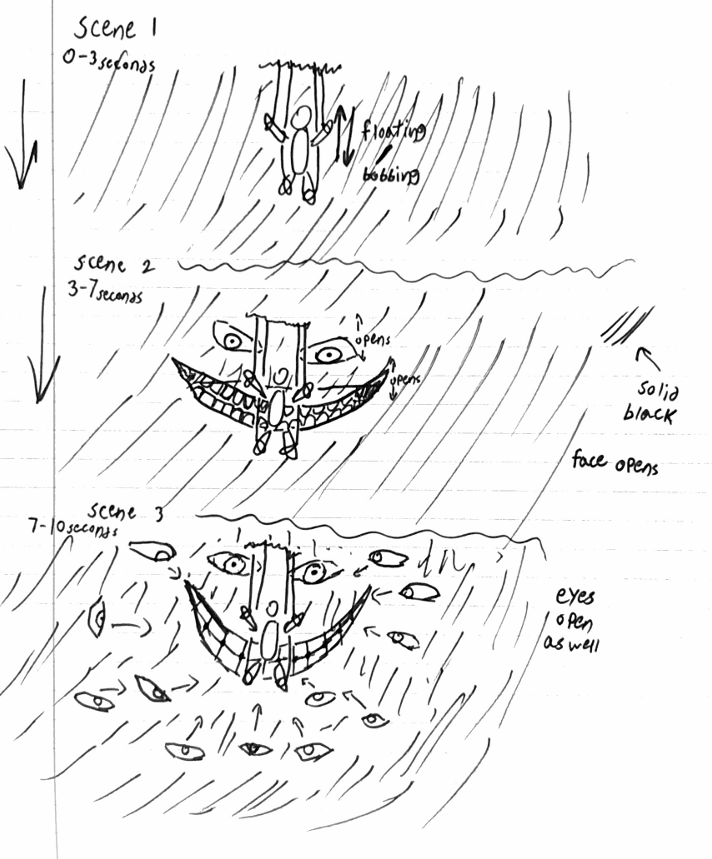
Now that we have a general grasp of what we want our scene in Blender to look like let's put our idea on paper. This is generally what I do when working on Engineering projects as ideas are like a farts in the wind. If you don't capture them quickly they starts to quickly dissipate into to oblivion. I know it's a little weird and why would anyone want to capture farts, but my mentor used this analogy alot so if I had to hear it then so do you.
Attached is what I imagine our scene looking like. Please only laugh a moderate amount at my poor drawing skills. As an EE major I'll get paid to draw squiggily lines in the future so I unfortunately can no longer make a straight line to save my life. At least that's what I tell myself to cope.
The story board I gave is a pretty rough idea of what I want my scene to look like. I added a large face in the background of the center as I figured it would look creepier. Especially if said face emits some type of light that is effected by fog in the scene. Trying to acheive a creepy vibe as all these creatures appear in the seemingly empty void that the character is hanging in.
Laying Everything Out
Now that we have a general idea and story board for how we roughly want our project to turn out let's go ahead and lay out everything in steps. I find that breaking things down into smaller digestable parts makes it easier for me to stay engaged and feel like I'm progressing smoothly. I need that sweet sweet dopamine.
Keep in mind that during projects there will be moments where sometimes a better idea or solution for something comes along that can elevate things to the next level. Or maybe you personally only want certain parts of this projects then go off to do your own thing, which is completely valid. That's why I believe for projects it's important to set up a general direction for us to go while leaving enough room for experimentation so that we can create something uniquely our own. I will be sure to document everything I do/use for this process though so you can understand my logic.
So far we know we need the following for our scene:
- A character
- Modeled
- colored/shaded
- Positioned
- Lighting
- Positioned
- Setting adjusted to fit scene
- Background face
- modeled
- colored
- Emission
- Positioned
- Eyes
- modeled
- colored/textured
- Positioned
- Fog
- Positioned
- Shaded
- Strings
- Modeled
- colored/textured
- positioned
- Camera
- Positioned
- Different shots
This list is just a general layout of what we'll need for this project. Things are generalized as putting down too much can also be intimidating. So I put just enough that it feels I have goals to strive for but not to much that I psych myself out of doing it. Plus, there are easy and hard tasks mixed together to I can give myself quick wins when I need them.
Open Blender
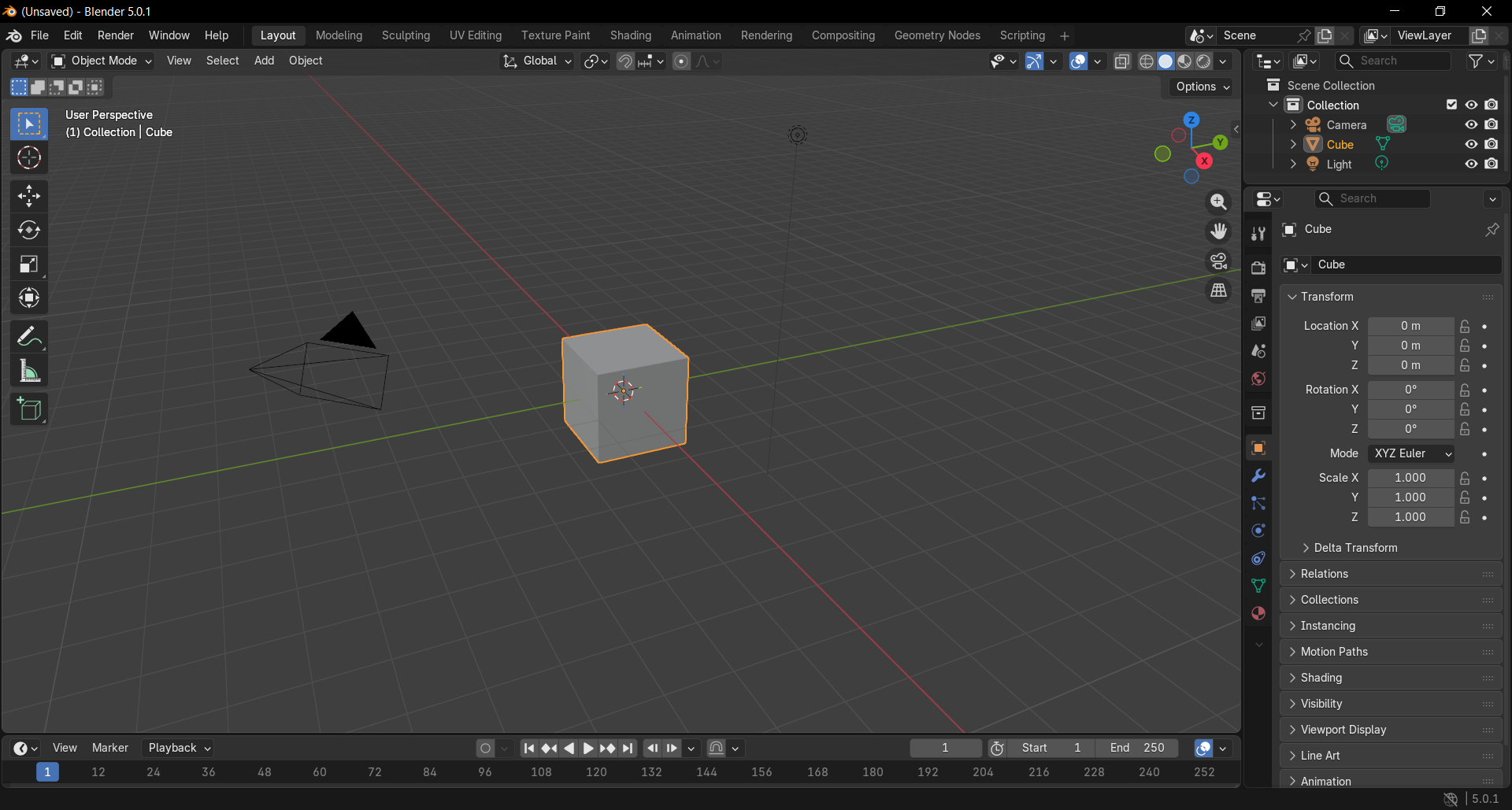
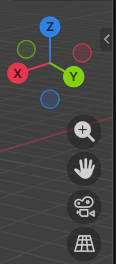
Let's take a moment to breath. Go ahead and download blender if you haven't already then open it. You should be greeted with this default scene. Before you panic, don't worry if you have no idea how to move in the scene. I already spent an hour trying to figure out how to move for you. Let my pain make your life easier.
You can rotate the scene with middle mouse button and move in the scene by holding shift + middle mouse button. That movement one really took me quite a bit. Also, there is a little widget in the top right that you can use to rotate by holding left mouse button and dragging it around. Additionally, clicking the magnifier or hand icons when clicked and help can zoom and move in the scene respectively.
I'd recommend playing around a bit in this default scene just to get used to the controls and UI. Click random buttons! Do weird nonsense! This step is all about understanding the software. If you break it or do something you don't know how to undo then just close blender and then reopen it. You should be greeted with a brand new untainted default scene which we'll use in future steps. Once your done messing around move to step 5.
Getting Character Reference
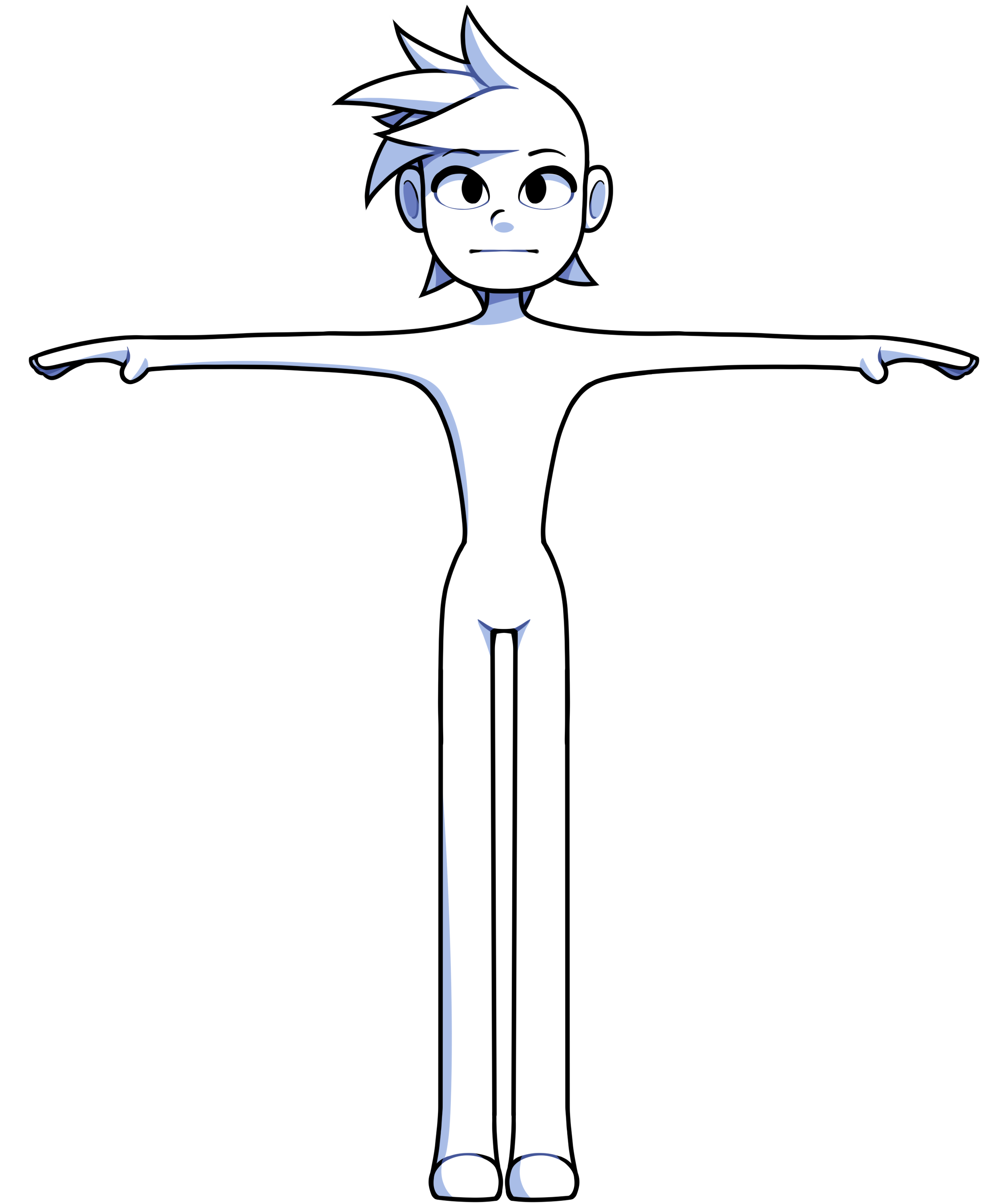
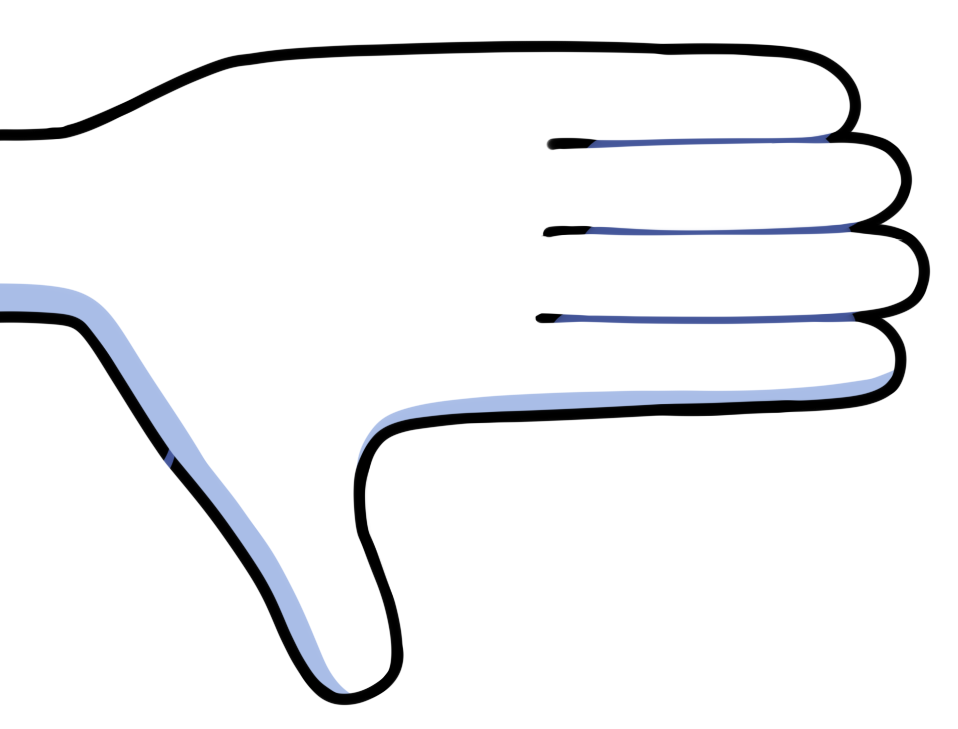
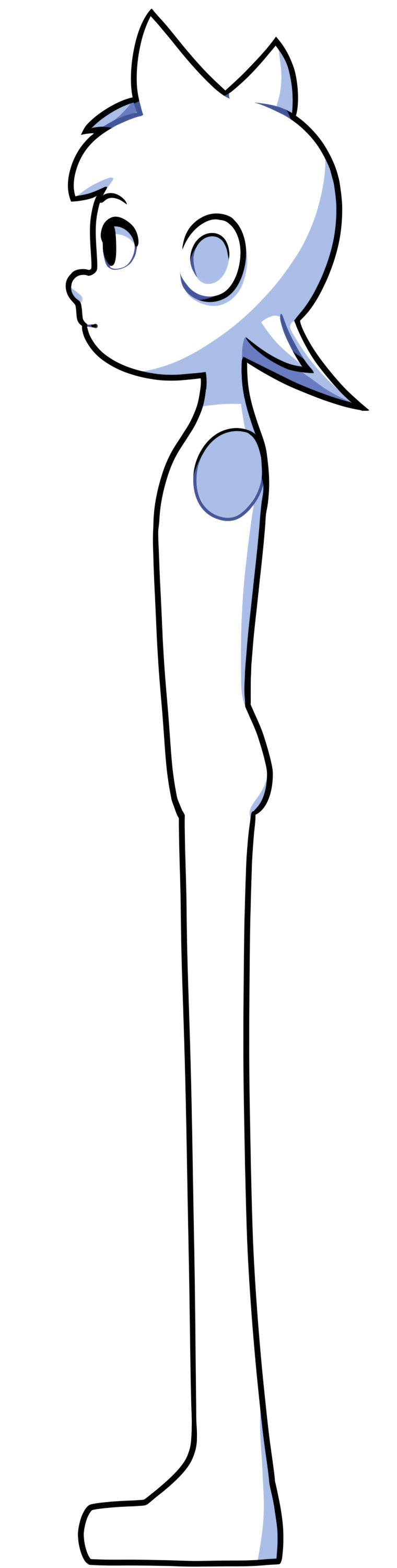
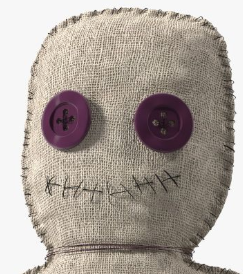
Now that we've spent some time exploring blender let's get started. First thing we need to do is create our character. This will be what our whole scene revolves around. Since I'm far from skilled enough to know how to set up a character sheet nor be able to eyeball the whole thing we'll need a guide. So to get the general outline of the character I want we'll be using Poole's character sheet. Their an amazing youtuber whose tutorials have really helped me get into understanding Blender. I'll link the character modeling tutorial this image is from below. Again, they've been an amazing inspiration for this project so please check them out for a more detailed and in-depth tutorial on this stuff.
As I mentioned, we'll just be using this to get the general outline. We'll be making alterations to the character as we set it up so that it fit more with what I envision our scene to be. I also want this to be more puppet/doll like so instead of a normal face I'll be setting up something similar to the voodoo doll reference image above. Definetly not using my stylistic choice as an excuse to simplify the work load and not have to make ears...Why would you think that...
Poole's Tutorial Link:
Setting the Scene
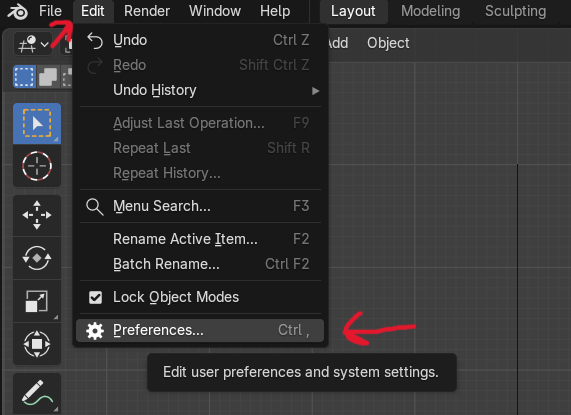
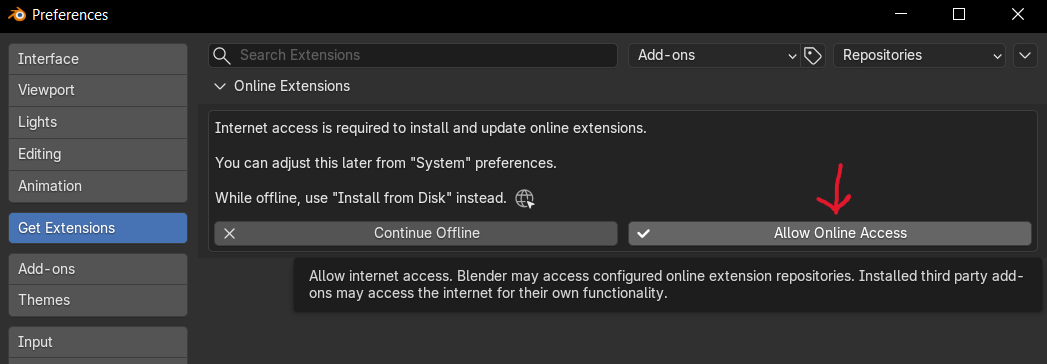
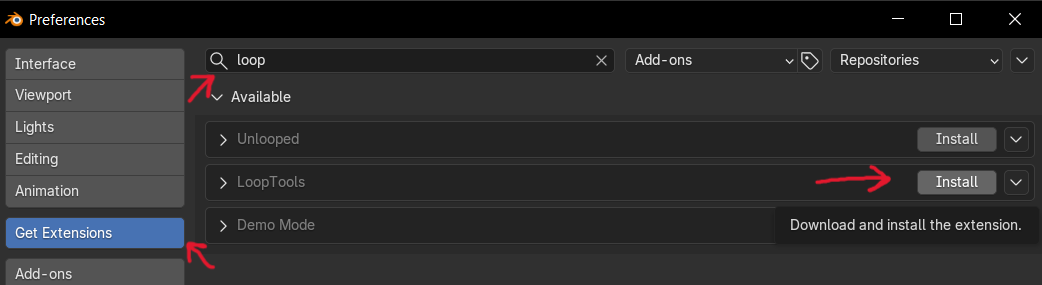
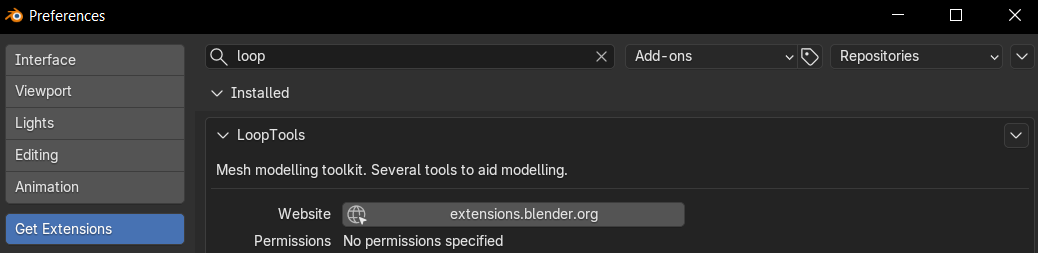
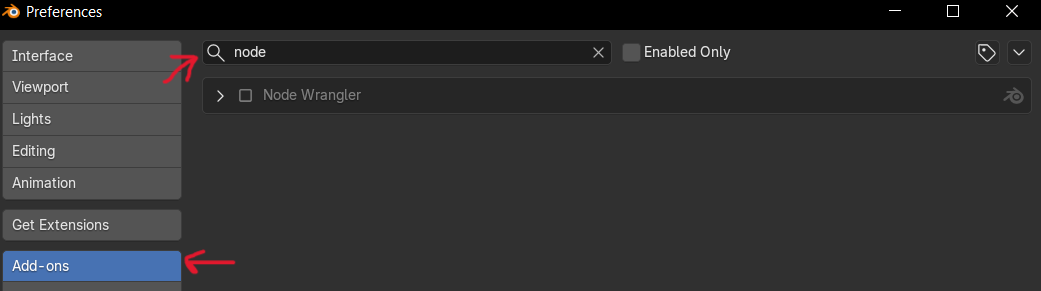
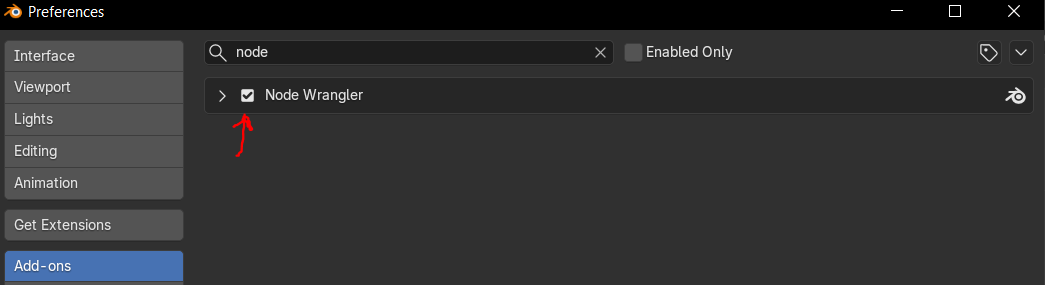
Before anything go ahead and open up a brand new scene in blender that hasn't been messed with. Easiest way is closing Blender then reopening it. This should give you a completely clean default scene.
Next, let's go ahead and get the Extentions/Add-ons we'll be using for this project installed. To do this you need to click the Edit button in the top left of the Blender UI, then click Preferences, Get Extensions, Allow Online Access, type loop, and then click install looptools. Next we want to click the Add-on button, type node, and then check the Node Wrangler add-on. Attached are step by step images for setting this up in case your a visual learner like I am.
Setting Up Front Guide
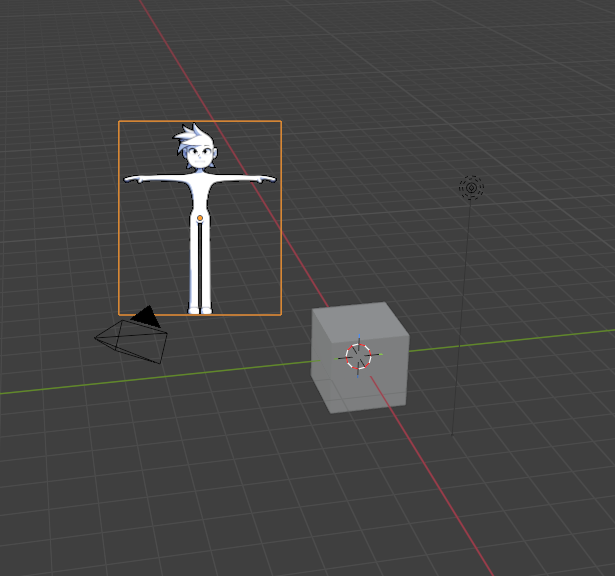
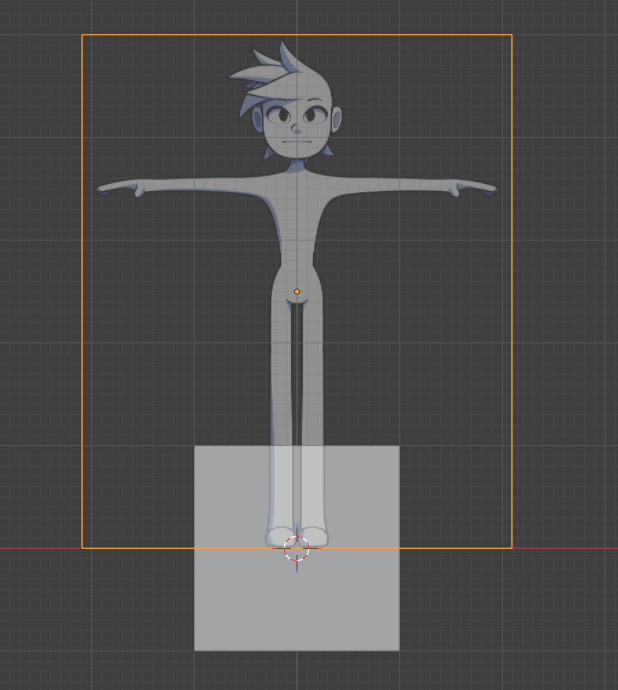
Go ahead and drag an drop the character images into your scene. When you do this they will spawn in facing toward you and in the position you dragged them to in the scene.
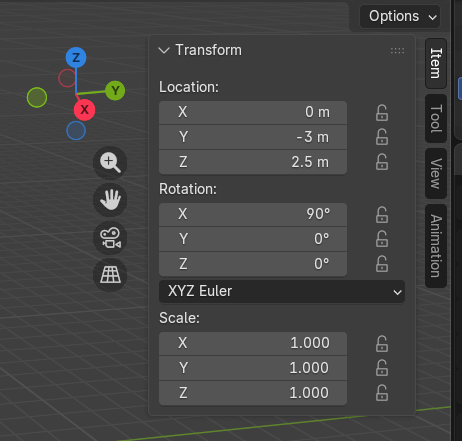
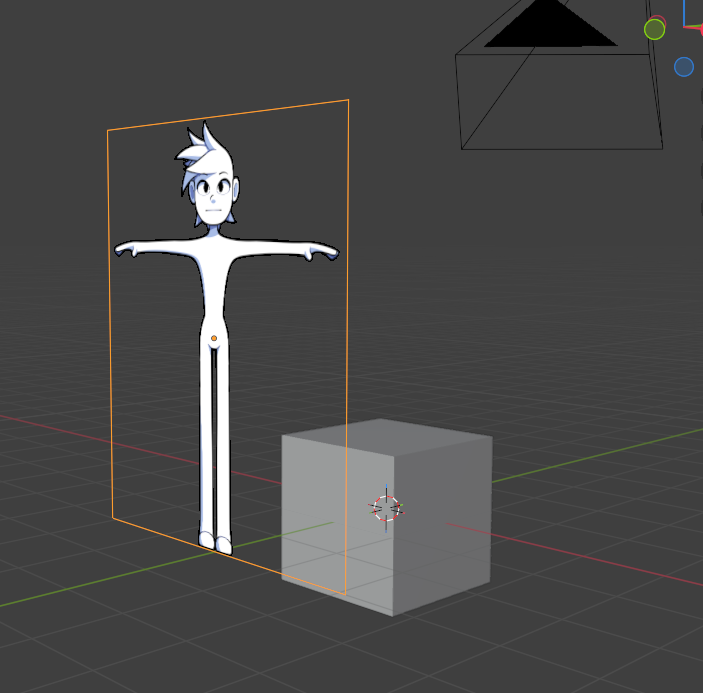
To fix their orientation click N to bring out the Properties panel and click the item button to get the Transformation panel. You can go ahead and set you location values to be similar to mine so that the reference it lined up to the center of the 3D cursor(the red and white circle thing in the center of the cube in image one). You should get something similar to the 3rd image.
Quick overview: In the Transformation panel there three main effects you can use. These are location, rotation, and scale. Each of these effects are pretty on the nose with what they can do and each can effect the selected object in the X, Y, and Z coordinate plane. Meaning you have complete dominion over these objects in your scene, like the Avatar of the 3D plane. So you can make things fit even if they werent mean't to with a bit of digial bending.
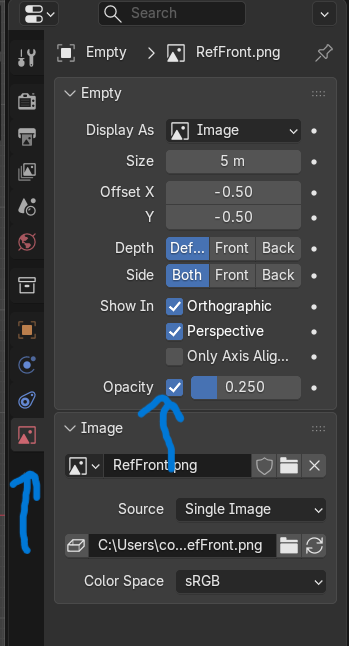
With the image of the person still selected click Data button on the right panel to open the images settings then enable Opacity. Look at the 4th image and follow the arrows for what to click if your more visual(like me). I set mine to .25 as that looks good to me, set your to what you prefer. No matter the opacity value you should be able to see through the image like in the 5th image attached so that you can have an easier time going forward.
Setting Up Rest of the Guides
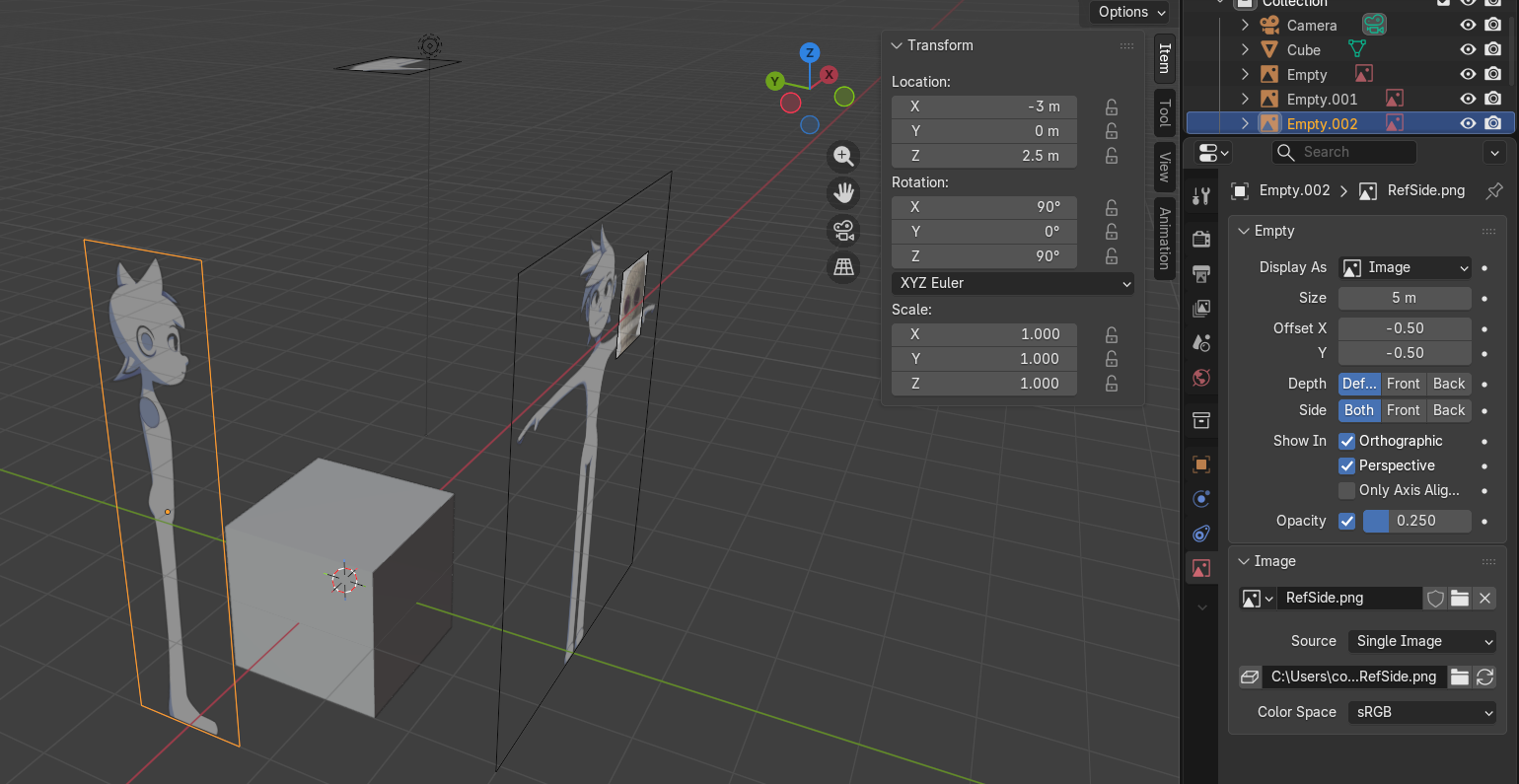
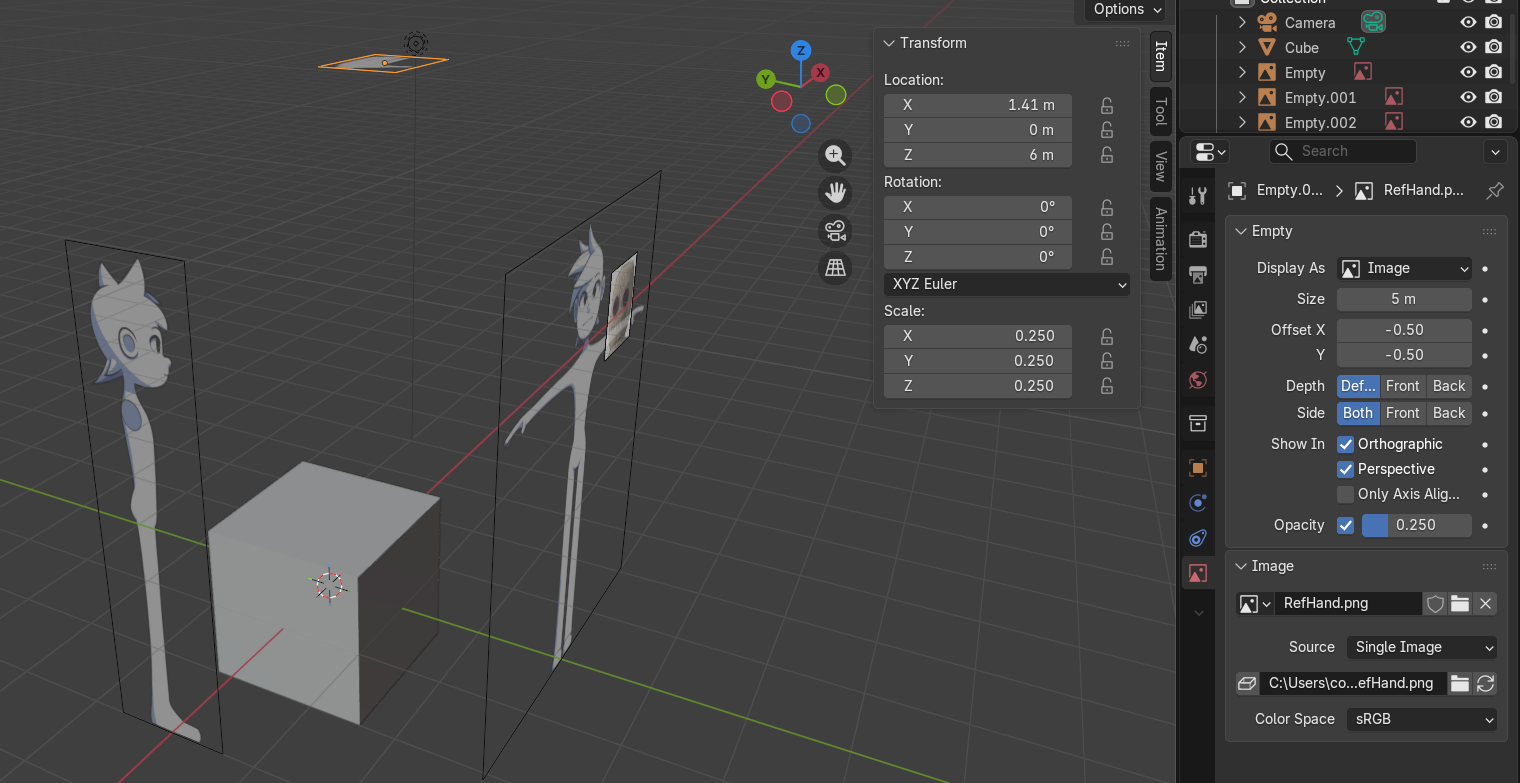
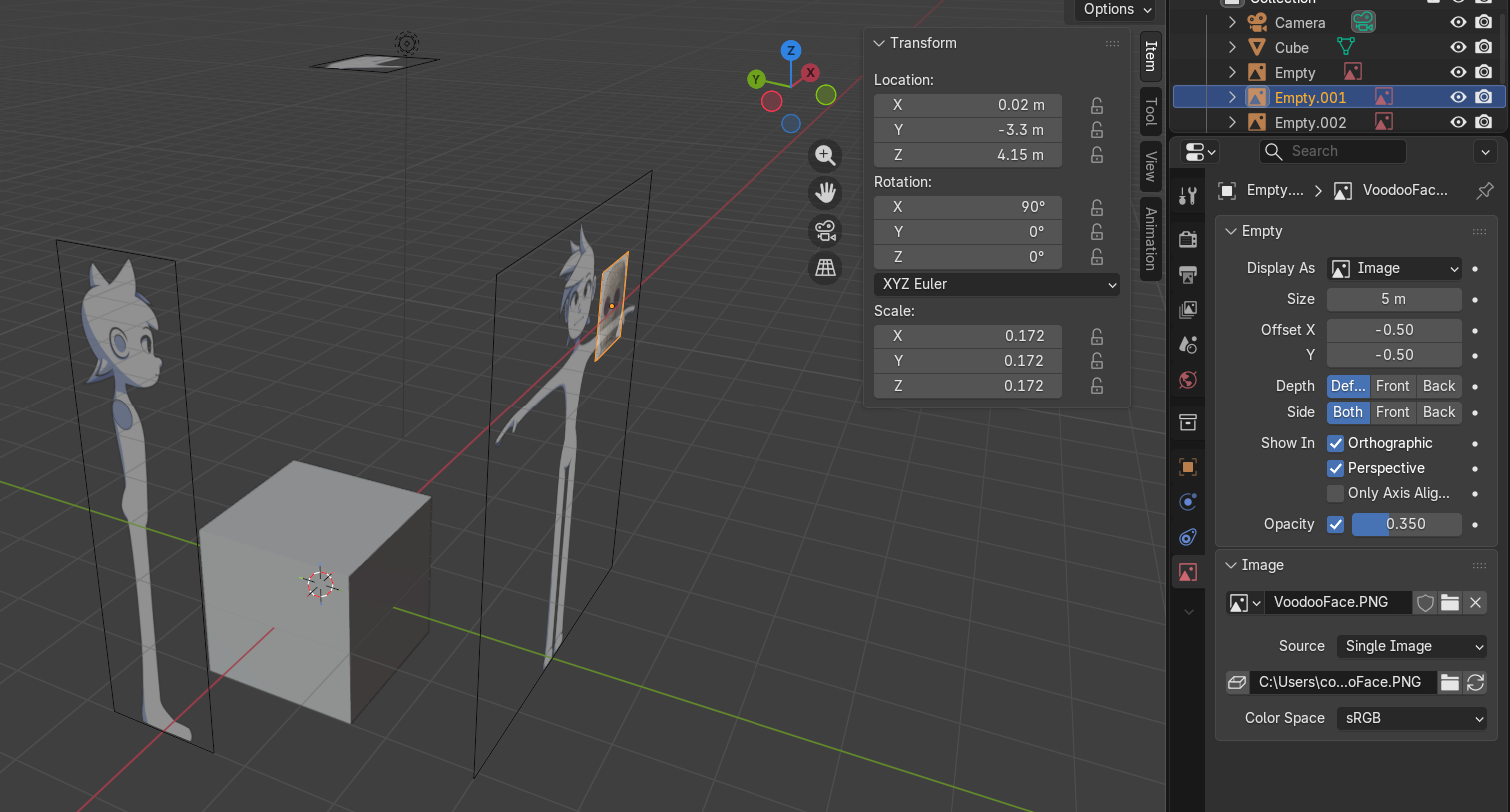
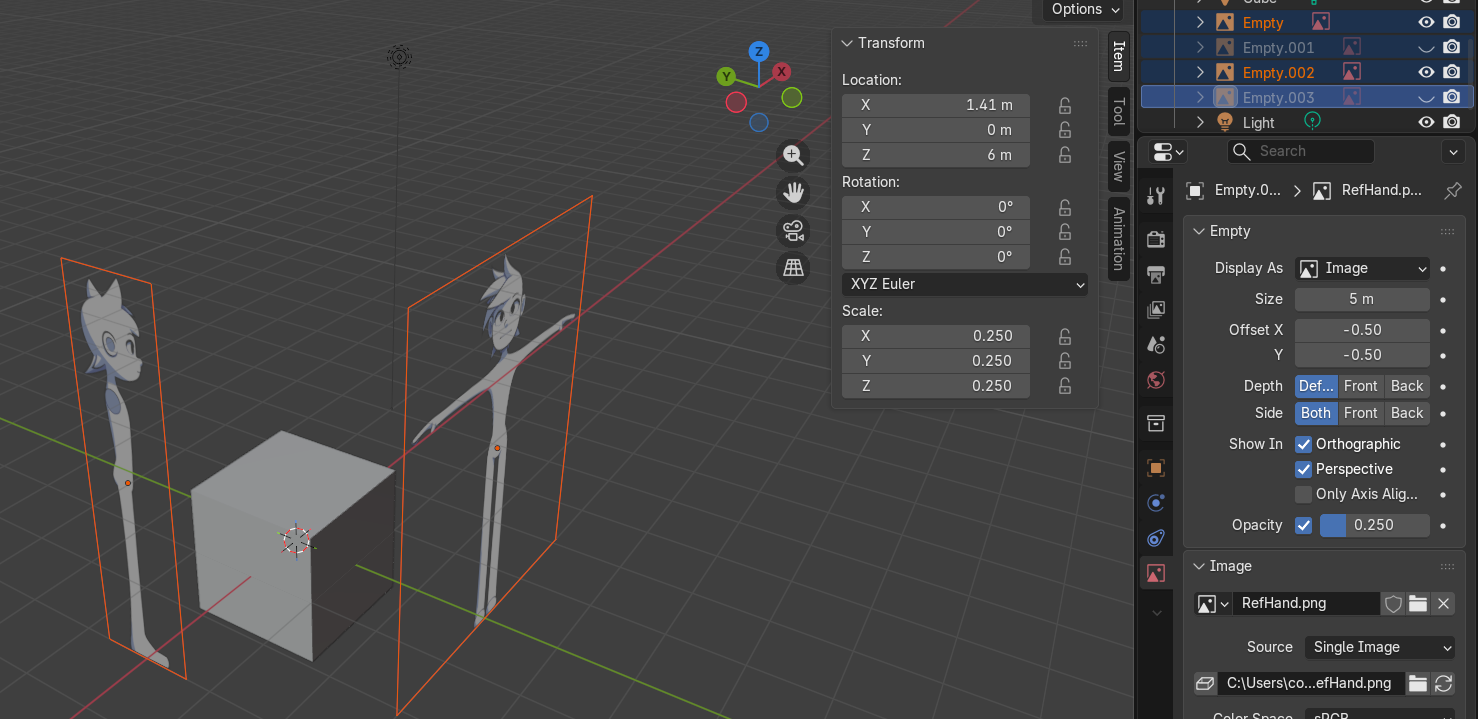
Do the same thing for step 7 as with step 6 except for the side reference image, the hand reference, and the voodoo face reference. The images above show the values, rotations, and opacity of the images we need to add. When you bring the hand image into the scene it'll be to large so you'll want to shrink this down. You can do this by adjusting the scale directly in the transformation panel. Or you can use the secret technique called shortcuts! While you have the object selected and you tap the s key on your keyboard you'll be able to scale it automatically by dragging your mouse around. Absolutely huge, remember this shortcut for later.
I put the voodoo doll face a little further forward and at .35 opacity for later when we're working on the head. For now you can go ahead and set both the hand and voodoo doll face to invisible. Which you can do by clicking the eye icons in the top right scene collection view as shown in the 4th image here.
Also, quick thing I just learned about. If you double left click the objects in the same scene collection view you'll be able to rename the objects. Go ahead and rename the images so that we know what is what. We will be doing this going forward for all things to make tracking objects down easier as the scene expands. I'm personally calling the images front_cimg, side_cimg, hand_cimg, voo_cimg. The naming logic is what it is plus c for character and img for image. Models will just be called what they are like Head or Strings.
Disable Image Clickability
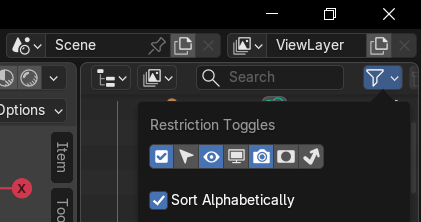
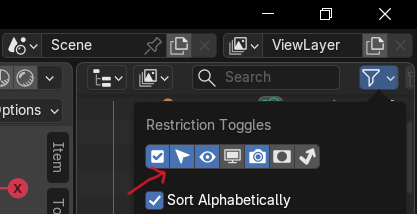
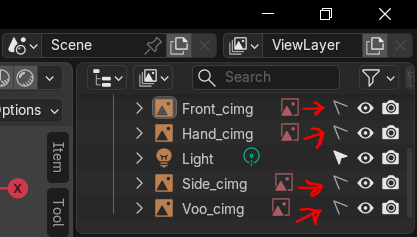
Quick quality of life thing you can do and that is disable the clickability of the images brought into the scene so that we don't accidentally click them when we're modeling. You can see what to click in the attached images.
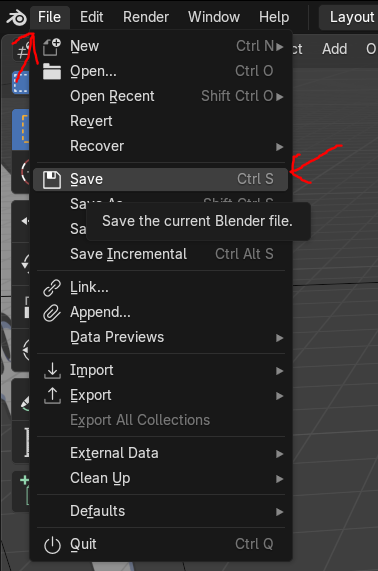
Now before we move any further let's go ahead and save our scene. This is very important. You never know when blender could just crash, or a sudden window's update restarts your PC, or heck even the power could just flicker making you lose your entire project file you were working for hours to submit to a certain instructables challenge... That is to say, save often. You can do this by either using the shortcut Ctrl + S or clicking file in the top left and then the save icon as seen in image 4. You can name your project anything you want, doesn't truly matter.
Blocking Out Part 1
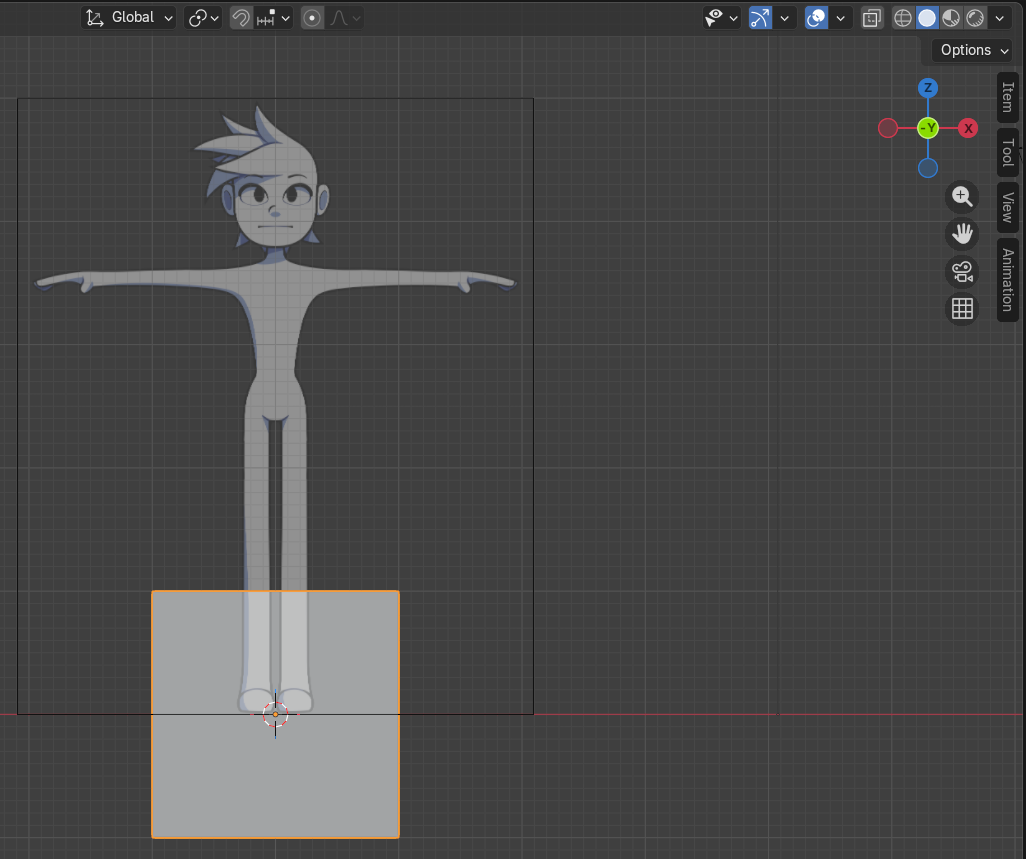
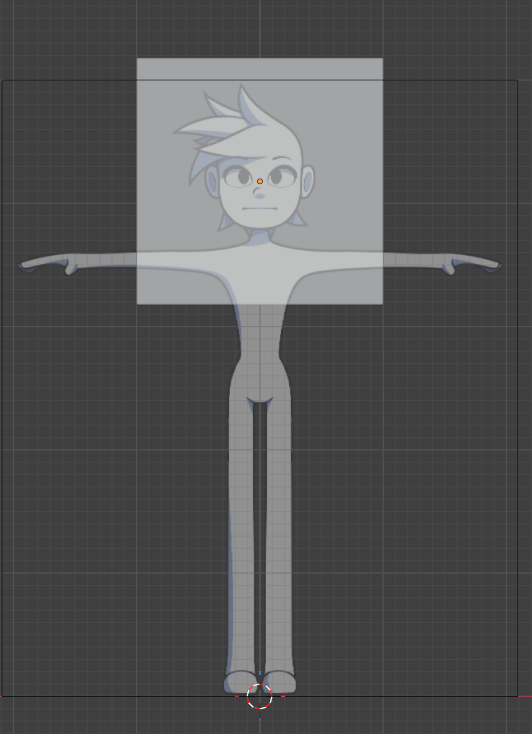
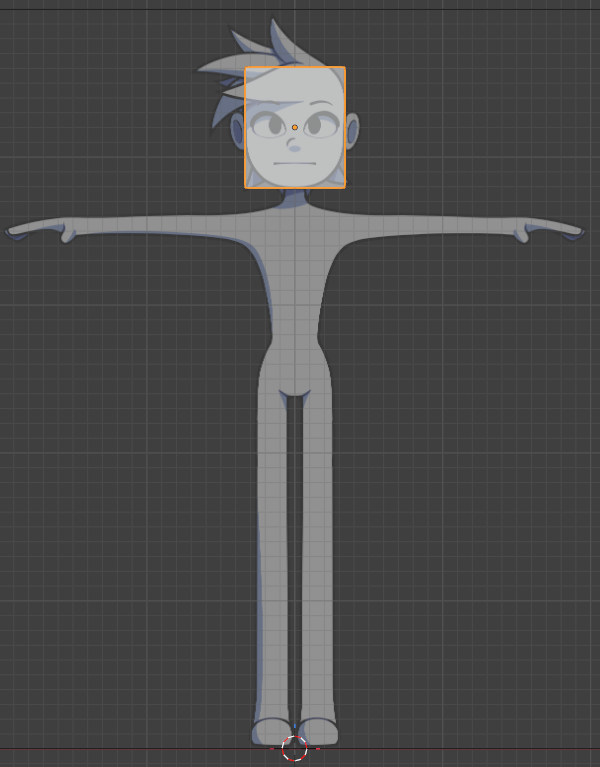
The first step that most people recommended when making characters is called blocking out. This is when you create the general shape of your model with simple shapes.
To begin click the green Y orb on the top right gizmo so that we're facing head on with the image and the default cube, setting a scene as seen in image 1. If you see that the image appears to be behind the cube then just click the gizmo again to flip sides. This works for all the directions, giving a quick way to switch between + and - directions.
Next, it's time to talk about the next short cuts we'll be using. For blocking out we're going to need to move, scale, and rotate objects fast and often. So, when any object is selected you can click G on the keyboard to be able to move it, Click R to be able to rotate it, or click S to be able to scale the object. If you also click X, Y, or Z while any of the effects(G, R, or S) are active then you can constrain their abilities to the selected axis. If I we're to click S and Z then drag my mouse up then the object would expand across only the Z axis. Keep this in mind as we're going to be using these shortcuts often. You'll also want to remember Shift + Middle Mouse Button and scrolling with the middle mouse button so that you can get good angles/zooms while modeling.
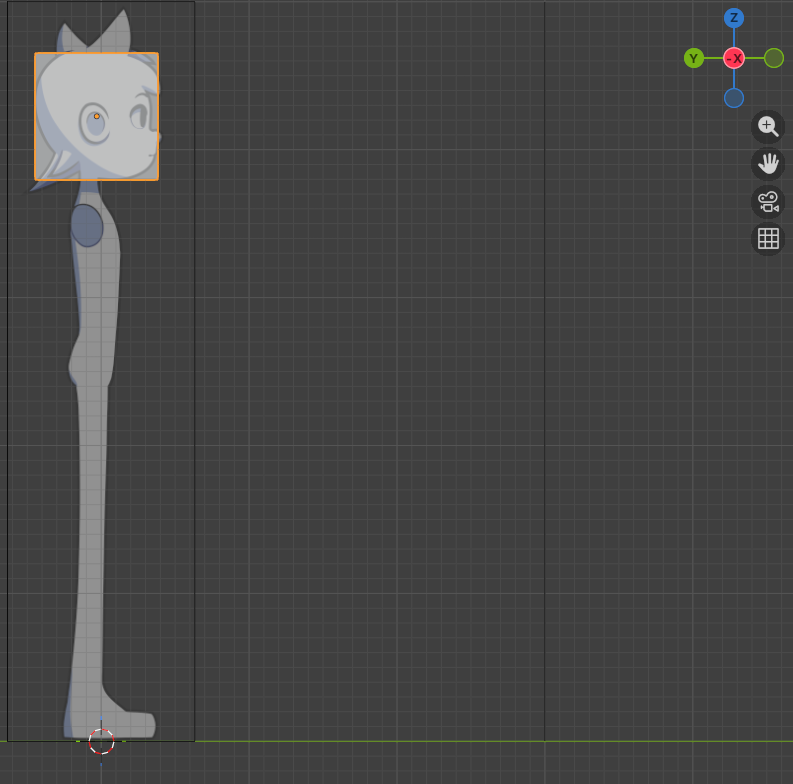
So, click the default cube, click G, click Z, and move your mouse till the cube is in a good enough position like in image 2. However, the cube is to big so we need to shrink it down. To do that, with the object still selected, click S, and then move our mouse until it's a good size. It doesn't have to be exact, just eyeball it. I went ahead and made it a bit narrower by clicker S and then X to shrink it's X direction. Don't forget to click the red X part of the top right Gizmo so that we can also ensure the cube fits snuggly on the side profile, like in image 4.
Now let's make the torso. However, we only have one cube and it's being used for the head. We're going to need another cube to work worth. That's where Shift + A comes into play! Doing this opens a quick menu to spawn in new objects. Allowing for infinite cubes!!! (Atleast till your computer crashes)
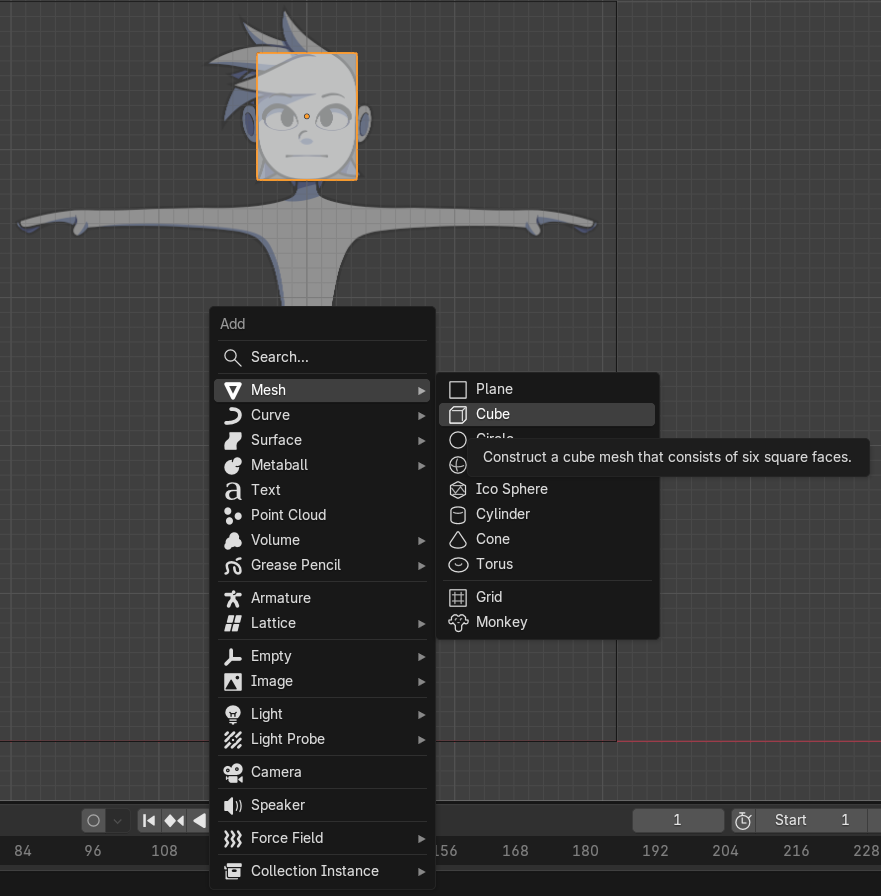
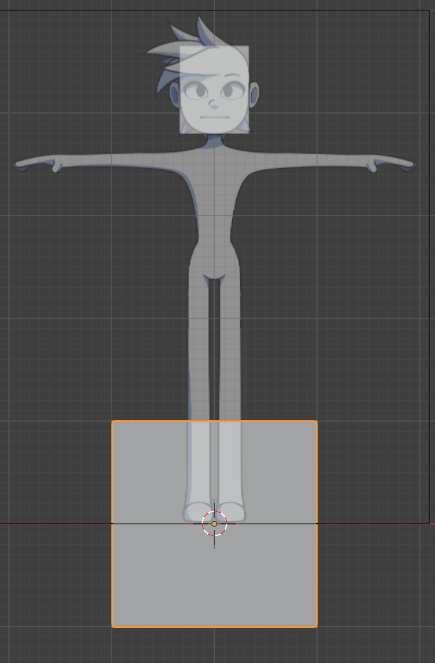
Go ahead and click Shift + A, hover over the mesh tab, and then click Cube like in image 5. Doing this will spawn in a cube in the center of the 3D cursor, as seen in image 6. Let's go ahead and move the torso up with G, Z, then scale it in with S. Switch to the side view and scale it some more with S + Y till it looks good.
Blocking Out Part 2
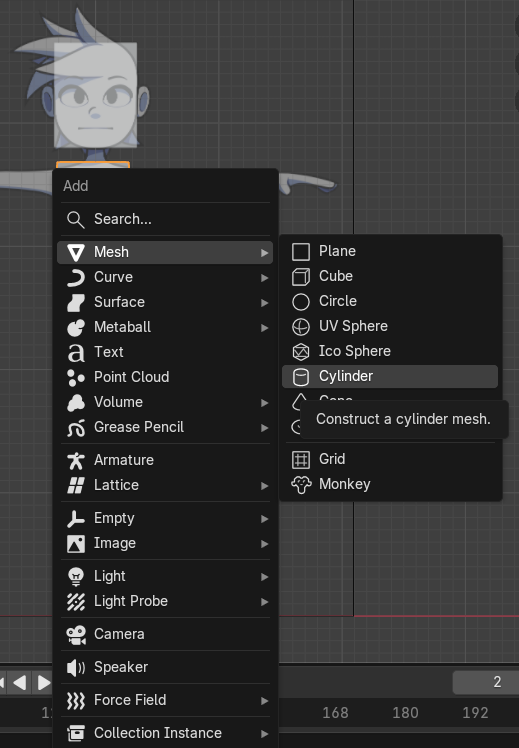
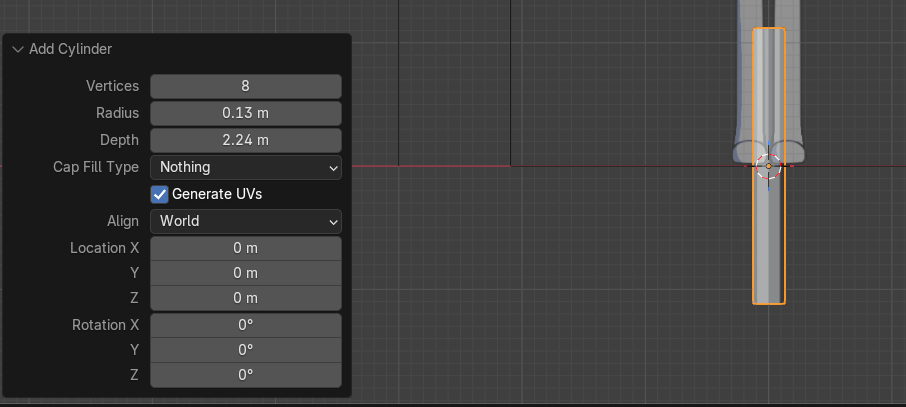
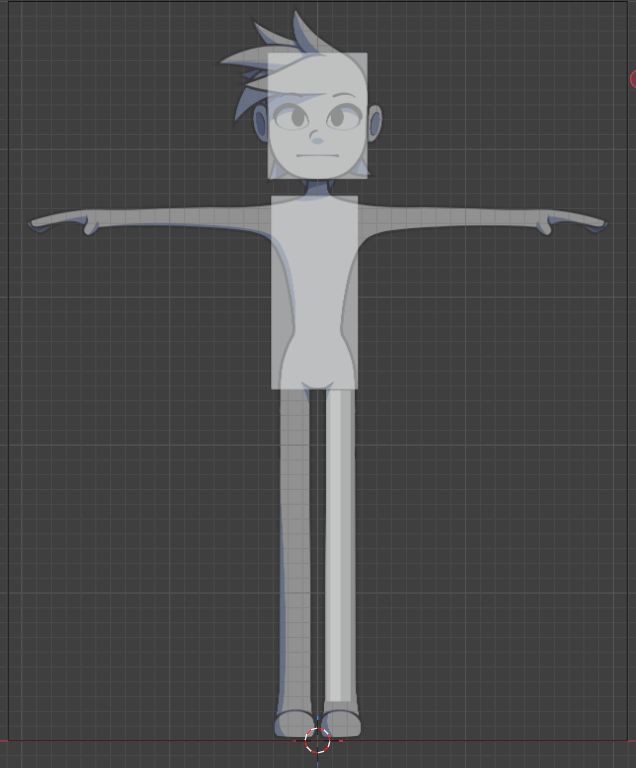
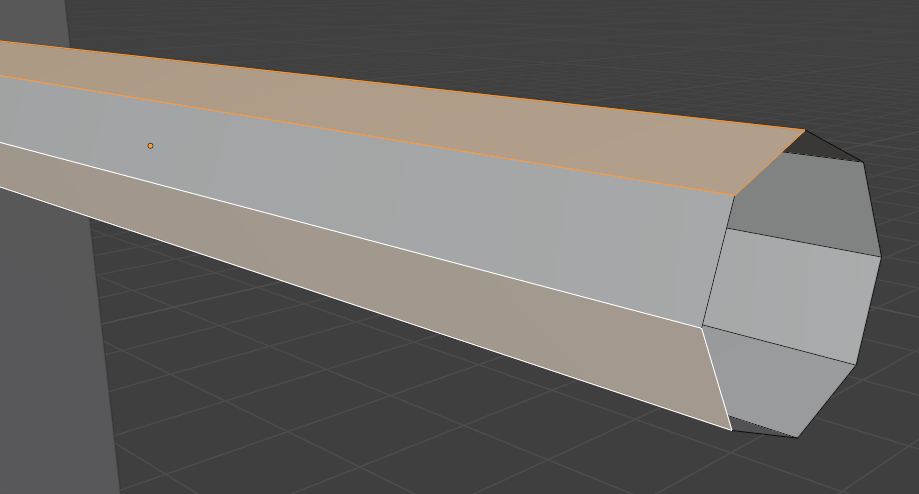
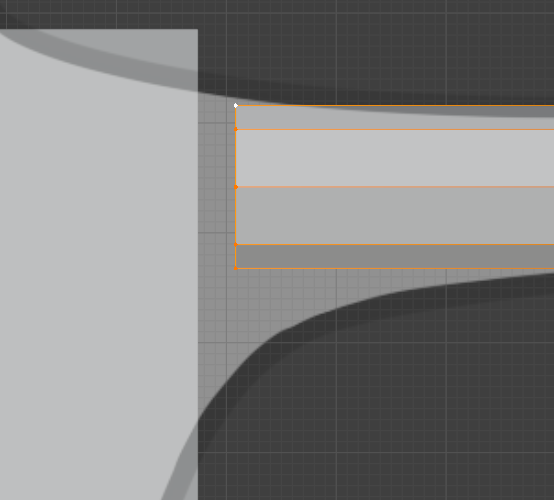
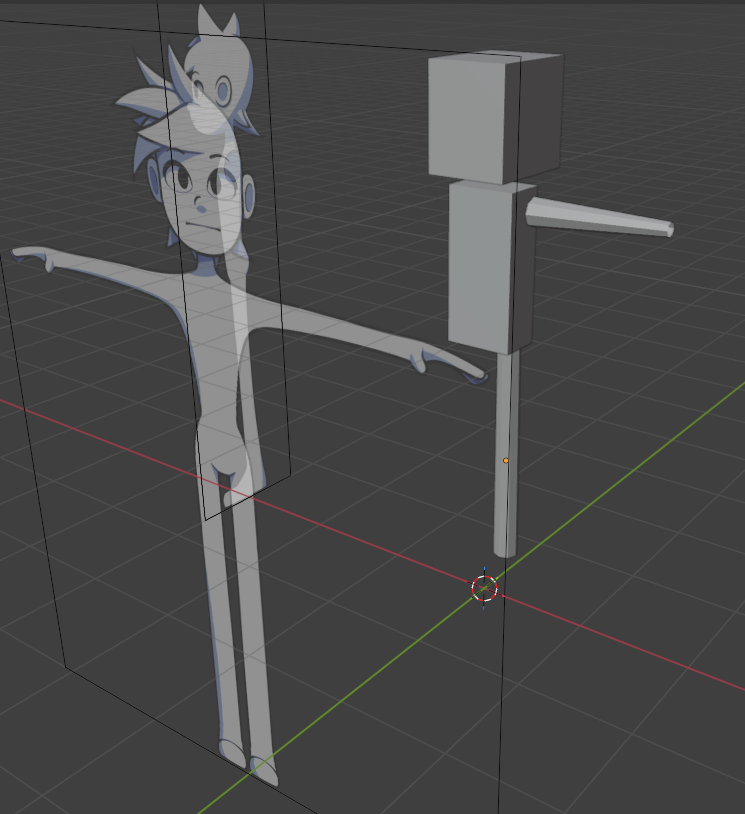
Let's block out the arms and legs now. To do this we'll click Shift + A to create a Cylinder like image 1, then change it's Vertices to 8, it's radius to around .13 for now(just eyeballed it), and set the cap fill type to nothing as shown in image 2. These settings can be changed by clicking the Add Cylinder pop-up menu on the bottom left hand of the screen immediately after creating the cylinder. If you do anything else it will disapear and will reappear the moment you add another cylinder. Once you've done that go ahead and move the cylinder into place on the character's left leg as seen in image 3.
Now copy and paste a copy of the leg to be used as the character's left arm. You can do this by doing Ctrl + C and then Ctrl + V. Then just move it near the arm, click R, then type 90 and hit enter to rotate it 90 degrees instantly. Then just move and scale the cylinder till it fits the arm image as seen in image 4.
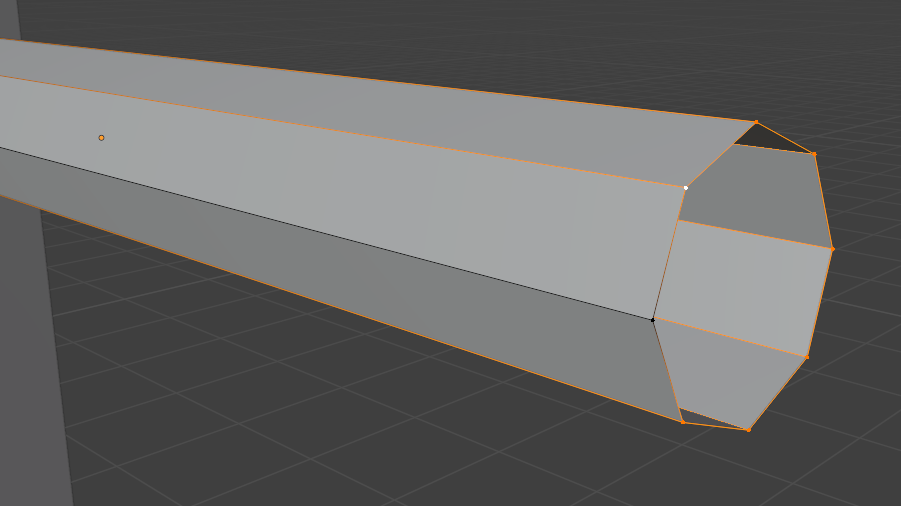
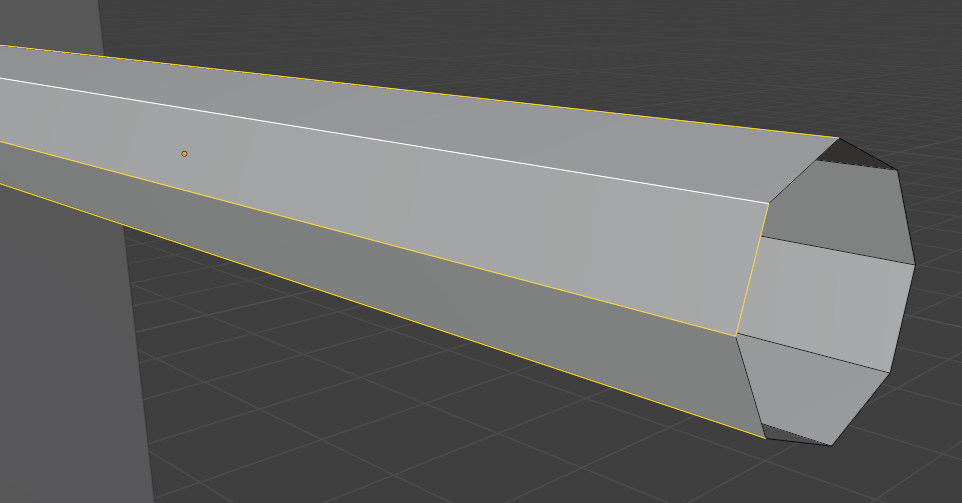
Once we've got the arms and legs into roughly the same places and sizes as the reference images hit tab. This will take us into Edit Mode, allowing us to work with what is called vertices, edges, and faces of objects. To explain this every object is made up of little points like atoms, these are called vertices. These vertices make up every point of an object. Then, kinda like one of those dot-to-dot games where you connect dots to make an image, vertices are also connected together with lines. These lines are refered to as edges. When any group of edges create a full loop then the center of this loop is called a face. A loop refering to going from one vertice across any number of vertices until your able to make your way back to the start without going backwards. Image 4 shows Vertices, image 5 edges, and image 6 the faces of the cylander we just made.
Using this info, while in edit mode move to the edge of the arm cylander closest to the character's torso and, while holding alt, click the vertices. This should select the entire circle at the end of the cylander for us to edit as seen in image 7. When you click S or G after alt clicking the end vertices then your able to scale or move only that part of the given object. Allowing for closer modeling of the arms and legs with tapering. After making some adjustments to fit the front and side profile of the model you should have something similar to image 8 right now.
Quick note: If you click tab again you leave edit mode and go back to the mode you were before. Also, you need to select all the objects you want to edit before going into edit mode to be able to actually make adjustments. Otherwise you'll end up like me, confused why I couldn't edit things besides the arm cylander we had selected previously.
Blocking Out Part 3
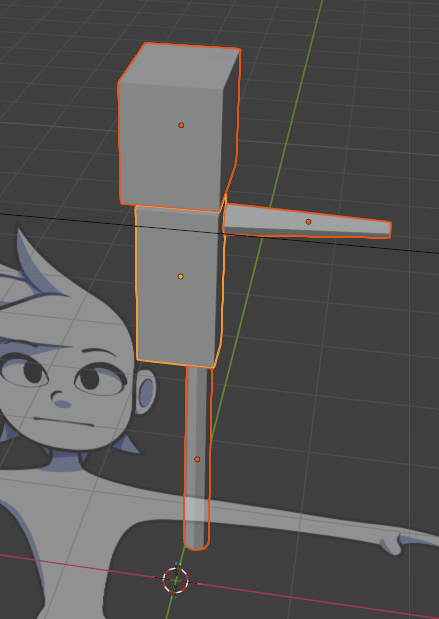
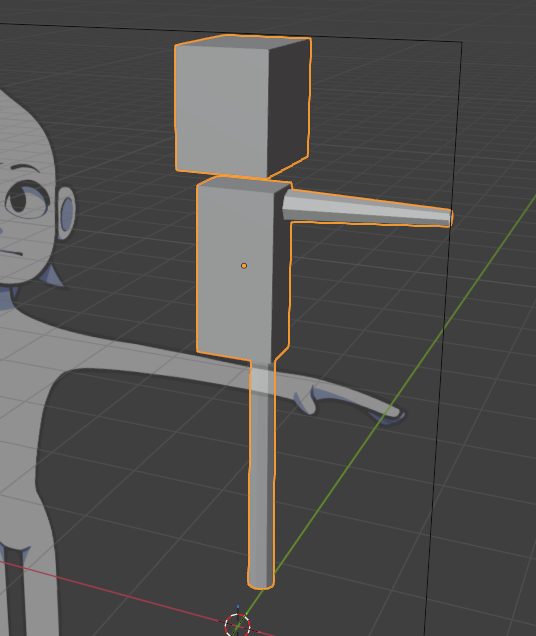
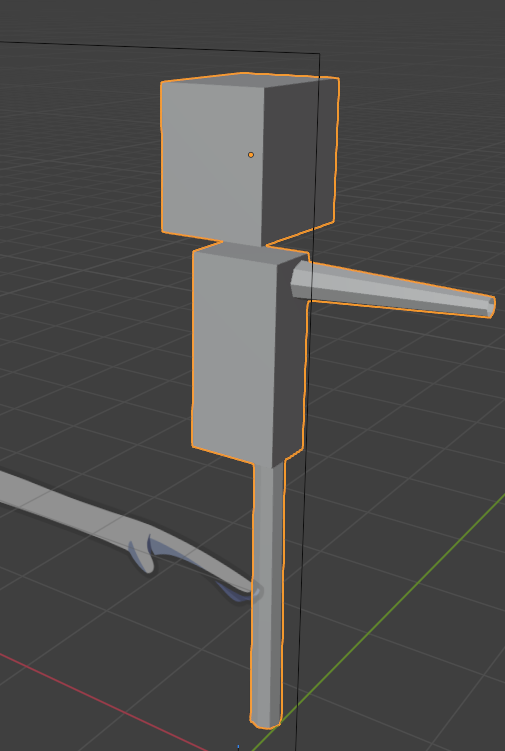
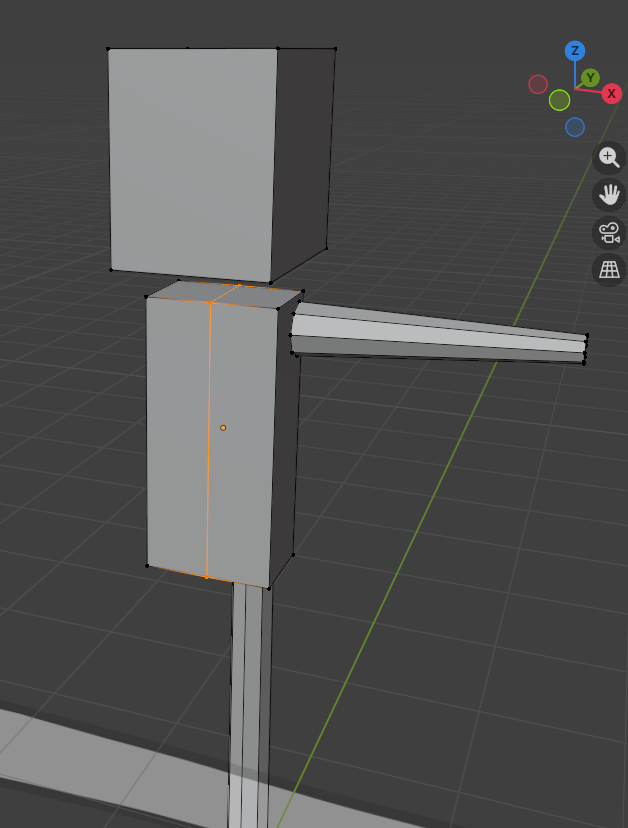
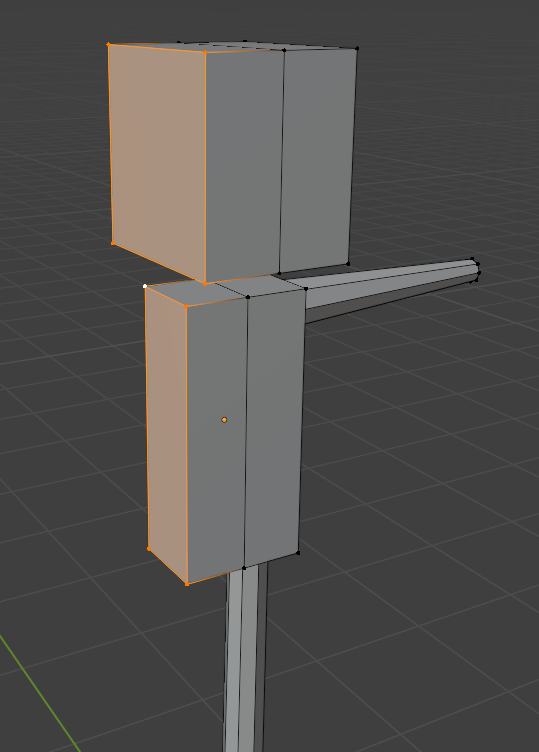
For this step we'll go ahead and give our poor character the missing arm and leg they desire. To do this we first need to hold Shift and select all of the objects we've been working with(minus the pictures). Ensure that the torso model was selected last as we want to use the torso's origin going forward then do Shift + J. This will fuse all of our objects together into one object and setting it's origin to that of the last selected object's origin. The orange dot in the center of image 2 is where we want the origin to be located. If your origin is like image 3, where the dot is in the head, or it's else where don't panic. All you need to do is keep clicking ctrl + Z until all the objects are unfused then selected them again, ensuring that you select the torso last. You can also make sure of this by clicking the torso until it's unhighlighted then clicking it again to re-highlight it, ensuring it's where everything will fuse to.
I should probably tell you why we care about the origin point of our model or why we need to fuse them into one object. It's because making character's is time consuming. So to hasten the process people who make characters use what is refered to as a mirror modifier which does about what you'd think it would do. It reflects what ever it's applied to. Specifically, it reflects a model across it's origin. So instead of having to model a full character we can just model half a character and get the same result. Then go in afterwards to add final touches unique to the left or right sides. So, right now we're priming the model to be mirrored to save time later.
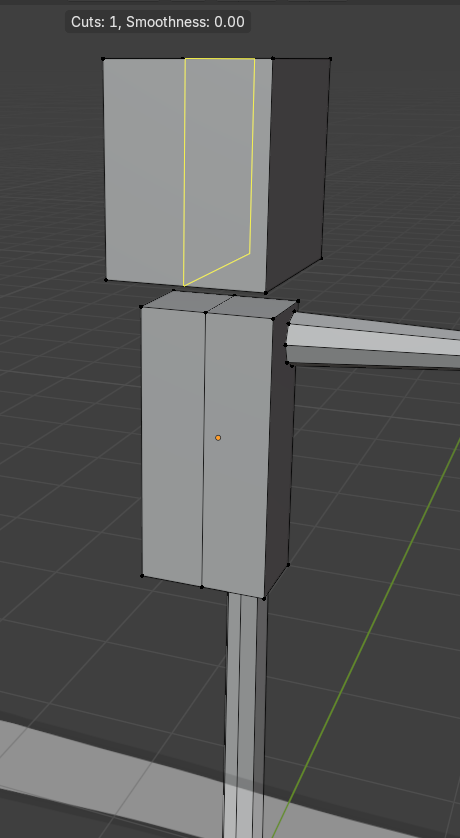
With the now fused model selected, hit tab to enter Edit Mode, and then click Ctrl + R to use the the loop cut shortcut. Keep moving your mouse until it's either on the top or bottom center of the torso, then a yellow line should become visible like what's seen in image 4. Left click and a new black line should be visible going down the center of the torso. We're doing this because we want to delete only half of the torso so by making a loop cut in the center we're setting vertices for the edges to connect to. Do the samething we did with the torso for the head so you get something similar to image 5.
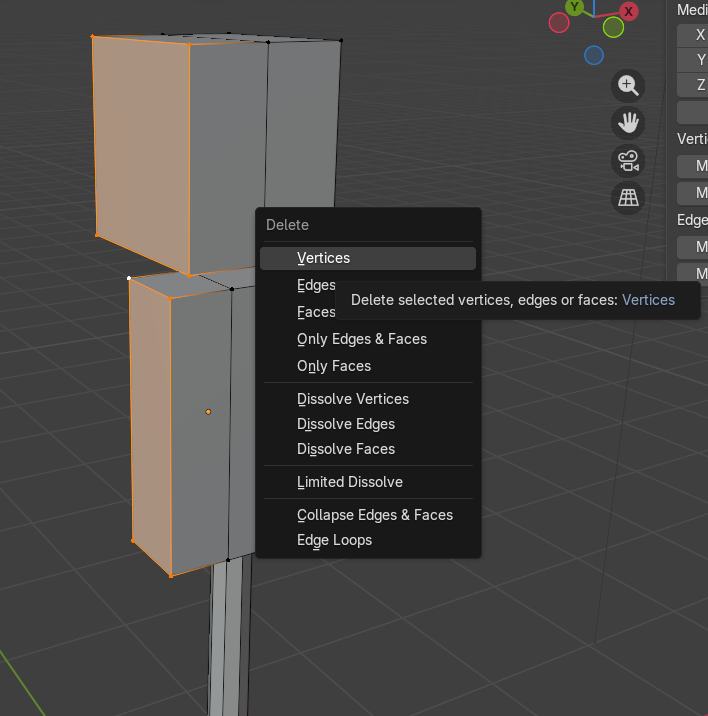
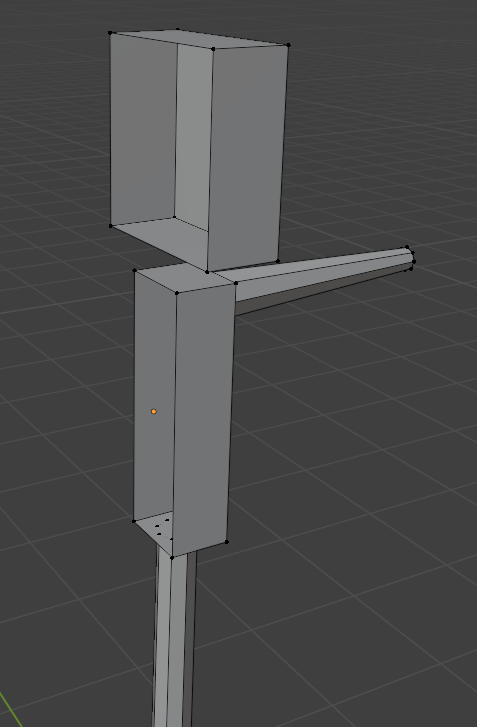
Now that we have loop cuts across the torso and head we need to delete the side without the arm and leg, in my case it's the right side of the character. While still in Edit Mode hold shift and click all the vertices(points) on the right side as seen in image 6. With them selected click the delete button on your keyboard. When you do a menu like what's seen in image 7 will appear wherever your cursor was when you clicked it. Select the Delete Vertices option. Doing this should give you a similar result to image 8.
Also, here is a quick overview of what the origin is. The origin acts like the center of an object, kinda like it's center of gravity/mass. It's the point where the object will pivot around and defines it's location in space.
Blocking Out Part 4
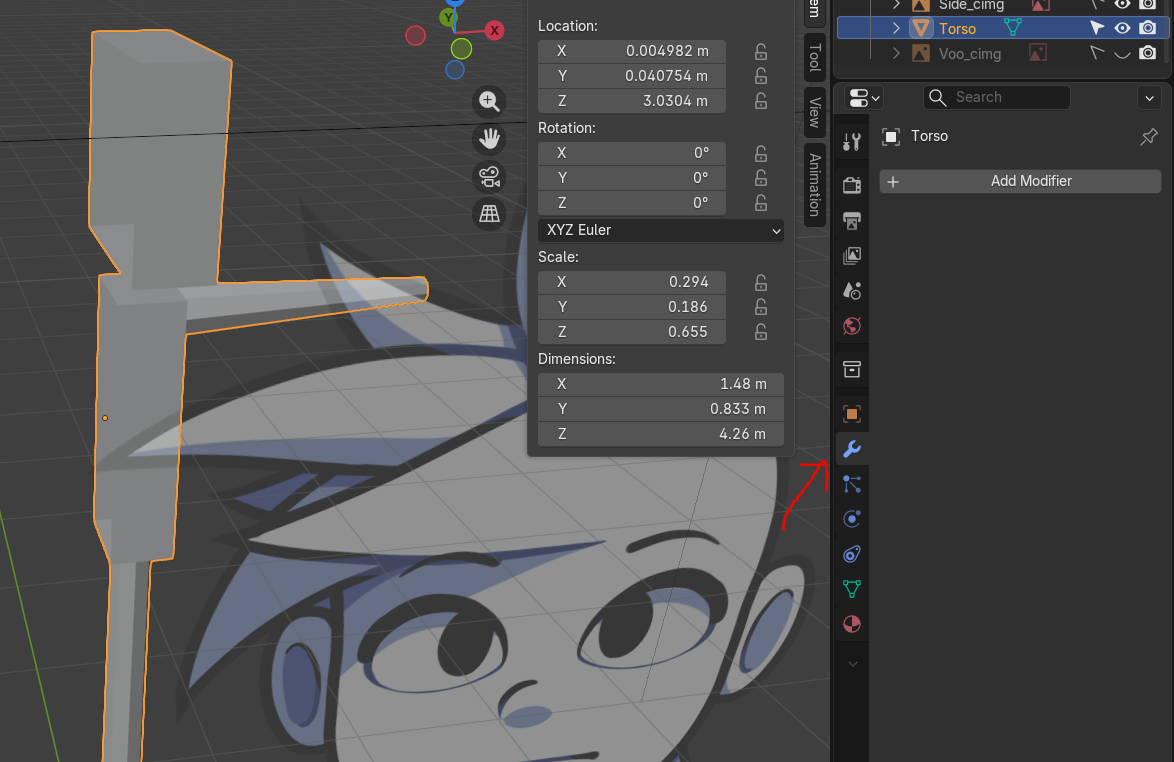
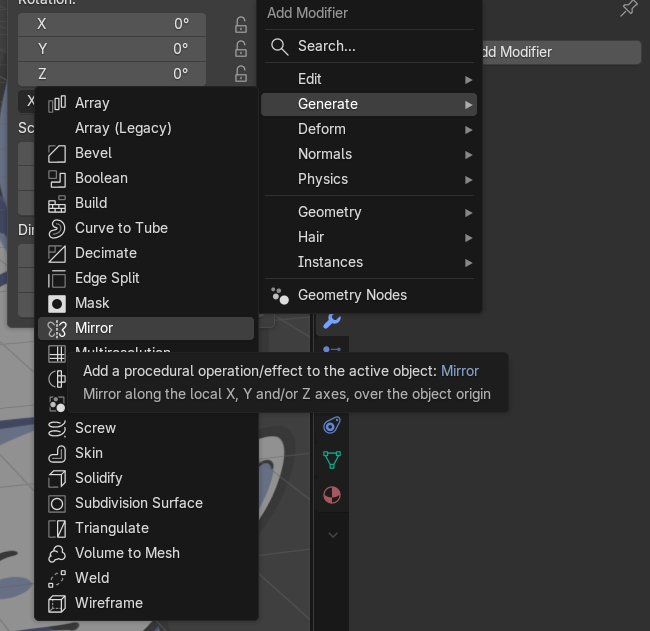
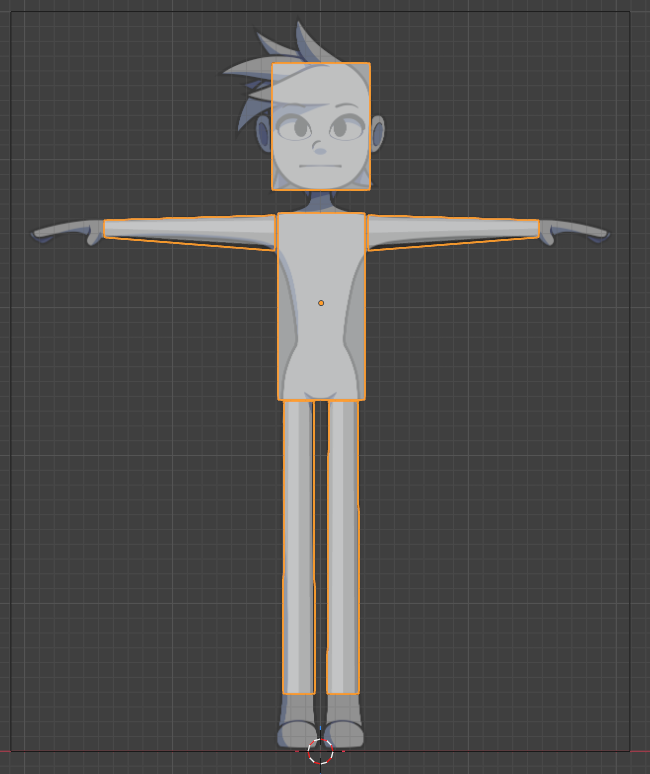
Finally in the home stretch! Everything is in position, all the objects have been joined, and we've primed the model to be mirrored. It's time to give this character two full arms!
But first, it's time we introduced the Modifiers tab. This is where we can add all kinda of crazy and whacky effects to our models. Wanna bevel something? Modifier's tab. Wanna make an ocean? Modifier's tab. Wanna added hair to anything and everything? The Modifier's tab has a whole section dedicated just to hair!!! Not that I can figure out how the add hair... That is to say that the Modifier's tab is where we're going to go when we need to modify our objects in strange and interesting ways. I'd recommend play with these in a seperate file.
Now let's click the the wrench icon on the middle right side of the screen as seen in image 1. Then click the Add Modifier button, hover over the generate tab, and then select Mirror. Do this will add the mirror modifier to the selected object and show us what is looks like in our scene view. Resulting in a very similar scene as shown in image 3. Man, they grow up so fast *sniffle*. It feels like just yesterday our scene was populated by only the default cube. I couldn't be any prouder.
Wait! Don't forget to save! Remember the shortcut is Ctrl + S
Blocking Out Part 5
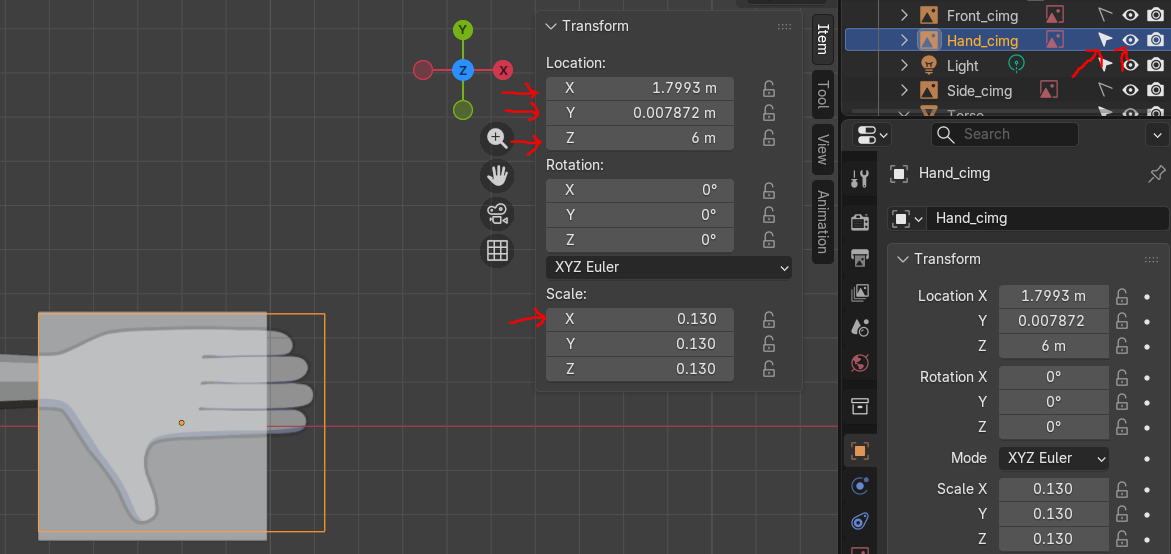
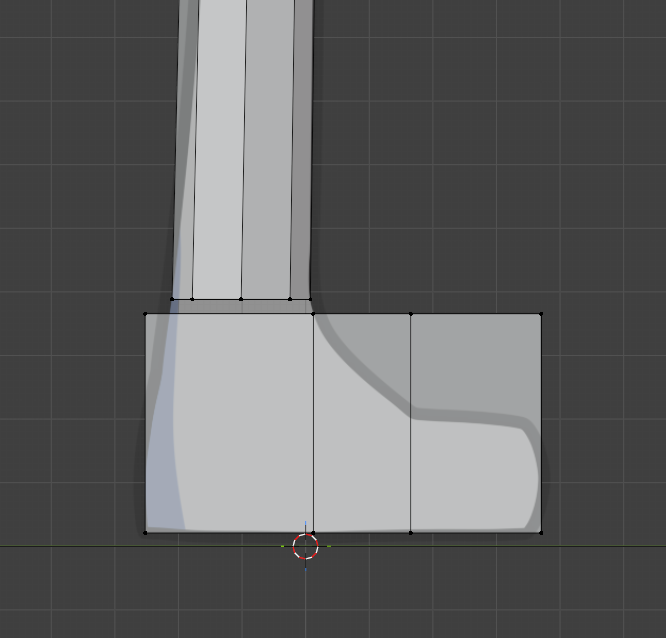
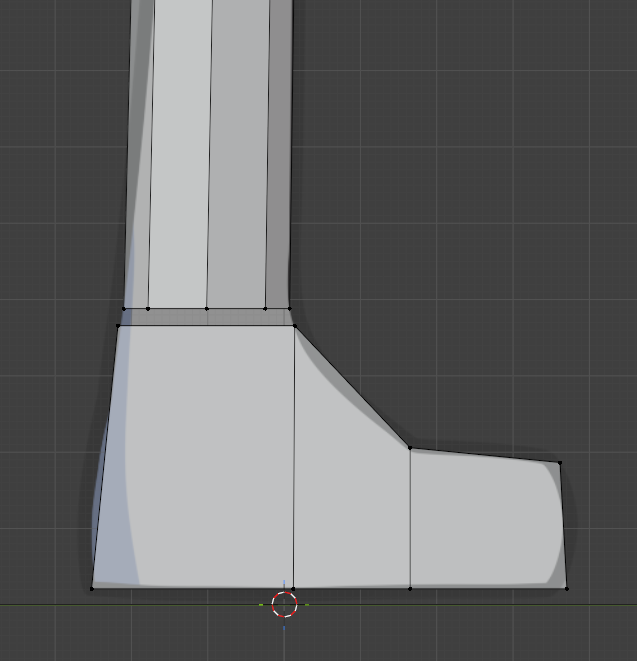
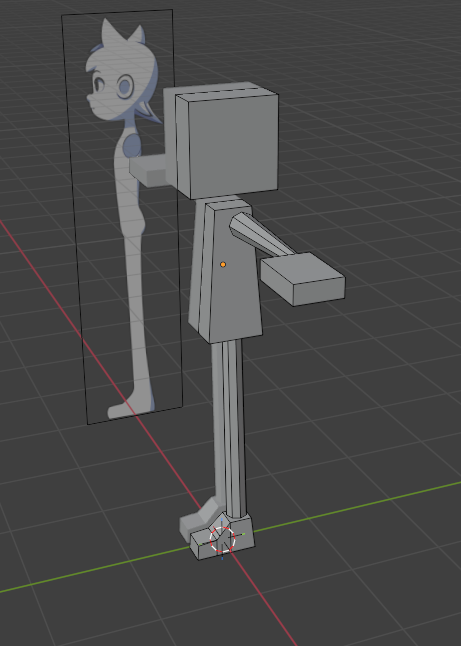
It's time to add the hands and feet. To do this go ahead, while in Edit Mode with the character object selected, click Shift + A and then spawn in 2 cubes. One will be used for the feet and the other the hands. So start moving them in place with G and sizing them with S. Don't forget to lock the the effects to the desired axis when needed by clicking X, Y, or Z while in these modes.
While getting the hand proportioned don't forget to unhide the image and allow for selection again so that you can move it in place with the model. With the arms modeled it should be easier to line things up with the model. You can also copy my scale and position settings as seen in image 1 then make small adjustment from there to fit your scene.
For the feet make some loop cuts so that we can select the vertices and move them down. You'll need to rotate your camera in a position to shift select both dots then hit G to move them into position. Keep selecting vertices and moving/scaling them until everything looks good enough. Remember to hold alt and select vertices or edges when your trying to select an entire loop/segment, saves time.
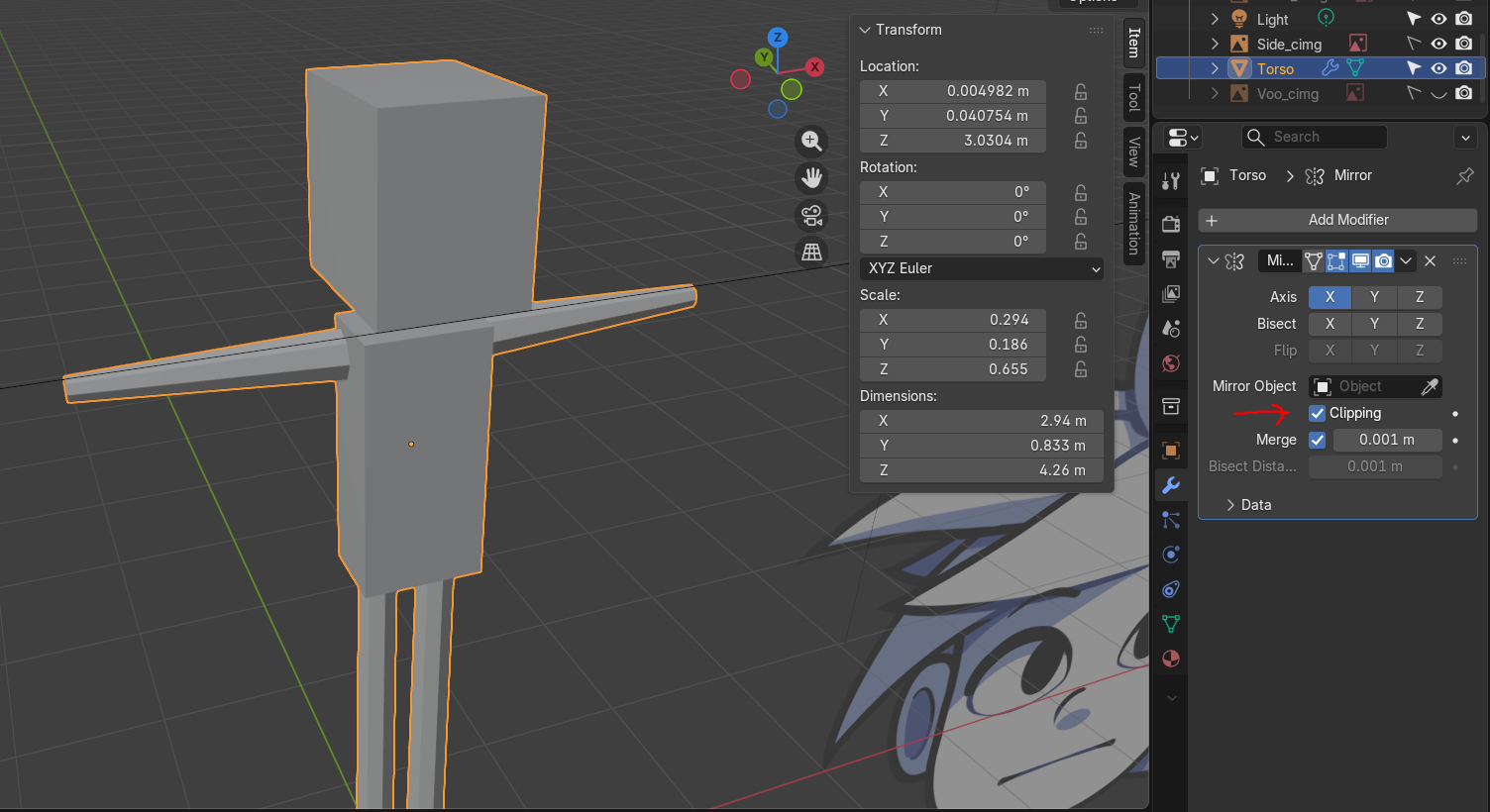
Let's enable clipping by selecting it in the modifier's properties tab, as seen by the arrow in image 4. With this enabled besure you don't move mirror objects to close to eachother. Otherwise, they'll fuse together which you definitely don't want right now when your trying to do fine touches on your model. Main reason we're enabling this is for when we start messing with the torso shape.
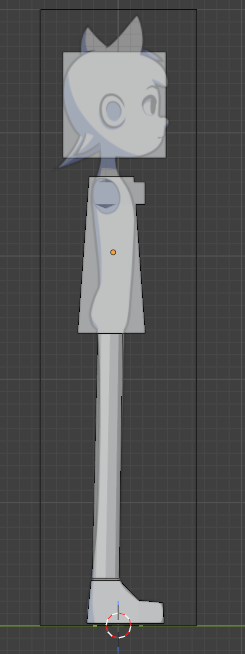
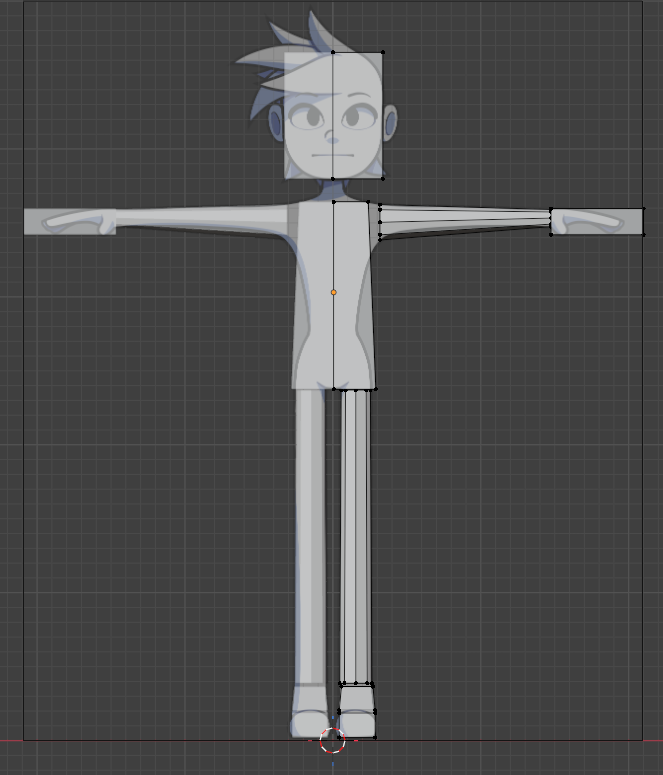
Don't forget to make a few alterations to the arms and legs to try fitting the guide as best as possible. However, unlike the thin waisted guide were gonna do more of a tear drop/oval shape for the torso as seen in image 5 and 6.
After everything is said and done your image should look similar to image 7. With this were pretty much done with blocking.
Wait! Let's save! Remember the shortcut is Ctrl + S
Creating the Head
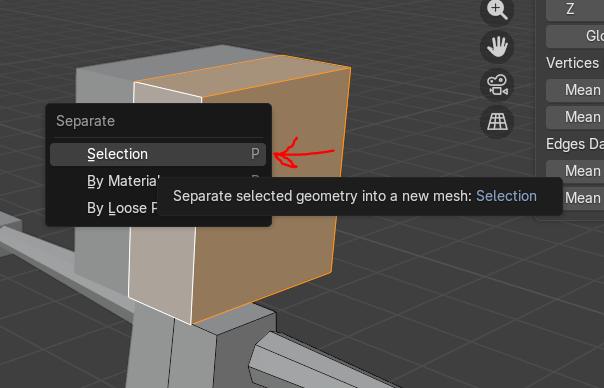
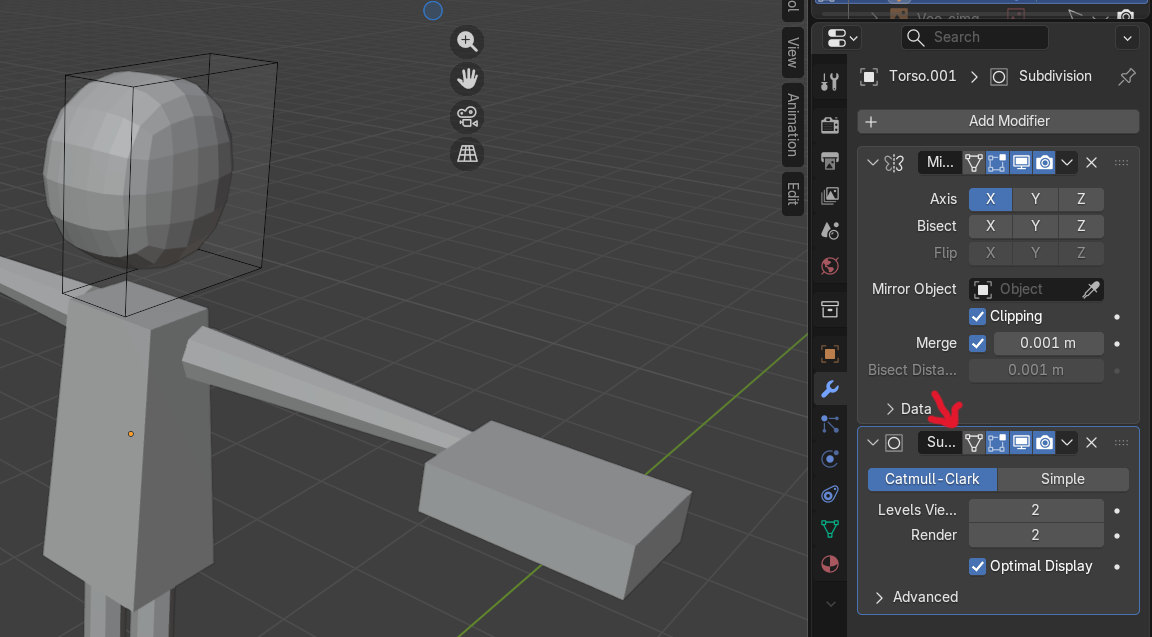
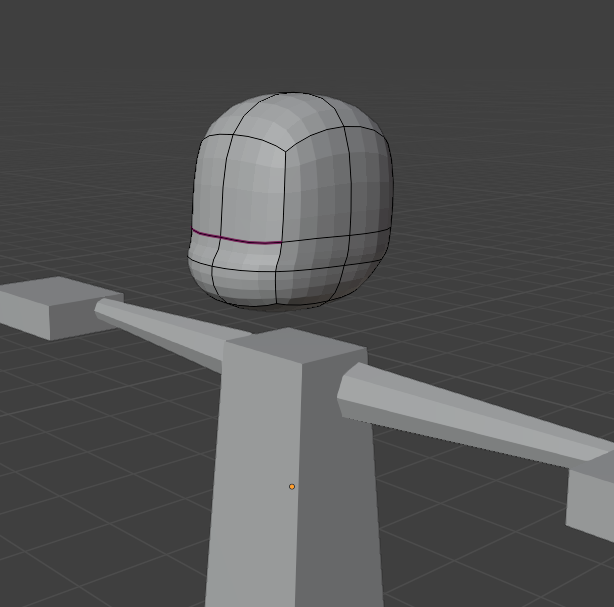
Now that we have the general layout of the body we want let's go ahead and begin creating the head. To start go aHEAD(get it...cause we're trying to work on the head...pretty funny right...) and hit tab with the character model selected. Then, while hovering the cursor over the head click L to select everything and then P to get a menu similar to image 1. Select the Selection option and then the head object should be unjoined from the rest of the body. We'll reconnect it later, I swayer, so don't lose your head over it.
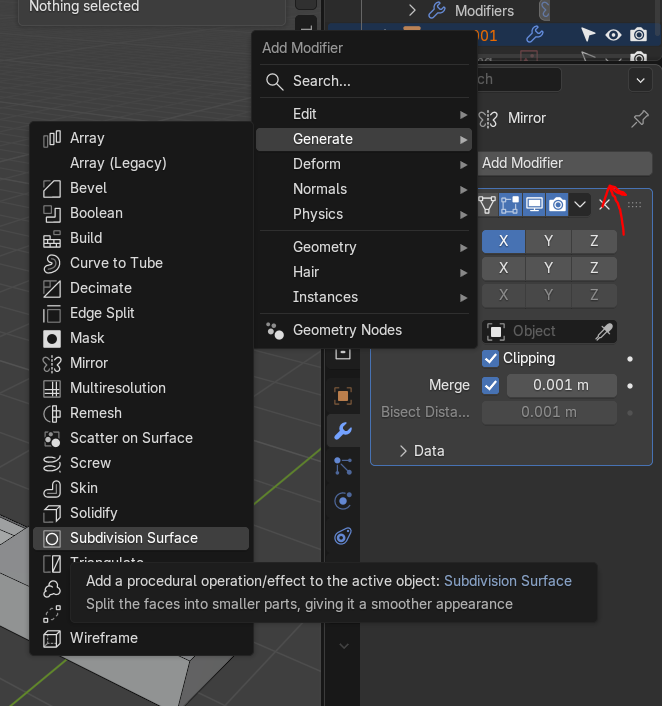
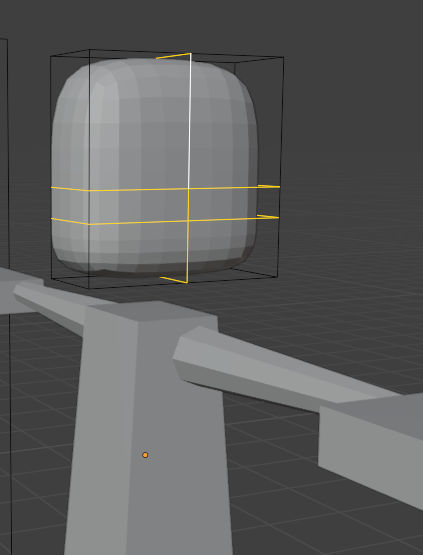
Now that the head is a seperate object go ahead and exit Edit Mode so that we can unselect the body. The head should be the only thing selected, once it is go back to Edit Mode and in the Modifier's tab add the subdivision modifier to the object as shown in image 2. Increase the subdivision amount to something you like, I'm personally using 2 as it's not too much detail my computer breaks but just enough that I can get the detail I want as seen in image 3. Also be sure to click the On Cage button in the modifier preferences as shown in image 3 with the red arrow. Then add 2 loop cuts on the sides of the head(This is done by scrolling on the middle mouse wheel before left clicking) and one on top of the head. Then start moving/scaling these new cuts across the Z axis until you have something similar to image 4.
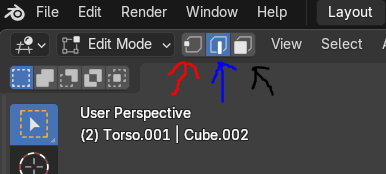
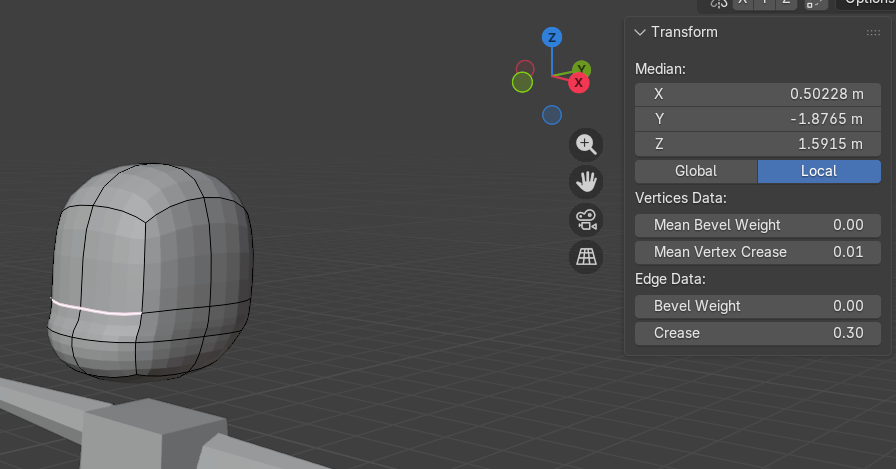
For the most part setting up the head and most other body parts will be up to the personally eye of the person making it. Though the general tools you'll be using to set up and modify this head object will be S(Scale), G(Grab/Move), and R(Rotation). You'll also be switching between between selecting the vertices, edges, and faces of the object with these options corresponding to the red arrow, blue arrow, and green arrows in image 5 respectively. You'll also wanna try adding a crease to add more weight/sharpen lines on the model. This is done by selecting any edge on the model then increasing the crease option on the top right menu until your satisfied like in image 6. My final result after my personal tweaks is image 7.
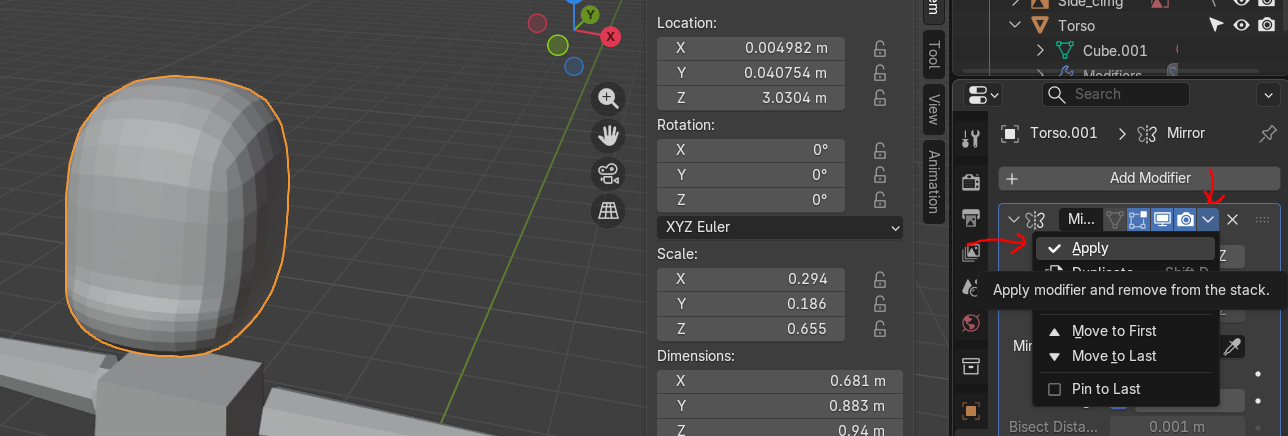
Now that we have a head shape we're happy with let's go ahead and apply the mirror modifier, then the subdivision modifier. You can do this be leaving Edit Mode(hitting tab again and your no longer able to select faces) and then clicking the down arrow next to the X button for the mirror modifier like in image 8. Do the same thing for the subdivision modifier as you just did for the mirror modifier. This will give us alot more vertices to work with as we begin the next step.
Creating the Button Eyes Part 1
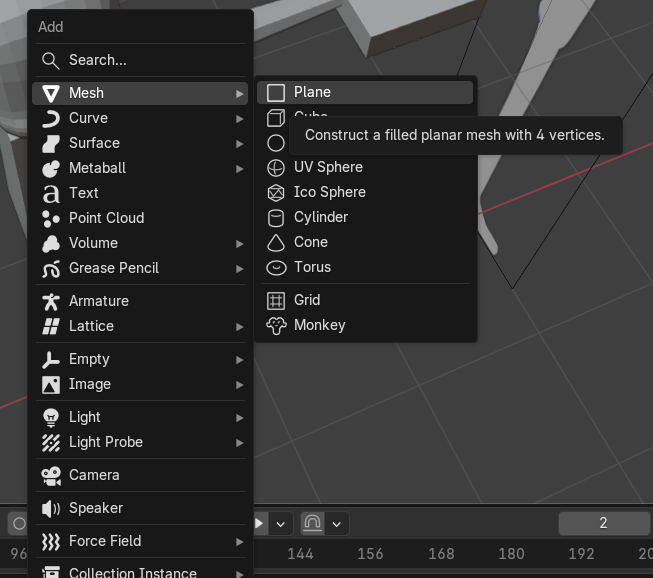
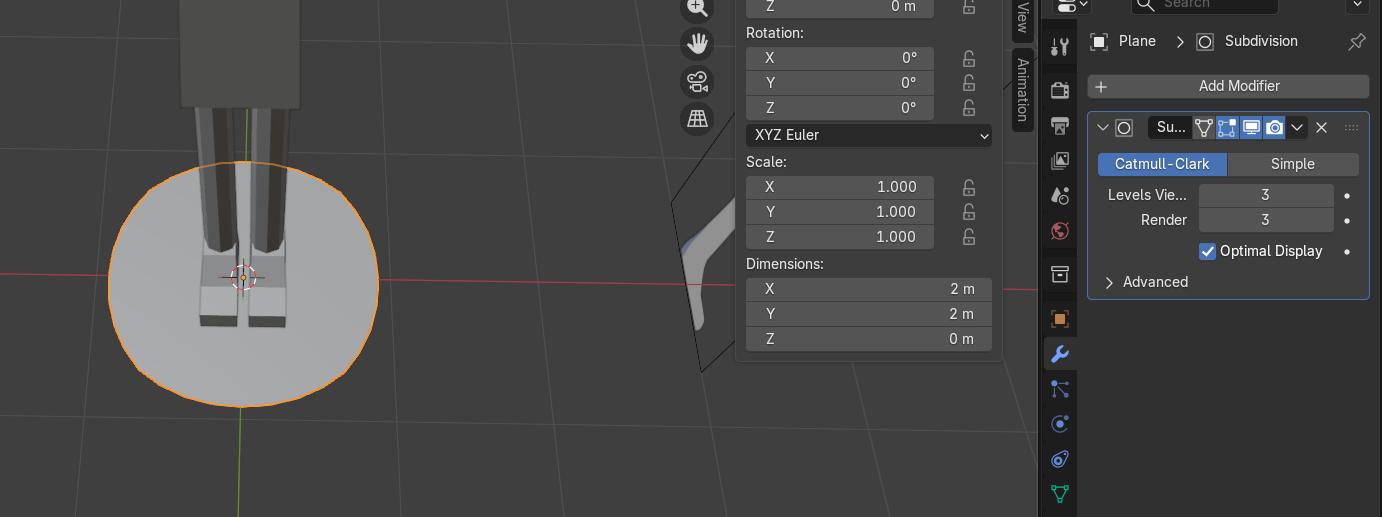
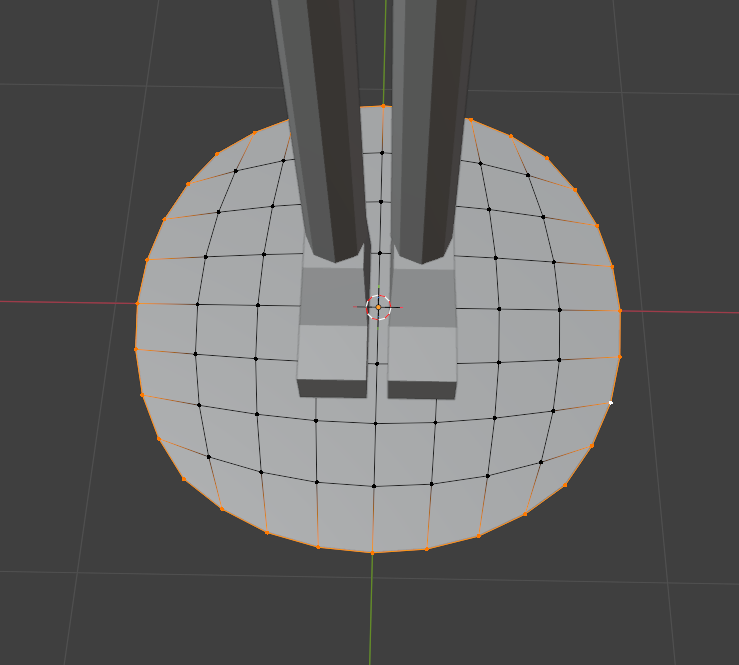
Now let's make some eyes! However, as we already know I'm still new to blender which is why I want to say thank you to Ryan King Art for his amazing tutorial on making buttons! Link to the video will be below.
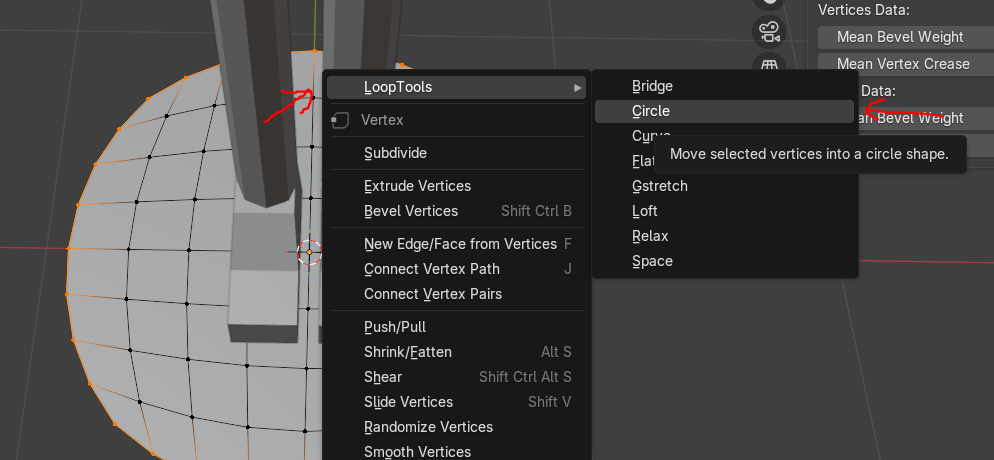
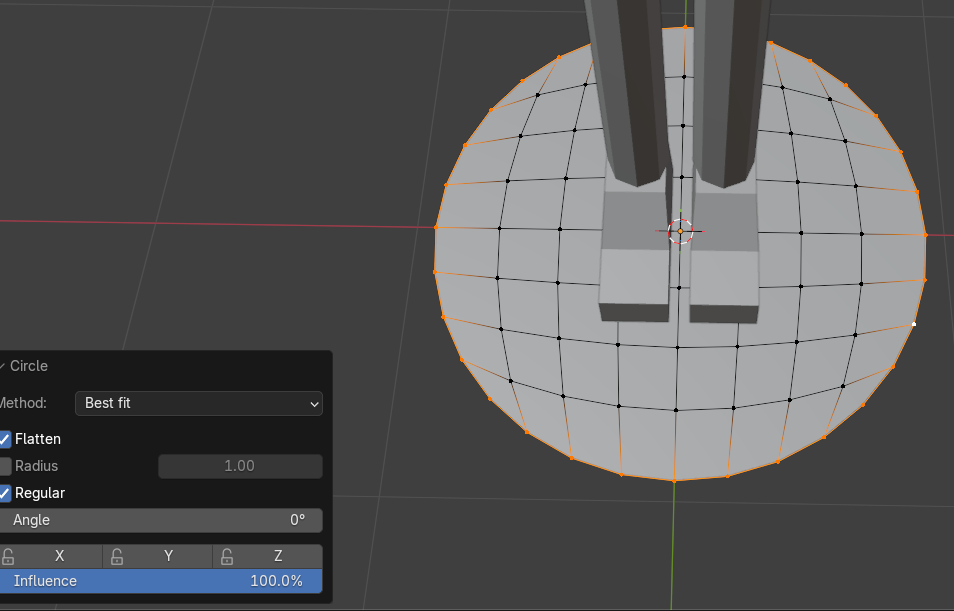
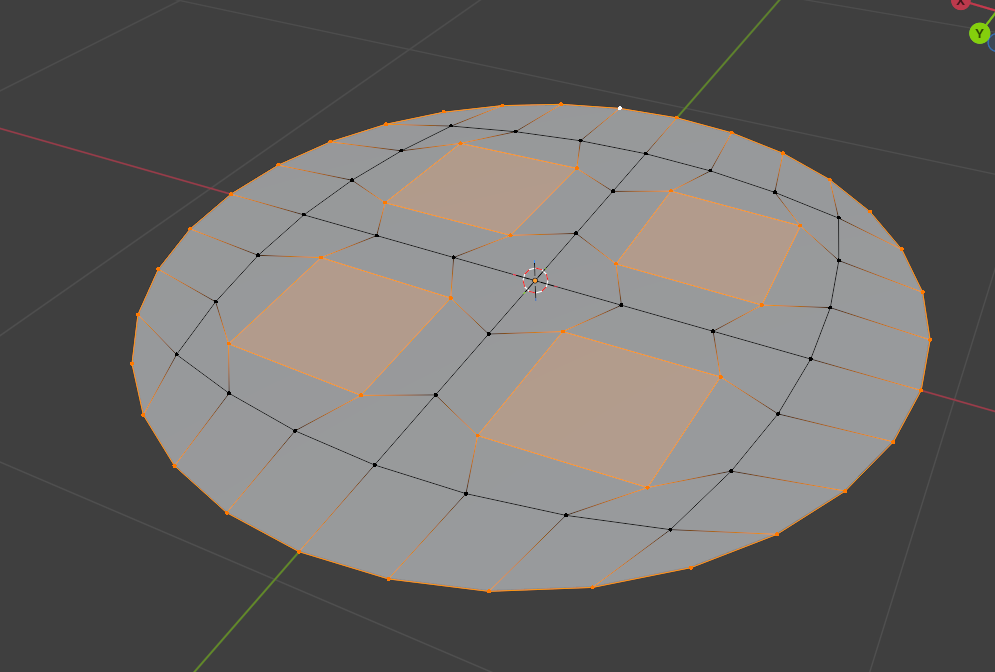
First we're going to need to add a plane to our scene. You can do this by doing Shift + A, hovering over Mesh, and then selecting Plane as seen in image 1. With the plane selected, go to the Modifier's tab and give the plane a subdivision modifier, and then set the setting to 3 as shown in image 2. Now apply the modifier to the object like we just did in Step 15. Let's enter Edit Mode with tab, then use Shift + Alt to select all the outer edges like image 3. It's time to break out the loop tool add-on we set up a while back. Let's right click with all the outer edges selected. When we do that you should see a menu pop-up, with LoopTools being at the top. Go ahead and hover over loop tools and select the circle option like in image 4. Doing so should give you a result like image 5, however it might auto twist itself for no reason so be sure to set the Angle in the lower left hand corner to 0.
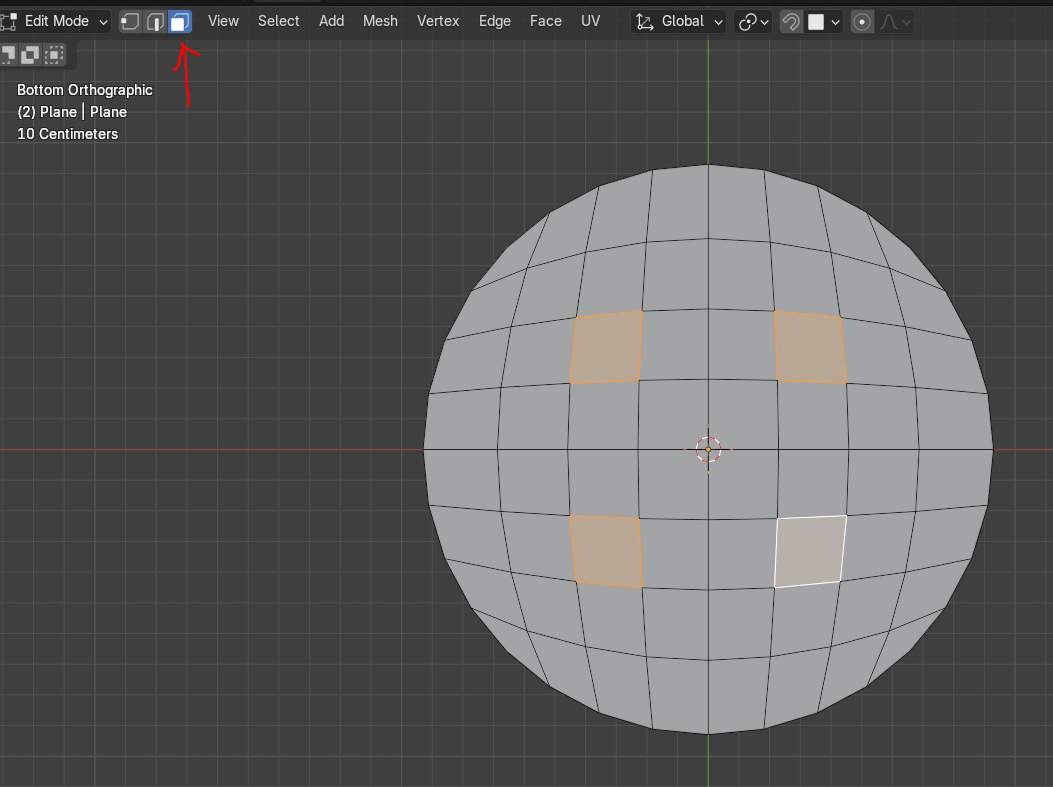
In the top right corner hide your main character body and head for now as it's in the way. Remember you can do this by clicking the eye icons. With them now out of the way enter face select mode, just tap 3 on your num pad, and then select all diagonal faces of the 4 center cube like in image 6.
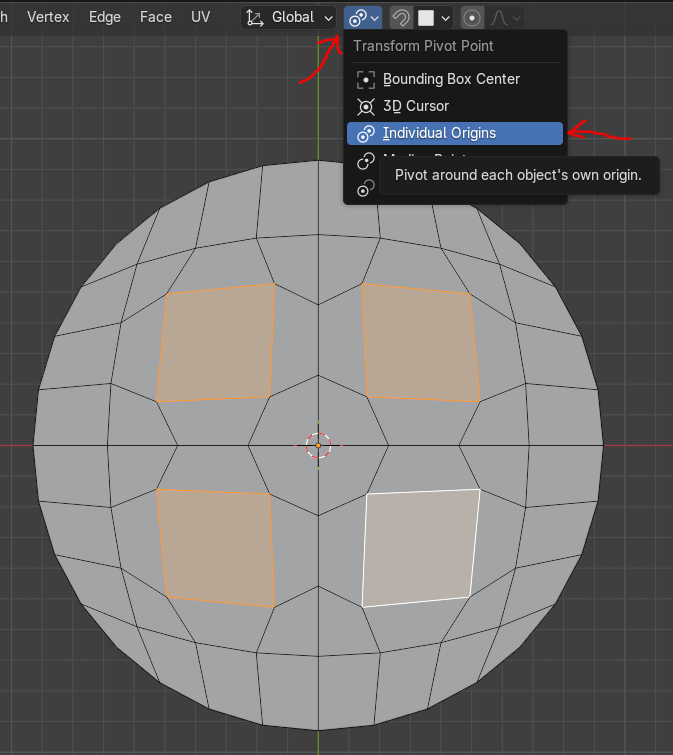
Next, let's change the transformation point of our selected faces to be individual by doing what's shown in image 7. Then using S to scale the faces until they look about right. Once done go ahead and change the transformation point back to Median Point.
Quick review of the transformation pivot point. Pretty much you know how we talked about every object have an origin which an object works around. Well, when you select multiple objects(vertices, edges, or faces) a temporary origin is set up and it usually in the absolute center of the selected. This means that all the effects(like scaling and rotation) work around that temporary origin while everything is selected. What we did was instead of using the center of the faces we selected and moving in relation to that central point we set a new center to each selected face. So now we can effect them in relation to thier unique center instead of a median center.
Button Modeling Tutorial:
Creating the Button Eyes Part 2
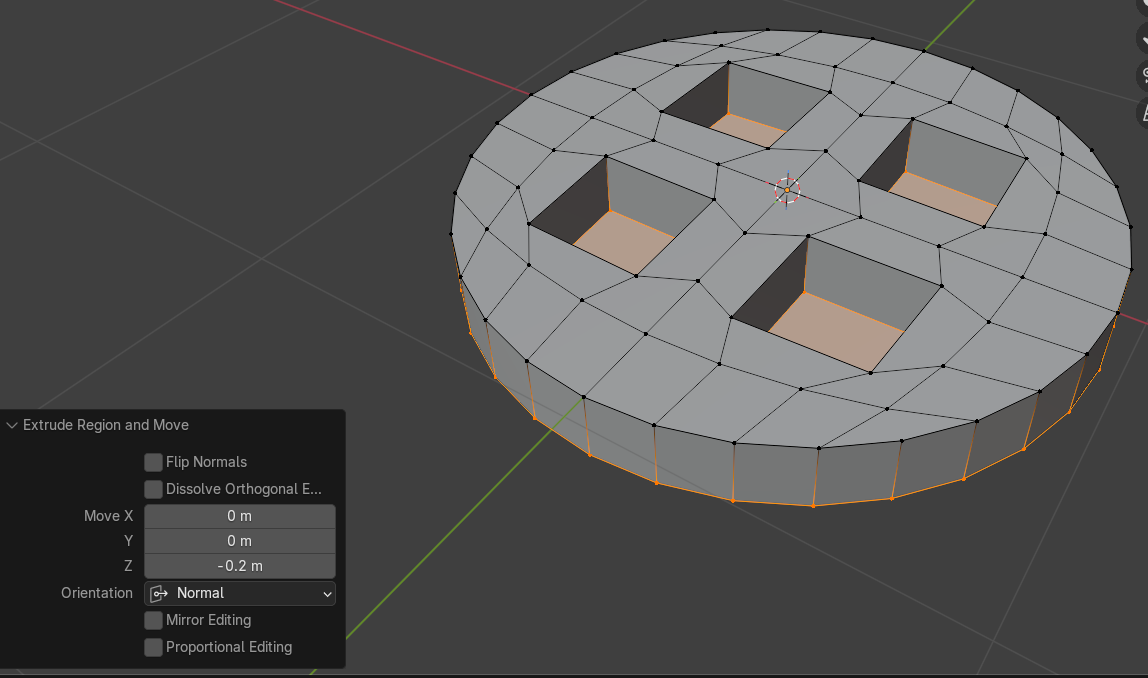

Just like we've done before, select the 4 diagonal faces and the entire outer edge with Shift + Alt to get something like image 1. With these selected we get to use a new key called Extrude! This is done with the shortcut key E. After clicking E bring your points down about -0.2 mm like image 2. With everything still selected hit the delete button on your keyboard and select Faces. That way we now have holes through the button that we can use for the stitching.
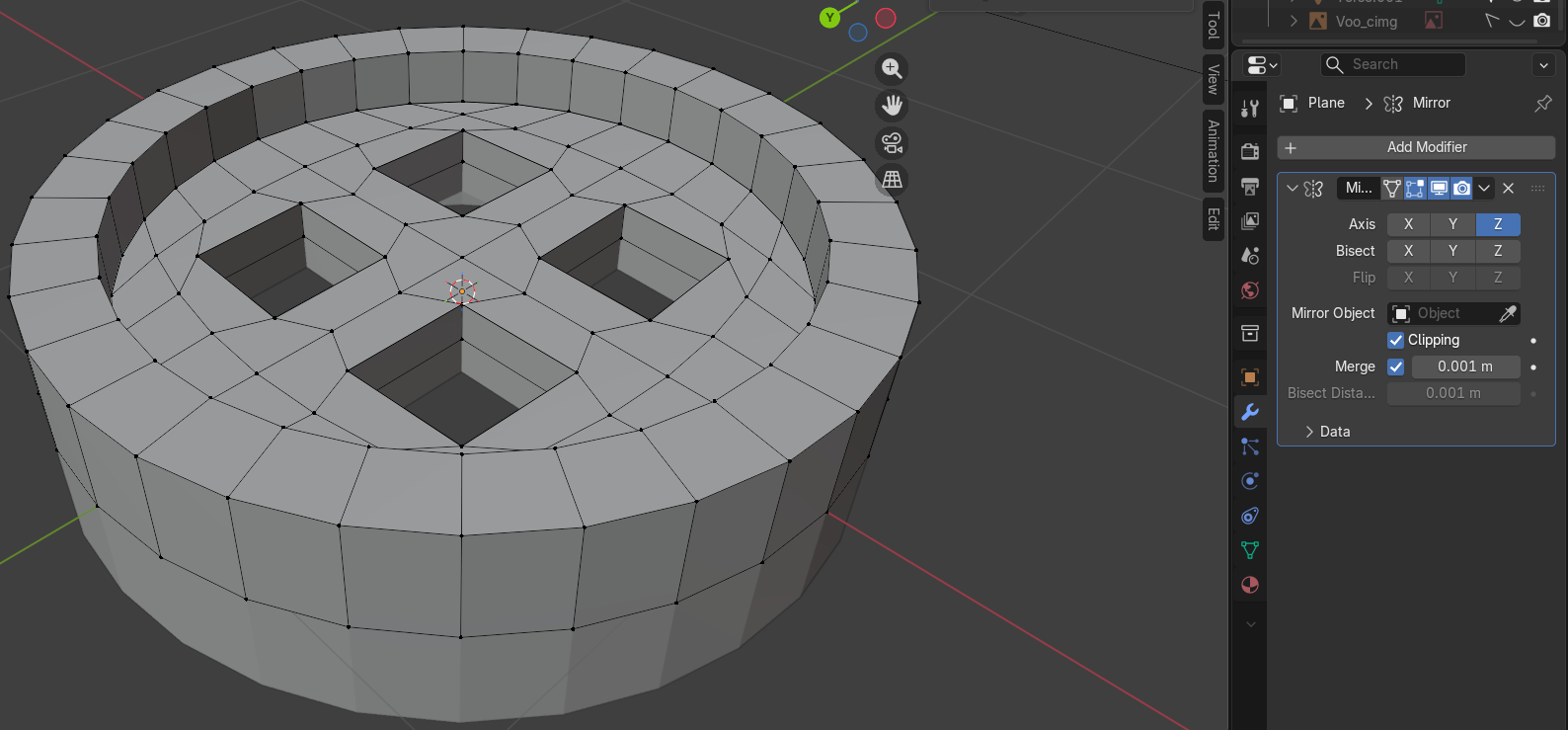
Next, we will need to add the mirror modifier on the object. Then unselect X and select Z for the axis of mirroring. Once this is done use G to move our model up so that it's now above the mirror. Shift + Alt select the bottom edges of the button that we just extruded down and use G + Z to move it up. Once it's above the base button level use E and S to until you get a good outer thickness. Enable clipping on the mirror modifier. Click E and G + Z again for the outer edge. Then go down until both sides of the button meet so that they fuse together resulting in image 3.
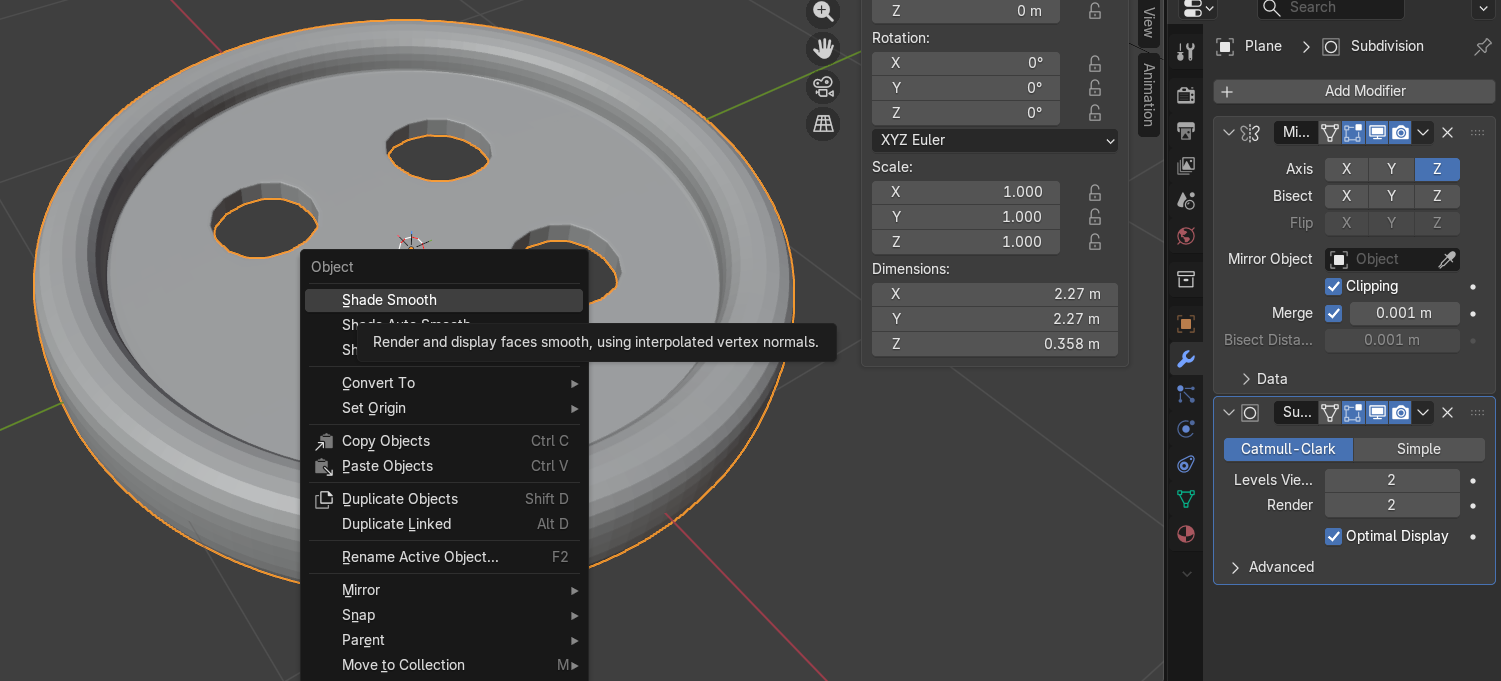
Add a subdivision modifier to the button while using edit mode to adjust the proportions of the button until your happy. Be sure to exit Edit Mode for this next part. As you can see in image 4, I set the subdivision modifier to 2 and then right clicked on the object. Doing this opened a menu with the Shade Smooth shader. Go ahead and select that.
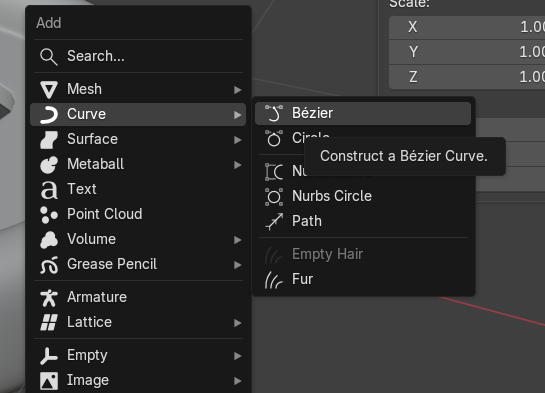
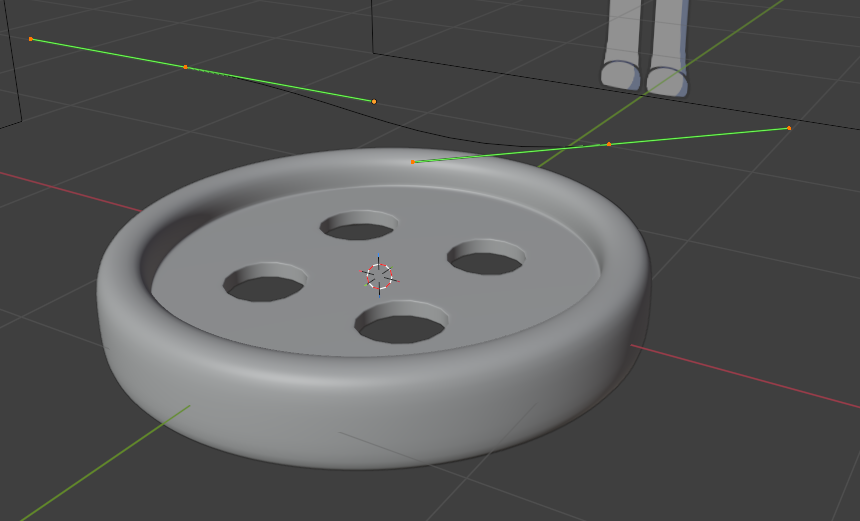
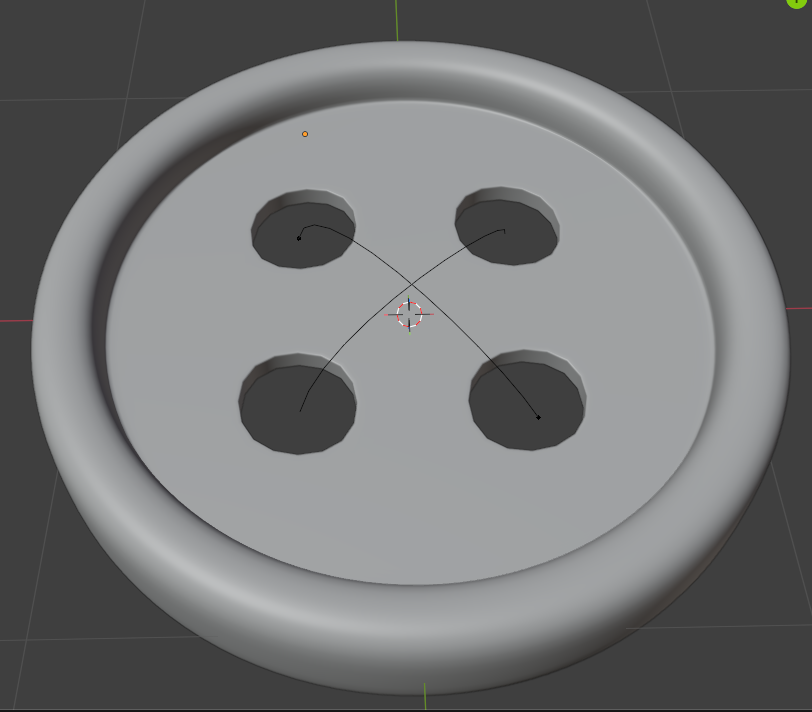
Now that we have our buttons looking like actual buttons let's start with the stitches. To do this click Shift + A, hover over Curve(Not Mesh!), and then select the Bezier option as shown in image 5. Next click G + Z to move it up so we can see what we got! Itsa noodle, nice. With the line selected hit tab to enter Edit mode. Don't be surprised by the light sticks at the end of the noodle in image 6. That's how it shows it's affection. Just joking, these are actually the control handles for the line. These control lines control the shape and tangent of the curve. Allowing us an easier time moving the line how we want it to move. Besides the control lines this is a very simple process. Just use G, R, S, and the control handles until you get the line into a good length/position as seen in image 7. Next we'll copy and past the line we just made with Ctrl + C and Ctrl + V. Rotate and move the new line to be in position with the other pair of holes like image 8.
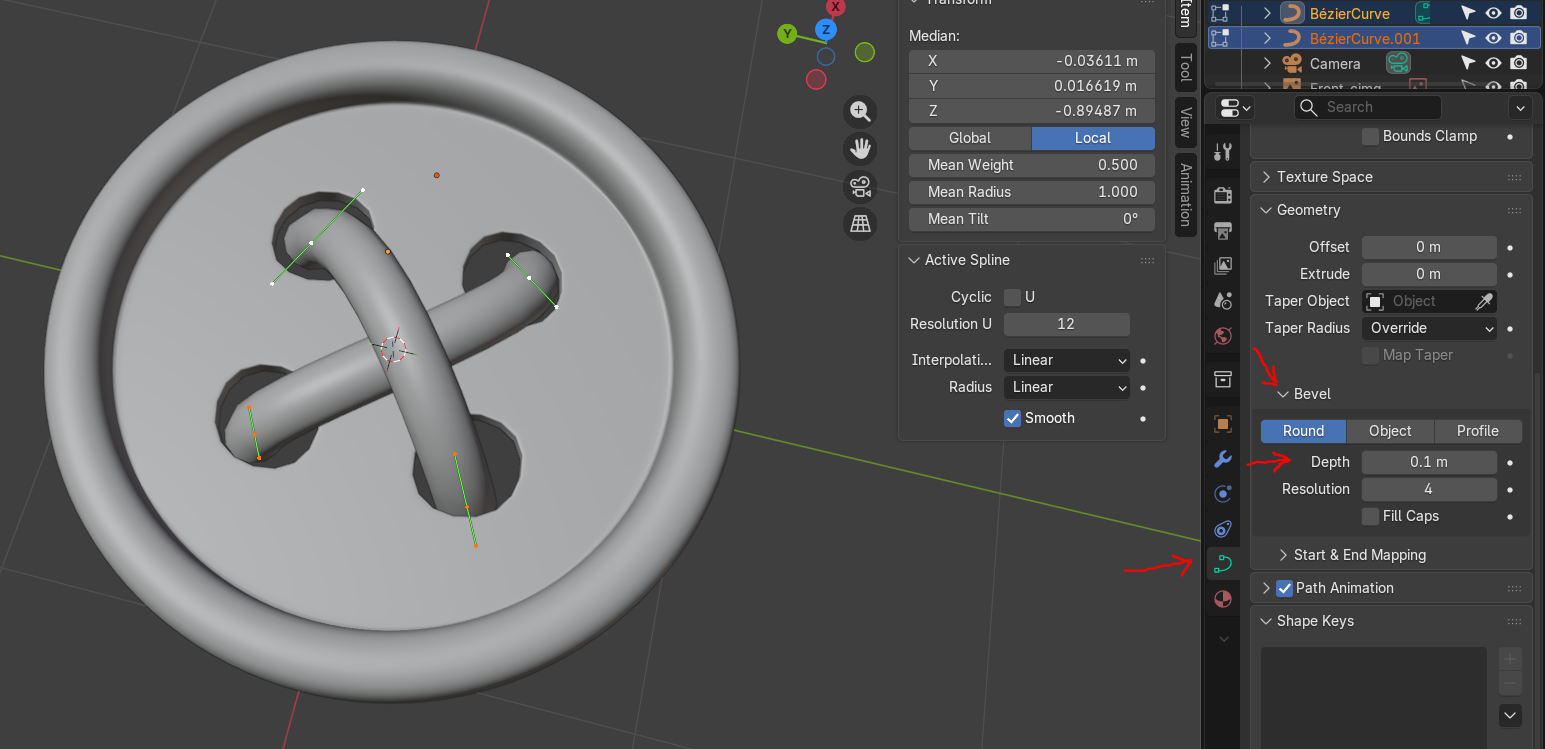
Finally, let's give the stitches some thickness. To do this, with the lines selected, click on the Data tab on the right bar. Then click the Bevel list and finally increase the depth value till you get something you like. you can also look at image 9 and follow the arrows. I will say that you probably want to adjust things in Edit Mode for a bit until your good with the result.
Wait! Let's save! Remember the shortcut is Ctrl + S
Setting Up the Eyes
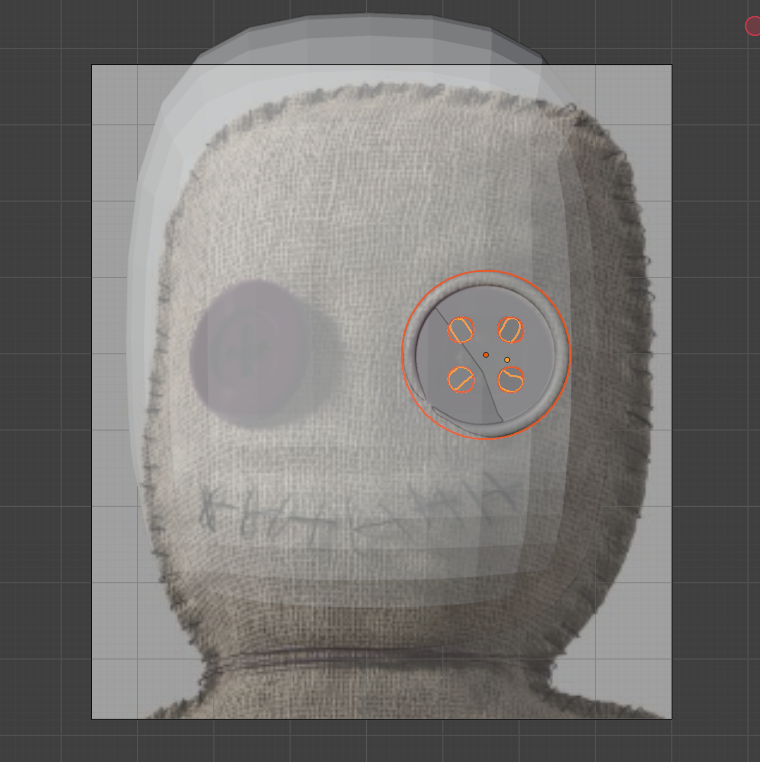
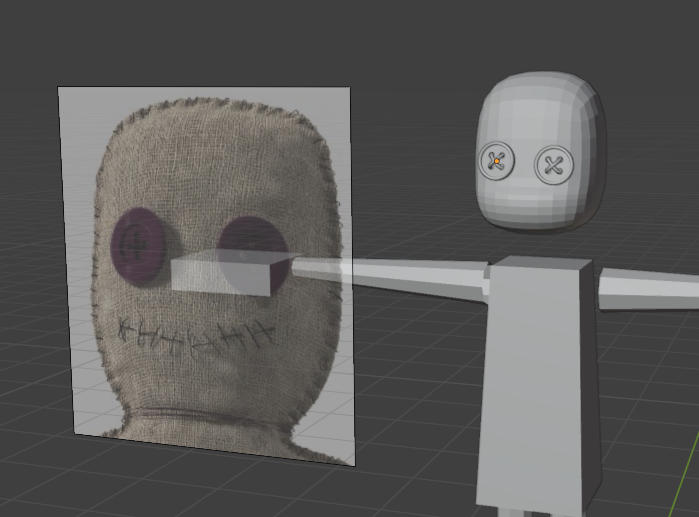
Go ahead and unhide everything we hid previously. Also unhide the voodoo doll face from earlier so that we can begin moving/scaling the eyes into place. This is another process that takes a bit a fandoodaling, so just adjust it until you think it looks good. I made a few teaks later that doesn't line with the reference because I personally like them better. Just go with your gut. Also, be sure to copy and paste a second eye into the scene so that our character has both. Or, if your feeling spicy, you could delete one of the buttons and only have the stitching there. That's also cool.
Creating the Stitched Mouth
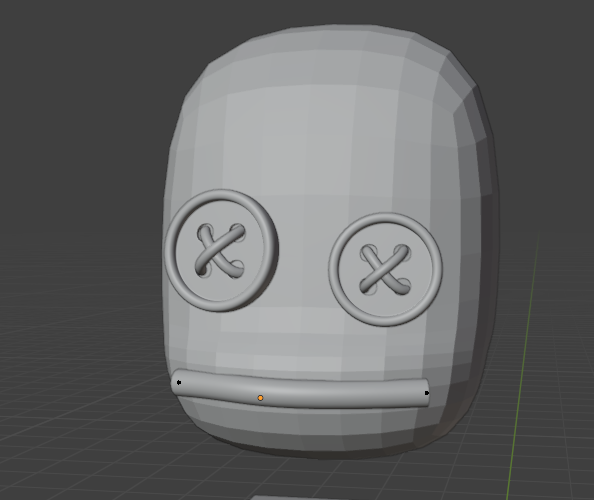
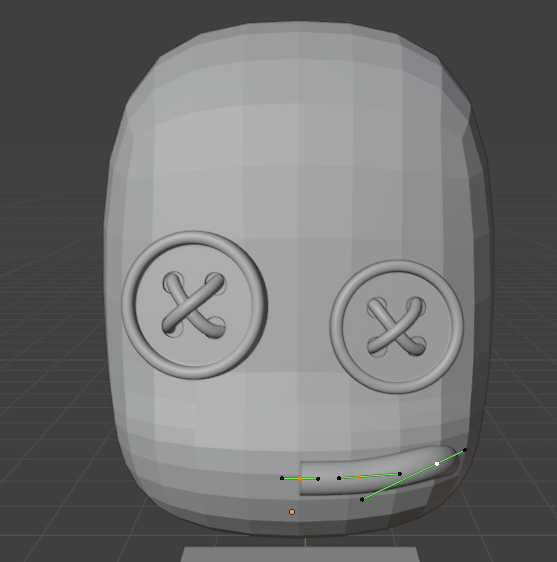

Let's make the mouth now! Using what we learned from setting up the stitching for the eye let's create a mouth and then put stitches across it like our reference Voodoo image.
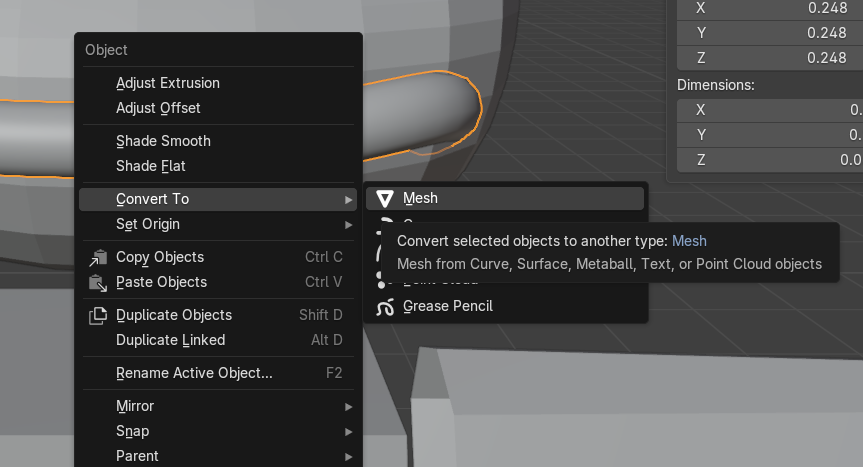
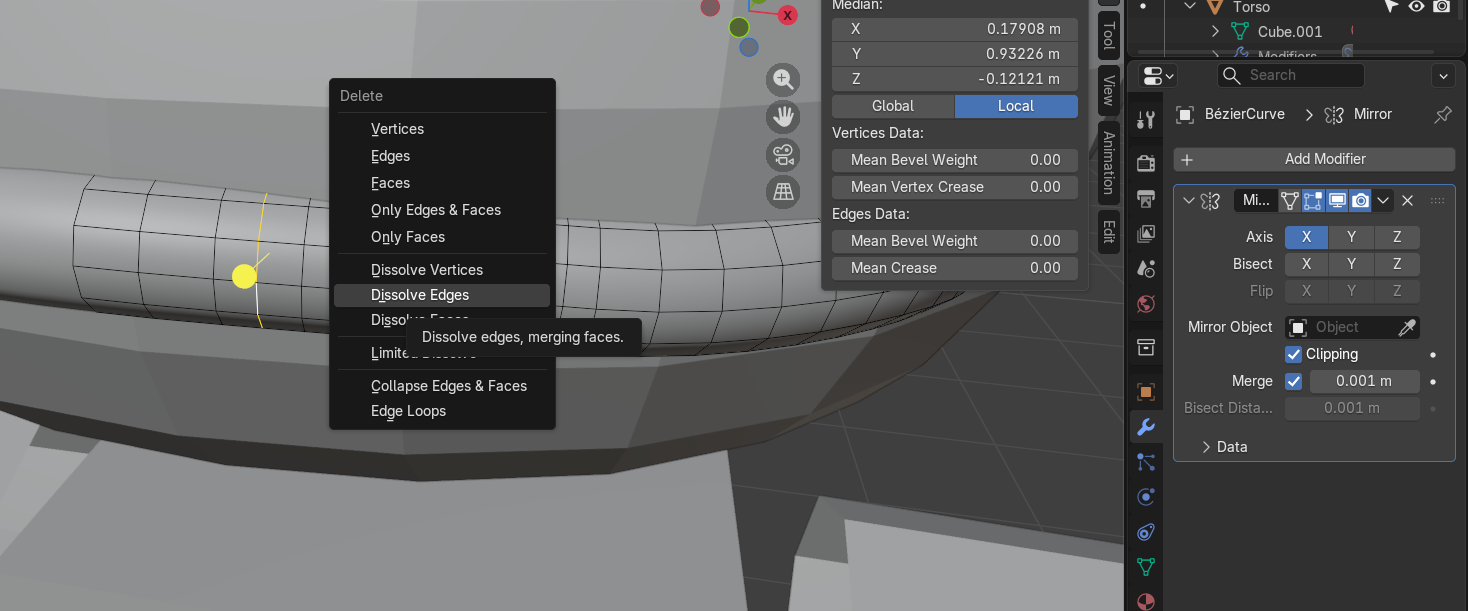
Starting off we'll need to Shift + A another Bezier curve into the scene. Move it up towards the mouth with G + Z and then, like before, in the Data tab increase the depth to an amount that looks good like with image 1. Then, select both vertices of the line, right click in Edit Mode and select the top option Subdivide. This will add more points inbetween our lines we can work with. Do it again so that there is a center point and a point between the center and the end. Once this is done delete the vertices of one side like in image 2. Then leave Edit Mode and right click the tube. This should bring up a menu, hover over Convert To, and then select Mesh as shown in image 3. Going back into Edit Mode add the Mirror Modifier, enable clipping, and then move the ends of the tubes together so they fuse. Next, clean up the amount of lines on the tube by Alt selecting every other loop and then dissolving them like in image 4.
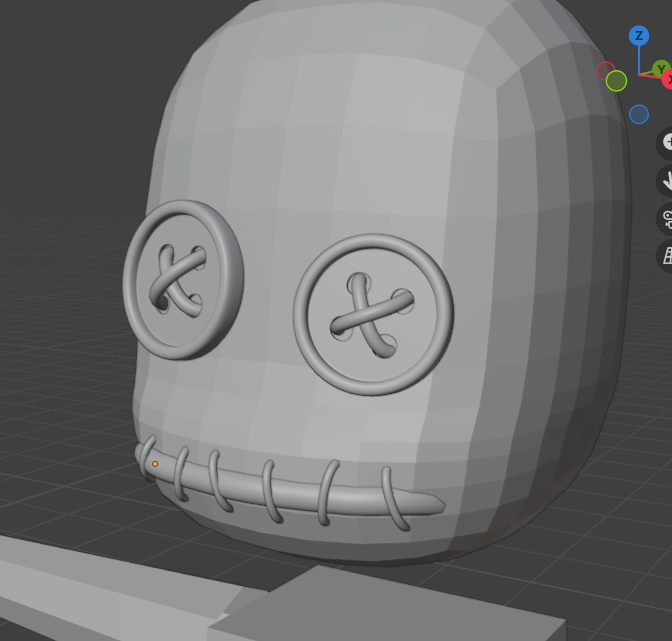
Now let's add the stitches to the mouth. Create another Bezier curver and do something similar to what we did with the eye. After it's positioned good enough go to the Data tab and add some depth, then adjust from there until it looks good like in image 5. Next, we will copy and paste our stitches around the mouth while making slight tweaks to make it look good like in image 6. With that we have finished stitching the mouth! Good job, high fives all around.
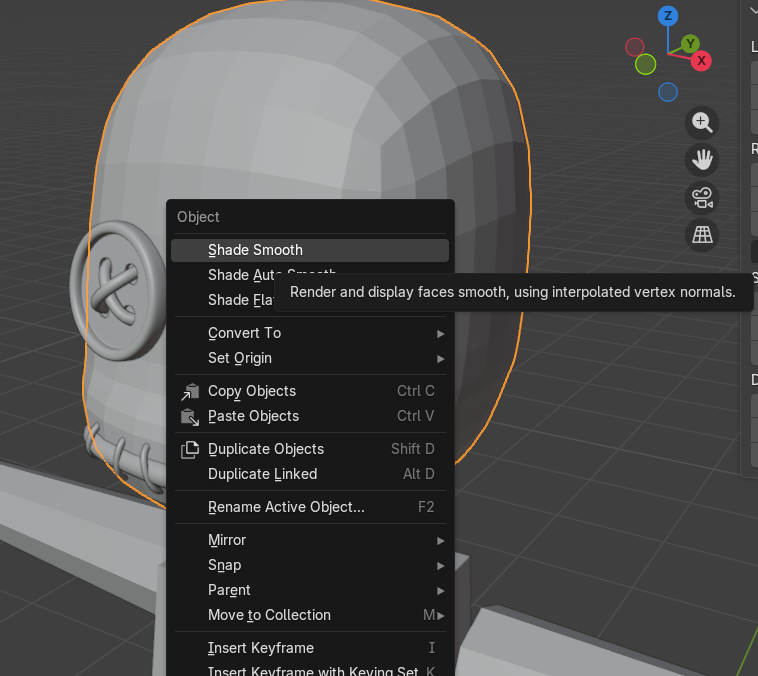
Also, go ahead and out of Edit Mode right click the head object. Then right click and select the top option named shade smooth as seen in image 7. This will be our head complete!
Wait! Let's save! Remember the shortcut is Ctrl + S
Creating the Body Part 1
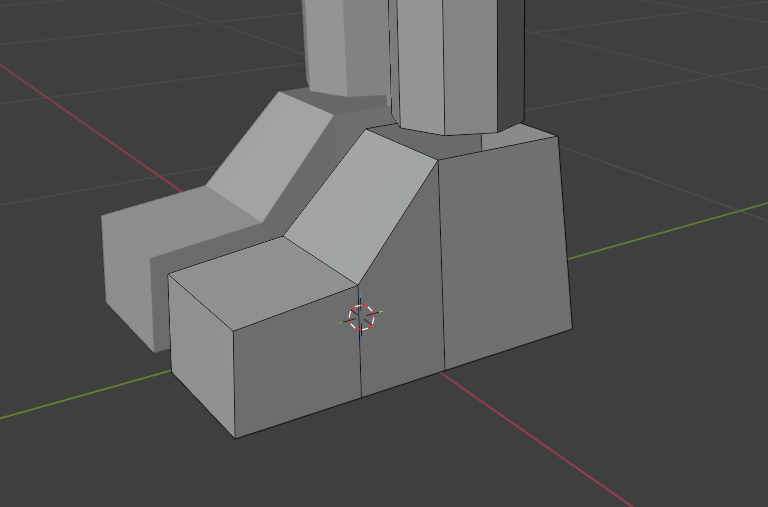
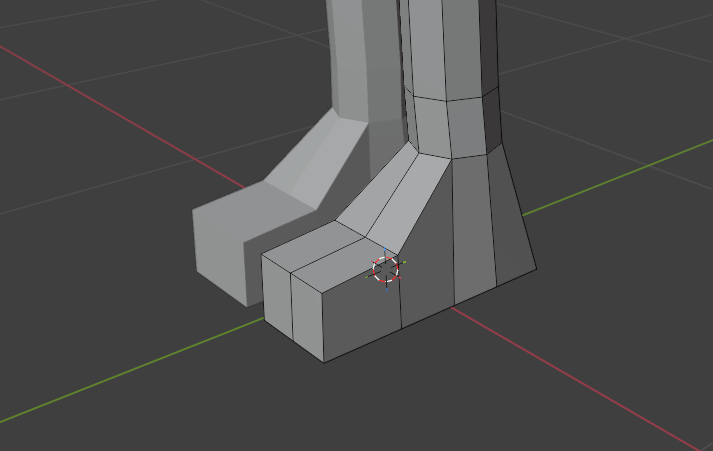
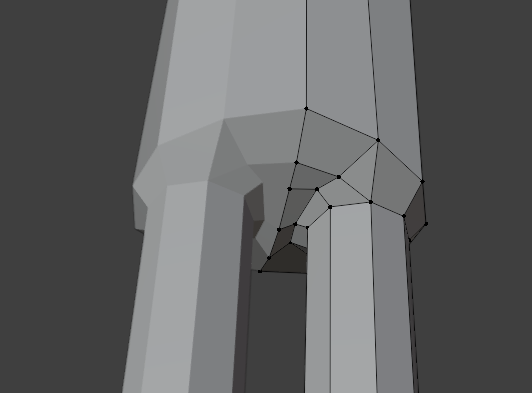
Time to put the body together, woohoo! To start let's look at the feet of our character in edit mode. Select the face where the leg and feet meet, then delete it(only delete the face). You should now have something similar to image 1. Add 2 loop cuts, one on the front of the foot and one on the side, then Alt select the top edge for the foot. Right click, hover over looptools, and click circle. This should turn the foot opening in a circular shape. Then Shift + Alt select the feet/leg edges. Right click with these 2 edges selected, hover over looptools, and click birdge. This should connect the 2 parts, resulting in something similar to image 2.
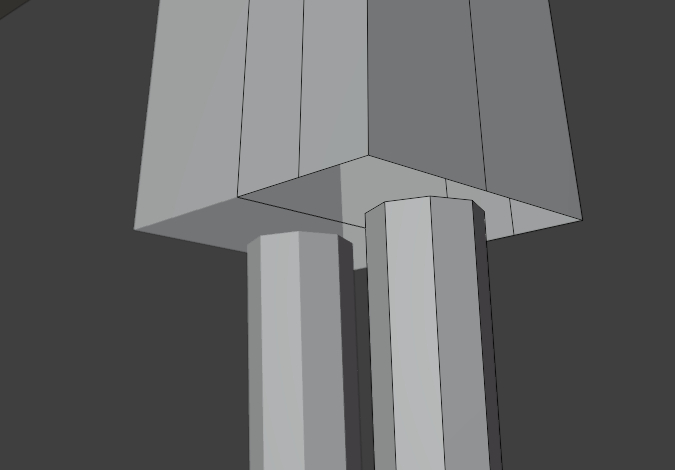
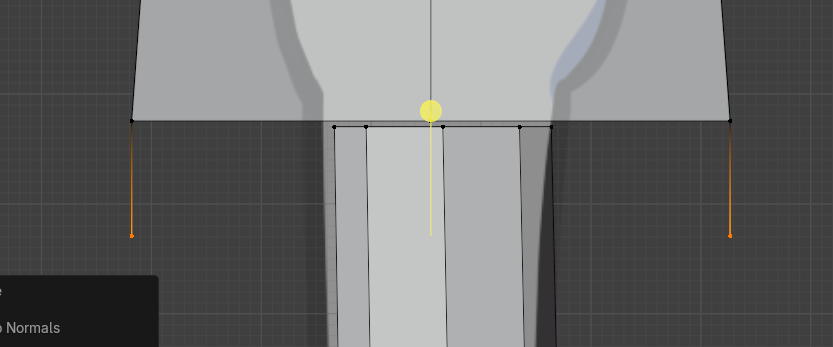
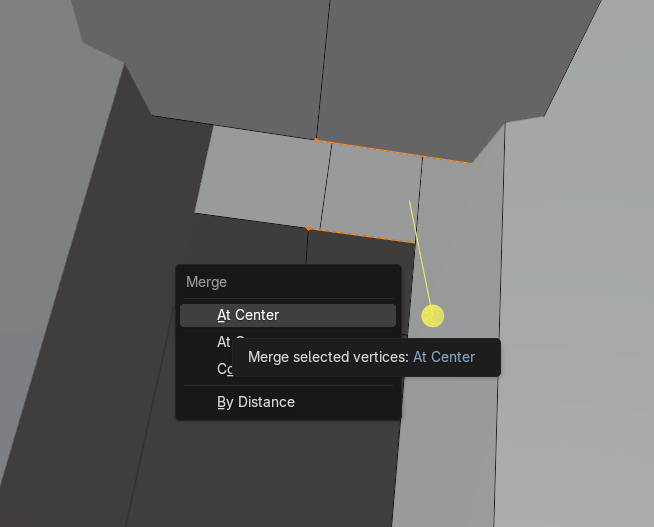
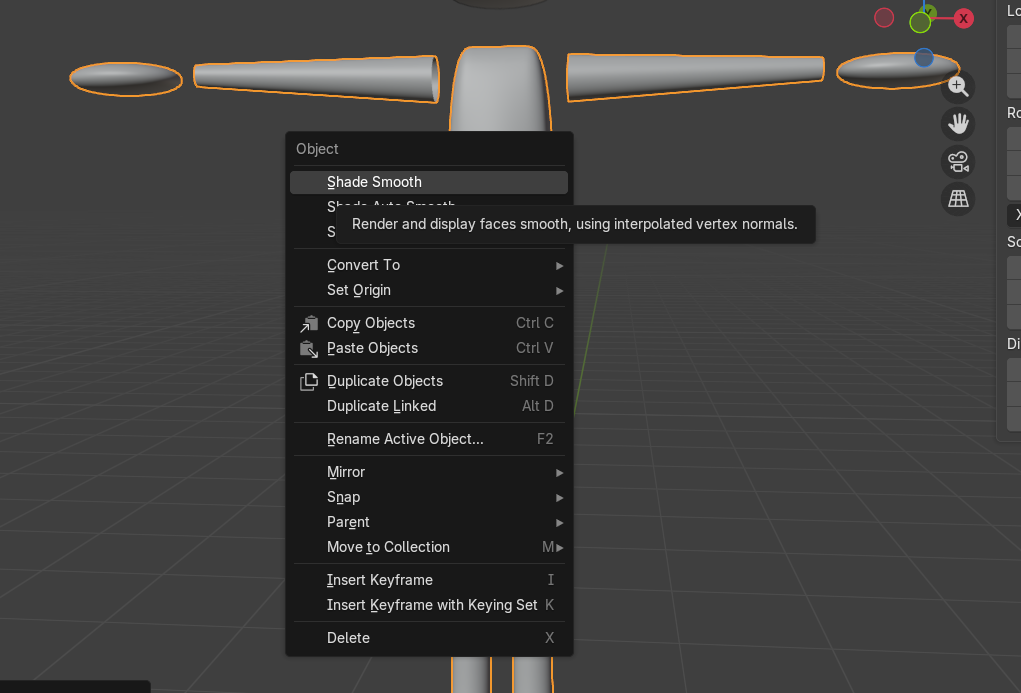
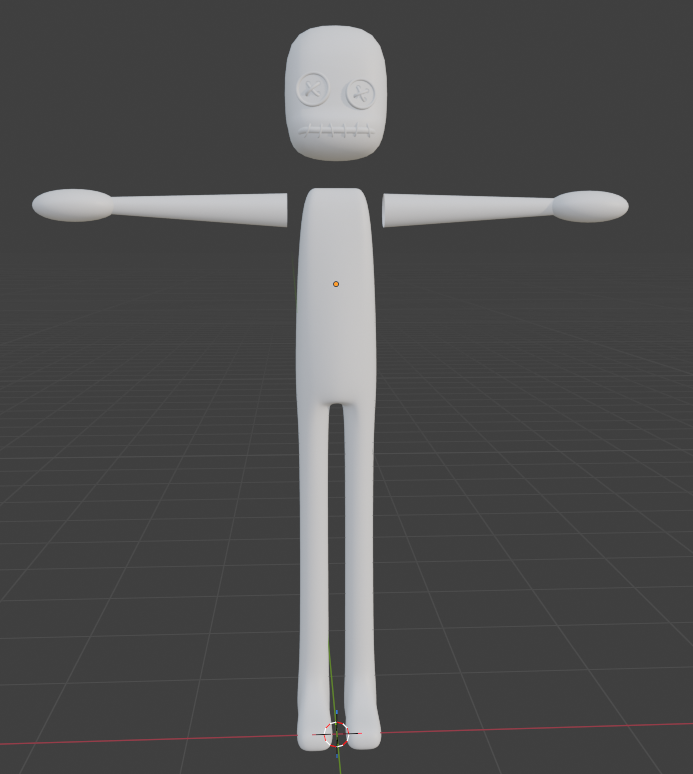
Do something similar with the torso, loop cutting the front and side. Then deleting the bottom face of the torso as seen in image 3. Then, select the 2 vertices around the crotch at the front and the back. Go to side view and then hit E to extrude down like in image 4. Bring the points together then extrude again until you get something similar to image 5. Next select the vertices on opposing sides of the gap, hit m, and click merge at the center. Do this for every set of opposing vertice. Then Alt select the torso's edges, right click to reach the looptools, and then circular the point. Once you've done that Shift + Alt the 2 edges and bridge them together using the loop tool. Might take a bit of moving to get it to look good. Once you get the crotch looking like you want it like in image 6 go ahead and exit Edit Mode. Right click your model and use shade smooth as seen in image 7. Adjust your vertices/edges until your good with it. Then you should have a body similar to image 8. go ahead and join the head and body back together with Ctrl + J.
Creating the Body Part 2
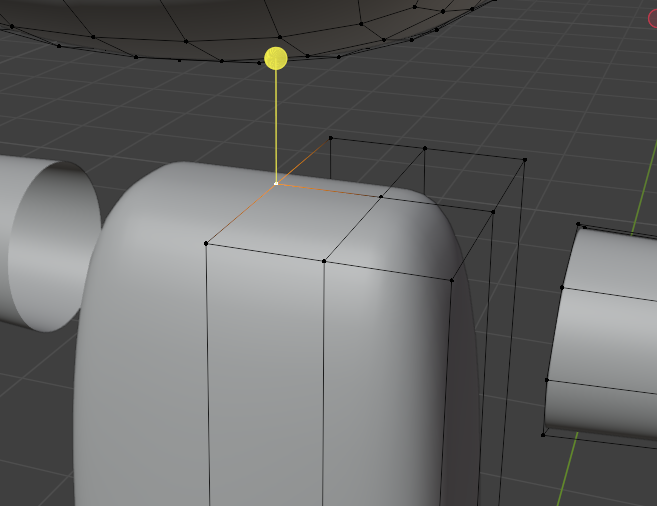
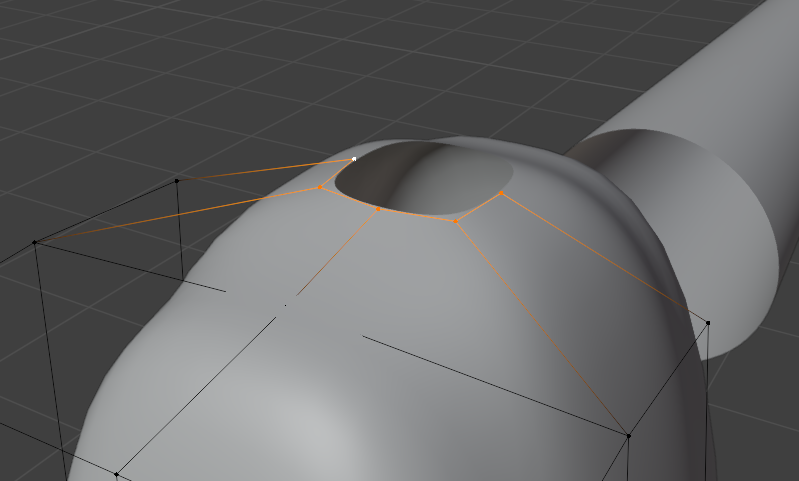
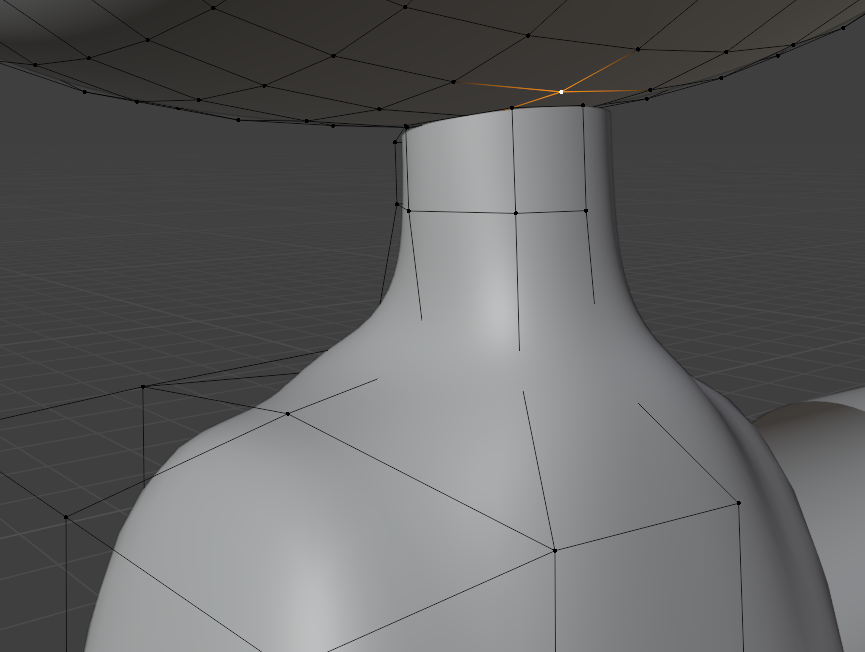
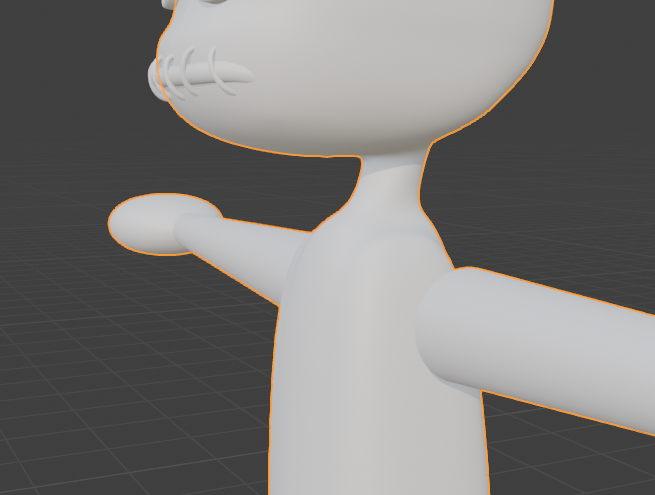
Let give the character a neck now. In Edit Mode go to the top of the torso, select the vertices as showning in image 1, then delete it. Then click E to extrude, using S to scale inwards, and then using the looptool to make it circular like image 2. Then extrude upwards, deleting a vertice on the part of the head you wish to connect your neck to, then using the bridge tool from looptool to connect them. Adjust the vertices/edges until they look good and you should get something like image 4.
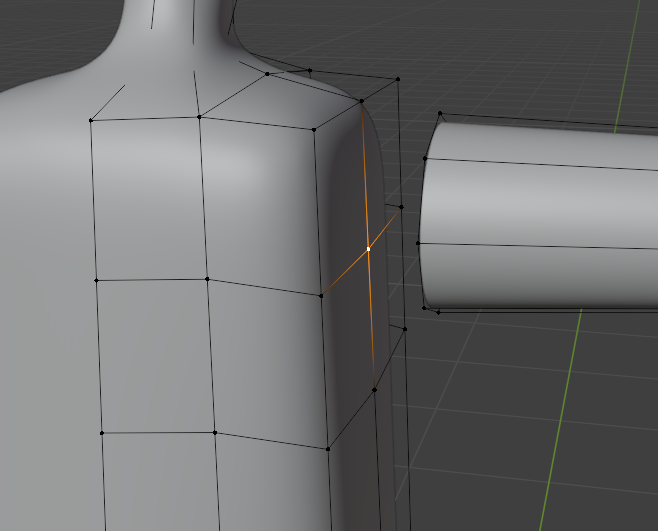
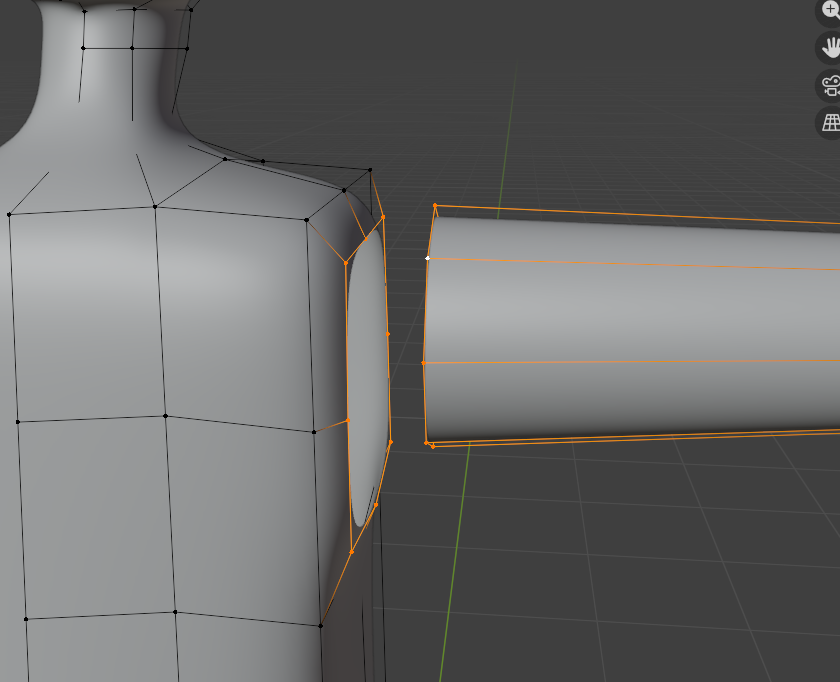
Now let's connect the arms. We can do this in a very similar manner as we did for the neck. Add some loop cuts to the torso so that we have a vertice at the location shown in image 5. Delete the center vertices, extrude and scale inward, and then connect the 2 edges together with the bridge tool giving us images 6 and 7.
Wait! Let's save the scene!
Creating the Shader
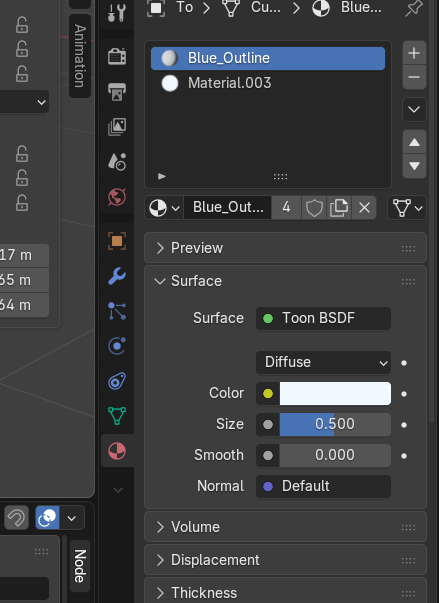
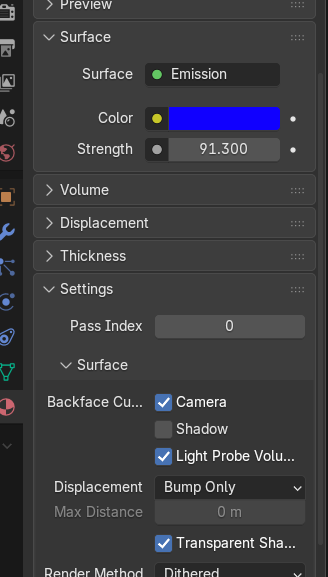
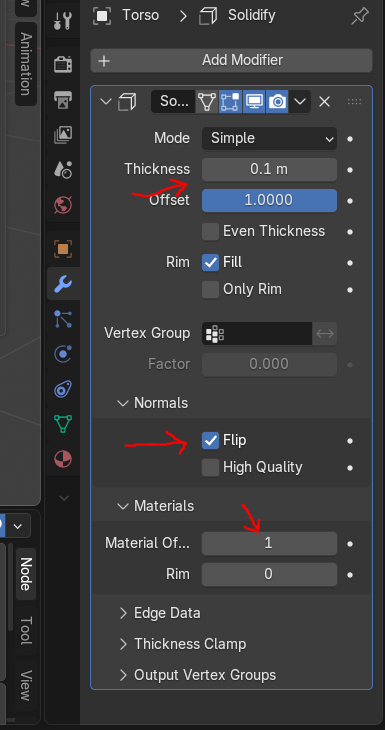
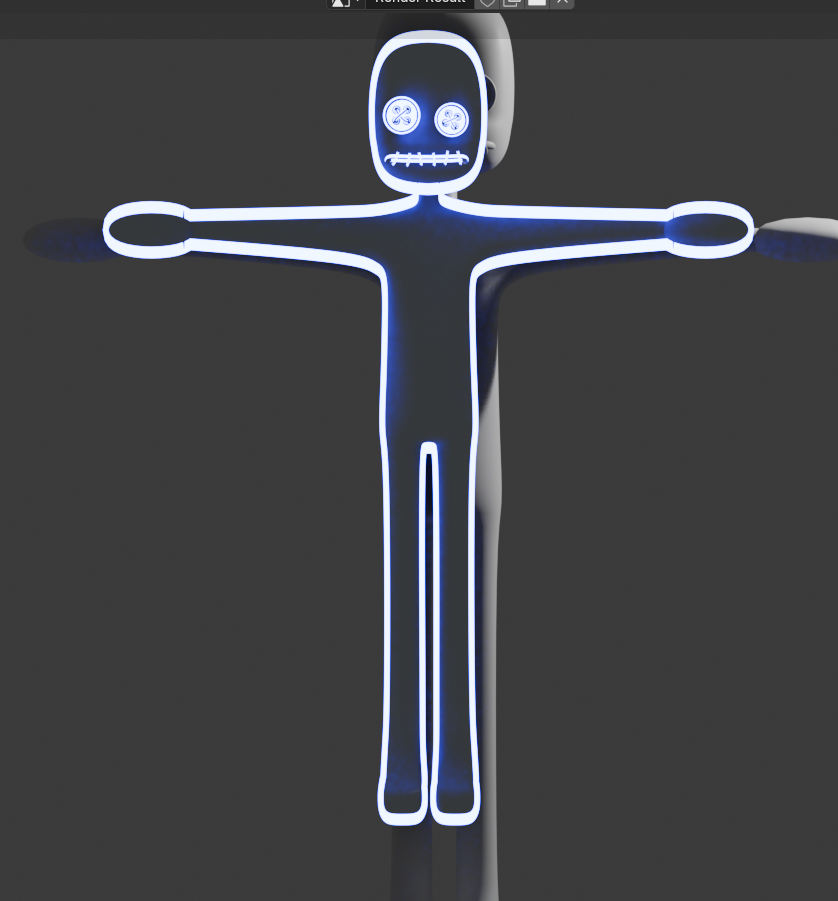
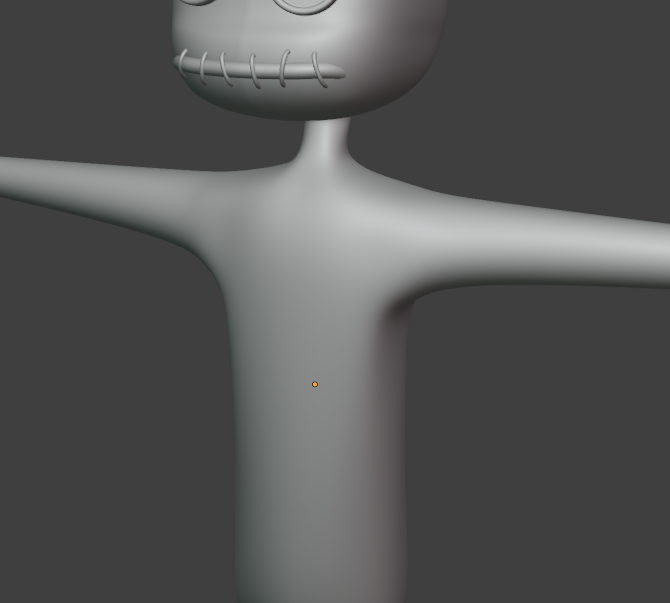
It's time to give our model a nice shader to really make it pop. To begin, select our object, click the red sphere on the right menu, and then click the plus sign 2 times. This should create 2 material slots. For the first slot set the setting similar to image 1. While for the second material set it similar to what's shown in image 2. After the materials have been set up go to the modifiers tab and add a solidify modifier. Adjust the modifier until it's similar to what's shown in image 3. When everything is all said and done you should get something like the 4th image when you render your scene. Looking good.
Making the Strings
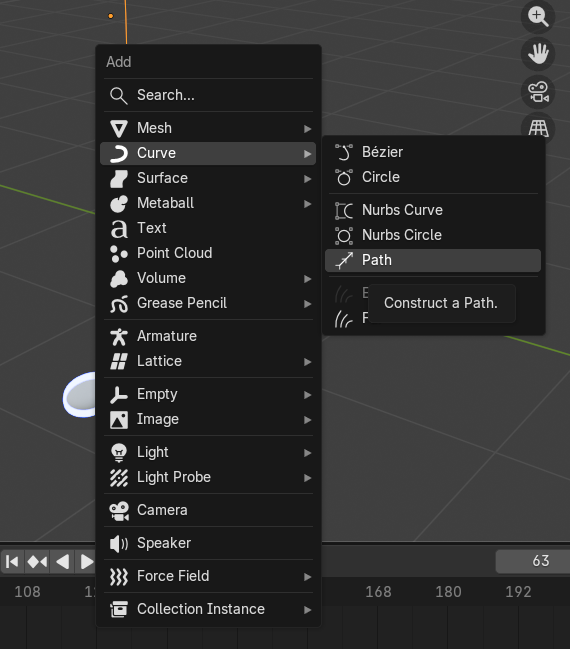
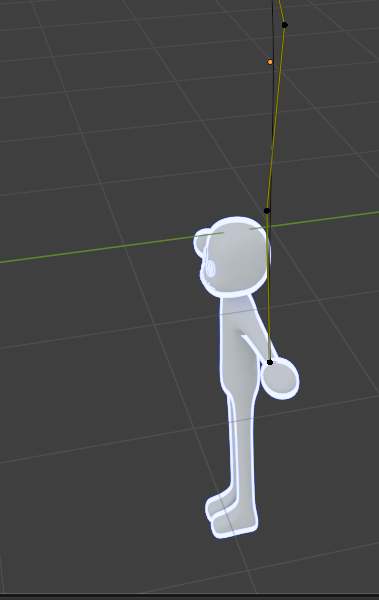
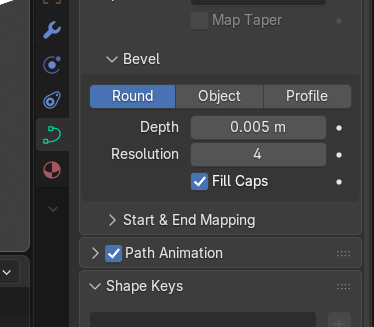
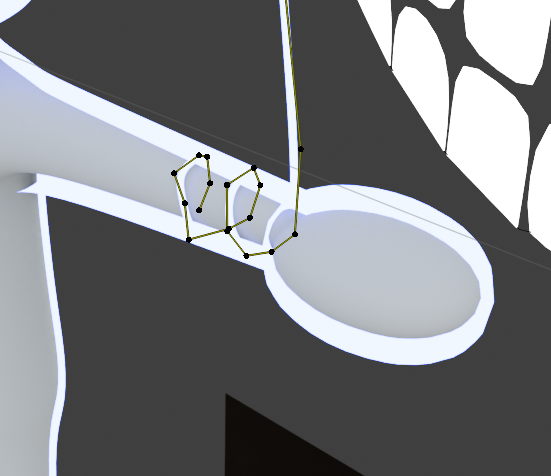
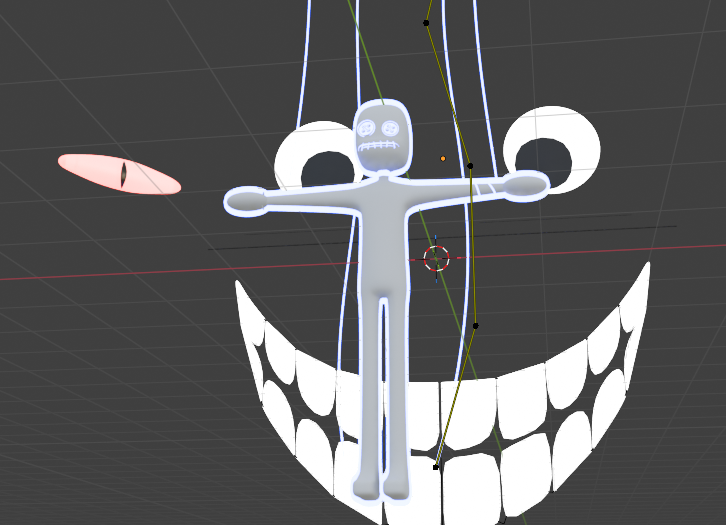
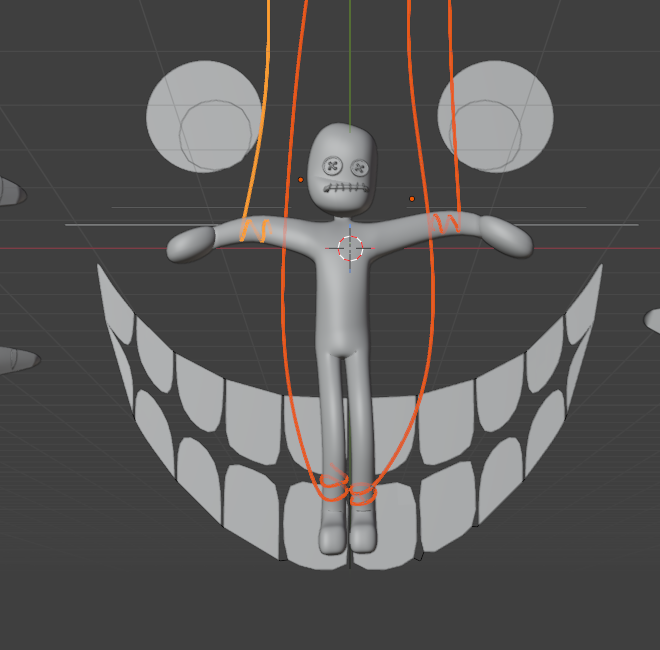
Every good puppet has it's strings, our's is no exception. To begin let's go ahead and add a string for us to use. For this, let's use the curve path object as seen in image 1. Bring it in the scene and move it into place, for now starting with one of the arms. Move the vertices of the string around slightly to get a more natural string look as seen in image 2. Follow image 3 to give the string thickness and close the ends(fill the caps). Don't forget to give it a material in the material tab. I decided to use the same material outlining our character so we can see it when we render. I also went ahead and eyeballed looping it around the arm of my character. It's pretty simple, just extrude(E) and move(G). do it over and over again, making adjustments here and there until you get image 4. Now, copy the string until you have one for each arm and leg. Extrude the end when ever necessary to ensure the end of the string isn't viewable from the camera. Something like image 5 is about what you should get. Adjusting the string as you see fit until they appeal to you.
Creating the Face
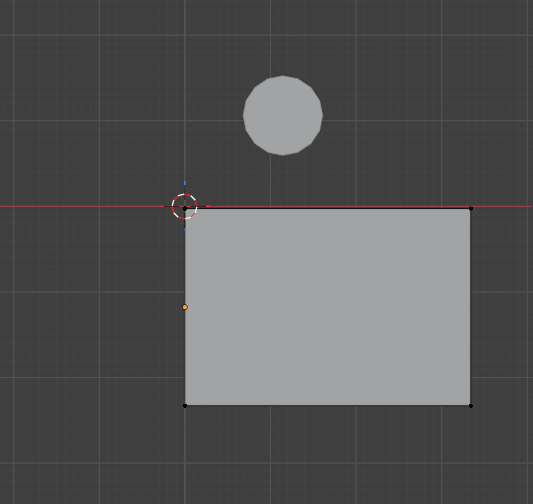
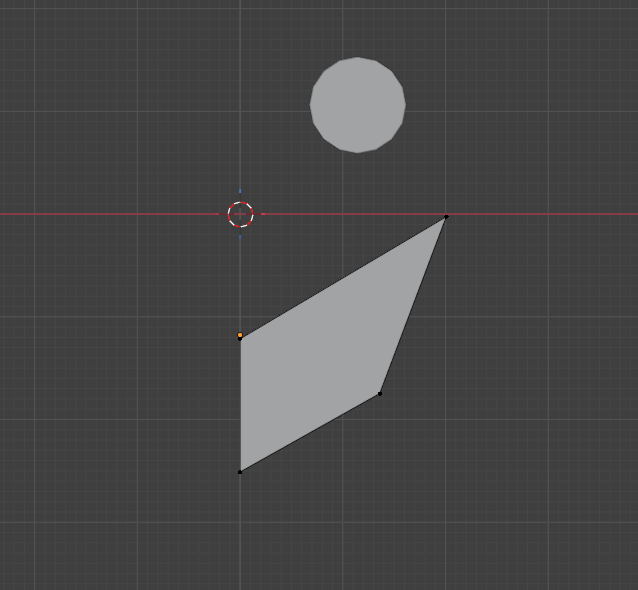
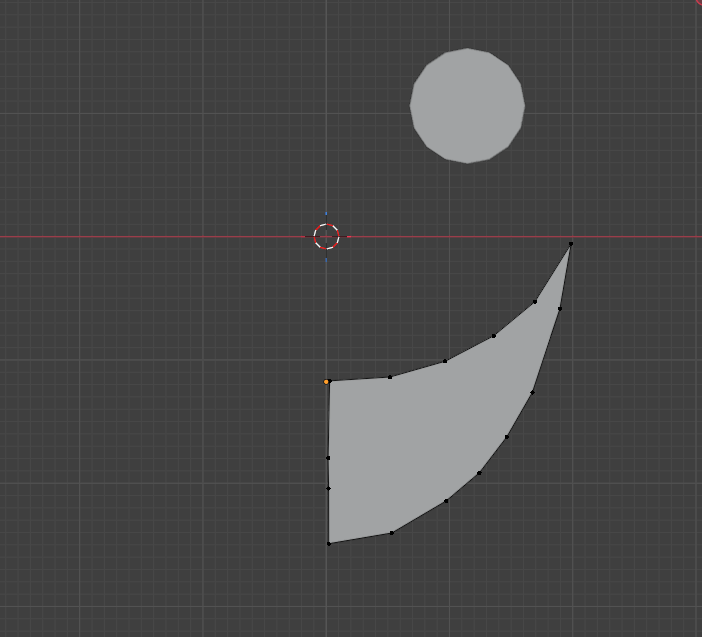
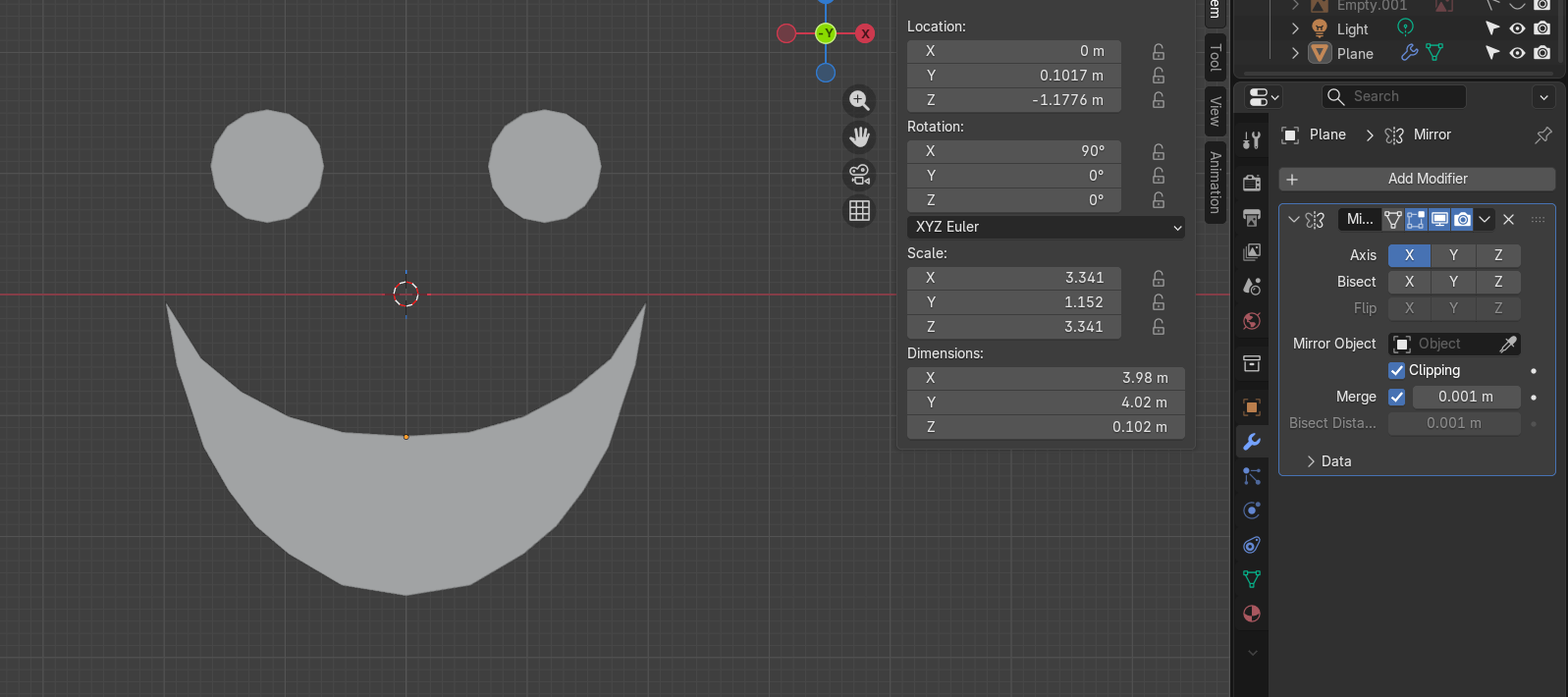
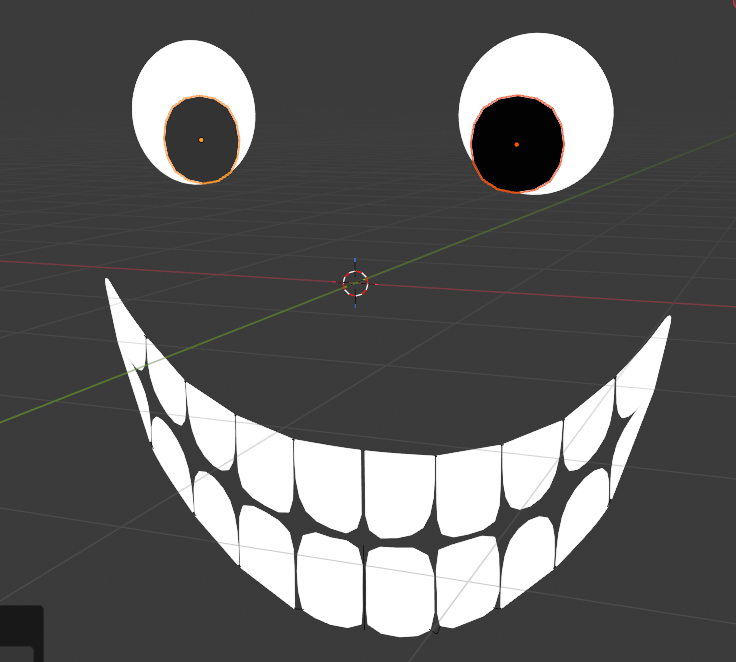
Open a new scene. This scene is where were going to set up our animation. To start off I want to create the giant face I talked about during the beginning. To do this let's bring in 2 places and position them like in image 1. I went ahead and subdivided the plane that will be my eyes while scaling everything along the way. Go ahead and make the bottom plane into a smile like shape similar to image 2. Next, use loop cuts and try to get a shape like image 3 by moving vertices around. After that add a mirror modifier and join the planes together to get image 4. Also add a subdivision modifier as well.
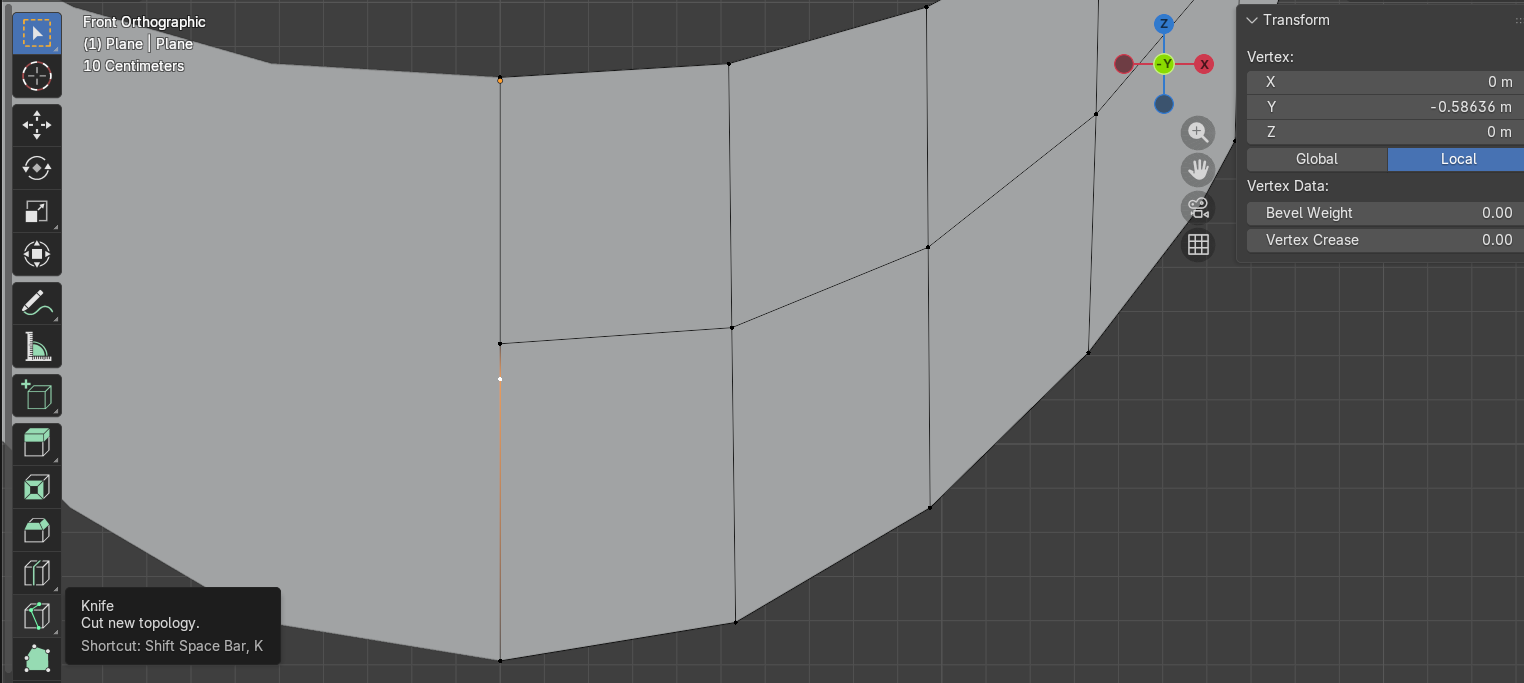
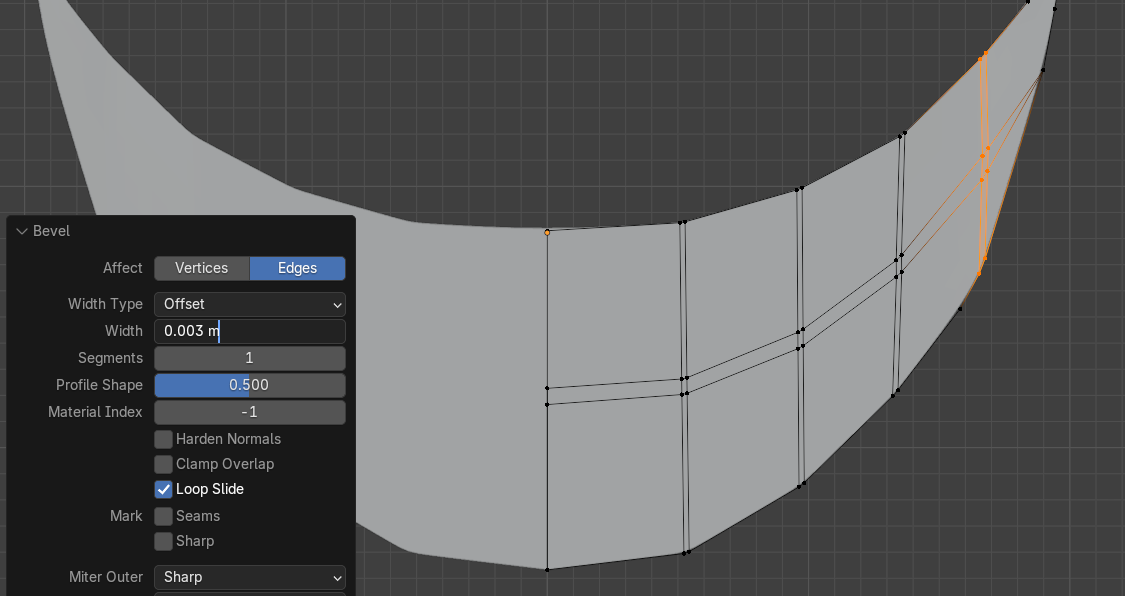
With the general shape now blocked out we can clean up the lines a bit by selecting all the internal lines and dissolving them(dissolve vertices option when you click delete). While in Edit Mode use the knife tool on the lower left side menu to carve up new lines in the center like in image 5. Then, using Alt, select each line going straight down through the smile one at a time and use the Ctrl + B shortcut. This will bevel the area so that we can create some gaps for the teeth. Adjust the bevel size to something your comfortable with, I ended up with something like image 6.
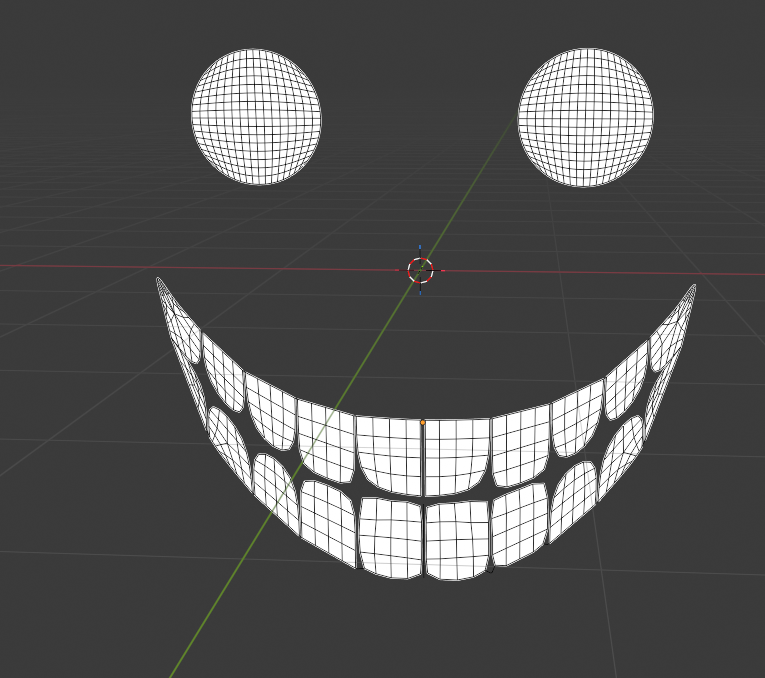
Adjust the lines a bit more until your satisfied. Then select all the faces in the gaps and delete them. Doing this should give you a face kinda like image 7(it depicts after I've applied all the modifiers and tweaked the vertices).
Also, create another plane and do the exact same thing we did for the eyes to it. These will be our iris so shrink them a bit and position it in front of the eye.
Face Material and Render
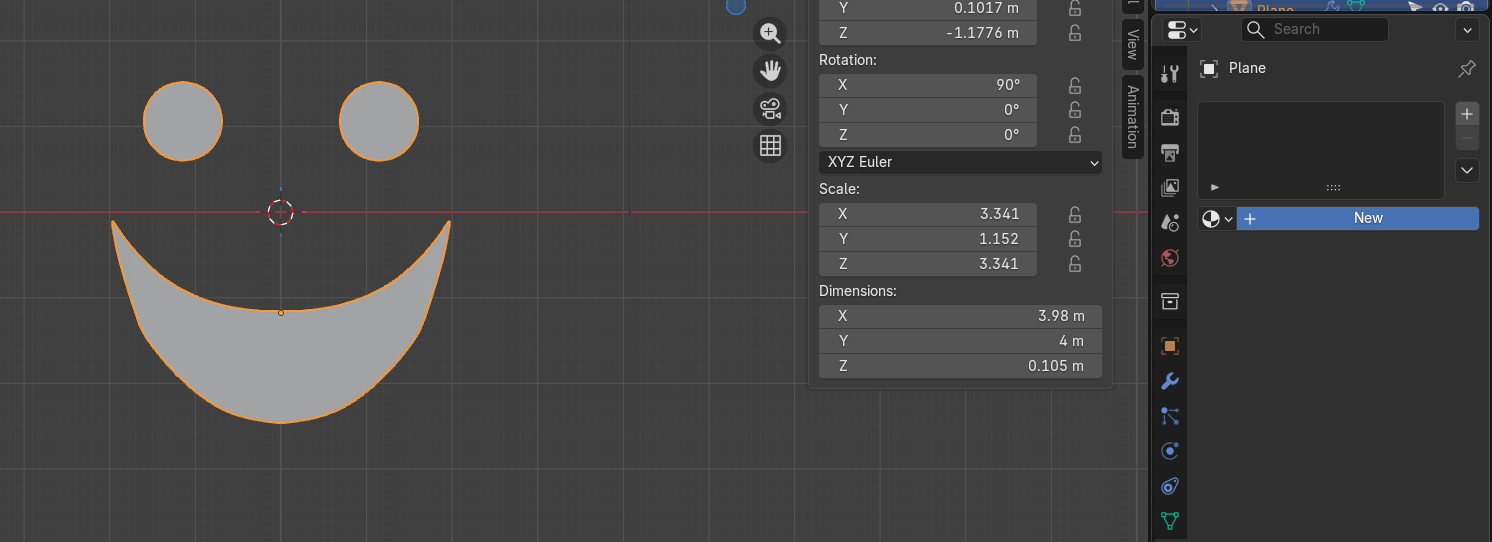
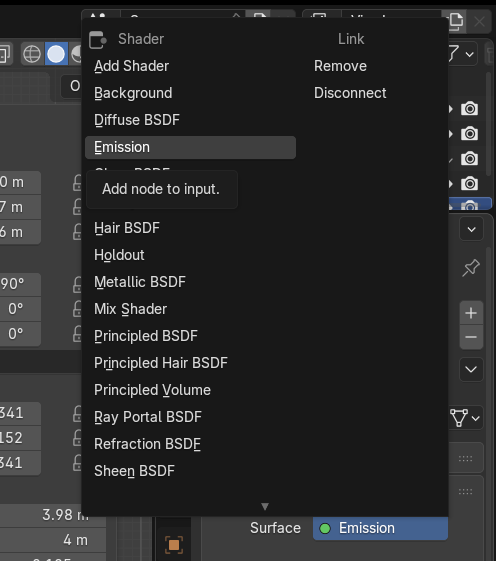
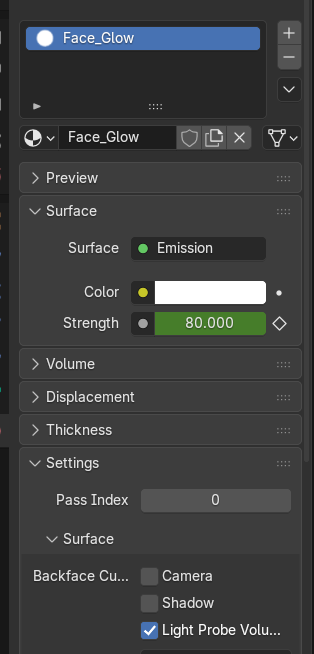
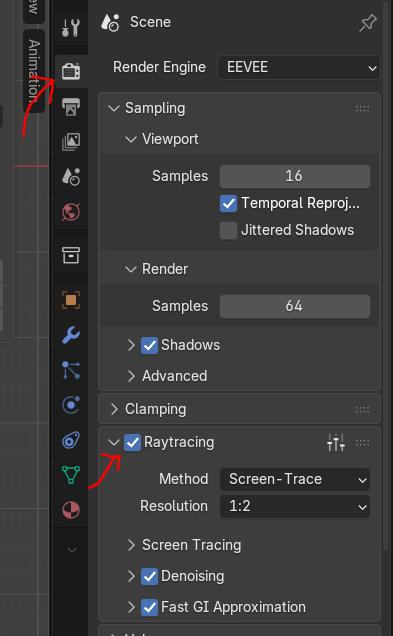

Now let's create a material for the face. First, go ahead and use Ctrl + J to join the mouth and eyes together. Then in the materials tab click the blue New material button as shown in image 1. Then change the surface shader from Principled BSDF to Emission as seen in image 2. You can adjust your settings until they mimic mine in image 3 or until you like them. Click the white camera icon shown in image 4 and enable raytracing so that our lighting will interact how we want it to.
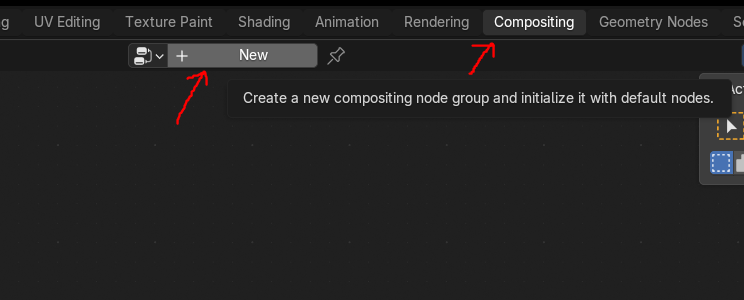
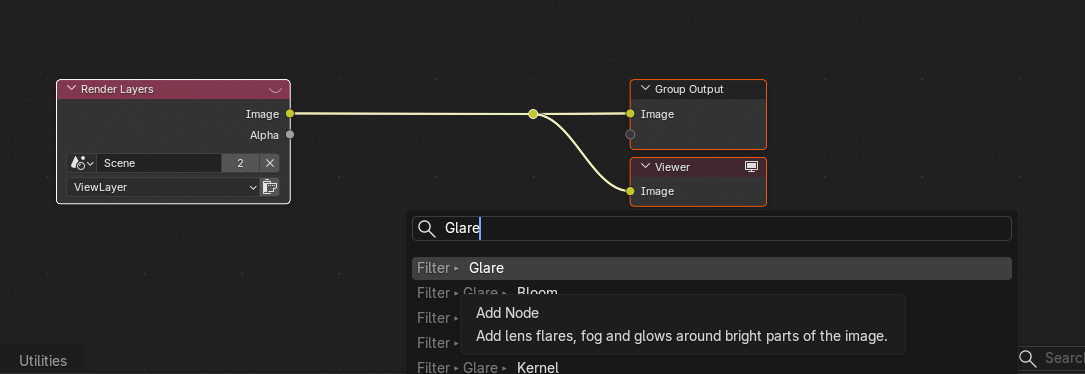
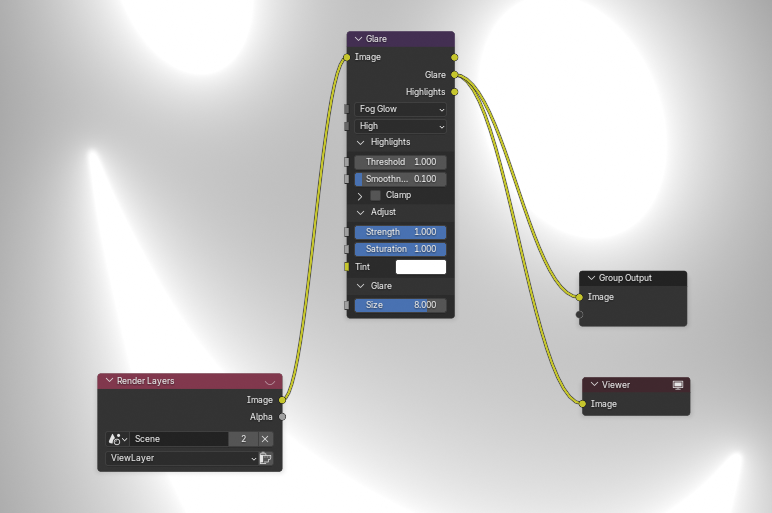
After that, select the Compositing tab at the top of the screen as shown in image 5 and create a new composite. Right click in the new composite and search for glare like image 6. Select it. After it's been selected hook it up just like I have it in image 7. Adjusting options as you see fit, be sure to set the top option to fog glow as I think it looks best with this set-up. If you click F12 you'll start a quick render of your scene. This will render an image of where your camera is currently look. If you don't see anything, don't worry. Just click the camera icon in your blender scene, click the black box around your view, and then use G/R/S to adjust it's position until it looks good. I managed to rander out image 8. Image 9 is the material I set up for the iris'. Keep messing this values until it looks good to you.
Wait! Time to save!
Creating Fog
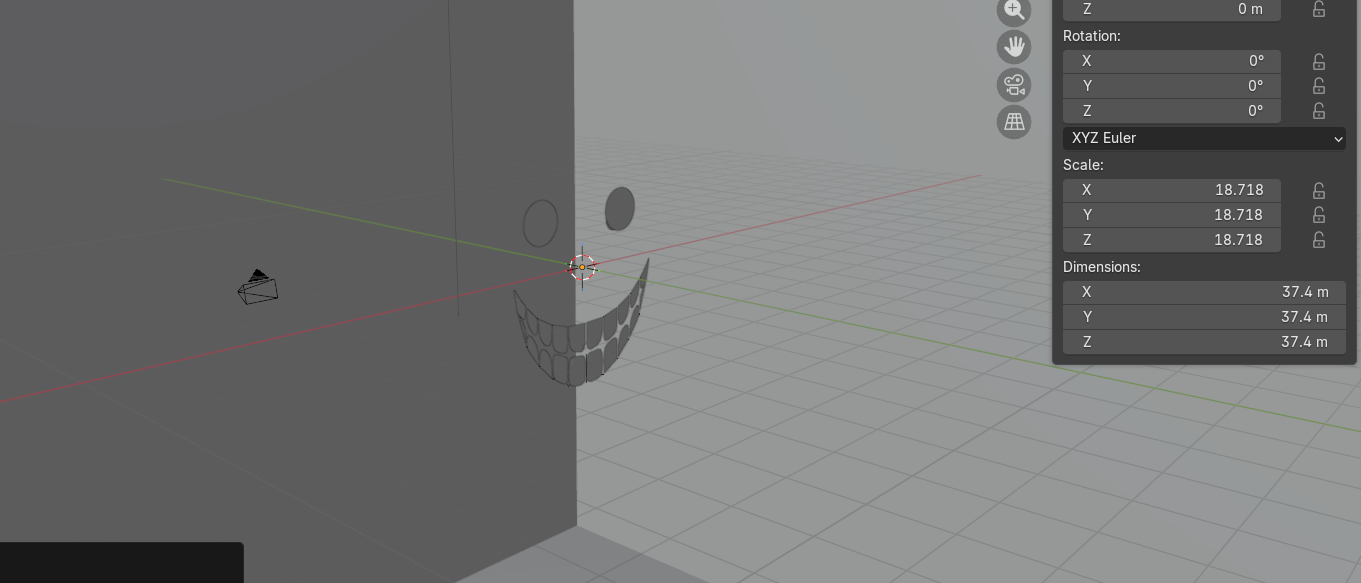
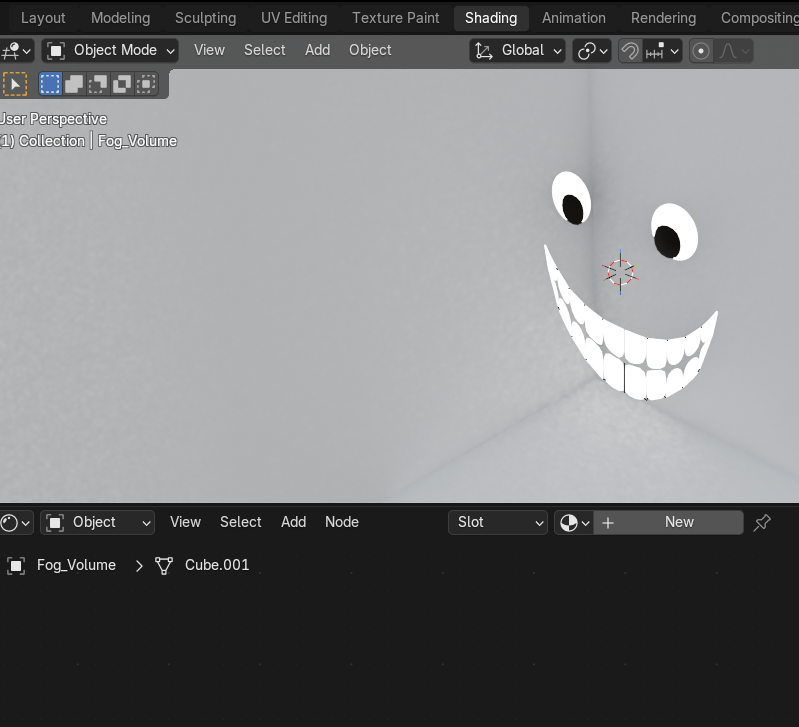
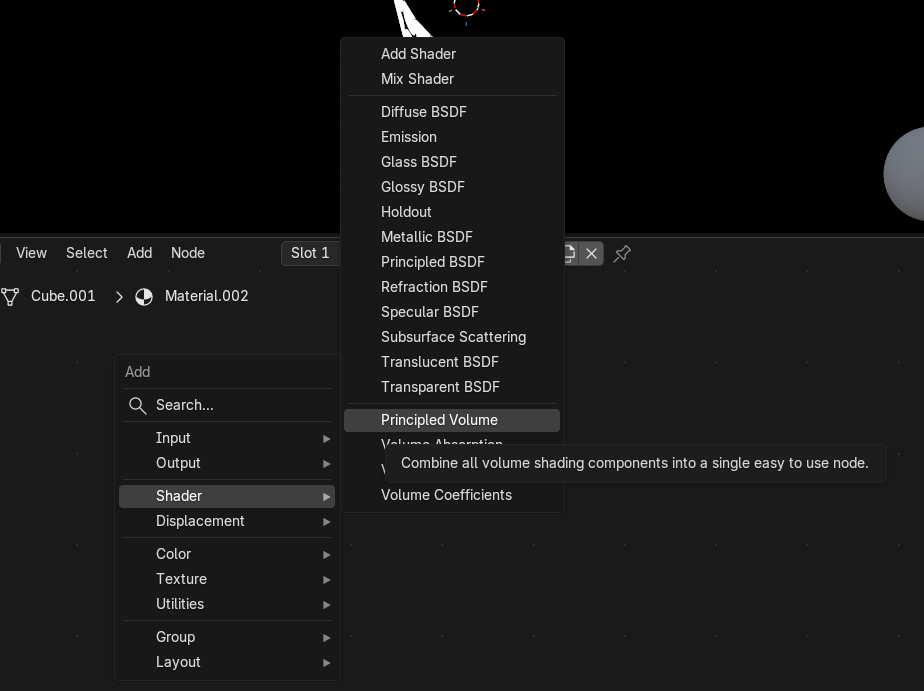
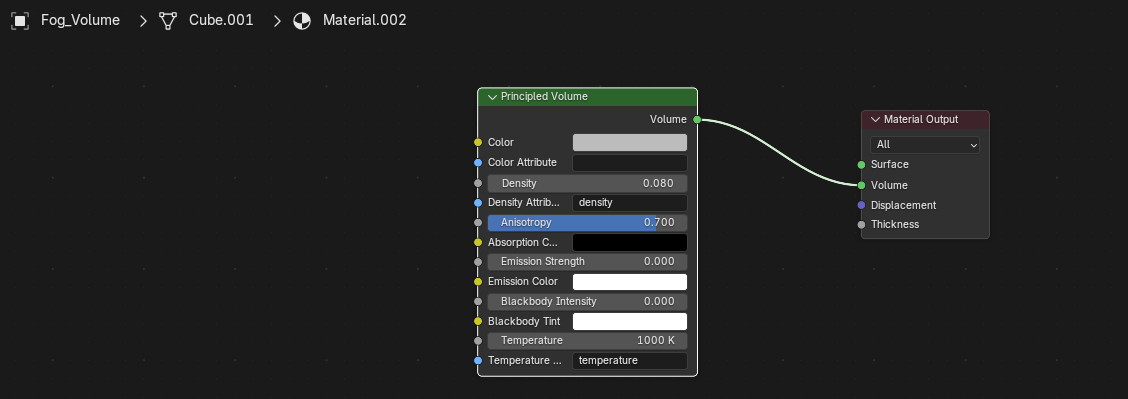

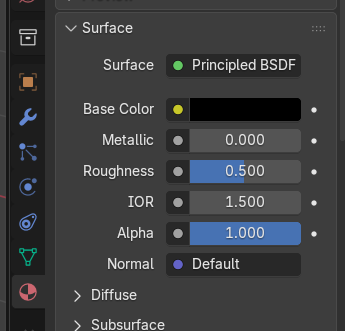
Now let's create some volumetric fog for our scene. To do this all we need to add is a cube with Ctrl + A, then scale it up until it's consumed your entire scene like in image 1. Once you've done that hit the shading tab at the top of the screen and hit the new button to create a new shader. Right click in the shader section and select the Principled Volume option as seen in image 3. Then set it up like I did in image 4. Hit F12 to get a quick render as seen in image 5. Keep rendering and adjusting until your happy.
Creating Eyes
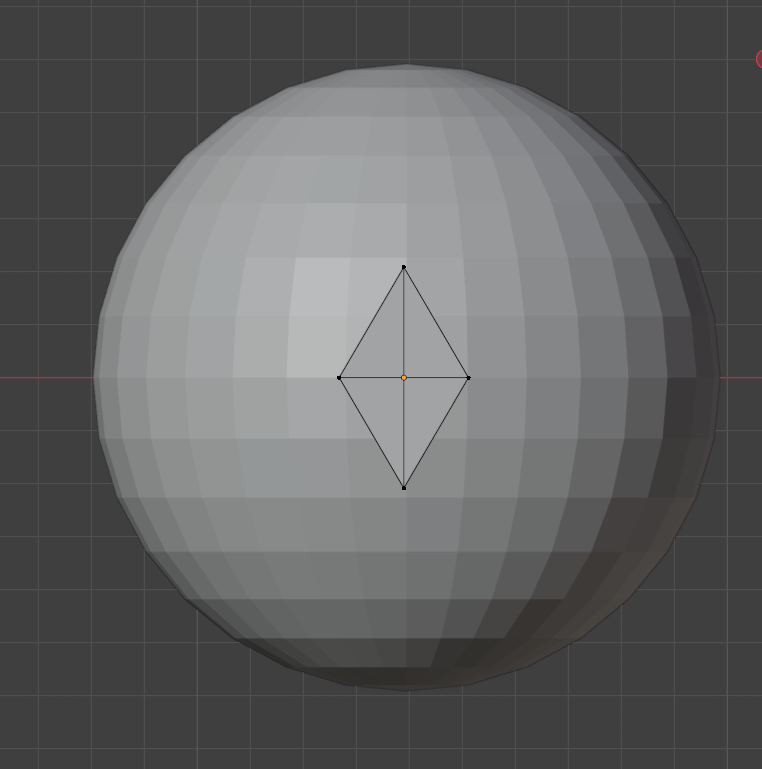
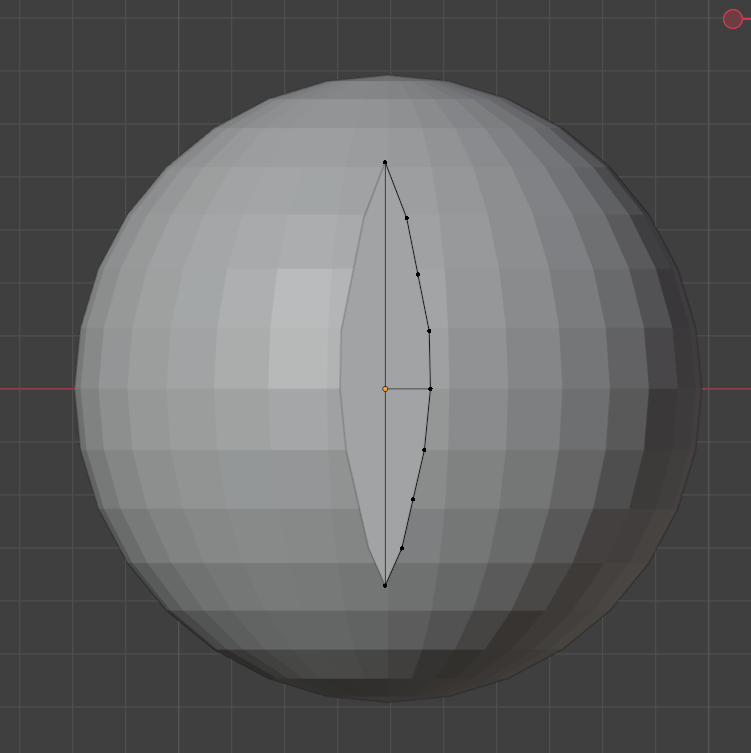
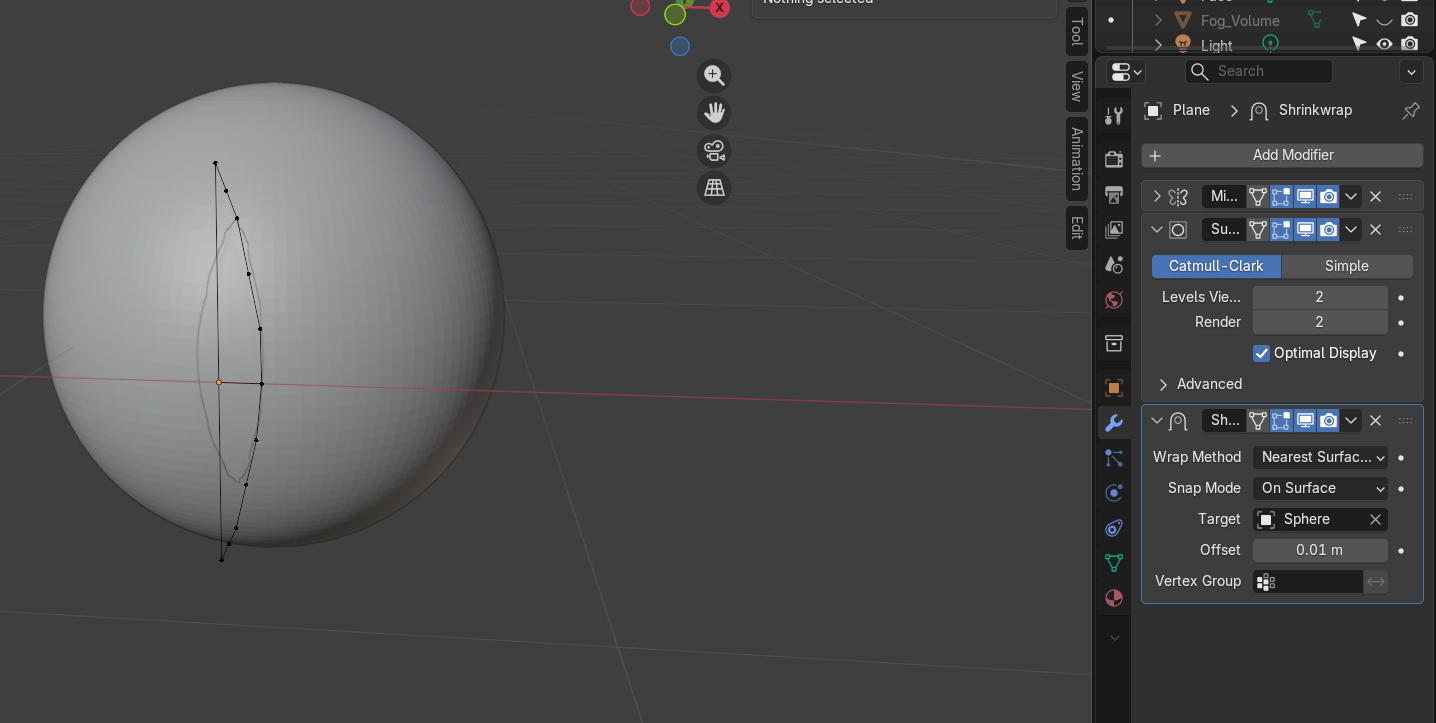
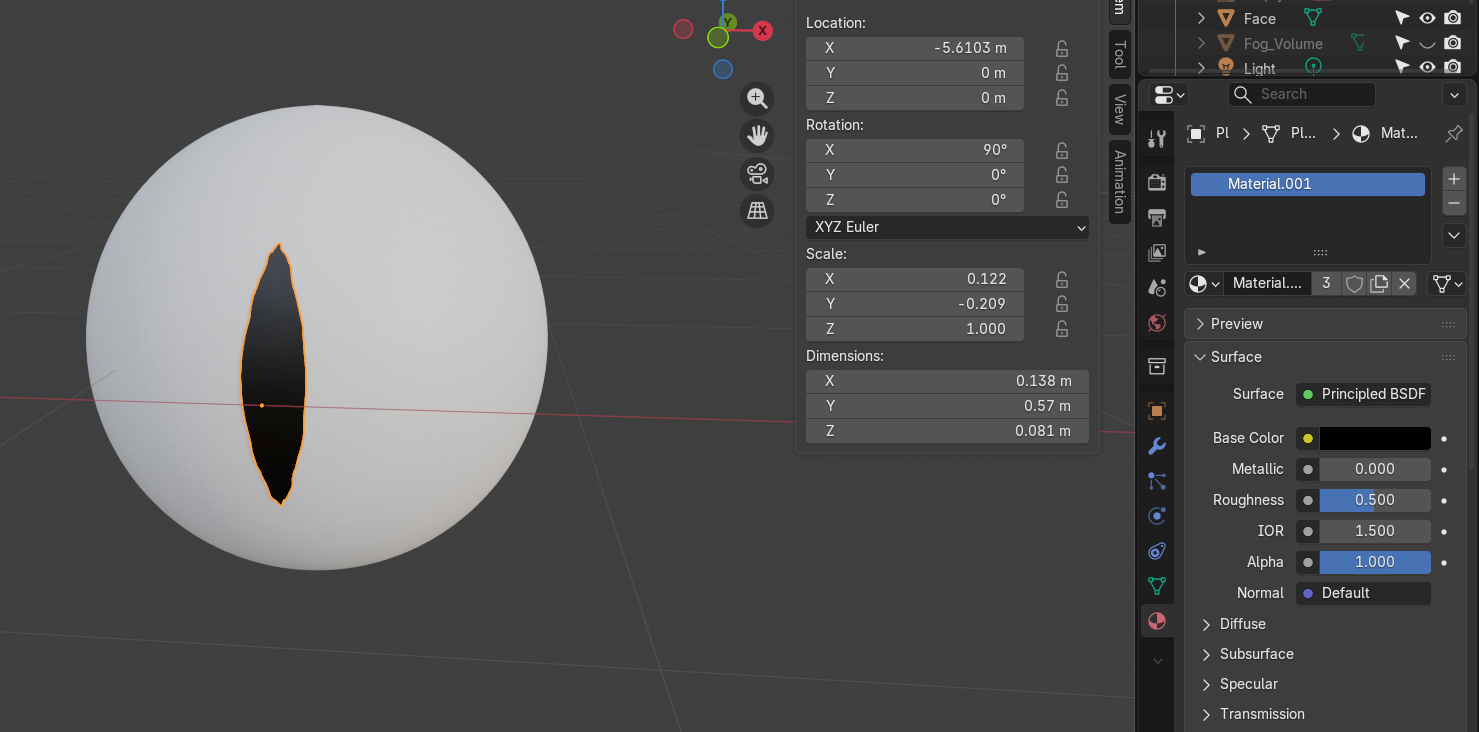
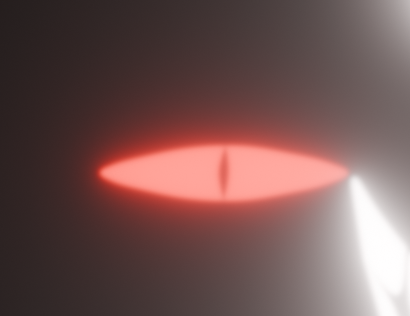
To create the eye I started off with a UV sphere and a plane. After doing a loop cut on the plane, I deleted the outer vertices, and then shaped it into a sharp pupil. I deleted one side of the eye and added a mirror modifier. I subdivided and shade smoothed the UV Sphere before using shrinkrap on the pupil I made to get what you see in image 4. However, I found that it didn't look quite right so after some messing around I deleted the UV sphere. Replacing it with a bigger and duller pupil to serve as the eye. I then took the material I made for the face and made it red while lowering it's intensity.
Once your done, go ahead and populate a few of thesebad boys around the scene to up the creep factor.
Animating the Face
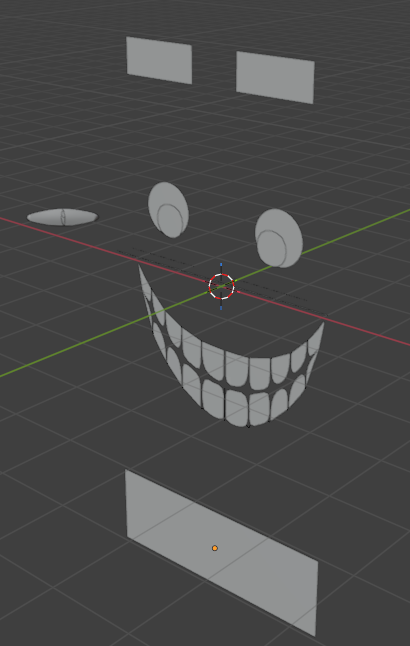
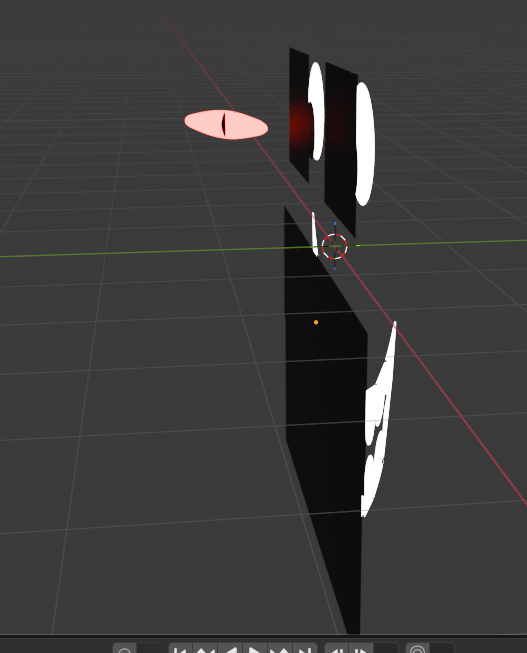
I'll be honest I have no idea how to animate. So I just made pitchblack object, linked them to key frames with I, and had them move out of the way while also ramping up the face's emission value overtime. Samething with the eyes. You know what they say, if it ain't broke don't fix it.
Animating the Character
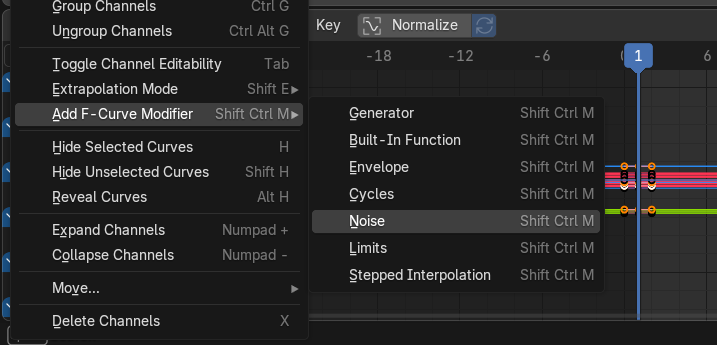
The animation will be rather simple. Afterall, the character is pretty much stuck in an abyss. So we're only going to add a slight bobbing/floating animation to give it life. To do this we are only going to use the graph editor. Select all the Z coordinates for everything attached to the character and then use a noise modifier on the coordinates at frame 0. I set mine noise modifier to a strength of .3 and scale of 20. Do the samething to the eyes so it looks like thier following the character.
Conclusion
Thank you so much for following my journey and making it this far. I hope you learned as much as I have from this experience.
This was quite an exciting adventure. From never having touched blender before to creating my vary own character and even creating an animation! I jumped into the deepend and I feel as if I really gain alot from it.
Dear god though, I never want to make and learn all this in only 33 hours. It was absolute torture...But hey, that's why I do it. I was an absolute rollercoast of Heck YA! and For Fluff's sake just WORK!! I wouldn't trade this experience for the world.
Until next time! Hopefully, I'll give myself more time...Probably not :(