How to Design on TinkerCAD: Maker Coin
by bkbountyhunter0916 in Design > 3D Design
55 Views, 0 Favorites, 0 Comments
How to Design on TinkerCAD: Maker Coin
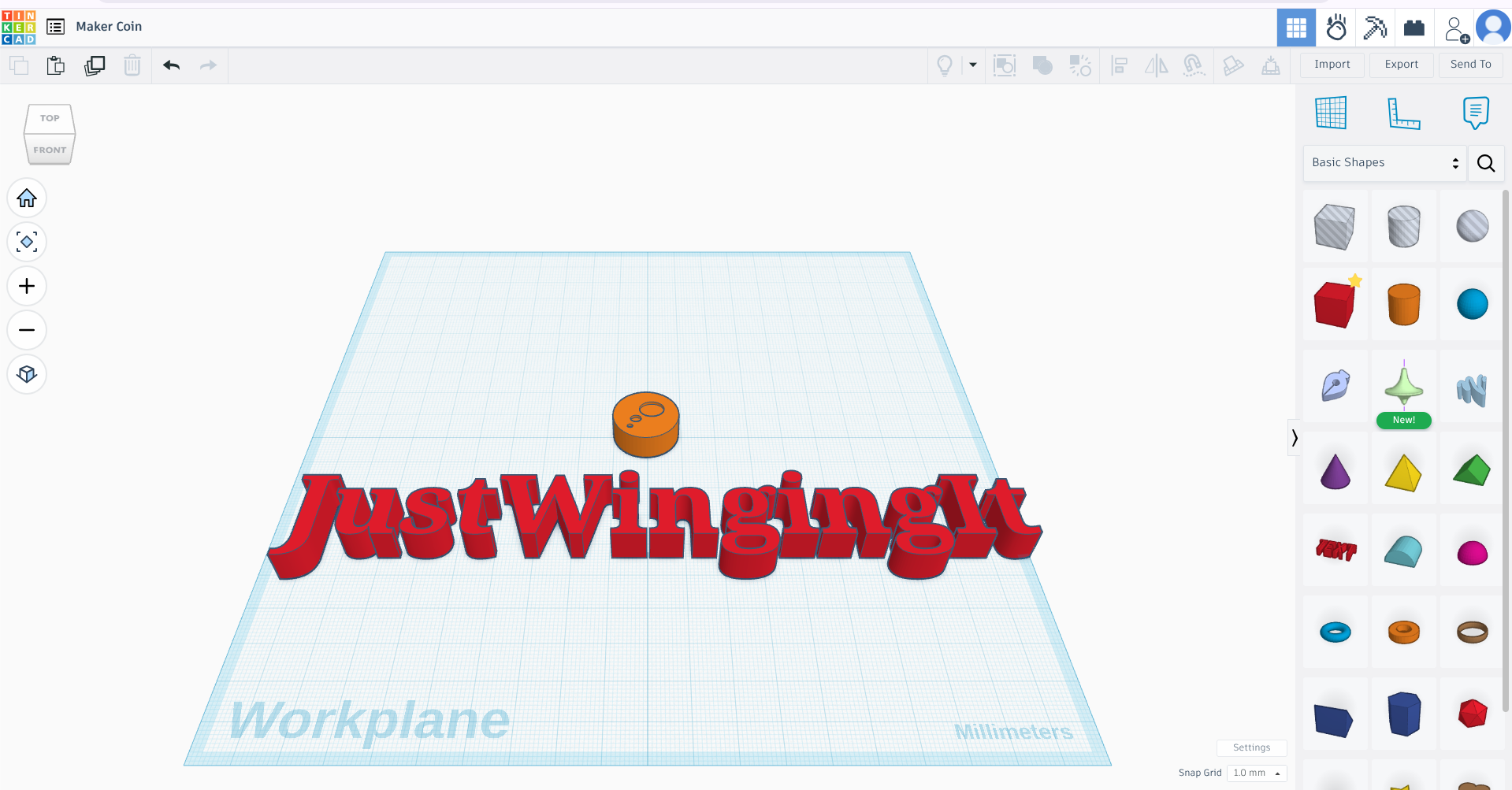

This is a 3D printable custom maker Coin! no two coins are alike, and the skills you will learn will open the floodgates of all the possible things you can make.
Downloads
Supplies

All you need is a computer of some sort; TinkerCAD is completely free and easy to learn! You can take all I teach you and reverse engineer it; be creative, all you need is an idea
Creating Your First Model
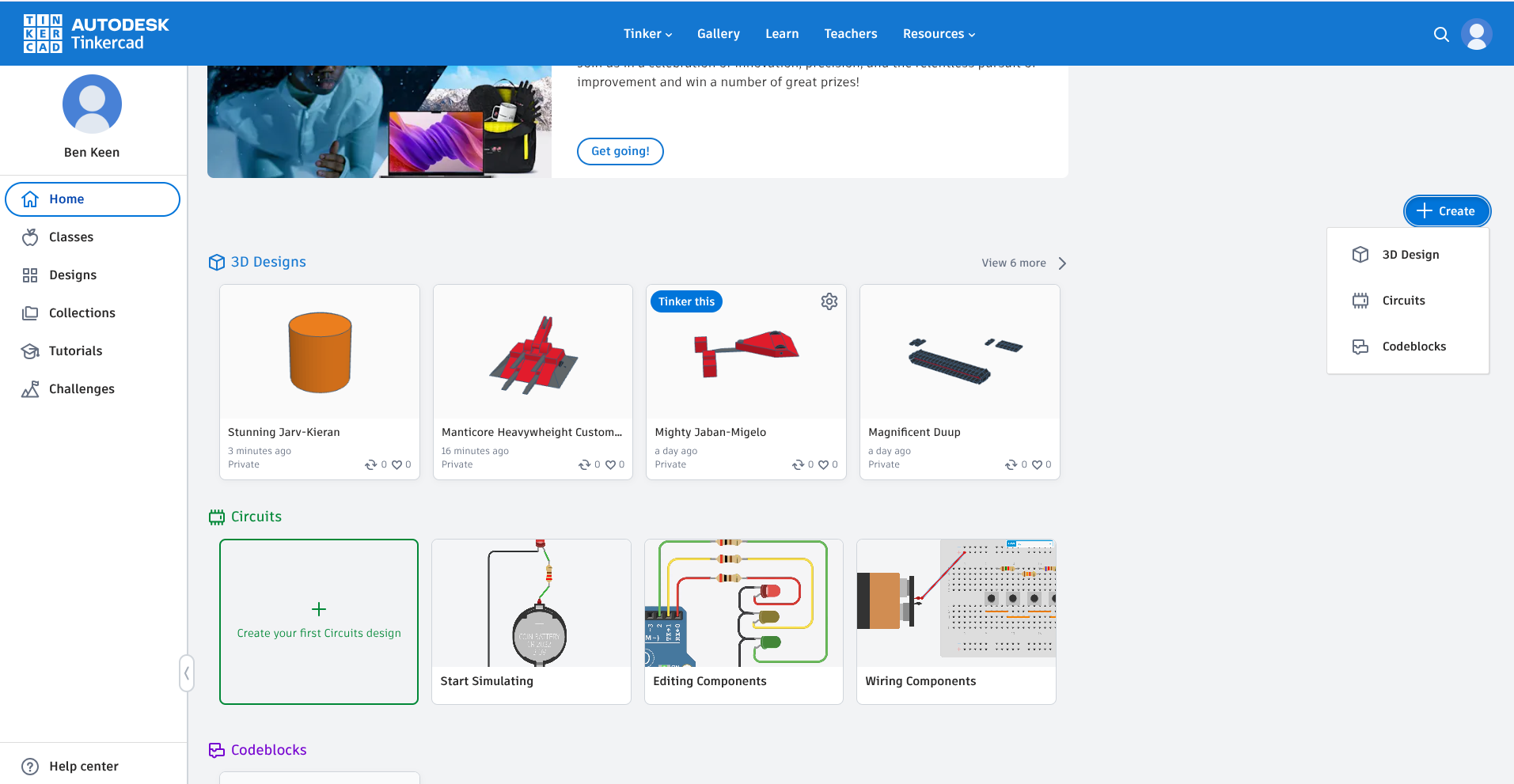
select create. this opens a drop down. select 3D design
The Base

If you feel like it, click on the randomly generated name and rename your model. Next, go to your right and select the cylinder. Its important for me to tell you how to control the camera within the model: Click and hold right click to pan (ie: change the angle), Scroll wheel zooms in or out, Hold middle click to mave the view from left to right or up and down, Hold right click to select multiple shapes at ounce (more on that in a bit).
Get the Size Right
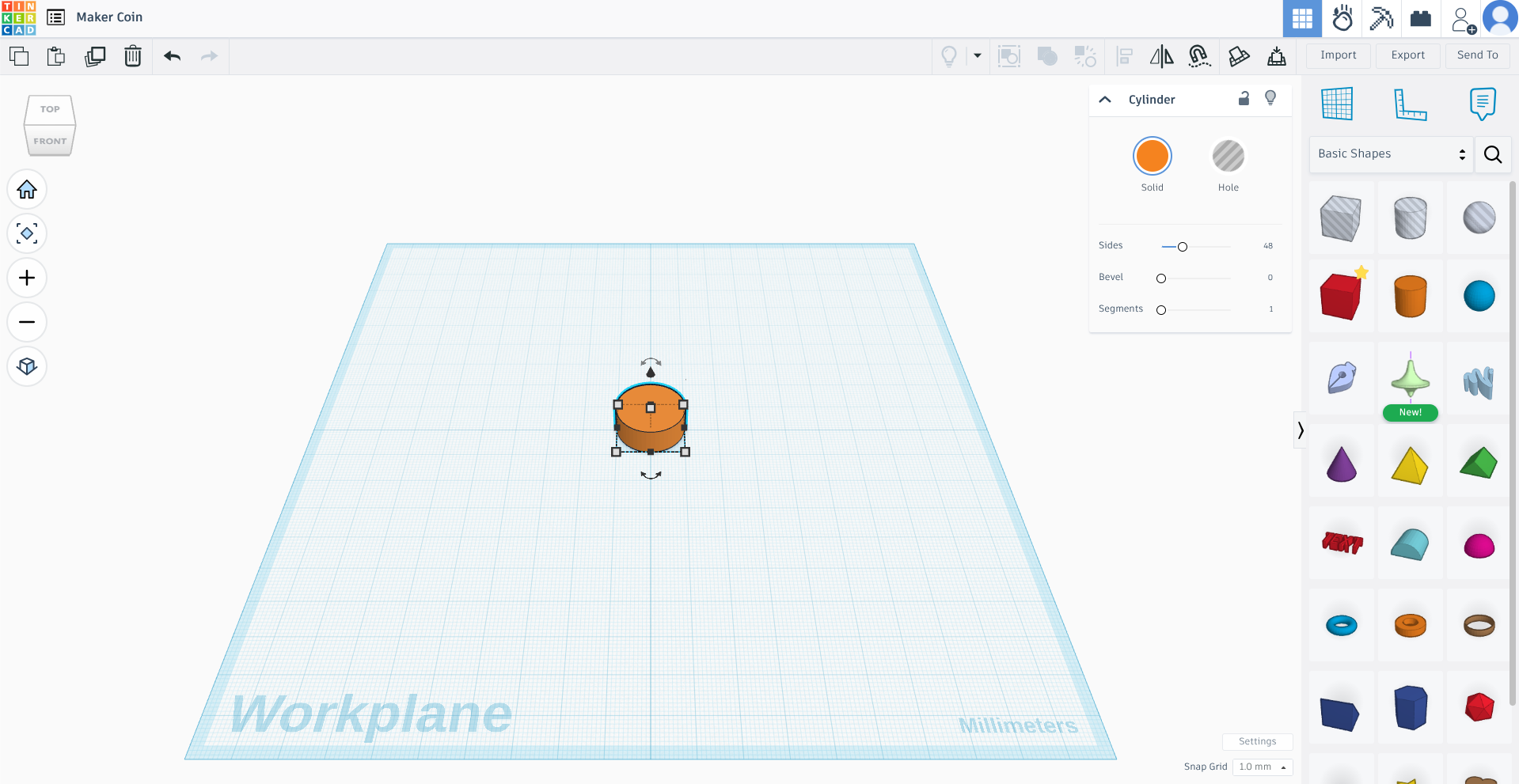
This step is an important one. We're going to be resizing the cylinder you just created to the desired size. It's important for its length and width to both be equal and to be an odd number. This makes for crisper points when it comes to adding the detail. Otherwise, you can make it as tall, wide, or long as you want! Mine is 19mm by 19mm and 8mm tall.
Designs

Here comes the tricky part (but also the fun part): This part is almost entirely your preferences, so I'll be showing you how to make your designs come to life, then its all on you. You remember that right click I told you about? well right about now, it will play the most crucial part in our coin. First, choose the shapes you want for your design. You want text, drag it like normal, then go to what it says, and then change it to what you want. Remember to changes its height and width so it will fit on the coin. Continue on making your design. You can overlap the different shapes to make new ones. don't worry about the overlap; we'll fix that in a bit. If you want to duplicate part of your design, select the shape. Then, go to the top dashboard and find the option "Duplicate and Repeat". It should look like 3 peices of paper on top of each other, and is the third option from the left.
Designs: Part 2

Ounce your happy with your design, hold right click and make the dotted box surround the whole thing. Then, select the option on the top dashboard labeled "Union Group". This Causes them to act as one shape and change size with each other. We can go two ways now: either take your design/words and place them on top of the coin, click create union group, and call it a day, or you can make your design an indent and combine it like that. I'll be teaching you how to make it an indent.
Combining the Bits
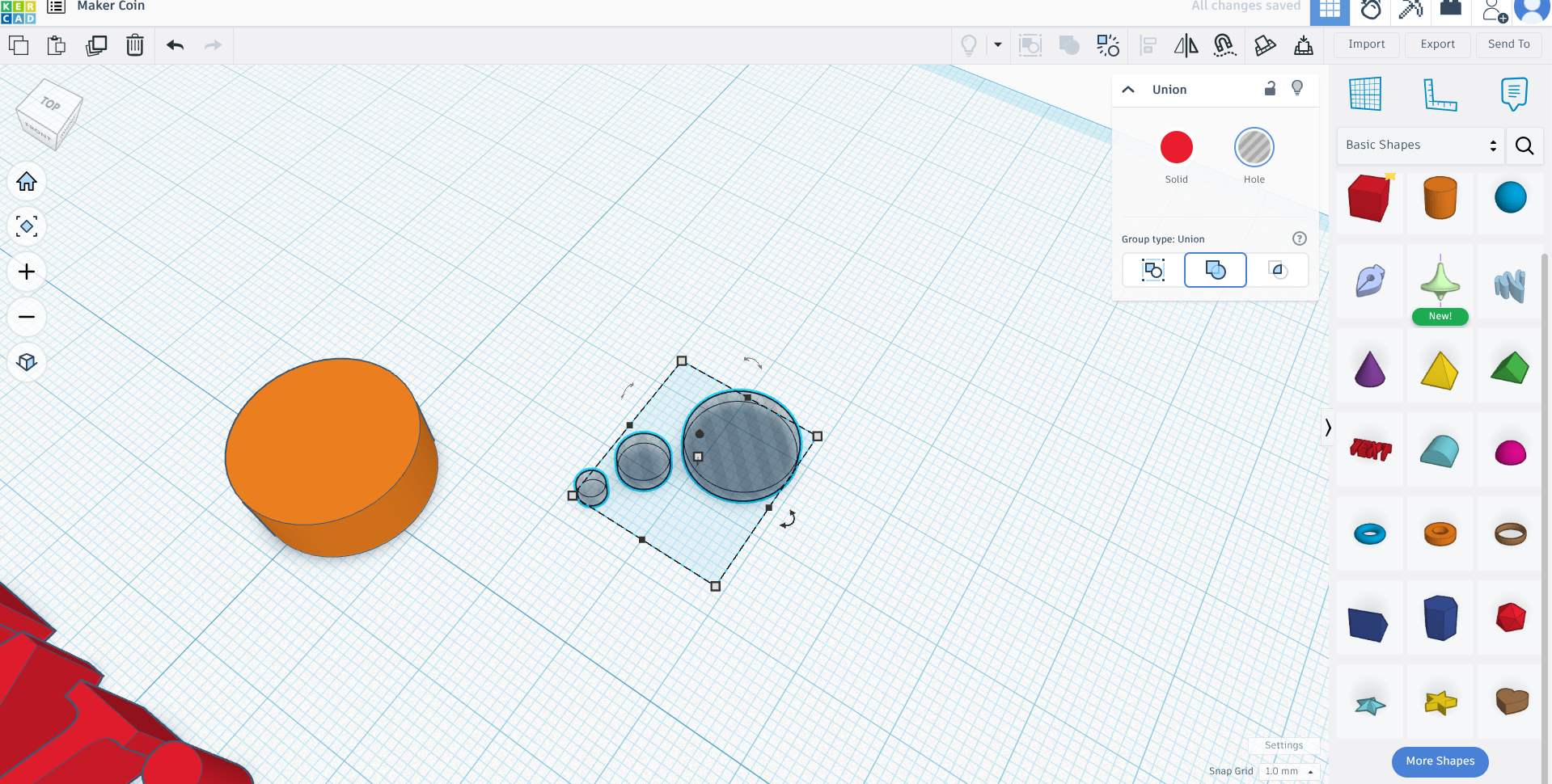
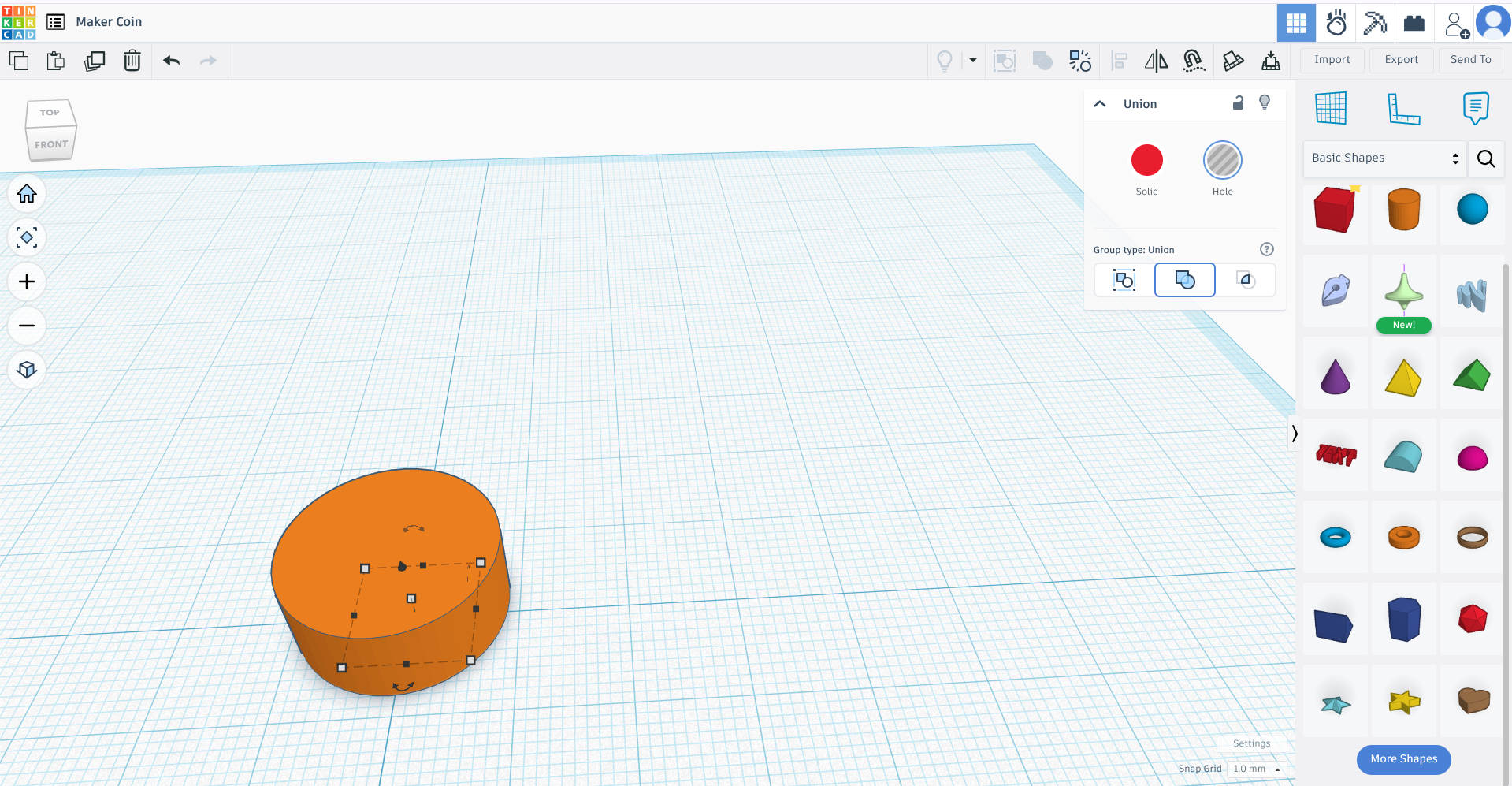
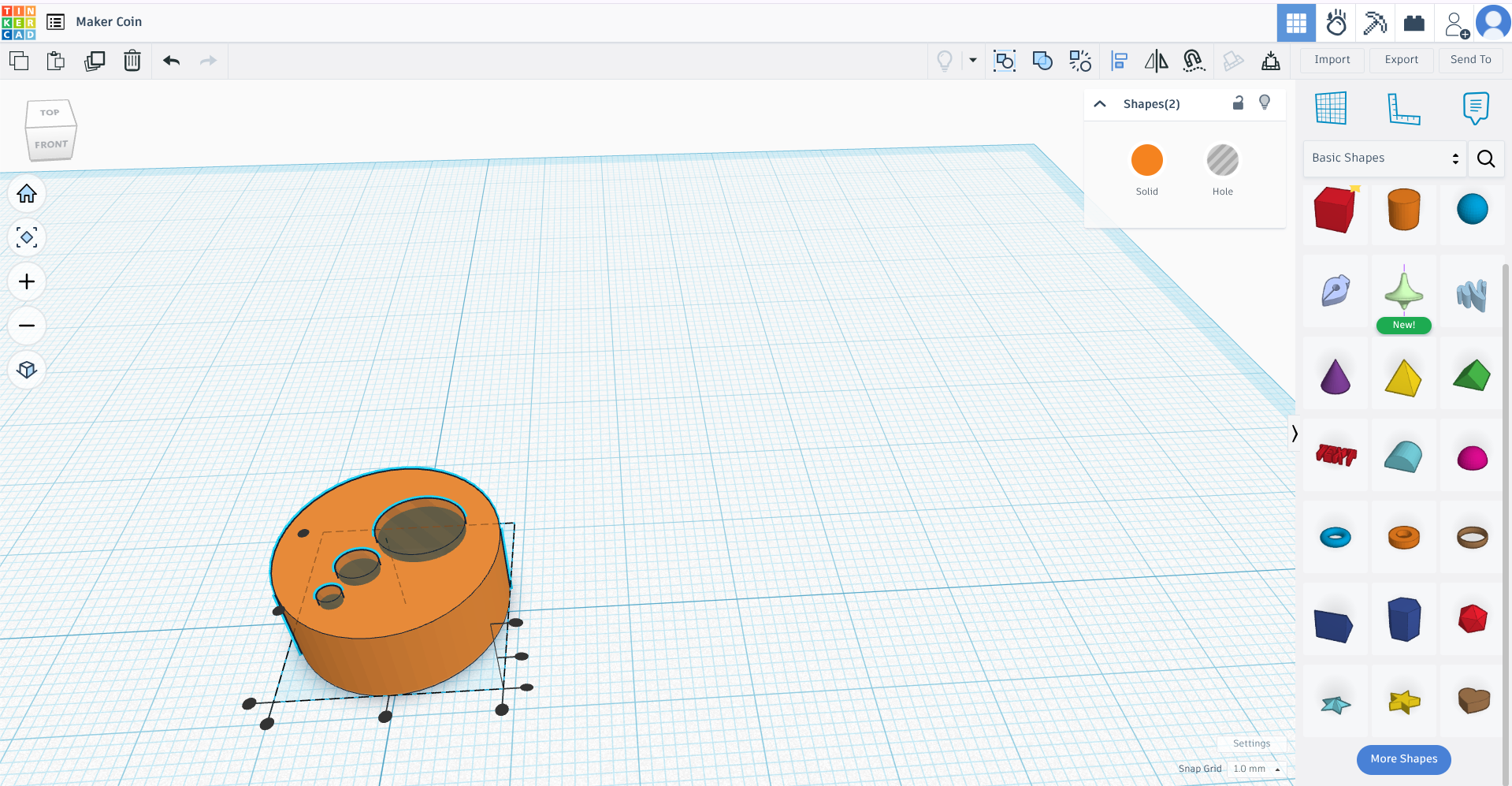

Ok, next, select your now combined design. Go to the top right of the workspace and select "Hole". Now, drag it over to your coin, and place it in it. Having the design still selected, find the black arrow either above or below your Design, depending on the camera angle. Right click the arrow to drag it up or down. If your a perfectionist like me, right click and select all of the things you have down right now. Go to the top dashboard and click the button that says "Align", or just hit L key. Then, click the middle black dots to align your design with the coin. Then select the entire thing and hit that union group button from earlier. If you don't like the way it looks, Click the ungroup button next to the union group button, or hit the keys CTRL, Shift, and G. The rearrange accordingly. Ounce your happy with it, your all done!