How to Export Contacts From IPhone to Mac
by bigbiggates in Circuits > Apple
92 Views, 0 Favorites, 0 Comments
How to Export Contacts From IPhone to Mac

The world has become a very small place today. You are able to speak to your loved ones from anywhere at any time without any restrictions. The spread of the mobile phone technology has brought everyone closer to each other. However, in case you lose your mobile phone or accidentally erase the data, you feel stranded. To avoid such an eventuality, you should keep a backup option ready. The best option in case you own an iPhone is to transfer the contacts from your iPhone to your Mac. There are three easy methods of doing it. We shall see them in brief.
• Using ICloud
The first step is to connect your iPhone to the Wi-Fi internet. This is imperative for you to connect to the cloud service.
v Enable Contacts in the iCloud
Go to the ‘Settings’ menu on your iPhone. Go to iCloud and sign in with your Apple ID. You can always create one if you do not have an ID. Locate the ‘Contacts’ button and swipe it to the right side.
You will have to save your contacts. There are two places where you can do so.
Mac Address book: Usually, you might have set up the iCloud on your Mac. If you have this setup, you could see that all the contacts would be in your address book. In case you have not enabled iCloud, you can do so easily. Choose ‘System Preferences’ to find the iCloud and use your Apple ID to access it. Enable the contacts as well as another menu you wish to transfer.
V-card file: Open iCloud using the web browser on your Mac. Sign in with your Apple ID and click on the ‘Contacts’ icon. You will get an option, ‘Export vCard’. On selecting this option, your job is over.
Tip: With iPhone Data Recovery, you can easily export contacts from iPhone to Mac,
Save Contacts to Mac Directly:
v Install IPhone Data Recovery:
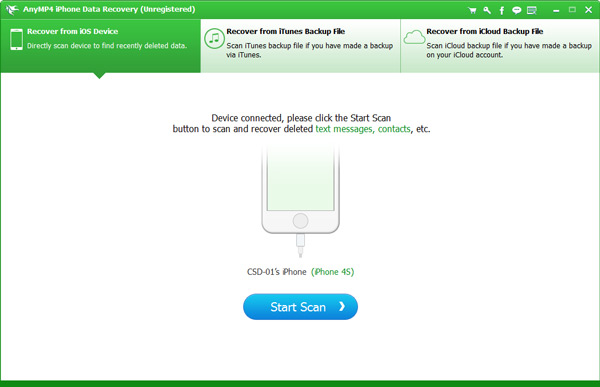
This is the Data Recovery software. You should install this software to enable to save your contacts directly. You have to run the software and connect your iPhone to your Mac using a USB cable. You have to click on the option, ‘Recover from iOS device’.
v Scan your iPhone:
You have to do this process before you transfer your iPhone contacts.
v Transfer contacts:
On the left sidebar, you can see ‘Contacts’. Once the scan is over, you will be able to preview the contacts. Choose ‘Contacts’ and select the ones you wish to transfer. Now, click ‘Export to PC’. The contacts will transfer directly.
Using ITunes Backup:

v Install IPhone Data Recovery:
On installing this software, you will have to run the same. Choose ‘Recover from iTunes backup file’. This will display all the backup files on the screen. Scan to extract the contents.
v Save Contacts to Address book:
On completion of the scan, you can have a preview of all your contacts. Check the appropriate box and click ‘Recover’. This will save all the checked contacts to your Mac. Open the Address book, select all the .vcf contacts, and drag them to your address book. You have now done the job successfully.
Tip: You can easily recover data from iTunes and iCloud backup with the help of iPhone data recovery, for example, you can recover iMessages from iPhone 7 backup