How to Fix Xbox Controller Stick Drift and Dead Zone by Replacing the Joystick
by David-Clark in Circuits > Electronics
316 Views, 1 Favorites, 0 Comments
How to Fix Xbox Controller Stick Drift and Dead Zone by Replacing the Joystick
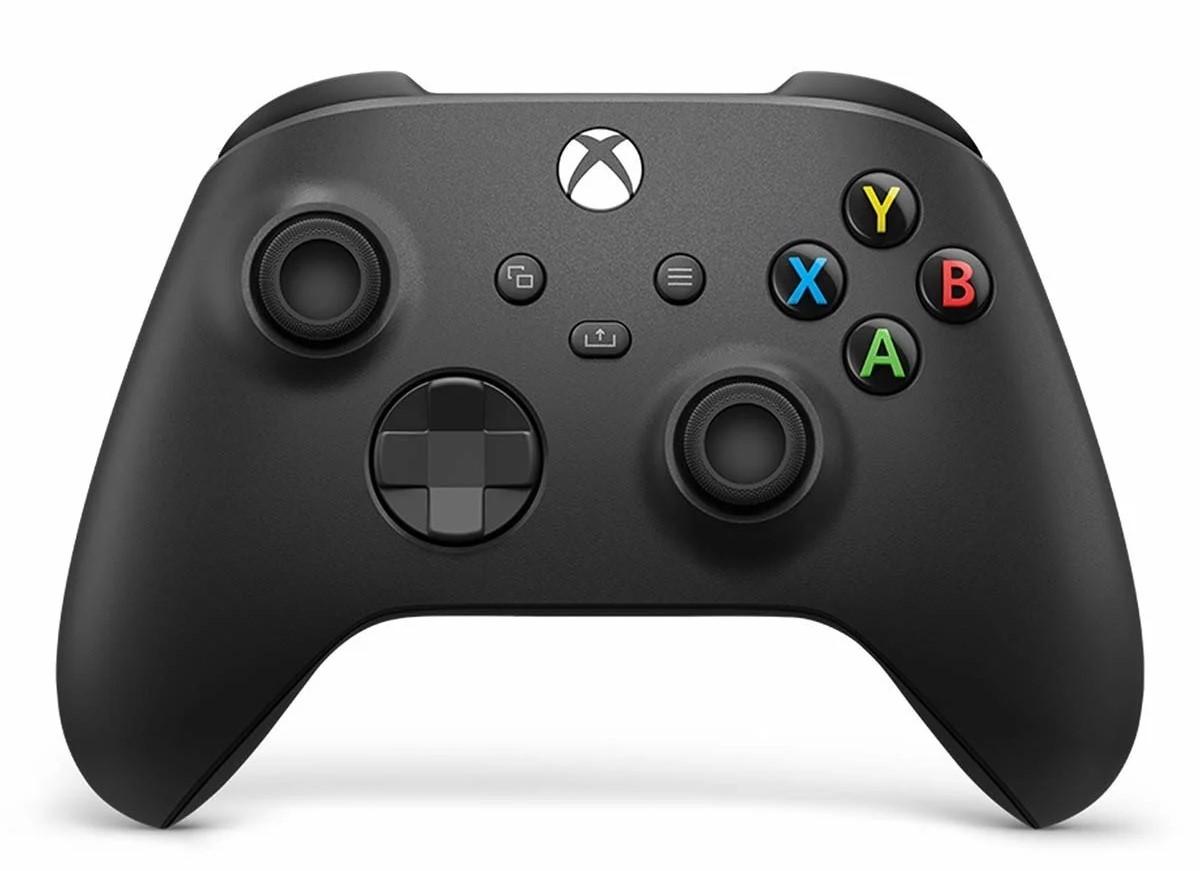
Joystick drift and dead zones are some of the most common problems with modern game controllers. Over time, dust, wear, and repeated movement can cause the analog stick to register input even when you’re not touching it. While cleaning can help in some cases, a worn joystick usually needs to be replaced.
In this guide, I’ll show you how I fixed stick drift by installing a new joystick. These are the exact steps I followed during the repair, with photos taken along the way. If you’re comfortable using basic tools and a
Check the Controller
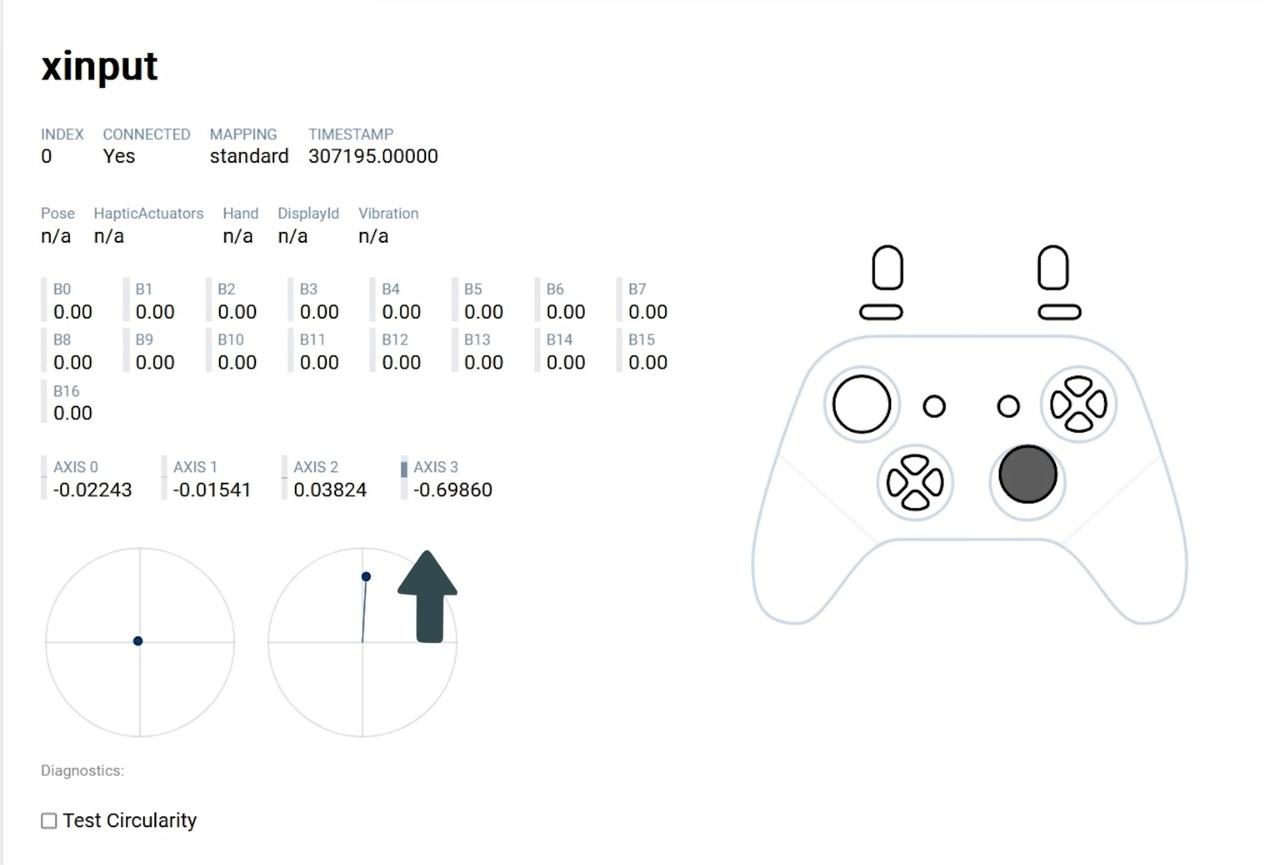
Before opening the controller, confirm that the issue is actually stick drift or a dead zone. Connect the controller to a console or PC or online controller tester and move the joystick slowly in all directions. If the cursor moves on its own, doesn’t return to center, or fails to reach full range, the joystick is worn out.
Doing this check first helps you avoid unnecessary disassembly if the problem lies elsewhere.
Remove the Side Convers
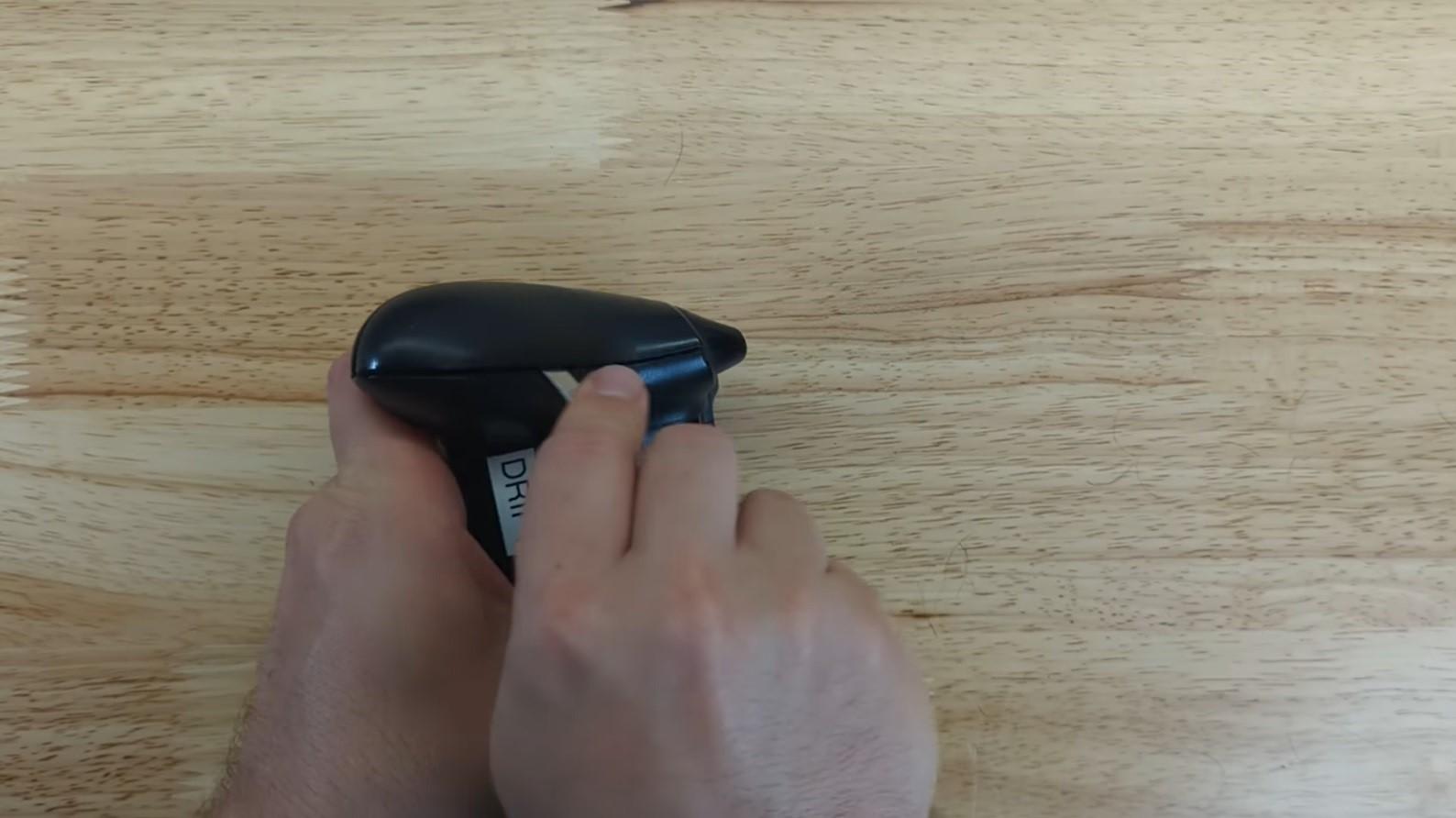
Use a plastic pry tool or your fingernail to gently lift the side covers. Start from the bottom edge and work your way around slowly.
Use metal tools with care, as they can scratch or crack the plastic. Take your time, as the clips can be tight but will come off cleanly with steady pressure.
Remove the Screws
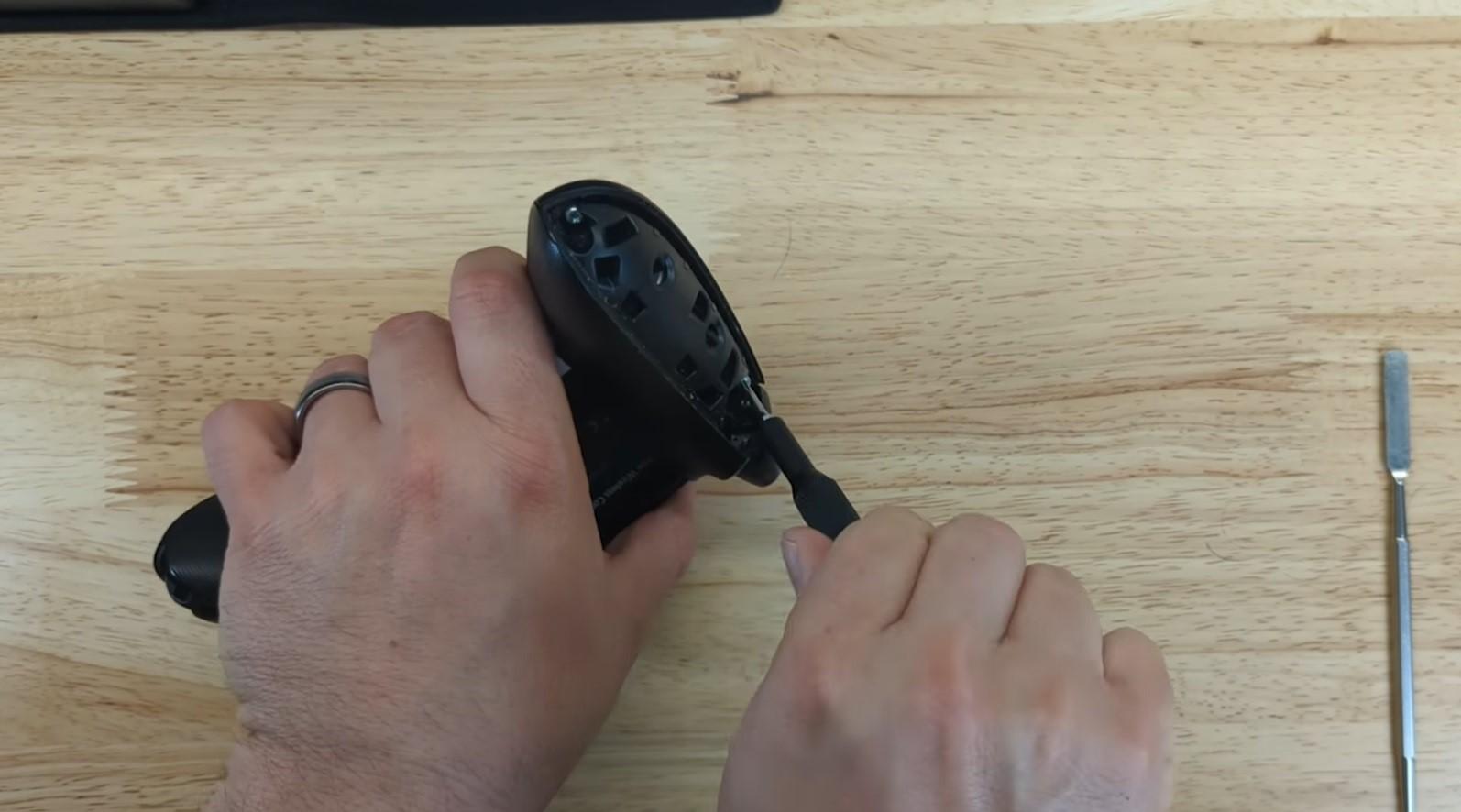
Once the side covers are removed, you’ll see the screws holding the controller together. Use the correct screwdriver to avoid stripping them.
Place the screws in a small container so they don’t get lost. Mixing screws can cause problems during reassembly.
Remove the Front Cover
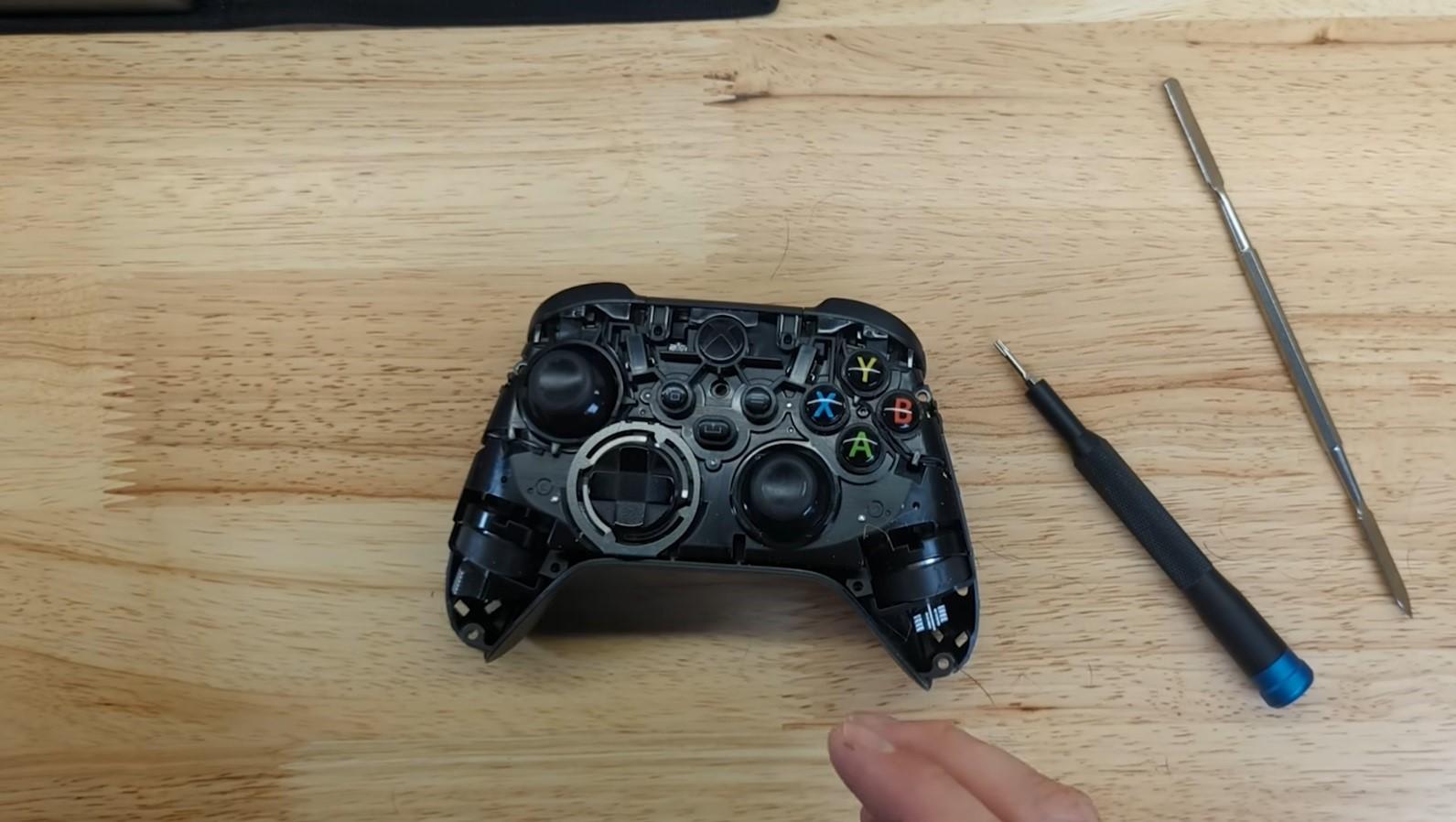
Carefully lift the front cover away from the controller body. Do this slowly, as internal parts may still be seated underneath.
If it feels stuck, double-check that all screws are removed before applying force.
Remove the Triggers
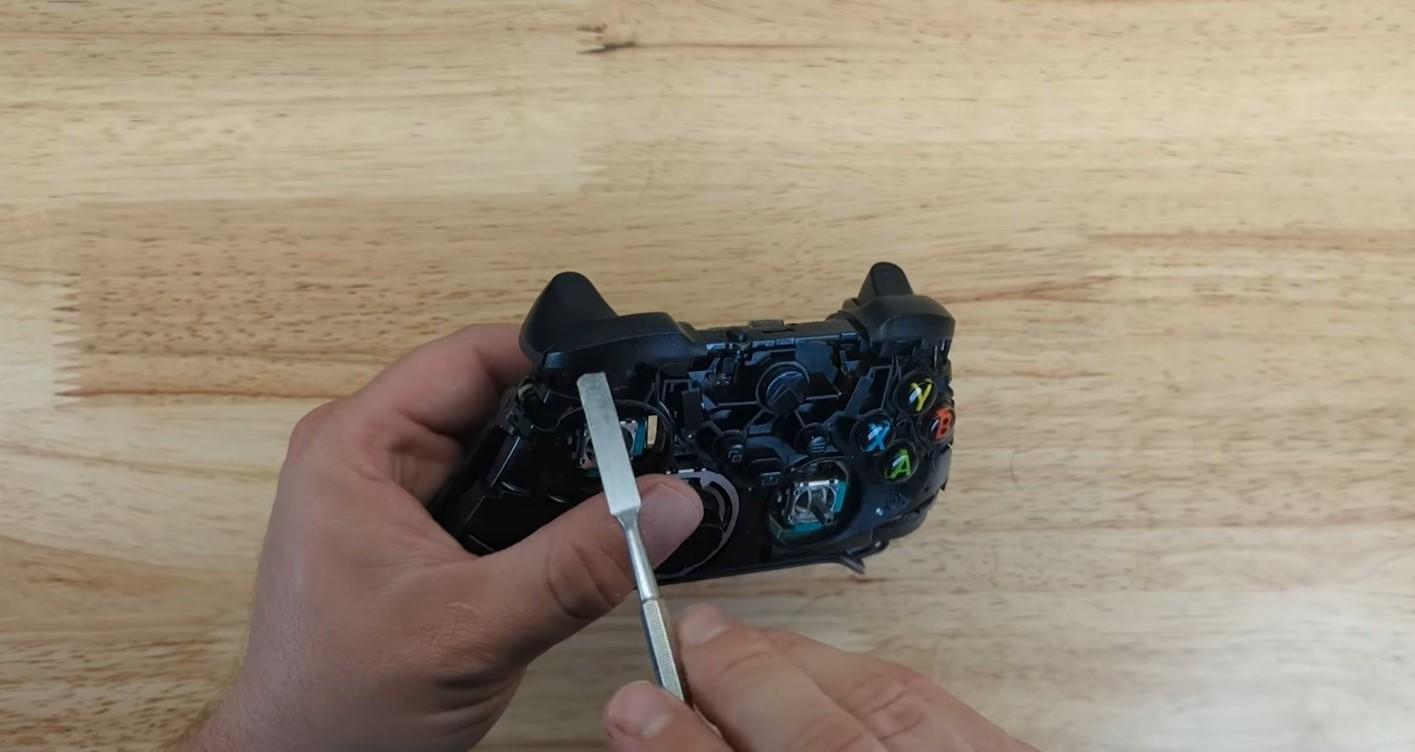
The trigger buttons are usually held in place by small springs. Gently lift each trigger while keeping an eye on the spring so it doesn’t fly away.
Set the triggers and springs aside in the order you removed them to make reassembly easier.
Detach the Back Cover
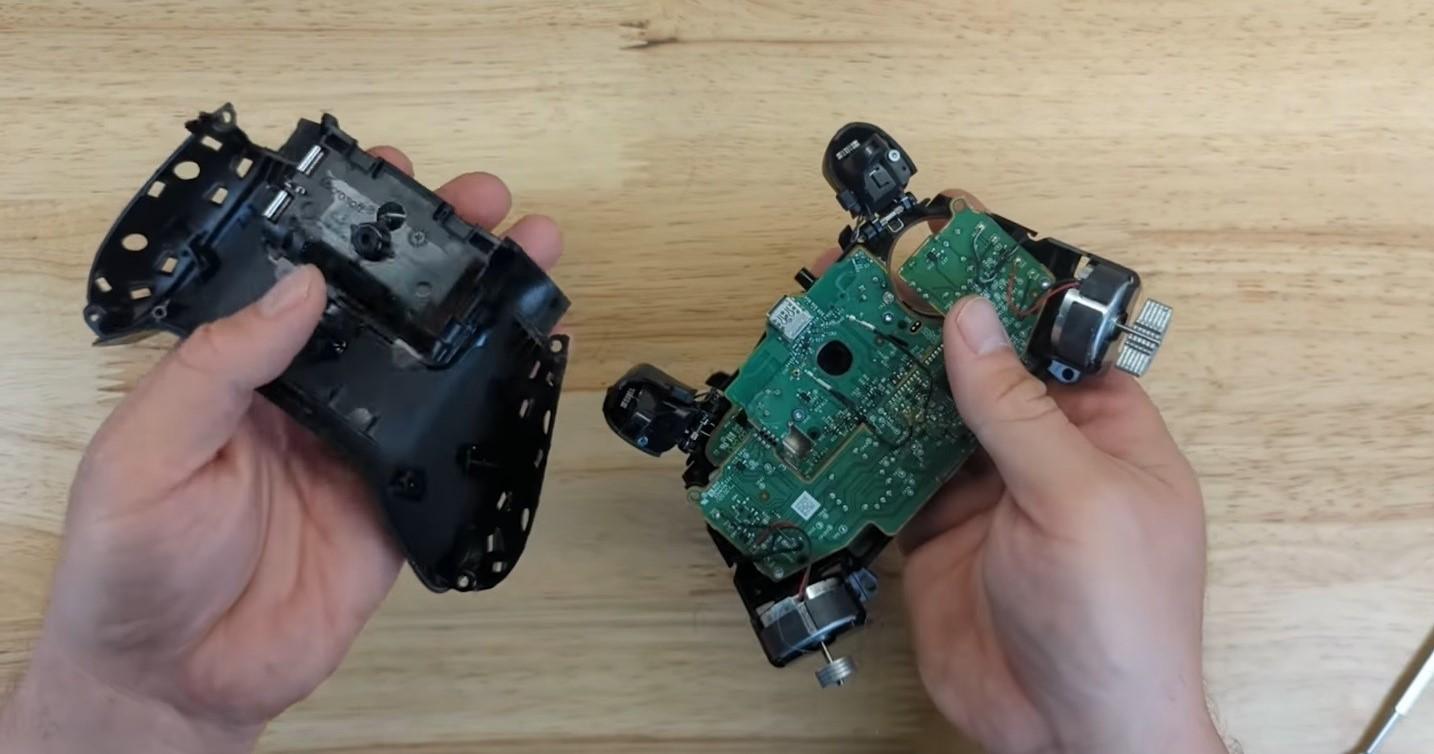
With the front parts removed, you can now separate the back cover. Lift it straight up and place it aside.
At this stage, you’ll start seeing internal components like vibration motors and the main PCB.
Vibration Motors Removal
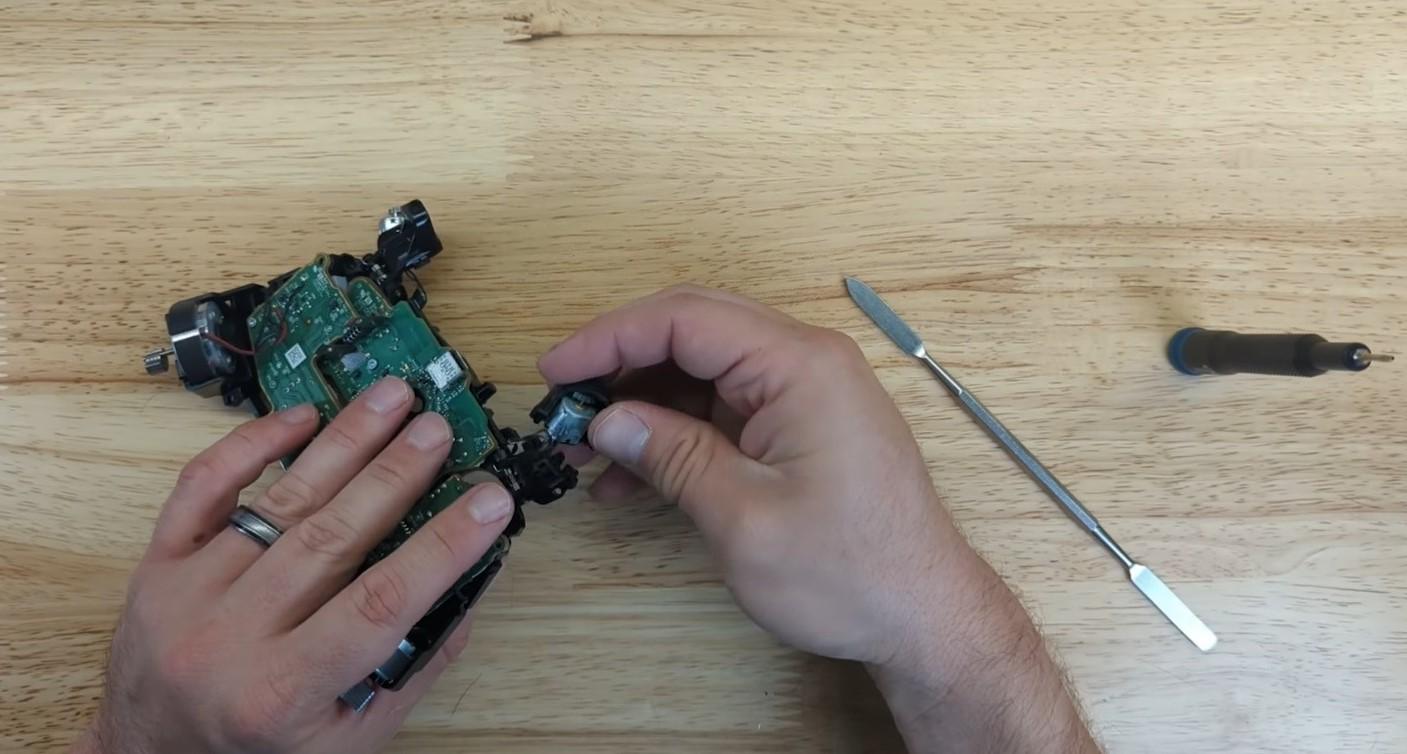
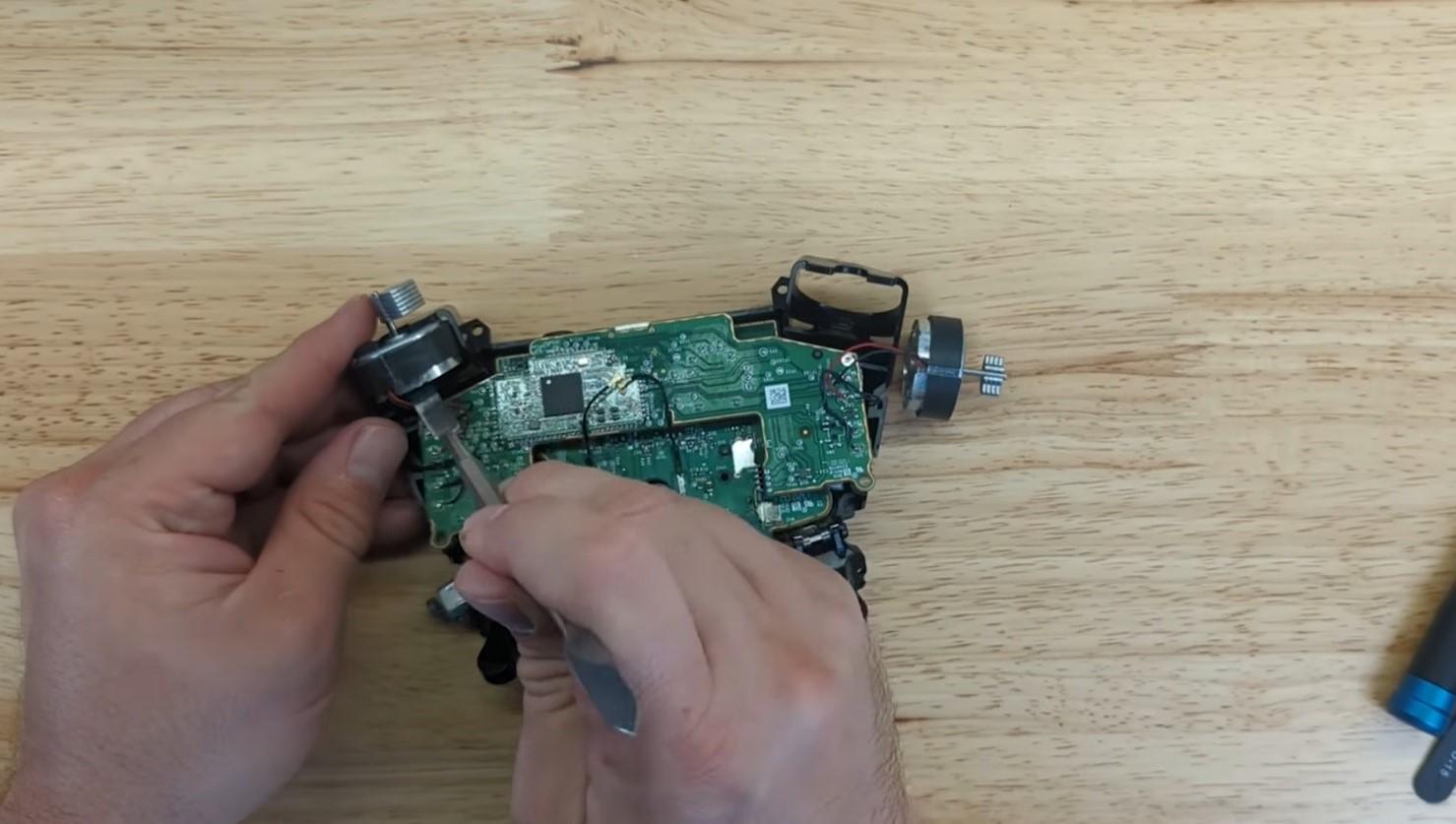
The vibration motors are usually connected with small wires and sit in plastic holders. Gently lift them out of their slots.
You don’t need to disconnect the wires unless required. Just move them aside carefully so they don’t get strained or damaged.
Remove the D-pad Ring
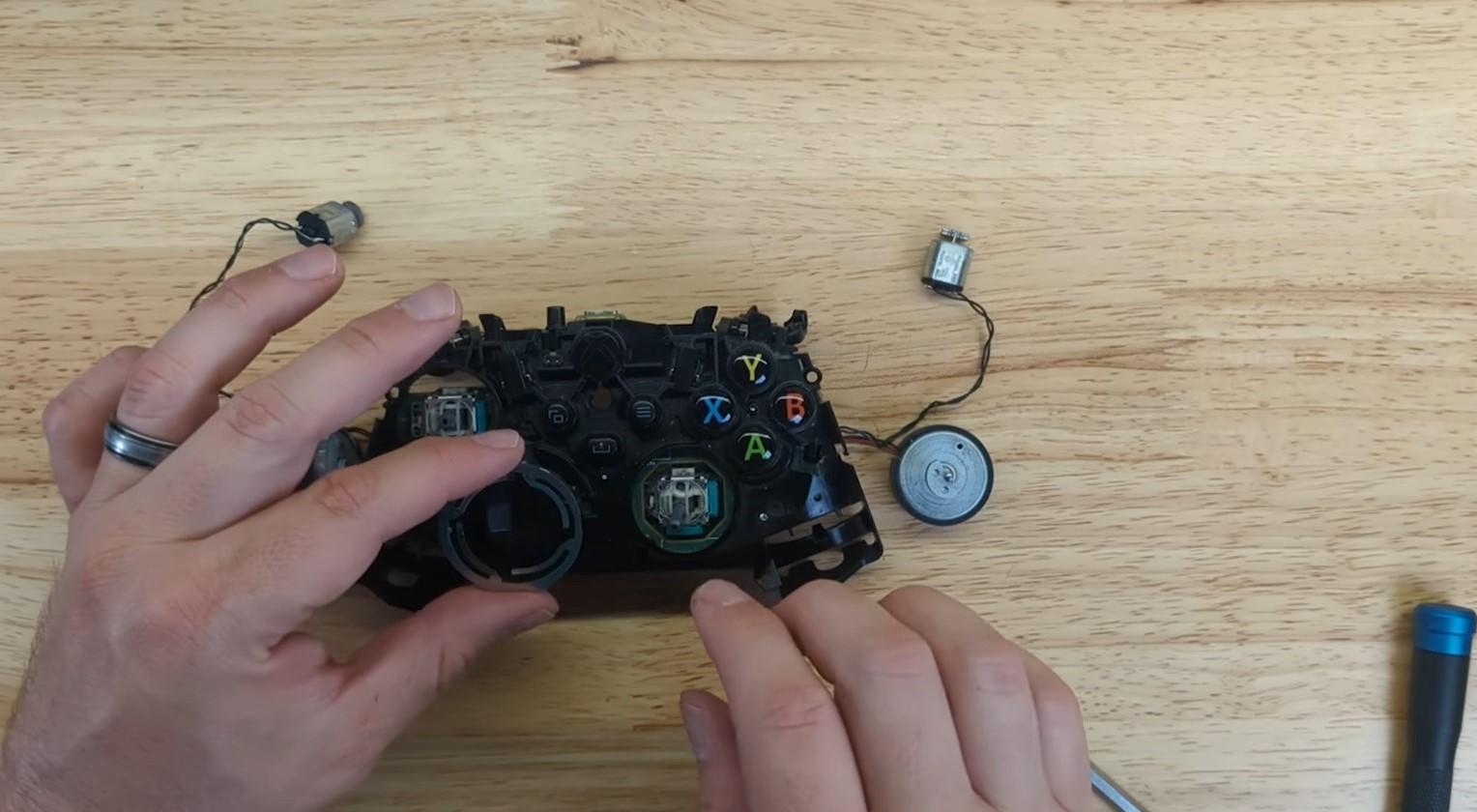
Lift the D-pad ring and membrane carefully from the PCB. These parts are usually loose once the cover is off.
Clean any dust or debris you notice, as buildup here can also affect button responsiveness.
Remove the PCB
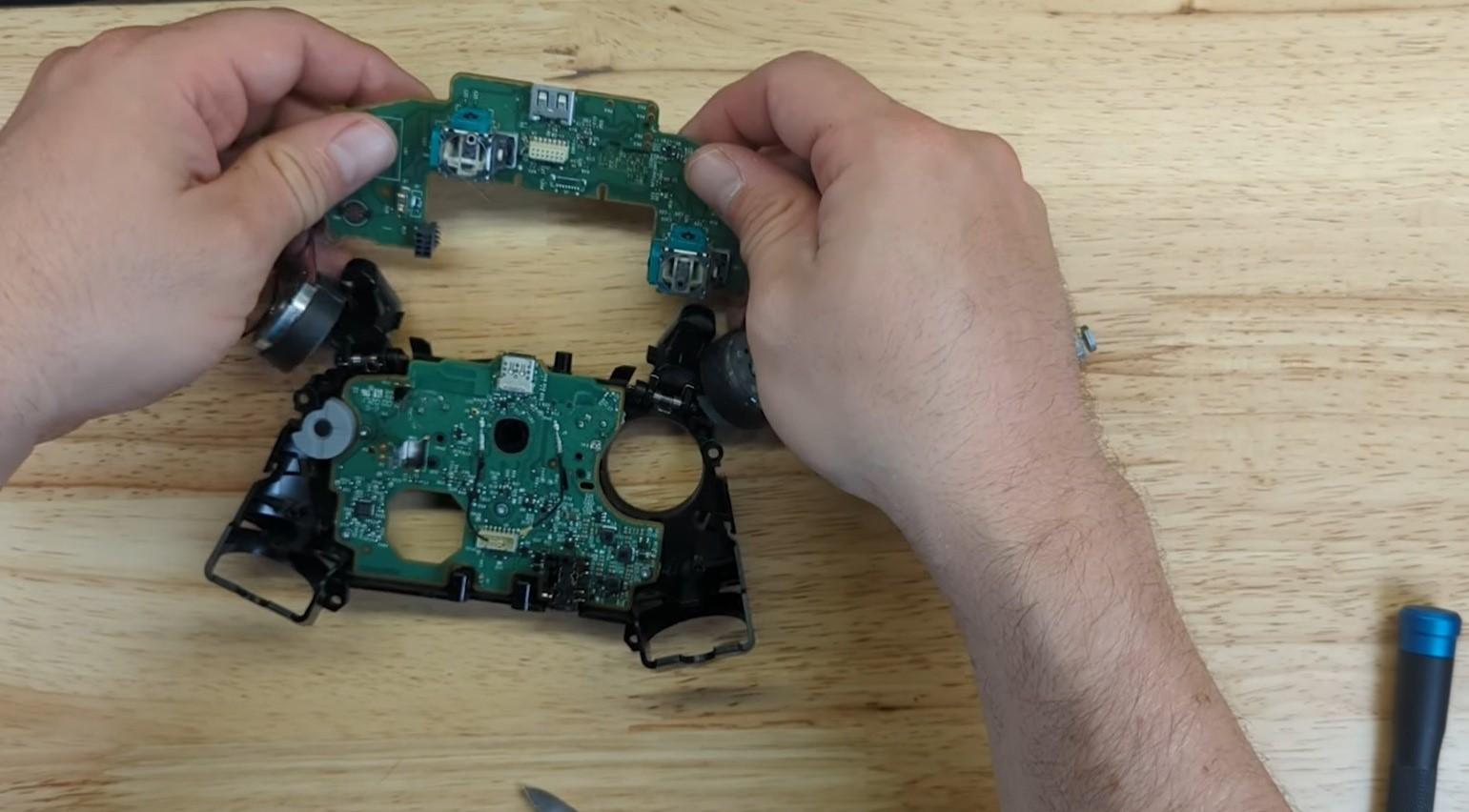
Unscrew or release any clips holding the PCB in place. Slowly lift the board, making sure no ribbon cables or wires are still attached.
Handle the PCB by the edges to avoid static damage or bending.
Desoldering and Removal of Old Joystick
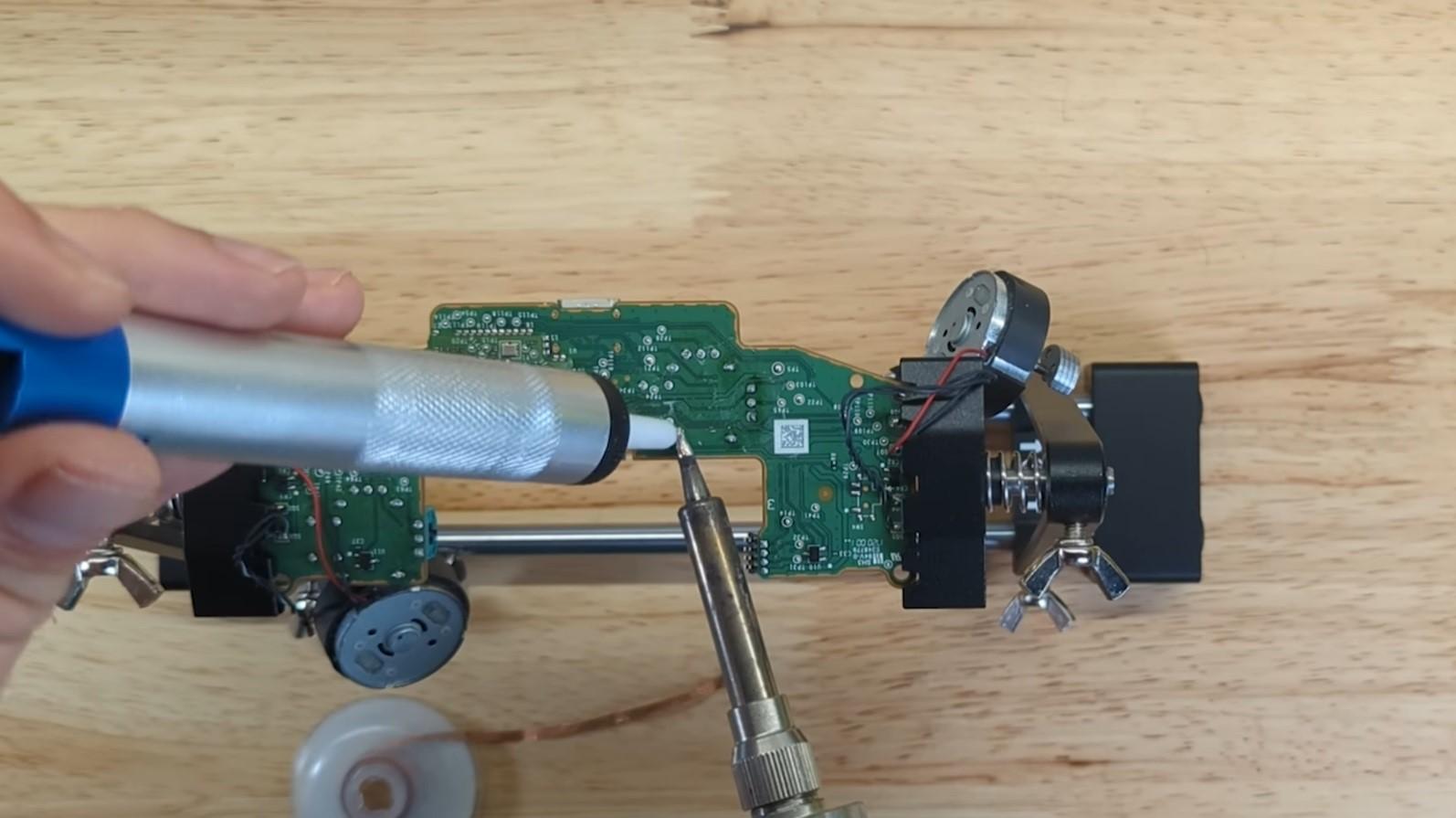
This is the most critical step. Heat each solder joint of the joystick using a soldering iron/heat gun and remove the solder with a solder pump or wick.
Work patiently and avoid overheating the PCB, as this can lift pads or damage traces.
Installation and Soldering of New Joystick
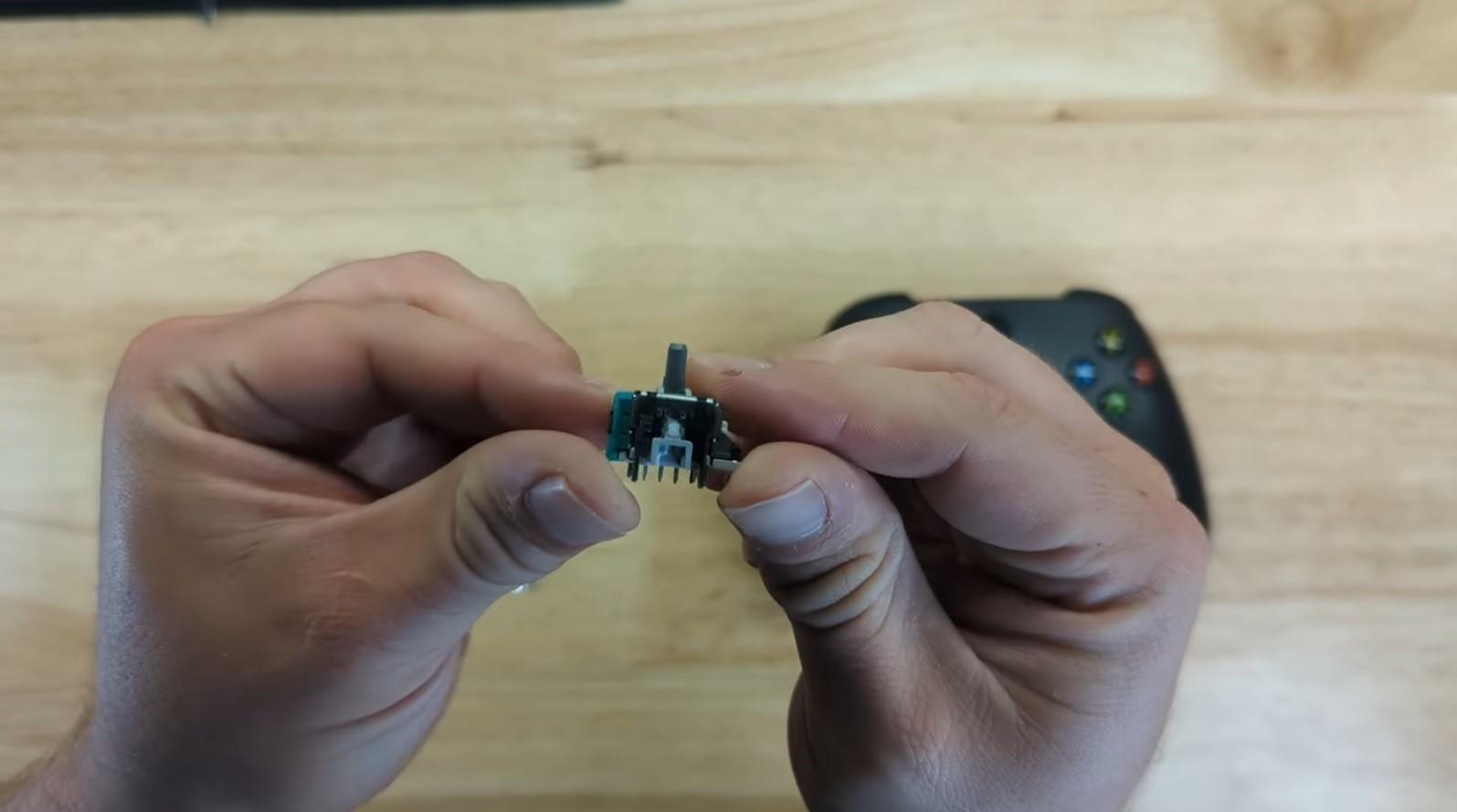
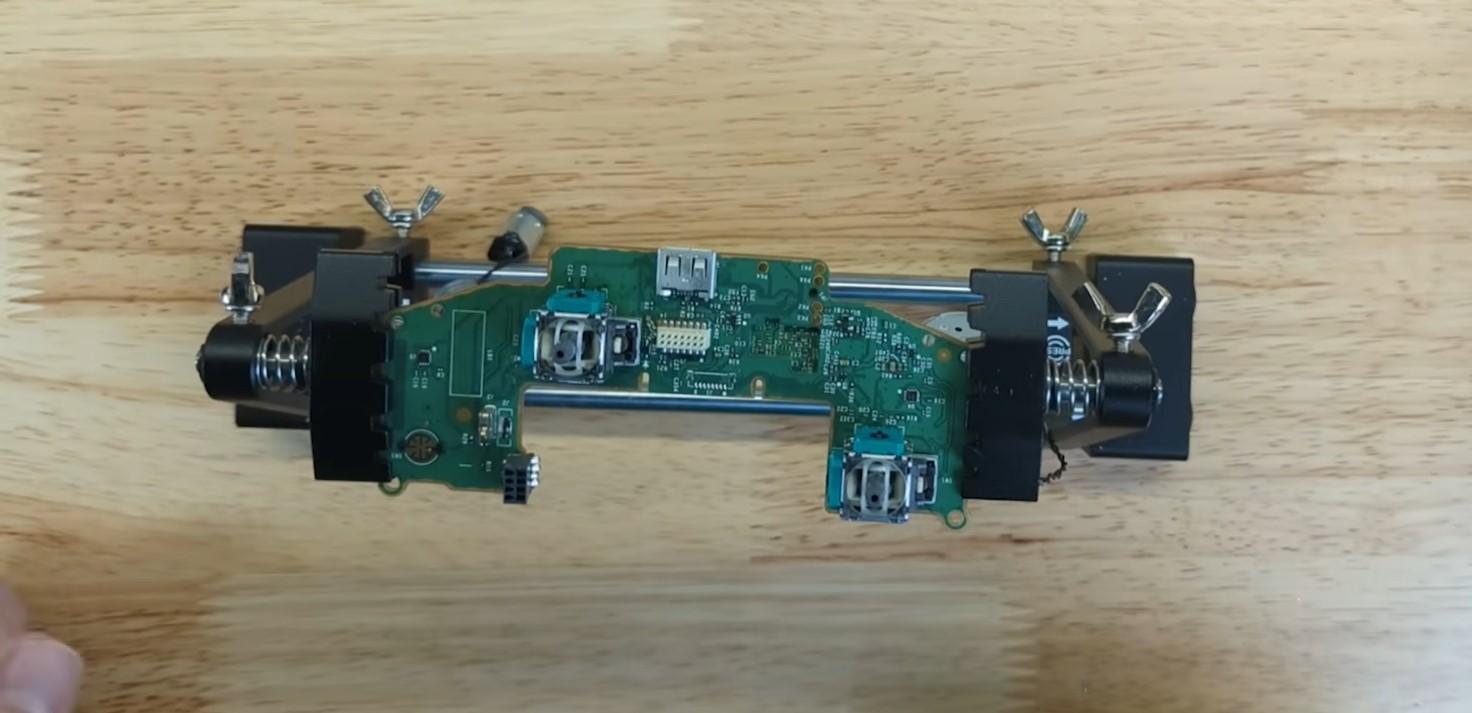
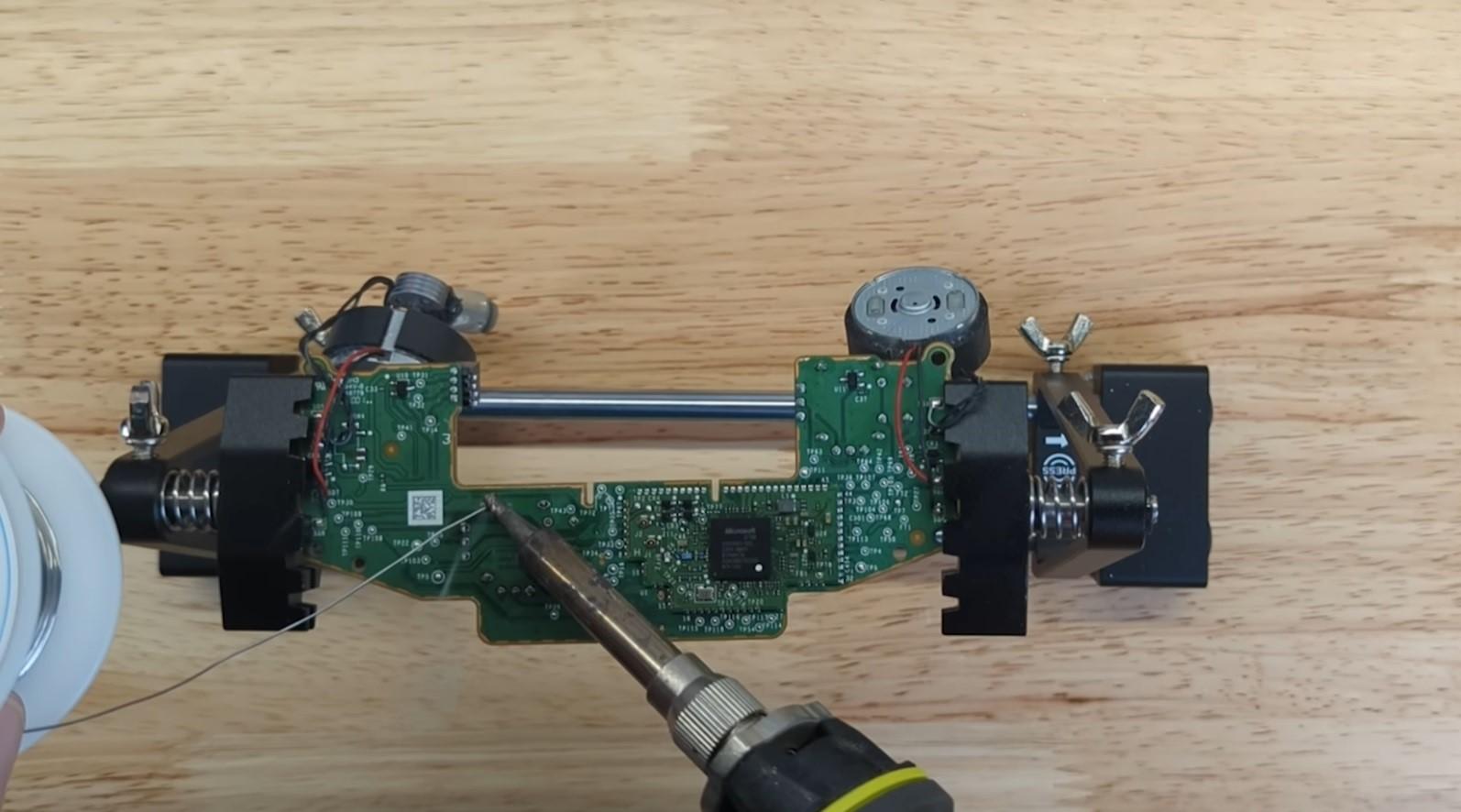
Align the new joystick perfectly with the holes on the PCB. Make sure it sits flat before soldering.
Solder each pin securely, ensuring clean joints with no cold solder or bridges. A steady hand here makes all the difference.
Install the PCB Again and Assemble the Gamepad
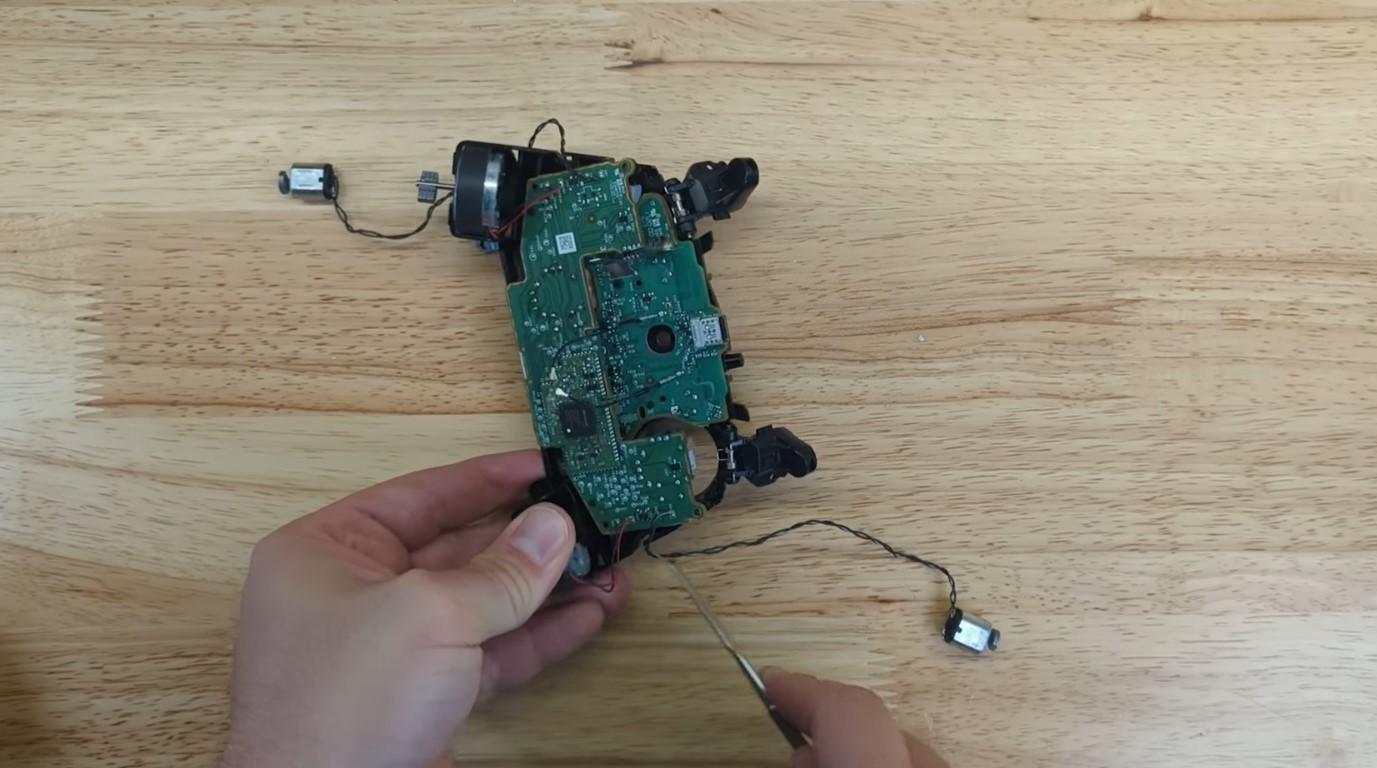
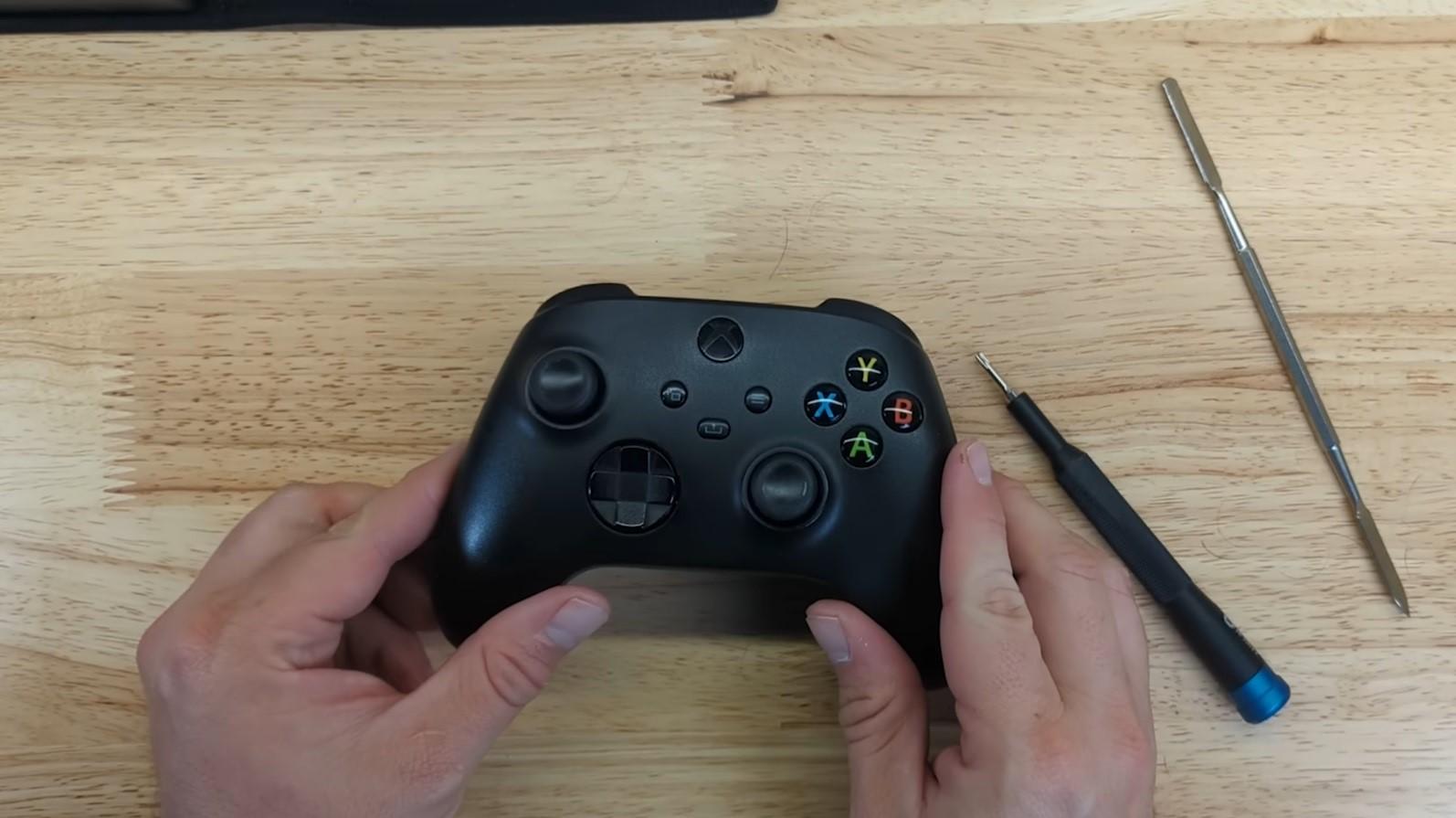
Place the PCB back into position and secure it with screws or clips. Reinstall the D-pad ring, vibration motors, triggers, and covers in reverse order.
Double-check alignment before tightening everything to avoid misaligned buttons or loose triggers.
Check the Controller After Assembling
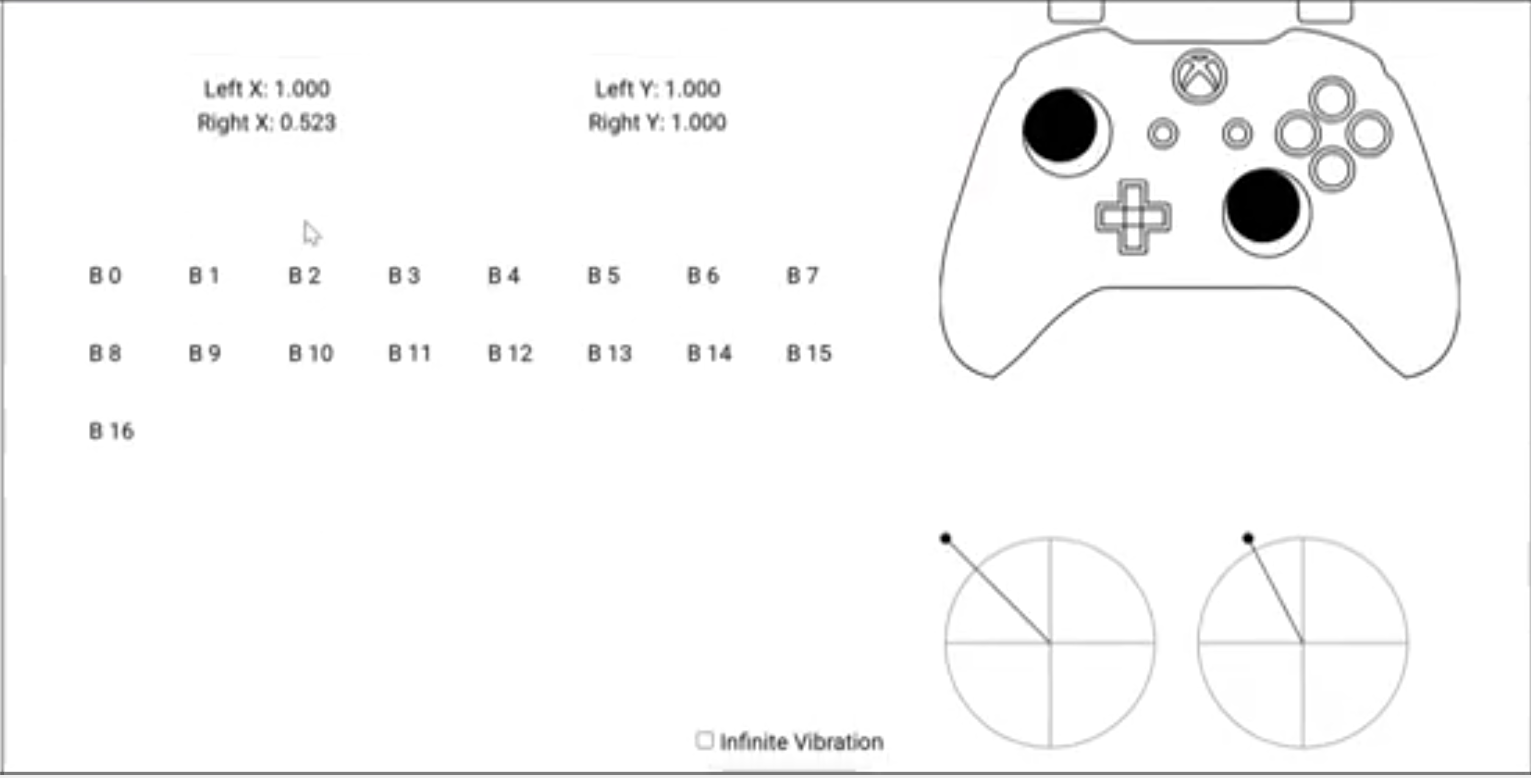
After full assembly, connect the gamepad to controller tester again and test the joystick movement. Move it slowly and confirm that it centers properly and reaches full range.
If everything feels smooth and responsive, the repair was successful and your stick drift or dead zone issue is fixed.