How to Make Basic Hot Air Balloon in Autodesk Inventor
by noyr10 in Design > Digital Graphics
39 Views, 0 Favorites, 0 Comments
How to Make Basic Hot Air Balloon in Autodesk Inventor
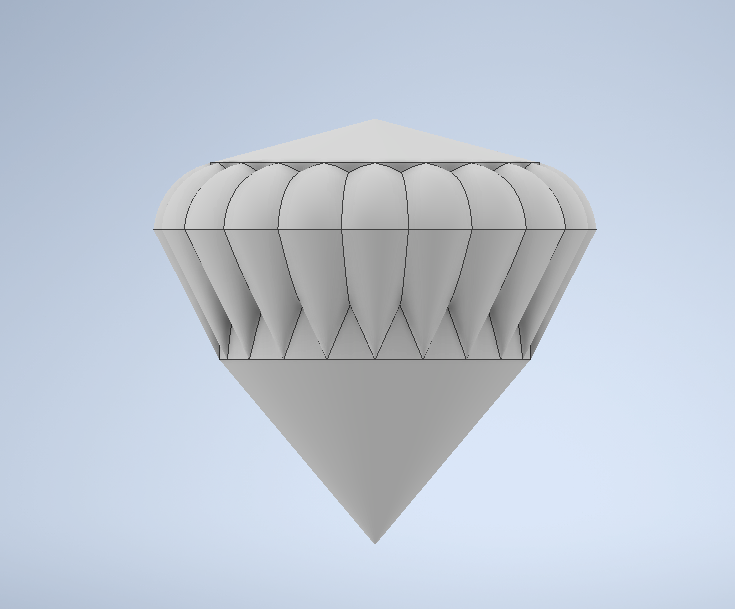

In this instructable we will make a basic hot air balloon with Autodesk Inventor.
Supplies
- Autodesk Inventor
Create First Sketch
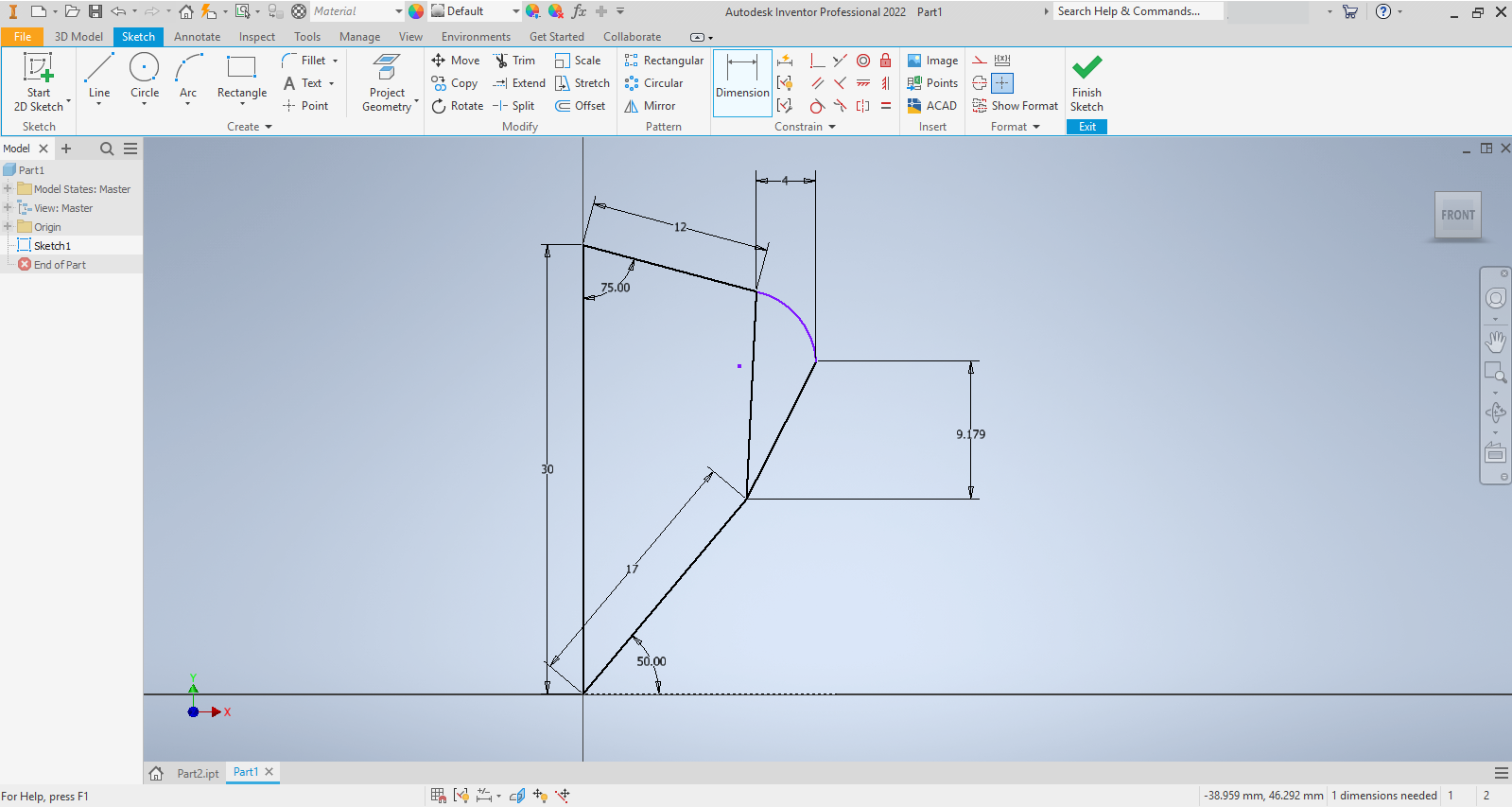
- Open Autodesk Inventor and begin new part.
- Start a new sketch and approximately draw the shown sketch.
- Finish the sketch.
Revolve Feature 1
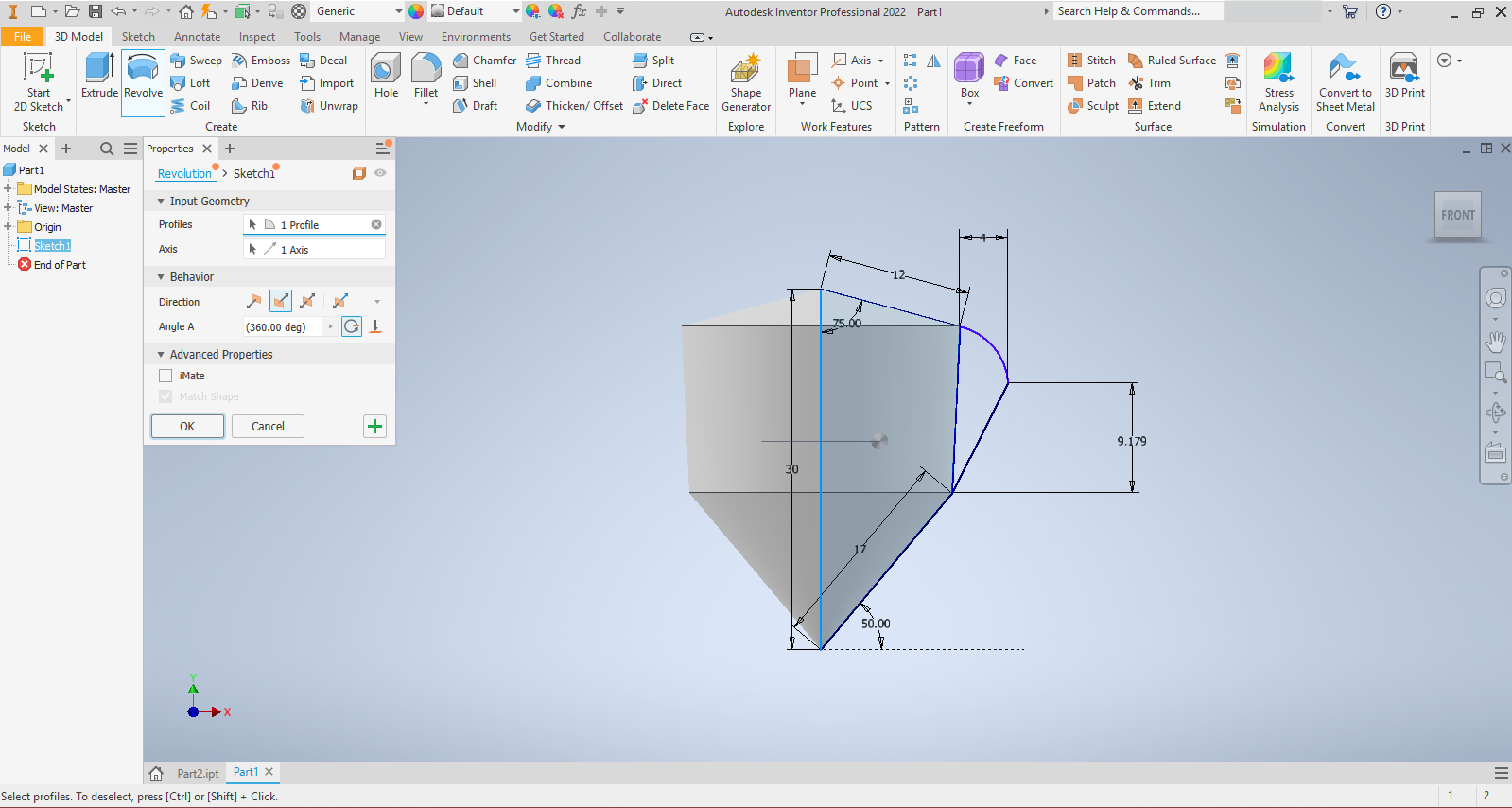
- Select the revolve command and choose the shown loop and center axis.
Revolve Feature 2
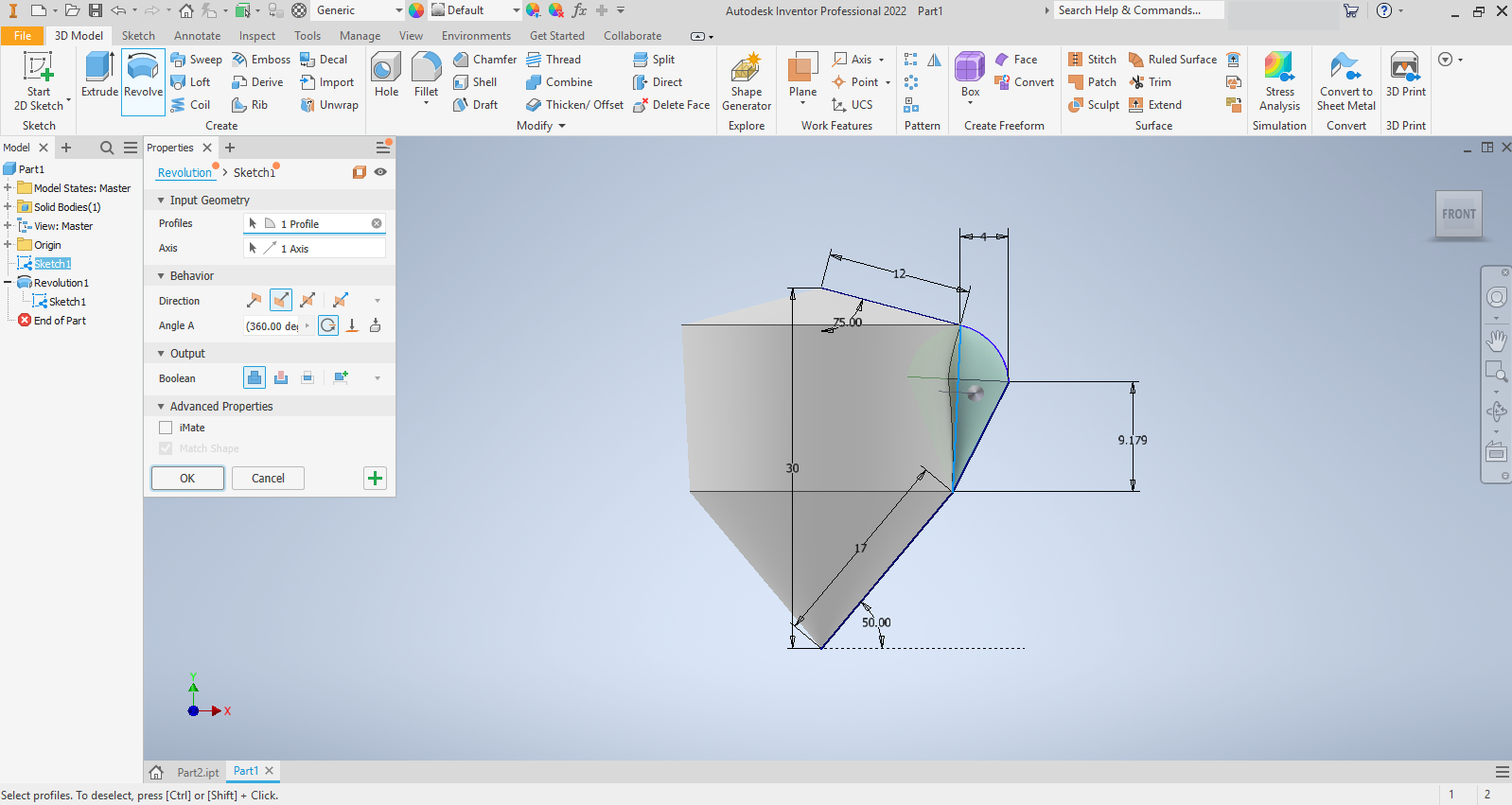
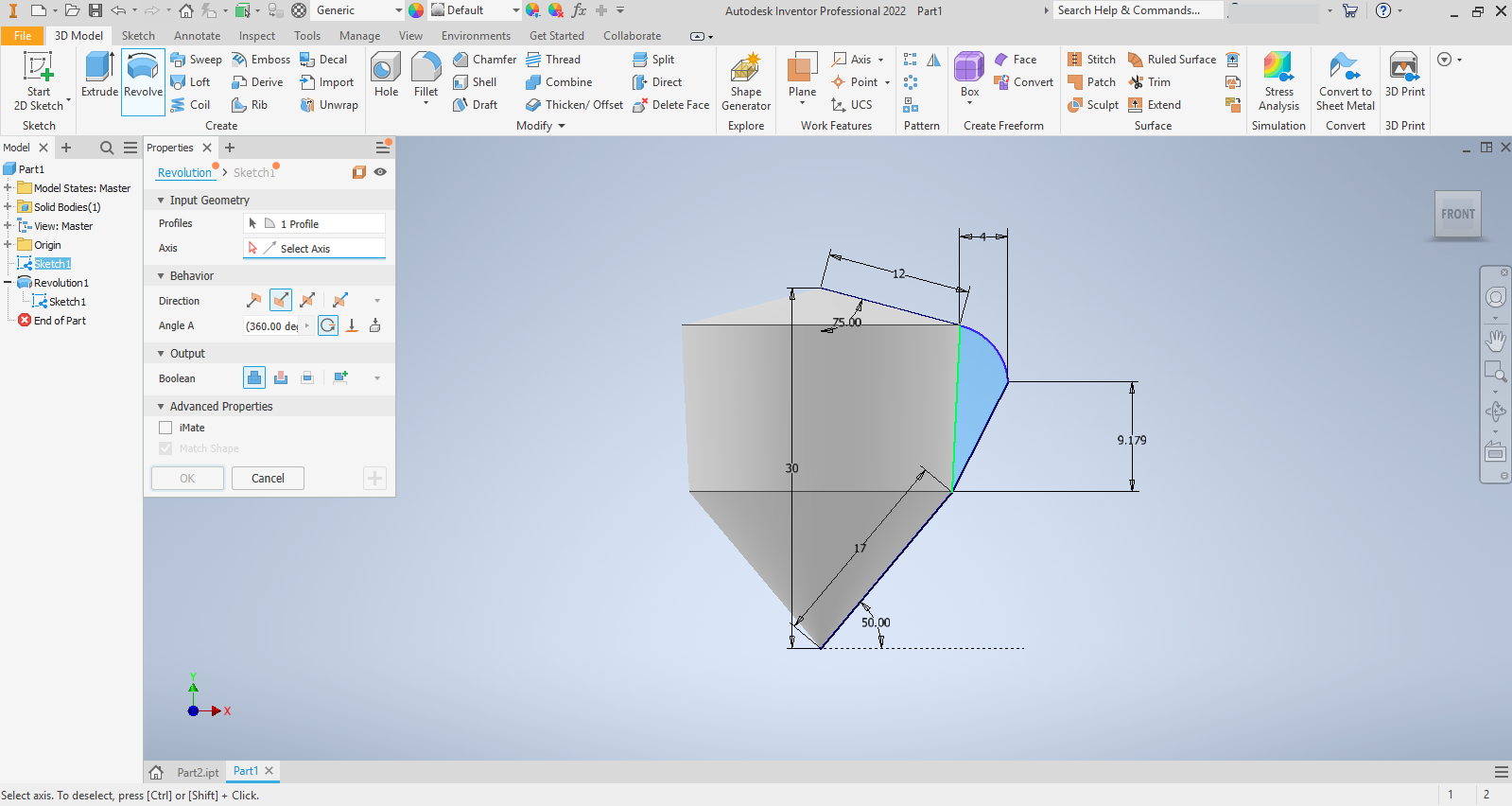
- Right click on "Sketch 1" and select the "Share Sketch Option."
- Select the revolve command again and choose the shown loop and the highlighted axis.
Create Circular Pattern

- Select Circular Pattern and choose the Revolution 2 for the Feature.
- Select the center axis for Axis and set the number of occurrences to 20.
Add Visual Effects


- Select the view tab and uncheck all the boxes in the object visibility tab.
- Screenshot the model and put it into your favorite generative AI with prompt to add clouds, a basket, and color the balloon.