How to Make a 32-Band Music Spectrum Analyzer Using MAX7219 LED Display and Arduino Nano (Step-by-Step Guide)
by ER GREAT in Circuits > LEDs
332 Views, 1 Favorites, 0 Comments
How to Make a 32-Band Music Spectrum Analyzer Using MAX7219 LED Display and Arduino Nano (Step-by-Step Guide)
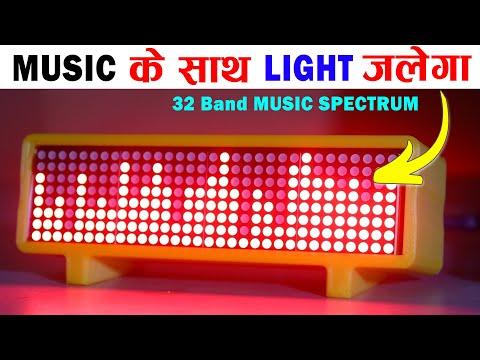
A music spectrum analyzer is one of the most eye-catching and satisfying DIY electronics projects you can build with an Arduino. It visually represents sound frequencies in real time, making music come alive with animated LED bars that react to beats, bass, and vocals. In this tutorial, we will build a 32-Band Music Spectrum Analyzer using a MAX7219 LED matrix display and an Arduino Nano, designed especially for beginners as well as electronics enthusiasts.
In this project, I will guide you step by step, starting from understanding how the system works, choosing the right components, making proper connections, and finally programming the Arduino Nano to display a smooth and responsive 32-band audio spectrum. The MAX7219 display driver makes this project compact, power-efficient, and easy to expand, while the Arduino Nano keeps the circuit small and perfect for enclosure-based builds.
This project is ideal for:
- DIY audio visualizers
- Bluetooth speaker enhancements
- Desk decoration projects
- Learning audio signal processing with Arduino
- YouTube and Instagram electronics content
No advanced knowledge is required—each step is explained clearly so you can build this project confidently at home. By the end of this tutorial, you will have a fully working real-time 32-band LED music spectrum analyzer that reacts beautifully to any music source.
Let’s get started and turn sound into light ✨
Supplies

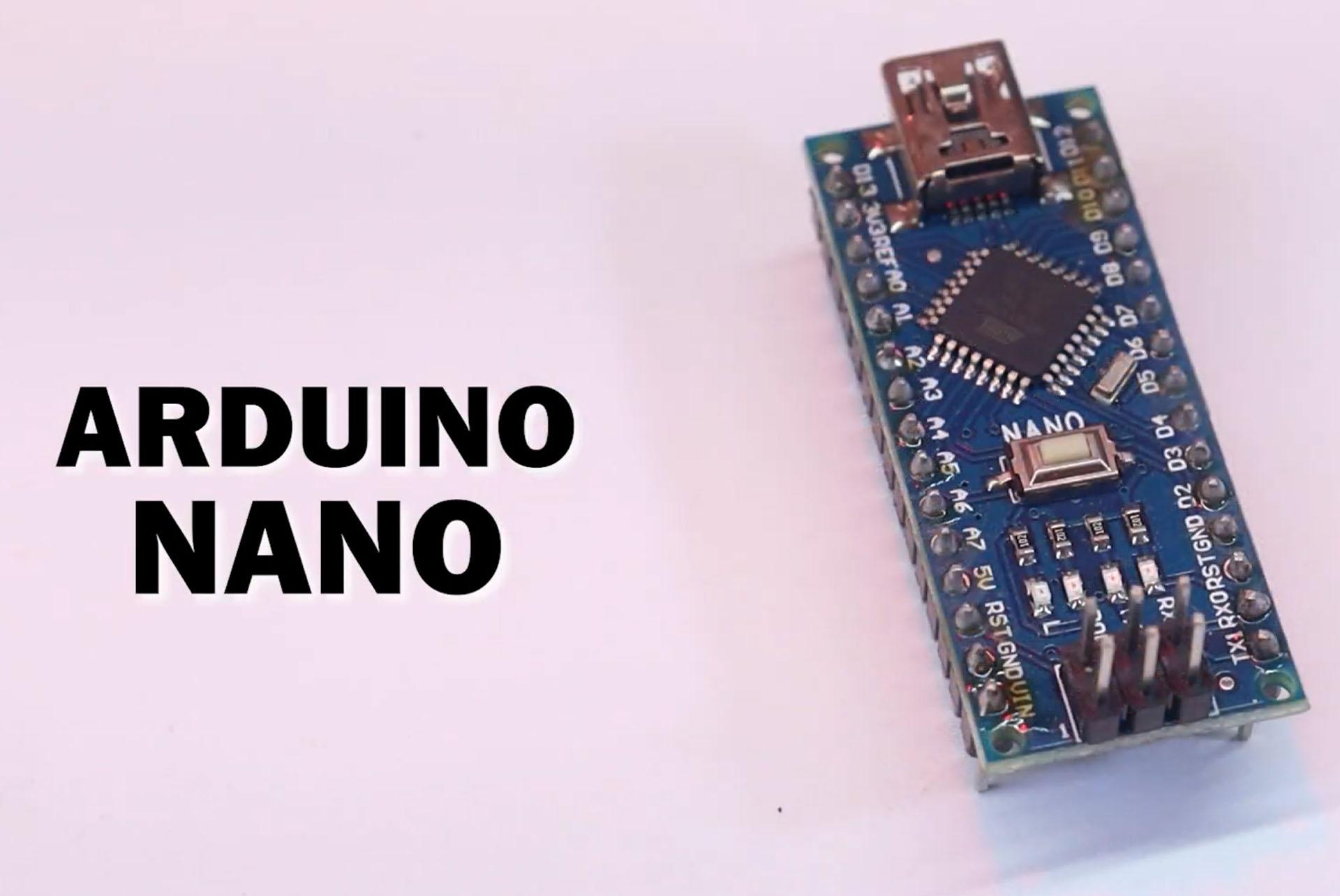
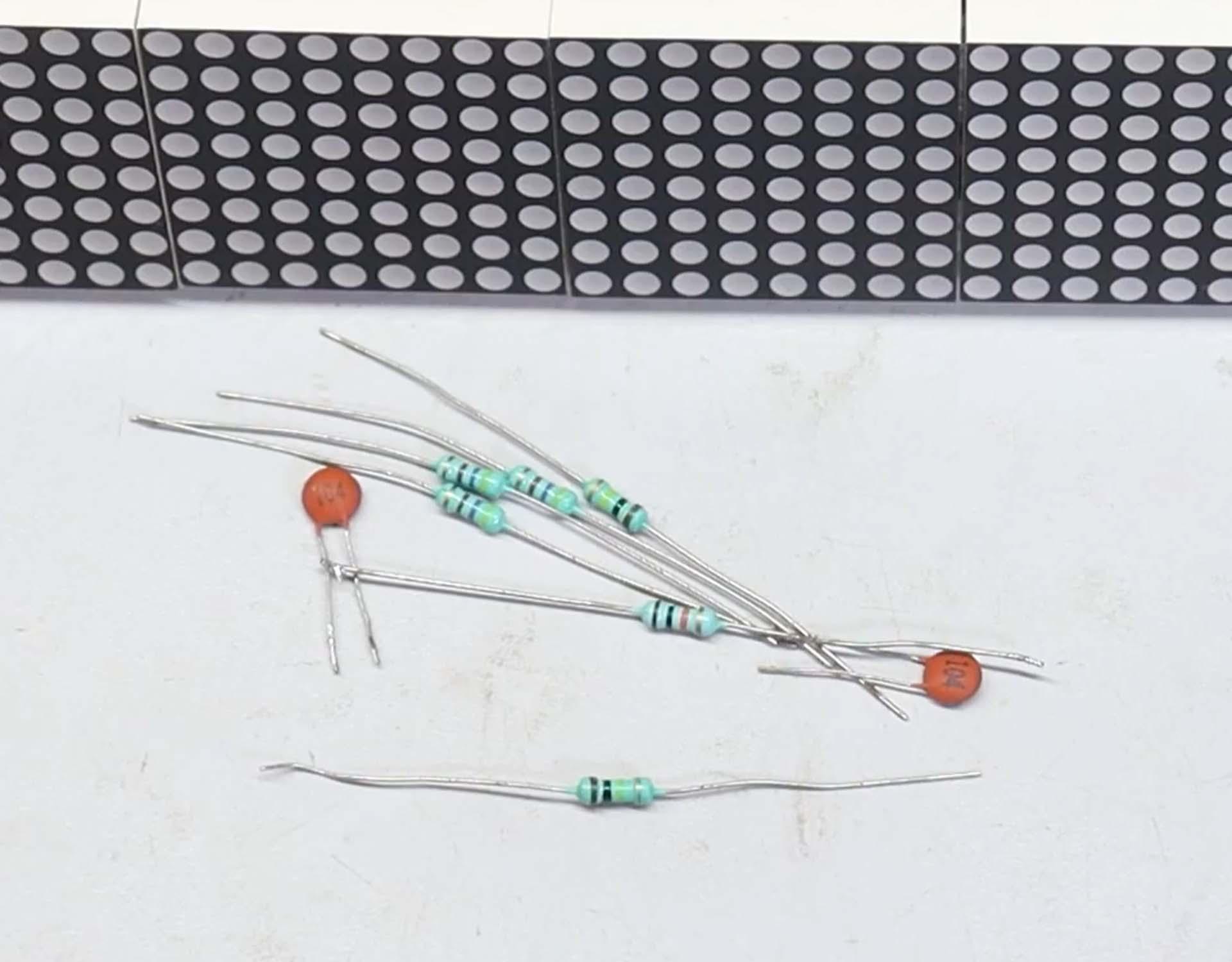

To build this 32-Band Music Spectrum Analyzer, we will need the following components. Make sure all parts are ready before starting the wiring process:
- MAX7219 Digital LED Display (8×32 or multiple modules combined)
- Arduino Nano / Arduino Uno (you can use any one of them)
- Connecting Wires
- Push Button Switch
- 100K Ohm Resistors ×2 (1/4W)
- 4.7K Ohm Resistors ×3 (1/4W)
- 10K Ohm Resistor ×1 (1/4W)
- 100nF Ceramic Capacitor (104) ×2
- AUX Cable (for audio input source)
- MAX7219 3D Printed Enclosure (optional but recommended for a professional finish)
These components are easily available online or at local electronics stores. Using a 3D-printed enclosure will not only protect the circuit but also give your spectrum analyzer a clean and professional look, perfect for desk or speaker setups.
You can order it's 3D Printed enclosure just send me an email - ergreat2018@gmail.com
Understanding the MAX7219 LED Display
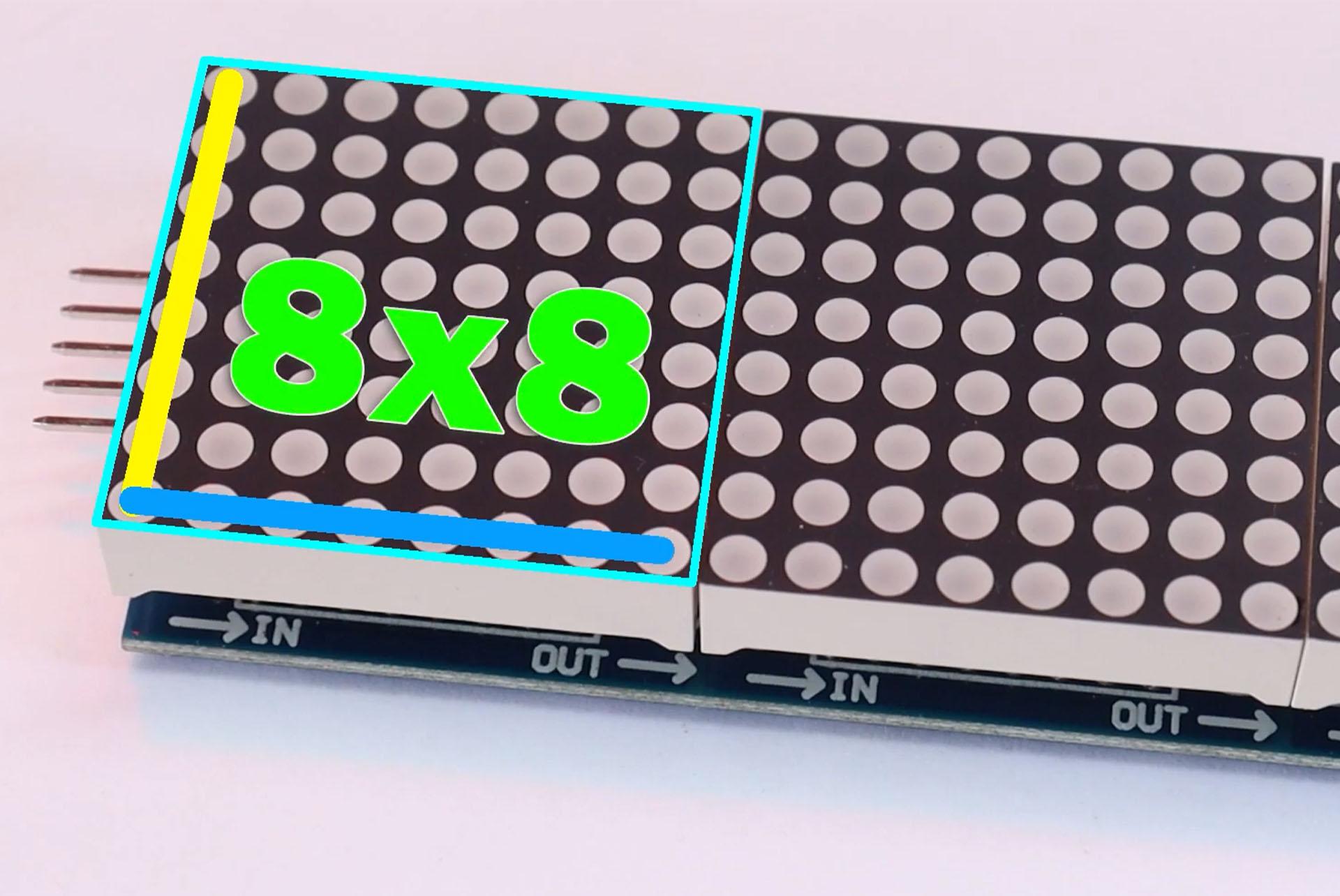


In this project, we are using a MAX7219-based LED matrix display. Each single display module contains 8 LEDs in rows and 8 LEDs in columns, which means there are 64 LEDs in one module. Because of this arrangement, it is called an 8×8 LED display.
To create a wider and more detailed spectrum analyzer, four 8×8 LED matrix displays are connected together in series. When combined, these four modules form an 8×32 LED display, which allows us to show a 32-band music spectrum clearly and smoothly.
The MAX7219 display module has 5 input pins, which makes it very easy to connect with an Arduino:
- VCC – Power supply pin
- GND – Ground pin
- DIN – Data input pin
- CS – Chip Select pin
- CLK – Clock pin
Using these five pins, the Arduino can control all 32 columns of LEDs efficiently with minimal wiring. In the next steps, we will see how to connect these pins to the Arduino Nano and prepare the display for the music spectrum visualization.
Connecting the Display and Circuit Wiring
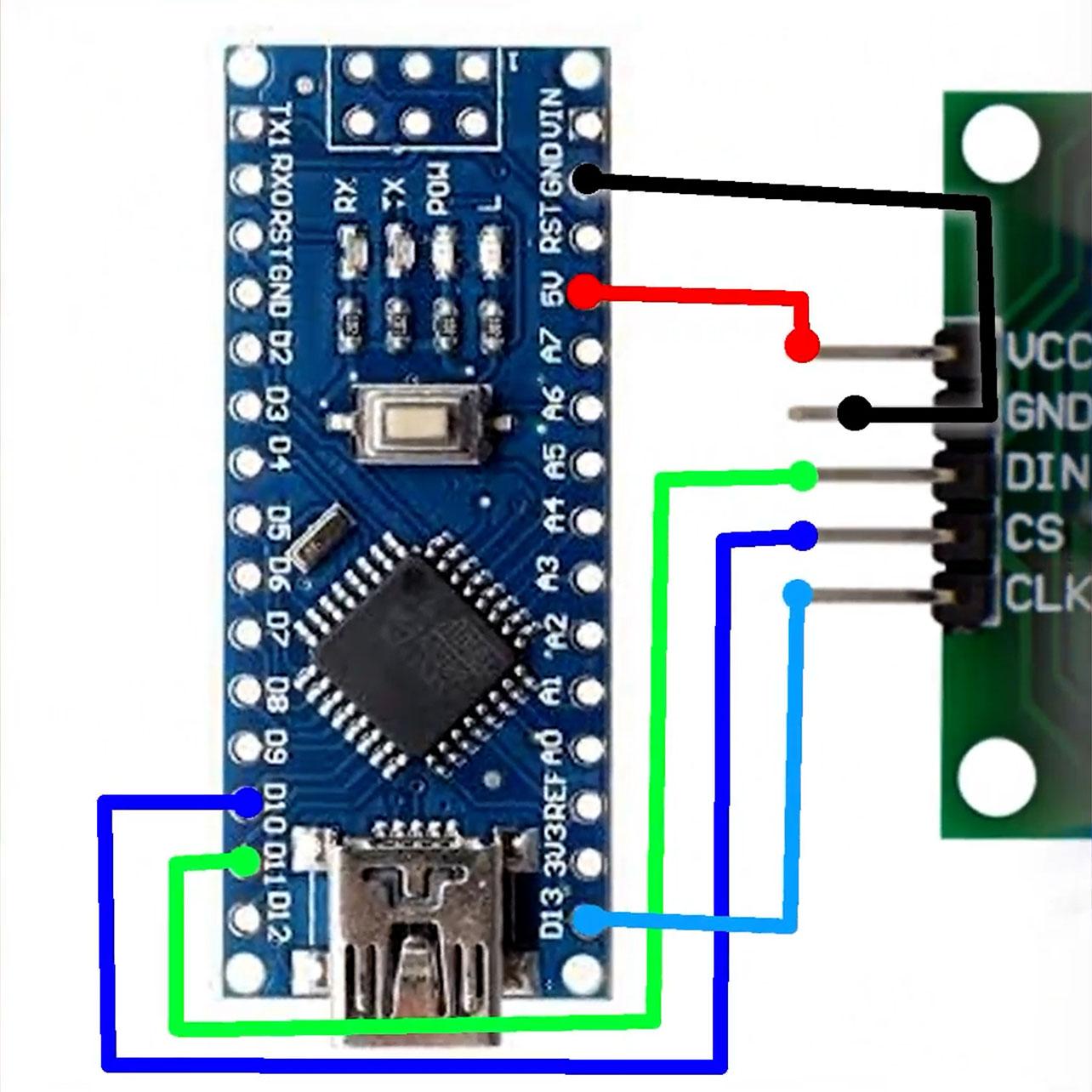


Now that we understand the MAX7219 LED display, the next step is to connect the Arduino with the display module. Make all connections carefully as shown in the circuit diagram to avoid any wiring mistakes.
First, connect the MAX7219 display pins to the Arduino as follows:
- VCC → 5V pin of Arduino
- GND → GND pin of Arduino
- DIN → D11 pin of Arduino
- CS → D10 pin of Arduino
- CLK → D13 pin of Arduino
These connections allow the Arduino to send data and control signals to the MAX7219 display for driving all 32 LED columns.
After connecting the display, connect the remaining components such as resistors, capacitors, and the push button switch exactly as shown in the provided circuit diagram. Proper placement of these components is important for stable signal processing and smooth display output.
Finally, connect the audio jack (AUX cable) to the circuit for audio input. This audio signal will be processed by the Arduino and converted into visual frequency bands on the LED display.
Once all connections are completed, double-check the wiring before moving to the programming step.
Installing Required Library and Uploading the Code


Now it’s time to upload the program to the Arduino.
First, connect the Type-B USB cable to the Arduino board and then connect the USB cable to your laptop or PC. After that, open the Arduino IDE software.
Make sure your laptop/PC is connected to the internet, because we need to install a required library for this project.
Installing the Library
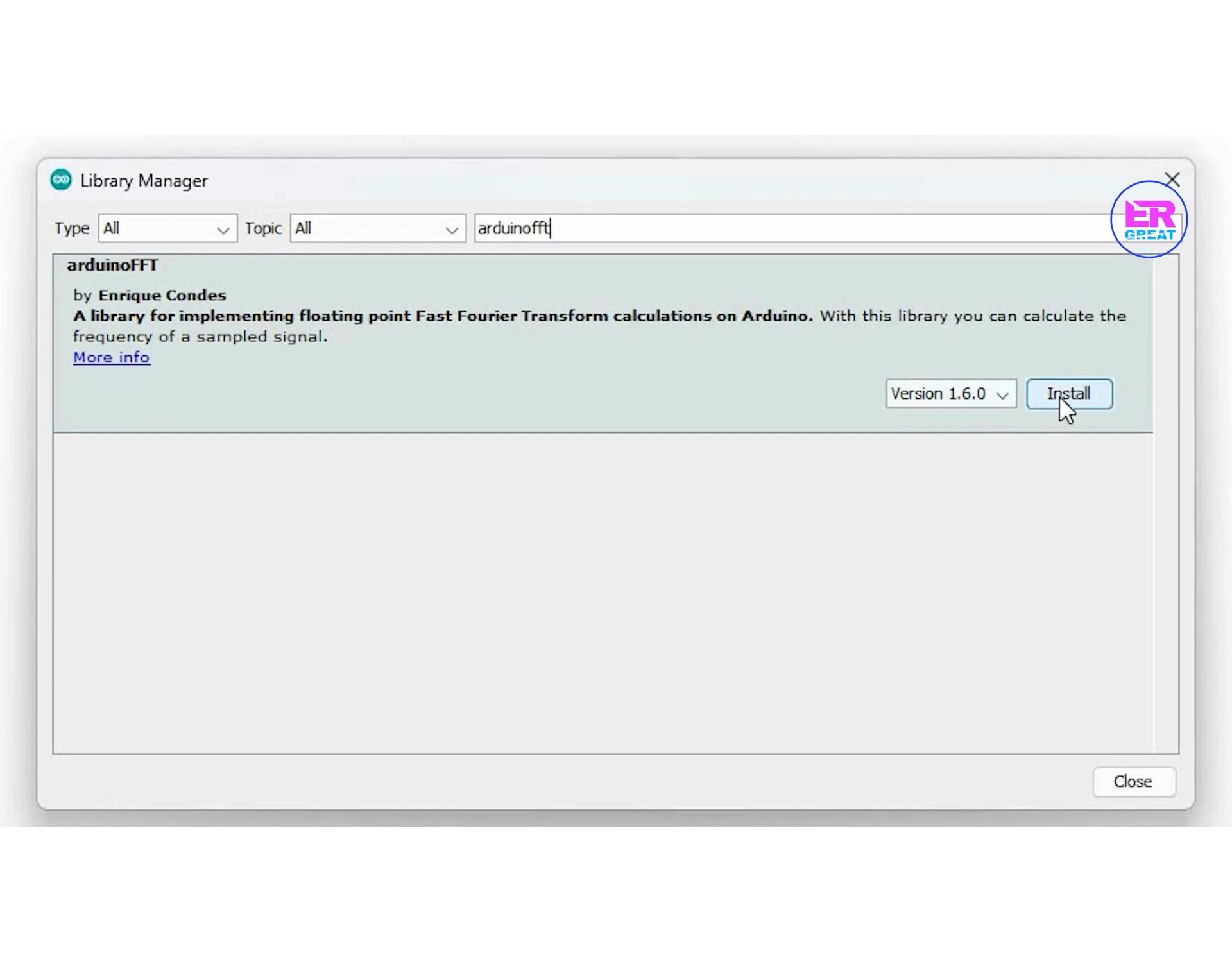
- In Arduino IDE, go to Sketch → Include Library → Manage Libraries
- The Library Manager window will open with a search bar
- In the search bar, type arduinoFFT
- You will find the arduinoFFT library
- select the latest version and click on Install
- Within a few seconds, the library will be installed successfully
Opening and Uploading the Code
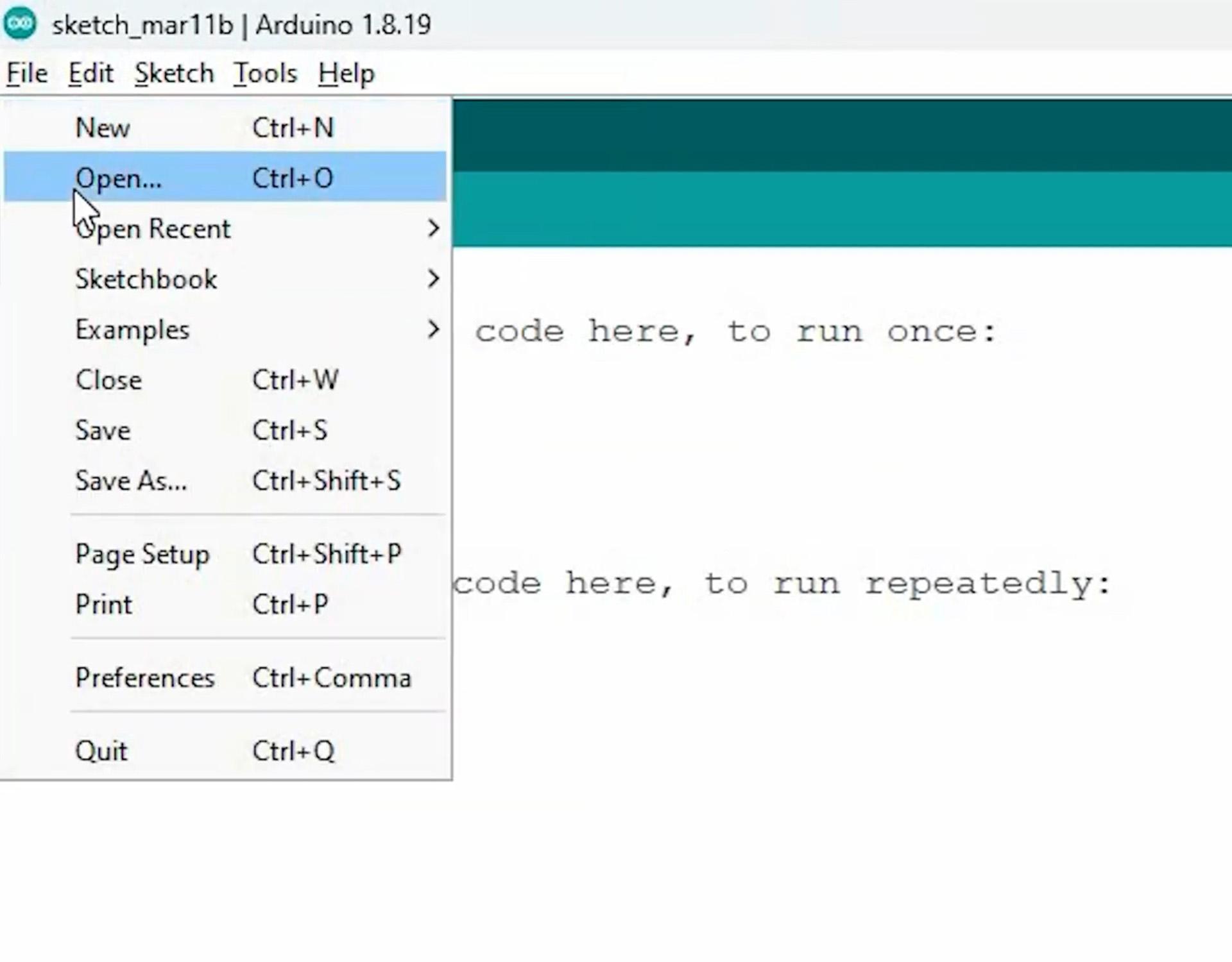
- Download the provided project code
- In Arduino IDE, go to File → Open
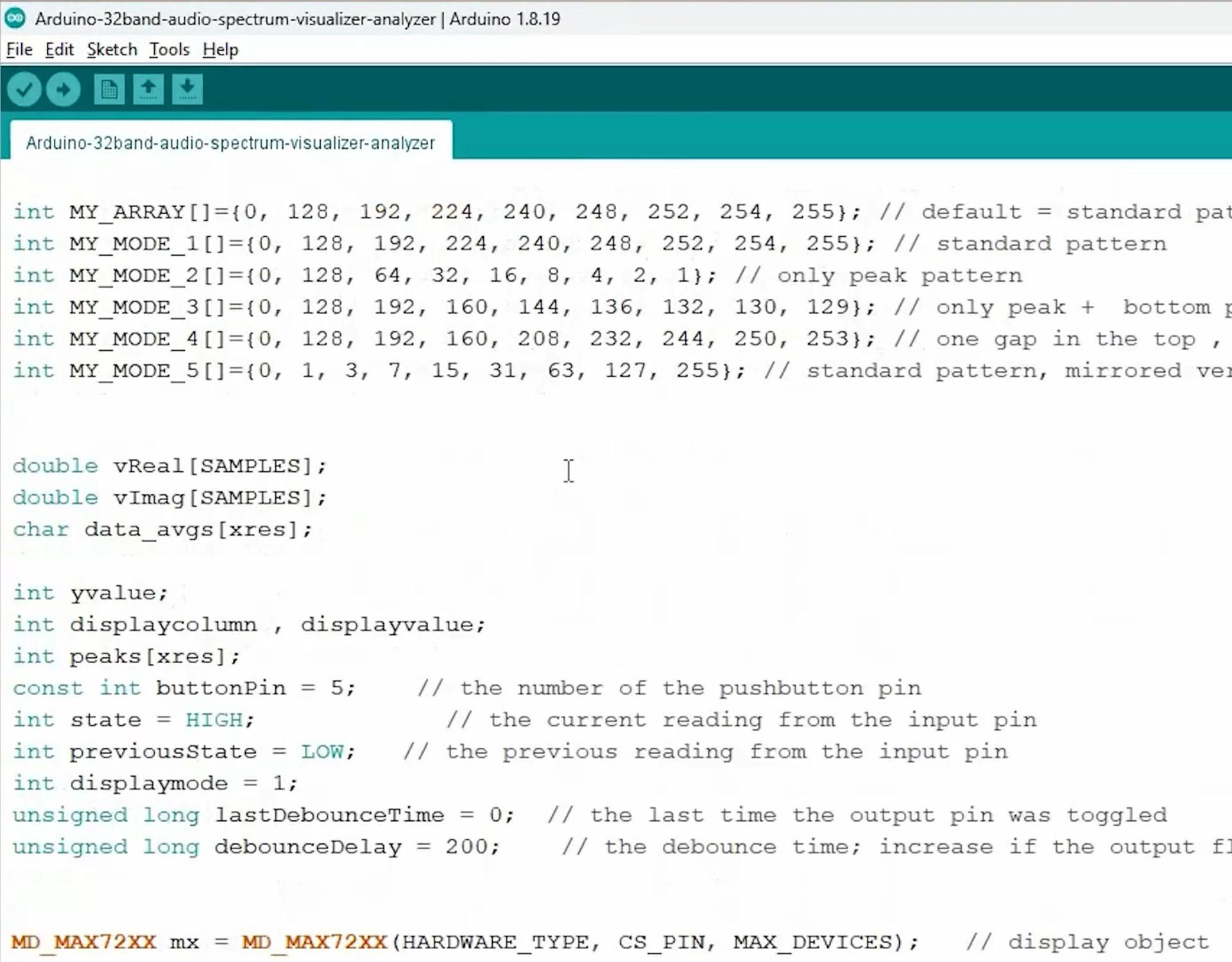
- Select the downloaded code file and click Open
- Before uploading, go to Tools and check the following:
- Board: Select Arduino Nano or Arduino Uno (as per your board)
- Port: Select the correct COM port
- Once everything is selected correctly, click on the Upload button
After successful uploading, the Arduino will start processing the audio input and the 32-band music spectrum will appear on the MAX7219 LED display in real time.
Testing the Music Spectrum Analyzer

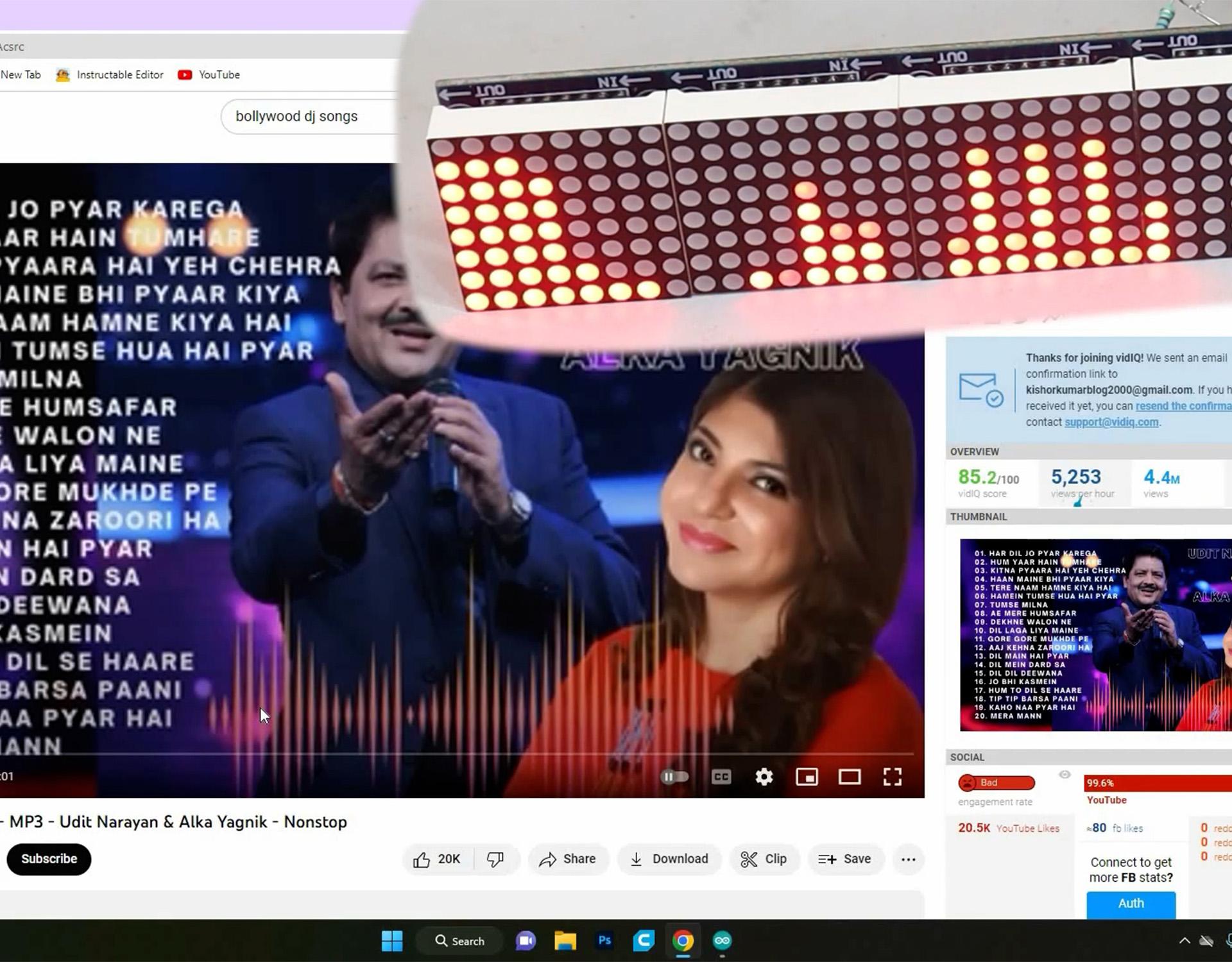


After the code is successfully uploaded, your 32-Band Music Spectrum Analyzer is now ready to test.
Plug the AUX cable into the audio input jack of the circuit and connect the other end to any audio source, such as a mobile phone, laptop, Bluetooth speaker output, or music player. Once connected, play any song with good bass and variations in sound.
As the music starts playing, you will immediately notice the LED bars on the MAX7219 display responding to the audio signal. Each column represents a specific frequency band, and the LED levels rise and fall according to the strength of the audio wave. Low frequencies like bass will create strong movements in some bands, while vocals and high frequencies will animate other columns, giving a beautiful real-time audio visualization effect.
This 32-band spectrum makes the display look smooth, dynamic, and professional. You can place it near your speaker, on a study table, or inside a custom 3D-printed enclosure to enhance its appearance even more.
You can order this 3D Printed enclosure just send me an email - ergreat2018@gmail.com
Now sit back, play your favorite music, and enjoy your DIY music spectrum analyzer 🎶
If you found this project helpful or learned something new, let me know your thoughts and feedback in the comments. Your suggestions and ideas really help in improving future projects!
Conclusion
In this project, we successfully built a 32-Band Music Spectrum Analyzer using a MAX7219 LED display and Arduino Nano/Uno by following a simple and step-by-step approach. From understanding how the LED matrix works to wiring the circuit, installing the required library, uploading the code, and finally visualizing real-time audio signals, every step was designed to be beginner-friendly and practical.
This project not only looks visually impressive but also helps you understand audio signal processing, frequency analysis using FFT, and efficient LED control with the MAX7219 driver. The use of an 8×32 LED display makes the spectrum smooth and responsive, while the Arduino Nano keeps the setup compact and easy to integrate into other projects.
You can further improve this project by adding features like Bluetooth audio input, sensitivity control, different display modes, or a custom enclosure for a more professional finish. This music spectrum analyzer is perfect for DIY speakers, desk decoration, learning projects, and content creation.
I hope you enjoyed building this project as much as I did. If this tutorial helped you, don’t forget to share your feedback, suggestions, or modifications in the comments. Happy building and keep experimenting with electronics!