How to Make a 3d Printed Great Hall From Hogwarts (Perfect Decorative Book Nook for a Bookshelf)
by PrekshaRavi in Design > 3D Design
112 Views, 2 Favorites, 0 Comments
How to Make a 3d Printed Great Hall From Hogwarts (Perfect Decorative Book Nook for a Bookshelf)


Hi! I'm Preksha and I personally am a Potterhead and I really enjoy the Harry Potter series, So I decided to make this 3d design of Hogwarts' Great Hall to decorate my book shelf! I thought what I made was pretty cool and wanted to show others how to make it. So here is the full tutorial and end result (shown above)!
Also Some things to Note:
This design is pretty simple, great for beginners into 3d design, and if the viewers of this Instructable want more details added, I can make an extension where I add more details. Y'all can let me know in the comments what details you want added as well! And I would love it if you read through the whole tutorial and make it because I spent 6+ hours designing and writing all the steps in EXTREME detail. Thank you, and enjoy!
Supplies
Materials List:
- TinkerCad Account (This 3d Design was made on TinkerCad so you must create a TinkerCad profile to start designing)
- 3d printer (If you intend to print the whole 3d design out)
- A bit of background knowledge on how to use TinkerCad (Can be learned using TinkerCad tutorials, and Youtube)
Click the Create Button

I looked at many reference photos of the Great Hall, and the outside depicts many tourettes/towers, so I decided that the sides of the Great Hall in my design should include these. Here are the steps I took to create the first wall:
- Go into TinkerCad and press the blue "Create" button at the right side of the screen
Drag
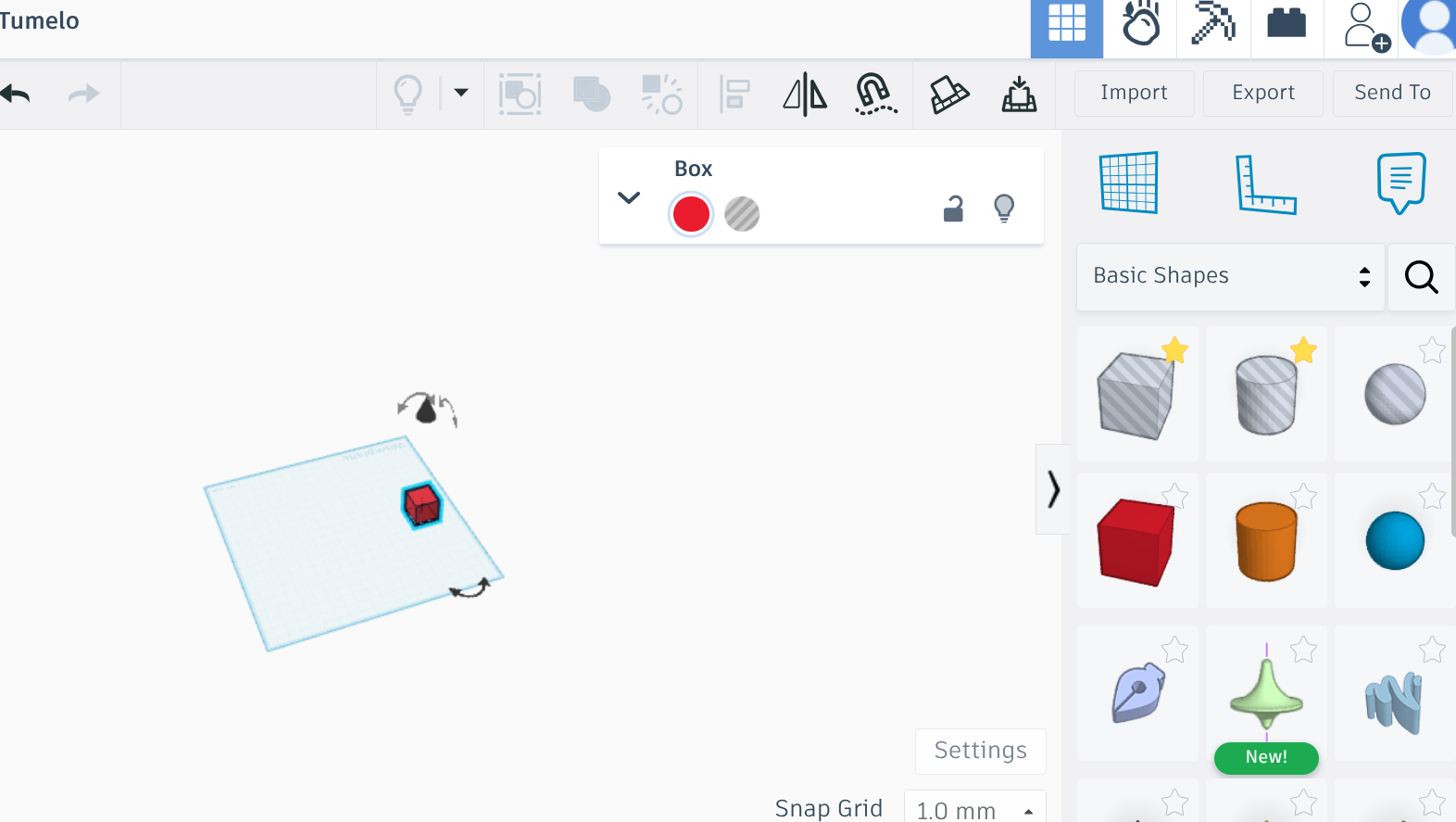
2.Drag a red square onto the work plane
Sizing


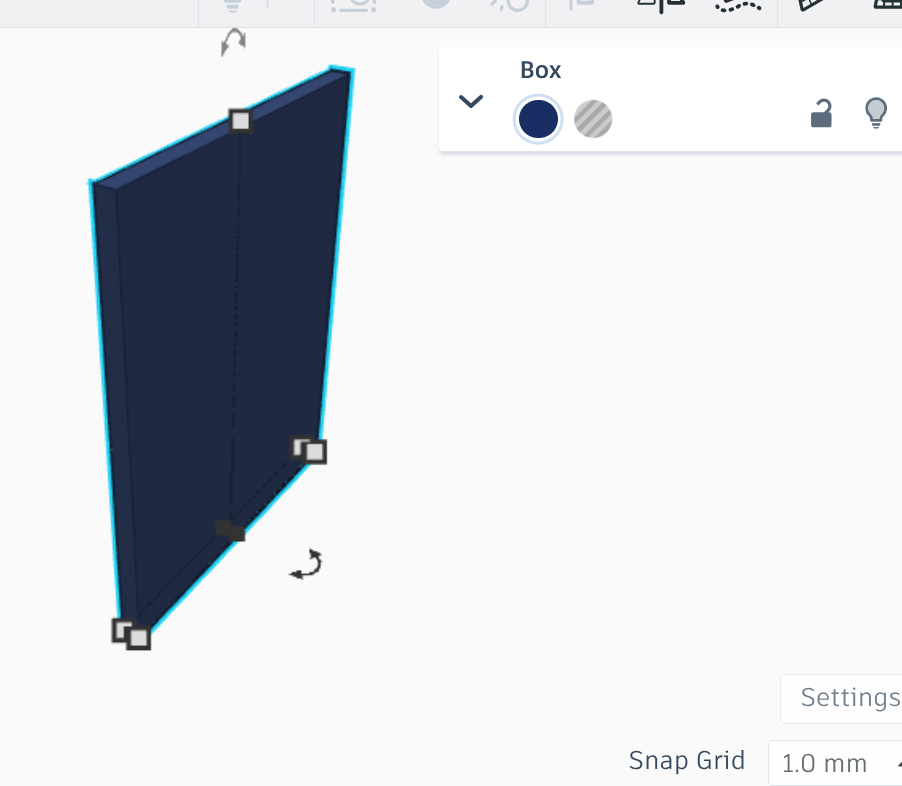
This project can be for anything, whether it be a gift or a book nook, so that means that sizing is dependent on how big YOU want it. I intended this to be a book nook and Google told me that most book nooks are about 7-10 inches wide and 9-10 inches tall, so I made it 203.8 mm by 254 mm or 8in by 10 in. The thickness of the wall I made was 10 mm.
3.Press on the red cube and change the color to blue
4.Change the Sizes to 203.8 mm by 254mm by 10 mm (or preferable size)
Creating a Tourette Part 1
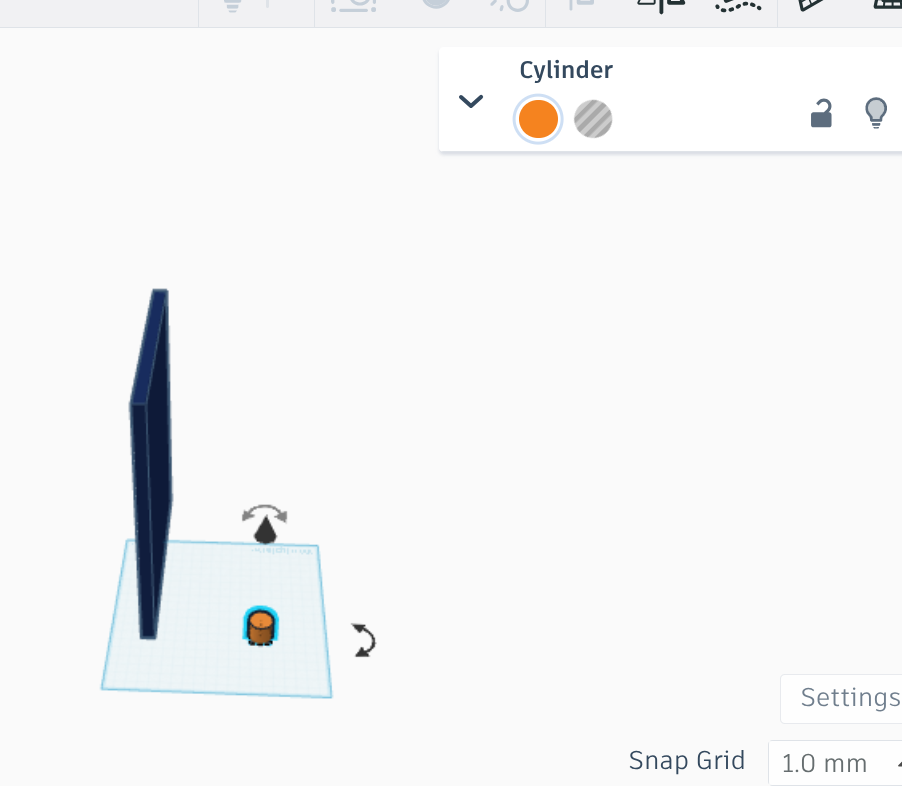


So now that we have the base wall, we need to create a tourette. To do this we:
5.Drag an orange cylinder from the "Basic Shapes" side panel
6.Color the cylinder Dark Blue
7.Make the base of the cylinder 9mm by 9mm
Create a Tourette Part 2
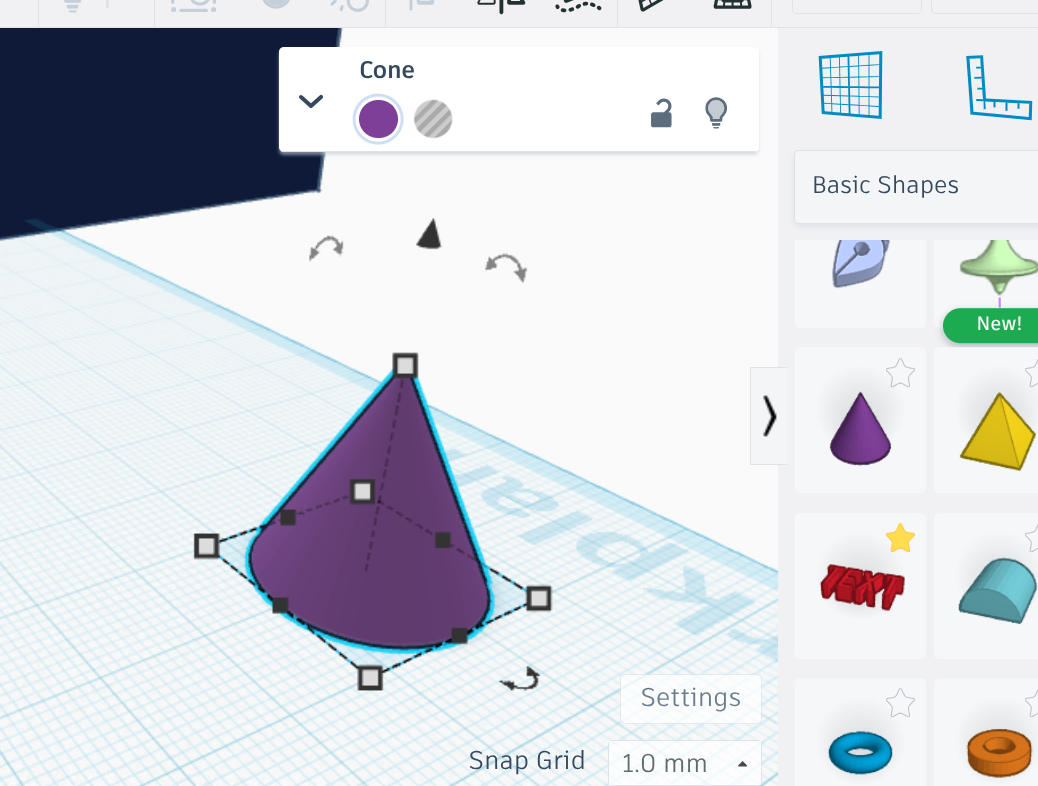
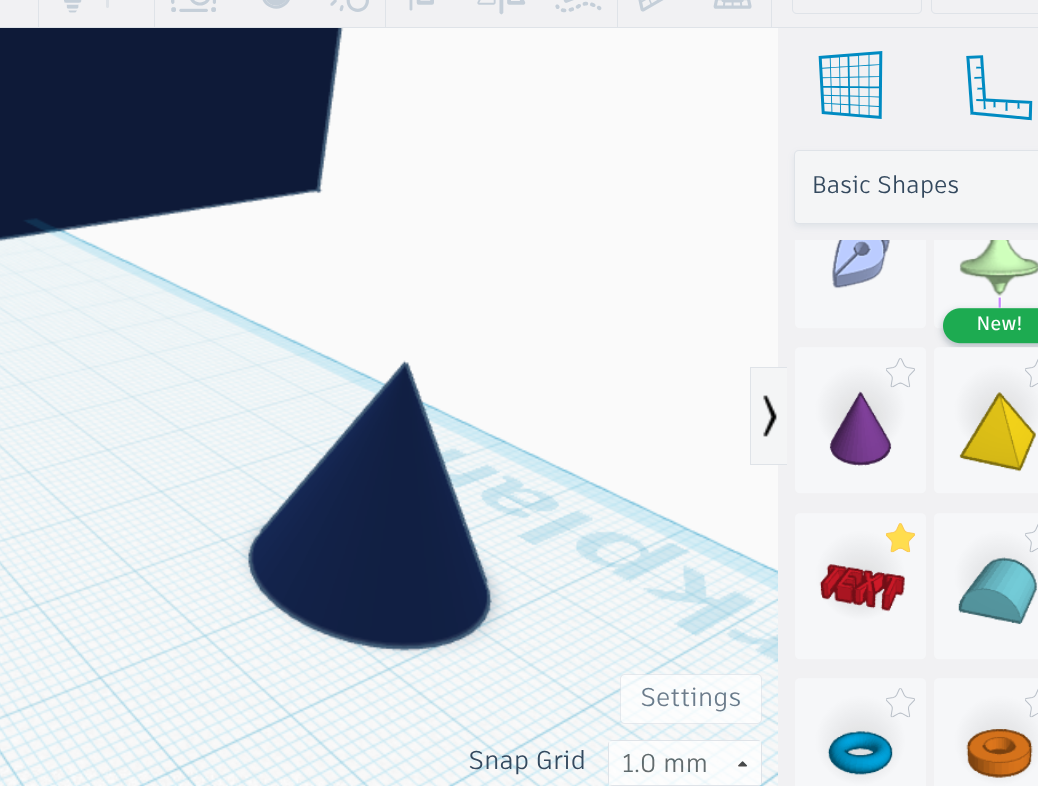

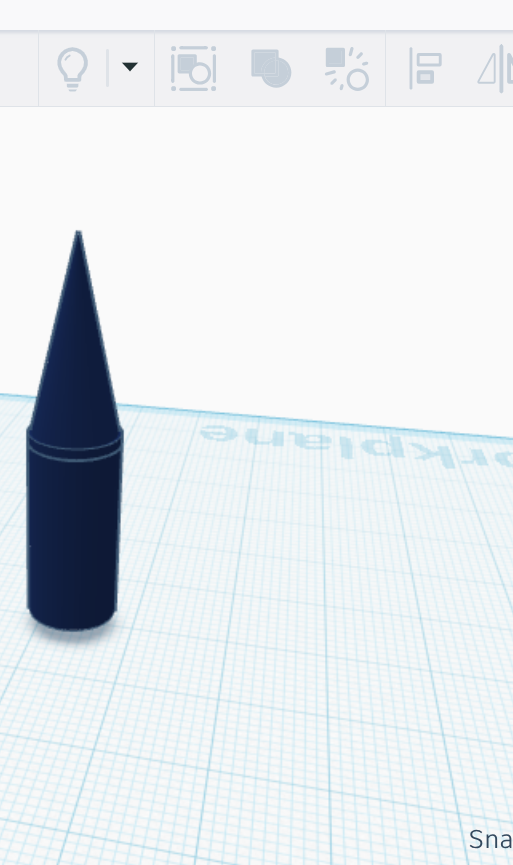

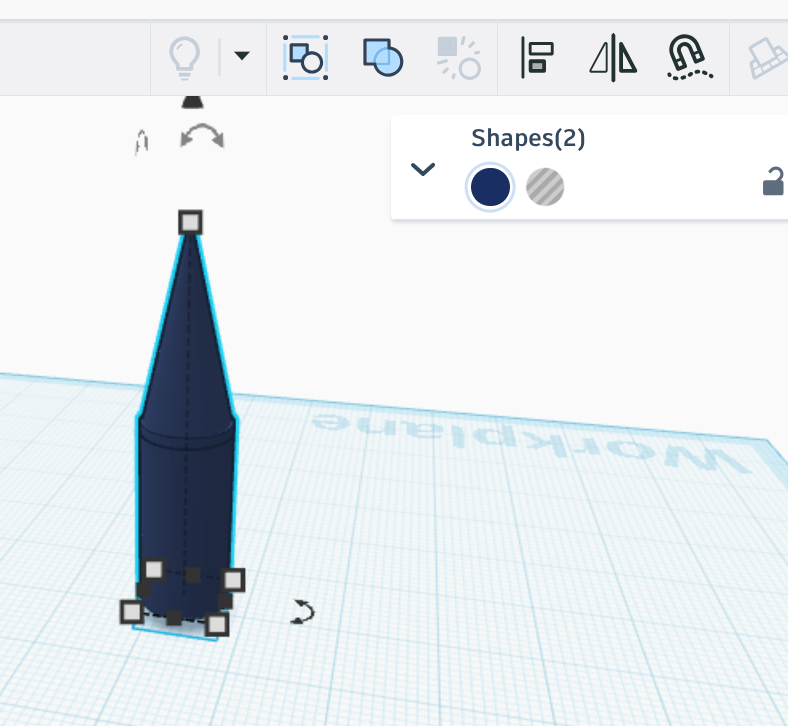
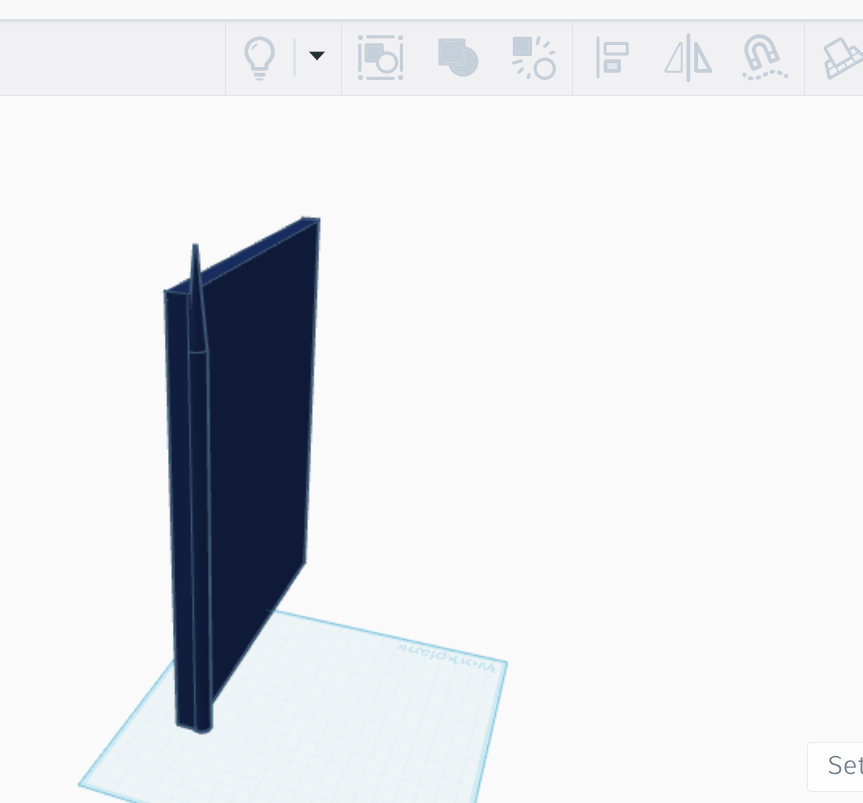
8.Now Drag a Purple Cone
9.Make it Dark Blue
10.Size the base 9mm by 9mm
11.Place it on top of cylinder
12.Group it (Hit Ctrl G or Use the button shown in pic above)
13.Make it as tall as you want, then smush it with the wall from earlier (length of Tourette depends on how tall you made the wall and how long you want it) (Shown in pic above)
Create a Tourette Part 3

Ok, Now it should look like the wall has one tower/tourette connected to it. Now you're going to copy paste the tourette you made again and again and fit as many on the wall as possible. Like so: (Shown above)
14.Copy and paste a bunch of Tourettes
15.Place as many of them as possible on the wall
16.Once complete, group everything using Ctrl G or the group button shown earlier
Double the Walls
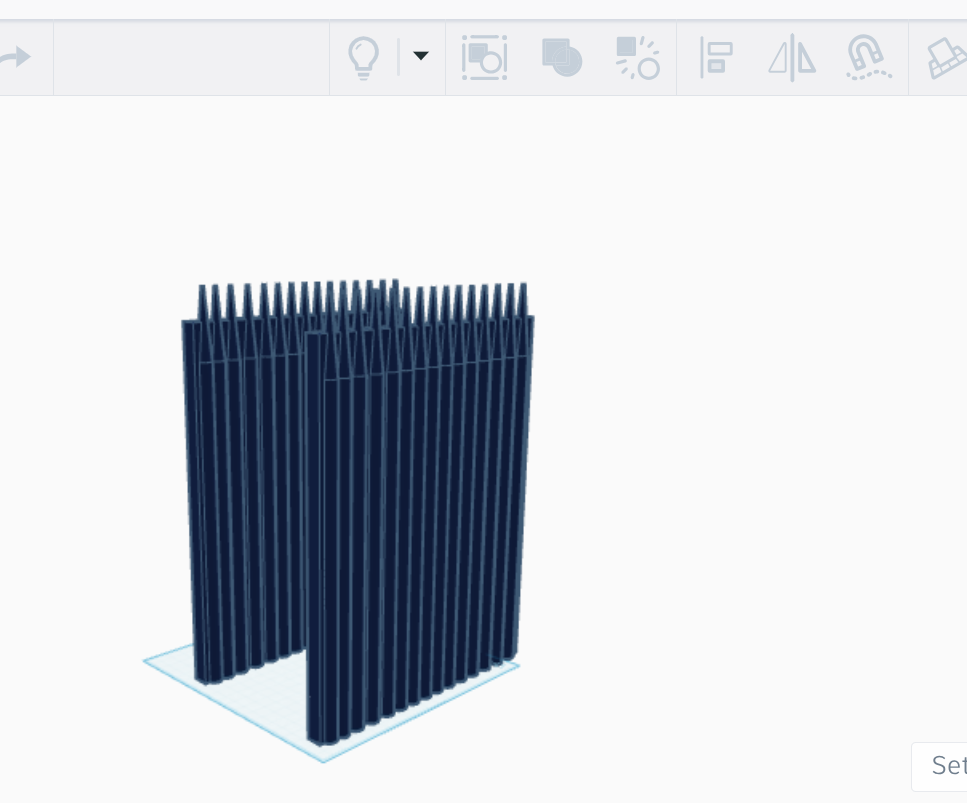


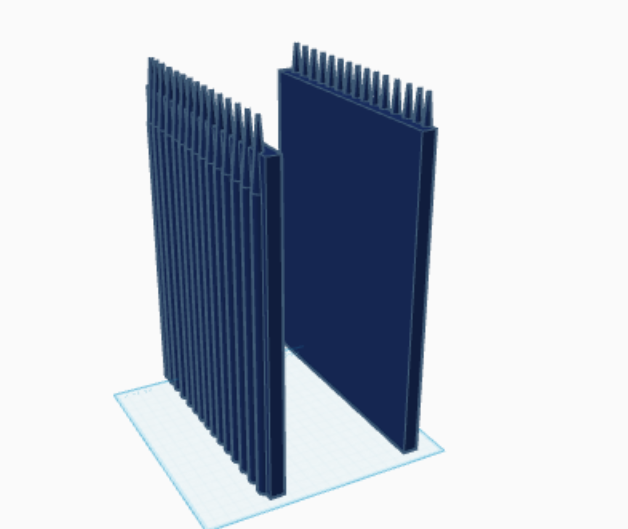
So now that you have one wall, you need to have 2 of them of either side of the book nook.
17.Copy and paste existing wall to make a wall on both sides (Shown above)
However, We now see a problem. The wall isn't facing the right direction, because the smooth inside portions of the wall should be on the inside and the Tourettes should be on the outside.
18.Rotate wall so that the tourettes face the outside (Shown above) (Rotate Button also Shown)
Back Wall
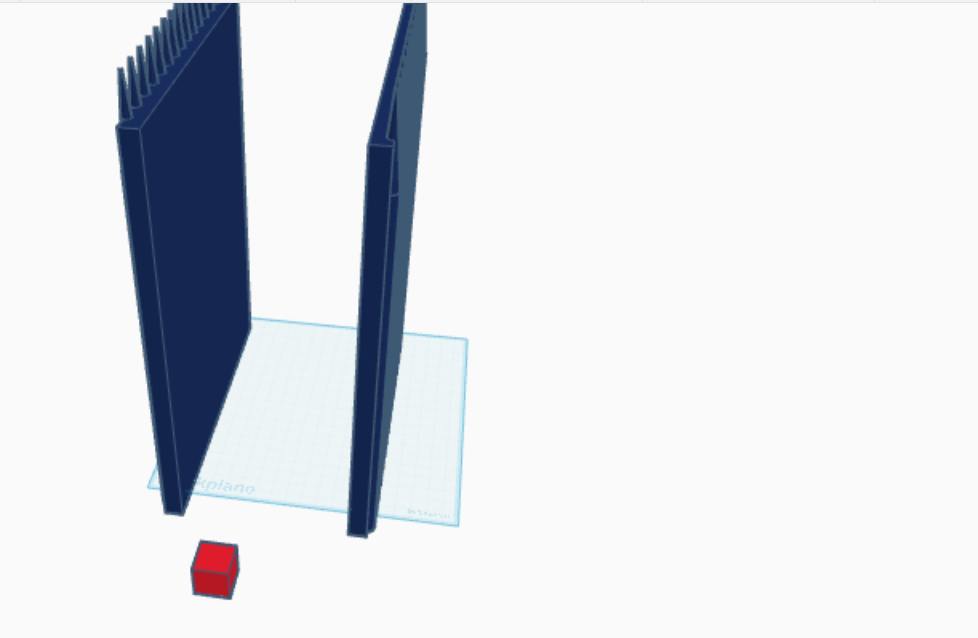


So now that you have two walls, you have to create the back wall. As shown in the Harry Potter Movies, the Great Hall has this huge window in the background, so we are going to recreate that. According to Google, most book nooks are around 3-4 inches wide, so that means 101.6 wide. So to make this I will:
19.Drag a red square
20.Size the red square 254mm by 101.6mm by 10mm
21.Color square dark blue
Back Wall Window


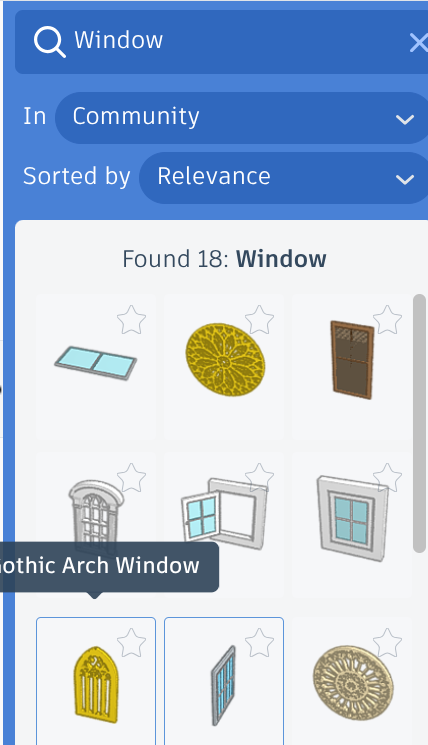

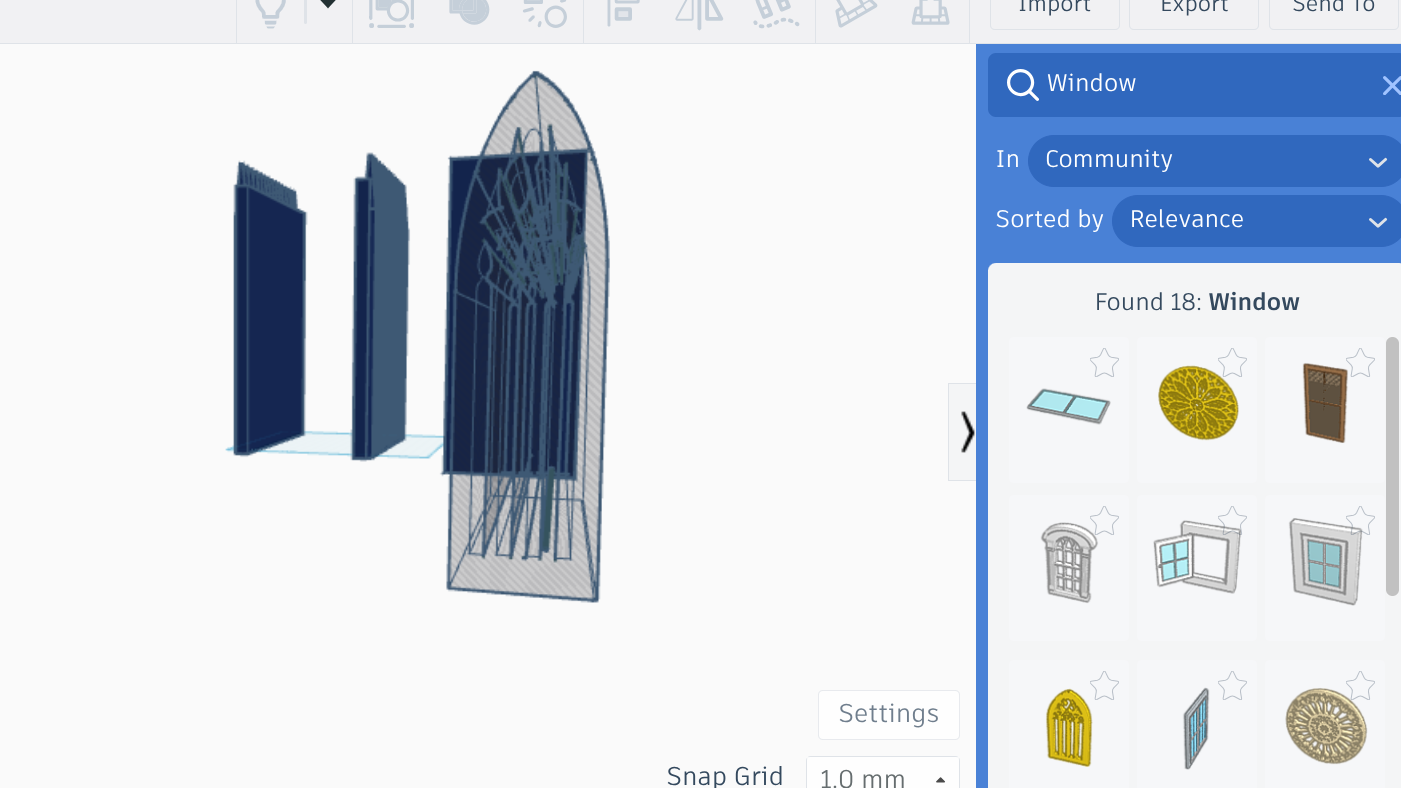
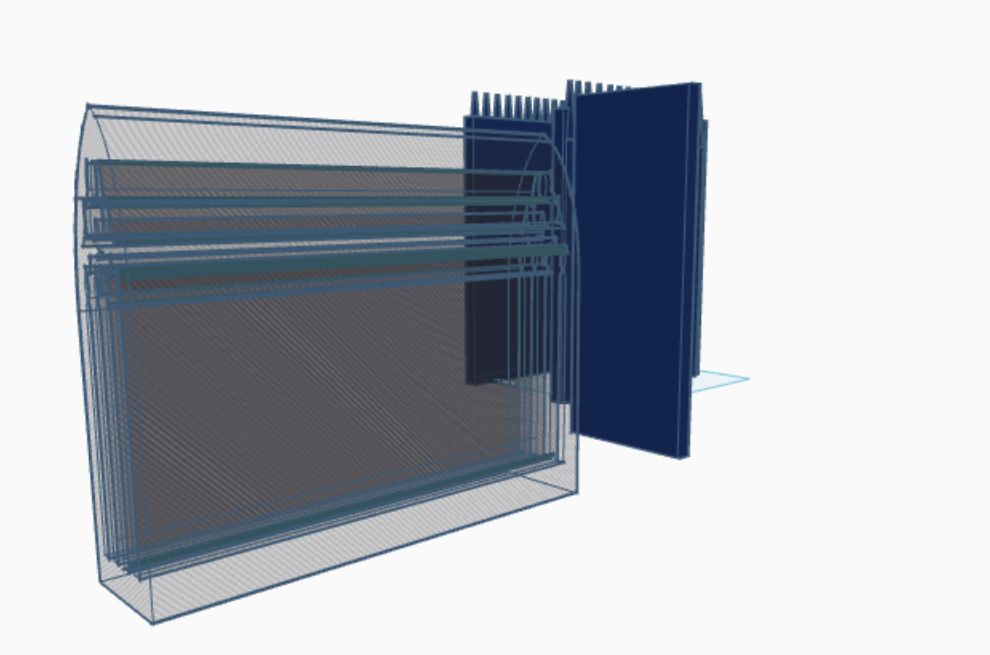
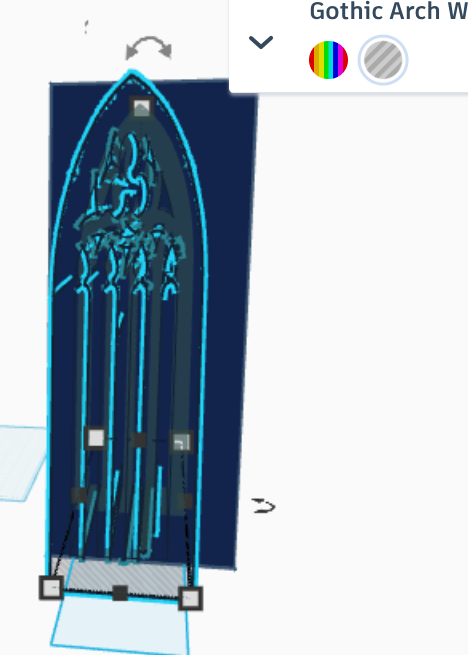
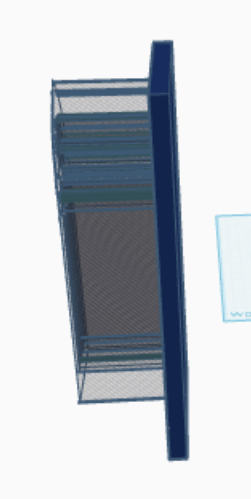
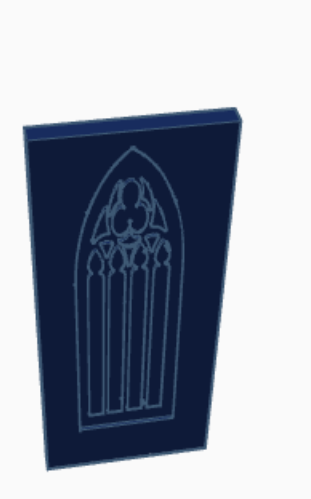
Ok, so No that we have the back wall, we need to make a window in the middle of it. To do this we will:
22.Click on Search button in the "Basic Shapes" Side panel
23.Search "Window"
24.Click on the yellow window called "Gothic Arch"
25.Drag the "Gothic Arch" shape
26.Change it into a hole
Next Part's a bit tricky..
27.Make the hole of the Gothic Arch Shape longer and overall bigger (Shown Above)
28.Make the width big enough so that there is a noticeable indent in the wall, but not enough that the window/(window hole) completely pierces through the wall. (This is because you can't print it if it completely pierces the wall).
29.Put it into the wall and group the wall and the window hole. (using CTRL G)
30.Ok,so now that we have created an indent on one side of the wall, we must do it on the other side as well to make the illusion of a window, but still allow the 3d design to be printable. To do this, repeat steps 22-29 on the other side of the wall without the window hole indent, so both sides have the indent.
Connecting Back Wall to the Other Walls
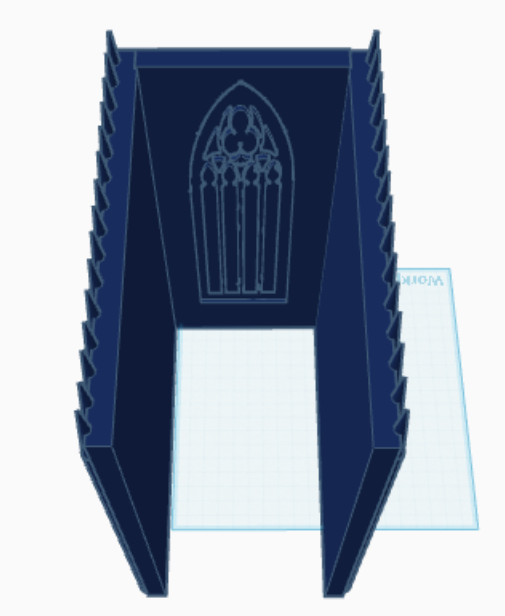
Now that you have the back wall, you have to connect the back wall and the 2 other Walls (the walls with tourettes).
31.This can be done by simply dragging the back wall and lining it up with the other two walls. (Result shown above)
32.After dragging and placing the back wall with the other 2 walls, group them altogether using the group button shown in the previous steps, or select all the walls and CTRL G them.
Making the "Ground"/"Floor" of the Project
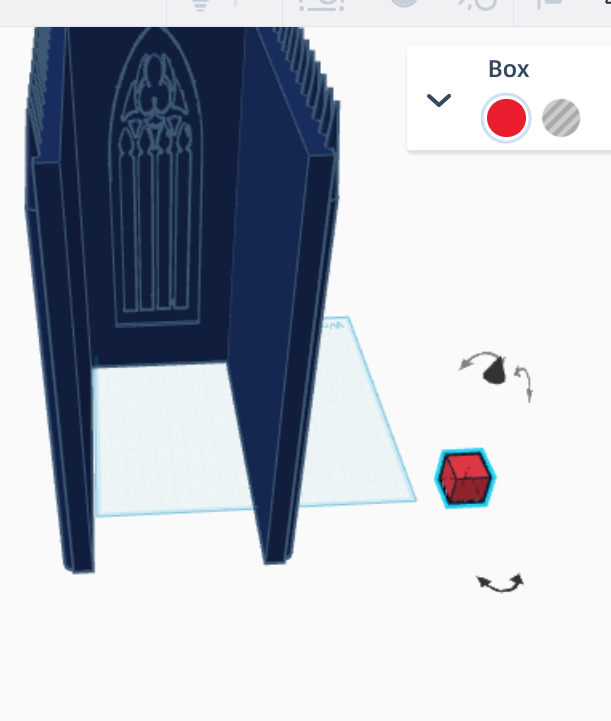

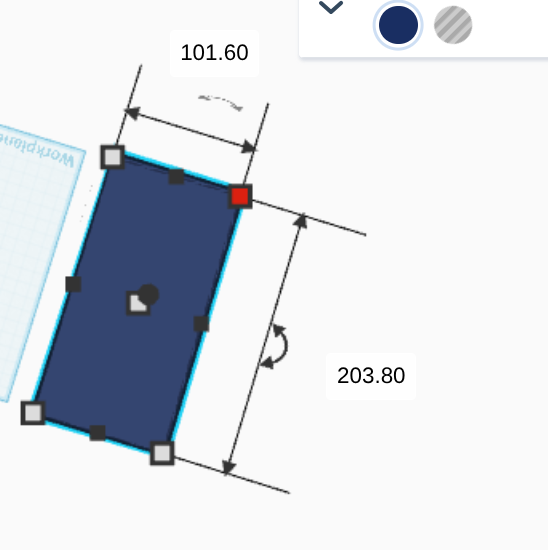
So Now that we have 3 of the walls, we have to add the 4th wall A.K.A. the ground/floor of the project. (Don't really know what to call it). But looking at reference photos of Harry Potter's Great Hall, we can see that there are tables attached the the ground of the Great Hall. We can also see that up front, there is the teacher's desk. This design is fairly simple, so I will be including the dining hall tables, and the teacher's tables. If the viewers want, I can make an extended version where I Include adding more details, but 3d printed plates and food and teachers and students will be a seperate thing entirely. (ADD IN THE COMMENTS if you guys want me to make the extended version:)
33.Drag a red square from the work space bar thing
34.Make it Dark Blue
35.Make it the dimensions 10mm thick, 101.6 mm wide, and 203.8 mm long
Making a Great Hall Table

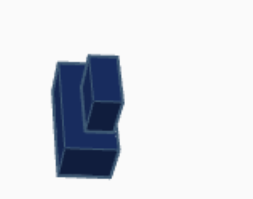


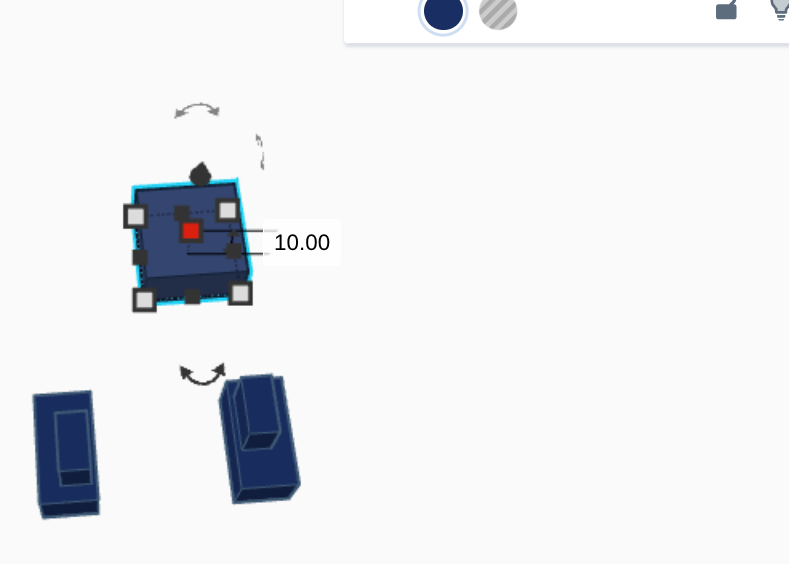
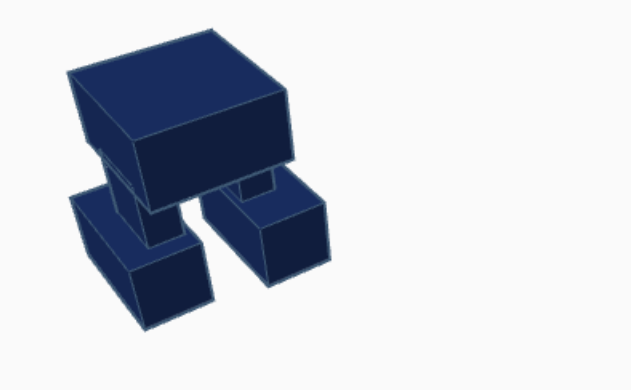
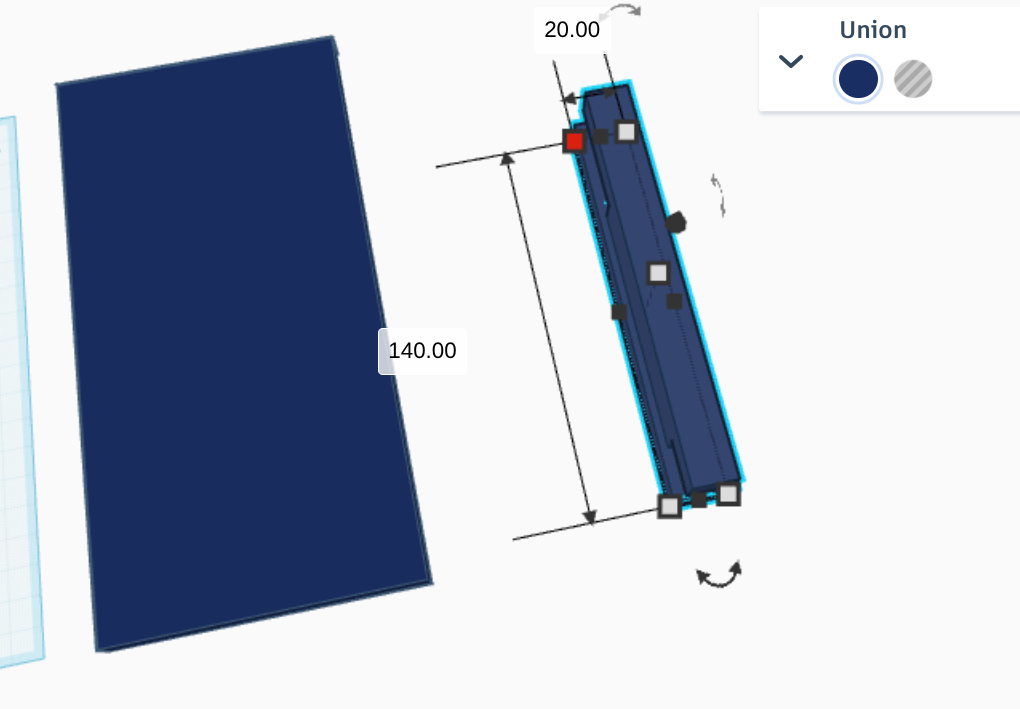

Ok, so now that we have the base (ground/floor) of the Great Hall, we can connect tables to it. Since there are 4 houses in Harry Potter, there are 4 large tables for the annual Hogwarts feast. To make a table:
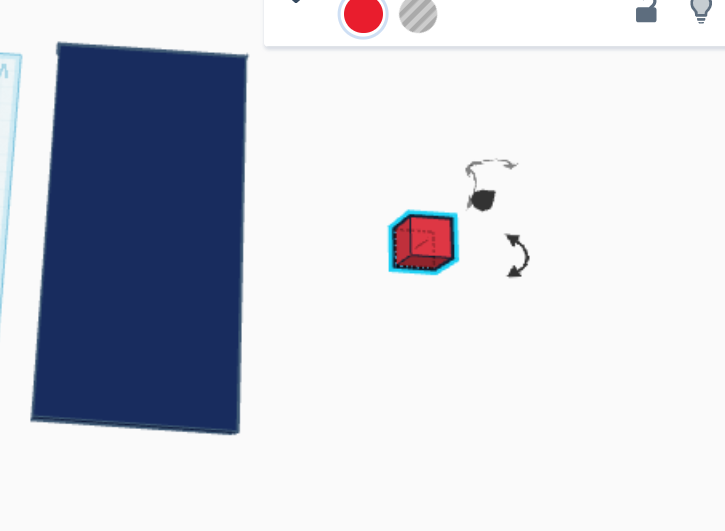
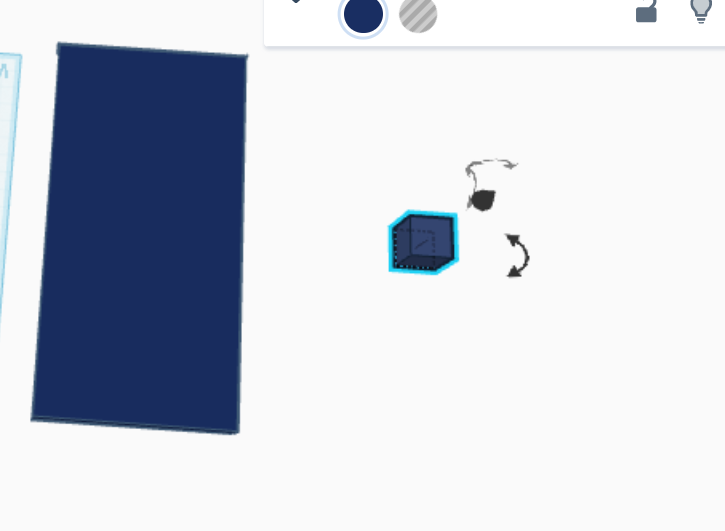
36.Drag a red box
37.Make it dark blue
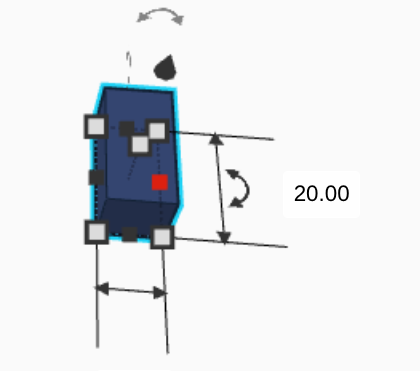
38.Size it with the dimensions 10mm by 20mm with a height of 10 mm.
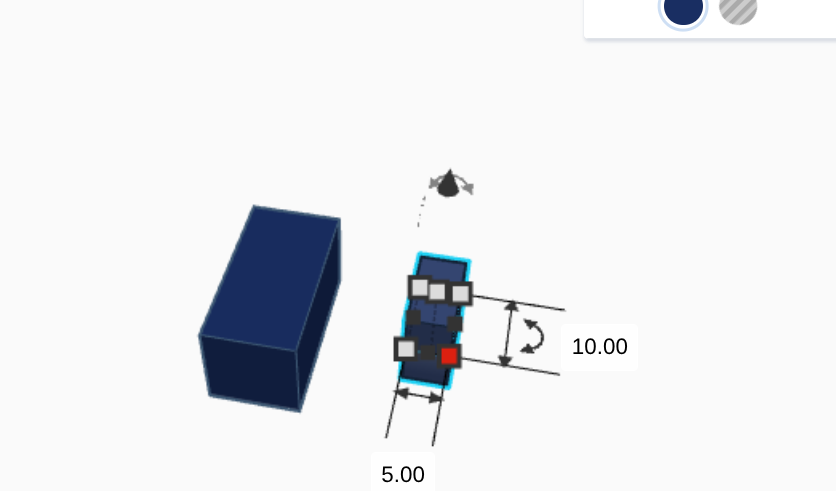
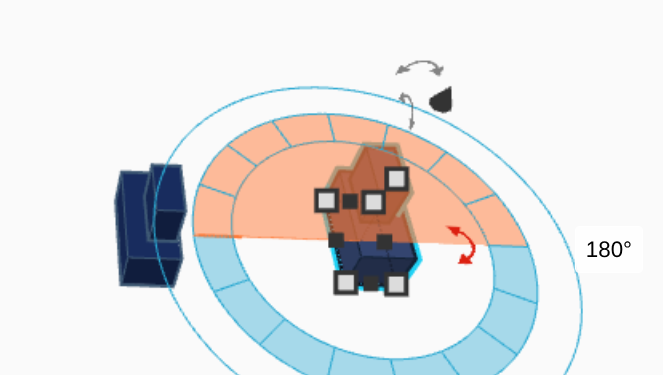
39.Copy paste the dark blue box and rotate it so the copypasted box is standing upright. You can do this by using the rotate button. (Shown above)
40.Change the rotated box's dimensions to 5 mm by 10 mm with a 10 mm height.
41.Place the rotated box on the top of original box and ensure that they are connected. (Shown Above)
42.Now, Group them together
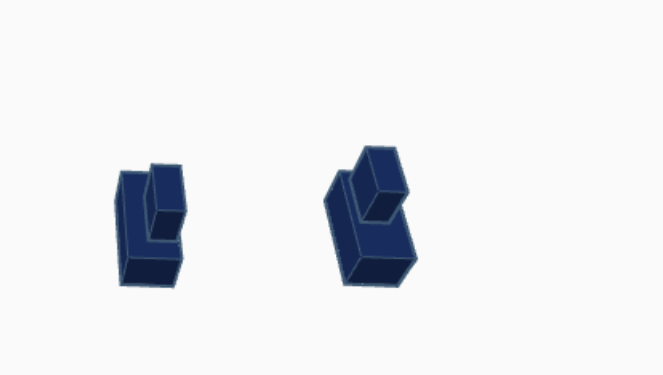
43.Copy and Paste the 2 conjoined boxes
44.Rotate one of the pasted grouped figures by 180 degrees
45.Now you should have 2 conjoined figures side by side.
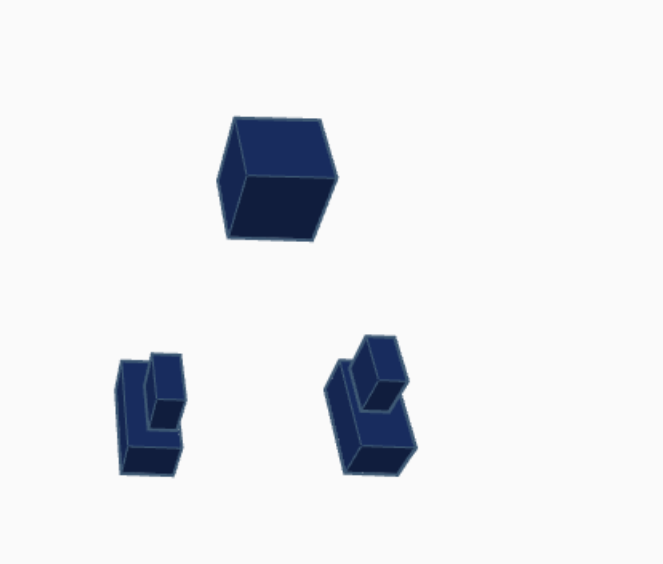
46.Now, drag a red square from the work plane toolbox sidebar
47.Make it dark Blue
48.The Dimensions don't really matter for this square, but change the height of the box to 10 mm
49.Attach the new box to the top of the 2 conjoined figures side by side.
50.Group them (CTRL G)
51.Once grouped, you can change the dimensions of this little "table" as a whole. So, we can change the width of it to 20 mm, length to 140mm
52.Then, you can make the height of the table as much as you want, but I personally decided to make it 30 mm.
Making All 4 Tables of the Great Hall and Attaching Them


Ok, so now that we have one table, you can see I made the length quite a bit shorter than the actual base/floor/ground of the Great Hall. This is because I was leaving space for a big table at the front of the Great hall where the teachers sit. In this tutorial, there obviously aren't actual 3d printed teachers, and this tutorial is only for the furniture and the general Great Hall, but again, if you guys want, I will make an Extension with details. However, you guys MUST include specifically what I should add in the extension. :)
53.Place the table on the base, make sure that there is space on the front of the base for the teachers desk like so.(Shown in a pic above)
54.Copy Paste the table 4 times and place the tables right next to eachother.
55.EDIT: Sorry Everyone, I forgot that these things were Tables, so you guys can change the color of the tables to Brown :)
Making the Teacher's Table in the Great Hall
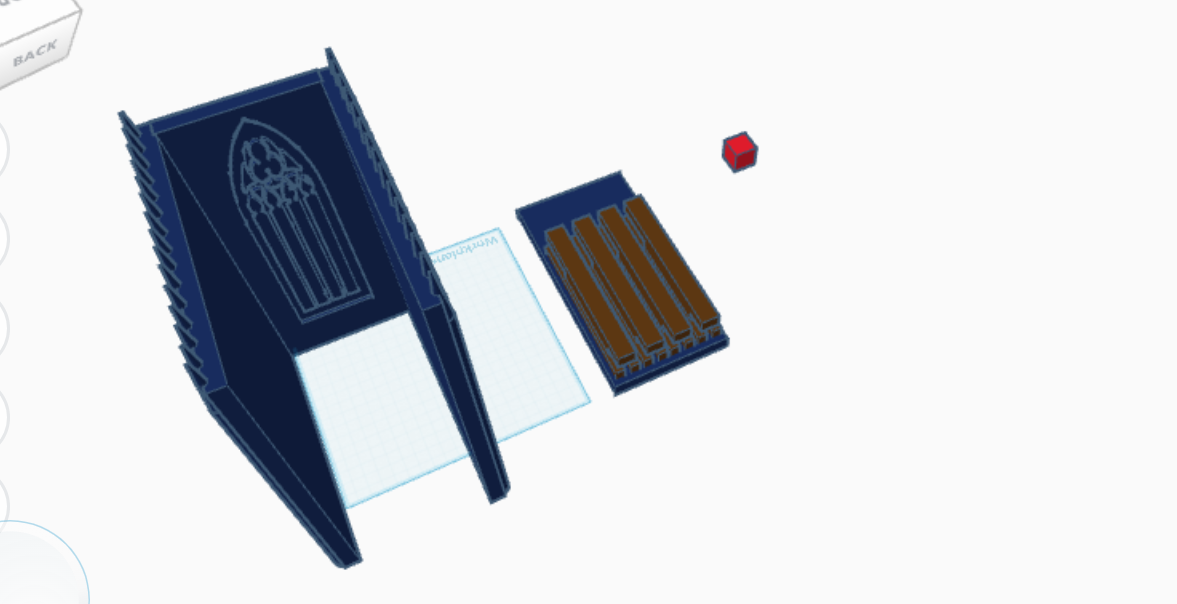

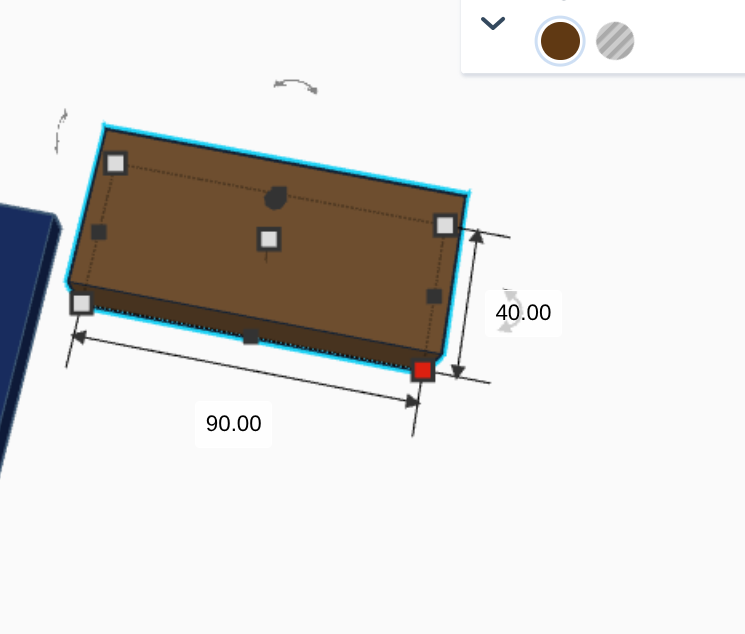


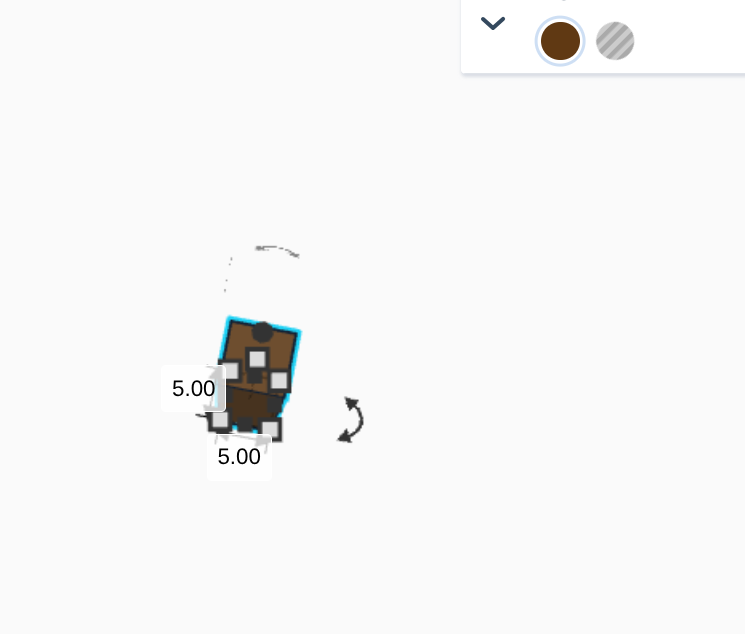

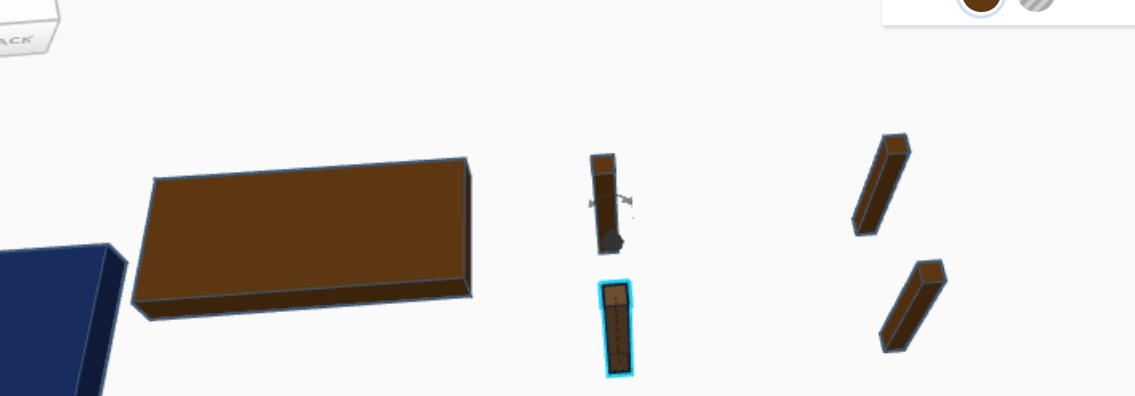
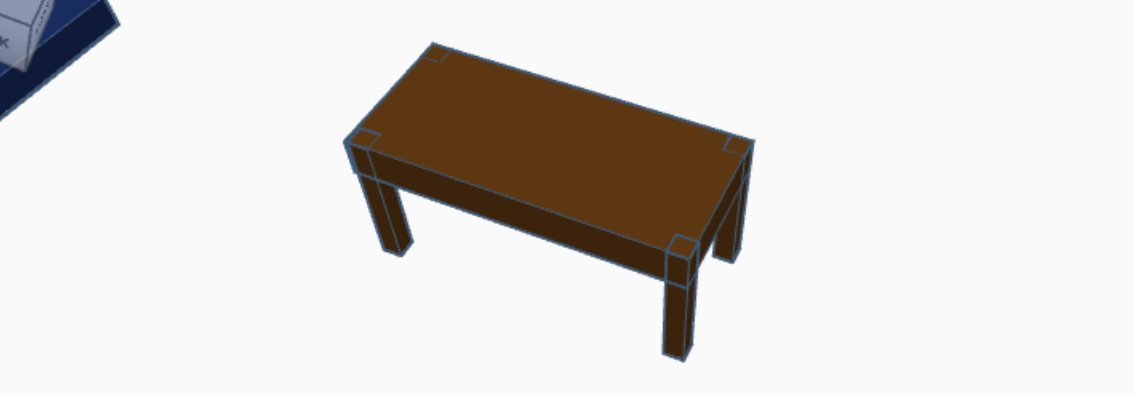
So now that we completed the 4 iconic tables in the Great Hall, we are going to be making the teacher's table where the teacher feast each year during the Hogwarts feast. (P.S We are almost done!)
56.To do this, drag a red square out of the work plane tool box area.
57.Make it Brown.
58.Change the dimensions to 90mm by 40mm
59.Change the Height to 10mm
60.Drag a Red Square
61.Change Color to Brown
62.Make the Dimensions 5mm by 5mm
63.Make it 40mm tall
64.Copy Paste the little 5x5mm square 4 times and position them apart in a rectangle shape. (Shown Above)
65.Place the 90x40 mm rectangle on top of the 4 little ones.
Placing the Teacher's Table Onto Floor/Ground/Base of the Great Hall

So now that you have this table, you need to place it on the base/floor/ground of the Great Hall.
66.Group the table together (CTRL G)
67.Place the table (Shown Above)
Adding Chairs to the Teacher's Table


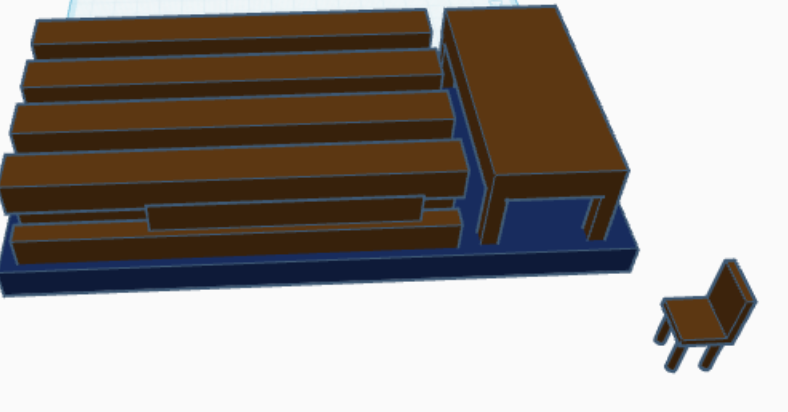

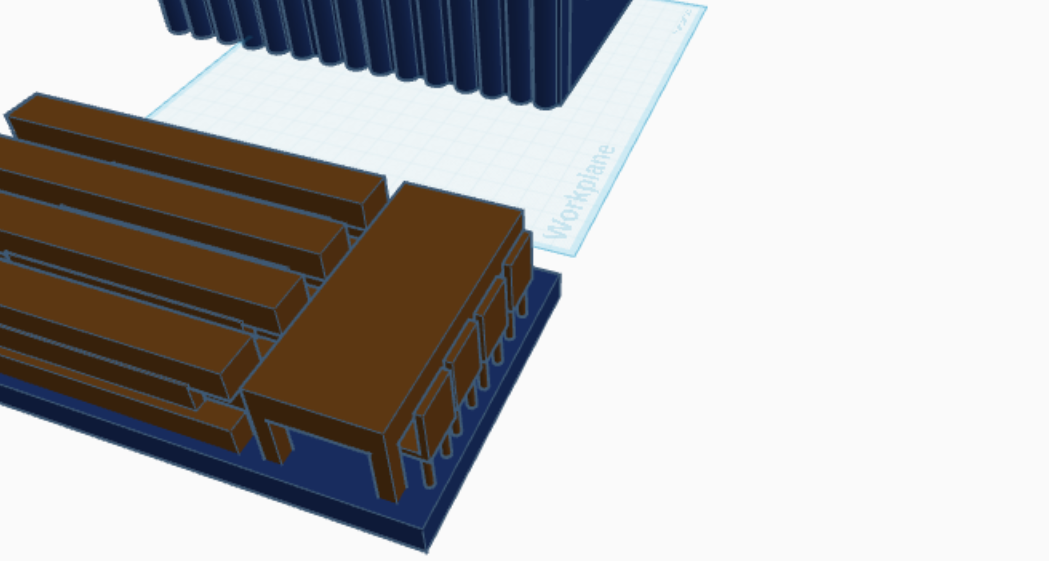
Now that we have the table, the table obviously is lacking chairs.
68.Search "Chair" in the Work Plane Side bar thingy
69.Pick a Chair you like, I'm picking one called "Wooden Chair" (A picture of my chair selection is shown above)
70.Drag the Chair of your liking
71.Place it on the Base/Ground/Floor of the Great Hall.
72.Copy Paste As Many Chairs as can fit in the Table. (Shown above)
Attaching the Base to the Other Walls

We have FINALLY completed all the components of the base!!!!! This means that this is probably the Last Step! Furthermore:
73.Groups all components of the base together (CTRL G)
74.Now, place the base below the 3 walls and ensure that everything is connected and that there aren't any gaps. (This makes sure that everything goes smoothly during slicing and printing your design)
75.THE FINAL RESULT AHHHHHHHHHHH WE'RE DONE!!!!!!!!!!!!!!!!!!!!!!!!!!!!!!