How to Make a Awesome Space Scene in Blender
by owen12121212121 in Design > Digital Graphics
228 Views, 2 Favorites, 0 Comments
How to Make a Awesome Space Scene in Blender
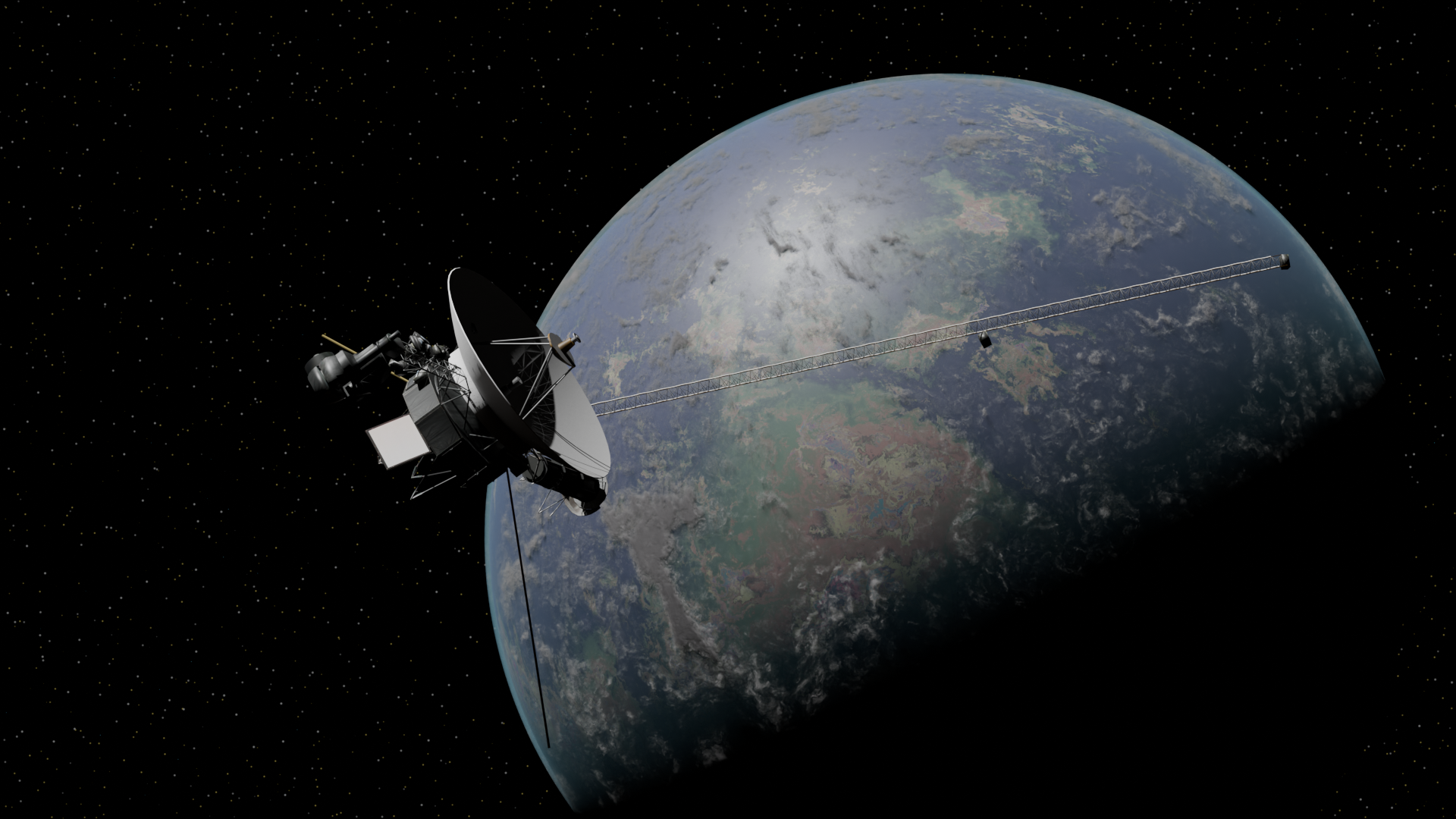
Have you ever had the grand ambition to make a awesome space scene but didn't know how or wanted more guidance? Well This tutorial will hopefully guide you towards making your own awesome epic space scenes!
This tutorial will teach you how to create a completely procedural super cinematic space scene perfect for making your dreams into reality whether it be awesome still renders or your own animations of epic proportions!
Finished files can be found in the following GitHub repository:
https://github.com/Owen12121212121/How-to-Make-a-Epic-Space-Scene-in-Blender
Supplies

Blender - Version 5.0.1 or Newer
GitHub - Finished File Examples
Voyager Space Probe - Source: NASA Visualization Technology Applications and Development (VTAD)
Install Blender
To begin creating your epic space scene, you will want to have Blender installed.
To download Blender, you can go to their official downloads page and download the installer.
After downloading the installer, you can run the executable and follow the instructions on the installer to download Blender!
If you are having any trouble installing Blender or aren't sure how to do anything else in Blender, the Blender Documentation is a useful tool to troubleshoot your install or solve your problem.
Fun Fact! Did you know that you can also install Blender on Steam?
Creating the Scene

After opening Blender, you should be met by this box on your screen. In the box, click General to create the new scene.
Setting Up the Scene

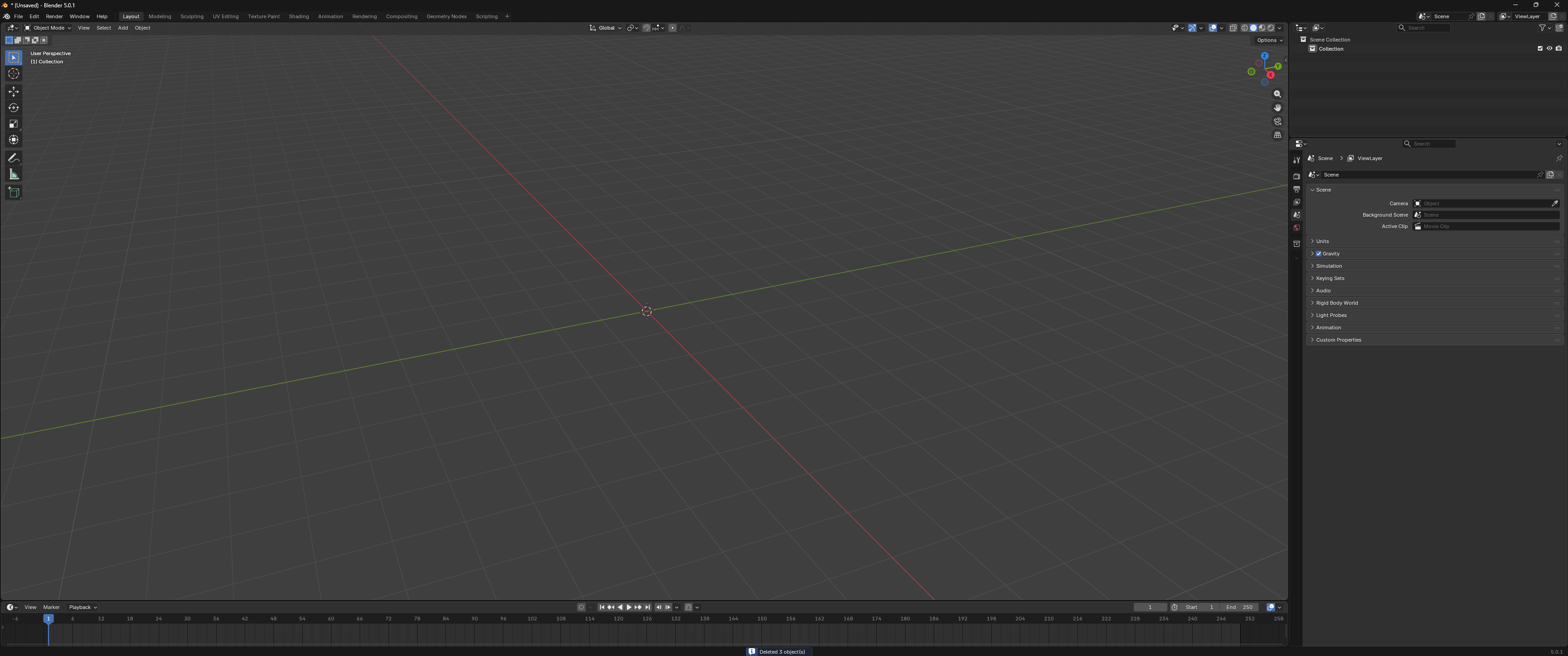
By default, Blender generates a default camera, cube, and light. You can see these objects in both the scene itself and the Scene Collection panel in the top right. In our case, we want to remove these objects for now as we want to start out with a blank slate.
To remove these objects in the scene, we have two options.
- Manually remove each object by selecting them and pressing Backspace or Delete.
- Pressing Control + A at the same time to select every object in the scene then pressing Backspace or Delete.
Pro Tip: Control + A is the keybind for selecting everything in the entire scene!
Now that we have deleted everything we have a completely blank slate to work on our awesome space scene!
Setting Up a Shader Editor Side Area

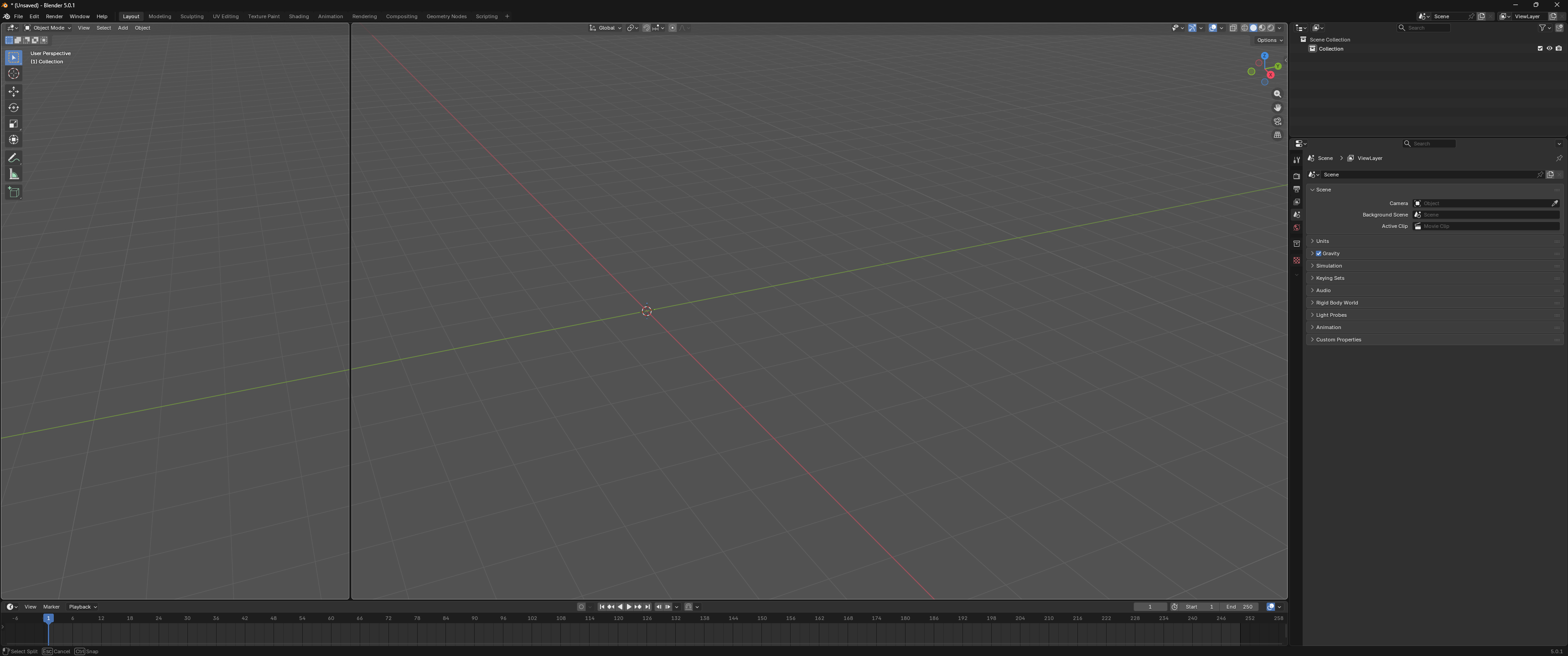
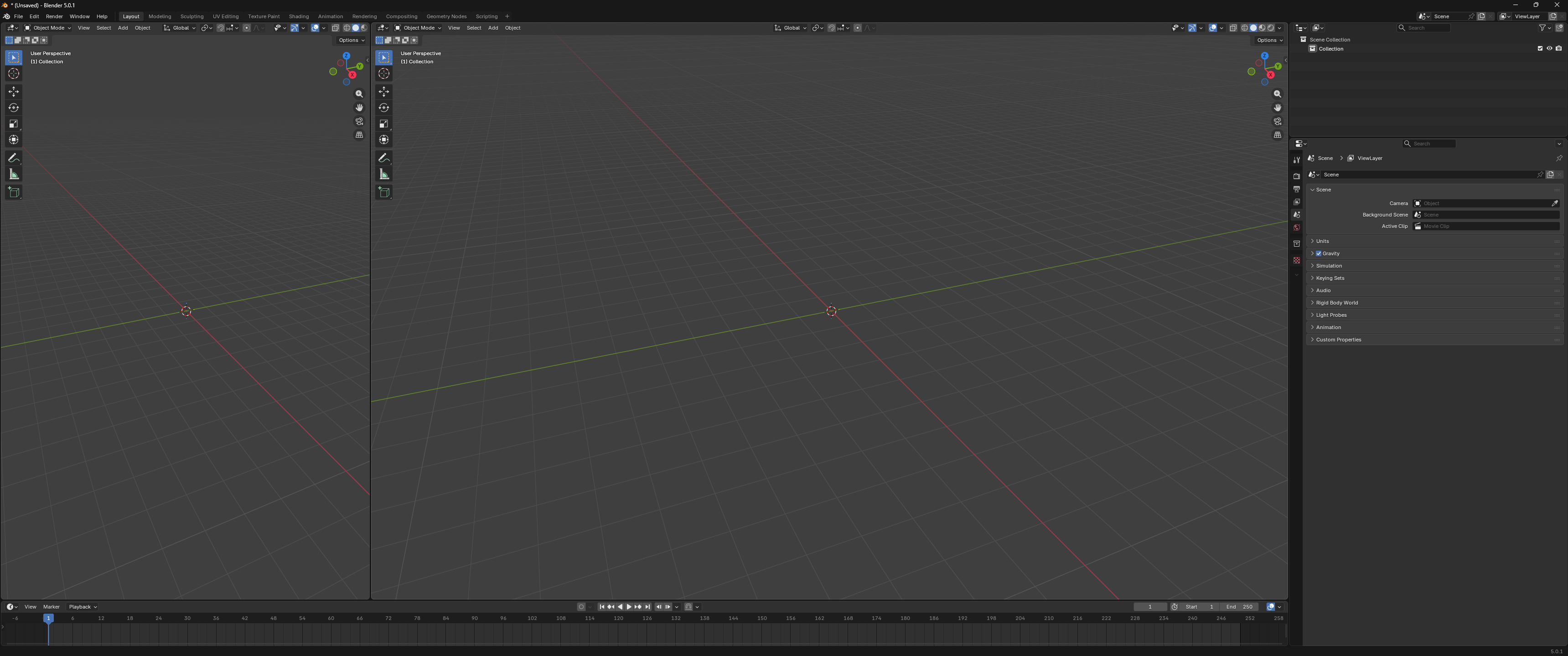

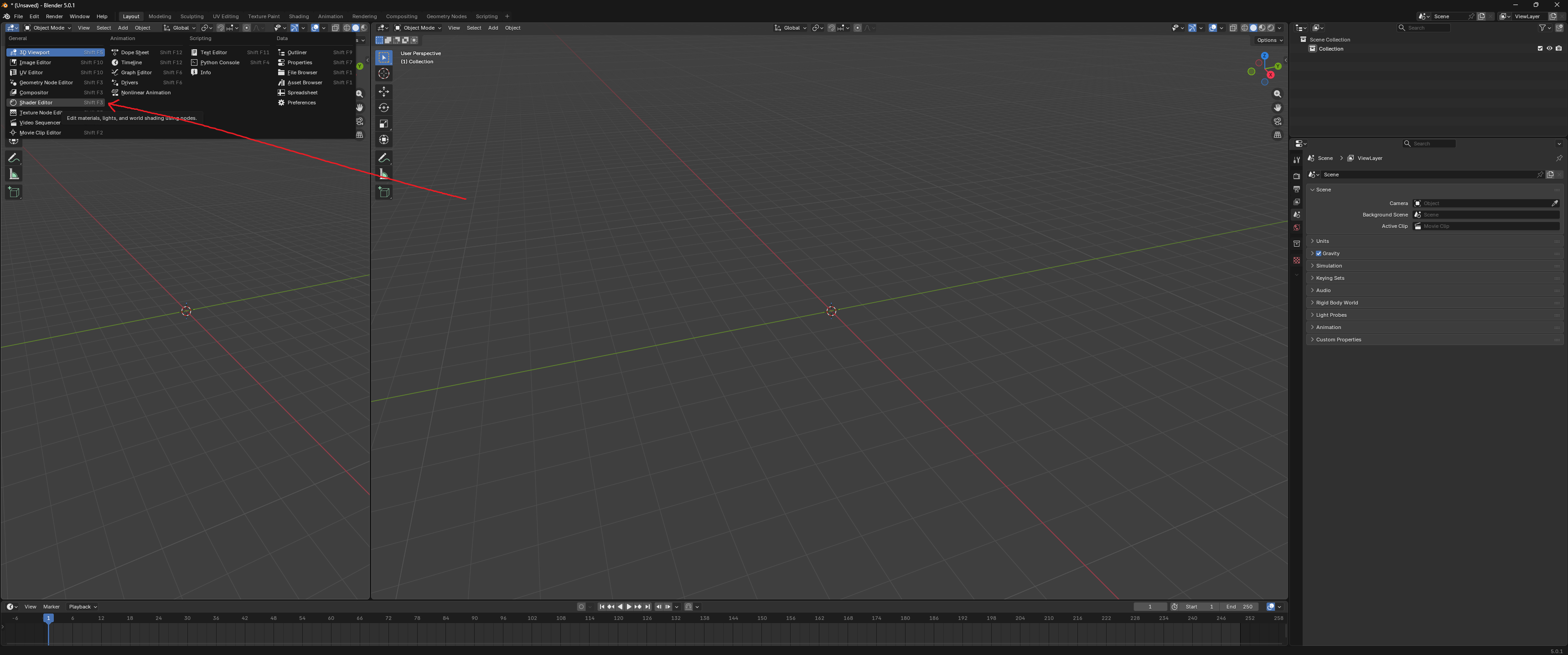

To make things easier in the next few steps, I will show you how to set up a separate side area for the Shader Editor.
This step is completely optional and if you would not like to set up a separate area for the Shader Editor, you can also go to the Shading tab in the Topbar to set up the Materials that we will use in the next steps.
To setup the Shader Editor as a side area:
- Split the main area horizontally.
- Select the new area to be a Shader Editor.
- Adjust the size of the two areas to your liking.
If you are having trouble setting up the Shader Editor as a side area, I recommend reading the following resources then looking at the images provided:
https://docs.blender.org/manual/en/latest/interface/window_system/areas.html
Preparing to Make the Background
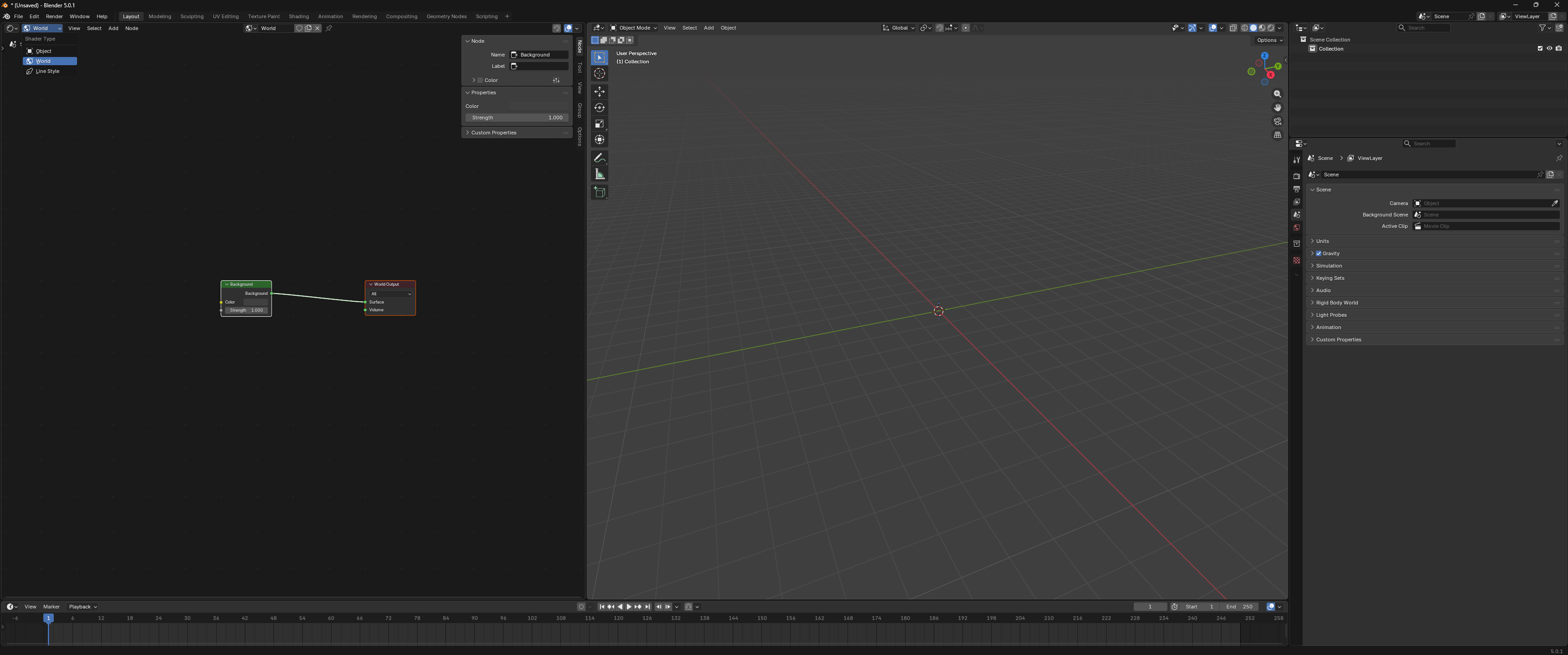

To create the background of the scene, change the Shader Type in the Shader Editor from Object (the default) to World in the dropdown selection at the top left corner of the Shader Editor.
After switching the Shader Type, we want to make sure we will be able to see the changes we make to it later. To do this, in the 3D Viewport Scene on the right area panel, we want to change the Viewport Shading Mode (four buttons on the top right) from Solid to Rendered.
Pro Tip: You can hover over the buttons to view a tooltip showing what the Viewport Shading Mode does.
Making the Background


This step can be pretty complicated. To make things easier, I recommend downloading a finished copy from the GitHub repository to cross reference the nodes and values if you get stuck anywhere.
Pro Tip: To add any nodes in the Shader Editor or any object in the 3D Viewport, press Shift + A at the same time and use your mouse to select what you want to add or click search and type what you are searching for to quickly add what you are looking for.
Stars
After you switched Shader Type from Object to World, you may have found two nodes appearing on your screen. A Background Node and a World Output Node. These two nodes control what you see in the background.
To add stars to the background, we want to add a Voronoi Texture Node and a Color Ramp Node. Connect the Distance of the Voronoi Texture Node to the Factor of the Color Ramp Node and connect the Color of the Color Ramp Node to the Color of the Background Node.
Now you should see a mixture of white and black in the 3D Viewport.
To make this look more like stars, you want to increase the Scale value of the Voronoi Texture Node (a larger scale will mean smaller stars, I recommend a range between 1000 to 3000 but play around with it!) and decrease the Position of the Black Color Stop of the Color Ramp by clicking on the Black Pin and either dragging it to the left or decreasing the Position value after you click on it to adjust the quantity of stars.
Now your scene should have stars in the background!
To add stars of different color and size, we can copy the combined Voronoi Texture and Color Ramp Nodes and adjust the Scale values to change the size of the stars and/or the color of the White Color Stop on the left of the Color Ramp to a different color by clicking the solid color on the bottom of the node to change it's color.
Now that we have added the nodes for different stars, we want to hook both up to the Background and World Output Nodes but how?
To hook the new stars up instead of directly connecting the Color Ramp Node to the Background Node, we can add a Mix Node in between! We want to set the Mix Node to Color Mode in the upper dropdown menu and connect the Color Outputs of the two Color Ramps to A and B respectively on the Mix Node. We can then connect the Result of the Mix Node to the Color of the Background Node.
If you want to add more types of stars of different varieties, you can add more sets of Voronoi Texture and Color Ramp Nodes joined by more Mix Nodes!
Now we have our stars but things still feel very boring. How can we fix this? By adding nebula of course!
Nebula
To add nebula, we want to add a Noise Texture Node and a Color Ramp. Connect the Factor of the Noise Texture Node to the Factor of the Color Ramp Node. We then want to add another Mix Node set to Color Mode with its A value connected to the Result of the Stars Mix Node and its B value connected to the Color of the nebula Color Ramp that we just created.
We now have the infrastructure for nebula laid down but they very much don't look like nebula yet.
To make them look like nebula, we want to first decrease the factor of the Mix Node we just made to reduce the brightness of the nebula (I used 0.025).
Although we just adjusted the opacity of the nebula, the patterns generated by the Noise Texture Node aren't nebula shaped yet. To make them look more like nebula, increase the Detail value to it's maximum of 15 and set the Lacunarity value to around 2. You can increase the Scale Value to make it look like there are more nebula further out and play around with the Roughness value to get the smoothness or roughness you desire (I used 0.6).
Now that the nebula are correctly shaped, we want to adjust their color, to do this we want to adjust the Color Ramp Node. Add more Color Stops to the Color Ramp Node by clicking the + (plus) icon on the Color Ramp Node. Shift all the Color Stops to the right by clicking the pins and dragging them to the right and set the leftmost Color Stop to be black. You can then play around with and adjust the colors and locations of the rest of the Color Stops to create your very own beautiful nebula!
Camera Setup


Now that you have just created your space background, you are probably very excited to see it rendered!
To create a rendering of your scene, you need to have a camera in it. To add a camera to your 3D Viewport scene click into your 3D Viewport area and press Shift + A and add a camera.
Pro Tip: To adjust the location of any object in the scene like your camera, you can select the object and click G while moving your mouse to move it. In a similar fashion, you can select the object and click R to rotate it. While you are moving or rotating your object, you can also click X, Y, or Z to clamp the motion to it's respective axis.
To view the scene from the perspective of the camera before you render it, you can click the little button with the camera icon on it on the top right of the 3D Viewport area.
To move the camera as if it were clamped to your 3D Viewport's display, you can go into the view tab on the top right of the 3D Viewport area and check Camera to View under the View Lock tab to have the camera follow your 3D Viewport's display. When you have the camera moved to a position that you like, you can uncheck the Camera to View checkbox and you can move your 3D Viewport's display separately.
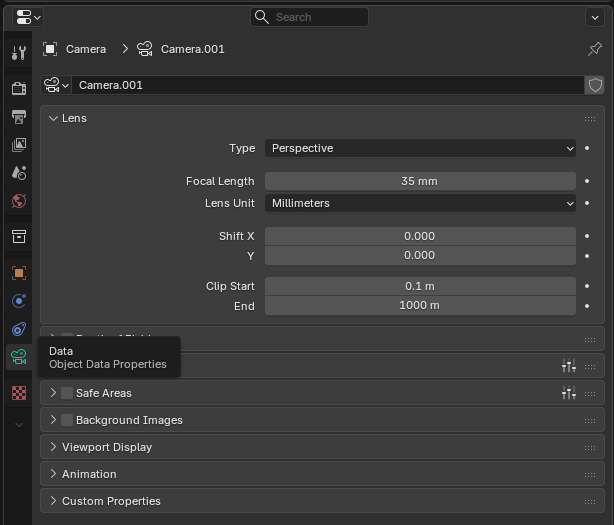
You can adjust camera settings like focal length in the Properties Panel to the right of the 3D Viewport area under the panel's data tab.
For a surreal telescopic view, I recommend using a focal length above 100mm. I would also recommend increasing the Lens End to a much higher value like 10000m so big things won't disappear from the camera's view.
Render Settings
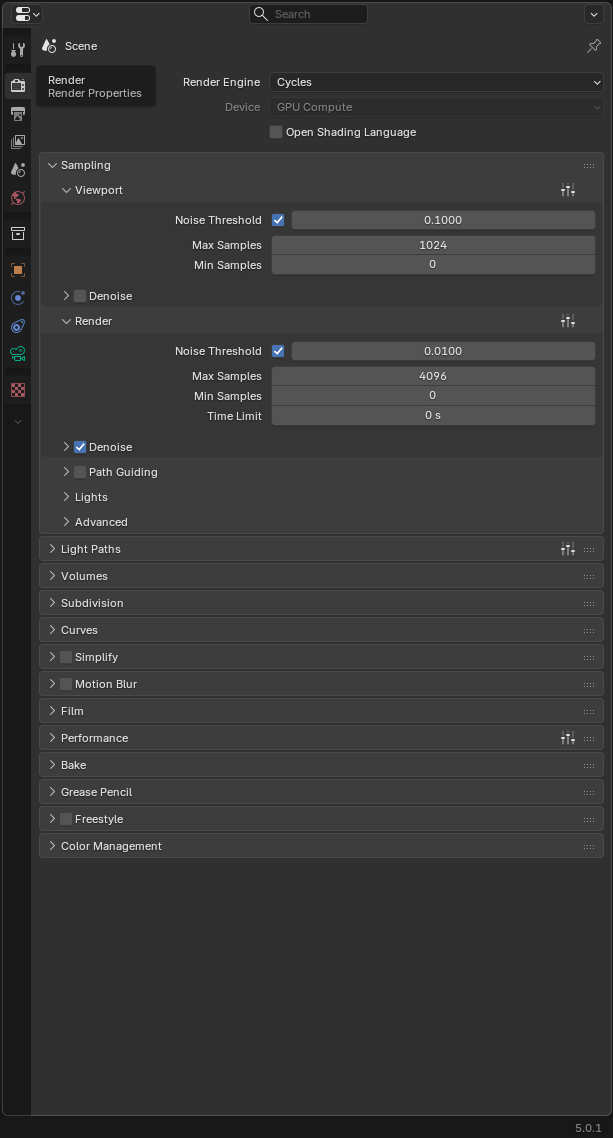

Before you create your render, you want to setup the renderer to render like how you want it to render.
In the Properties Panel under the Render tab, change the Render Engine from EEVEE to Cycles. If you have a GPU in your device, you may also want to switch the Device from CPU to GPU Compute for better rendering speeds.
Under the Sampling tab, you can adjust how many samples you take during rendering, in the Film tab, you can adjust the exposure of the render and under the Color Management tab, you can adjust the color of the render.
Rendering

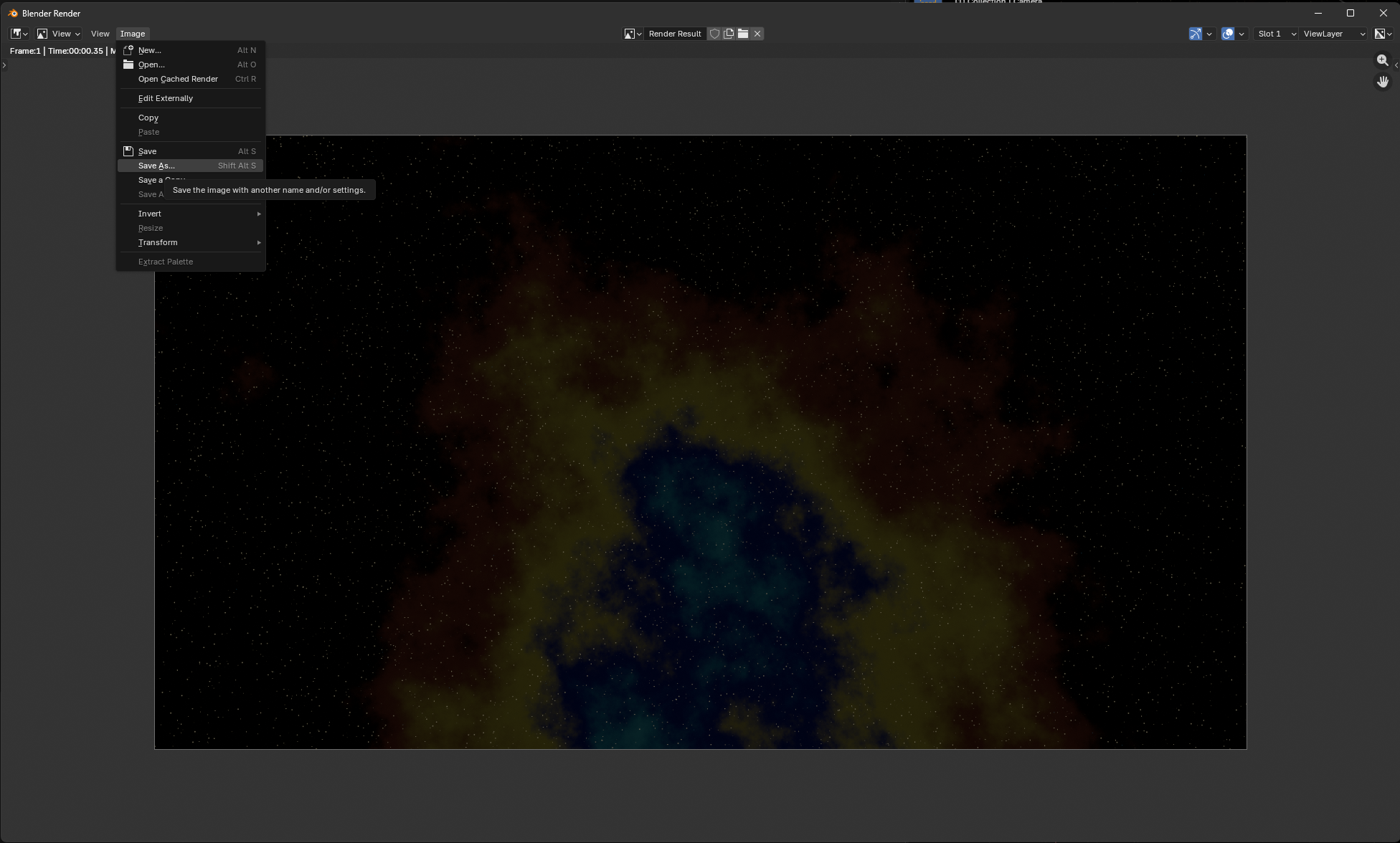
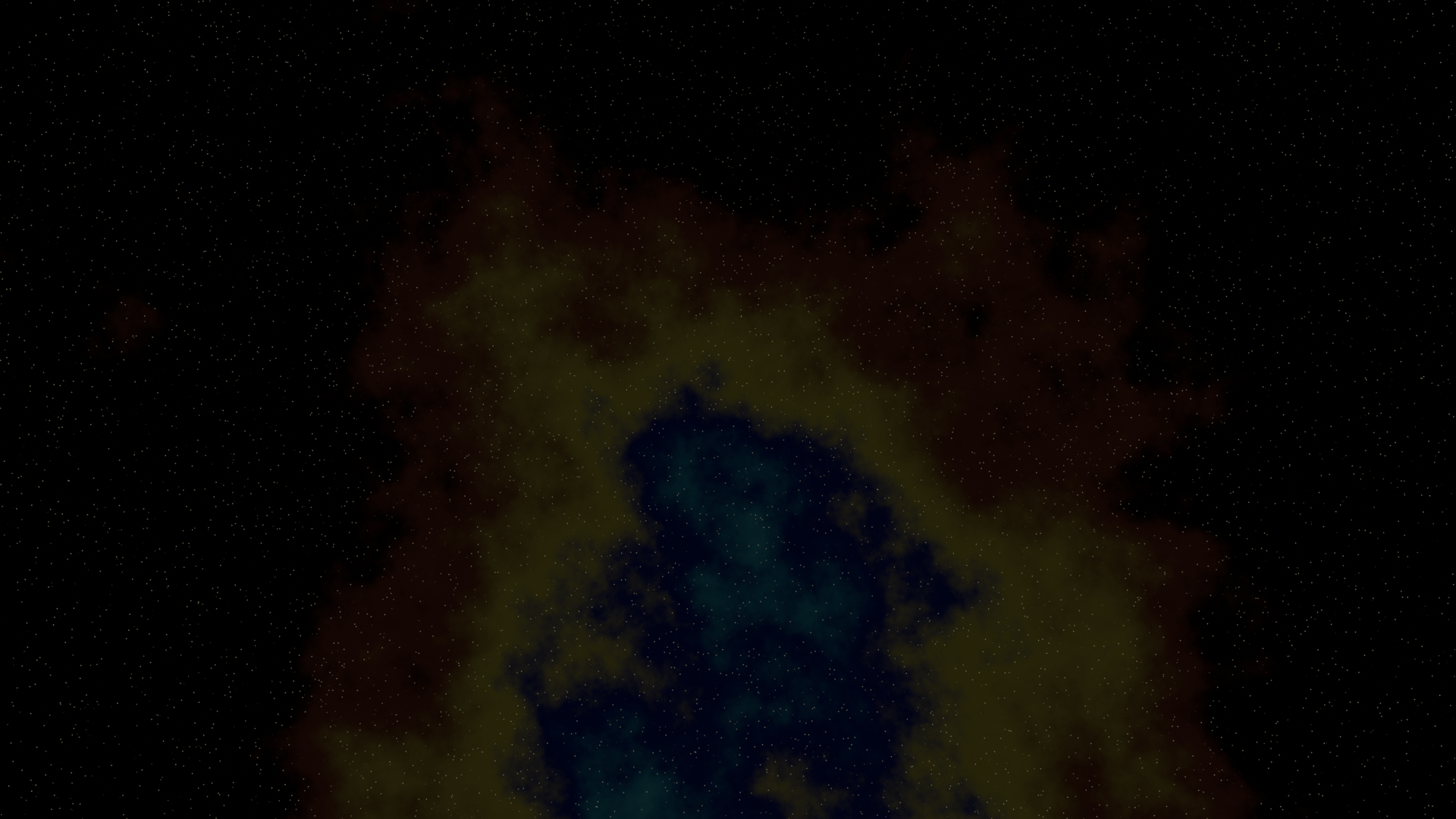
It's finally time to render what you see on the camera that you just created!
To render an image, select the Render tab on the left of the Topbar. Under the Render tab, select Render Image to render an image.
After waiting for your image to render, select the Image tab on the Topbar of the Blender Render window. Under the Image tab, you can click Save As to save your rendering!
Making a Planet (Advanced) (Optional)
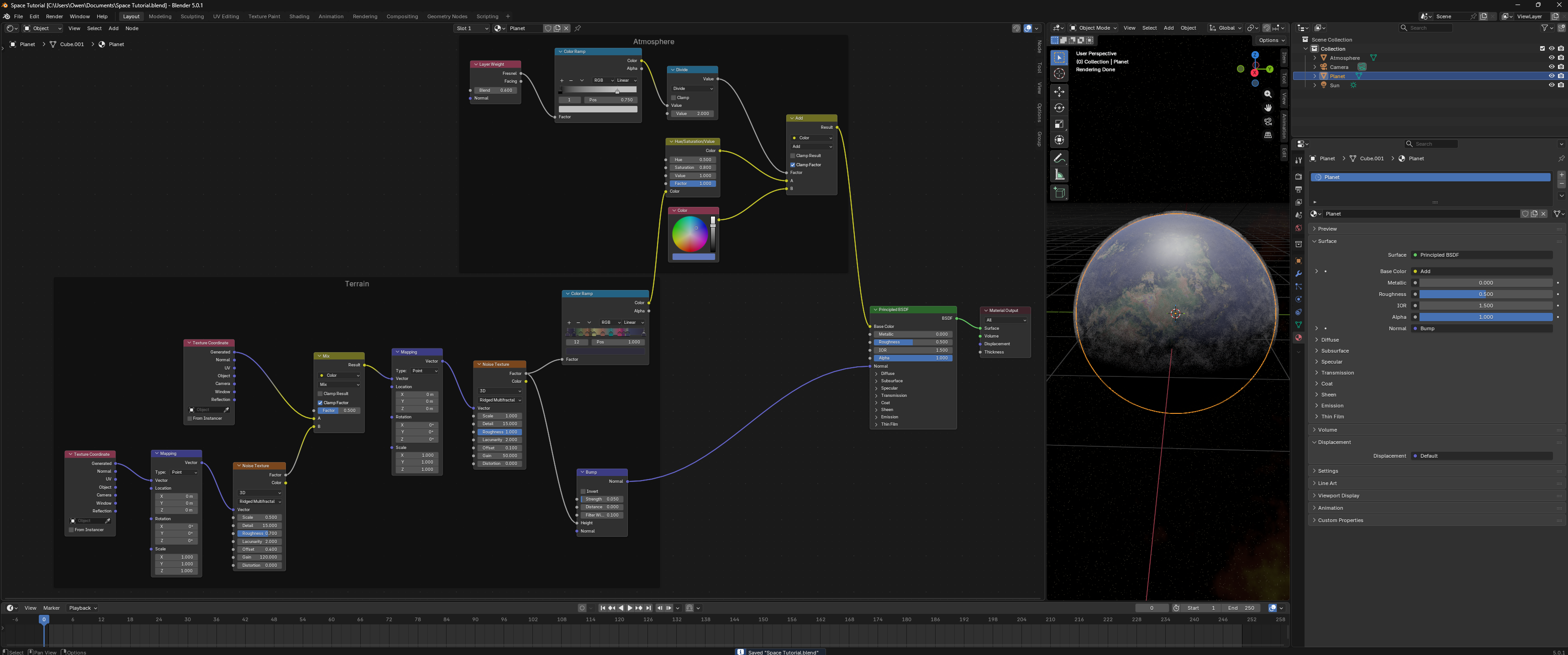
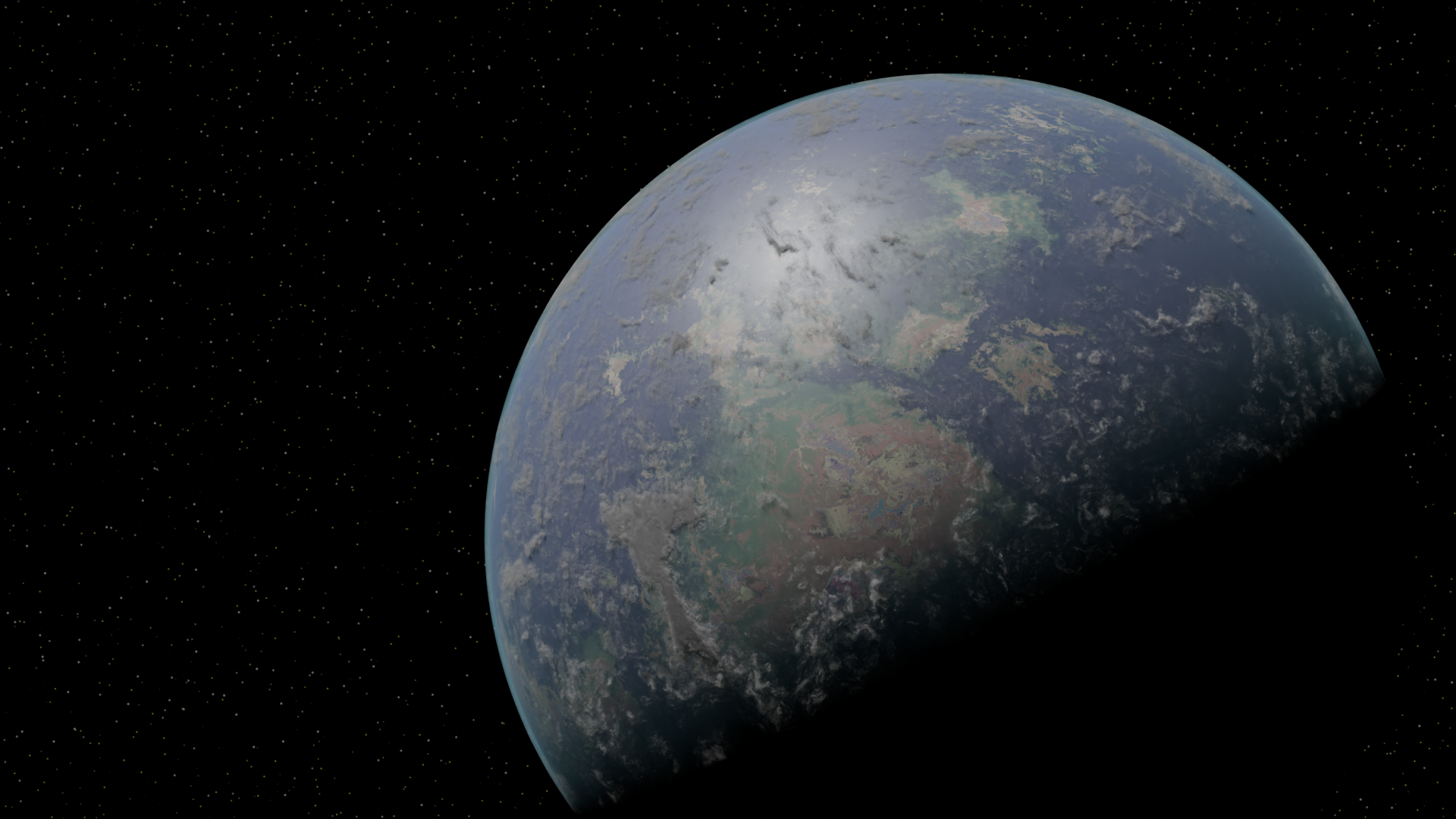
A scene with just the endless expanse of empty space lacks the grandness that we seek to create. One way to show this grandness is by adding a planet to show the scale of the universe!
Preparing The Scene
To start creating a planet, we want to go back to using Solid Viewport Shading and the Object Mode Shader Type in the Shader Editor. This way, it makes setting up the planet object easier as it makes it so we can see objects we put in the scene without adding a light source and prepares us to add a new shader material to the planet.
In addition, this tutorial will use volumetric clouds so under Volumes of the Rendering tab in the Properties Panel, enable Biased for a higher quality volumetric render.
Creating The Mesh
To create the mesh of the planet, you want to your 3D Viewport scene click into your 3D Viewport area and press Shift + A and add a Cube Mesh. To make the cube round like a planet, go into the Modelling tab in the Topbar while selecting the cube. In the modelling tab, press A to select all the vertices and right click and choose Subdivide. In the bottom left corner to open the Subdivide tab that popped up and increase the number of cuts to 9. While still selecting every vertice, press Shift + Alt + S to use the To Sphere transform then move your mouse to the right until the cube looks like a circle.
Now that you have the basic mesh of the planet, you can go back to the Layout tab on the Topbar. To make the mesh smoother and look less like a golf ball, select the cube turned sphere and right click on it and select Shade Smooth to make it look like a smooth sphere.
For the shader that we will be using to have more detailed features, go to the Modifier tab in the Properties Panel and add a Subdivision Surface modifier. Set the Levels Viewport to 3 and apply the modifier by clicking the dropdown in between the camera and the x buttons and selecting Apply.
Go back into the Modelling tab while selecting the sphere and select every vertice again and repeat the To Sphere transform to make the circle even more circular.
Reasoning: We make the sphere mesh of the planet using a cube primitive instead of a icosphere primitive to avoid tris when subdividing the mesh. Doing things this way ensures that that we are left with only quads after subdivision.
Setting Up The Light
Now that we have finished creating the mesh, we want to view the planet in it's actual environment. To view the material in the scene, we want to switch back to Rendered Viewport Shading to show the future changes that we will make to the material. Now that we switched back, we can't see anything because we don't have a light in the scene. For this scene, we want to add a Sun light by pressing Shift + A then selecting the Sun light under the Light tab.
After creating the light, select it and go to the Data tab in the Properties Panel to increase the Strength value of the light to a higher value like 10.
Bringing The Planet To Life
In the 3D Viewport area, select the sphere. In the top middle of the Shader Editor area, click the button titled + New to create a new Shader Material for the sphere. This material will be automatically applied to the sphere.
The shader material is extremely complicated. To make things easier, I recommend downloading a finished copy from the GitHub repository to cross reference the nodes and values if you get stuck anywhere.
For the this part, I recommend copying the version I created from the GitHub repository or following this video tutorial by Alaskan FX (Skip to 4:20). Their video is a great tutorial on how to set this part up. Just note that in the tutorial video, they are using an the Musgrave Texture Node which has been depreciated and replaced with the Noise Texture Node.
After you finish creating the Shader Material for the planet and it's atmosphere, you are ready to take your space rendering to the next level!
Adding in Spacecraft (Optional)
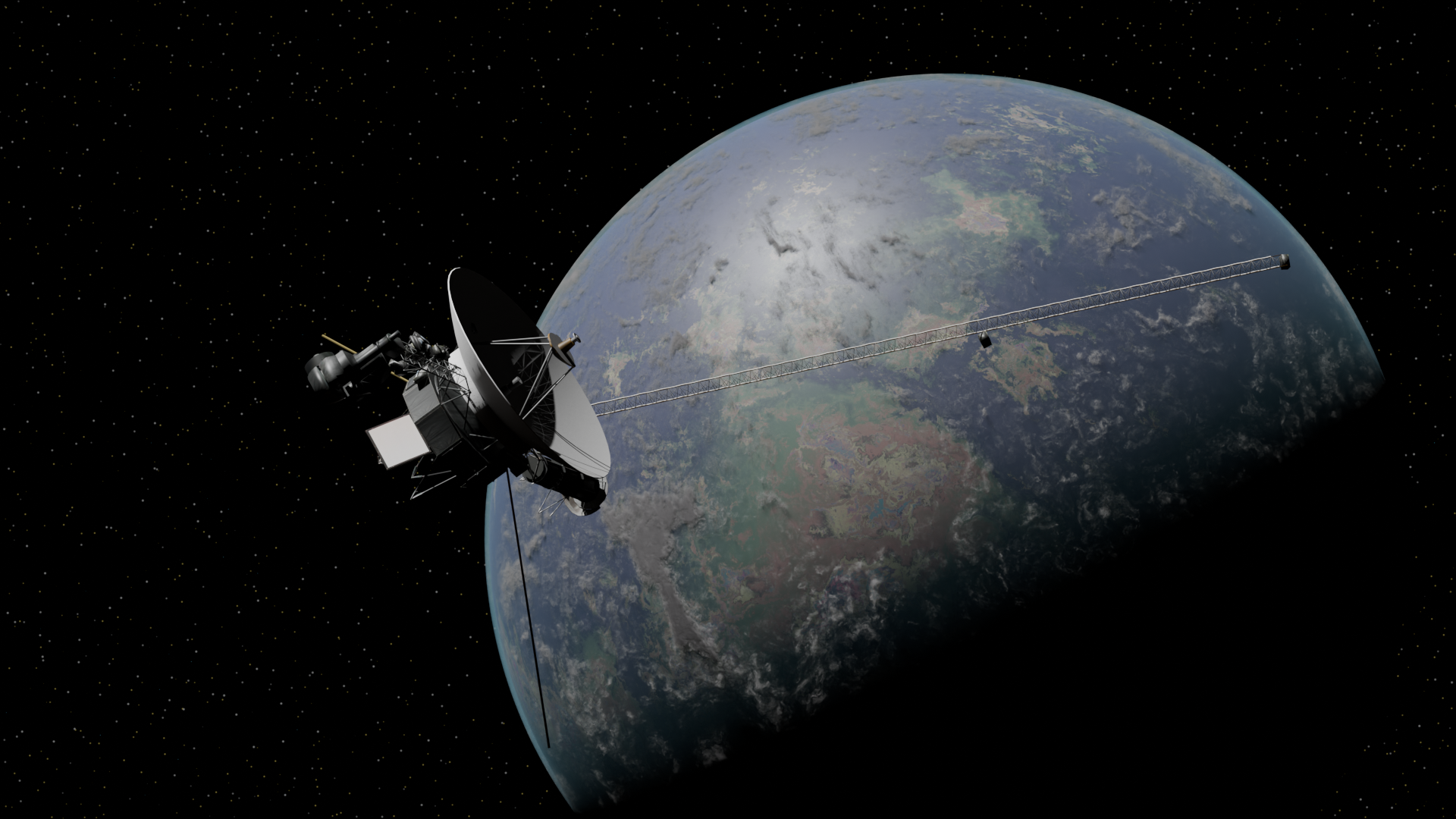
Its finally time to add a spacecraft!
For this tutorial we will be adding a 3D model of the Voyager Probe by NASA Visualization Technology Applications and Development (VTAD).
First, you want to download the glTF file from the official NASA website.
After you download the file, import it into Blender by dragging the file from the file explorer to the 3D Viewport in Blender. A popup should appear and you shouldn't need to change any settings.
Now using the controls you learned earlier, you can move and rotate the space probe and get the perfect render of the Voyager Probe or any other spaceship of your own design floating in deep space or in close proximity to your very own alien planet!