How to Make a CUSTOM VESC Onewheel GT (Full Build Log, Simplified)
by floofde45 in Workshop > Electric Vehicles
6127 Views, 41 Favorites, 0 Comments
How to Make a CUSTOM VESC Onewheel GT (Full Build Log, Simplified)
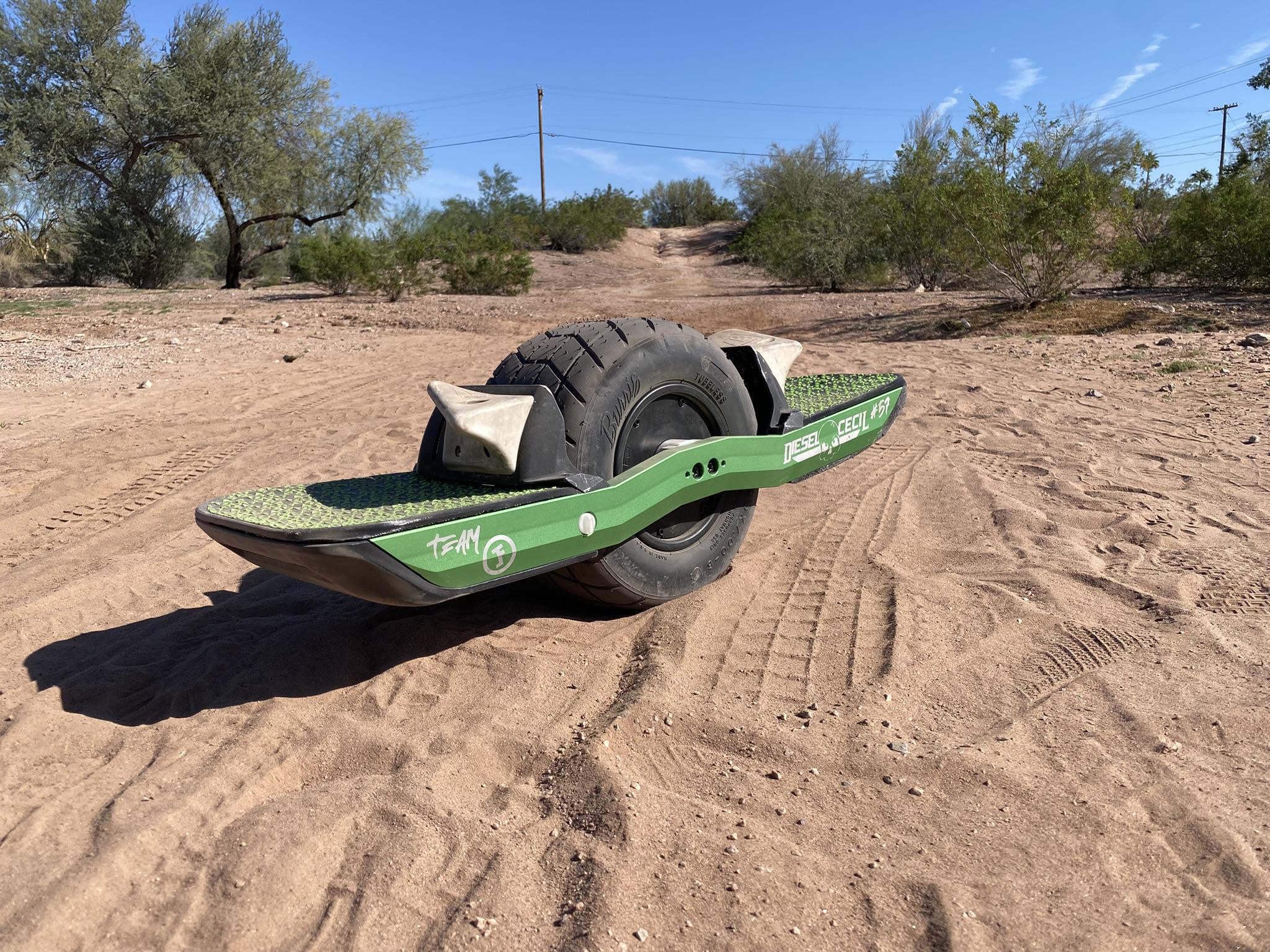
I have been a Onewheel enthusiast for over a year, starting with a Pint, then working my way to a normal GT, but the scariest thing about riding them was the pushback and force feedback when cruising around 20 miles per hour. Hearing horror stories about riding through pushback and board shutting off made me want to find an alternative way to ride, but also not having to worry about the pushback at comfortable cruising speeds. Then suddenly, I met someone who had a VESC (Vedder Electronic Speed Controller). I tried the board, and unlike a stock Onewheel, the VESC was way more responsive, felt smoother, almost like I was floating, and silent. From then on I was hooked, and spent many months researching how to build a VESC, however there was not many "down to earth" tutorials on how to build, as most instructions were highly technical, and not beginner friendly. However, I had a few experienced builders help me along, and I decided to make a simplified instructional video on how to build a VESC, covering everything, but in simpler terms. This build will cover how to make a 32s2p battery, connection diagrams for controllers, VESC programming, and anything else I can think of on the way. Hope you enjoy!
-David D.
Supplies
There are MANY parts needed, with only a few specific tools needing to be bought, which include a battery tester, and a spot welder. A cheap welder could be used, but I did not have good experience with mine, so I would recommend a Kweld kit. These are more expensive now, but well worth the price. Below I linked a spreadsheet I have made that can be copied to keep track of what has been bought, what needs to be bought, and it contains links to every item you might need during this build. This will be referenced many times during this build process, mainly to the item names. Also, if buying a kweld kit, this is the battery I used.
Figuring Out Battery Layout and Size
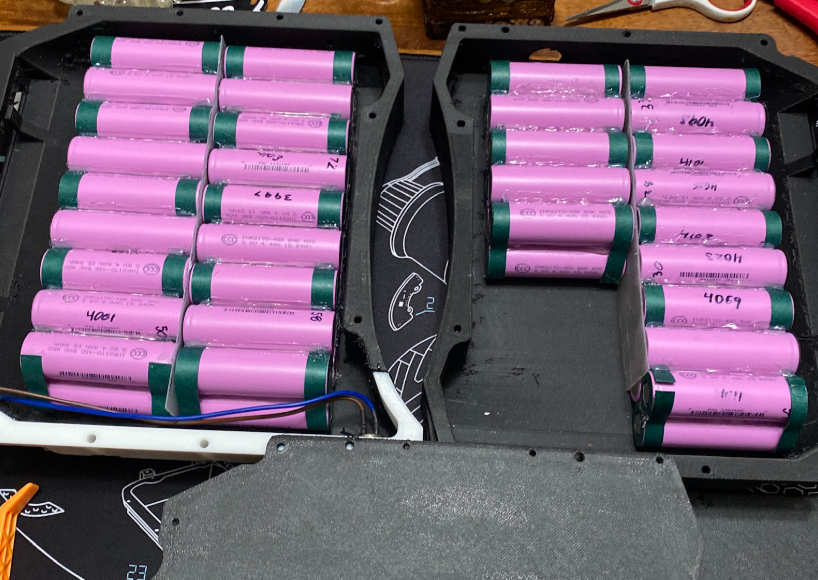
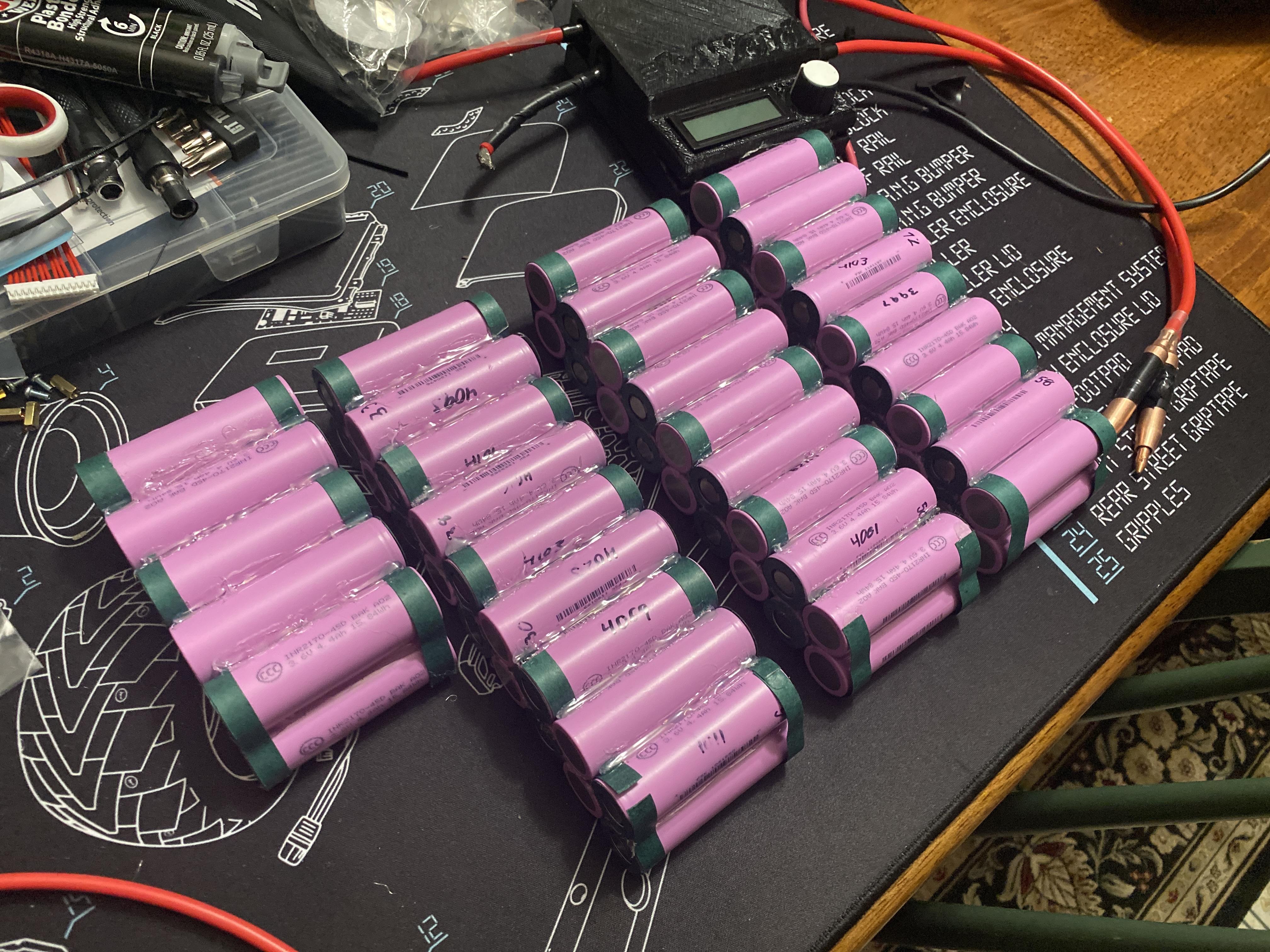
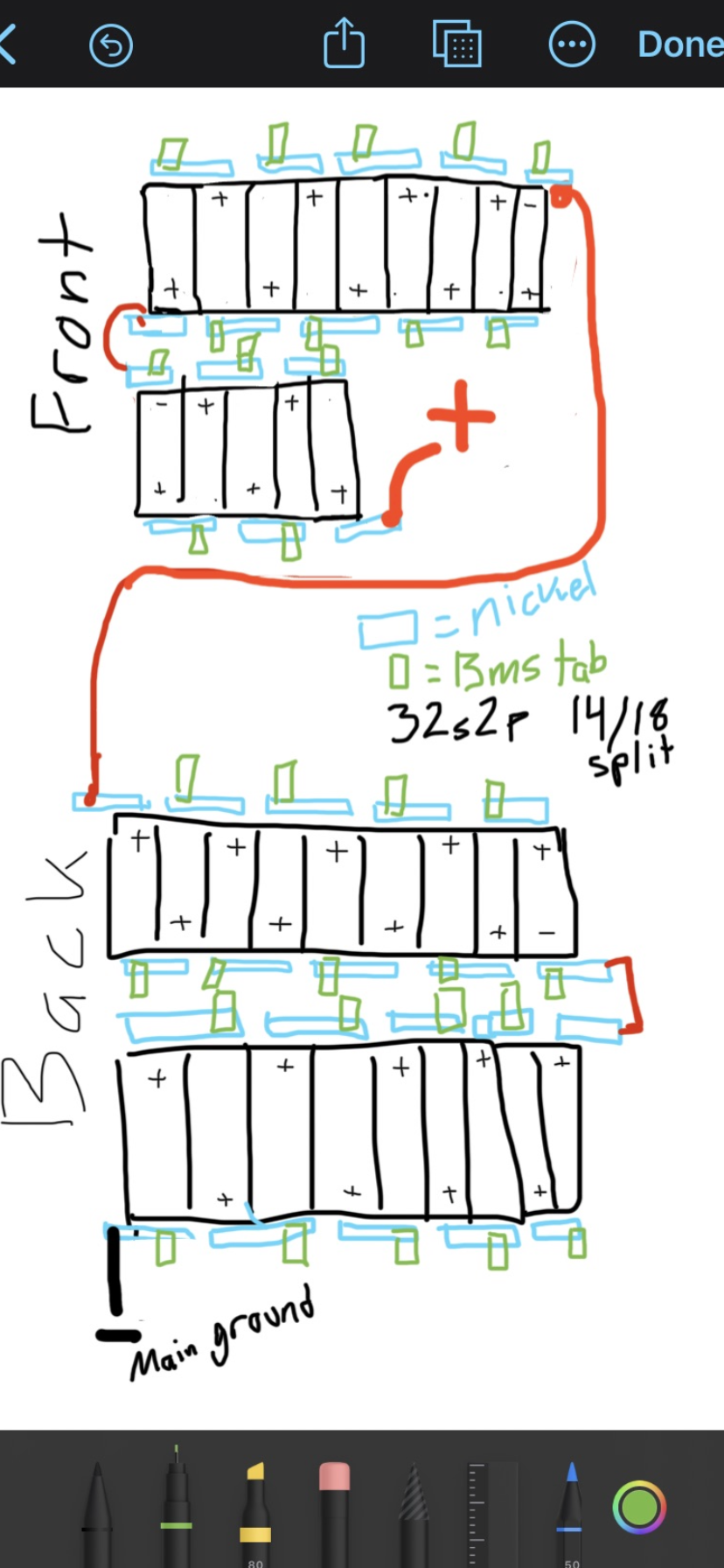
The first thing needing to be considered in a VESC build is the battery size. For a VESC, batteries are labeled in terms of number of cells in series "s" then number of cells in parallel "p", so for example the battery in this build was a 32s2p. This means it had 32 cells in series, and 2 cells in parallel. The more cells in series, the more voltage/speed, and the more cells in parallel you have, the more capacitance/range you will have. Normal builds run 2p, and anywhere from 18-32s, but never more then 32s, as it is not supported by any controllers. Either way, the rear case for a GT can hold a 18s2p battery, so for anything with more cells in series then this needs to be a split pack. This is not an issue by any means, it just makes cable management a little tricky. The photos show how my layout was, I had a 18-14 split, meaning 18s in the back, 14s in the front, totaling 32s. If you want to make a smaller battery, such as a 28s, it follows the same idea of 18s in the rear, 10s in the front. This build process should be generic enough to consider different battery sizes. Once the battery setup is figured out, parts need to be printed to test fit!
Many, MANY, Hours of Printing
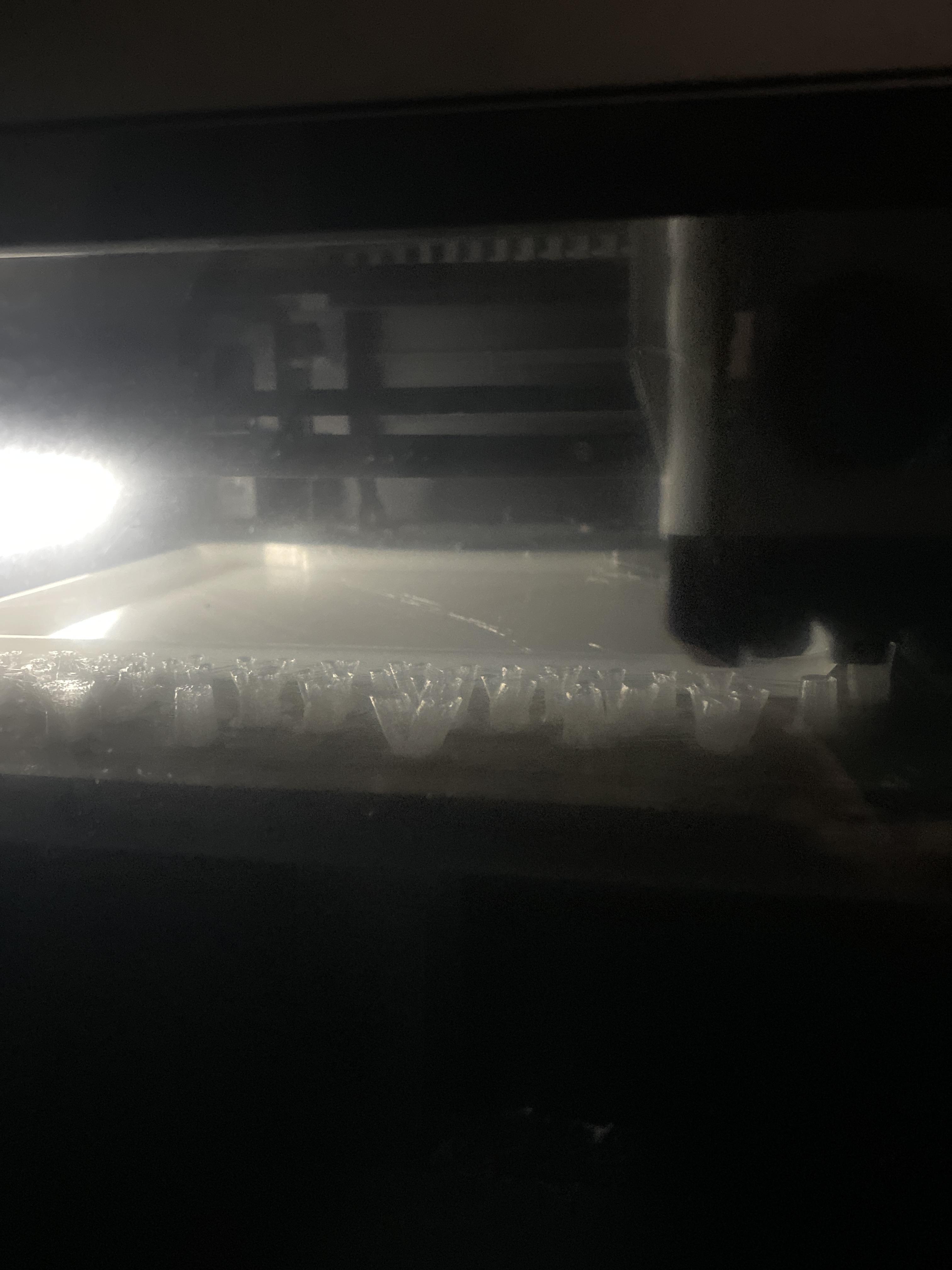
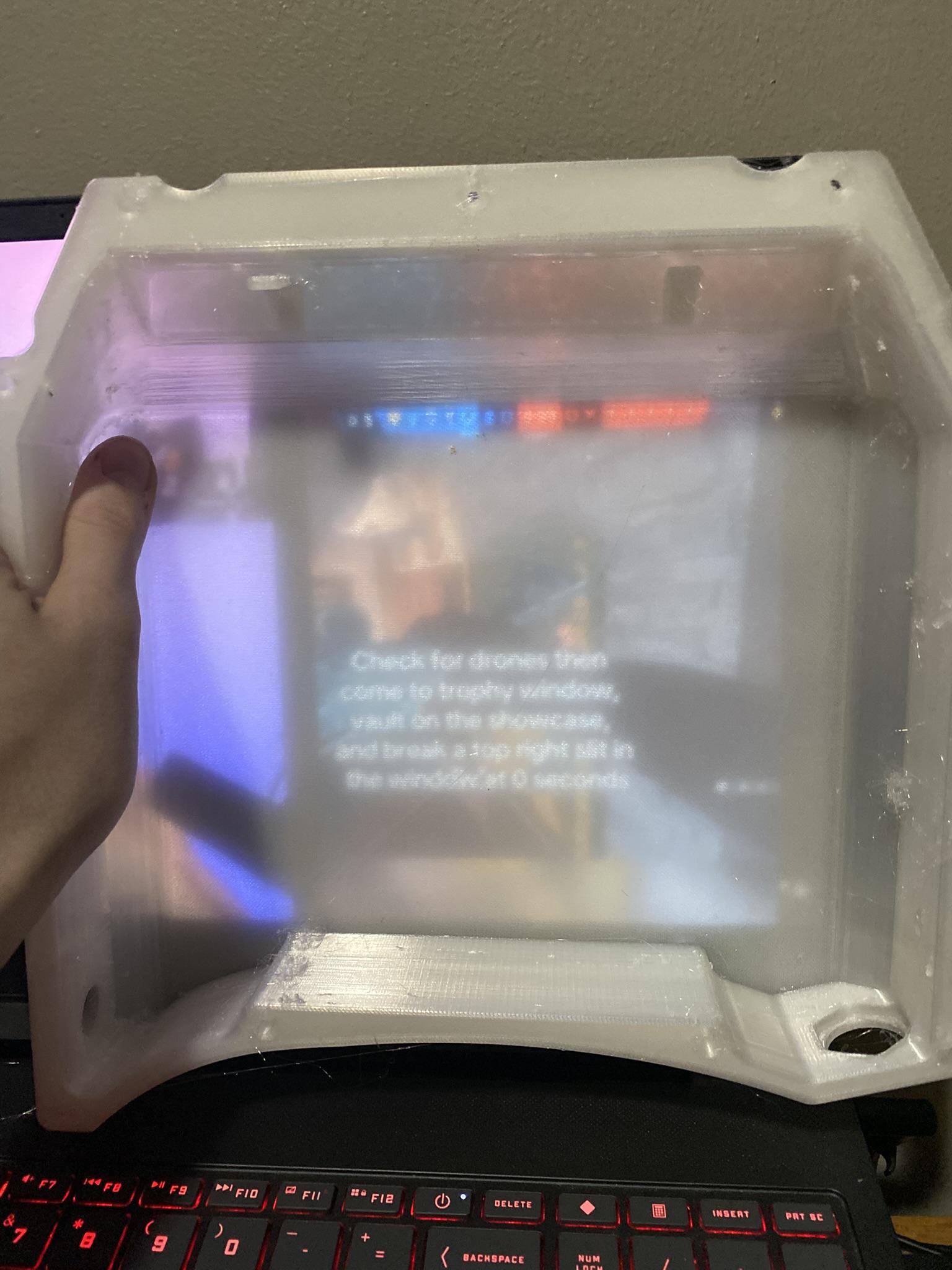
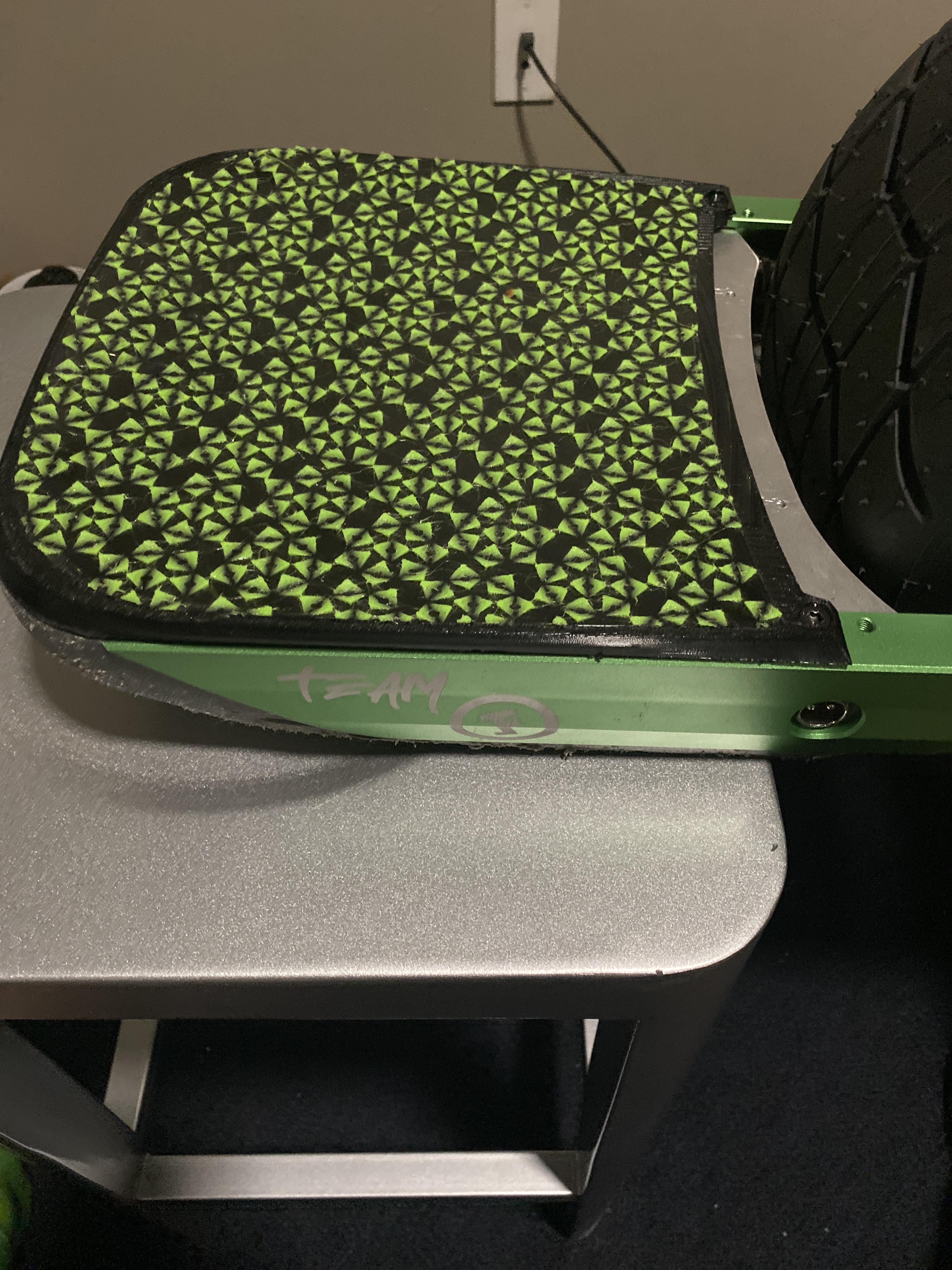
There are a lot of parts for these builds that you could buy, or if you have the resources, you can 3D print to save a lot of money. The parts you can 3D print are the cases for the electronics, footpads, and even the grip tape. A VESC community maker has created cad files for all of these parts, which he provides for free on the discord, which is available on his website VOW. To find the files I used, go to the discord on the website, find the GT tab, in the files channel, there is a folder with all of the files used. I used the Legacy V2 battery case and sym casing, along with the mushies (tail and sensor).
For the battery holding cases, they need to be printed out of a slightly stronger version of TPU, called 72D TPU. This is still flexible, but a sturdier version that keeps the impact resistance, allowing for a shatterproof box. The print settings I used were 6 walls, 90 percent gyroid infill, and 4 top and bottom layers. These settings are used to print the battery case, and the sym case. Then using normal tpu (95A), the mushies were printed using about 20% adaptive cubic infill, or any other infill, adaptive cubic just allows for the softest feel. For the grip tape, I used one of the polypore grip tapes (also in the server), but I put a pause halfway through the print to change color, allowing for a cool green and black look. Overall, each box takes around 30 hours to print, and each footpad about 15 hours, so it took a LOOOOOONG time to finish all of the prints.
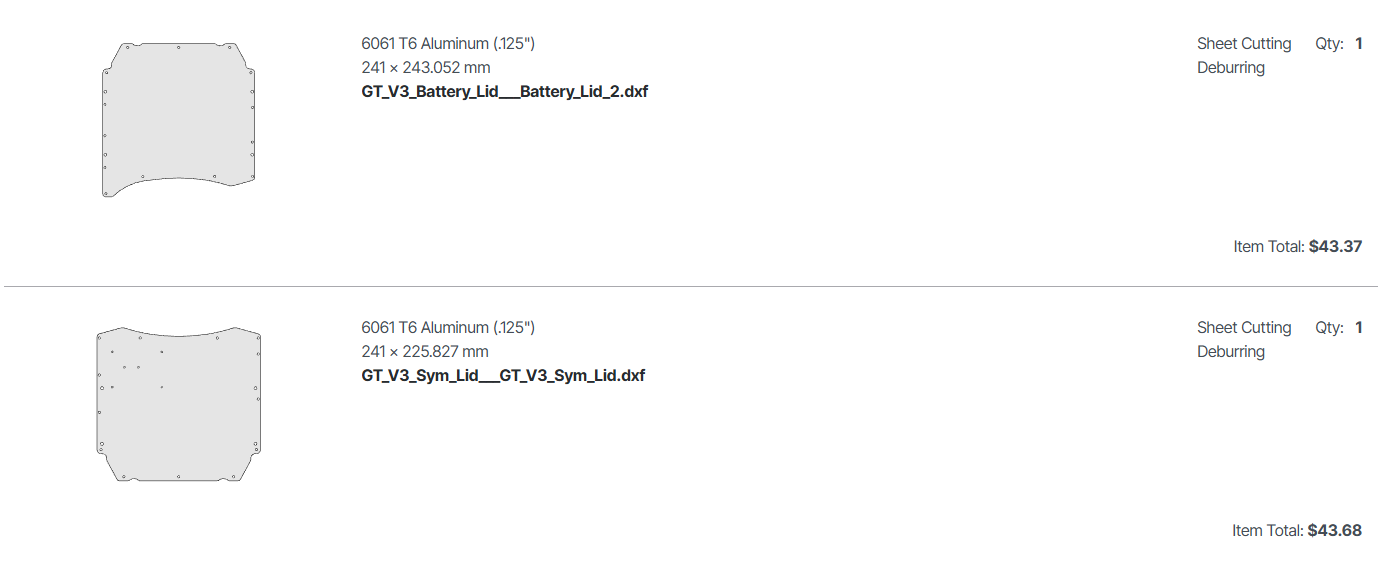
The last part to "make" is the lids for the controller cases. For this, I used the service Send Cut Send. To do this, I uploaded the files for each lid into my preferred Cad software, Onshape, and clicked on the top flat surface of each lid, and exported it as a dxf file. This was then simply uploaded to send cut send. I used 0.125 inch 6061 aluminum as my material, and so far I have not had any issues. Once they arrived, I had to tap all of the holes using a 2mm, 3mm, and 4mm tap. Take your time with this, because you do not want a screw hole to strip out. Once this is done, the next step is to start building the battery!
Testing Cells and Prepping Battery
.JPEG)
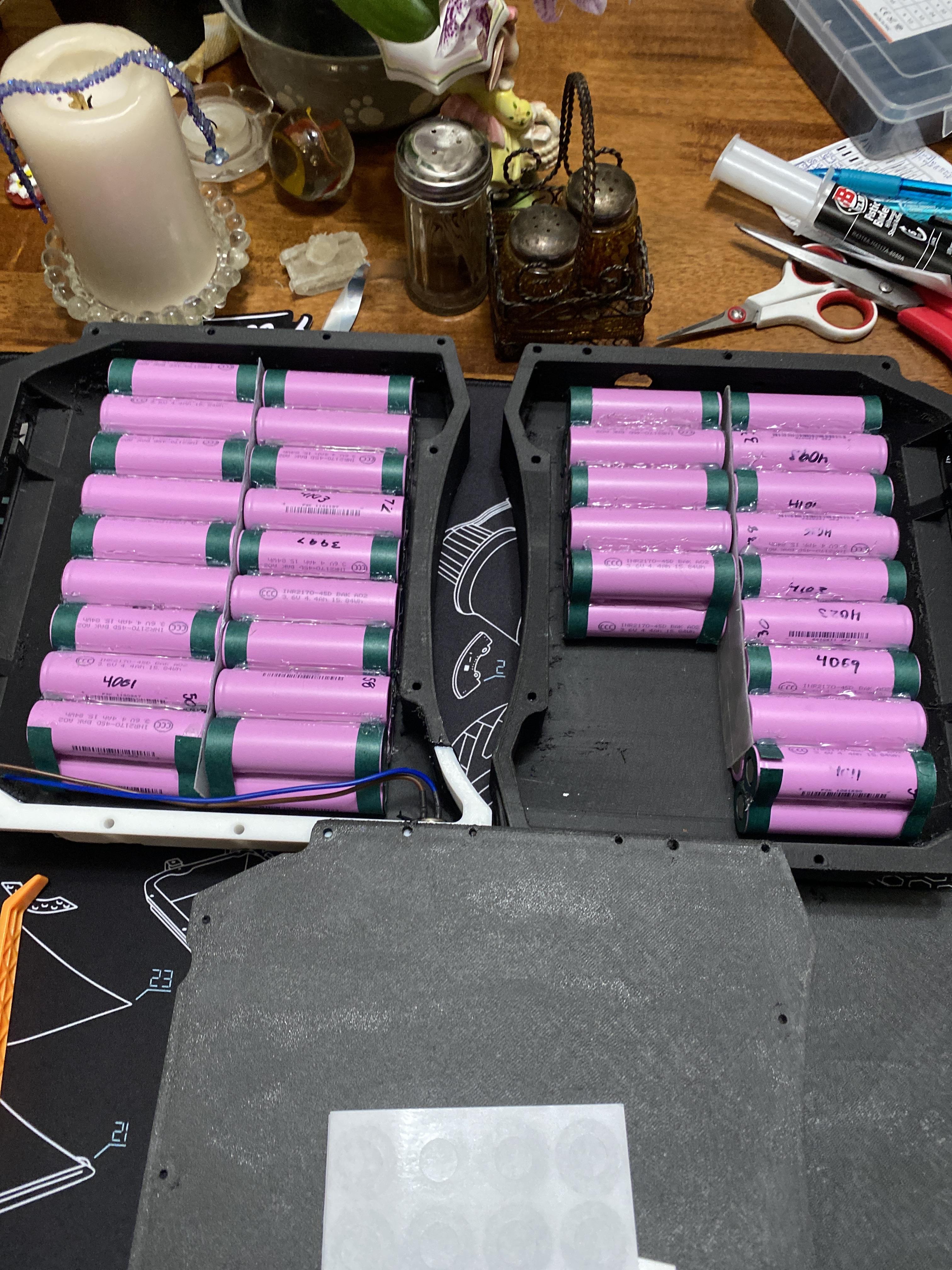
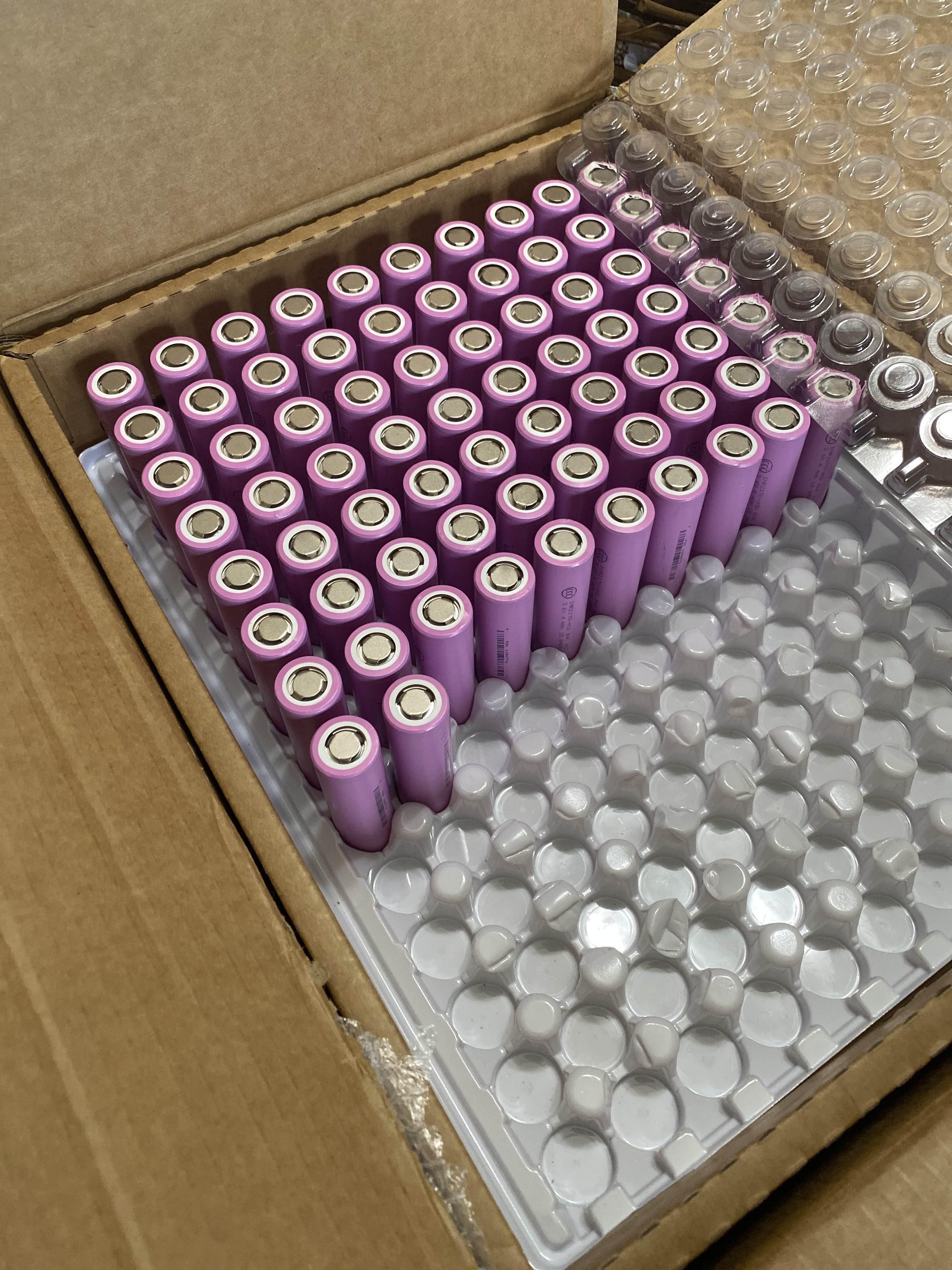
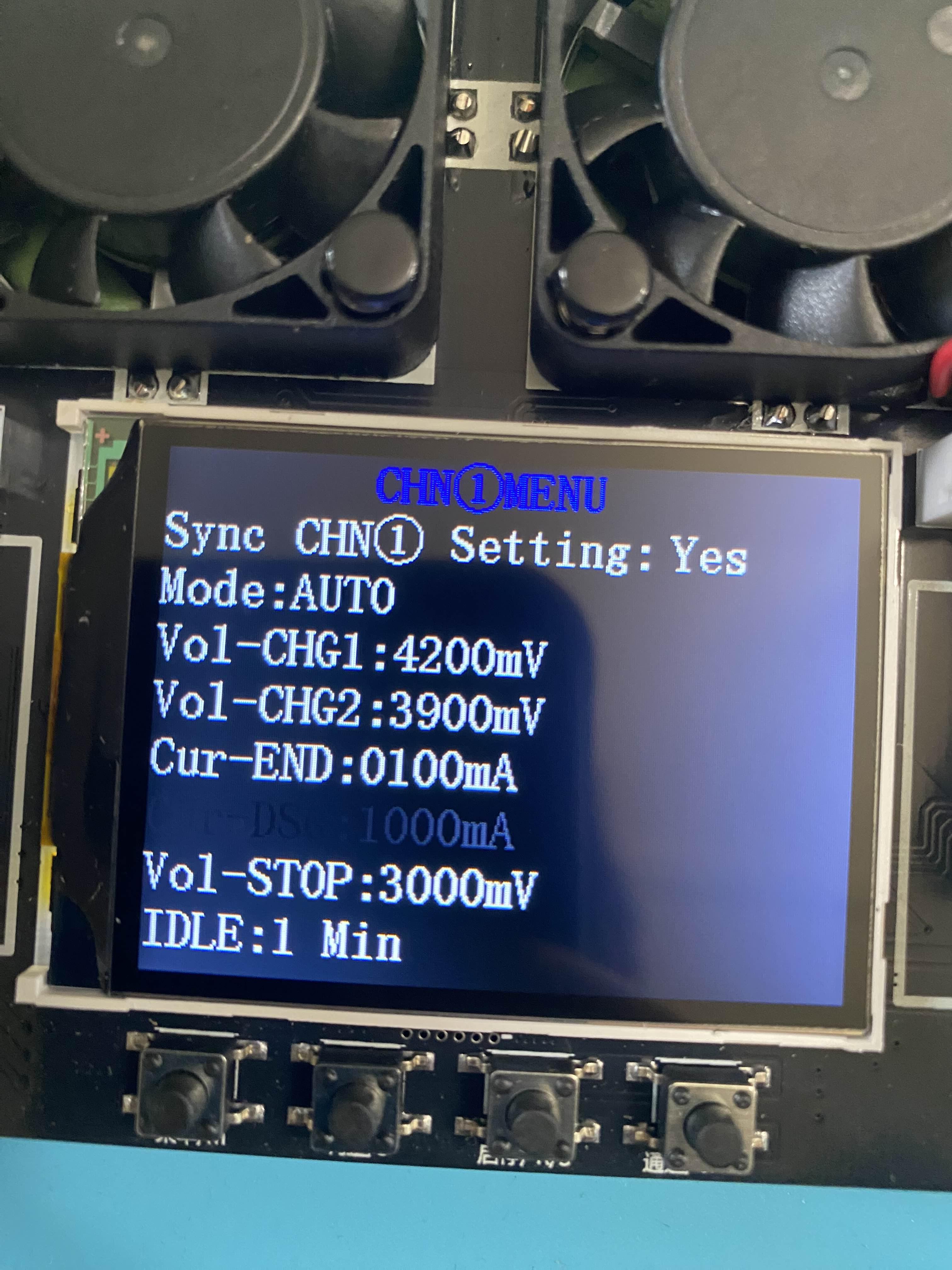
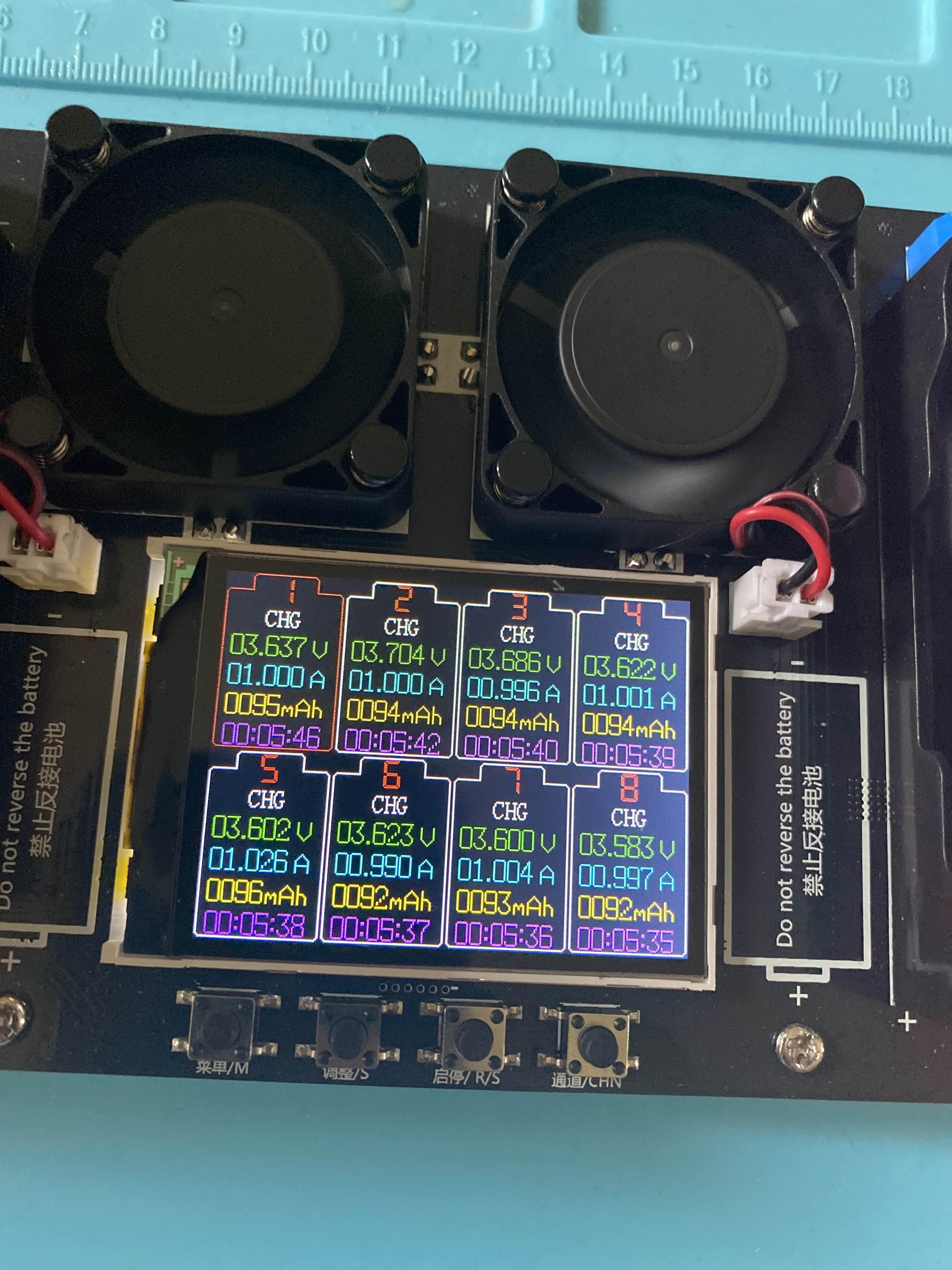
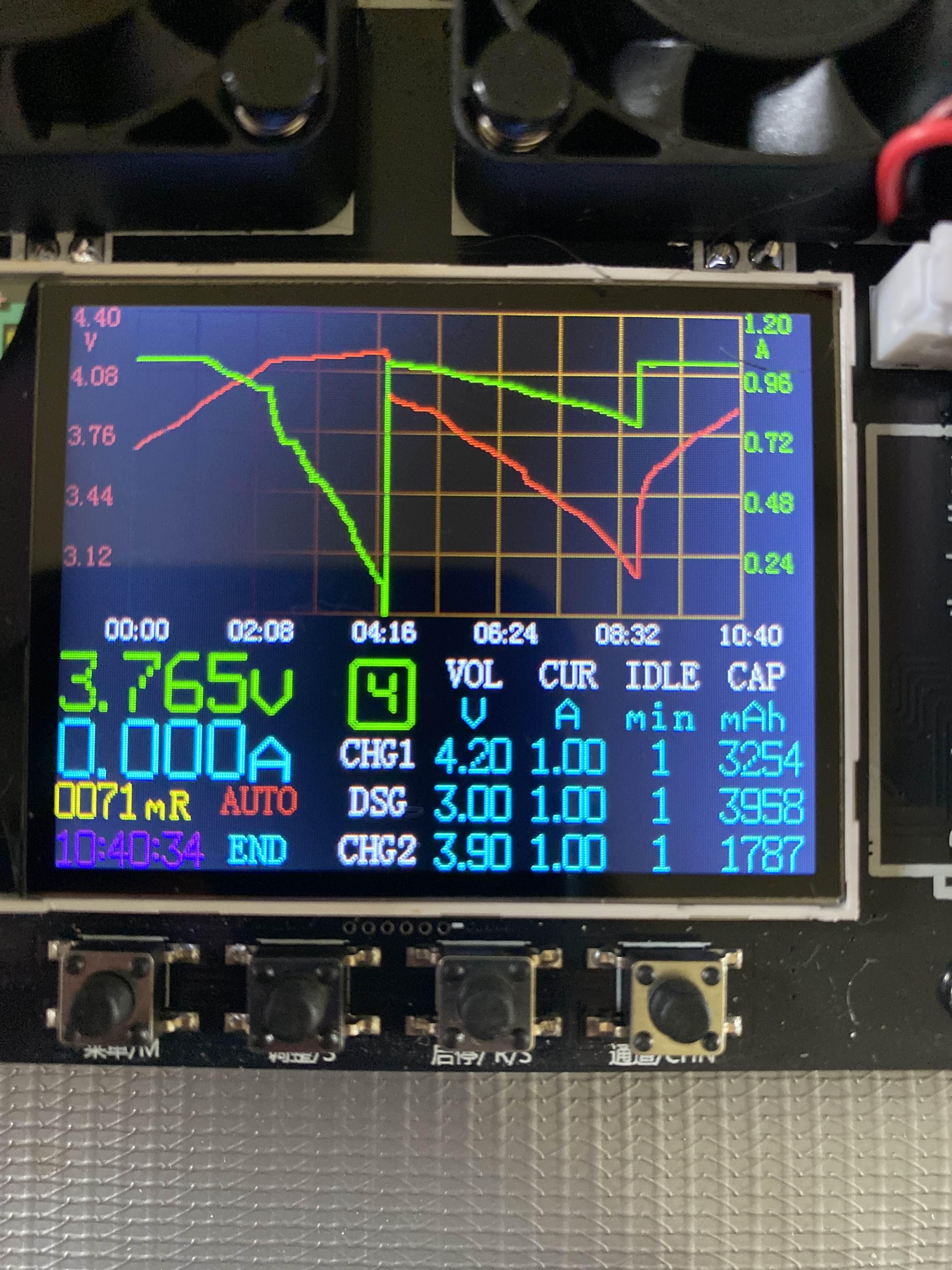
When cells arrive, they need to be tested, to find the capacitance of the cells, since not all cells will have the exact same capacitance. For a battery pack to work well in 2p, the cells need to be paired up so the combined capacitance of each pair is the same for every cell in the pack. To do this, you need a battery tester. I am using a cheap AliExpress one in this link, but one like the Amazon one linked is preferred. This process also takes a LONG time, since for testing, each cell needs to be charged, then discharged, then charged again. Most testers come with an auto function for cell testing, which will be on by default, so the cells just need to be plugged in, and it will start running. The process for one batch takes around 4-8 hours, and since that's around 1/9 of the cells, expect a few days of doing this. Once the batch is done, the tester will display the discharge capacitance for each cell, so make sure to label each cell with a number, along with this capacitance. For me I did 1-72 for the numbers, with the respective capacitance. A generic value for the capacitance is in the fourth photo above, but this may be different depending on the cells you buy. Check the cell data sheet for the capacitance, or on the battery cell itself, as it normally has the capacitance printed on it in either Ah or mAh.
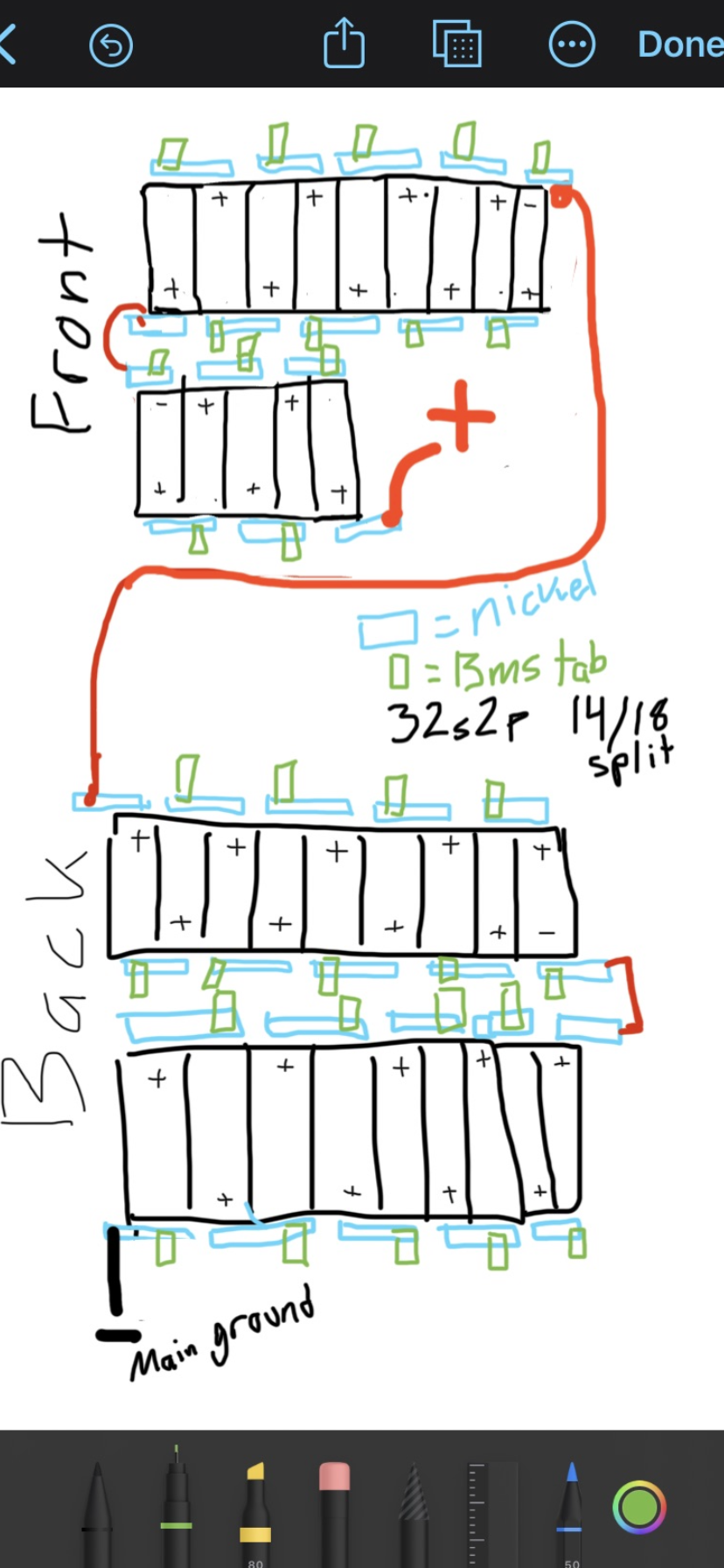
Once the cells are all labeled, use the website repacker to figure out what cells to pair up. You enter the capacitances into the website, along with what you are making your battery in parallel (mostly 2p), and it spits out cell pairings. Be sure to follow this list and pair up the cells. For each pair, hot glue the cells together, with both positive ends on the same side. This is done for each pairing of cells, and now your parallel cells are done. After this, I would recommend either making a doodle, or referencing my doodle on how to glue up the pairings, with the locations of positives and negatives connectors planned out before randomly gluing.
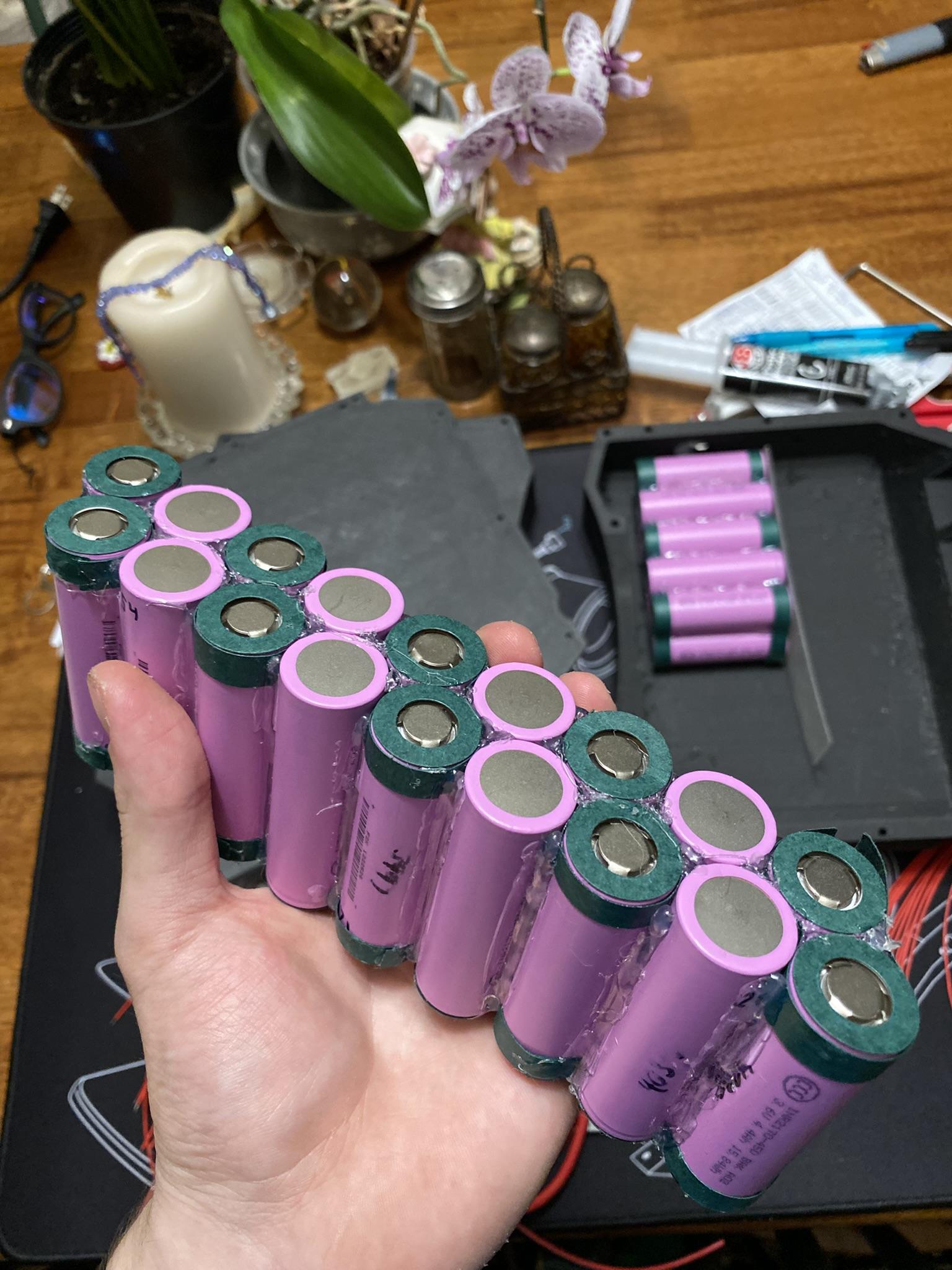
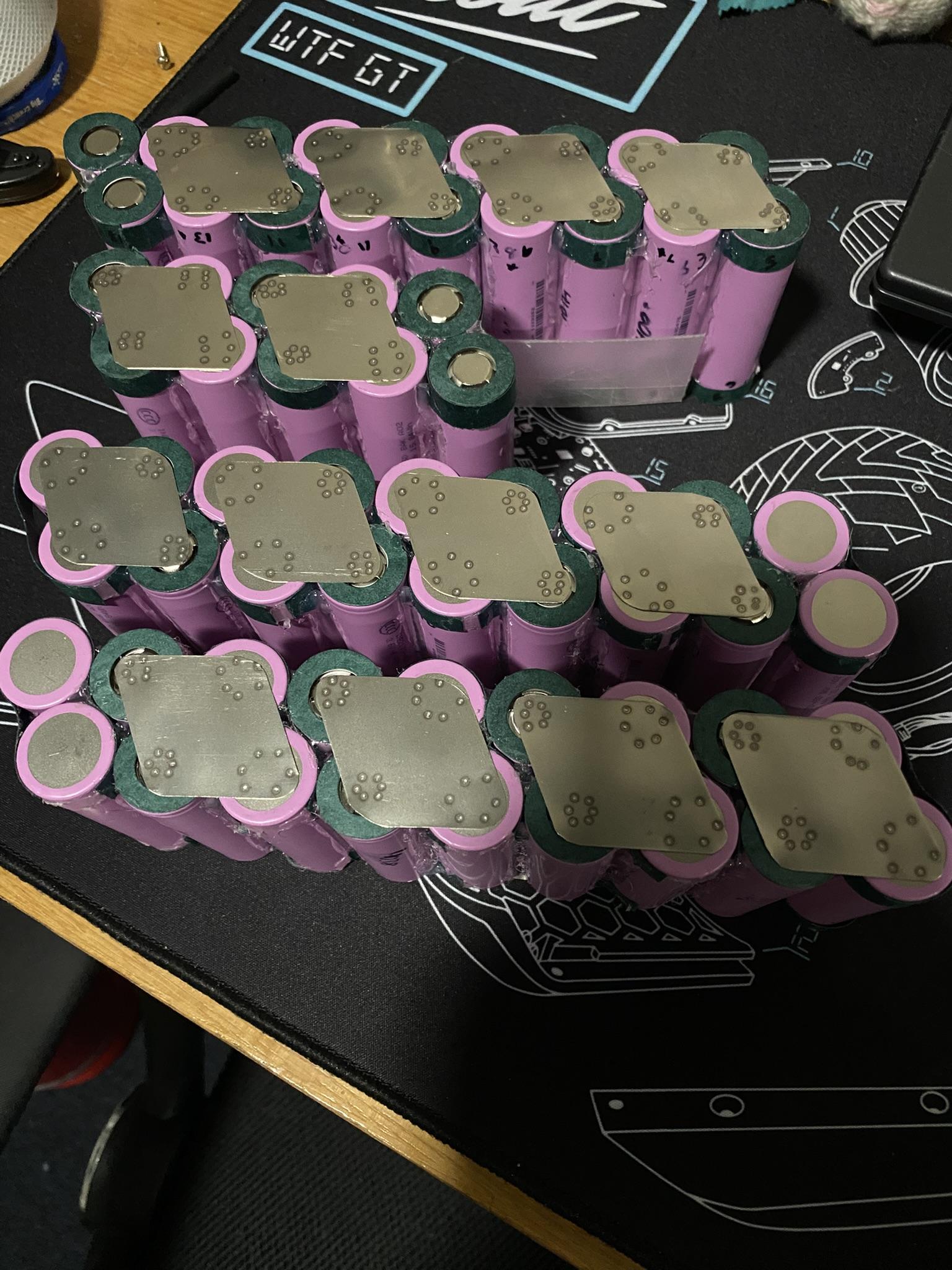
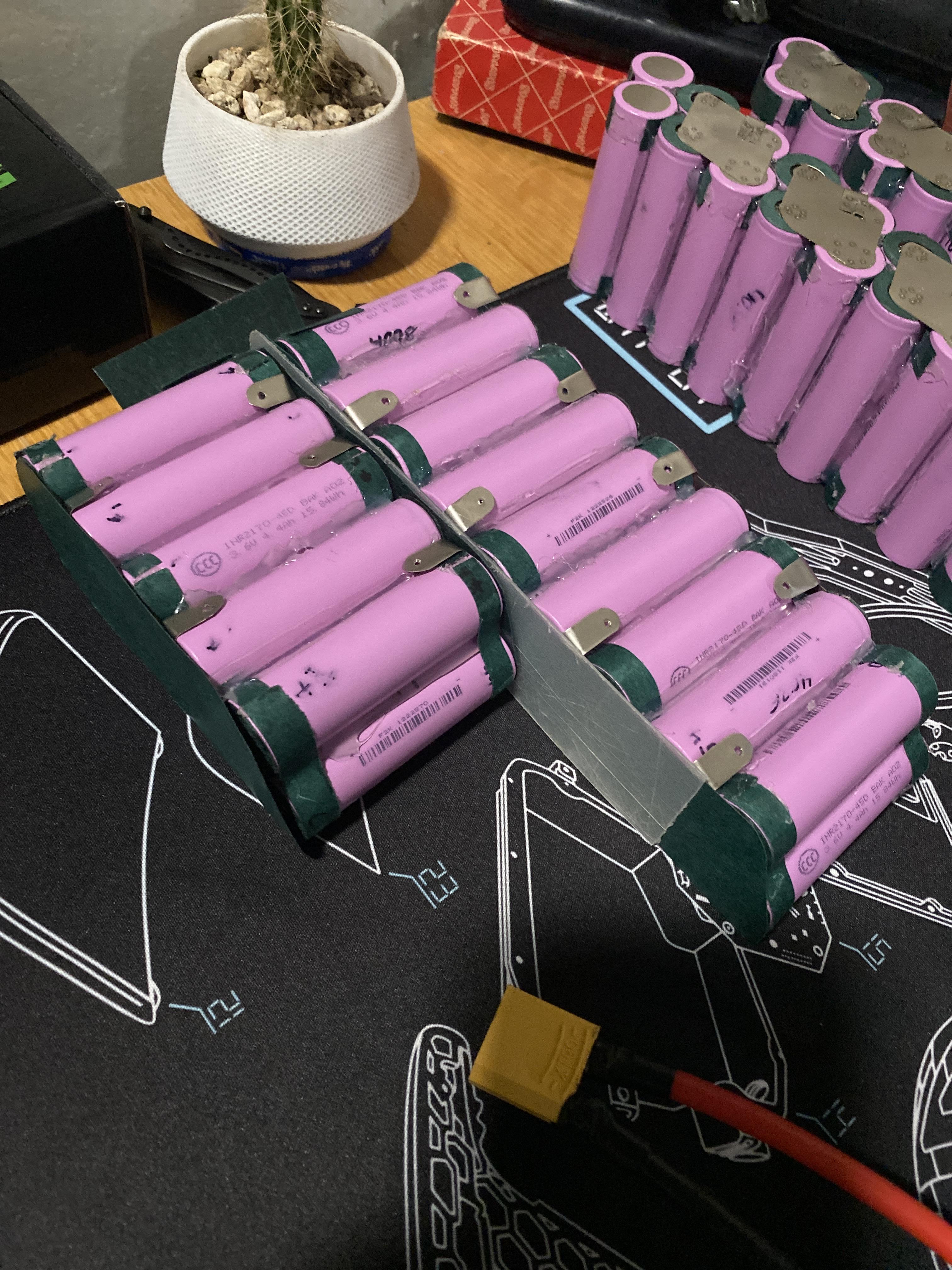
The next thing is to take the fish paper rounds, and place them over every positive terminal on the cells, as seen in the photos. Also be sure to put fish paper around every other cell pairing, so half of the parallel pairings should have a loop or two of fish paper around them. This helps insulate the cells from rubbing each other, preventing shorts. Once they are insulated, hot glue together the parallel packs into their generic groupings, following the doodle for positive and negative cell orientations. These are glued together as a slanted pack, so make sure to add enough hot glue in the middle so it is secure. Once glued together, they should look identical to the photos above, where an insulated 2p pairing is between each uninsulated pair. The green is the fish paper. If you are building a smaller battery, the rear pack (first two sets of 9 cells) should be the same, although your front pack will have less cells. Remove these starting from the main positive terminal. If you are doing 32s2p, the doodle should be fine. Make sure it fits in the case as well, and make sure to adjust it if not. The battery just NEEDS to stay as positive, negative, positive, in that order when looking at it from either side. Once you are confident with this, you can move on to welding it up... :)
Welding the Battery Part 1
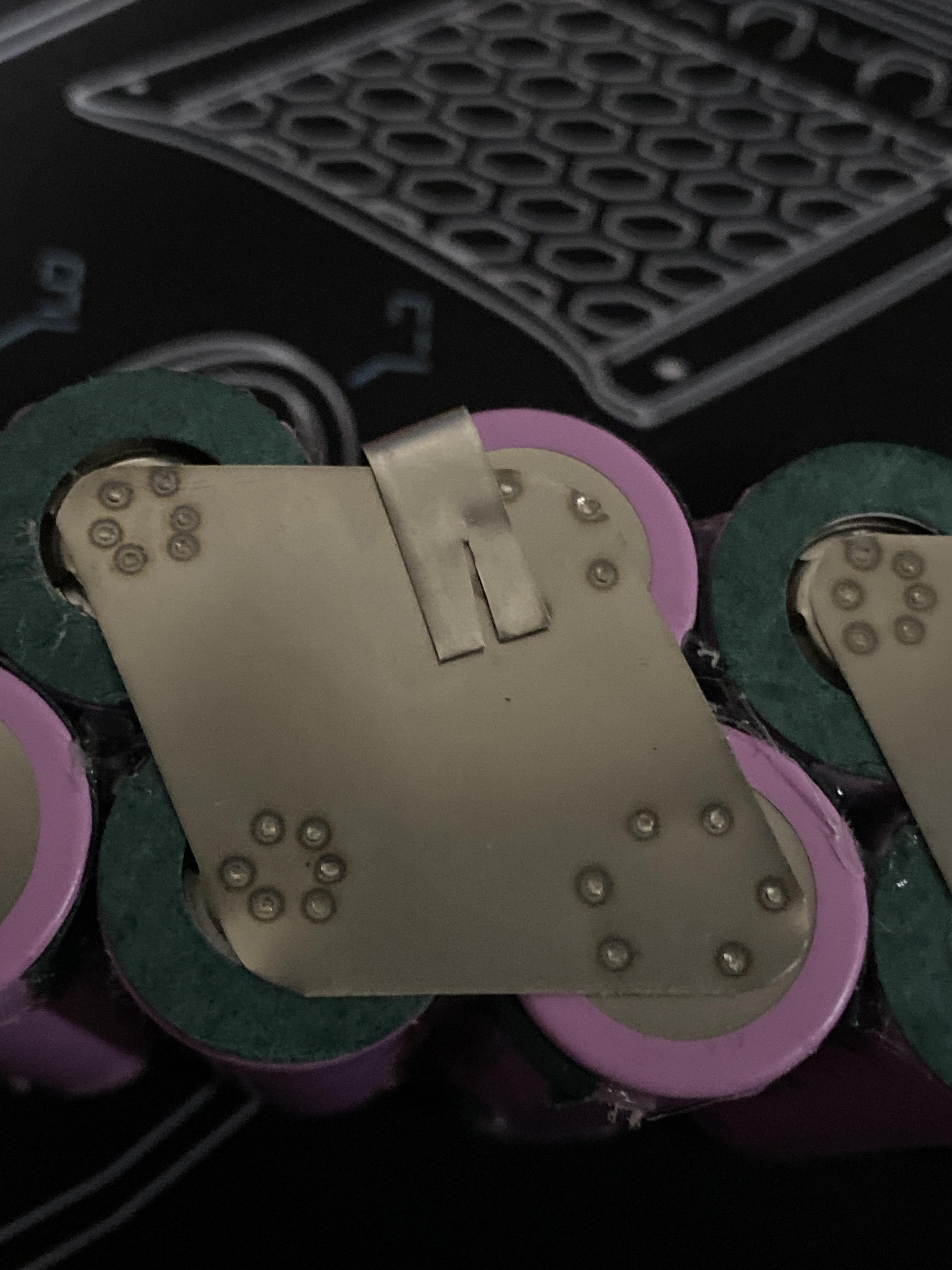
The first thing to do for welding the battery is to cut out the nickel tabs into CORNERLESS parallelogram shapes, that cover around 4 cells. The first photo shows what one of these tabs should look like. The photo also shows the other type of thin tab needed, which is for balance tabs, but we will get into that in the next step. For now, calculate how many of these parallelograms you need, but for 32s batteries, you need 28 of them. Cut out a few extra for testing on spare batteries you should have laying around after the previous step.
First, you should test your welder to get comfortable with it. You will be needing to do a LOT of welds for the batteries, so making sure it is calibrated well is a good thing to know. If using a standard spot welder, the number of joules you should stay around should be 45 ish. For most of my nickel tabs to cells I used 45J, then for the balance tabs to nickel tabs, I used 43J. Start out with 45, and try to weld a scrap piece of nickel to a spare battery cell. IMPORTANT: WHEN WELDING ON THE NEGATIVE END OF THE BATTERY, DO NOT WELD IN THE CENTER 3mm OF THE CELL, AND WAIT SEVERAL SECONDS BETWEEN EACH WELD. The negative side has a higher risk of puncturing the cells if you speed through it, but the positive side you can weld anywhere in the center, as fast as you want. For the test weld, try 45J, and if you can rip off the nickel, it is not high enough, but if you run your finger along the weld and it catches a lot, it is too high. Make sure to keep the spot welder electrodes a few mm apart, and expect a spark and for the leads to jolt. There is a lot of power being used to weld, just don't let it scare you. Tune welder until you get it right then once you are confident, start lining the nickel up on the cells. From the doodle I have attached, the blue tabs are the nickel, so make sure you are running the nickel across the correct cells. I also attached a photo of how the nickel should be orientated on one side of the cells, already welded. I used 3 sets of welds per cell (should have 6 points connected) on the cells. As long as the nickel is not overlapped, flip each battery pack over, and MAKING SURE that you are placing the nickel between the correct cells, go ahead and weld the rest of the connecting tabs on. You can run your finger along the pack from above to trace positive to negative, to make sure you are doing it right, but mainly if it sparks at all when setting the nickel down, it is NOT right. Accidentally welding it wrong will short and blow up your pack. Just make sure the tabs are alternating like the doodle. After it is done, there should be four fully connected packs, not on fire, and if so, that means your battery is ready to be connected together.
Downloads
Welding the Battery Part 2
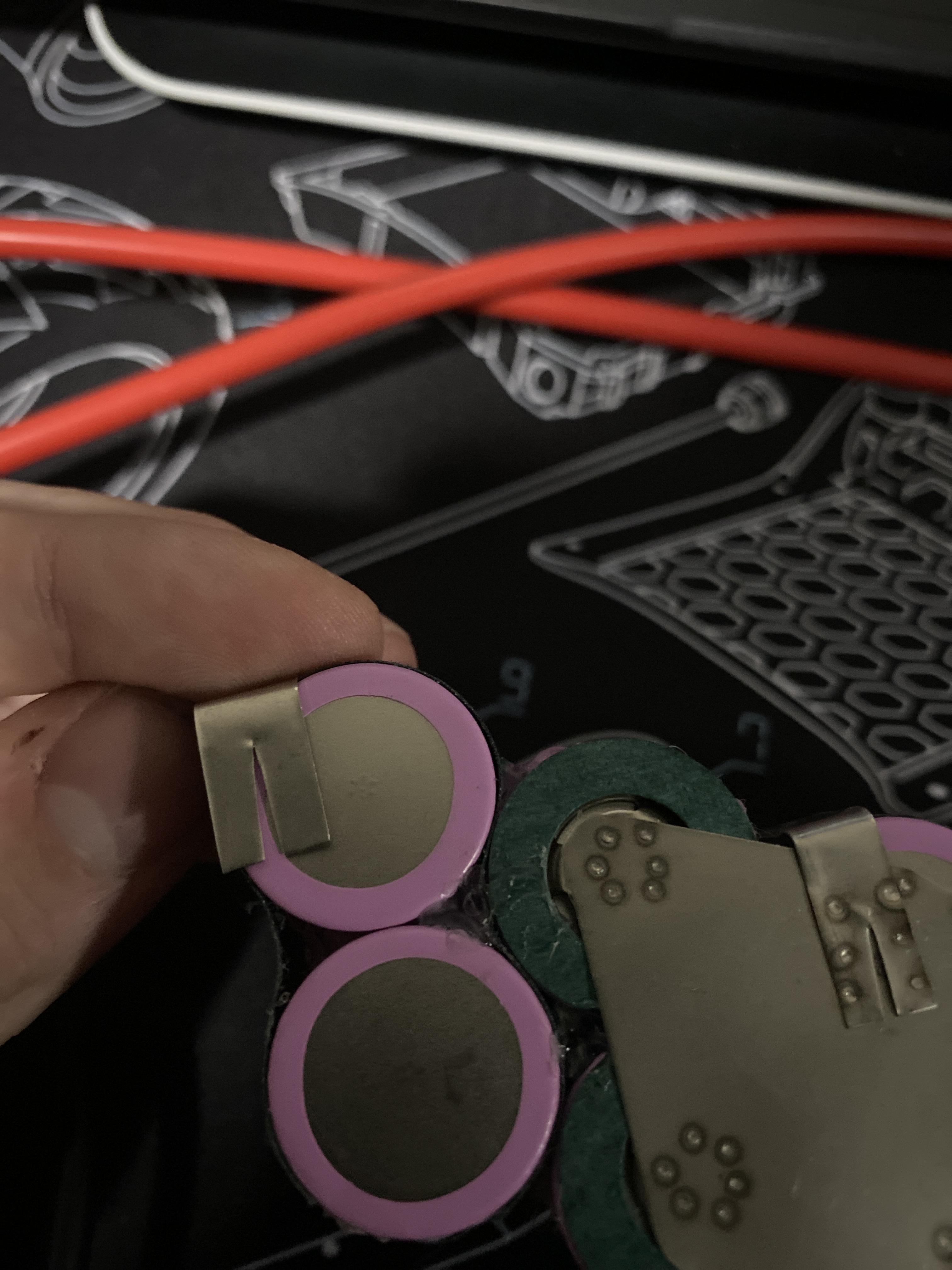
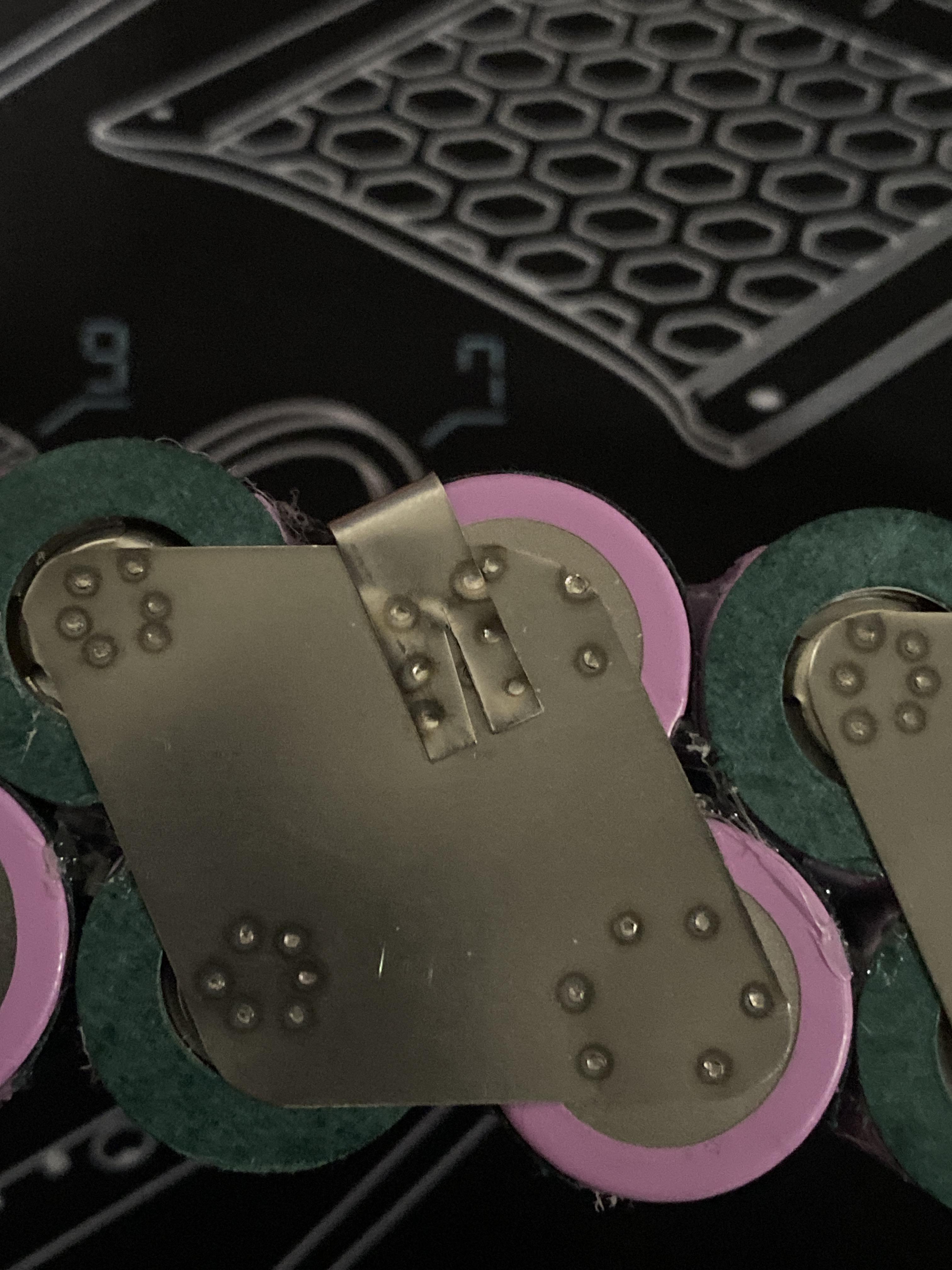
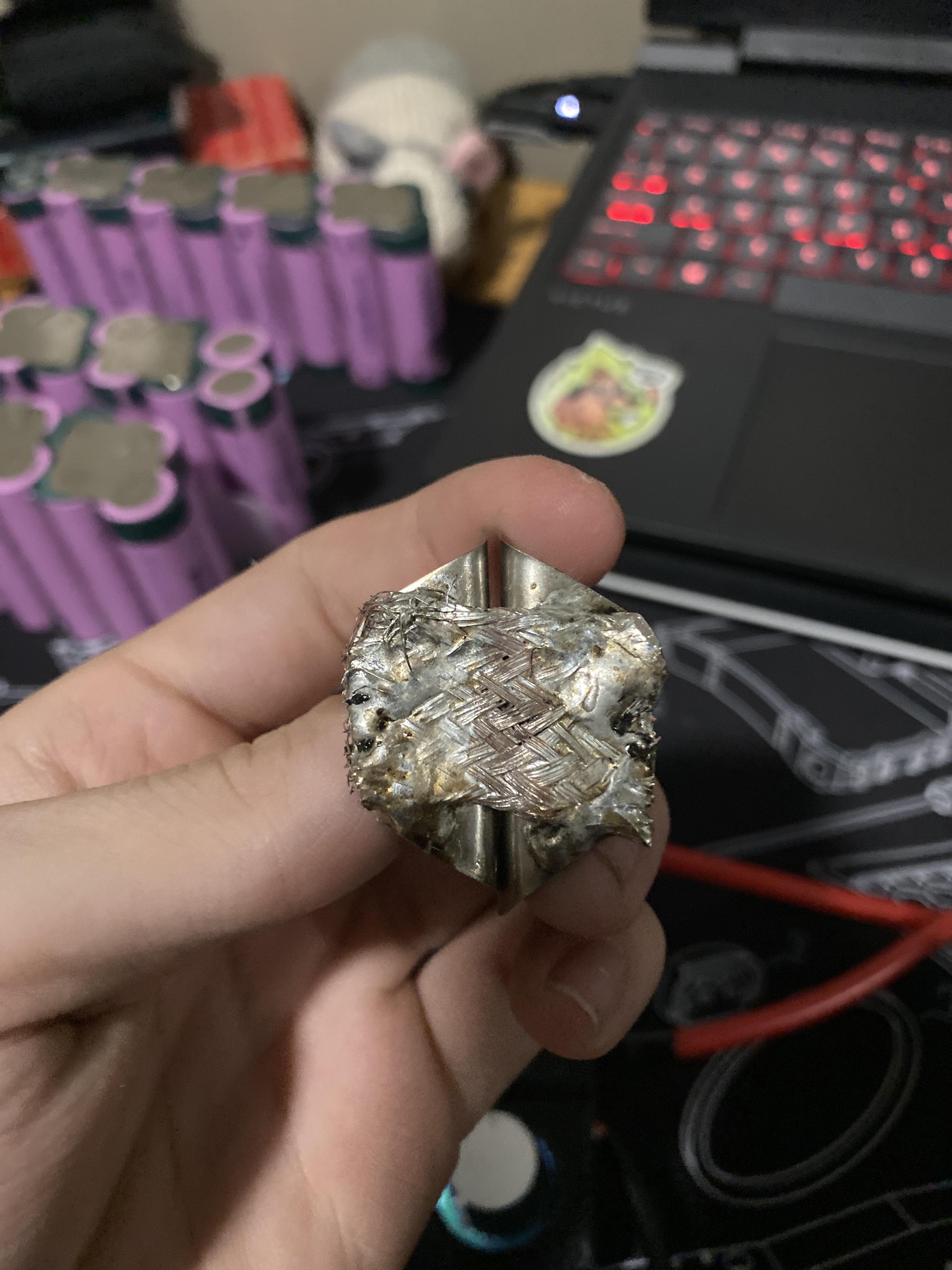
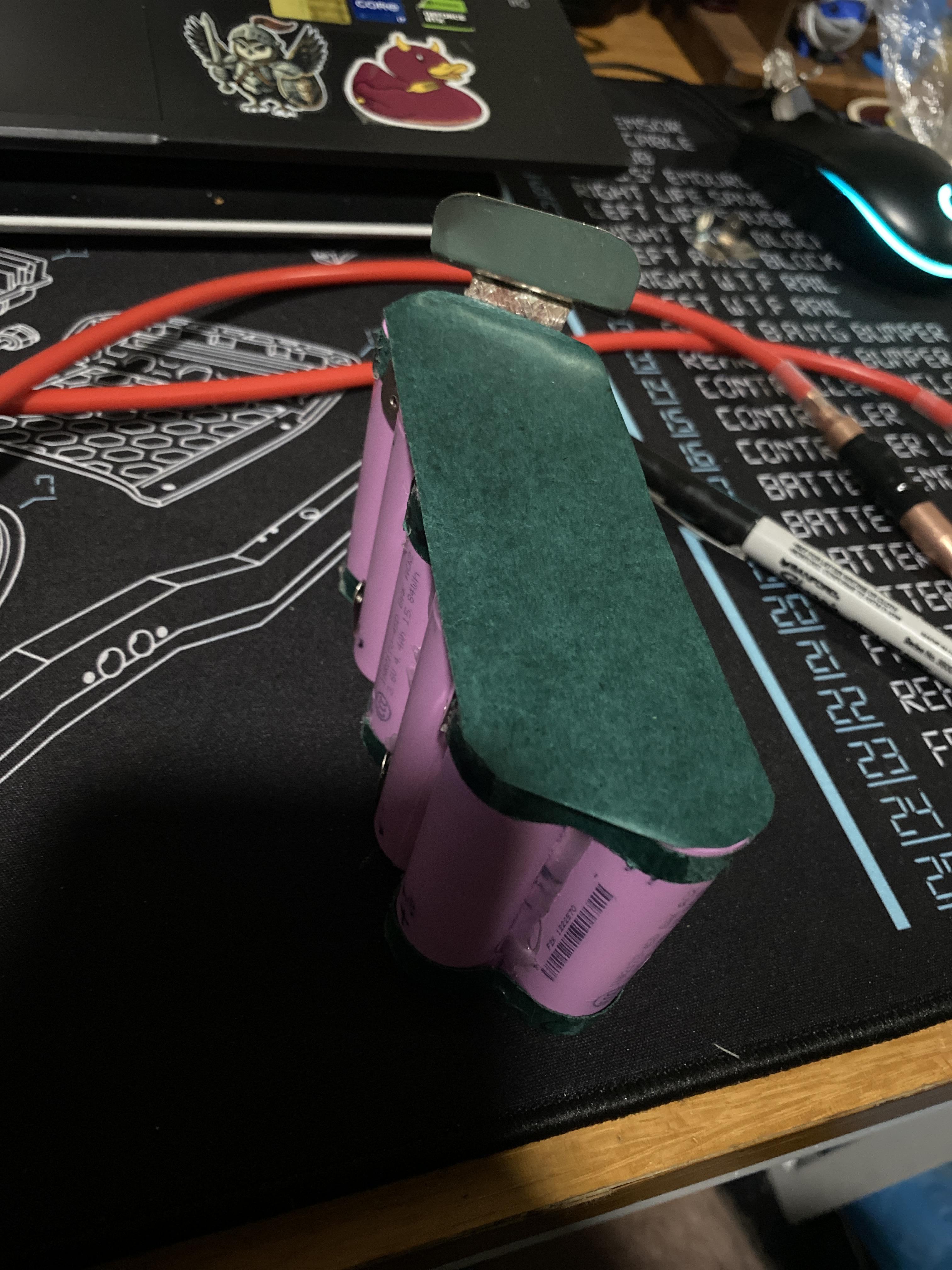
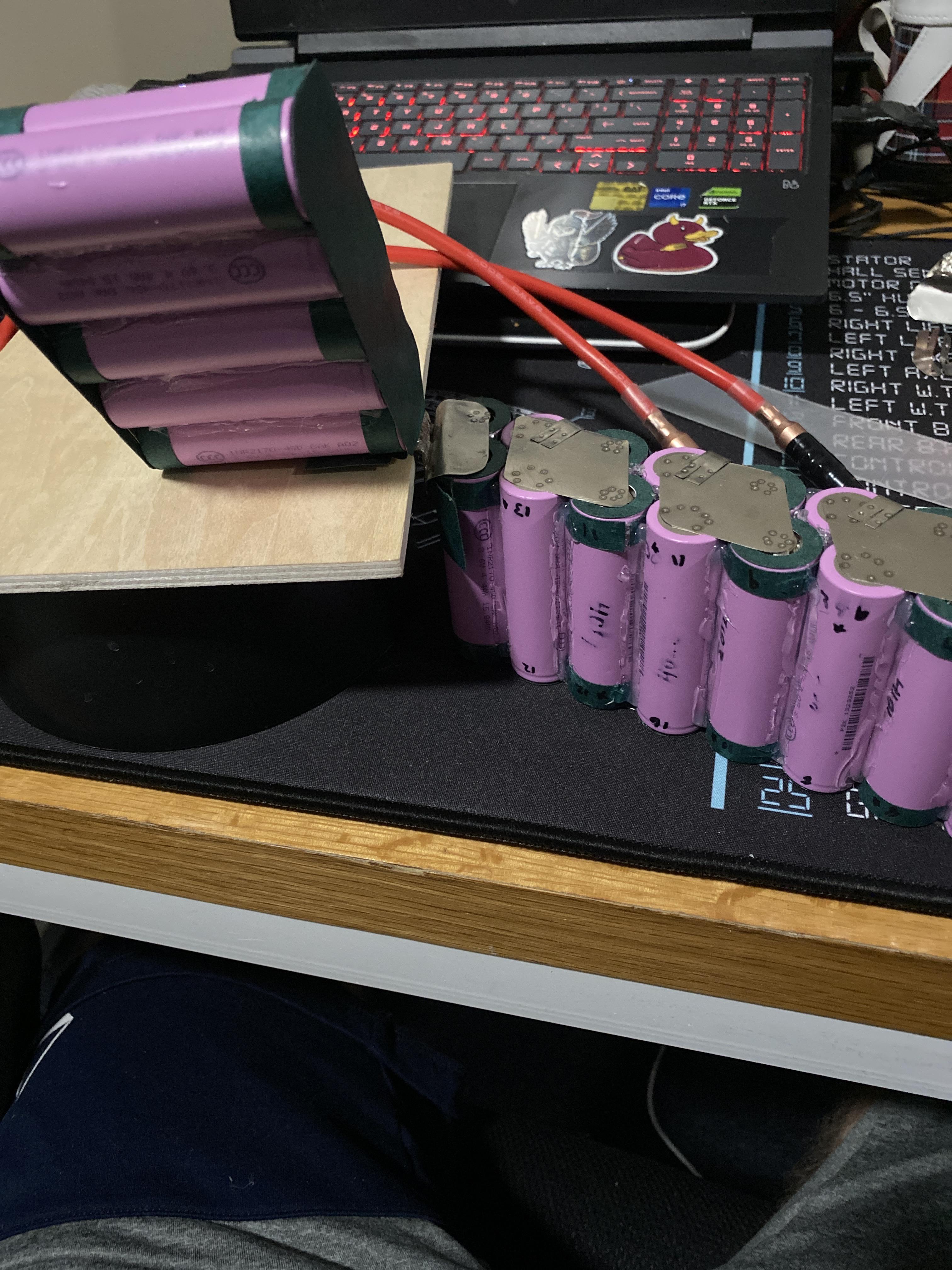
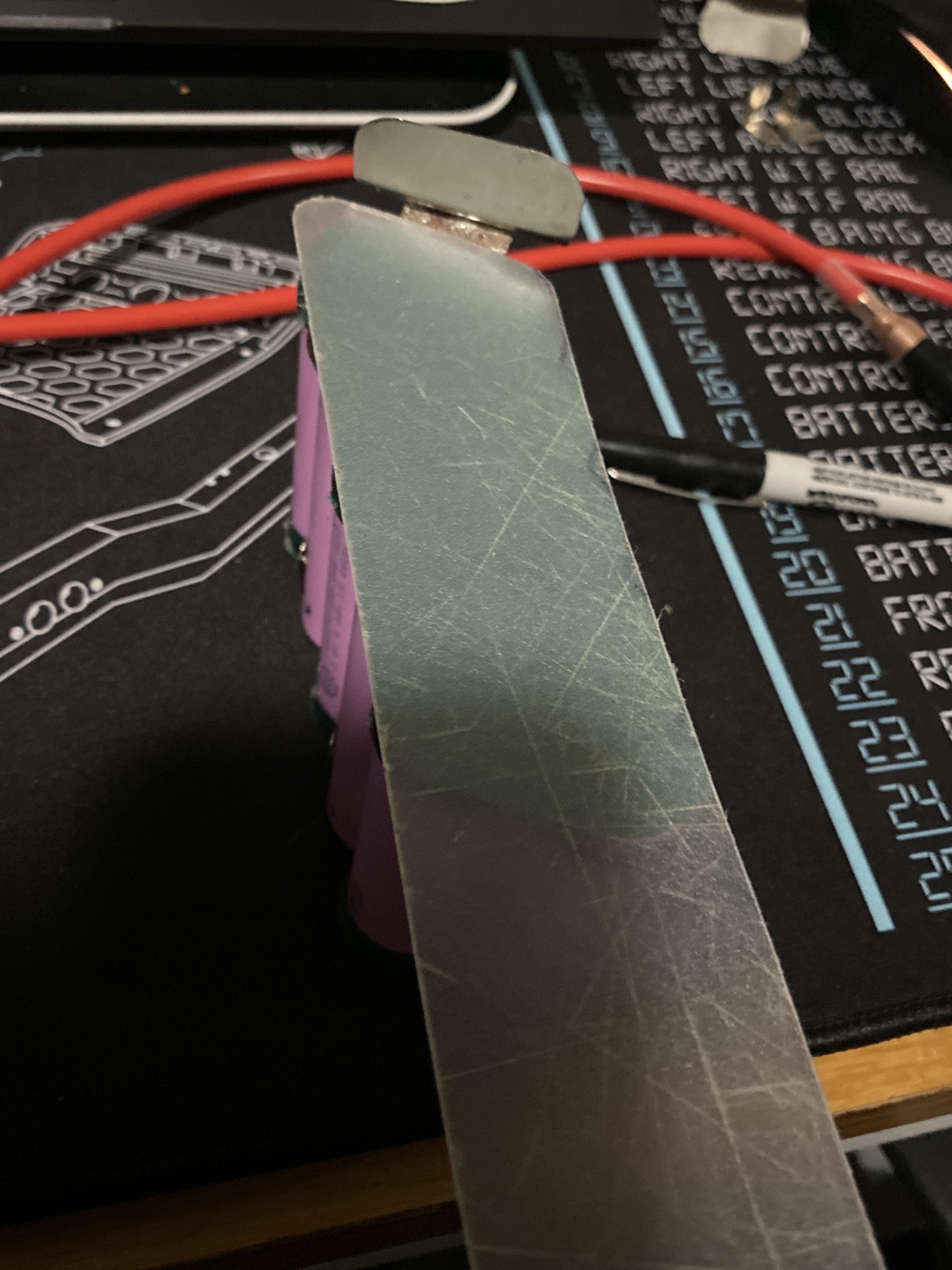
This section is about welding the balance tabs to each cell, along with connecting the halves together to form the front pack, and the rear pack. figuring out the wiring is the next step, but for now the most important think is making sure plan ahead to prevent anything from sparking. For a battery, the number of balance tabs you need is the number of cells, plus two. In the case of a non split pack, it is just the number of cells plus one. For this example we will be doing a split pack, so since there is 32 cells, I cut out 34 balance tabs. These tabs will go on the negative side of each cell, but for the last cell in the pack (or the pack positive) you will add one more tab, hence the additional two. Looking back at the battery diagram in step 3, you can see that it is missing the positive terminal tabs, but don't let that confuse you. Anyways, for the balance tabs, cut the nickel into a 1/4" by 1" rectangle, and round off one side. You can drill a hole through this rounded off side in the middle for easier soldering, but it does not matter much. On the other side, cut a small slit in the middle, as seen in the photos. This is to make welding the tabs on slightly easier. Once all the tabs are cut out, bend each one in half and set it on the negative side of each pairing of cells. Let the side with the slit be on the cell, and the side with (or without) the hole be on the TOP of the battery, so when the battery is assembled, the tabs are all on the same side of the cells, like the last photo. Do not do the main positive terminals, or the cells that do not have nickel yet, as they need their plates before the tabs can be added. For welding them, I would recommend 43j of power, and 2-3 welds, like what is pictured.
To make the plates to connect the battery halves, make two triangles that can cover both end cells, round them off, and fold over one end of the triangle, so the nickel is on the side of the battery as well. Before welding this to the cells, make three more, so there should be four total. Then solder a nickel strip between two of them, as shown. I used a nickel strip too large in mine, so it was very hard to bend back open for welding the battery halves together. I would recommend a thinner copper strip. Do this for both pairs of tabs. Open the half connectors, and weld one half to the needed cells. Make sure to reference your diagram to guarantee it is the right one. I would recommend connecting it to the negative side of cells first, so then you can weld on the balance tab before the tricky part. After one half welding is done, be sure to cover the middle portion in fish paper as shown. Turn the cells on its side, and I would recommend getting someone to help hold the cells vertical to weld the connector to the second half of cells. Pictured is my sketchy no friend setup, which still worked, but I would not recommend. I covered the second half with fish paper, and the middle with a piece of plastic, so either print out, or cut out a plastic insulator for the middle. The pictured one is a cutting board I cut out to the right shape. The copper can then be closed up, and with the right insulation, it should be able to be closed back up, making the pack connected. Test voltage with a voltmeter if needed, going from ground to each tab, making sure it goes up by around 3.7v. Connect the halves of the front pack as well, and the battery is almost done. For the main ground, positive, and the connector from the back pack to the front pack, I soldered a 12 gauge wire to four more of those triangular tabs, and welded them onto each remaining cell that did not have nickel on them yet. Each of these should then have a normal balance tab welded on as well, and the welding portion of the battery should be done. Make sure to always refer back to the diagram, and make sure there is a layer of fish paper between nickel and any pink colored part of the cells. This will prevent future shorts.
Connecting the Balance Leads for Battery and Finishing It
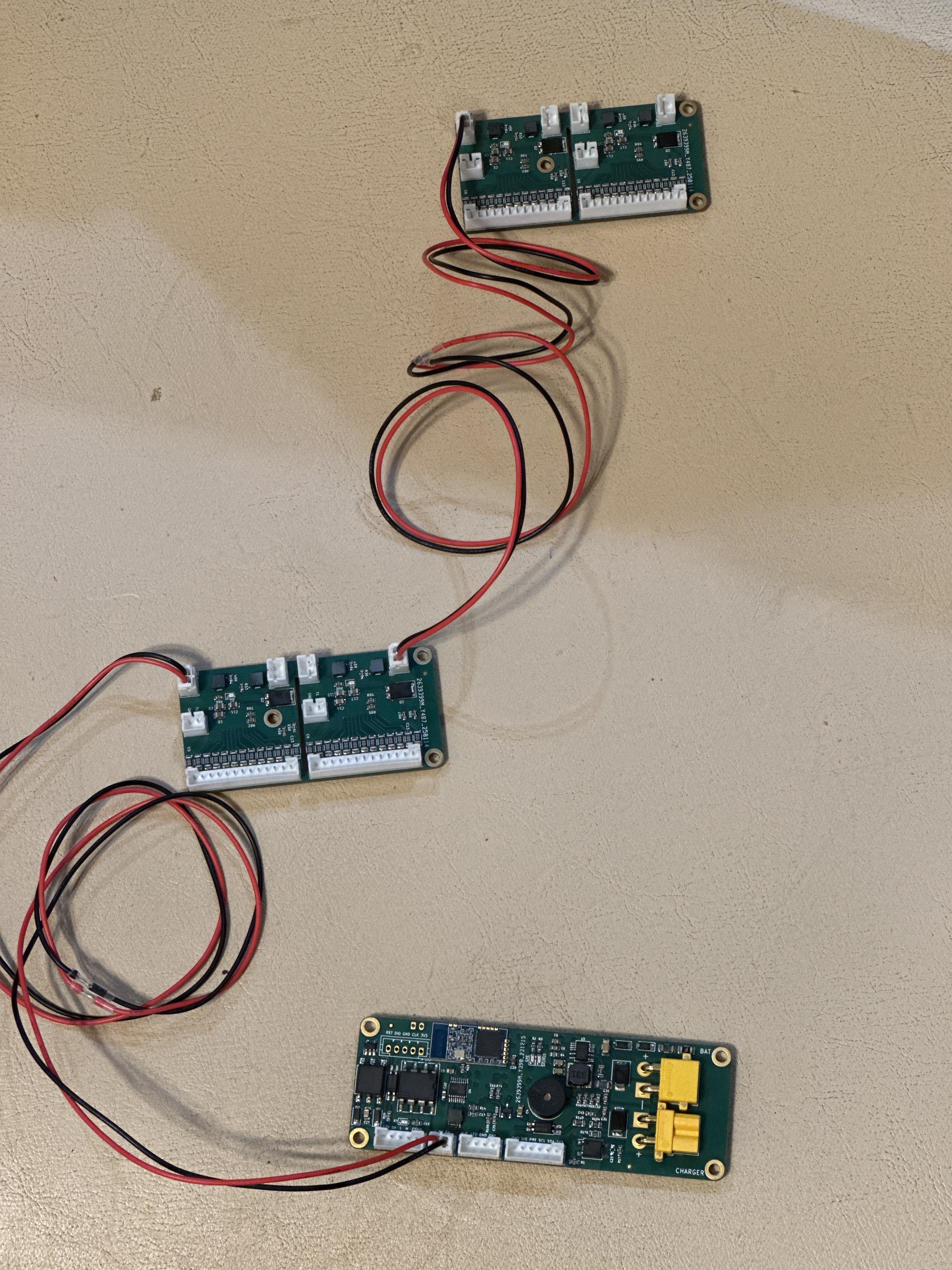
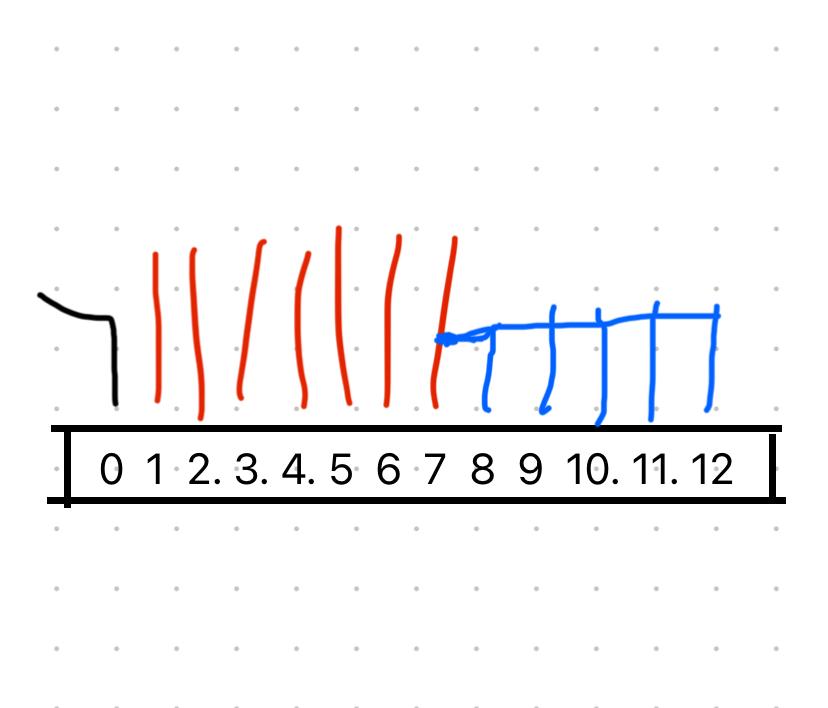
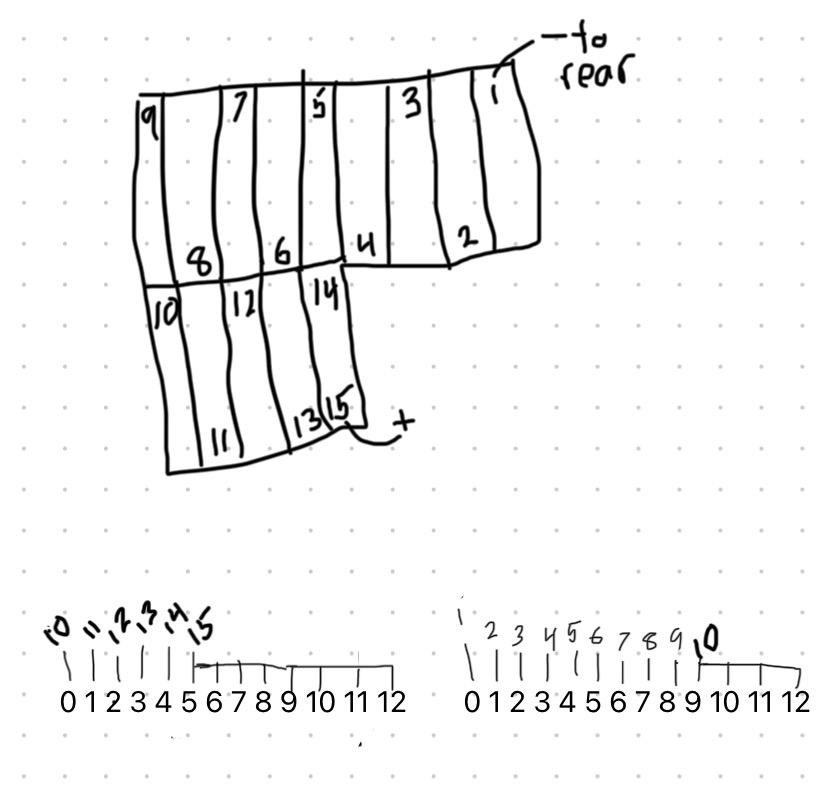
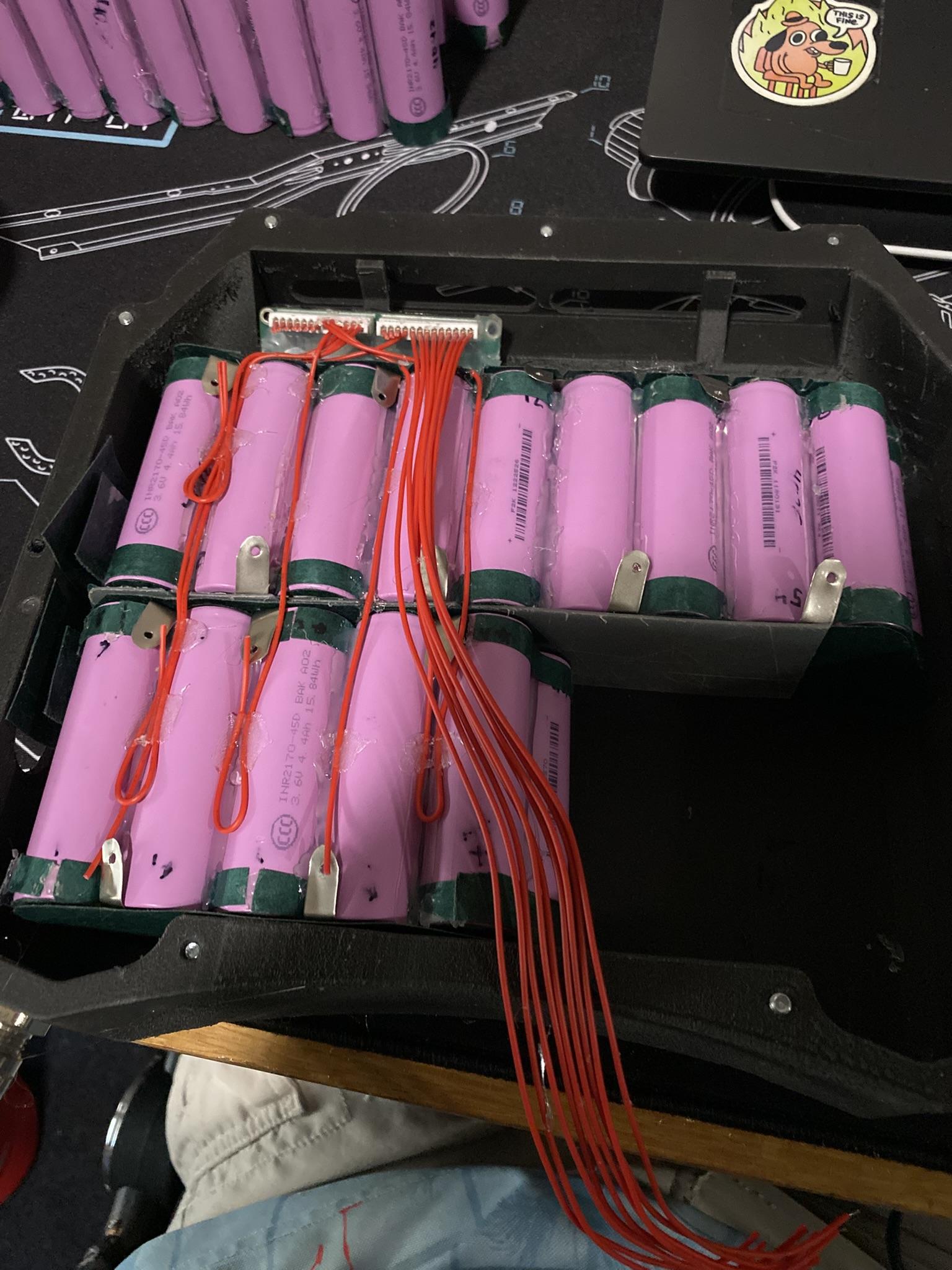
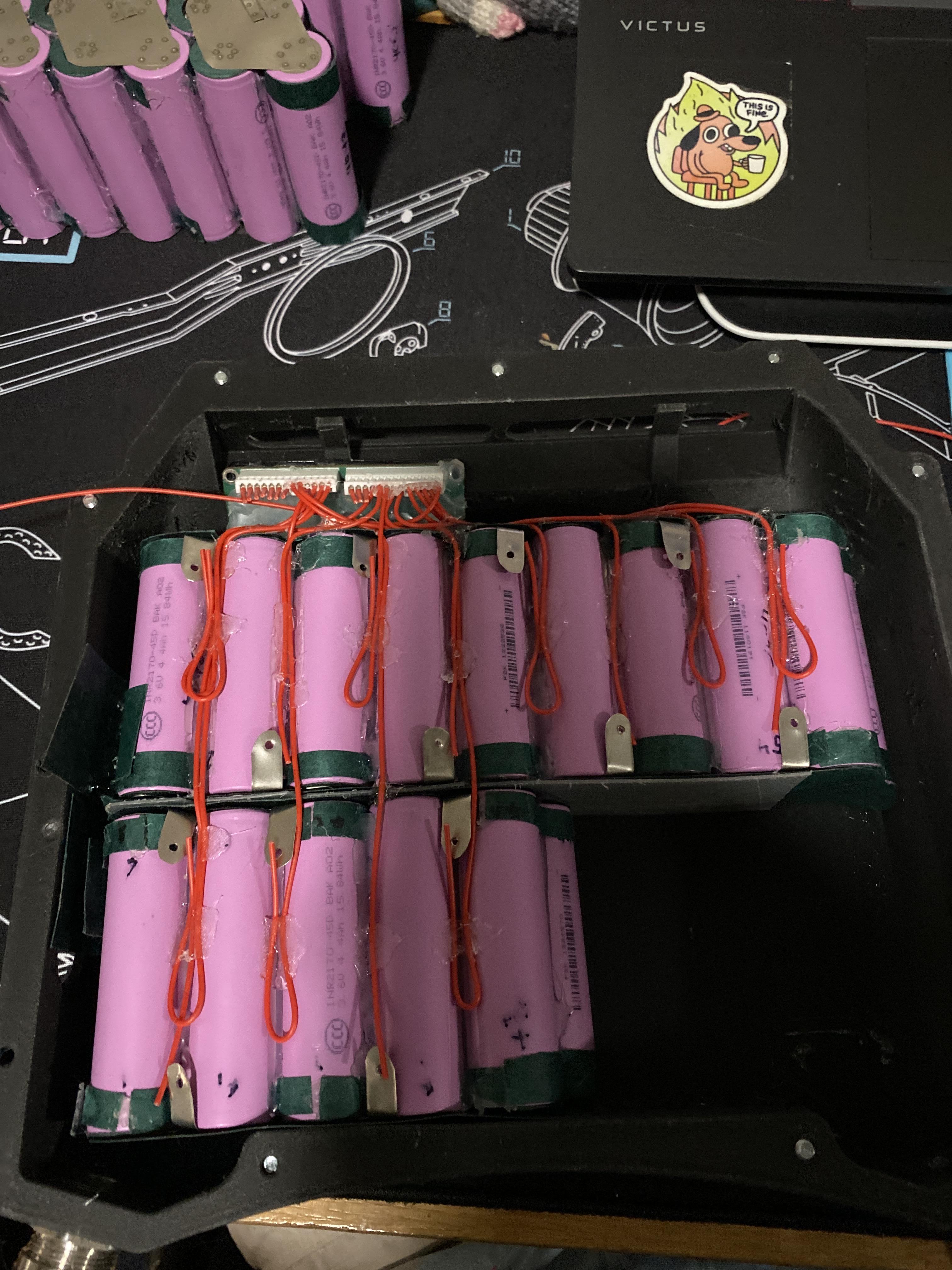
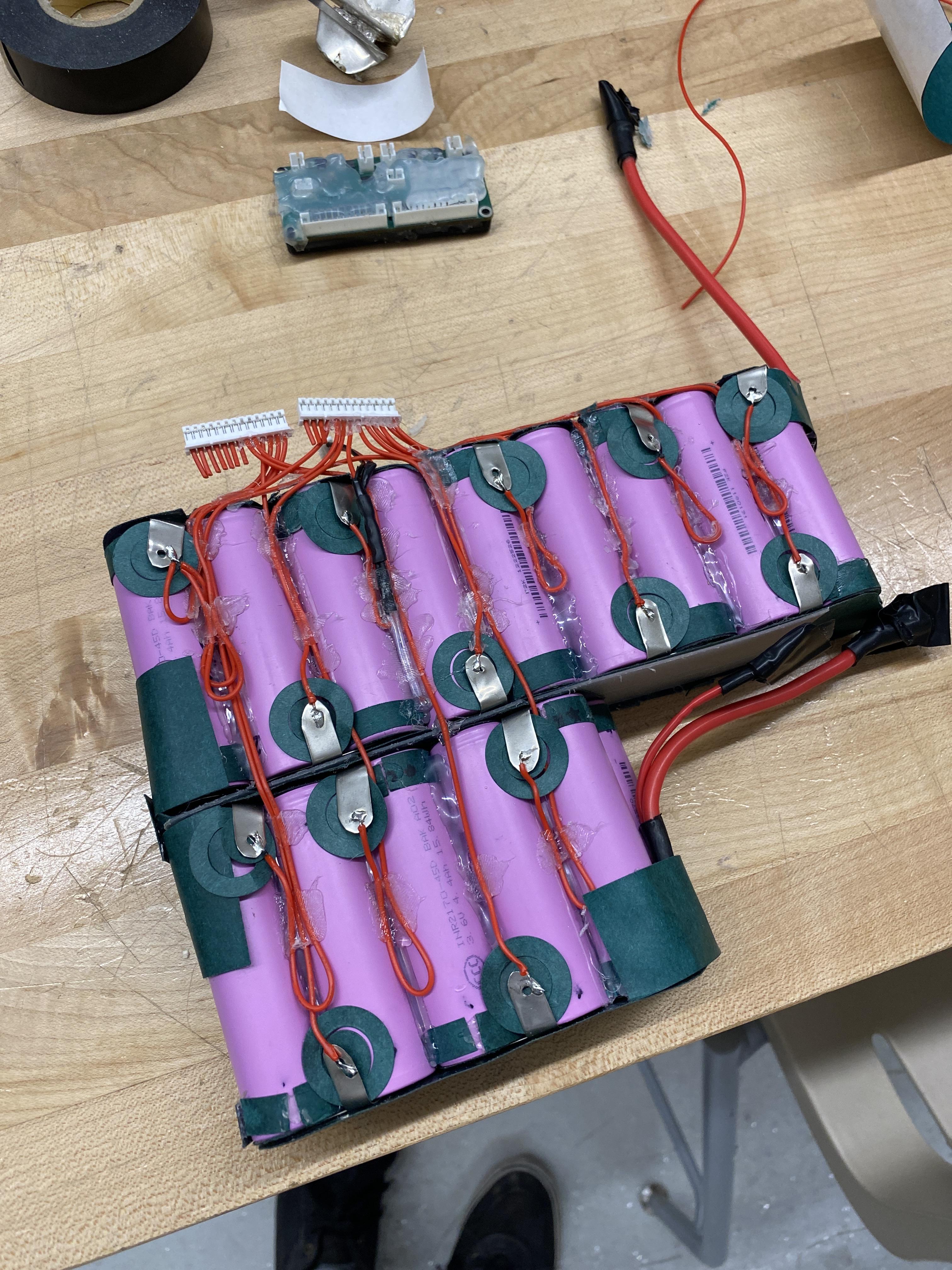
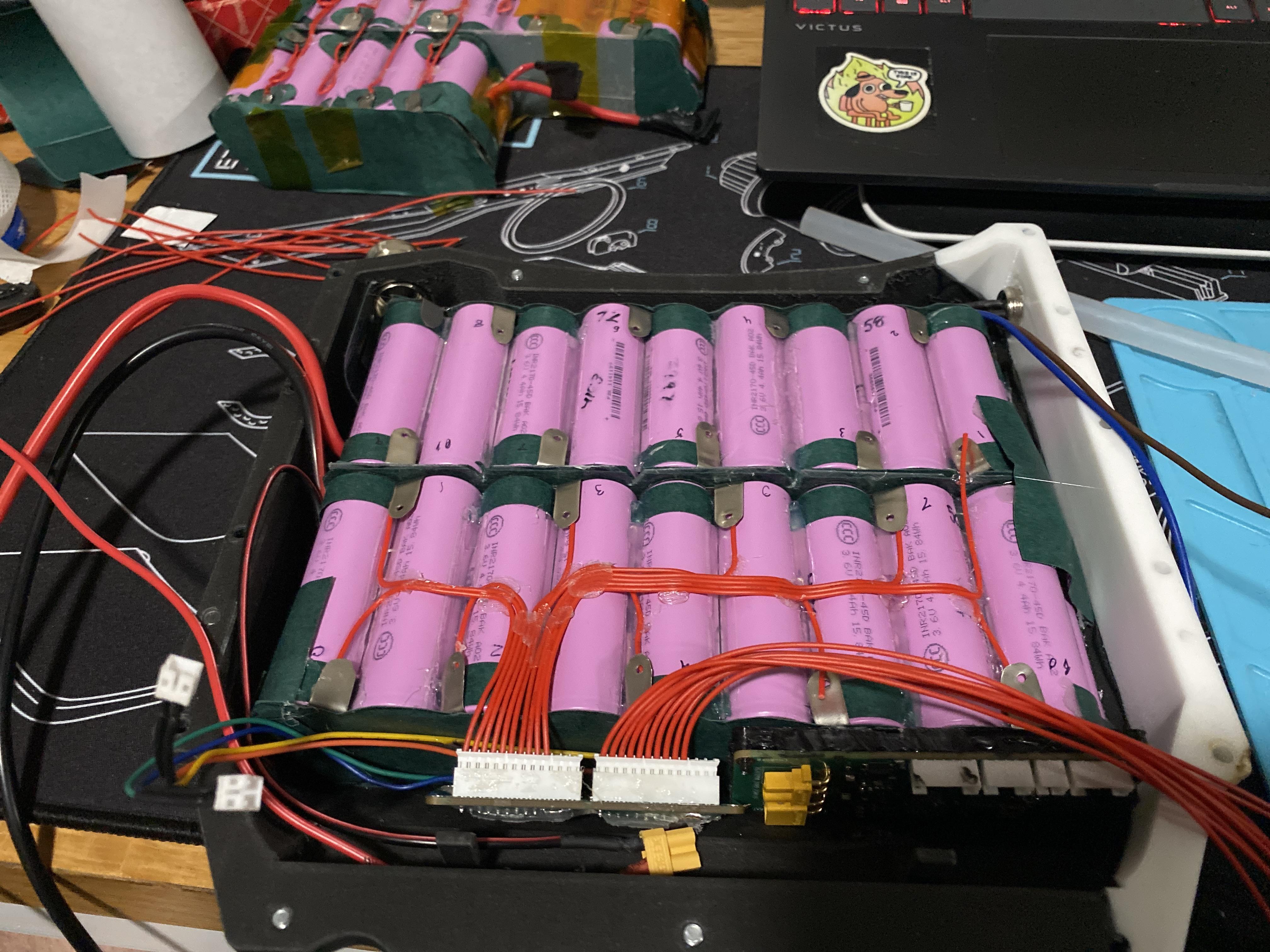
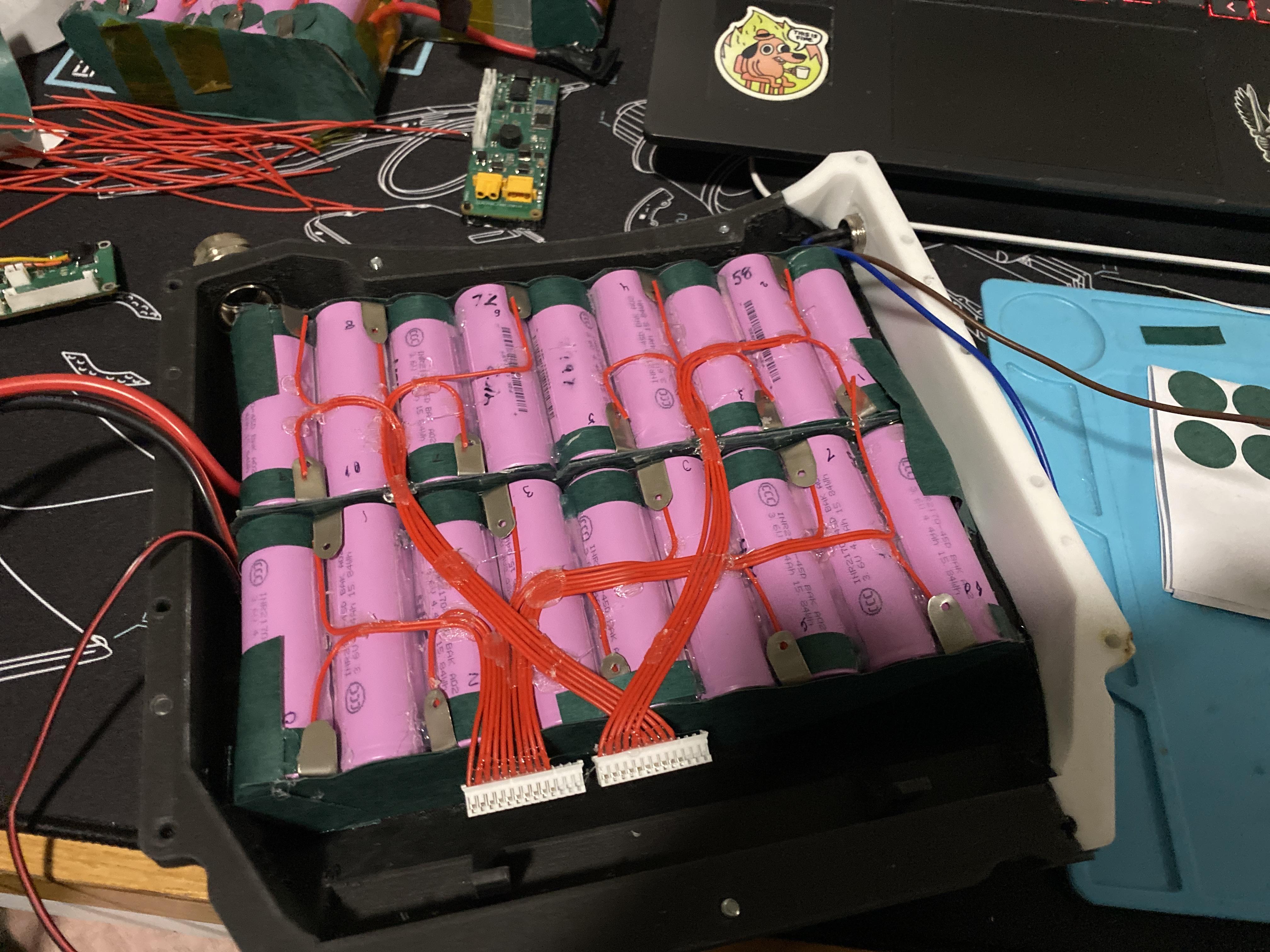
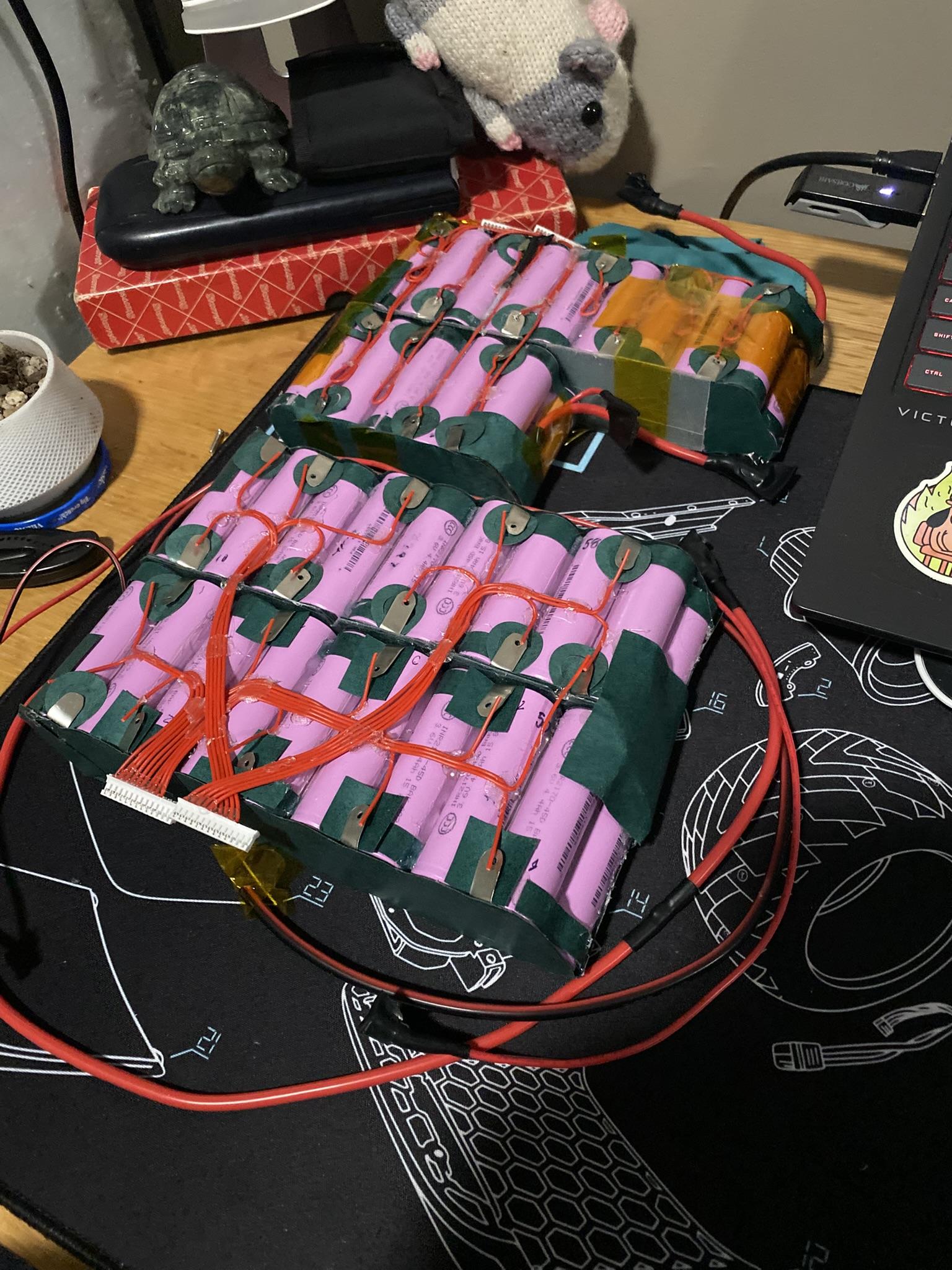
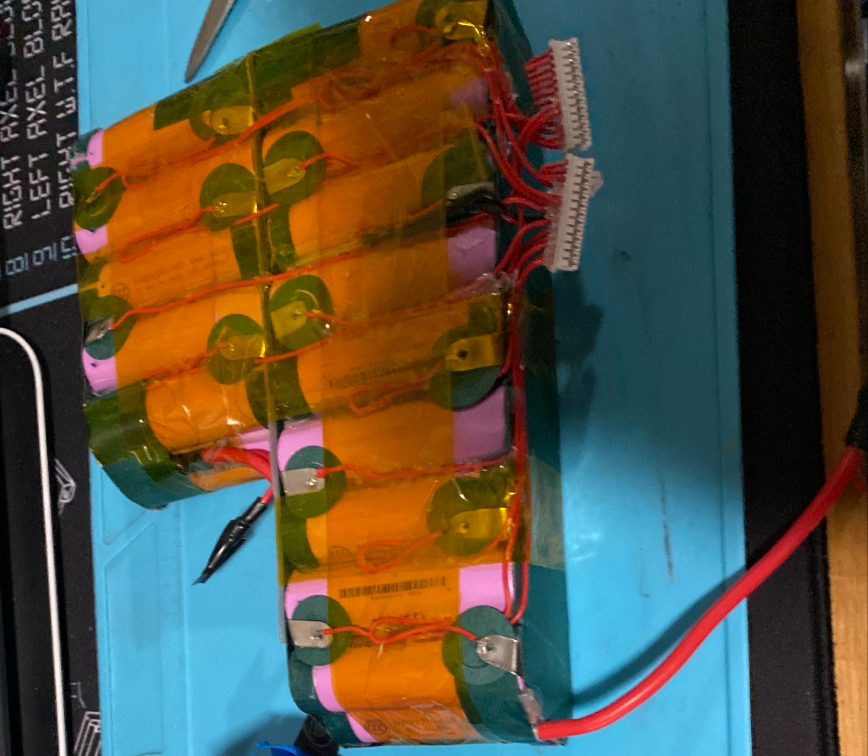
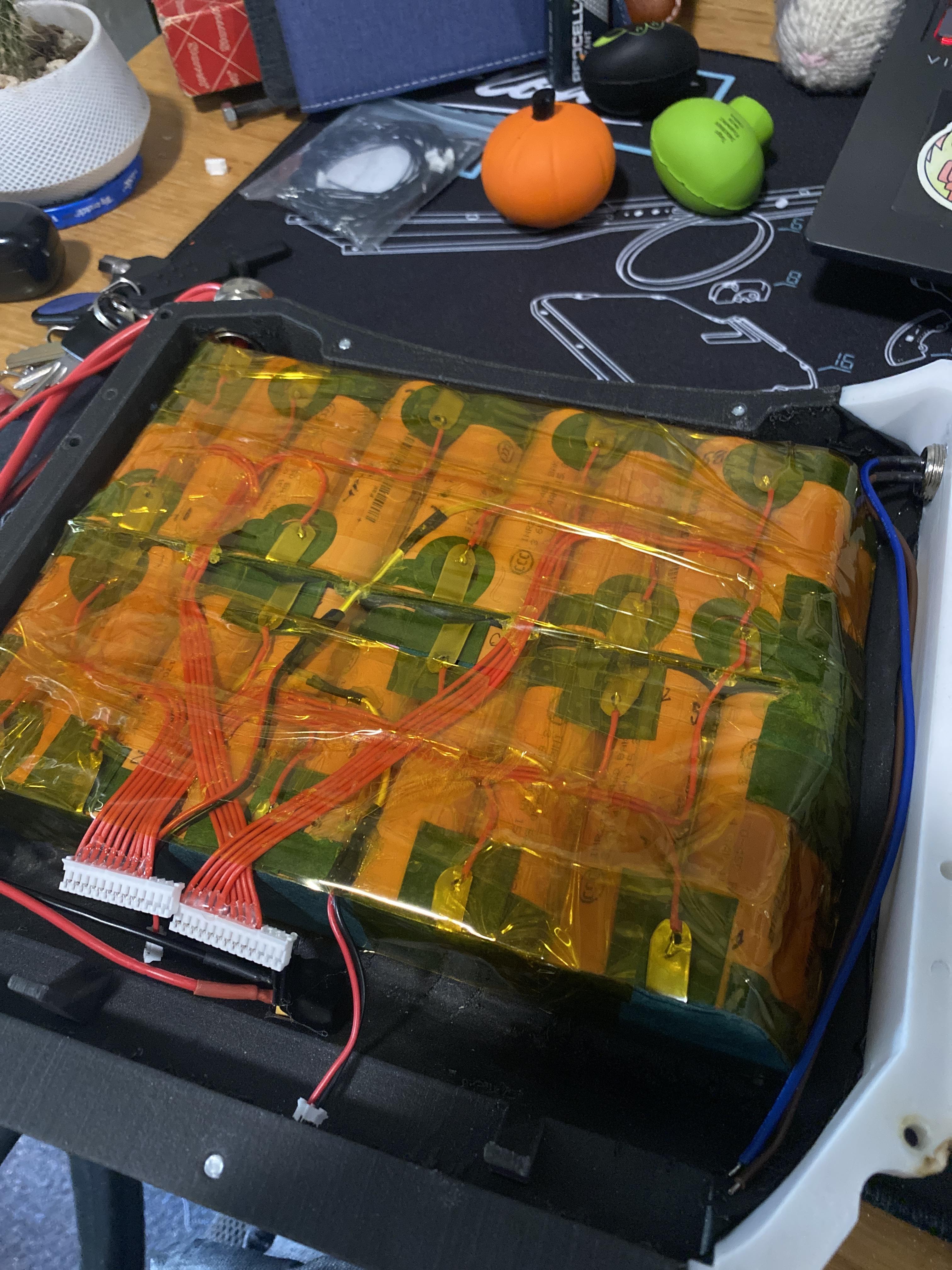
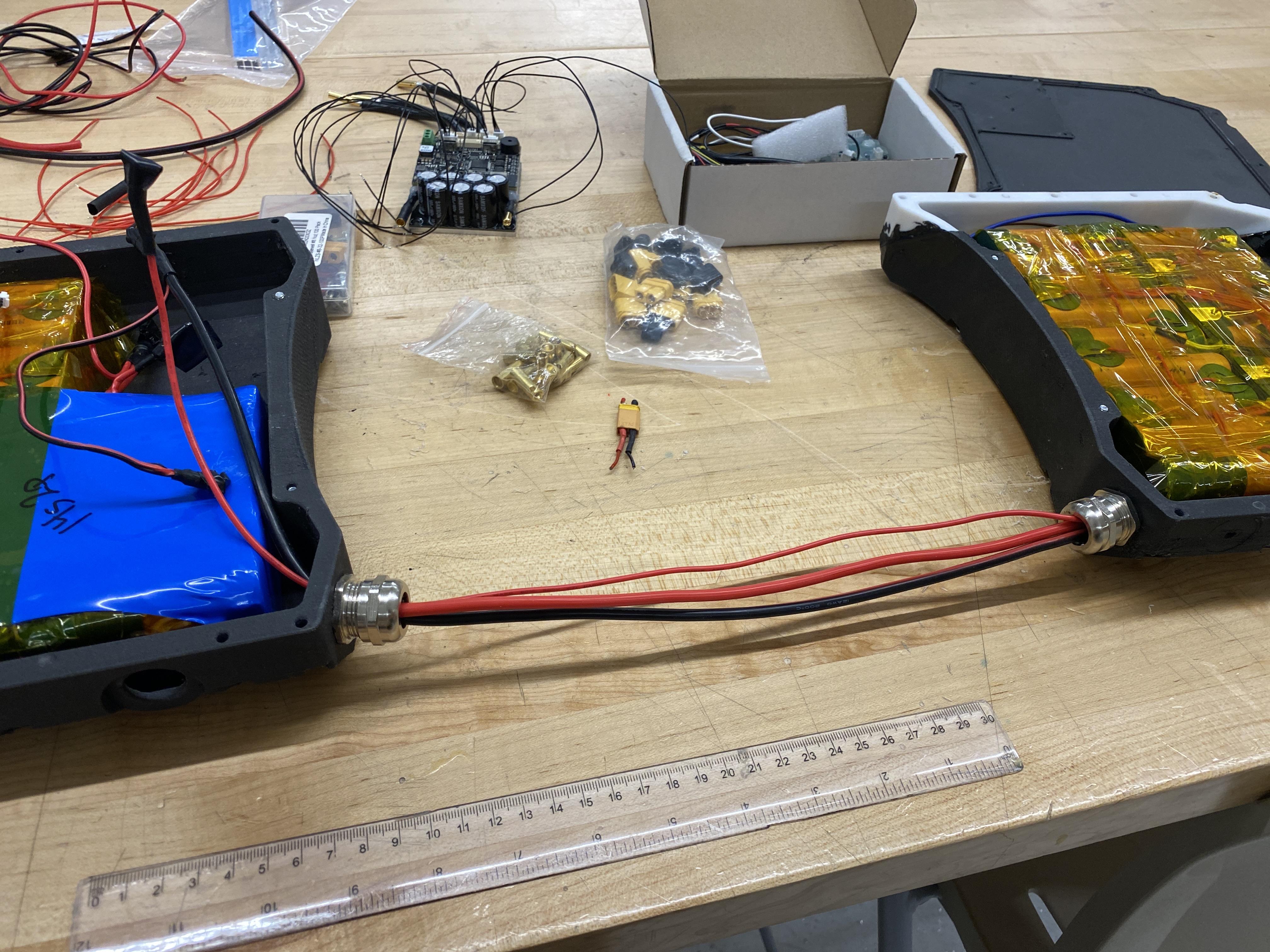
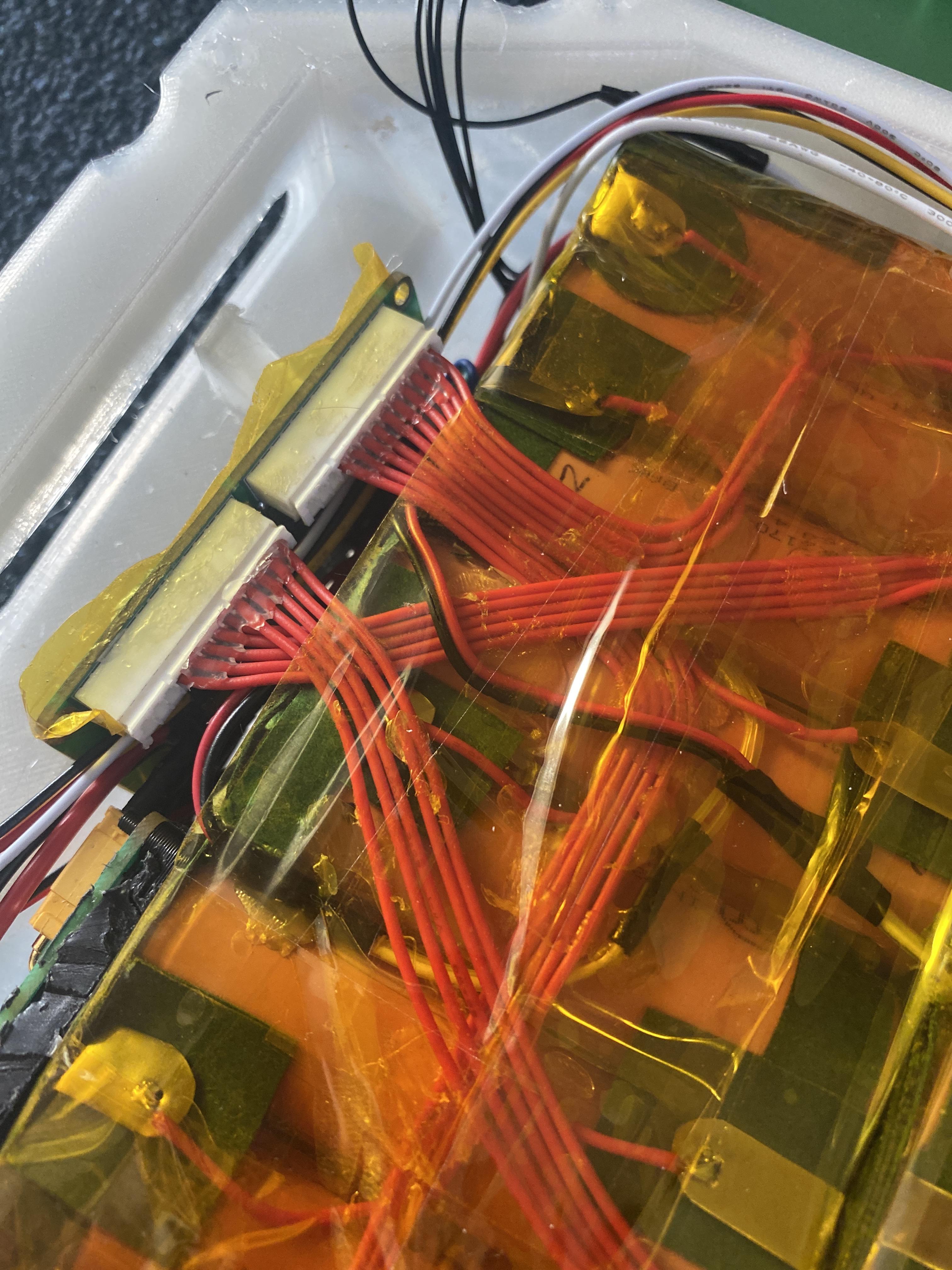
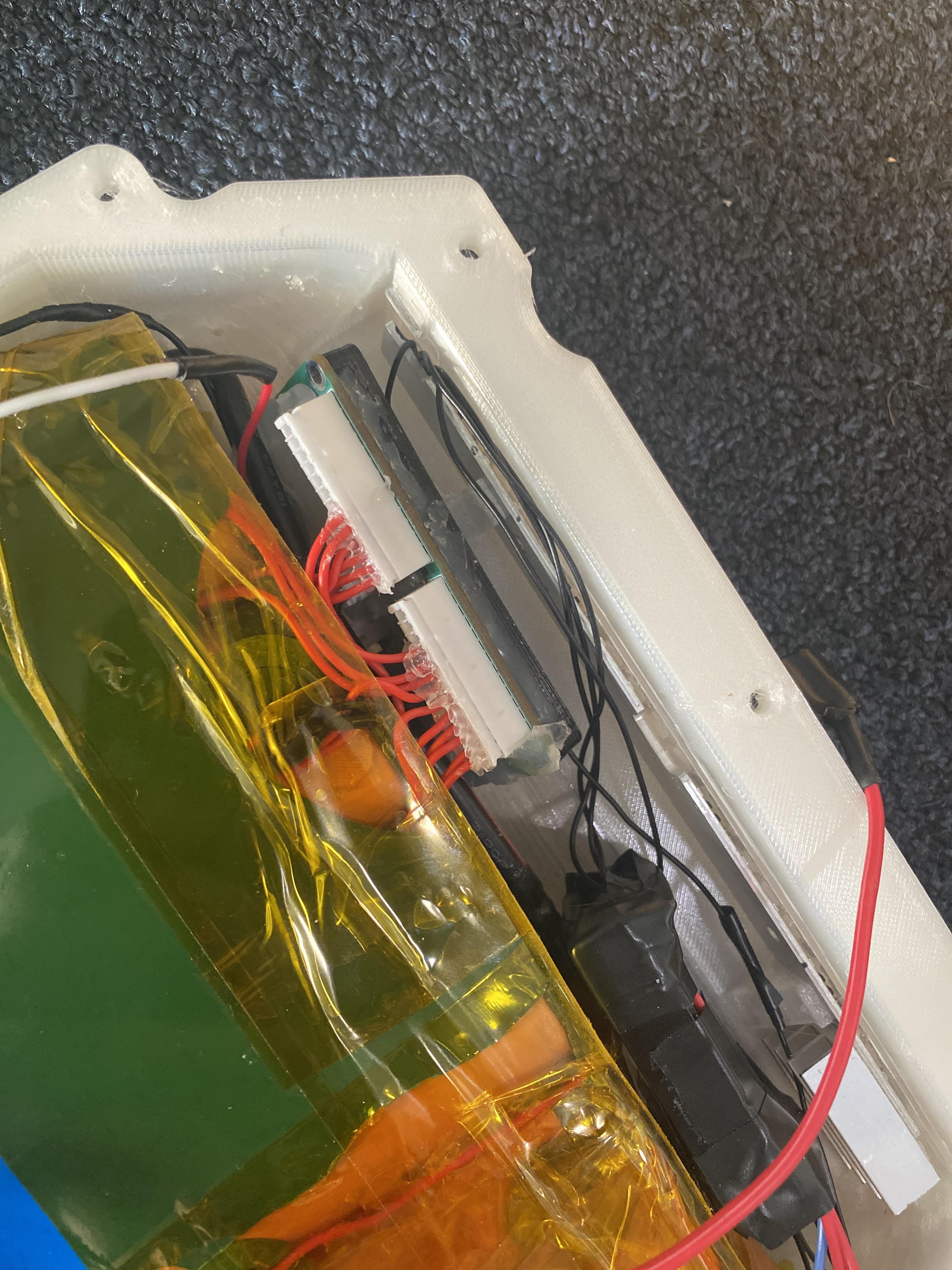
Wiring the bms may seem like a confusing task, but in reality, it is not as bad as welding the battery, as long as you planned out the wiring setup when welding the tabs in place. For the bms setup, you will have the master connected with a pair of wires to the rear slave, which is then connected to the front slave, as shown in the first photo. For each slave setup, there is a 13 pin connector that will go into it, with the first pin being the starting ground for that set of cells, then the next few pins are the negative tabs in the order that is needed, and for whatever the last negative tab is connected to should be connected into the remaining tabs, as shown in the mini diagram. For a front pack, as an example, the bms would be wired up like how it is shown in the larger diagram. This diagram is good because it shows for a 14s pack, which tabs are connected to which pins on the bms slave, and also which pins should be shorted out. Change this as needed for your pack, as the number of pins is up to the builder. Take a pair of 13 pin jst-ph wire connectors and set them where you are wanting the slave to end up, and figure out the order of which wire should go to which cell. It needs to be in the correct order, like the diagrams, so be sure of this. Wrong order could blow up your bms. from there, carefully route all of the wires so they go to the right balance tabs and solder them on. Reference my images as needed for how I wired up my board, sorry for the same color wires, but that is what I was sent... Different colored wires work much better then the same color. Once you feel like the pins are soldered up well, make sure to test the voltage on each pin IN ORDER to make sure it is only increasing by around 3.5-3.7 volts. Start from ground to pin 0, which should be 0 volts, then continue to the last pin, which should match the total pack voltage. If it does, your pack is good.
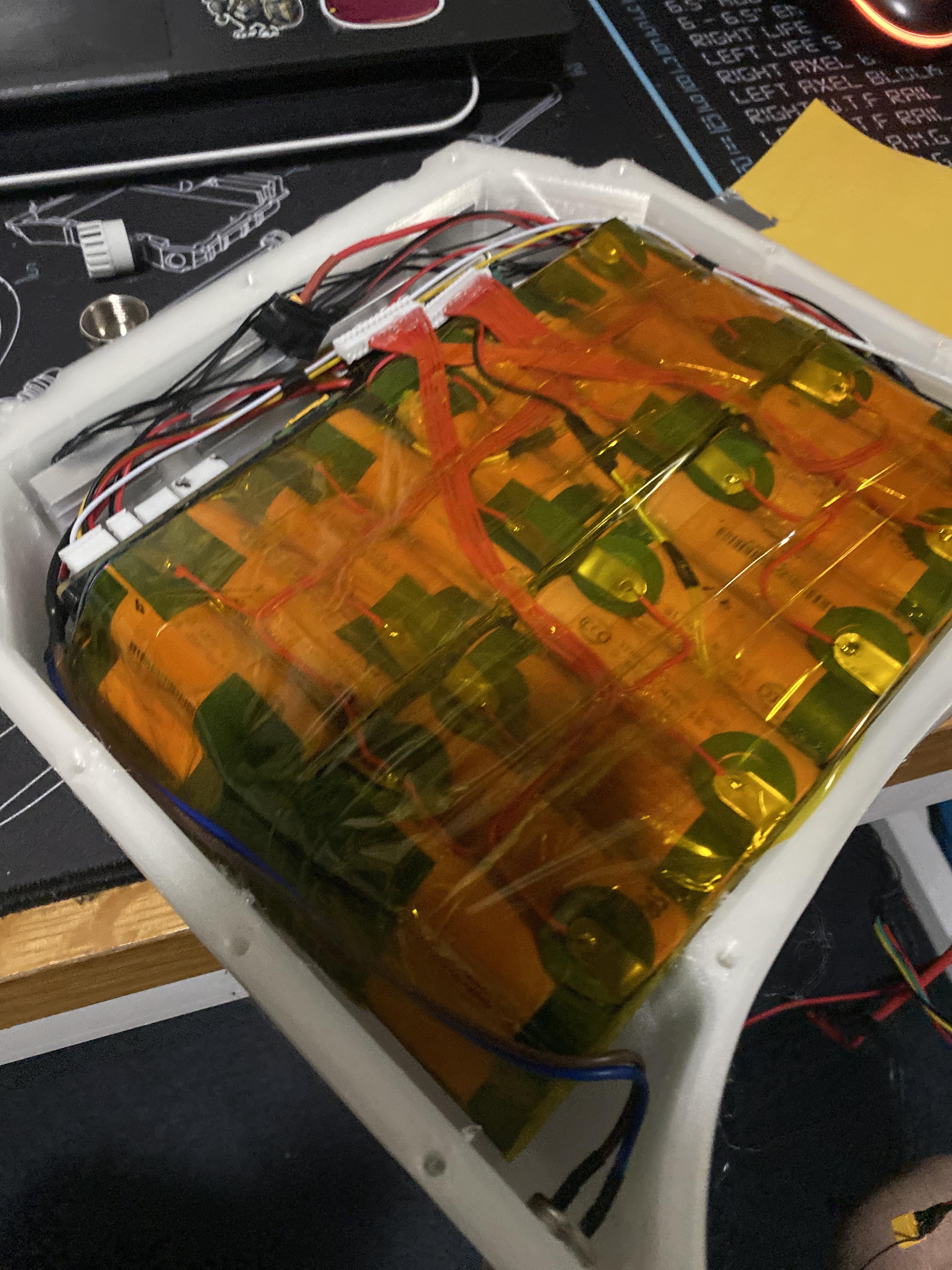
You can add thermistors to the pack if you want, it is not required, but very useful to monitor temps. Just hotglue a thermistor to one or two spots on each pack, then route the wires to the bms where you can solder on a 2 pin jst-ph 2.0 connector. This can be plugged into the slave at a later step. If you think the wiring is good, and the voltages are correct, TIGHTLY wrap up your packs with kapton tape. I used 1-3 layers over everything on mine, which is in the last few photos, and it turned out good. You can also use 250-300mm shrink wrap to go around the full battery, but that makes the lid a tight fit. It is all preference. Just make sure the battery is solid, no flexibility, and nothing poking out that could short.
That is it! The most complex part, the battery, is done!
Wiring the Electronics and Layout
Plugging in & Wire Management (Not Powered)
.JPEG)
.JPEG)
.JPEG)
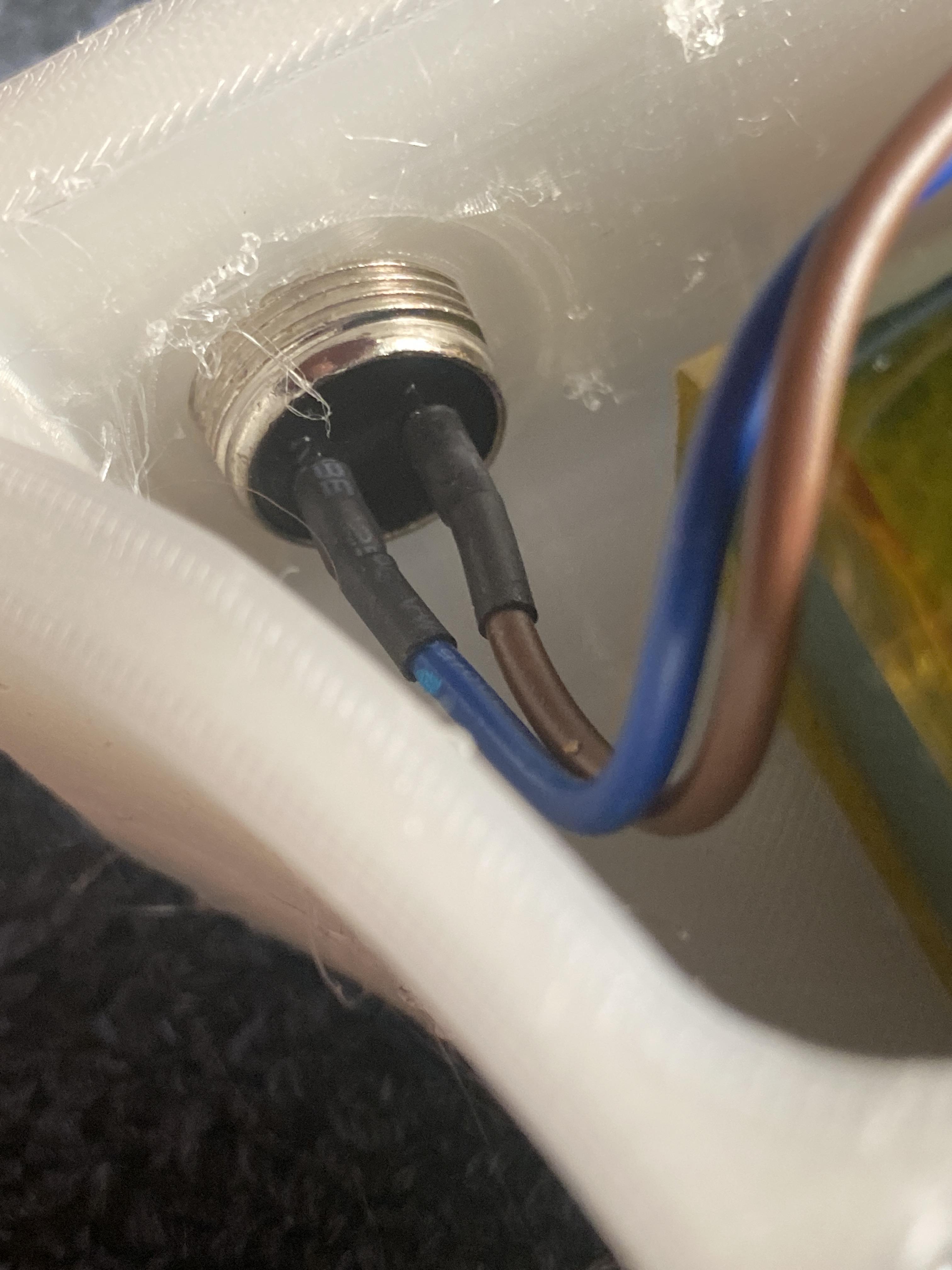
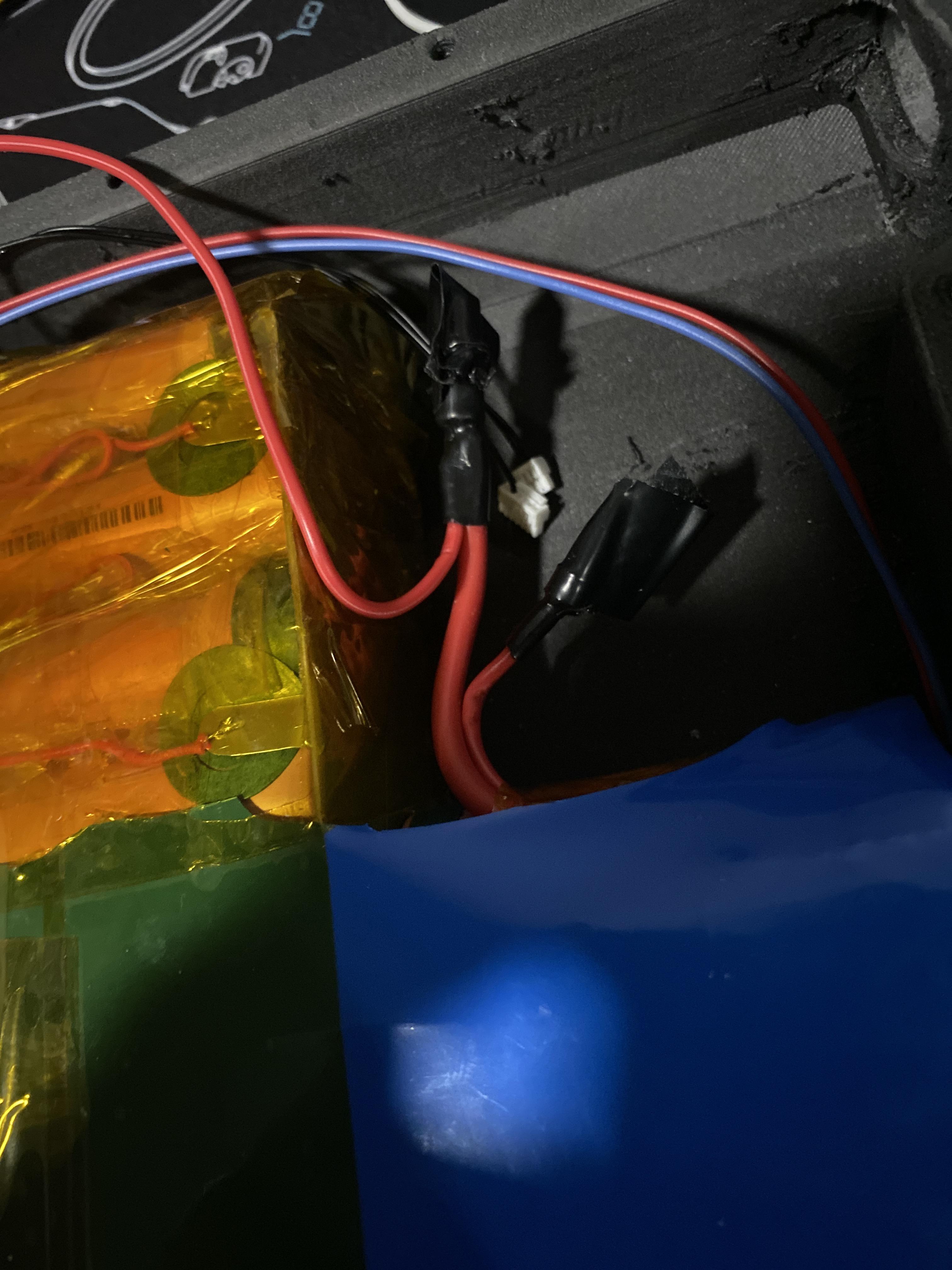
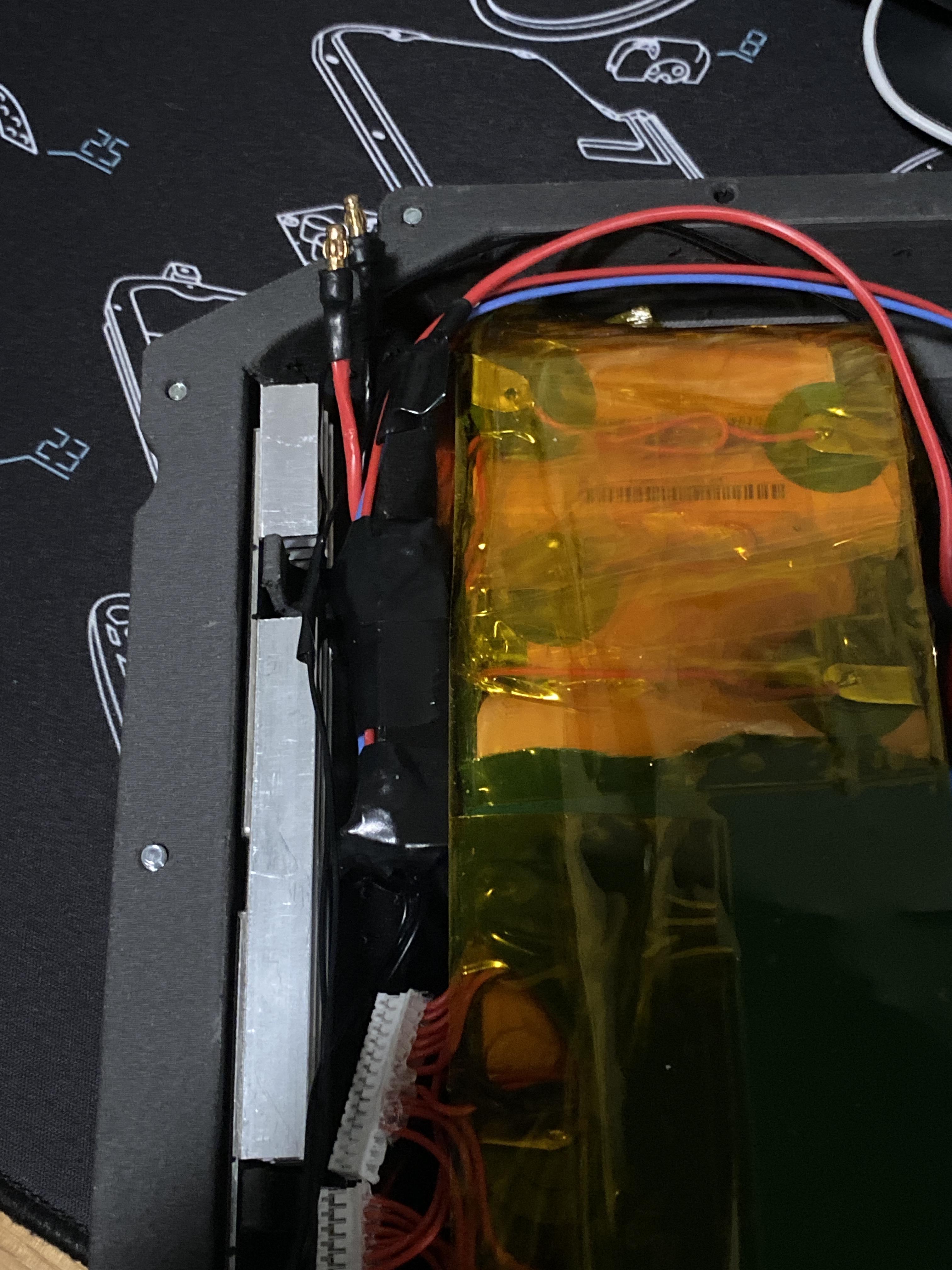
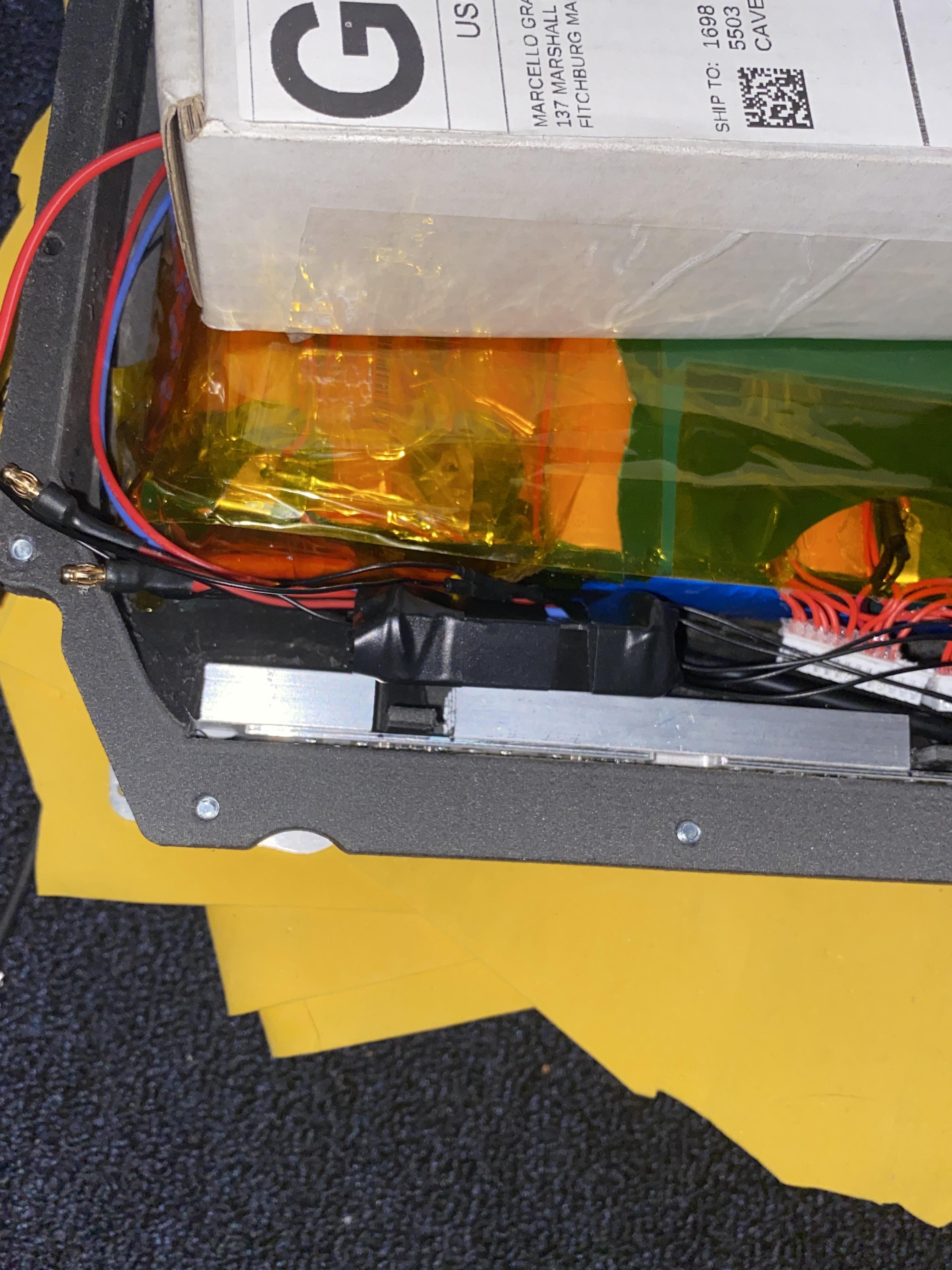
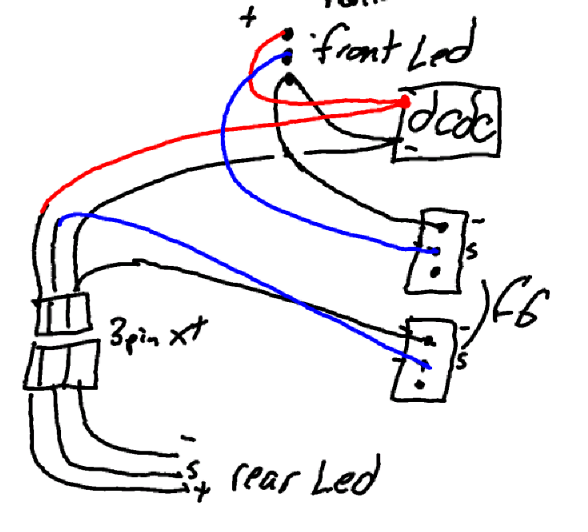
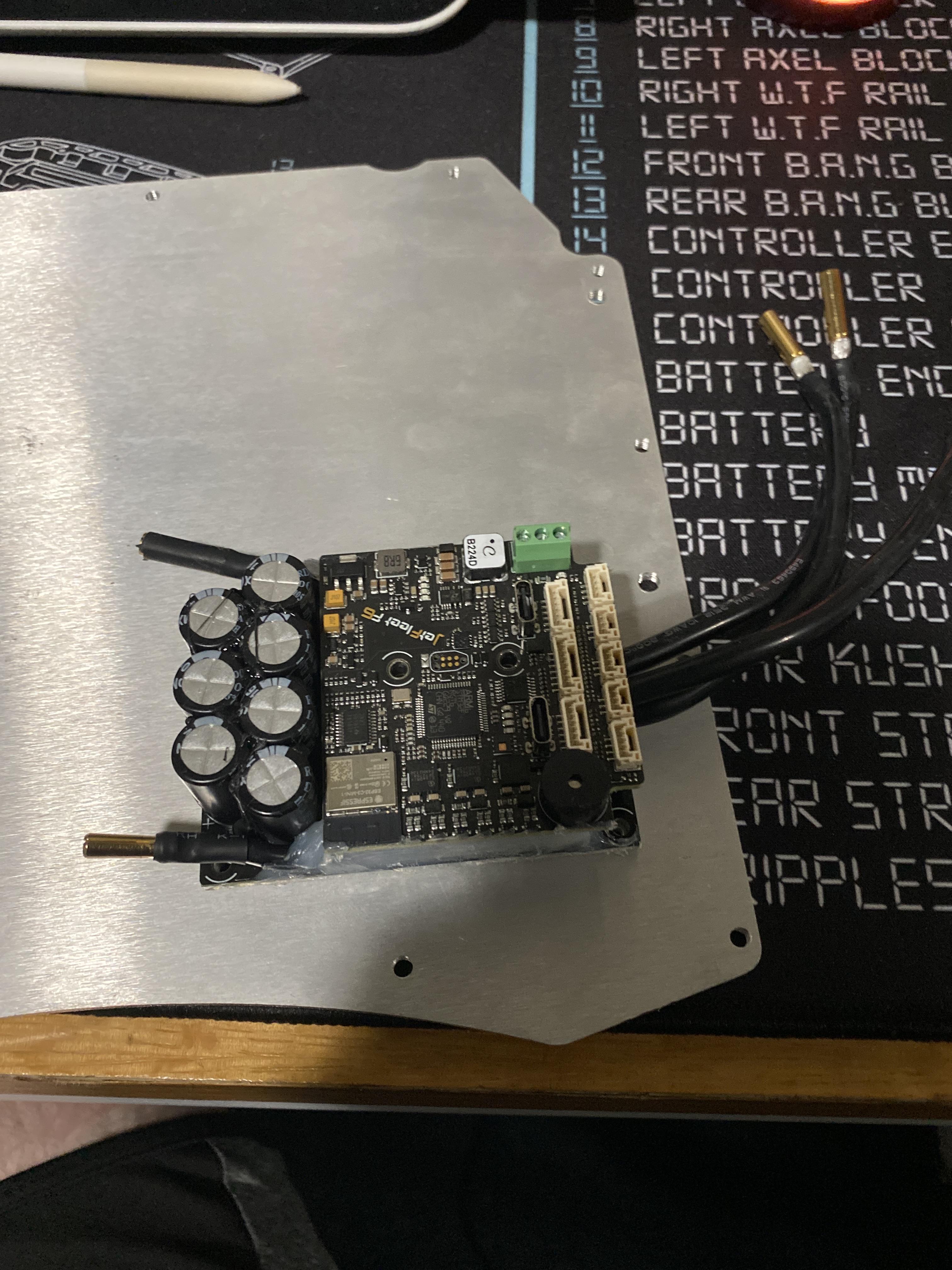
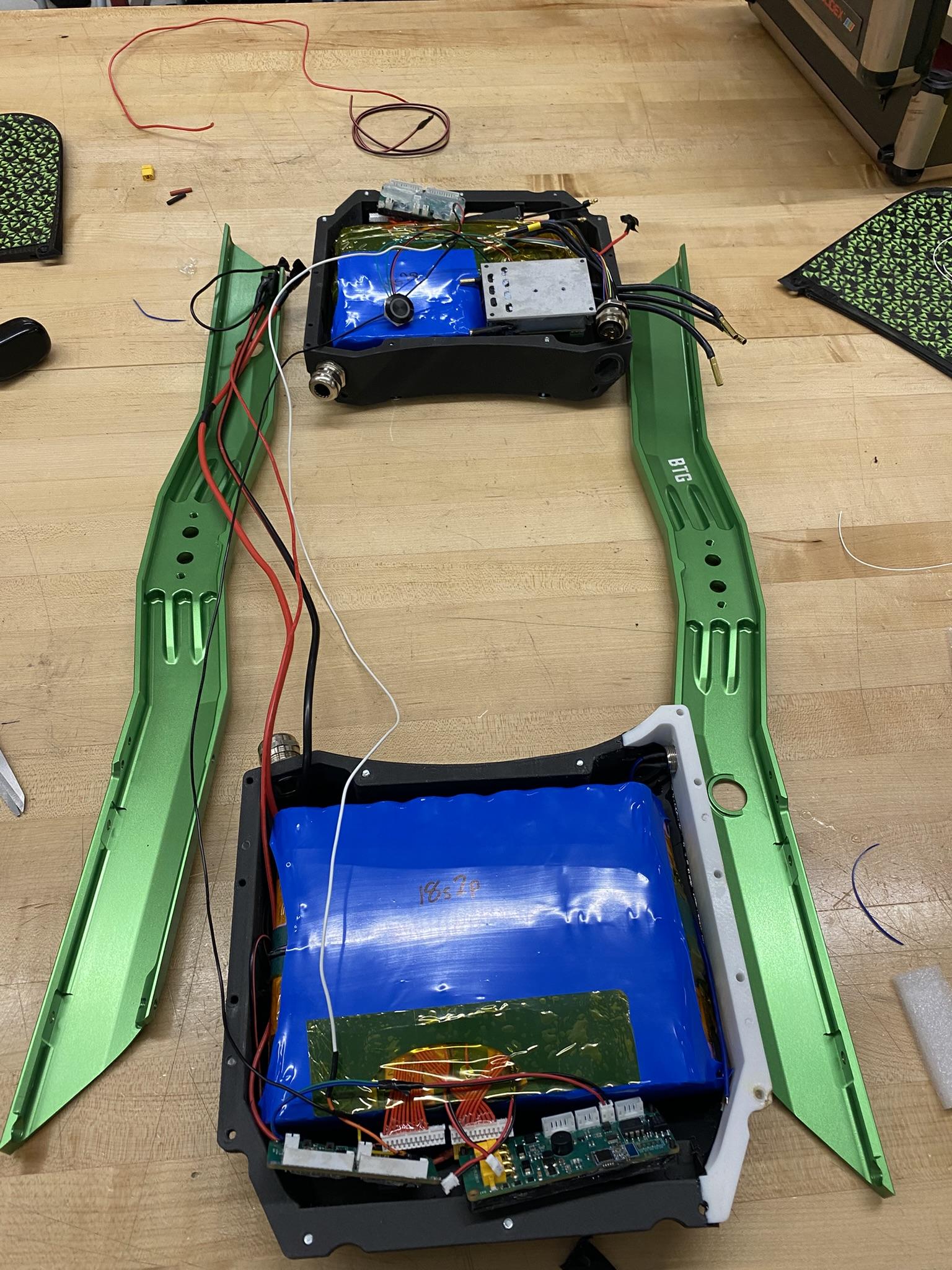
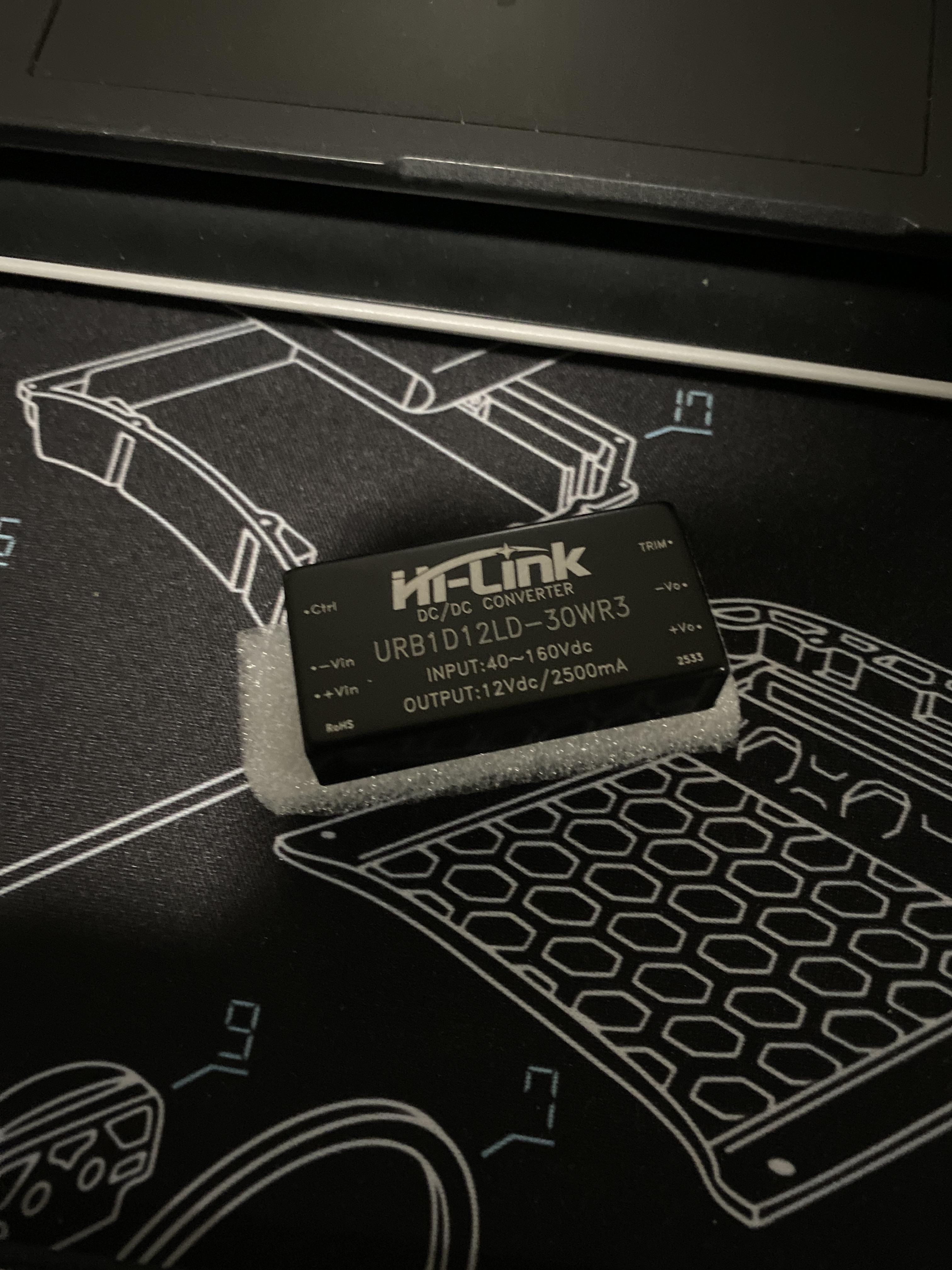
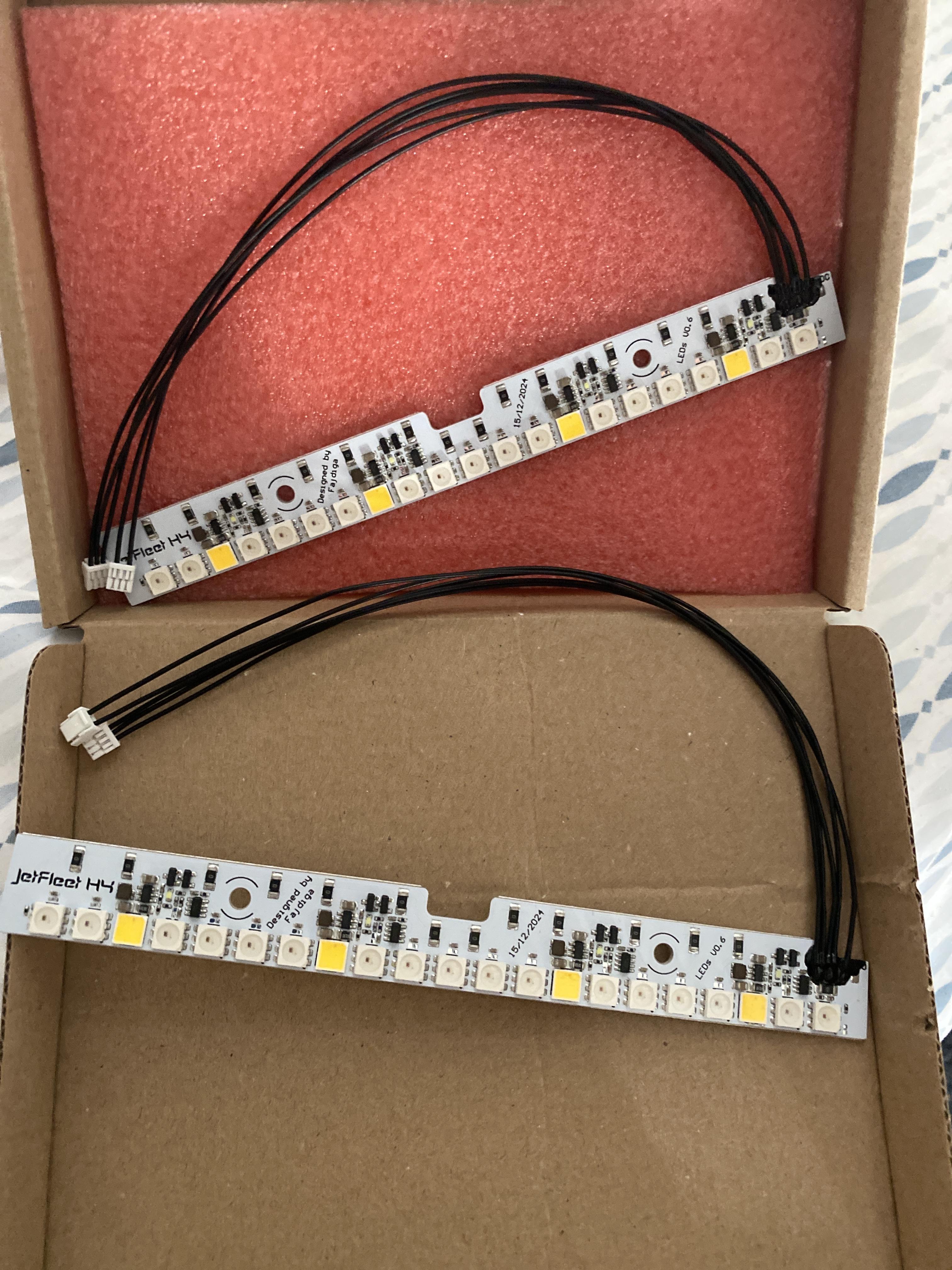
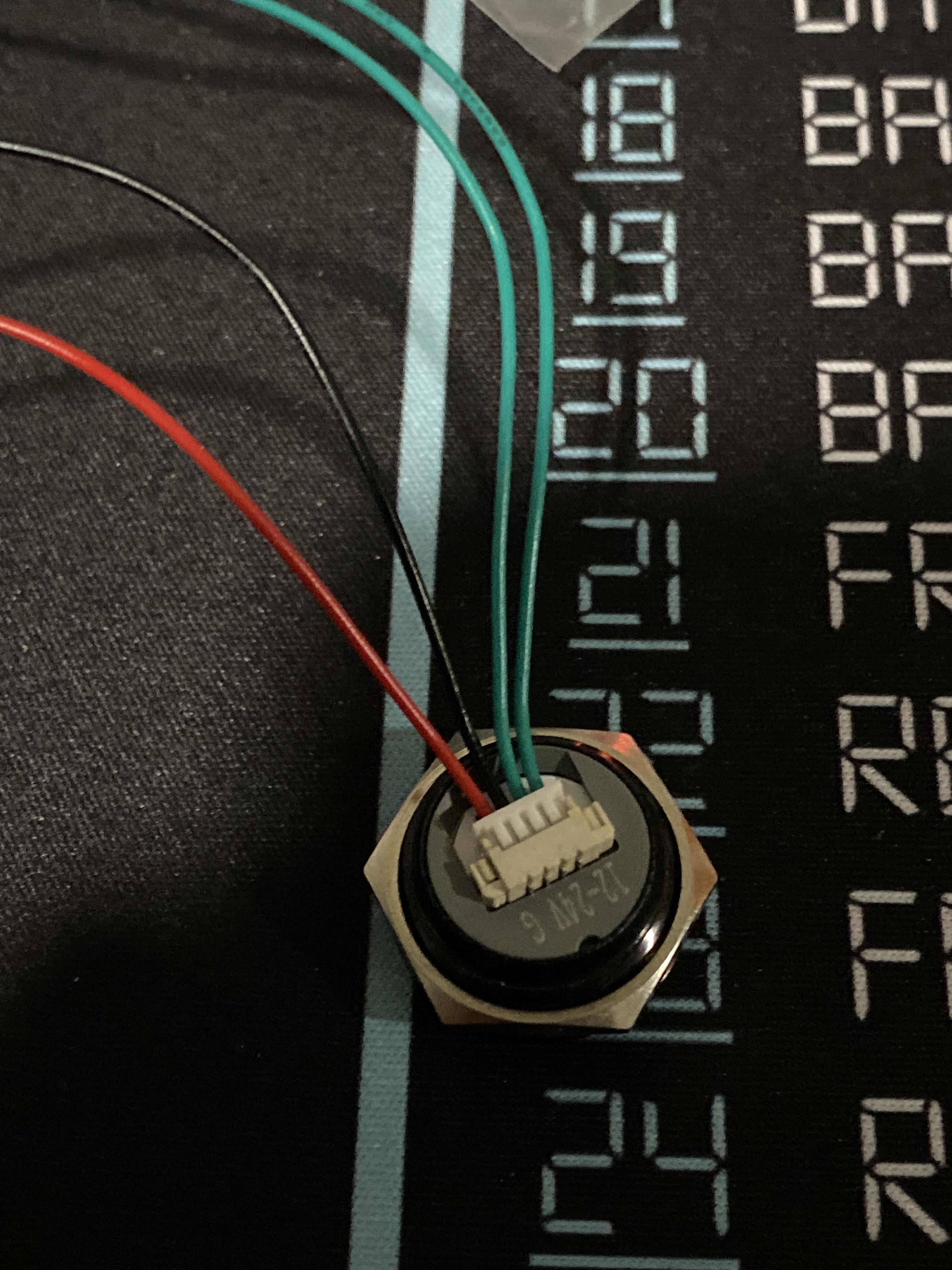
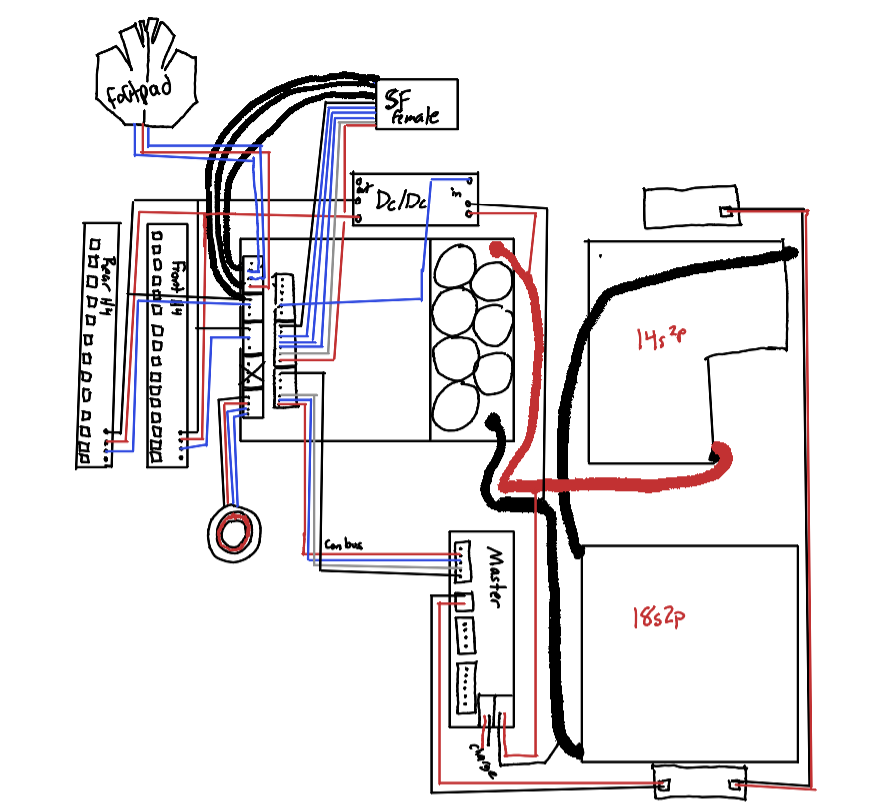
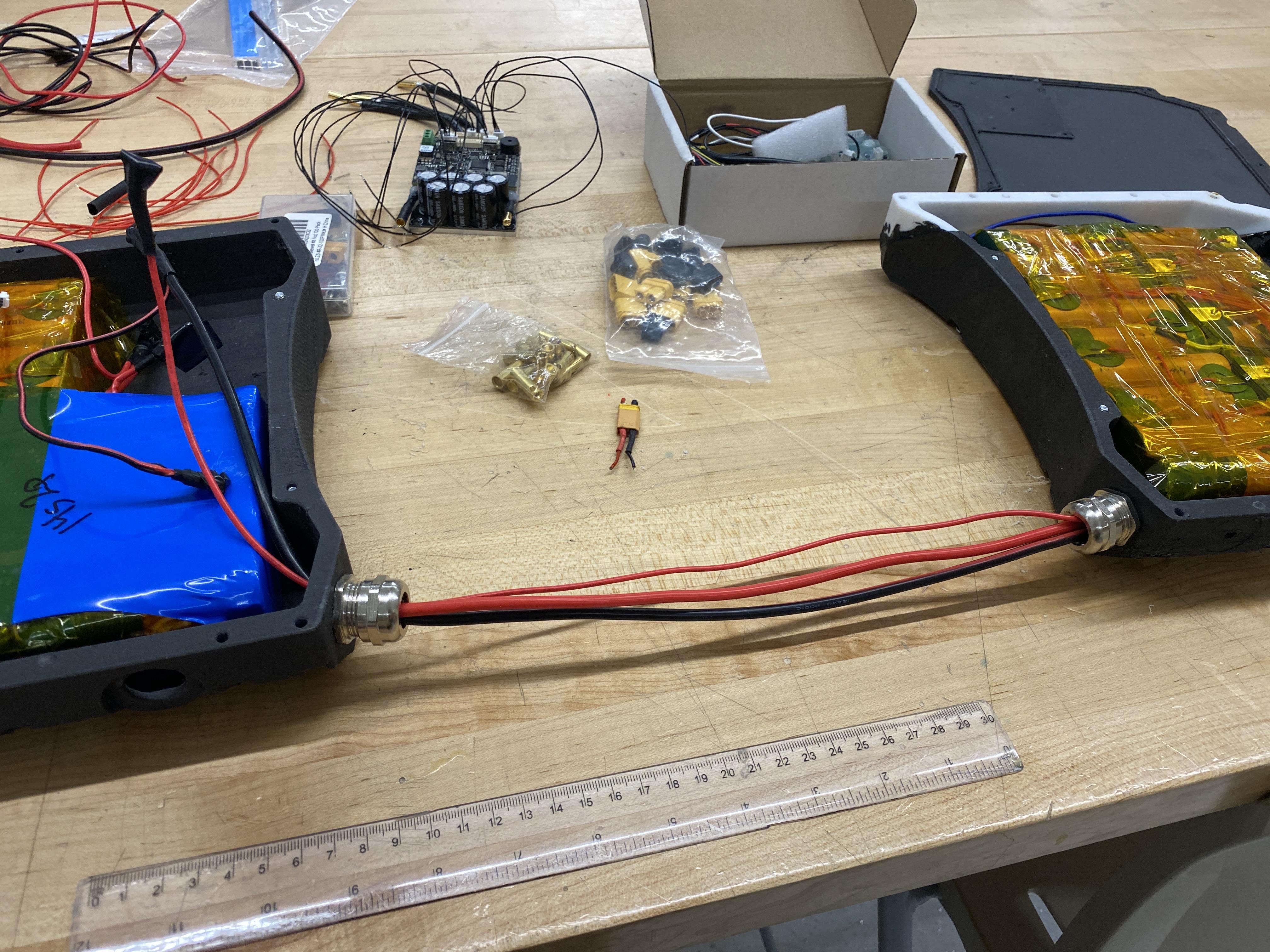
Wiring up the VESC is not an issue in regards to difficulty, however, explaining it is very difficult, so bear with me. Each of the controllers on their corresponding websites have diagrams for wiring, but they are all for generic motor plus controller. For a specific VESC onewheel build, I have created a diagram to show every single wiring connection needed, shown in the first photo. For this step though, do not worry about any connections that connect the battery, or the bms, as that will be next step. If you are using the same setup as I did, which you are if you bought from the spreadsheet, the diagram should be one for one. For the diagram, red means positive, which for most of the parts, is a red wire. Black is negative, and blue is the generic. For instance, the three blue wires from the SF (superflux) connector reference the phase wires, which are the other three nonwhite wires. The white wire on the superflux connector is for the temperature sensor, which is the grey wire on the diagram. Every wire connects to the jetfleet controller with pst-gh connectors, so as long as the wires line up with the photo, all that needs to be done is wire management. Be sure during this time to test fit the lids, with the completed batteries inside, and anything besides the battery connected. This will allow you to see what needs to be extended. It is always better to have too much wire then too little wire. As for the power switch, there is a red, black, and two other colored wires that go to it, so wire them up correctly as well. For the lights, you need to connect the dc/dc converter control pin to the pin labeled in the photo, but you also need to connect a 220 ohm resistor to this pin, and connect it to any ground source. This can be from the battery, but I found it easiest to connect it to another jst-gh for the jetfleet controller. Then the 12v output is connected to each vin- and vin+ of the light strips, following the wiring diagram, yet again. There is a lot to wiring this up, so it is really hard to explain, but the wire diagram is honestly going to be the most helpful tool. Once all your wires are routed, including the charger, you can move to the next step.
Plugging in Battery
.JPEG)
.JPEG)
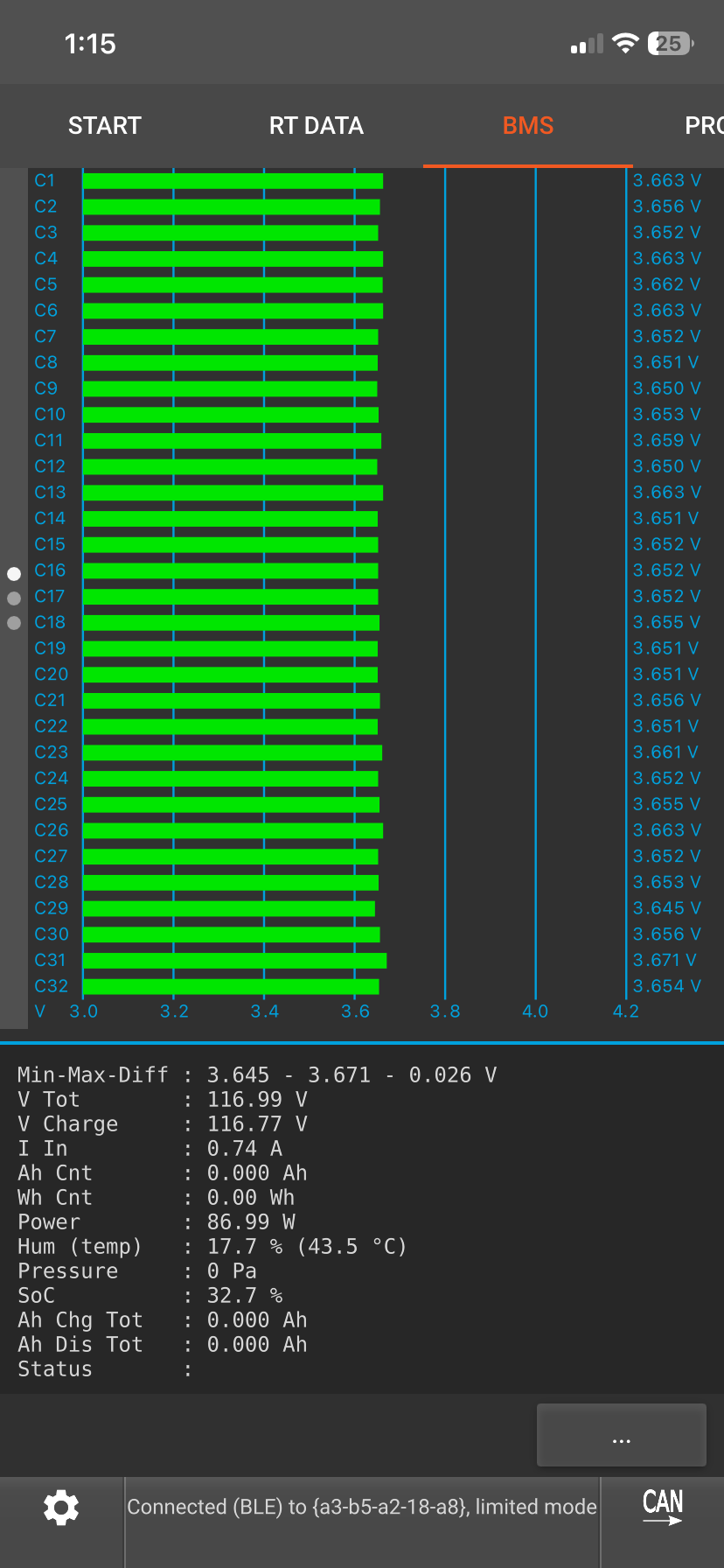
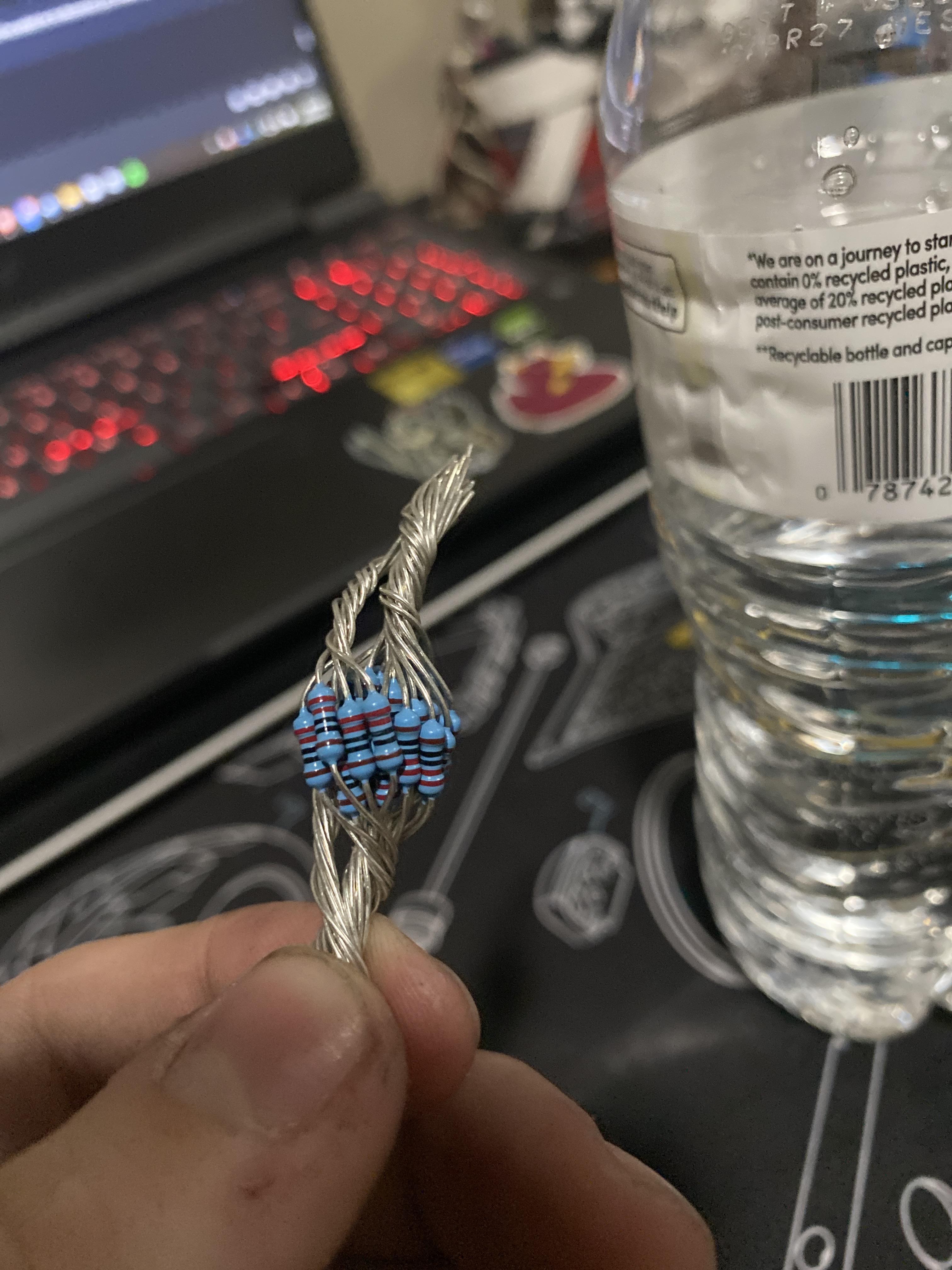
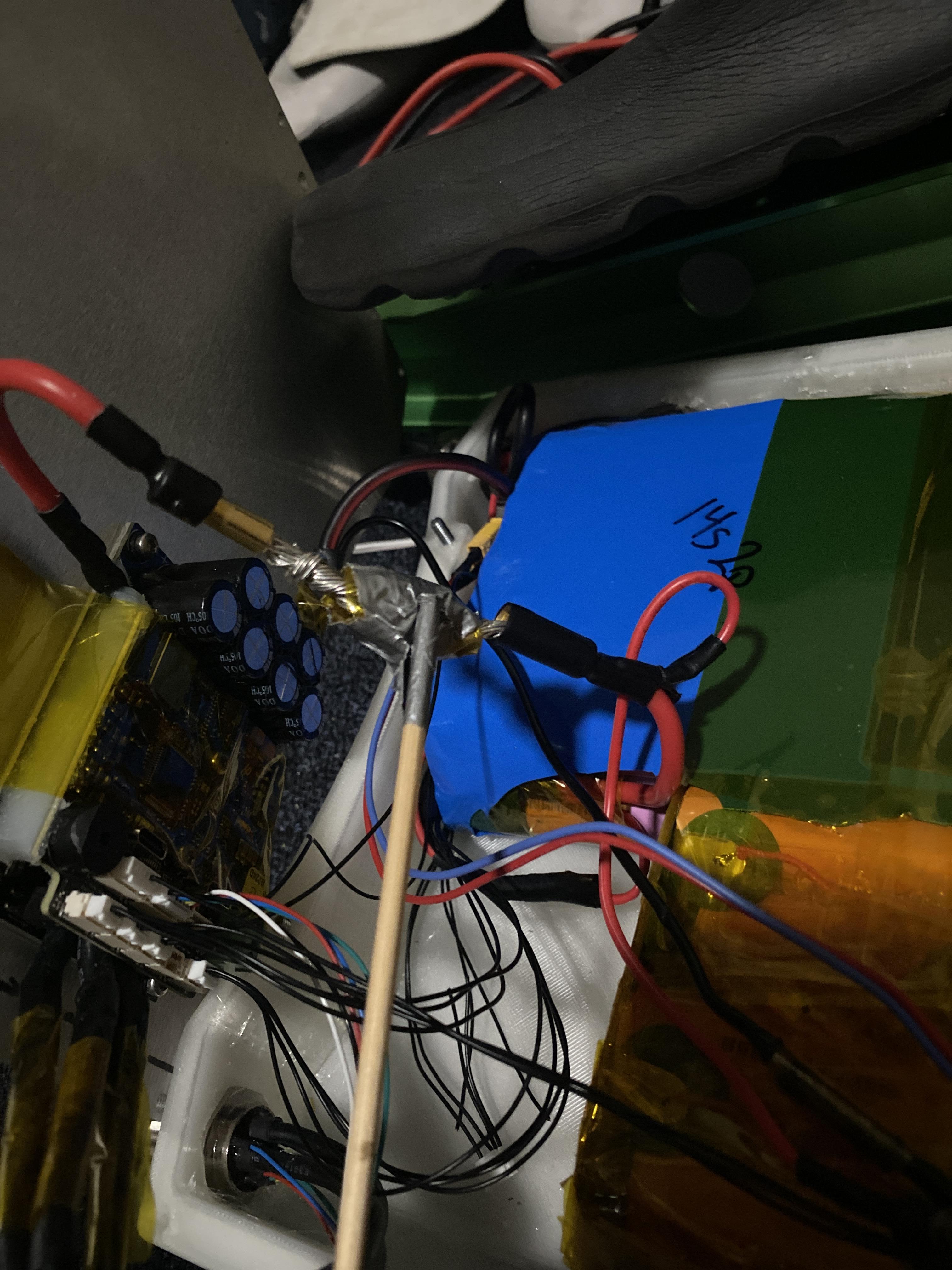
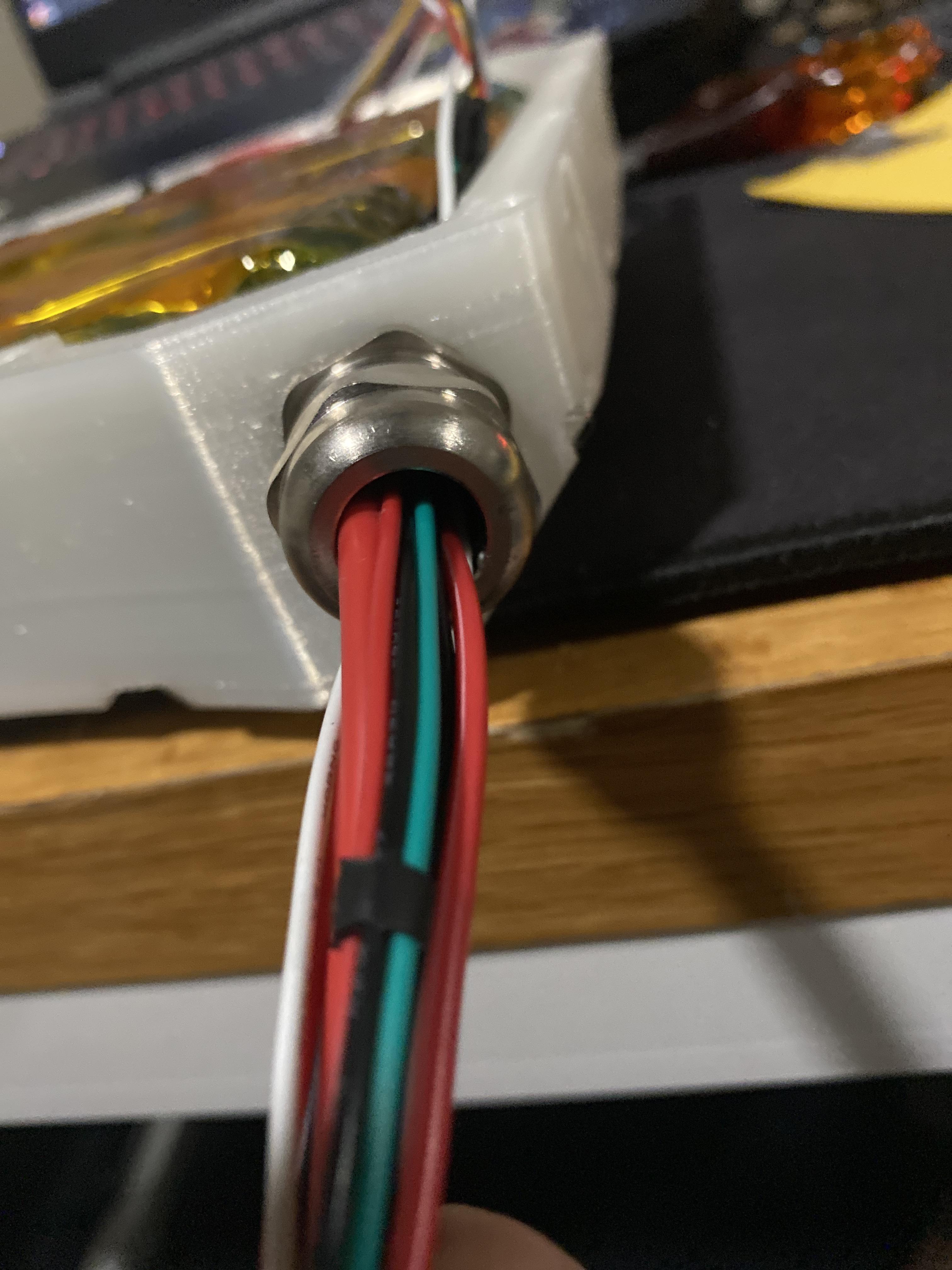
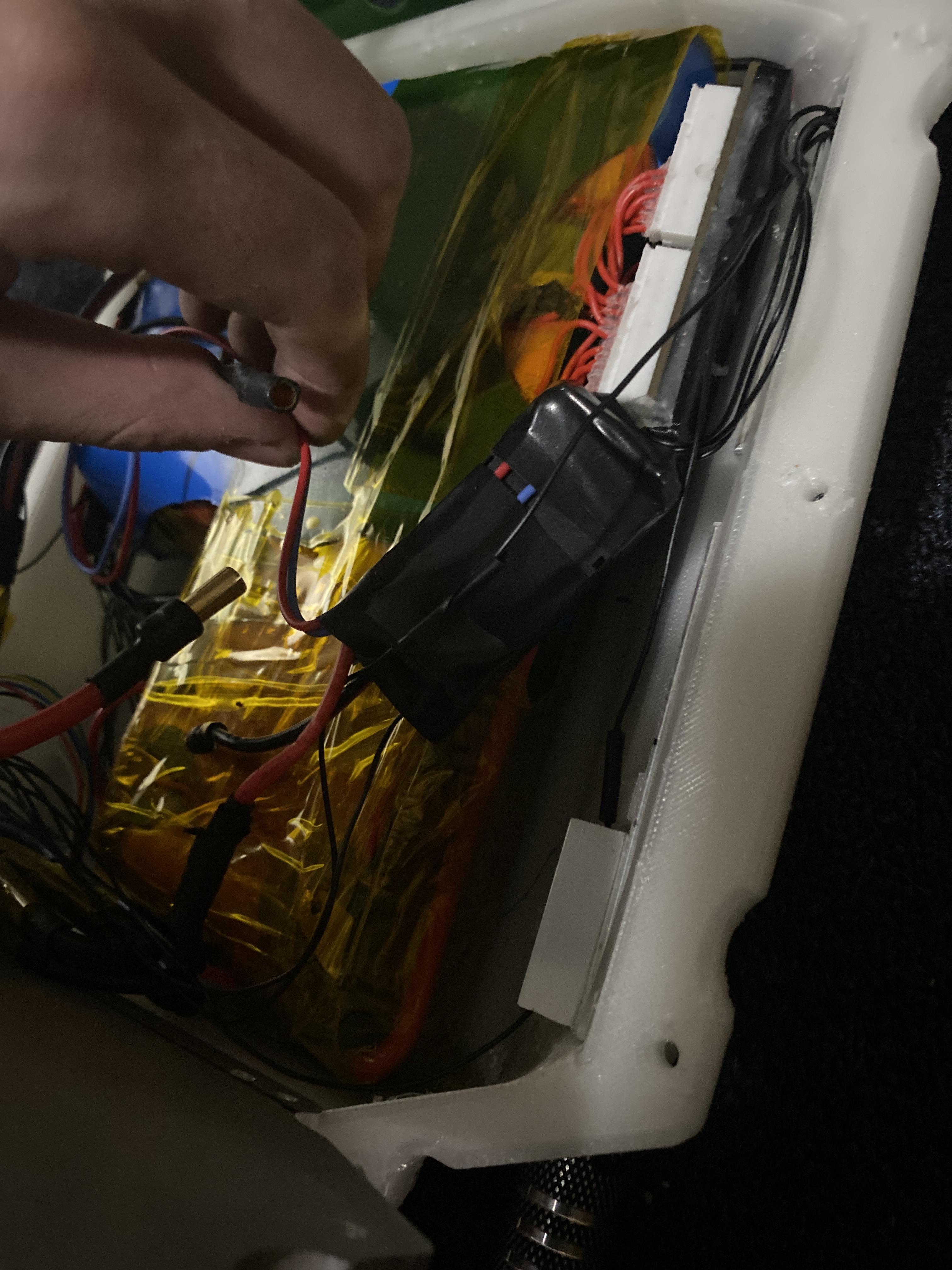
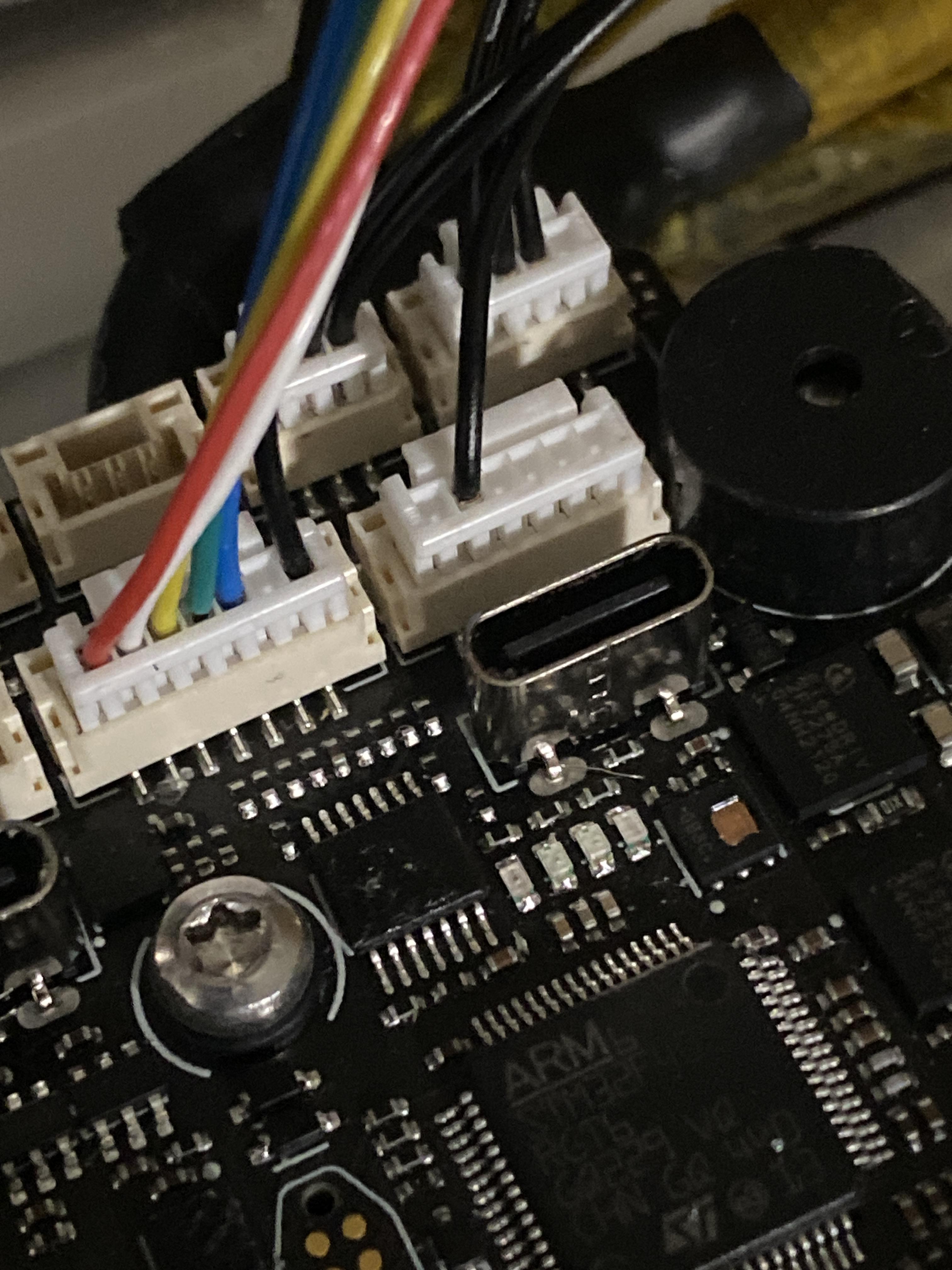
This step is to test the cells to make sure they are all working properly, and to power on the full board. First, connect the back pack to the front pack, by connecting the rear pack main positive to the front pack main negative, using a 5.5mm bullet plug. Then align the bms and slaves to their location, along the front and back of the frames, near the led lights. Make sure to also route all of the wires from the back box to the front before this. Then when the slaves are connected to the master, and in the correct orientation, plug in each 13 pin connector, in order, to the slaves, as shown in the first two photos. Also connect the main battery positive and negative to the charging port on the main bms with a male xt-30 connector. There should not be any sparks, and it might beep. Now, plug the charger into the wall, and wait a few seconds for it to turn on. Turn the amps to as low as you can, and the volts to be whatever 80% of your pack voltage is, for a 32s I did 132v. Now, double check polarity if you want, or just plug it into the boards charging port. The bms should light up if it is done correctly. To be sure, you can download the app VESC Tool, and search for devices, where the bms should show up. When it does, connect to it, and go to the bms tab on the app, which should show the cells like in the third photo. Make sure everything looks right. If the second half of cells seems to be an oddly high voltage, it just means the wires that connects the front slave to the back slave is backwards, so just flip the wires and it should be fixed. Once the battery looks good, connect the thermistor wires, and then it should be good to go. Now the tricky part of connecting the rest of the battery plugs, as from the main positive and negative, it should go to the f6, the dc/dc converter, and the charging port, but it should already be connected to the charging port. Now, connect the GROUND to the dc/dc vin- and to the f6 ground. DO NOT CONNECT THE POSITIVE YET. This is really important, as the capacitors in the dc/dc and f6 need to precharge. To precharge the capacitors, get about 20 220 - 1k ohm resistors and tie them together like the photo, just to make an extremely beefy resistor. Now, connect one side of the resistor bundle to the main positive that you plan on plugging into the dcdc, and the other side of the resistor to the dc/dc positive. It should not spark, but hold and maintain the connection for about 1 minute. Once the minute is up, quickly take away the resistor and plug in the positive on the dc/dc. It should do a small spark, but as long as nothing is smoking, it is good. Repeat this for the f6 positive, but hold the resistor in place for about 3 minutes instead of one. When you plug in the positive, it should not do anything. To test the connection, press the power button, and it should beep, and the f6 should light up. If it does, your board is powered, and is ready to be assembled. To turn off the board, hold the power button for a second or two then let go. The light on the power button should turn off.
Assembling the Frame
.JPEG)
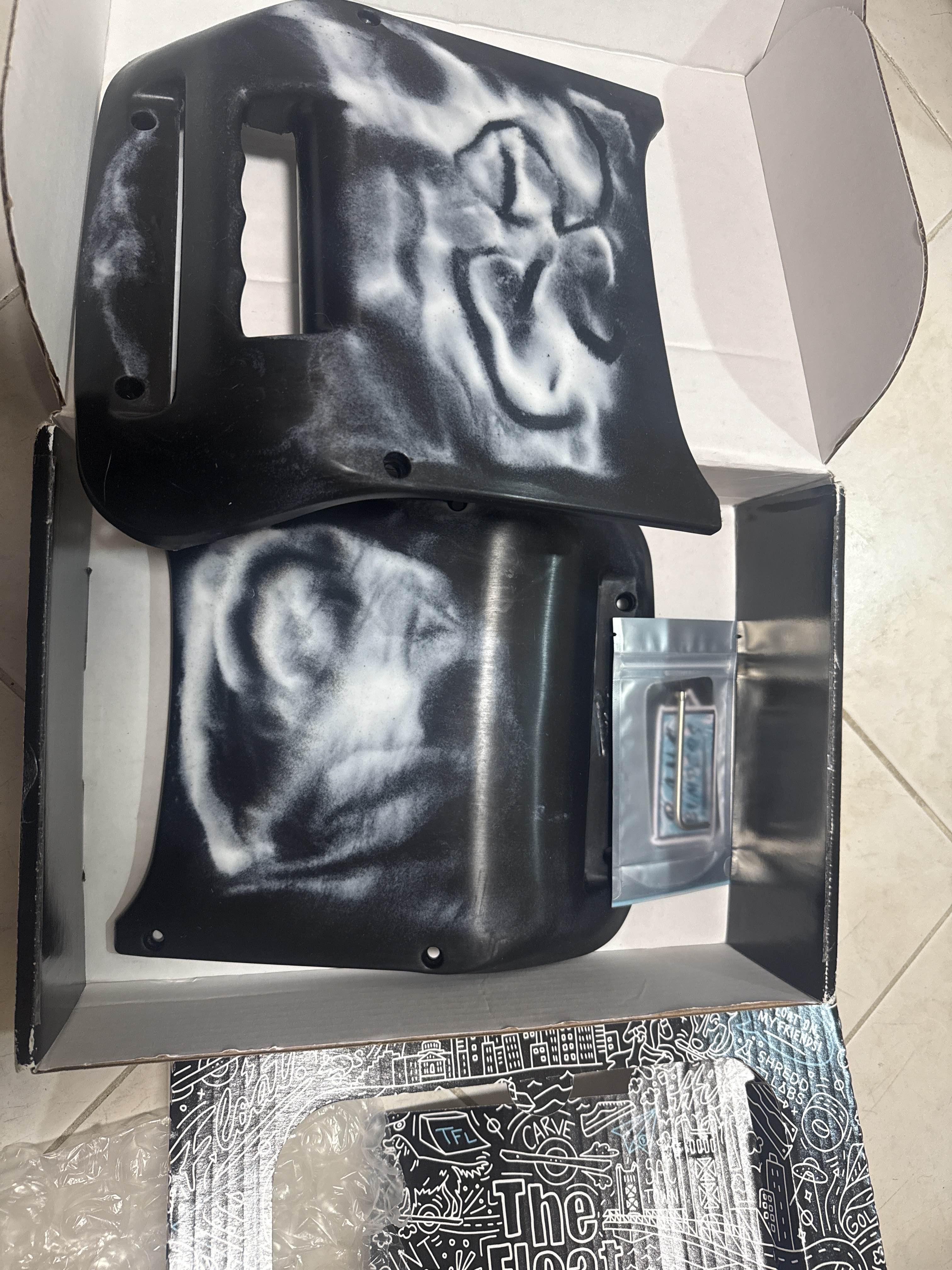
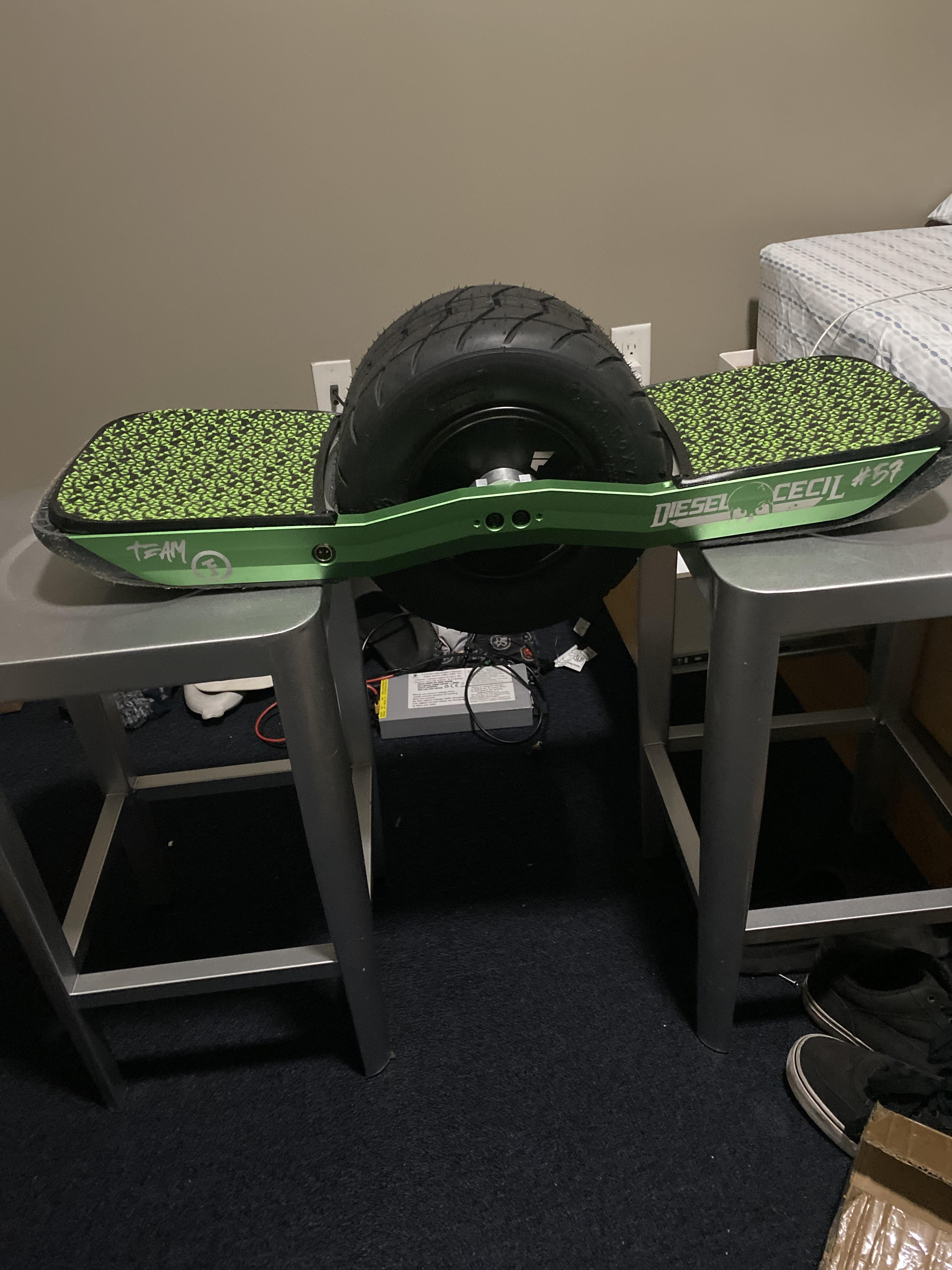
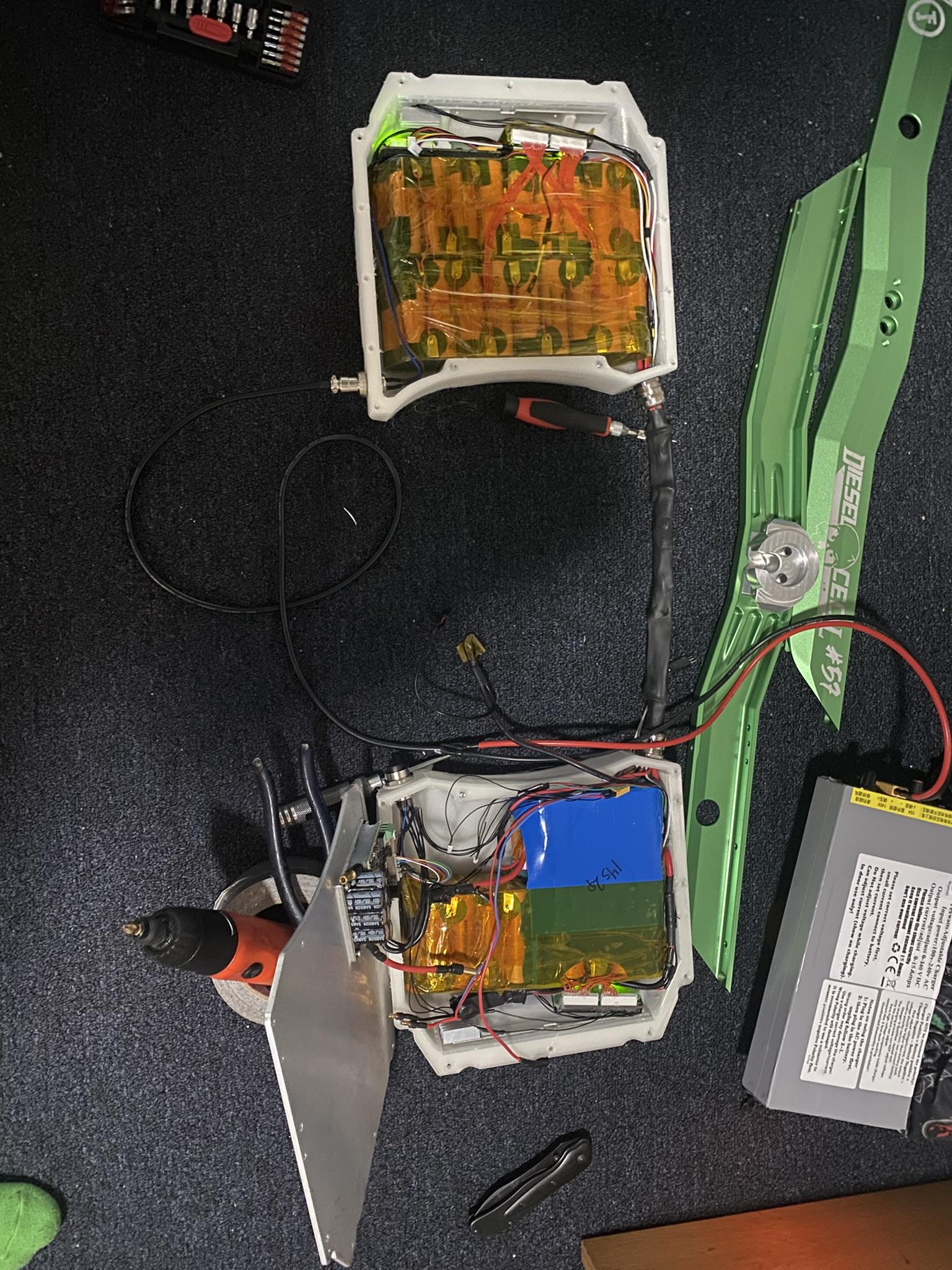
So assembling this board is the exact same as assembling a normal onewheel, which anyone who has changed a tire has had to experience. The first thing to do, is to put a thin layer of foam on top of each battery pack, and make sure everything is well insulated. Then put the lids onto the front and back box. The front lid connects to the f6, so be sure to screw that on tight enough. Once the lids are on, the 3mm screws of varying lengths are screwed in from the BOTTOM of the box, so the ends of the bolts are flush with the top of the lid. This is necessary for all of the parts to line up. Once the lids are screwed on, screw on one rail using 4 short m4 bolts, through the lid. Connect one half of the motor using the motor brackets, and plug in the motor to the superflux connector. It should plug in, then screw on to keep it tight. If you have not already, wrap up the wires that go from the back box to the front box. Connect the second rail to the boxes and to the motor. Now screw on the bumpers to the rails using m4 screws, and then finally the footpads to the rails using some short m4 screws. The front footpad is the one with the sensor in it, and this can be connected at this time to the f6. There will be two screws that go from the bumpers to the footpads, but do not make those too tight as they can strip out. Fully tighten the motor on, as the screws need to be very tight to be safe. The board should be assembled now, and there is one last step before you can ride it.
Tuning in VESC Tool
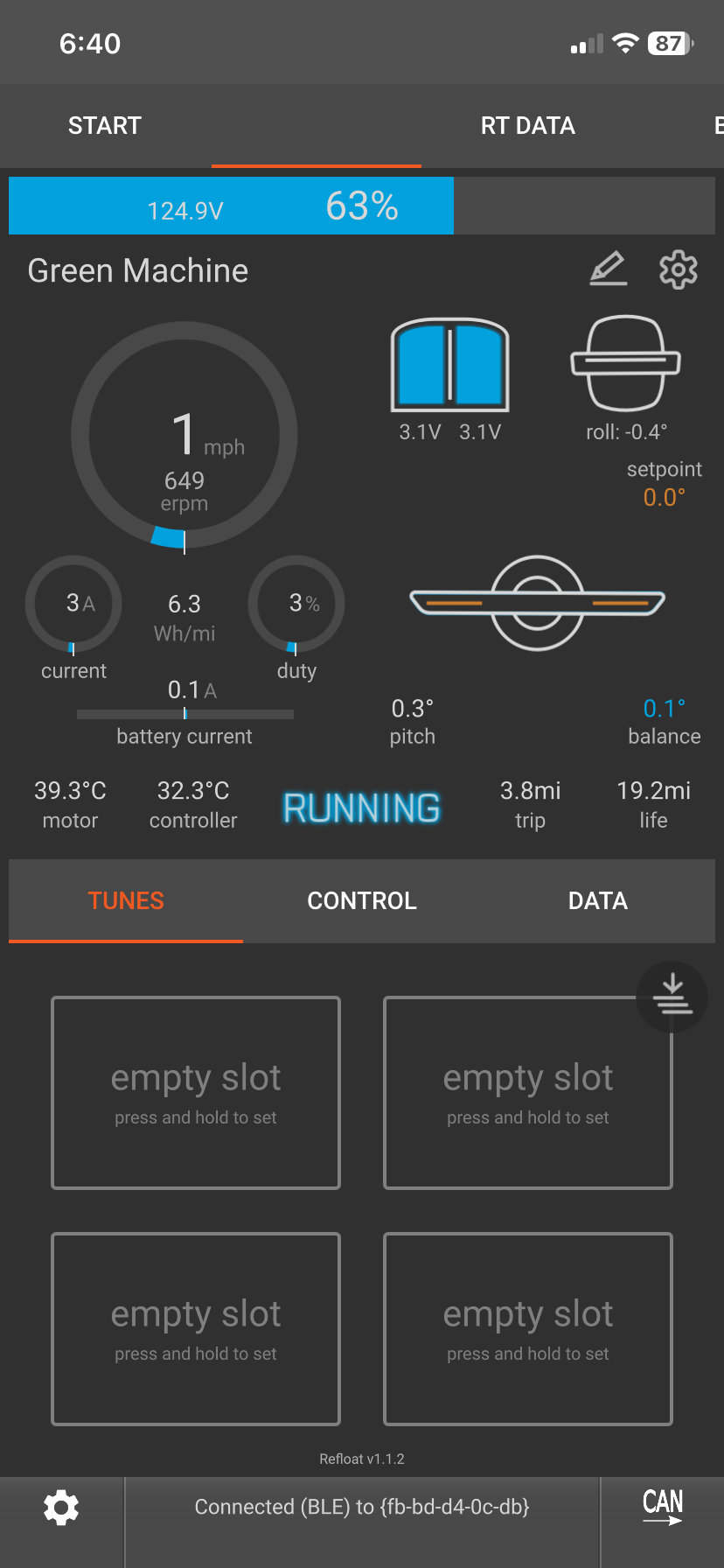
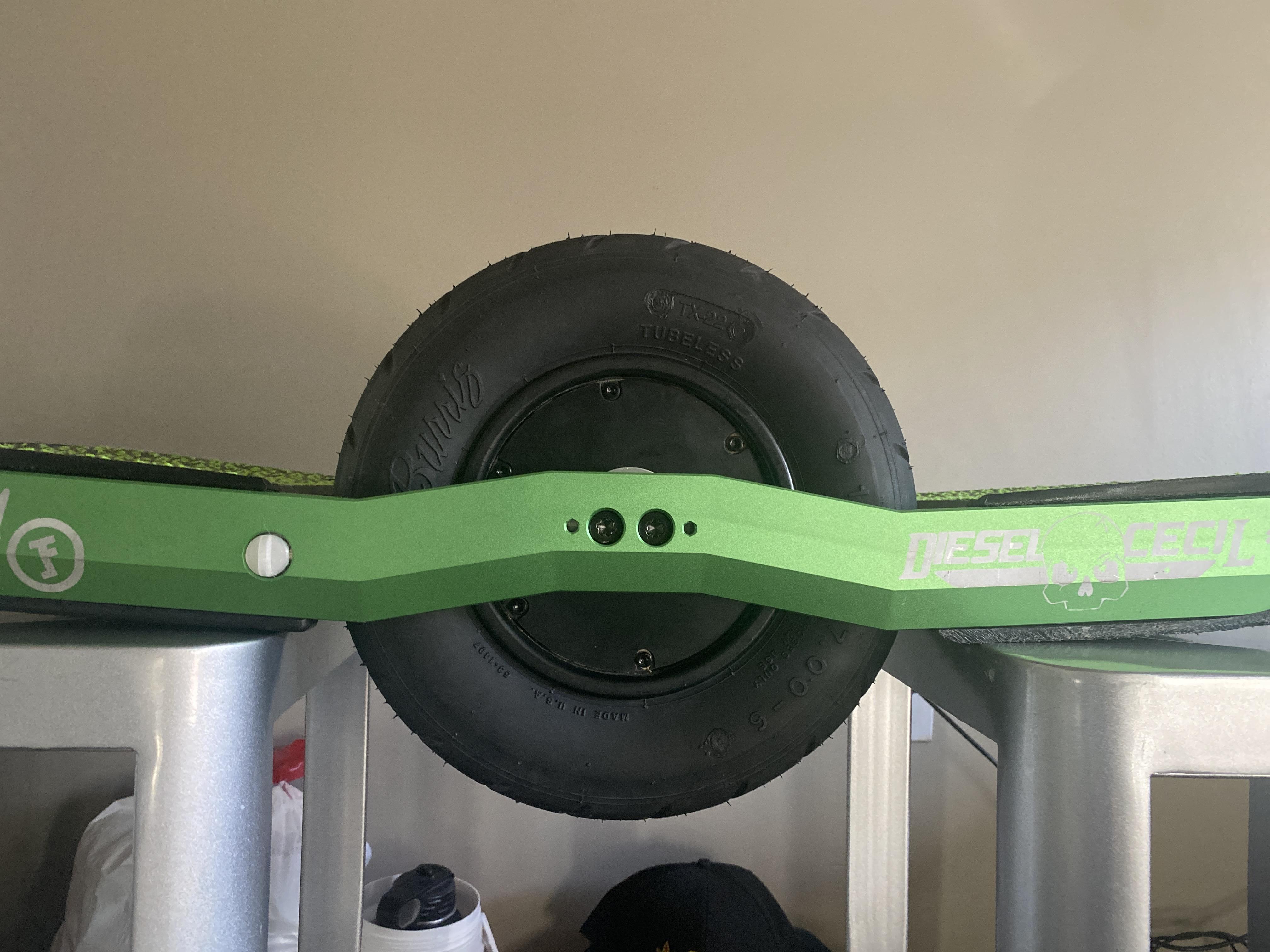
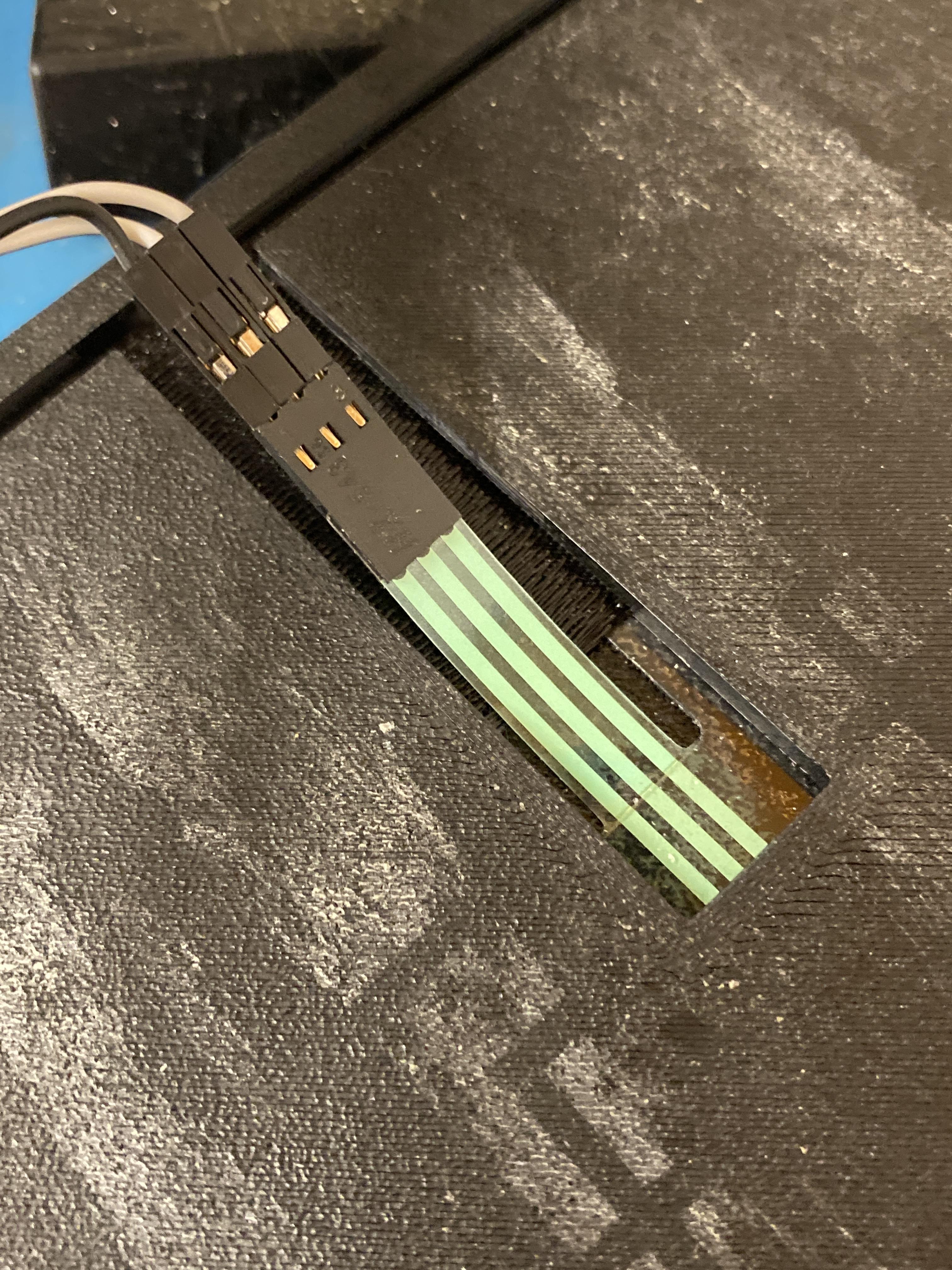
Press the power button on the board to turn it on, then connect it to vesc tool, as it can be found the same way as the bms. Then follow the first youtube video for all the initial settings to input for the motor and battery, however, for battery capacity and voltage, change it to match your battery. For a 2p battery, the capacity is the capacity on the cell times 2, so for my 2p battery, each cell had a capacity of 4500mAh, so I put in my capacity as 9Ah. The rest of the battery voltages can be kept the same if you use 32s, but for lower voltages, just divide each voltage put in during the video, divide it by 32, then multiply it by the number of cells in series for your battery. So max voltage for 24s would be the video voltage divided by 32 multiplied by 24. Do this for all voltages. In the main menu, click the motor direction button, and follow the on screen directions to make sure the motor is spinning in the correct direction, and inverse motor direction if necessary. The second video shows how to set up a tune using the refloat package. This package is essentially programming for the f6 to run specifically a onewheel. It also shows programming of the gyro, but for this, you set your board level, and follow the instructions on screen. Keep the board level and on a steady surface, and follow the instructions, as it programs where the gyro is level. This is simple enough to do, but keep watch for any voltages that need to be entered, and adjust them accordingly. The third video is programming the LED strips, which should turn on once this step is done. To turn on or off the led strips (the dc/dc connector), go to the f6 settings -> motor config -> General / advanced -> aux pin (set to on after 2s or off), and click write to upload the settings to the controller. Besides for that, once the settings are all uploaded, it should be ready to ride. Double check the footpads under app overlay, and that when you press on each side, one side should turn blue on the app. If so, its all good!
Downloads
Riding for First Time
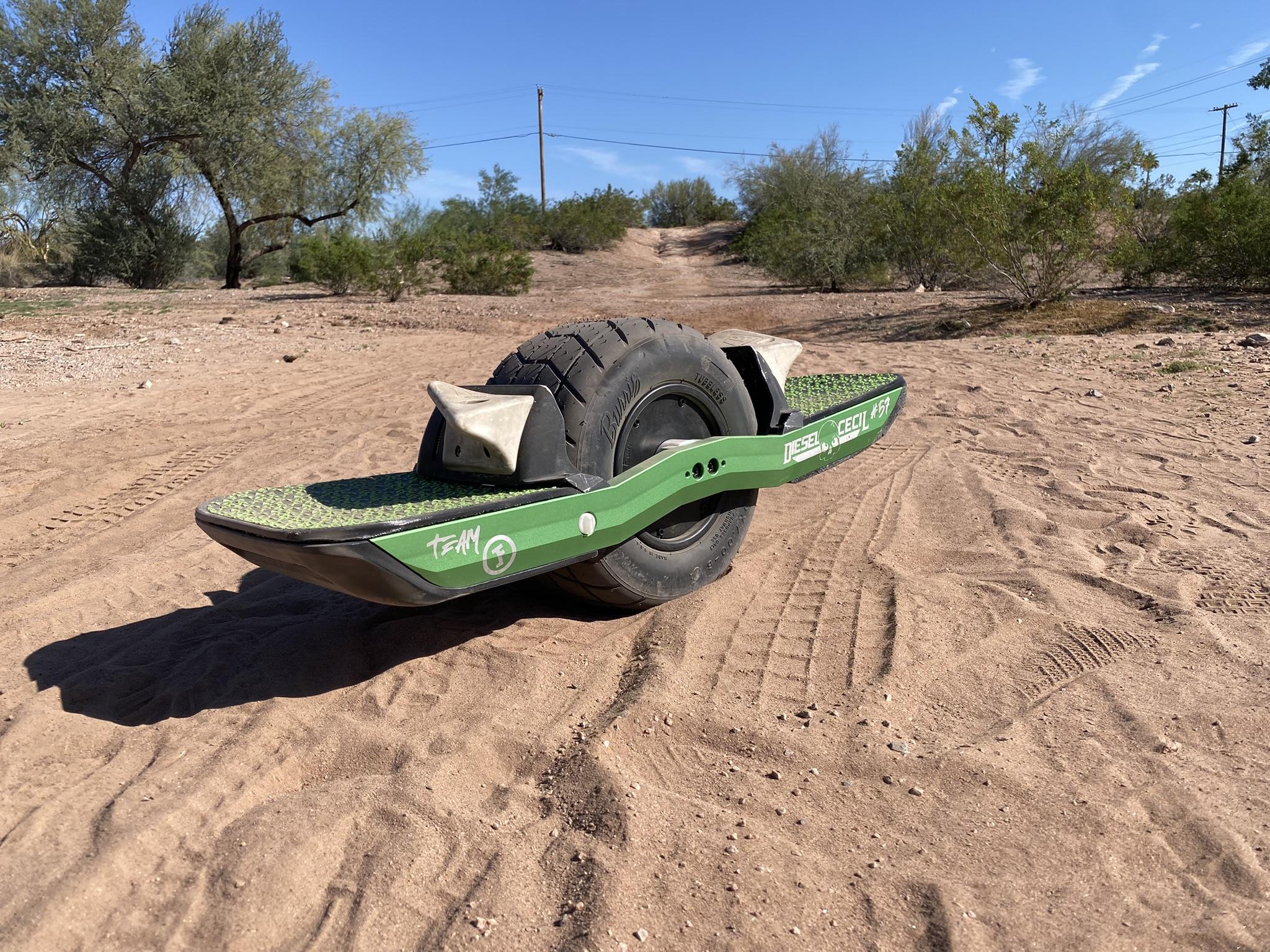
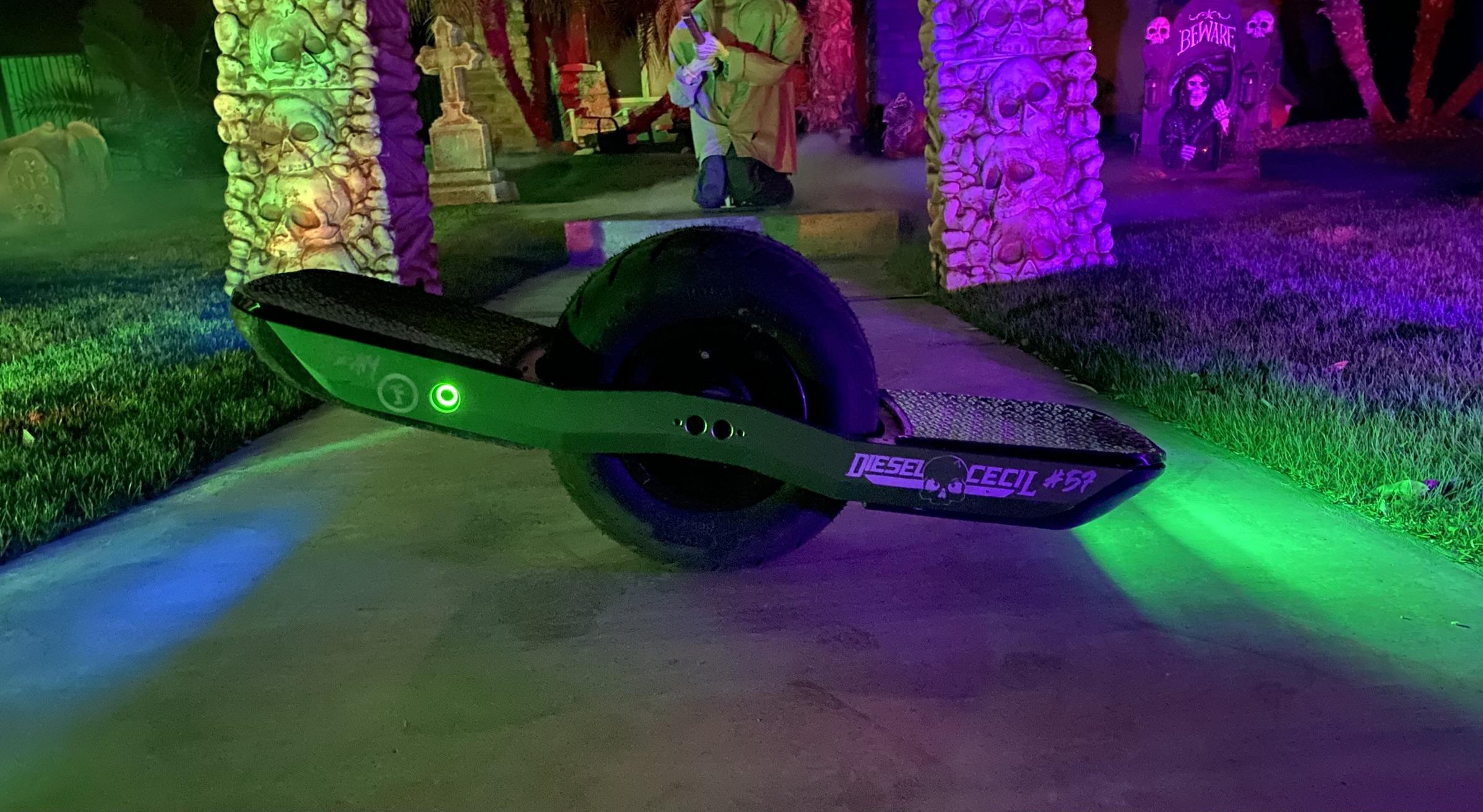
If you have never ridden a onewheel before, take your time. Find a railing to hold onto, and get used to balancing. If you are used to it, have fun. Ride around, enjoy the new power, and tune settings as necessary. These boards have so much mileage, mine gets around 36 miles to a charge, and most the time, I can get places faster then driving, due to no traffic being in the way of bike lanes. They are a blast on road, or offroad, and saves you some gas money. To charge, I would set the charger voltage to about 1 volt less then full charge, and charge around 2A, that is a safe amount, and it will keep your battery healthy for a long time. Otherwise, I hope you enjoy, and check the VESC discord servers for almost any questions you might have!
Peace,
-David