How to Make a Hot Air Balloon in Blender!
by MalDomVi in Design > 3D Design
210 Views, 2 Favorites, 0 Comments
How to Make a Hot Air Balloon in Blender!
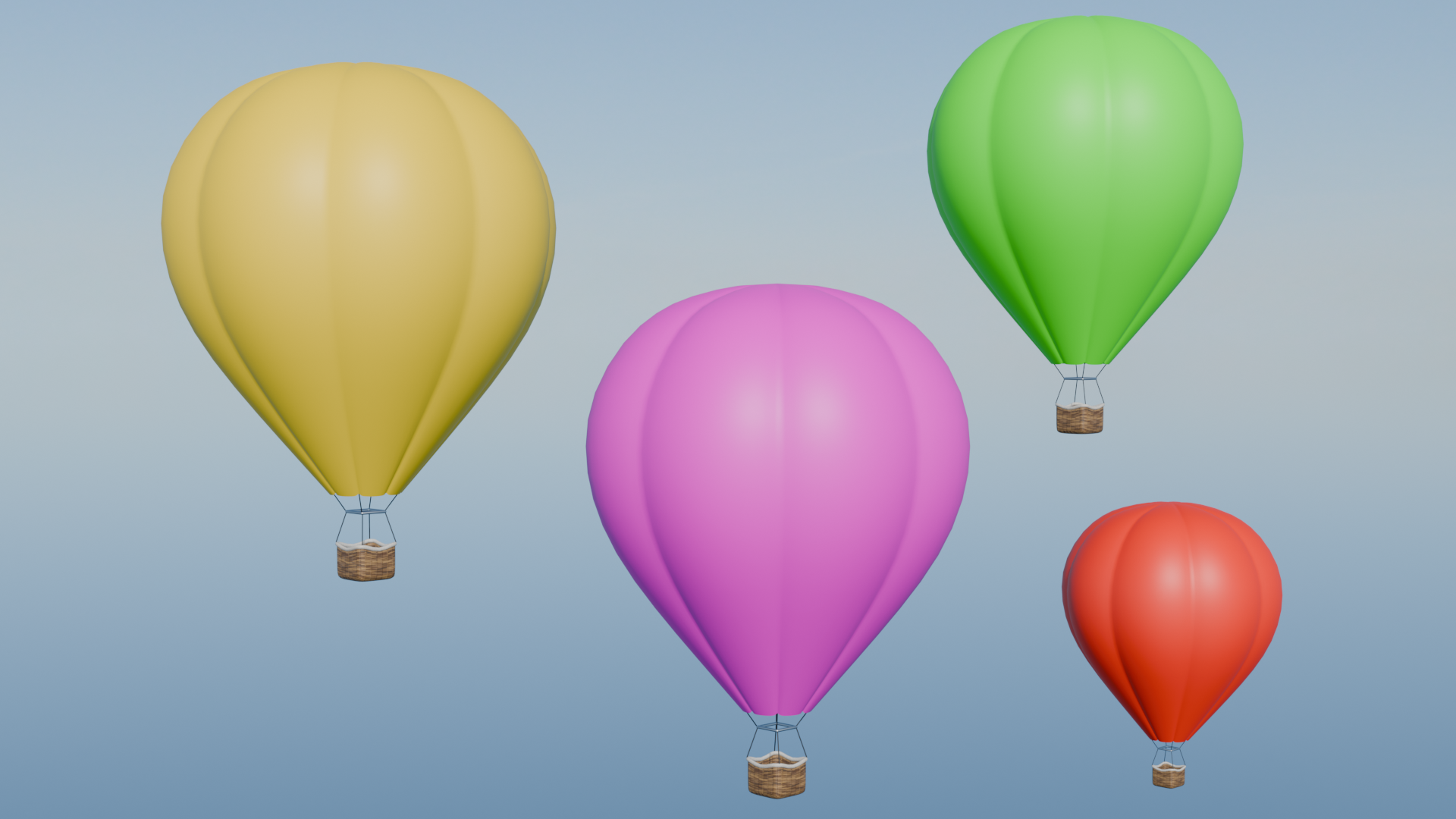
In this tutorial, you will learn how to make a hot air balloon in Blender. This tutorial is designed for intermediate users. Above is the hot air balloon you will create by the end of this tutorial. Good luck and have fun! This tutorial was made using Blender 5.0
Make sure to leave a comment if you need help
Supplies
In this tutorial, you will need the following items:
- Blender: https://www.blender.org/
- A computer
- A mouse and keyboard
Find a Reference Image and Making a Project
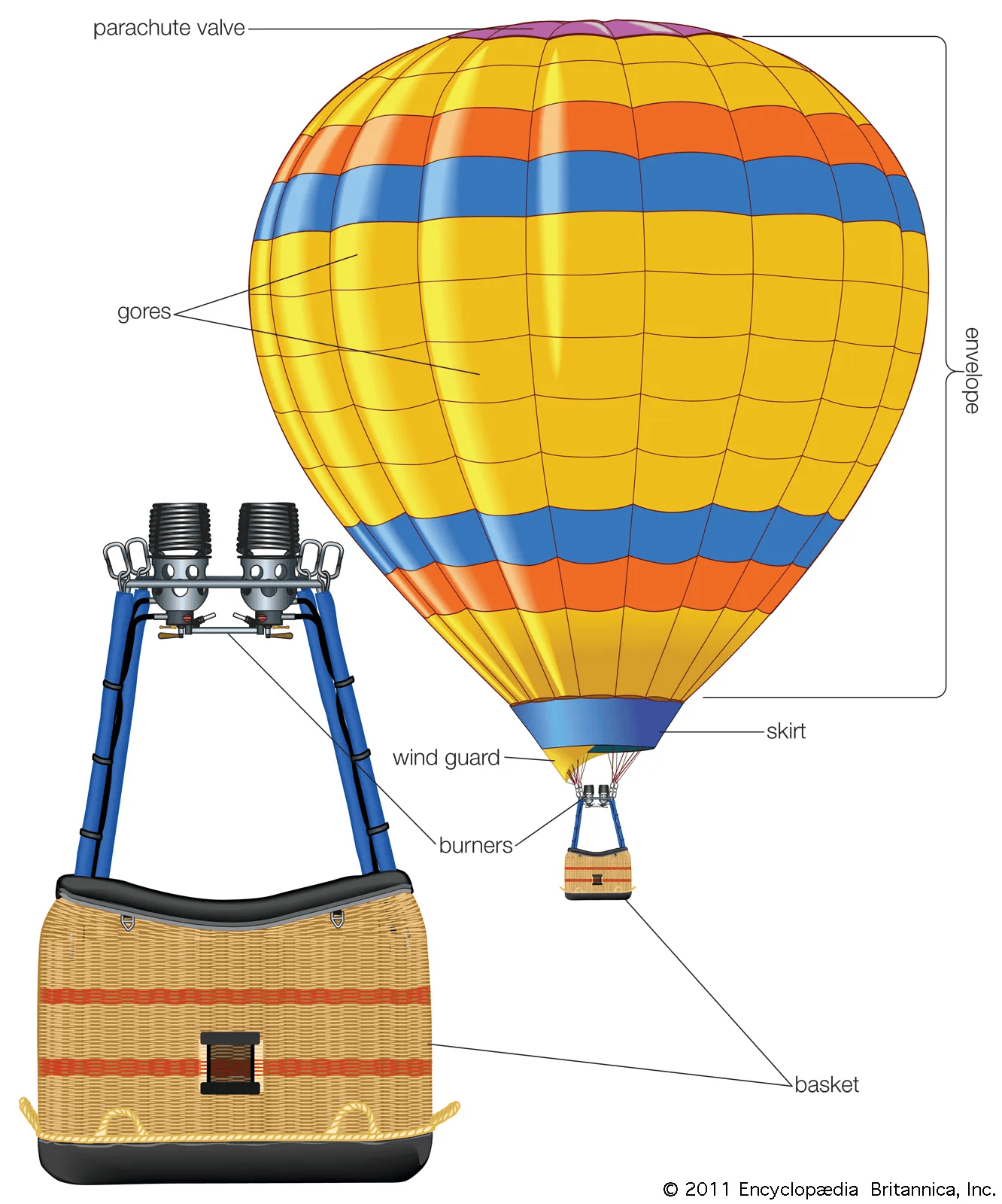
When trying to make anything in Blender, it is always a good idea to have a reference image. Search on your preferred browser for a good image of a hot air balloon. Once you find one, save it to your computer. (I recommend the one that I am using.)
Preparing a Project
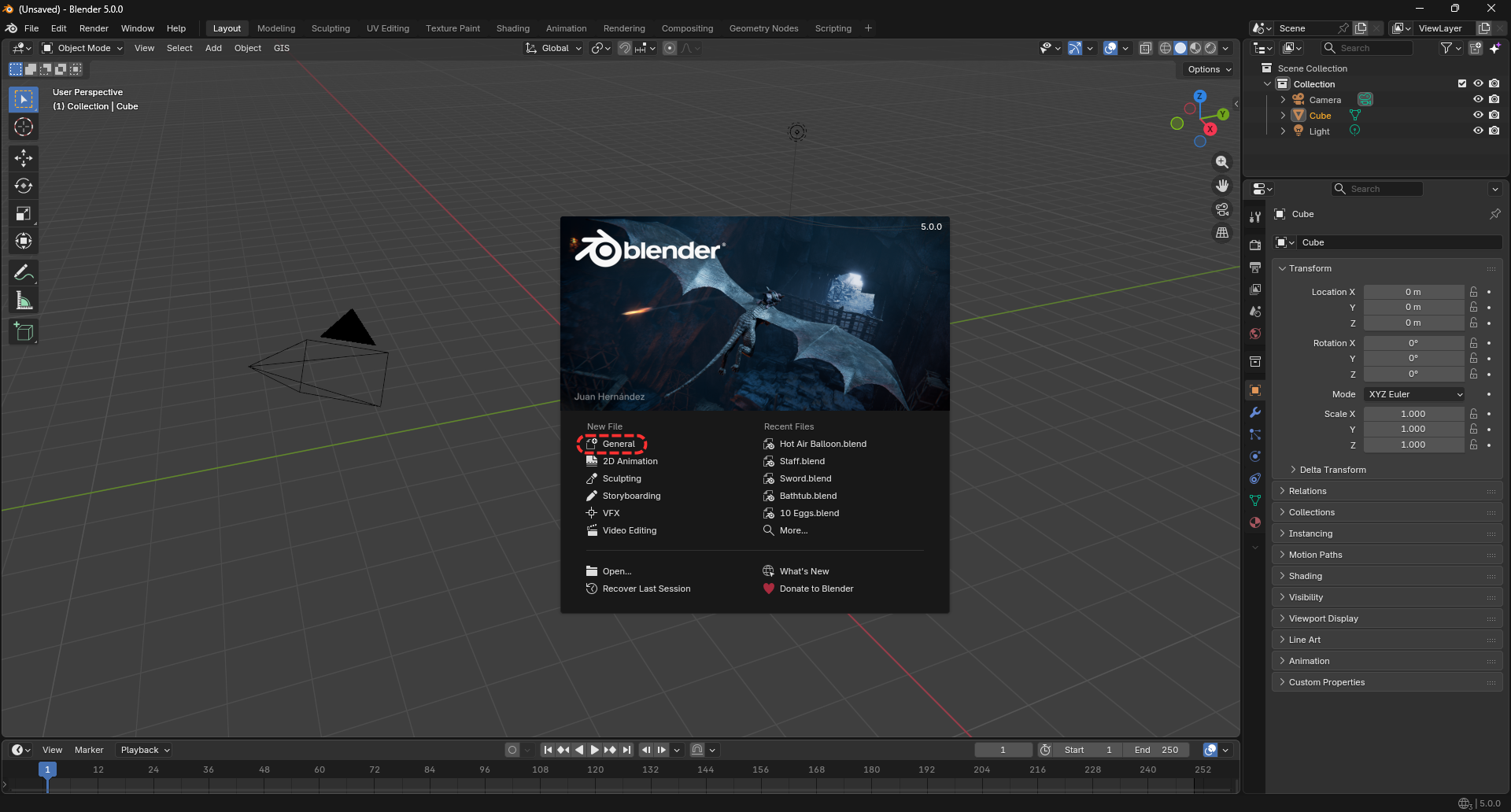
Now, you need to create a new Blender project. To open a new blender project, click General under the New File tab. You will now see a default 3d workspace. Select everything and delete it. Your workspace should be completely clear. Don't forget to save your project by going file-save. You should make sure to regularly save through the span of the project so you don't lose any progress.
Adding Objects
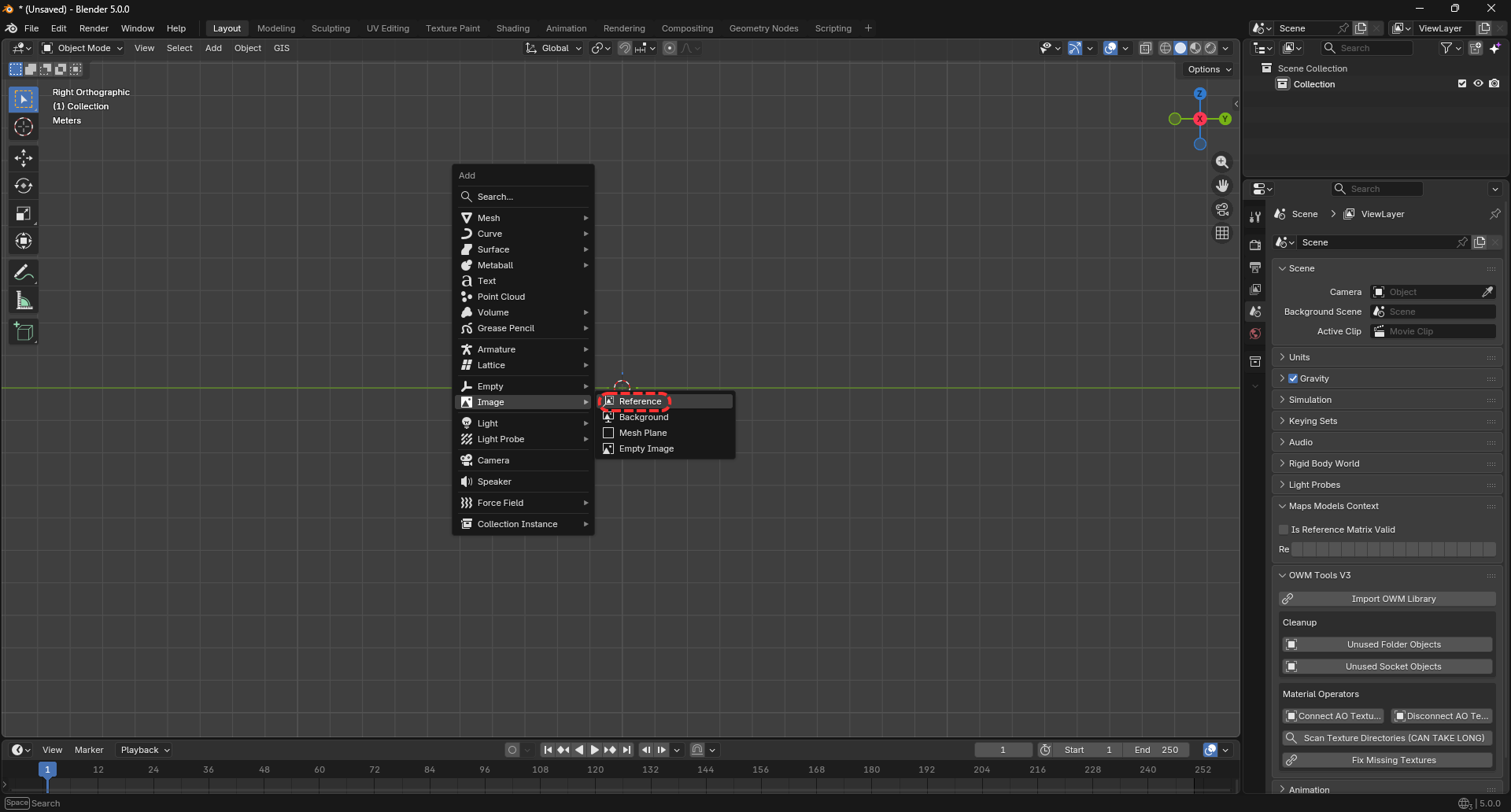
First, we will insert the image you saved to your computer.
- Click num-3 or go to the top right corner to enter orthographic view. This ensures the image is inserted with the right location and orientation.
- Shift-A to open the Add menu
- Click Image-Reference
- Find your image and click open
- A new image should now be in Blender
Adding a Cylinder
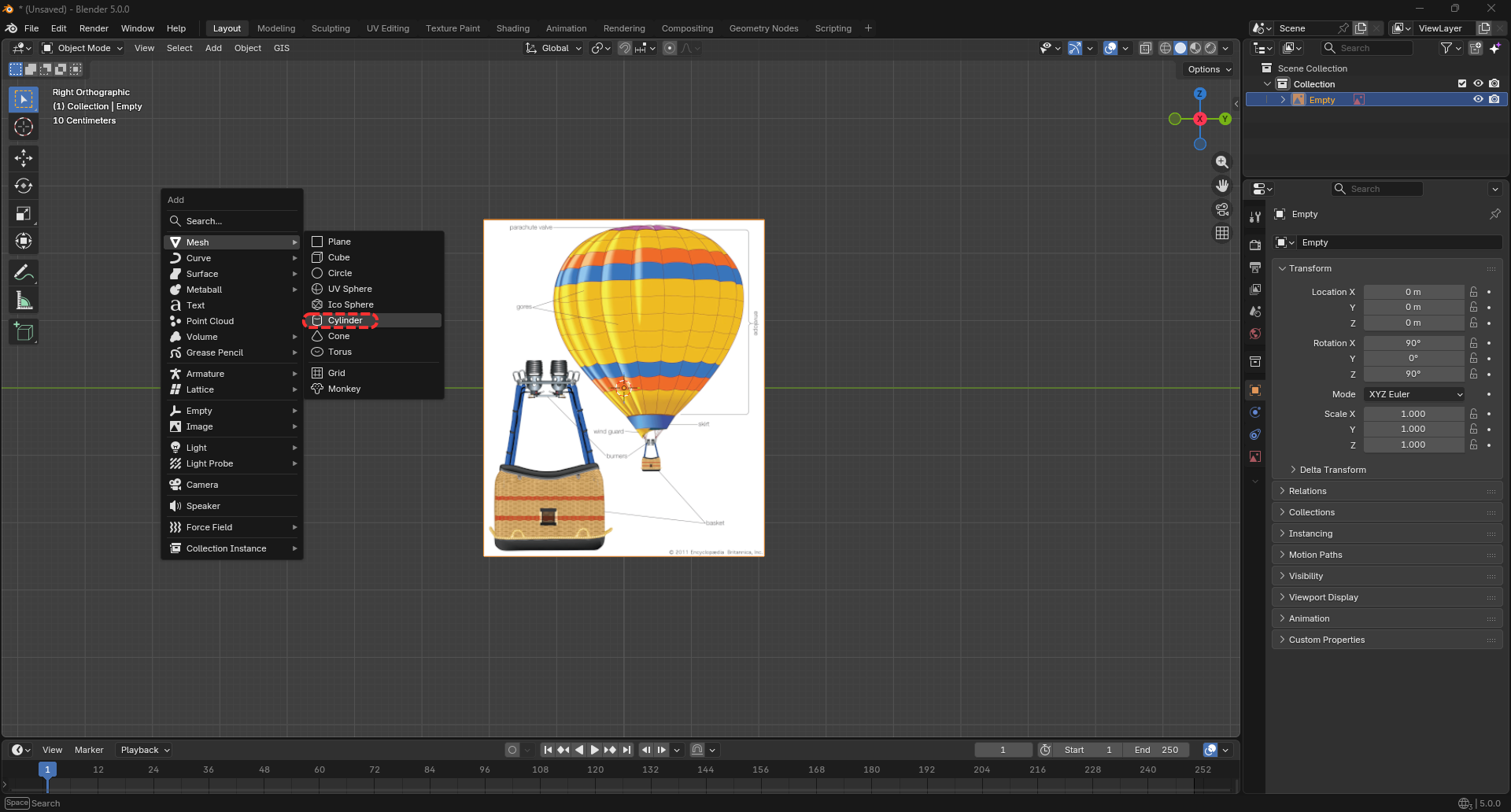
Next, We Will add a cylinder and start making the balloon.
- Shift-A to open the Add menu
- Click Mesh-Cylinder
- A new cylinder should have been added
Scaling the Cylinder

Congratulations, you have finished setting up your project. Now we are ready to make the balloon. You can scale the cylinder in a variety of ways. Use the shortcut G to change the Position. Use S to adjust the scale. You can change the specific axis by using X, Y, and Z. Once you are done, it should be scaled around the balloon. See the image above for reference.
Forming the Balloon

Now that you have a cylinder, you need to make it look more like a balloon. To do that, you can use the loop cut feature and S for scaling the loop cuts.
- Go into edit mode by pressing Tab
- Navigate to the loop cut tool on the left side
- Add a loop cut, then scale by pressing S
- Form the cylinder around the image with more loop cuts
Once you're done, it should look something like the image above.
Deleting the Bottom Face
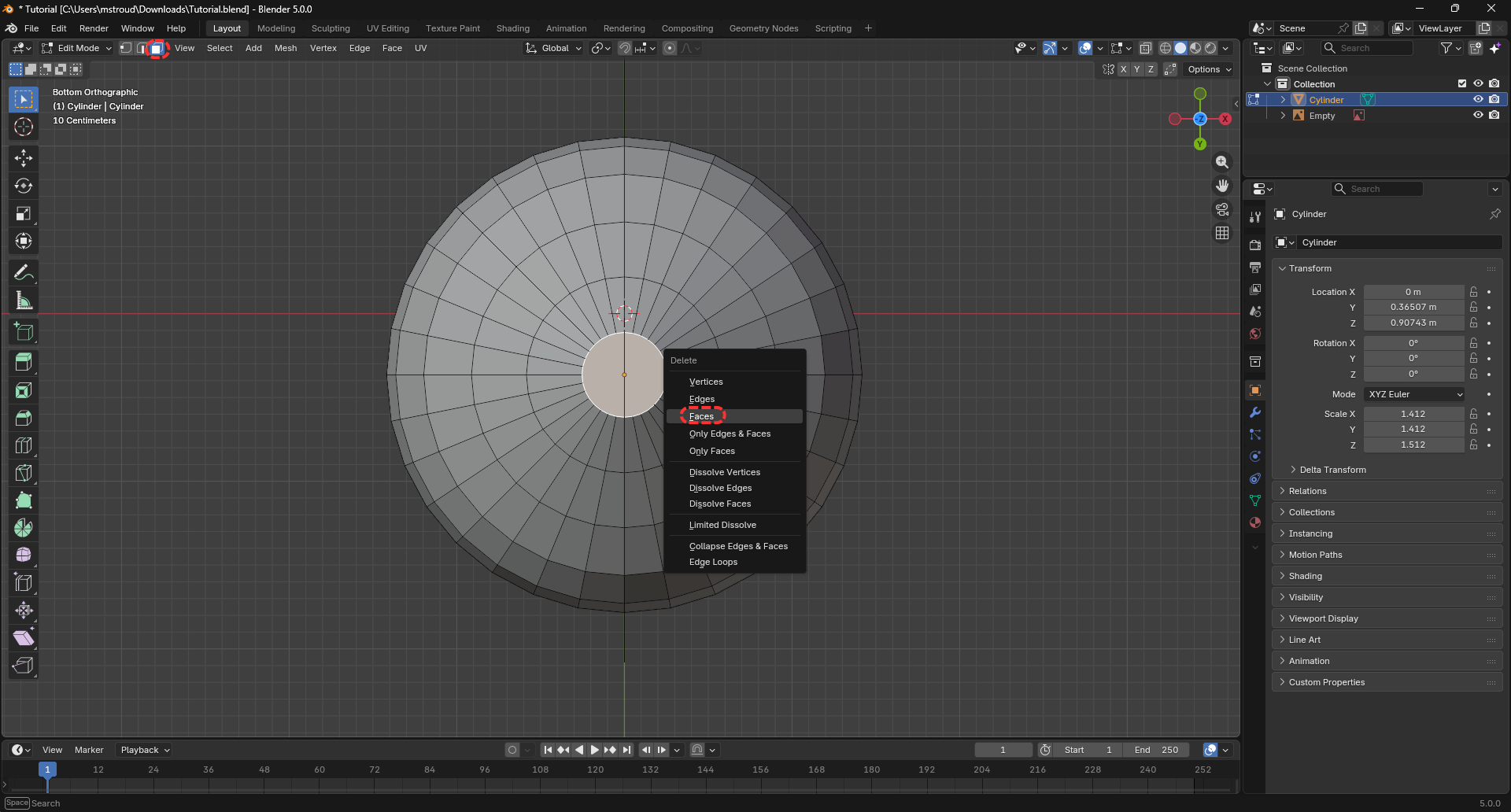
Hot Air Balloons work by pumping hot air into a balloon. There naturally needs to be a hole in the bottom of the balloon. To add a hole, change the selection mode to face. Then select and delete the face.
Selecting Edges
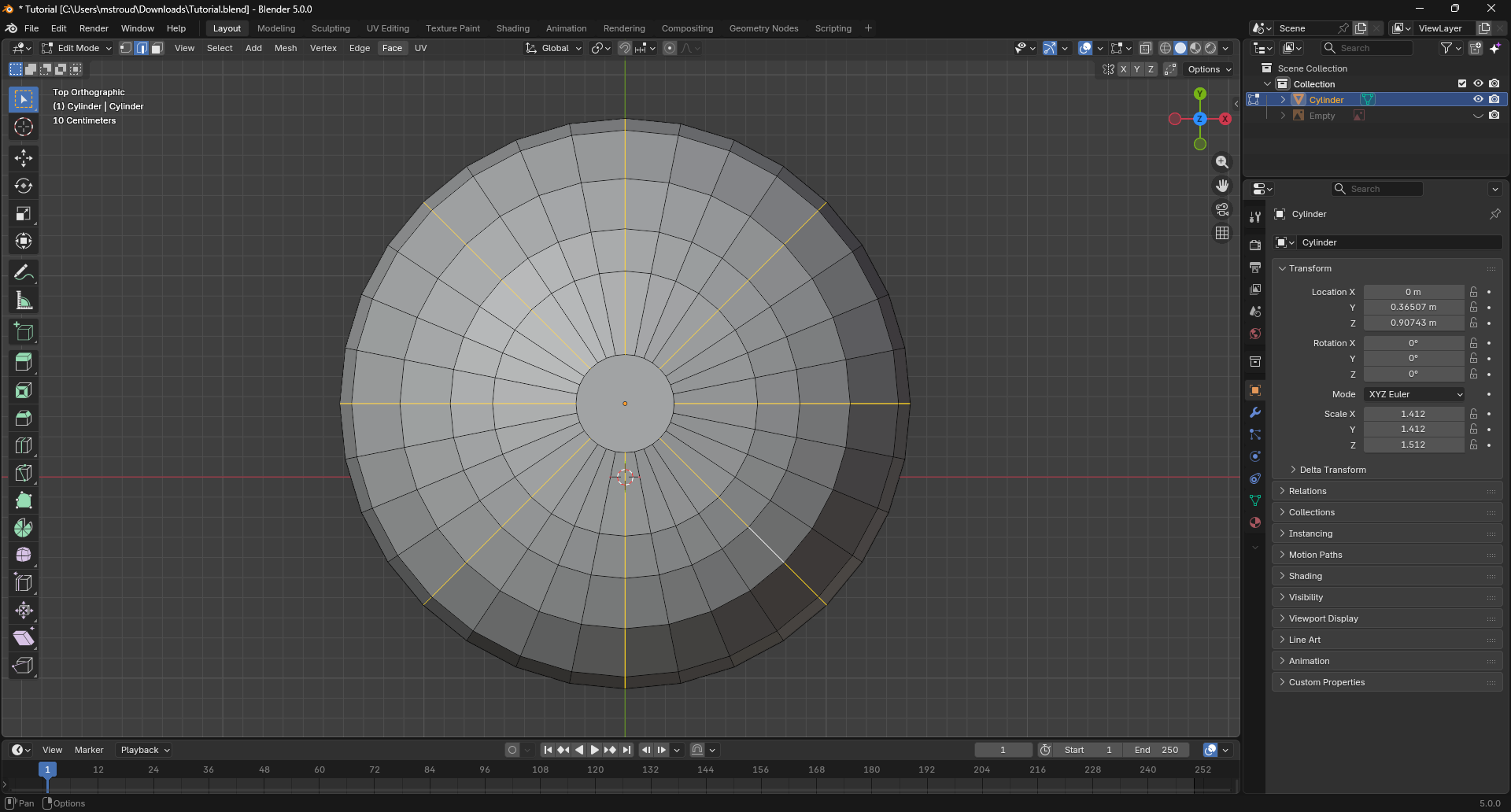
We now have the basic shape of the balloon, but we need to make it even more realistic. We need to add ridges. First, switch to edge selection mode. Select the edges with Shift-Alt, like the image above. Then move on to the next step.
Adding Indents

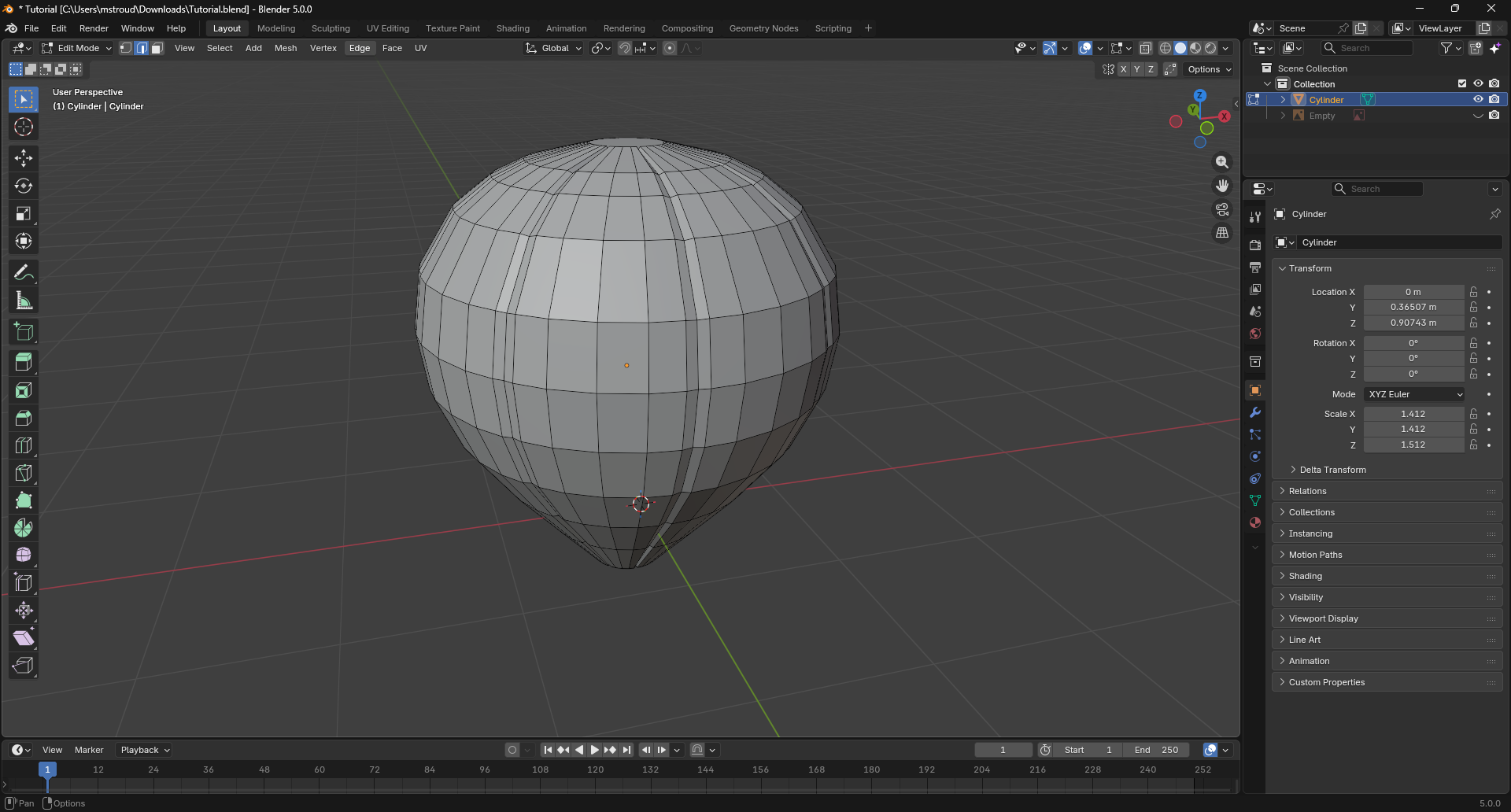
We are now going to make an indent and make some ridges in the balloon.
- With the Edges Selected Press Ctrl-Shift-R
- Move the edges and use the image above as a reference
- Select the original edges and press S to scale them down. You should now have indents.
Making It Puffy
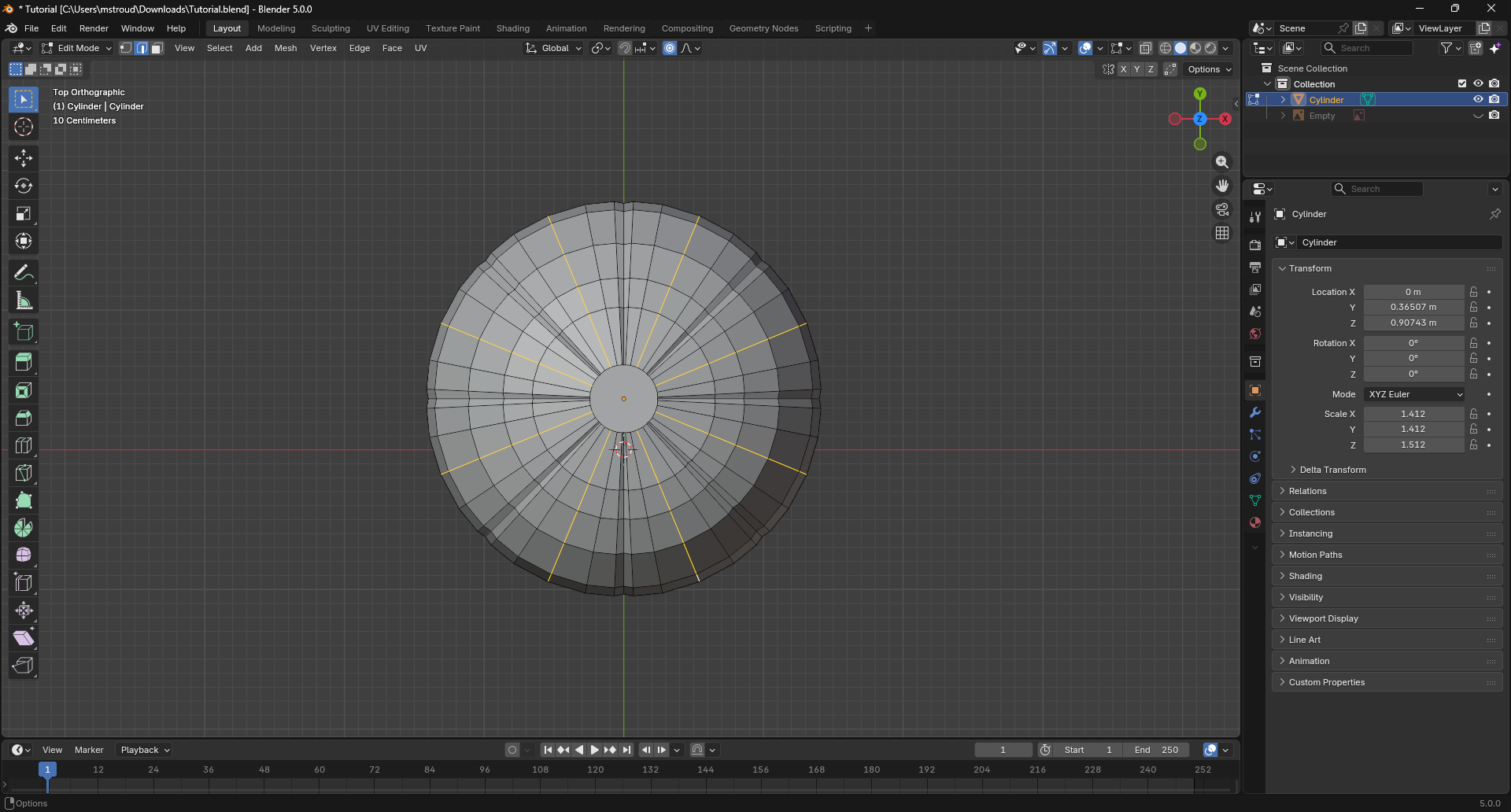
Real balloons are puffy. To achieve this, we will use proportional editing.
- Enable Proportional editing (It is located at the top of the screen
- Select Edges with Shift-Alt based on the image above.
- Scale with proportional editing turned on
- Fiddle with settings and sizing until you reach the desired effect
Adding Modifiers

To make it more realistic, you need to do a few things
- Apply a subdivision modifier
- Shade Auto Smooth by right-clicking on the model.
- Don't apply them yet; we will do that later
Use the image above as a guide. You have now completed the balloon. We will now work on the basket
Preparing for the Basket
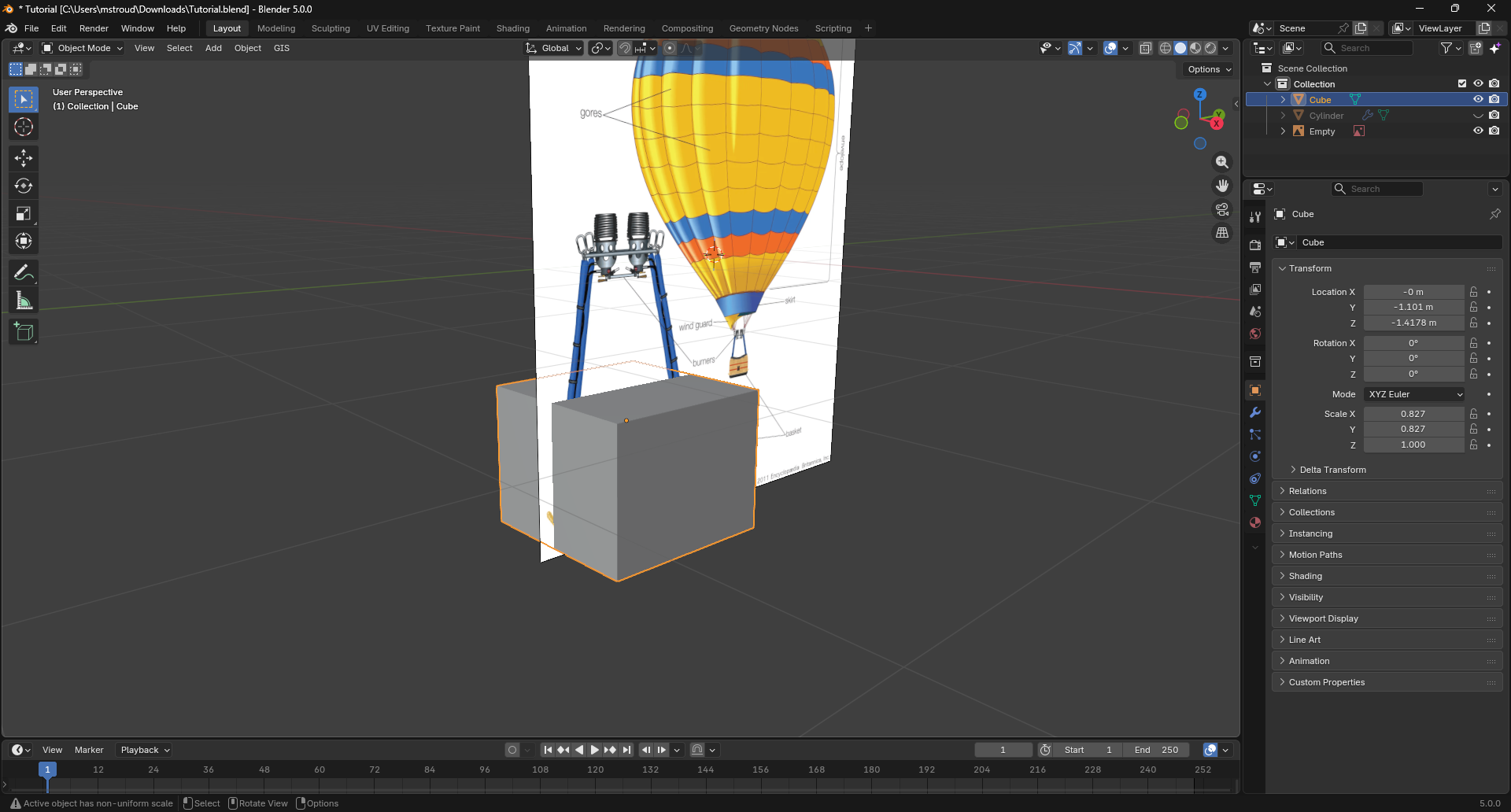
You have completed the first part of the hot air balloon. Now we will make the basket.
- Hide the Balloon
- Keep The Reference Image
- Then add in a cube and scale it to the basket (See image above)
- This is the basic shape of your basket
Beveling the Basket

We need to make the basket look more realistic
- Delete the top face on the basket
- Select everything using A
- Bevel: The selected Vertices using Ctrl-B
You should now have the basic shape of a basket. (See image above)
Adding Detail

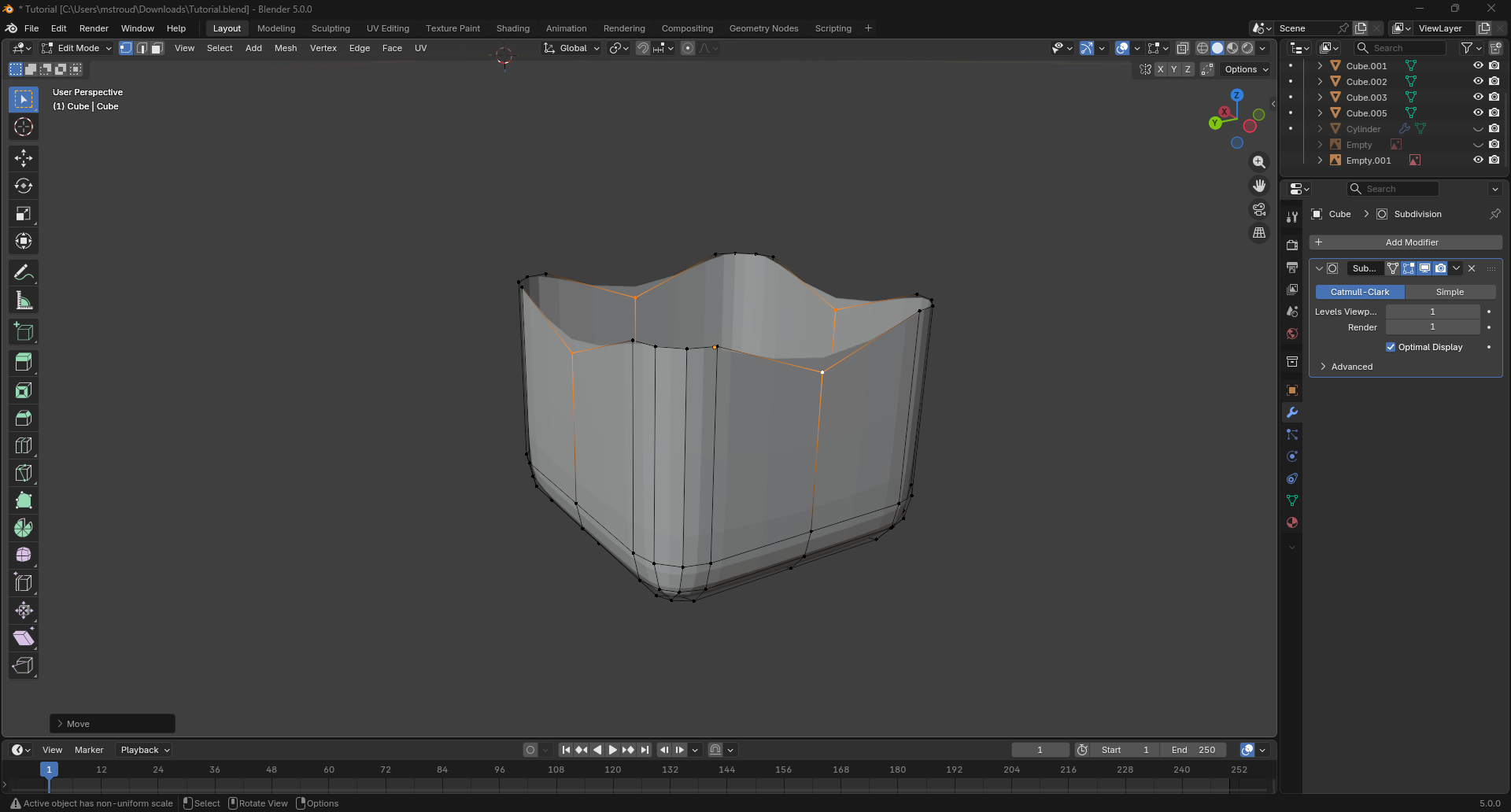
The basic still looks a little flat
- Add 2 loop cuts (See Image for Reference)
- Pull Top Vertices Down
- Add a Subdivision Modifier (Please Apply It)
- Also, Add a Solidify Modifier (Please Apply It)
Making a Curve
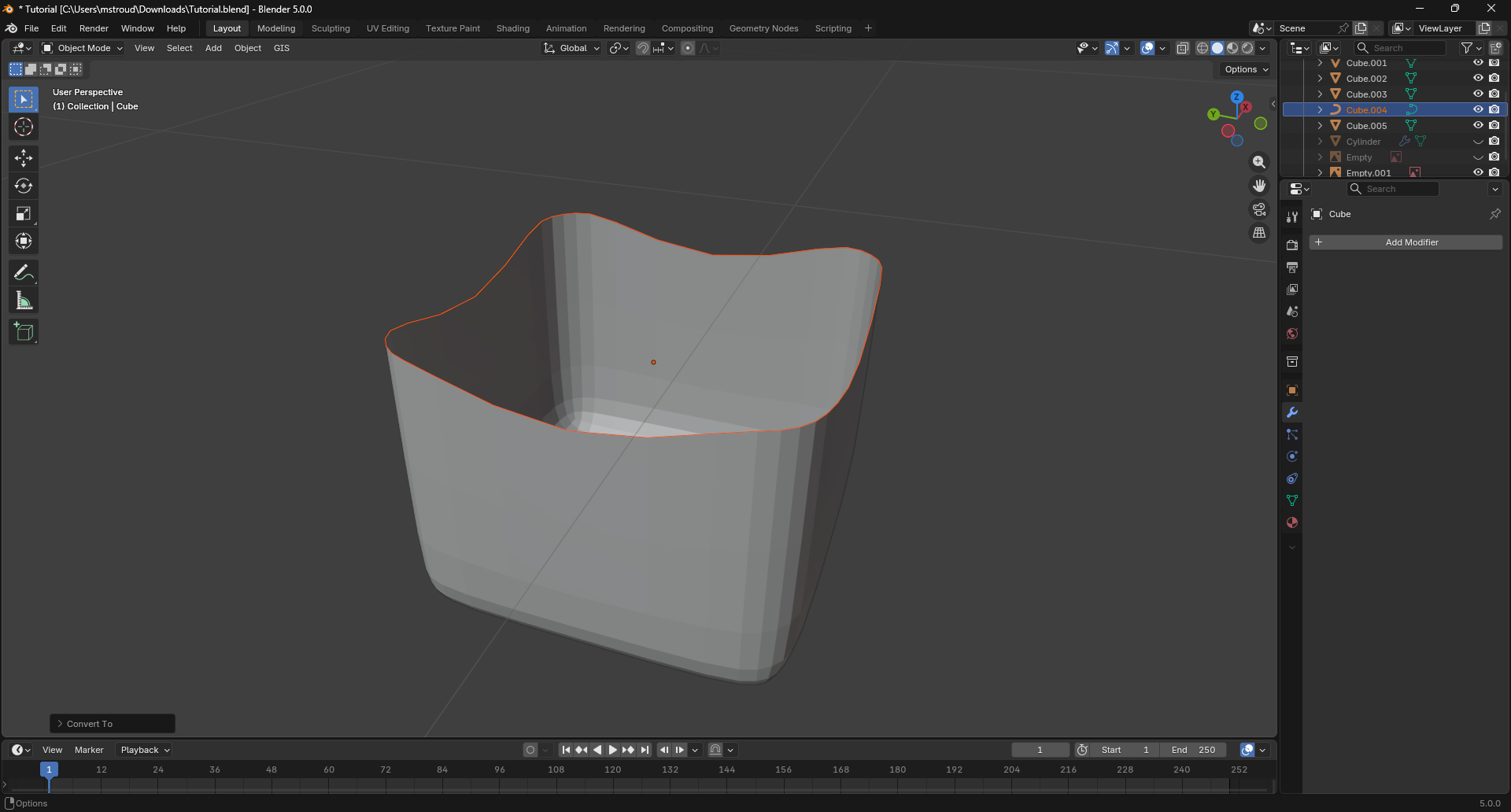
- Select all top edges using Shift-Alt
- Press p and then press by selection
- With this new object, go to Object → Convert → Curve
This should have made a new curve
Adding Thickness to the Curve
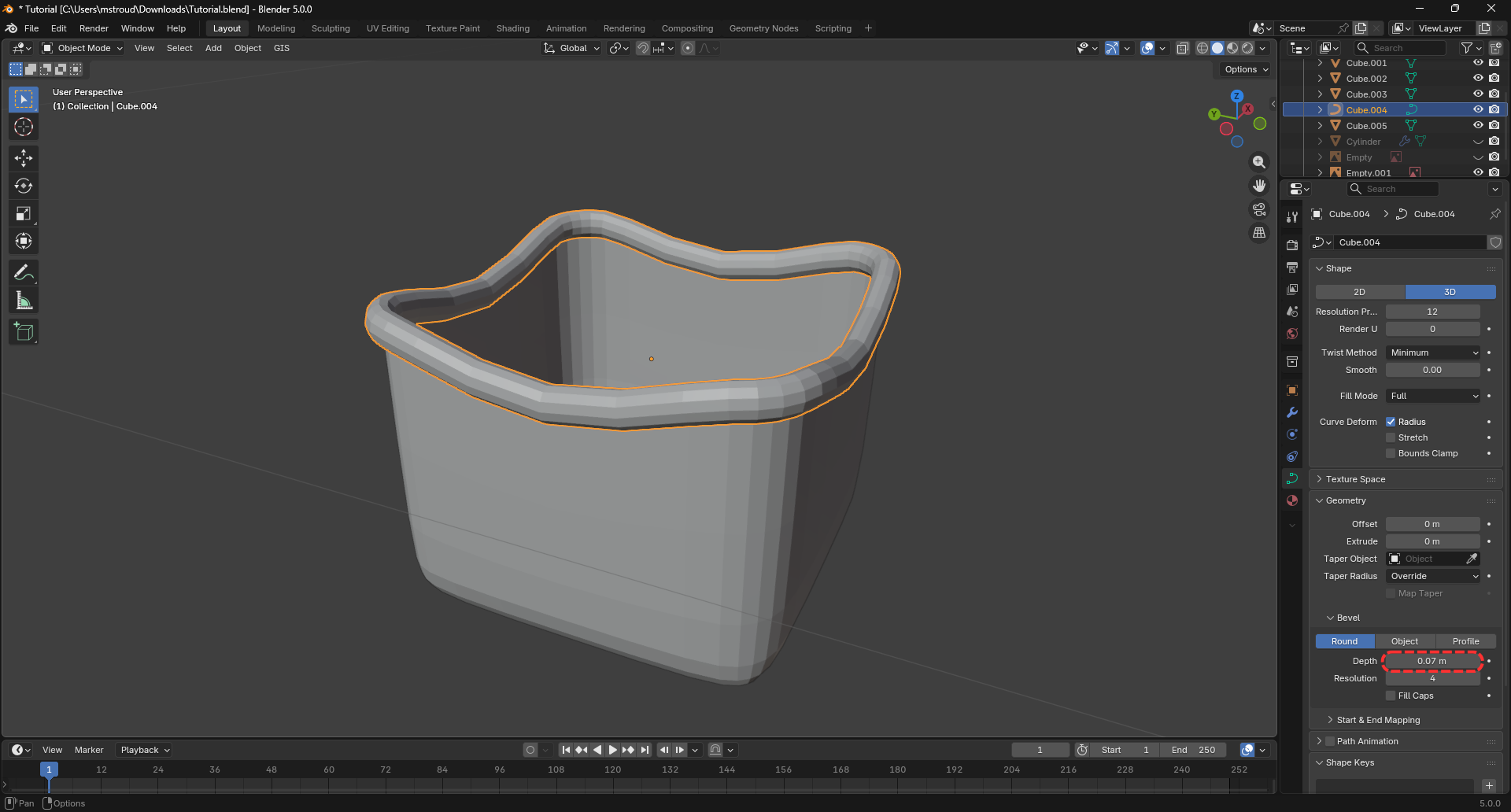
We now need to add thickness to this curve. To do this, go to the curve bar (data bar), then go to geometry-bevel-depth. Adjust the values intill you get the desired effect.
Making the Metal Components

We need to add some structure
- Insert a plane
- Go to Edit Mode and press I
- Delete the Inner face
- Extrude the plane
- Bevel the plane
- You should get something that looks like the image above
Joining the Basket

- Converting the curve back to a mesh (Object-Convert-Mesh)
- Join the two selected pieces in the image with Ctrl-J
Scaling the Basket to the Balloon

Line the basket up with the balloon and make it the correct size. You can also delete the reference image after this step.
Adding Ropes to the Balloon

We will also join the Balloon and the objects we joined earlier. Once we have done that, enter edit mode. To create a rope, select two points and press F. Then, go around the balloon and connect the pieces. It should look like the image above once you are done.
Adding Thickness to the Rope
To do this, we need to select all of the ropes in edit mode and press P, and then by selection. Now go object-convert-curve. Then go into the Curve tab and change the bevel Depth. You can fiddle around with the settings until you get the desired effect. Finally, you can convert the curve back into a mesh by going object-convert-mesh.
Getting Ready for Textures
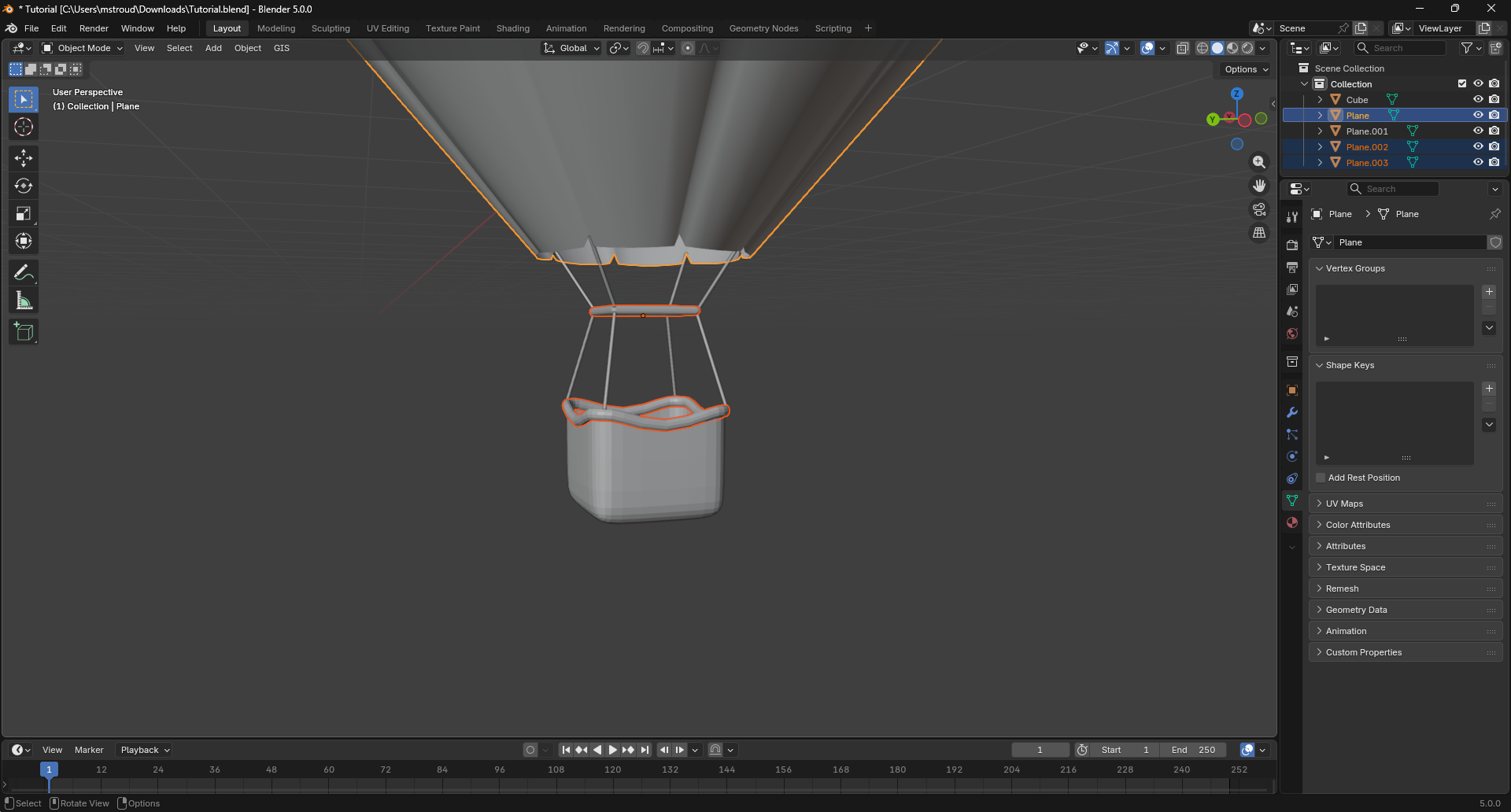
We Now Need to separate the objects again. To do that, go into edit mode. Then, To Select and split an object, first press L, then press P and By Selection. When you are done, you should have 3 separated objects. Use the image as a reference. Reapply the subdivision modifier to the balloon. Make sure to actually apply it this time.
Adding Textures
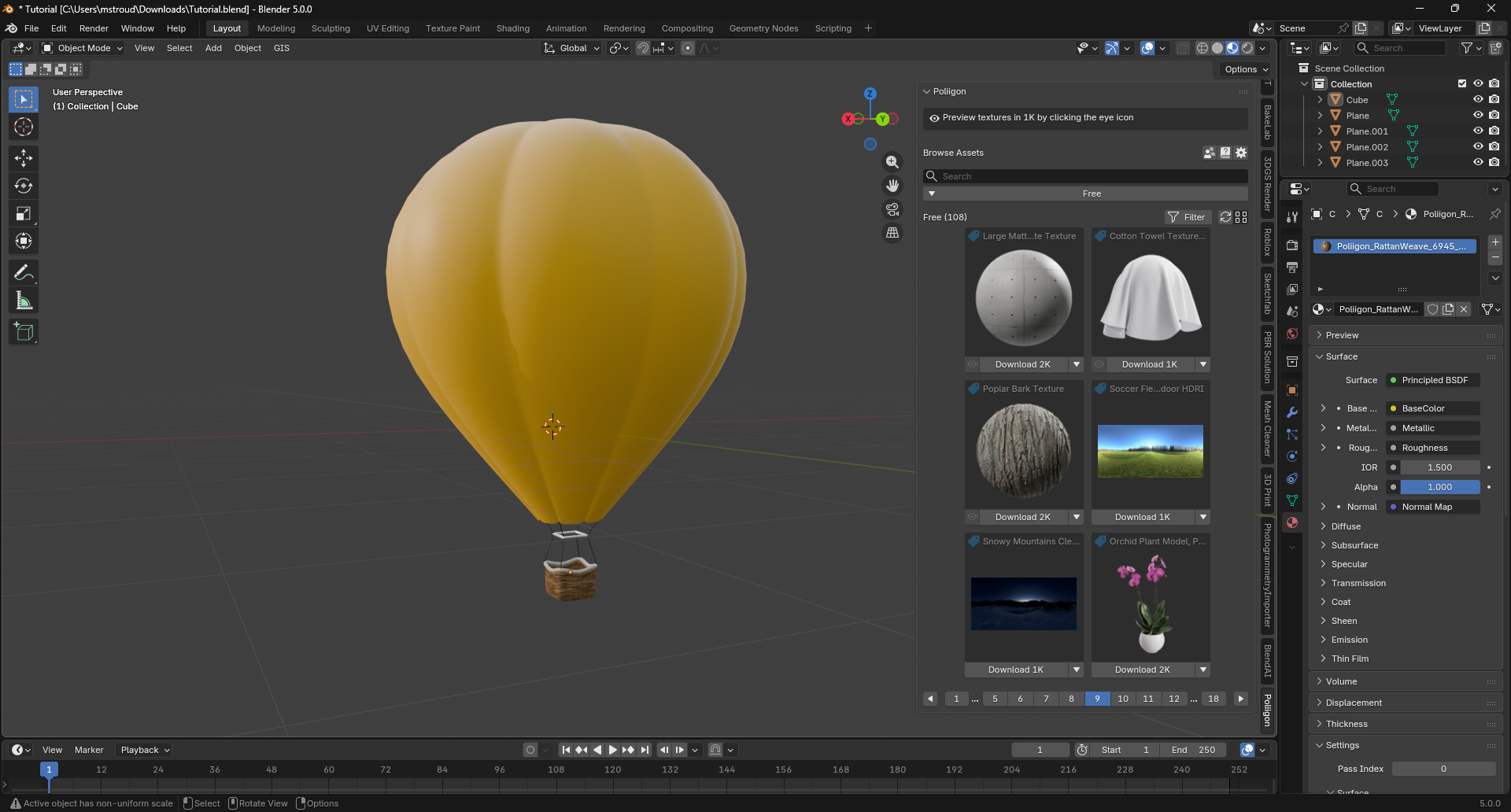
The Texturing Is really up to you. If you are completely new to texturing, the Poliigon addon is really easy to use. If you are a bit more experienced, you can try making your own or using other sites like Polyhaven and downloading directly. This is my final textured model.
Poliigon: https://www.poliigon.com/
Polyhaven: https://polyhaven.com/
Rendering
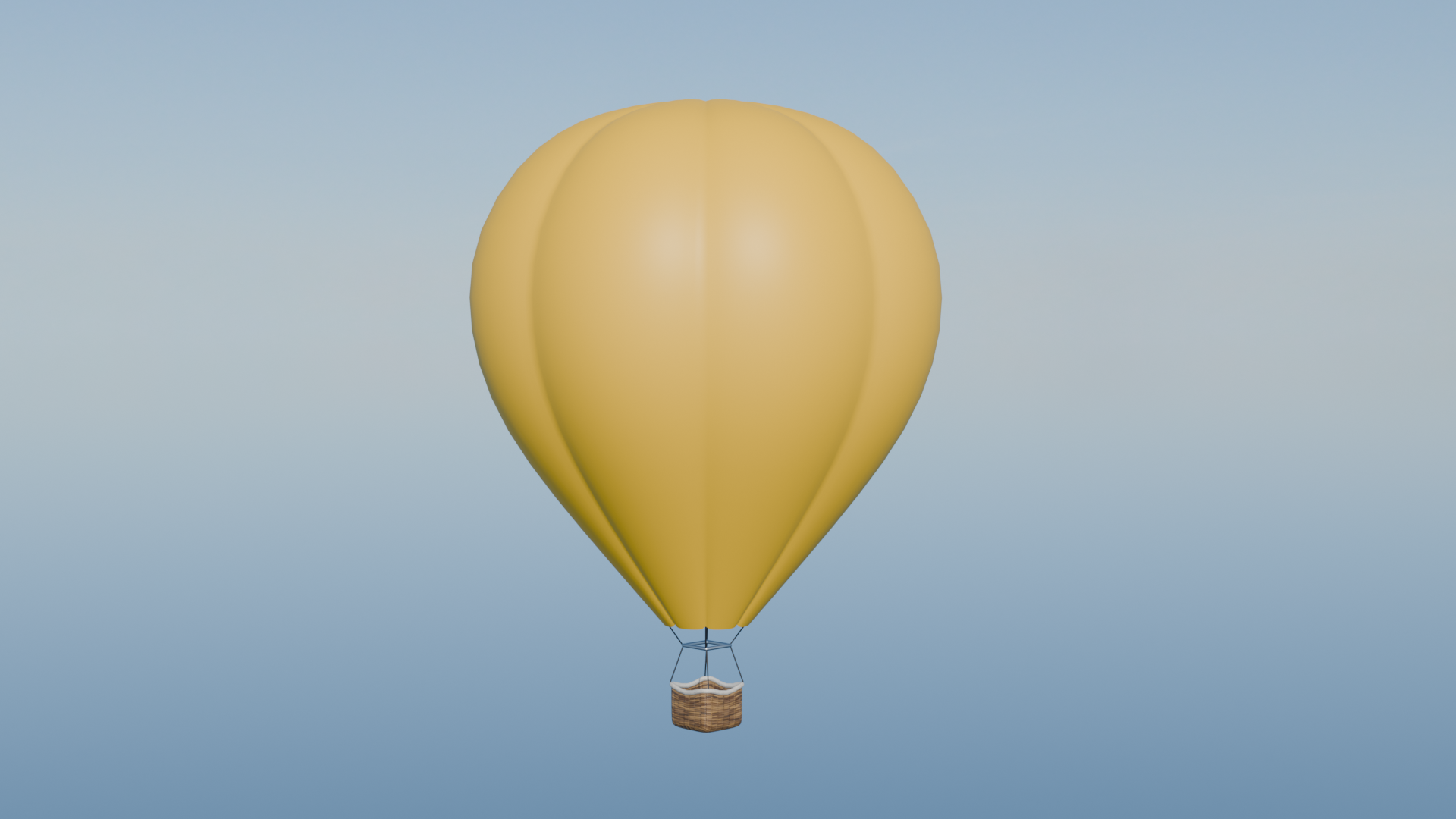
This is also up to you what you want to do and what you want to use it for. I am going to use HDRI from Polyhaven. This is my final Render.
Conclusion
You learned how to make a hot air balloon in a blender. Please leave a comment if you are confused. Also, make sure to favorite and share this model. I would love to see what you have made!