How to Post on Little Red Book / RedNote / Xiaohongshu / 小红书
by pheebsmoon in Circuits > Mobile
54 Views, 2 Favorites, 0 Comments
How to Post on Little Red Book / RedNote / Xiaohongshu / 小红书
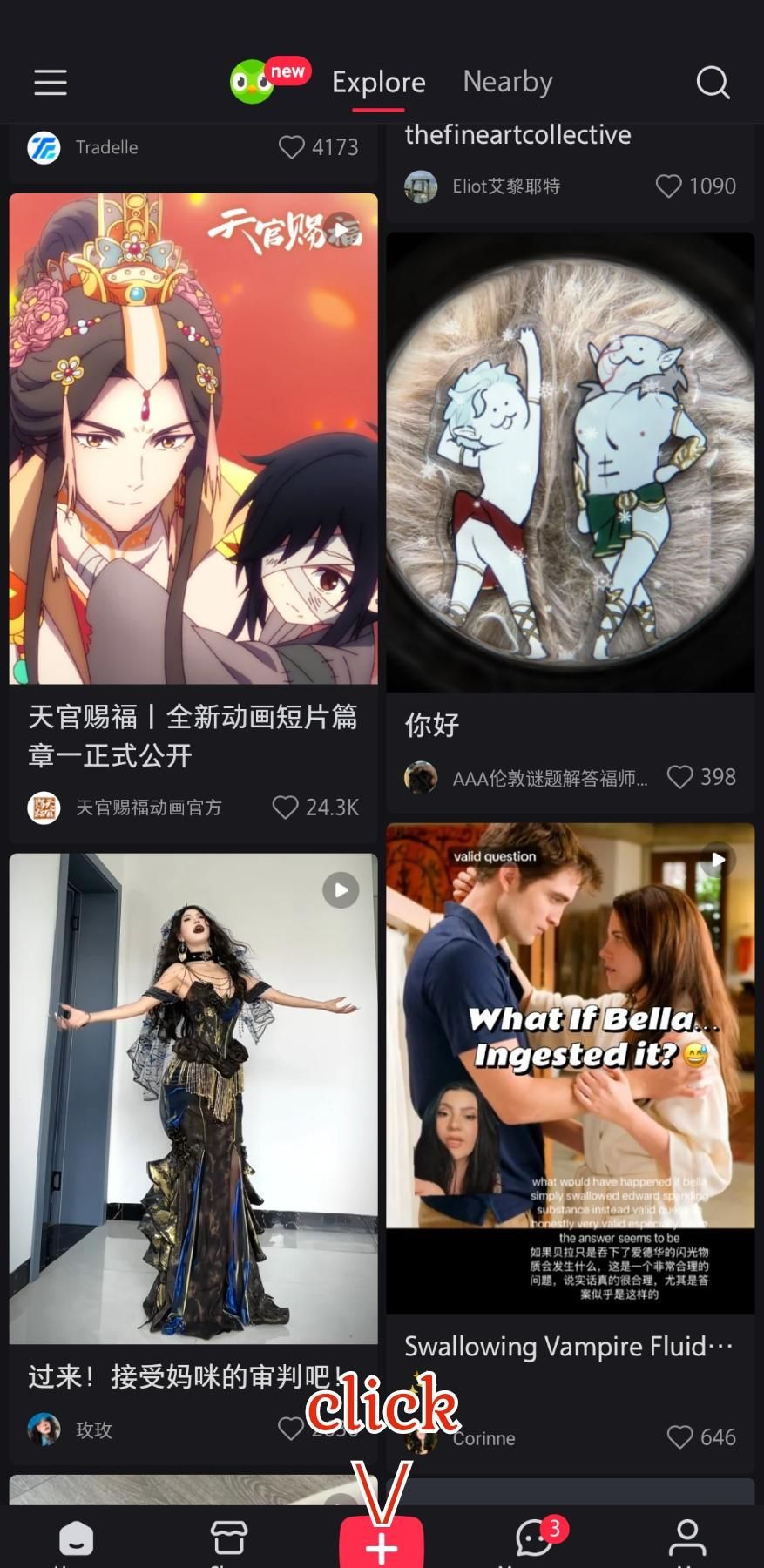
So you want to post to RedNote. Here's a step-by-step on how to do it.
These instructions assume you have already downloaded RedNote and set up your account.
Open RedNote, Add New Post
.jpg)

The first step is to open the app. This should automatically open the Explore page. From there, you should see the red + button at the bottom of your screen. Click it.
Choose a Video or Create a New One

Once you click the +, your screen should look like this. If you have already made a video and simply want to upload it, click on the video you made. Because RedNote glitches a lot, filming and editing on a different app will be easier anyway. Skip any steps involved in filming.
If you want to film and edit in-app, click the words "camera" on the bottom right of your screen. All steps going forward assume you are filming in-app.
Get Rid of Beauty Filter


The app automatically filters your face. If you would like to get rid of this filter, or adjust it, click the smiley face at the top right.
This menu will pop up. If you want to get rid of the filters, click the box with the Ø symbol. All beauty filters should disappear.
If you want to adjust filters, click the buttons to the right of the Ø button. Each button will select a different part of your face. Use the slider to tweak the filters until you are satisfied.
Start Recording

Once you are confident with or without the beauty filter, it is time to start filming. Hold the white circle at the bottom of your screen for as long as you want to record. You can do this multiple times to film multiple clips for your video.
When you are done, click the red checkmark in the bottom right hand corner.
Add Text

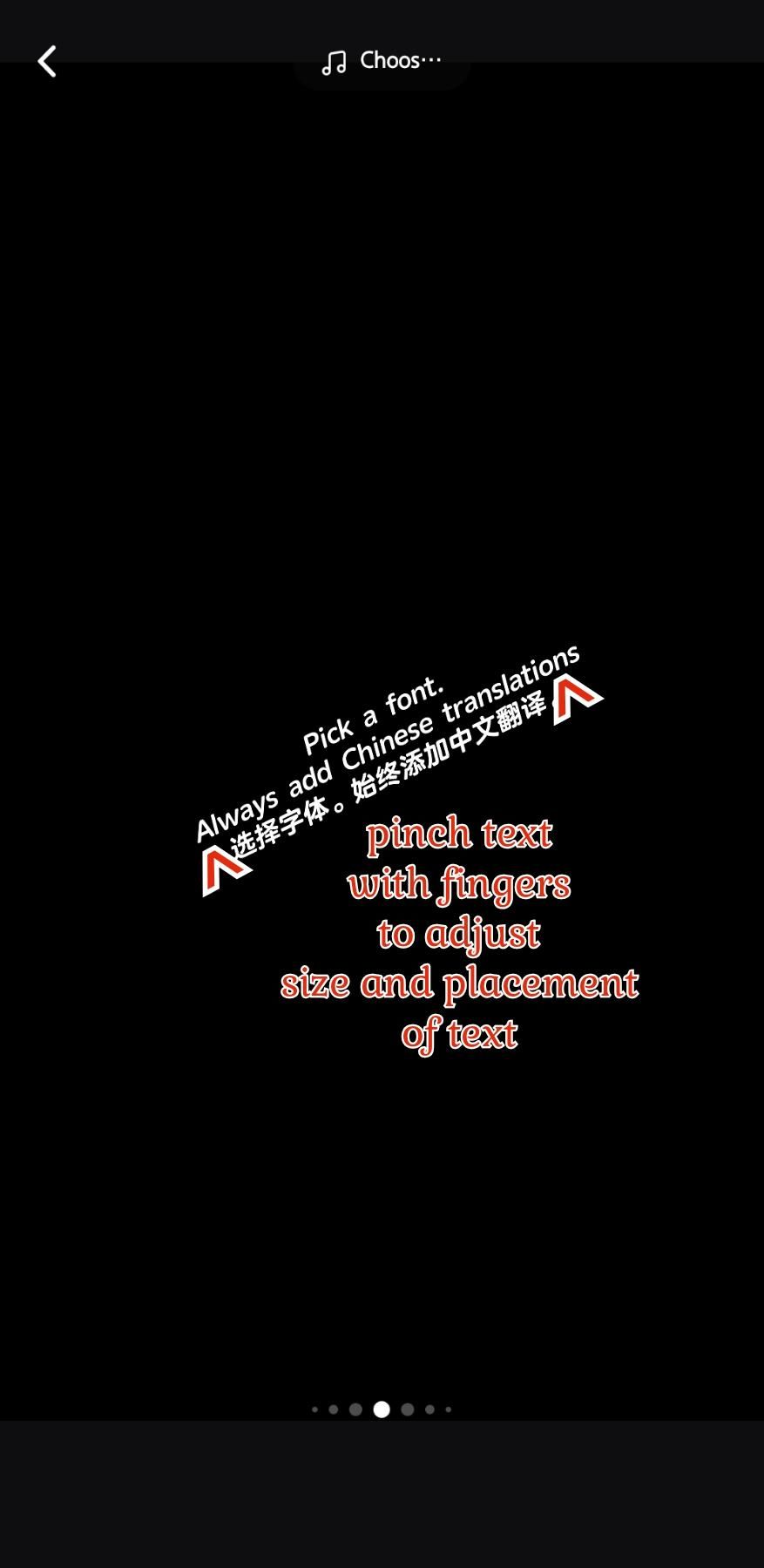
When you are done, you will see an editing bay that looks like this. You will want to add captions in both English and Simplified Chinese. Write out all of your text and translate it in your preferred app. Imperfect translations are accepted on this platform, so do not worry about miscommunication. Netizens understand there is a communication barrier.
Click on the T in the bottom left hand to pick a font. Type in or paste your text.
To adjust the size and location of the text, pinch the sides of your text box and move to where you need it to be.
(The screen in these screen shots is black because of a glitch. If this happens you might have to go back and forth between the editing bay and the filming bay until the app reloads your video and cooperates. If that doesn't work, you might have to refilm.)
Adjust Textbox Timing


A textbox will automatically only stay on a video for a few seconds. To decide how long the text stays on screen click the textbox. The video timeline will appear at the bottom of your screen. The red box represents how long the textbox is on the screen for. To adjust timing, drag the sides of the text box in either direction.
When you are done editing your textboxes and video, click next.
Add Title and Caption

Click on the part that says "title" to add title. Click on the part that says "caption" to add caption. Remember to use translations from your translation app so Chinese Netizens can understand your post! When you are done click the red button that says "Post" in the top right hand corner.
Wait for It to Upload


It should start uploading immediately! A bar at the top of your screen on your Explore page will track upload progress for you. When it has posted, the bar will say "success." You will be able to look at your video on your profile once it is posted.
Congratulations! You have posted to RedNote!