How to Record Screen Online for Free
by alexaice in Circuits > Tools
20 Views, 0 Favorites, 0 Comments
How to Record Screen Online for Free

Whether you’re creating a tutorial, sharing a demo, or reporting a bug, free screen recorder makes it easy to capture your screen right from your browser no software installation required. Because it runs online, you can get started in minutes and record exactly what you need: your entire screen, a specific app window, or a single browser tab.
You can include your microphone for voice narration and, if supported by your browser, add system audio or a webcam overlay for picture‑in‑picture explanations.
This step-by-step guide will walk you through setting up your recording, granting the necessary permissions, starting and stopping a capture, and saving or sharing the final video. We’ll also cover a few quick tips to improve audio/video quality and troubleshoot common permission issues.
Supplies
What you’ll need:
- A modern desktop browser (Chrome, Edge, Firefox, or another browser that supports screen capture)
- A stable internet connection
- Permission to access your screen, microphone, and (optionally) camera when prompted
Open the Online Screen Recorder Website

Go to https://screen-recorder.io/ in a desktop browser (Google Chrome or Microsoft Edge recommended).
Start the Online Recorder
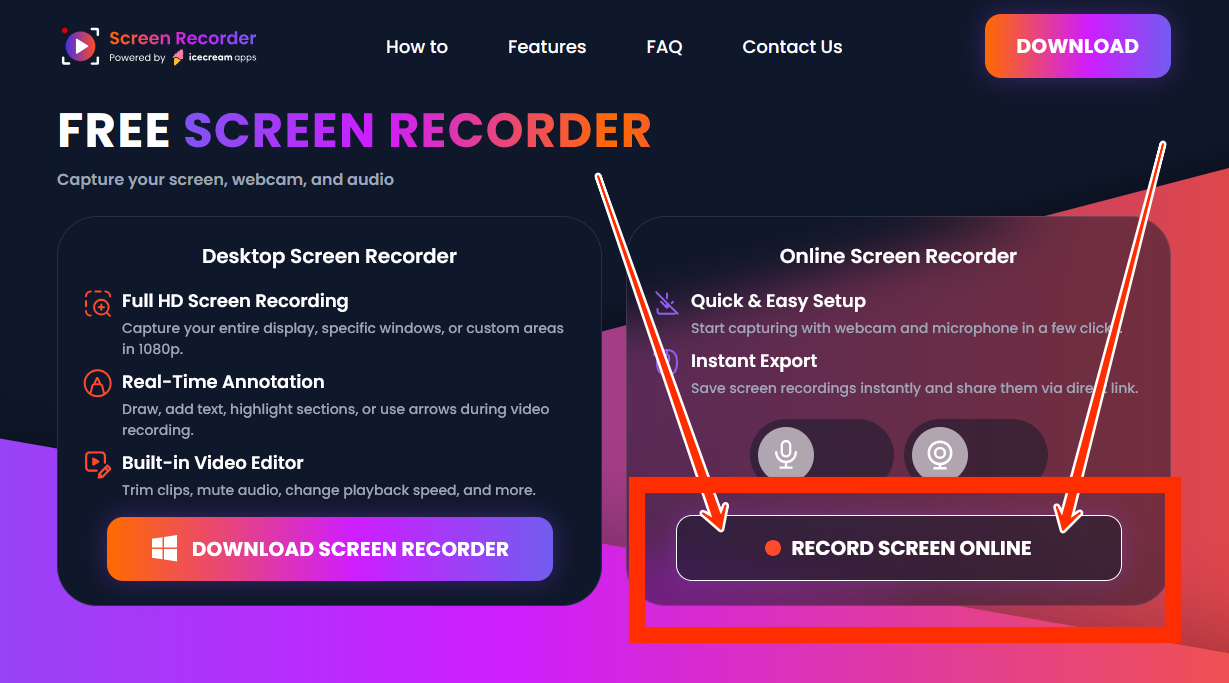
Click the "Record Screen Online" button.
Choose the Area to Capture

When your browser prompt appears, pick one of:
- Entire Screen (records everything on one monitor)
- Window (records a single app window)
- Browser Tab (records just one tab)
Allow the video recorder to see and record the selected screen, area or app.
Set Audio Sources
- Microphone: Allow access and choose your mic if prompted. Speak and watch for level movement (if shown).
- System audio: Use the Share audio option noted above. If unavailable, consider recording a Browser Tab in Chrome/Edge.
Start Your Recording Online

Click the "Allow" button to initiate the screen recording. Perform the on-screen actions you need.
Stop the Recording
Click Stop in the recorder, or click Stop sharing in the browser’s capture banner at the upper left corner.
Download the Recording

Preview the recorded file and download it if you're satisfied with the created content.