How to Take Pictures of the Night Sky With a Smartphone
by bhavyabhartiya02 in Design > Photography
77 Views, 1 Favorites, 0 Comments
How to Take Pictures of the Night Sky With a Smartphone

.jpg)
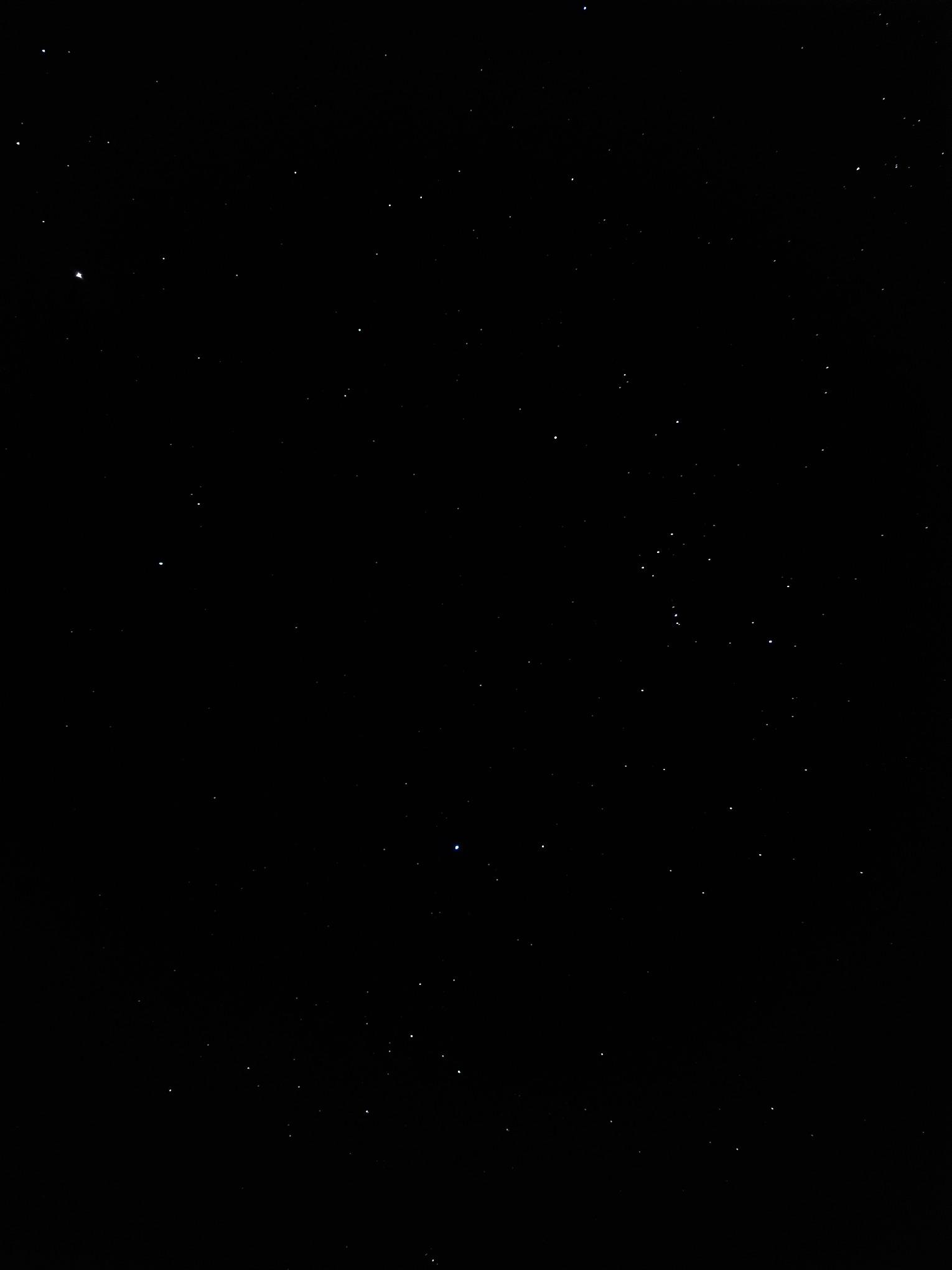
This Instructables guide offers a step-by-step approach to capturing stunning images of the night sky, even from areas affected by light pollution. You'll learn how to make the most of your smartphone to reveal the hidden stars.
Supplies
Any Smartphone with Manual Mode (I am using a Samsung Galaxy A55)
A Tripod with a Smartphone Holder
Find a Suitable Location
Look for a location with minimal light pollution. If that's not possible, choose a spot that has as few nearby( within 10 - 20m) light sources as you can. It's possible to find a suitable place in a city, but keep in mind that you will need to use longer exposure times to capture the fainter stars due to the high light pollution. Additionally, make sure the location provides an open view of the sky.
Set Up the Shot
Select the portion of the sky that you want to photograph; it can be a specific constellation, the Milky Way or a broader area. Ideally, it is the part with the least light pollution. Then attach the phone to the tripod and point it in the direction you want to shoot.
Camera Settings
.jpeg)
For Rural Areas (Low Light Pollution):
- ISO Settings: 1600 (more noise, captures fainter stars) / 800 (less noise, captures fewer stars) / 400 (even less noise, but fewer stars)
- Shutter Speed: Use a shutter speed of 10 to 25 seconds. Longer exposures can result in visible star trails.
- Focus: Set your focus to infinity.
- Aperture (f-stop): While most smartphones don’t allow you to change the f-stop, a smaller f-stop (like f/2) can help capture more light.
For Urban(High Light Pollution) Areas:
- ISO Settings: 3200 (A high ISO is necessary as very few stars are visible)
- Shutter Speed, Focus and Aperture: Same as in Rural Areas
Take Multiple images with the same settings. You can stack them in post-processing to give a much better image with lower noise.
Sometimes the built-in camera apps of smartphones do not allow manual control or long exposure. In such cases, you can use other third-party apps like Camera FV-5 for Android. For IOS, I have heard that NightCap Camera is a good app for long exposures.
Note: I have noticed that the images taken from Camera FV-5 take up much less space than those from the Samsung Camera, which may mean a loss in quality, but as it is the only way to take a long exposure in mid-range and low-range Samsung phones, most people might have to overlook that fact.
Post-Processing in Sequator


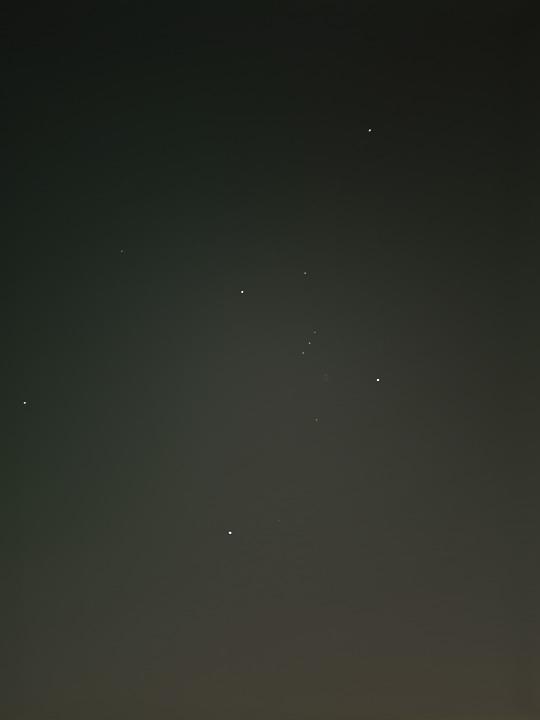
Post-processing can be done using a free computer software called Sequator, which can be found at https://sites.google.com/view/sequator/. First, download the .zip file from the provided link and extract its contents to an appropriate folder. Next, open the file named Sequator.exe. To add your images, click on the "Star Images" button. Finally, name the output image by clicking on the "Output" button. Now set the setting to the following:
- Composition: Align stars, Select best pixels - 2.5
- Sky region - Full area
- High dynamic range - Off
- Remove dynamic noises - On
- Reduce distor. effects - Complex
- Reduce light pollution - Uneven(for urban areas) / Off(for rural areas)
- Enhance star light - On (slider at 4/5th of its length)
- Merge 4 pixels - On
You can toggle with the settings for what suits you best.
I have uploaded my final results here so that you can see how good images your smartphone can take.
Sky.tif/Sky.jpeg - An image formed by stacking 72 images, each of 10s exposure at ISO 400 from a Bortle 4 location
Sky2.tif/Sky2.jpeg - An image formed by stacking 42 images, each of 25s exposure of ISO 3200 from a Bortle 9 location with the "Reduce light pollution" option in Sequator set to Off.
Sky2(2).tif/Sky2(2).jpeg - formed by stacking the same images as in Sky2.tif, but with the "Reduce light pollution" option in Sequator set to Uneven.
Sky.pdf and Sky2.pdf contain the images used to create Sky.tif and Sky2.tif, respectively.