Let's Measure Air Pressure...

Many projects utilise a pressure sensor in one way or another, but nearly all of these projects use a microcontroller. What if I told you we can create a simple yet powerful air pressure meter without using a microcontroller?
This useful gadget displays the air pressure in Bar on a nice display with only a few components. By the end of this step-by-step guide, you will be astonished by the simplicity of how it is done. Once you have the components at hand, it will take a few minutes to complete, even if you are relatively new to prototyping circuits on a breadboard.
Along the way, we will learn the basics of analog sensors and how to adapt their outputs so we can have meaningful products.
There are numerous uses for your new gadget; for example, adding it beside an old analog pressure gauge on your air compressor would be a great idea.
The Component List


The component list is very minimal. Here is a list of all the components needed:
- MPS-2108-100GC
https://s.click.aliexpress.com/e/_c3jzFZFz
- 0.56 ''Mini Digital Voltmeter DC 3-Wire
https://s.click.aliexpress.com/e/_c3R6RdXH
- LM324N
https://s.click.aliexpress.com/e/_c3Nez2vd
- 10K Multiturn trimmer potentiometer
https://s.click.aliexpress.com/e/_c3LXuaGT
- Resistors:
- 1 Mohm 1% (x4)
- 100 Kohm (x2)
- 2k ohm (x1)
When it comes to powering the circuit, we need a regulated 12 VDC power supply of any kind. I had a 220V to 24VAC transformer, so there is a power supply subcircuit consisting of a bridge, a capacitor, and an LM7812 to generate the required 12VDC. But of course, you don't need all that; any 12VDC power supply/adapter will be a good choice.
You will need a breadboard to prototype your circuit on and some jumper wires. Then you can move the circuit onto a perforated board and do some soldering.
The Block Diagram and a Little Background



The block diagram we will follow is attached. Let us have a little idea of the blocks before diving into the schematic and prototype. The prototype itself will take you a few minutes to complete on a breadboard.
There are three main blocks, which are shown in the first image:
- Pressure Sensor MPS-2108-100GC
A very reliable pressure sensor that can measure up to 100 PSI. The datasheet states that the sensor's full-scale output voltage ranges from 70 mV to 170 mV when supplied with 5 VDC. For a 12VDC supply, the range will be higher.
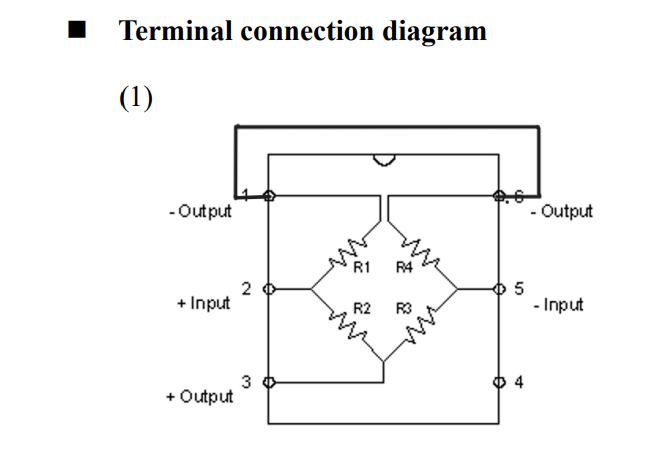
The output from our sensor - like many other sensors- is simply a Wheatstone bridge, or those diamond-shaped resistors you often see, and it is shown in the second image. A connection between R1 and R4 must be made externally for the bridge to function.
This bridge configuration helps us measure the value of an unknown resistance (Rx). In the case of our pressure sensor, this resistance is proportional to the applied pressure. The bridge is called 'balanced' when the voltage difference between the midpoint of the two legs of the bridge is zero, that is, (Voutput+ - Voutput- = 0). Meaning that R2/R3=R1/R4. Once the pressure increases, Rx changes and the bridge becomes unbalanced, and we will begin to measure a differential voltage corresponding to the pressure applied. At 100 PSI, the output range is 70 to 170mv when supplied with 5VDC.
The next step is to perform "signal conditioning" on the sensor output to convert it to another voltage range so it can be viewed on a display. We want to see the pressure in bars, and here comes the idea that makes this project extremely simple and fun...
- A 3- Wire Mini Digital Voltmeter Display
The idea is to use a reliable off-the-shelf module, which is a voltmeter with a nice 3-digit 7-segment display. This module has a very good accuracy, a very nice display with a variety of colours and can be panel-mounted.
The idea is this: if we want to get a reading of 2.5 bars, we want the voltmeter to measure 2.5 Volts.
We are left with the task of converting the sensor's output from the millivolt range to a higher level. In other words, we have to amplify this output by a factor Av(gain), which is done by the middle block of our project, which is...
- The Instrumentation Amplifier
An operational amplifier configuration can help us amplify a signal by a factor 'Av' or 'the gain'. The gain, of course, is set by the external resistors. Two of the most common configurations are the inverting and noninverting operational amplifier. However, these two configurations have a single input terminal. The jargon for an amplifier with only an input terminal is 'single-ended' input.
But wait a minute, we want to amplify the 'Differential Voltage' from the pressure sensor, not a single-ended voltage.
We use a differential amplifier configuration for amplifying differential voltages. There are some disadvantages to using this configuration; one of them is that we have to change at least two resistors at once when we want to modify the gain.
A better configuration for this purpose is the instrumentation amplifier, which has two input buffer stages and is a perfect choice for interfacing in sensor applications. The gain of the configuration can be varied by changing the value of a single resistor, the gain resistor (RG), instead of changing two resistors in a differential amplifier configuration.
The Circuit Schematic and Prototyping


Let's begin prototyping:
- Connecting the power supply
Start by connecting a 12VDC power supply of your choice; the current consumption of the circuit is very low, so any 12VDC power supply will work. Just make sure that the positive rail of the breadboard (colored red in the image) is connected to the positive side of the supply, and the other rail (Blue) to the GND. We don't want to supply a reverse polarity by mistake to either the op-amps or the display.
- Placing And Connecting The Sensor
Simply plug the sensor into your breadboard, such that the "notch" is facing upwards. Once placed, the first thing we have to keep in mind is that PIN 1 of the sensor is on our top right, not top left as usual. That is because the pin diagram is drawn with the sensor facing downwards and the label side upwards. I have added the sensor orientation in a separate image to make it clear.
Now we follow the schematic that is shown in the first image. The schematic is also separated into 3 blocks, as we have discussed in the previous step.
We have to connect pin numbers 1 and 6 together using a jumper wire, as they are not connected in the package itself, and they are the Output- line.
We connect the PIN 2 with the +12V rail, PIN 3 with the Output+ line, PIN 5 with the GND rail and PIN 4 is not connected.
We will connect the Output+ and Output- lines to the next block using jumper wires.
- Placing And Connecting The LM324N QUAD OP-AMP
Now, place the workhorse of the project, which is the LM324N Quad OP-AMP, on the breadboard with the notch facing upwards. This IC will serve as our instrumentation amplifier by adding a few external resistors. Of course, we will use 3 of the available 4 OP-AMPs in the package.
Start by connecting the 12V DC from the positive supply rail to PIN 4, and GND to PIN 11.
Keep in mind that the output wires from the sensor Output+ and Output- will be wired to PIN 3 and PIN5 respectively.
For the two input OP-AMPs, connect a 100 K resistor (R6) between PIN 1 and 2, and another 100 K resistor (R5) between PIN 6 and 7. Then connect two jumper wires from pin 2 and pin 6 to two empty rows of the breadboard, where we are going to place the 10K trimmer in series with a 2K fixed resistor between the two rows. Keep them separate from other components, as we are going to set the gain with this trimmer using a screwdriver later. Note that the first pin of the trimmer potentiometer is left unconnected; we just need the mid pin and the last pin in series with the 2 K resistor, as they both represent (RG).
We should now connect the output from the buffers to the third op-amp. Connect PIN 1 through a 1 Mohm resistor to PIN 10, and from PIN 10 to GND through another 1 Mohm resistor. For the negative input, connect PIN 7 through a 1 Mohm resistor to PIN 9 and from PIN 9 to PIN 8 through another 1 Mohm resistor.
Note that PIN 8 is the Vout signal that will be connected to the display.
- Connecting The Display
The display has just 3 wires; a red wire will be connected to your +12VDC supply rail, and a black wire to your GND rail. You will be left with a third wire to be connected with the Vout signal (or PIN 8 of the LM324), and that's it :)
Testing, Calibration and Final Thoughts!

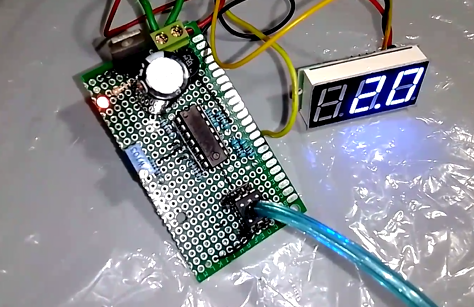
Once the circuit is complete, it is time for a quick test.
I used an air compressor that has an analog pressure gauge as a reference for calibrating my meter. The air input port of the sensor can be connected to the compressor using a PU tube with an inner diameter of 4mm without any leakage.
Once I connected the compressor to the pressure sensor, I powered on the circuit. The display shows zero Bars since the compressor is empty. I turned on the compressor, making sure there was no leakage as the pressure rose. The number on the display rose slowly as the compressor charged.
Turn off the compressor when it reaches 2 Bars on its pressure gauge, and start turning the potentiometer slowly until the display shows the same number.
Turn on the compressor again, and watch the number on the display as it rises. It should exactly match that of the compressor pressure gauge as they both rise together.
The value of RG that will get the right results will vary from sensor to sensor. What is your calibration result? That is, the value of your trimmer potentiometer that resulted in the perfect gain :)
Let me see how you were able to fit your new gadget beside your old analog gauge :), I'd love to see your comments.
Thank You