MQTT-Controlled Astronomical Smart Bulb (Smitch -> Tasmota + Python)
by ArijitKumar in Design > Software
93 Views, 0 Favorites, 0 Comments
MQTT-Controlled Astronomical Smart Bulb (Smitch -> Tasmota + Python)

The Indian Smart bulb - Smitch which was created by IoT-Monks primarily operated via the Smitch app, which required the user to be logged in to the Smitch server. With the company suddenly closing down and the servers not accessible anymore, all owners of the Smitch smart bulb had no choice but to abandon the bulbs, since it could not be even switched on or off anymore.
To prevent adding it to the increasing pile of e-waste, in this tutorial, we will be first flashing a firmware - Tasmota, which makes it independent of any cloud or server. Secondly, we will utilize the newly flashed bulb for some automation action which will turn the bulb on/off and follow the cicardian rythm of the human body based on the local sunrise/sunset. Also, for the enthusiasts, we have implemented a way to track the passes of International Space Station, all of which are based on MQTT commands to the bulb from a Raspberry Pi Zero 2W.
Turn an abandoned cloud smart bulb into a locally controlled, astronomy-driven light that follows the Sun daily and briefly comes alive when the International Space Station passes overhead — all without accounts, apps, or external servers.
This project uses:
- A reflashed ESP-based smart bulb (Tasmota)
- A local MQTT broker
- Two small Python scripts
Everything runs locally. If the internet disappears, the light still knows where the Sun is.
What This Bulb Does
Channel 2 (White / CT)
- Simulates sunrise and sunset using real solar times
- Slowly ramps brightness and color temperature over hours
- Settles into a low, warm moonlight mode at night
Channel 1 (RGB)
- Activates only when the ISS is above your horizon
- Color represents the ISS direction (azimuth)
- Brightness represents how high it is in the sky (elevation)
- Temporarily overrides the normal lighting
A simple file-based override lets you pause automation instantly.
Supplies
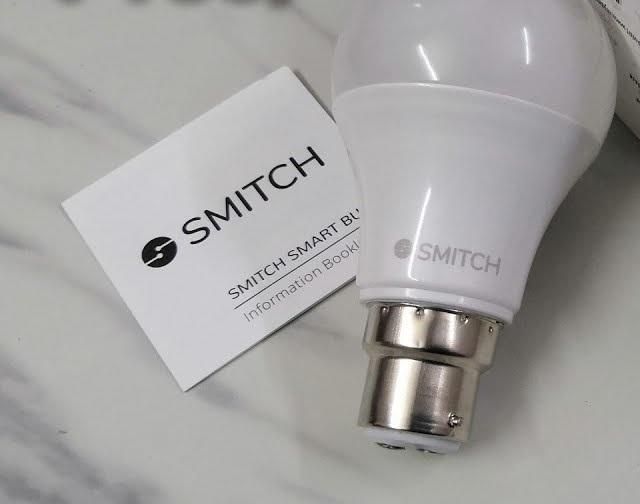

Hardware Requirements
- Any ESP8266 / ESP32 based RGB or RGB+CCT smart bulb
- Wi-Fi network with local access
- A Linux system (Raspberry Pi, mini PC, NAS, etc.) running 24/7
Many discontinued or cloud-dependent bulbs work perfectly once reflashed.
Flash Tasmota on the Bulb
There are many ways to flash ESP-based bulbs. In this case, the bulb exposed a built-in web updater, making the process much simpler.
Updating the Bulb Firmware
If you want to flash custom firmware (for example, Tasmota) to the bulb, follow these steps.
Step 1: Access the Firmware Update Page
- Open a browser and navigate to:
- Enter the following credentials:
- Username: admin
- Password: c21pdGNo
Step 2: Flash Tasmota Minimal Firmware
- Download the Tasmota minimal firmware from the official repository:
- (If the download does not start, long-press the link, copy it, and paste it directly into the browser address bar.)
- Upload the firmware file using the update page.
Step 3: Update to Full Tasmota Firmware
- After the minimal firmware finishes flashing, navigate to:
- Download the full Tasmota firmware:
- Upload the full firmware file.
After reboot, the bulb will be running full Tasmota and ready for MQTT configuration.
Configure Bulb
Before your Raspberry Pi scripts can control the solar light, the bulb itself needs to be set up correctly. Follow these steps carefully:
1. Apply the Template
- Open Blakadder Templates.
- Copy the template for the Smitch SB161001-B22:
- Paste this template into your bulb’s configuration (Tasmota Web UI → Configuration → Configure Template).
- Click Save and let the bulb restart.
2. Enable MQTT
- Go to Configuration → Configure MQTT in the bulb interface.
- Set the following values:
- Host: IP address of your Raspberry Pi (for example, 192.168.1.50)
- Port: 1883
- Topic: sunbulb (or any consistent name — make sure your scripts use the same topic)
- Client ID: leave default or set something unique
- Click Save and allow the bulb to restart again.
3. Allow External Connections
- By default, the Raspberry Pi (and Tasmota) listens only on localhost (127.0.0.1).
- Change the MQTT/Web settings so the Pi listens on all interfaces (0.0.0.0). This allows your scripts to communicate with the bulb from the network.
4. Verify the Connection
- On your Raspberry Pi, you can test MQTT connectivity with:
- If configured correctly, you should see messages when the bulb state changes.
Tips:
- The MQTT topic you set here must match exactly with the topic in your scripts (sunbulb in my case).
- Once these settings are saved, your Raspberry Pi scripts will be able to smoothly control the light during ISS passes.
Set Up MQTT on Raspberry Pi
Install a local broker (example using Mosquitto):
Test MQTT manually:
The bulb should respond immediately.
State Tracking (Important)
Create a small MQTT subscriber that listens to Tasmota stat/ topics and writes the latest state to:
This prevents unnecessary MQTT spam and keeps scripts state-aware.
Solar Lighting Script (Channel 2)
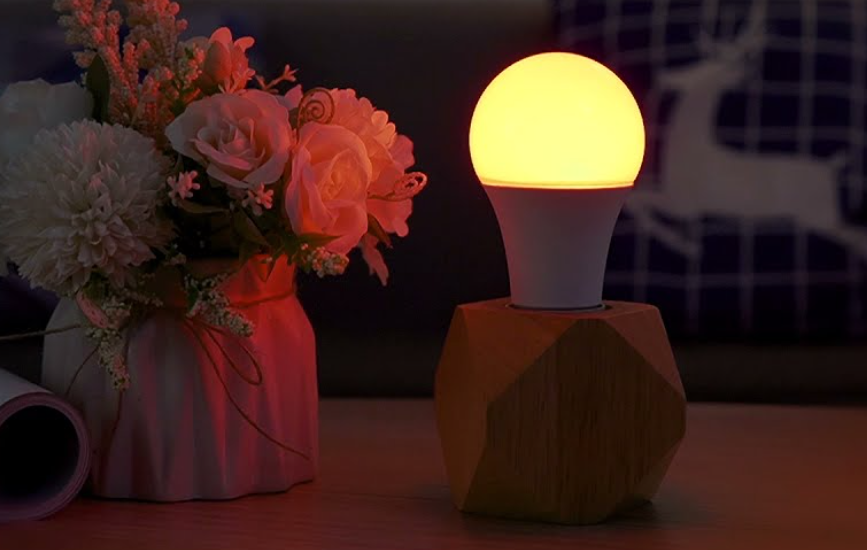
This script:
- Calculates sunrise and sunset using Astral
- Ramps brightness and CT smoothly
- Avoids Dimmer=0 to prevent accidental shutdown
Key parameters:
Run this script periodically (cron every 1–5 minutes).
ISS Tracking Script (Channel 1)
This script:
- Downloads and caches ISS TLE data
- Computes real-time azimuth and elevation
- Maps direction → hue, height → brightness
- Temporarily disables channel 2 via a lock file
When the ISS sets, normal lighting resumes automatically.
Manual Override
Create a file to override automation:
This works instantly and does not rely on MQTT or apps.
Automation Scheduling
Use cron to run both scripts:
Adjust frequency based on preference.
Why This Works Long-Term
- No cloud services
- No accounts or logins
- No vendor lock-in
- Fully inspectable and modifiable
The bulb will continue to work as long as the Sun rises and the ISS orbits — both are expected to be stable for some time.
Possible Extensions
- Add Moon phase brightness
- Log ISS passes via MQTT
- Integrate with Home Assistant
- Use weather data for cloud-adjusted lighting
Conclusion
This project turns a discarded smart bulb into a local, astronomy-aware lighting system. It demonstrates that the hardware was never the limitation — firmware and control philosophy were.
If a device can be reflashed, it can be rescued.