Make Realistic 3D Render of Your PCB Design in 5 Minutes
by Ardentis in Circuits > Electronics
8102 Views, 4 Favorites, 0 Comments
Make Realistic 3D Render of Your PCB Design in 5 Minutes
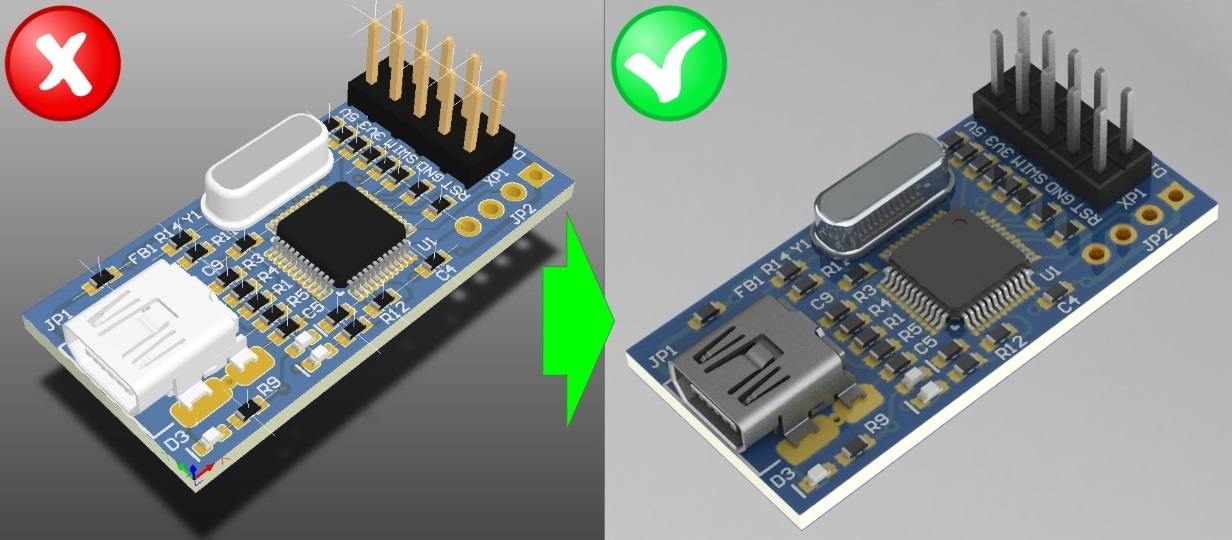
Since I often creating documentation files with description of a Printed Circuit Board (PCB) part and components I was confused about non-realistic screenshots of PCBA files. So I found an easy way to make it more realistic and beautiful.
Things You'll Need
- Altium Designer 16 or higher – CAD/CAM software for electronical engineers for PCB development.
- PCB project file created in Altium Designer.
- SolidWorks 2018 or higher with PhotoView 360 plugin – CAD/CAE software used mostly by mechanical designer for 3D model and assembly creation.
Export Your PCB Project File in 3D Format
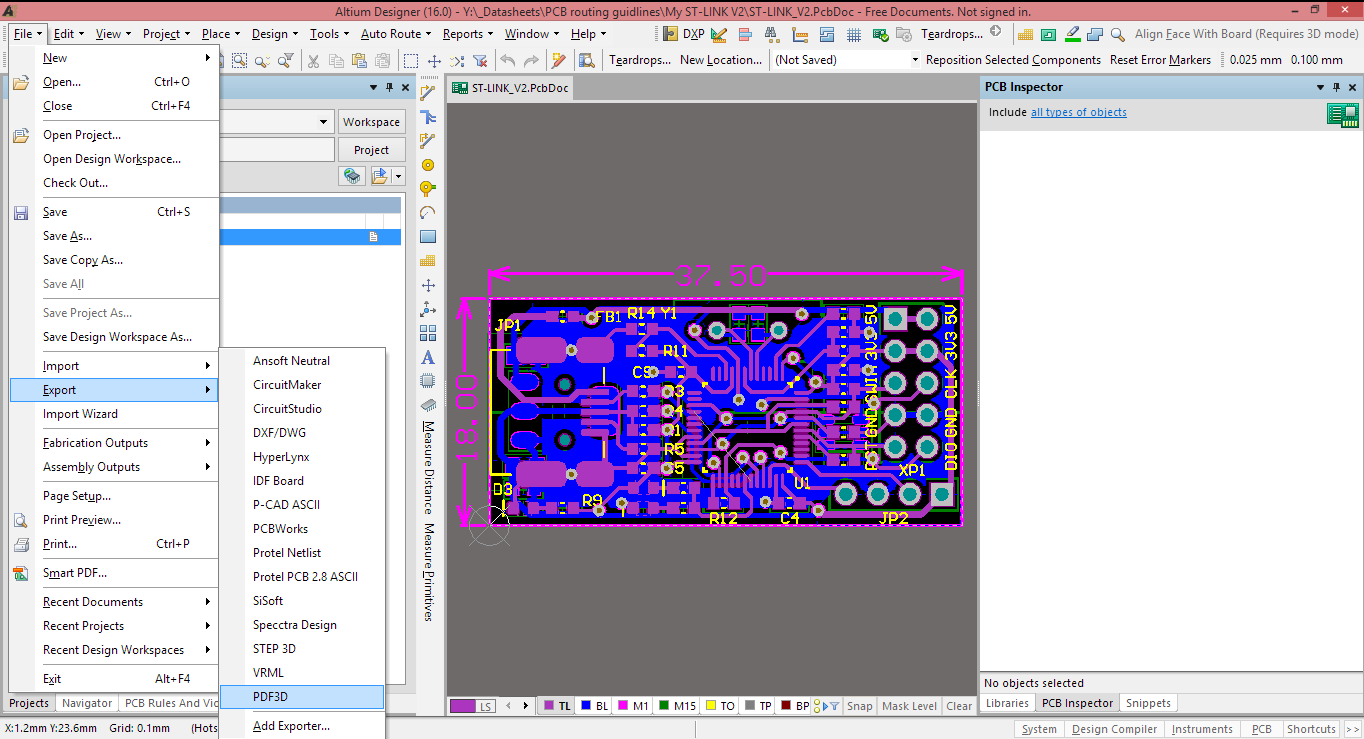
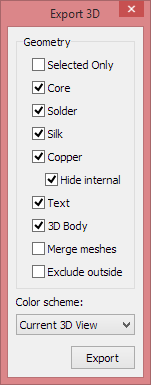
Open your PCB project file in Altium Designer. Go to Menu bar, File -> Expport -> PDF3D. In a "Save as type" drop down menu select "Wavefront Object (*.obj)" Press "Save". In dialog window check the export options.
NOTE: If "Merge meshes" will be selected SolidWoks will be not able to import the file.
Import 3D File to SolidWorks.
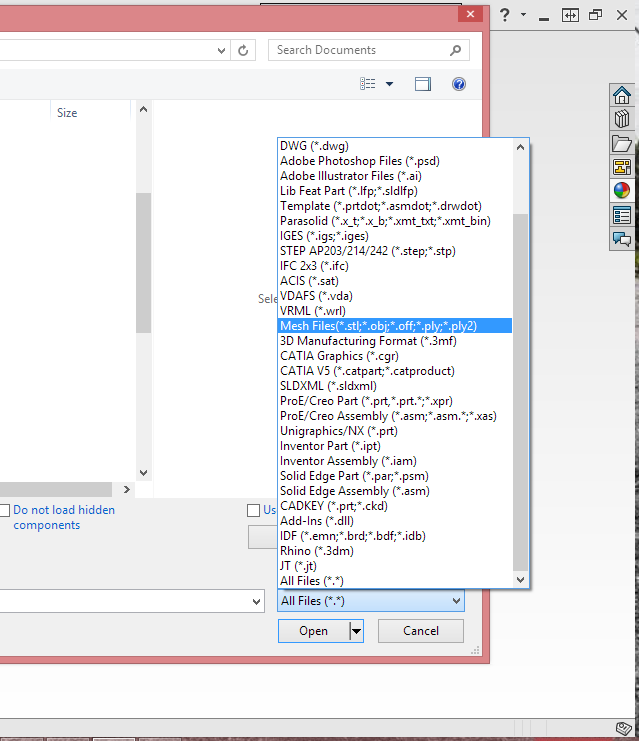
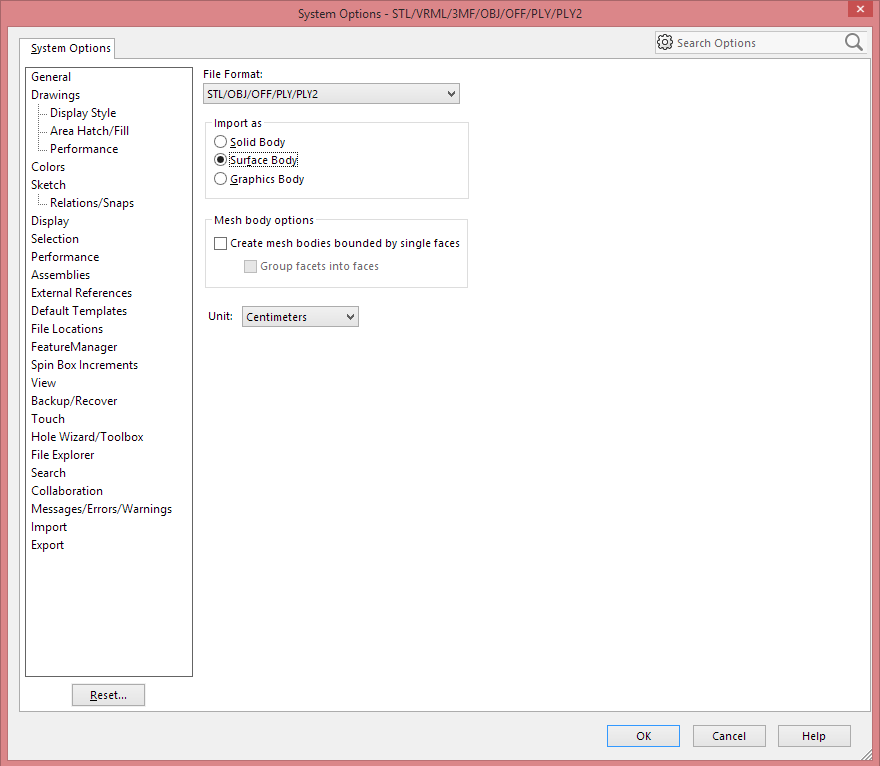
Run SolidWorks. Go to Menu bar, File -> Open. In a "File type" drop down menu select "Mesh files". Press "Options" button. In dialog window select "Import as - Surface body". Select Units.
NOTE: Time to import such PCB example file can take up to 10 minutes. PCB files with more components require more time to import.
Make Render
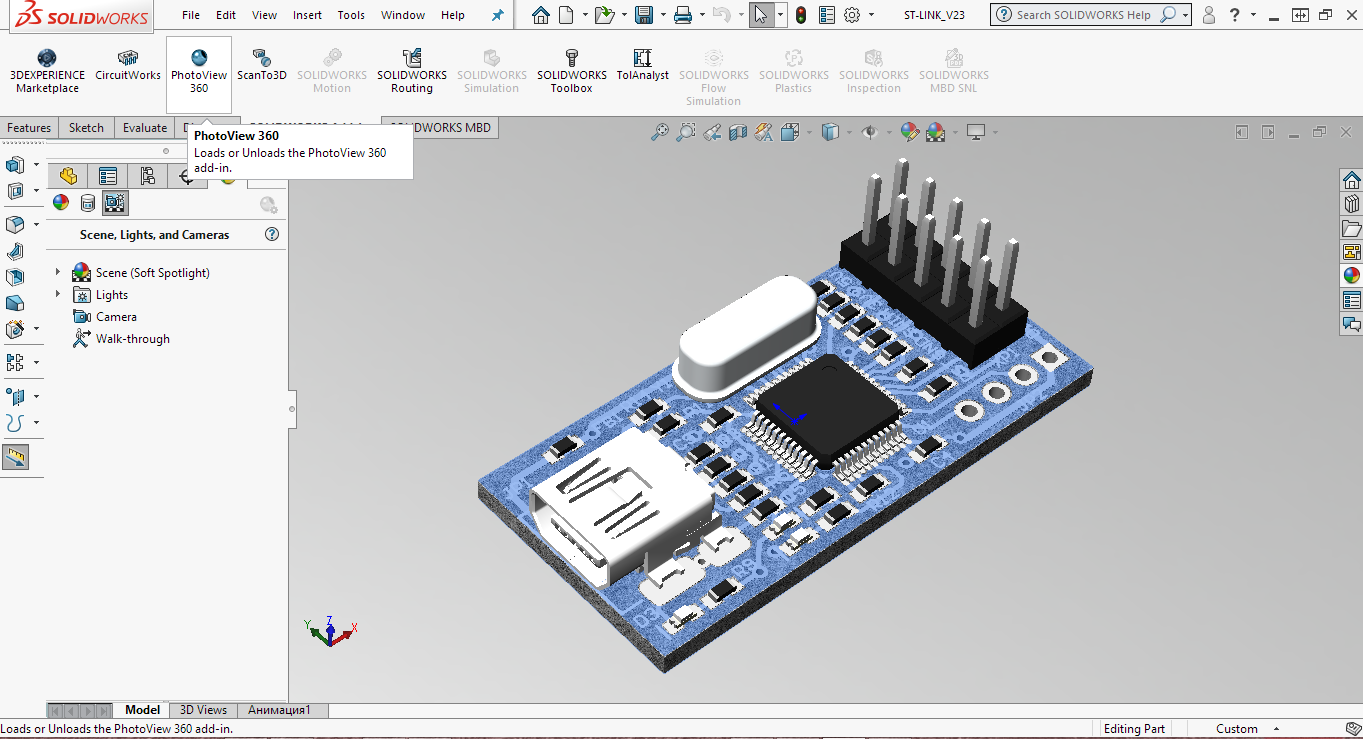
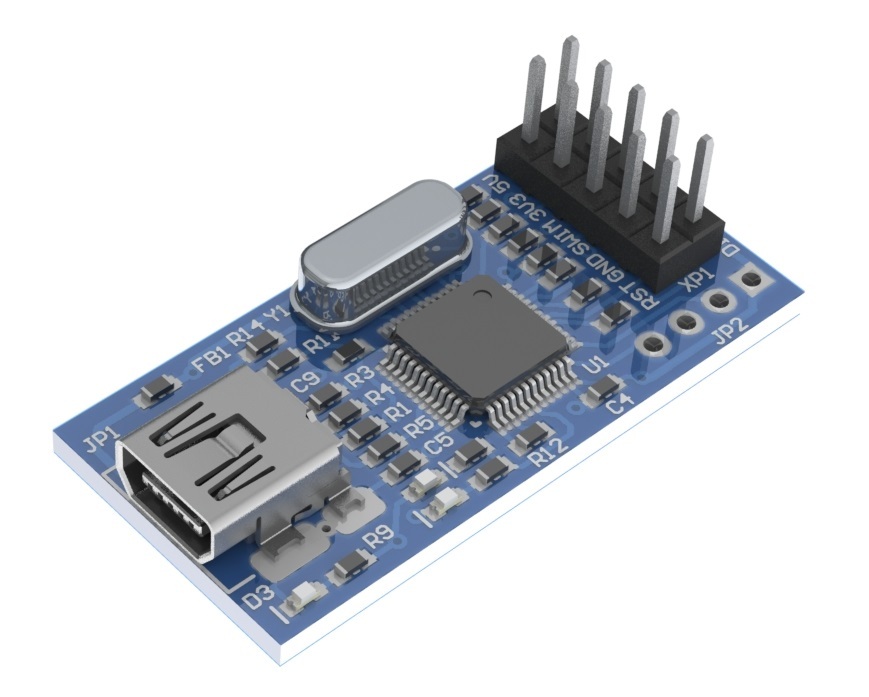
Enable PhotoView360 plugin: Go to "SOLIDWORKS Add-Ins", Press "PhotoView360". A new "Render Tools" tab will appear. Go to this tab and press "Final Render" and get awesome render of your PCB project! Enjoy:)
NOTE: You can modify scenes, apply another appearances and decals for components surfaces that available in PhotoView360 plugin.
Video Instruction
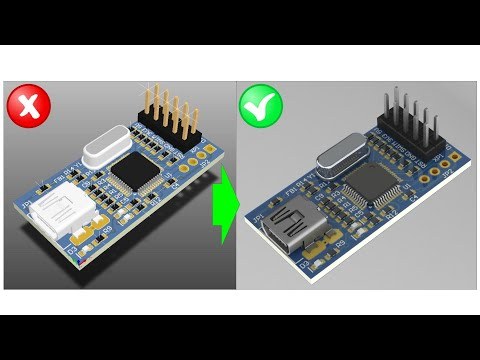
Useful Links and Materials
- PCB Project Example you can find here.
- The best site of huge amount of 3D model for your PCB - 3dcontencentral.com.
- Additional appearances for PhotoView360 plugin you can find on foundry.com.