How to Render Tinkercad Spaceships With Blender
by Stryka Ironworks in Design > 3D Design
77 Views, 0 Favorites, 0 Comments
How to Render Tinkercad Spaceships With Blender

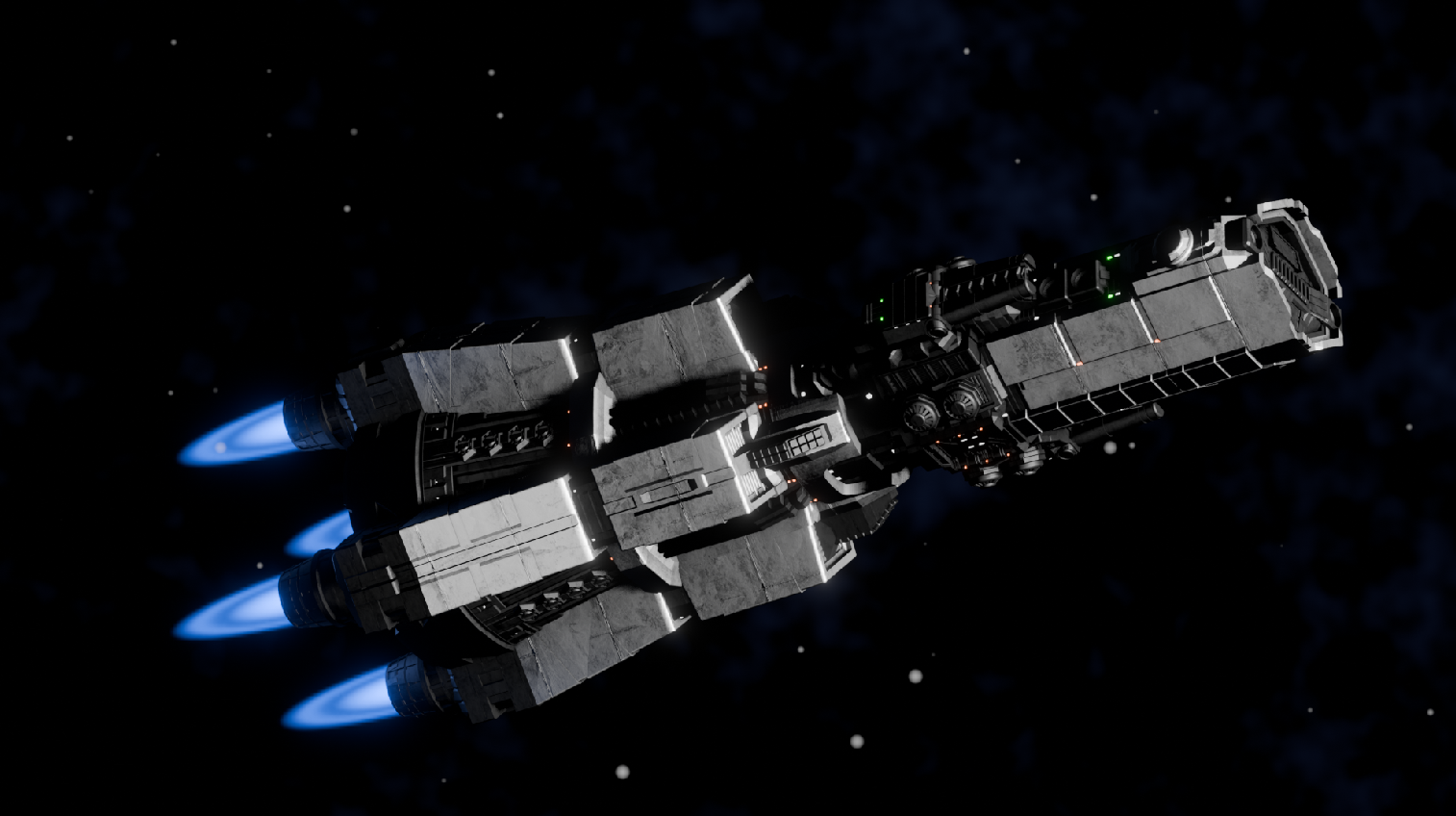
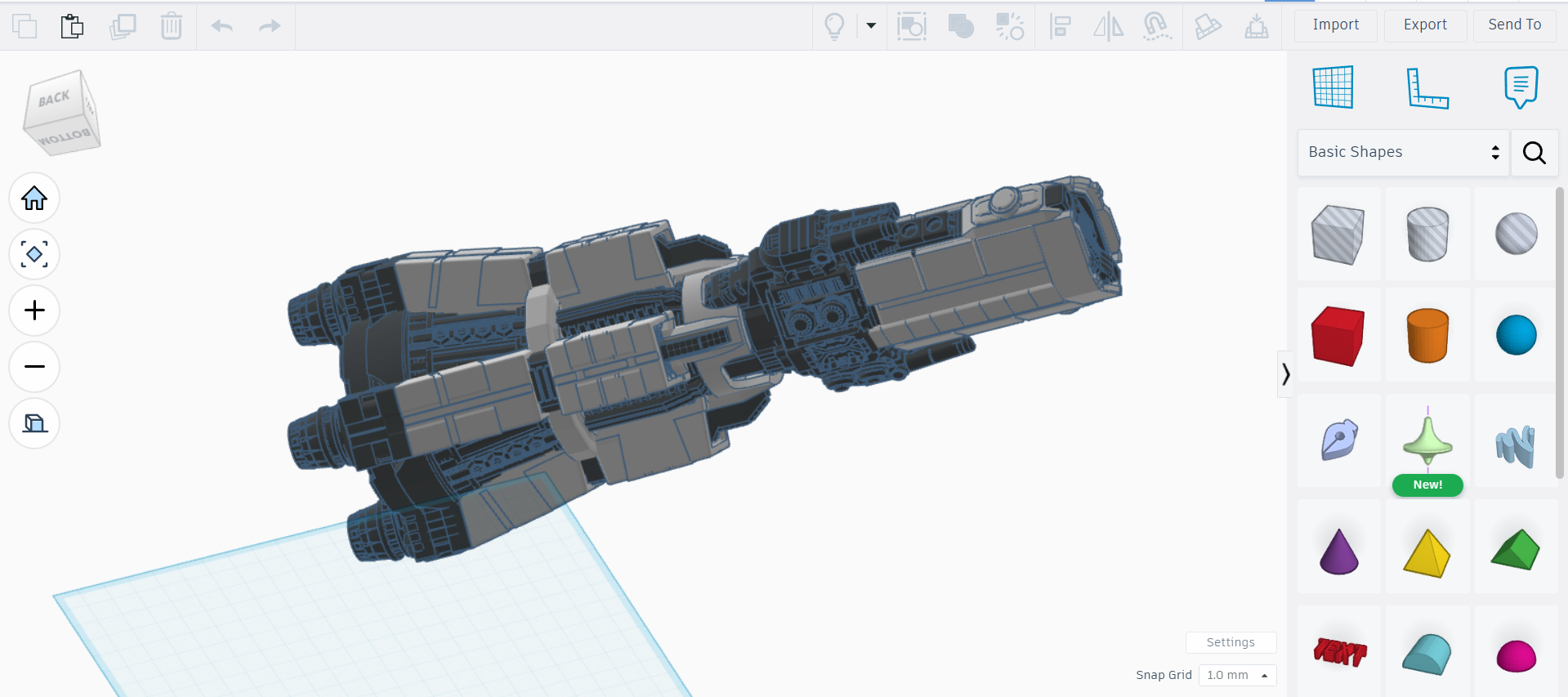
Speaking to any fellow-nerds, it's hard to beat seeing a majestic starship floating through space, lit dramatically, and looking like it belongs in a sci‑fi movie. That’s where this tutorial comes in! I've found some of my most rewarding projects to be taking a ship I've made on Tinkercad - a hulking freighter, utilitarian civilian liner, or powerful warship - and bringing it into Blender as a cinematic render, complete with rocket-flares, a starry backdrop, and so much more. Here I'll walk you through my process with a cruiser (as shown above) that I've made earlier, and hopefully give you everything you need to know to do this with your own ships!
The best part? You don’t need to be that good with Blender to follow along with this tutorial- as long as you know some of the basics (moving parts, switching from Object to Edit mode, and a little knowledge in node maps), you’ll be totally fine! This whole process is surprisingly quick (usually less than a half-hour), and it works beautifully in Eevee mode, almost as well as in Cycles, which means you can get quality shots without enduring long render times!
When everything's said and done, you'll have an awe-inspiring, polished scene of your starship floating through the void for rendering, animation, or anything else you can think of! Ready? Lets do this...
Supplies
All you'll really need includes:
- Any computer with Blender downloaded and an account on Tinkercad.
- A starship model of course!
Exporting From Tinkercad

To start things off, you'll need to move your ship from Tinkercad to Blender, here's how you can set that up:
- If your ship uses only one color, export the whole thing as one STL. But if you have multiple colors, export each color group as its own STL. To facilitate aligning them all again in Blender, add a cube centered on the ship that extends slightly beyond the hull without touching it, though make sure each exported part includes this cube in the exact same position so they line up perfectly later.
Note: If you plan on having a moving part on the ship (like hangar doors, turrets, etc...) for things like animation/posing, it may be a good idea to export those separately as well.
Assembling the Ship

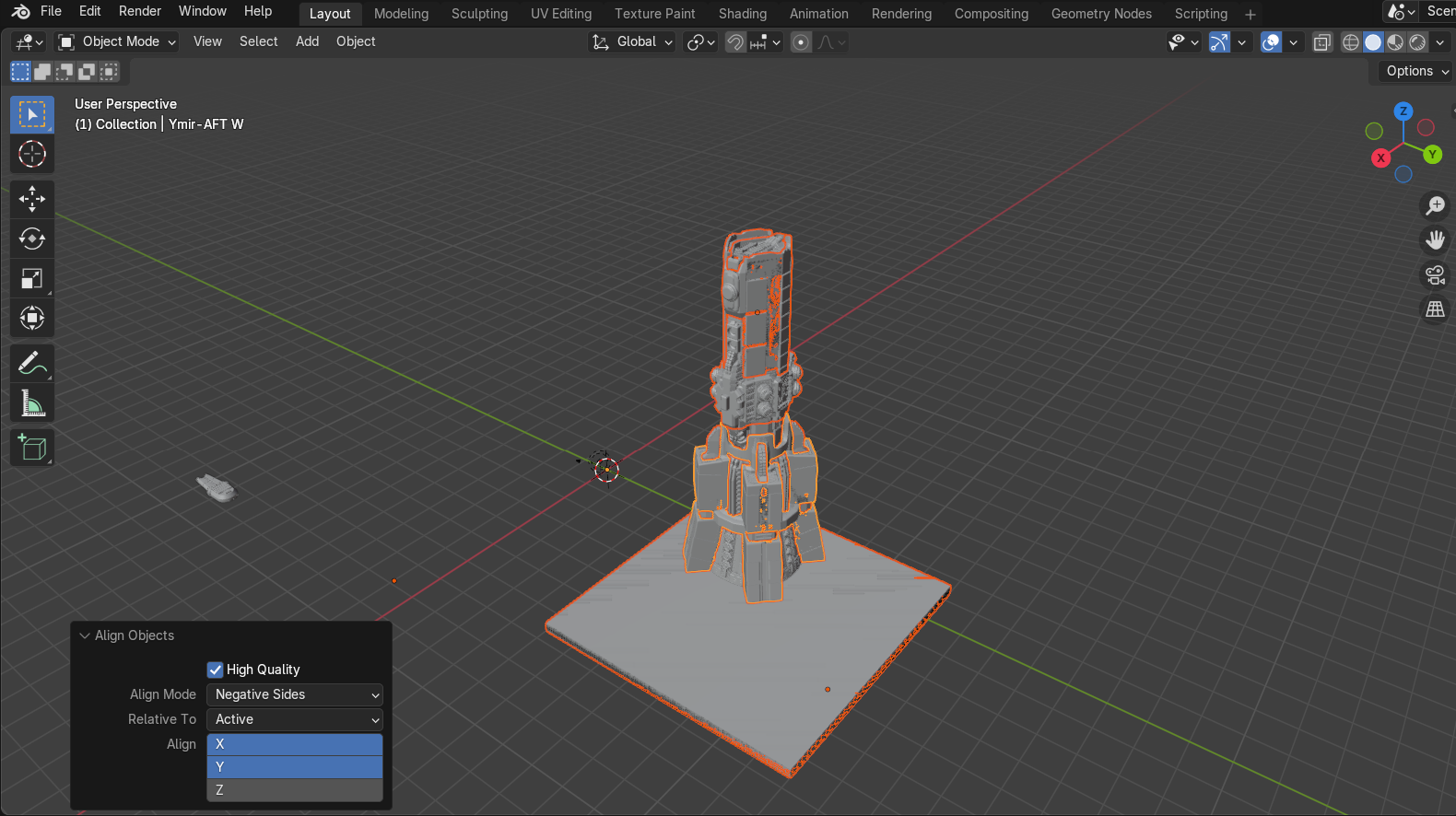
Now on to Blender! Here we'll set your ship up for adding materials and other touches for your render...
- Start by deleting Blender's default light and cube in your new design (not the camera).
- Then import all of the STL files of of your ship we made in the last step ('File' → 'Import' → 'STL (.stl)' ).
- You'll have to align any separate parts you made into their right place (if you only have a single part you can skip this part). The easiest method would probably be to use F3 → Align Objects to do this (this is made easier by any objects you might've added in the last step). If that doesn't finish it the job, feel free to finish it with snapping tools or even just eyeball it until it's close enough.
- Get rid of any alignment-cubes you added in the last step by entering Edit Mode for each of the parts with one of those cubes, one-at-a-time, and delete the vertices that make up the cube.
- When everything is in the right place, select all of your parts and Left click → 'Set Origin' → 'Origin To Geometry', this will center the ship's origin, and make it much simpler to line other objects up with it in the future as well as other improvements you might add, like animating your ship.
Adding Materials

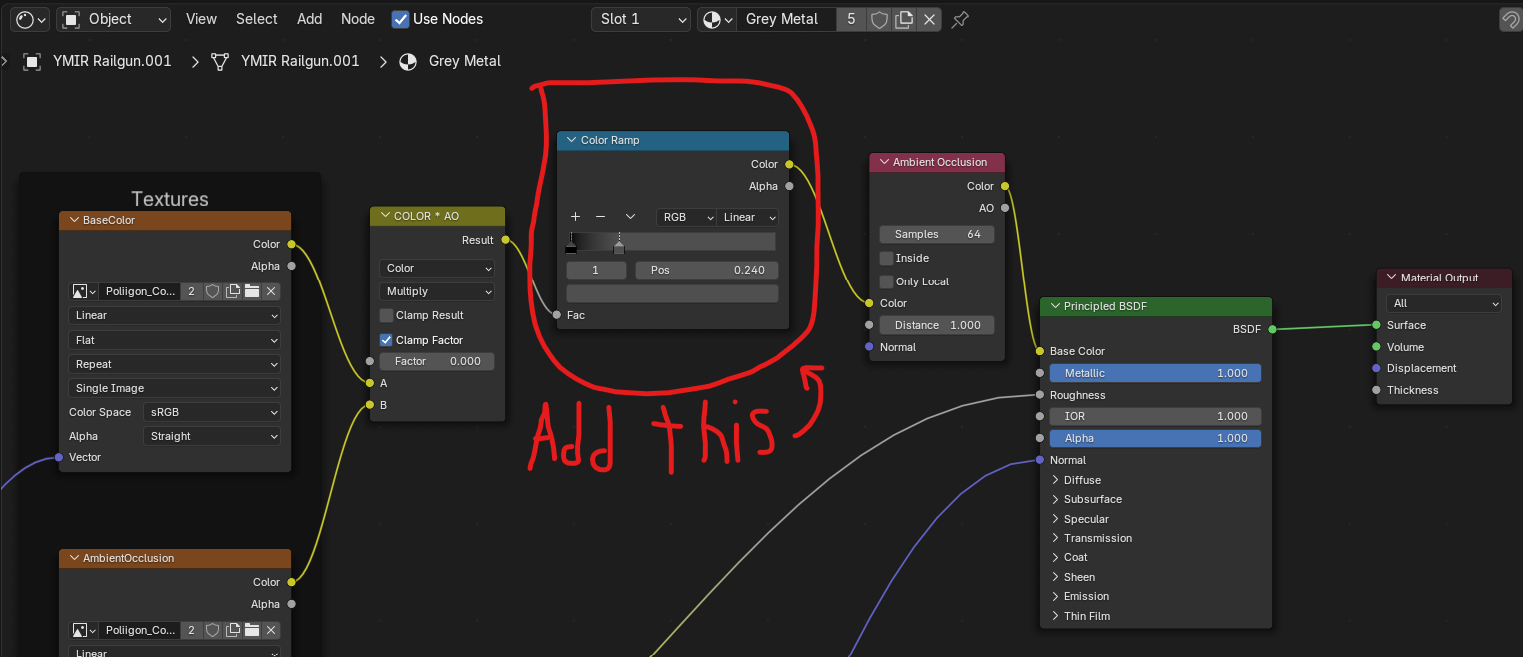
This might be the most important part of the whole process, and it's definitely one of the largest improvements you'll see bringing your starship into Blender! For my favorite method, you'll have to download a free extension for Blender called Poliigon, which gives you access to a huge library of professional-grade textures to use for your projects.
Link to download Poliigon: https://www.poliigon.com/blender
- After downloading Poliigon, use one of its free concrete textures for your main hull's material (concrete textures tend to look better for large spaceships compared to metal ones).
- To get the right colors for your ship's material, add a 'Color Ramp' node right before the 'Principled BSDF' in the Shader Editor (see my image above), and adjust its values until it gives the colors you want.
- Finally, duplicate this texture for each hull color and adjust their colors as well, and now you should have all of your materials ready!
- If your textures look inexplicably stretched or wrong, you might need to fix their UV's, which is a quick fix; go into Edit Mode for each part having problems, press A (this selects everything) → U → 'Cube Projection'.
Setting the Scene


This is where we'll really sell the idea that your ship is floating through the vacuum of space, where we'll add a convincing backdrop for your ship, lighting, and more.
A quick tutorial by WillUrquhart3D does a great job describing how to do this quickly but effectively, try following along with his video here:
https://www.youtube.com/watch?v=tpwVSAN6SkI
If you'd prefer to avoid watching the video, feel free to copy my node maps above for the Compositor tab, and the Shader editor set for the 'World' setting, but be sure to tinker with any of the nodes' values until they match what you're looking for in your scene.
Final Touches
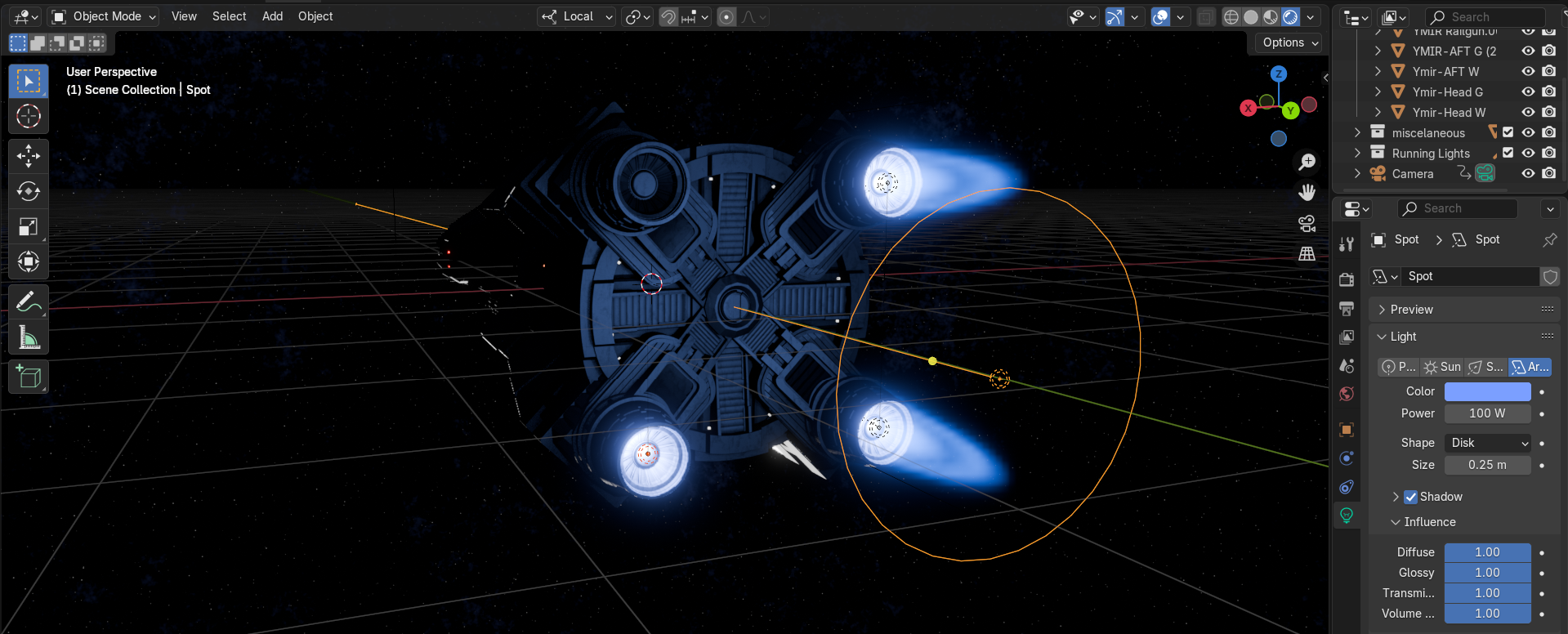
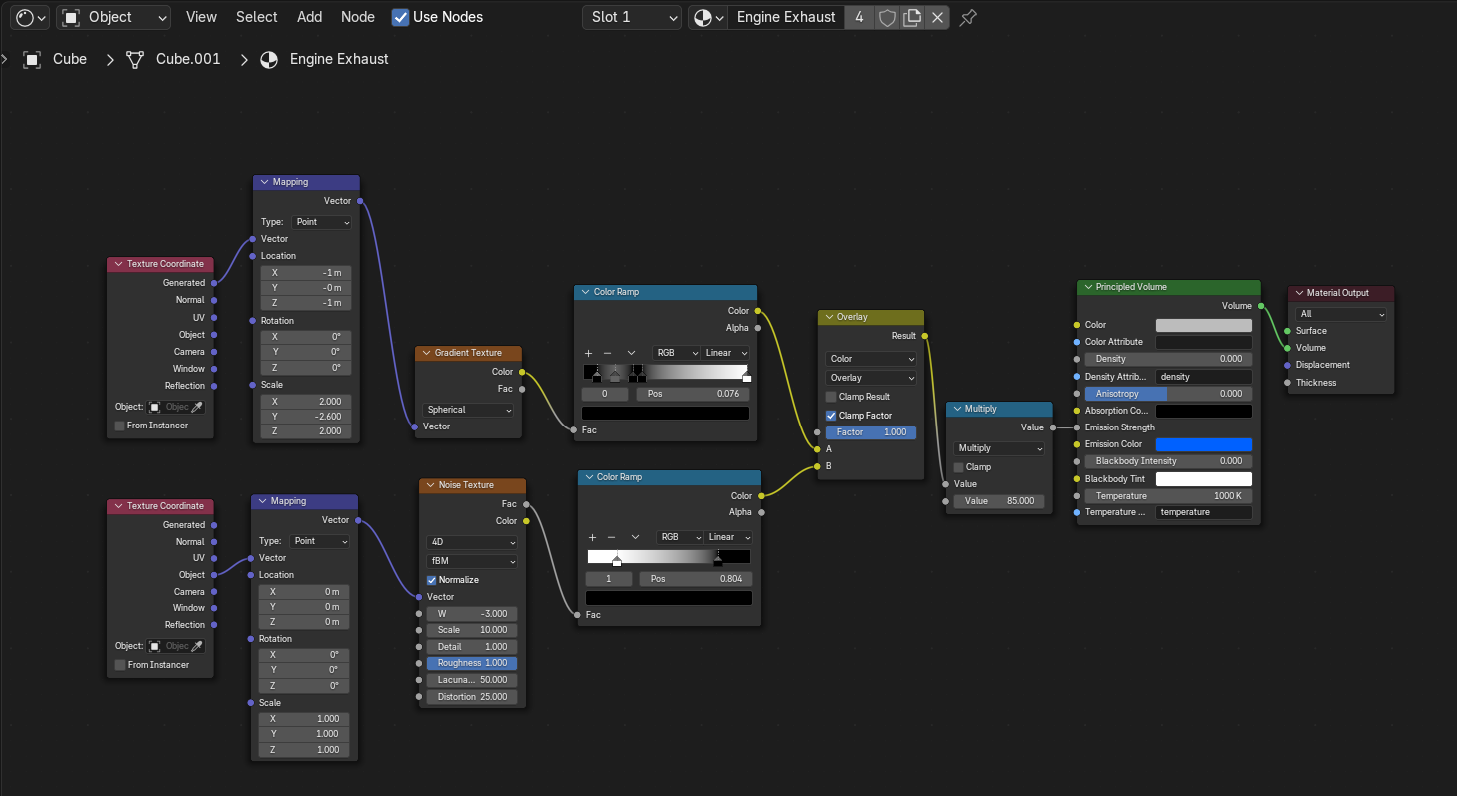
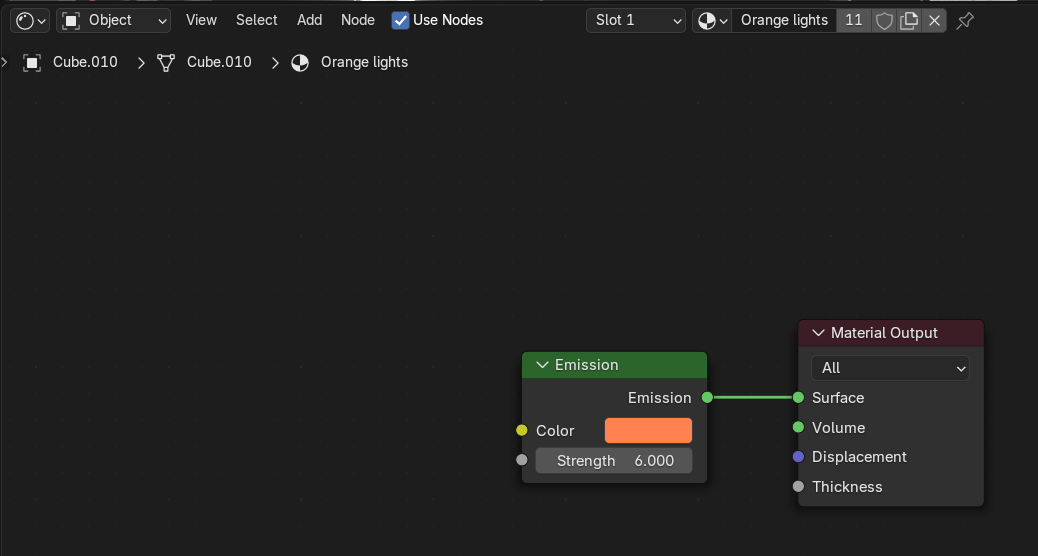
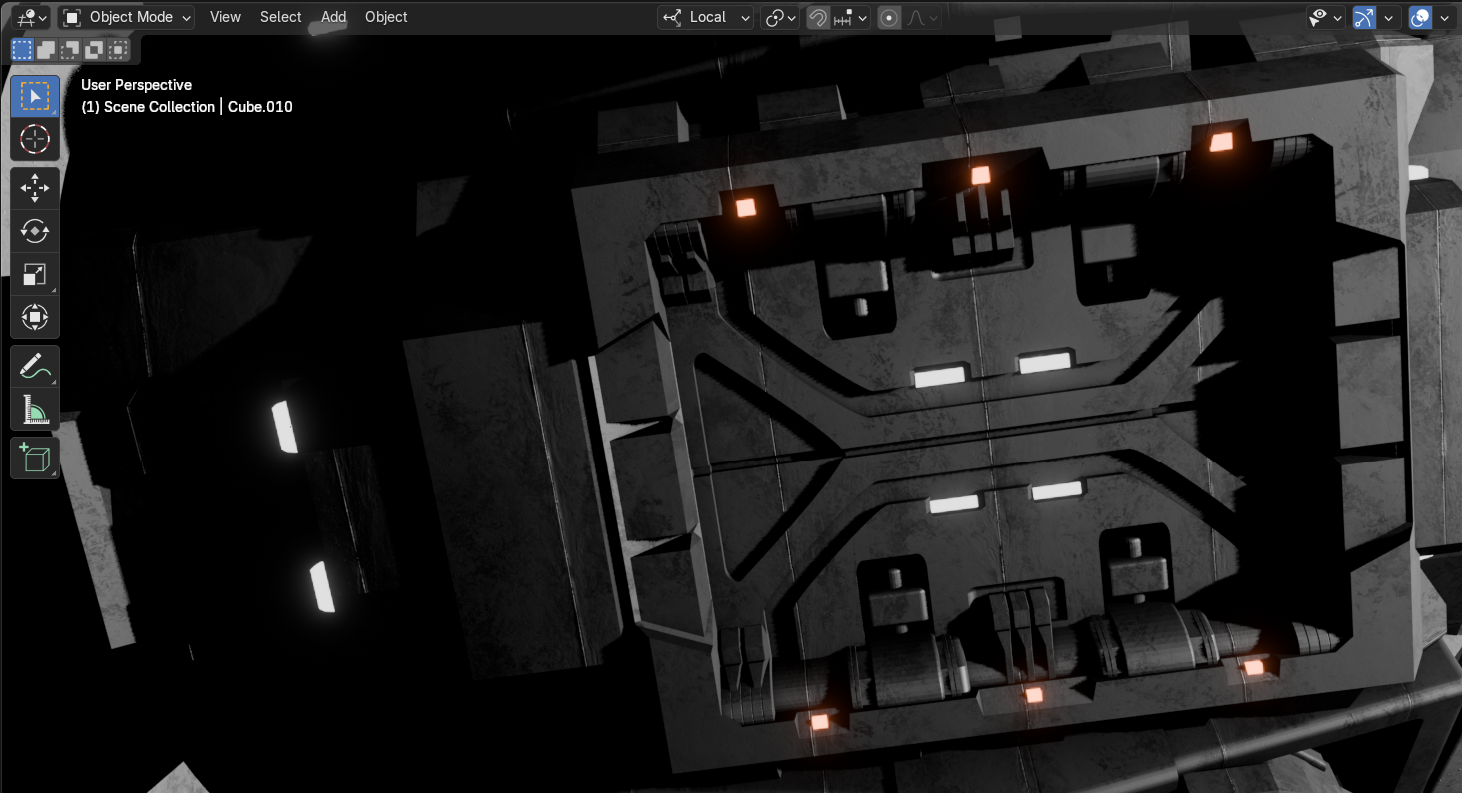
Finally, you just need the last flourishes to finish the ship off, and those are the ships engine exhaust, and it's running lights, both of which we'll go over here...
Engine Exhaust:
- Follow Faebe Tutorials’ video here to recreate the intense reaction mass coming from your ship's rockets, and finish off the look by adding a pair of lights; one softer 'Area Light' encompassing your whole engine block, and a super bright 'Point Light' inside each of your engines. This is the best way in my opinion to quickly/simply get a set of beautiful thrusters that'll really complete the look that your starship is truly floating through space.
Running Lights:
- This last step isn't essential, but I love the look of small windows, sensors, warning and navigation lights, and other sources of light dotting my ship's surfaces. To achieve this, simply create a new material for each color of lights you want with just an Emission Node in place of the Principled BSDF to set the color and strength of the light (see the images above). Then simply add these materials to small cubes and add these all over the ship.
And that should be it! You should be able to position your camera, and get a great cinematic render of your spaceship that until recently only had the mundane colors of Tinkercad. I hope you've enjoyed this brief tutorial of my thoughts on how to get the job done, and now there's so much more you could do! Maybe you can run animations of your ship flying through the solar system, or offset it by the huge scale of a planet you've created, or even build a fleet to go with it! But that's just the tip of the iceberg, now you have a ship and a backdrop ready to go for still-renders, maybe you should consider animating it!? Enjoy!