Making a WORKING Simple Diesel Yard Shunter in Tinkercad.
by Excitednuke1 in Design > 3D Design
126 Views, 0 Favorites, 0 Comments
Making a WORKING Simple Diesel Yard Shunter in Tinkercad.

This is a tutorial on how to make a working diesel rail yard shunter in Tinker-cad using axle connectors and multiple different shapes. (This project can be modified if you want to be able to 3-D print this)
Background
A rail shunter is a small, strong locomotive that moves freight cars around a rail yard to organize trains that have to leave. using a shunter is more quicker to prepare trains than if big locomotive had to get the cars it needs. therefore being a perfect but simple design for this instructable and the let there be speed contest.
Supplies
You are going to need Tinkercad, a computer, internet, and inside Tinkercad, 2 cubes, 6 cylinders, 6 extrude shapes, and 4 axle connectors
Diesel Yard Shunter Base


- We are going to need a 40 mm long, 20 mm wide, and 5 mm tall box placed on the work plane. Its color can be whatever you want to be. I'm doing red. (First Picture) To change the color click on the red circle above the word solid on the shape window.
- We are going to add another box that is 40 mm long, 10 m wide, and 5 mm tall. This box is going to be dark grey. (Second Picture)
- Then we are going to add 2, 5 mm long, 5 mm wide, 12 mm tall cylinders that are rotated 90 degrees, and the front cylinder is going to be positioned 7.5 mm away from the front of the base as indicated in the third picture and 4 mm away from each side of the base, and both cylinders will be positioned 15 mm away from each other. These are going to be attached to the wheels. (Third Picture)
- Highlight all of the shapes by click and dragging and we are then going to rotate it 180 degrees so that the cylinders are touching the work plane we will also. Then we will hide the base by clicking the light-bulb icon on the shape customization window or by doing CTRL + H. This will hide the shapes. to show them click the light-bulb icon on the top panel or doing CTRL + H again, warning this will show all hidden shapes, Or you could just move the base aside. make sure to select all shapes and then click the button in the top toolbar that has a square, and a circle grouped together. this will group your shapes one shape, but make sure it is the bundle group button, not the union group button. (Fourth Picture)
The Wheels


in this step we will now create the wheels.
- Place down one Extrude shape. this shape allows you to draw your own shape. we are going to create a circle that is 6 mm long, 6 mm wide, and 2 mm tall. We will now edit the top of the shape to create a conical wheel. Set the top scale to 90 and we now have a conical wheel. Set the color to dark grey. (First Picture)
- We are now going to create a flange in order to keep the wheels from going off the tracks that we are going to be making later. place a cylinder that is 8 mm long, 8 mm wide, and 1 mm tall. the color will also be dark grey, make sure that this cylinder is underneath the Extrude shape that we made. (Second Picture)
- Select both shapes and group them the way you did the base. (Third Picture)
- Now duplicate the wheel 3 times by doing CTRL + D. and move them to be touching the cylinders on the train base. make sure to rotate them so they look like the fourth picture
Cab


- place another Extrude Shape and make a square with a slightly curved top, make sure the width of the sketch is 20 mm, and it is 22 mm long. (First Picture)
- Exit the sketch mode and make the Extrude be 20 mm tall. This is your cab. you can choose to add windows or not. Also make sure to change the color to your liking. (Second Picture)
- Rotate to make the curved side become the top of the shape and place at the rear of the train base. (Third and Fourth Picture
Engine Cover

- To make the engine cover duplicate the cab shape and shrink it down to be 11 mm long, 10 mm wide, and 11 mm tall
- Now you can group base, the cab, and the engine cover to make an entire shape. just hold shift and click on the base, the cab, and the engine cover, then group the shapes. make sure not to include the wheels.
Connecting the Wheels and the Cab With Axle Connectors


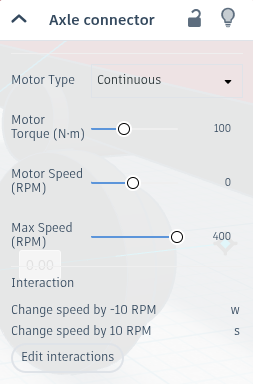

- Get an axle connector by clicking basic shapes, then scrolling down and clicking on sim lab, then click on the axle connector shown.
- click next to one of the wheels to place it down and then tilt it 90 degrees to have the orange part of the connector touching the wheel and then the blue part touching the base. there are circles, first drag one onto to the wheel, when you do that the wheel will turn orange. Then drag the other circle to the base, this will turn the base blue. Repeat this for all 4 wheels.
- now you will go to the customization window and set the axle mode to continuous, now set all the motors to have a torque of 100. You can then set controls for the axle, I did W and S. To set controls, click on Edit Interactions, then press W, or S on your keyboard. For the wheels on the right set W to change speed by -10, then set S to change speed by 10. For the wheels on the left side set W to change speed by 10, and then set S to change speed by -10. make sure to have all of them to change speed by 10, or -10 ON PRESS. if you have it set to WHILE HELD it will be really slow. Having it set to ON PRESS will cause it to go 10, to 20, to 30, and so on, or -10, to -20, to -30, and so on.
Tracks


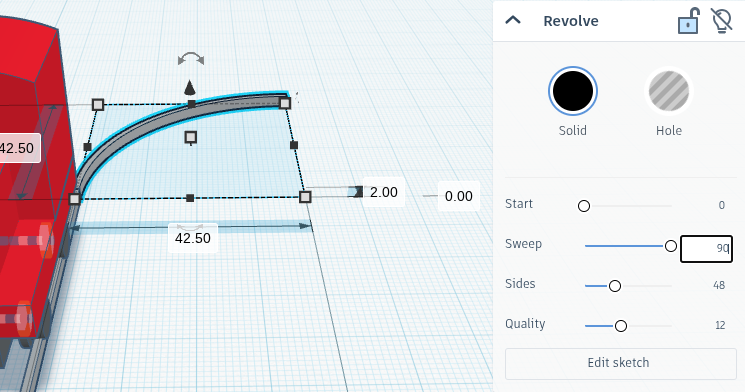


To create the tracks we will make 1 straight and 1 curved track. make sure to go back to the basic shapes category.
The Straight Track
- Get 2 cubes that are 60 mm long, 1 mm wide, and 2 mm tall that are Right under the edge of the wheels. and make them gray. DON'T GROUP THEM!!!
The Curved Track
- Get one revolve shape, (should look like a top) and place it 50 mm to the right of the center, and 50 mm behind the center
- You will immediately enter sketch mode. what you will do now is draw a square on the track that's closer to the edge.
- Once your done with that exit sketch and make it sweep 90 degrees using the slider or text box in the revolve sketch customization panel.
- Duplicate the sketch by doing CTRL + D and enter sketch mode or click Edit sketch. move the square in the sketch to be on the other rail.
- Change both revolve sketches color to gray and do not group them.
You can now create your own track, make sure to highlight the 2 rails of either the Straight Track, or the curved track, and rotate them if need be. also make sure the align with each each other. I made a square track.
Simulation Setup


before we do the simulation we are going to select all the tracks and anchor them in place. then we are going to change the material of the shapes to steel. we can now chose to do moon gravity, mars gravity, earth gravity (default), or Jupiter gravity. We can also change the shaking magnitude, (shakes workplace, great for testing designs by an earthquake :D). Or we can change the scale of the simulation, either 1x, 10x, 100x, or 1000x.
Simulation ;D
You can now test the train. the train has a max speed of 400. which is really fast. If the train doesn't move, change the torque of all the motors. if the train still doesn't move try making sure you didn't make the train static. it should not have a dark blue outline around it, if it does, then it is static. it should have a light blue outline indicating that it is a dynamic object. if the tracks move. reset the simulation and make them static. If the train derails change the gravity, or make the train lighter by changing the material.