Multi-Sided Spinning Name Plate in Fusion - Beginner Tutorial
by nainaM in Design > 3D Design
226 Views, 2 Favorites, 0 Comments
Multi-Sided Spinning Name Plate in Fusion - Beginner Tutorial

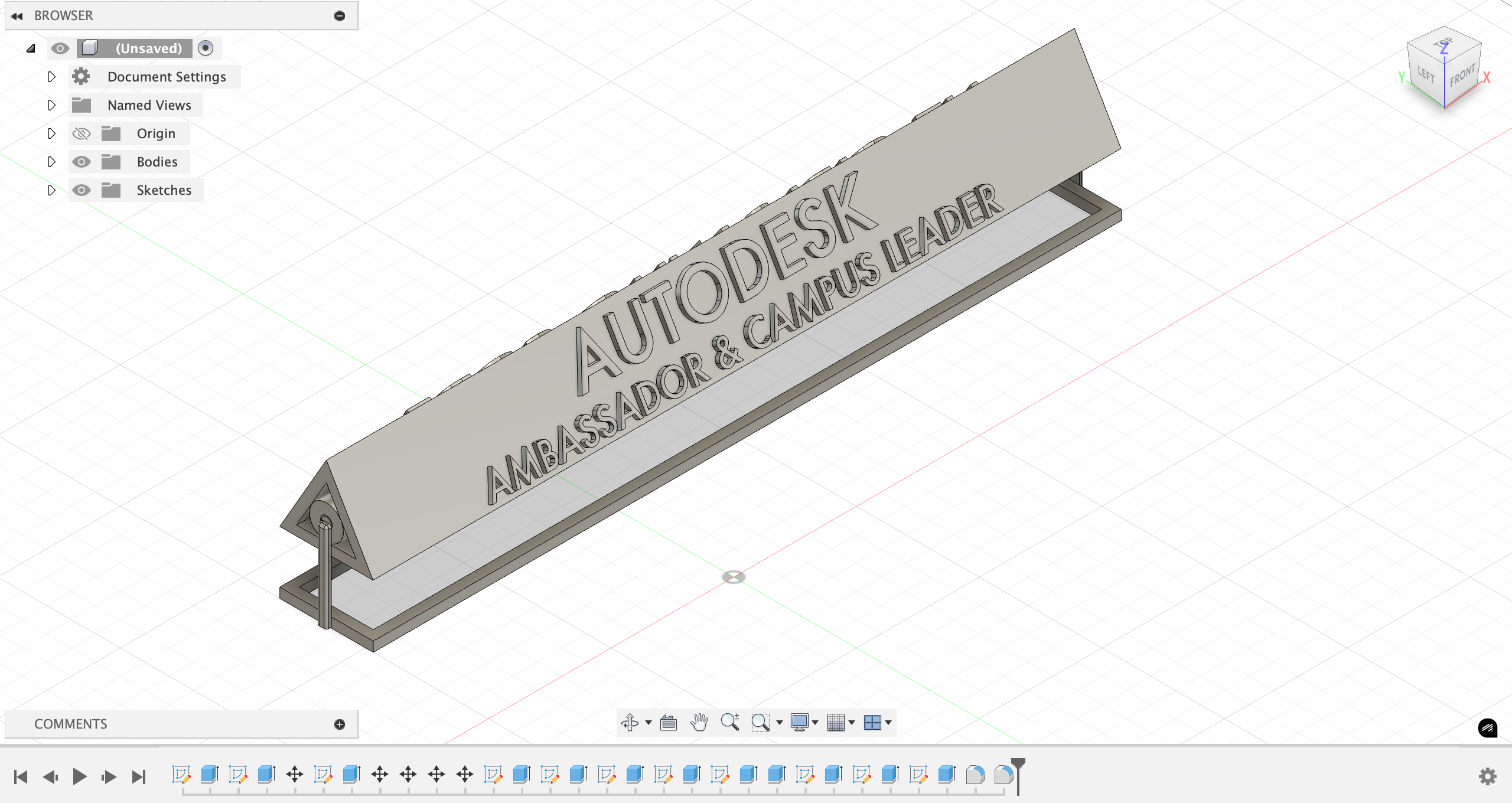

Whether you need a name plate for three people sharing a desk or want to display three different titles for yourself, this 3D Spinning Name Plate takes the classic office name plate to the next level. Designed in Fusion 360, it combines functionality with creativity. This tutorial is perfect for beginners, guiding you step by step through 3D design and CAD modeling!
My inspiration came from wanting name tags for one of my school organizations, which had a lot of new officers in different roles. I realized that if I ended up in another organization with a different title, I’d have to buy a whole new name plate. That’s when the idea of a multi-name spinning name plate was born!
Supplies

The only thing you need is to download Autodesk Fusion, which is free for all students and educators!
Get access here: https://www.autodesk.com/education/home#students
When you download Fusion and start working, you will notice that the software defaults to designing in millimeters. If you prefer inches, a quick Google search can help change your preferences. However, I'll be working entirely in millimeters for consistency, especially since later steps require precise measurements, such as a standard 4 mm gap for objects that fit in each other.
Make the Base


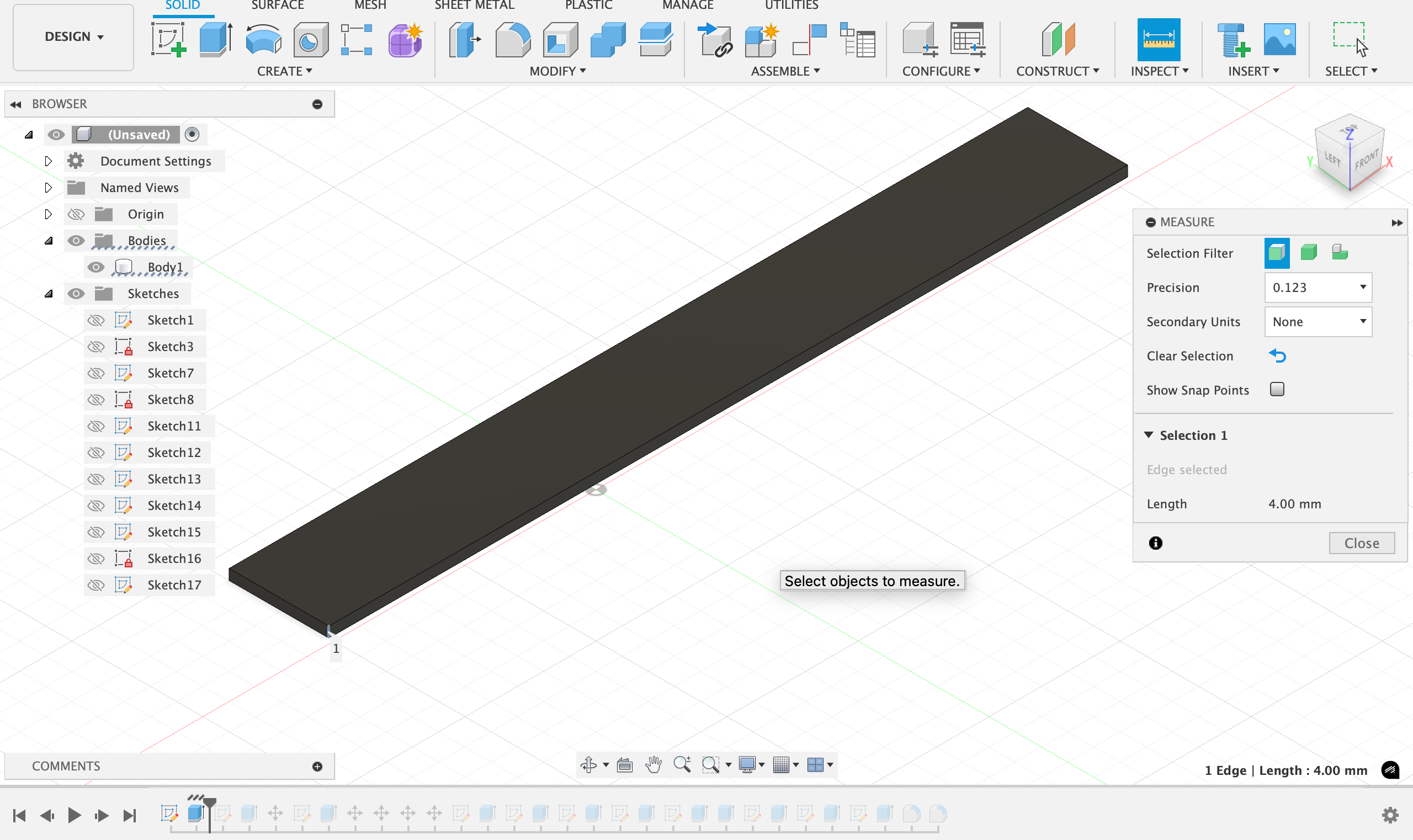
Start a new sketch in Fusion by clicking the first option, "Create Sketch" in the Solid materials tab. This will prompt you to select a plane. I used the side that flat/symmetric to the ground, as pictured in the first image. Once you select the correct plane:
- Click "r" for the rectangle tool, or select the Rectangle in the menu to start drawing the base shape.
- Drag and release to make a general rectangle on the screen
- Before you click to confirm, you have an option to edit the highlighted measurement size by hitting "tab"
- Set the length to 304.8 mm (12 inches). Hit "tab" again to set the width to 38.1 mm (1.5 inches)
An important part of Fusion is dimensioning the sketch, which means to force the measurements to remain the same even if you happen to accidentally change the sketch elsewhere. To do this:
- We can use the Dimension tool (D) to lock in a 304.8 mm length x 38.1 mm width in these ways:
- Click "d", the click & drag an edge out to show the measurement.
- Ensure all rectangle edges turn black when designing the sketch (blue lines mean that the sketch is not fully constrained).
- Apply horizontal and vertical constraints to the sides as necessary. No need to over dimension something that is already determined to stay one size!
Finally, we need to extrude the base, which means that we make the 2D Sketch into a 3D object!
- Select the rectangle profile.
- Press E to extrude.
- Set the extrusion distance to 4 mm.
- Confirm the operation is set to New Body.
- Click OK to accept the solid base for the name plate.
This rectangle will act as the foundation for the entire name plate. Pat yourself on the back, you got the base done!
Hollow Out the Base


Just kidding... to make the base look aesthetically cooler and to account for any extra space that the actual name plate needs during rotation, I decided to hollow out the base.
It's very simple, following a few of the first steps from above. Select the top face of the base you just extruded, and start a new sketch on this face.
- Using the rectangle tool, hover over the base rectangle face and click until you see the highlighted circles pop up at each edge to make sure the rectangle is aligned. Create a rectangle with the same outer dimensions as the base, 304.8 mm × 38.1 mm.
- Then, go to modify → offset.
- Select the newly created rectangle.
- Set the offset to 4 mm inward from each side.
- Confirm that the offset direction is toward the inside of the base, creating a smaller inner rectangle.
- Finish the sketch:)
This inner rectangle defines the hollow area and ensures a consistent 4 mm wall thickness on all sides.
Now we'll be extruding to remove parts of the object with negative space!
- Select the inner rectangle profile.
- Press E (Extrude).
- Extrude downward, stopping before the bottom of the base (or set the extent to To Object and select the bottom face).
- Set the operation to cut, then confirm.
You now have a hollowed base with uniform 4 mm walls, ready to support the rotating name plate mechanism!
Now you are done with the base. Move on to the next step!
Make the Sides
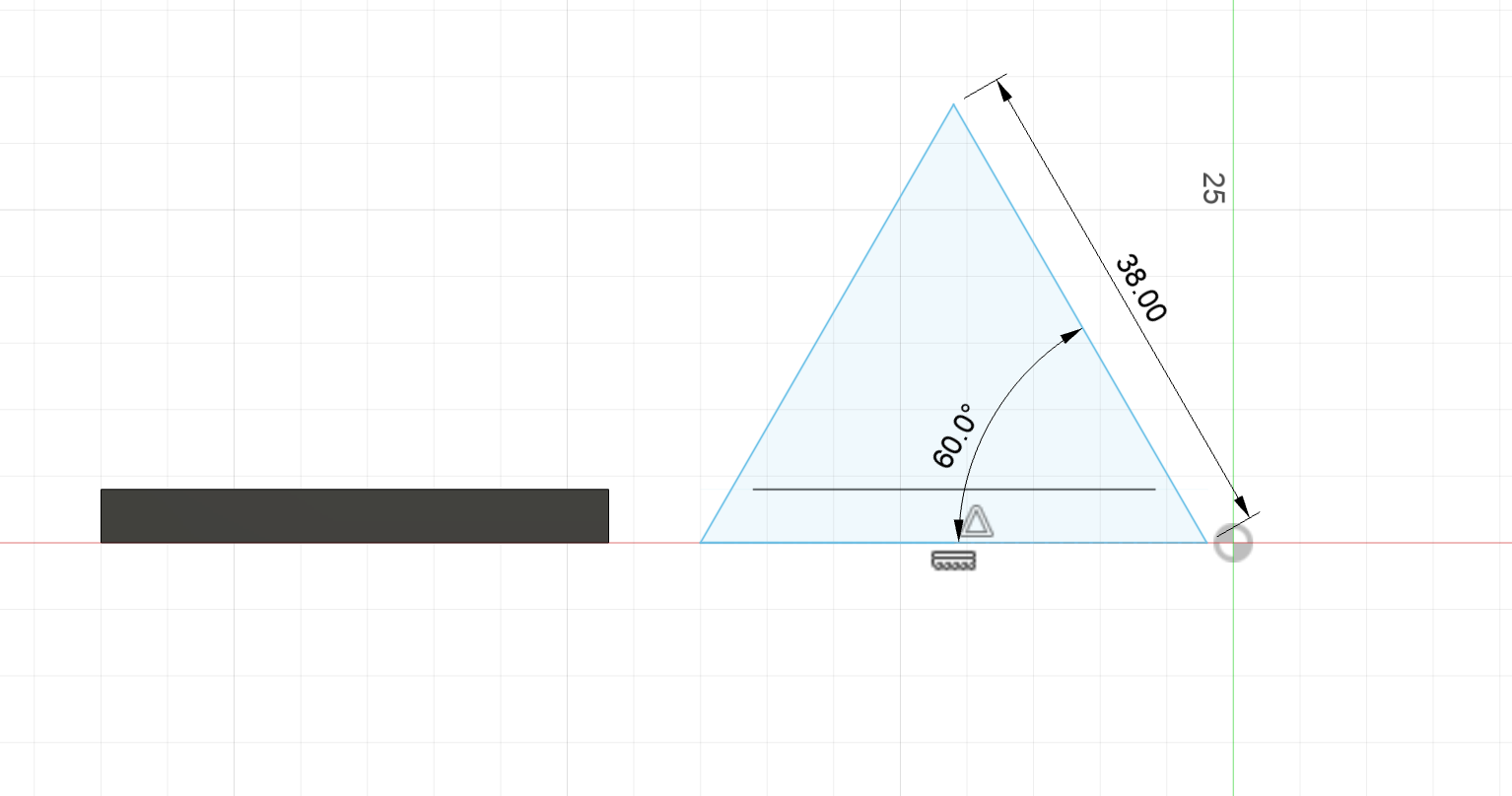


Now you'll be constructing a triangle for the name plate body. Start by adding new sketch on the plane perpendicular to the base (check the images for reference).
I'll be making guidelines first to construct the triangle in sketch mode:
- Press "l" to activate the Line tool.
- Draw a horizontal line along the face. This will act as the base of the triangle.
- From the midpoint of the horizontal line, draw a vertical line upward. This is a construction guide to help center the triangle.
To actually sketch the triangle, hover over one end corner of the horizontal line.
- Draw a line upward and use the Dimension tool (D) to set the angle between this line and the horizontal base to 60°.
- Extend the line until it meets the vertical guide line.
- Repeat the same process on the other side:
- Start at the opposite corner of the horizontal line.
- Draw a line upward at a 60° angle toward the vertical guide line. Connect it to the vertical line, and you should see your triangle!
Time to clean up your sketch! This is not a required step, but can help you and others see a clean version of your sketches if you want to reference them later.
- Delete the horizontal base guide line and the vertical center guide line, leaving only the three edges of the triangle.
- Make sure all triangle edges turn black, confirming the sketch is fully constrained.
- Click to finish the sketch!
You should now have an equilateral triangle, perfectly centered and perpendicular to the base.
Finally, make sure to extrude the triangle 304.8 mm (12 inches) so that it would be the same length as the base. You can select the body, right-click to "Move/Copy", and position it right over the base in case it is not in the right place!
Hollow the Center


We'll be hollowing out the body not just for aesthetic purposes, but to create an axle inside of it later.
Hollowing out the center of the body is very similar to how we did it for the base! Start by selecting the triangular face you just created, and start a new sketch on this face.
To create the inner triangle:
- Sketch a triangle right over the old face
- Go to Modify → Offset.
- Select all three edges of the triangle.
- Set the offset distance to 4 mm inward.
- Make sure the offset is going toward the center of the triangle!
- This creates a smaller, inner triangle and ensures a consistent 4 mm wall thickness.
- Click to finish the sketch!
Now, you shall extrude:
- Select the inner triangle profile.
- Press E (Extrude).
- Extrude through the triangle body 304.8 mm (or use To Object and select the opposite face).
- Set the operation to cut, then confirm.
You now have a hollow triangular support with uniform 4 mm walls, keeping the structure lightweight while maintaining strength. So 4 mm might seem thin, but it's actually perfect for most building materials and strong enough for the purpose of our desk name plate. If you're worried about inner strength, the name plate body will be supported on the inside with a cylindrical axle in the next step!
You can always edit the walls thickness to your liking later:)
Add Names/Titles
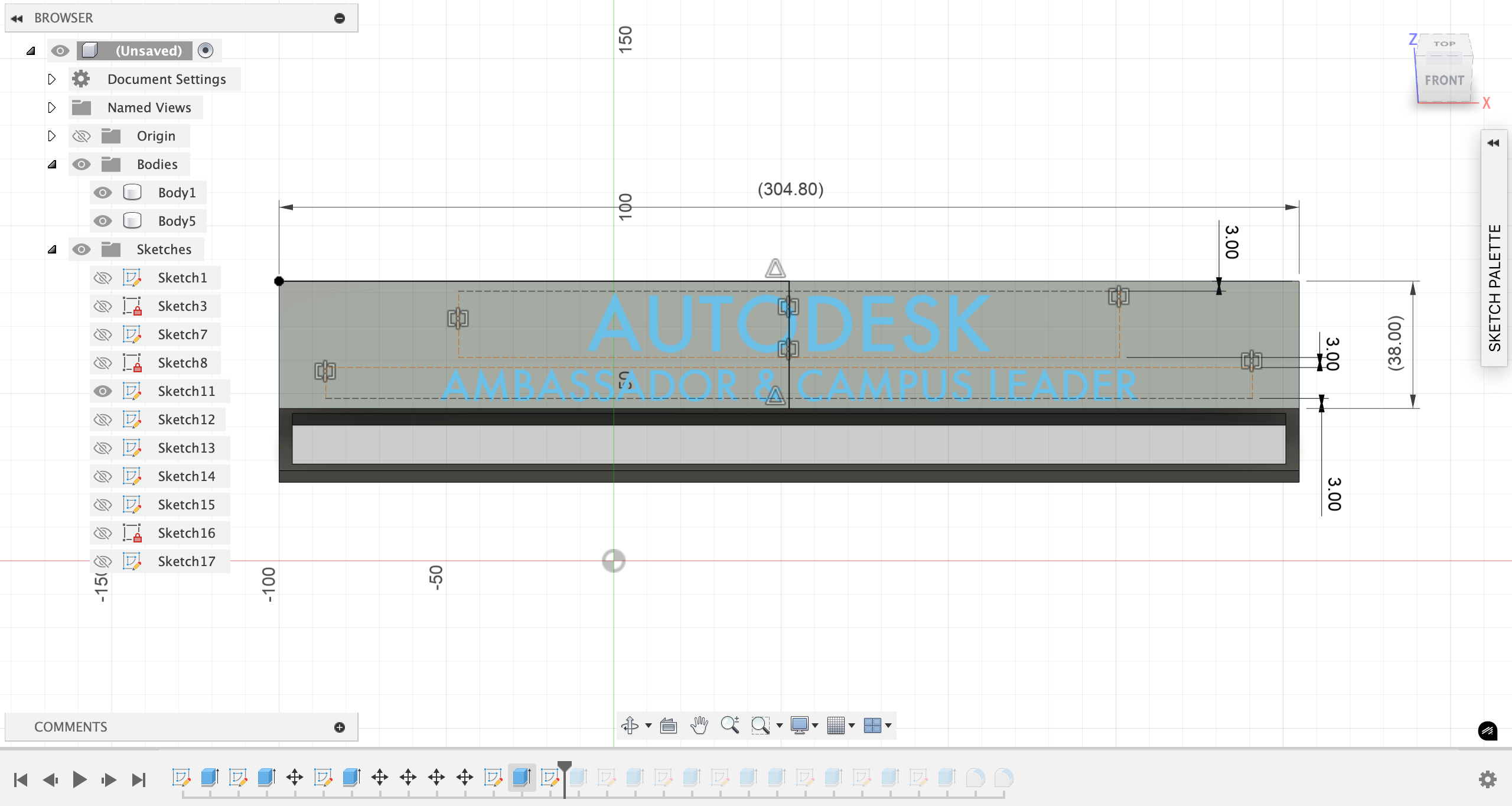


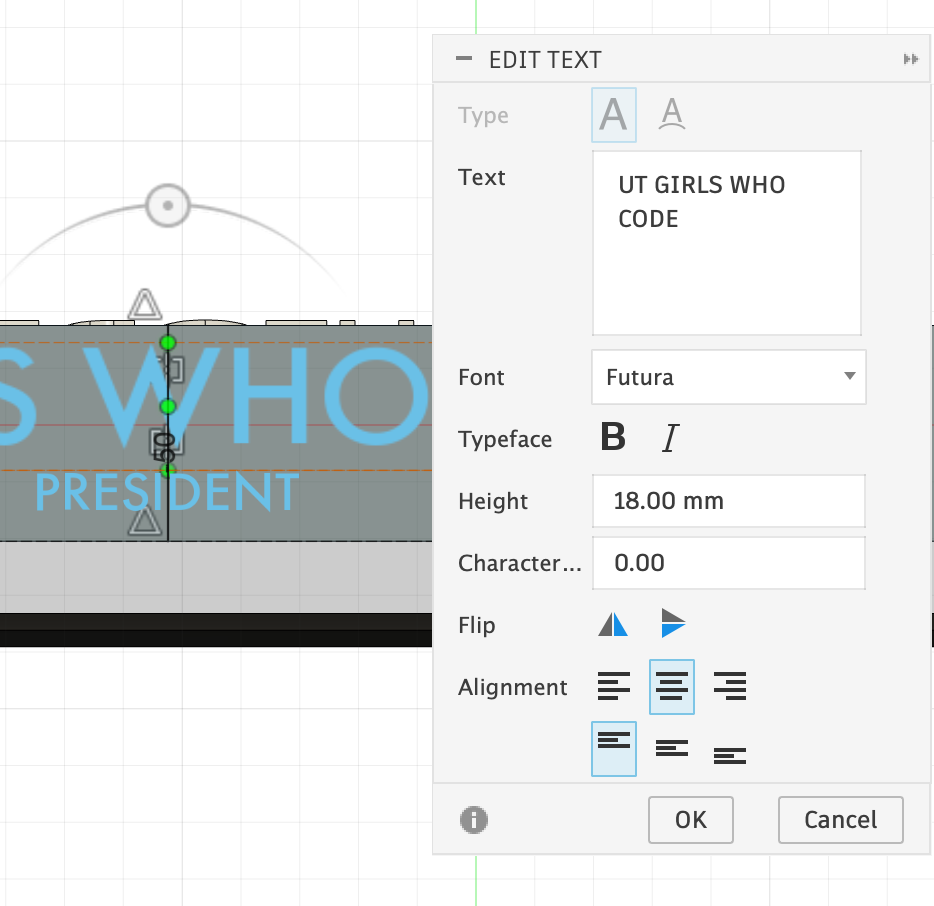
Now this is the fun part!
Do you have 3 friends at a desk, or do you represent three different organizations? We’ll add text to each face of the triangle so it can rotate and display multiple names or roles. Let's start by adding text to one face. Click one face of the triangle and start a new sketch on that face.
First we'll make some guidelines in our sketch by creating a center axis for symmetry.
- Press "l" to activate the Line tool, and draw a horizontal line across the face.
- Use the Dimension tool "d" to set the line’s length to half the width of the face, ensuring it is centered.
- Constrain the line so it stays horizontal and centered. This line will act as the symmetry axis for the text.
Now, add the text!
- Press T to activate the Text tool and click near the center of the face to place the text box.
- Type your main title or name.
- I set the font to Futura, and font size to 18 for the large, primary text. This can be your name or the organization's name.
- Press T again to create a second text box, and enter the secondary text, which can be organization name, role, or subtitle like the year of your candidacy.
- I set the font to Futura, but the font size is now 7.
- Position this text below or above the main text as desired.
Since eyeballing isn't always precise, we will now constrain the text to be centered.
- Select the main text.
- Apply a symmetry constraint:
- Go to constraint -> symmetry so that the text stays centered on the face.
- Select each end of the text box, then select the horizontal axis line.
- Your design should snap in place!
- Repeat the same symmetry constraint for the smaller text.
- Adjust spacing as needed, then ensure everything is aligned and clean.
- You can also add a dimension between the borders and the text boxes to make sure the same amount of space is consistently maintained in the design. For me, I set some of the dimensions to be 3 mm apart (check the images for reference).
- Finish the sketch!
You are welcome to change either the large or small text size, but I found these to look best for the current body.
All you do now is repeat the process for each face:
- Rotate the model to a different view to expose the next face of the triangle.
- Click the face and start a new sketch.
- Repeat the same steps1
Do this on all three faces to create a rotating name plate that can display multiple titles, organizations, or identities. Now, the design is clean, functional, and uniquely yours:)
Time to move on to the next step!
Add a Central Axel & Side Supports


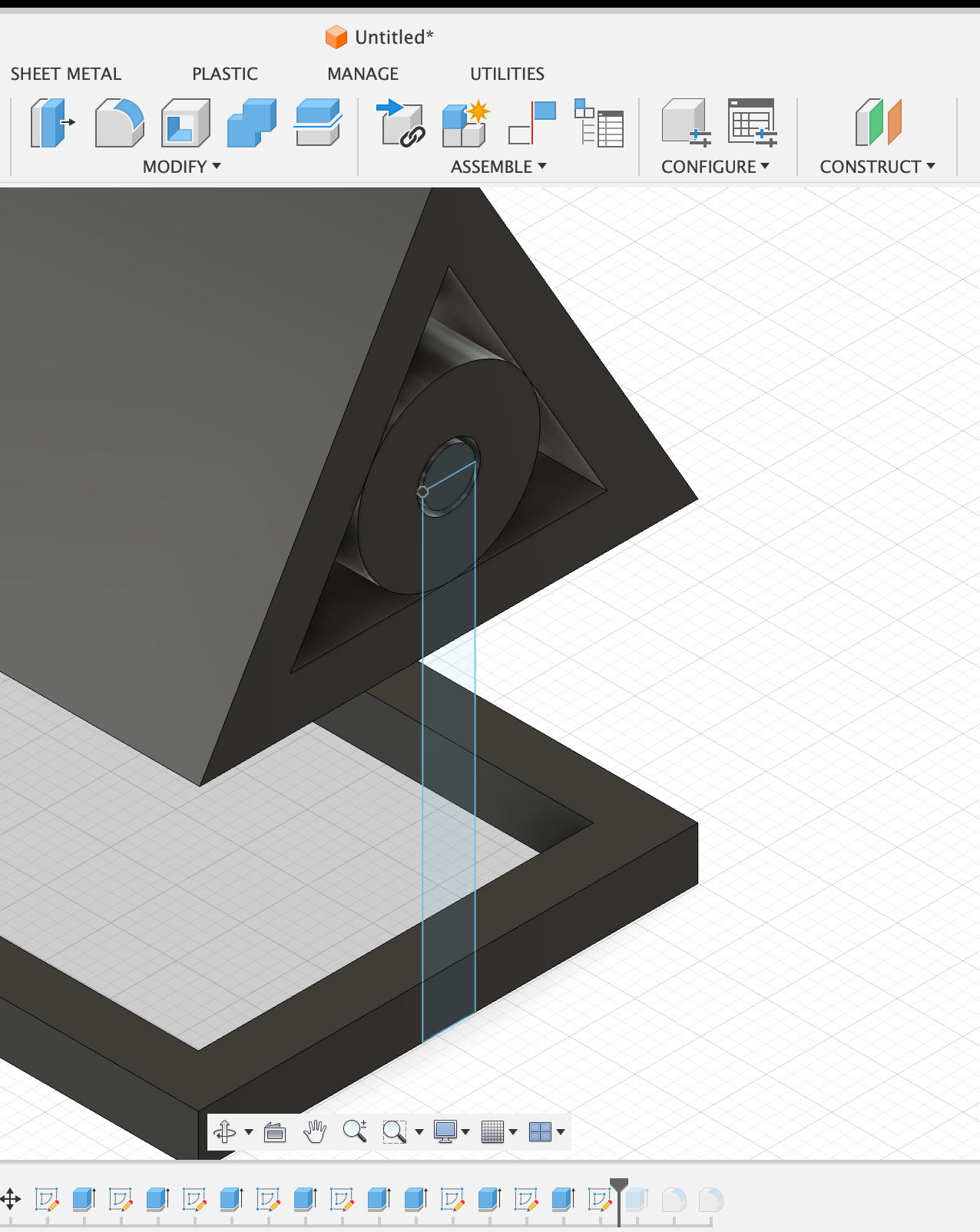
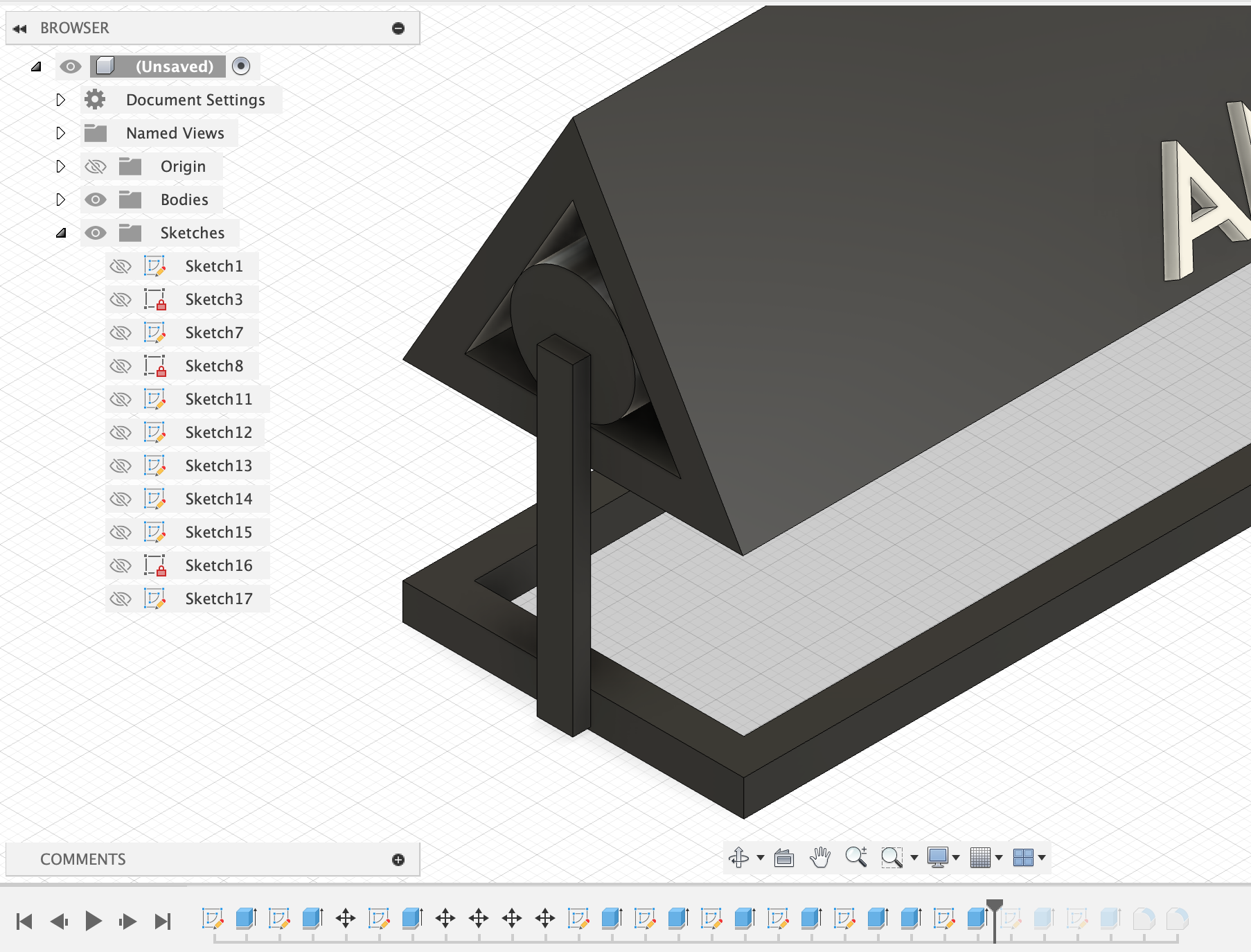
This part may be a little tricky, so read closely:
First, we add the center cylinder inside the triangle. Start a new sketch on the triangle face:
- Redraw the inner triangle by hovering over the already created points. We'll use the circle tool (click "c") to draw a circle roughly in the center of the triangle.
- Go into constraints and apply tangent constraints by clicking on an edge of the triangle and the rim of the circle. Repeat this three times to constrain all edges of the circle to touch from the circle to all three edges of the inner triangle.
- This ensures the circle automatically scales to fit within the triangle.
- Now, click on the face of the outer circle and extrude through the length of the triangle body.
- Confirm the extrusion!
Now we'll add the side supports! Start a new sketch on the face of the cylinder. Again, we'll be adding guidelines to find the center of the base.
- Draw construction lines along short side of the base to mark the center point. These guides will help you position the side supports symmetrically.
- Now, to draw the side support rectangles:
- Use the Rectangle tool (R) to draw two rectangles, or one large one if you can figure it out:)
- Set the height to 36 mm, so the supports reach near the middle of the cylinder.
- Set the width to 2 mm (or 4mm for the large one)
- Use the guidelines to align the rectangles symmetrically on the cylinder.
- Finish the sketch
- Extrude the Side Supports
- Select both rectangles.
- Press E (Extrude).
- Set the extrusion distance to 2 mm, and now the supports connect the base to the upcoming inner axle.
- Choose New Body for the operation, then confirm.
Do the same for the other side, and your side supports should be ready!
Add a Spinning Axel
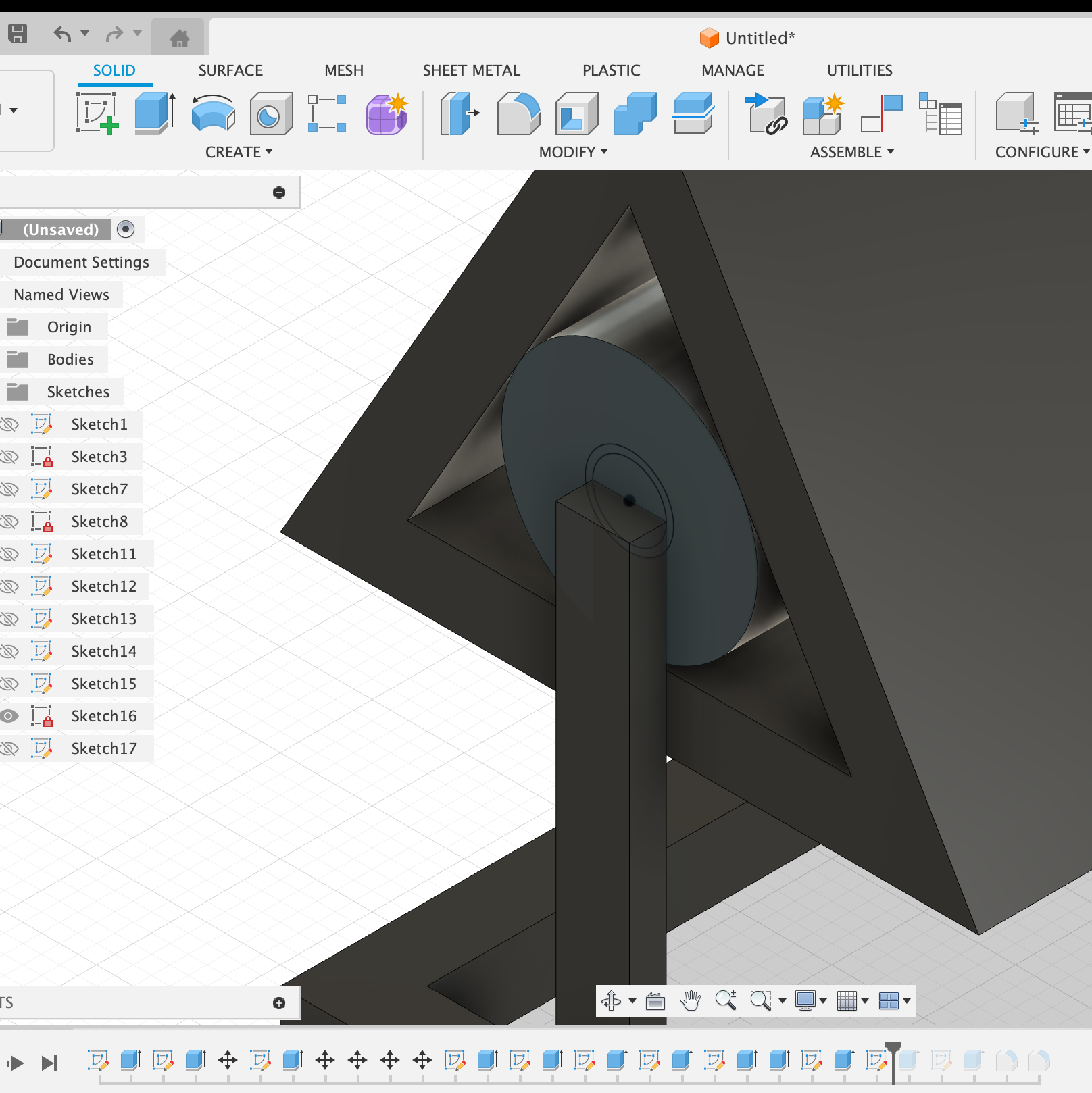

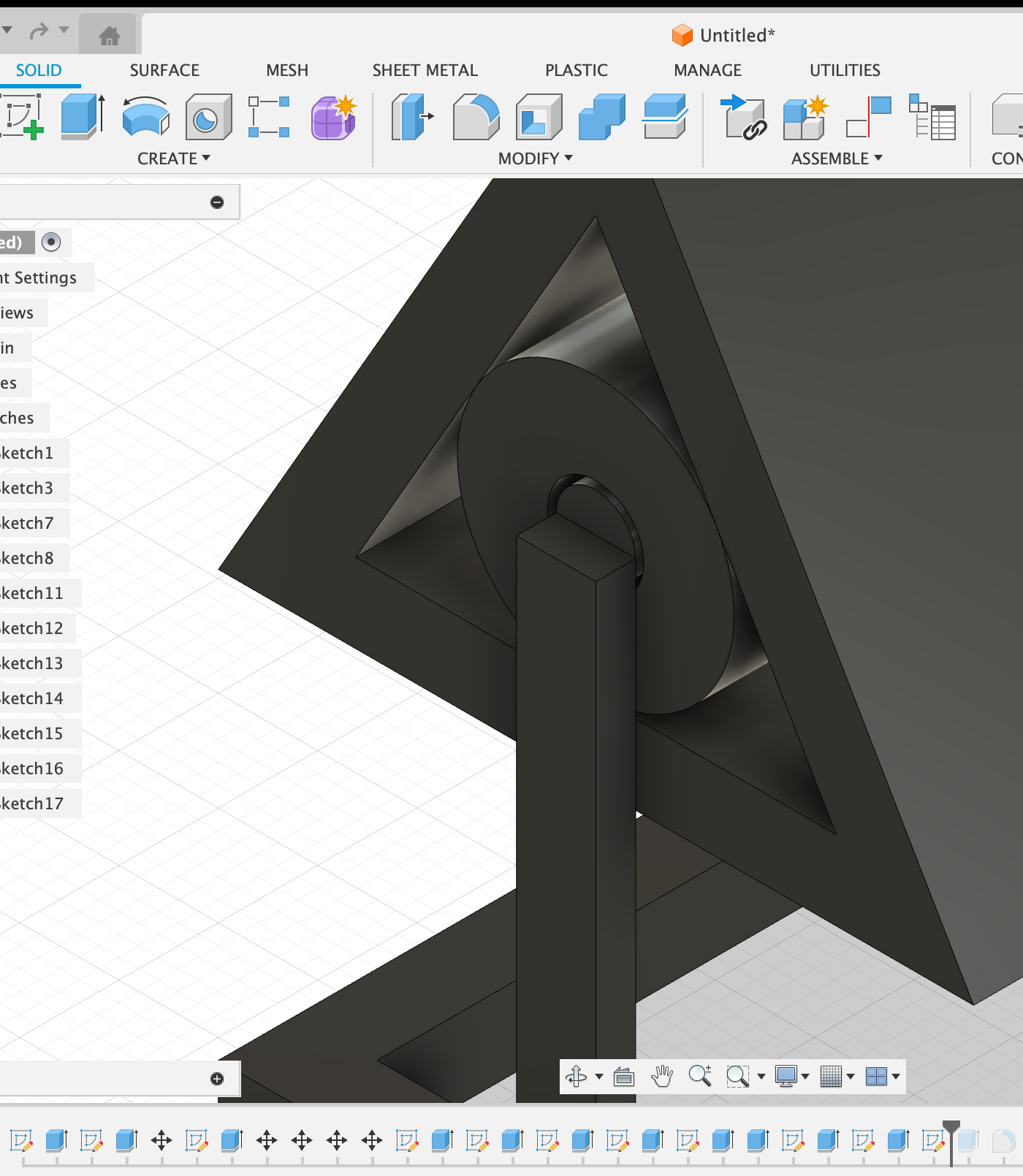
The old sketches usually disappear when extruding, but you can go into the side menu with "Sketches" and click on the eye beside the second latest sketch to make it visible again. After you click on the eye, you should see the old sketch with the cylinder. Create a new sketch on top of it.
Now, we'll be drawing the Inner Axle cylinder that connects to the side supports and ultimately creates to the spin feature.
- Draw a smaller circle at the same center point.
- Set the diameter to 4 mm (this will be the actual axle).
- Apply an offset/tolerance of 0.4 mm so there’s a little clearance between the axle and the triangle’s walls. This helps it rotate smoothly!
- Click finish on the sketch!
Now we extrude the inner axle separately.
- Select the inner circle profile by zooming in and clicking on the rim.
- Press E (Extrude) to the length of the body.
- Make sure the operation is set to new body, so we can later have this rotating as a separate part.
You are almost done!
Final Touches

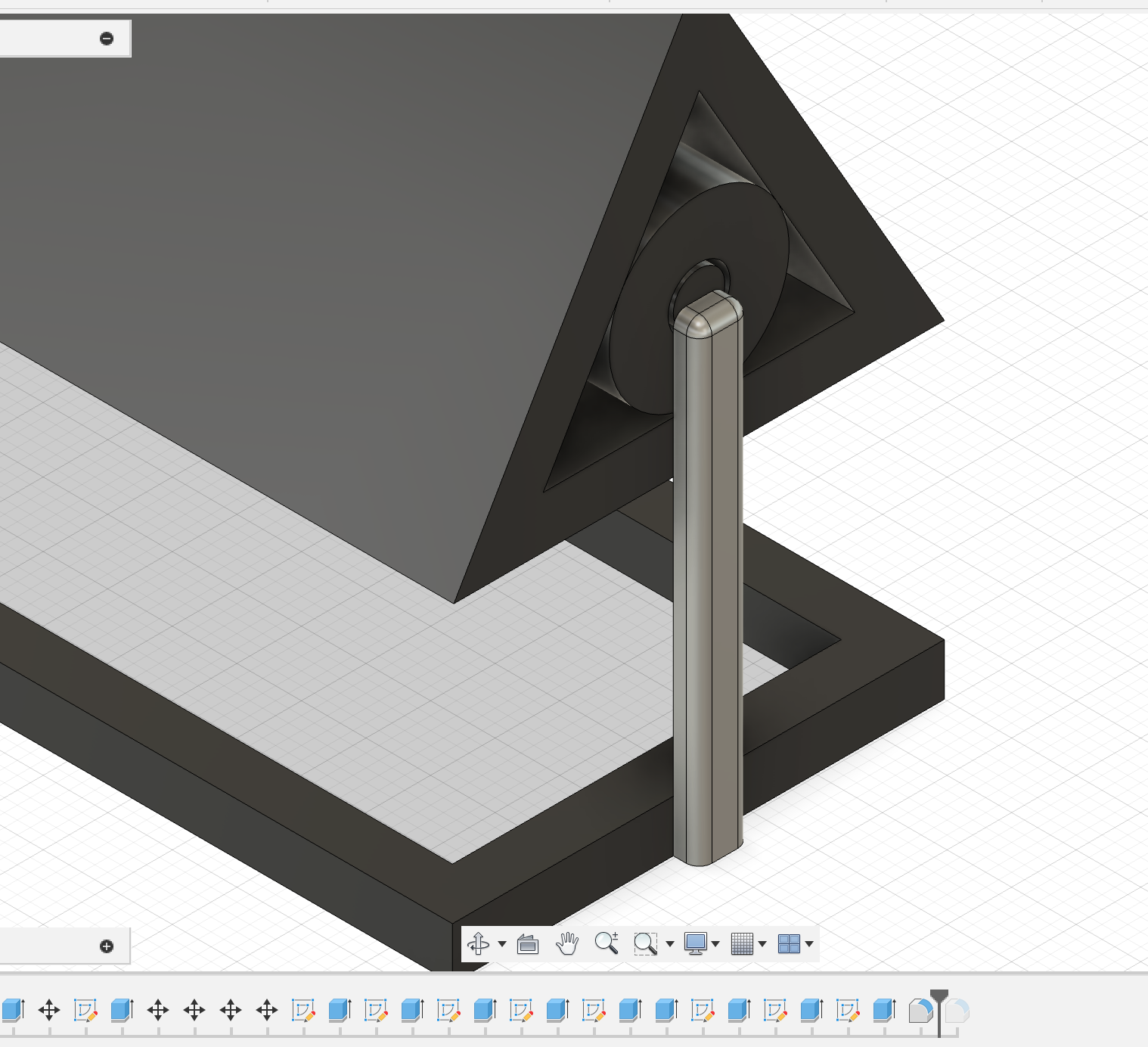
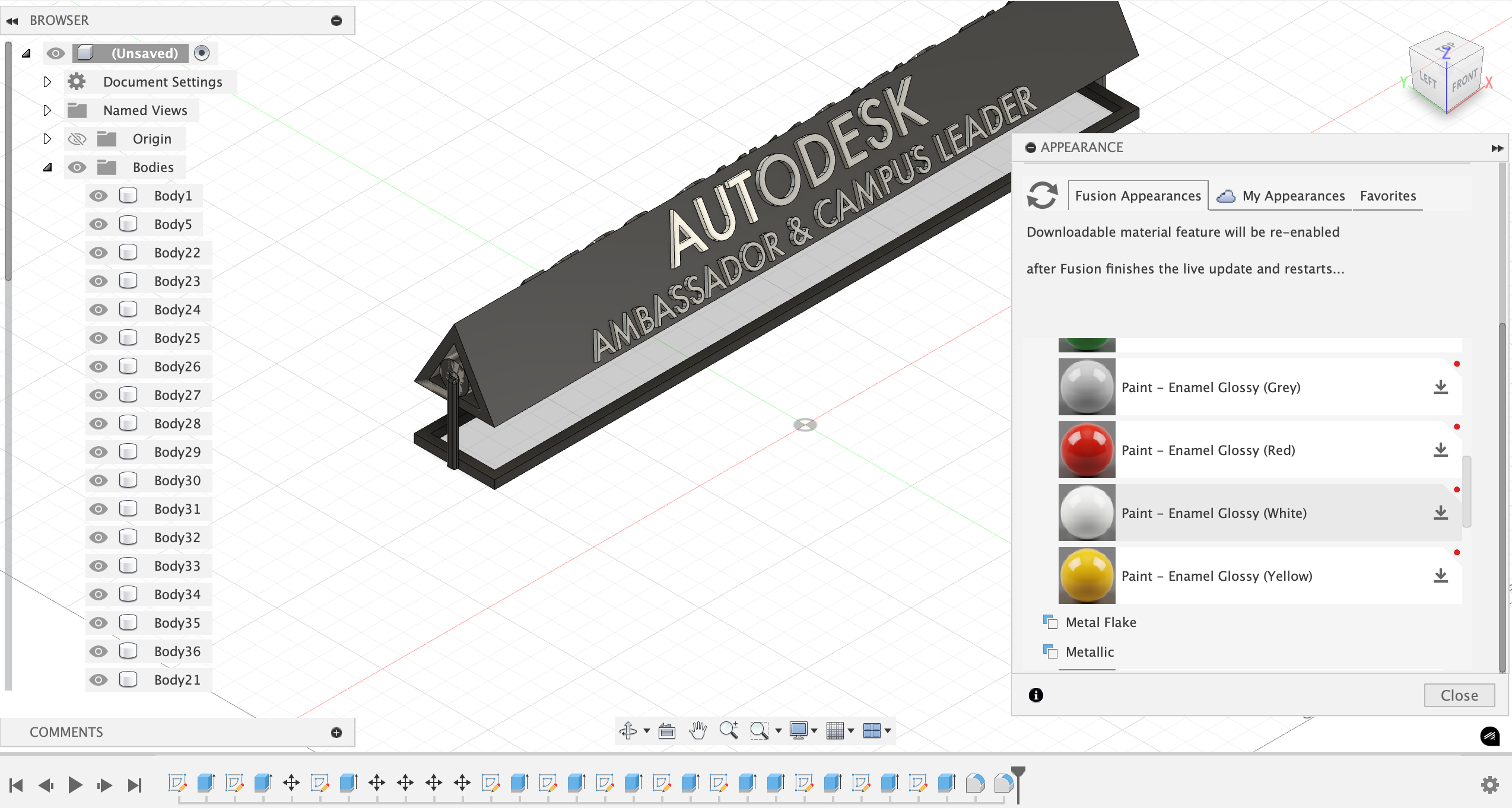
We will first fillet the supports for aethetic reasons, and because fillet edges tend to be stronger
- First select "fillet" in the modify section in the menu
- Click on the vertical edges of the side supports.
- You can also select any sharp edges on the base or triangle if you want a smoother overall design.
- I used 1 mm for the fillet size, good for small supports
- Confirm the fillet.
Sharp edges are now rounded, reducing stress points and giving the design a polished, professional look!
Now you can color the body! This step is just for visual purposes, is it usually isn't saved when you export the design.
- Click on the body you want to color (e.g., base, triangle, or supports).
- Press A to open the Appearance dialog or go to Modify -> Appearance
- Choose a color in the acrylic paint section (e.g., gray for the base, bright for the triangle, metallic for the axle). DO NOT change the material - it's honestly an area I did not explore yet, but I had trouble painting my object after changing the material.
- Drag the color onto the body.
- Repeat for other bodies
Your spinning name plate is now fully assembled, polished, and visually appealing!
GREAT WORK, YOU ARE DONE!!!
Reflections & Further Steps

Sometimes, a design doesn’t work out exactly the way you planned, and that’s okay!
Even though I created this design, I don’t have the materials to 3D print at home, so printing it would likely reveal weak points that aren’t obvious on screen. That’s where iteration and prototyping come in. Seeing a physical version helps you identify what needs to change, and that process is a huge part of engineering design.
I also learned a lot about how extrude options affect your workflow. At first, I extruded everything as a new body, but when I extruded the text sketches, Fusion created around 30 separate bodies, which I definitely didn’t want to edit individually. That’s when I realized that using Join can sometimes be the better choice.
Moving forward, I’ll be more intentional about exploring extrusion options and understanding what they really mean, since these decisions directly affect how easily you can edit, export, and 3D print your spinning name plate.
I hope you learned a lot and enjoyed building with me!