NOOS – NAS Case (Mini-ITX, 6/8 Bays, Pico/Flex PSU)
by Pokzy in Circuits > Computers
590 Views, 3 Favorites, 0 Comments
NOOS – NAS Case (Mini-ITX, 6/8 Bays, Pico/Flex PSU)

)
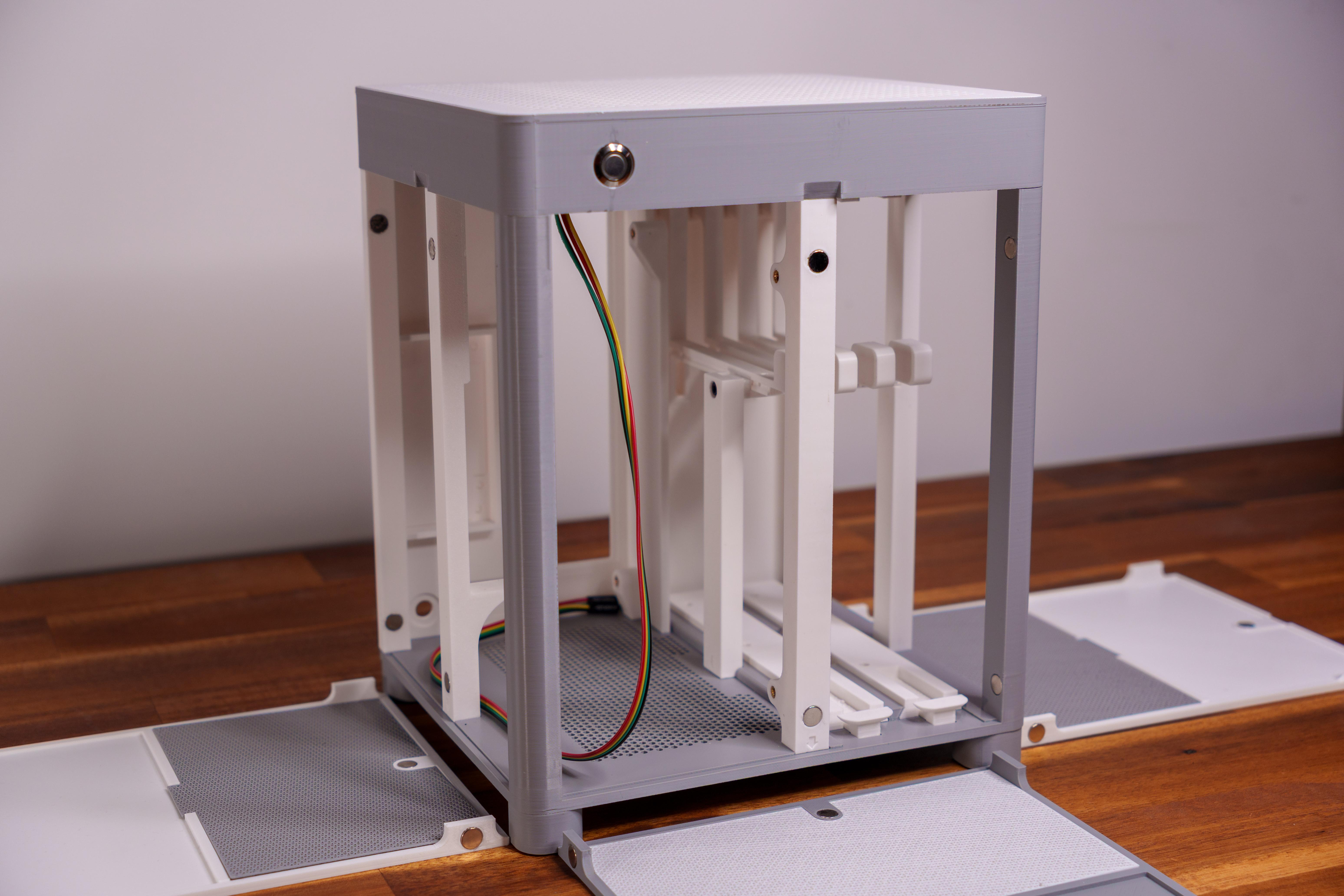


This guide has been created to help makers and DIY enthusiasts build a fully functional 3D printed NAS case. It provides everything you need: from the required hardware and printable parts to step-by-step assembly instructions.
Important – Please Read Before Starting
- This NAS case is compatible only with PicoPSU or Flex ATX power supplies. Standard ATX power supplies cannot be used.
- Up to 8 storage bays: [ 6 x 2.5" SSD + 2 x 3.5" HDD] or [ 4 x 2.5" SSD + 3 x 3.5" HDD] or [ 2 x 2.5" SSD + 4 x 3.5" HDD]
- 4 x 2.5" SSD slots can be turned into 2 x 3.5" HDD slots.
- The design is intended for Mini-ITX motherboards only.
- The cooling system supports one 120 mm or 140 mm fan, with a maximum thickness of 28 mm.
You will find suggested hardware components to complete your NAS build, ensuring optimal compatibility and performance.
Whether you are an experienced maker or a beginner, this document will walk you through the entire process so you can enjoy a custom, efficient, and elegant storage solution for your home or workspace.
This instructables will cover the Extended version, you can find the PDF Guide for the Base version just below.
- Base version → supports up to 6 drives (2× HDD 3.5” + 4× SSD 2.5”), compatible with most printers (minimum build volume 21×21×21 cm).
- Extended version → supports up to 8 drives (2× HDD 3.5” + 6× SSD 2.5”), requires a larger printer (minimum build volume 25×25×25 cm, e.g. Bambu Lab P1/X1).
Supplies
️ Bill of Materials & Tools (Affiliates links)
- M3-10mm Screws (x24) → Amazon | AliExpress
- M3-14mm Screws (x4) → Amazon | AliExpress
- 6-32 Phillips Screw 5/16" Flat Head (x24) → AliExpress
- Heat inserts M3xL5xOD5 or M3xL4xOD5 (x32) → Amazon | AliExpress
- Round Magnets 8x2mm (x40) → Amazon | AliExpress
- LED Metal Button Ø12mm → Amazon | AliExpress
- Silicone damping bumper 10x3mm (x4) → Amazon | AliExpress
- Soldering iron → Amazon | AliExpress
- Allen key set → Amazon | AliExpress
- Utility knife → Amazon | AliExpress
- Super glue → Amazon | AliExpress
- Electric screwdriver → Amazon | AliExpress
- Needle-nose pliers → Amazon | AliExpress
- M3 screw kit (optional) → Amazon
- Set of 7 soldering tips for inserts → Amazon | AliExpress
- PETG-HS → AliExpress
Suggested Components (Affiliates links)
- Motherboard (Mini-ITX, e.g. Intel N100/N150) → Amazon | AliExpress
- PSU - PicoPSU (≥2 SATA) → Amazon | AliExpress
- PSU - Flex ATX → Amazon | AliExpress
- HDD 3.5" (2–4 depending config) → Amazon
- SSD 2.5" (up to 4 Base / 6 Extended) → Amazon
- RAM (DDR5/DDR4 per motherboard) → Amazon | AliExpress
- NVMe SSD (optional) → Amazon | AliExpress
- SATA data cables (preferably 90°) → Amazon | AliExpress
- 120mm fan → Amazon | AliExpress
- 140mm fan → Amazon | AliExpress
Download the Files

All 3D models for the NOOS NAS Case are available on MakerWorld.
You can choose to download:
- All parts together (ZIP archive), or
- Individual files organized by build section, ready to print with the correct orientation.
There are also ready-to-use 3MF print profiles for Bambu Studio, which include:
- Correct part orientation
- Organized build plates
- Recommended base print settings
Get the files here:
If you select “Download STL/CAD files”, you will find:
- Two folders:
- One for the Base version
- One for the Extended version
- Each folder contains all printable parts arranged on a single build plate.
- Two 3MF print profile files:
- One for the Base version
- One for the Extended version
- Each 3MF file groups all parts on multiple build plates, with correct orientation and layout.
Watch the Build Video
)
The video will give you an overview of the design and build process.
Printing Settings


- Material : PETG recommended, around 1.2Kg
- You only need to adjust the printing parameters according to your printer and material.
- Layer height: 0.2 mm for all parts.
- Standard profile: The majority of the parts can be printed using the same profile (recommended infill 15–20%, 2 perimeters, no supports unless specified).
- The dust filters are designed to be permeable and should not be printed solid.
- Stronger settings required for the following parts:
- Back panel
- Base
- Motherboard & PSU support brackets (vertical support parts for the motherboard tray, Flex PSU, and SSD brackets)
Installing the Heat-Set Inserts


- Action : Insert all the heat-set inserts into the following parts:
- Base ; Back panel ; Vertical supports ; SSD brackets
- Important note : Use a soldering iron or a suitable tool to install the inserts cleanly and ensure they are perfectly aligned with the holes.
- Warning : Do not overheat or misalign the inserts — incorrect placement may weaken the printed parts and compromise assembly.
Installing the Silicone Damping Bumpers

- Action : Attach the silicone damping bumpers under each foot.
Adding Round Magnets on Side Panels

When installing the magnets, pay close attention to polarity:
- All magnets on the side panels and frond panel must be oriented in the same direction.
- Place two magnets per slot: the first one stays in place, and the second one is used as a reference for correct polarity when placing it on the base.
- Mark the outer face of the second magnet before inserting it. When installing the side panels on the base, these marks should face inward, ensuring perfect alignment.
- You can use glue to hold the magnets
⚠️ Incorrect polarity will prevent the side panels from attaching properly.
Adding Round Magnets on Vertical Supports

- Take the vertical supports corresponding to each side panel and the front panel:
- Left side → SSD bracket support
- Front panel → Motherboard support
- Right side → Flex PSU support
- Place the vertical supports onto their associated side panels to ensure that the magnets align correctly.
- Remember: the mark on the second magnet must face inward.
- Each vertical support has an arrow indicator: make sure the arrow is oriented downward during installation.
⚠️ Incorrect orientation of the supports or magnet polarity will prevent proper assembly of the panels.
Attaching the Side Panels to the Back Panel

- Action : Insert the magnets from the left and right side panels into the back panel.
- Right panel = PSU and motherboard side
- Left panel = HDD/SSD bays side
- Important note : Use the marked magnets from the side panels and ensure the mark faces inward toward the back panel.
- Warning : Make sure you don’t confuse the left and right panels. Incorrect orientation or magnet polarity will prevent proper alignment.
Inserting Magnets Into the Vertical Supports

- Action : Repeat the same process as in the previous step. Insert the magnets from the side panels (Left, Right and Front panel) into the vertical supports already mounted on the Base.
- Important note : Ensure that the polarity is consistent and that the marked side (cross) of the magnets faces inward, inside the vertical supports.
- Warning : Misaligned polarity or reversed magnets will prevent the panels from attaching correctly later in the assembly.
Assembling the SSD Bracket Support

- Action : The SSD bracket support consists of three parts. Assemble them together using two M3 × 10 mm screws.
- Important note : Refer to the provided diagram for correct alignment and orientation of the three parts.
- Warning : Do not over-tighten the screws — excessive force may damage the printed parts.
Mounting the Vertical Supports on the Base

- Action : Attach the three vertical supports (SSD support, Flex PSU support, and Motherboard support) to the Base using a total of 4x M3 × 10 mm screws.
- Important note : Each vertical support has an arrow indicator. Make sure the arrows are oriented downward and pointing to the outer side of the case.
- Warning : Incorrect orientation of the supports will prevent the correct installation of the brackets and panels later in the assembly.
Attaching the Back Panel and Feet

- Action : Assemble the Back panel with the feet. Each foot is numbered and must be placed in its corresponding position under the Base.
- Important note : Secure the assembly using 4 × M3 × 14 mm screws for the feet, and 1 × M3 × 10 mm screw in the center of the Back panel.
- Warning : Make sure each foot is placed on its correct number. Incorrect positioning will cause instability of the NAS case.
Securing the SSD Brackets

- Action : Insert 6 × M3 × 10 mm screws into the four screw caps. These screws hold the SSD brackets in place.
- Note : The screw caps have a tight tolerance, so installing the screws may require some extra care and pressure.
Installing Magnets and Power Button

- Action : Install the remaining magnets on the fan module and the top cover.
- Always check the polarity.
- Place two magnets per slot on the fan module to ensure the correct orientation for the magnets on the top cover.
- Action : Install the power button on the fan module.
- First, pass the cable through the hole.
- Then, push the button firmly into place.
Installing the SSDs or HDDs on Top Bay

- Action : If SSDs are used, insert them into their brackets.
- Action : If more than 2 HDDs are used, insert the other in their brackets dedicated to the top bay
- Action : Slide the brackets into the dedicated rails inside the case.
- Action : Secure each bracket by tightening the rear mounting screws at the back of the case.
Installing the Motherboard and I/O Shield

- Action : Install the I/O shield from the inside of the case.
- Note : Make sure the orientation is correct before placing the motherboard. The I/O shield is optional since the case is plastic, but it provides a cleaner look.
- Action : Place the motherboard in position and secure it with 4 × M3 × 10 mm screws.
Installing the PSU and SATA Cables

- Action : Install the chosen power supply:
- PicoPSU → Plug it directly into the motherboard. The DC input jack is located at the bottom; insert it and secure it with screws from the outside.
- Flex PSU → Place it against the back panel from the inside of the case, then secure it by tightening the screws from the outside.
- The unit also rests on its vertical support.
- Action : If no Flex PSU is used, install the cover plate provided for the Flex PSU slot. This cover is mounted from the outside of the case.
- Action : Once the PSU (or cover plate) is in place, connect the SATA power and data cables that will link the HDDs to the motherboard and the PSU.
- Note :
- Space is limited, so it is strongly recommended to install the SATA cables before placing the HDDs.
- Use 90° angled SATA connectors (at least on the HDD side) for easier installation and better cable management.
- If a PCIe card needs to be installed, it is best to do so before mounting the Flex PSU. You may need to temporarily remove the Flex PSU vertical support during installation.
Installing the HDDs

- Action : Mount the HDDs onto their brackets, making sure the connectors are facing the front of the NAS.
- Action : Slide each bracket into its dedicated rail inside the case.
- Action : Push the bracket fully to the back until the rail locks in place. The rail is secured when the front latch tab snaps into its slot.
- Note : To remove a bracket later, gently lift the latch tab to unlock the rail and slide the bracket back out.
Installing the Fan Module

- Action : Place the Fan module on top of the case to close it.
- Action : Make sure the orientation is correct — the power button must face the front side.
- Action : Secure the module using 8 × M3 × 10 mm screws.
Installing the Cooling Fan

- Action : Install a 120 mm or 140 mm fan in the fan module.
- Action : Make sure the fan cable is routed toward the motherboard side.
- Action : For a 140 mm fan, simply place it in the dedicated slot.
- Action : For a 120 mm fan, use the adapter provided before installing it in the slot.
- Note : The fan must be installed in exhaust mode, so that air is evacuated upward through the top of the case.
- Action : Once the fan is installed, place the top cover to close the case.
Installing the Dust Filters

- Action : Install the dust filters on each side panel.
- Action : Place the additional dust filter under the Base.
- Note : Dust filters are optional, but they help reduce dust accumulation inside the NAS.
Installing the Side Panels

- Action : Install the side panels onto the NAS.
- Action : Once installed, check that everything is correctly aligned and securely in place.
- Note : If you notice misalignment between the vertical supports and the fan module, simply loosen the screws between the two parts, adjust the alignment, and then retighten the screws.
Final Checklist
Make sure the following points are completed and verified before starting your NAS:
- All screws are tightened and all inserts are properly seated.
- Motherboard is correctly installed and aligned with the I/O shield (if used).
- PSU (PicoPSU or Flex PSU) is firmly secured and the input jack is accessible.
- SATA data and power cables are connected to all drives and the motherboard.
- SSDs are properly mounted in their brackets and secured in the rails.
- HDDs are fully inserted, locked in place, and oriented with connectors facing the front.
- Fan is installed in exhaust mode, blowing air upward out of the case.
- Top cover and side panels are installed and aligned correctly.
- Dust filters are installed (if used).
- Power button is connected and firmly seated in the fan module.
⚠️ Only power on the NAS once everything above has been verified.
Where to Go Next
Congratulations — your 3D printed NAS case assembly is now complete!
This guide has focused on the hardware assembly only.
To get your NAS up and running, you will need to install and configure the software of your choice.
Here are some useful resources to help you with the next steps:
- Unraid → Official documentation and community guides on YouTube.
- TrueNAS → Official website with detailed setup tutorials.
- OpenMediaVault → Project page for Debian-based NAS setup.
- DIY NAS Communities → Reddit (/r/homelab, /r/DataHoarder) and Discord groups for tips and real-world builds.
Depending on your hardware, you may want to explore:
- RAID configuration (redundancy vs storage efficiency)
- Cache drive setup (using NVMe for faster performance)
- Docker containers and virtualization for extended use cases
Thank You

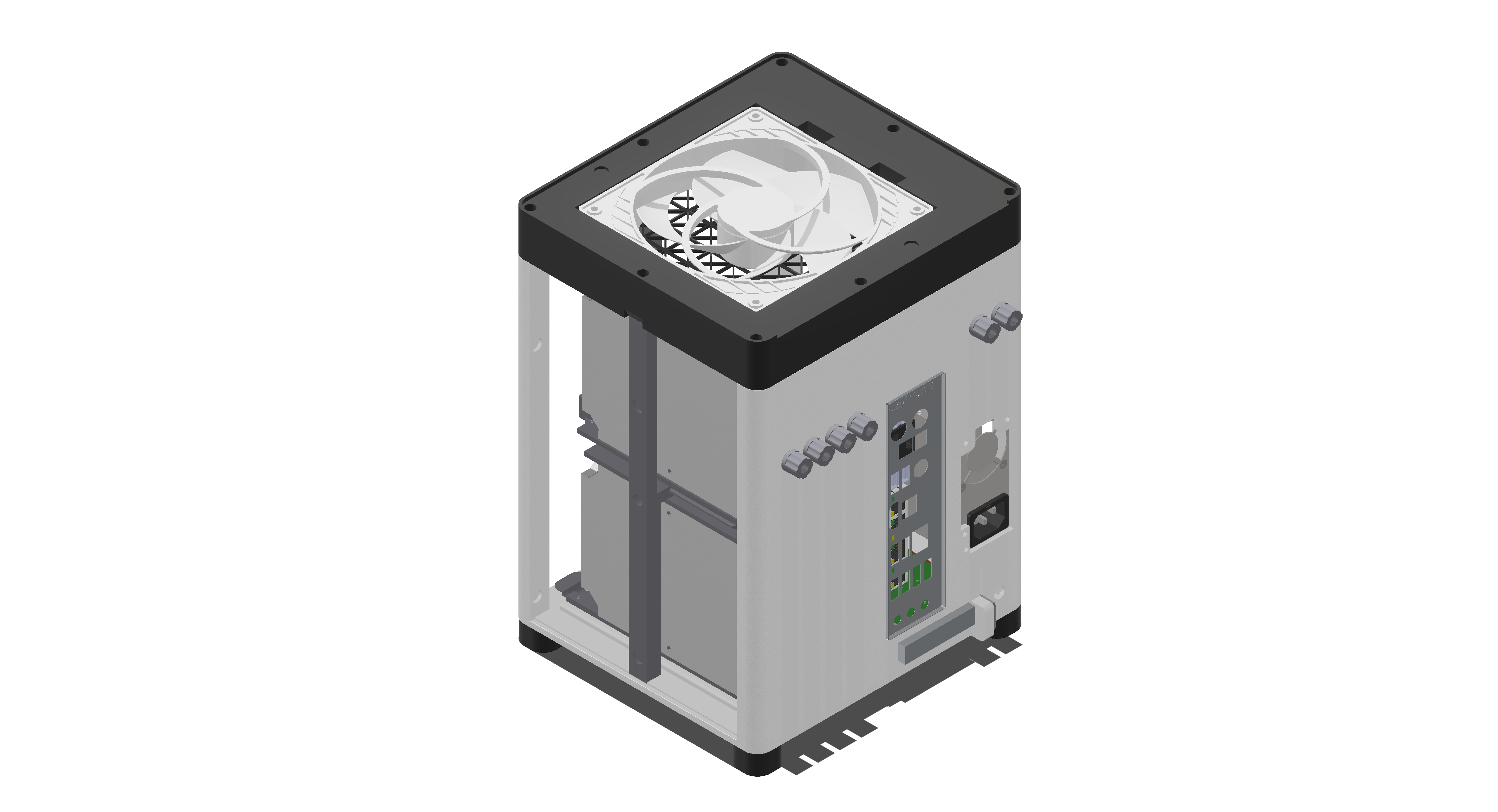


Thank you for following this guide and building your own 3D printed NAS case!
I hope this project helps you enjoy a reliable and customized storage solution.
If you have feedback or suggestions, feel free to reach out — every contribution helps improve the project.
📜 License
This project is shared under the Creative Commons Attribution–NonCommercial–NoDerivatives 4.0 International (CC BY-NC-ND 4.0) license.
- ✅ You are free to download, print, and share this project for personal, non-commercial use only.
- ❌ You are not allowed to modify the files or redistribute derivative versions.
- ❌ You are not allowed to use this project for commercial purposes.
If you share your build online, please credit the original author and link back to the project page.
If you enjoyed this project, feel free to follow me for more!
I’ve already designed and shared several 3D-printed electronics projects — including a custom numpad, a full keyboard, and keycap sets — and I’m currently working on my next one: LightDock, a macropad designed for Lightroom.