POV (Persistence of Vision) Globe
1234 Views, 12 Favorites, 0 Comments
POV (Persistence of Vision) Globe
.gif)
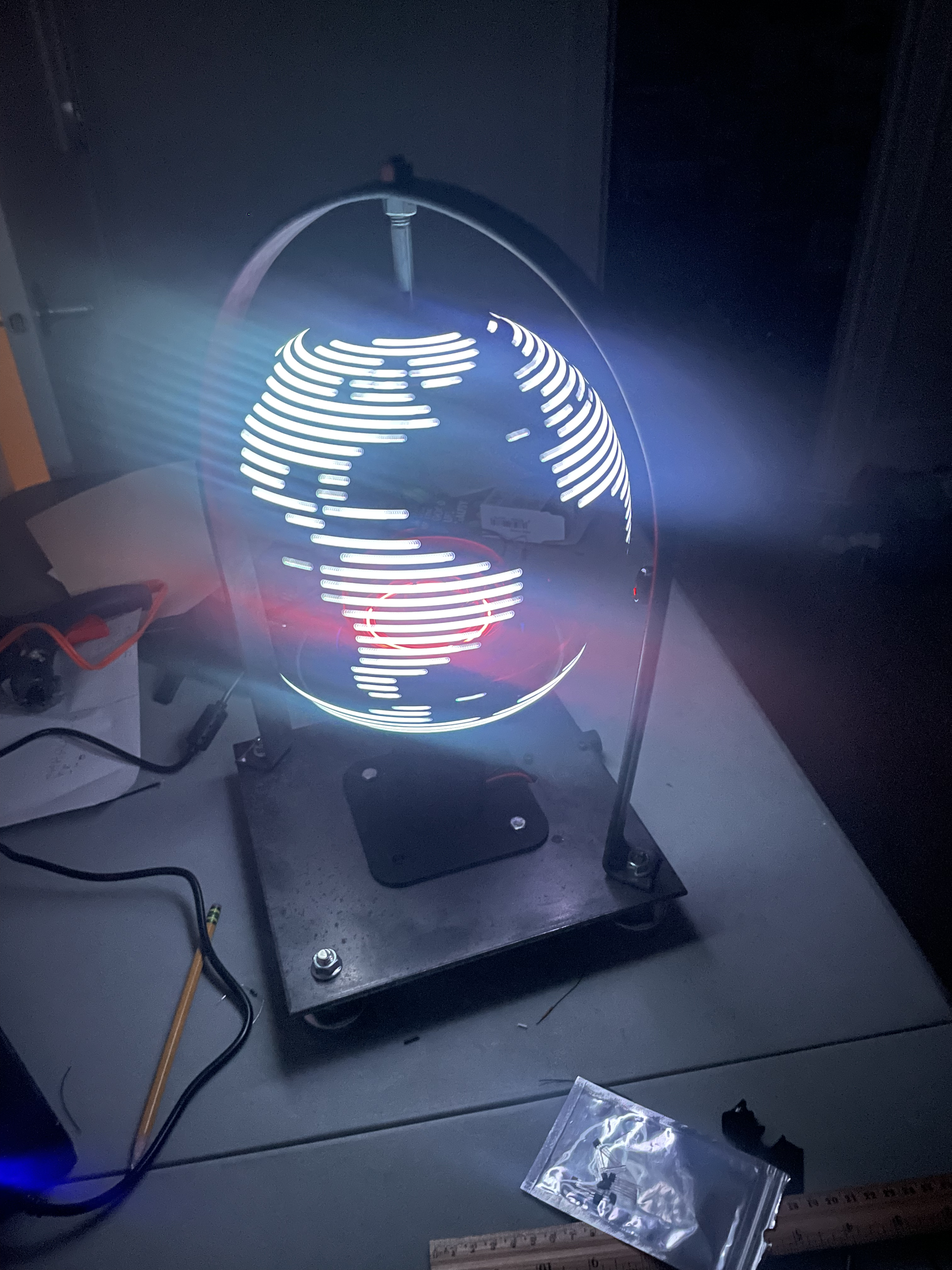
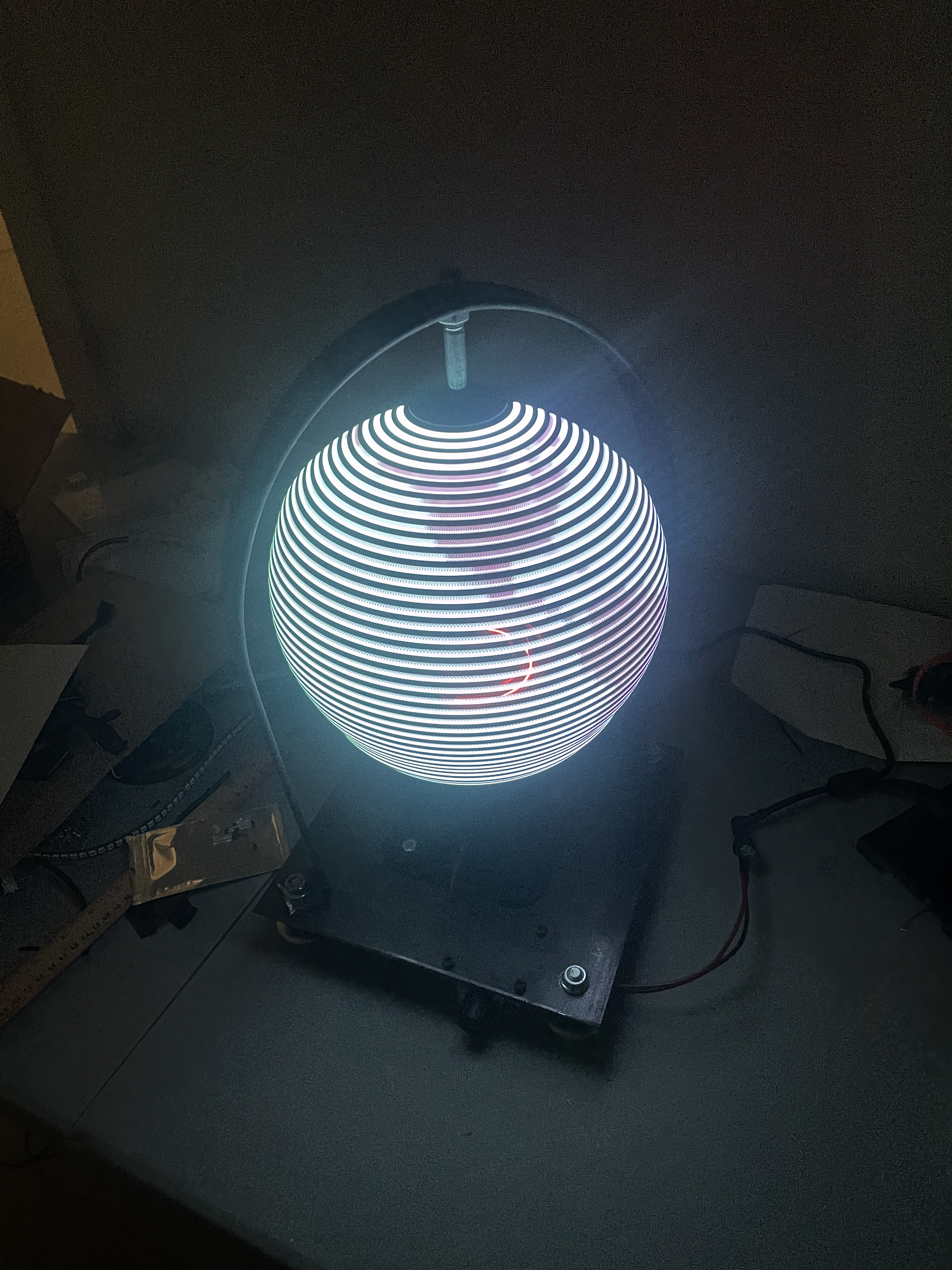
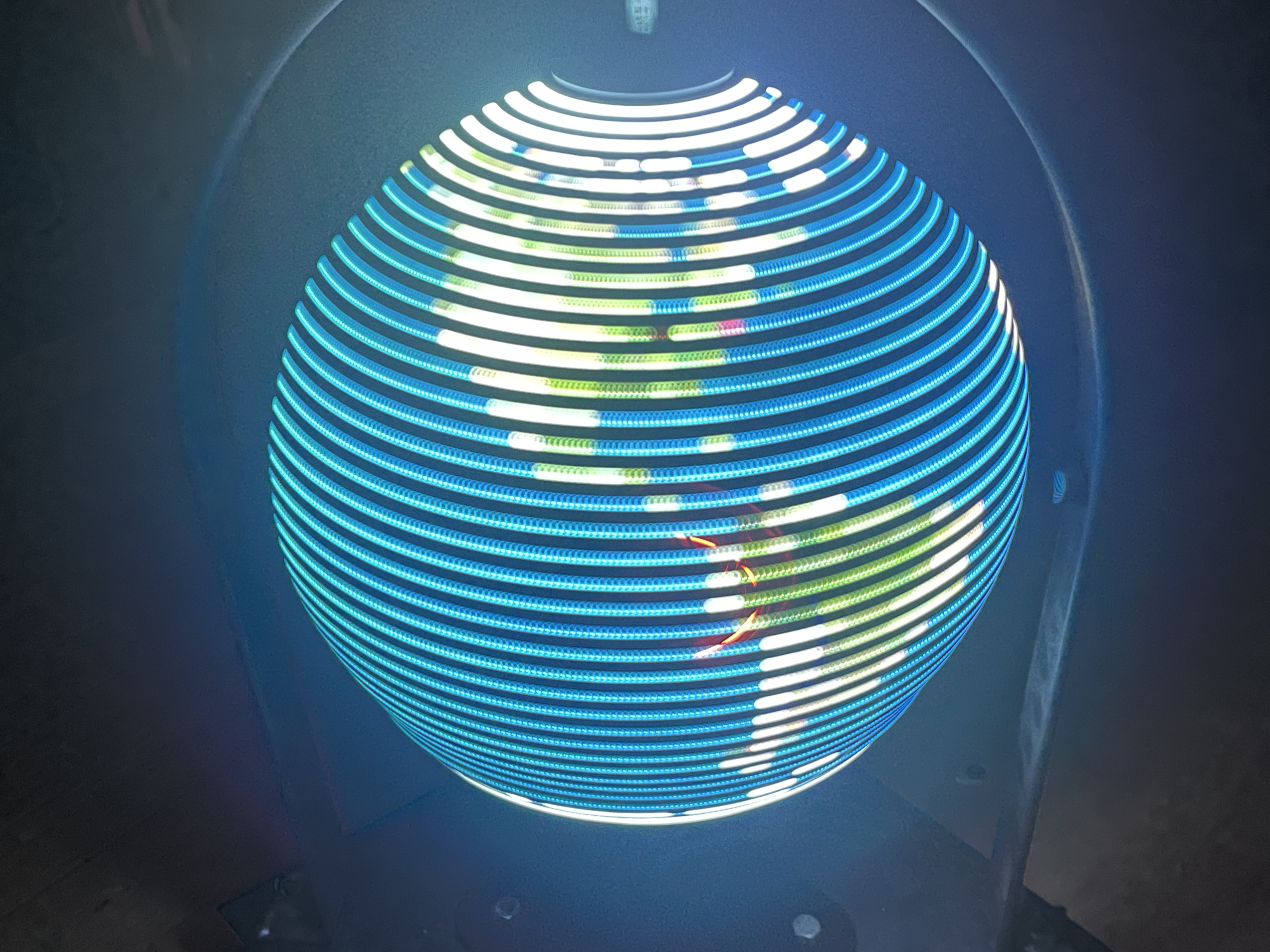
In this Instructable, I’ll show you how to build a WiFi-controlled persistence of vision (POV) globe using an ESP32, addressable LEDs, and a hall effect sensor. By spinning a single vertical column of LEDs at high speed and synchronizing it to the rotation, full images and animations appear to float in mid-air.
Persistence of vision is an optical illusion where rapidly changing images appear continuous to the human eye. In this project, a single strip of addressable LEDs displays one vertical slice of an image at a time as it spins, with each slice precisely timed to the globe’s position.
A hall effect sensor and a small magnet provide a reference point once per rotation, allowing the ESP32 to synchronize the LED updates with the globe’s angular position. When timed correctly, the individual slices combine to form a stable image evenly wrapped around the globe.
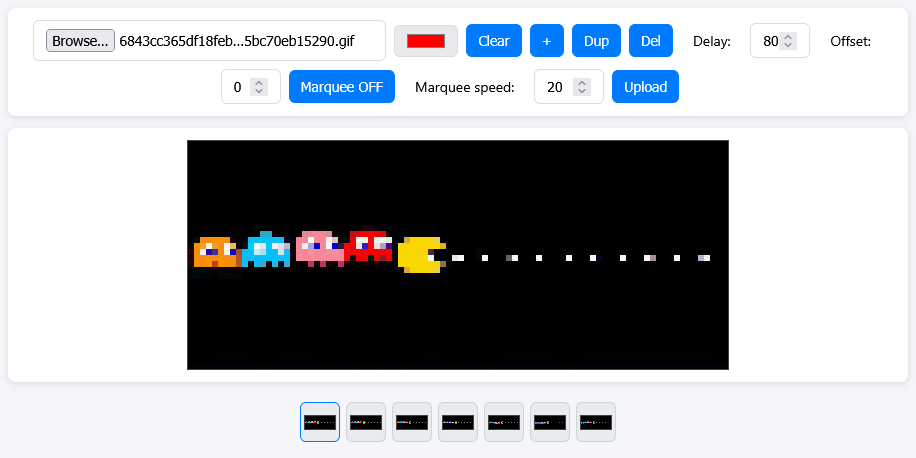
Images and GIFs are uploaded live through a built-in web interface, allowing you to draw custom designs or animations directly from your browser. This project combines 3D printing, electronics, and programming, and can be built using relatively inexpensive, commonly available parts.
Safety Warning
This project involves a rapidly spinning assembly. Always wear eye protection, ensure all components are securely mounted, and never operate the globe unattended or near loose clothing, hair, or pets.
This project uses the FastLED library, which is licensed under the MIT License, and the gifuct-js library, which is also licensed under the MIT License
Supplies
Required Parts
- LED Strip (SK9822 or APA102):
- Amazon
- Motor + PWM Speed Controller:
- Amazon
- Power Supply:
- Amazon
- Hall Effect Sensor:
- Amazon
- Battery
- Any portable battery should work as long as it can output at least 2 amps at 5V, but preferably one that has two outputs with a common ground. The ring is modeled to hold a battery with dimensions of 2.75 x 5.5 inches, so anything with a similar or smaller size will work.
- ESP32:
- Amazon
- 3D Printer
- Computer/Laptop
- Small Magnet
- Wires
- The dupont crimping set below already comes with wires, but I would find some with a lower gauge for connecting the motor. Some sacrificial USB cables are also required to use the power from the battery.
Optional parts, but highly recommended
- DuPont Crimping Set:
- Amazon
- Breadboard:
- Amazon
- Cable Strippers
- Spare Washers + Pin
- Hot Glue + Tape
- Wood or Metal for Frame
- I used 1-1/2 x 1/8 inch thick metal bars for my frame, but any decently thick wood or metal will work.
- Frame Mounting Supplies
- I'd recommend buying small plastic or rubber feet to avoid scratching any surfaces. Screws will work fine for wood, and nuts and bolts will work for a metal frame.
Design
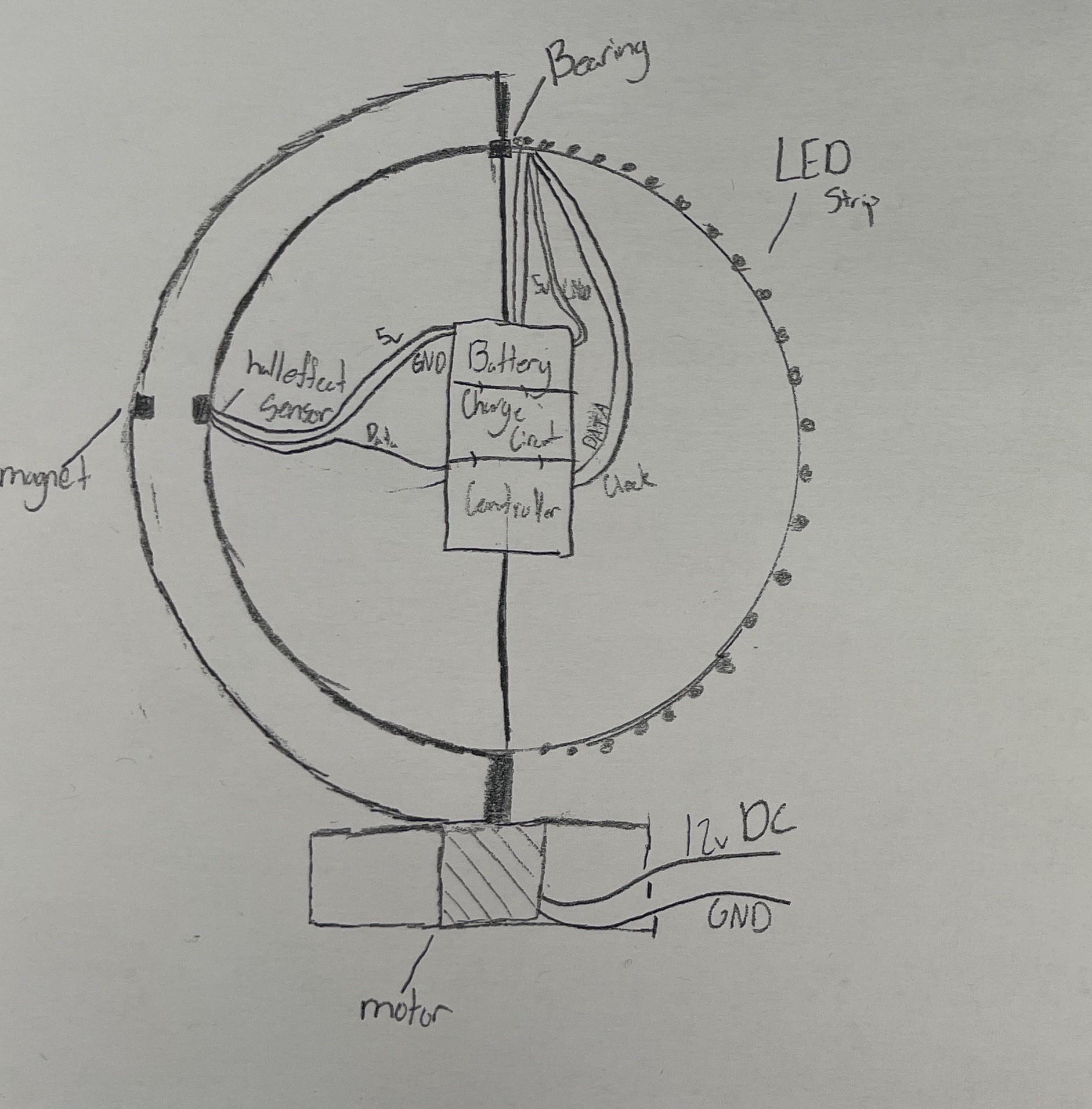
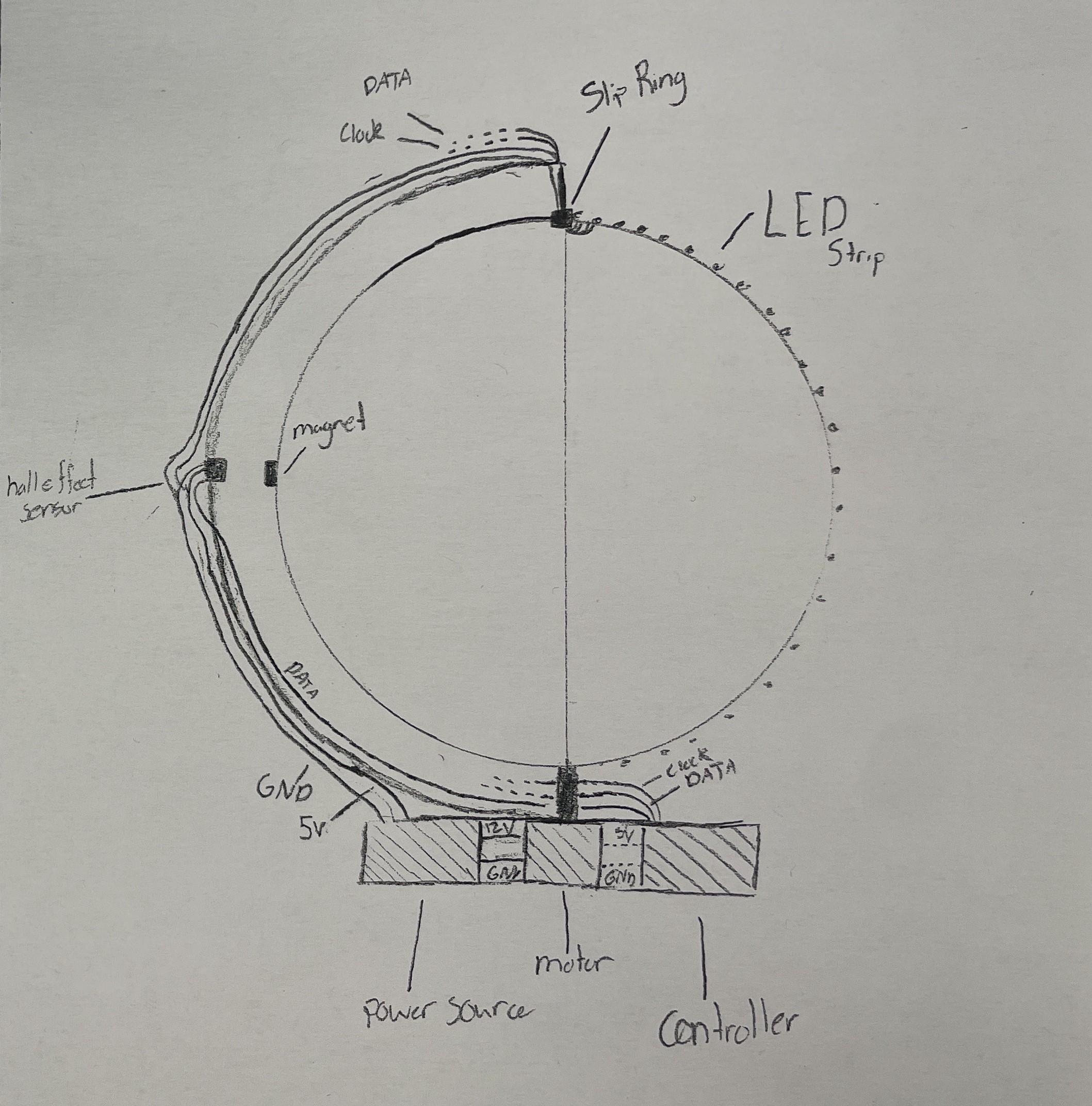


The design for this project went through a few different variations before I settled on powering internally with a battery and using the SK9822 for the LED strip. Powering externally was going to be done with a slip ring, but I couldn't find any online that were rated for the speeds and amperage needed. The stability of data and power going through the slip ring was a concern, so I ultimately settled on powering the internals with a battery. For the LED strip, I needed something that would reach high speeds, and while the APA102 and the SK9822 are basically identical in speed and usage, I chose the SK9822 because of its price and availability. The ESP32 was my preferred micro-controller for this project because of its low cost, high speeds, and on-board WiFi support.
After ordering the components, I began work on the design of the motor mount and main ring. Both were designed in Fusion 360 and were built based on the footprints of the motor and LED strip, and measurements of my battery.
3D Printing
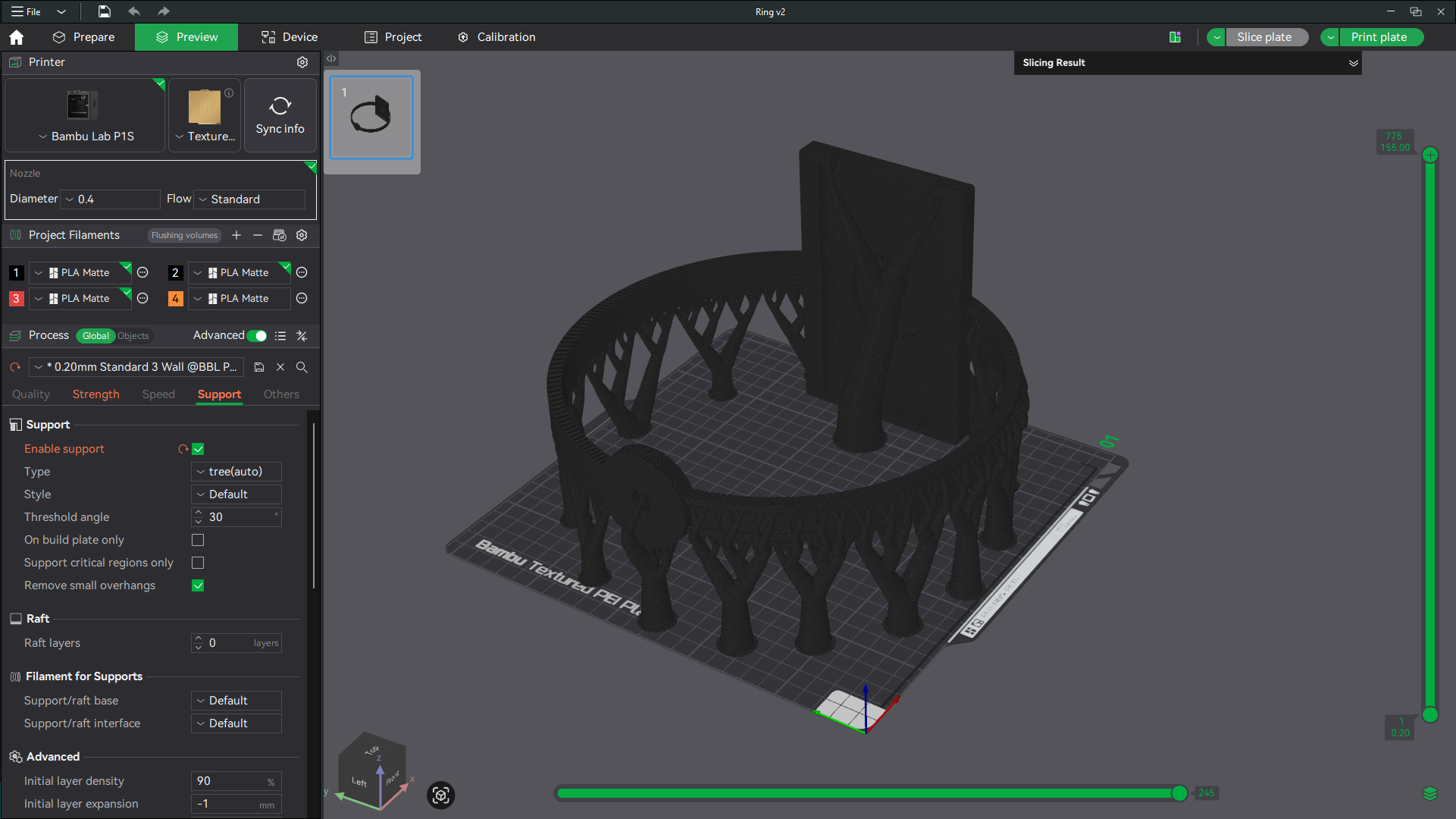

Attached are the model files for the ring and motor mounts. Both of these should be printed out of normal PLA, with 25% infill and 3 wall layers. Because layer lines are the weakest points in a 3D printed object, I would recommend printing the ring on its side and using tree supports, as shown in the image.
(Optional) Frame
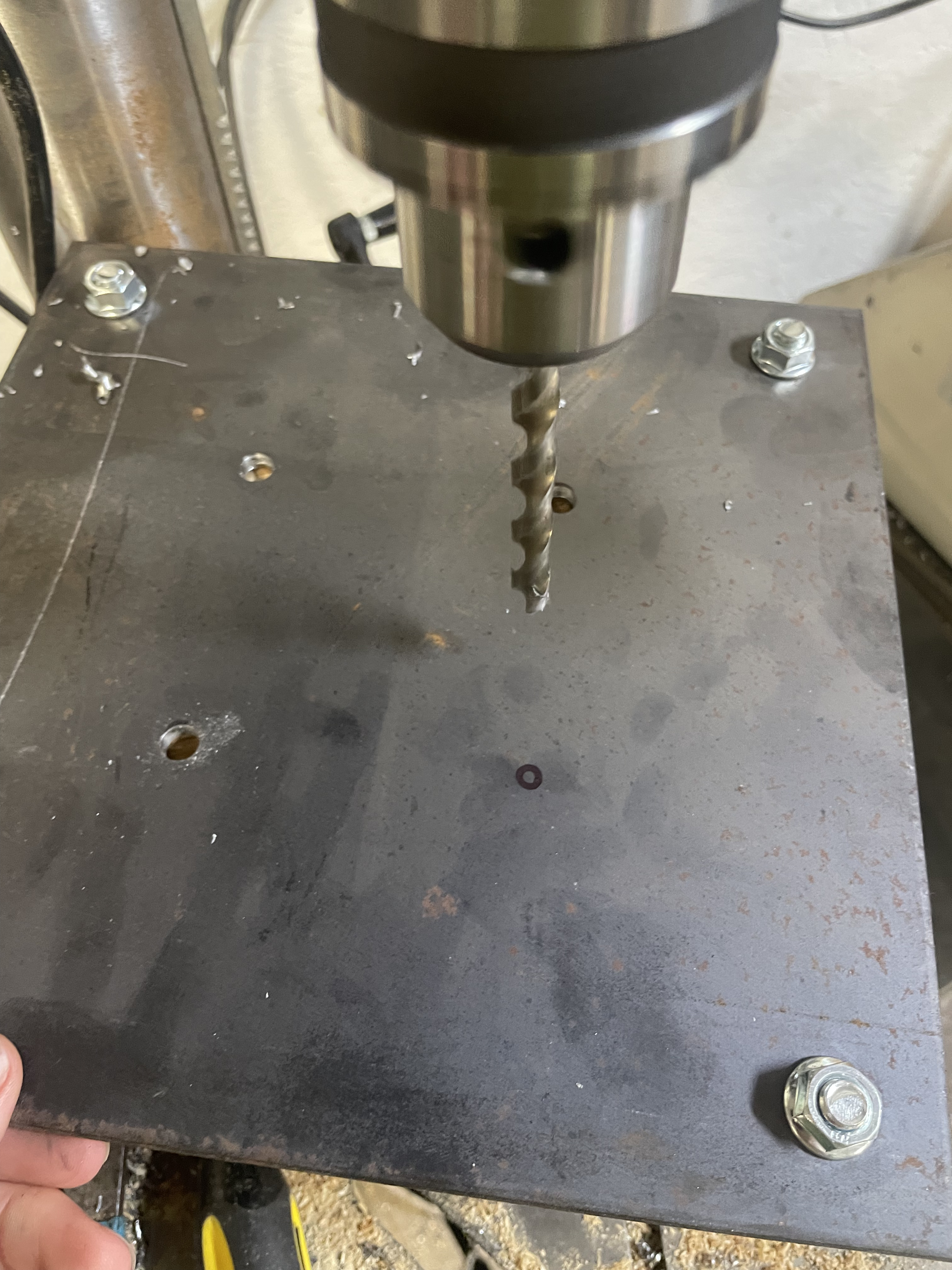
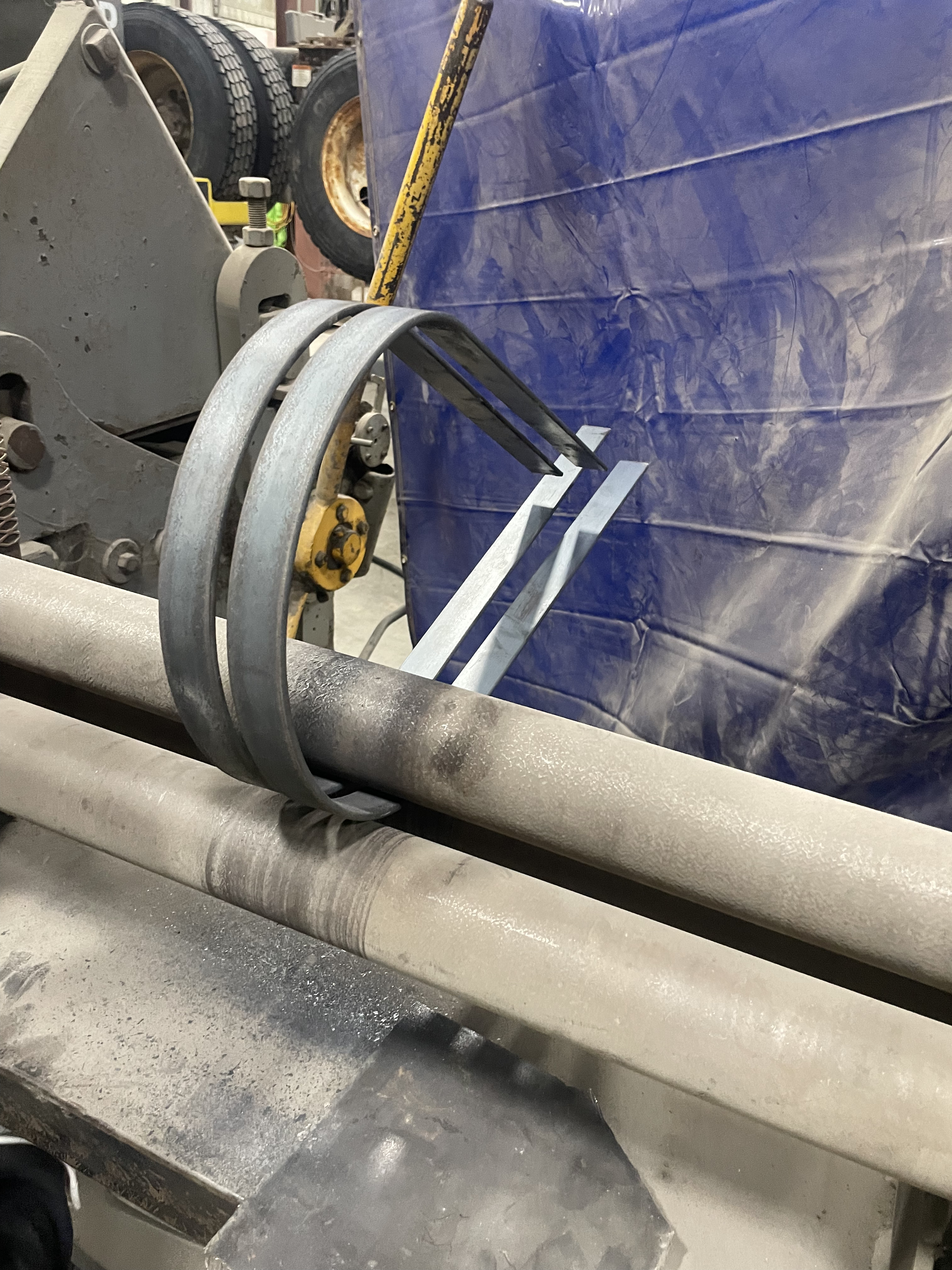
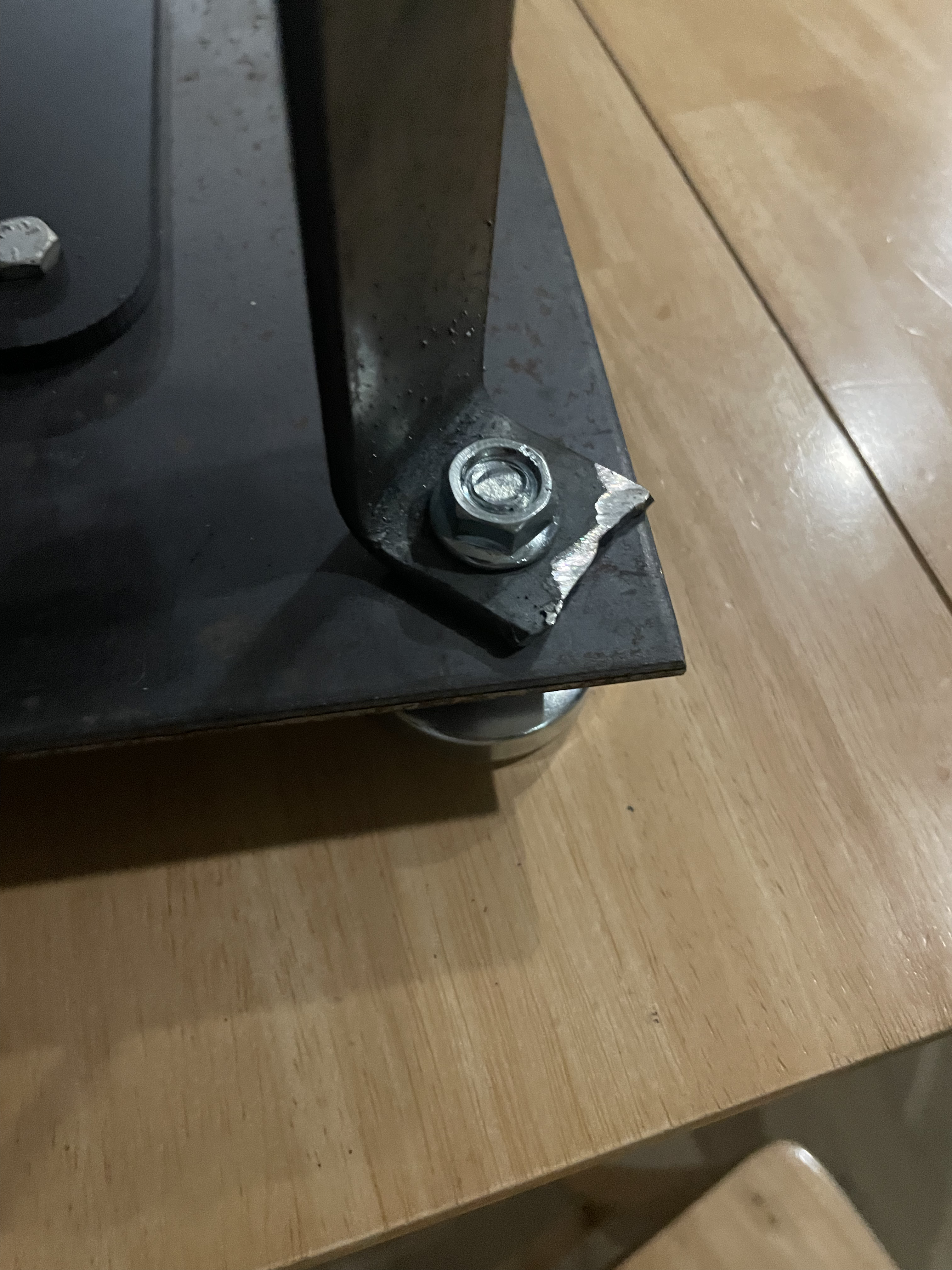
I would highly recommend building a frame out of wood or metal, but if you don't want to make a frame or have your own design in mind, skip to step 4.
Metal Frame:
- Cut a 1-1/2 x 1/8 inch bar of metal to 40 inches in length
- Run the metal through a 3 Roll Bender, leaving 9 inches not rolled on each end, until the arc matches the ring
- Mark 1 inch from each end with chalk or marker, and put it in a vise
- Put on proper protective equipment
- Using a torch, heat the metal at the mark until it's bendable, and bend at a 90° angle. Repeat for the opposite side
- Cut a 1/8 thick sheet of metal to 10x10 inches
- Place the motor mount in the center of the metal sheet, and use a marker or chalk to mark the four holes, along with one hole in front of where the motor wires exit
- Drill holes on the two flaps of the metal bar, the four corners, and the four marks for the mount. Use a larger drill bit to make a hole on top of the last mark for the motor wires to go through
- Attach the metal bar to two of the feet, and mount the motor in the center holes
- Drill one hole in the center of the metal bar
Wooden Frame:
- Cut a 1x12 wooden board to 12 inches long
- Cut 2 2x4 wooden boards to 16 inches long, and 1 2x4 to 12 inches long
- Place the motor mount in the center of the wood base, and use a marker to mark the four holes, along with one hole in front of where the motor wires exit
- Drill holes in the four corners where you want the feet to go, and the four marks. Use a larger drill bit to make a hole on top of the last mark for the motor wires to go through
- Position the two 2x4x16s vertically on the left and right sides of the 1x12x12, with the long side of each running along the edge, and screw them in from the underside
- Position your 2x4x12 on top of the two 2x4x16s, and screw it in place
- Drill one hole in the center of the 2x4x12
With both frames, you can run a long bolt through the top and into the hole of the ring to help stabilize the rotation.
Additionally, if you want to mount your speed controller on the bottom of your base as I did, mark and drill the four holes into your base. Be careful not to tighten the screws too much, or you might damage the pcb. If you're using metal for your frame, add a rubber sheet between the pcb and frame so you don't short anything.
Mounting
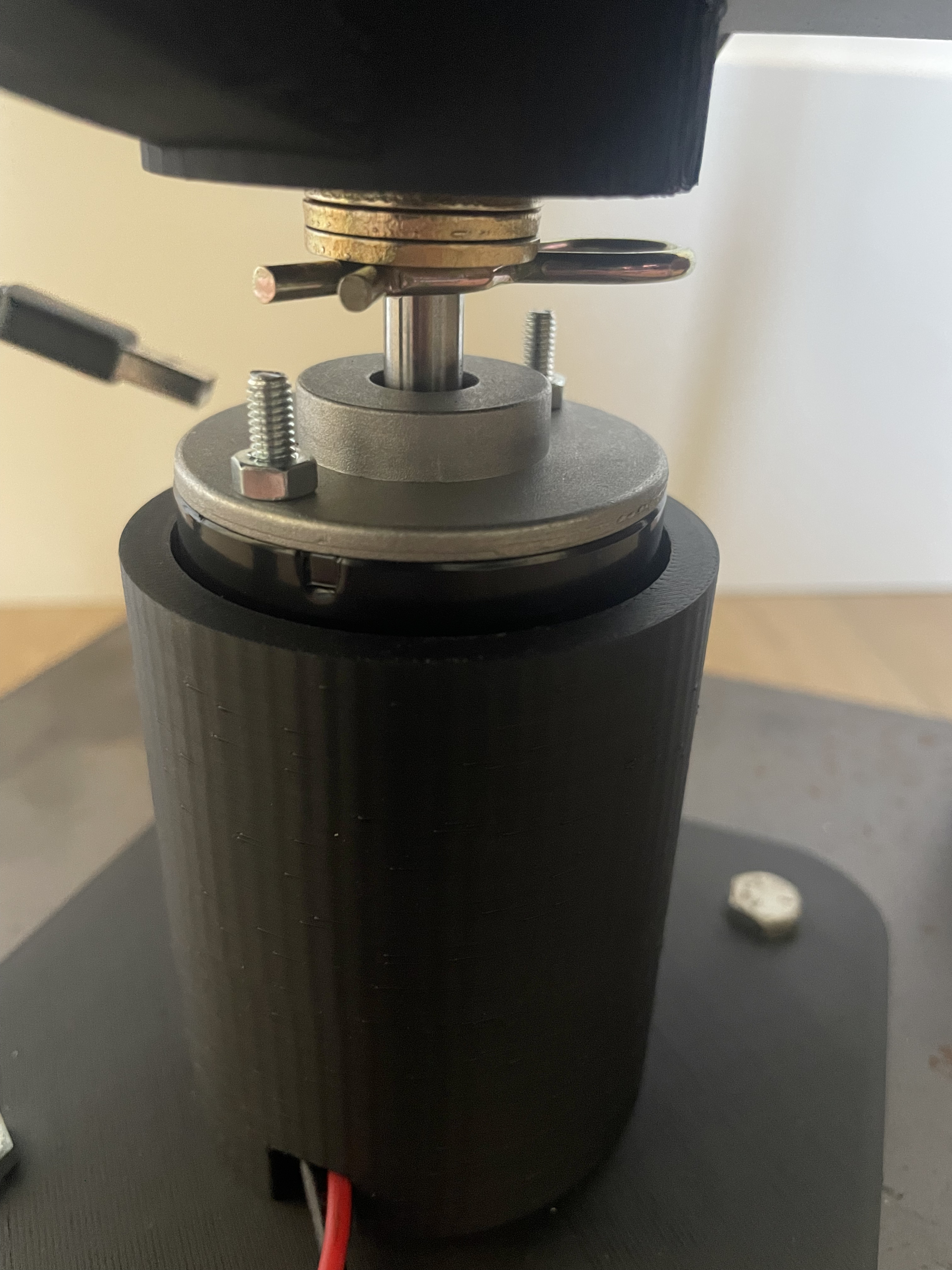
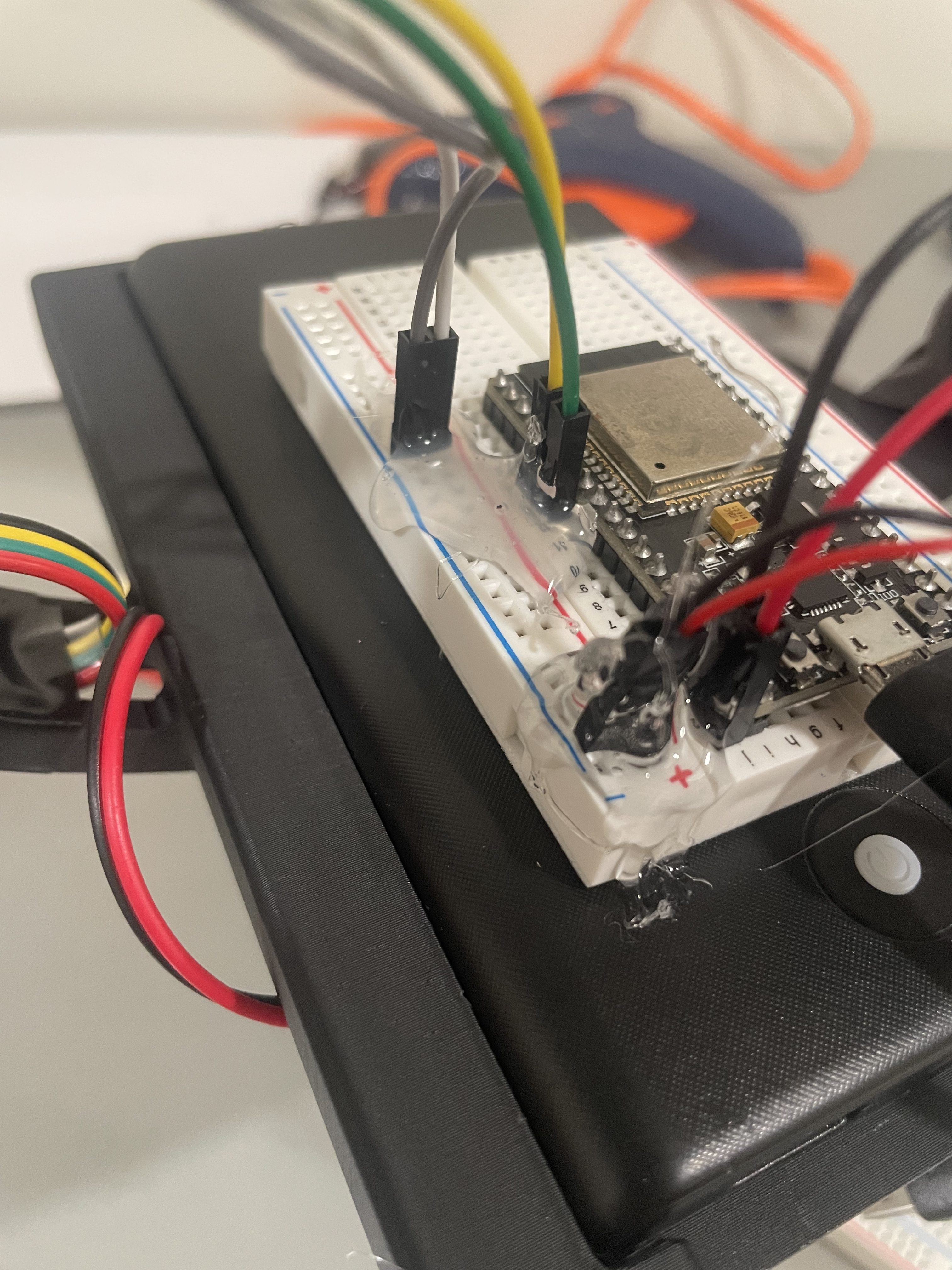
- There's a small hole along the motor shaft. Insert your pin and stack 3 washers on top of it. Then, slide the ring down, and tighten the nut on top of it.
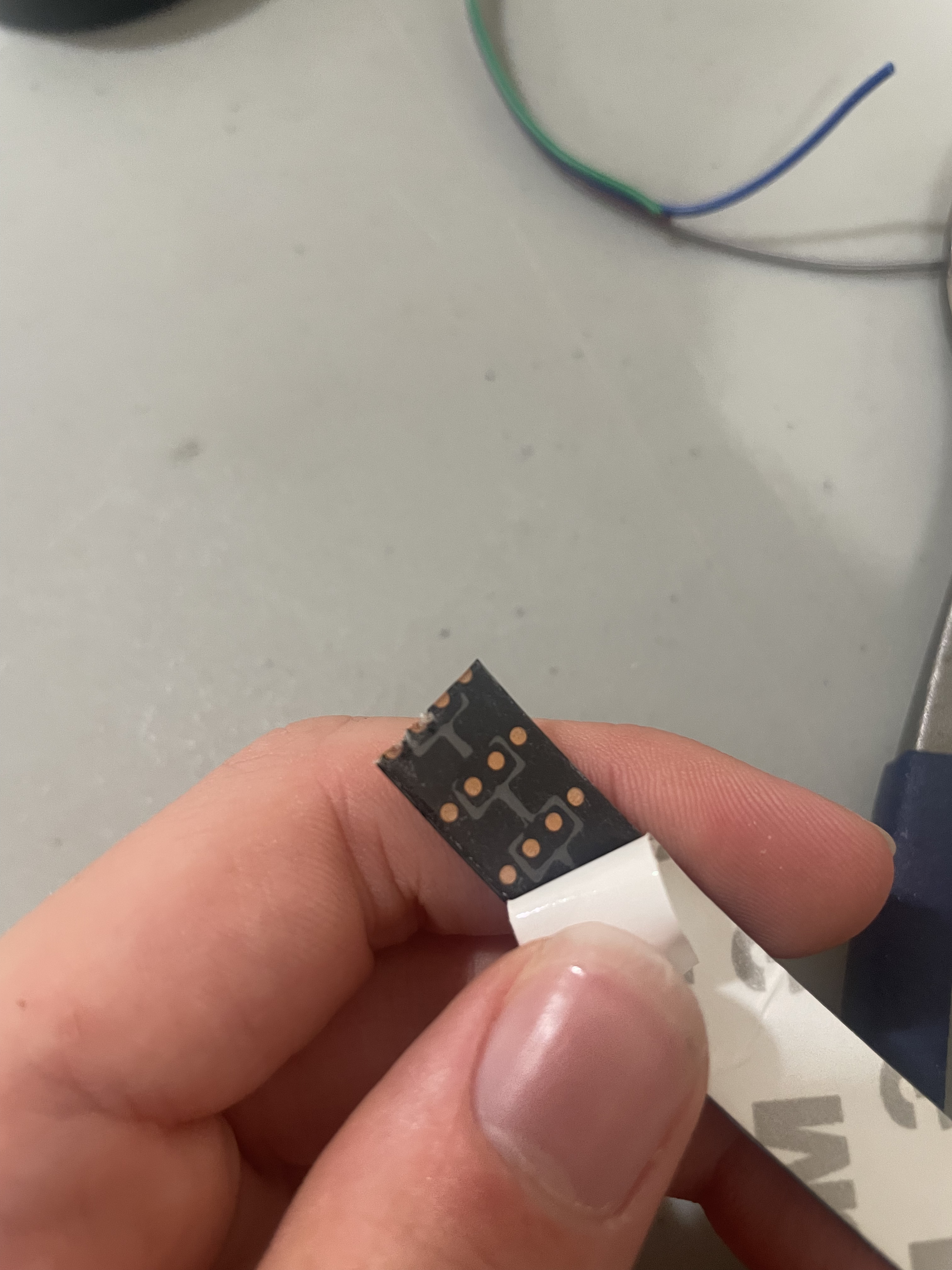
- Along the LED strip, little arrows are pointing up, which show the direction data travels and how you will need to orient it. Roughly 38 LEDs can fit on the side of the ring, so, following the arrows, count 38 LEDs and cut the strip along the dashed line. If you do more or less than 38, you have to update some of the code later on in step 4.
- Remove the cover of the adhesive strip on the back of the LED strip and stick it along the groove.
- My battery fits snugly into the ring, but if yours doesn't, secure it with some hot glue or tape. Because the battery isn't perfectly balanced, I mounted my breadboard slightly towards the front to help balance everything. The breadboard is just wide enough to be able to mount the ESP32 with a set of free pin holes on each side.
- The magnet needs to be near the hall effect sensor when it's rotating. If you built the metal frame, the magnet can simply be stuck to it, and if you made the wooden frame, drilling a hole to set the magnet into or gluing it to the wood will work.
Wiring
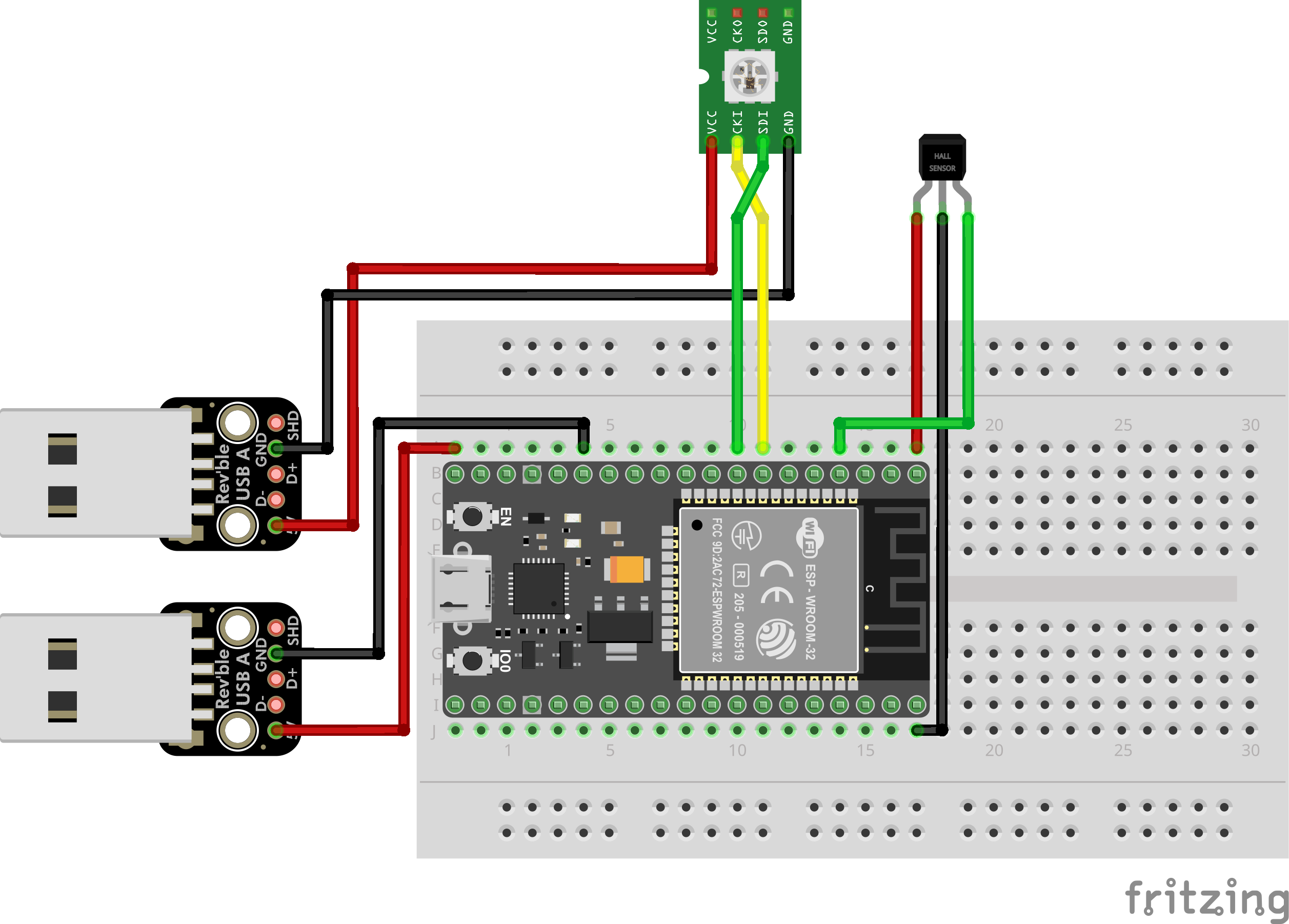
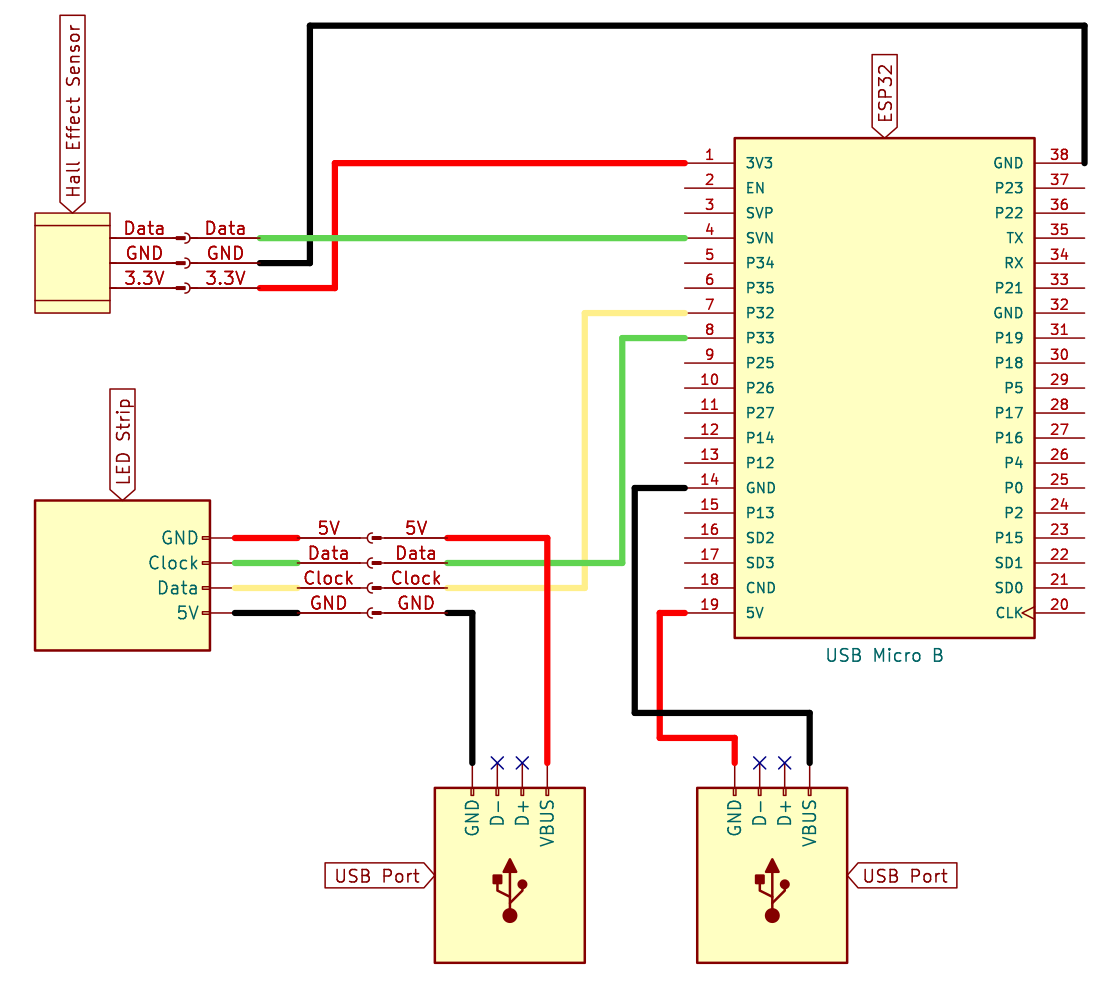
- Depending on your battery, you may have dual outputs or a single one. If you have a dual output like mine, I would recommend powering the LED strip with the larger of the two outputs. For example, my battery had two ports labeled as 2.1 amp and 1 amp, so I powered my LED strip with the 2.1 amp port and the ESP32 with the 1 amp port. To get power out of the USB ports, I cut some old cables I wasn't using anymore. It varies from cable to cable, but typically, ground will be a black wire, and the 5V power will be the red/pink wire.
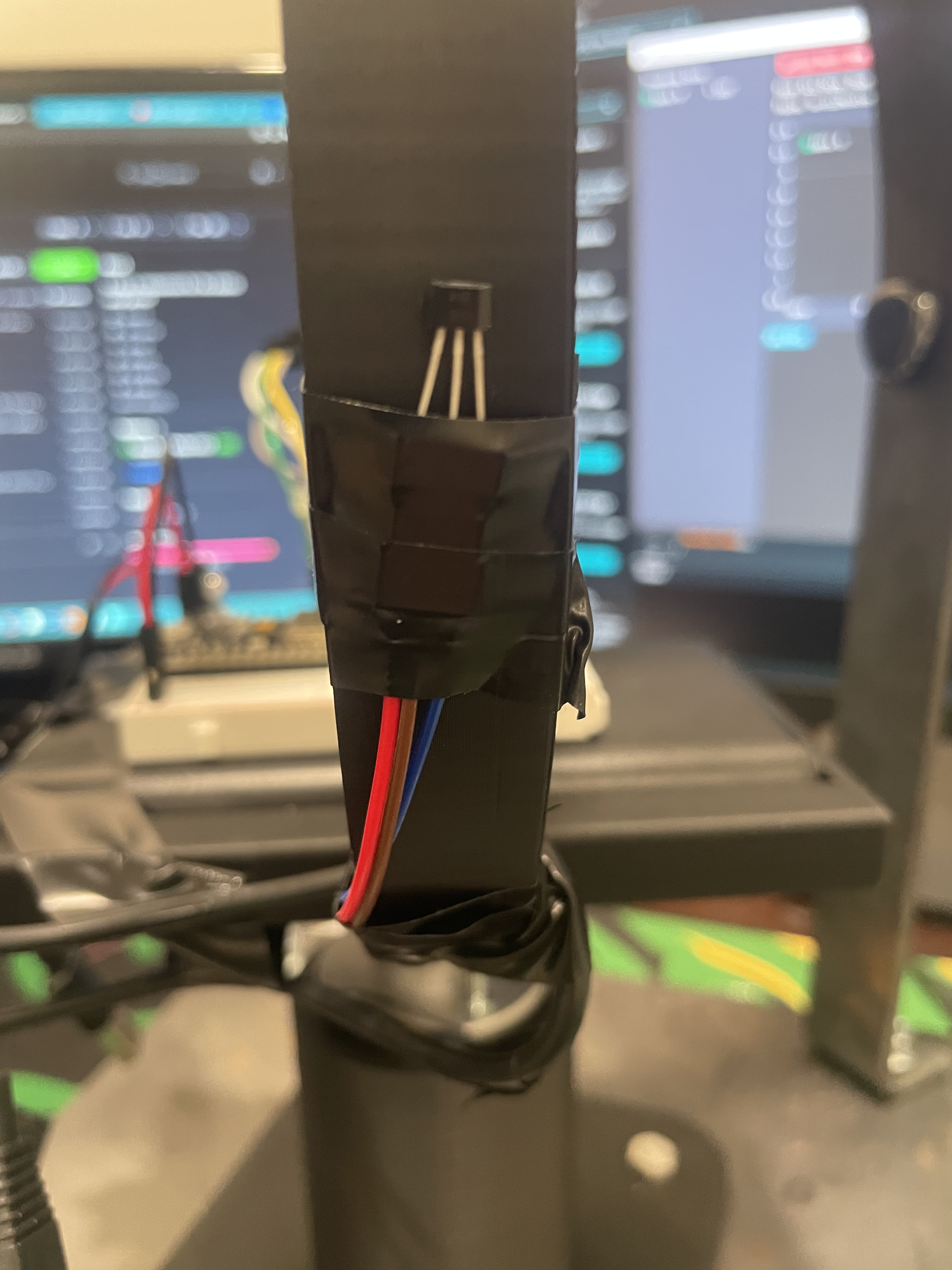
- Once you have everything mounted, connect the wires according to the wiring diagram. I found that dupont connections fit best in the breadboard, and the LED strip and hall effect sensor fit well into the female dupont connectors. Once everything is connected, tape or glue the hall effect sensor to the outside of the ring.
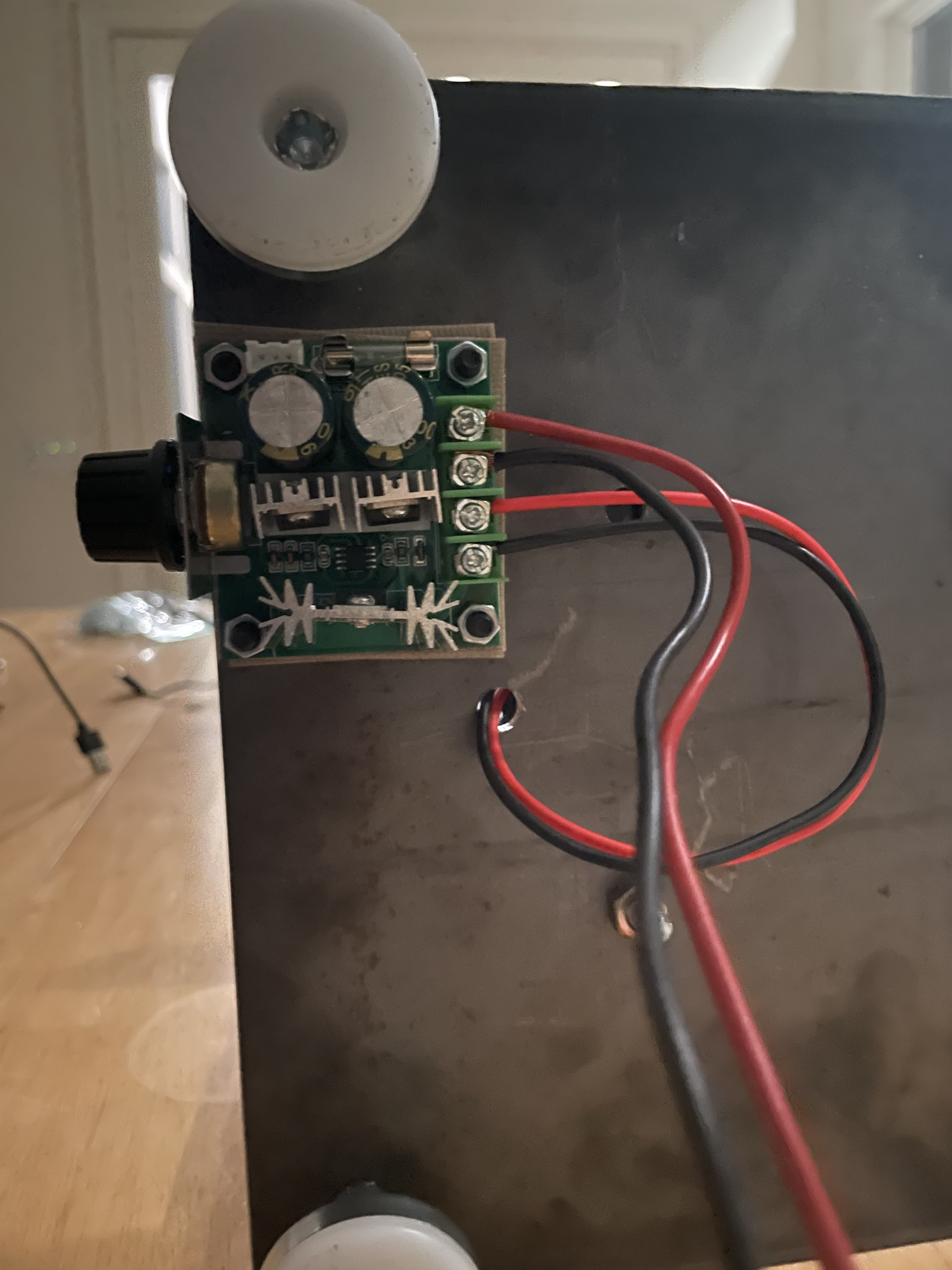
- On the underside of the speed controller, you'll find four labels that correspond to the screw terminal on the top. Connect the power + to the + of the barrel jack adapter and the power - to the - of the barrel jack adapter. Connect the red wire from the motor to the motor + and the black wire to the motor -. I would recommend using some thicker/lower gauge wires than what comes with the crimping set.
Programming
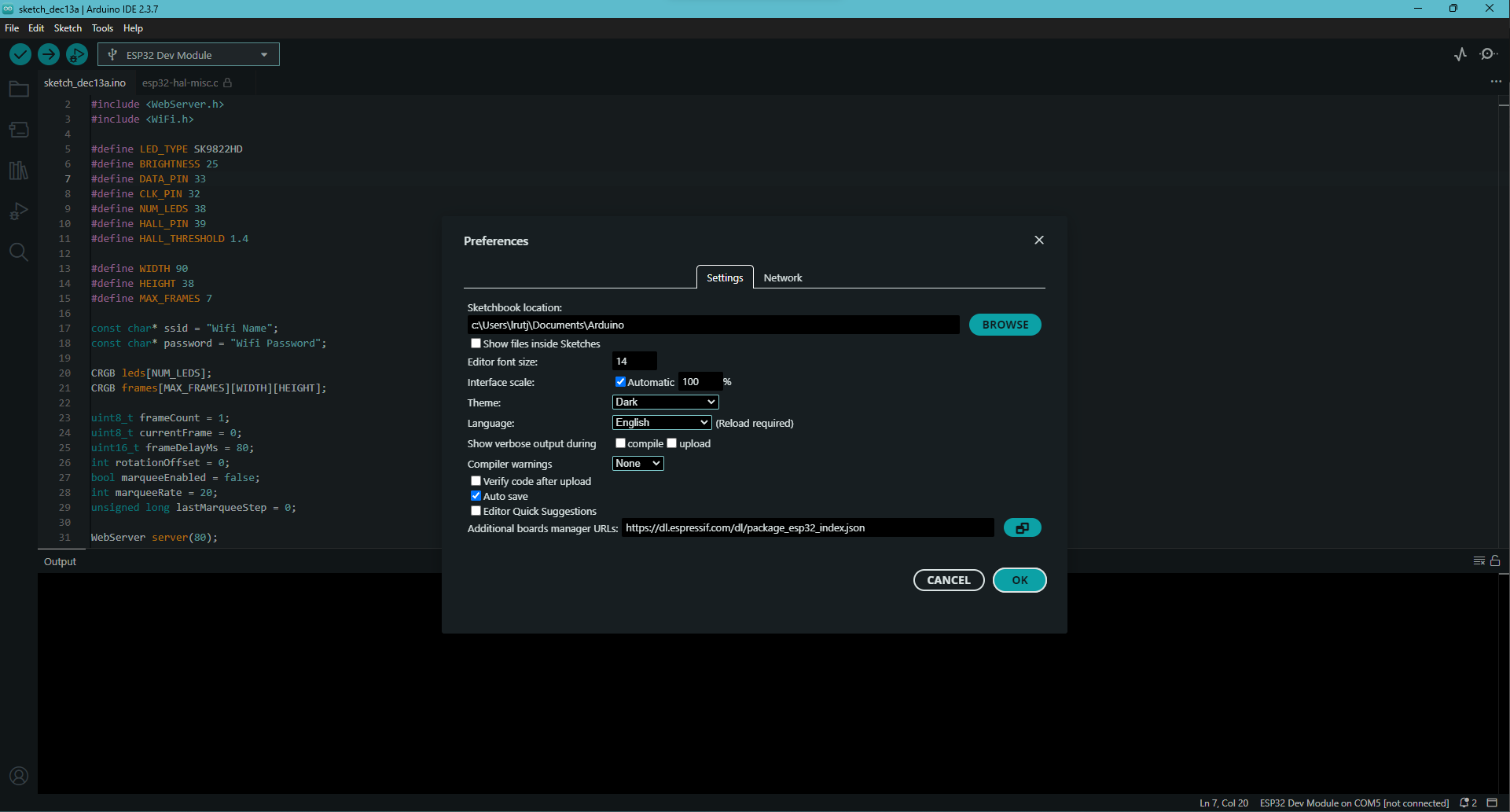
Setting up Arduino IDE
- Download and install Arduino IDE from here
- Go to File > Preferences and paste https://raw.githubusercontent.com/espressif/arduino-esp32/gh-pages/package_esp32_index.json in the "Additional Board Manager URLs" field
- Go to Tools > Board > Boards Manager, search "esp32" and install the "ESP32 by Espressif Systems" package
- Go to Tools > Board, and select "ESP32 Dev Module"
- Go to Tools > Manage Libraries, and search for "FastLED"
- Find the package named "FastLED" by Daniel Garcia, and click install
Programming
- Download the halltest.ino sketch from below, and open it in Arduino IDE.
- Connect your ESP32 to your computer or laptop, select the board from the top bar, and click the upload button (the button that looks like this "->" )
- After it has finished uploading, go to Tools > Serial Monitor, and set the Baud rate to 115200.
- The numbers going by are the voltages coming from the hall effect sensor. Remember the values for when your magnet is near the sensor and far from it. For best results, make sure the magnet distance is approximately where it would be when the globe is spinning
- Download the povglobe.ino sketch from below, and open it in Arduino IDE
- Change HALL_THRESHOLD to a value about halfway between the two values you found in step 4. This value will vary with magnet strength, orientation, and distance.
- Change "WiFi Name" to the name of your WiFi network, and "WiFi password" to your network password. This is optional if you don't want it to connect to your home internet, as it will start its own WiFi access point after one minute of failed connection attempts
- All the other values should need no adjustments unless you changed pin locations, or cut a different length on the LED strip, but feel free to tinker
- Click upload!
Troubleshooting:
- Failed to upload
- Hold the BOOT/IO0 button while clicking upload
- Make sure the correct COM port is selected
- No lights turn on
- Make sure all connections are secure
- Check that both the ESP32 and the LED light strip have power
- Verify that Arduino IDE says that the sketch was successfully uploaded
- No image is displayed correctly
- Check that your hall effect sensor threshold is correct, redo parts 1-6 of the programming section if necessary
- Make sure your magnet is oriented in the same direction as when you found the hall effect sensor threshold
- If you still can't get it to work, you can remove the magnet, lower the "rotationPeriod" variable, and manually adjust motor speeds until you see a stable image. This method is prone to drift and other issues, so I highly recommend trying to use the hall effect sensor
To make working with the sketch easier and to save on memory/storage space, the HTML in the code has been minified, but the sketch with the full HTML is available below as fullhtml.ino
For GIF support, the gifuct-js library was used, which is licensed under the MIT License
Usage
- Plug both USB cables into the battery and power on your battery
- The LED strip should have a white light that will bounce back and forth across the strip.
- If the connection to your WiFi network was successful, all the LEDs will turn green
- If the connection was unsuccessful, all the LEDs will turn blue. This means the ESP is now running its own WiFi network that you can connect to. The network is named "POV Globe", and the password is "12345678"
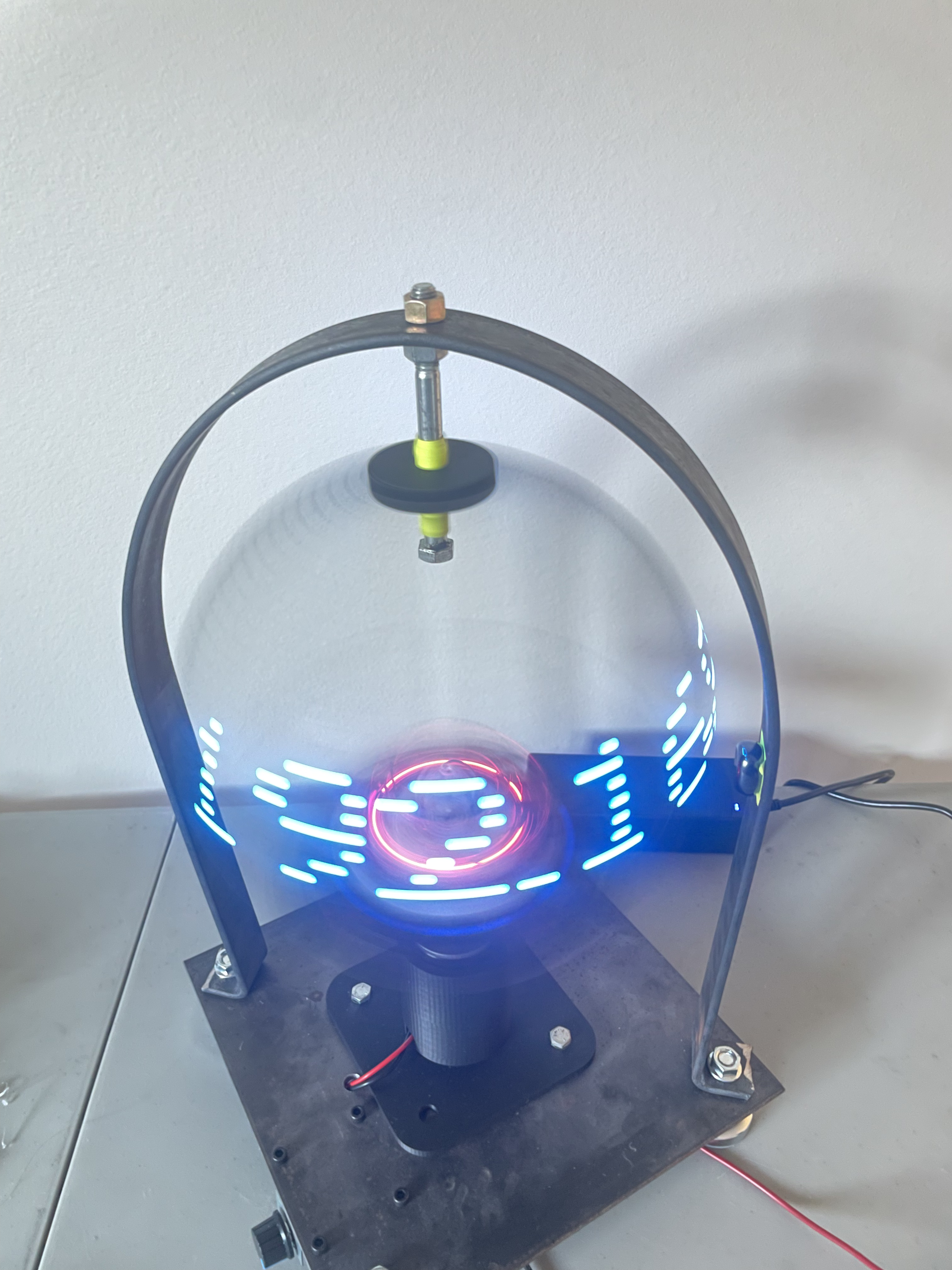
- Once either WiFi setup is done, speed up the motor to roughly 1/3 to 1/2 speed
- The numbers shown around the globe form the IP address of the ESP32
- If the numbers aren't stable or the lights don't seem to form numbers, refer back to the troubleshooting section of step 4
- Make sure you are connected to the same network as you set in Step 3, and type the IP address shown into your web browser
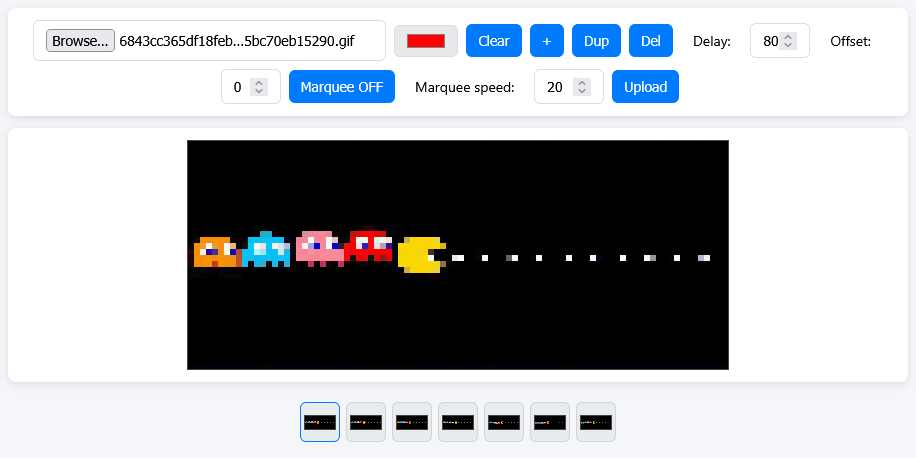
- You should see a basic web interface load!
- You can upload any image or GIF, and they will automatically be resized to the correct resolution and frame rate
Basic features of the interface
- Draw your own images or draw over top of existing frames
- Image controls
- Clear a frame, add a new one, duplicate an existing frame, or delete one. There's a maximum of 7 frames due to memory limitations
- Change the delay between frames
- This is measured in milliseconds, so a delay of 1000 would cause a 1 second delay between each frame
- Change the offset of the globe
- This is based on the horizontal resolution, so setting the offset to 90 would be equivalent to rotating the image 360°, and setting it to 45 would be the same as a 180° rotation
- Marquee Toggle
- This lets you make an image or animation rotate around the globe