Painterly Donut in Blender
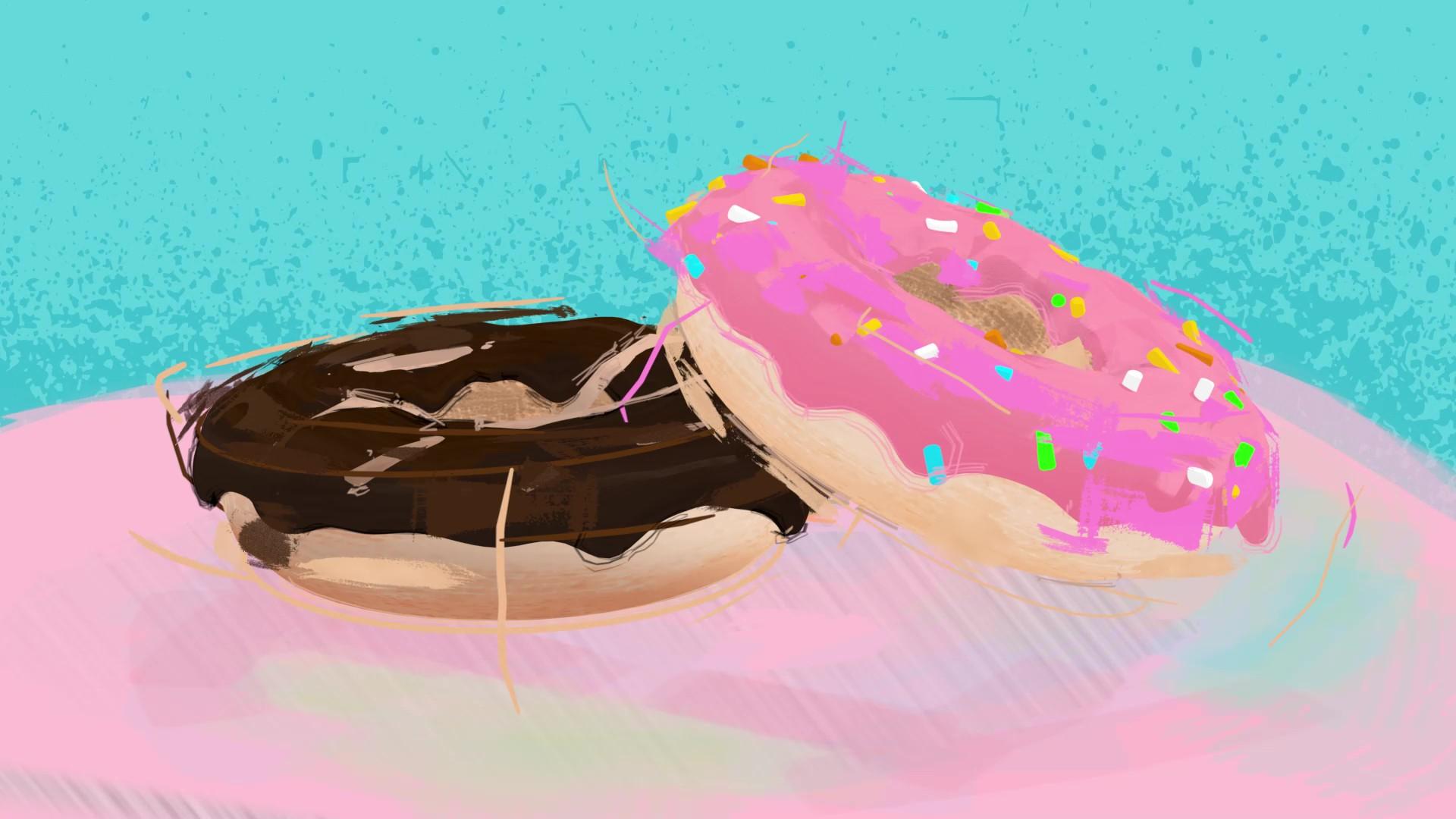

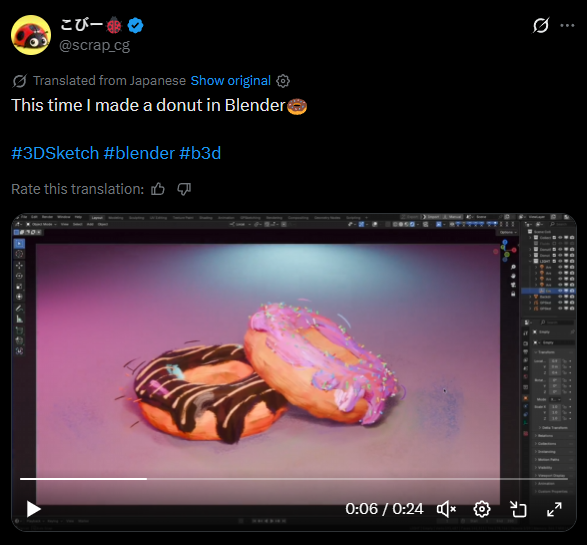

Recently, I was scrolling on Twitter and came across this tweet from @Scrap_CG. It was a beautifully painted and stylized donut; however, it was made entirely in a blender.
Along with this inspiration, like many people, I was inspired by the Spider-Verse movies for their comic art style, as well as Arcane for its painted art style.
In my research, I discovered that they used the GPSketch addon to create this effect, but I wanted to see how well I could recreate this painterly look in Blender using only the vanilla Blender.
Supplies
.png)
.png)
I mainly used Blender 5.0, no addons, Eevee renderer
with After Effects for some final tweaks
Resource videos for extra help:
Donut Base


Click Shift + A and create a torus
When it's created, on the bottom left, there will be a panel that can help you change the settings of the torus
Icing


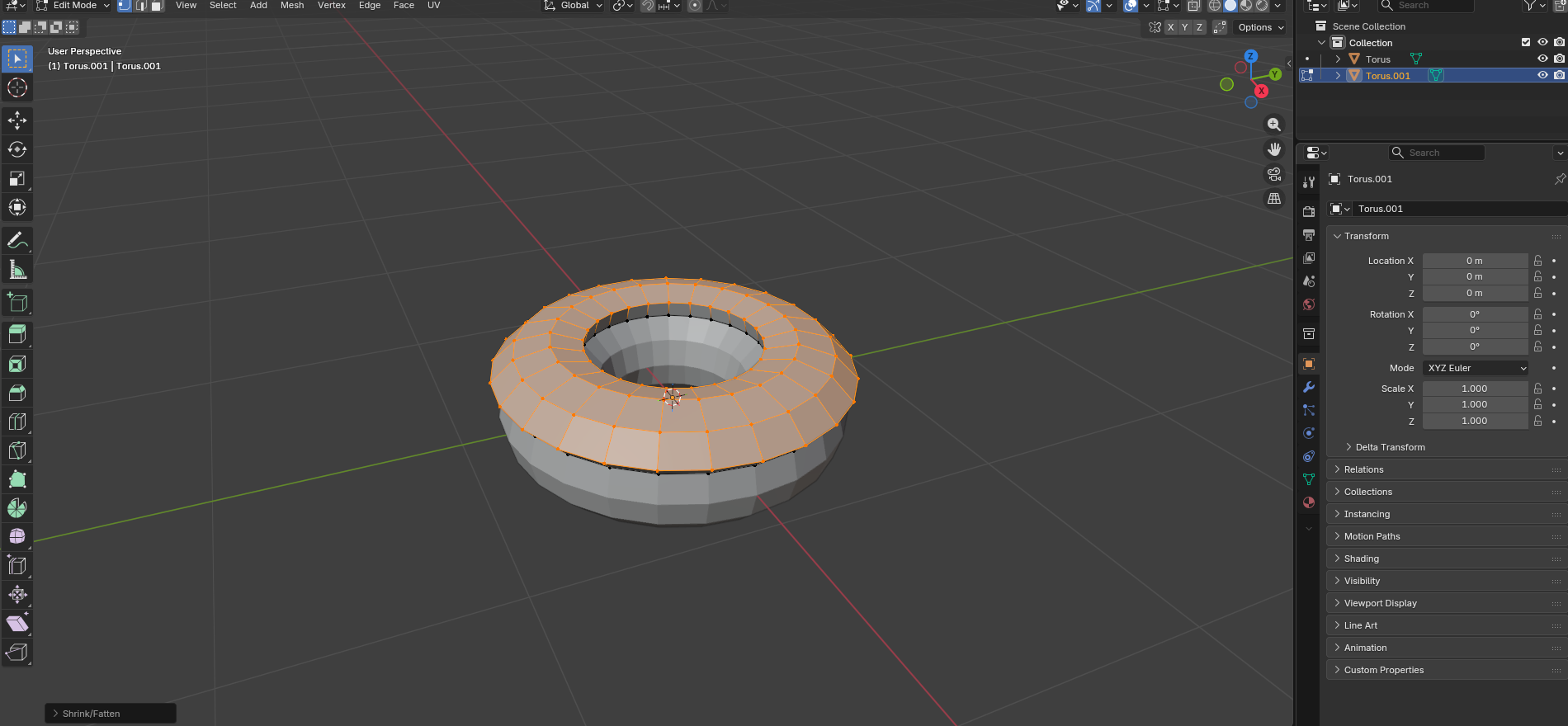

Create the icing by duplicating the top faces of the torus and using the sculpt tool to add drips and bumps.
Tip


If you find your model is hard to sculpt, press Tab to enter edit mode, right-click and select Subdivide to add more vertices, making your model easier to sculpt
Decoration With Bezier Curves


Create Bezier curves using Shift + A, then I added some decorative frosting on top of the donut
With the Bezier curve selected, navigate to the green Data tab on the right side and select Geometry > Bevel > Round. Increase the depth to your desired value.
Subdivide the curve to create more points, and then move the points by pressing the G key, then the Z key to move to their desired location
Tip: Use Alt + S when editing Bezier curves to gain more control over their thickness.
Brushes
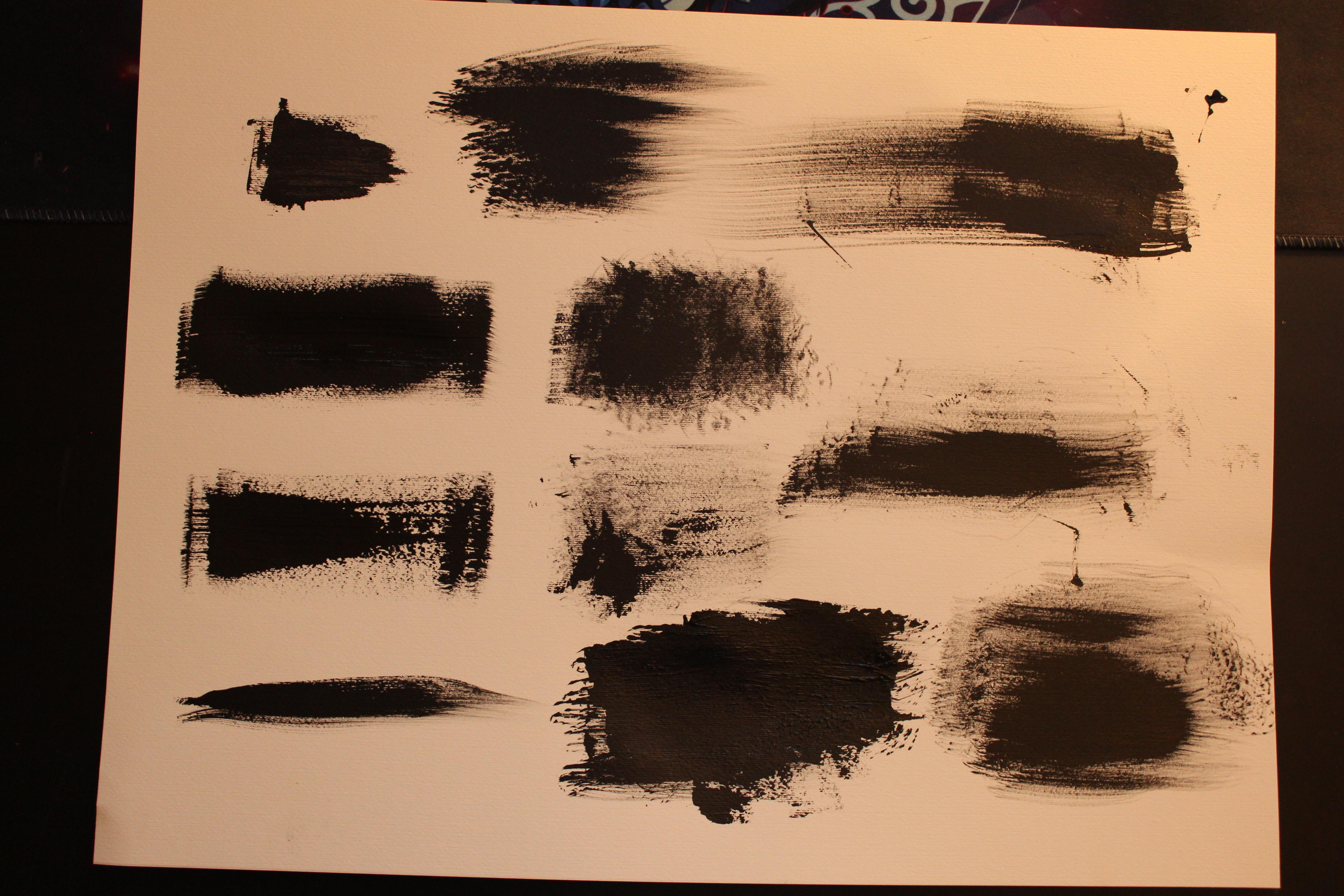


I downloaded an image of brushstrokes from the internet and created an image plane with an alpha map of them.
Make sure to put them in its own collection for the next step by right clicking the outliner and selecting new collection
Brushes and Geo Nodes


Then, I used geometry nodes to have them follow the shape of the donut, creating a painted texture on them.
This setup essentially creates it so that I don't have to manually place these brush stroke images onto the surface of the donut. Saving time!
Sketch Lines


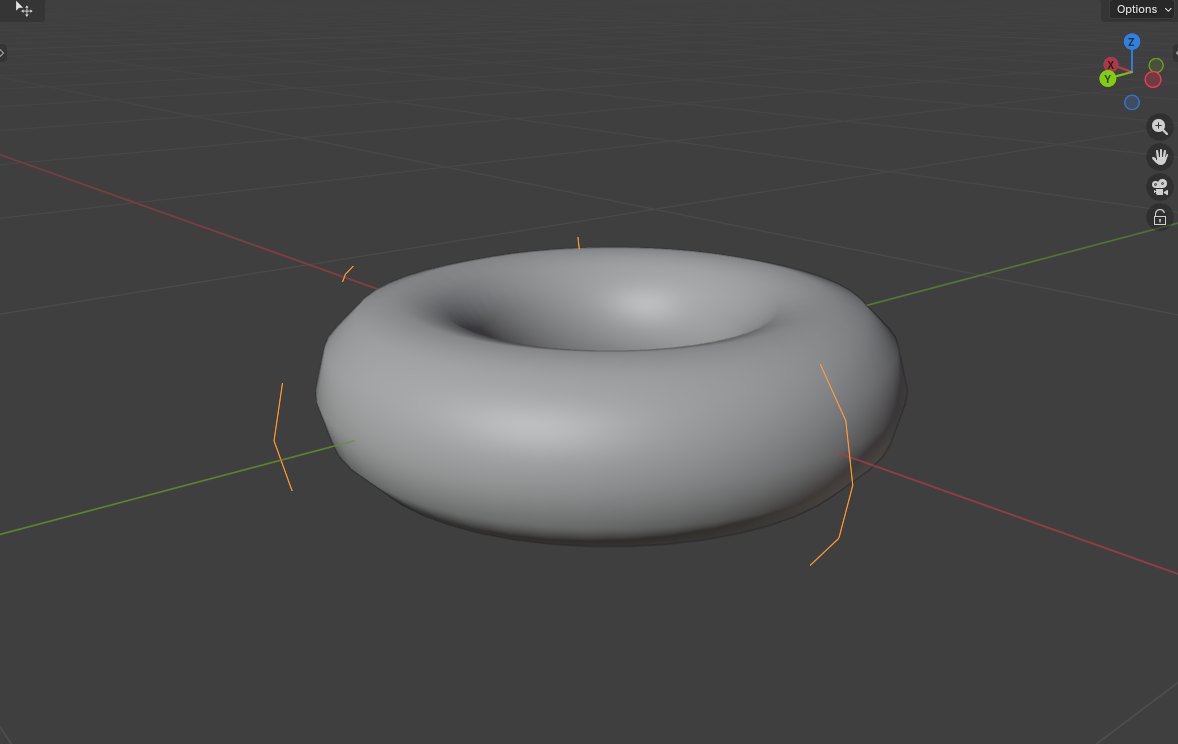

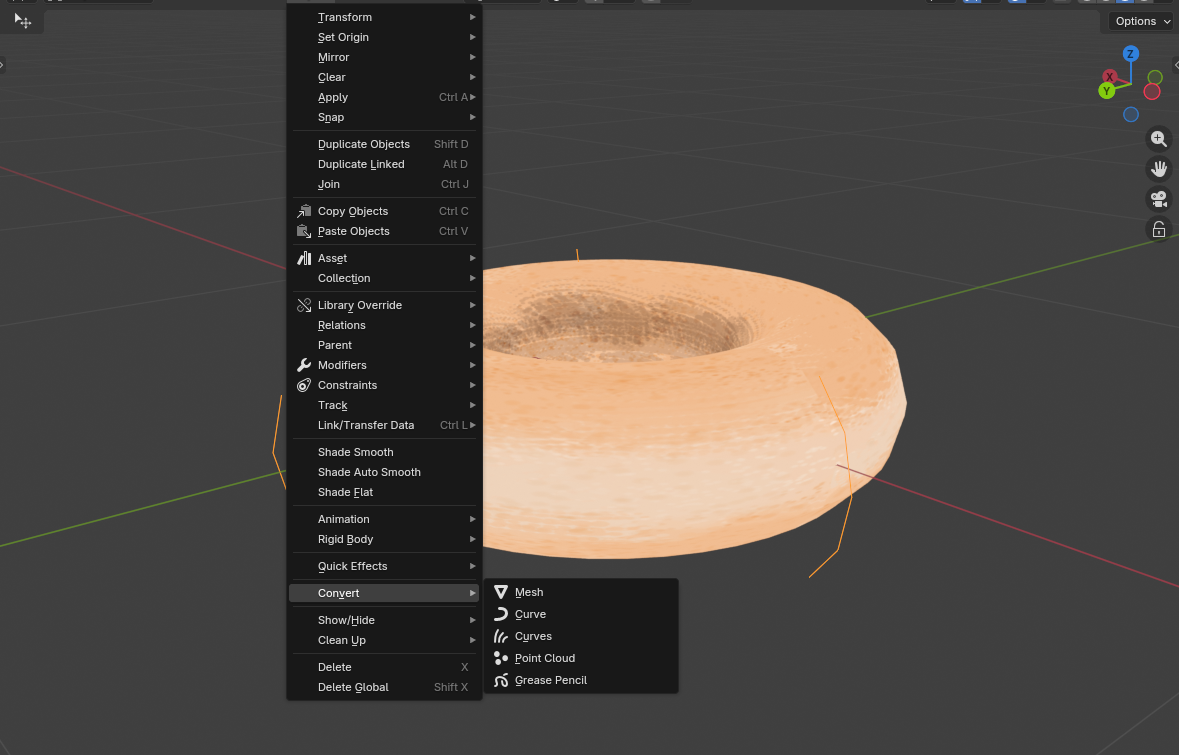
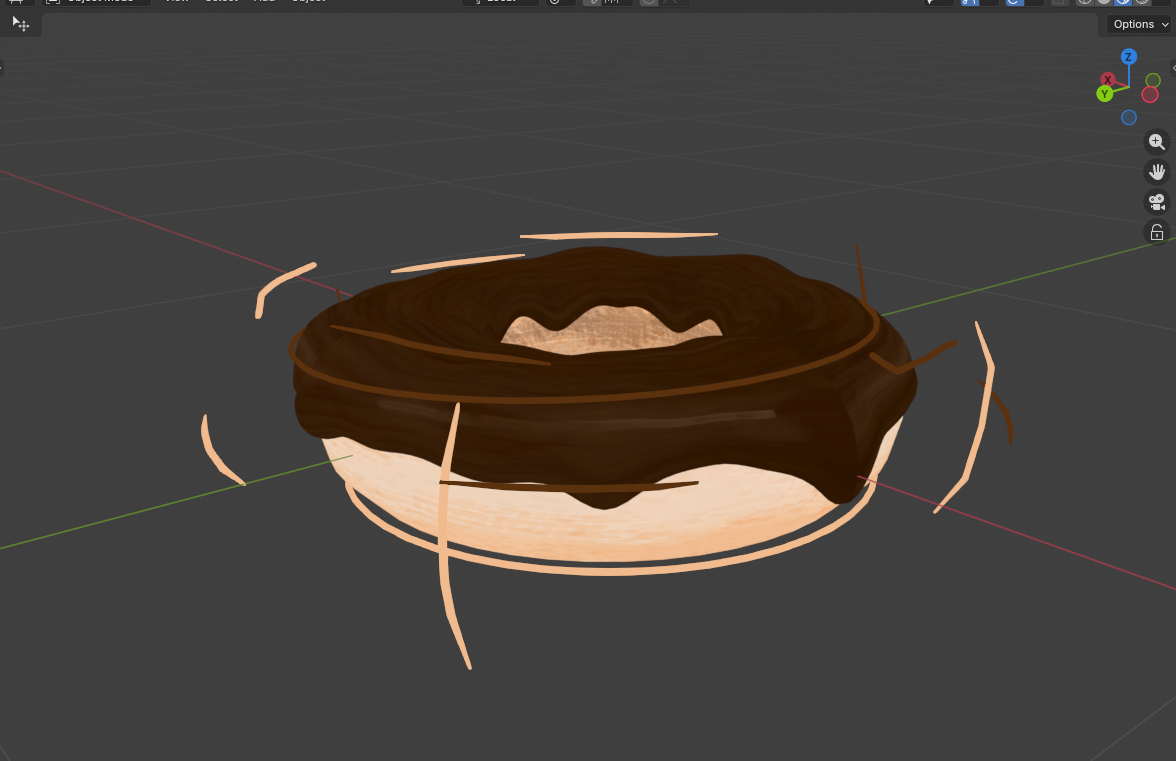
To create strokes on the donut:
- Select the areas you
- Shift + D to duplicate it
- Alt + S to expand it out
- Go to the object tab at the top, and with the new lines selected, go to convert > grease pencil
Textures
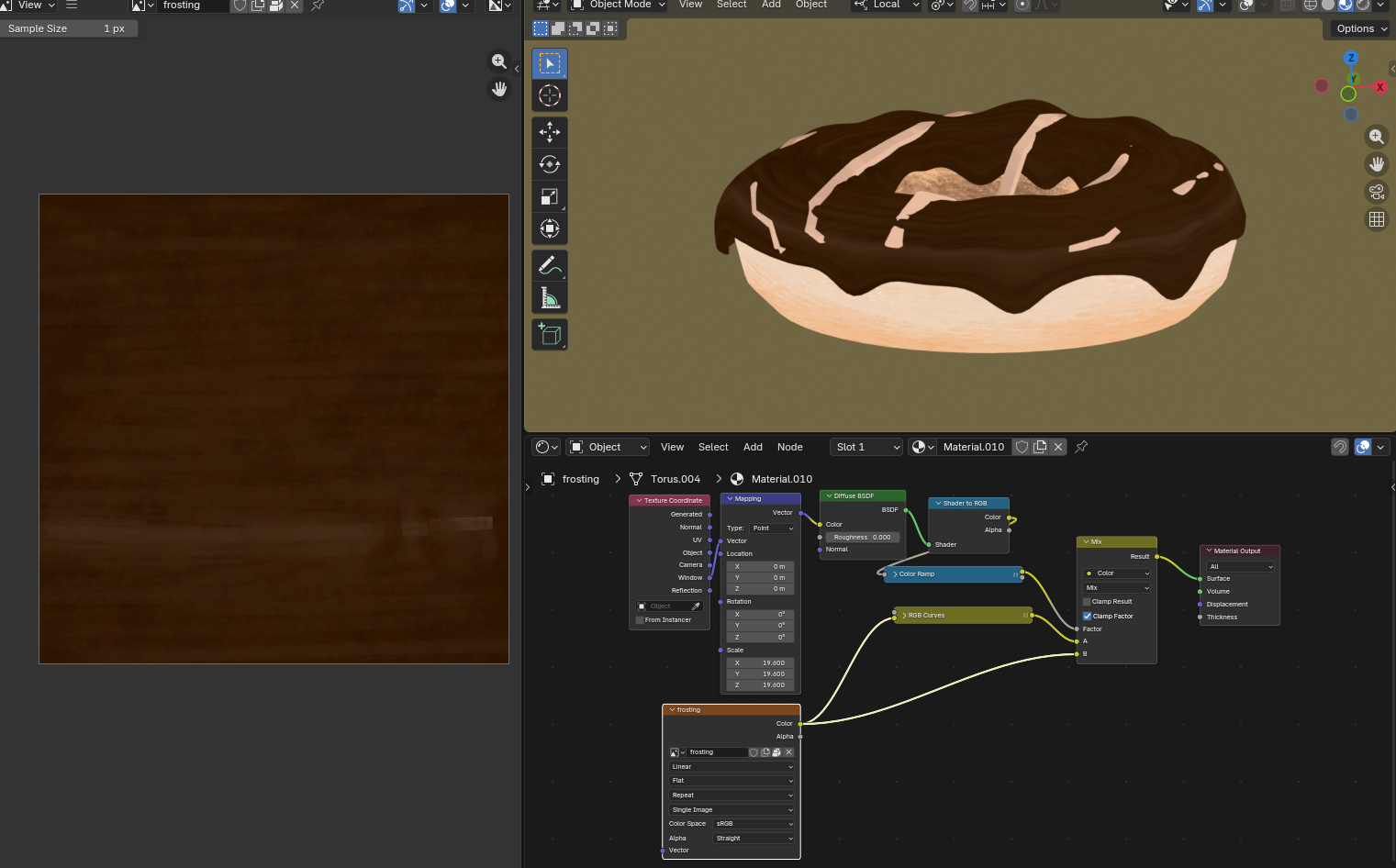
I created a material for my donut and drew a created an image texture
All parts of the donuts use the same node setup
Duplication

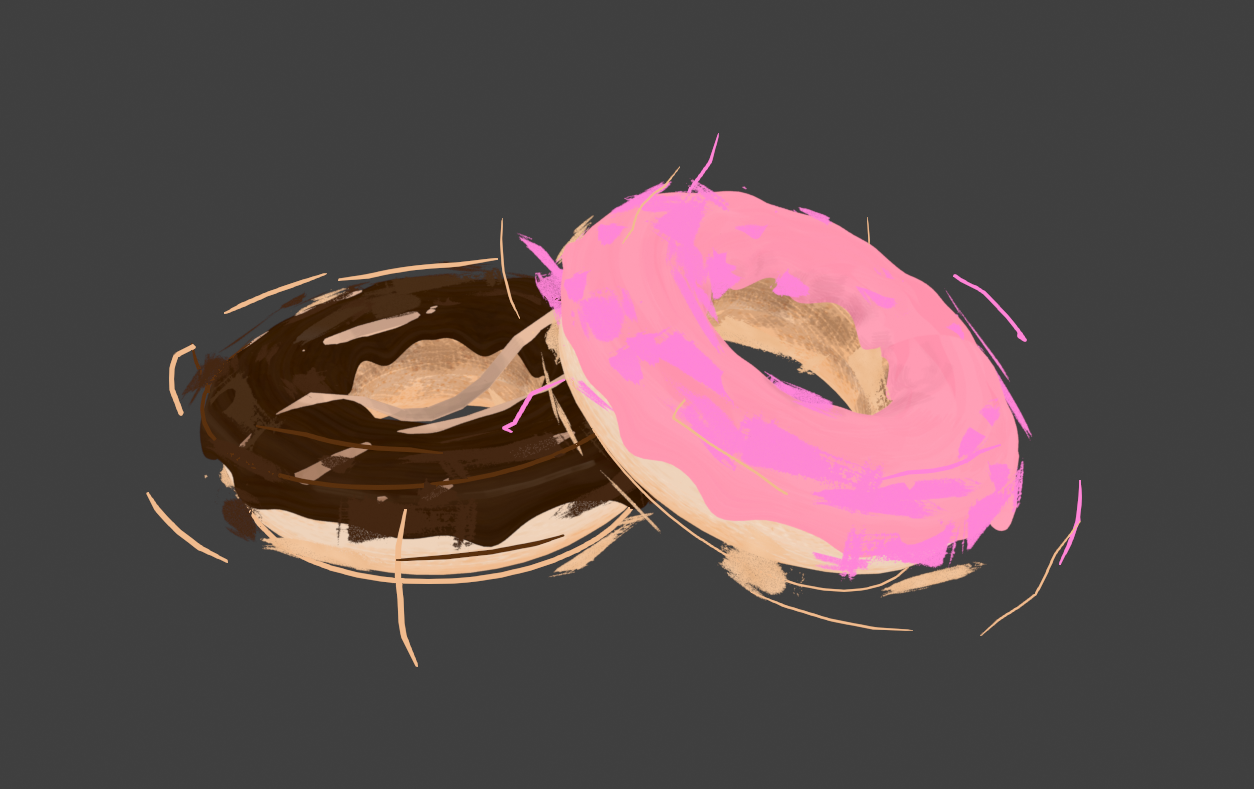
I felt like my chocolate donut was feeling lonely, so I used Shift-D to duplicate it, rotated it, and made it pink.
Sprinkles for Pinky

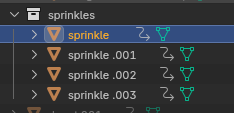

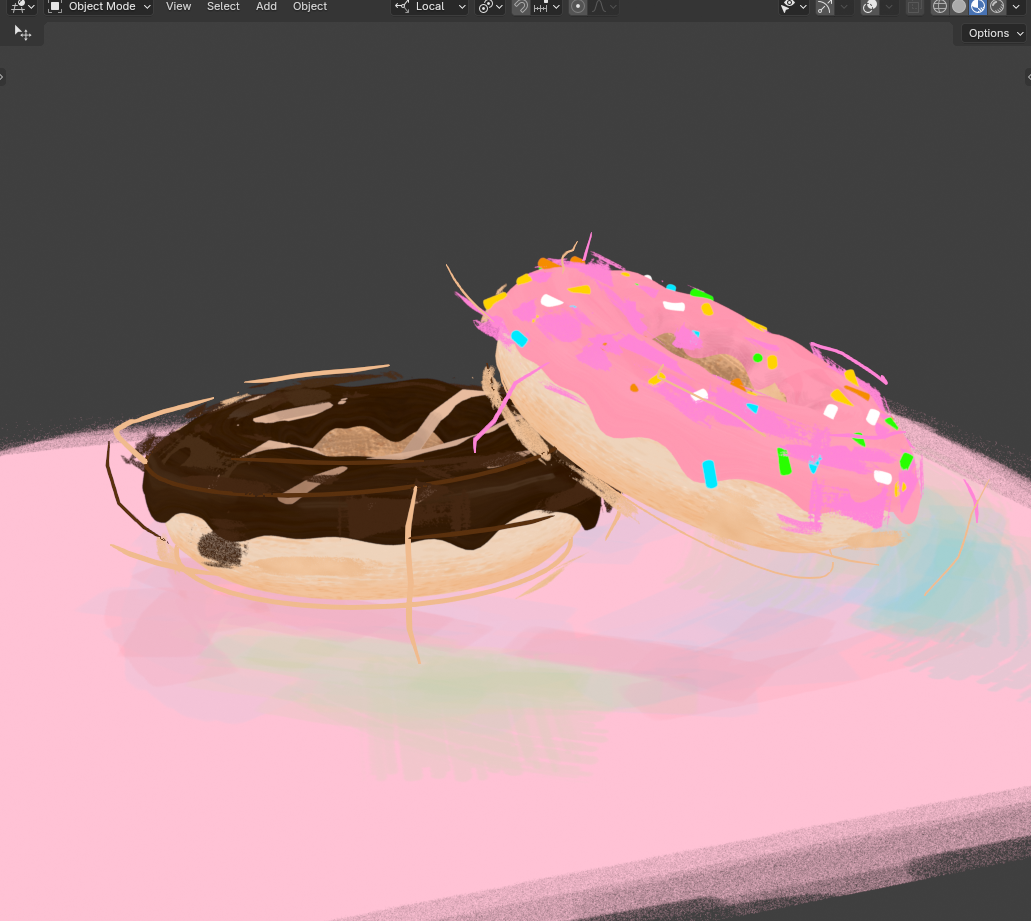
Instead of the icing on top of my new donut, I added sprinkles using this geometry node setup on the icing.
First, create your sprinkles and ensure they're all in a collection.
Then the geometry node will be connected and applied all over the donut
Floor Texture

I quickly sketched around with some pastel colors to create this floor and created another image texture, which I plugged into the alpha node to create a streaky texture on the edges.
Sketchy Shadow
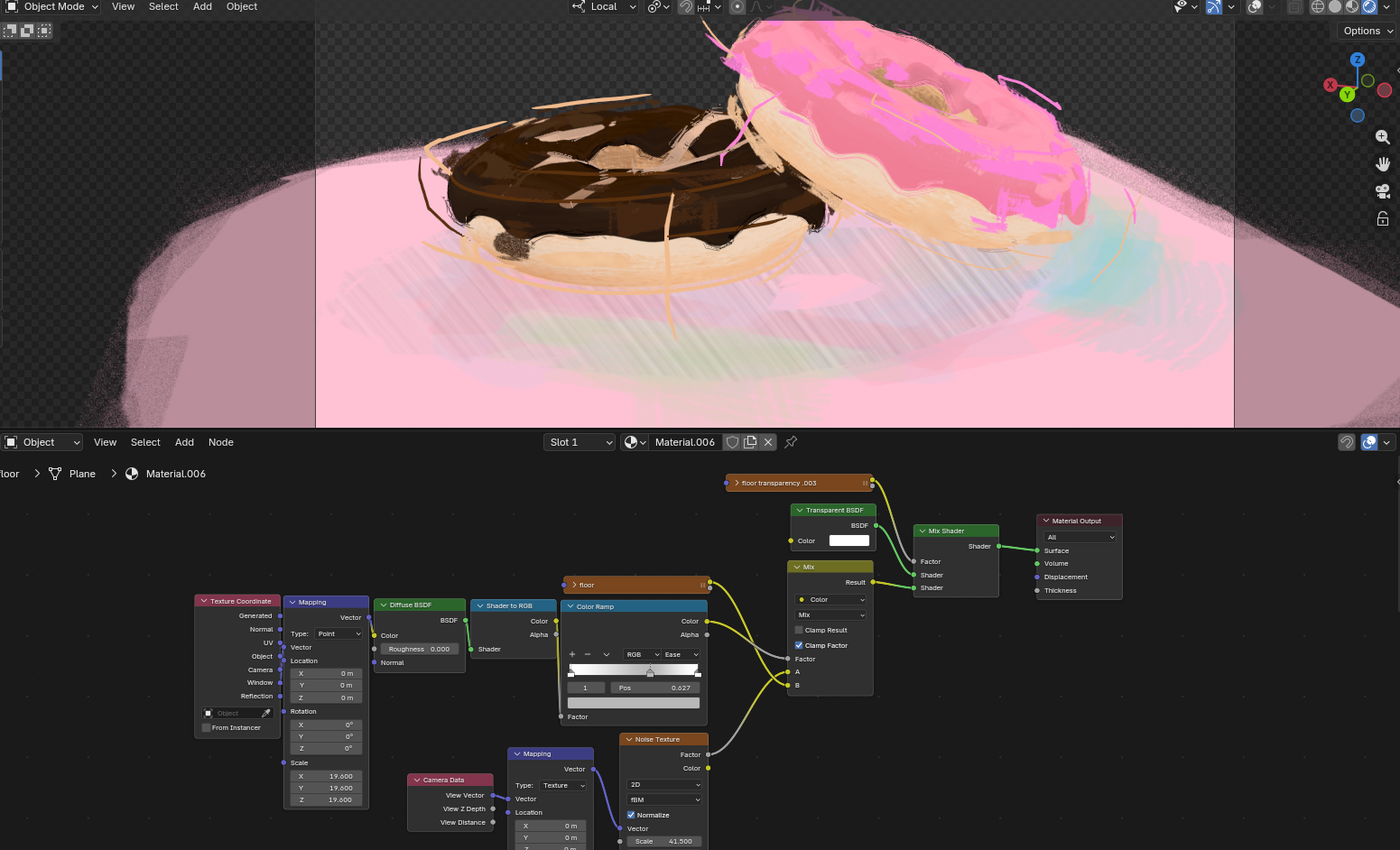
With the floor selected I created a material to create a sketching pencil in the place of the shadow
Line Art
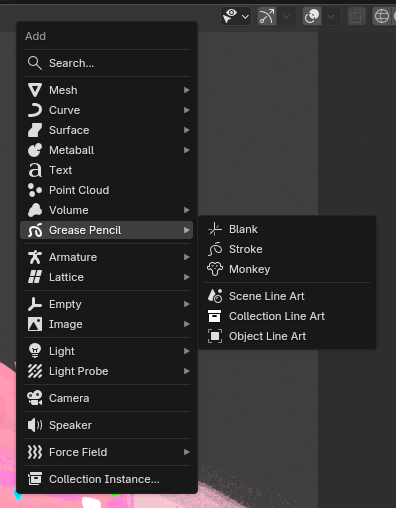




Shift + A, Click the Grease pencil, and select Object line art
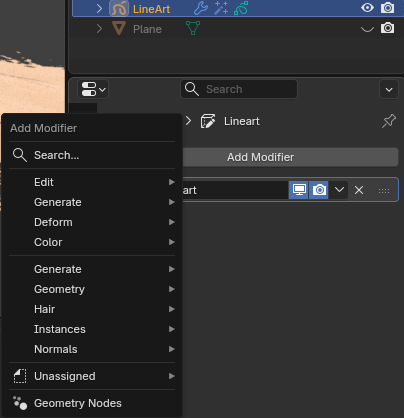
Next, select the line art we just created and select the blue wrench icon, which is called Modifiers
Add the modifiers shown here, or just play around with the other options. Length and Noise allow for less perfect line art.
Final Wireframe and Solid Model
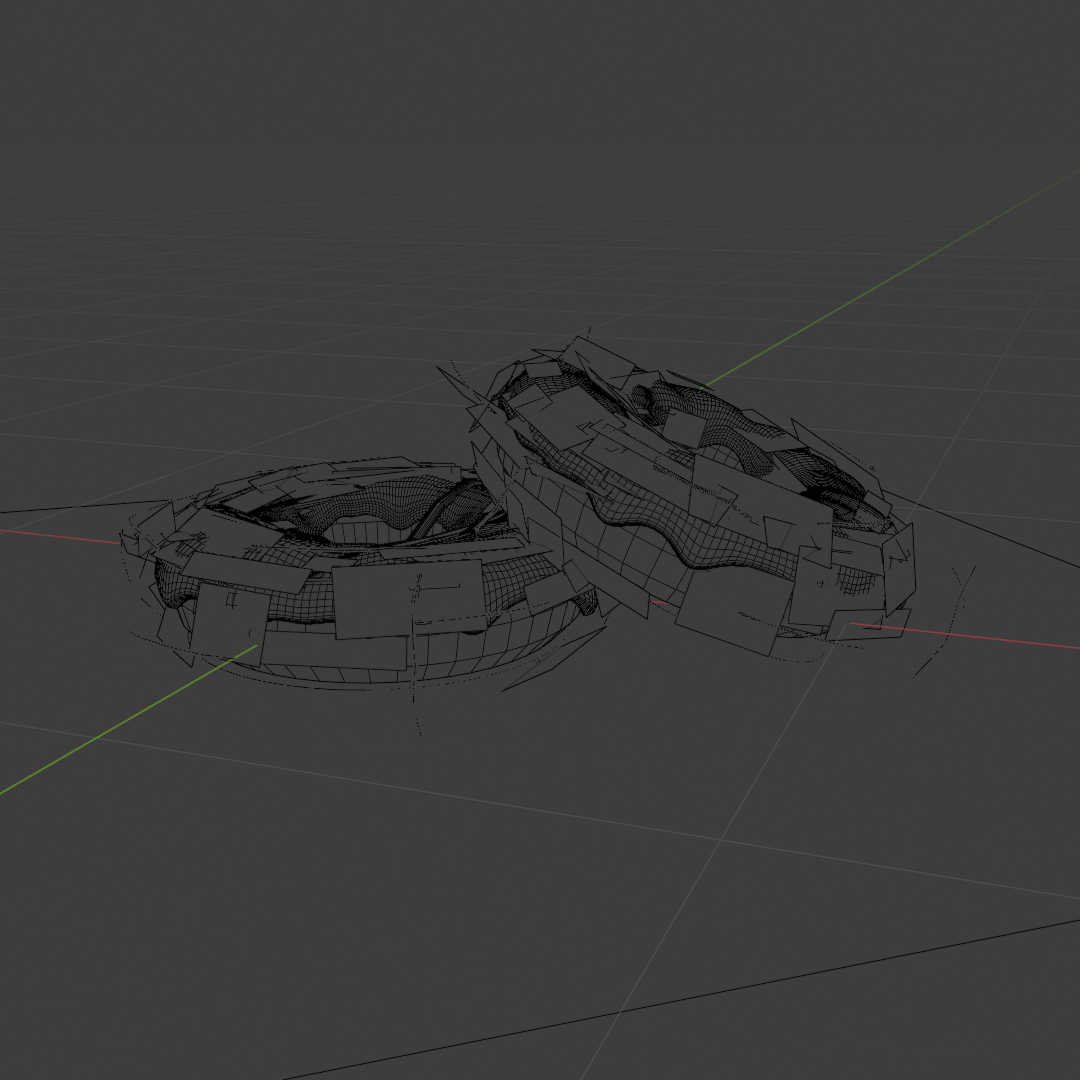
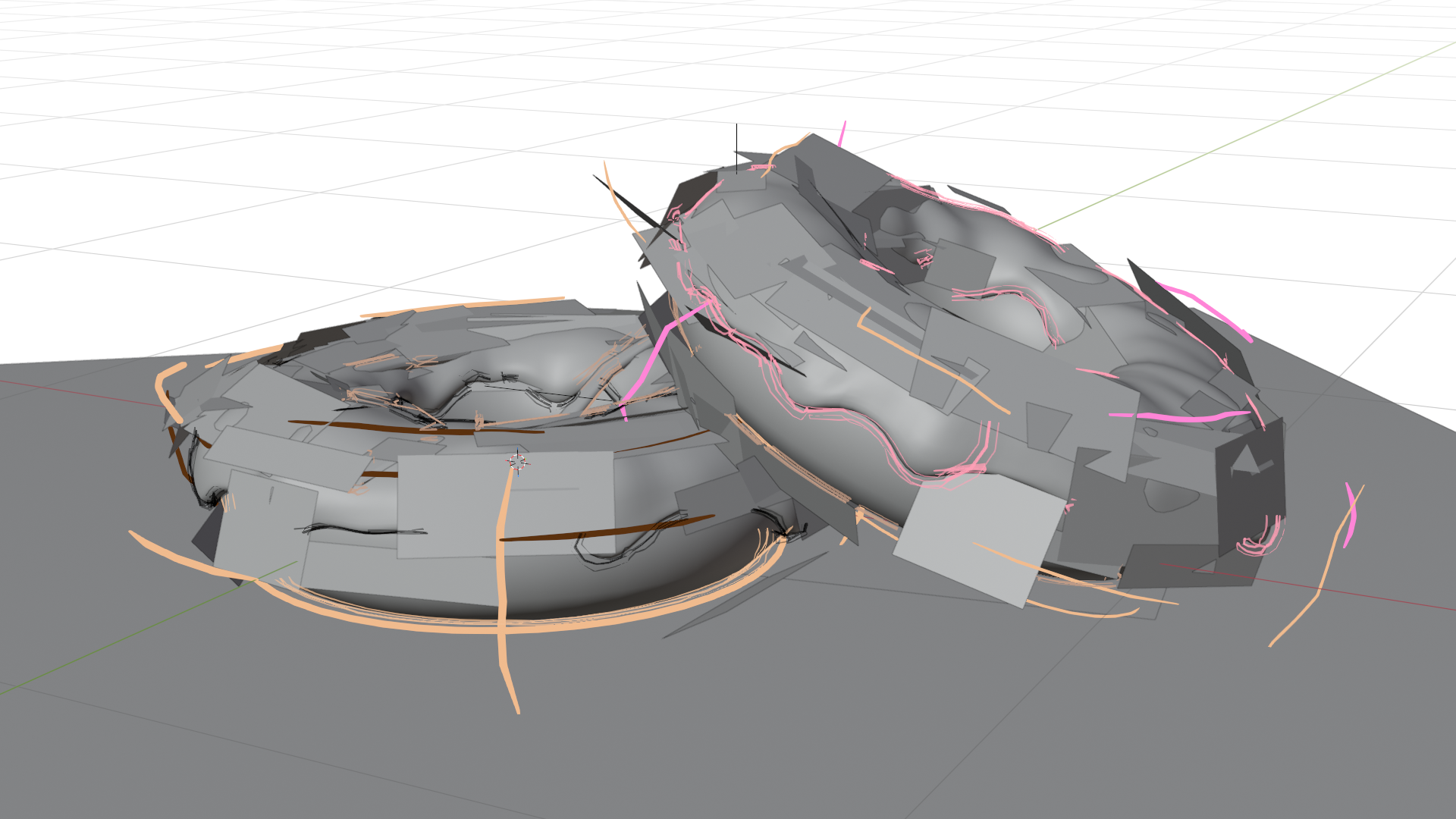
Progress screenshot of what I ended up with!
Final

There we go!
Now, this doesn't have to be a donut; this can be done with any object or character design. While Blender can be overwhelming with all the things it can do, it's an amazing piece of software with infinite possibilities, and I encourage you to try it for yourself!