Phisualize It! — Revealing the Invisible World in Real Time
by shredermann in Circuits > Arduino
1503 Views, 8 Favorites, 0 Comments
Phisualize It! — Revealing the Invisible World in Real Time
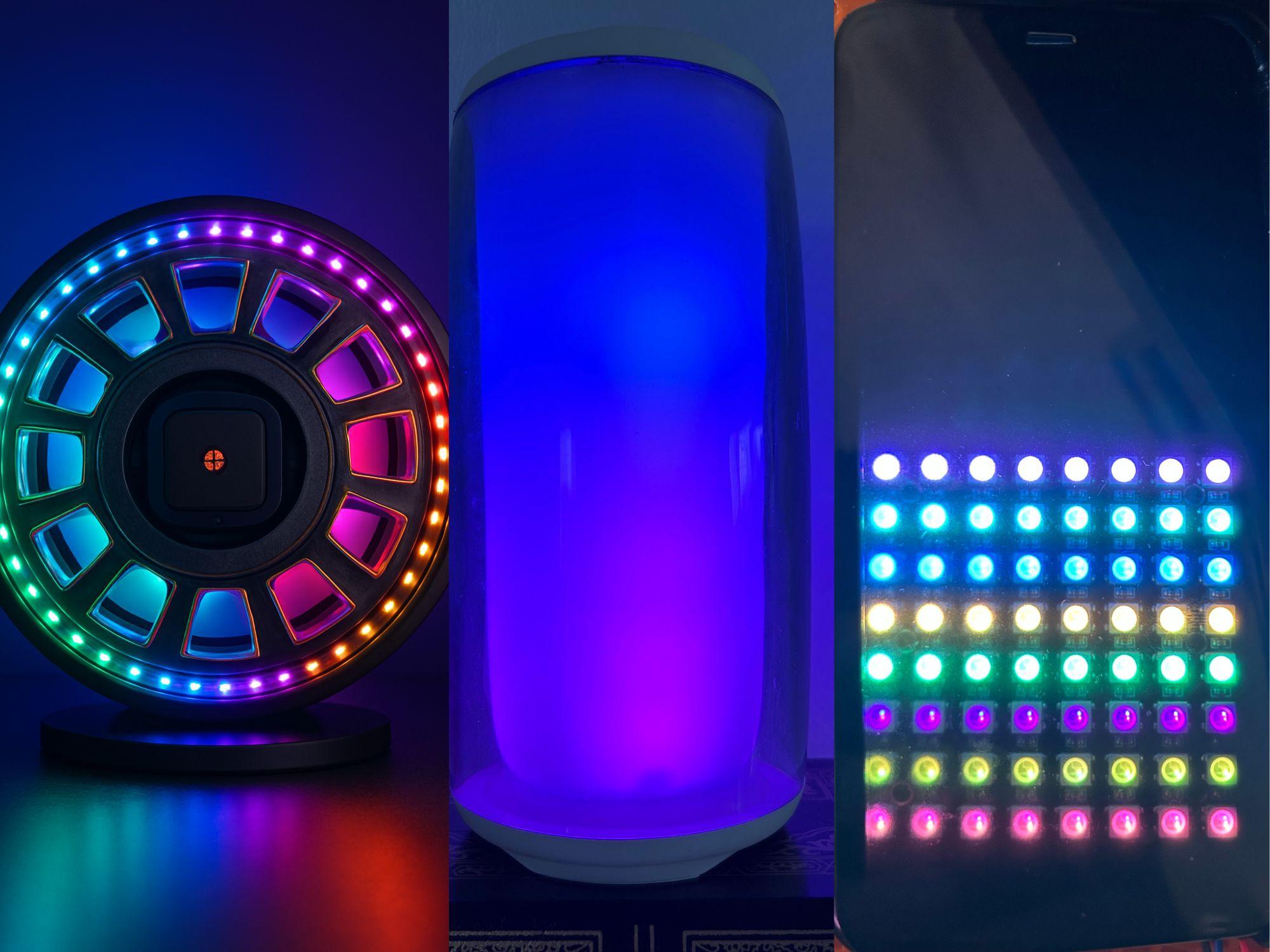
INTRODUCTION: PHISUALIZE IT!
Just don't visualize… Phisualize it.
Phisualize It! is an experimental educational instrument designed to make invisible physical phenomena visible in real time.
One sensor platform. Ten invisible phenomena.
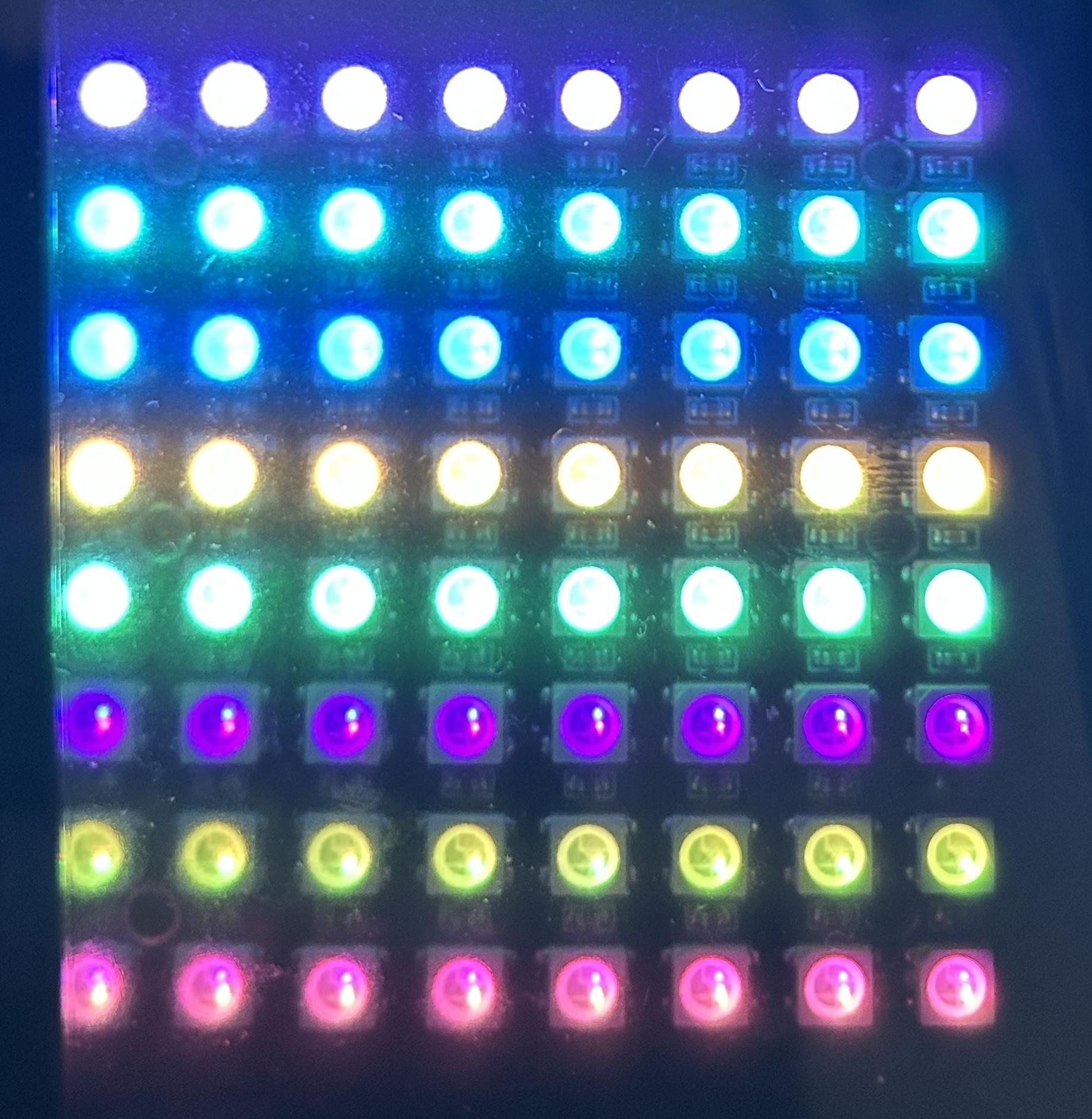
This Instructable focuses on the 8×8 LED matrix reference build, a compact and reproducible version of the system.
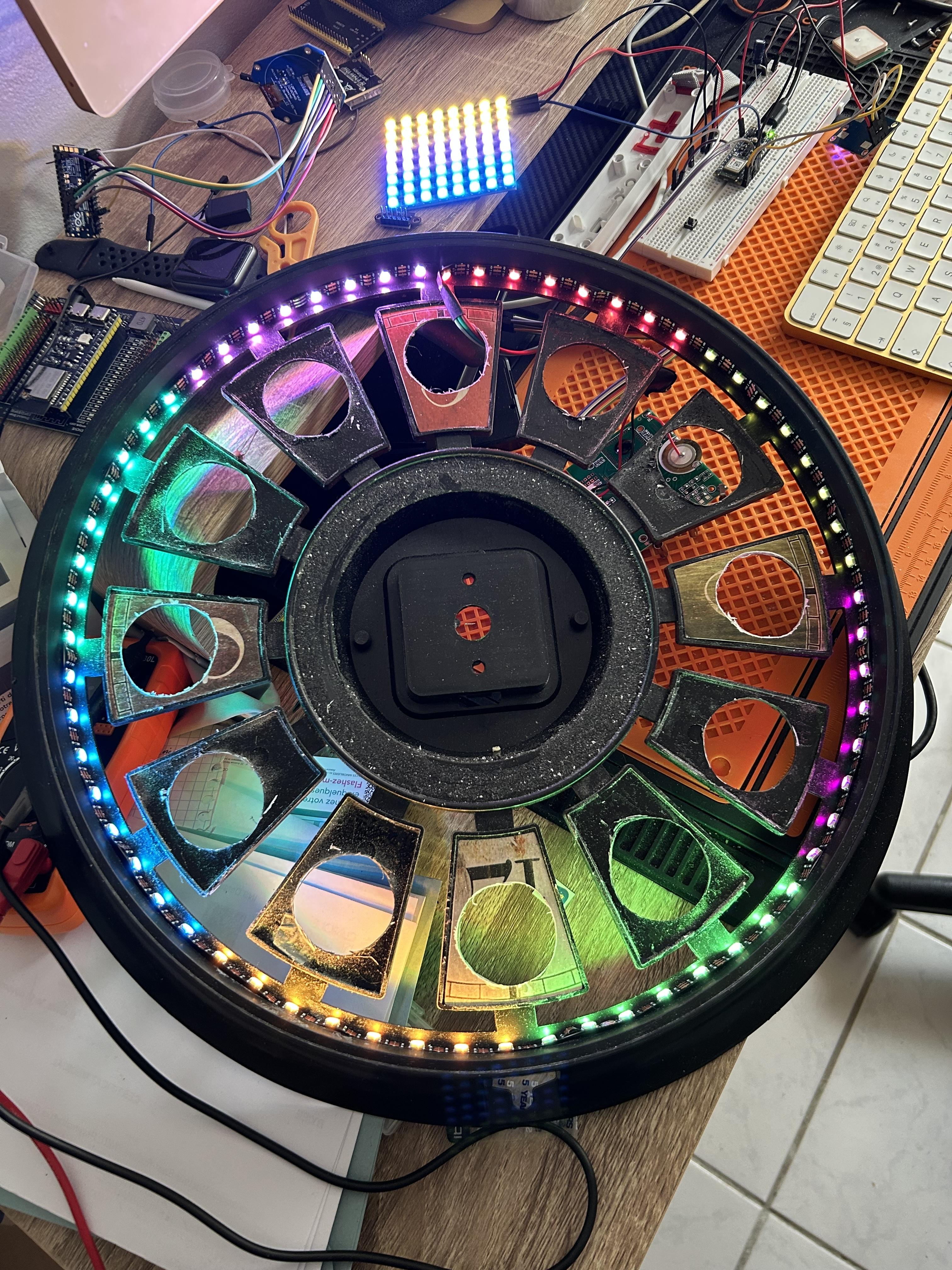
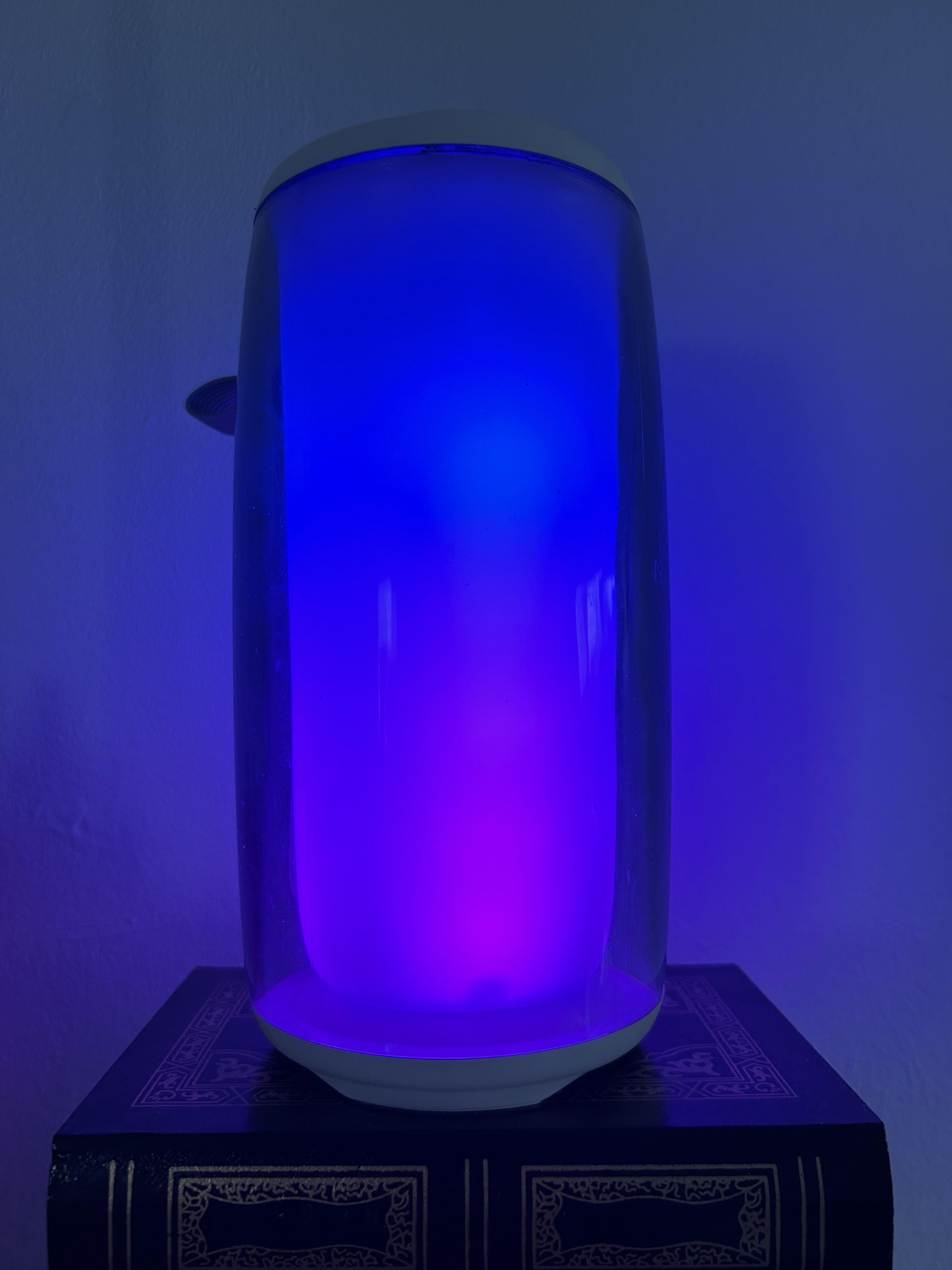
More advanced form factors — such as PhiP350, built from recycled speaker LEDs — are possible, but require additional hardware adaptation and will be covered in a separate tutorial.
What You'll Detect
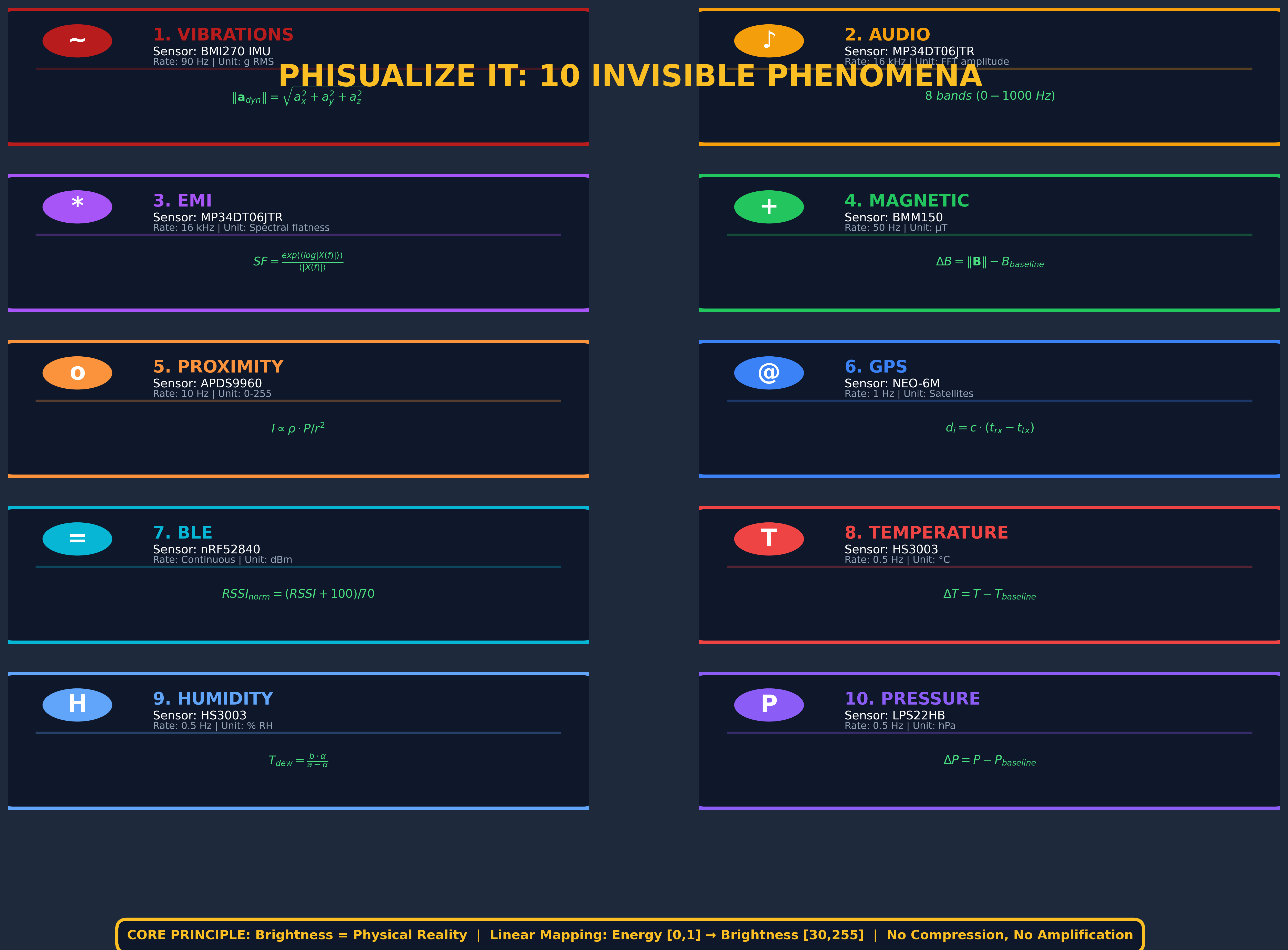
Ten invisible phenomena rendered in real time:
- Vibrations — Mechanical energy (IMU accelerometer)
- Audio — Structured sound with harmonics (microphone + spectral analysis)
- Electromagnetic interference — Power lines, switching noise (same microphone)
- Magnetic fields — Earth's field + perturbations (magnetometer)
- Infrared proximity — IR reflection detection
- GPS signals — Satellite tracking and signal quality
- Bluetooth connectivity — Wireless signal strength
- Temperature — Ambient thermal conditions
- Humidity — Relative humidity levels
- Atmospheric pressure — Barometric variations
What You'll Learn
By building the 8×8 reference version, you will discover how to:
- Distinguish structured audio from electromagnetic interference using spectral analysis
- Run real-time FFT processing on a microcontroller
- Combine multiple sensors into a coherent scientific model
- Design a modular LED visualization engine adaptable to any display
- Apply scientific normalization without artificial amplification or visual cheating
This project prioritizes honesty over spectacle.
Key Innovation
One microphone. Two invisible worlds.
The same PDM microphone captures both:
- Acoustic sound (voice, music, harmonics)
- Electromagnetic interference (power lines, switching noise)
They are separated in real time using spectral flatness analysis — a technique from professional audio DSP.
Pure signal processing. No guesswork.
Why "Phisualize"?
Most projects visualize data — they turn measurements into graphs, charts, or numbers on a screen.
This project does something different.
Phisualize It! is a play on words, but also a statement.
The name comes from Φ (phi) — the Greek letter for Physics.
Phi + Visualize = translating physics into perception.
To visualize is to represent data.
To phisualize is to translate physics itself into perception.
Here, light is not decoration. It is a language.
- Every brightness level corresponds to a measured intensity
- Every color reflects a physical phenomenon
Nothing is invented.
Nothing is exaggerated.
You don't just visualize the invisible world.
You Phisualize it.
Ready to see the invisible?
Let's build.
Supplies
.jpg)
Hardware and Philosophy
Design Principle
Most projects solve problems by adding hardware.
This one solves them by extracting more information from less hardware.
Constraint is not a limitation — it is the design method.
Core Processing
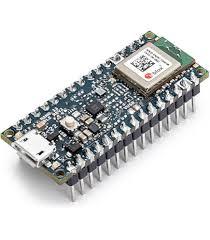
Arduino Nano 33 BLE Sense Rev2
A single microcontroller board hosting multiple integrated sensors:
- IMU (BMI270 accelerometer + gyroscope)
- PDM microphone (MP34DT06JTR)
- Magnetometer (BMM150)
- Barometric pressure sensor (LPS22HB)
- Infrared proximity sensor (APDS9960)
- Temperature / humidity sensor (HS3003)
- Bluetooth Low Energy radio (nRF52840 — RSSI measurement)
From this limited set, the system extracts several distinct physical phenomena using filtering, FFT, and classification — instead of adding dedicated hardware.
One board.
One CPU.
Multiple invisible worlds.
External Sensor (Minimal but Essential)
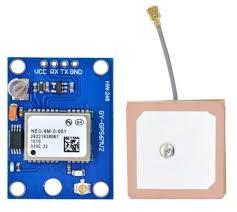
GY-GPS6MV2 GPS module (u-blox NEO-6M)
Added for a single reason:
GPS satellite signals are physically inaccessible without a receiver.
It is used not for navigation, but to visualize radio signals from satellites 20,000 km above Earth, transmitting at 1.5 GHz.
The visualization tracks:
- Satellite presence
- Signal acquisition
- Live radio activity from space
Visualization (Reference Build)
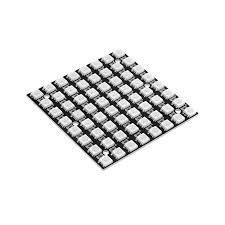
8×8 RGB LED Matrix (WS2812 / NeoPixel compatible)
The reference visualization used in this Instructable is:
- Low cost
- Widely available
- Easy to reproduce
The limited resolution is intentional.
It forces perceptual clarity over graphical complexity.
Brightness = measured intensity (linear mapping).
No artificial amplification.
No decorative scaling.
Monitoring and Transparency (Fully Optional)
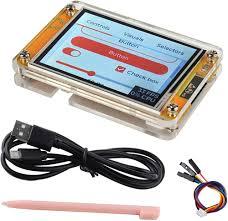
ESP32-2432S028R touchscreen (NOT required)
This is an optional wireless monitoring interface.
The instrument functions completely without it.
When present, it displays:
- Raw sensor values
- FFT data
- Classification states
All sensing, processing, and visualization run entirely on the Arduino.
The ESP32 observes — it does not compute.
Prototyping, Power, and Reuse
- Breadboard
- Jumper wires
- Standard 5 V USB power supply
- Recycled enclosures, cables, and LED hardware whenever possible
No custom PCB.
No laboratory equipment.
No hidden hardware.
Cost and Constraint
- Total cost (reference build): ~€50–70
- Flash usage: ~40%
- RAM usage: ~28%
The remaining resources are preserved to guarantee:
- Deterministic timing
- Stable FFT processing
- Reproducible behavior
This project was intentionally built with very little hardware.
The challenge was not to multiply sensors,
but to push each sensor beyond its usual role through signal processing.
System Architecture


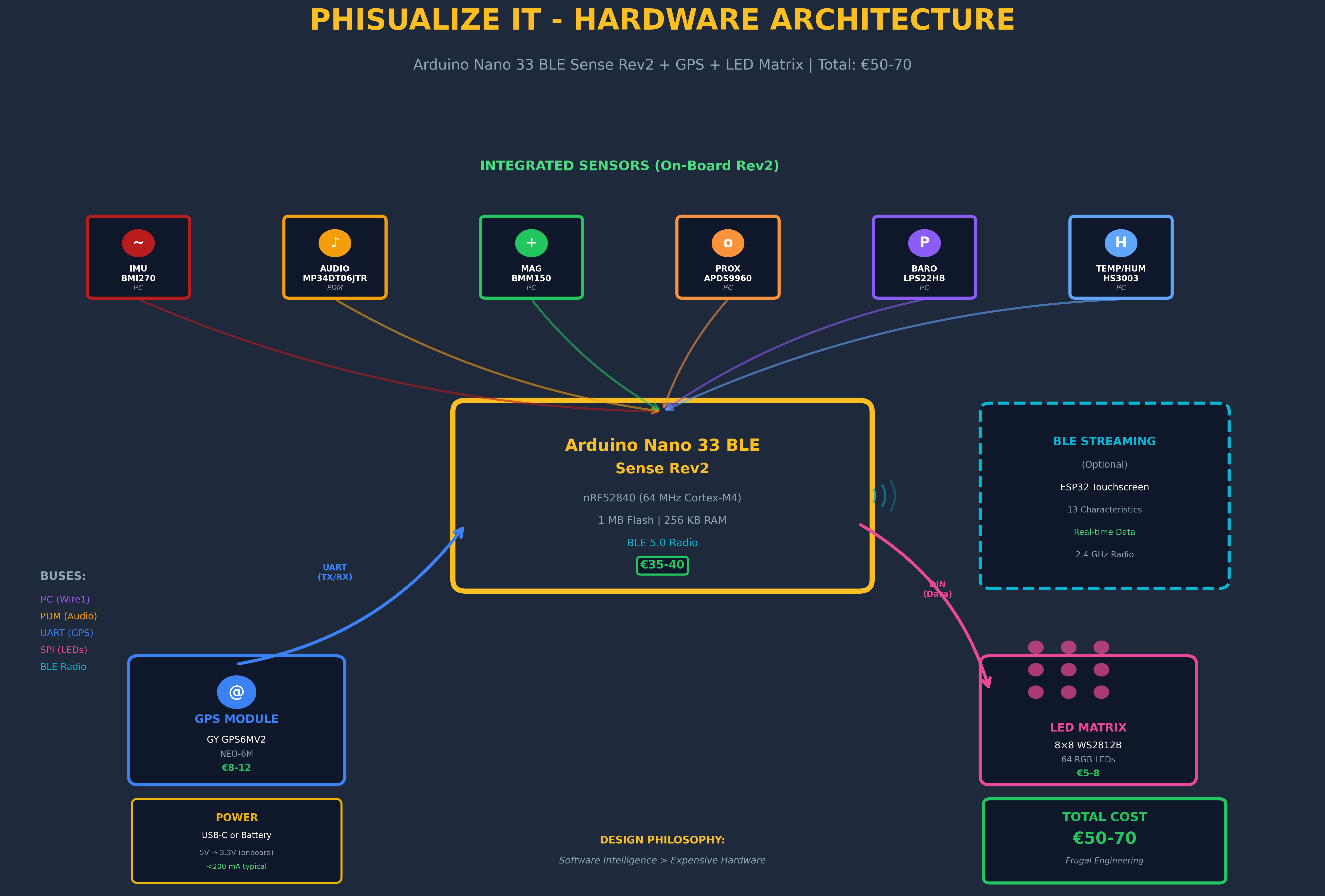
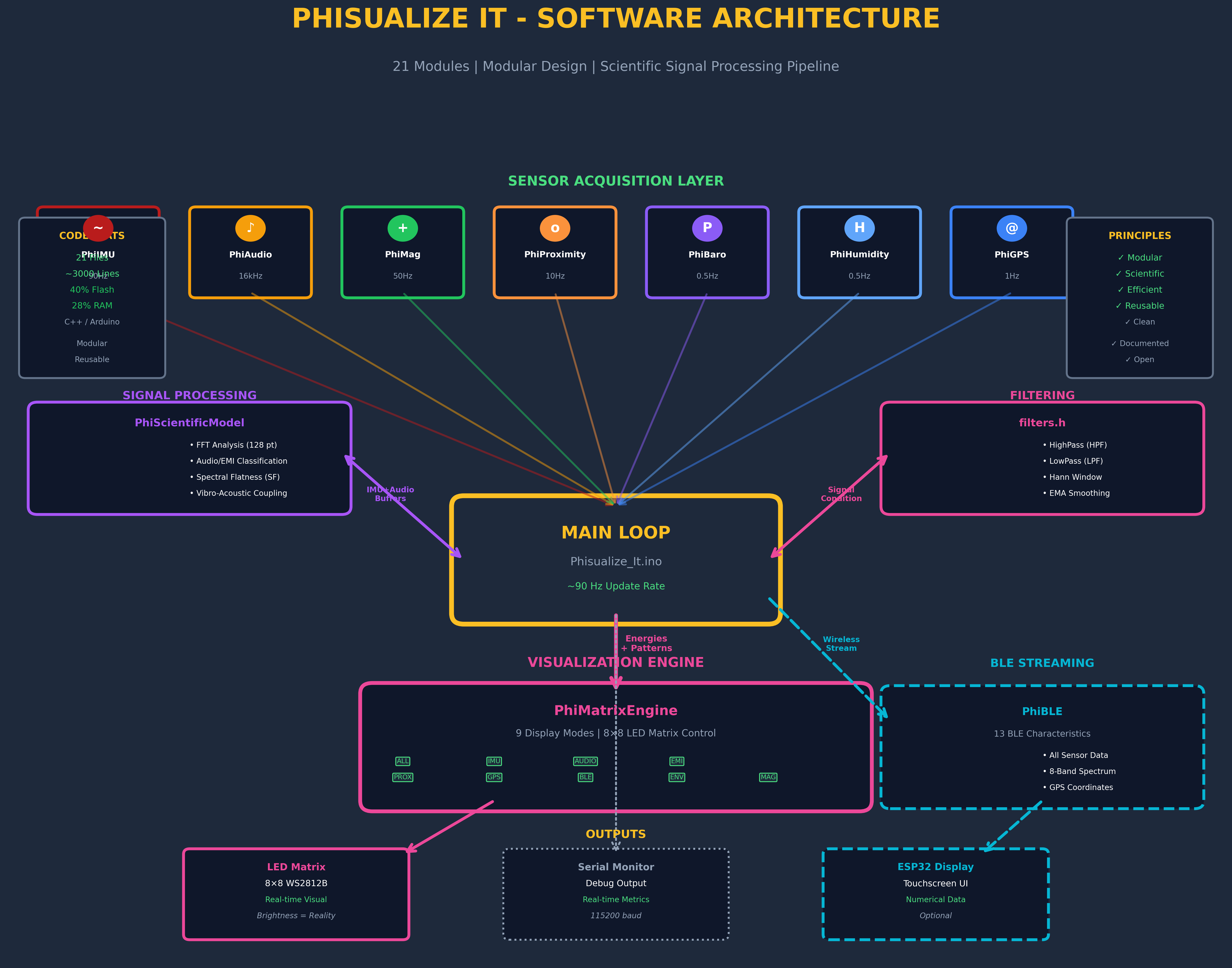
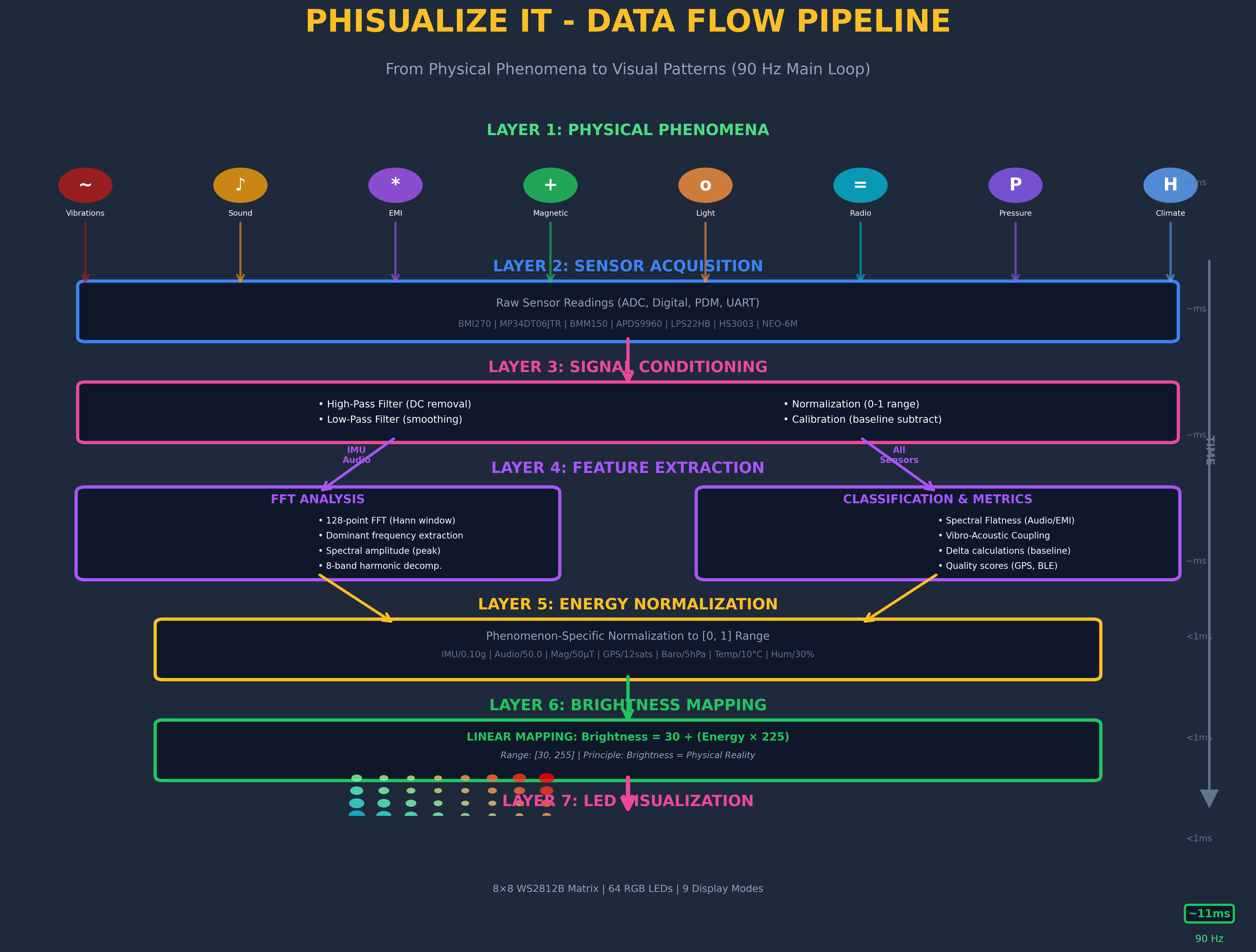
This step explains how the system works as a whole.
Not component by component, but flow by flow.
The core idea is simple:
Invisible physical phenomena → signal processing → light
Everything runs locally on the microcontroller.
No cloud dependency.
No external processing.
Pure real-time perception.
Event-Driven Coordination
At the heart of Phisualize It! is a coordinated system running on the Arduino Nano 33 BLE Sense Rev2.
Multiple processes run in parallel:
- PDM microphone — interrupt-driven audio capture
- IMU sampling — timer-based (90 Hz precise timing)
- GPS serial parsing — asynchronous NMEA data
- Main loop — orchestrates FFT, classification, and visualization
Short-term buffering for FFT (128 samples) ensures stable spectral analysis.
No long-term storage.
No playback mode.
What you see is exactly what is happening — now.
Sensing Layer — Listening to the Invisible
The system listens to multiple physical domains simultaneously.
Mechanical
Vibrations are extracted using a high-pass filter (fc ≈ 1.7 Hz @ 90 Hz) that removes Earth's gravity and isolates dynamic acceleration.
Acoustic & Electromagnetic
A single PDM microphone captures pressure variations.
Spectral analysis distinguishes:
- structured sound (voice, music) — harmonic peaks
- electromagnetic interference (power lines, switching noise) — flat spectrum
Magnetic
Local perturbations of Earth's magnetic field are measured as deltas from a calibrated baseline.
Environmental
Pressure, temperature, and humidity are tracked as changes over time, not absolute values.
Radio
- GPS module detects satellite presence and signal acquisition
- BLE radio provides signal strength as a physical phenomenon
Each sensor delivers raw, unoptimized data.
No cosmetic smoothing.
No artificial amplification.
Processing Layer — Making Sense of Signals
Raw signals alone are meaningless.
This is where Phisualize It! differs from most LED projects.
Key operations include:
- High-pass and low-pass filtering (gravity removal, noise rejection)
- Fast Fourier Transform (FFT) (frequency domain analysis)
- Energy extraction (dominant spectral amplitude)
- Spectral flatness calculation (audio vs EMI classification)
- Baseline subtraction (magnetic, barometric, temperature deltas)
- Fixed-scale normalization (physical reference values)
All processing is deterministic and traceable.
Every transformation maps directly to a physical measurement.
No hidden coefficients.
No "magic values".
Only temporal low-pass filtering for perceptual stability and noise rejection.
Classification Without Guesswork
Classification is physics-based, not heuristic.
Example (microphone):
- Spectral flatness > 0.45 → electromagnetic interference (flat broadband spectrum)
- Spectral flatness < 0.40 → structured audio (harmonic peaks)
- Hysteresis (0.40–0.45) → prevents rapid oscillation between states
The same sensor.
Two different physical realities.
Separated mathematically, not by guessing.
Visualization Layer — Light as a Language
Once normalized, physical intensities are sent to the visualization engine.
A strict rule applies:
Brightness always represents measured intensity.
- Dim light → weak phenomenon
- Bright light → strong phenomenon
- Flicker → change in the physical world
No dynamic auto-scaling.
Each phenomenon has a fixed physical reference:
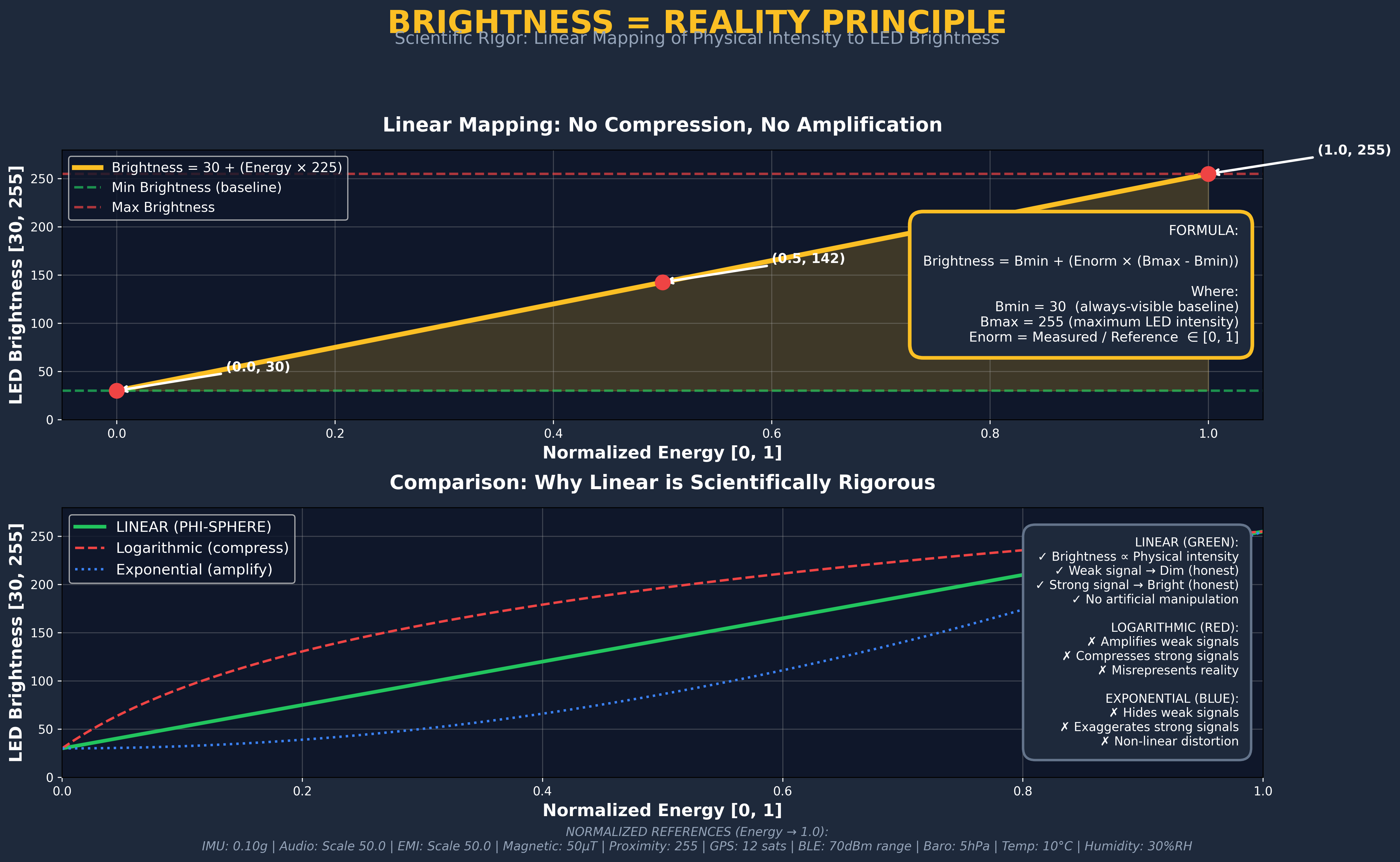
- Vibrations: 0.10 g
- Audio: 0.02 amplitude
- EMI: 0.005 amplitude
- Magnetic field: 50 µT
- Proximity: 1.0 (full scale)
- Environmental deltas: 5 hPa / 10°C / 30% RH
Brightness reflects true measured intensity against this reference.
The LED matrix becomes a perceptual surface, not a display.
Display-Agnostic by Design
The visualization engine does not care what LEDs are connected.
The same code can drive:
- An 8×8 LED matrix (reference build)
- A circular LED ring (I did with 64 leds)
- Recycled LED bars from consumer devices (I used a broken earz-P350)
Only the physical mapping changes.
The scientific model remains identical.
Optional Monitoring — Seeing the Numbers
An optional ESP32 touchscreen can connect via BLE.
Its role is strictly observational:
- Raw values
- FFT magnitudes
- Classification states
- Internal variables
Think of it as an oscilloscope for perception.
Remove it, and nothing breaks.
Why This Architecture Matters
Most visualization projects start with visuals and add meaning later.
This one does the opposite:
Physics first.
Processing second.
Light last.
You are not watching animations.
You are watching the invisible world express itself — unfiltered, unoptimized, authentic.
Next Step
We'll explore the science behind each phenomenon:
what it is, how it's measured, and why the math works.
The Science: Turning Signals Into Meaning
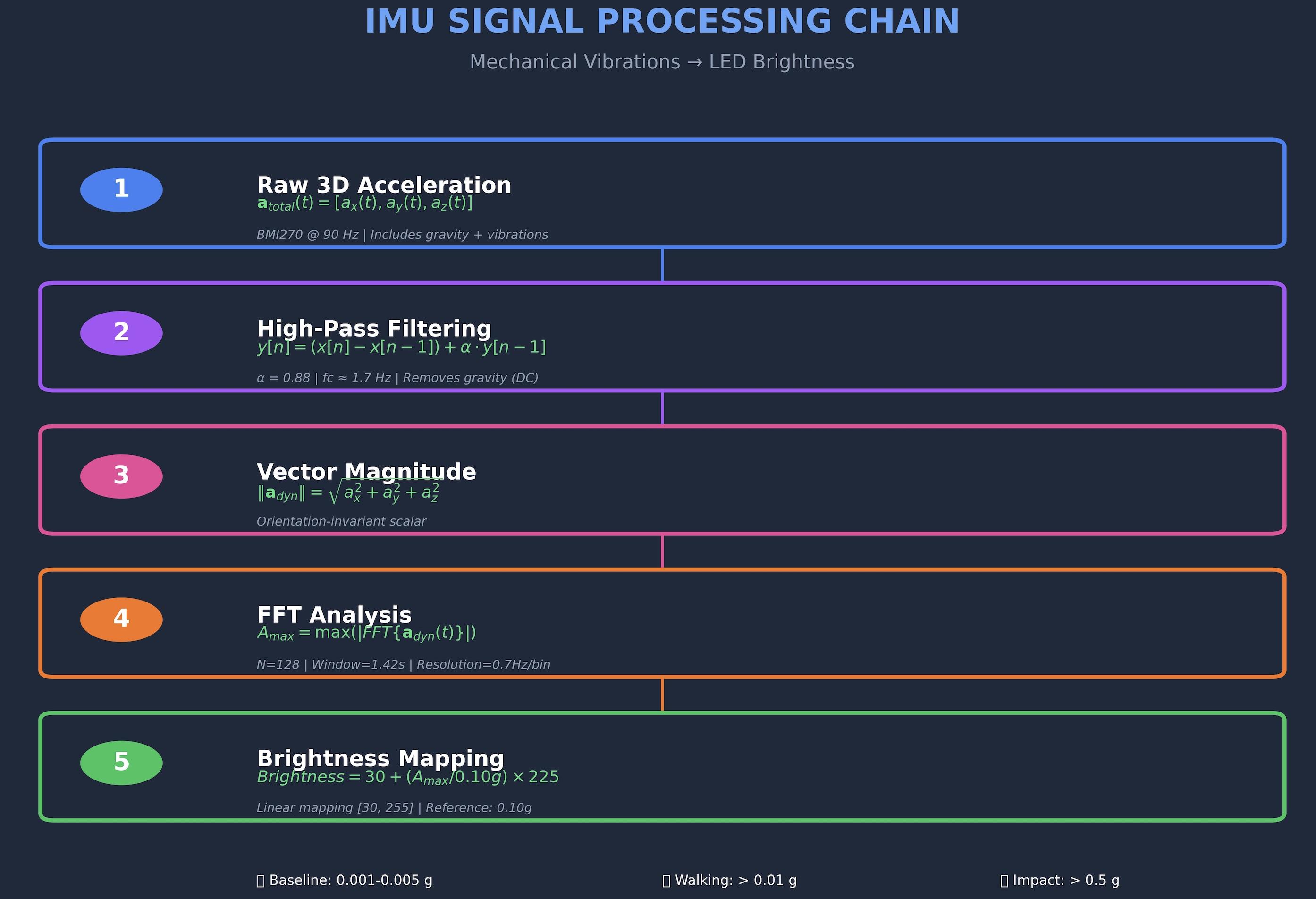
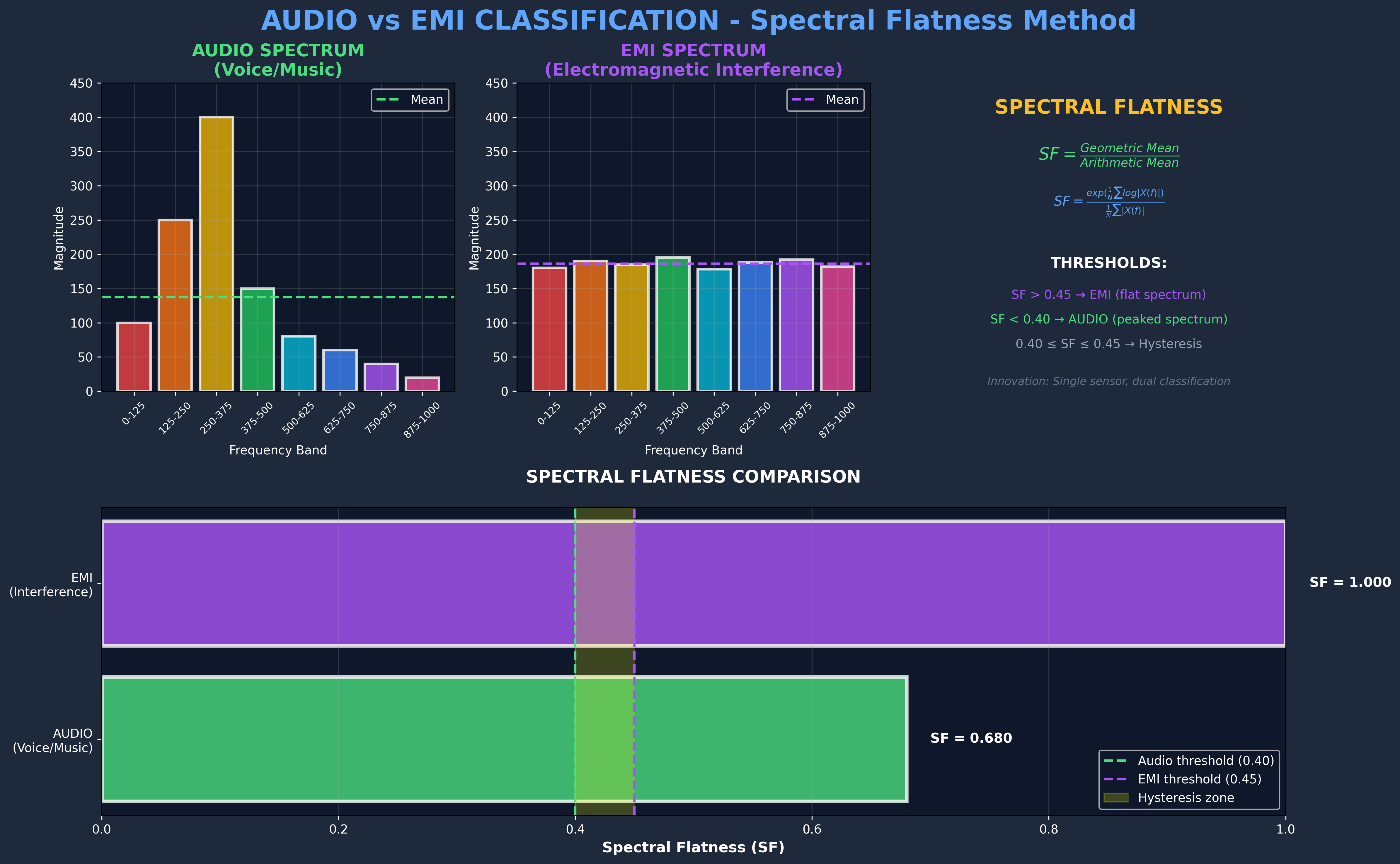
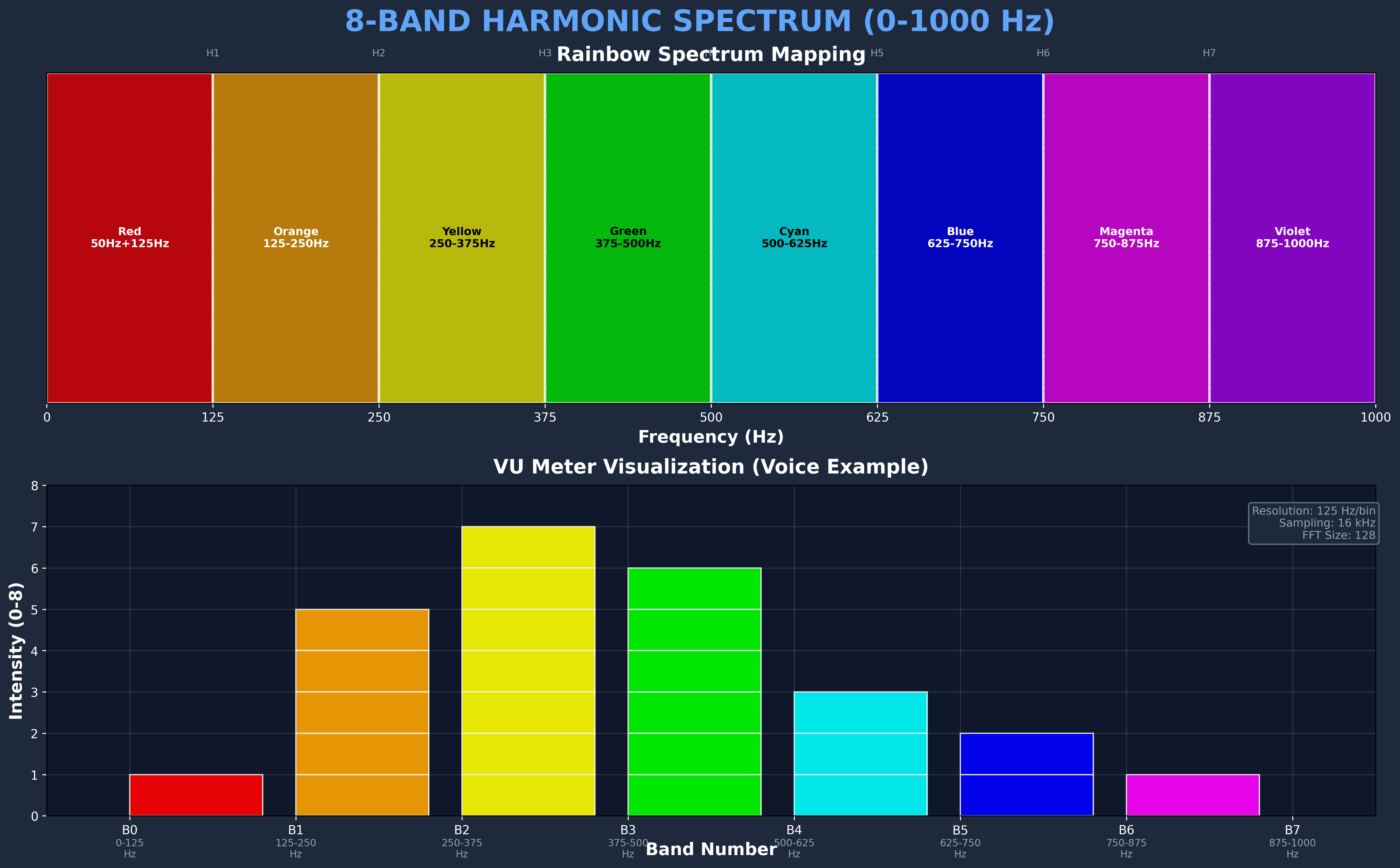
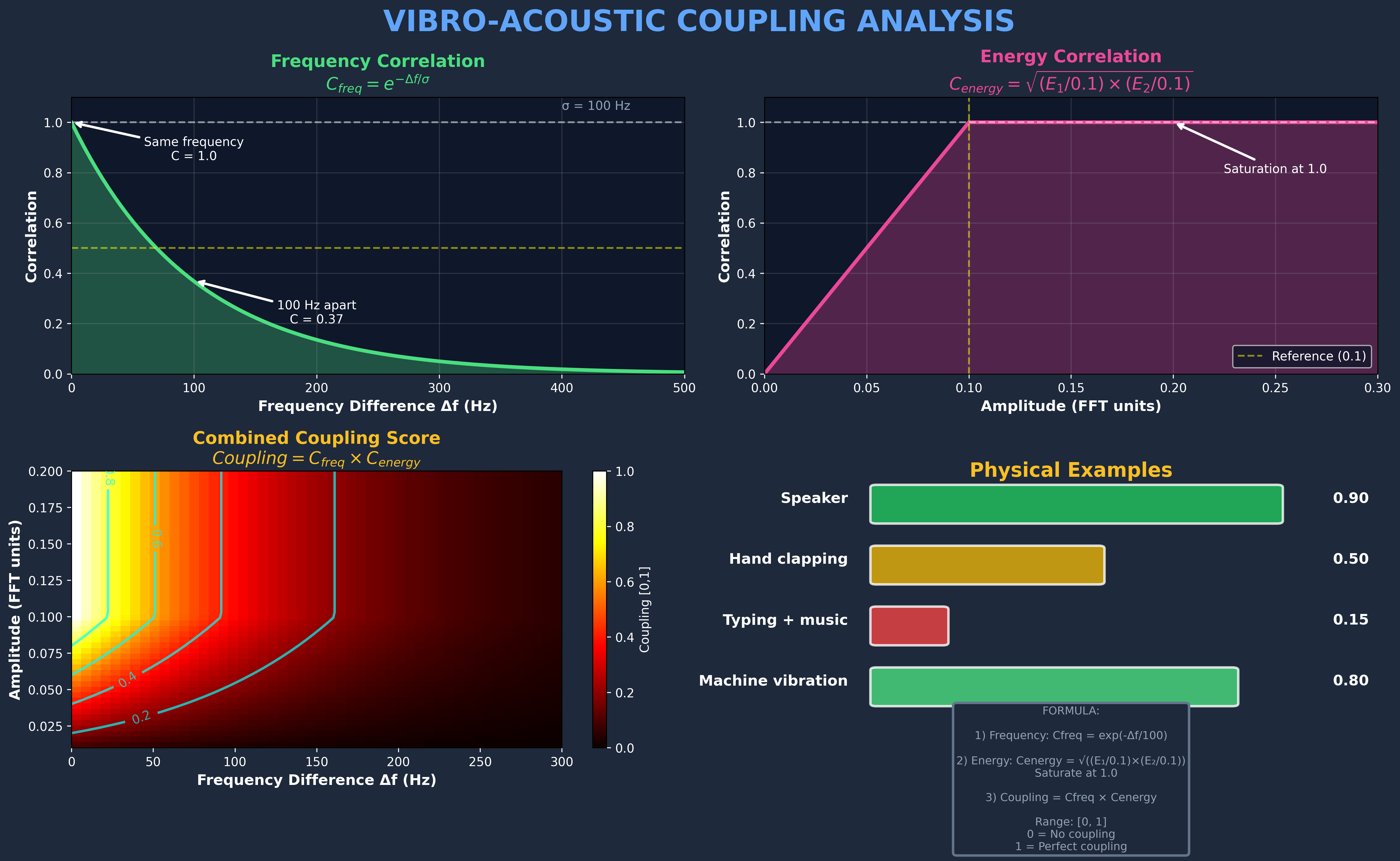
This step explains why the math matters — and why the visuals are trustworthy.
From Time to Frequency — Why FFT Matters
Most physical sensors deliver time-domain signals:
- acceleration over time
- pressure variations over time
- microphone amplitude over time
But many invisible phenomena are not defined by when they happen —
they are defined by how their energy is distributed across frequencies.
That is why Phisualize It! relies on the Fast Fourier Transform (FFT).
FFT Processing Pipeline
Why 128 Samples? Why These Rates?
FFT parameters are chosen for physical relevance, not aesthetics.
Audio / EMI
- Sample rate: 16 kHz
- FFT size: 128 samples
- Frequency resolution: 125 Hz per bin
Sufficient to:
- Detect harmonic structure (voice, music)
- Detect broadband noise (EMI)
- Separate the two reliably in real time
Vibrations (IMU)
- Sample rate: 90 Hz (precise timer-based)
- FFT size: 128 samples
- Frequency range: 0–45 Hz
Captures:
- Footsteps
- Table vibrations
- Structural resonances
- Environmental micro-movements
FFT Configuration Summary
One Microphone, Two Physical Worlds
The microphone is the most unconventional element of the system.
It captures:
- Acoustic pressure waves (sound)
- Electromagnetic interference (induced noise)
These two phenomena are invisible, simultaneous, and mixed in the same signal.
Audio vs EMI — Spectral Classification
The distinction between sound and electromagnetic interference is spectral, not volumetric.
Physics-based thresholds. No arbitrary guessing.
Spectral Flatness — Physics, Not Guesswork
Spectral flatness measures how structured a spectrum is.
- Flat spectrum → energy evenly distributed → EMI
- Peaked spectrum → harmonic structure → Audio
Mathematically:
Example in Practice:
- Speaking voice at 200 Hz fundamental
- → Strong harmonics at 200, 400, 600 Hz
- → SF ≈ 0.25 → AUDIO
- Switched-mode power supply
- → Broadband noise 20 Hz–8 kHz
- → SF ≈ 0.65 → EMI
Same sensor.
Different physics.
Separated mathematically.
Spectral Amplitude, Not Raw Signal
The system does not visualize raw sensor readings.
It visualizes spectral amplitude:
- Dominant spectral amplitude for vibrations (peak FFT magnitude)
- Dominant spectral amplitude for audio and EMI (peak FFT magnitude)
- Deltas from baseline for magnetic and environmental data
This represents the strongest frequency component,
providing a stable measure of phenomenon intensity.
This is why the visualization feels stable, physical, and grounded.
Fixed-Scale Normalization (Critical Choice)
Most visualizations adapt to recent maxima.
This one does not.
Brightness = Reality
Each phenomenon maps to a fixed physical reference:
- Vibrations: 0.10 g
- Audio amplitude: 0.02
- EMI amplitude: 0.005
- Magnetic field delta: 50 µT
- Environmental deltas: 5 hPa / 10°C / 30% RH
This ensures:
- Comparability over time
- No artificial exaggeration
- Honest brightness
If nothing happens, the LEDs stay dim.
Why LEDs Never Go Completely Dark
- Thermal noise exists
- Quantization noise exists
- Ambient fields exist
A minimum visibility baseline (2% brightness) ensures these real background phenomena remain visible.
Zero brightness would be a lie.
That is not a bug.
That is reality.
Why This Matters
This step defines the difference between:
- Pretty lights reacting to sensors
- A perceptual scientific instrument
Every pixel corresponds to:
- A physical measurement
- A mathematical transformation
- A documented scale
Nothing is invented.
Nothing is hidden.
Next Step
We move from theory to practice:
building the hardware, wiring the system, flashing the code, and calibrating the instrument.
Downloads
Build and Program
EDIT: you can find all the code Phisualize it! "here"
This is where Phisualize It! stops being an idea and becomes a real instrument.
Just a small microcontroller,
a handful of wires,
and code doing the heavy lifting.
4.1 What You're Actually Building
The reference build in this Instructable is intentionally simple:
- Arduino Nano 33 BLE Sense Rev2
- One 8×8 RGB LED matrix (WS2812 / NeoPixel compatible)
- One GPS module (GY-GPS6MV2)
- External 5V power supply
This version is:
- Fully functional
- Fully documented
- Easy to reproduce
It is scientifically identical to more advanced displays (PhiRing, PhiP350).
Same engine.
Different output.
4.2 Power Requirements
LED Matrix (8×8):
- Maximum consumption: ~2A @ 5V (full brightness white)
- Typical usage: 0.5–1A @ 5V (normal operation)
Arduino Nano 33 BLE Sense Rev2:
- Consumption: ~50 mA @ 5V (USB power)
Power supply:
- Use quality USB power supply (≥2A rated)
- Do NOT power LEDs from Arduino 5V pin
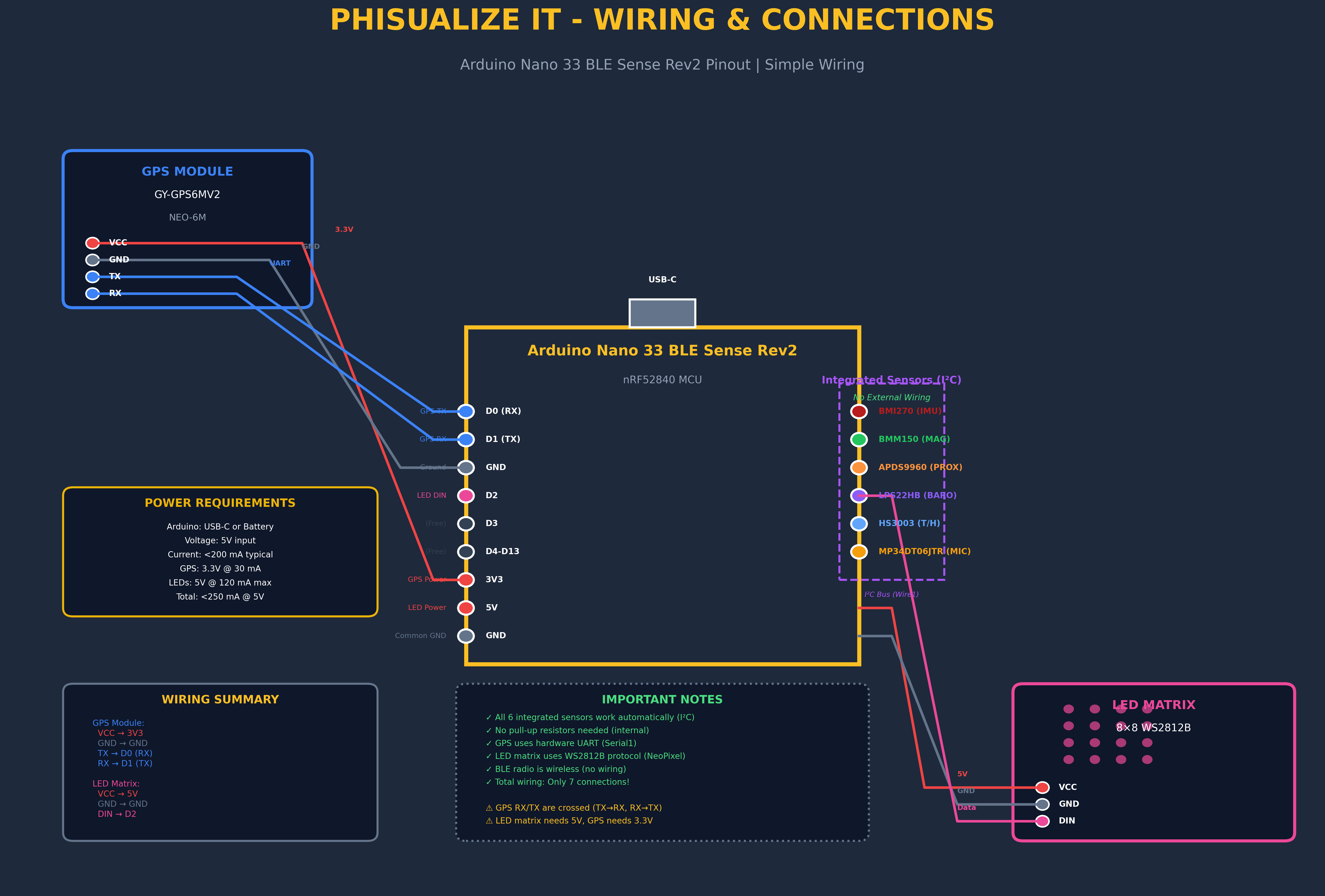
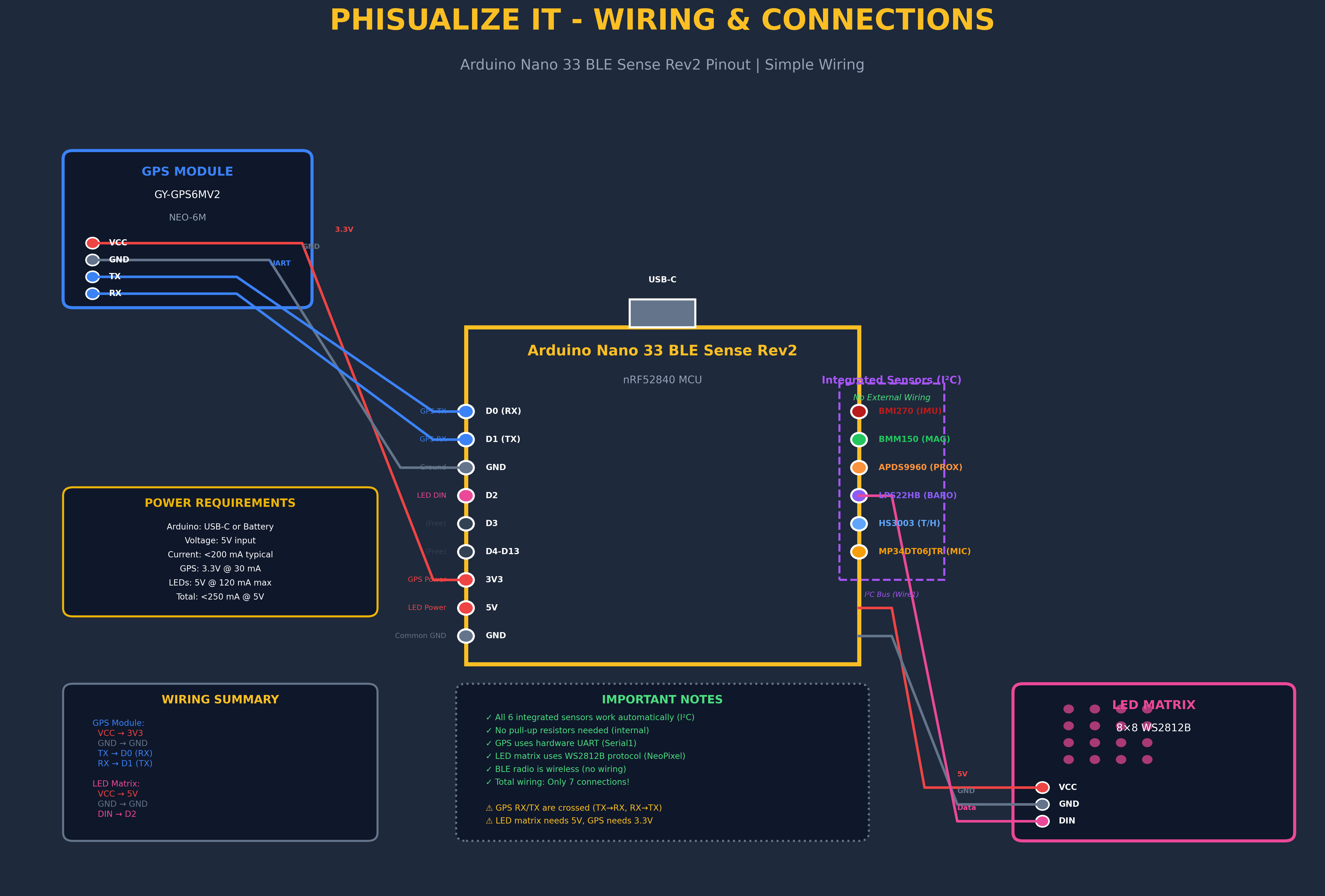
4.3 Wiring — Minimal by Design
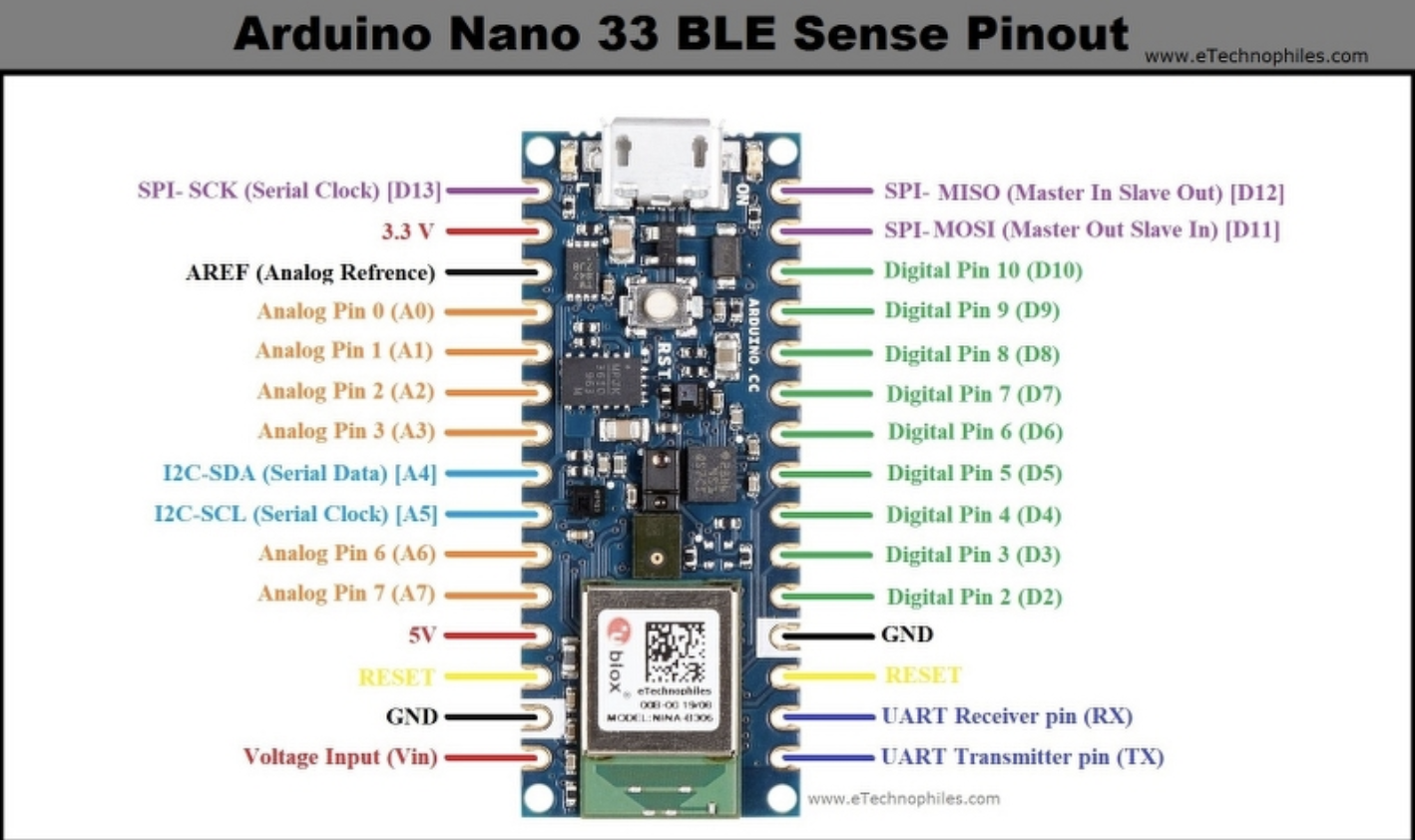
The entire system runs on three external connections.
LED Matrix
- Data → D4 (Arduino)
- VCC → External 5V supply
- GND → Common ground
Optional but recommended:
- 330Ω resistor on data line (LED protection)
- 1000µF capacitor on LED power supply (noise filtering)
GPS Module (Serial1 — Hardware UART)
- GPS TX → D0 (RX1)
- GPS RX → D1 (TX1)
- VCC → 3.3V
- GND → Common ground
Note: D0/D1 are Serial1 pins on the Nano 33 BLE Sense Rev2
That's it.
No level shifters.
No complicated circuits.
No magic.
⚠️ Important:
Do not power the LED matrix from the Arduino 5V pin.
Use an external 5V supply and share ground.
Frugal engineering does not mean unsafe engineering.
4.4 Physical Assembly — Frugal on Purpose
There is no enclosure STL here.
I used a recycled transparent phone case.
Why?
- It diffuses the LEDs naturally
- It protects the electronics
- It costs almost nothing
- It keeps the project accessible
The Arduino and GPS are fixed with double-sided tape.
The matrix faces outward.
Nothing fancy — and nothing hidden.
This is intentional.
4.5 Software Setup
Arduino IDE Setup
- Arduino IDE 2.0 or newer
- Board: Arduino Mbed OS Nano Boards → Arduino Nano 33 BLE
- Board package: Install via Boards Manager
Required Libraries (Install via Library Manager)
Sensor drivers:
- Arduino_BMI270_BMM150 (IMU + Magnetometer)
- Arduino_APDS9960 (Proximity sensor)
- Arduino_LPS22HB (Barometer)
- Arduino_HS300x (Temperature/Humidity)
Communication:
- ArduinoBLE (Bluetooth Low Energy)
- PDM (included with board package)
Output:
- Adafruit_NeoPixel (LED control)
Signal processing:
- arduinoFFT (v2.0 or newer)
All libraries are free and available through the Arduino Library Manager.
4.6 Code Architecture — Modular, Not Magical
You are not uploading a single unreadable .ino file.
The project is split into clear, independent modules, each responsible for one physical domain.
Sensing Modules
- PhiIMU — vibrations (accelerometer)
- PhiAudio — audio + EMI capture (microphone)
- PhiMagnetometer — magnetic field
- PhiProximity — IR proximity
- PhiBarometer — atmospheric pressure
- PhiHumidity — temperature & humidity
- PhiGPS — satellite signals
Processing Module
- PhiScientificModel — FFT, spectral analysis, classification
Output Modules
- PhiMatrixEngine — visualization logic
- PhiBLE — optional wireless telemetry
Each file can be read, understood, and modified on its own.
This is not accidental.
It is a teaching choice.
4.7 Upload and Verify
- Open the main sketch in Arduino IDE
- Select board: Arduino Nano 33 BLE Sense Rev2
- Select port: (your USB port)
- Upload
Verify Successful Upload
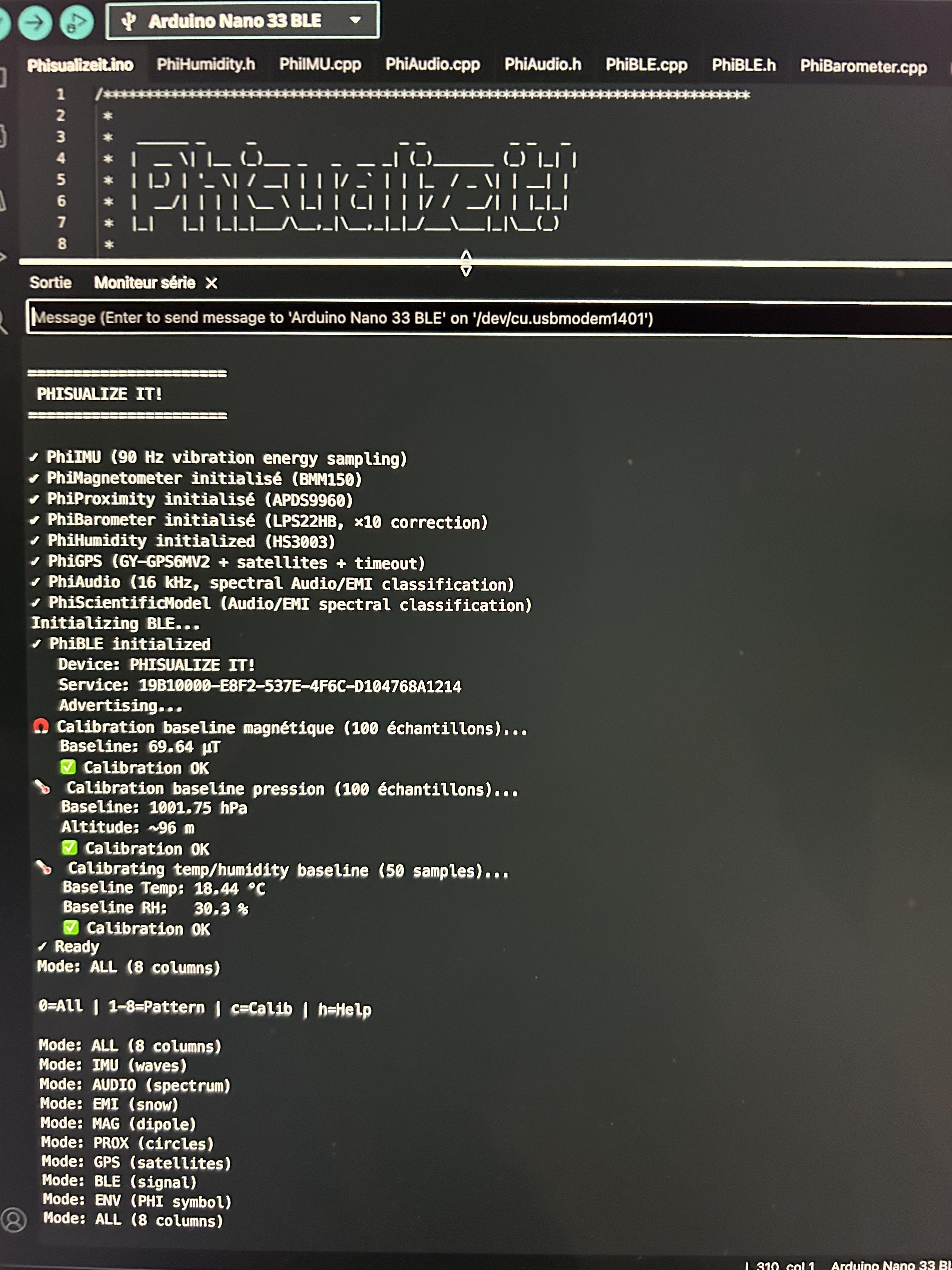
Open Serial Monitor (115200 baud).
You should see initialization messages:
Each module should report ✓ on successful initialization.
4.8 Calibration Process — Automatic
Before the system can see change, it must know what normal looks like.
On first boot, the system automatically calibrates:
Magnetometer baseline:
- Samples: ~200 (2 seconds)
- Measures: Earth's magnetic field at current location
Barometer baseline:
- Samples: ~200 (2 seconds)
- Measures: Current atmospheric pressure
Temperature/Humidity baseline:
- Samples: ~50 (5 seconds)
- Measures: Ambient conditions
Total calibration time: ~10 seconds
Requirements during calibration:
- Device must be stationary
- No strong magnetic sources nearby
- Stable environment
Serial Monitor will display: "✅ Calibration OK"
From that point on, only deltas are visualized.
This is critical:
- No fake movement
- No artificial contrast
- No "always exciting" visuals
If nothing changes, the LEDs stay calm.
That calm is real.
You can recalibrate at any time via Serial command.
4.9 Display Modes
The system has 9 display modes:
Mode 0: ALL (default)
- 8-column overview
- Each column = one phenomenon (except last column =3)
- Simultaneous visualization
Modes 1-8: Individual phenomena (full matrix)
- Mode 1: IMU (spiral pattern)
- Mode 2: AUDIO (VU-meter spectrum)
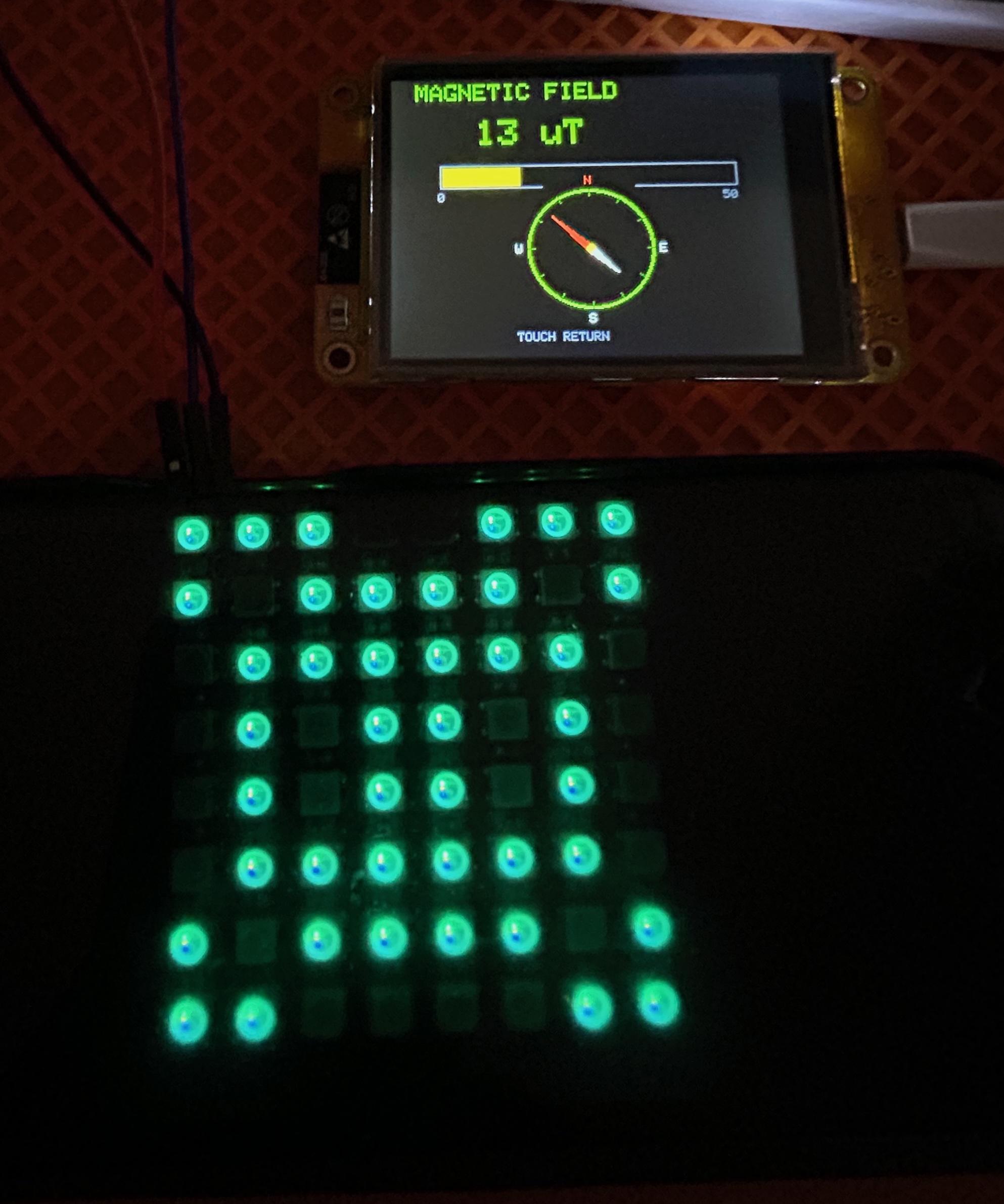
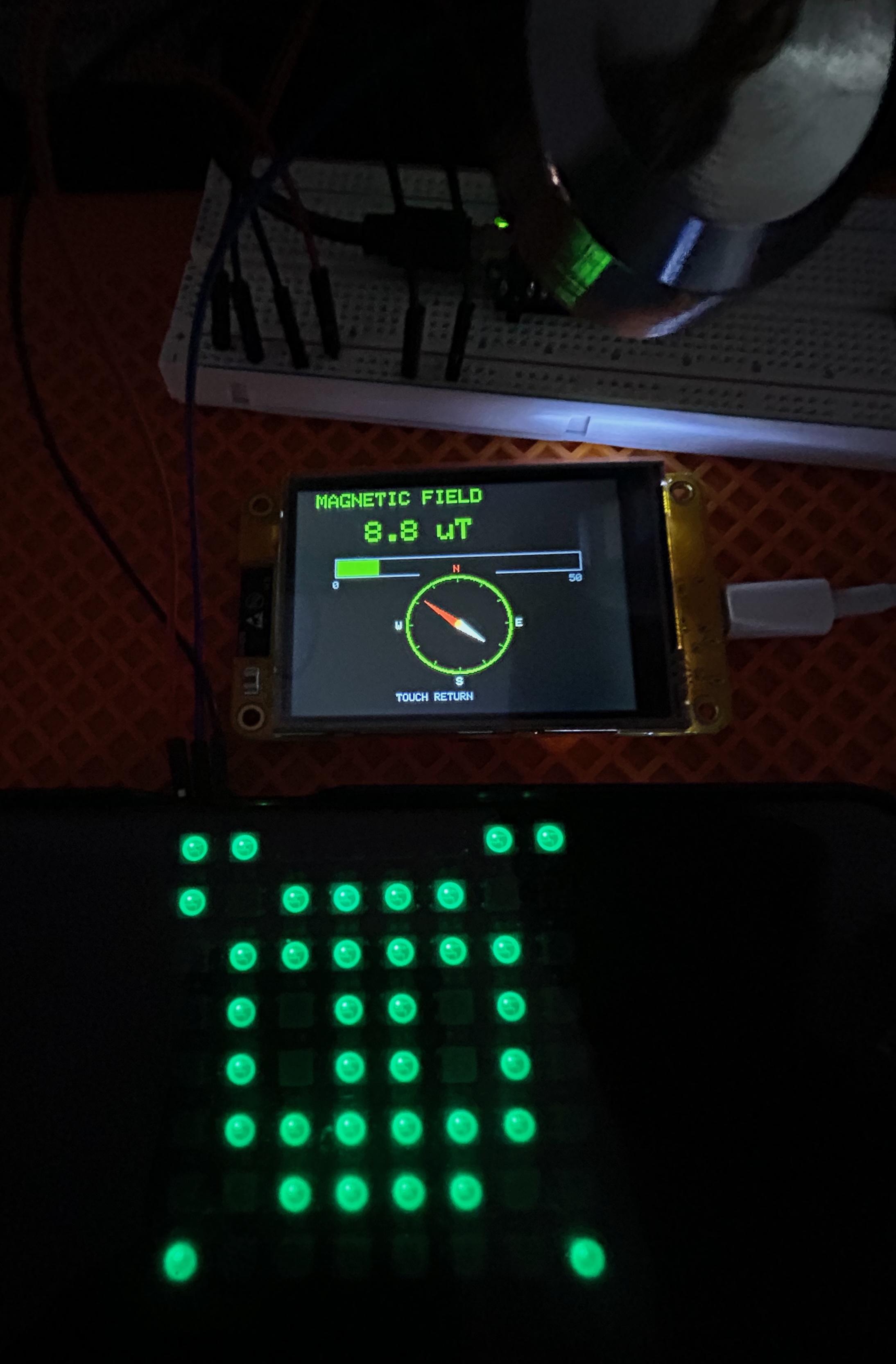
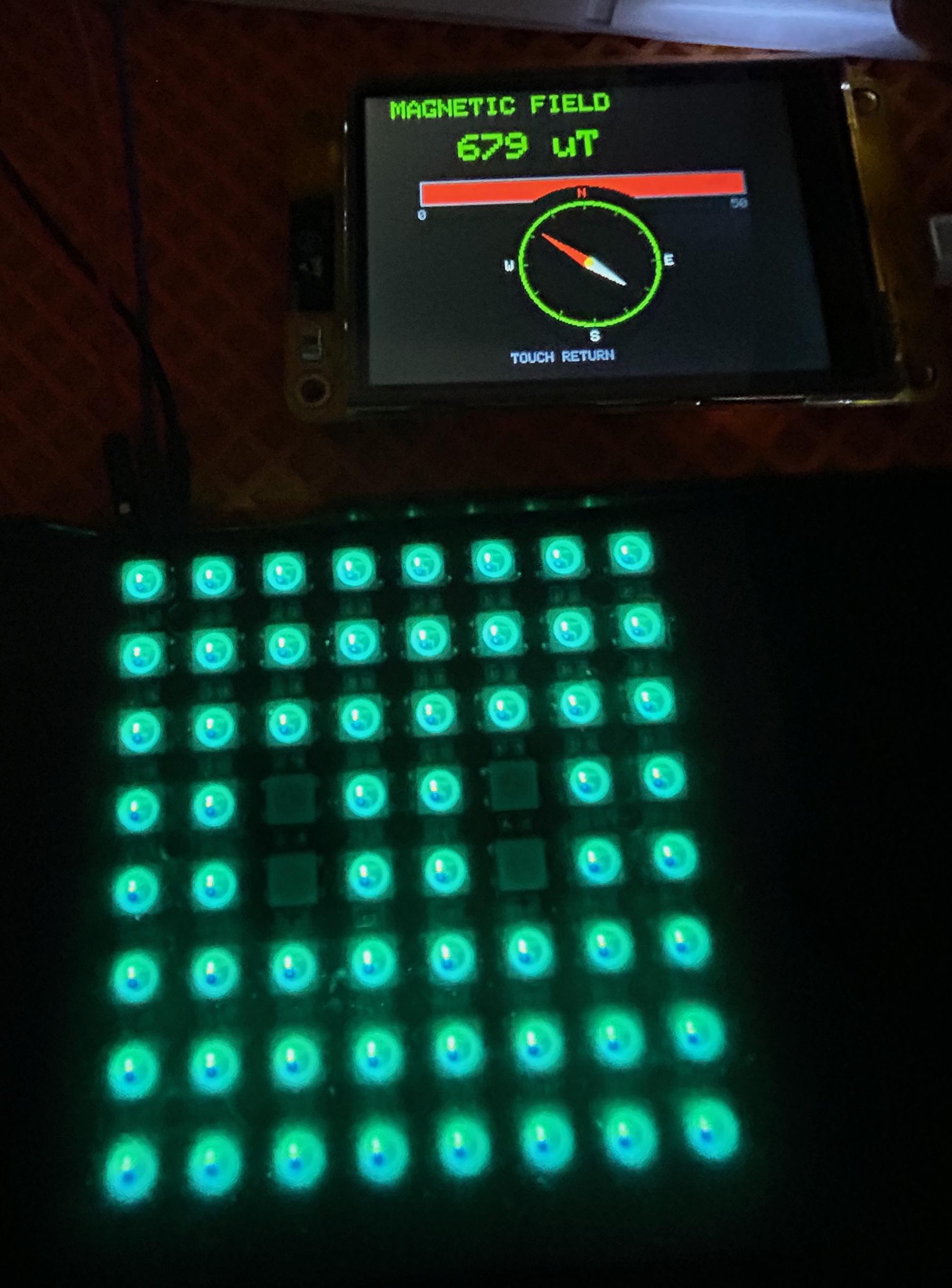
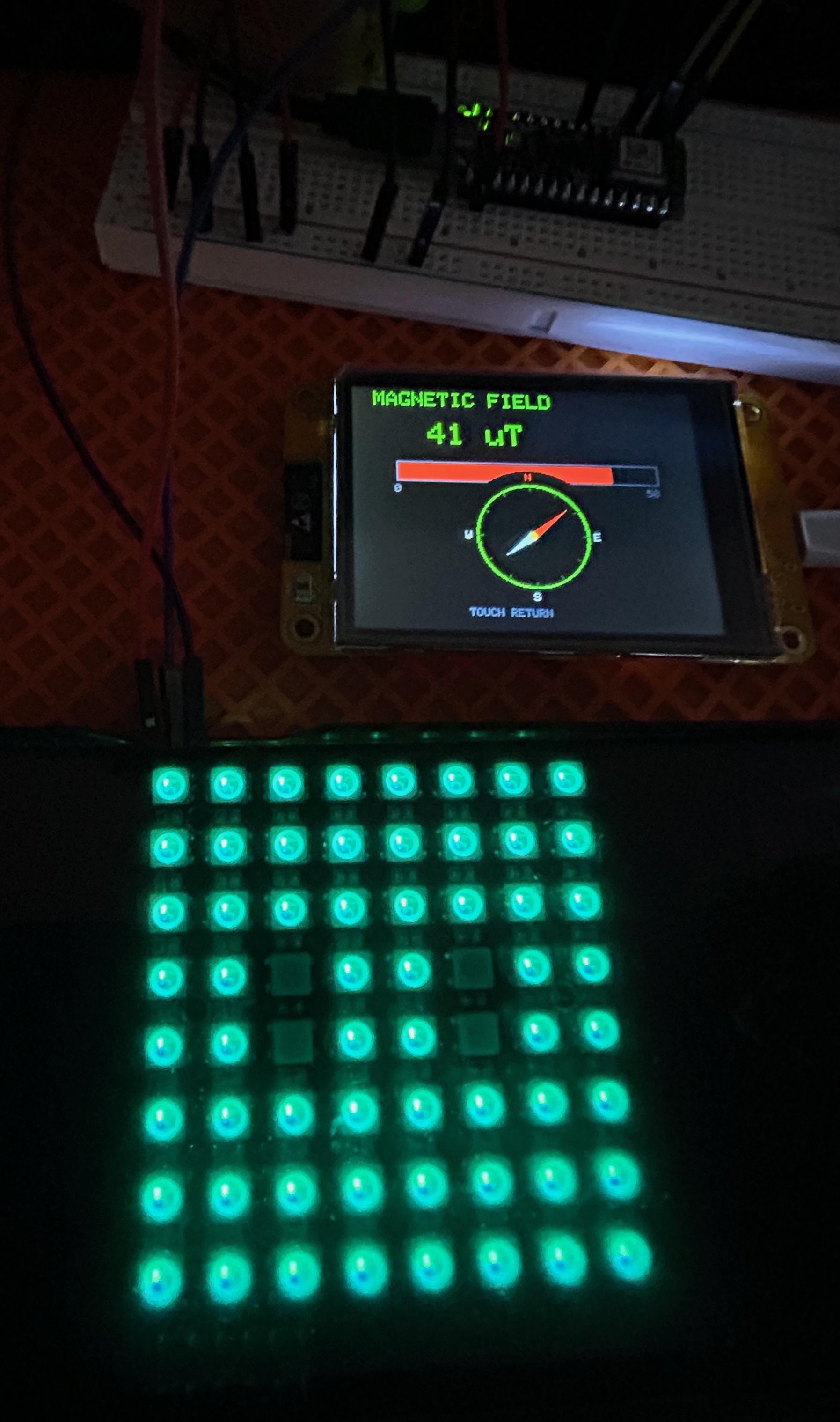
- Mode 3: EMI (noise pattern)
- Mode 4: MAGNETIC (PHI symbol)
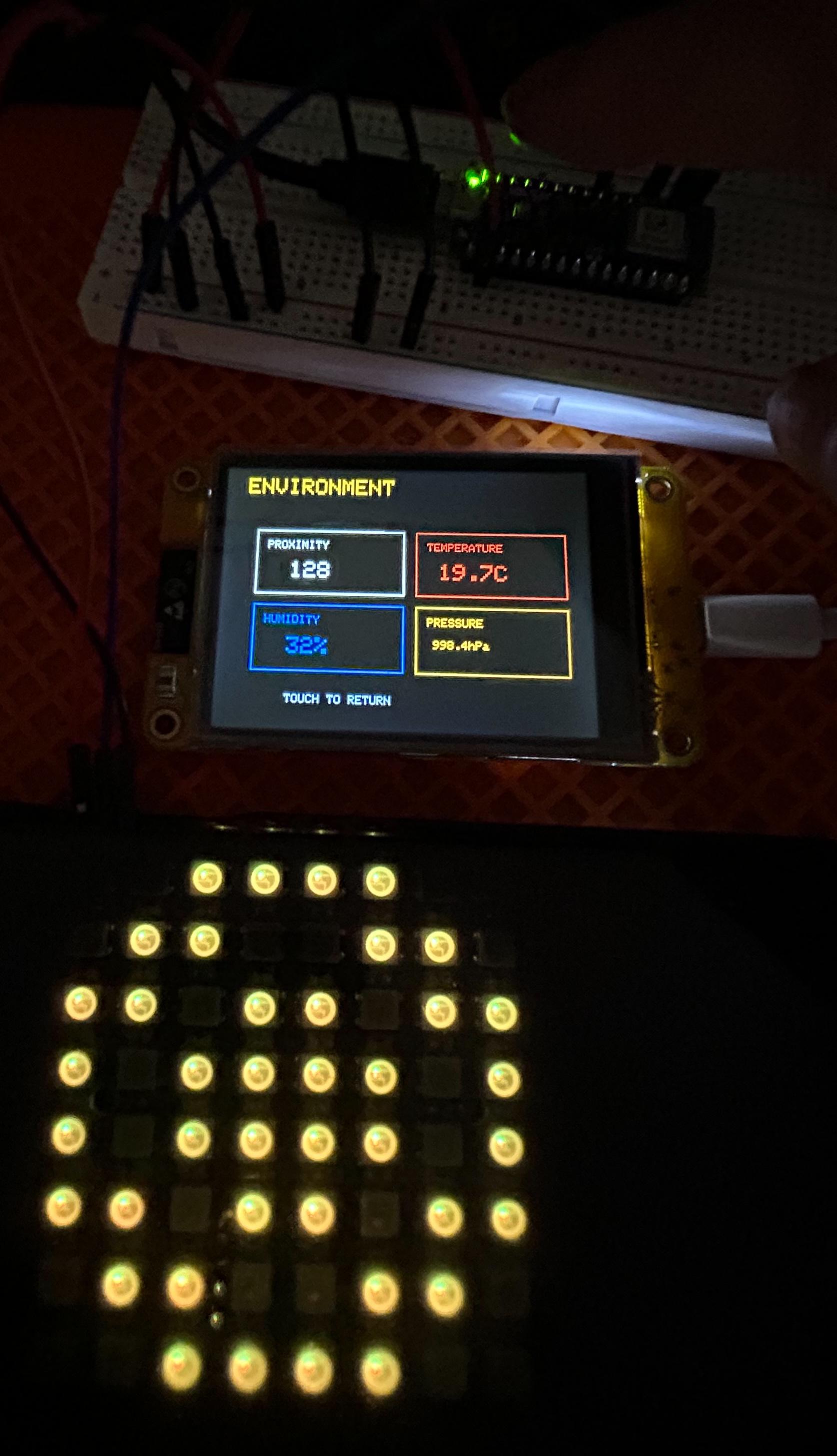
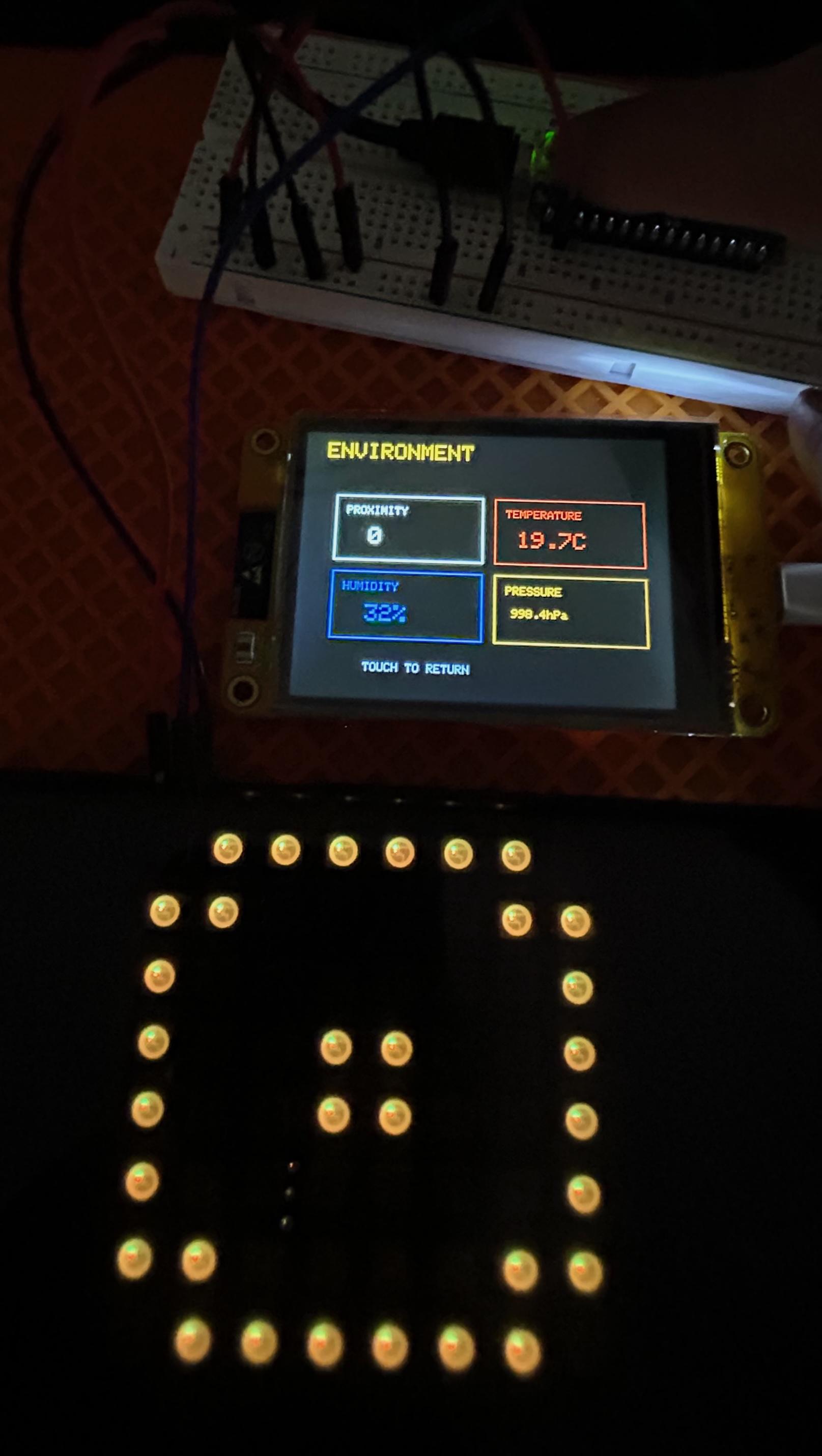
- Mode 5: PROXIMITY (IR circles)
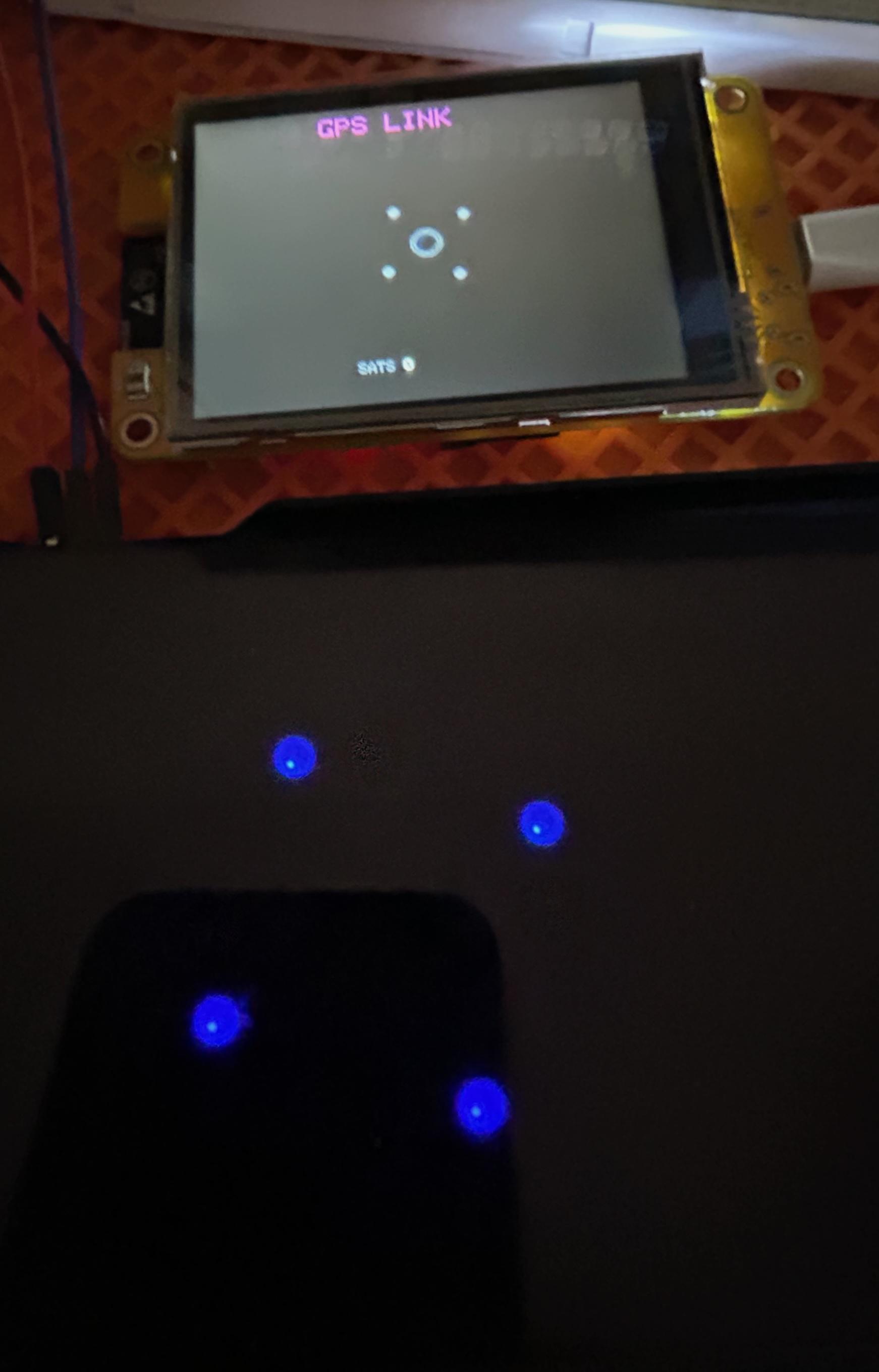
- Mode 6: GPS (satellite visualization)
- Mode 7: BLE (signal strength)
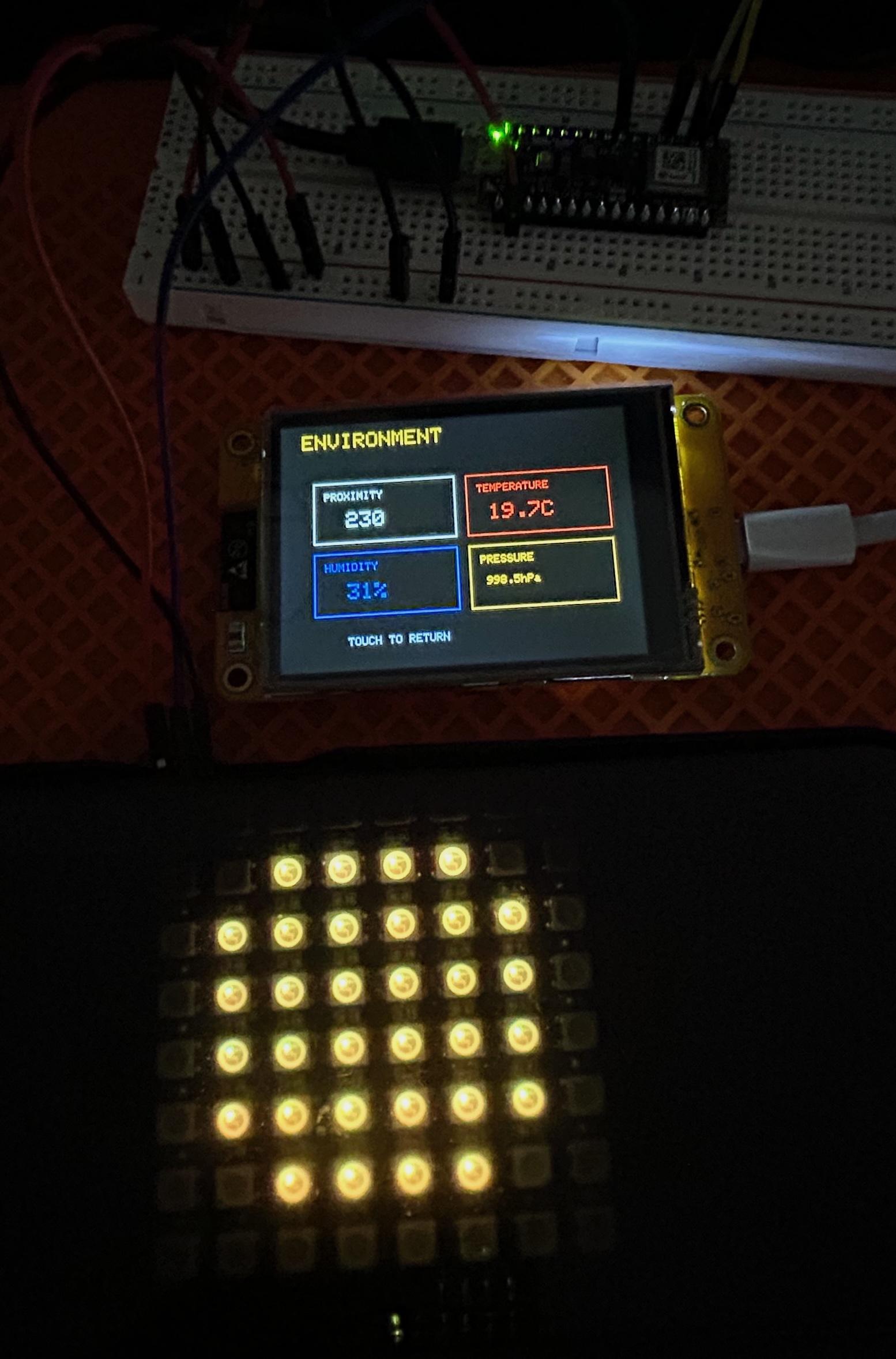
- Mode 8: ENV (environmental deltas)
Switch modes:
- Send 0, 1, 2, 3, 4, 5, 6, 7, or 8 via Serial Monitor
- Selects the corresponding mode directly
4.10 First Power-On — What You Should See
On startup:
- The matrix lights faintly
- Mode 0 (ALL) is active
- Every column is visible, even in silence
This is expected.
There is always:
- Vibration noise
- Electromagnetic noise
- Thermal drift
- Radio activity
Physics never sleeps.
4.11 Optional: BLE Monitor (ESP32)
An ESP32 touchscreen can connect wirelessly via Bluetooth.
Its role is strictly observational:
- Raw sensor values
- FFT magnitudes
- Classification states
- Internal variables
Setup:
- ESP32 scans for "Phisualize it!" BLE device
- Connects automatically
- Displays real-time telemetry
Remove it, and nothing breaks.
The Arduino runs completely independently.
4.12 Troubleshooting
Common Issues
"Library not found"
- → Install missing libraries via Library Manager
- → Verify library names exactly match (case-sensitive)
LEDs stay completely dark
- → Check external 5V power supply connection
- → Verify data wire on D4
- → Test with simple Adafruit NeoPixel example first
GPS shows 0 satellites continuously
- → Place device near window (clear sky view)
- → Wait 2–5 minutes (cold start acquisition time)
- → Check TX/RX connections (GPS TX → Arduino RX)
Compilation error
- → Verify board selection: "Arduino Nano 33 BLE Sense Rev2"
- → Update board package to latest version
- → Check Arduino IDE version ≥ 2.0
Serial Monitor shows gibberish
- → Set baud rate to 115200
- → Reset Arduino after opening Serial Monitor
Why This Step Matters
At this point, you haven't just "built a project".
You've assembled:
- A sensor fusion system
- A real-time DSP pipeline
- A perceptual display engine
Running on a €45 microcontroller.
Next Step
We stop explaining — and start seeing.
Below , all the files needed for the nano , place those 22 files in the same folder(Phisualizeit for exemple) and it will compile and upload on the Nano 33 BLE sense rev 2 .
PhisualizeItMonitor is standalone ... place it in another folder (PhisualizeItMonitor for exemple). Not needed but if you want to do monitoring, you should use it!
Downloads
Visualization Modes
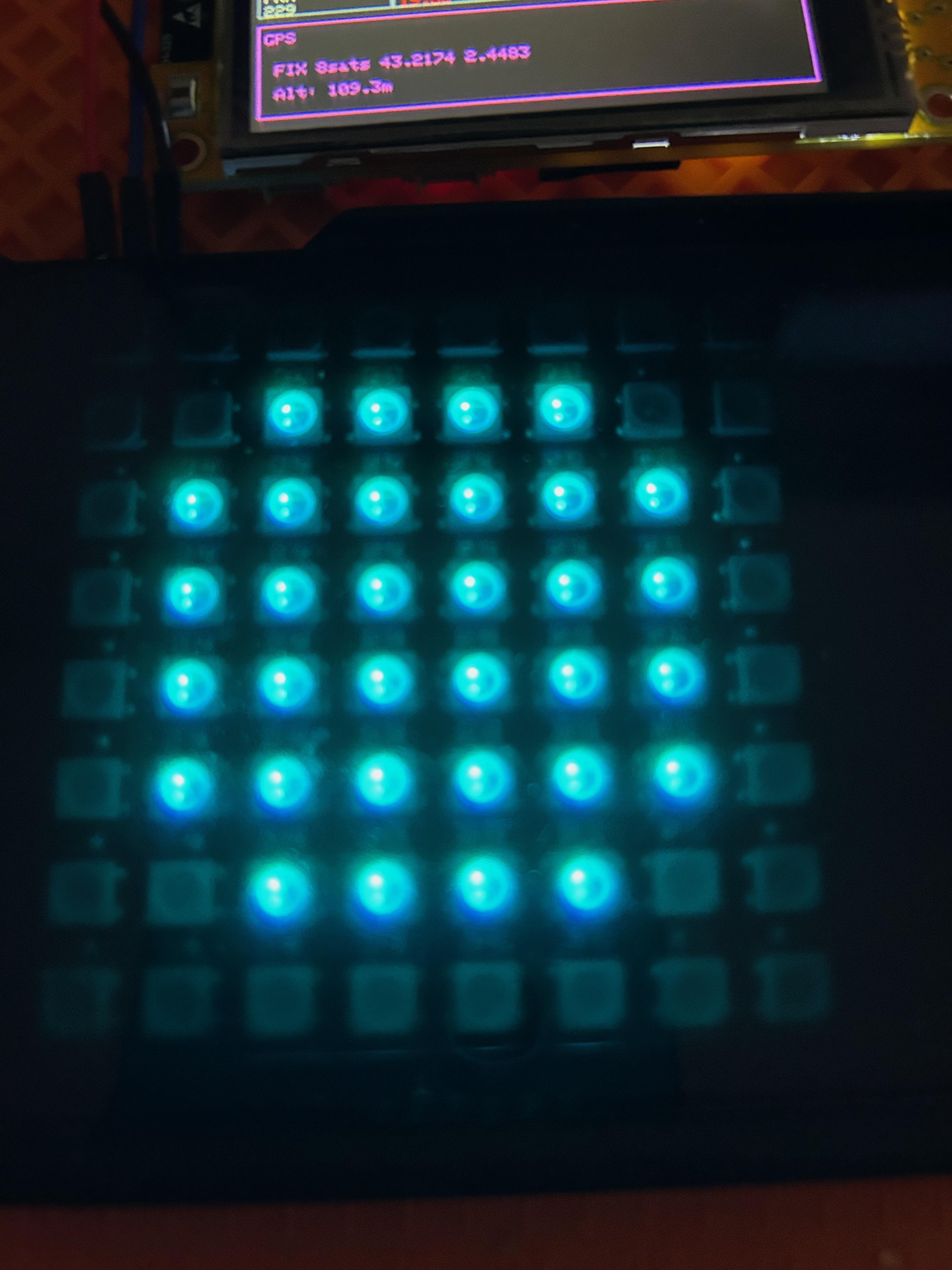
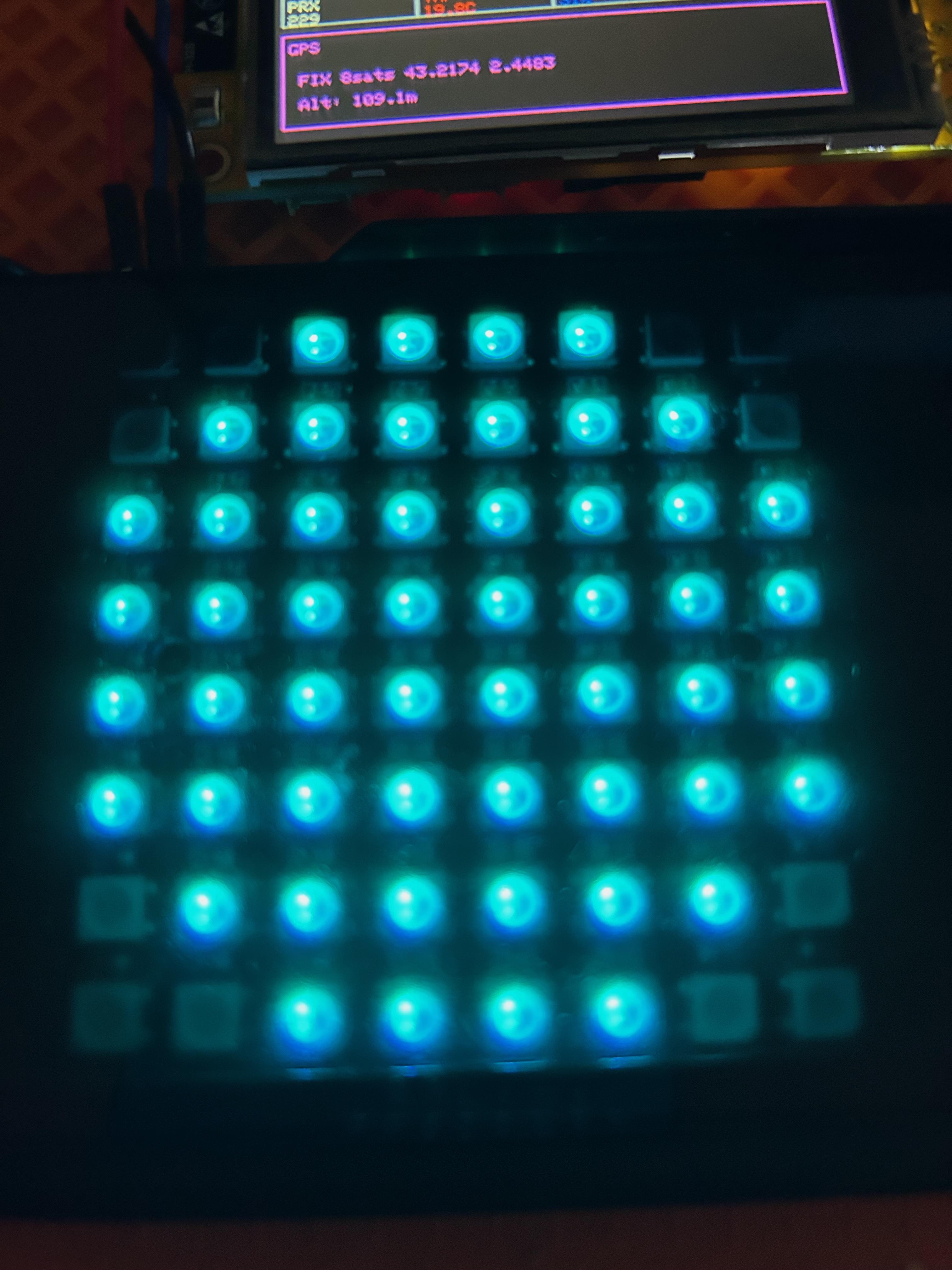
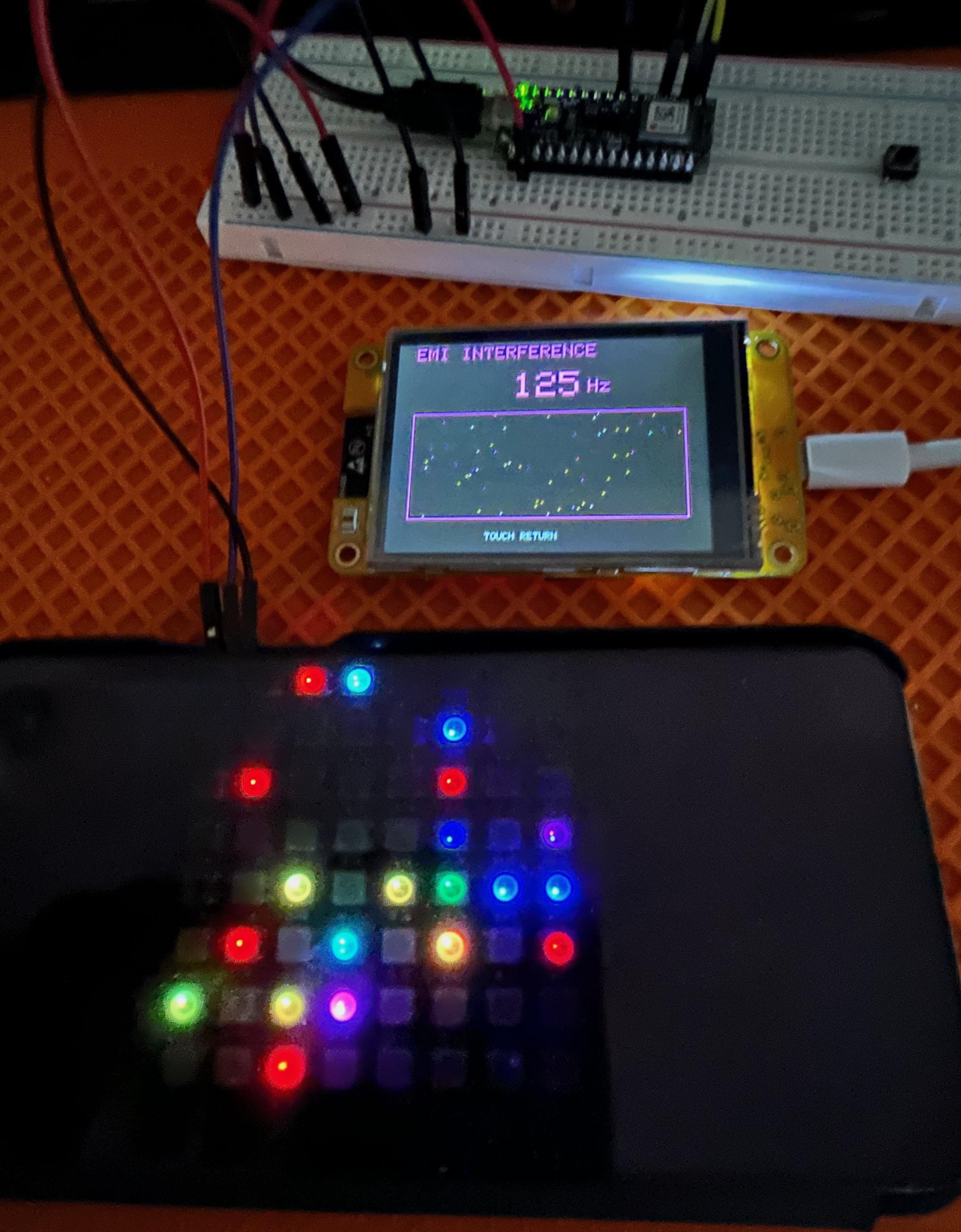
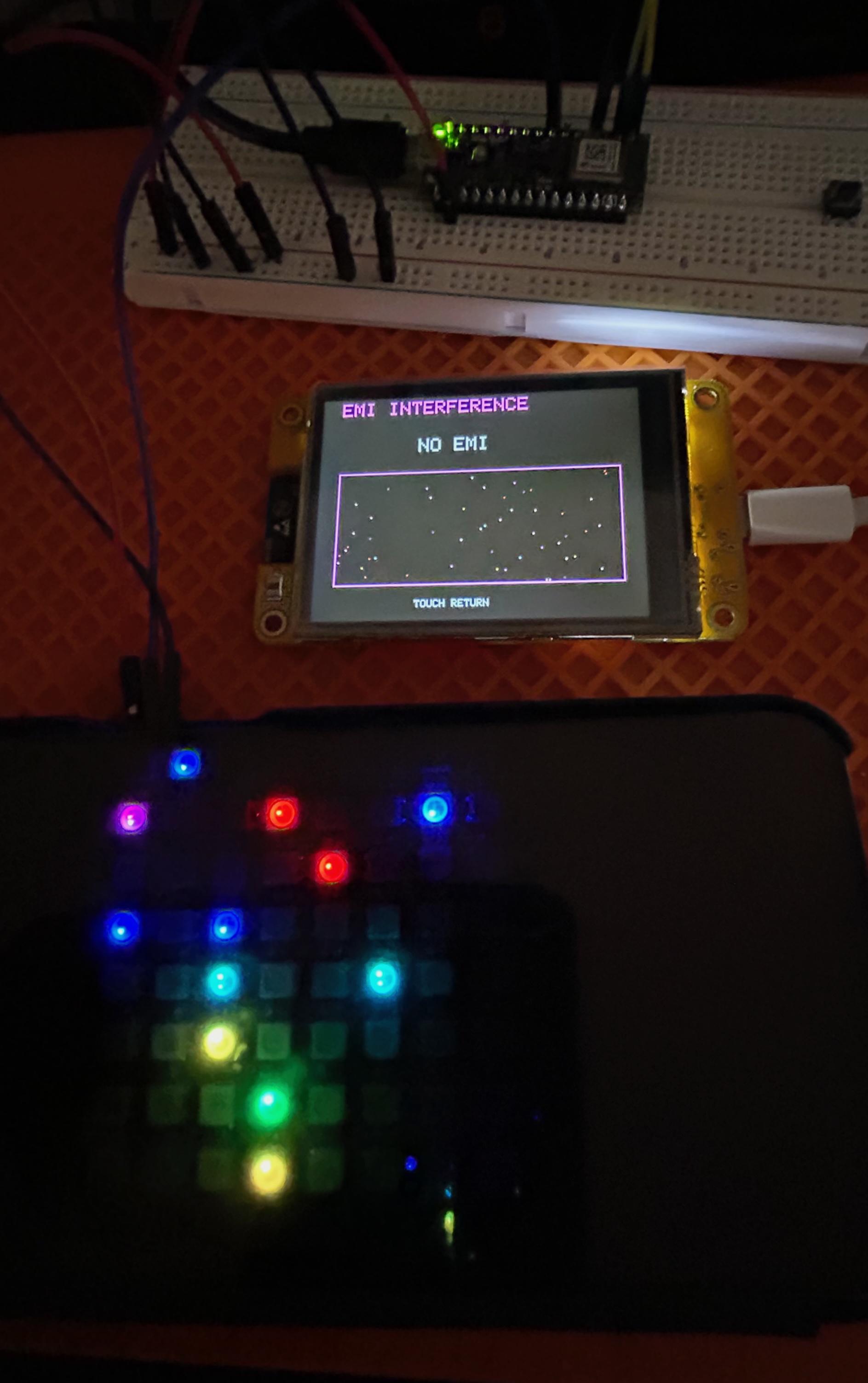
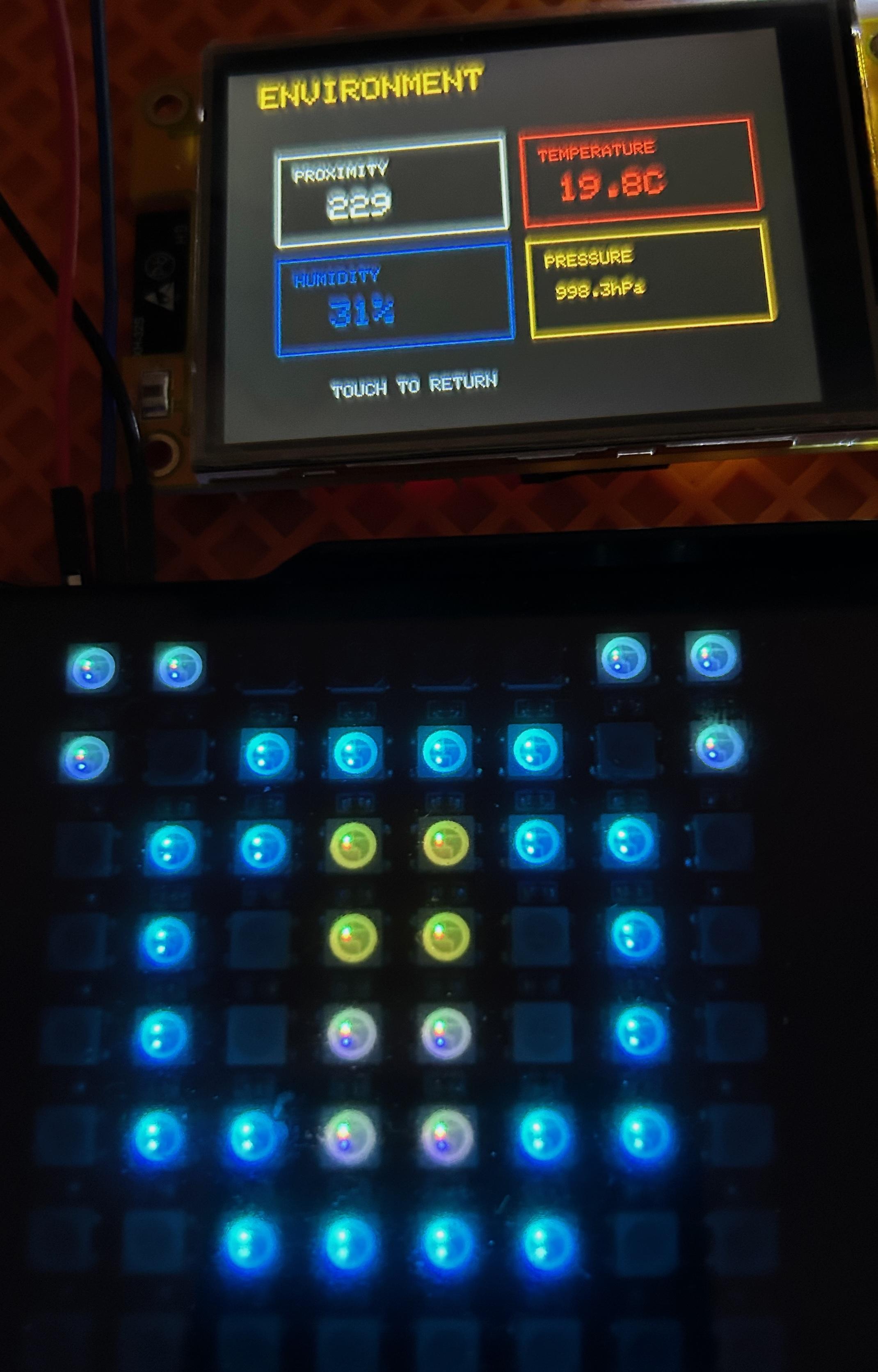
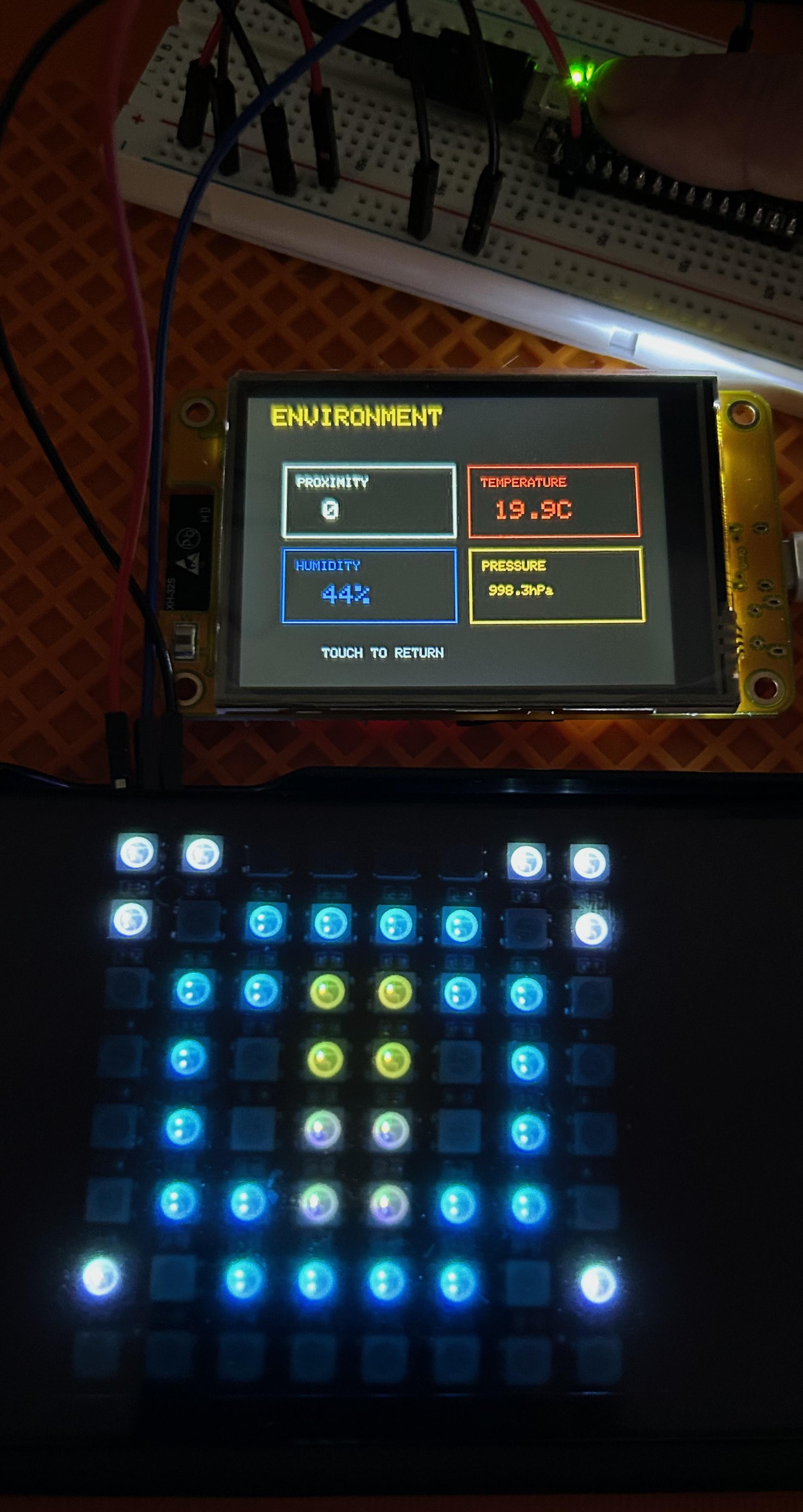
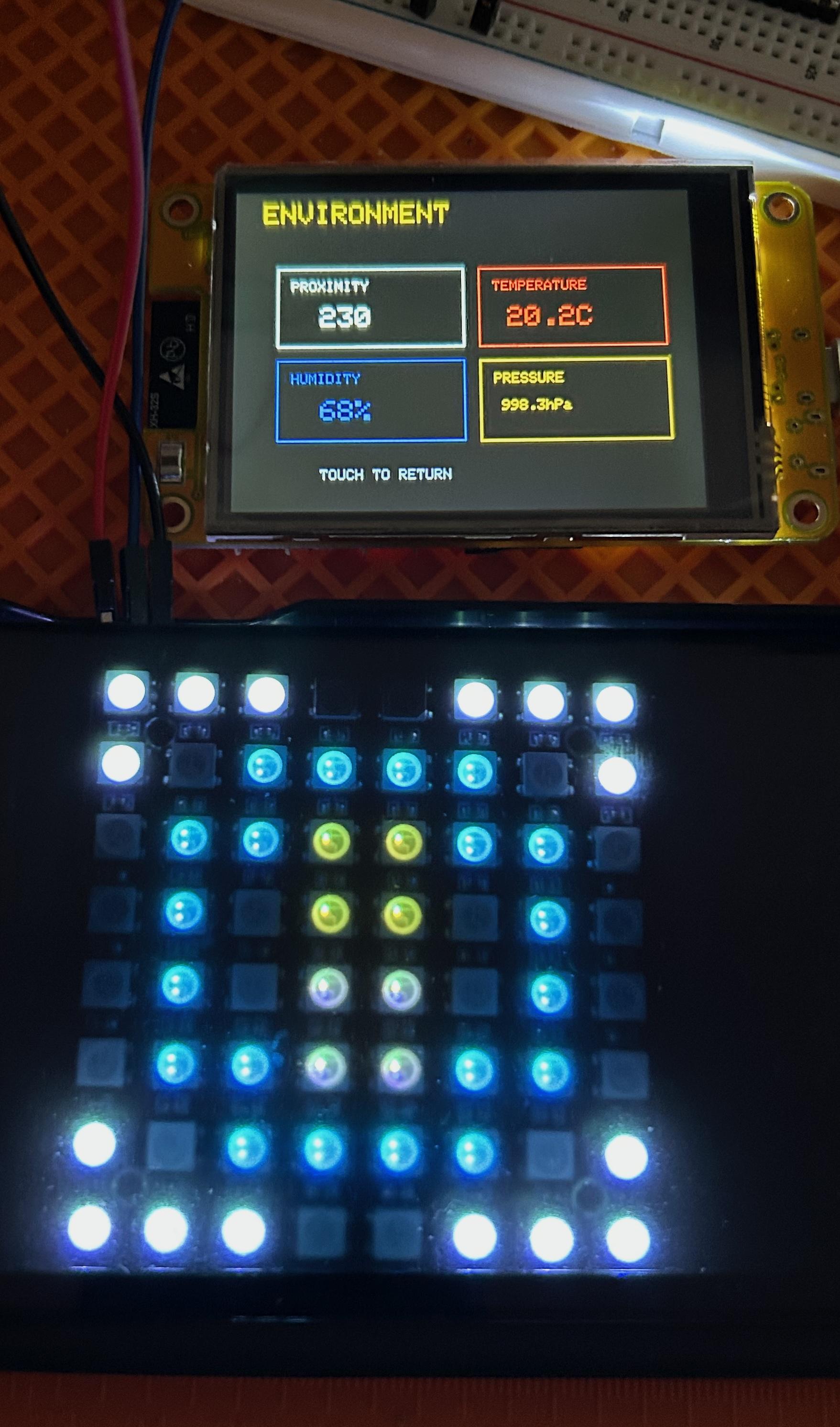
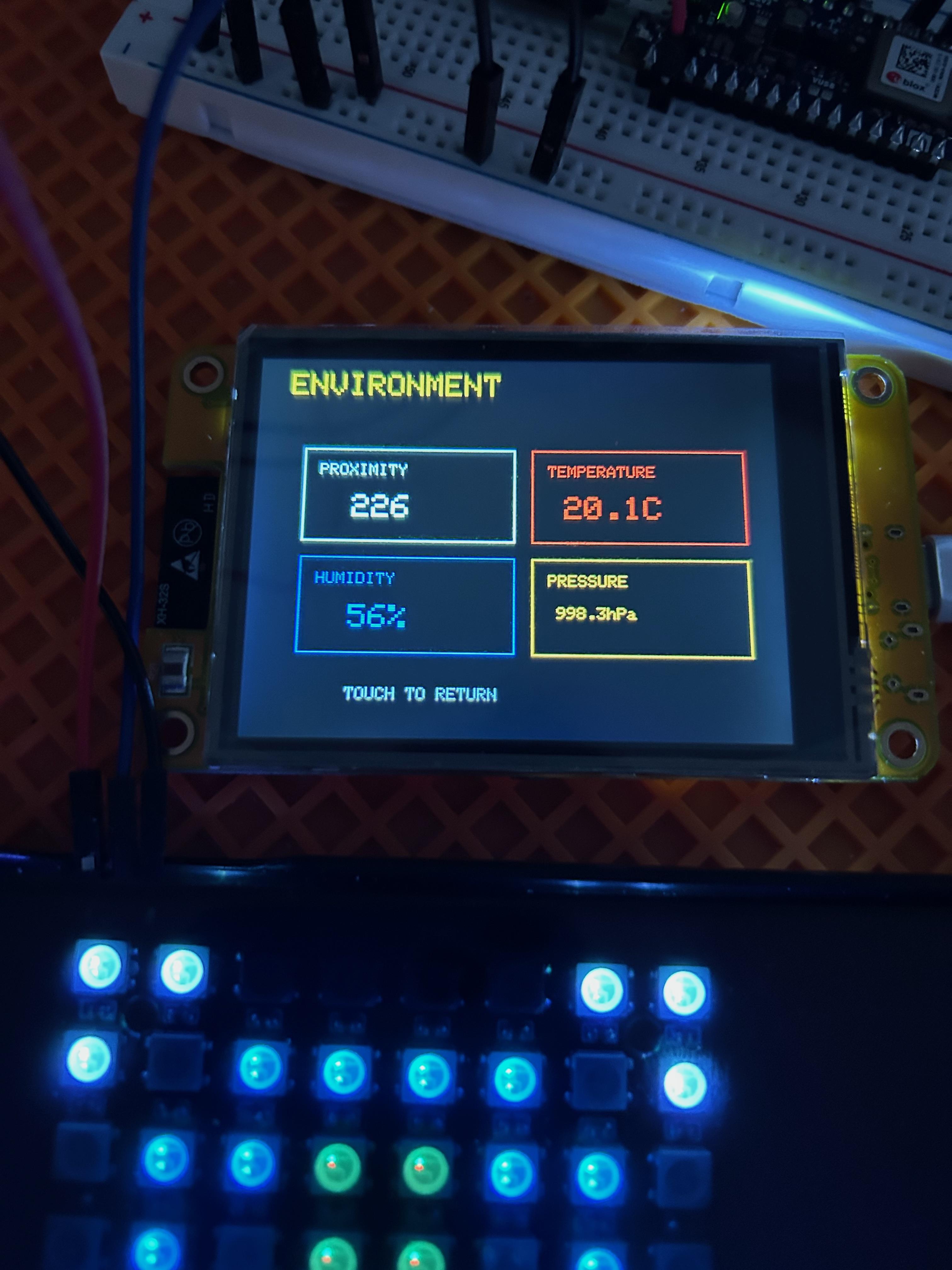
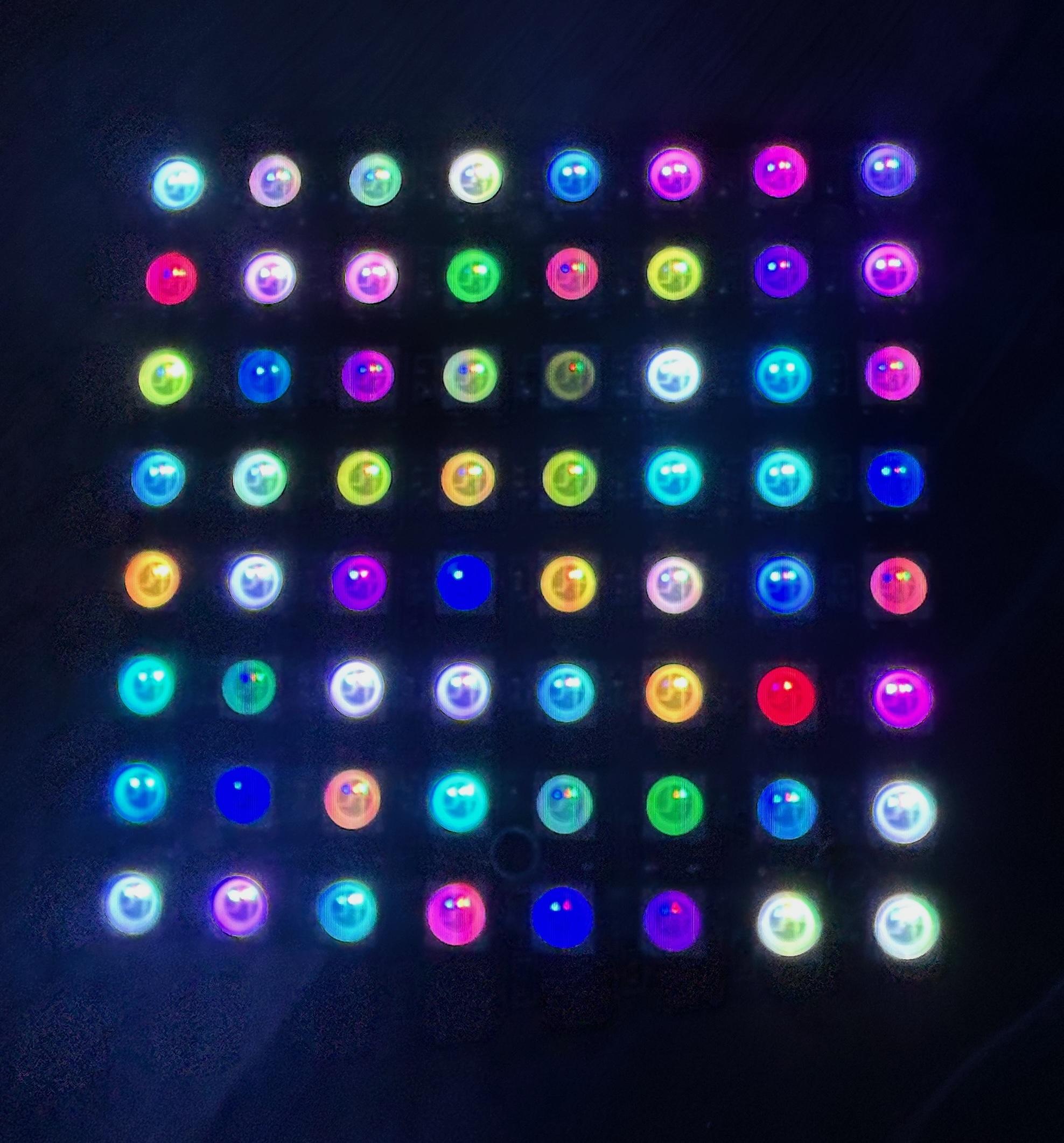
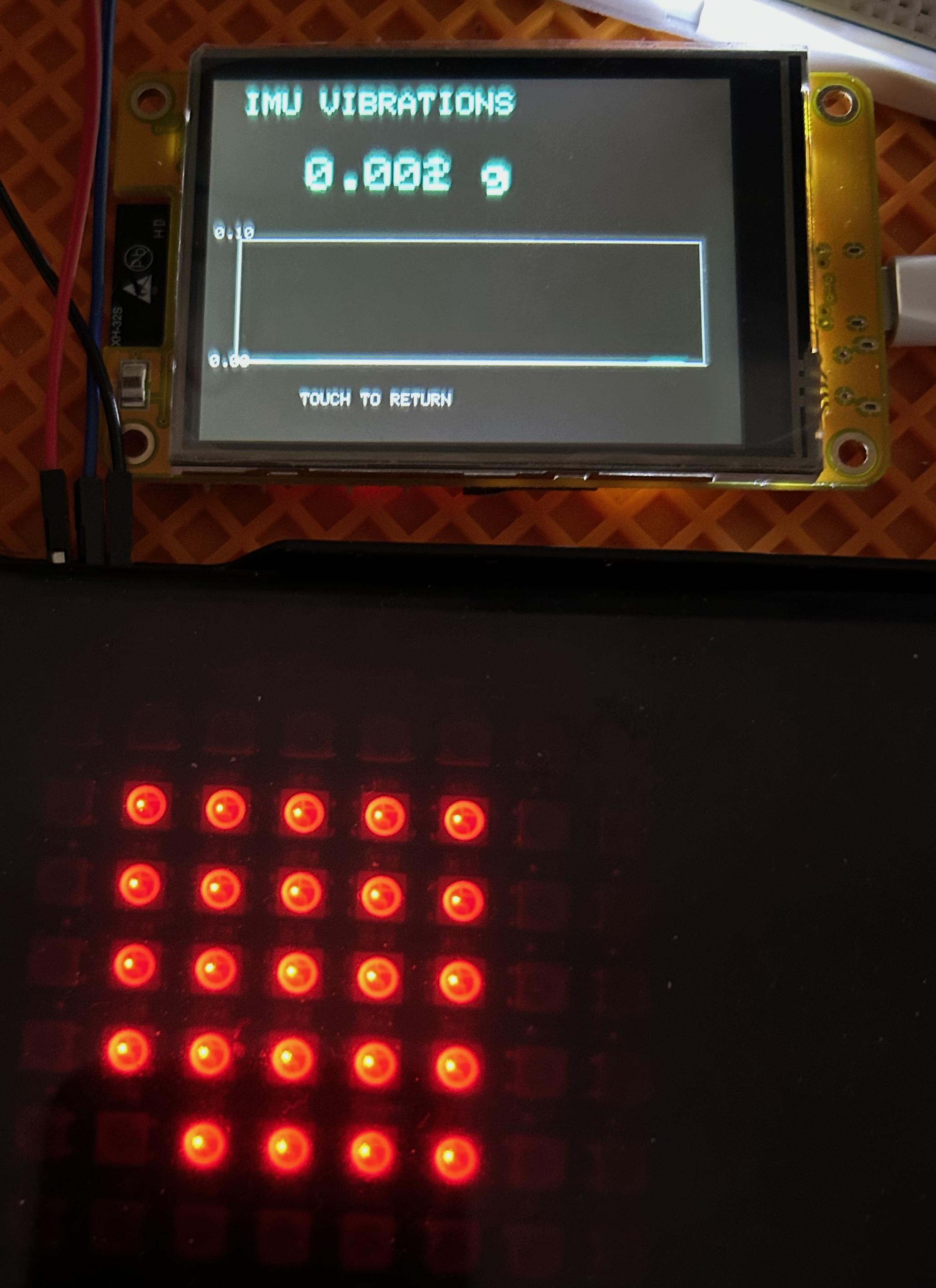
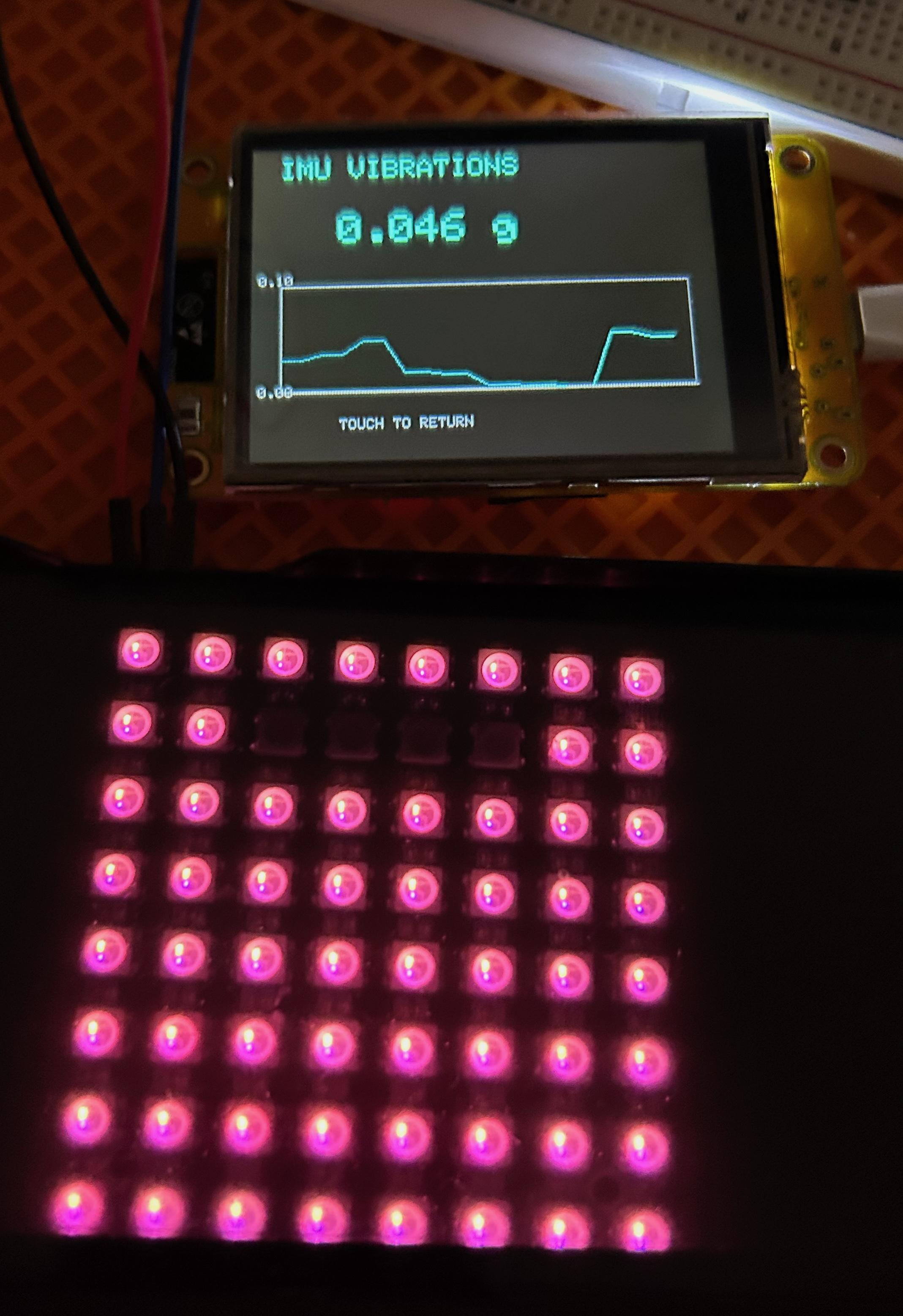
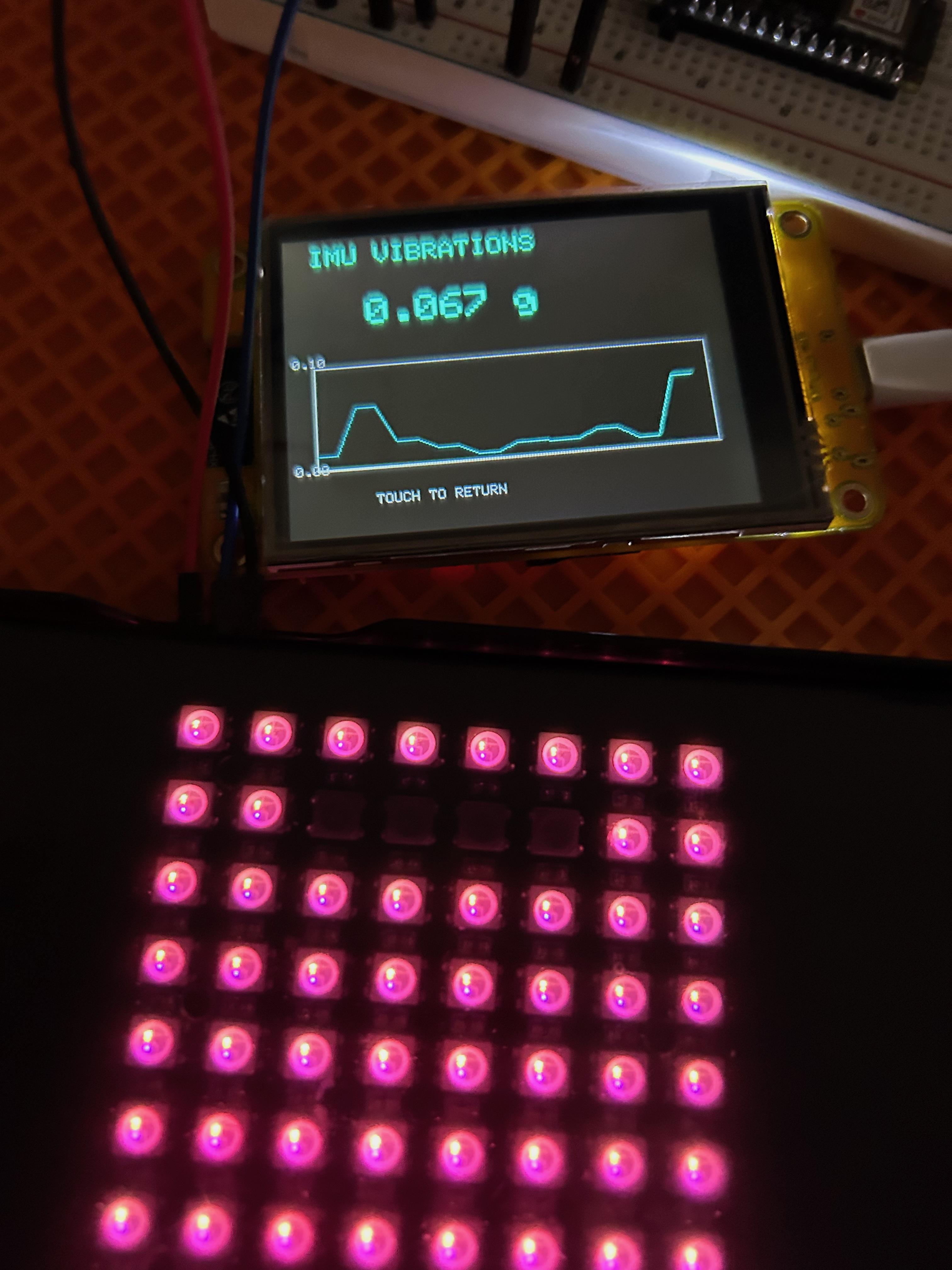
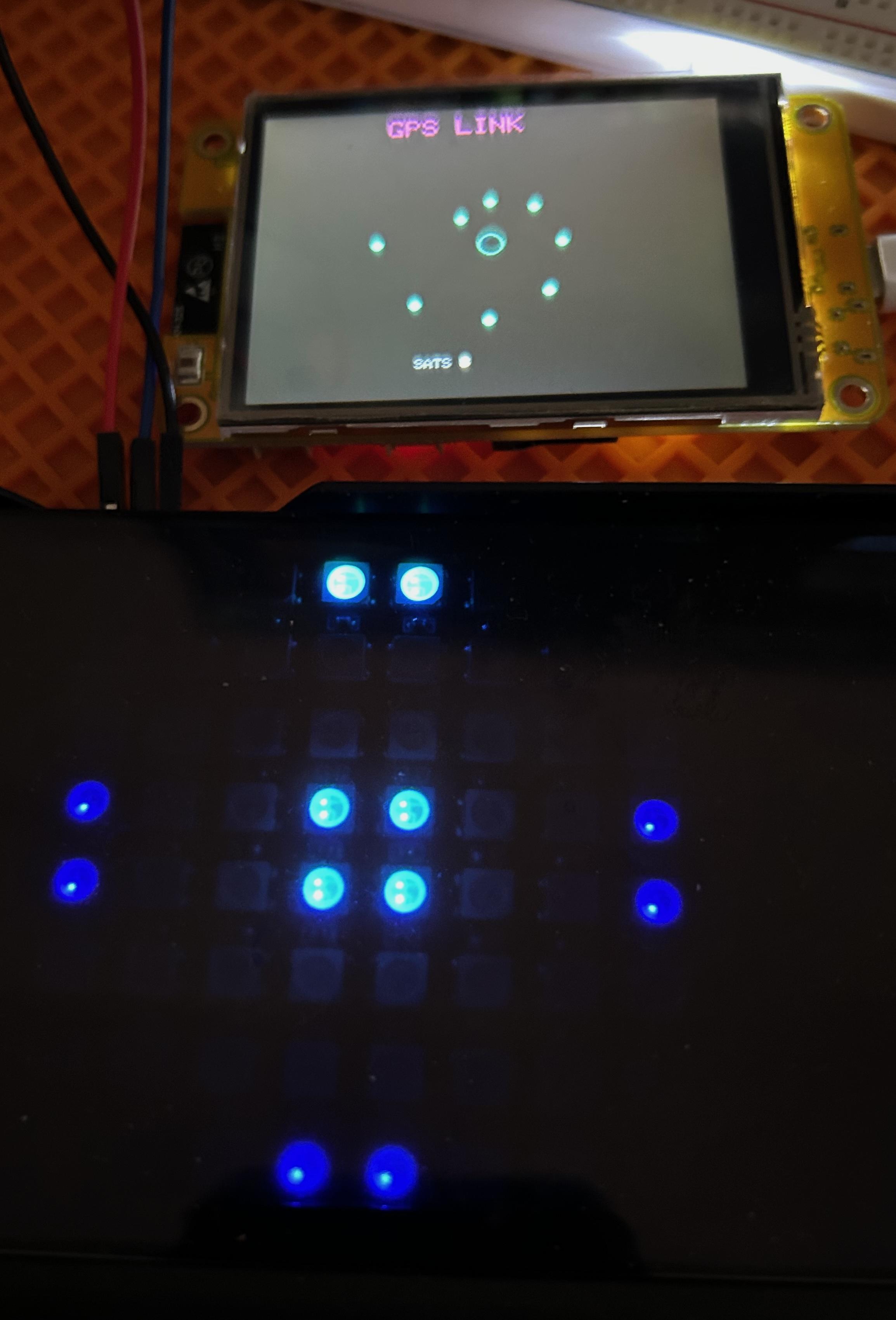

SEEING THE INVISIBLE, FOR REAL
This is where Phisualize It! becomes self-explanatory.
No charts.
No numbers.
No explanations needed once you see it.
Each mode is not an animation.
It is a translation — from measured physics to visible light.
Note: Video demonstrations of each mode are included in the project gallery. Seeing the transitions in real time is essential to understanding the system.
5.1 How to Switch Modes
Send a number (0–8) via Serial Monitor (115200 baud):
- 0 → ALL (overview)
- 1 → IMU (vibrations)
- 2 → AUDIO (structured sound)
- 3 → EMI (electromagnetic interference)
- 4 → MAGNETIC (field variations)
- 5 → PROXIMITY (infrared)
- 6 → GPS (satellites)
- 7 → BLE (radio signal)
- 8 → ENVIRONMENT (pressure/temp/humidity)
Current mode is displayed in Serial Monitor.
5.2 Response Times
Different phenomena operate at different speeds:
This is not a limitation.
This is how physics works.
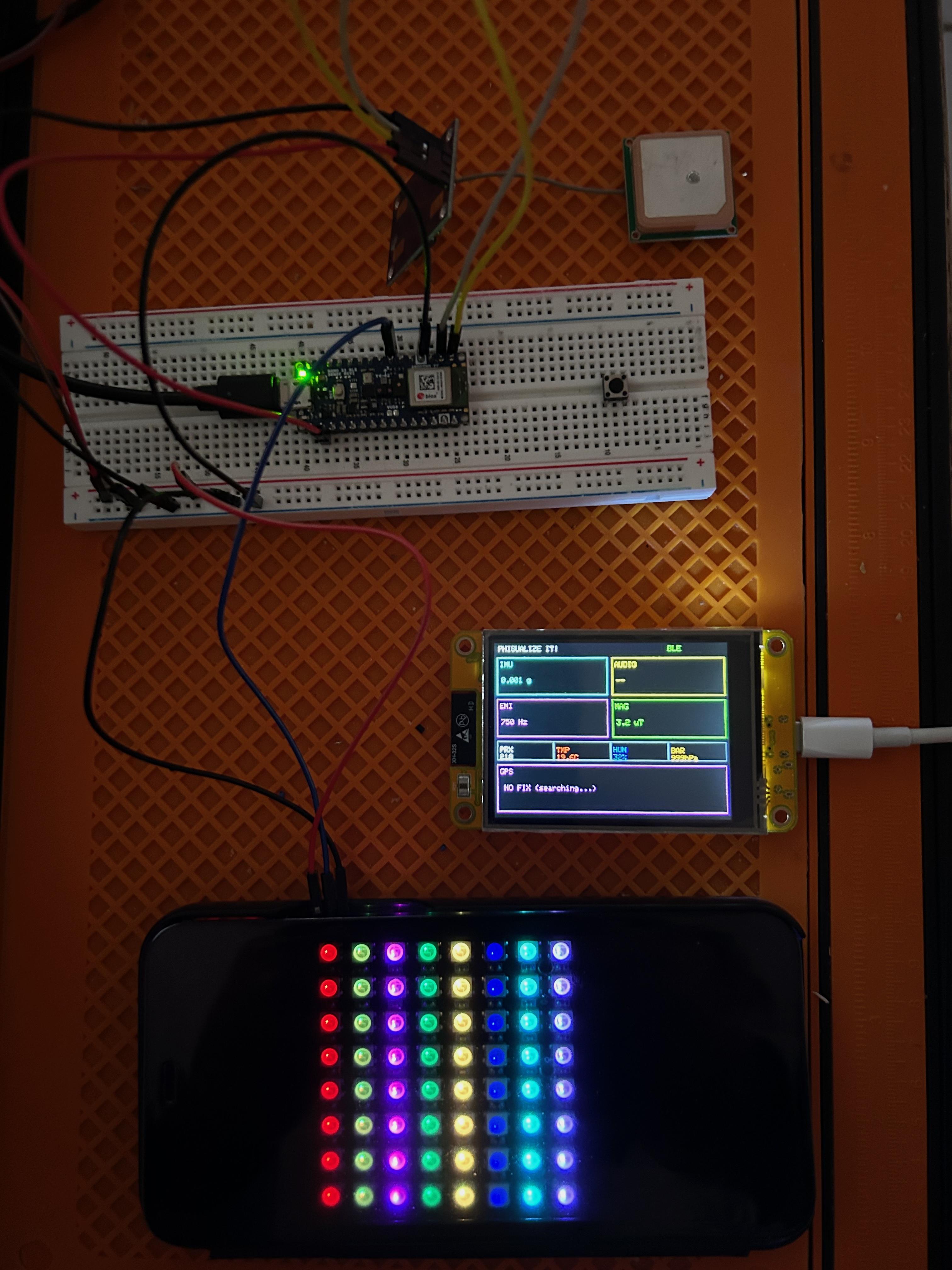
5.3 Mode 0 — ALL (The Overview)
What It Shows
All detected phenomena at once, displayed as vertical columns.
Each column represents one physical domain:
Column Layout (left to right):
Column 0: IMU — Red (vibrations)
Column 1: AUDIO — Yellow (structured sound)
Column 2: EMI — Magenta (electromagnetic interference)
Column 3: MAGNETIC — Green (field variations)
Column 4: PROXIMITY — Orange (infrared)
Column 5: GPS — Blue (satellite signals)
Column 6: BLE — Cyan (radio strength)
Column 7: ENVIRONMENT — Purple (pressure/temp/humidity)
How to Read It
- Brightness = current physical intensity
- This is the mode you leave running
Even in a "quiet" room, nothing is completely dark.
There is always:
- Vibration noise
- Electromagnetic interference
- Ambient fields
- Radio activity
That faint glow is not aesthetic.
It is reality.
This single mode already proves the system is alive.
Why 8 Columns for 10 Phenomena?
The 8×8 LED matrix has physical constraints.
Environmental phenomena (pressure, temperature, humidity) are:
- Slow-changing (minutes to hours)
- Contextually related (atmospheric conditions)
- Combined into a single composite visualization
In Mode 8 (dedicated environment view):
All three are shown separately with full matrix resolution.
In Mode 0 (overview):
They merge into column 7 as an environmental "weather index".
This is a display constraint, not a sensing limitation.
The system still measures all three independently.
5.4 Mode 1 — Vibrations (IMU)
What You See
A compact spiral pattern at the center that expands outward as vibration energy increases.
The spiral fills progressively:
- Center only → minimal vibration (baseline noise)
- Partial expansion → moderate vibration
- Full matrix → strong impact
What It Means
You are seeing mechanical energy propagating through the environment.
Try This:
- Tap the table → immediate bright response
- Walk nearby → slow oscillations
- Heavy impact → full spiral expansion
- Set down an object → sharp transient
No cosmetic smoothing.
No artificial amplification.
Just acceleration, made visible.
5.5 Modes 2 and 3 — Audio vs EMI (Two Sides of One Sensor)
These two modes use the same microphone.
They are separated mathematically using spectral flatness analysis.
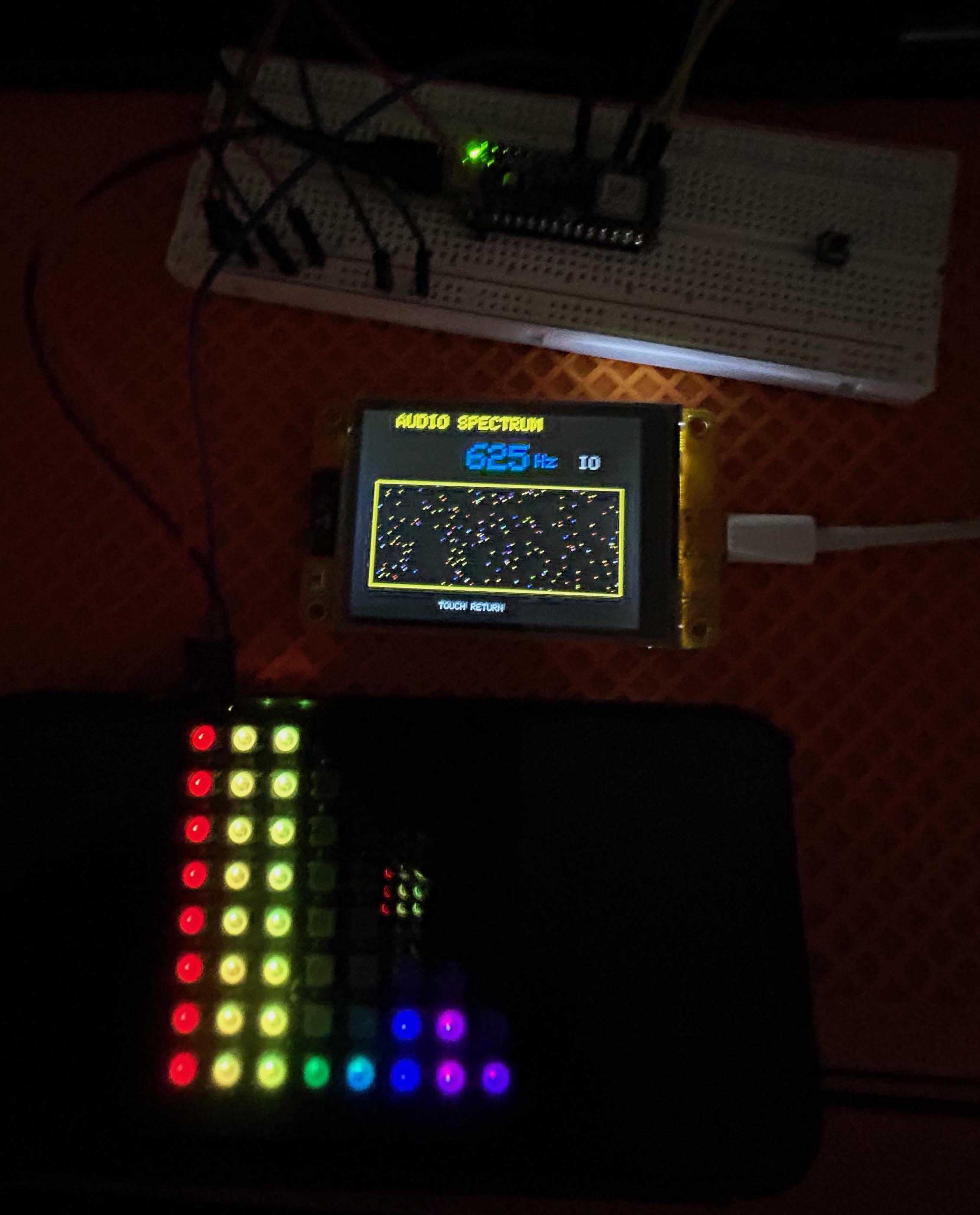
Mode 2: AUDIO (Structured Sound)
What you see:
- 8-column VU-meter (vertical bars)
- Each column = one frequency band (125 Hz wide)
- Colors correspond to harmonic bands
Structured sound:
- Voice
- Music
- Tonal sources
You see harmonic structure.
Energy concentrates in specific frequency regions.
Try This:
- Speak or whistle → distinct harmonic peaks
- Play music → rhythmic patterns
- Hum at different pitches → energy shifts between columns
Mode 3: EMI (Electromagnetic Interference)
What you see:
- Scattered noise pattern (random pixel distribution)
- Colors reflect spectral energy distribution
- Chaotic, unstructured
Unstructured interference:
- Power supplies
- Mains hum (50/60 Hz)
- Switching noise
You see distributed, chaotic energy.
Try This:
- Bring a phone charger near the device
- Turn on/off fluorescent lights
- Use a laptop power supply nearby
- Wave your phone while recording video (switching power regulator)
The system switches automatically using spectral flatness.
This is physics.
One sensor.
Two invisible realities.
5.6 Mode 4 — Magnetic Field
What You See
A PHI symbol (circle + vertical bar) that expands progressively as magnetic field variations increase.
- Baseline state: Small circle + bar (Earth's field stable)
- Perturbation: Pattern expands outward from center
- Strong disturbance: Full matrix fills
What It Means
You are watching variations in Earth's magnetic field, visualized as deltas from calibrated baseline.
Earth's field: ~30–60 µT (depending on location)
Visible perturbations: >1 µT
Invisible.
Slow.
Very real.
Try This:
- Pass a magnet slowly nearby → progressive expansion
- Rotate a metallic object (screwdriver, keys) → field distortion
- Move your phone near the sensor → magnetic interference
- Bring ferromagnetic material close → field concentration
5.7 Mode 5 — Proximity (Infrared Reflection)
What You See
Concentric circles expanding from the center as objects approach.
Pattern behavior:
- Far (>20 cm): Small circle, bright
- Medium (5–20 cm): Multiple expanding rings, medium brightness
- Very close (<5 cm): Many circles fill matrix, dim
What It Actually Measures
The APDS9960 does not measure distance directly.
It measures infrared light reflection.
Sensor physics (real behavior, not corrected):
- Far: Low IR return → sensor reads high value (255) → bright
- Close: High IR return → sensor saturates → reads low value (0) → dim
This is the actual physical response of the APDS9960.
No inversion.
No correction.
Raw sensor truth.
What This Reveals
This mode exposes a real sensor limitation:
Proximity sensors saturate at very close range.
In industrial applications, this would be compensated with lookup tables or inverse mapping.
Here, it is deliberately left unprocessed to show:
- What the sensor actually sees
- How saturation behaves
- The difference between "measuring distance" and "measuring IR reflection"
Brightness still equals reality — the reality of photon flux, not geometric distance.
Try This:
- Slowly move your hand closer → watch pattern expand while brightness decreases
- Hold reflective material (metal foil) → earlier saturation
- Hold absorbent material (black fabric) → delayed saturation
- Compare with ruler measurements → see non-linear response curve
This is what transparency looks like.
5.8 Mode 6 — GPS Signals
What You See
Phase 1: Searching (no satellites)
- 4 points rotating in a circle (search animation)
- The device is transmitting: "I am looking for satellites"
Phase 2: Acquisition (satellites appearing)
- Discrete points light up as satellites are acquired
- First 4: dimmer (center cluster)
- Additional satellites: brighter (outer positions)
- Up to 12 satellites visible
Phase 3: Stable lock
- Static constellation pattern
- Brightness reflects signal quality
What It Means
You are not seeing position.
You are seeing radio signals from space, arriving at ~−130 dBm
(approximately one billion times weaker than WiFi signals).
- Indoors → searching (no satellites)
- Near a window → satellites begin appearing
- Outside → stable constellation
Try This:
- Start indoors → observe search animation
- Move near window → watch first satellites appear (2–5 minutes)
- Go outside → full constellation (8–12 satellites)
- Block GPS antenna → satellites fade, search resumes
This is one of the most powerful moments of the project.
You are watching invisible radio waves from 20,000 km above Earth.
5.9 Mode 7 — Bluetooth (BLE)
What You See
The device broadcasts its own BLE radio continuously (2.4 GHz).
No connection (default state):
- Pulsing dim pattern at center (heartbeat animation)
- The device is transmitting, but no receiver is listening
ESP32 monitor connected:
- Expanding concentric circles from center
- Circle count = signal strength (RSSI)
- Brightness = normalized RSSI
What It Means
Invisible 2.4 GHz radio waves — now perceptible.
Try This:
- Move ESP32 monitor closer/farther → watch circles change
- Walk with the monitor → see RSSI variations
- Disconnect monitor → return to pulse pattern
5.10 Mode 8 — Environment (Pressure / Temperature / Humidity)
This is the slowest mode.
And that is the point.
Environmental physics does not jump.
It drifts.
What You See
Three integrated visualizations:
Pressure (circle):
- Baseline: medium radius circle
- Increasing pressure: circle contracts
- Decreasing pressure: circle expands
- Radius reflects ±5 hPa range
Temperature (vertical bar):
- Blue glow: below baseline (cold)
- Neutral: at baseline
- Red/orange glow: above baseline (hot)
- Color intensity reflects ±10°C range
Humidity (scattered droplets):
- Fewer droplets: dry air
- More droplets: humid air
- Perimeter fills as humidity increases
What It Means
- Breathing near the device changes it
- Opening a window changes it
- Weather approaching changes it
You don't notice this mode.
You sense it over time.
Try This:
- Breathe on the device → temperature + humidity spike
- Open a window → slow pressure change
- Leave running overnight → track atmospheric drift
5.11 Bonus: Detecting Ground Loops (Bad Common Grounds)
The Problem
Ground loops occur when two connected devices have different ground potentials.
This creates parasitic currents that generate electromagnetic interference
across a wide frequency spectrum.
Common causes:
Multiple power supplies with floating grounds
Long cables between devices
Poor grounding in electrical installations
How Phisualize It! Detects Them
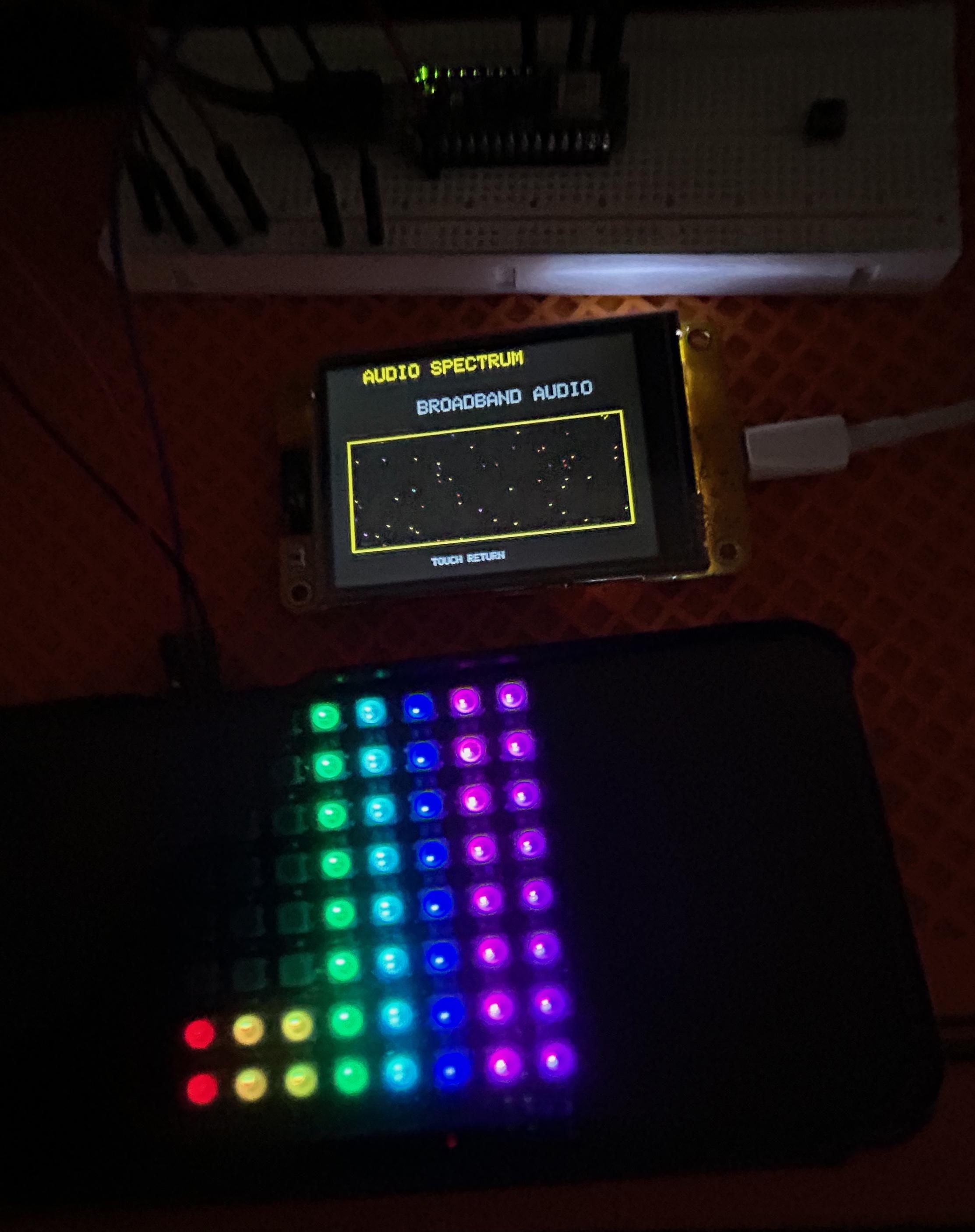
Ghost mode(lowered threshold) reveals ambient EMI that would normally be invisible.
When a ground loop is present:
Full matrix saturation with multi-color pattern
8-band spectrum active showing harmonic structure:
- Red (50-125 Hz): Mains frequency (50/60 Hz) and harmonics
- Orange/Yellow (125-375 Hz): Switching noise
- Green/Cyan (375-625 Hz): High-frequency EMI
- Blue/Magenta (625-1000 Hz): Broadband noise
Spectral flatness > 0.45 → Classified as EMI (not audio)
Why This Matters
Identify bad connections before they cause data corruption
Debug audio equipment hum and buzz
Verify power supply isolation
Check cable shielding effectiveness
The Test
Setup intentionally created a ground loop:
Two power supplies with non-common grounds
Connected via data lines
Predictable result: Multi-spectrum EMI burst
Phisualize It! revealed
Not just "noise present" →spectral signature of specific interference
Dominant frequencies match 50 Hz mains + harmonics
Broadband component from switching supplies
System doesn't cheat.
It sees what's actually there.
5.12 One Important Rule
Brightness = Reality
- No auto-gain
- No adaptive scaling
- No visual exaggeration
If a phenomenon is weak, it stays dim.
If it grows, the light grows.
The system never tries to impress you.
It only tells the truth.
5.13 Why Not Show Everything at Once?
Because perception needs contrast.
- Mode 0 gives awareness
- Individual modes give understanding
Together, they form an instrument — not a light show.
5.14 Suggested Exploration Sequence
For first-time users:
- Start with Mode 0 (ALL) — observe ambient baseline
- Switch to Mode 1 (IMU) — tap the table
- Try Mode 2 (AUDIO) — speak or play music
- Compare Mode 3 (EMI) — bring electronic devices near
- Test Mode 4 (MAGNETIC) — pass a magnet slowly
- Watch Mode 6 (GPS) — place near window, wait
- Experiment Mode 8 (ENV) — breathe on the device
The system becomes intuitive after 5–10 minutes of interaction.
What This Step Proves
- The system responds in real time
- Each mode reflects real physics
- One microphone can separate two invisible phenomena (Audio vs EMI)
- No pattern exists without a cause
If you interact with it, it reacts.
If you don't, it stays calm.
That calm is part of the demonstration.
Conclusion
WHAT YOU'VE BUILT, AND WHY IT MATTERS
You didn't just build an LED project.
You built a perceptual instrument.
A system that listens to the physical world,
processes it honestly,
and translates it into light — without decoration, without exaggeration, without illusion.
6.1 What You've Actually Built
Technically, this project delivers:
- Real-time detection of multiple invisible physical phenomena
- A complete signal-processing pipeline (filtering, FFT, classification)
- One microphone doing two jobs (Audio and EMI)
- Fixed, traceable normalization scales
- A display-agnostic visualization engine
- Optional wireless monitoring via BLE
All of this runs on a single ~€40 microcontroller.
No cloud.
No PC.
No external processing.
That alone is worth noting.
6.2 Why This Is Different
Most visualization projects fall into one of two traps:
- Pretty lights that react to something, but mean nothing
- Accurate data locked behind numbers and graphs
Phisualize It! deliberately sits between the two.
It is:
- Scientifically rigorous
- Immediately perceptible
- Visually honest
The rule Brightness = Reality is not aesthetic.
It is ethical.
If something is weak, it stays dim.
If nothing happens, nothing moves.
That restraint is part of the demonstration.
6.2b The Proximity Exception — A Teaching Choice
You may have noticed that Mode 5 (Proximity) behaves differently from other modes.
Other modes:
- Stronger phenomenon → brighter LEDs
Proximity mode:
- Closer object → dimmer LEDs (after initial increase)
This is not a bug.
The APDS9960 measures infrared reflection, not distance.
At very close range, the sensor saturates (too much reflected IR).
Design choice:
- Most projects would invert this signal to "fix" the behavior
- This project deliberately does not
Why?
Because sensor limitations are physics too.
Showing raw sensor behavior teaches:
- The difference between "measuring a phenomenon" and "inferring a property"
- How saturation works in optical sensors
- Why calibration and lookup tables exist in industrial systems
Transparency means showing what the sensor actually sees — even when it's counter-intuitive.
This is the only mode where brightness decreases with phenomenon intensity.
And that exception proves the rule everywhere else.
6.3 Frugality as a Design Choice
This project was not built with abundance.
- No custom PCB
- No expensive sensors
- No laboratory hardware
Instead:
- Integrated sensors
- Recycled enclosures
- Minimal wiring
- Software doing the hard work
This is engineering under constraint — and that constraint is visible in the result.
It proves that meaningful scientific instruments do not require expensive tools.
They require clear thinking.
6.4 Potential Applications
This system is intentionally open-ended.
Education
Physics teaching: demonstrating FFT and signal processing with tangible feedback
STEM workshops: making abstract concepts (spectral analysis, filters) visible and interactive
Signal processing courses: showing that "noise" contains meaningful information
Creative Installations
Responsive environments that genuinely react to ambient electromagnetic fields
Public installations revealing invisible urban infrastructure (power lines, WiFi, satellites)
Sound installations driven by actual acoustic structure, not just volume
Further Exploration
- Testing new spectral classification algorithms (beyond spectral flatness)
- Comparative studies of EMI in different environments (urban vs rural, indoor vs outdoor)
- Human perception experiments: when does data become awareness?
- Investigating vibro-acoustic coupling in different materials and structures
6.5 Make It Yours
Because the architecture is modular, it invites modification rather than consumption.
Beginner Modifications:
- Change color palettes in PhiMatrixEngine.cpp
- Adjust normalization scales for your local environment
- Add new display modes combining multiple phenomena
- Modify pattern animations for individual modes
Advanced Modifications:
- Port to different LED configurations (rings, strips, larger matrices)
- Add new sensors (CO₂, UV, radiation detector)
- Implement new classification algorithms (spectral centroid, zero-crossing rate)
- Create hybrid modes (e.g., vibro-acoustic coupling visualization)
- Build PhiP350 (recycled speaker LEDs — requires LED mapping adaptation)
- Design custom enclosures for specific installation contexts
Code Architecture Supports:
- Display swapping — only PhiMatrixEngine needs modification
- Sensor addition — create new module following existing pattern
- Classification tuning — adjust thresholds in PhiScientificModel
6.6 Known Limitations and Future Improvements
Current Limitations:
- Environmental sensors (HS3003) have slow response time (~minutes for temperature/humidity)
- GPS requires clear sky view — limited indoor functionality
- 8×8 resolution limits harmonic visualization detail
- Flash/RAM constraints limit FFT size expansion beyond 128 samples
Potential Improvements:
- Higher resolution displays (16×16 or circular configurations)
- Additional phenomena: UV index, CO₂ concentration, ionizing radiation
- Configurable normalization via Serial commands (real-time adjustment)
- Data logging to SD card for long-term environmental monitoring
- Multi-device synchronization for spatially distributed sensing
6.7 Resources and Downloads
Available on This Instructable:
- Complete source code (all .h and .cpp files)
- Wiring diagrams
- Library list with exact versions tested
- Video demonstrations of all display modes
Advanced Builds:
- PhiP350 (recycled speaker LEDs, 350+ LEDs) — separate tutorial in development
- PhiRing (circular 60-LED configuration) — alternative form factor
Community:
- Post your builds in the comments
- Share modifications and discoveries
- Ask questions — this project is meant to be understood
6.8 Acknowledgments
This project relies on excellent open-source libraries:
- arduinoFFT by Enrique Condes (spectral analysis)
- Adafruit NeoPixel library (LED control)
- Arduino sensor libraries by Arduino team (BMI270, APDS9960, LPS22HB, HS300x)
- ArduinoBLE library (wireless communication)
Built with Arduino Mbed OS Nano Boards platform.
6.9 Share Your Build
Built your own Phisualize It?
- Post photos in the comments below
- Share modifications you've made to the code or hardware
- Report interesting phenomena you've discovered in your environment
Found a new use case?
- Educational contexts
- Art installations
- Research applications
This project is designed to evolve through community use.
6.10 Final Thought
The invisible world has always been there.
Vibrations in the floor.
Fields in the air.
Signals from space.
Noise inside silence.
We usually measure it.
Rarely perceive it.
This project is about that difference.
Not just seeing data —
but becoming aware of the physics around you.
You don't just visualize it.
You Phisualize it.
APPENDIX
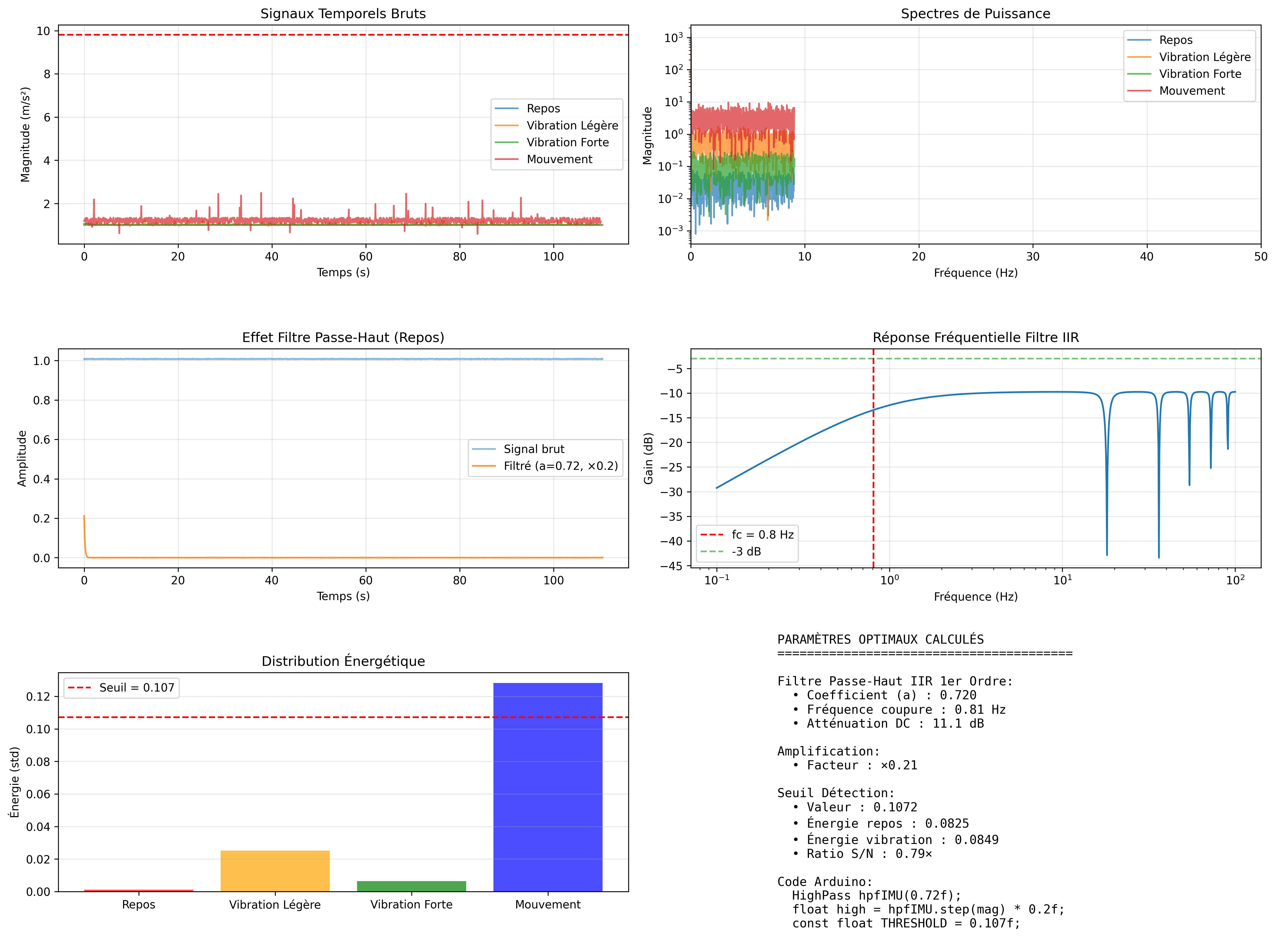
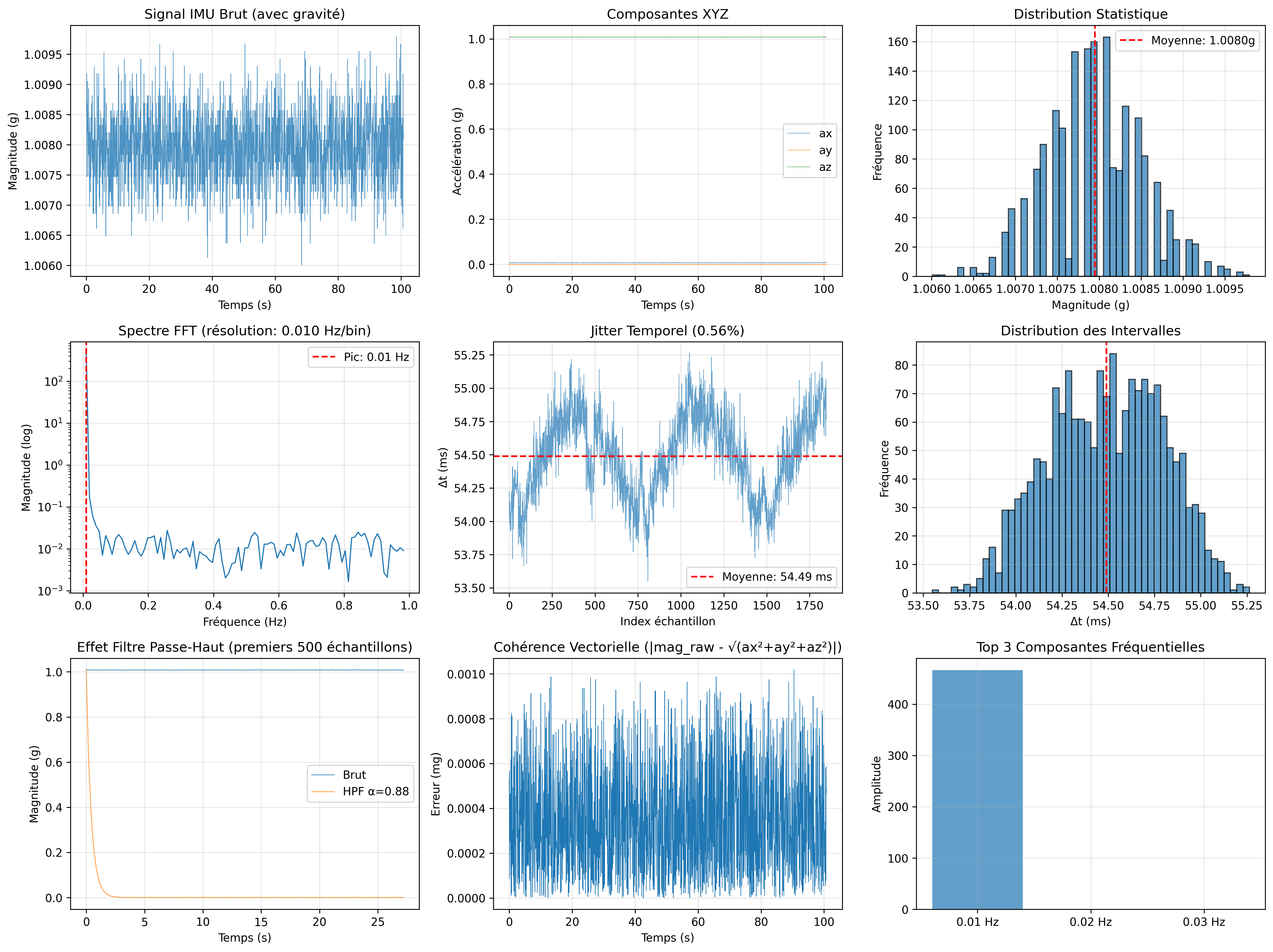
TECHNICAL NOTE ON SAMPLING PERFORMANCE
A.1 System Performance Trade-offs
This project prioritizes accessibility and demonstration of multiple phenomena.
However, there is a measurable trade-off when running all sensors simultaneously.
A.2 IMU Sampling Rate Impact
Theoretical Performance:
- Target IMU sampling rate: 90 Hz
- FFT resolution: 0.70 Hz per bin
- Frequency range: 0–45 Hz
Actual Performance (All Sensors Active):
- Achieved IMU sampling rate: 75–80 Hz
- Performance loss: ~15%
- Cause: Sensor polling overhead (GPS, barometer, humidity, proximity, magnetometer, BLE)
Impact on Scientific Accuracy:
- Frequency resolution degradation: 0.70 Hz → ~0.82 Hz per bin
- Nyquist range reduction: 45 Hz → ~40 Hz
- FFT timing jitter: slightly increased
A.3 Scientifically Rigorous Configuration
For maximum scientific precision focused on the core innovation (Audio/EMI classification + vibration analysis):
Minimal Configuration:
Essential modules only:
- PhiIMU (vibrations)
- PhiAudio (audio + EMI classification)
- PhiScientificModel (FFT + spectral analysis)
- PhiMatrixEngine (visualization)
Optional addition:
- PhiMagnetometer (performance loss: 0.22%, negligible)
Disable:
- PhiGPS
- PhiBarometer
- PhiHumidity
- PhiProximity
- PhiBLE (if not monitoring)
Result:
- Guaranteed 90 Hz IMU sampling
- Full spectral resolution maintained
- Deterministic timing
- Core innovation preserved
A.4 Implementation: Scientific Mode
To run the scientifically rigorous configuration, comment out sensor updates in the main loop:
A.5 Why This Matters
For Educational/Demonstration Use:
Full configuration is appropriate
15% loss is acceptable for showing multiple phenomena
Trade-off is transparent and documented
For Research/Precision Work:
Minimal configuration recommended
Eliminates timing variability
Focuses on core spectral analysis innovation
Maintains scientific rigor
A.6 Verification
You can verify actual sampling rate via Serial Monitor:
IMU actual rate: [displayed every 10 seconds]
Expected: 90 Hz
Measured: 75-80 Hz (full config) or 90 Hz (minimal config)
A.7 Design Philosophy
This trade-off reflects the project's dual nature:
- As a demonstration instrument:
- Show many invisible phenomena → accept minor precision loss
- As a scientific tool:
- Focus on core innovation → maximize precision
The architecture supports both approaches.
You choose based on your use case.