Pi-Fi: a Wi-FI Controlled Robot and Powered by a Pi Pico W!!
by thesigmacoderboy in Circuits > Robots
72 Views, 0 Favorites, 0 Comments
Pi-Fi: a Wi-FI Controlled Robot and Powered by a Pi Pico W!!
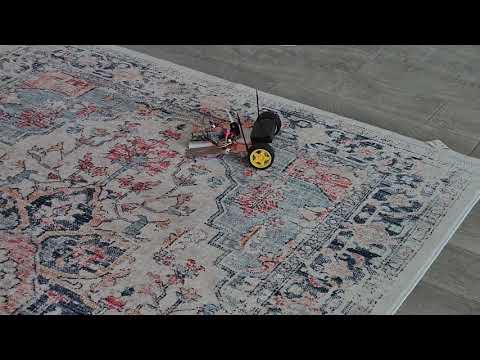
Hello everyone, my name is Pranav. I am 13 years old. I have experience with coding (block coding) ever since second grade. I got my first Raspberry Pi when I was in fourth grade. With the Pi, I learnt myself how to code in Python. I watched a lot of videos on how to code on Python. That Pi made me realize that coding isn't just a hobby for me, it is my passion too. I got my first Pi Pico W on my 11th birthday. After coding some projects, I realized it wasn't just coding with Python, it was connecting the world of bits and bytes to the real world with sensors, microcontrollers etc. Ever since I got those two microcontrollers, I decided to choose a career pathway in engineering.
I am really thankful for the Instructables community for creating a platform where DIY-based projects and ideas is extremely valued. It is a platform where you can learn ANYTHING and do whatever you think of. If you can't find it, it is a golden opportunity to create a new Instructable so others can create yur creation! Contests are a wonderful way to showcase the innate talents of a person and win sweet prizes too!
In this Instructable, we will make our own robot with a Raspberry Pi Pico W. The robot will use 2 motors. The Pico W will use the code written in MicroPython, a version of Python made for microcontrollers. This is my first robot project (and my first Instructable). The code will use the Wi-FI capabilities of the Pico W to serve an http socket that the app made with MIT App Inventor will request. The motors will be moved every time a socket is requested. I am really exited to share my project with my first Instructable to you!
Supplies
All links are given from Amazon.com (en-US)
Hardware
- 1- Raspberry Pi Pico W (This is the brain of the robot. Make sure it is soldered.) You can buy one here.
- 1 - L293D Motor Driver (This controls the motors.) You can buy them here.
- 2 - Motors with wheels. You can buy them here, even though only 2 will be used in this Instructable.
- Jumper Wires - quantity may vary. (Used to connect the motors, the Pico and the motor driver together.) You can buy some here.
- 1- 7.2V Battery - I used a rechargeable battery. You can buy a rechargeable battery here.
- 1- Breadboard - You can buy one here.
Software
- Thonny (to be installed in step 1)
- Micropython - up and running on the Pico W (covered on step 2)
- Web Browser
Other Items and Tools
- Cardboard
- Scissors, box cutter etc. for cutting cardboard.
- Duct tape
- Cable ties
- Pencil
- Screwdriver
- Raspberry Pi Pico W Pinout Diagram (optional, online or offline)
- L298N Pinout Diagram (optional, online or offline)
Download and Install Thonny
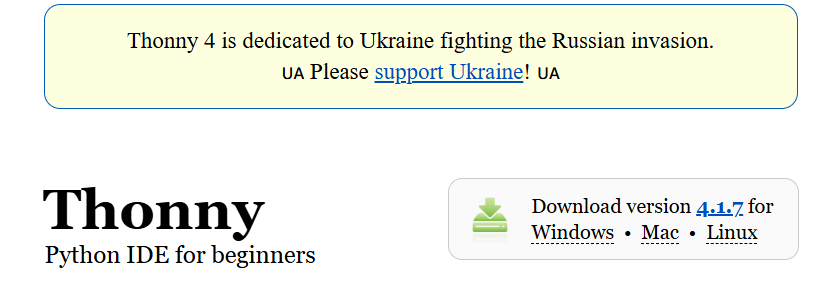
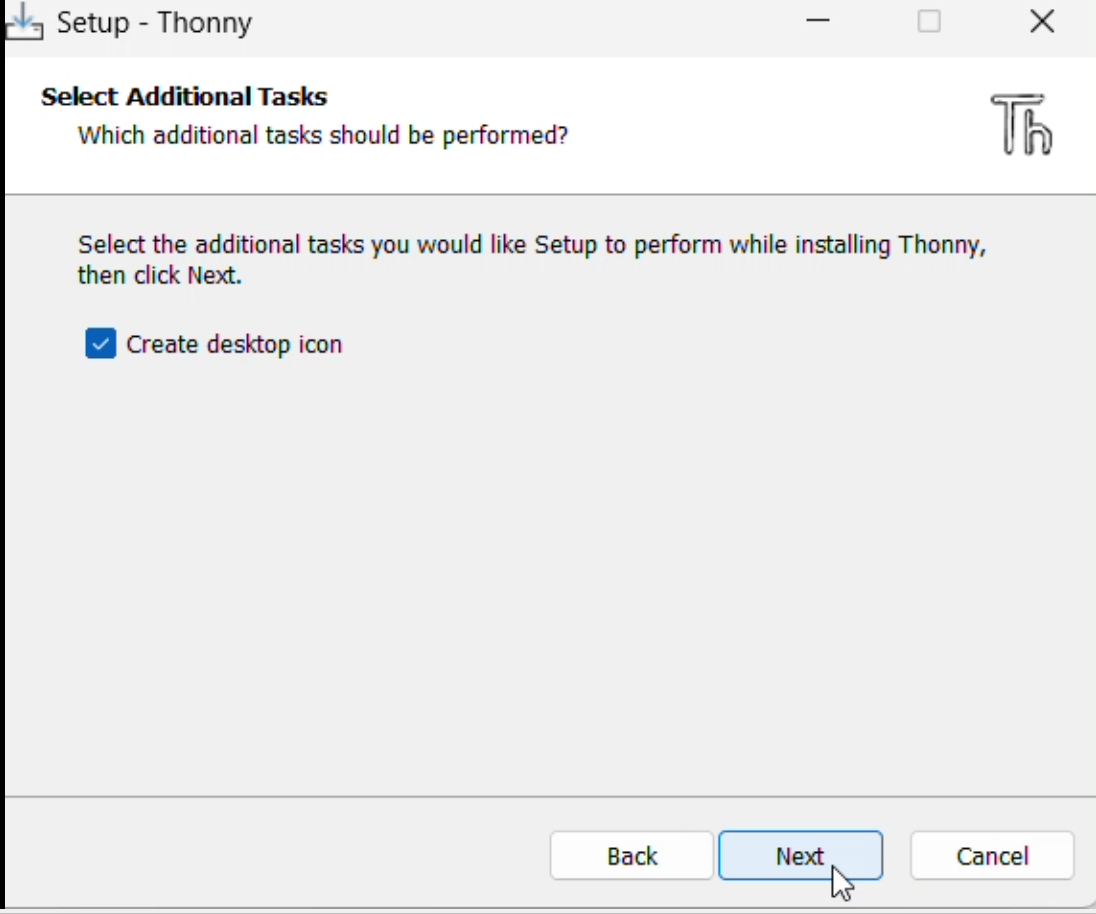
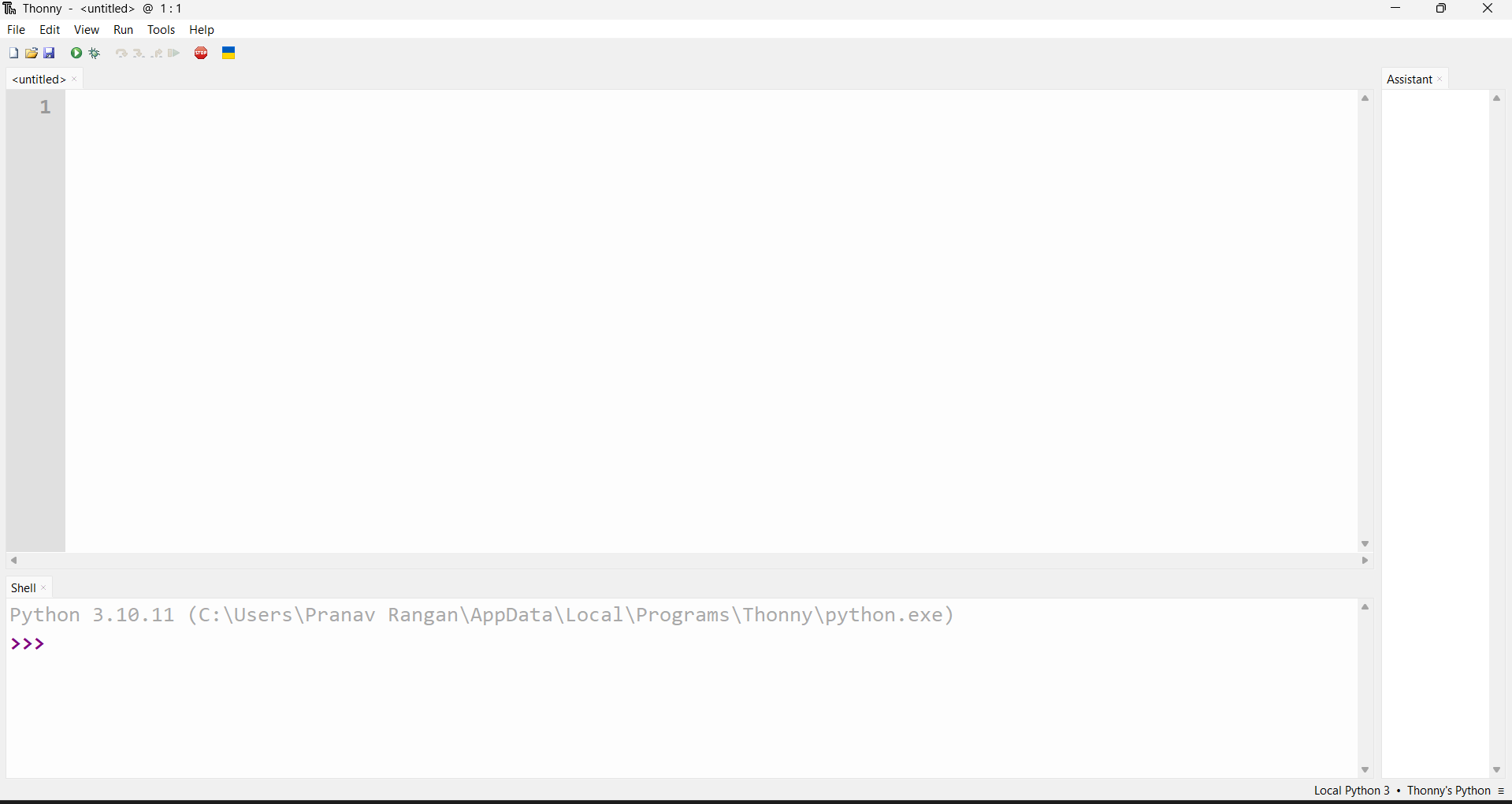
Since we will be using MicroPython to code this project, we will be using Thonny IDE, the recommended IDE by Raspberry Pi for Pico W.
Substep 1 - Visit the Thonny Website here.
Substep 2 - You will see a text box that says, "Download version #.#.# (in my case it's 4.1.7) for Windows, Mac, Linux."
Substep 3 - Click the link for your operating system. (in my case it's Windows.)
Substep 4 - After the file has been dowloaded, click it.
Substep 5 - Follow the on-step instructions to install Thonny.
Download and Install Micropython on Pico W

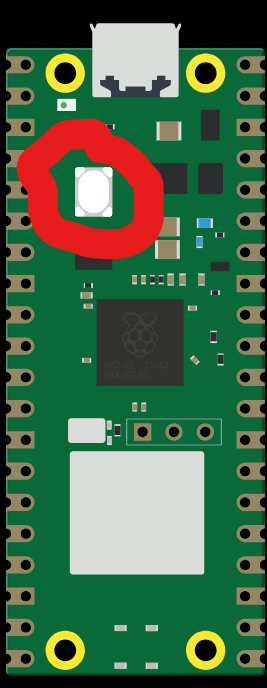
This code is written in MicroPython, so we will download the MicroPython UF2 image file from the Internet and flash it onto the Pico W.
Substep 1 - Navigate to the MicroPython website linked here, or to directly download the UF2 file (which may be outdated), click here. Skip to substep 3 if you directly installed it.
Substep 2 - As you scroll down, you will find a subheading that says, "Firmware". The newest firmware would be colored in bright red. Click it and the latest firmware will start to download.
Substep 3 - After the file has finished downloading, connect the Pico W with the USB cable it comes with to the laptop/computer while the BOOTSEL button is pushed continuously, and upload the file to the Pico W.
Substep 4 - After the file has been uploaded, disconnect the Pico from the laptop/computer (for now).
Wiring Hardware and Creating Body
Keep your pinout diagrams in handy!
Substep 1
Connect the Raspberry Pi Pico W to the L298N motor driver using jumper wires as follows:
GPIO 12 -> IN 1
GPIO 13 -> IN 2
GPIO 14 -> IN 3
GPIP 15 -> IN 4
GND -> GND
VSYS -> 5V
Connect the 9V Battery to the L298N Motor Driver as follows:
Positive End -> 12V
Negative End -> GND
Substep 2
Cut out a piece of cardboard. My cardboard size is 5.5 x 8.25.
I used 4 cable ties to connect the motor to the cardboard. First, I made 4 holes by pushing a pencil against the cardboard. Then, I tied the motor by putting one end in the hole and taking it out on the side where the wheel side is. I also used duct tape to stick the motor onto the cardboard. I used the double-sided tape that comes with the breadboard to stick it onto the cardboard. I also had to use cable ties to attach the L293D motor driver to the cardboard because it kept sliding off the duct tape and the double-sided tape.
While you are placing all of the components on the cardboard, make sure to brainstorm and plan on your own and not completely depend on my ideas. The reason I am saying this is because it might not work out for you due to the changing size of the components, cardboard or the amount of resources you have.
Update and Upload Code
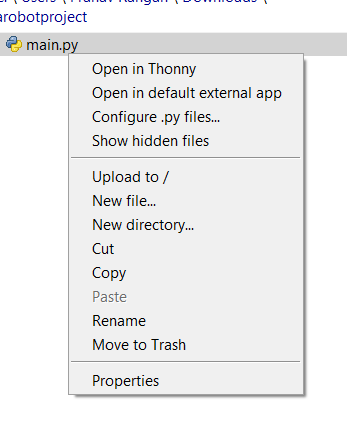

In this step, we will change the code for your Wi-FI settings and upload the code.
Substep 1 - Plug your Pico W into the computer/laptop. Download the code (the .py file) from the bottom of this step.
Substep 2 - Open Thonny, then select the "Run" tab on the top of the screen.
Substep 3 - Under the "Run" tab, click "Configure interpreter"
Substep 4 - Click the dropdown that says, "Local Python 3" and select "MicroPython (Raspberry Pi Pico)"
Substep 5 - Click the dropdown that says, "Local Python 3".
Substep 6 - In the "Port or WebREPL" drop down menu -> choose "Try to detect port automatically"
Substep 7 - Click "OK" under the bottom of the dialog.
Substep 8 - You should see something like, "Raspberry Pi Pico W with Micropython ...." in the Shell section. If you don't, try pressing the Stop button (near the Ukrainian flag).
Substep 9 - In the "View" menu -> Ensure "Files" is selected
Substep 10 - Under the "Files" select "Downloads" folder
Substep 11 - Right click the main.py file and you will find the option for upload to "/"
Now, this .py file will still run without being connected to the REPL.
Downloads
Design App in App Inventor

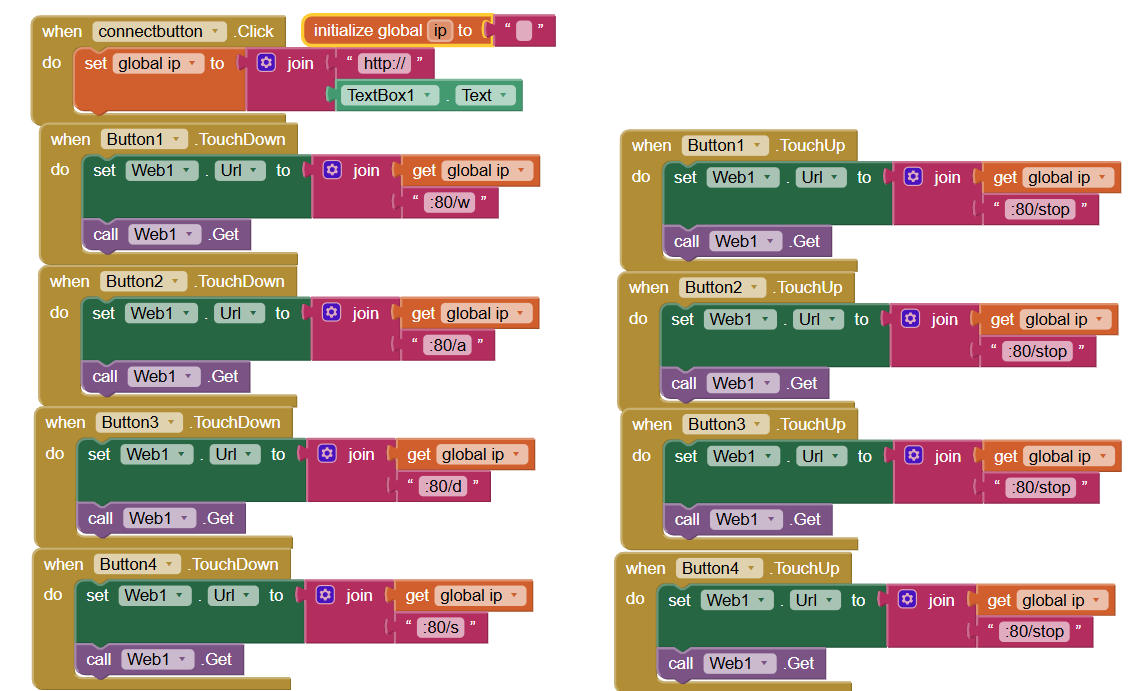
To control the robot effectively, we will design an app in App Inventor.
Substep 1 - Create a new project in App Inventor.
Substep 2 - In the "Designer" tab, under the "User Interface" dropdown (in the left hand side), drag and drop 1 text box, 2 buttons, 1 horizontal arrangement (under "Layout" dropdown), 2 buttons (drag it inside the horizontal arrangement), 1 button. You will also drag and drop a web component (under the "Connectivity" tab).
Substep 3 - In the "Blocks" tab, you will connect the actions of the buttons to the http requests. You can use my pictures as an example to code on your own.
A very helpful resource would be the MIT Component Block documentation and the MIT Block Documentation.
Important Things to Note
Each time the Pico W turns on, the onboard LED will start to flash rapidly. Then, it will start to blink on and off for 0.5 seconds. You will have to count the number of times it flashes untile there is a pause for 1 second. Then, if there is a pause for 1 second and it starts to blink again, then count the number of times it turns on or off. The first time you counted will be the first number of the last set of numbers of the IP address.
Make sure to run the code once with Thonny open and the USB cable connected so that we know the third-last set off numbers (for me - it was 66, you can see that in a picture in step 5 - in the blocks section of the app.). Make sure to remember the third-last section of the IP address. You do not have to remember the last section of the IP address, since it might change each time the Pico turns on.
I am really greatful for you for following my Instructable.