Pi Symbol in TinkerCAD

This is how you can make the pi symbol in TinkerCAD
Supplies
TinkerCAD software
Get the Box

First you will need a cube from the basic shapes.
Round It and Resize

Click on the box and make the radius 3.11. Next make the box 72.00 long and 20.00 wide.
More Boxes
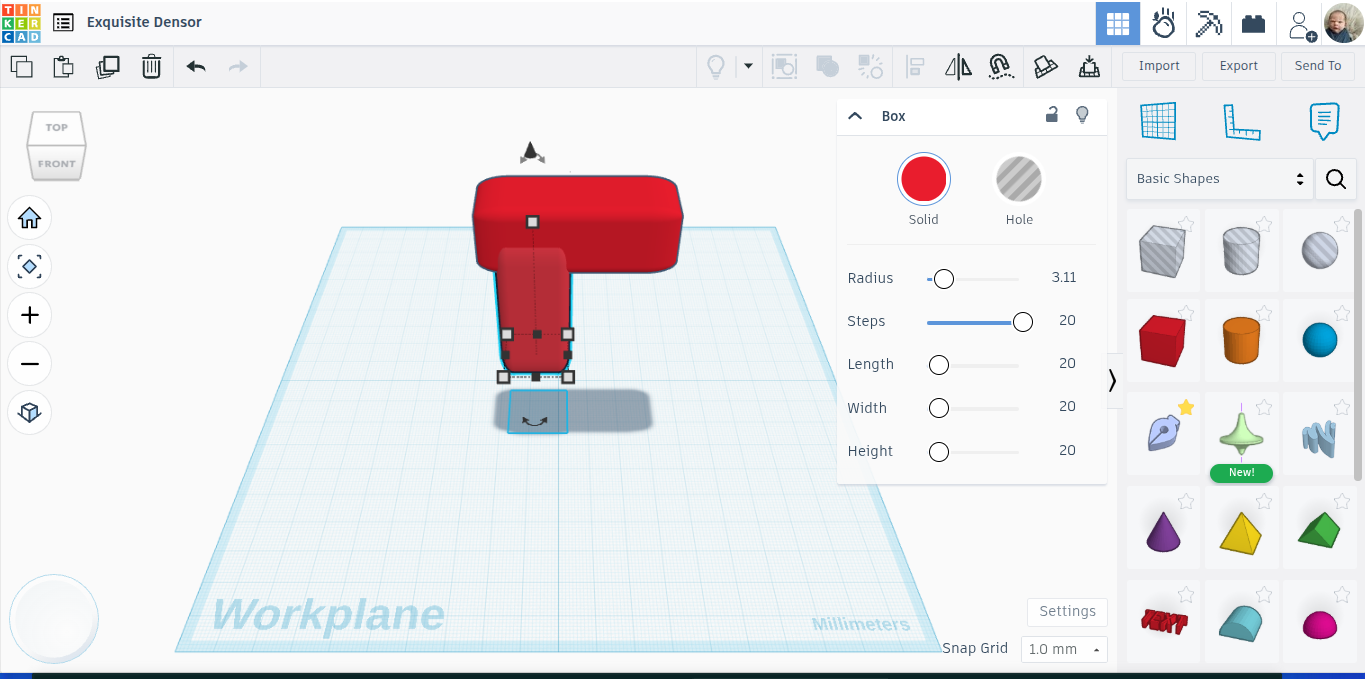
Duplicate the box and turn the duplicate 90 degrees.
Another One
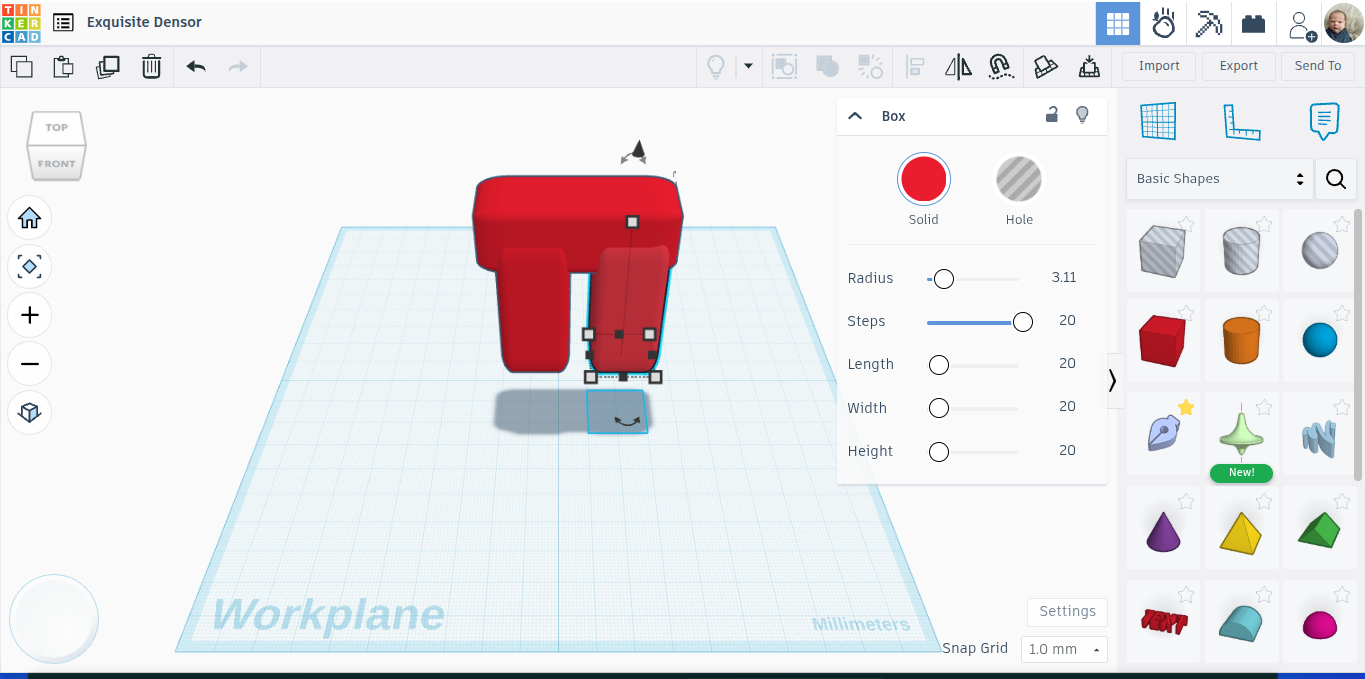
Duplicate the box you just made and move it over.
Make the Bottom

Duplicate the top box and turn it 90 degrees.
Shorten It and Move It

Make the cube 26.00 long and 20.00 wide.
Assemble the Rest

Move all of the cubes to look just like the pi symbol.