Planedar - Your Flights, Our Noise
by WildGardenGnome in Circuits > Raspberry Pi
118 Views, 0 Favorites, 0 Comments
Planedar - Your Flights, Our Noise

It's quite easy to get a good feel for the amount of cars, screaming kids, or people yelling into their phones which pass by each day. Flights however is a different ballgame. These winged busses fly high, are often invisible, but do create a tremendous amount of noise pollution at all hours of the day.
To shine a light on this hidden highway we're going to build Planedar. This project will spot planes within hearing distance, store their information, and provide a snazzy dashboard. We are also adding an inbuild passenger address system (PA) to provide a complete experience.
Supplies
Hardware
- Raspberry Pi 4 Starter Kit
- Bluetooth Speaker
Apps & Services
- OpenSky
- Flightradar24
- Google Maps
- OpenStreetMap
- Sound Meter
Software
- MySQL
- Apache Webserver
- FileZilla
- Putty
- Visual Studio Code
- PhpMyAdmin
Frameworks
- Tailwind CSS
- Flask
Languages
- Python
- SQL
- HTML/CSS/Javascript
Data Flow

In the above picture you can see the data flow of our project.
- Our script sends a filtered request for all audible planes to the openSky API.
- The openSky API responds with raw data if one is caught.
- Our script formats and stores this data in a local database.
- The script then generates audiofiles and plays them via the bluetooth speaker (PA).
- When the dashboard is accessed, it requests the data from the backend.
- The backend fetches the relevant records from the database.
- The database sends them over to the backend.
- The backend now passes them on to the dashboard.
- Which does some styling and displays it all.
Setup
It all starts with a Raspberry Pi. Our Pi will not only run the code for data collection, storage and analysis. It will also communicate with the bluetooth speaker, and provide infrastructure for our dashboard and database.
To get our Pi up and running, we can follow the getting started tutorial provided by The Raspberry Pi Foundation themselves.
To work with the pie themed computer, I usually use a combination of Visual Studio Code, FileZilla and PuTTY. This is my personal setup, there are many alternatives to choose from.
Raw Data Collection
Planedar
This step starts with a massive thank you to Conor Mclaughlin for his great project article. Follow along and you will also have a script for identifying planes flying overhead with Python using the OpenSky REST API.
To only detect planes within earshot, I've spent an evening listening, tracking planes on Flightradar24, and using Google Maps to pinpoint the distance at which they are audible. In my case that's 3.5 km, give or take. This means all planes within a range of 3.5km are audible and we can draw our radius box accordingly.
Noise Index
We're also adding an extra data field. Based on speed, distance, and the vertical movement we calculate our very own Noise Index. The AI has generated this calculation, so to make sure it's somewhat accurate, I've spent another evening with a decibel meter app verifying.
Based on a sample size of 25, the index works well enough. It usually underestimates the noise by 2 decibel points(~5%). So, instead of the 63 Decibels the app indicated, the Noise Index estimated 61. This makes it a good approximation, which is good enought for our project.
Full Code
Make sure to replace all 'XX' placeholders in the script with your specific coordinates, and ensure your OpenSky API and database credentials are saved in a .env file for the script to access. If this is unfamiliar, here's an explanation.
This code already contains the database connection, explained in our next step.
Data Storage
Database Setup
For a permanent record of all this activity, and some extra data analysis, we create a MySQL database. Luckily, PiMyLifeUp has a fantastic tutorial, installing and configuring a MySQL server on your Pi.
In order to save our plane related data, we create a dedicated database, table and user by running some SQL commands.
Script / Database Connection
We already mentioned the SQL connection functions in the previous step, but here is the isolated code for better understanding.
Data Analysis
With our basis covered, we can now let the app run for a while, and see the data come in. It's remarkably fun to browse, but it would be even better to have the most interesting information readily available. To make this happen, we are going to use SQL Views, converting the data into information.
Total flights per day
This view calculates the total number of flights observed on each day.
Average flights per timeslot (1h)
This view calculates the average number of flights that occur during a specific hour across all recorded days.
Highest total passovers
This view identifies the single call sign (plane) that has been observed the most.
Fastest
This view retrieves the plane with the highest recorded ground speed.
Closest
This view retrieves the record of the closest pass, prioritizing horizontal distance, then altitude.
Loudest
This SQL view is designed to easily find the single flight observation that registered the highest calculated noise level.
Hall Of Fame
This view acts as a master leaderboard by stacking the top results from four different categories; loudest, fastest, closest, and most frequent.
PA System
Audio Generation
We should not forget the most important part of all, the experience, this is exactly where our our PA System truly shines. It will shoot into action whenever a plane is detected, generate some audio and stream it directly to a Bluetooth speaker.
To get the feel right, we need to generate two audio segments and stitch them together, after which we add some rustic, slightly unpleasant, authenticity. The audio will consist of
- A three tone intro and outro tune.
- Spoken words from the relevant data.
The result is a tad too slow, slightly inhuman, and sounds like it is comes out of cheapest hardware available, perfect.
Below is the static code to generate this audio, which you can add to our previous script to make it dynamic. An example of the generated audio is also attached to this step as a .wav file, enjoy.
Bluetooth Speaker
Now it's time for the connection between the Raspberry Pi and the bluetooth speaker. PyMyLifeUp has yet another great article with the instructions, Bluetooth on the Raspberry Pi.
With our PA setup, we can sit back, listen to the announcements, and get a real good feel of all the traffic far above our heads.
Downloads
Backend
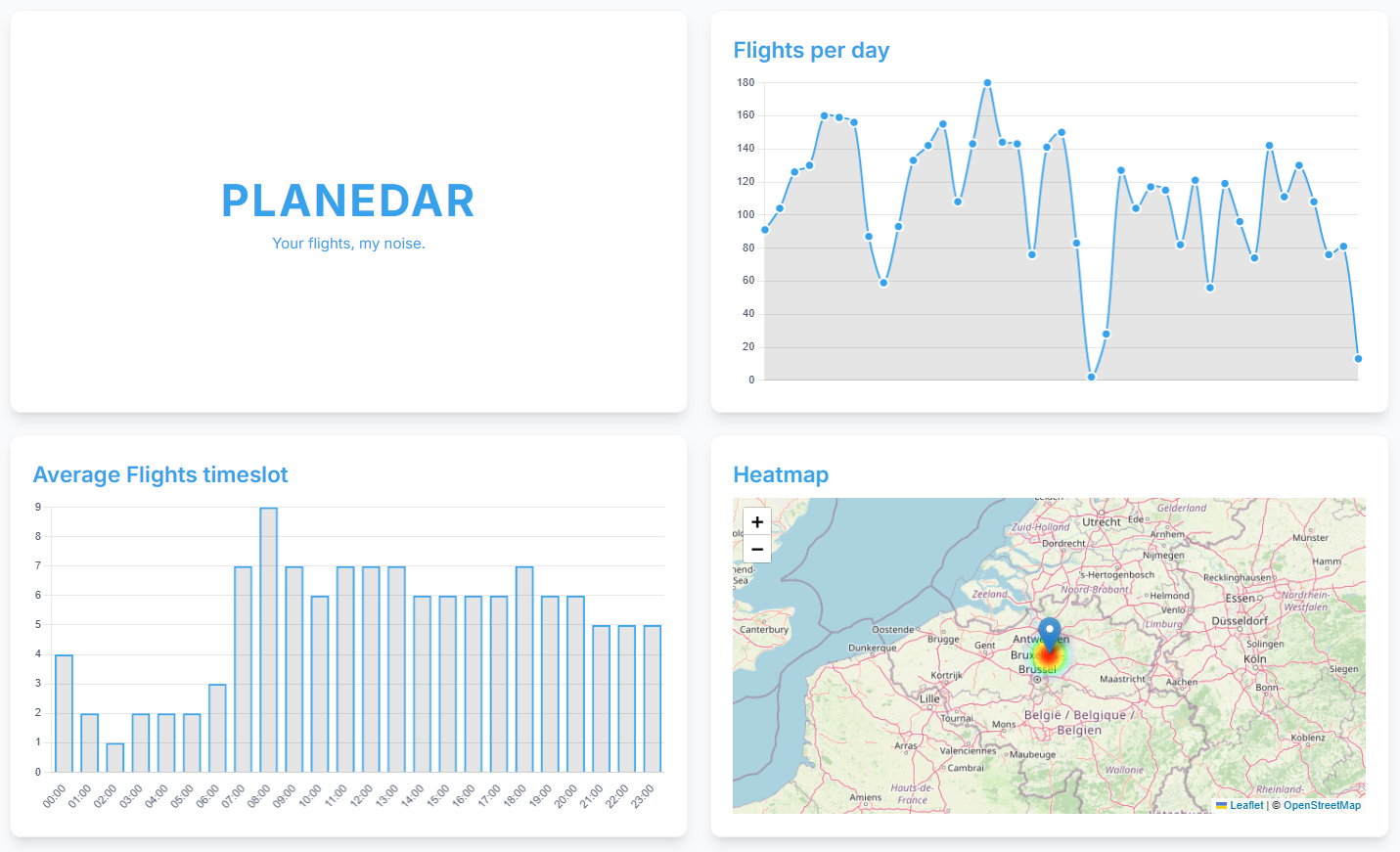
With the bulk of operations in working order we can move on to the displaying part, our dashboard. In order to display some statistics in a clean way we will first of all make the data from our SQL views accessible via an API. To do just this we use Flask, a lightweight python backend framework.
This python app will be nothing more then a serving hatch, accepting request for information from our soon te be created frontend, fetching it from our data storage and passing it back to the front end.
Our backend wil only require reading access to the SQL views we created earlier. It won't write any new data, hence we create a specific user with privileges to only read the summarised data.
Dashboard

Webserver
Our dashboard is going to need a place to live, so we use the following guide to setup an apache webserver and a basic website an our Pi. Personally, I haven't done the Nginx revers proxy part of this tutorial.
Frontend
Once the server is setup we can create a basic dashboard by using the Tailwind CSS framework. The full webpage is added below.
Disturbance Threshold
In our dashboard we also added a disturbance threshold of 55 dB, this red line indicates when the noise is deemed a disturbance. The number was provided by our favorite somewhat sentient computer, in a very convincing way.
index.html
style.css
index.js
Note: In the code above, I have replaced my specific IP address and GPS coordinates with XX. To make this work for your own setup, simply replace:
- 192.168.1.XX with the IP address of your Raspberry Pi.
- XX, XX with your own latitude and longitude coordinates.
Notes & Considerations
Blindspots
We have a limit of 4.000 calls per day when using the OpenSky API free tier, this means that our radar can only check every thirty seconds. Meaning that planes passing by during that period will be unaccounted for and so our current Planedar setup will miss quite a few flights.
We also check ten records back to make sure we don't save duplicates, however, this means we also don't pick up planes flying over multiple times within that 30 * 10 = 300 seconds timeframe.
Lastly, the planes won't be registered at their loudest, so we can assume these ratings are lower then the true impact.
AI Supported
Thanks to Gemini for image, moral, code and proofreading support.