Project AETHER: Designing a Zero-G Propulsion Engine
by nikhilnagori in Design > 3D Design
259 Views, 1 Favorites, 0 Comments
Project AETHER: Designing a Zero-G Propulsion Engine
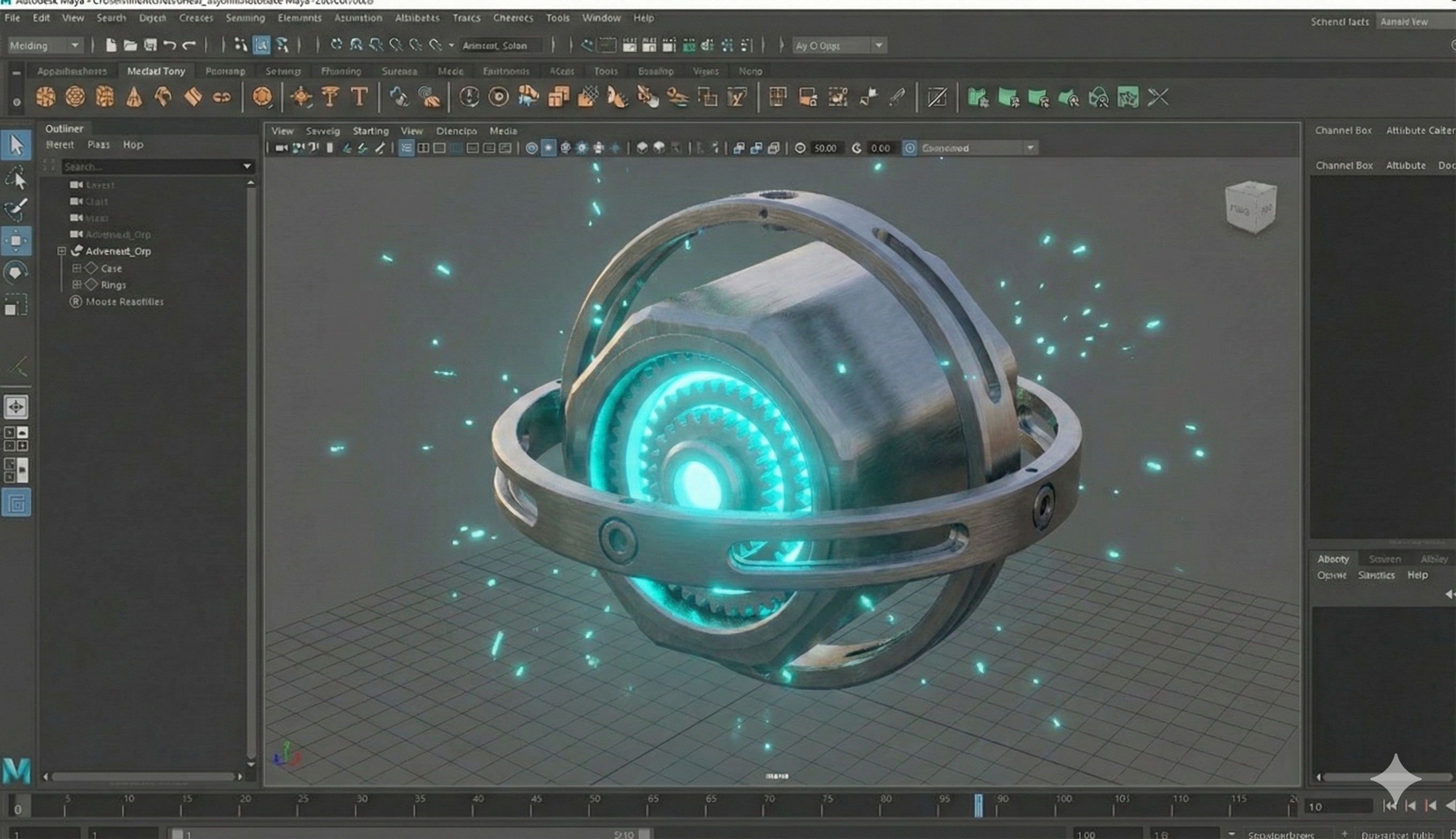
In this Instructable, I will walk you through the workflow of creating a cinematic "Zero-Gravity" moment. My goal was to design a machine that doesn't just float, but actively rejects gravity.
Supplies

Autodesk Fusion 360 (for hard-surface modeling and mechanical design).
Autodesk Maya (for animation, MASH simulation, and Arnold rendering).

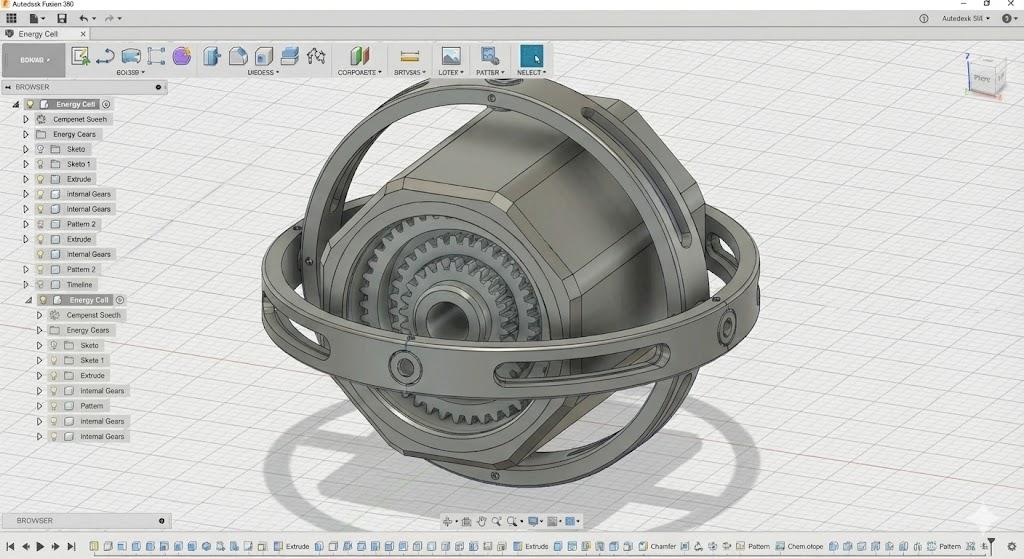
Engineering the Reactor Core (Fusion 360): The heart of the gravity drive is the "Reactor Core." I wanted this to look like a heavy, industrial component that would contrast with the weightlessness later.
- The Hexagonal Shell: I started in the Solid Workspace (DESIGN tab) by sketching a hexagon on the ground plane and extruding it upwards. I heavily used the Chamfer tool on the edges to catch the light.
- Internal Gearing: To create the complex look inside, I sketched a simple gear profile and used the Extrude tool.
- The Shortcut: Instead of modeling 50 separate gears, I modeled one and used the Circular Pattern tool to duplicate it 3 layers deep. This makes the model look incredibly detailed without hours of work.
- Material Prep: I opened the Appearance panel (press 'A') to test different metal materials (Aluminium, Steel) to see how the light hits the chamfered edges.
The Gyroscopic Stabilization Rings: A floating object needs a reason why it floats. I designed a 3-axis gimbal system to "contain" the gravity field.
- Ring Construction: Still in the Solid tab, I created sketches on perpendicular planes. I used the Pipe tool to create three concentric rings around the core.
- Detailing: I sketched rectangular slots on the rings and used Extrude (Cut) to create vents. This adds visual interest when the object rotates.
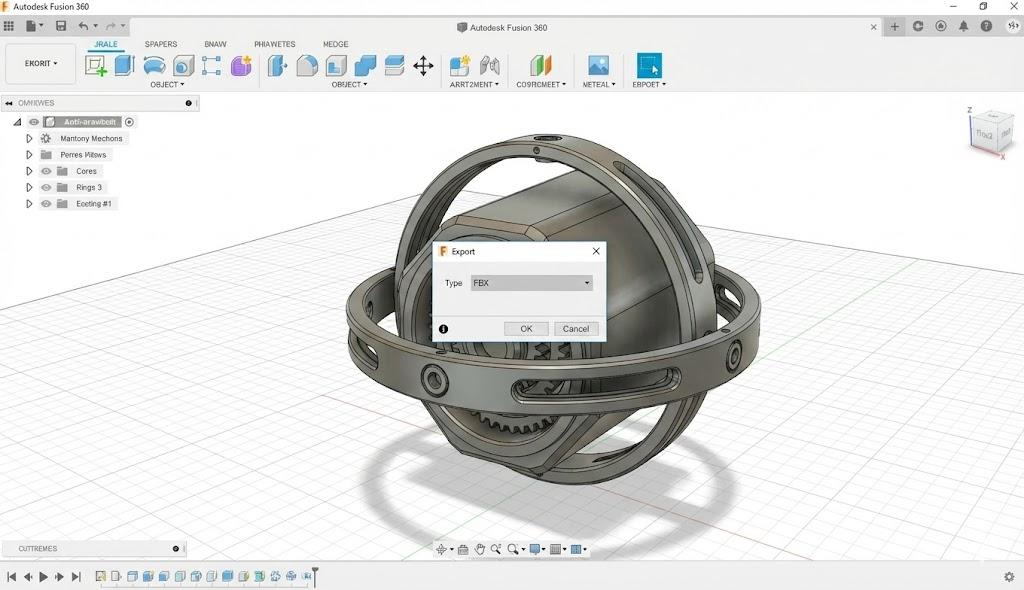
- Exporting: Once the modeling was done, I went to File > Export and selected FBX.
- Pro Tip: I set the tessellation to "High" to ensure the round rings didn't look blocky when imported into the animation software.
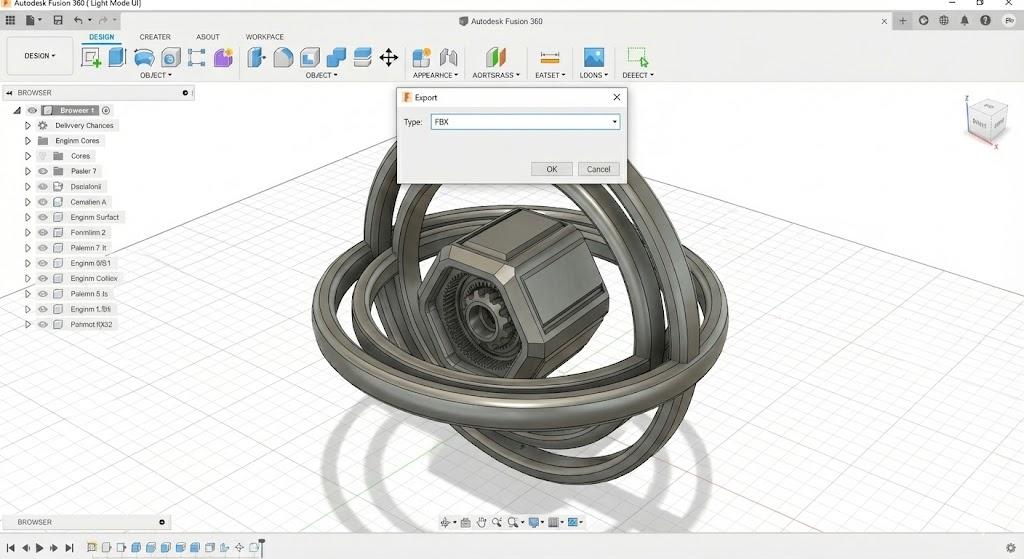
Exporting the FBX File: Now we need to get the model out of Fusion 360 and into our animation software.
- File Menu: Go to File > Export.
- Format Selection: In the "Type" dropdown menu, strictly select FBX. This format handles 3D geometry and hierarchies best for Maya.
- Settings: Ensure you check the box for "High Tessellation" (if available) or simply export. This ensures your round rings remain smooth and don't look blocky.
- Save: Name the file and save it to your project folder.
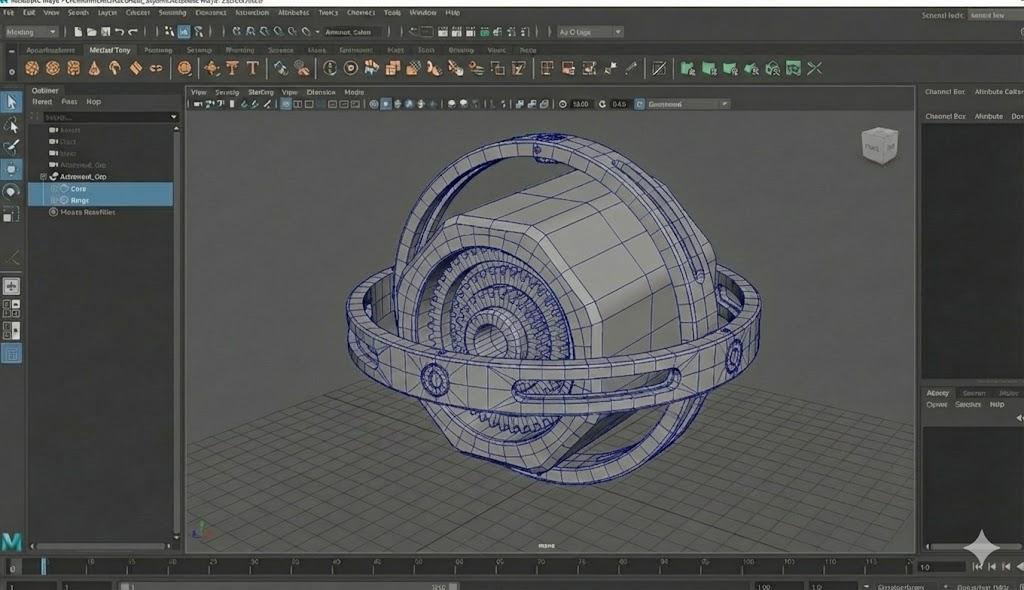
Importing into Autodesk Maya: Now we enter the VFX stage.
- Import: Open Maya. Go to File > Import and select your FBX file.
- Unlock Normals: (Crucial!) If the model looks "faceted" or sharp, select the geometry, hold Shift + Right Click, and choose Soften/Harden Normals > Soften Edge.
- Grouping: Select your rings in the Outliner and press Ctrl + G to group them into logical sets.
Setting Up the "Void" Environment: To sell the floating effect, the background needs to look infinite.
- Sky Dome: Go to the Arnold tab > Lights > Skydome Light.
- The Star Map: In the Attribute Editor for the Skydome, connect a high-resolution "Milky Way" or "Starfield" HDRI image to the Color channel.
- Visibility: This provides realistic lighting reflections on our metal parts.
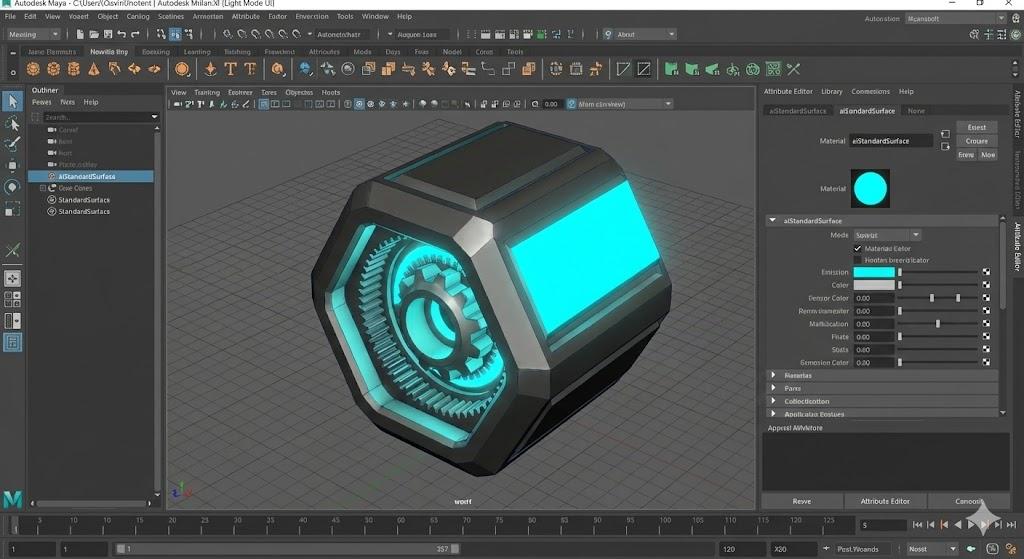
Creating the "Energy" Shader: We need the core to look like it's glowing with anti-gravity energy.
- Create Material: I created a new aiStandardSurface shader in the Hypershade.
- Settings: In the Attribute Editor, I set the Emission Weight to 1.0 and selected a bright cyan color for the Emission Color.
- Apply: This material was assigned to the inner gears of the core, making them emit light as shown below.
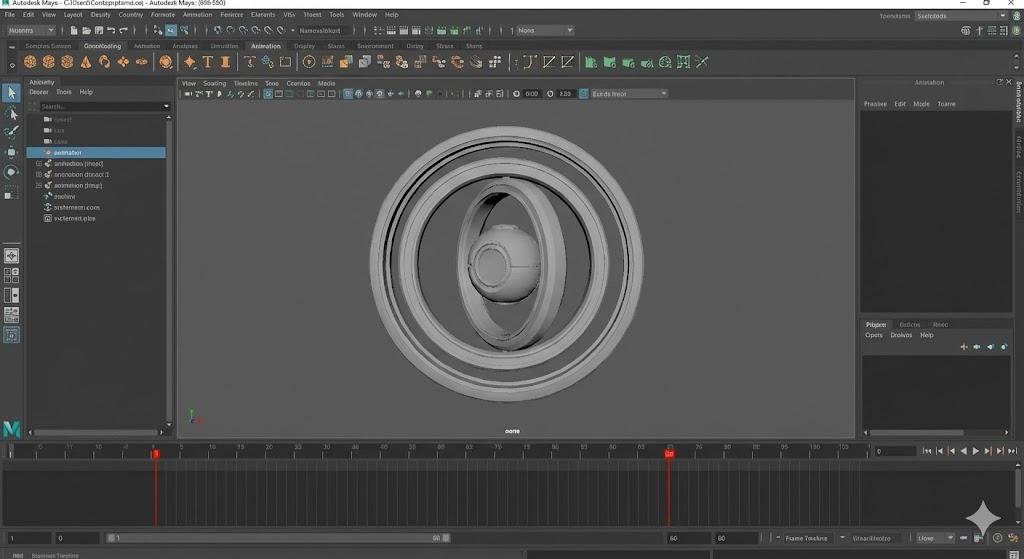
Animating Phase 1 - The Spin: Gravity is still "On." The machine is working hard.
- Select Rings: Select all three gimbal rings.
- Keyframe Start: At Frame 1, set a keyframe.
- Keyframe End: Go to Frame 60. Rotate the rings 360 degrees on their respective axes and set another keyframe. This creates a fast, stable mechanical spin.
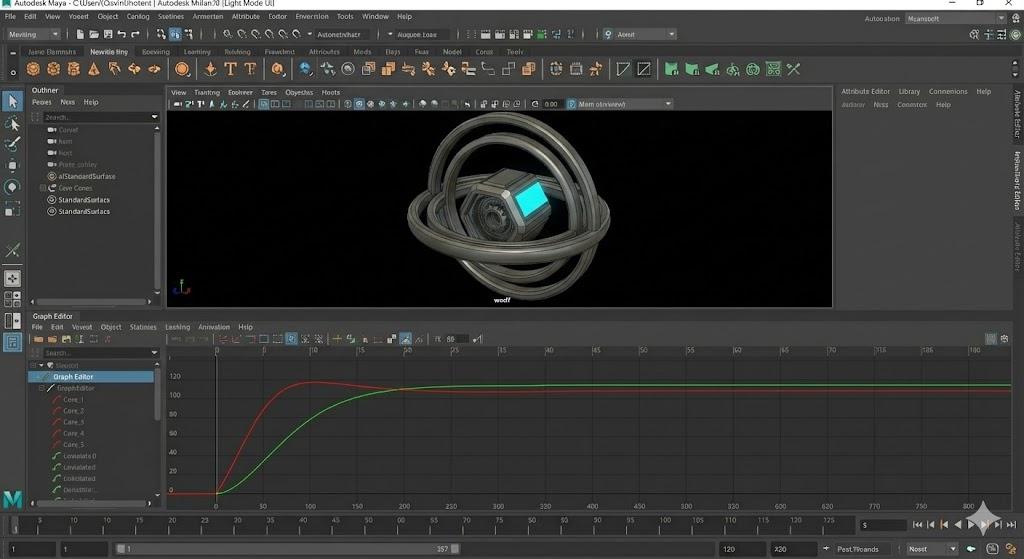
Animating Phase 2 - The "Float": This is where we break the laws of physics.
- The Decouple: At Frame 61, I keyframed the rings moving outward away from the core.
- The Slow Down: I opened the Graph Editor and adjusted the rotation curves. Notice how the curves in the image below start steep (fast) and then flatten out horizontally (slow/stop).
- The Drift: I added a slight, random rotation to the Core itself, as if it were bobbing in water. This "uncontrolled drift" is the visual cue for weightlessness.

Adding Space Dust (MASH): To prove the camera is in space, we need parallax.
- Create Particle: Create a tiny Cube (0.01 scale).
- MASH Network: With the cube selected, go to the MASH shelf and click Create MASH Network.
- Distribute: Set the distribution type to Spherical. Increase count to 500.
- Randomize: Add a Signal node with low Position X/Y/Z settings.
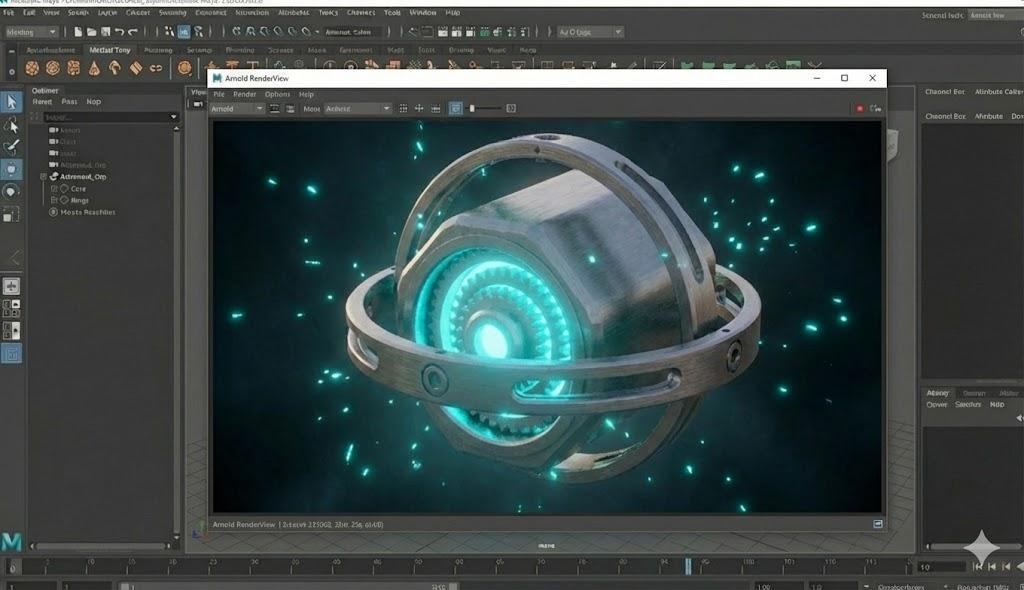
Final Render
- Camera: Set up your camera angle.
- Render Settings: Set your output to HD 1080. Set your Frame Range from 1 to 200.
- Render Sequence: Go to Render > Render Sequence to process the final animation.
Animation
I used ClipChamp to add audio. Final Product.