Raspberry Pi Pico W Text to Speech Using Wit.ai
by CircuitDigest in Circuits > Raspberry Pi
39 Views, 0 Favorites, 0 Comments
Raspberry Pi Pico W Text to Speech Using Wit.ai

This project turns a Raspberry Pi Pico W into a talking device using an online text to speech service. The Pico sends text over WiFi, gets back audio, and plays it through a small speaker using an I2S amplifier. The hardware stays simple and the heavy speech processing happens in the cloud.
I built this as a clean, repeatable setup that actually works on a microcontroller with limited memory. If you follow the steps below, you should end up with a Pico that speaks anything you type into the serial monitor.
No theory dumps here. This is mostly wiring, setup, and getting audio out of the board.
What You’re Building
At a high level, this is what’s happening:
- The Pico W connects to WiFi
- You type text into the serial monitor
- That text is sent to Wit.ai
- Wit.ai converts it to speech
- Audio is streamed back as MP3
- The Pico sends audio over I2S
- A MAX98357A amplifier drives a speaker
The Pico never tries to generate speech itself. It just moves data around and plays audio.
Supplies

Here’s exactly what I used:
- Raspberry Pi Pico W
- MAX98357A I2S audio amplifier
- Small speaker (4 ohm or 8 ohm both work)
- Breadboard
- Jumper wires
- USB cable
Wiring the Hardware

This is the part that matters most. If the wiring is wrong, you’ll get silence no matter how perfect the code is.
The MAX98357A is an I2S amplifier, which means it uses three signal lines plus power and ground.
Pico W to MAX98357A connections:
- GP18 → BCLK
- GP19 → LRC
- GP20 → DIN
- 5V → VIN
- GND → GND
That’s it. No resistors, no level shifting, no extra parts.
After wiring:
- Double check GND connections
- Make sure VIN is actually 5V, not 3.3V
- Make sure the speaker is connected to the amplifier, not directly to the Pico
If you hear popping or distortion later, it’s almost always power or speaker wiring.
Creating a Wit.ai Account

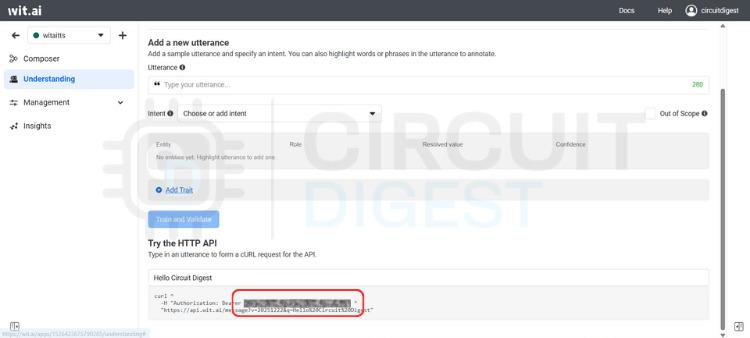
You need an online TTS service, and this project uses Wit.ai.
Step 1: Create an account
Go to https://wit.ai and sign up. Email signup is the easiest. Verify your email and log in.
Step 2: Create a new app
Once inside the dashboard:
- Click to create a new app
- Give it a name
- Pick the language you want speech in
The language choice matters. Pick English unless you know you want something else.
Step 3: Get the Server Access Token
Go to:
- Management
- Settings
- HTTP API
Copy the Server Access Token. This is what the Pico uses to authenticate.
Step 4: Save the token
Keep this token safe. If you regenerate it later, you must reupload the sketch with the new token.
Installing the Arduino Environment
You’ll program the Pico W using Arduino IDE.
Make sure you already have:
- Arduino IDE installed
- Raspberry Pi Pico board support added
Once that’s done, install the library.
Installing the WitAITTS library
- Open Arduino IDE
- Open Library Manager
- Search for WitAITTS
- Click Install
When it finishes, you’re ready to use the example sketch.
Opening the Example Sketch
Instead of writing code from scratch, use the provided example.
Go to:
- File
- Examples
- WitAITTS
- PicoW_Basic
This opens a working sketch that already handles WiFi, HTTPS, audio streaming, and I2S playback.
Editing the Code
You only need to change a few things.
WiFi credentials
Replace these with your actual network details:
Wit.ai token
Paste your Server Access Token here:
That’s all you must change.
What the Important Code Lines Do
I’m not going to walk through every line. These are the ones that matter.
Create the TTS engine
This object handles everything. WiFi, HTTPS, decoding audio, and pushing sound to the amplifier.
Start WiFi and authenticate
If this fails, nothing else works. Watch the serial output carefully here.
Set the voice
This changes how the voice sounds. You can experiment with other voice IDs later.
Control speed and pitch
Start with these values. Extreme settings make speech hard to understand.
Speak the text
This sends text to Wit.ai, waits for the audio stream, and plays it immediately.
While audio is playing, the Pico is busy. That’s normal.
Uploading the Sketch
Before uploading:
- Click Verify
- Make sure there are no compile errors
Now:
- Plug in the Pico W
- Select the correct board and port
- Click Upload
When the upload finishes, open the Serial Monitor.
Testing the Speech Output
Set the Serial Monitor to:
- Correct COM port
- Newline enabled
- Default baud rate from the sketch
You should see:
- WiFi connection messages
- IP address
- WitAITTS configuration info
Now type a sentence and press Enter.
If everything is working:
- The serial monitor will say it’s requesting TTS
- Audio starts playing almost immediately
- The speaker speaks your text
The first request sometimes takes a second longer. After that, it feels fast.
How Audio Streaming Works
Audio comes in as an MP3 stream. It’s not downloaded all at once.
That gives you a few advantages:
- Lower memory usage
- Faster perceived response
- No big buffers needed
Things that affect audio quality:
- WiFi stability
- Power supply
- Speaker quality
If audio cuts out, start by checking power and signal wires.
Common Problems and Fixes
No sound at all
Check these first:
- Speaker wired to amplifier, not Pico
- Amplifier VIN is 5V
- GND is common everywhere
- GP18, GP19, GP20 are correct
HTTP 401 error
This means:
- Token is wrong
- Token was regenerated
- Token has extra spaces
Fix it by pasting the token again and reuploading.
Distorted or crackling audio
Usually caused by:
- Weak USB power
- Bad speaker
- Loose jumper wires
Short wires help. Breadboards don’t love high speed audio signals.
Nothing happens after typing text
Check that:
- Serial Monitor is set to newline
- WiFi actually connected
- Text isn’t empty
Final Thoughts
Once it works, you can experiment:
- Change voices
- Adjust pitch and speed
- Cache common phrases
- Add buttons instead of serial input
- Trigger speech from sensors
You can also store a few important audio files locally as a fallback when WiFi is down.
This setup gives the Pico W a real voice without pushing it beyond what it can handle. All the heavy speech processing stays in the cloud, and the Pico just focuses on control and playback.
If you wire it cleanly and keep your token correct, it’s very reliable. Once you hear it speak for the first time, it’s honestly hard not to start adding it to other projects.
The above is entirely based on: Raspberry Pi Pico Text to Speech using AI