Reaction Wheel Locomotion: Building a Robot That Moves Without Wheels
by jpcgilmer in Circuits > Arduino
1060 Views, 6 Favorites, 0 Comments
Reaction Wheel Locomotion: Building a Robot That Moves Without Wheels

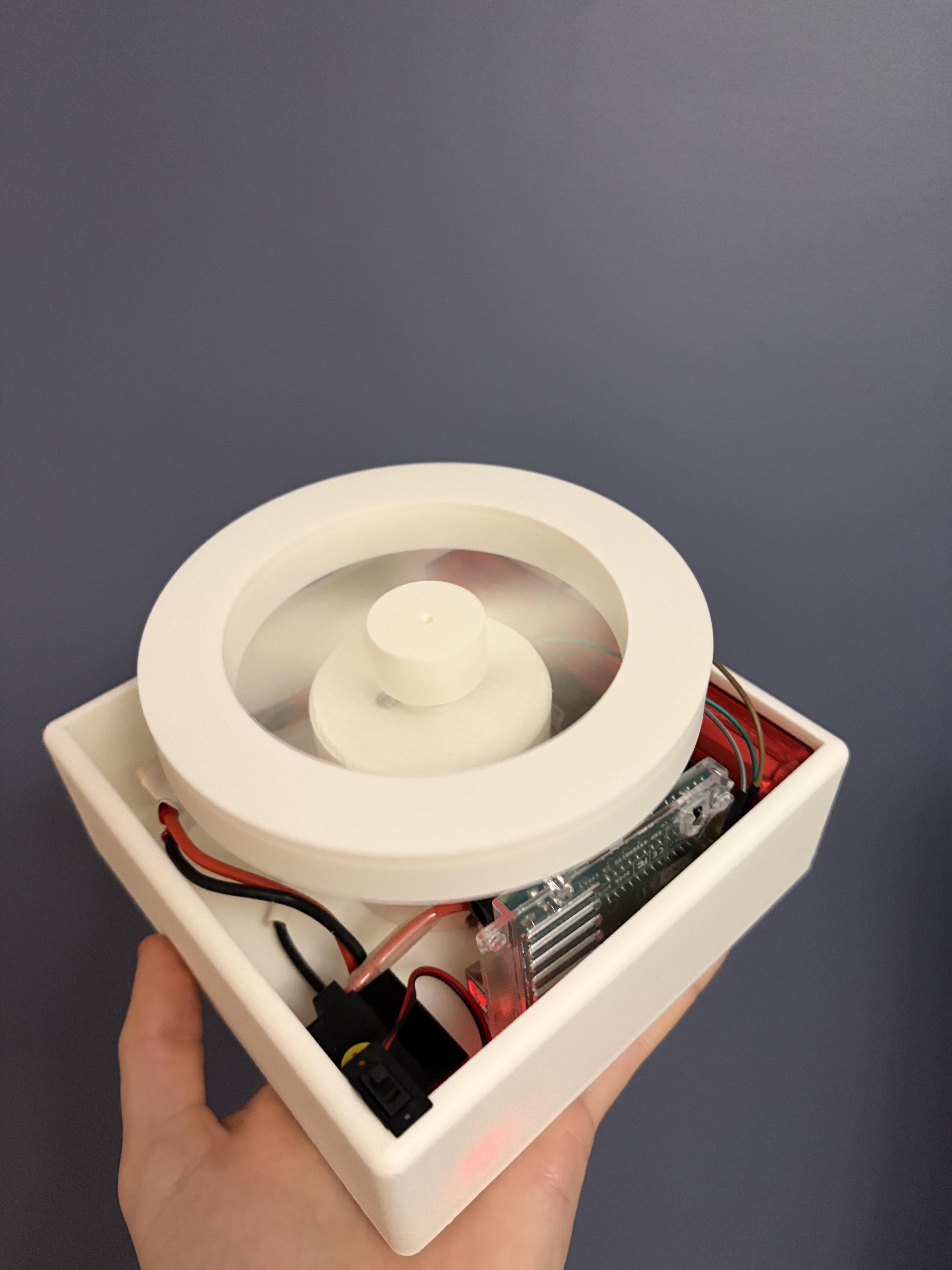
This project is a reaction wheel robot that moves without using wheels. The robot instead translates by spinning an internal flywheel and changing its speed. When the flywheel accelerates or slows, reaction torque is applied to the chassis, and with the right timing, those impulses add up to movement!
The goal here wasn’t to make the fastest or most efficient robot, but to build something where physics is used in a cool and noticeable way. Reaction wheels are commonly used for orientation control in spacecraft, but they’re much less common in ground robots. That changes now! Have fun with this project, and if you're interested in going deeper into reaction wheels, there are a ton of resources online.
Supplies
Electronics
- Arduino Uno (or clone) -
- BDESC-S10E-RTR (or any bi-directional brushed DC motor controller)
- Brushed DC motor (rated for ~18 V; operated here at lower voltage)
- 2-3S Lipo or 5-9NiMH:
- Jumper wires
Mechanical
- Steel washers or bolts for the flywheel rim mass
- Epoxy or superglue
- Solder and flux
Tools
- 3D printer
- Soldering iron
- Calipers (recommended)
Build the Circuit
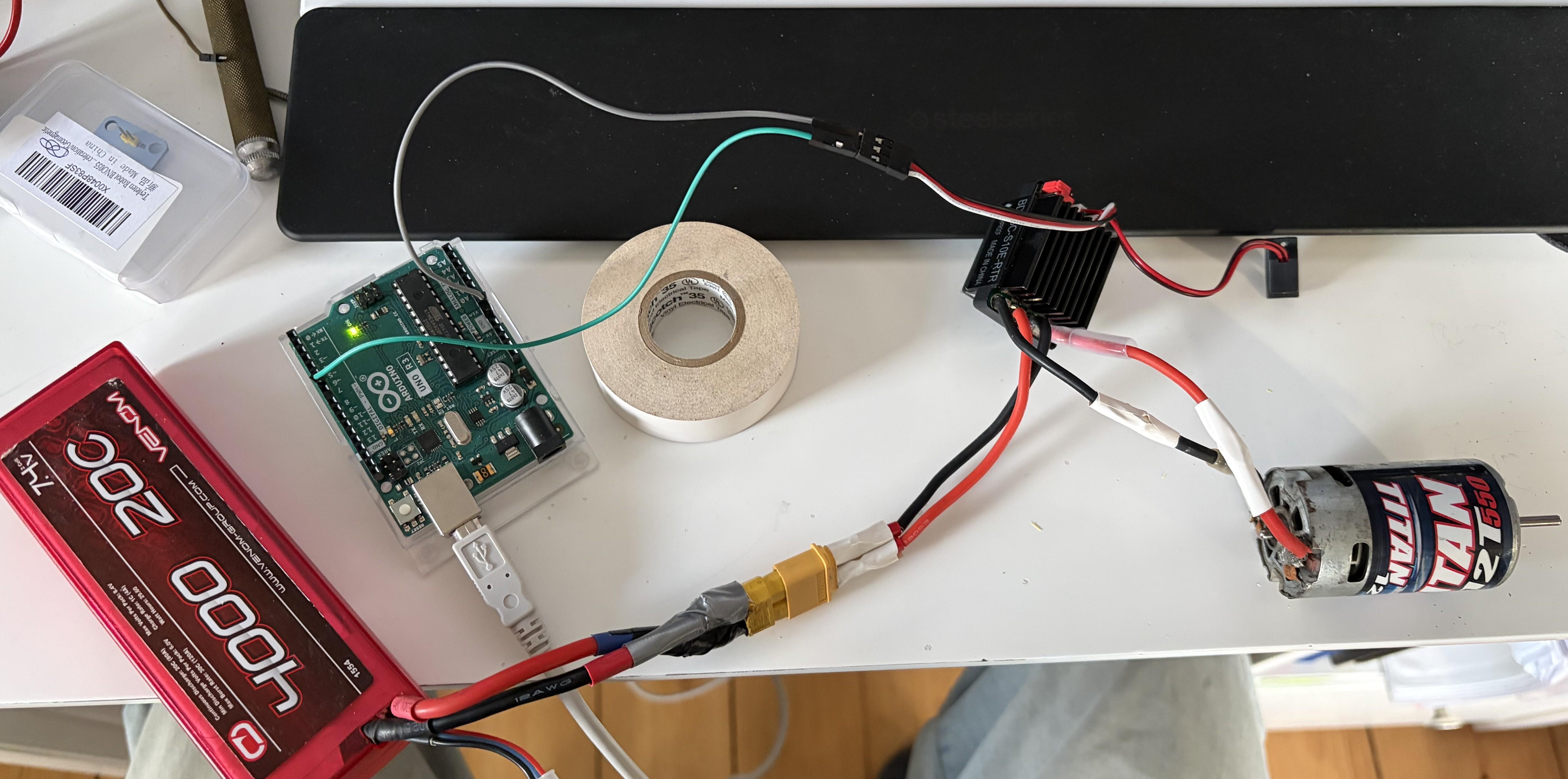
Before assembling the mechanical parts, we are going to verify that the motor controller and microcontroller can reliably drive the motor. We are using an Arduino to send a standard RC-style PWM signal to the ESC.
Wiring Overview
The BDESC-S10E-RTR has a servo-like control interface. Connect them with male-male jumper cables.
- Signal (white) → Arduino digital pin 6
- Ground (black) → Arduino GND
- 5V (BEC) → Do not connect yet
The ESC power input (inner two wires) is connected directly to the battery, and the motor is connected to the ESC’s motor output terminals (outer two marked with a triangle).
Powering the System
- The Arduino is powered via USB
- The ESC is powered by the 8.4 V NiMH battery
- Grounds between the Arduino and ESC are shared
After we're done with testing, the Arduino will be powered from the ESC’s 5V BEC (red wire coming off of the ESC).
Notes
- Double-check signal wire orientation before powering the ESC.
- Always connect the Arduino ground to the ESC ground.
- Do not connect USB and ESC 5V to the Arduino at the same time.
Test!
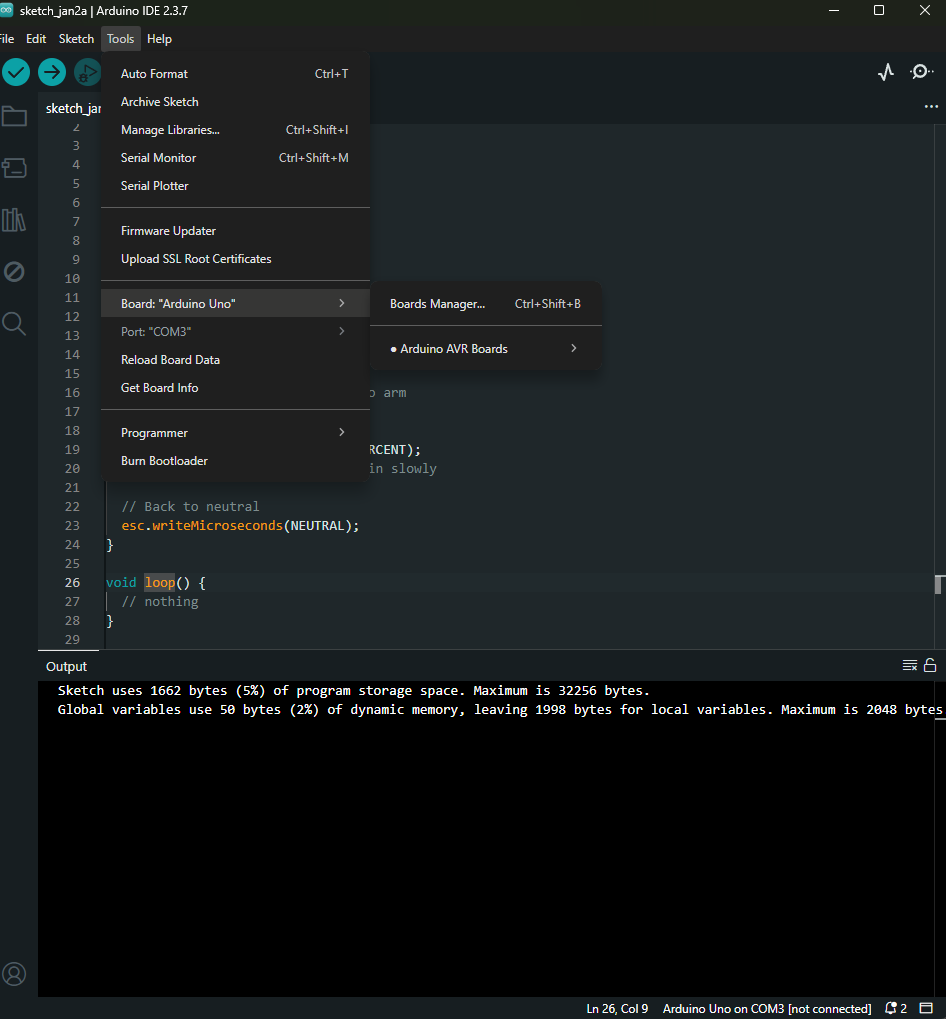
Once your circuit has been built, it's time for some code. Install the Arduino IDE from this link and set up your environment. Connect your computer to the Arduino via USB and select the board through the IDE.
Our coding script needs to do three things:
- "Arm" the ESC by sending it a neutral signal.
- Test a fraction (20%) of full power in both the positive and negative directions.
- Return to neutral.
If you are comfortable writing code for Arduino, I urge you to try to write this simple script on your own. The ESC uses the same standard as many PWM devices, where neutral is 1500μ and the endpoints are 2000μ and 1000μ.
For others who are just learning how to use Arduino devices, I have attached a simple script you can open in the IDE. I also recommend this video as a quick intro into the world of Arduino: Arduino is easy, actually.
Downloads
Design and Print the Flywheel
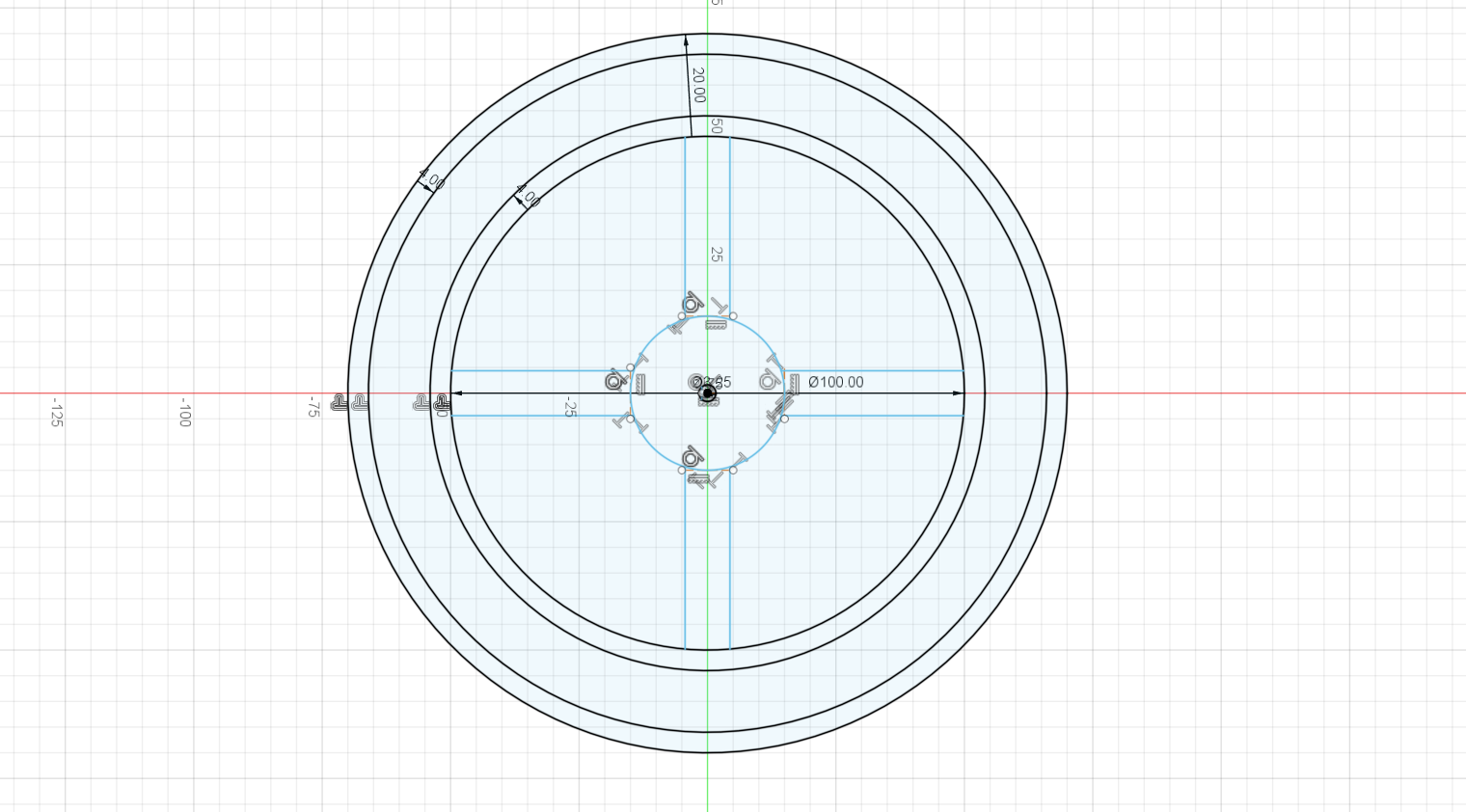
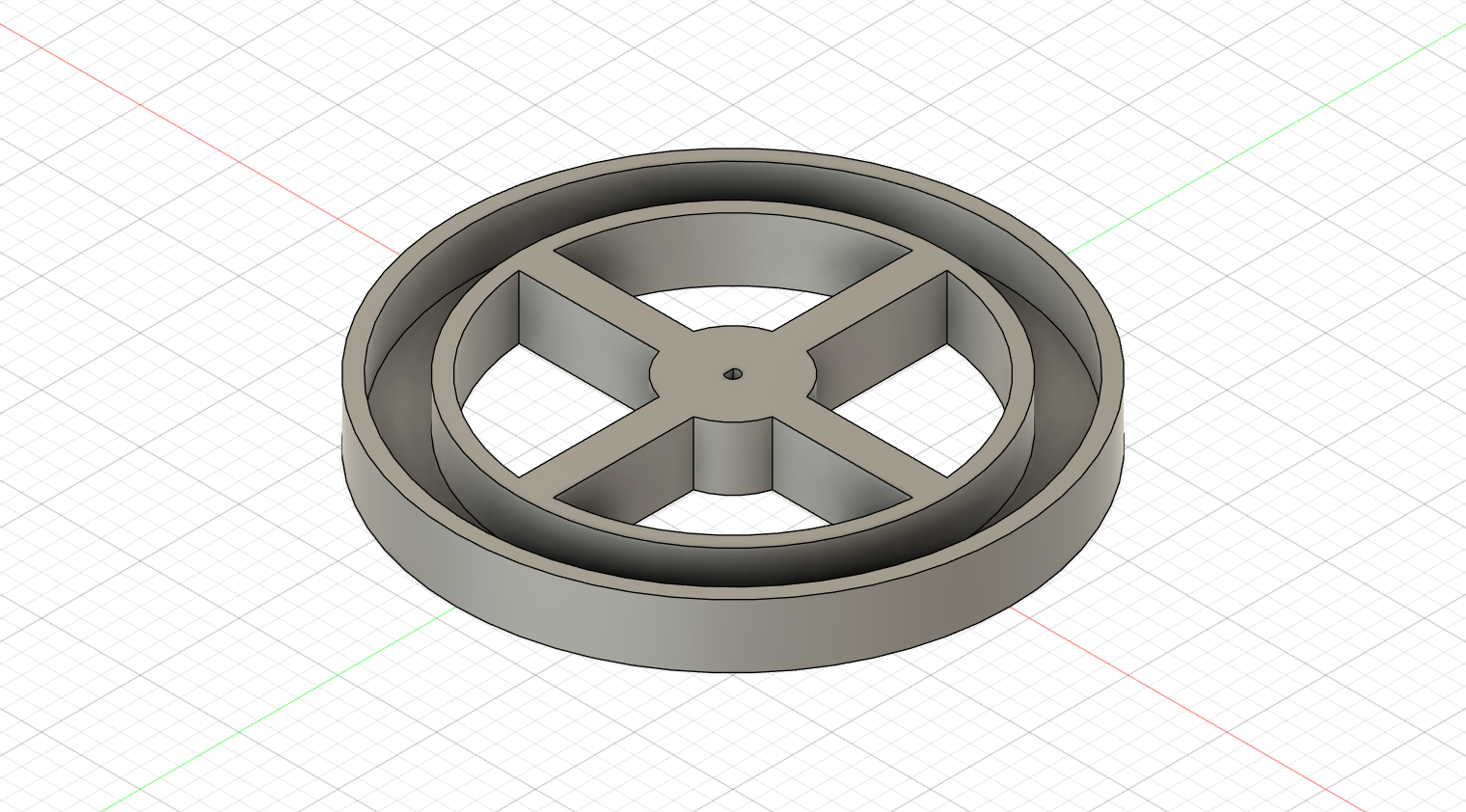
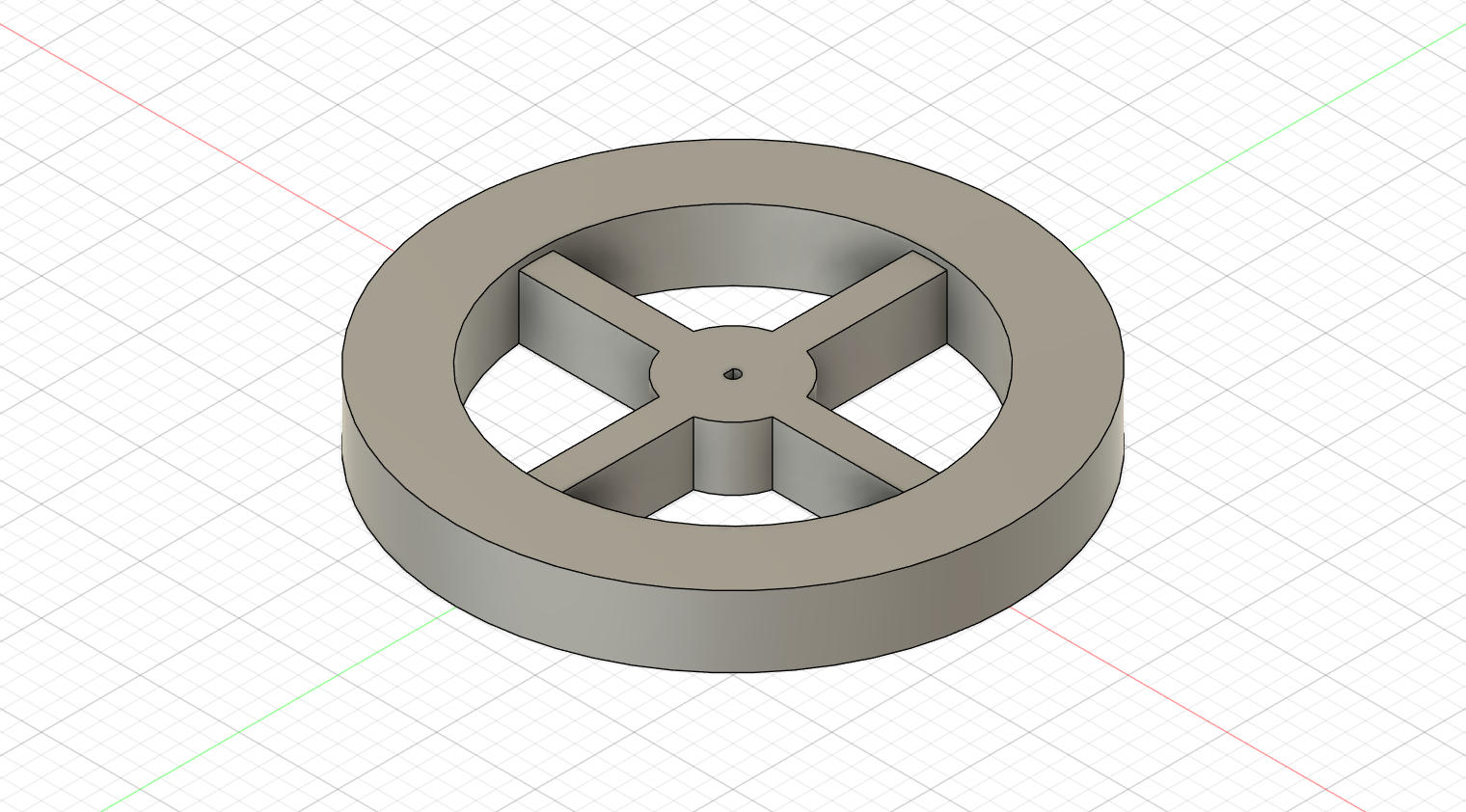
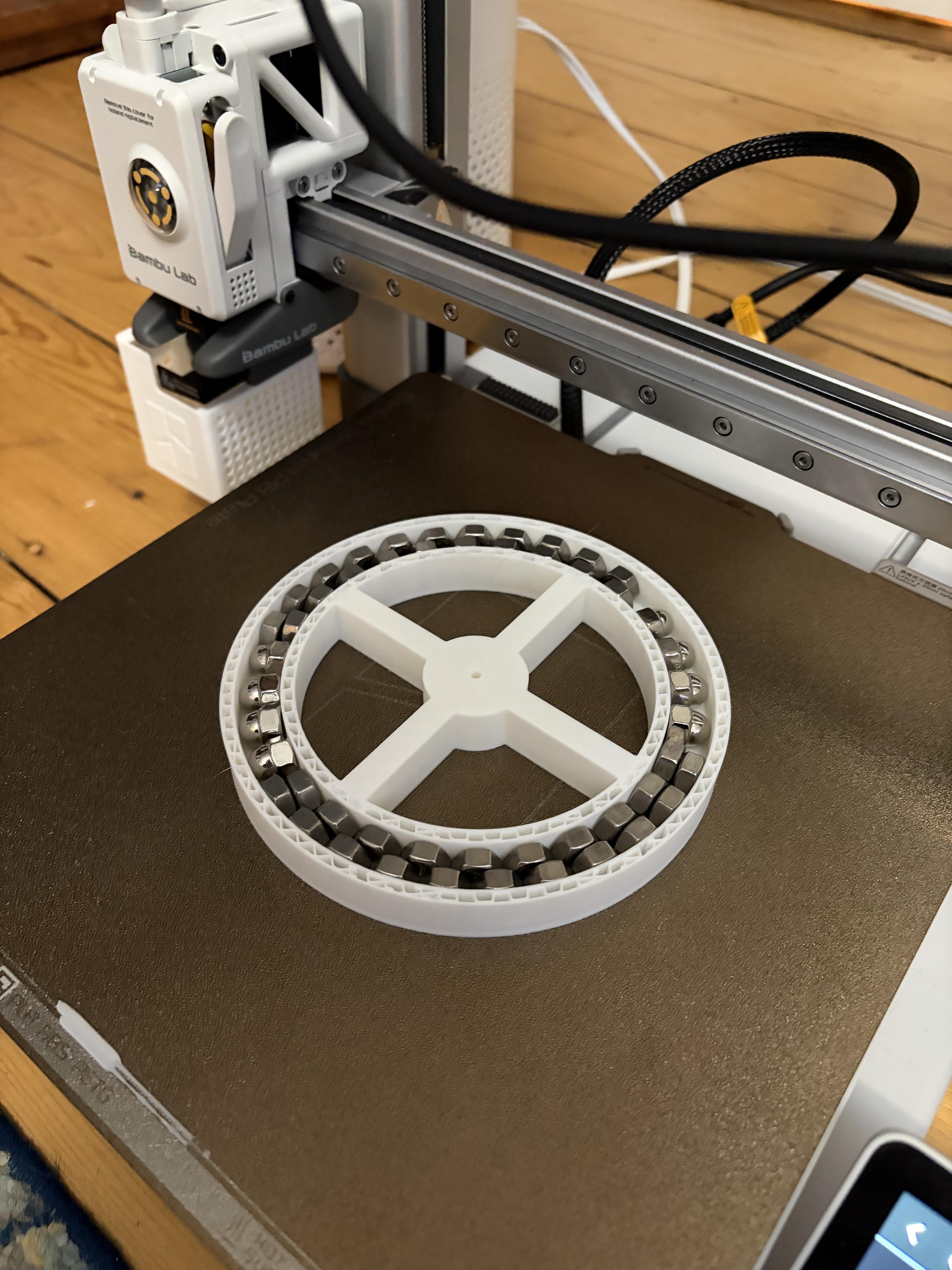

The flywheel's inertia determines the maximum reaction torque that can be generated during acceleration and deceleration. So, our design must maximize mass concentrated near the rim to increase angular inertia. To do this, I designed a simple wheel with a pocket around the outside to hold steel washers or bolts. Make sure that the width of the pocket lines up with the width of the metal you want to fill it with.
I used Fusion 360, but any software will work. Make sure that the hub you choose fits seamlessly with the gear on your motor.
Print the flywheel with 20% infill. Pause the print (on layer 80 for me) to add your weight of choice. Resume.
Design and Print the Chassis and Motor Mount
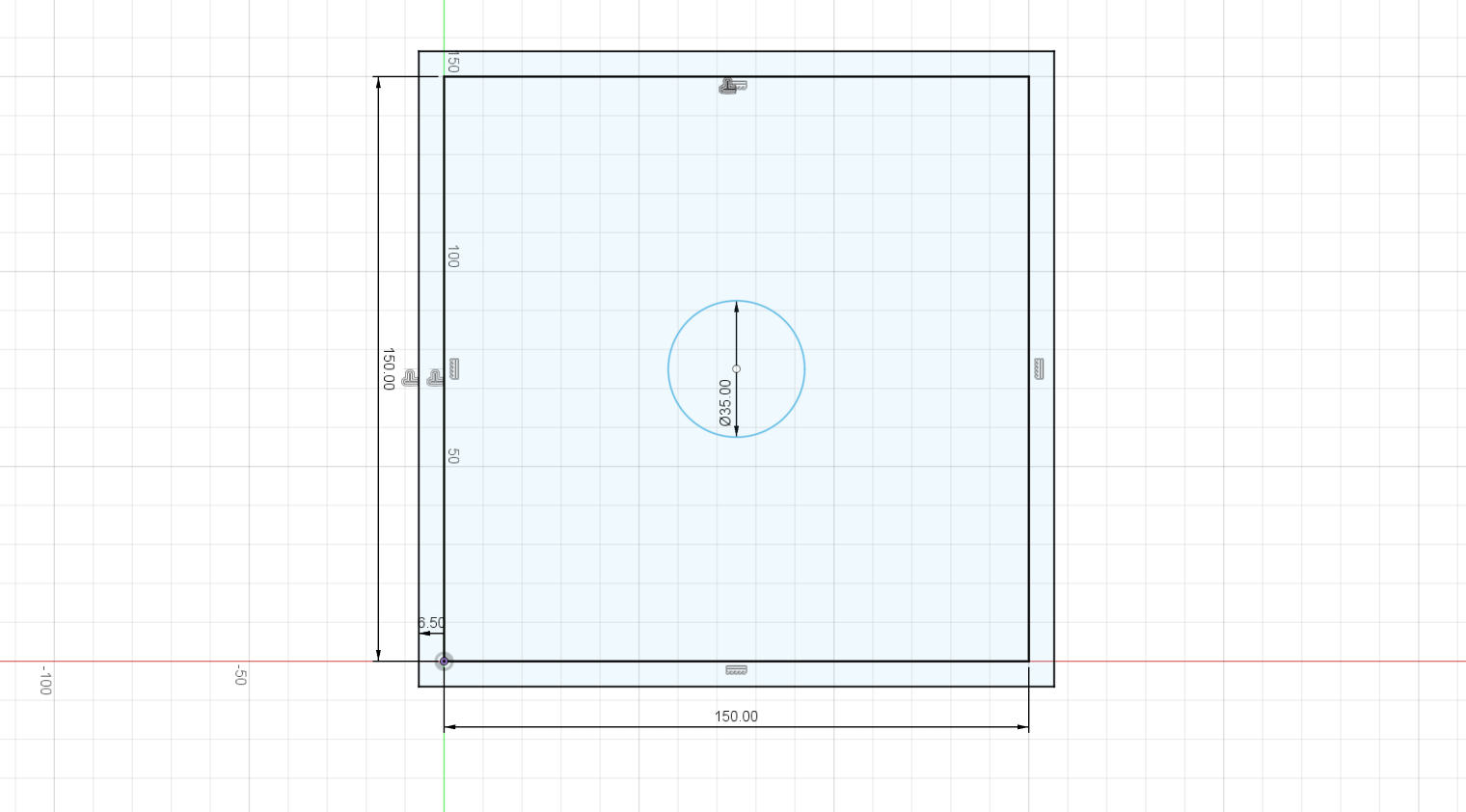
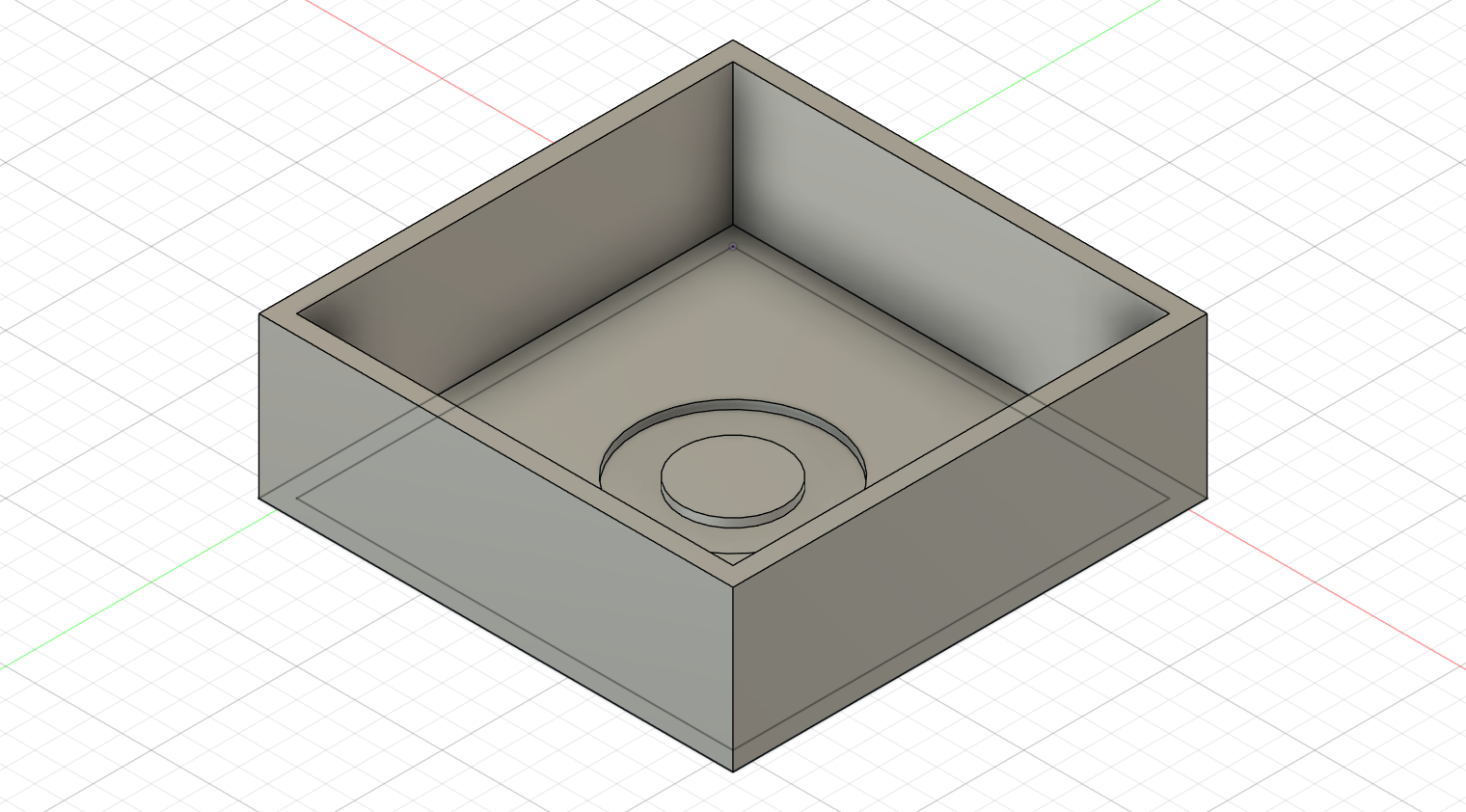
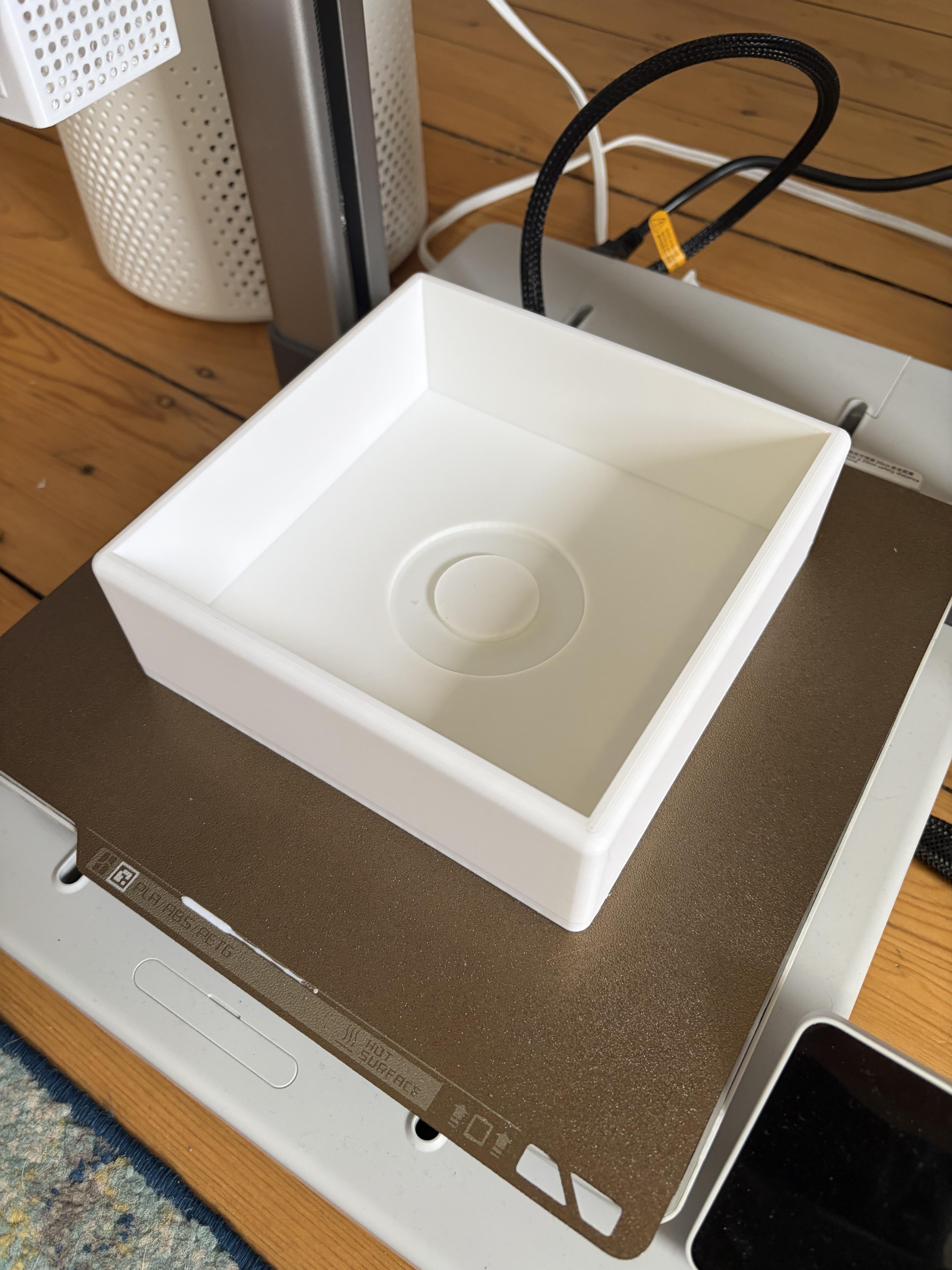
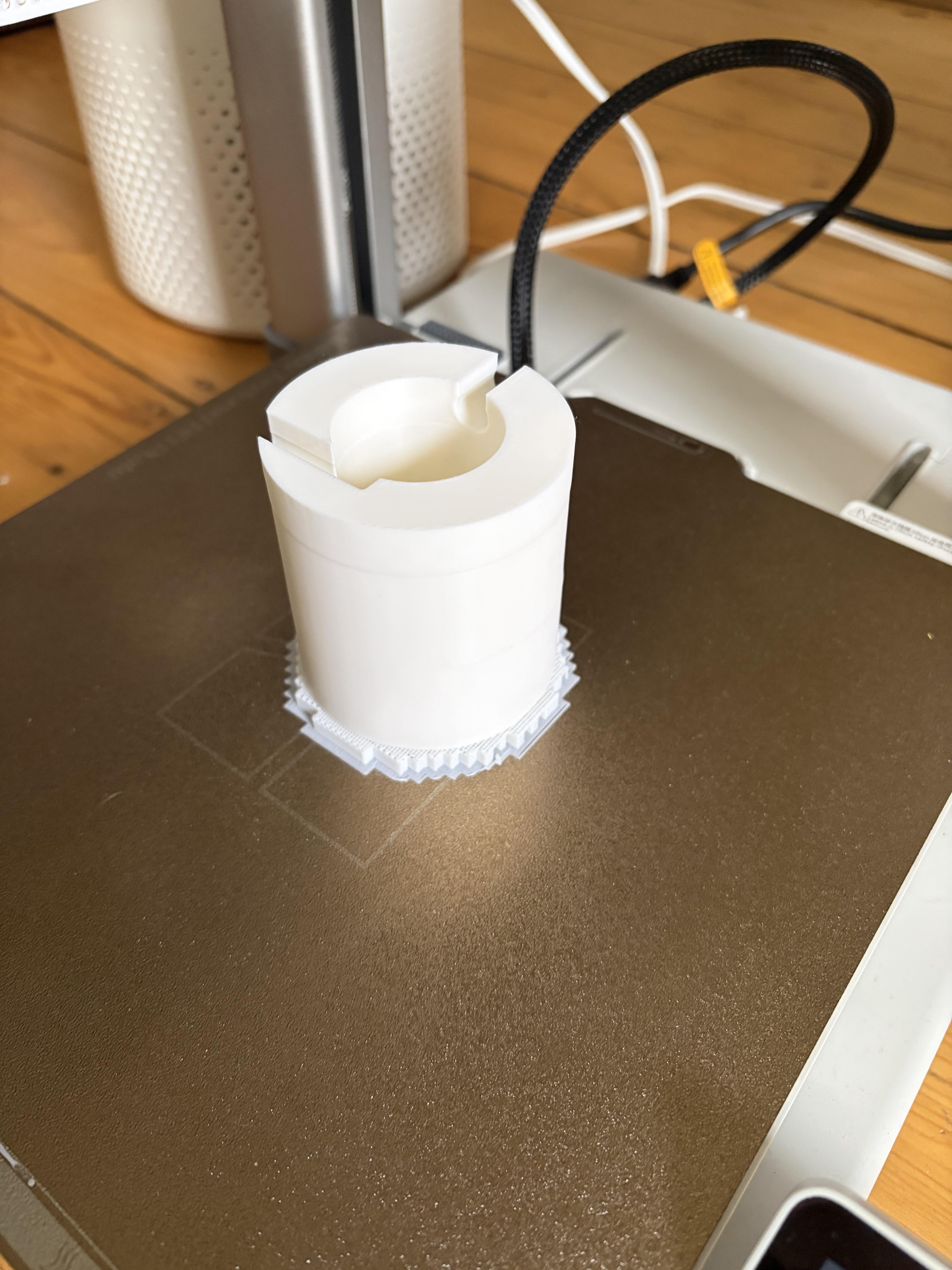
We need to make the chassis to be able to hold all of our electronics and be able to keep the motor steady. Our flywheel is horizontal, so our motor needs to be vertically centered. To start, make a box with large enough dimensions to fit the largest part (the battery in my case). Then add an offset for the walls. Finally, complete the sketch with a circle of the diameter of the motor (35mm for me) and an offset of whatever you want the wall size to be (7-15mm).
Now we extrude the outer walls to 2in or 50.8mm and add a fillet to the outer walls. The inner cicle and the base of the box is extruded to 6.5mm while the outer circle is extruded to 3.5mm. The purpose of this "step" is to ensure that we accurately line up the motor with the center when we add the motor. Print with 20% infill.
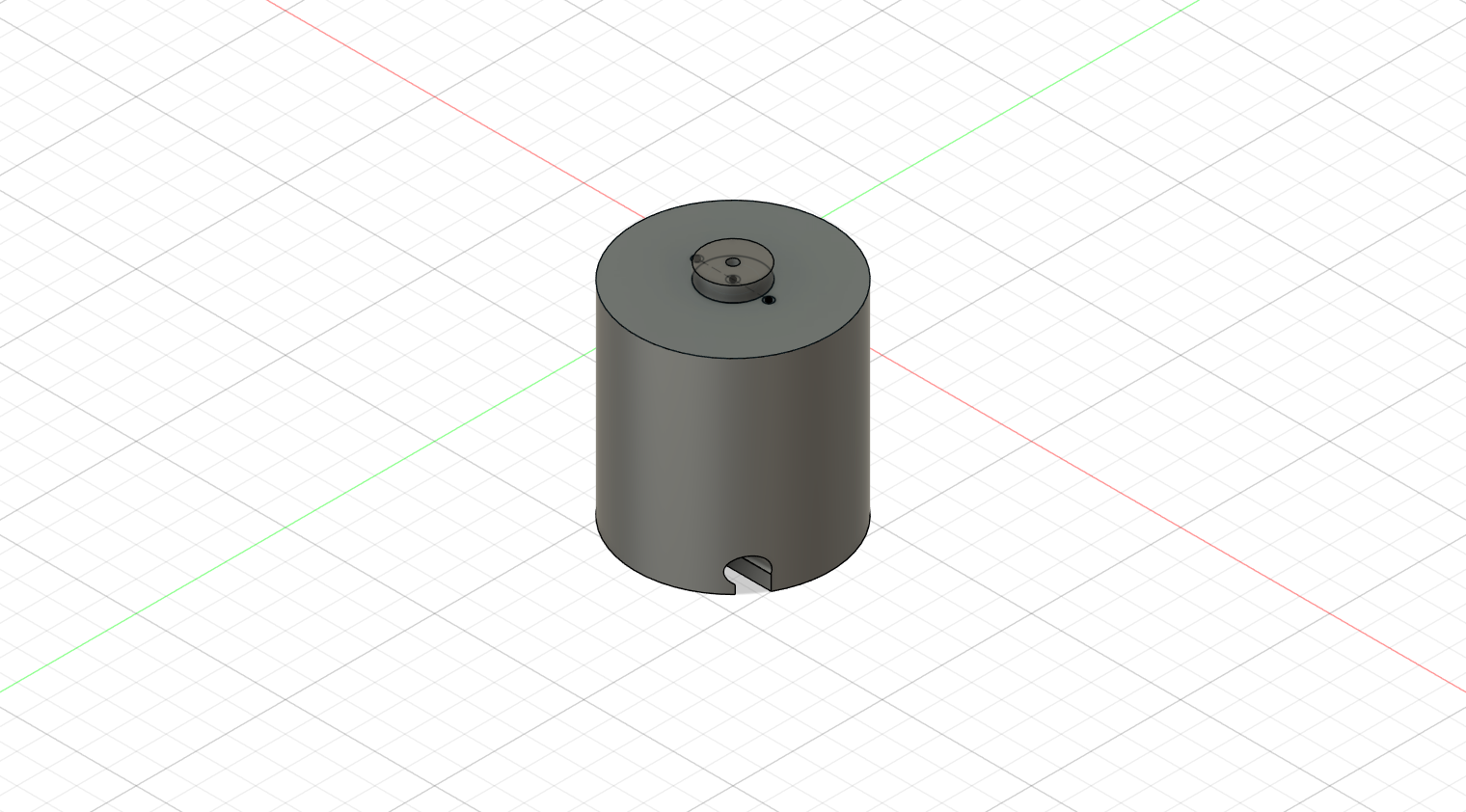
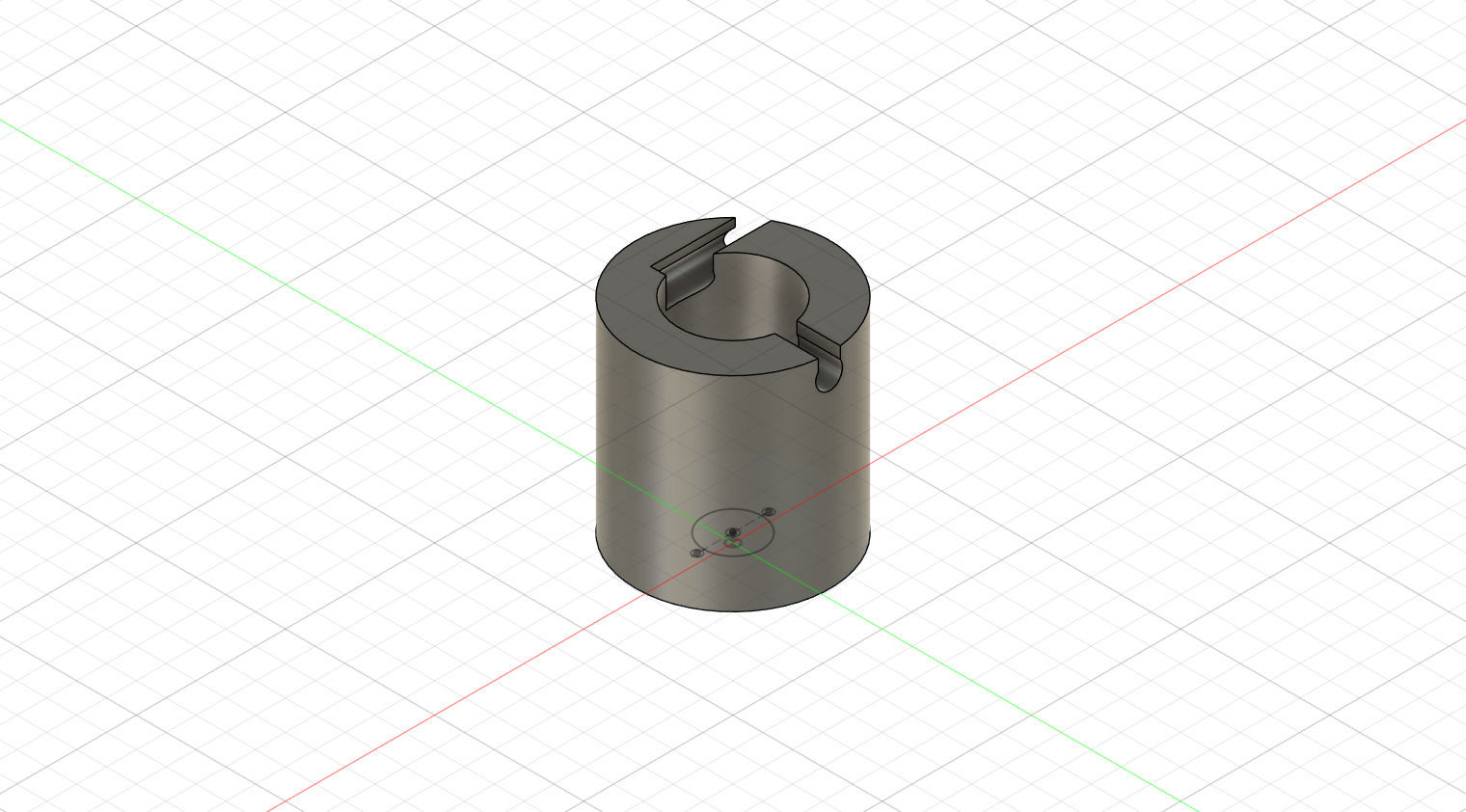
Now, to make the motor mount, we simply need to take the dimensions of the motor and build around it. Take the length, diameter, and shaft to make an enclosure for the motor that has the same wall width as whatever you set in the chassis. Finally, make sure you add holes in the bottom for the positive and negative of the motor to come out. I also included two 4mm holes on the top for screws to secure the motor in place. Print this with 20% infill and with supports
Add the Contact Feet
Unfortunately for us, an internal flywheel cannot produce sustained net movement without interacting with the environment. What that means is we need some asymmetric way to translate our motor pulses into translation, and we are going to do this by making two "skis" for our robot.
One is going to be a shorter, wider front contact, and the other a longer, narrower rear contact. We will quickly design these in Fusion and print them. Once they are done, secure them underneath the chassis with superglue.
Note: I encourage you to experiment with different things you have around the house. If you want to try one ski made out of a strip of wood and the other with electrical tape, that will also cause an imbalance, resulting in movement!
Write the Final Code and Test
Using the same setup as in step 2, we will now write the final code. As previously described, the control strategy is based on time-asymmetric acceleration. So, the code needs to:
- Rapidly accelerate the flywheel
- Hold briefly at speed
- Slowly decelerate back to neutral
- Pause and repeat
Constant-speed rotation produces no motion. Translation only occurs when the flywheel’s speed is changing.
All timing parameters are exposed in code, so the behavior can be tuned for different surfaces and flywheel masses. Again, I have provided the code that I am using, but if you're comfortable with Arduino, try writing it yourself.
Downloads
Assemble and Test

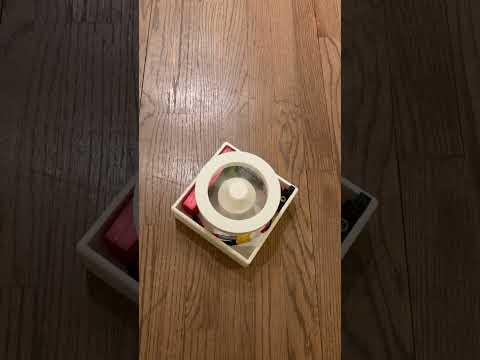
We want to first place the motor into its mount and connect that assembly to the base. Put a couple of small dots of superglue or epoxy on the guide on the base before attaching the motor mount. Then place the battery, Arduino, and ESC in the chassis in an orientation where you can easily disconnect the battery. I needed to mount the Arduino and my battery sideways so that they would fit. Add a little superglue under the ESC to secure it. Let the Arduino and battery be free.
Connect the circuit in the same way we had when doing testing, except without the USB connected to a computer. Additionally, connect the 5V (red wire in the 3-pin connector) from the ESC to the 5V on the Arduino using a male-male connector; this will power the Arduino instead of the USB we were using previously.
Now, everything should be on (if your ESC doesn't have a red light, you might need to flip the switch to on), and you will be able to press the "reset" button on the Arduino to test your code.
Results and Future Improvements
As I mentioned before, there are so many different "skis" you can test to see the different effects, and I recommend playing around with them. You can also try tuning your ramp-up speeds for the motor; just make sure every time you load new code through USB, you disconnect the 5V from the ESC to avoid brownout.
If you are very keen to keep expanding this project, I have a couple of other ideas:
- IMU-based feedback
- Servo-based yaw control (mount the entire motor mount on a servo)
- Multiple reaction wheels for 2D motion
Have fun!