Rocking Chair
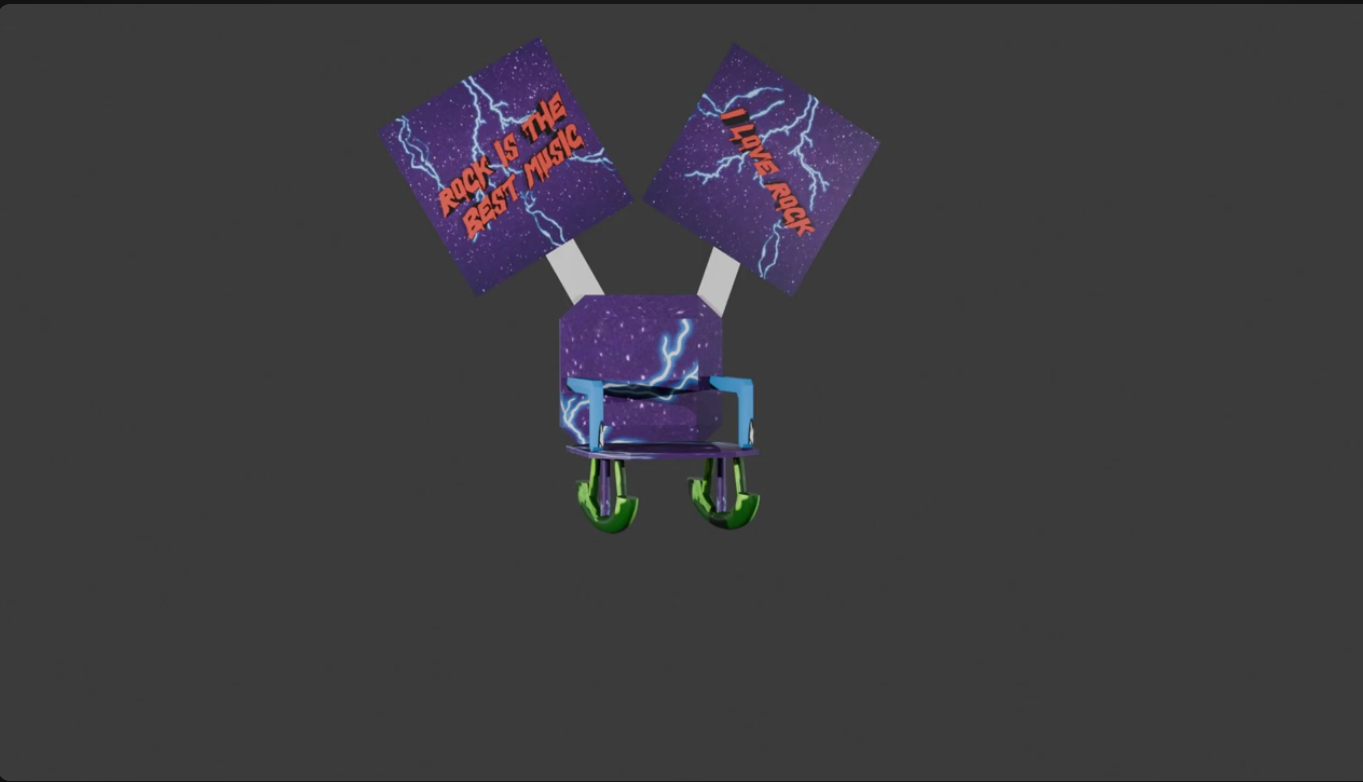

This is the Rocking Chair. a chair that plays rock music while it's rocking. I built this chair because I love a good project and play on words. This is a great project to do on a Sunday afternoon.
Supplies


The only thing you will need of is a program like blender and Spotify to record your rock segment.
Downloads
Build the Chair


To start you will need to build a rocking chair. I just went with the easy half cylinder legs. I also made the spokes that hold everything thin cylinders, there are a lot of cylinders in this project. Then I put a scaled down cube as the seat. Then I copied the seat for the back rest. after that I made the arm rests by lining up two cubes and I used the bolean modifier to make an arm rest that I could scale to my need. Then I beveled (ctr+b in edit mode) the seat, back rest, and arm rest to make them look Gothic. Then I put two planes held up by two other planes as signs. Yay! You've finished building your chair!
Txturing


I made all of my textures on Canva. Sadly, I couldn't attach them so you could just click download. You will have to go on the images and right click and then click save image as. Then you can download them. To actually apply the textures you will need the node wrangler blender add-on. It is free and extremely handy. You can just search it up in the settings and install it. Then click on the green node in the shader editor and click on the node wrangler then. After that click "add texture setup" Then it will give you all of these orange nodes. click on the one that says "open" Then select your textures. Yay! Your chair looks pretty now!
Animating




Animating this will be very easy since you're just making it move back and forth. Since mine was a little uneven it doesn't rock even, but I think that just adds to the rock vibe. To animate this in Blender you will need to press "i" on your keyboard to insert your first keyframe. Then rotate the chair and press "i" again, this inserts another keyframe. That is telling blender to guess the movement between keyframes. Do that process over again for as many rocks as you want. I unintentionally made mine a loop, so when it stops the video ends and the video plays again and then it starts again and so on and so forth. Yay! Now your chair moves!
Rendering


Rendering any animation could be very quick or very long. You first need to select how long your animation is You can do that in the frames section. To render this in Blender you will need to click on the output tab (the printer printing a sheet of paper) and click on where you want your pictures to go. I would put them in my downloads folder. Then you can select the image type as jpeg since it is a lower file size. You can also check if the render engine is EEVEE or Cycles. Cycles is for more lifelike animations and better graphics but takes a very long time to render, it also uses so much memory. EEVEE on the other hand is a game rendering engine, so it's very fast. It all depends on how complex your animation and graphics are. Then click on the render tab at the very top of the blender window and click render animation, or you could press ctr+f12. Rendering is Blender taking screenshots of every frame from the camera window. Yay! You have all of your pictures to video edit now!
Video Editing
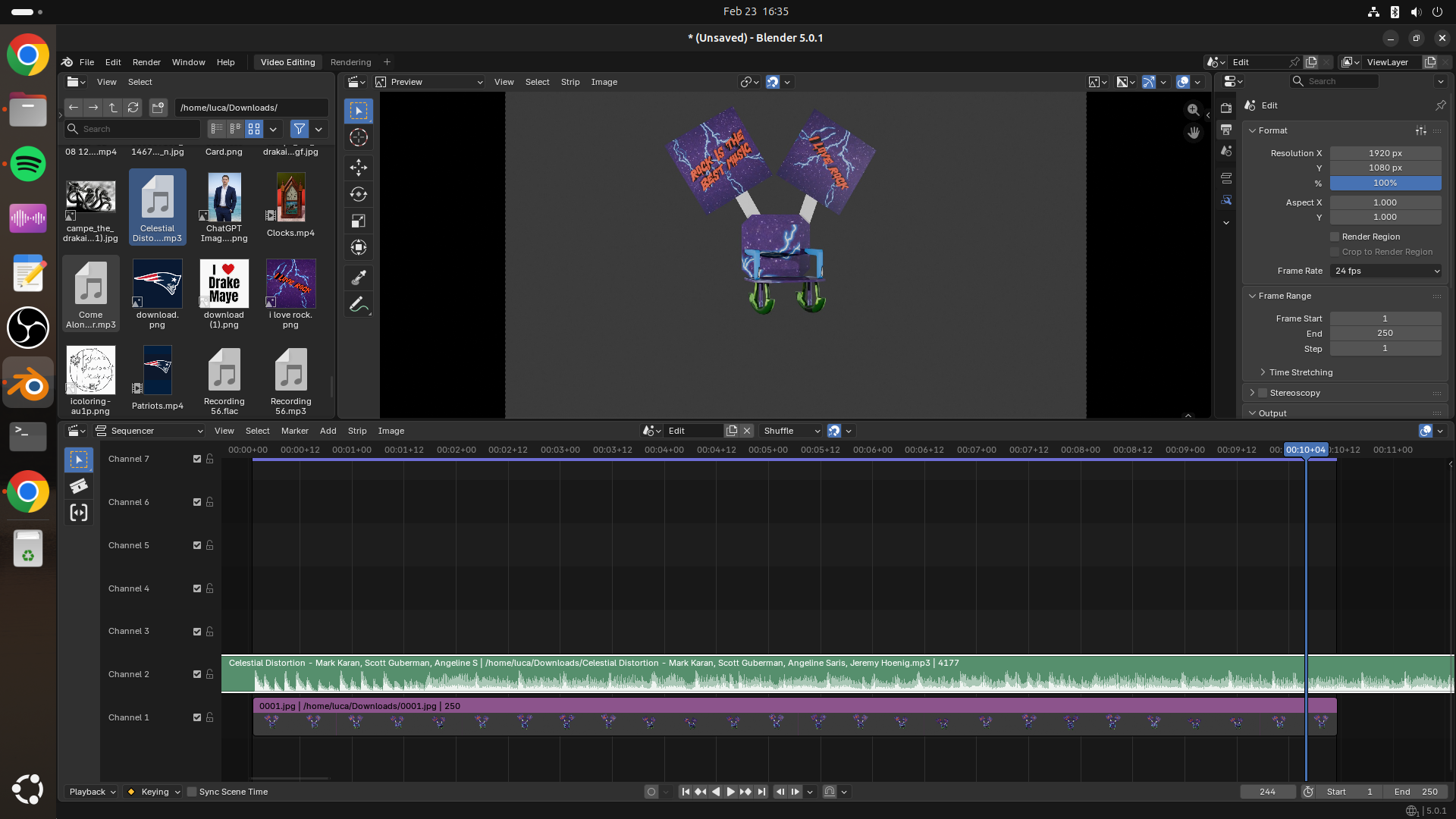
Video Editing is putting all of those pictures we just rendered and making them into a video along with the sound effects and music. I can't give you the music I used due to copyright. You can find copyright free music on the Youtube audio library though. To video edit save your .blend file first and then click ctrl+n and then click Video Editing. Then find you images in you folders on the side window and then drag all of the images over to make an image strip. Then you can add music. Set the frame rate by doing that in the output tab. Then click where you want the video file to go in the output tab too. Then click render or ctrl+f12. Yay! You have a video now!
Finish
Yay! You've finished! Great job, now you can show your friends and family your rocking chair.