Scrapbook Style Animation in Canva - on Iphone
by A_Maile in Design > Animation
413 Views, 0 Favorites, 0 Comments
Scrapbook Style Animation in Canva - on Iphone
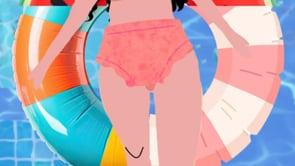
This has been one of my more wild projects to figure out. I started with an extremely clear vision of what I wanted.... and no idea how to get there. Follow along as I create a full-minute looped animation... from my iPhone?!
Supplies
- Canva App!
- Photos app
- SOME animation software. (Can be very basic, you just need to be able to upload files and change frames per second settings) --> I used iArtbook because I already had it, but really anything will do :)
- A "screencapture" ability on your phone (it is a quick access utility in iPhone, you may have to look a little harder on Android)
Get a Vision
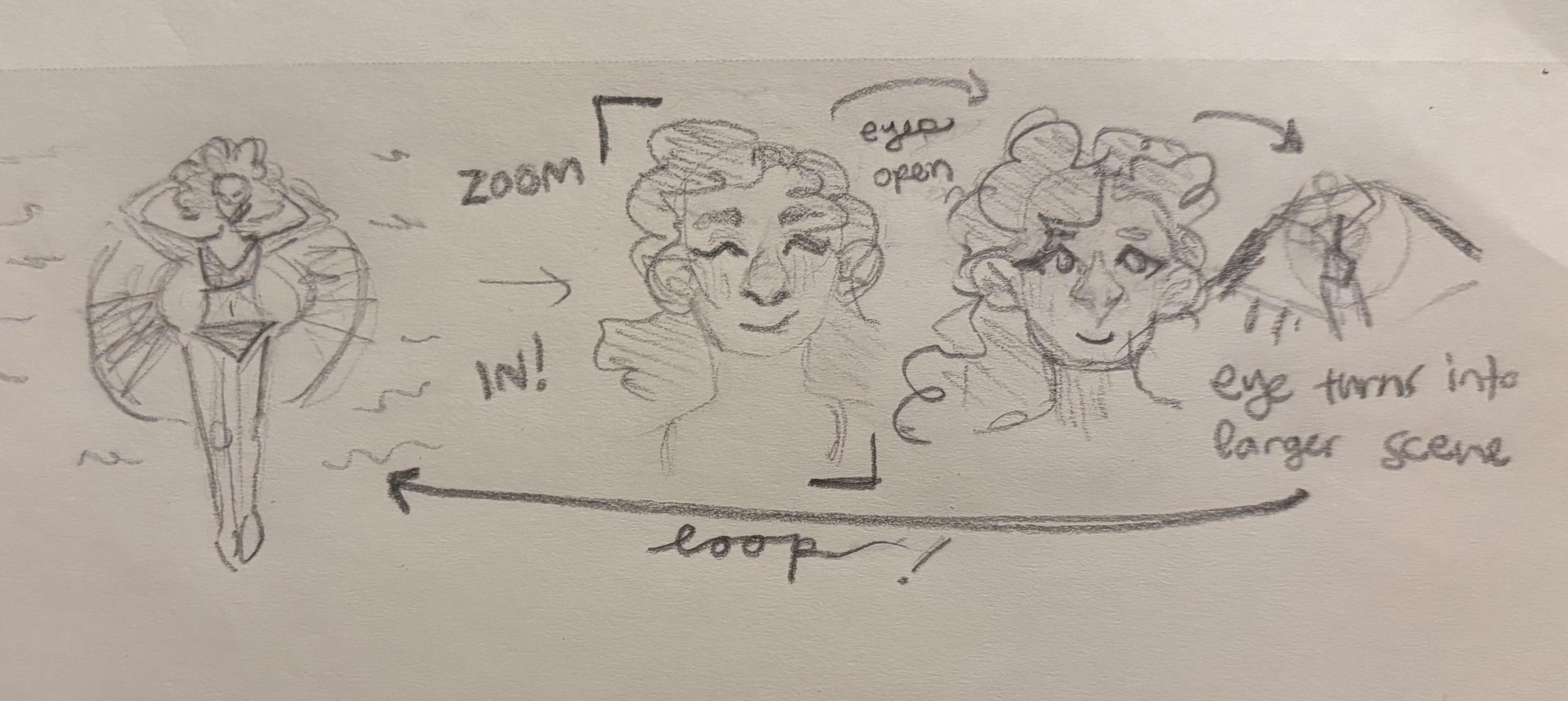
----------- Location: a Notebook -------------
Storyboard!
Some Key Questions:
- What do you want your animation to look like?
- What characters/objects move?
- What key frames would you like to include?
- What motion do you want between key frames?
- Smooth transitions
- Pan in/out
- Blur
- Deform
Start "Scrapbooking"

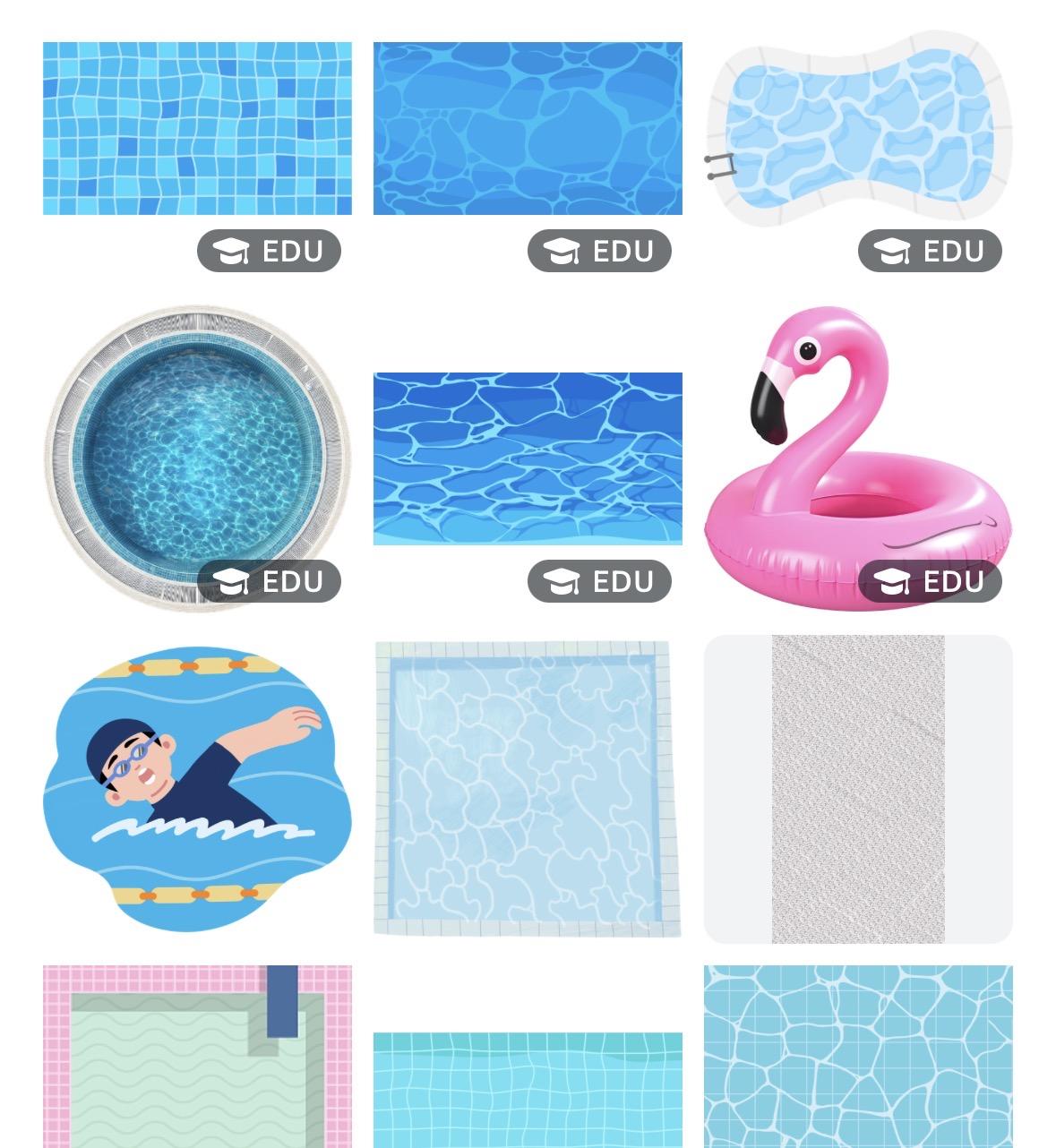
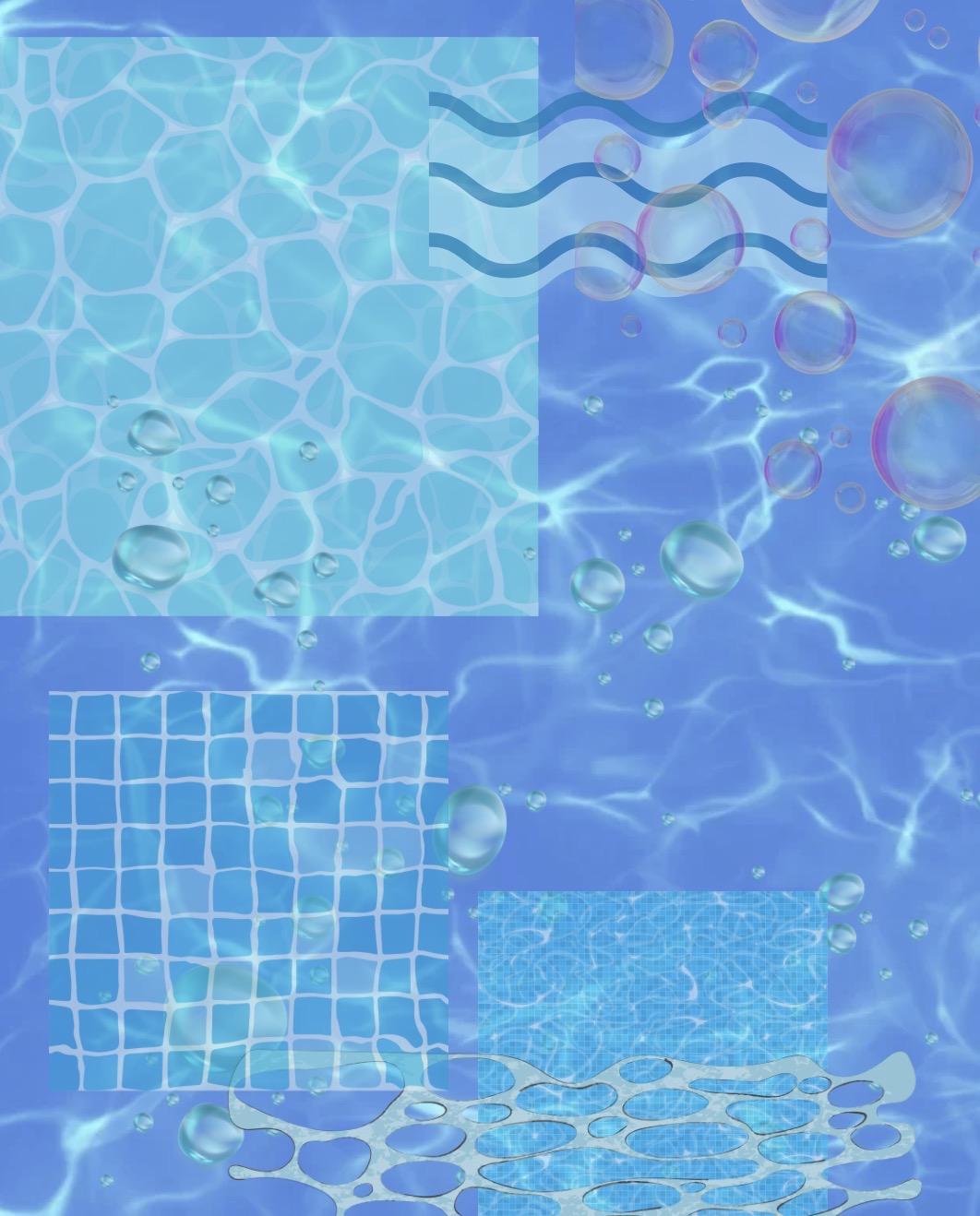
----------- Location: Canva -------------
- Open Canva! (I did this project in the Canva app on iPhone) I selected the "Instagram post" Size for my animation, but ended up changing it to the "vertical video" size later.
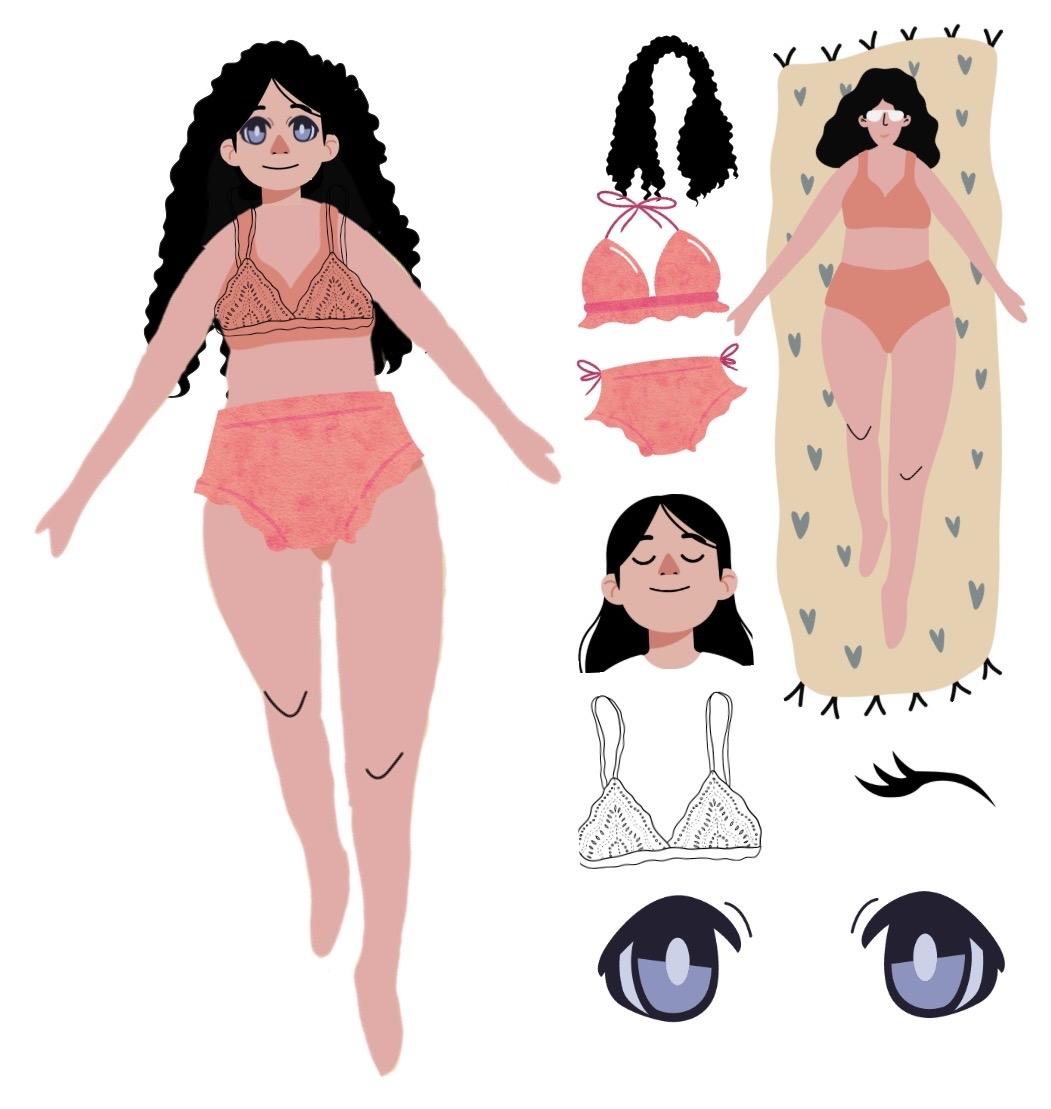
- This was the most fun part for me! I "scrapbooked" by layering a bunch of different images, cliparts, textures, and icons together to create the water texture, the inflatable pool float, and our main character. I wanted this to look original, rather than just using clipart another person had made, so I spent a considerable amount of time cropping, combining, and coloring to match so that my character would fit her crazy many-texture world, while also looking cohesive and original.
TIP: Make each object in a different page! We will put them together later.
Build the Pieces
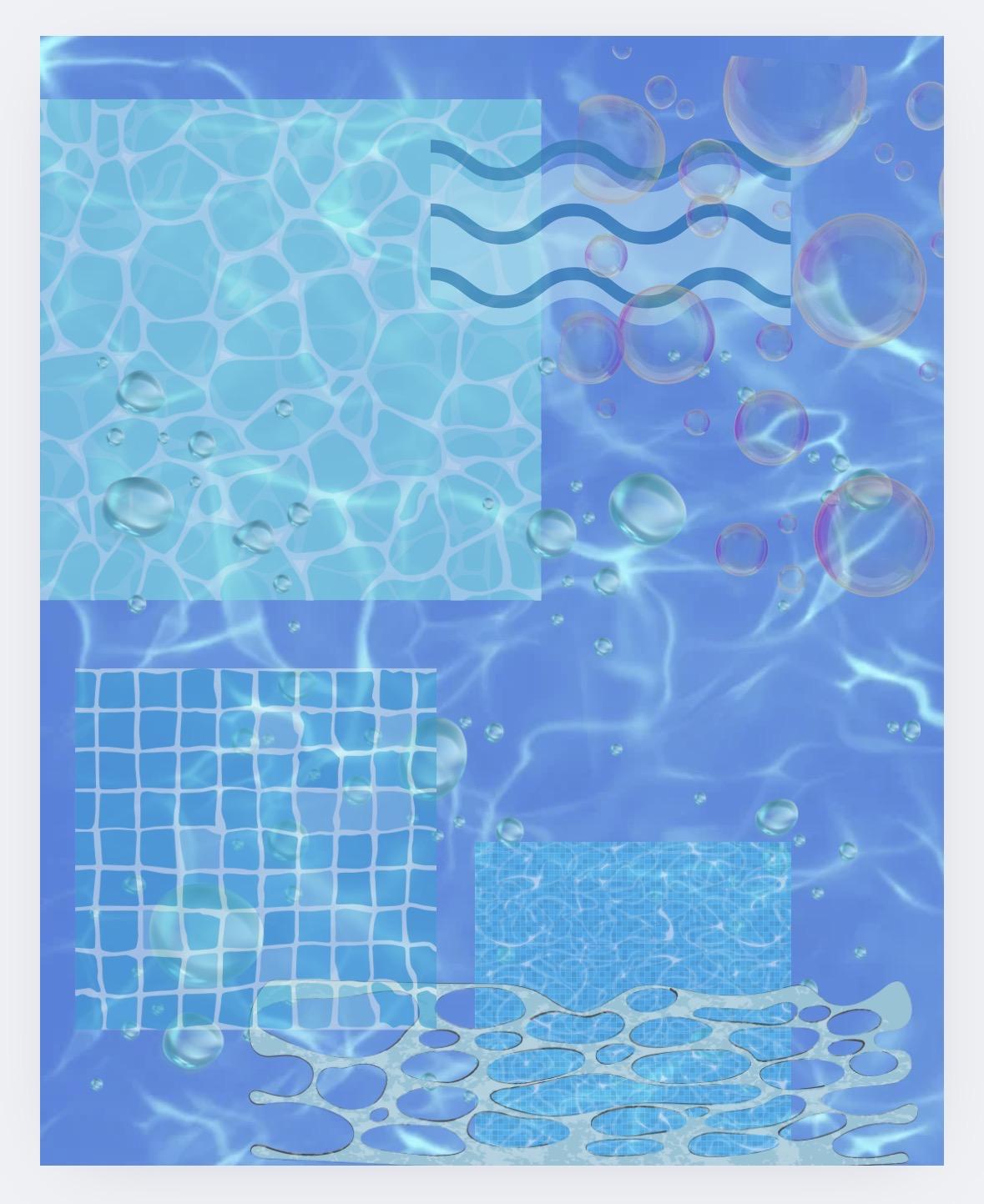
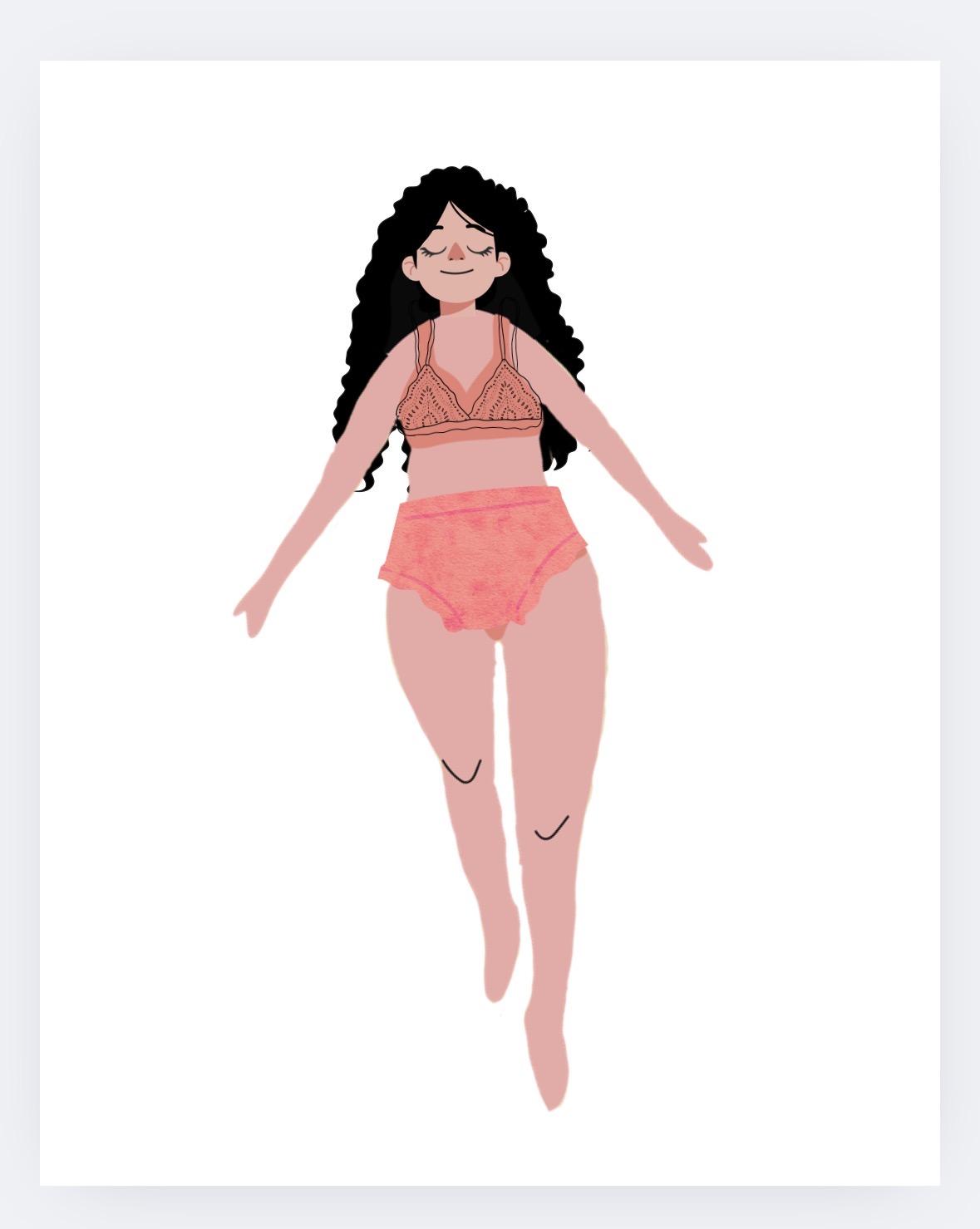
----------- Location: Canva -------------
The most tedious part... have no fear, duplicating pages and objects is our friend!
- Background. SLIGHTLY move objects and change their sizes to give the illusion of water moving. Not too much, otherwise it will be too distracting. I made about 4 frames of slight variations.
- Character: I wanted my girl to open her eyes slowly, so I made several frames of her character with her eyes all the way closed, then partially open, and then open.
Create the Frames
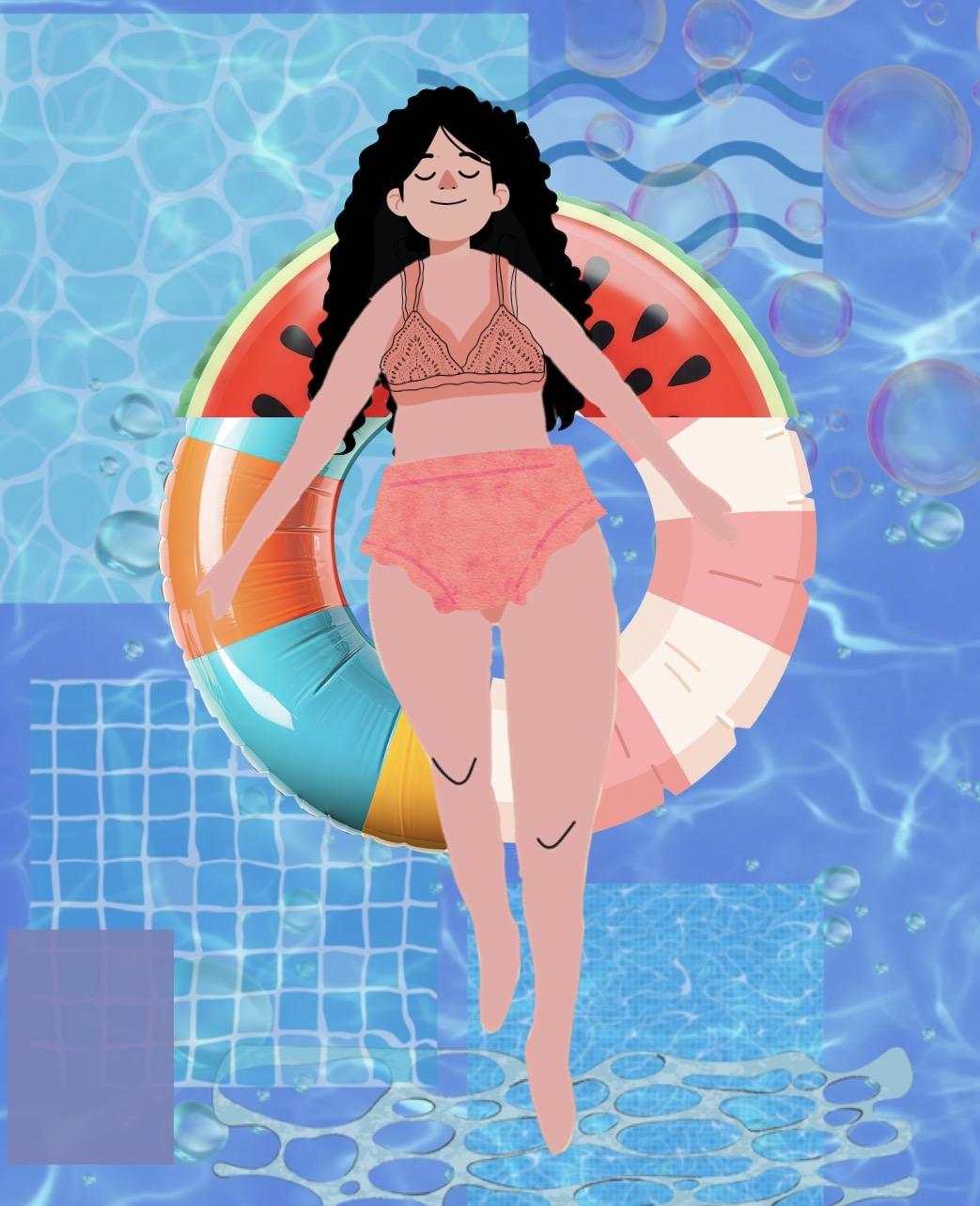
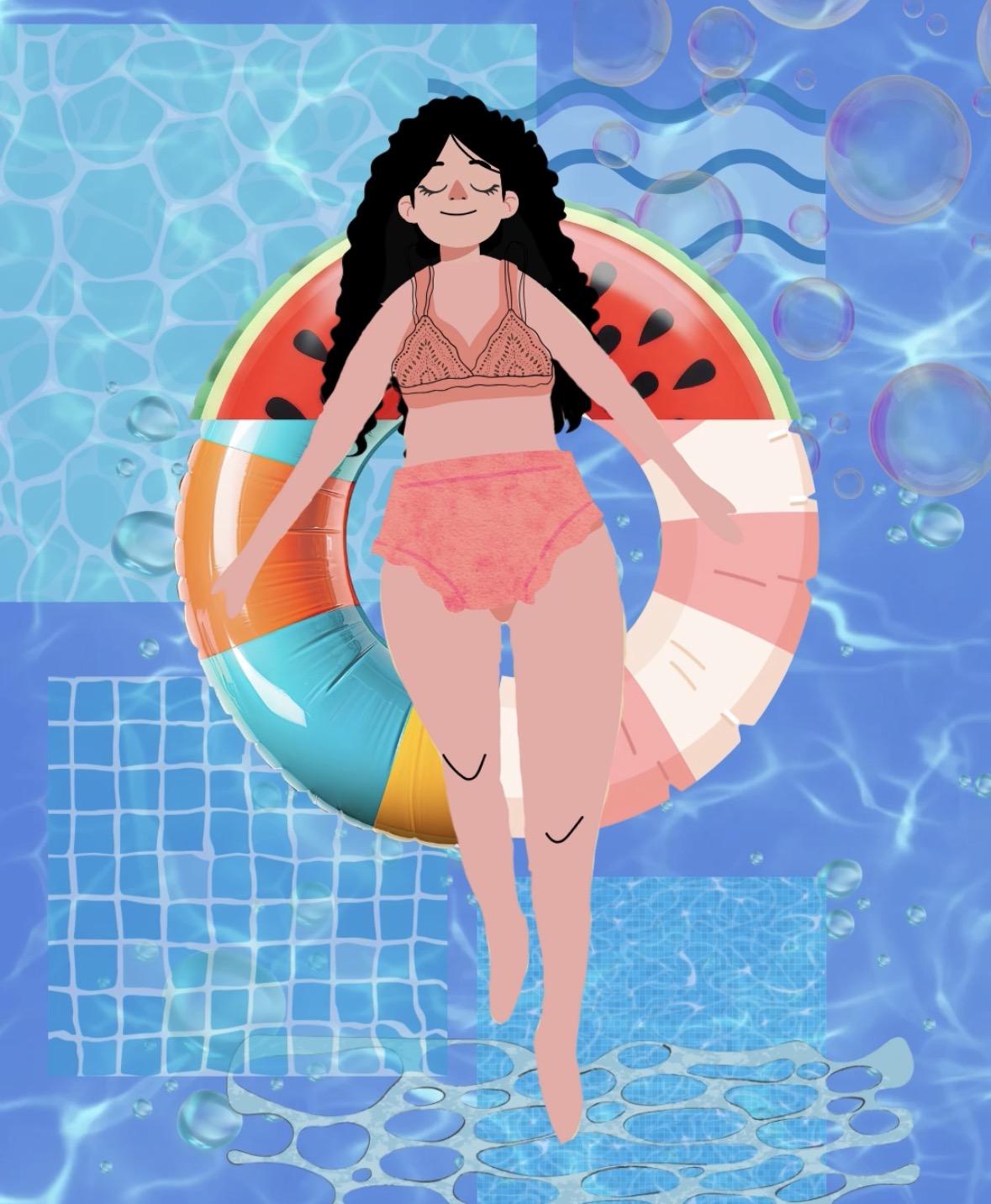
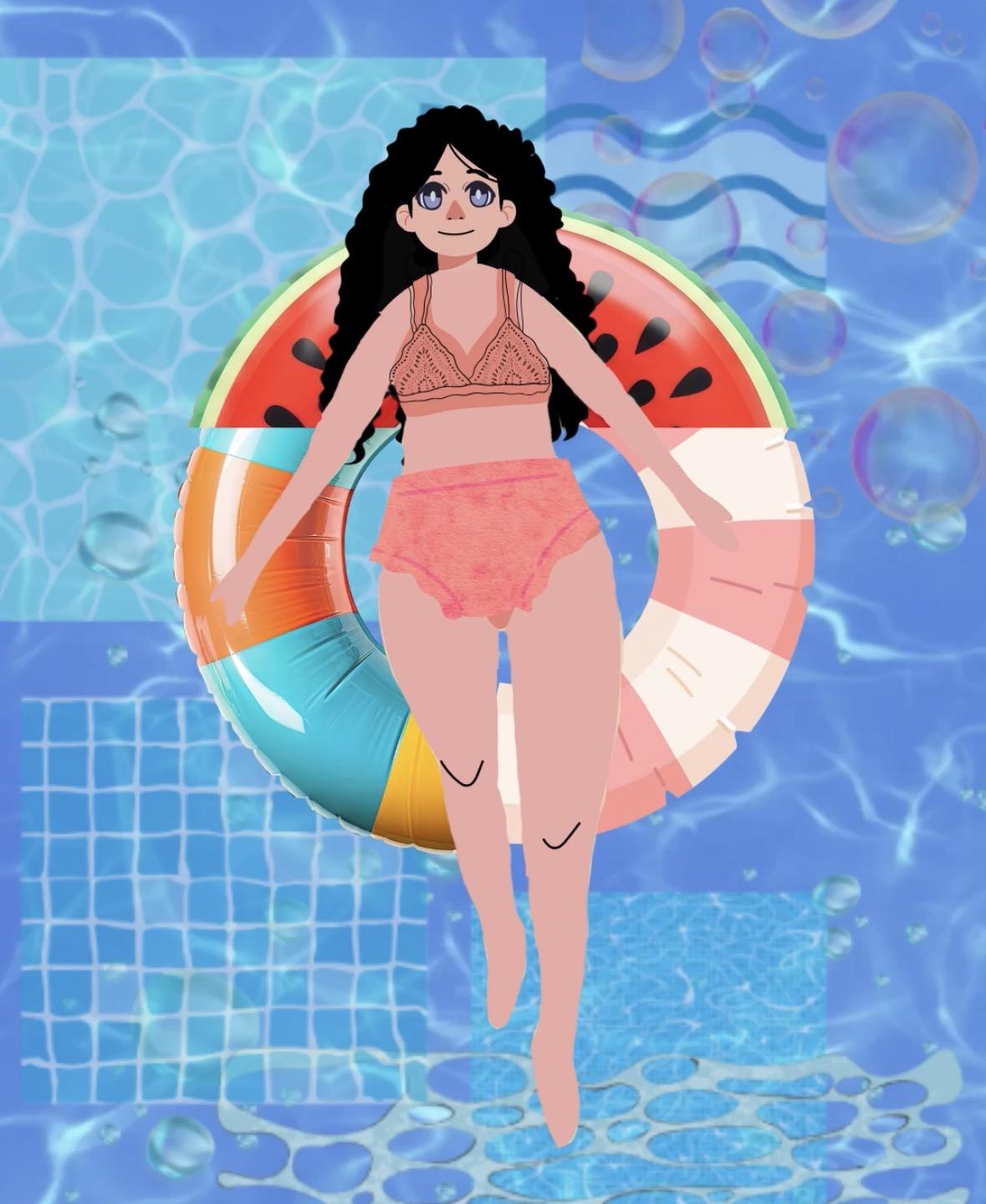
----------- Location: Canva -------------
Now that we have 3-4 background pieces that will loop, and 3-4 versions of the girl opening her eyes, it's time to put it all together! Group each of our three elements separately before creating new pages!
Create several versions of each background in a row. Add the character and her float into it. For as long as you want her eyes closed, repeat this process. (You can duplicate more than one page (frame) at a time! Repeat this process, replacing the closed eye character with the opening and opened eye version.
By the end you should have about:
- 4 frames with different backgrounds of the girl with her eyes closed
- 4 frames with different backgrounds of the girl with her eyes partially open
- 4 frames with different backgrounds of the girl with her eyes open
Get Things Moving!
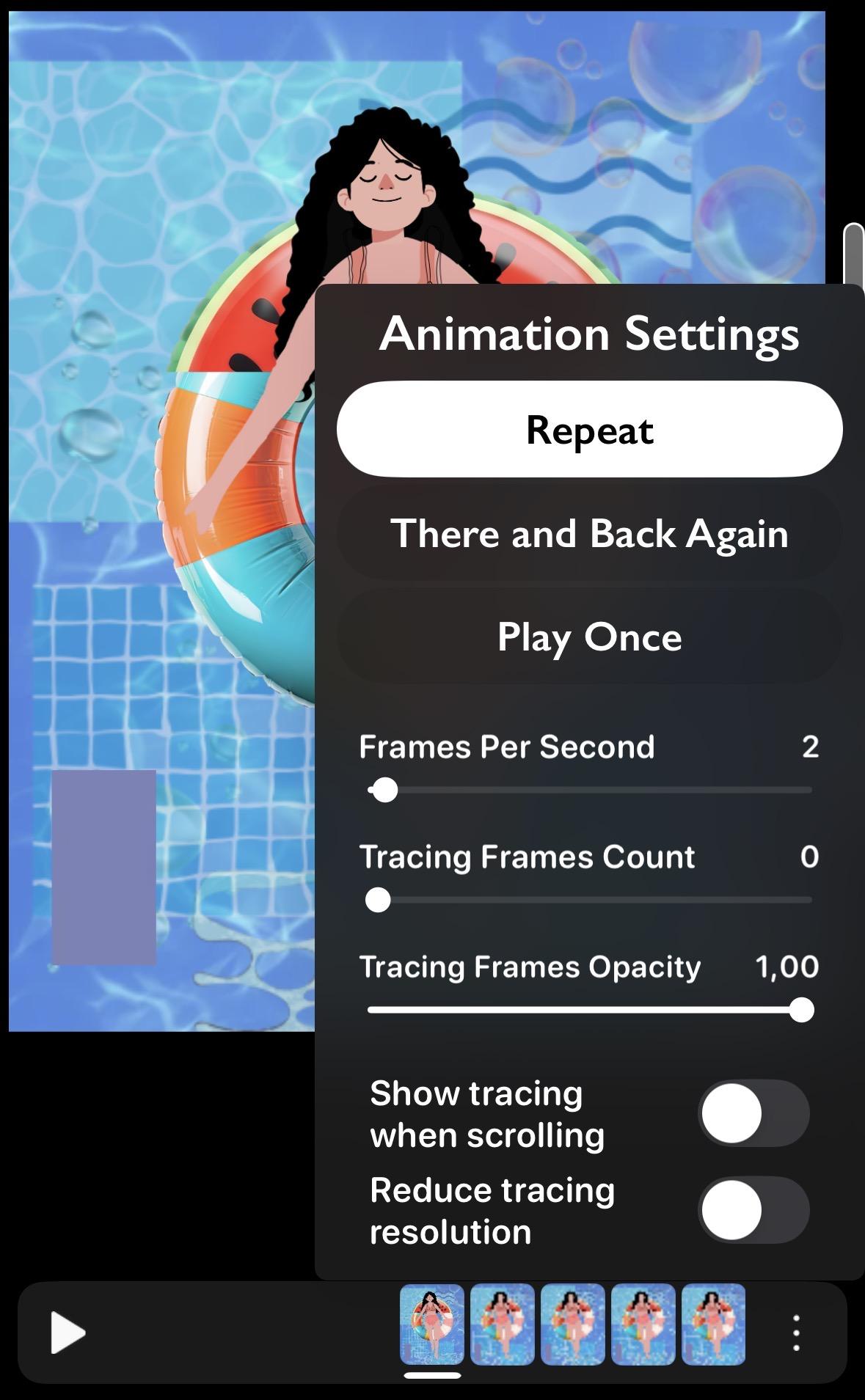

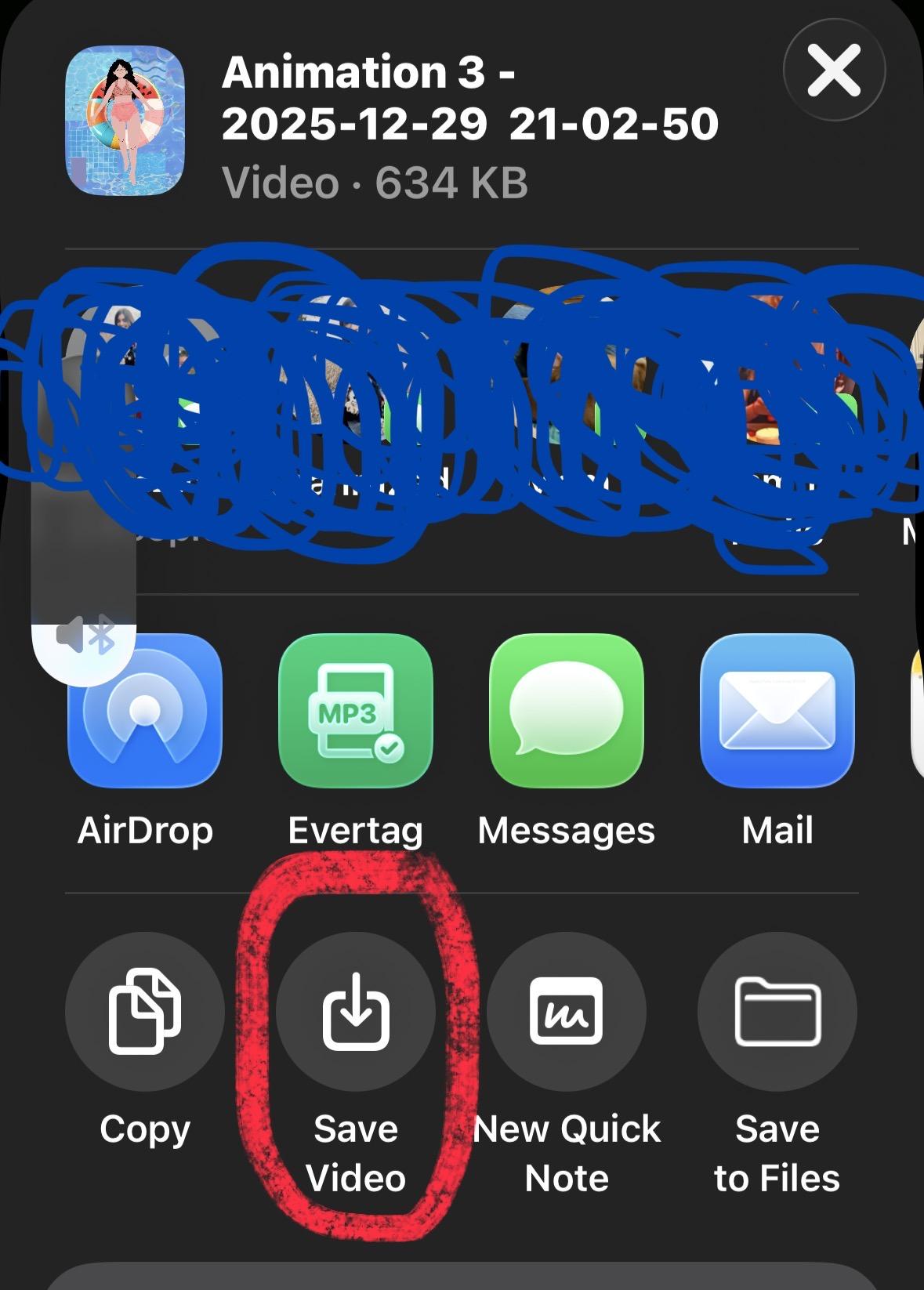
----------- Location: iArtbook (or other software) -------------
Export your 12 frames into your animation software of choice!
Play around with your frames per second and transition settings. My software, iArtbook, automatically put a "blur to next frame" transition on my drawings, which I removed because it was too distracting
Export animation to your camera roll
Zoom in Clip
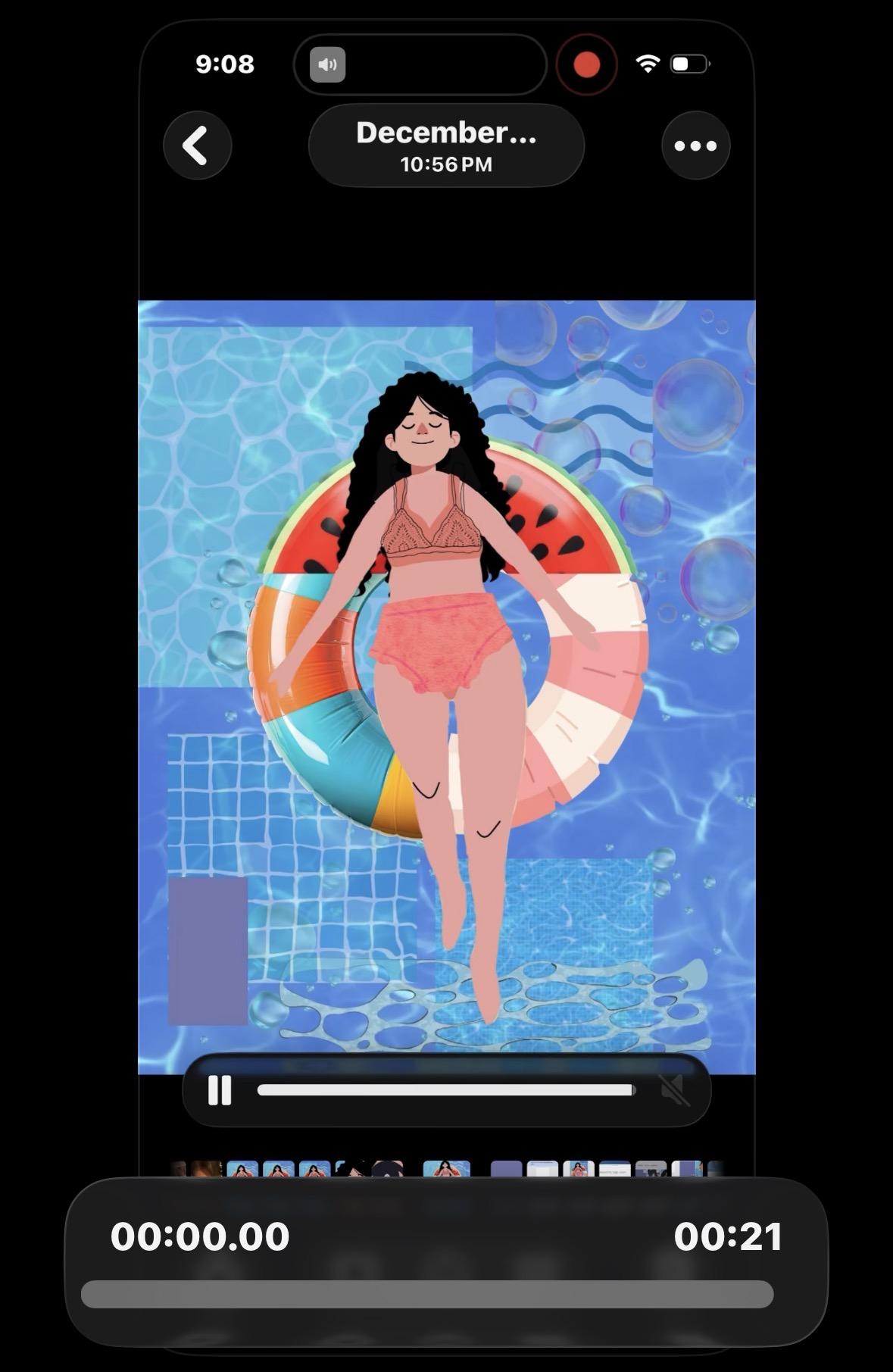
----------- Location: Camera roll (photos app) -------------
My vision for this animation is that it wouldstart where you see the character laying on the raft and then it would zoom in onto her eye which was the same color as the water, which would then start a pan out from that color reveiling water and the whole animation would start again. While I experimented with a zoom in using frames only, I found it much too choppy, so I pivoted to screen recording a "zoom in" to get the effect that I wanted that I would stictch in later using Canva.
Zoom in effect Instructions:
- Export a looped animation of only the four "eye open" frames to your camera roll
- Screen capturing where you zoomed in on the eye until it is a single color
- Cropping screen capture to fit the size of the original background.
Blend Into Water
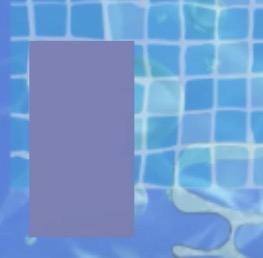
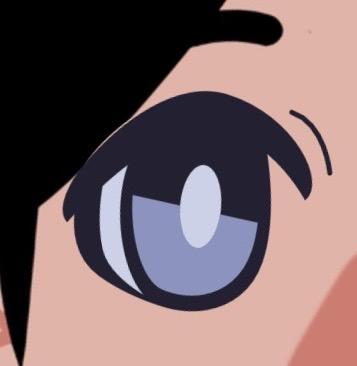
- Create/find a place in the background that is the same color as where the last clip ended off.
(For me, the eye color ended up being slightly too purple to match the background perfectly, so I had to add in another element and re-export the four "eyes closed" frames again from canva)
Zoom Out Clip
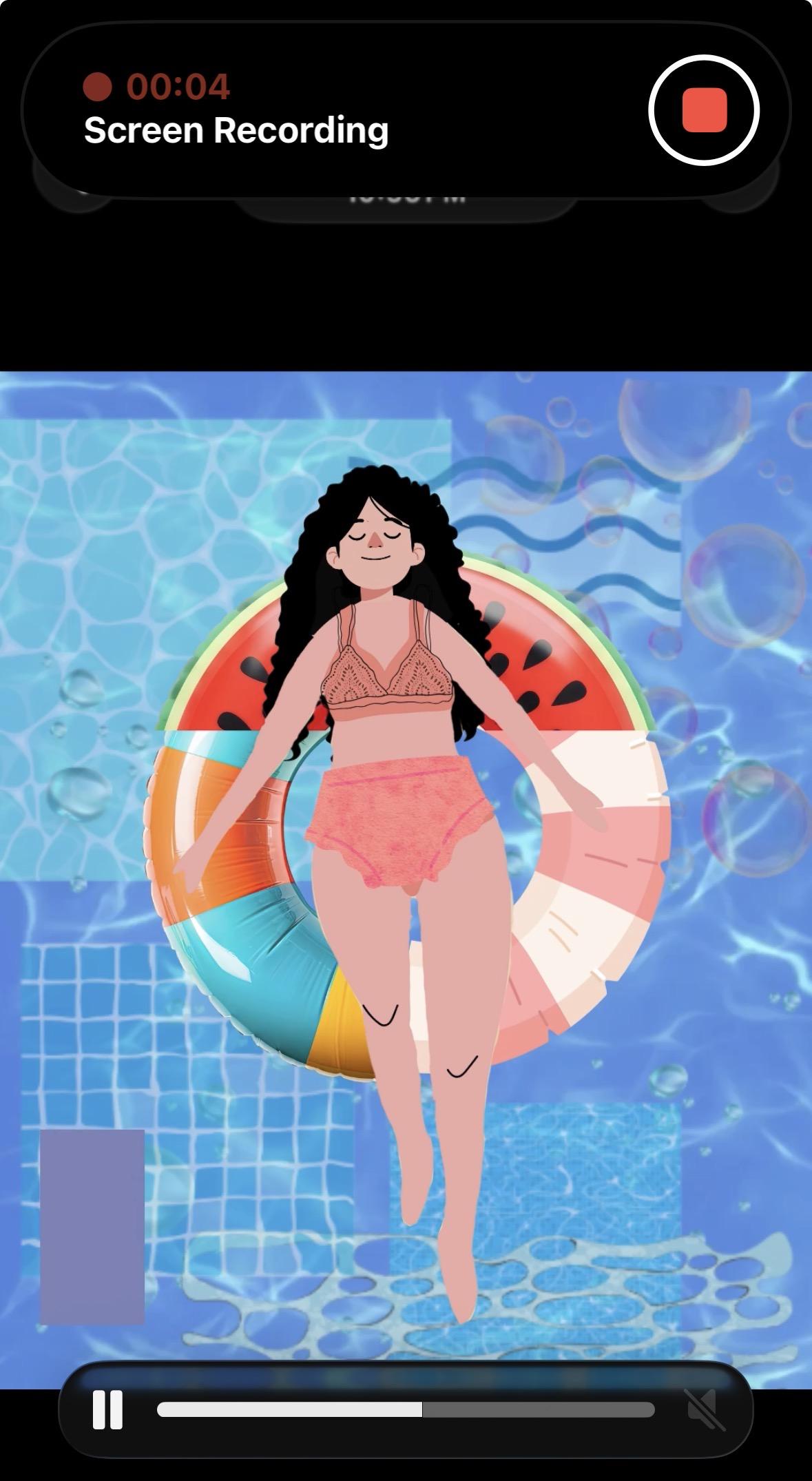
----------- Location: iArtbook + Camera roll -------------
- Create another small looped animation of only the four "eye closed" frames to and save to your camera roll
- Screen capturing where you zoomed out of the single color block until you can see the whole artwork
- Cropping screen capture to fit the size of the original background.
Combine Clips
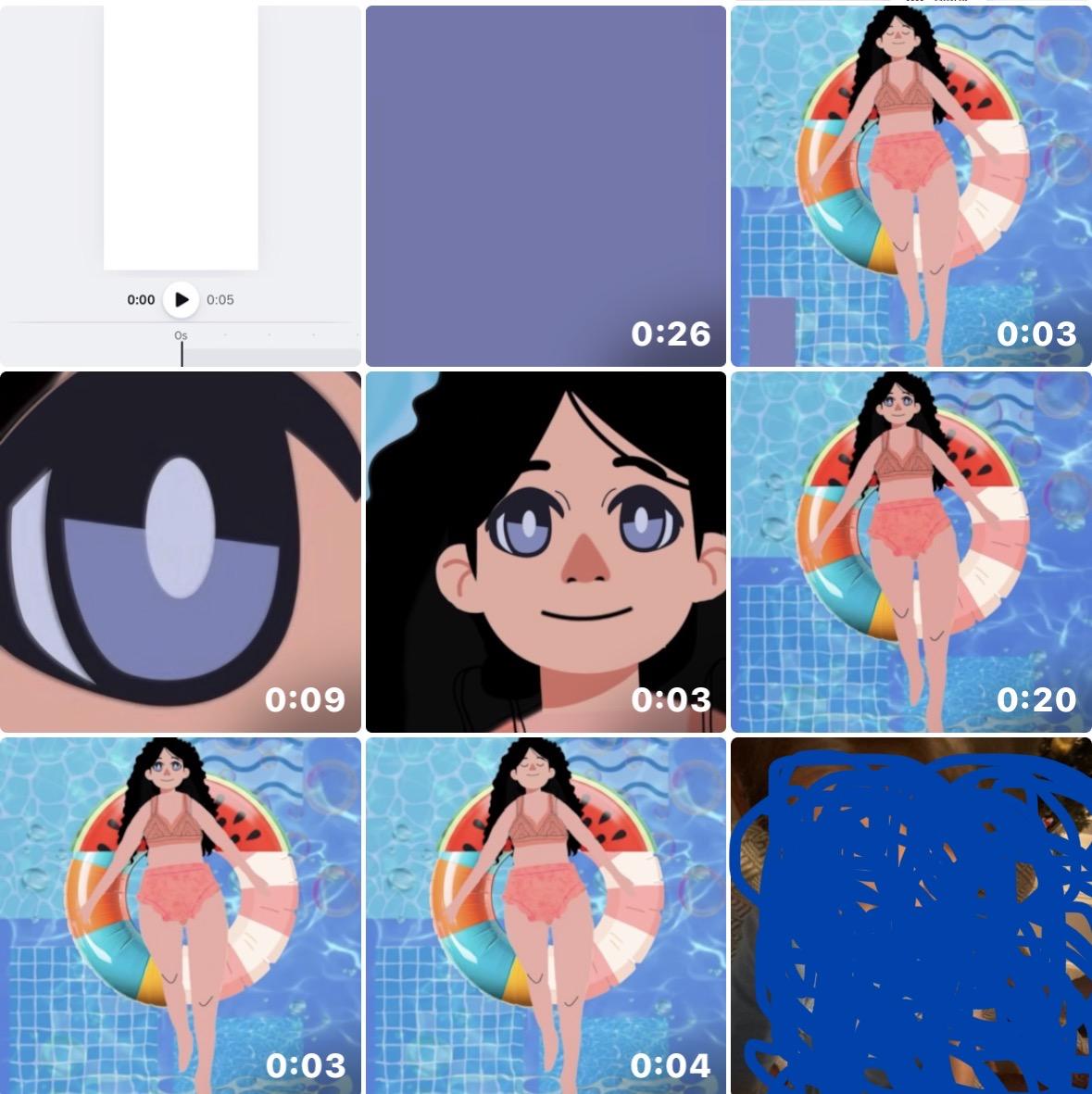

----------- Location: Canva -------------
- Create a "vertical video" project in Canva (or whatever other size fits your project)
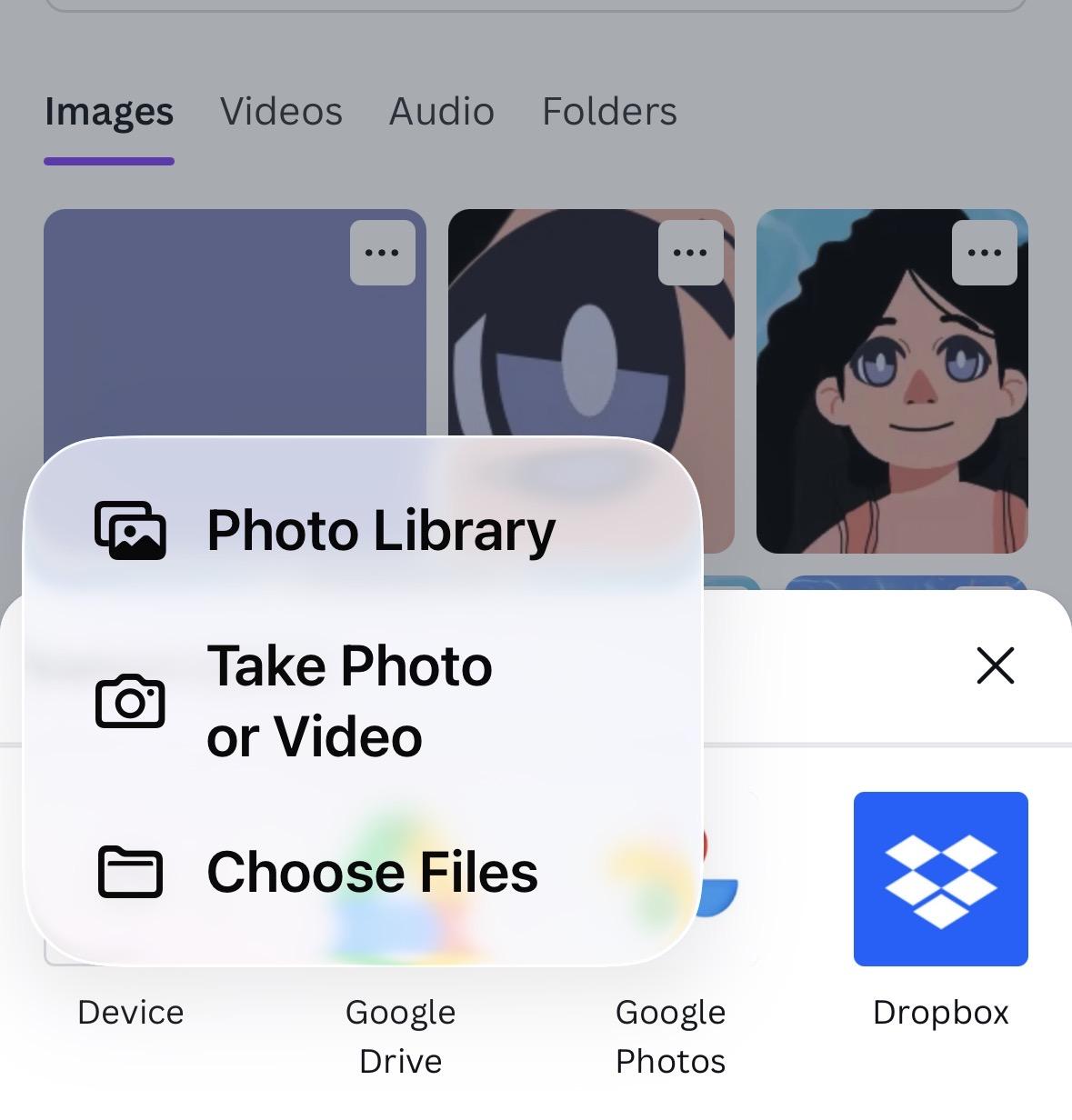
- Upload all the video clips from your camera roll (double check the order!)
- Upload any sound effect/music you would like!