See the Unseen Heat: Build a Portable Thermal Camera With ESP32
by taifur in Circuits > Cameras
2716 Views, 36 Favorites, 0 Comments
See the Unseen Heat: Build a Portable Thermal Camera With ESP32
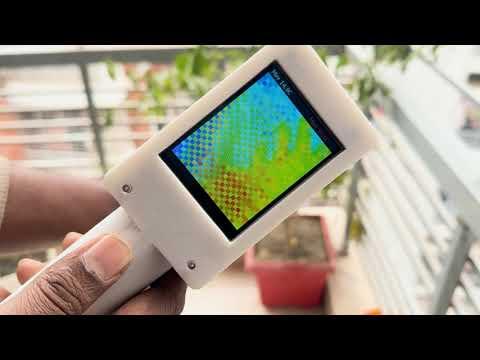
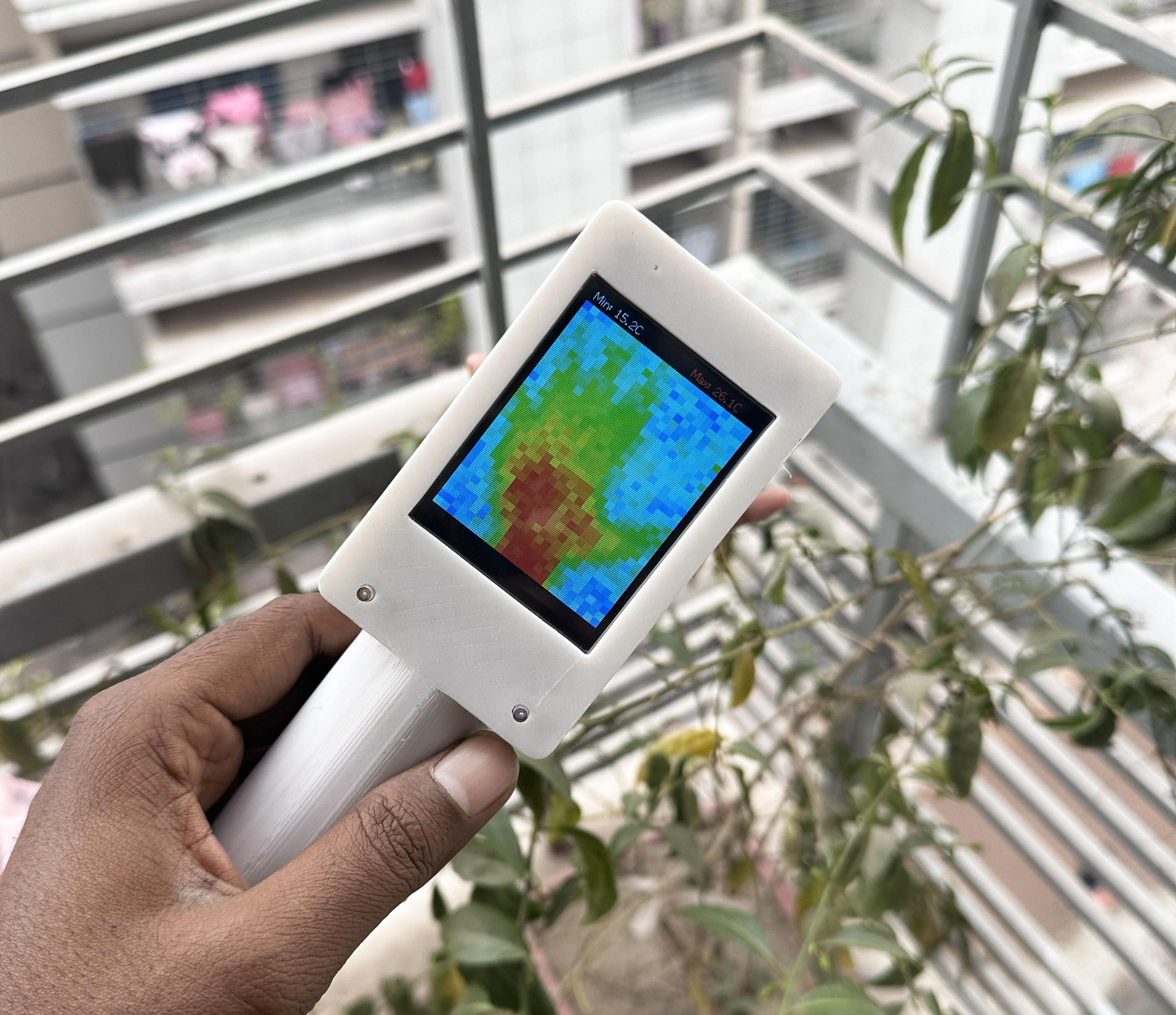
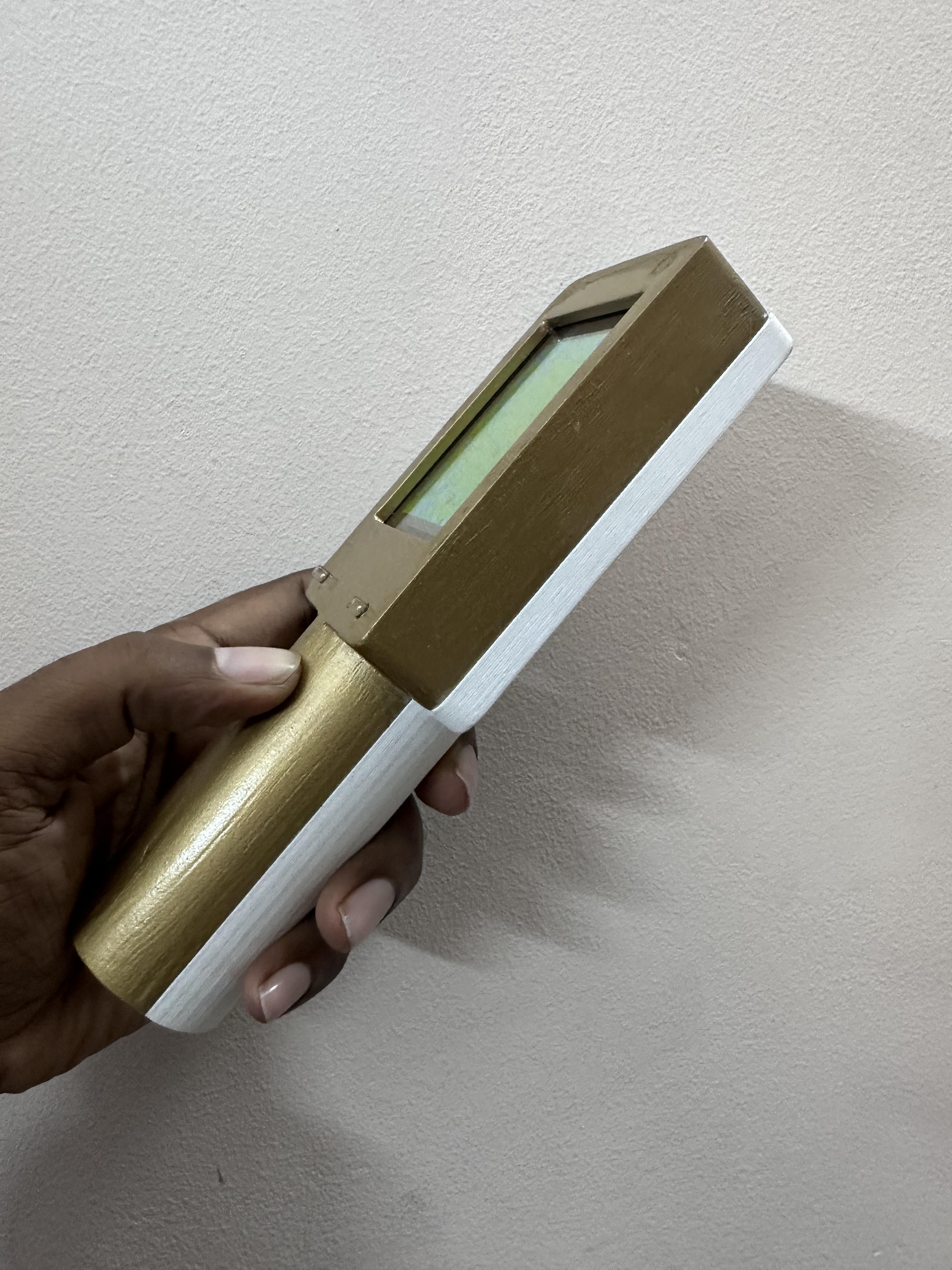
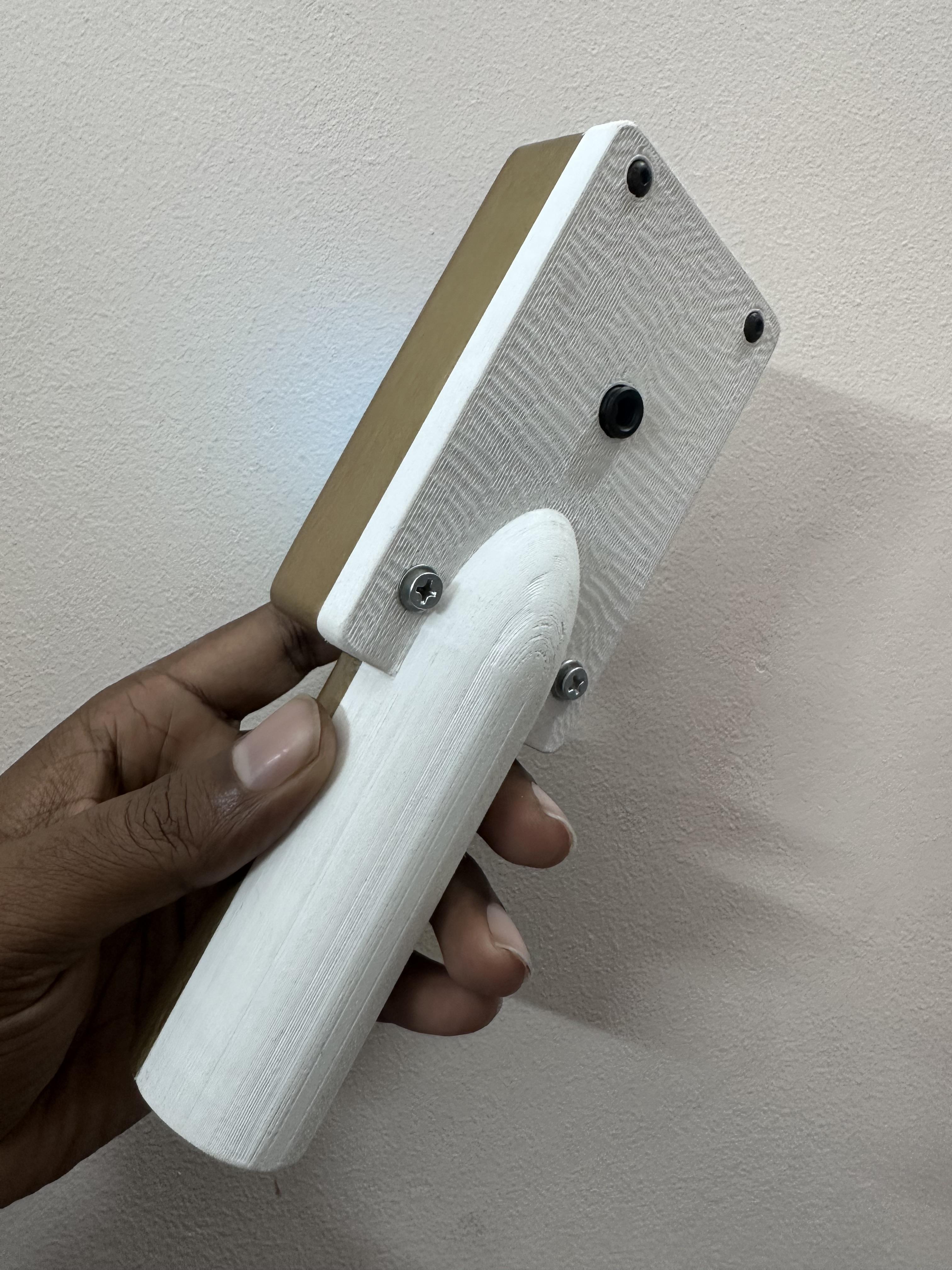

As an electronics engineer and passionate maker, I constantly work with circuits, sensors, microcontrollers, and high-power components. During testing and debugging, one of the most important things I always want to know is: Which part of my circuit is getting hot, and why? Heat tells powerful stories in electronics. Overheating components can indicate design flaws, inefficient power delivery, incorrect component selection, short circuits, or unexpected behavior that isn’t always visible through measurements alone.
However, the problem is that heat is invisible to the human eye. We can feel it, but we cannot see it. In engineering, “feeling” is never enough—seeing and quantifying is what truly helps us understand and improve our designs. A thermal camera makes this invisible world visible. It allows us to visualize temperature distribution, spot hot components instantly, identify heat leakage, check voltage regulators, analyze battery heating, observe MOSFET stress, and verify cooling performance.
This is what inspired me to build my own DIY thermal camera using ESP32 and the MLX thermal imaging sensor. Instead of expensive industrial equipment, I wanted something compact, affordable, and maker-friendly that any hobbyist, student, or engineer can build and use. With this device, the invisible infrared radiation emitted by objects is captured and converted into colorful thermal images, letting us literally “see heat.”
Beyond being a cool gadget, it is a powerful engineering tool that helps in testing, debugging, learning, and improving electronic designs. If you’ve ever wanted to understand what’s really happening inside your circuits from a thermal perspective, this project opens that hidden world right before your eyes.
Supplies
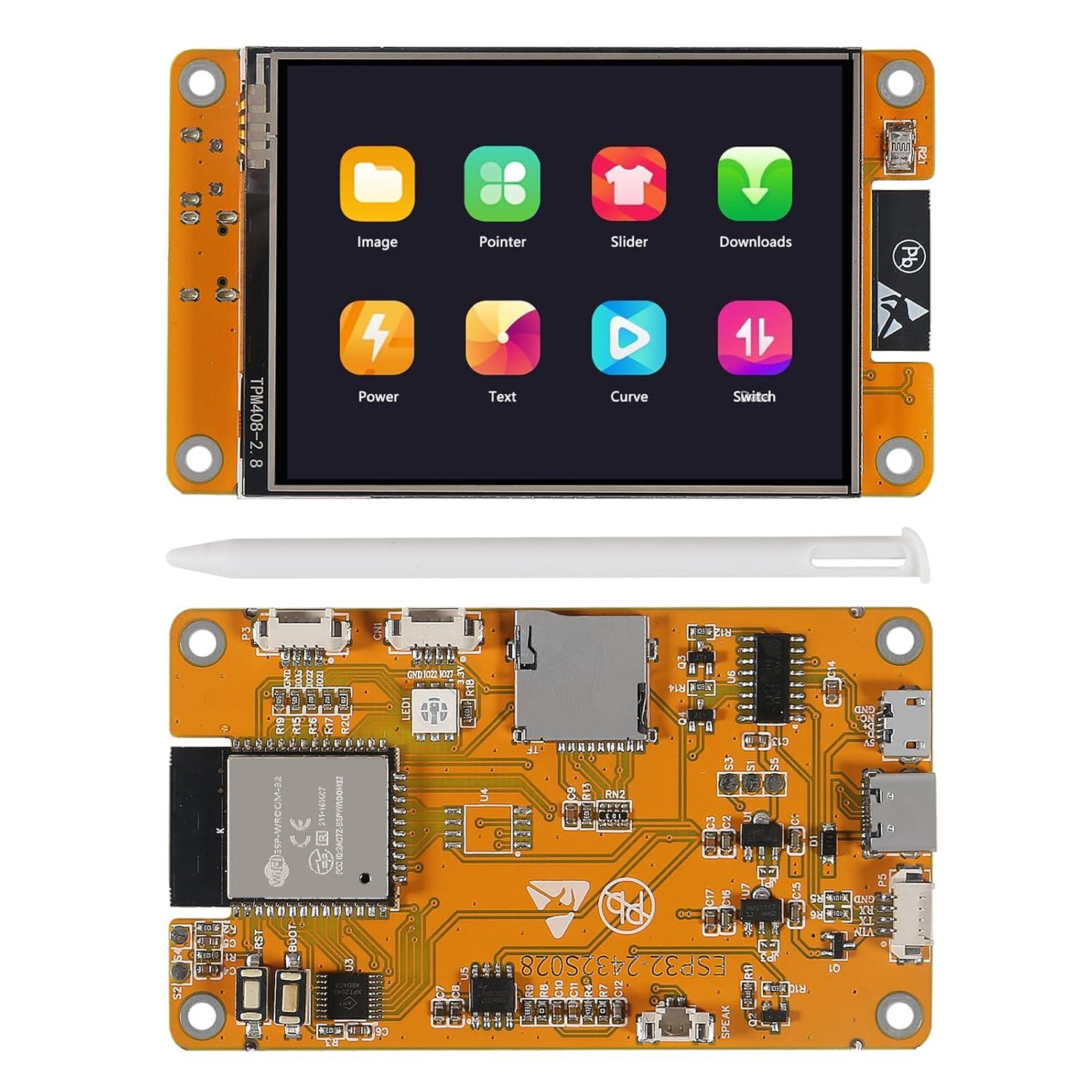
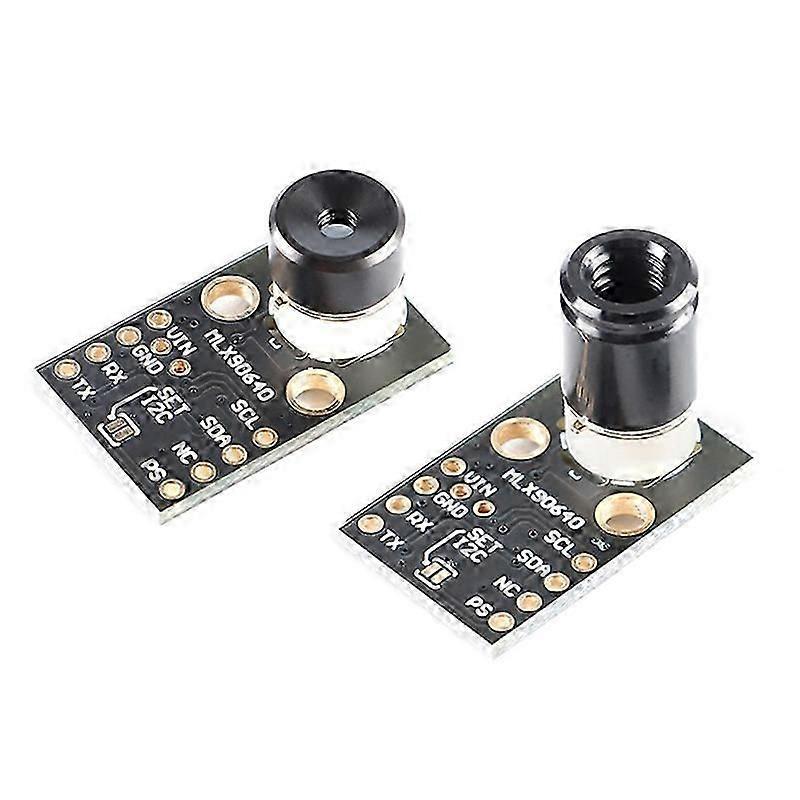
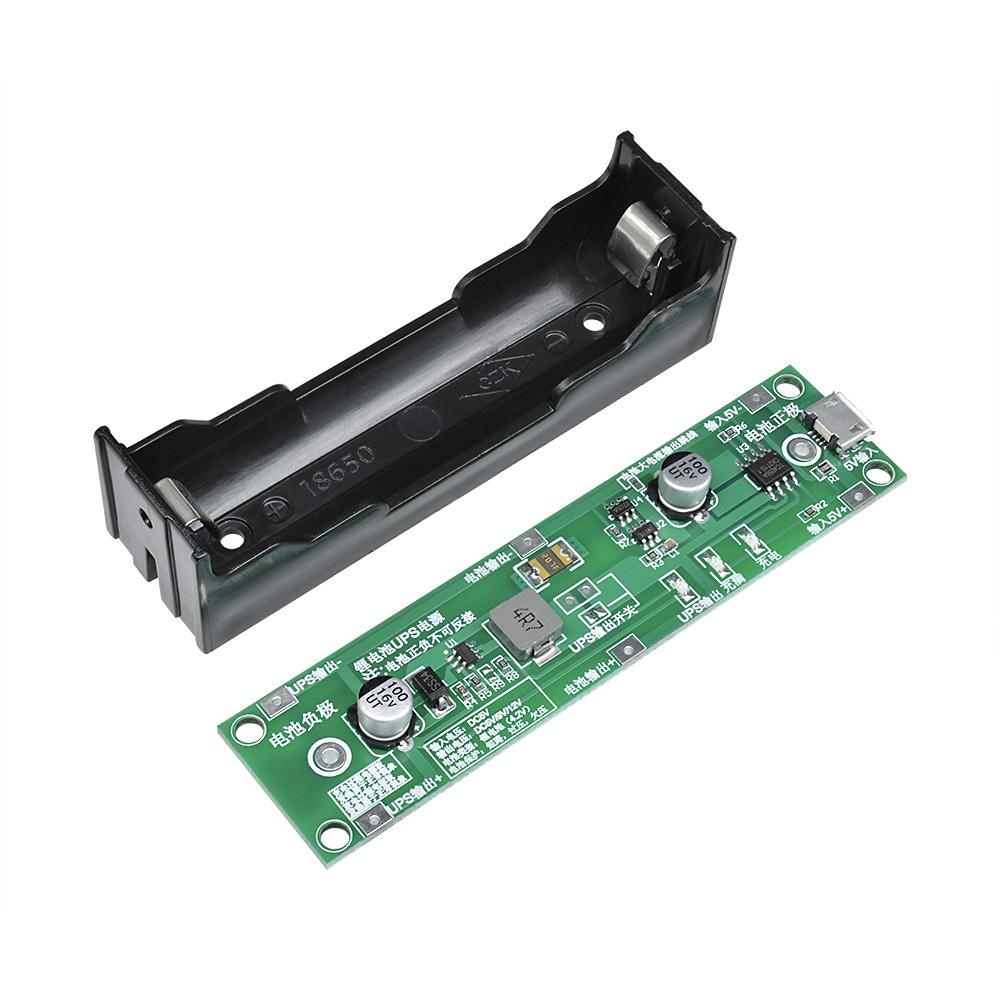
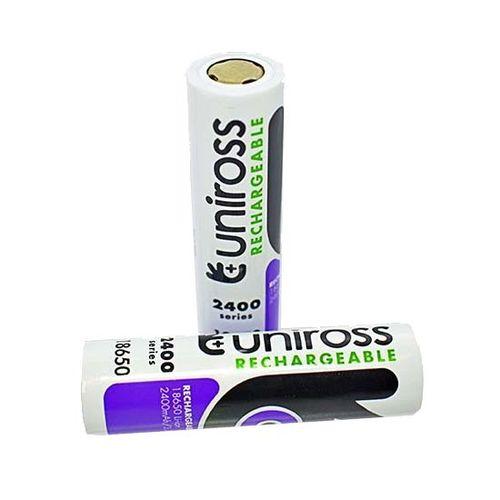
Core Components:
- ESP32 CYD Module (Aliexpress): Acts as the main controller and handles data processing and display.
- MLX90640 Thermal Imaging Sensor (55° FOV – Long Range Version) (Aliexpress): The key sensor that detects infrared radiation and converts it into temperature readings.
- 18650 Li-Ion Battery Charger and Boost Module (Aliexpress): Used to safely hold and charge the battery and boost the voltage at 5V to power the ESP32.
- 18650 Li-Ion Battery (Aliexpress): Provides portable power for the device.
- Connecting Wires / Jumper Cables: For electrical connections between components.
- USB Cable / Power Source: Alternative powering method or charging.
- Access to a 3D Printer: For printing the Enclosure
- On/Off Switch
- 6x6x6 Tactile Switch (Aliexpress)
- M3 Screws (Aliexpress)
- M3 Heat Insert (Aliexpress): Heat inserts provide strong, durable metal threads in 3D-printed plastic parts, allowing reliable screw fastening without damaging the print.
Tools & Accessories:
- Soldering Iron and Solder (Aliexpress)
- Hand Tool Set (Aliexpress)
- 3D Printer (Aliexpress)
Disclosure: A few of the product links provided are affiliate links. This means I may receive a small commission if you make a purchase through them, without affecting the price you pay. Your support helps fund future builds and documentation.
How It Works
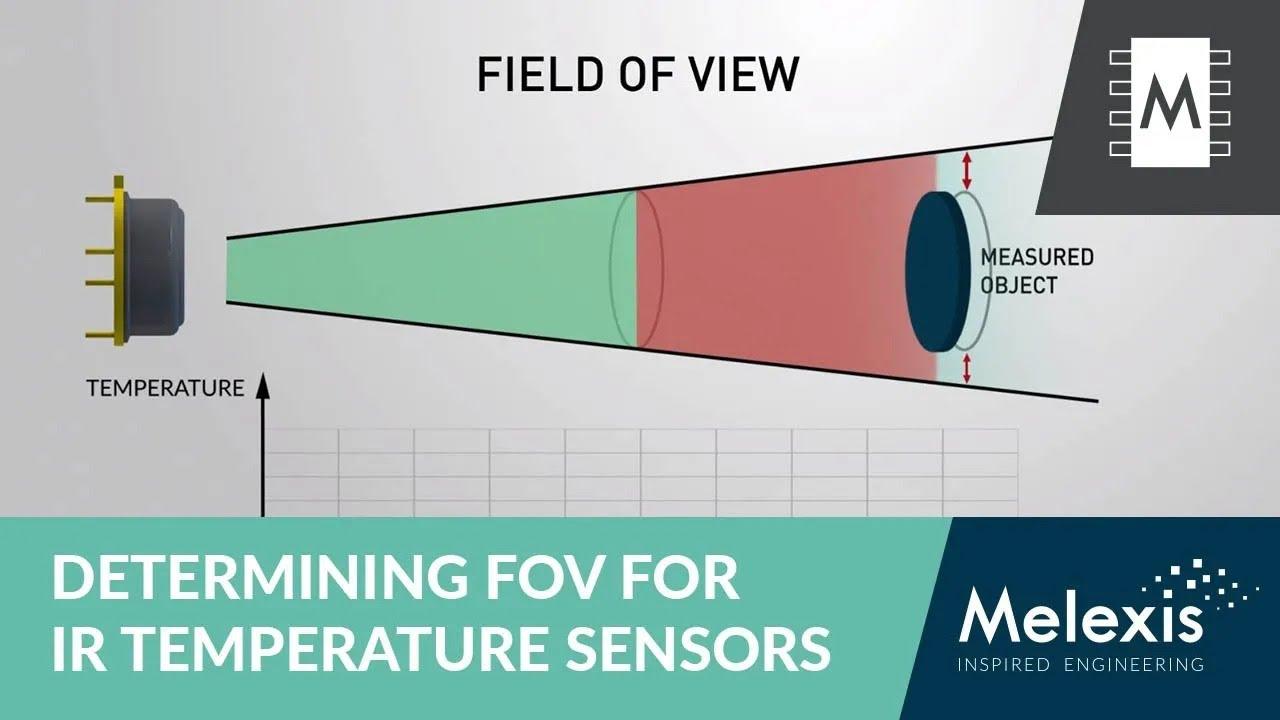
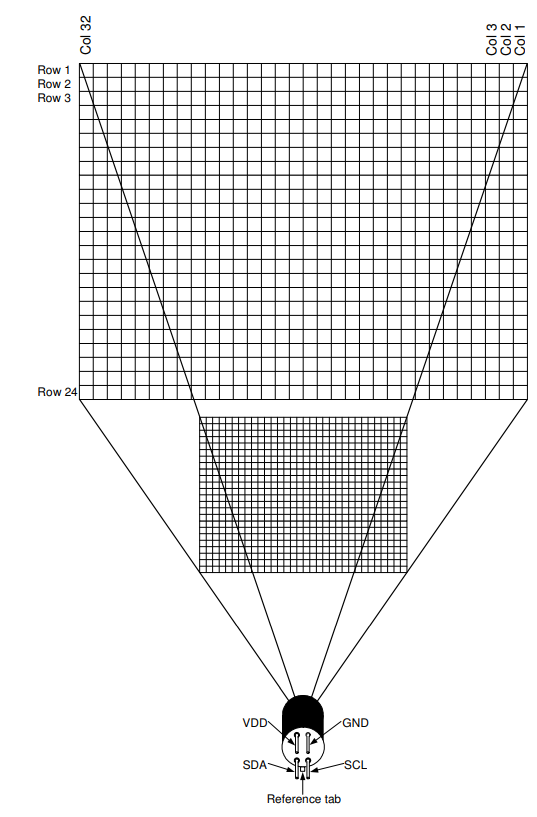

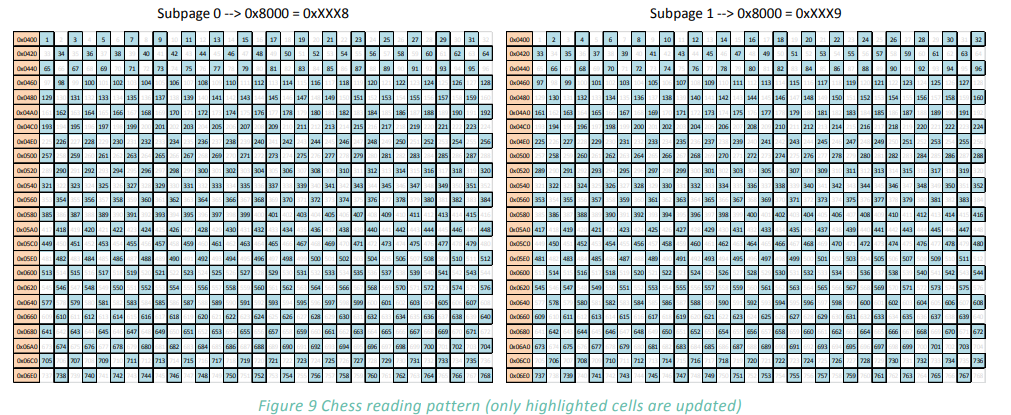
Every object around us constantly emits infrared radiation depending on its temperature. Our eyes cannot see this radiation, but the MLX90640 thermal imaging sensor can detect it and convert it into temperature readings. Inside the sensor, there is a 32×24 array of infrared detectors. Each tiny pixel measures the infrared energy coming from its corresponding point in the scene and calculates the temperature.
Since I am using the MLX90640 long-range (55° FOV) version, the sensor captures a narrower field of view. This means instead of looking at a very wide area, it focuses on a smaller region with more detail and better temperature accuracy in that zone. This is extremely useful when observing electronics because it helps clearly identify which component or part of a PCB is heating up.
The temperature data from the sensor is continuously sent to the ESP32 CYD, which acts as the brain of the system. The ESP32 processes the temperature matrix, performs interpolation and smoothing to enhance the image, and then converts the data into a colorful visual representation. Cooler areas are displayed with colors like blue and purple, while warmer and hotter zones appear in yellow, orange, and red. This creates a real-time thermal image that clearly shows temperature distribution.
So, in simple terms:
- Objects emit invisible infrared heat
- The MLX90640 detects this heat and converts it into temperature values
- The ESP32 processes these values and maps them to colors
- The screen displays a live thermal heat-map image
With this process, something we normally cannot see—heat—becomes visually understandable and extremely useful for testing, debugging, and exploring electronics.
Why I Used the MLX90640 Long-Range Version
There are two main versions of the MLX90640: 110° wide view and 55° narrow view. I intentionally selected the 55° long-range version because:
- It provides better thermal detail per pixel
- Perfect for focusing on PCB areas or specific components
- More accurate temperature detection on small heat sources
- Less distortion and less background heat influence
- Ideal for engineering, testing, and debugging
Since my goal is to visualize the hot parts of my electronic circuits, this version gives exactly the precision I need.
For more details about MLX90640 you can visit: https://www.waveshare.com/wiki/MLX90640-D55_Thermal_Camera
Some great examples and use cases are available on the official Melexis website: https://www.melexis.com/en/product/mlx90640/far-infrared-thermal-sensor-array
Downloads
Circuit Design
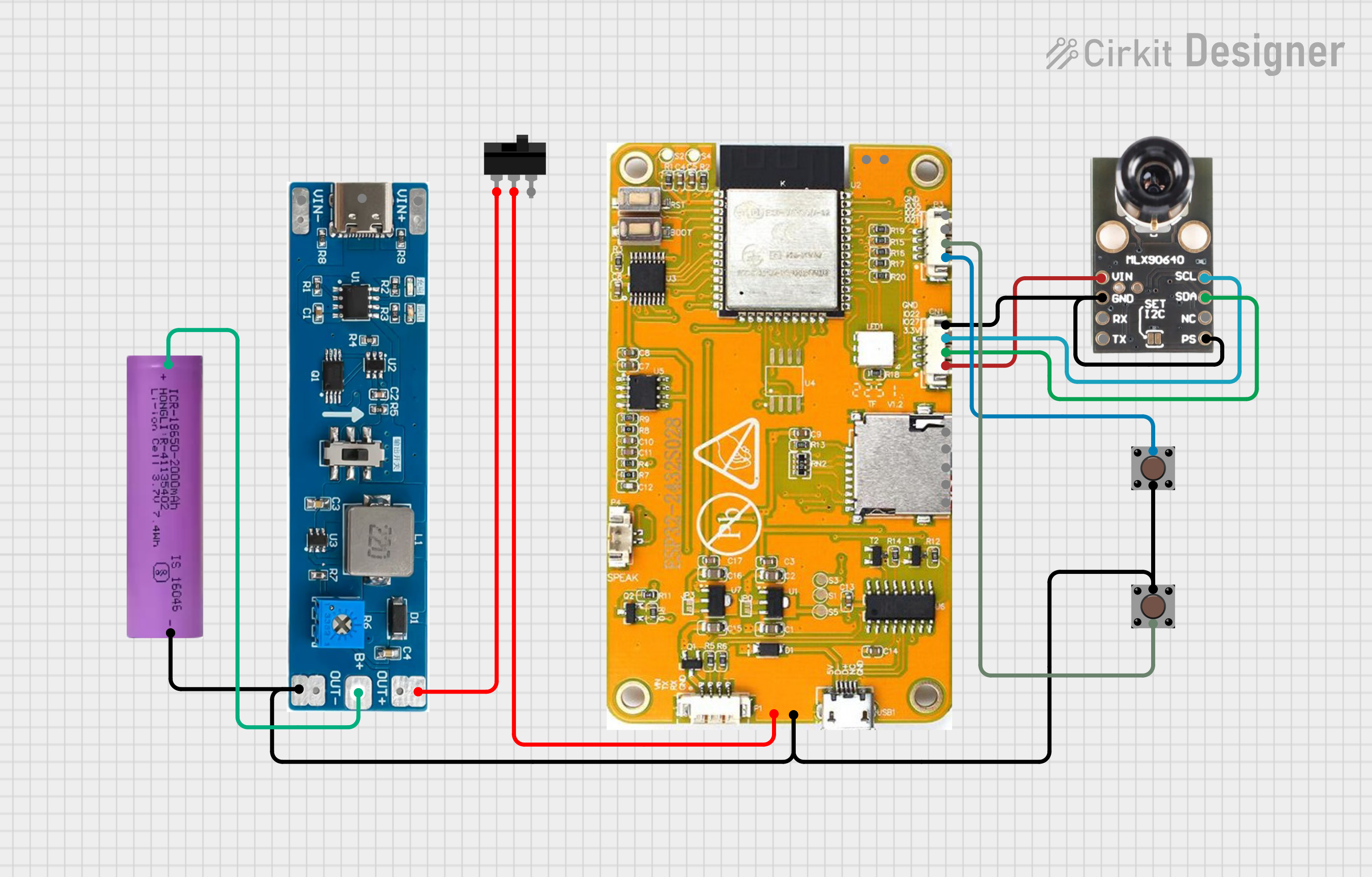
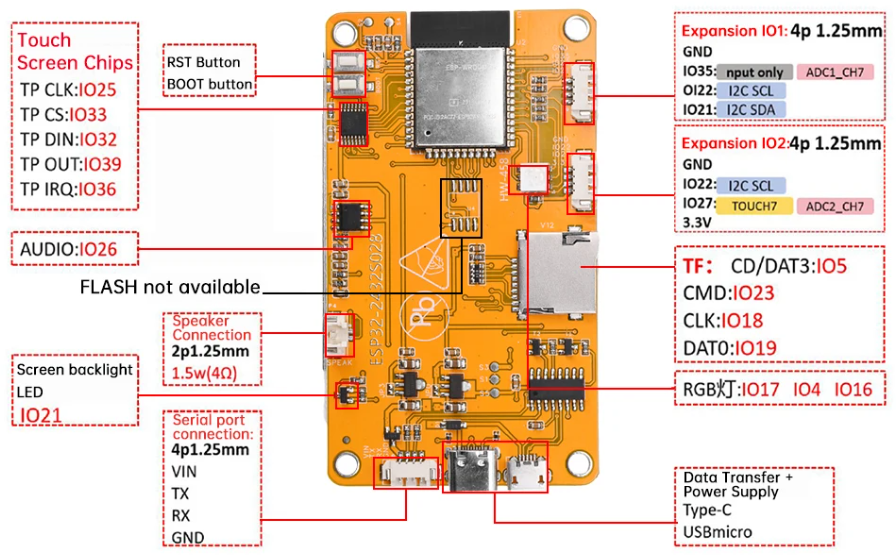
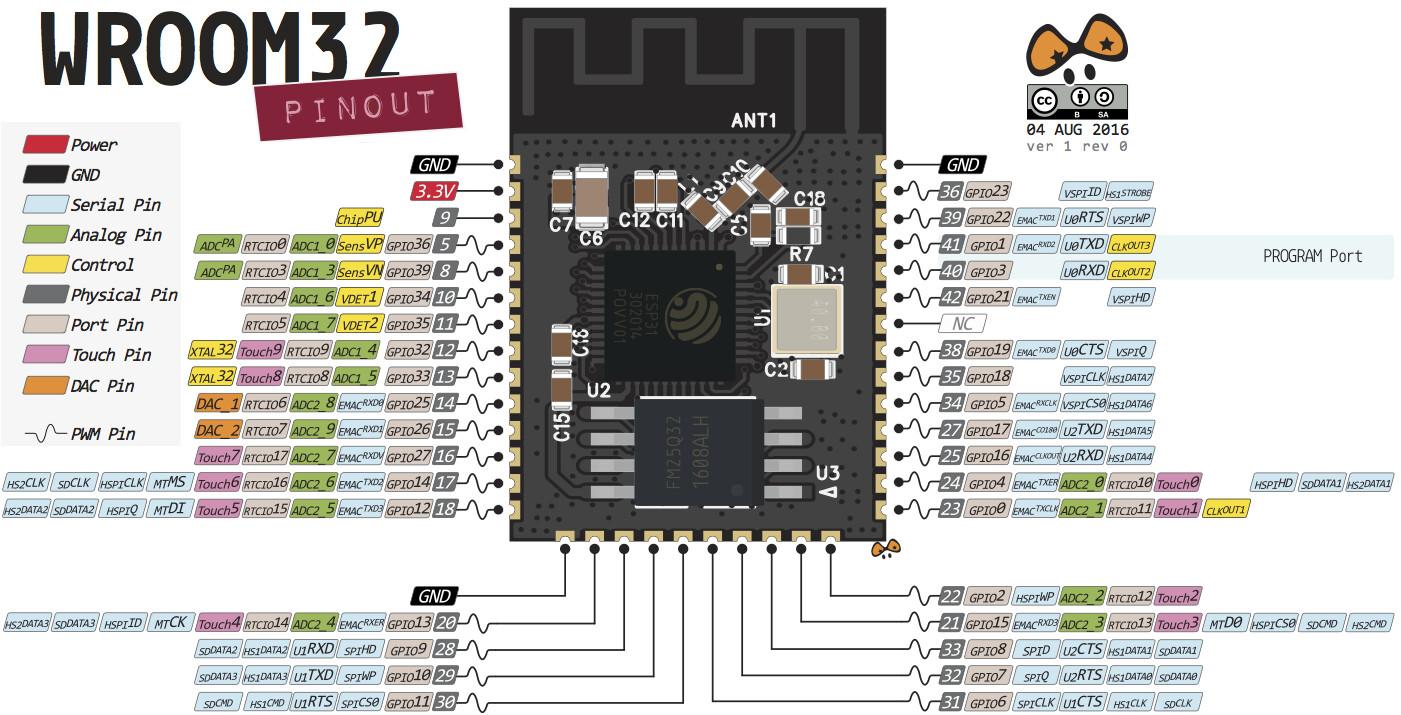
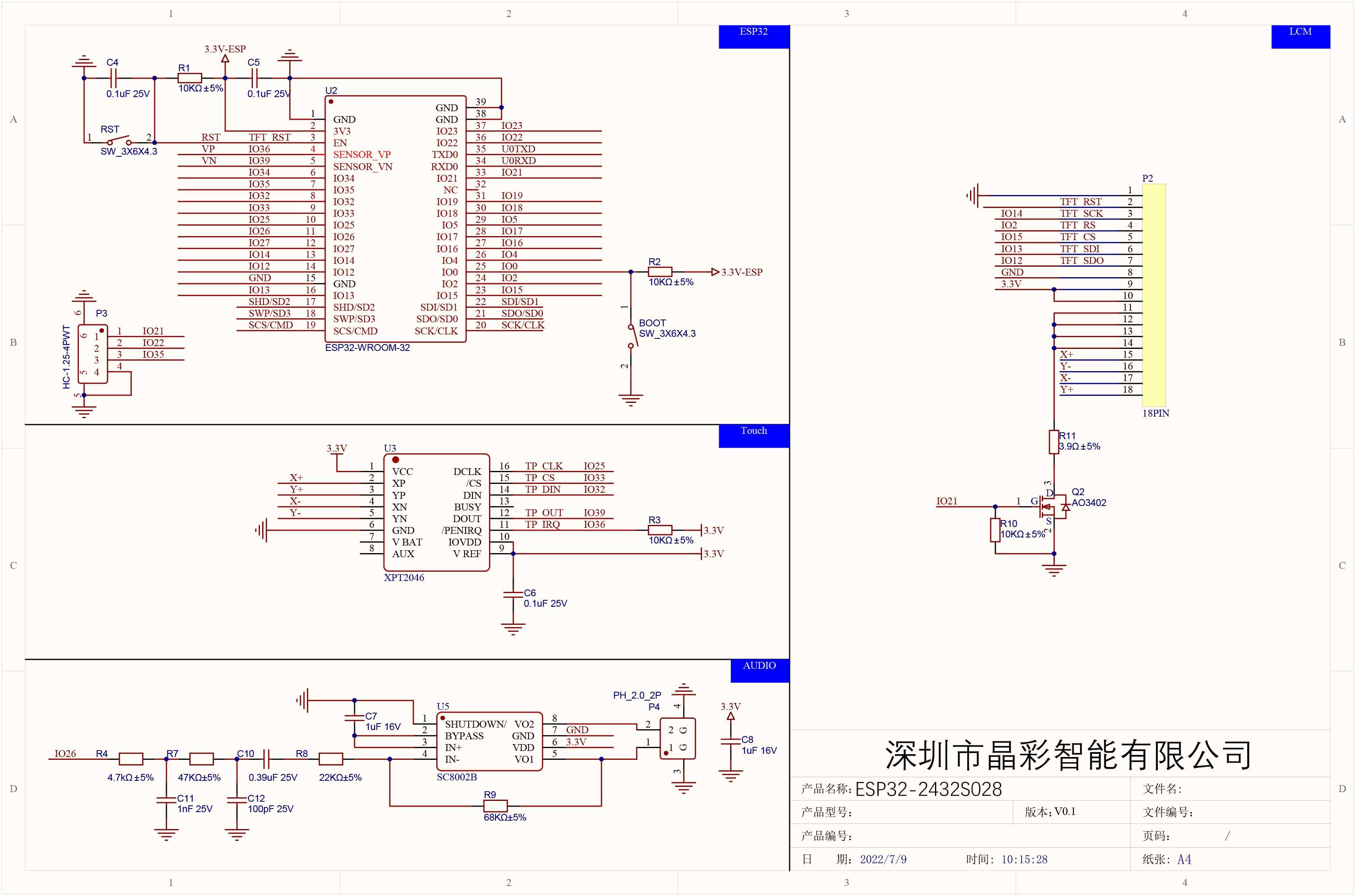
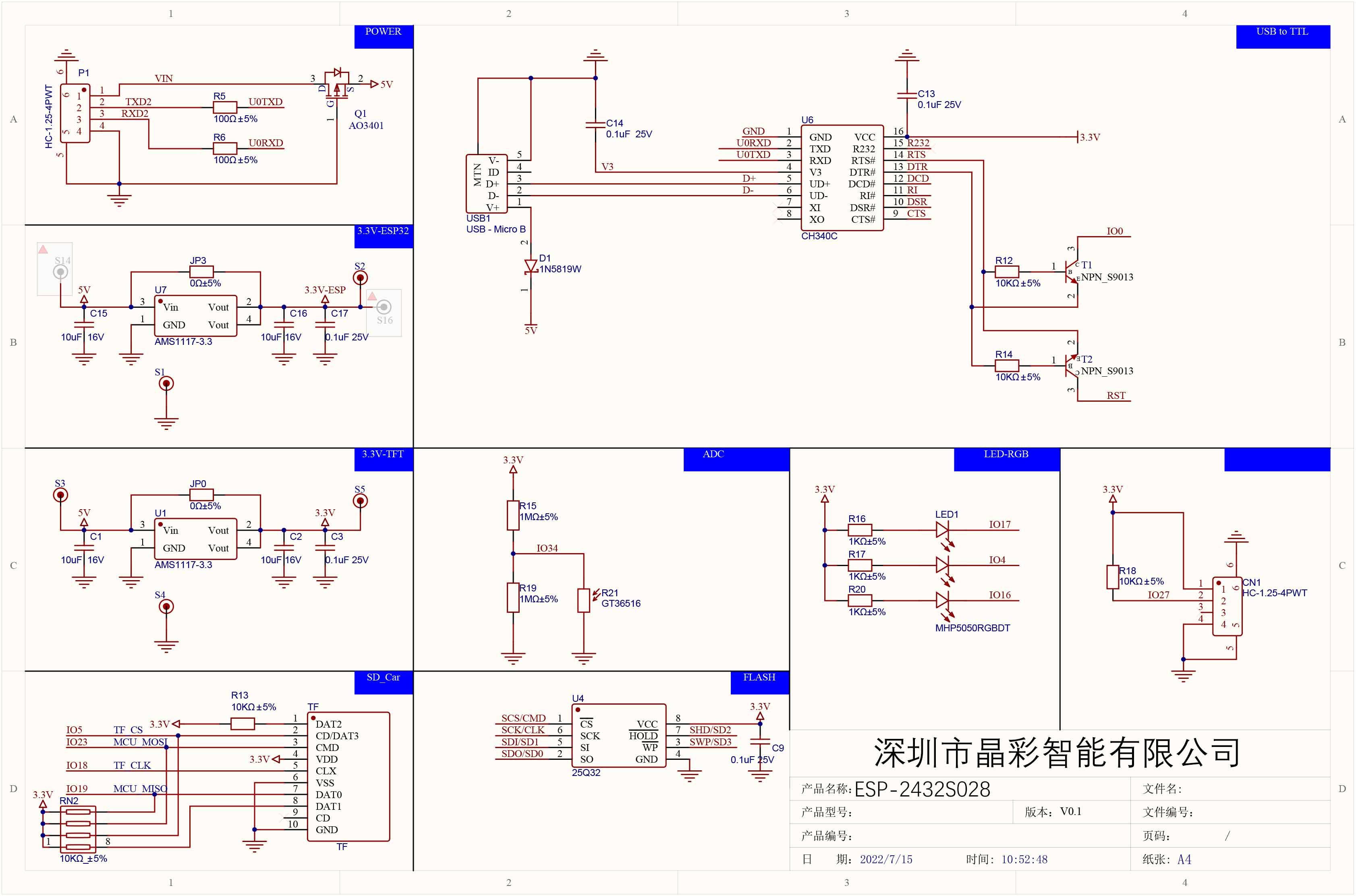
The heart of this thermal imaging device is the ESP32-CYD module, which serves as the main controller. It is responsible for reading data from the thermal sensor, processing it, and displaying the resulting thermal images on the screen. For your reference, the complete schematic and pinout diagram of the ESP32-CYD board are provided.
The thermal sensor used in this project is the MLX90640, a high-resolution infrared array sensor capable of capturing accurate temperature readings. It communicates with the ESP32 through the I²C interface, ensuring reliable and efficient data transfer.
To make the thermal imager interactive, two tactile push buttons are included. These buttons allow the user to control the camera’s operation, such as switching modes, capturing snapshots, or adjusting settings.
The device is getting power from a single 18650 Li-ion battery, which provides a compact and rechargeable energy source. The circuit includes an integrated UPS module that manages battery charging and converts the battery voltage from 3.7 V to a stable 5 V. This ensures that the ESP32 and other components receive consistent power, even while the battery is charging, making the device highly reliable and portable. The power is provided to the main circuit through an on/off switch.
You can explore and modify the circuit from the link below.
Edit this project interactively in Cirkit Designer.
3D Enclosure Design (Designed in Autodesk Tinkercad)


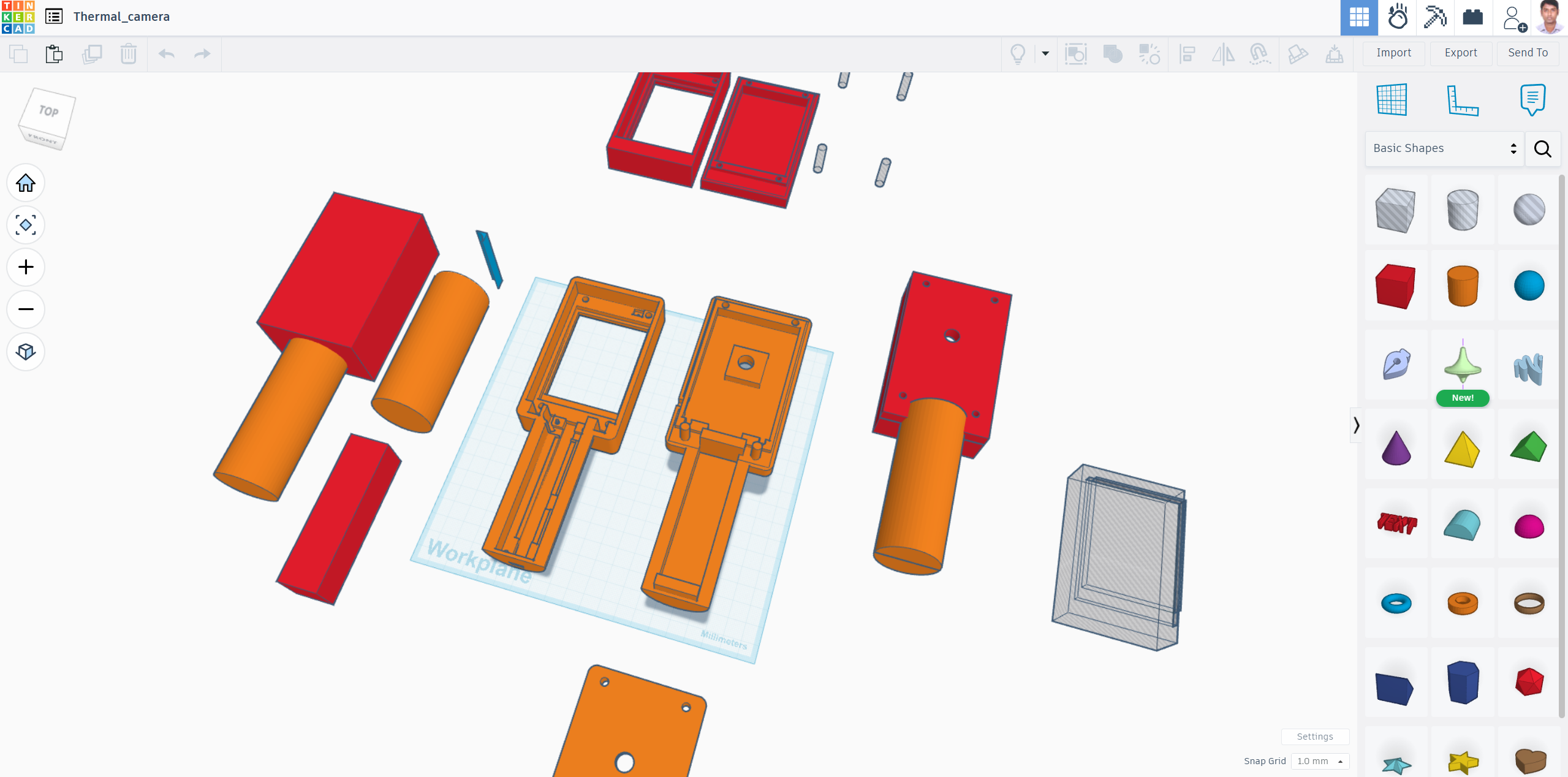
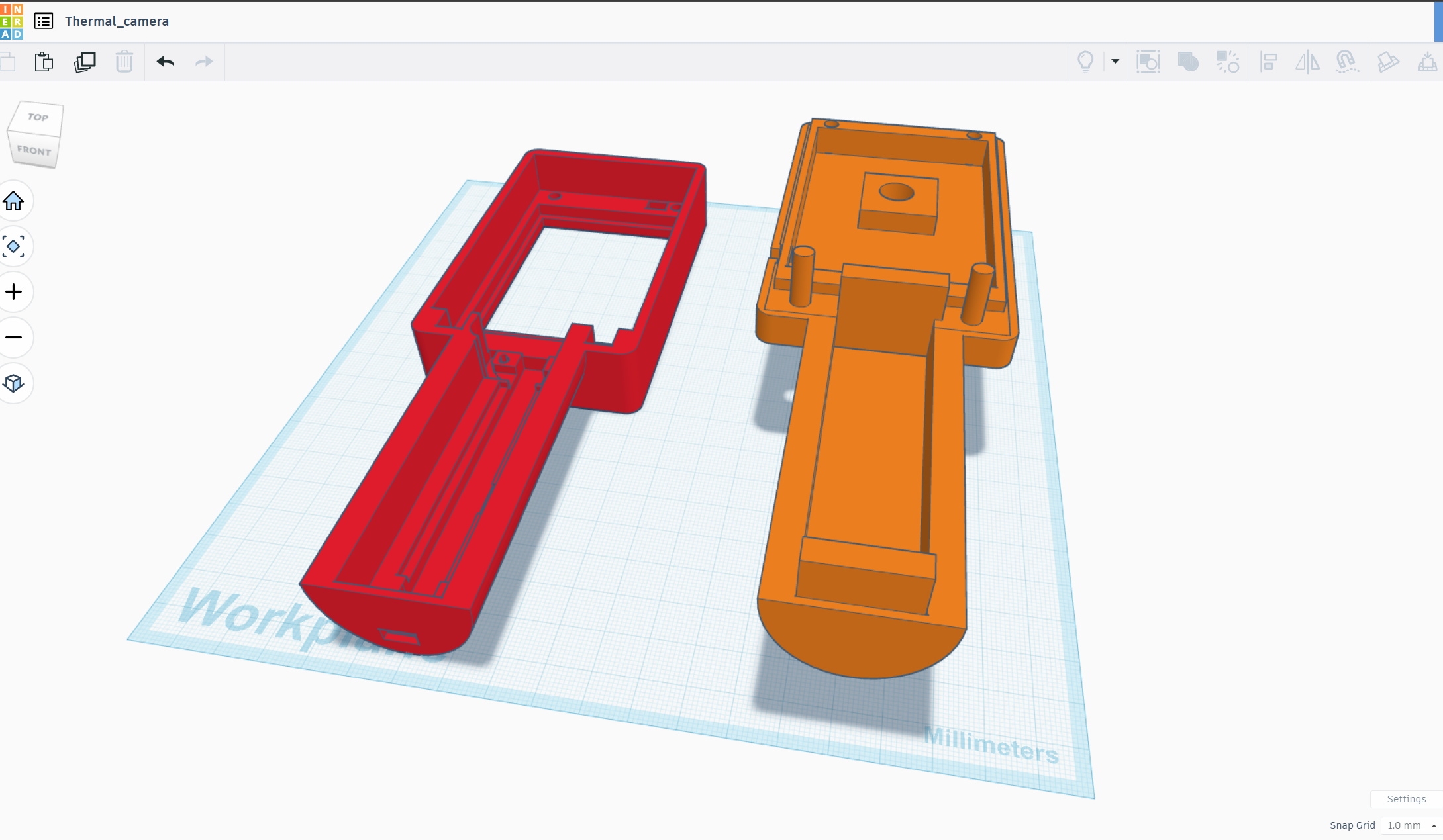
To make this thermal camera practical and portable, I designed a dedicated enclosure using Autodesk Tinkercad. My goal was to create a compact, user-friendly housing that protects the electronics, provides good visibility for the display and sensor, and looks like a finished product rather than just a prototype.
I designed a two-part enclosure consisting of a top cover and a bottom base. The components, such as the ESP32 display board, MLX90640 sensor, battery, and wiring, fit neatly inside, and the two parts align together securely.
The 3D CAD files are attached below.
I printed the enclosure using PLA. The design is support-free, but enabling supports during printing improves bed adhesion and helps the part stick more securely to the build plate.
Soldering the Components
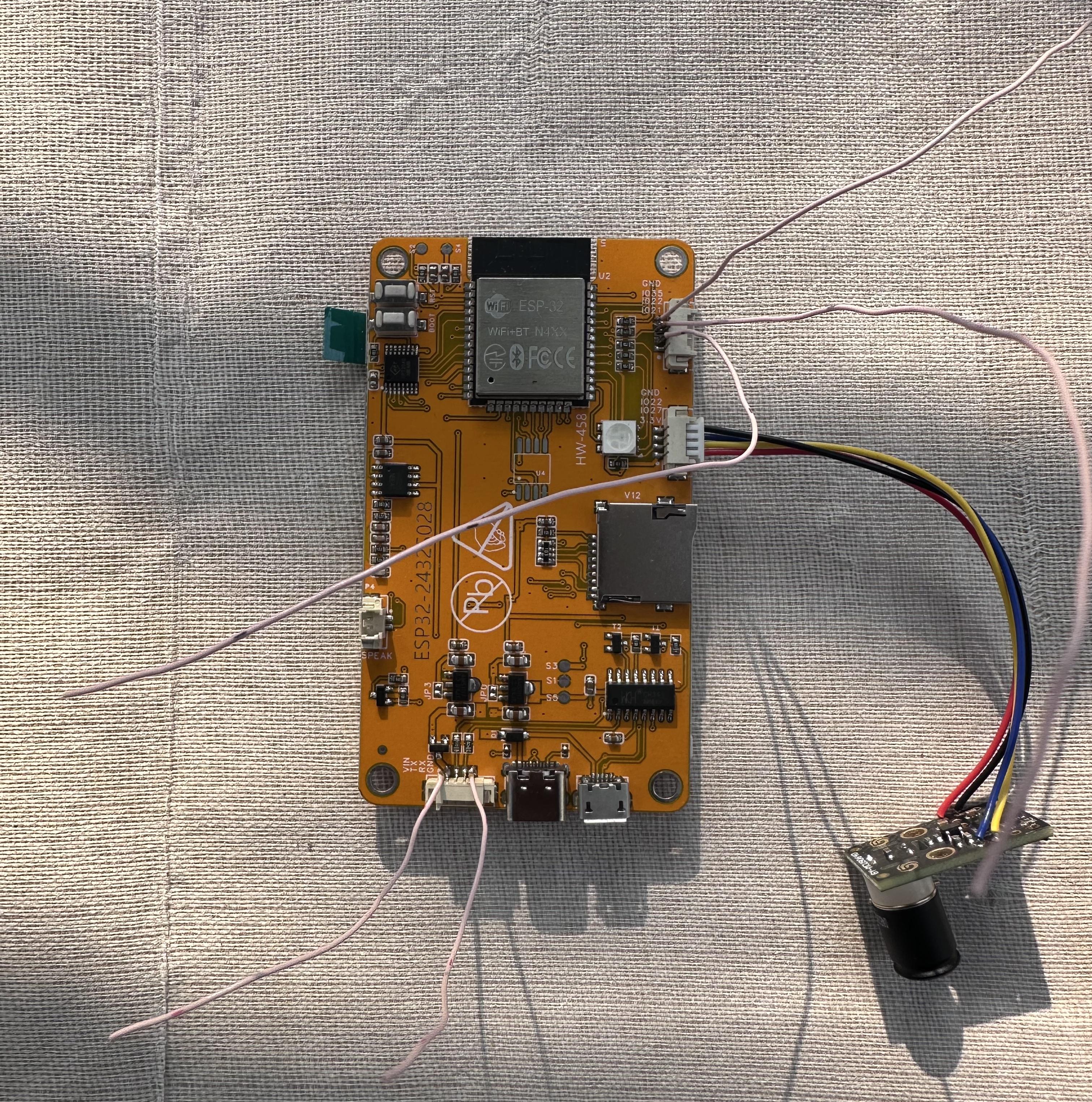
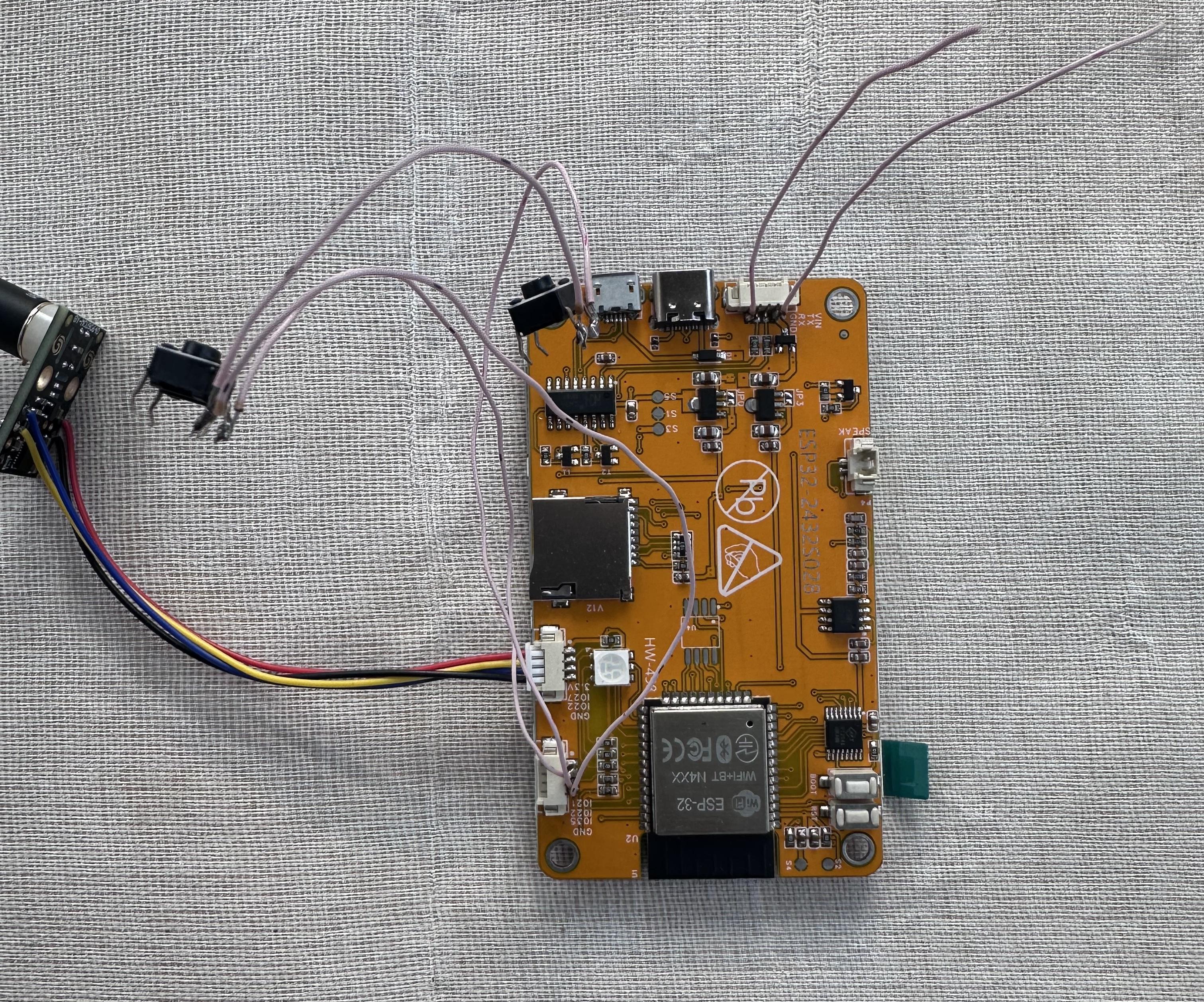
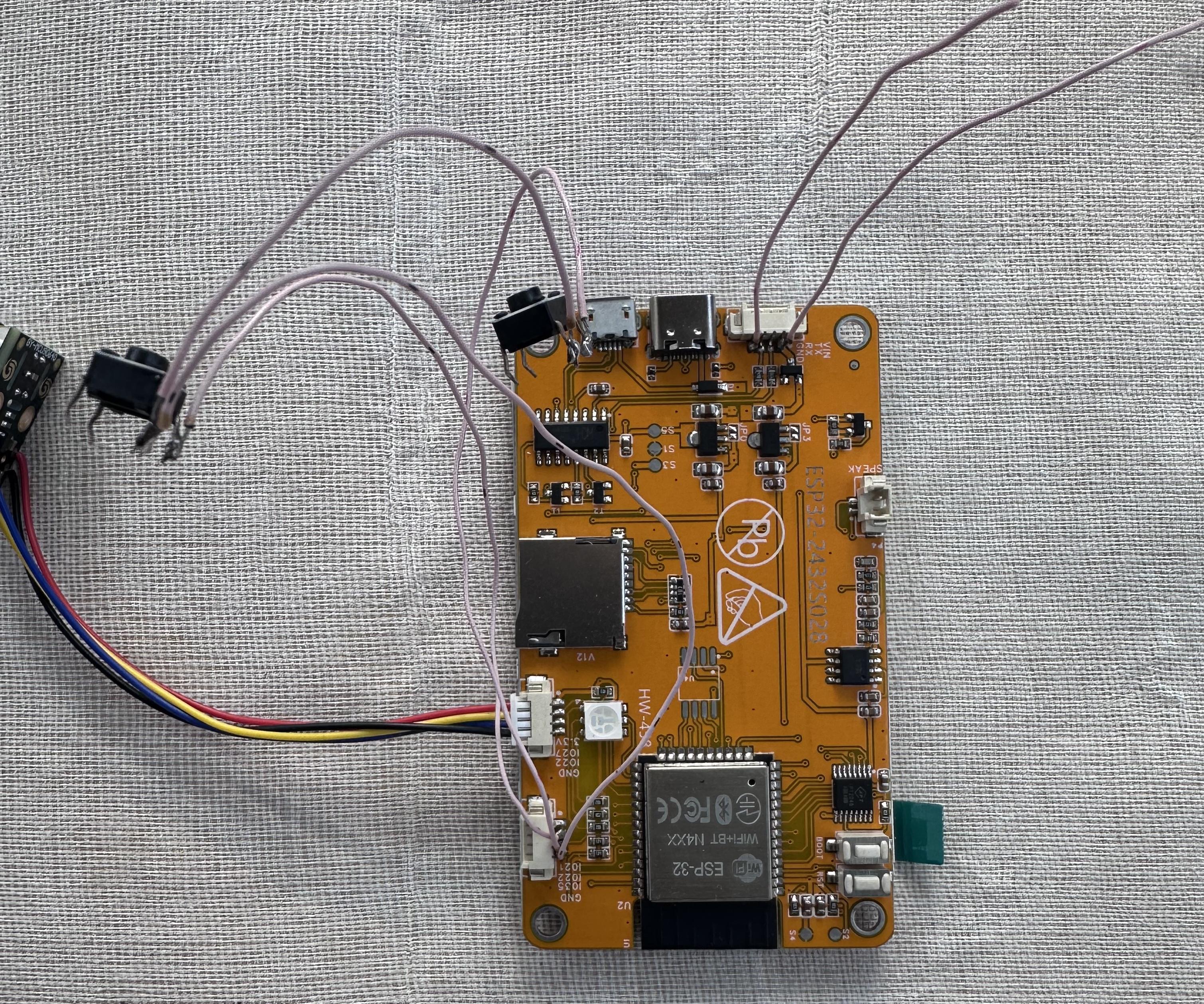
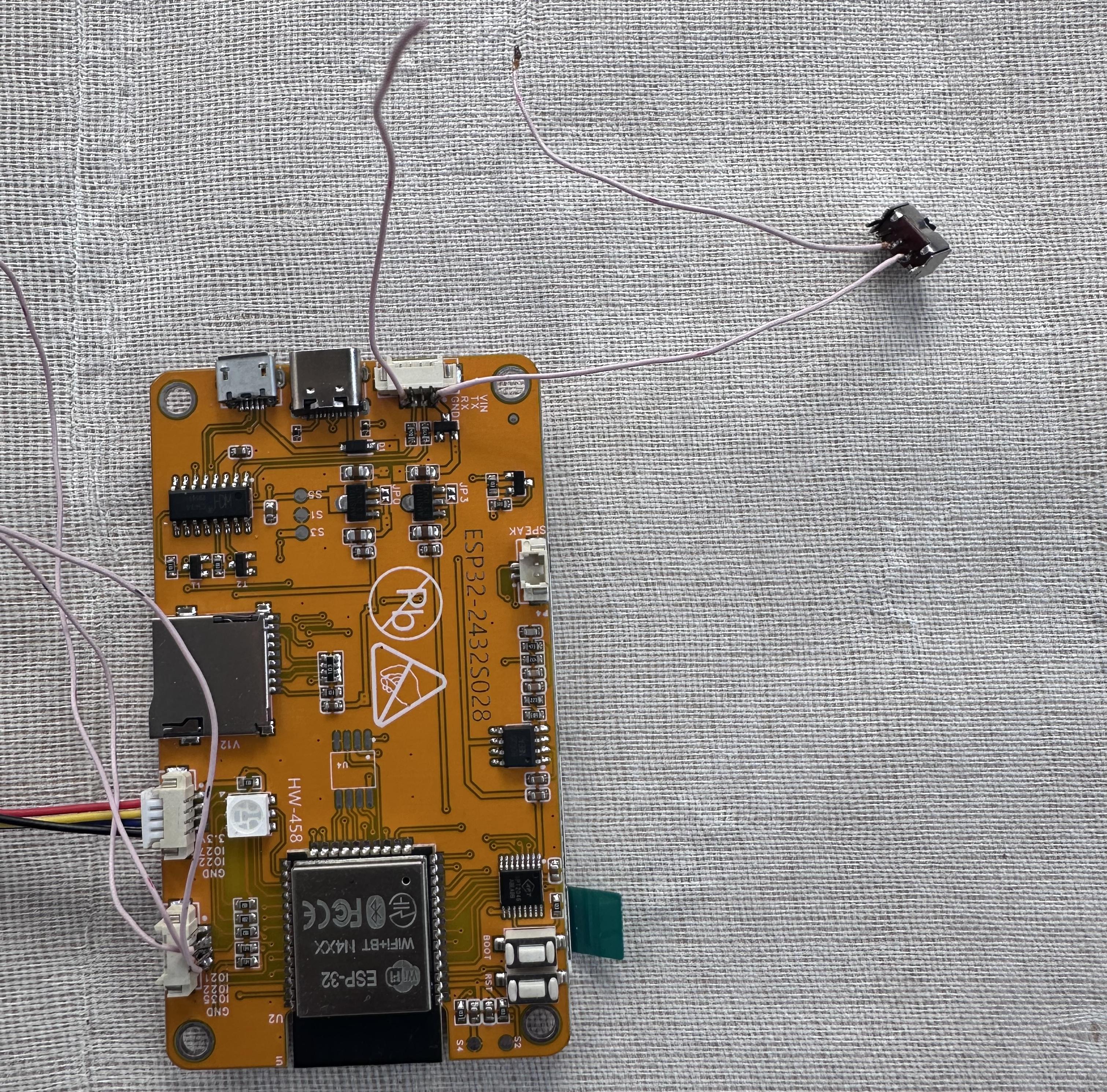

The first step was to solder the MLX90640 thermal sensor. The ESP32 CYD module conveniently includes a 4-wire jumper cable with a pre-installed connector on one side. I trimmed the cable to a suitable length to keep the wiring neat and reduce unnecessary clutter inside the enclosure. Then I carefully stripped the wire ends, tinned them, and soldered each lead to the corresponding pads on the MLX90640 sensor board. Once the solder joints were solid and shiny, I checked for any shorts and ensured the connections were firm and aligned properly. This simple wiring method made the sensor easy to install while keeping the build clean and reliable.
After soldering the sensor, I moved on to installing the control buttons. I used two standard 6×6 tactile push buttons and connected them to GPIO 22 and GPIO 35 of the ESP32 CYD. The other terminals of both switches are connected to ground, forming a simple and reliable input setup. GPIO 35 has no internal pullup resistor, so I connected an external 10K resistor from 35 to 3.3V. Once soldered, I double-checked the joints to make sure the connections were firm and there were no unintended bridges. These buttons will be used to control different functions of the thermal camera during operation.
Finally, I connected the power supply. The positive output from the UPS module is routed to the VIN pin of the ESP32 CYD through a sliding power switch, allowing me to easily turn the device on and off. The ground output of the UPS module is connected directly to the ESP32 ground pin to complete the power circuit. This setup ensures a stable power connection while also providing a convenient way to control the device’s power.
Programming
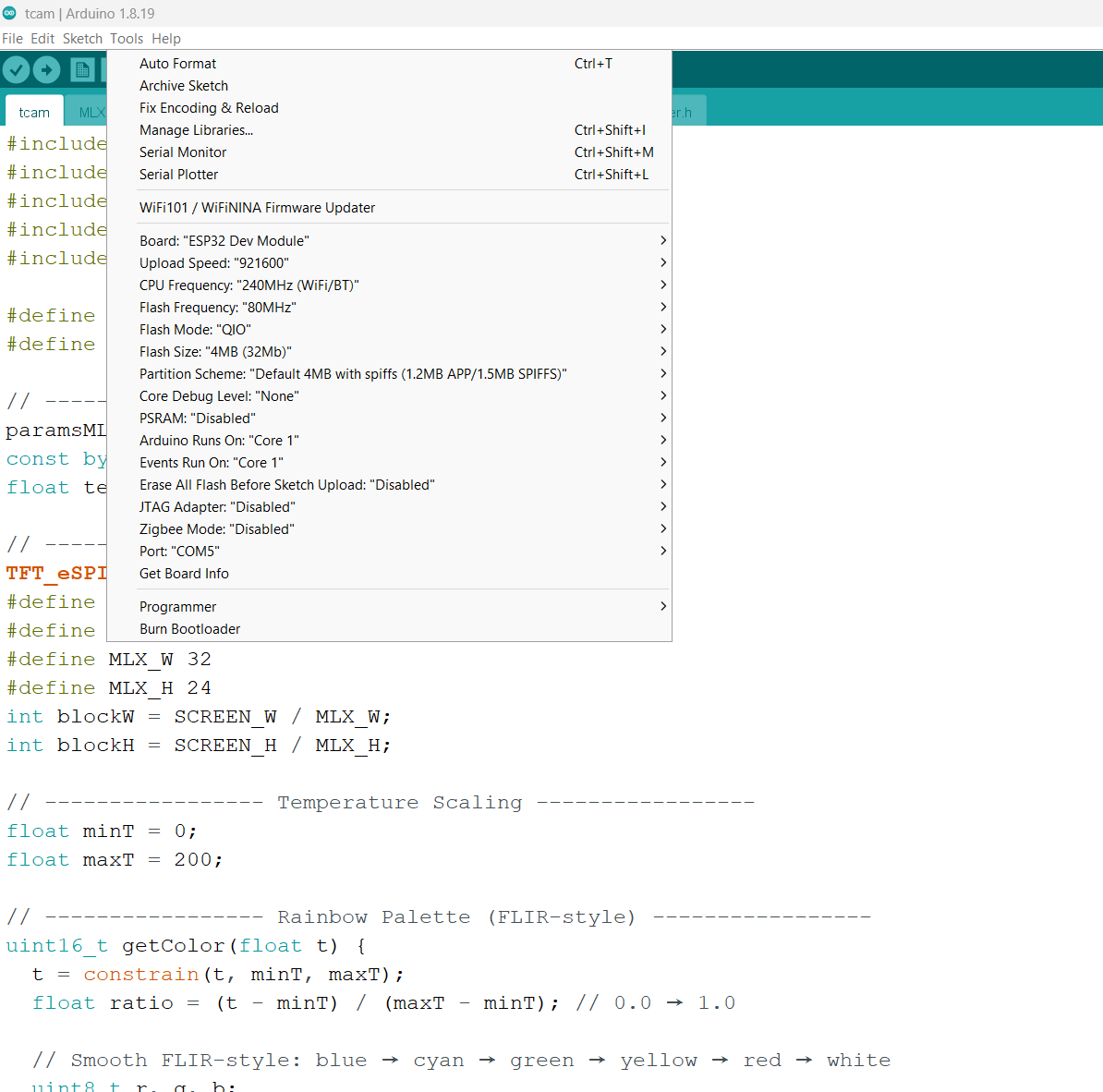
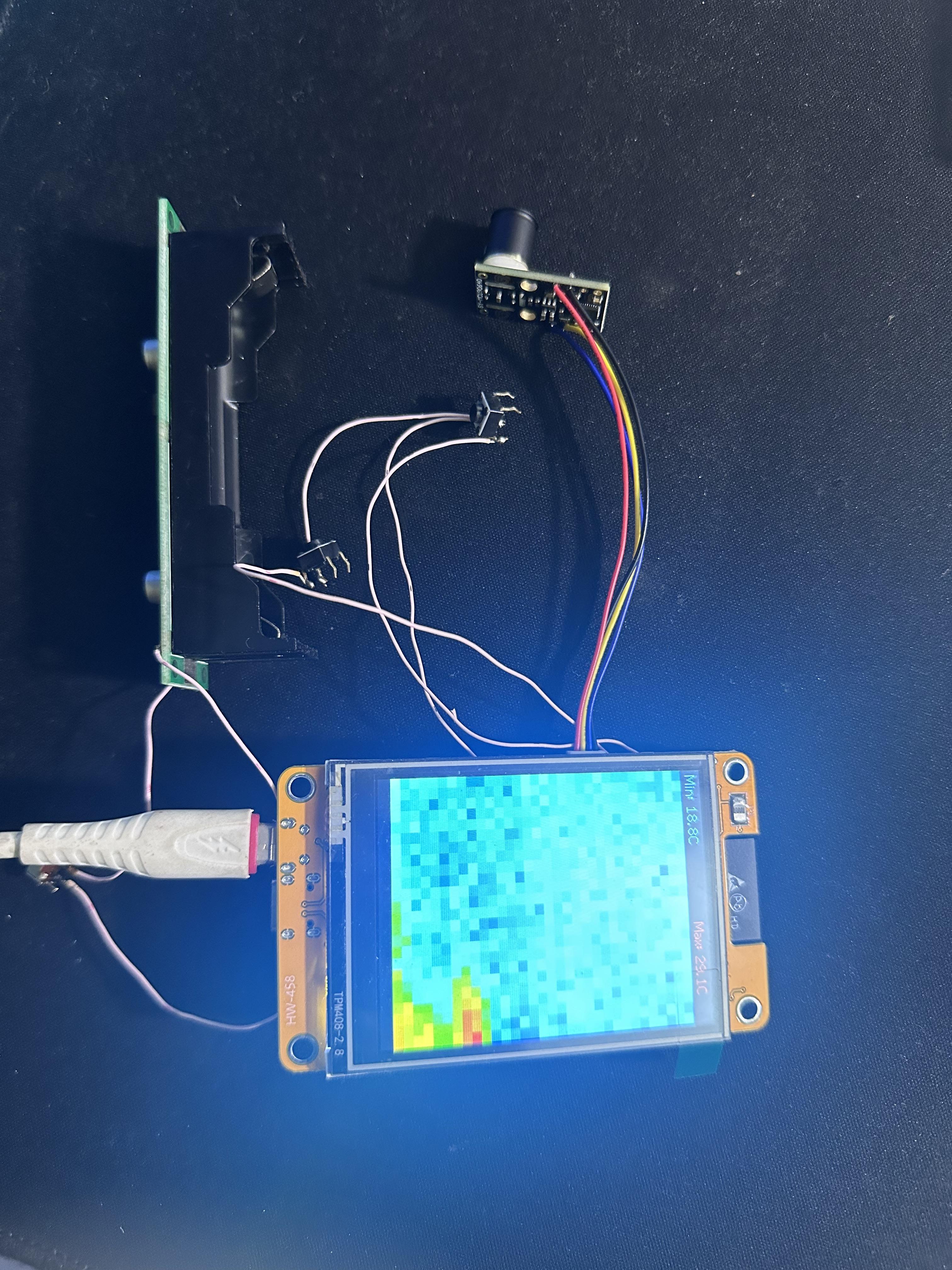
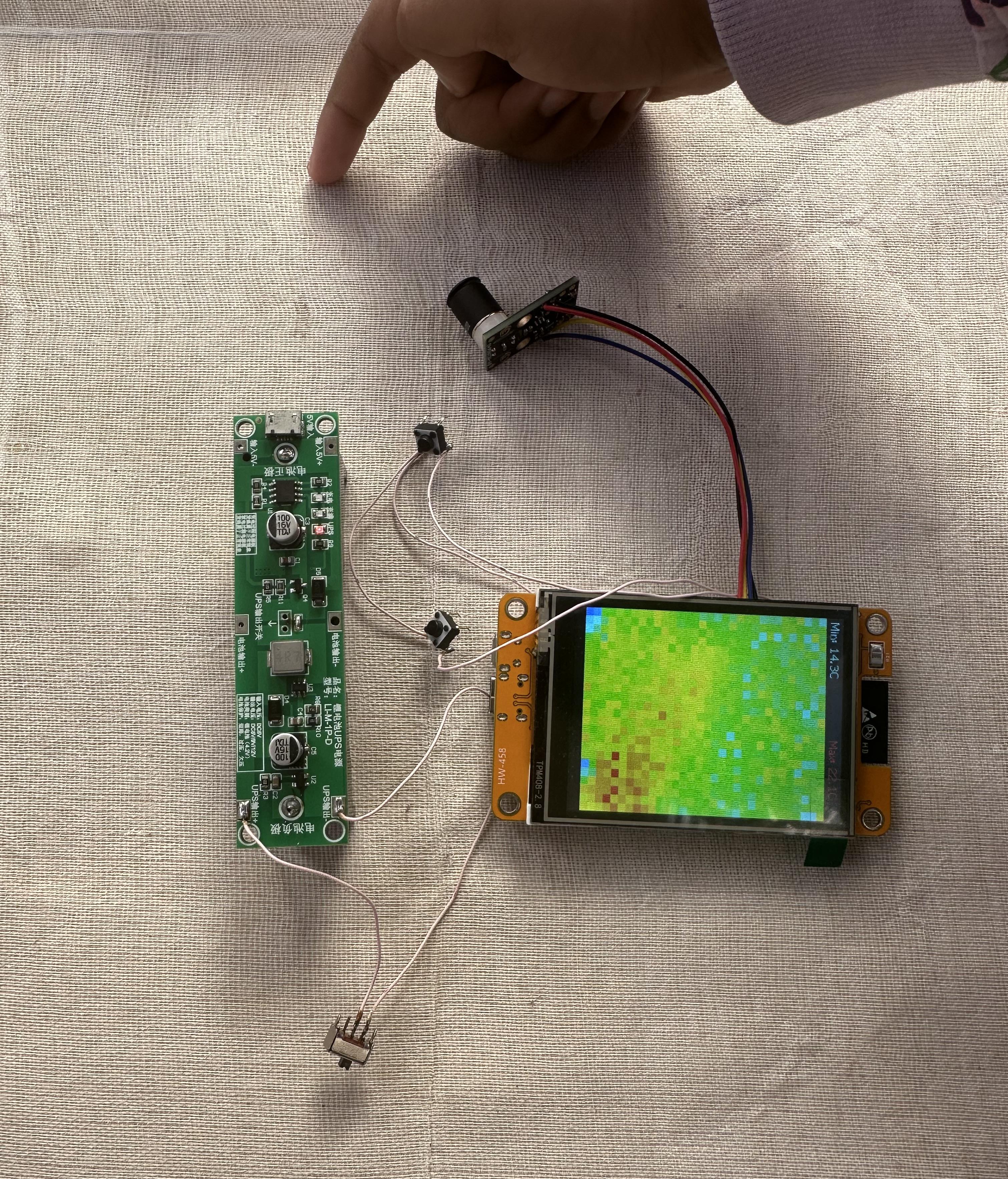
After completing the circuit connections, the next step was programming the ESP32 CYD module to make the thermal camera fully functional. I used the Arduino IDE to write and upload the code, as it provides an easy-to-use platform for ESP32 development. The program reads temperature data from the MLX90640 sensor over I²C, processes it to generate a thermal image, and displays it on the TFT screen in real time. I also implemented features such as temperature scaling, color mapping, a simple HUD to show minimum and maximum temperatures, and button controls for additional functionality. On pressing the right button, the thermal image is saved in the SD card. For successful compilation of the program, a few extra libraries are required, including those for the MLX90640 sensor and the TFT display. After writing the program and installing the necessary libraries, I uploaded it directly to the ESP32 CYD board, tested it, and made minor adjustments to ensure smooth operation. The complete code is attached below for reference.
The following library files should be placed inside the code directory for successful compilation.
3D Printing & Painting
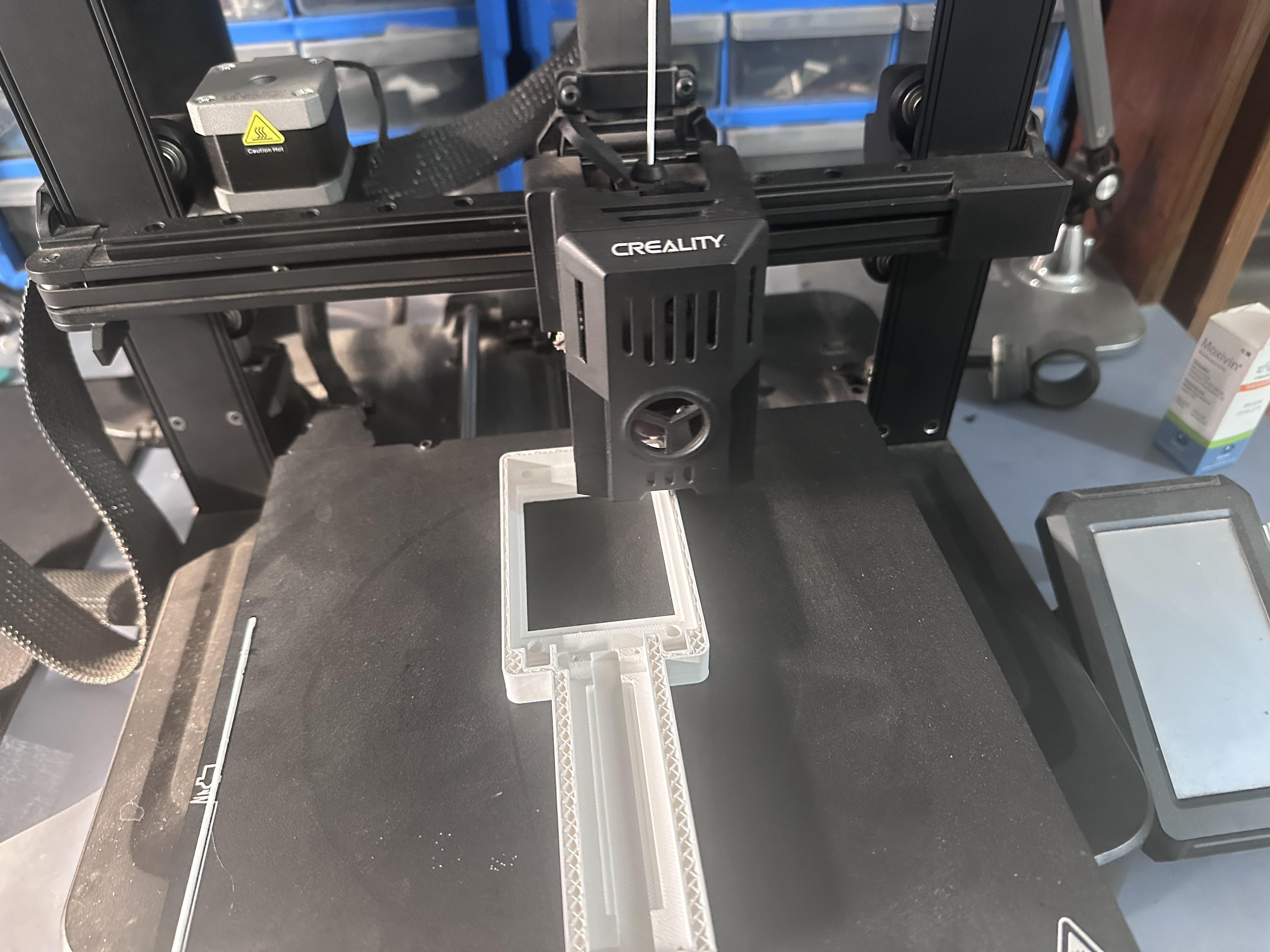
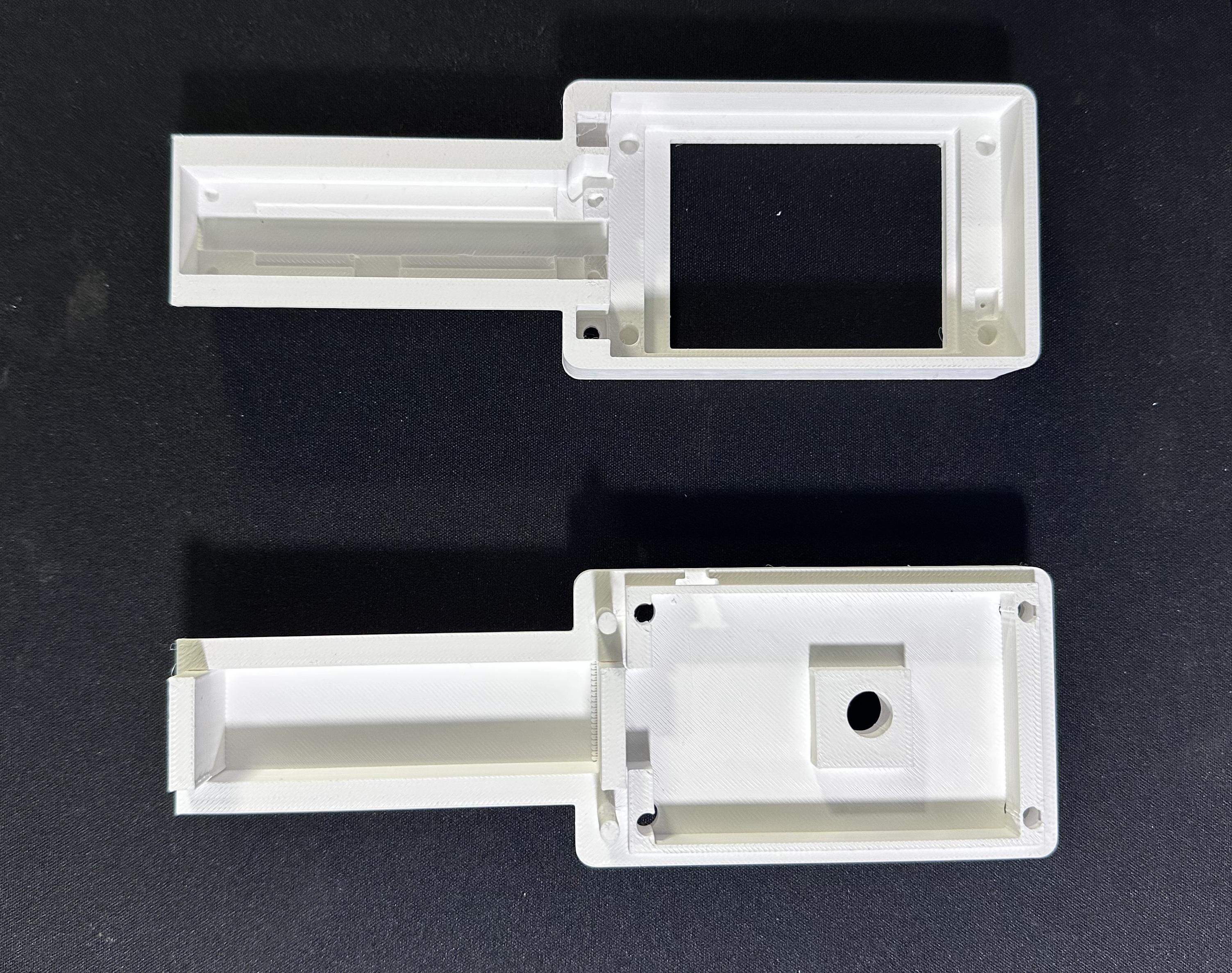
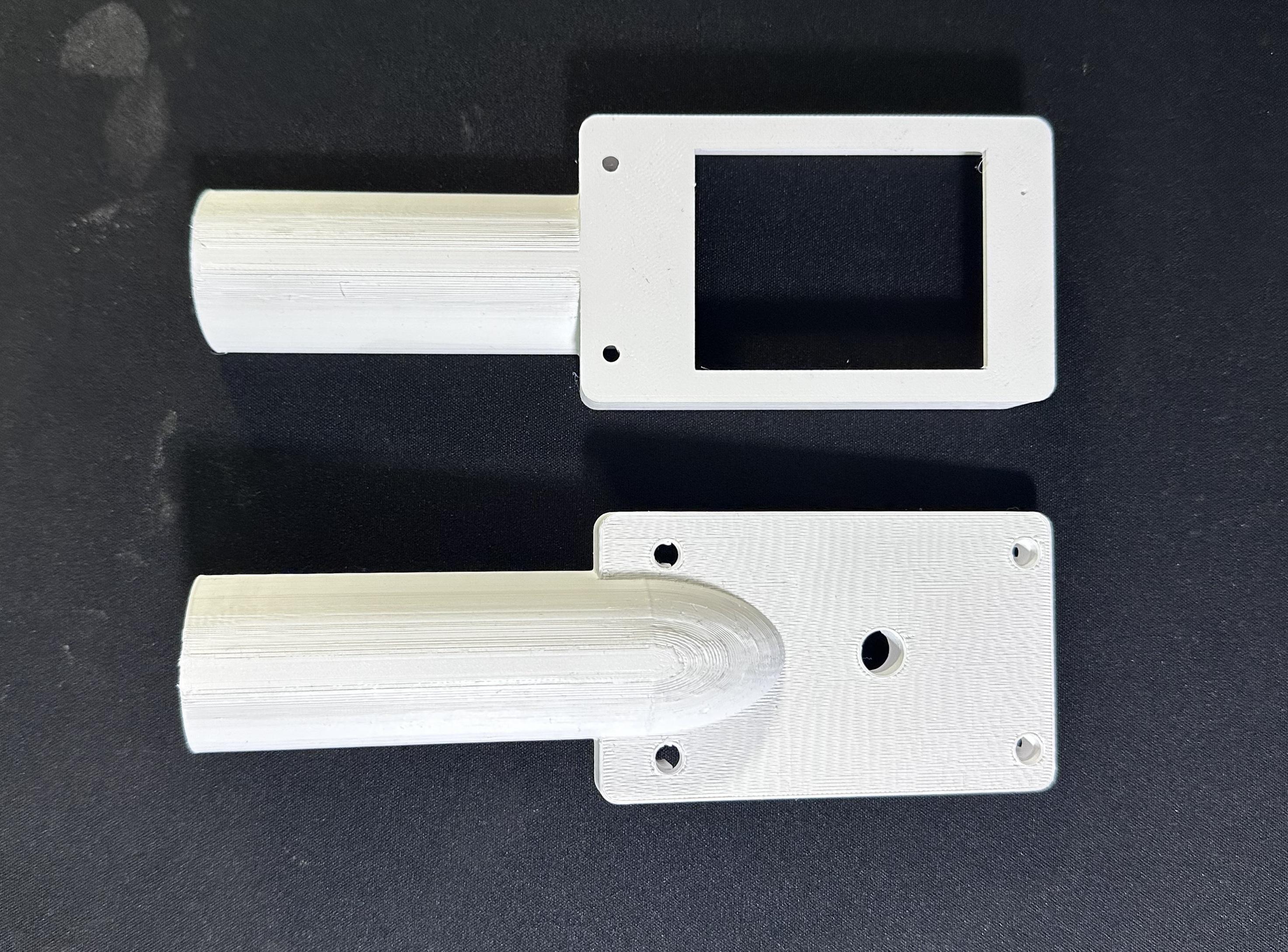
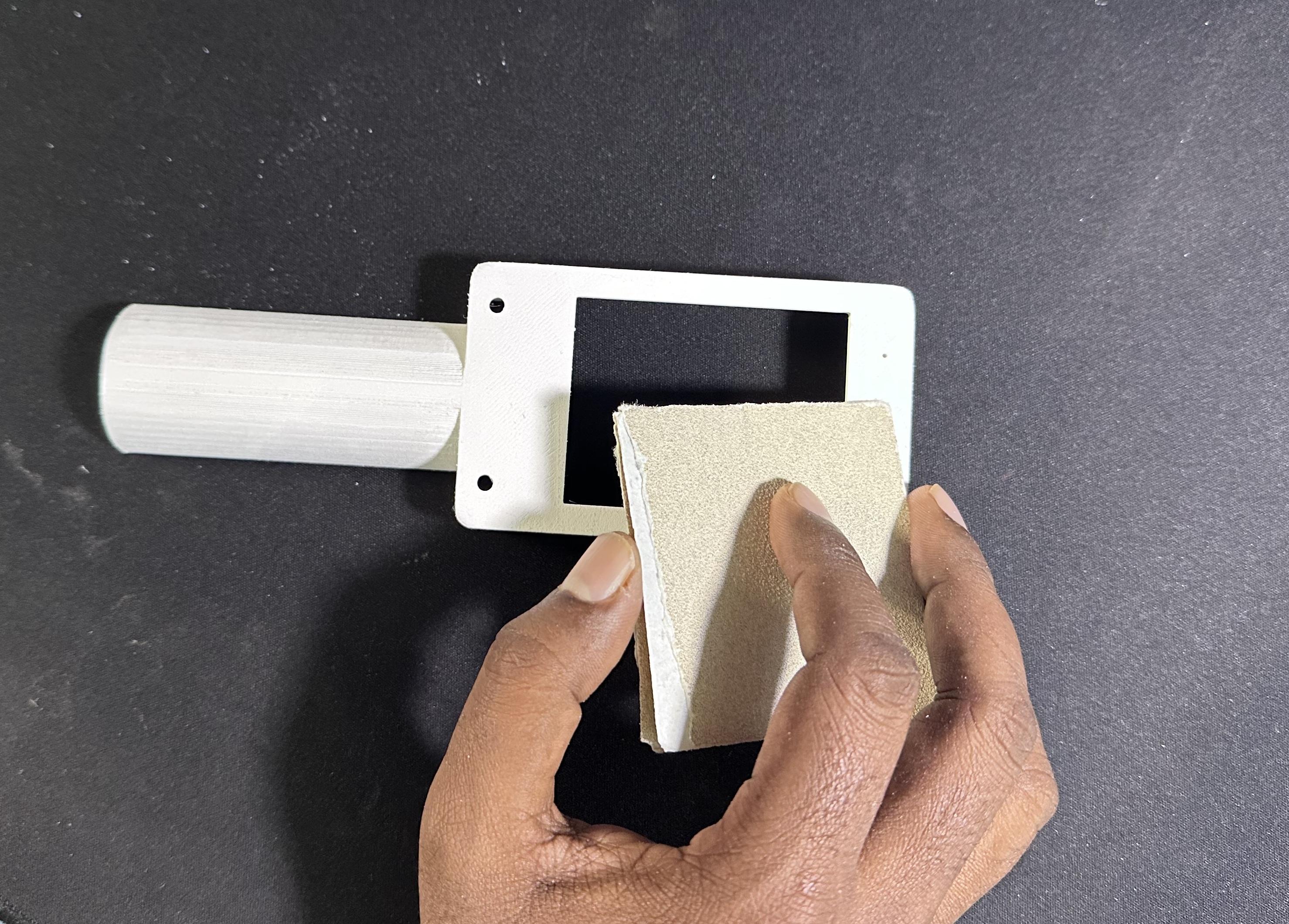
I printed both (top & bottom) enclosure parts using white PLA. The models are designed in a way that they can be printed without any support, which makes the printing process easier and faster. However, enabling minimal support (or a brim) is recommended as it helps the parts adhere better to the heated bed and reduces the chance of warping during printing. This ensures cleaner prints and more accurate final parts for assembly.
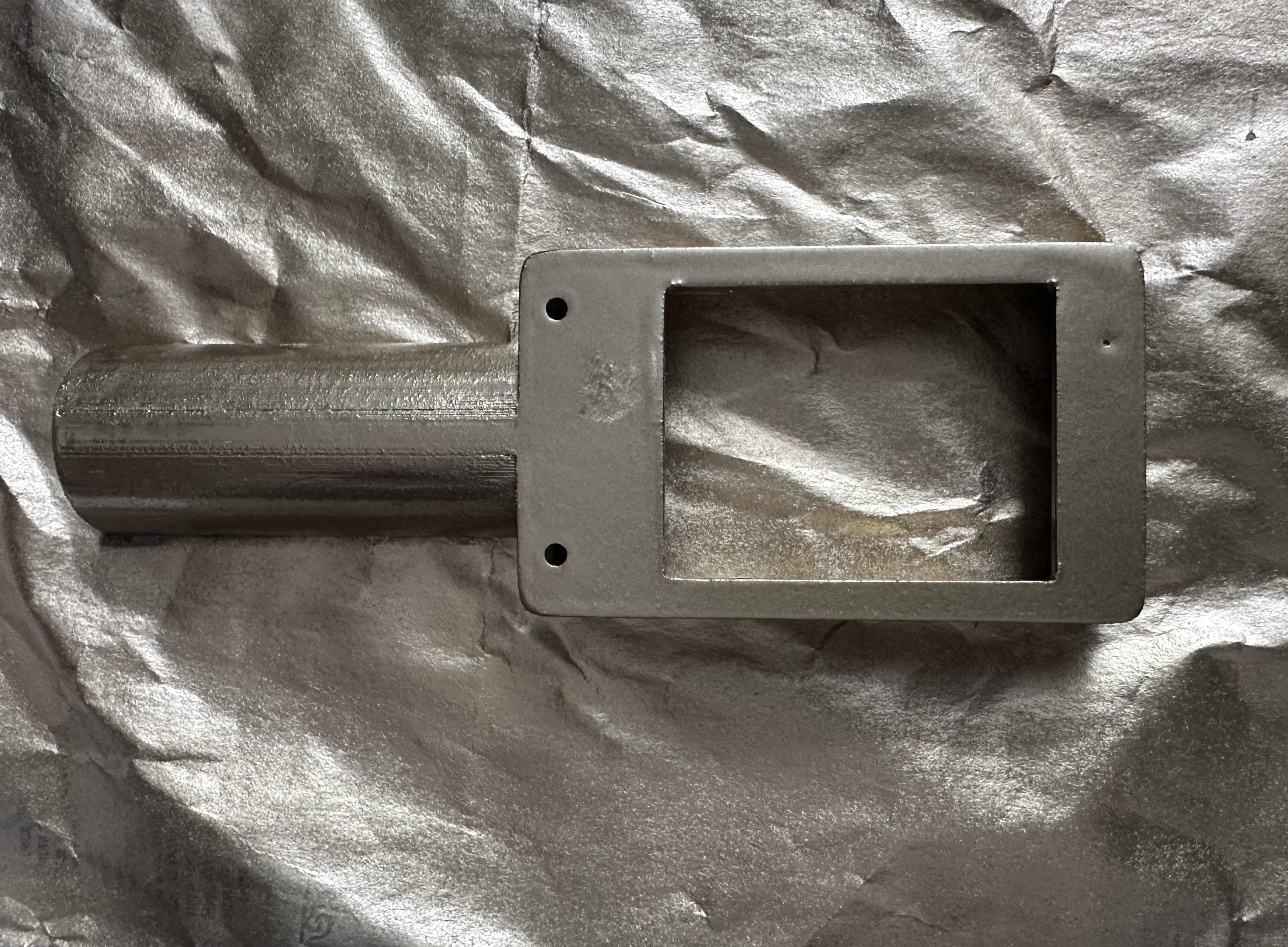
After printing, the next step is painting. Painting PLA parts is an important step for both aesthetics and durability. Raw 3D-printed PLA often has visible layer lines and a matte or slightly rough finish, which may not look very polished. Applying paint not only smooths the surface and enhances the appearance, allowing you to customize the color to match your project, but it also protects the PLA. Without a protective layer, PLA is susceptible to environmental factors like UV light, moisture, and dust, which can cause it to degrade over time. Exposed PLA may become brittle and can break after a few months of use. Painting provides a thin protective coating that helps preserve the part’s strength and extend its lifespan, while also giving it a professional, finished look.
To paint the PLA enclosure, I first cleaned all the printed parts to remove any dust or leftover debris from printing. I then lightly sanded the surfaces to smooth out the layer lines, which helps the paint adhere better. After that, I applied a thin coat of primer and let it dry completely; this not only improves paint adhesion but also provides a uniform base color. Once the primer was ready, I sprayed the parts evenly with white paint in multiple light coats, allowing each coat to dry before applying the next. This careful layering prevents drips and ensures a smooth, even finish. Finally, after the paint fully dried, I inspected the parts and touched up any spots if needed, resulting in a clean and professional-looking enclosure for the thermal camera.
Assembling
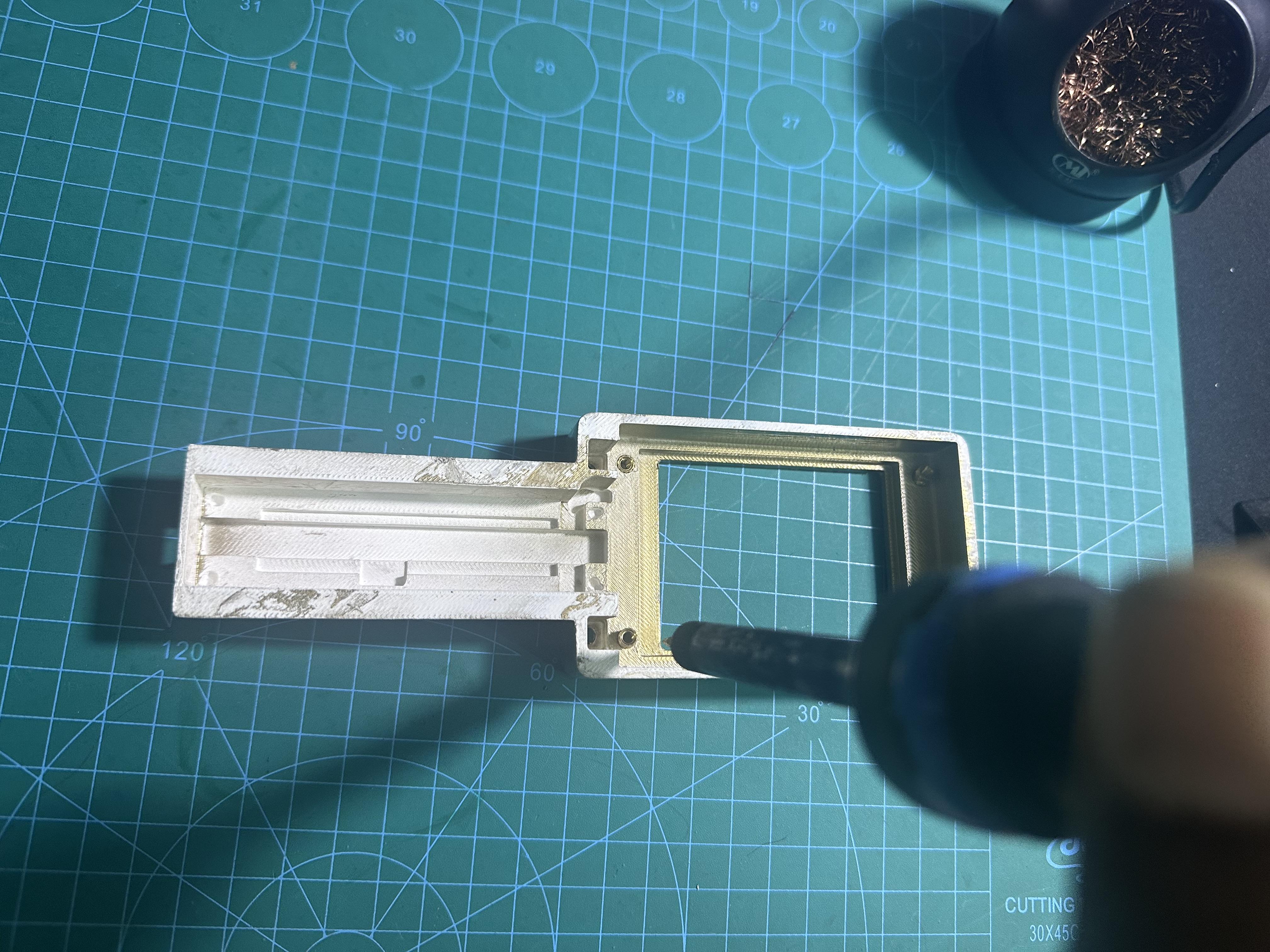
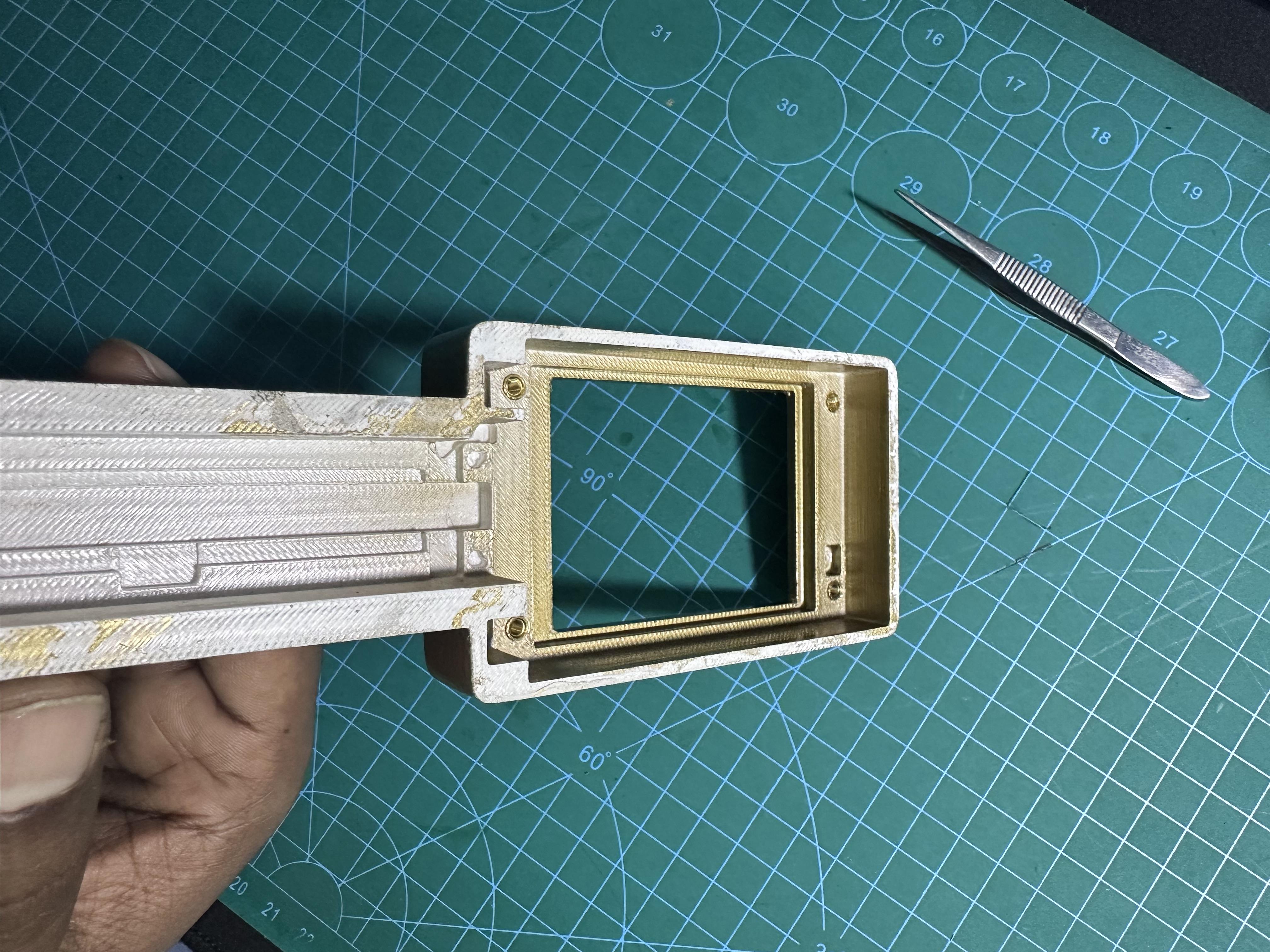
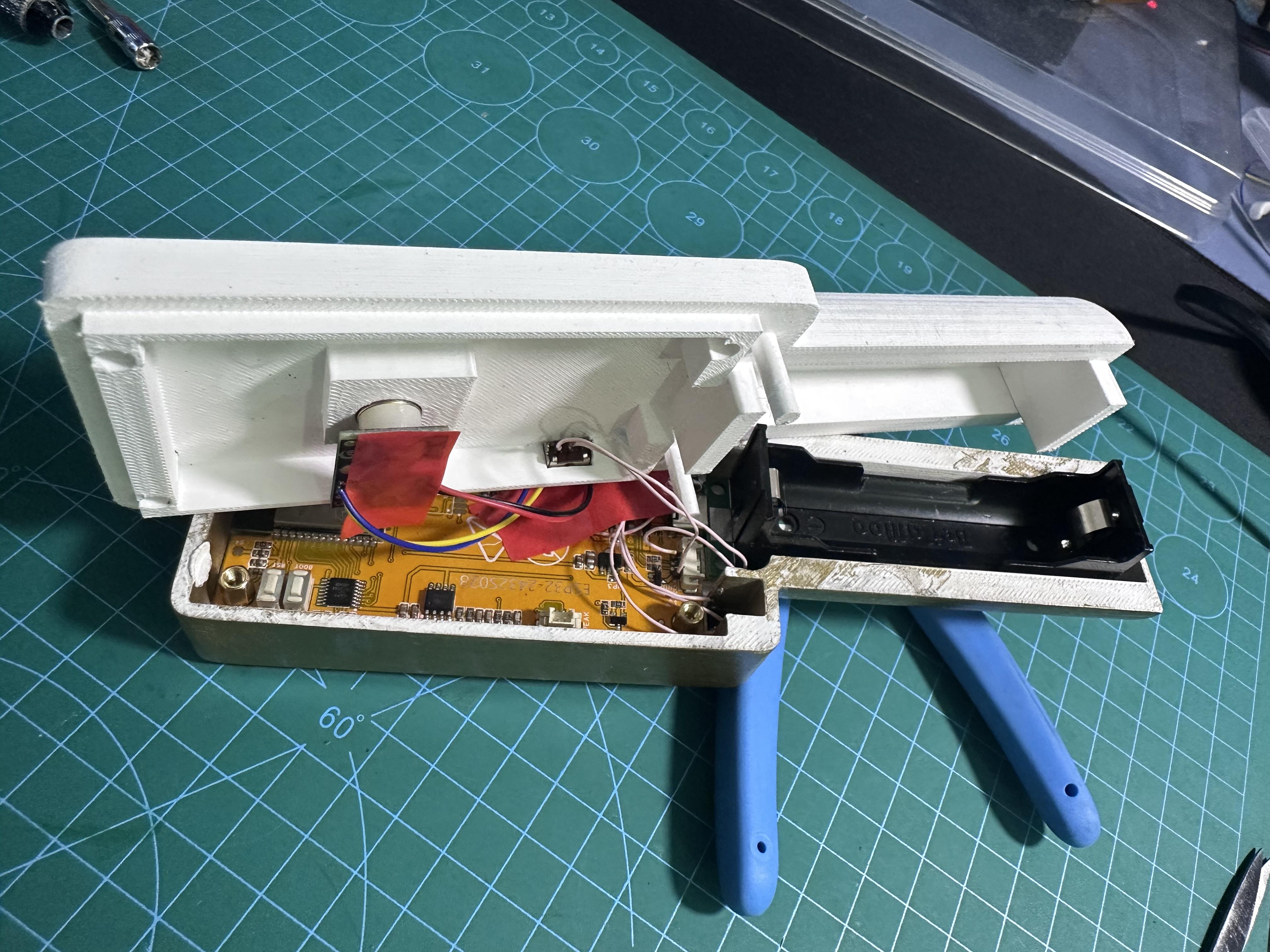
With all the parts ready, I started assembling the thermal camera. First, I placed four M3 heat inserts into the mounting holes of the base enclosure and fixed them securely with the soldering iron. These inserts provide strong threaded supports and make the build more durable. After that, I positioned the ESP32 CYD module in its designated area and mounted it using four M3 4×4 male–female hex spacers, which hold the board firmly and maintain the correct spacing.
Next, I installed the MLX90640 thermal sensor module in its dedicated slot so the sensor aligns perfectly with the front opening of the enclosure. I then inserted the two push buttons and the main power on/off switch into their respective cutouts, ensuring they fit properly and operate smoothly from outside the case.
After the control components were placed, I mounted the 18650 battery and UPS-boost module securely inside the enclosure, arranging the wiring neatly to avoid clutter. Once everything was positioned correctly and tested for proper alignment, I closed the enclosure by attaching the top cover using four M3 10 mm screws.
With the screws tightened, the enclosure sealed, and all components firmly in place, the build was complete and the thermal camera was fully assembled and ready to use!
Watch the assembly video.