Spider Robot DIY Wireless Quadruped - MicroROS Balance Controller
by xprobyhimself in Circuits > Robots
166 Views, 1 Favorites, 0 Comments
Spider Robot DIY Wireless Quadruped - MicroROS Balance Controller
.png)

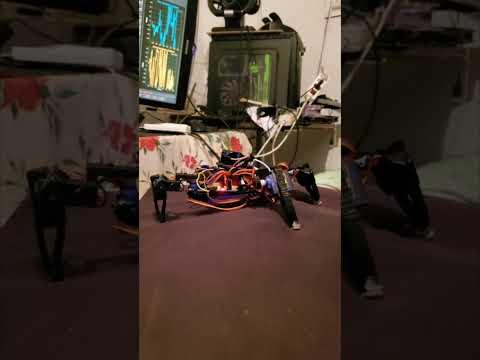
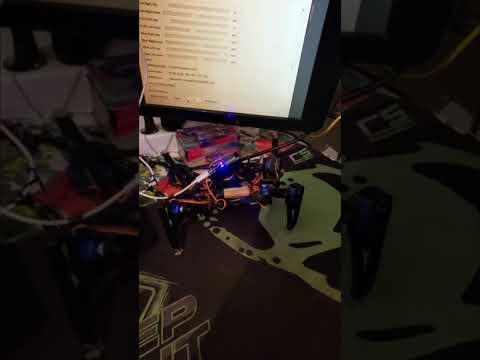
An advanced upgrade to the Spider Robot with ROS2, MicroROS, and self-balancing capabilities!
Taking Your Spider Robot to the Next Level
Remember the simple spider robot we built before? Well, it's time to give it superpowers!
This Version 2 upgrade transforms your basic quadruped into an intelligent, self-balancing robot powered by ROS2 and micro-ROS. Think of it as giving your robot a brain upgrade—it can now sense its orientation, automatically correct its balance, and communicate wirelessly with a powerful ROS2 system on your computer.
What makes this exciting? Your robot will use an MPU6050 gyroscope/accelerometer to sense when it's tilting, and then automatically adjust its legs to stay balanced. Plus, you'll have a beautiful GUI (graphical interface) on your computer to monitor everything in real-time and tune the robot's behavior. It's like having mission control for your spider robot!
Don't worry if you haven't worked with ROS2 before - I'll walk you through everything step by step. By the end of this tutorial, you'll have a robot that's not just cool to look at, but actually smart enough to maintain its balance on uneven surfaces.
Supplies


What You'll Need
Hardware (Same as V1, plus new components)
- 8x Micro Servo SG90 motors
- ESP32 or ESP8266 board (ESP32 recommended for this version)
- PCA9685 Servo Driver
- 3.7V LiPo battery (2500mAh or higher recommended)
- All the 3D printed parts from Version 1
- Jumper wires
New Components for V2:
- MPU6050 Gyroscope/Accelerometer Module (around $3-5 online)
- 4x additional jumper wires for MPU6050 connection
- Micro USB cable for programming
- A computer running Ubuntu 22.04 (for ROS2)
Software Requirements
- Arduino IDE (1.8.x or 2.x)
- ROS2 Humble or Jazzy (we'll install this together)
- Python 3.8 or higher
- Git (for cloning the repository)
Don't have Ubuntu? You can use:
- Windows with WSL2 (Windows Subsystem for Linux)
- A virtual machine running Ubuntu
Downloads
Wiring the MPU6050 Sensor

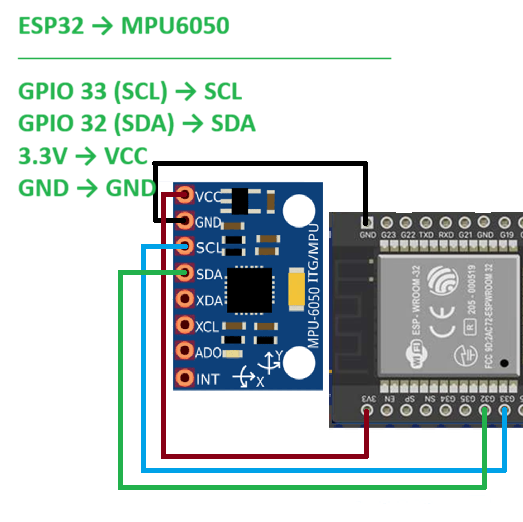
The MPU6050 is your robot's inner ear - it senses which way is up and detects any tilting. Let's connect it to your ESP32.
Understanding the MPU6050 Pins
Your MPU6050 module has these pins:
- VCC: Power input (3.3V)
- GND: Ground
- SCL: Serial Clock Line (for I2C communication)
- SDA: Serial Data Line (for I2C communication)
- INT: Interrupt pin (we won't use this)
- AD0: Address select (we won't use this)
Wiring Diagram
Important Notes:
- Use 3.3V, NOT 5V! The MPU6050 can be damaged by 5V (Not really but don't )
- Double-check your connections before powering on
Updated Complete Wiring (ESP32 → Everything)
ESP32 → PCA9685:
ESP32 → MPU6050:
Battery:
- Battery positive → PCA9685 V+
- Battery negative → PCA9685 GND (and ESP32 GND)
NOTICE: You can use the ESP32 as the "brain" with two I2C devices (PCA9685 and MPU6050) sharing the same I2C bus (GPIO 21 and 22). The PCA9685 then controls all 8 servos with simple changes in code.
Install ROS 2 on Your PC
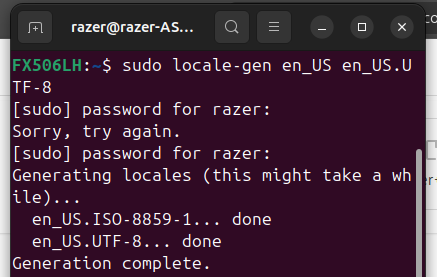

- Set locale:
- Add ROS 2 repo (for Jazzy on Ubuntu 24.04; replace jazzy with humble for 22.04):
- Install ROS 2:
- Source it (add to ~/.bashrc):
- Install additional packages from the repo:
Set Up the Quadruped Controller on PC


- Clone the repo:
- Make launch script executable (if present):
- Or manually:
- Terminal 1: python3 quadruped_balance_controller_pid.py
- Terminal 2: python3 quadruped_gui.py (Source ROS 2 in each terminal first.)
Install Micro-ROS Tools on PC
- Install micro-ROS agent:
Set Up Micro-ROS Firmware on ESP32 (Using PlatformIO – Easiest Method)
- Install VS Code + PlatformIO extension (or use CLI).
- Create new PlatformIO project:
- Board: ESP32 Dev Module
- Framework: Arduino
- Edit platformio.ini:
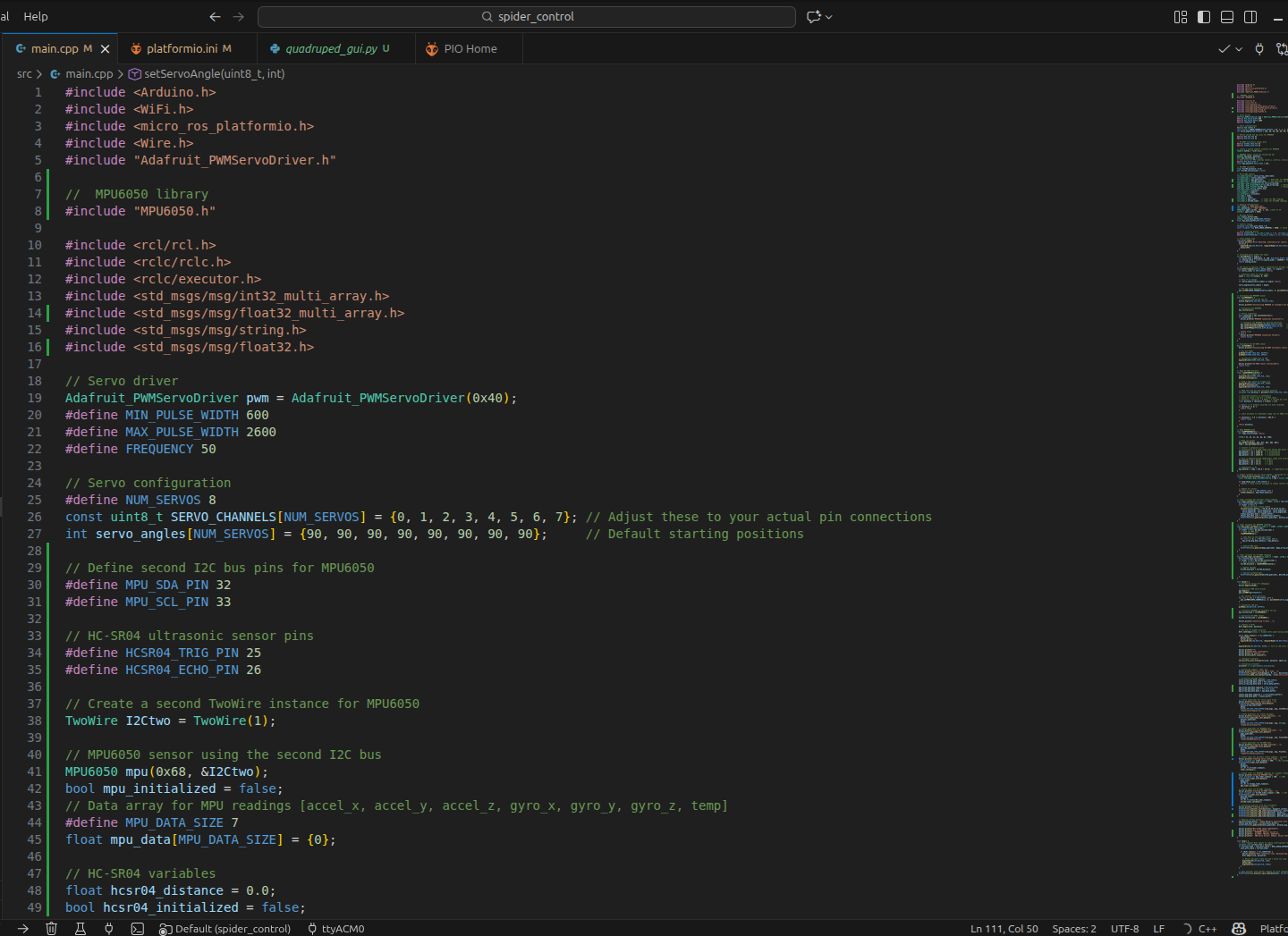
Replace src/main.cpp with custom Micro-ROS code (basic example below – adjust pins, WiFi, servo mapping):
Run the System



- On PC – start micro-ROS agent (UDP example):
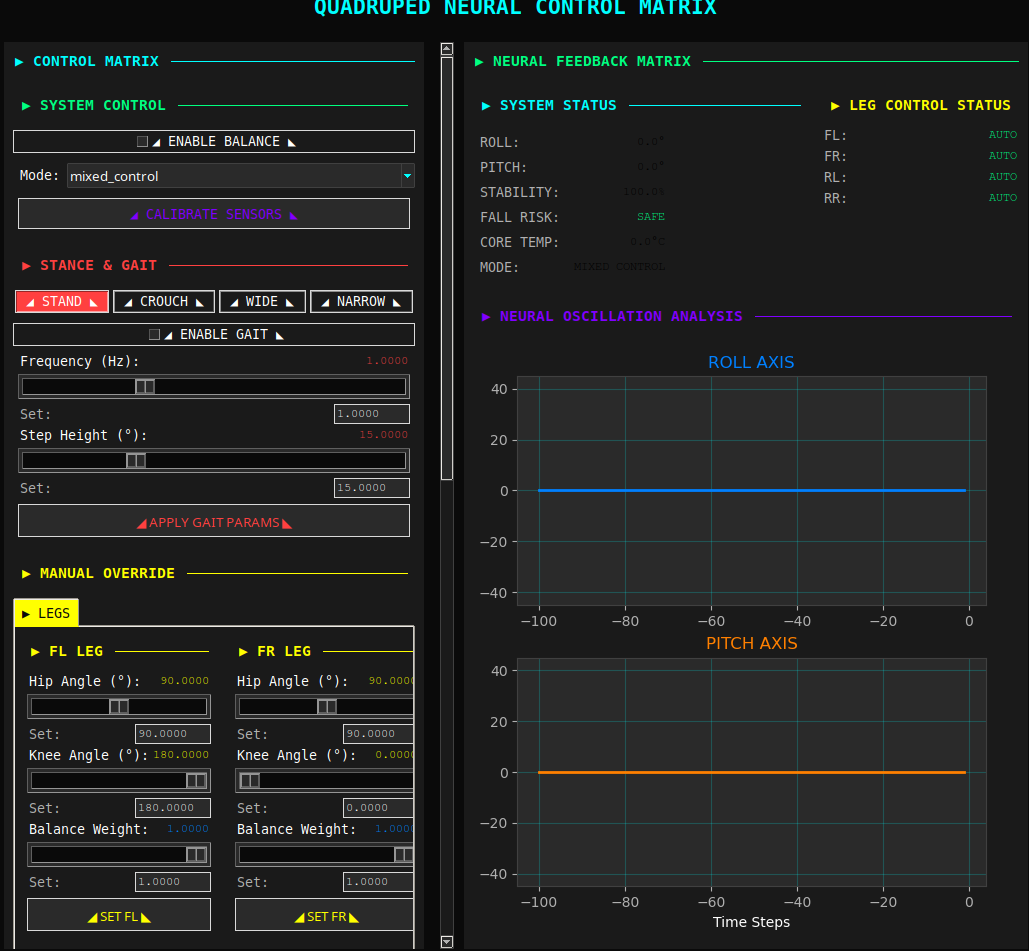
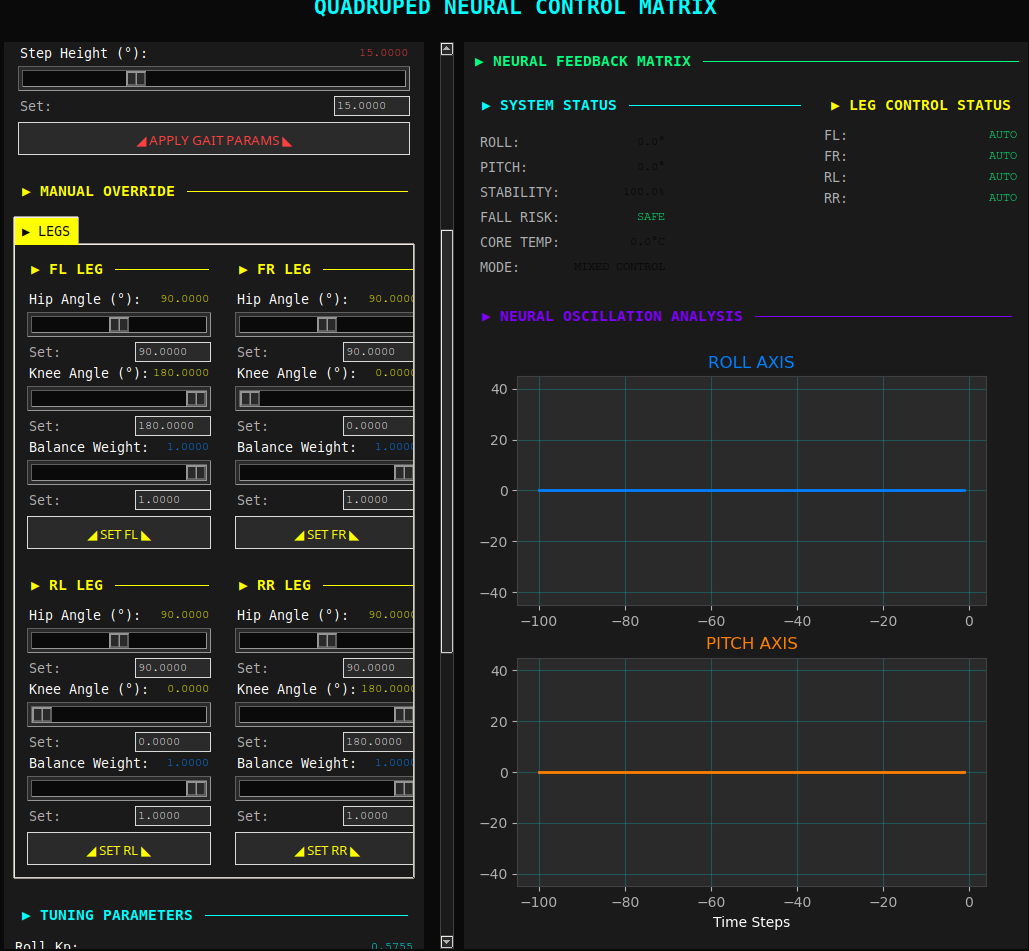
Launching the GUI
Now for the fun part - the graphical control interface!
Using the Launch Script (Easiest)
You'll see a menu:
Choose option 3 - this will start both the controller and GUI.
First Time Setup
When you first open the GUI:
- Place robot on a flat surface
- Click "Calibrate Gyroscope" - wait 2 seconds
- Click "Calibrate Accelerometer" - wait 2 seconds
- Watch the attitude graphs - they should stabilize near 0°
Understanding the ROS2 Topics


Let's learn about how the data flows through the system. This will help you debug issues and extend the project.
Topic Architecture
Your system has two main topics:
1. /esp32/mpu6050/data (Publisher: ESP32 → Subscriber: Computer)
- Type: std_msgs/Float32MultiArray
- Frequency: 50 Hz (20ms interval)
- Data: [accel_x, accel_y, accel_z, gyro_x, gyro_y, gyro_z, temperature]
2. /esp32/servo/angles (Publisher: Computer → Subscriber: ESP32)
- Type: std_msgs/Int32MultiArray
- Frequency: 50 Hz
- Data: [servo0, servo1, servo2, servo3, servo4, servo5, servo6, servo7]
Monitoring Topics in Real-Time
See all topics:
Watch IMU data:
Watch servo commands:
Check message frequency:
You should see around 50 Hz.
Check if anyone is listening:
Recording and Playback (Advanced)
You can record your robot's behavior for analysis:
Record data:
Play it back later:
Why this is useful:
- Debug issues by reviewing recorded data
- Compare different PID settings
- Share your robot's behavior with others
- Analyze performance without the robot