Stop Underpricing 3D Prints – Build a Cost Calculator
by Theocharis_Anastopoulos in Workshop > 3D Printing
16 Views, 0 Favorites, 0 Comments
Stop Underpricing 3D Prints – Build a Cost Calculator


This project documents how I designed and built a browser-based 3D print cost calculator to solve a common problem among makers: inconsistent and often underestimated pricing.
It calculates filament cost, electricity usage, machine wear, labor time, profit margin, and even analyzes G-code to auto-fill print time and material usage. It also generates a clean PDF quote.
The tool evolved from an earlier version I built called MakerCost, and is now released as PrintMetric.
This Instructable explains the logic behind accurate print pricing and how you can build or adapt your own calculator.
The Problem – Why Most 3D Prints Are Underpriced
If you sell 3D prints — even occasionally — you’ve probably underpriced at least one job.
Most makers calculate cost based only on filament.
For example:
120g print × filament price per kg = “That’s the cost.”
But that’s incomplete.
A properly priced 3D print should include:
- Filament cost
- Electricity consumption
- Machine wear and maintenance
- Your hands-on labor time
- A realistic profit margin
When you ignore these factors, small jobs especially can end up paying far less than they should.
Electricity might seem small per print, but over time it adds up.
Nozzles, belts, bearings, and hotends wear out.
Setup, slicing, supervision, and cleanup take time.
Without a structured way to calculate these variables, pricing becomes guesswork.
And guesswork usually favors the customer, not the maker.
In this project, I’ll walk through how I approached building a simple, browser-based calculator to make pricing consistent, transparent, and repeatable.
What Should Be Included in a Real Print Cost?
Before building any calculator, we need to define what a “real” print cost actually includes.
Many makers calculate only filament cost. While that’s the most visible expense, it’s only one part of the equation.
Here are the core components that should be considered:
(Ignoring any of these will distort the true cost of production).
1️⃣ Filament Cost
This is the most straightforward part.
You calculate:
Example:
- 150g used
- €22 per kg filament
Cost = (150 / 1000) × 22 = €3.30
But that’s just the material.
2️⃣ Electricity Consumption
Your printer draws power during heating, printing, and standby.
To estimate electricity cost:
Example:
- 120W average draw
- 4 hours print
- €0.18 per kWh
Energy used = (120 × 4) / 1000 = 0.48 kWh
Cost = 0.48 × 0.18 = €0.086
Small per print — but significant over time.
3️⃣ Machine Wear & Maintenance
Printers are not free to run long-term.
Nozzles wear out.
Belts stretch.
Bearings degrade.
Hotends and fans eventually fail.
Even if you don’t calculate exact depreciation, assigning a small fixed “wear cost” per job creates a realistic buffer for maintenance.
For example:
- €1–€3 per print depending on size and usage.
4️⃣ Hands-On Labor Time
Even if the printer runs automatically, your time is not free.
You likely spend time on:
- Preparing the model
- Slicing
- Loading filament
- Monitoring first layer
- Post-processing
- Cleanup
- Packaging
A simple approach:
Even 20 minutes of work should be accounted for.
5️⃣ Profit Margin
This is where many makers hesitate.
Profit is not “extra.”
It ensures sustainability.
After calculating total operational cost:
Without margin, you are only covering expenses — not building growth.
6️⃣ Quantity
If you print multiple units:
- Setup time may not scale linearly.
- Some costs stay fixed.
- Some costs scale per unit.
Quantity pricing should reflect this properly.
Why Structure Matters
When you break cost into components:
- Pricing becomes consistent.
- Quotes become defendable.
- You avoid emotional pricing.
- You protect your time.
Designing the Calculation Logic
Once the cost components are defined, the next step is organizing them into a clear and repeatable calculation flow.
The key idea is simple:
Separate operational cost from profit.
This keeps pricing transparent and flexible.
Step 1: Calculate Operational Subtotal
First, calculate each cost component independently:
- Filament cost
- Electricity cost
- Machine wear cost
- Labor cost
Then sum them:
This subtotal represents the true operational expense of producing one print.
At this stage, there is no profit included.
Step 2: Add Profit Margin
Profit should be calculated on top of the subtotal.
For example:
- Subtotal = €8.00
- Margin = 20%
Now the print is sustainable.
Step 3: Handle Quantity
If the customer wants multiple units:
Some advanced pricing models adjust setup costs separately, but a linear approach is simple and practical for most small makers.
💱 Step 4: Currency Conversion (Optional)
To make pricing flexible, conversion can be applied after the final calculation:
Using a manual exchange rate keeps the tool stable and avoids dependency on external APIs.
Why This Structure Works
This layered approach provides:
- Transparency
- Easy debugging
- Adjustable margins
- Expandability
Each variable can be modified independently without affecting the entire system.
This modular logic is what makes a browser-based calculator practical and maintainable.
Building the Tool (Simple Web App Architecture)
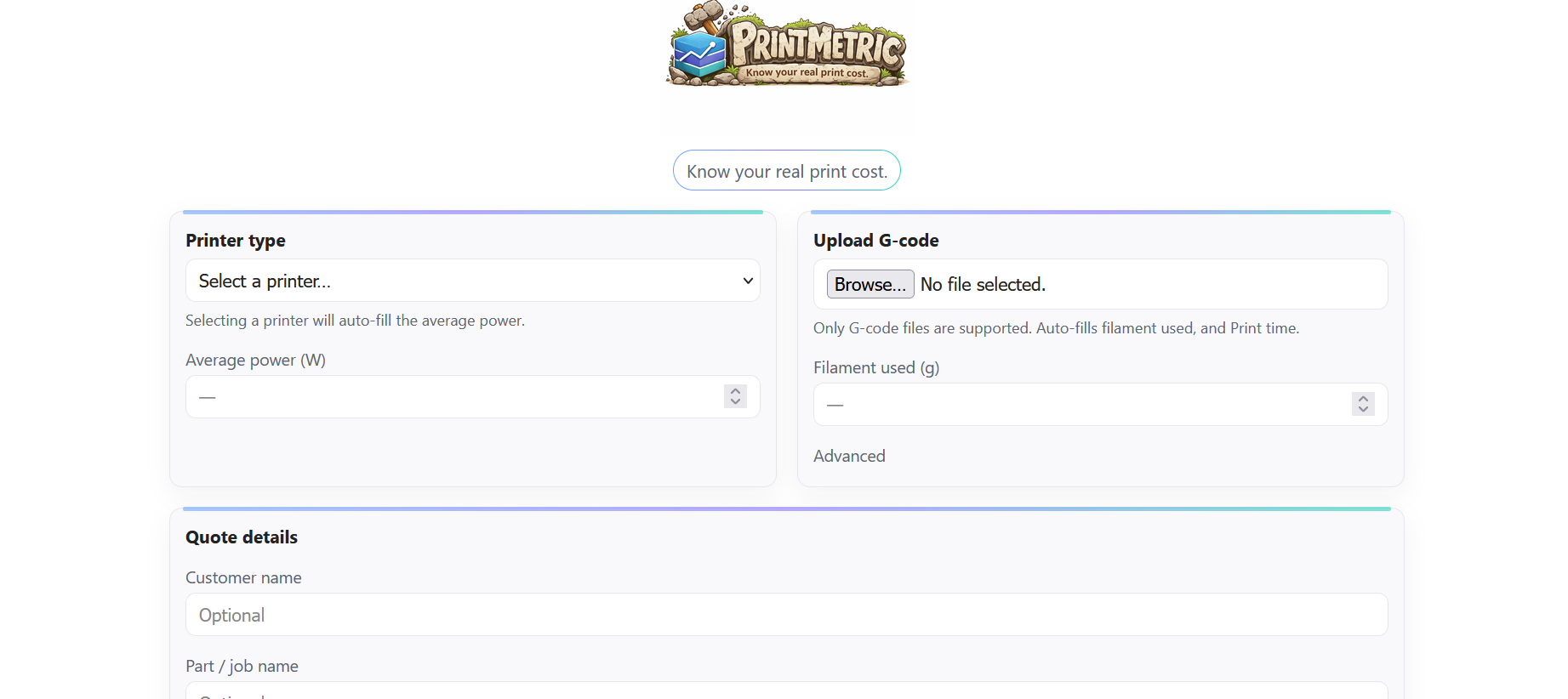
To keep PrintMetric easy to use and easy to share, I built it as a small browser-based tool.
That means:
- No install
- No accounts
- No server required
- Works as a simple static site (perfect for GitHub Pages)
The project is basically split into three parts:
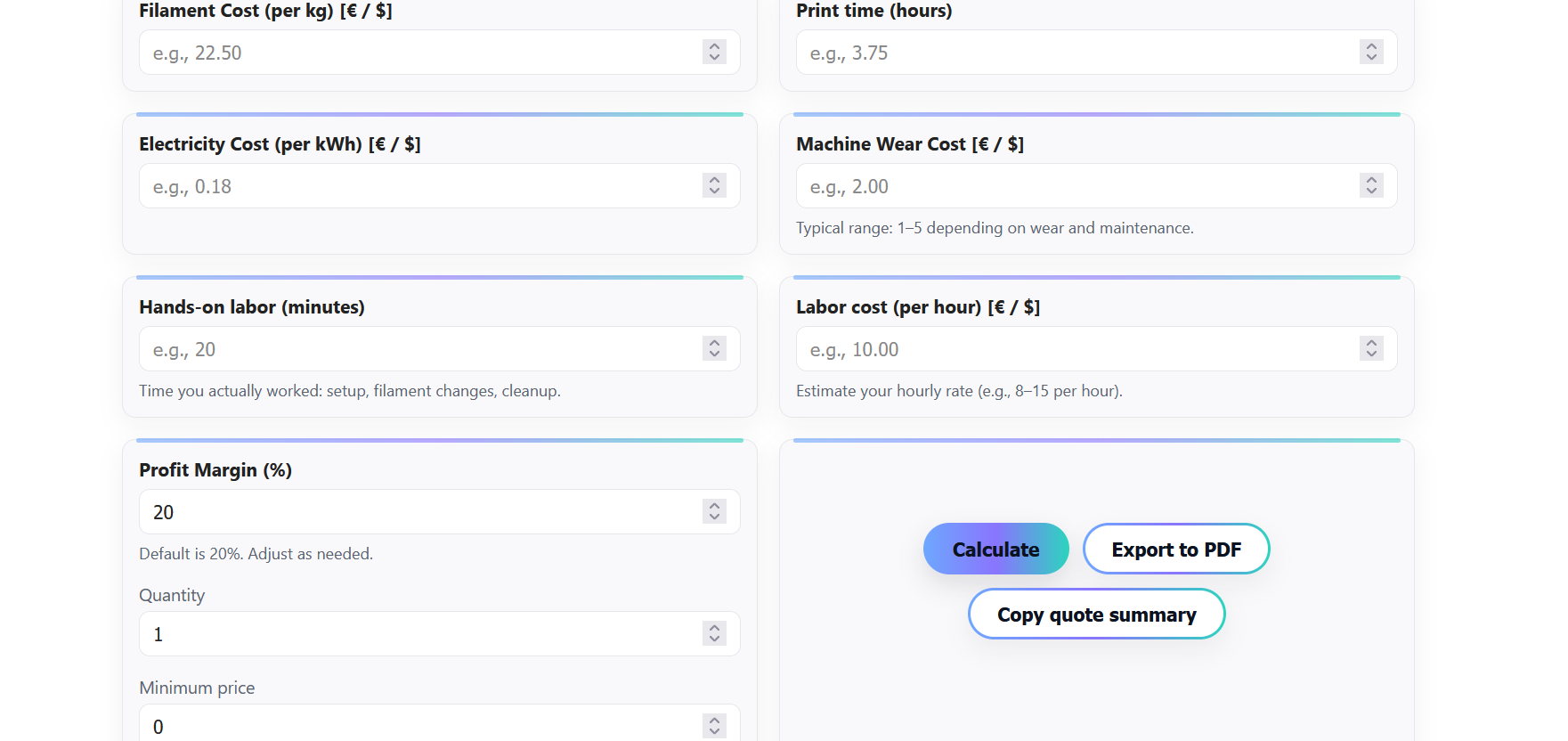
1️⃣ The Interface (HTML)
The HTML defines the “form” of the calculator:
- Inputs for filament, electricity, labor, wear, margin, quantity
- Output fields for totals and breakdown
- Buttons for Calculate, Export PDF, and Copy quote summary
- A print-only section used for clean PDF export
The goal of the UI is clarity: one screen, minimal friction, quick results.
2️⃣ The Styling (CSS)
The CSS is kept intentionally simple:
- Clean cards layout
- Clear typography
- Small visual accents (gradient line + pill tagline)
- Print-specific rules so the PDF export looks like a real quote, not a screenshot
A key part is the @media print section, which hides the app UI and shows only the print-friendly “quote sheet”.
3️⃣ The Logic (JavaScript)
The JavaScript is responsible for:
- Reading user inputs
- Running the cost formulas (from Step 3)
- Updating the result fields live
- Generating the PDF by triggering the browser print dialog (using the print sheet)
- Copying a text quote summary to the clipboard
The code flow is straightforward:
- Read inputs
- Calculate costs
- Update the UI
- Update the print/PDF fields
- Allow export / copy actions
This structure keeps it easy to debug and expand later.
Why a Browser Tool?
I chose a static web app for a few reasons:
- It’s instantly usable by anyone (just open the link)
- Updates are easy (push to GitHub → everyone gets the latest version)
- It avoids the usual friction of “download an app” or “create an account”
- It works well on desktops, tablets, and even phones
Adding G-code Upload (Auto-Filling Time & Filament)
One of the biggest time-wasters in print pricing is manually copying values from your slicer.
So I added a simple feature:
Upload a G-code file and automatically extract key values.
This makes quoting faster and reduces mistakes.
What the Tool Reads From G-code
Many slicers embed helpful metadata in G-code comments, such as:
- Estimated print time
- Filament used (grams or meters)
So instead of asking the user to type those values every time, the tool tries to detect them automatically and fill the fields.
Typical examples (varies by slicer):
- ;TIME:...
- ;Filament used: ...
- ;filament used [g] = ...
- ;estimated printing time ...
Different slicers write different formats, so the logic is designed to be flexible rather than relying on a single exact line.
How It Works (High Level)
- User selects a .gcode file
- The tool reads it as plain text in the browser
- It scans the first part of the file for known metadata patterns
- If it finds print time and filament usage, it auto-fills:
- Print time (hours)
- Filament used (grams)
- If it doesn’t find them, the user can still enter values manually (no blocking)
This “auto-fill when possible, manual when needed” approach keeps the tool reliable.
Why This Matters for Makers
This feature helps because:
- It speeds up quoting
- It avoids “I forgot to include filament/time”
- It reduces human error
- It makes the calculator feel like a real workflow tool, not just a form
Bonus: Better Quotes
Once time and filament are accurate, everything downstream becomes more accurate too:
- Electricity cost becomes realistic
- Labor cost becomes easier to estimate
- Profit margin and quantity pricing are based on real inputs
That’s the difference between guessing and quoting confidently.
Clean PDF Quote Export (Print-Only Layout)
A calculator is useful, but a print-ready quote makes it practical for real orders.
So instead of exporting a screenshot, the tool generates a clean PDF-style quote using a simple trick:
Build a print-only quote layout in HTML and use the browser’s built-in Print → Save as PDF.
This approach is lightweight, reliable, and works on any device.
How It Works
The page contains two “views”:
1) The normal app UI (calculator)
This is what you interact with while entering values.
2) A print-only quote sheet
This is a separate section that stays hidden during normal use.
When the user clicks Export to PDF:
- The tool copies the latest totals + breakdown into the print sheet fields
- It triggers the browser print dialog
- The user chooses Save as PDF
🖨 Why Use Print Styles Instead of a PDF Library?
Using CSS print rules has big benefits:
- No extra dependencies
- Faster load time
- Works offline
- Consistent results across platforms
- Easy to maintain
It also avoids breaking changes that sometimes come from PDF libraries.
What the Quote Includes
The exported quote is designed to be simple and useful:
- Timestamp (so the quote feels official)
- Total price in EUR and USD
- Full breakdown (filament, electricity, labor, wear, margin)
- Quantity + grand total
- Printer type, filament used, print time
- Optional “quote details” fields (customer name, job name, notes)
This turns the calculator into something you can actually send to a customer.
The Key Idea: Print-Only CSS
The tool uses @media print rules to control what gets printed:
- Hide the app UI
- Show only the quote sheet
- Keep spacing clean and readable
- Avoid printing donation elements or UI buttons
This is what makes the PDF export look like a real document instead of a webpage.
Try the Calculator Online
After developing and testing the pricing logic, I turned this structure into a clean browser-based tool called PrintMetric.
It runs entirely in the browser and includes:
- Filament, electricity, labor, and wear calculation
- Adjustable profit margin
- Quantity pricing
- G-code upload for automatic time and material detection
- EUR and USD pricing
- Clean PDF quote export
The project evolved from an earlier version I built called MakerCost, and was redesigned to be clearer, more structured, and easier to use.
You can access the live version here:
https://theo79.github.io/printmetric/
github project : https://github.com/theo79/printmetric
The goal is simple: make print pricing consistent, transparent, and sustainable for makers.
Accurate pricing protects your time, your equipment, and your sustainability as a maker.
If you prefer, you can also fork the idea and build your own version using the calculation logic described in this Instructable.