The Sky Garden: a Magical Floating Island
by Suchit Choudhary in Design > Animation
75 Views, 2 Favorites, 0 Comments
The Sky Garden: a Magical Floating Island

Hey there! My name is Suchit Choudhary, and I’m so excited to share my newest animation project with you — a floating island straight out of your dreams (or my slightly over-caffeinated imagination 😅)
In this project, a cute squirrel on a magical sky garden, fog floats lazily below, and the sun casts a golden glow over the island. Oh! And the cherry on top? The character actually says: “Welcome, this is my island!” Yep, lip-sync included.
This project is all about making a cinematic world that feels alive, with environment storytelling, lighting, fog, and a character that isn’t just standing there like a stiff statue. And the best part? You can totally download some amazing assets and put it all together in under an hour (I promise it’s doable!).
Supplies

For this project, you’ll need a few essential tools and assets. First, ✨Autodesk Maya 2025✨ — this will be your main hub for modeling, animation, lighting, and rendering. Don’t forget to install Arnold, because the fog, lighting, and textures rely heavily on it. Without Arnold, your floating island might look more like a cloud pancake than a magical garden.
For the character, I chose Squirrely by Josh Burton. He’s adorable, fully rigged, and perfect for walking, gesturing, and delivering our line of dialogue: “Welcome, this is my island!” Using a pre-rigged character saves a ton of time, letting us focus on animation instead of rigging.
Next, for environment textures and props, we’re using Floating Islands of the West (Dwarves Haven) by Desant_Art. This FBX is high-quality and already comes with most textures. You’ll also need an HDRI sky map — you can grab one for free from Poly Haven. This HDRI will give realistic lighting and that dreamy, floating-in-the-clouds vibe. If you are curious, I used this.
Optional extras: small plants, floating particles, or rocks to decorate the island. They aren’t necessary, but they make the environment feel alive and immersive. Finally, for audio, record a short WAV file of Squirrely’s dialogue. You can also do text to speech for this step. WAV works seamlessly in Maya for lip-syncing, making animation much smoother.
Importing the Island and Character


First things first, let’s bring your floating island into Maya. Extract the FBX file from the .ZIP file that you downloaded from Sketchfab and open Floating Islands of the West (Dwarves Haven), and drop it into a new scene. Most textures should carry over automatically, but if anything looks gray or missing, don't panic! First, go to Shading and unclick "Use default material", and if this doesn't work then, check the Hypershade editor which is in Windows > Rendering Editors > Hypershade. You can simply reconnect the materials by dragging them onto the meshes. Group the island (shortcut: select all and click Ctrl + G) and call it Island_Main in the Outliner — trust me, staying organized here will save headaches later.
Now bring in Squirrely.mb. Since Squirrely is fully rigged, you won’t need to touch the skeleton or controls — just scale him and move him up so he is visible and make sure he fits naturally on the island and make a layer, Character. Layers in Maya are organizational tools in the Layer Editor that group objects or animation data for easier management and to do that you just have to open the Channel Box/Layer Editor (Windows > UI Elements > Channel Box/Layer Editor), then either select objects and click the "Create new layer and assign selected objects" icon, or click the "Create empty layer" icon and right-click the new layer to select "Add Selected Objects" after choosing your items. Do the same to the group "Island_Main" and call the Layer "Island".
For those new to Maya: rigs are essentially the bones and control handles inside a character. They allow you to animate complex movements without having to manually move every single vertex. Think of it like the puppet strings, but digital.
Setting Up Lighting

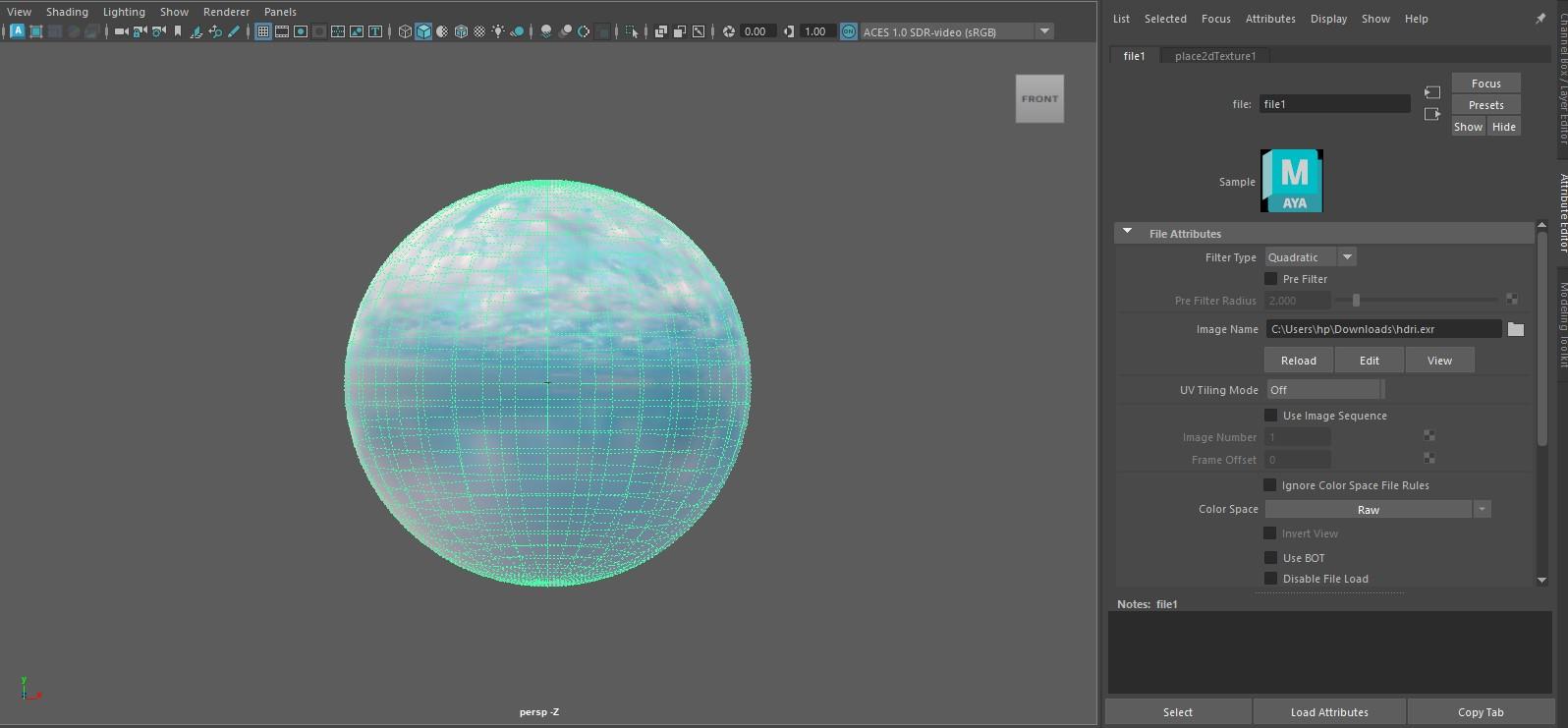
Time to make your island shine! Start with an Arnold Skydome Light and assign your HDRI. Rotate it until the sunlight hits the main areas you want to highlight — maybe Squirrely’s face, the plants, or the edges of the rocks. This light is your main environment light, giving realistic illumination and soft shadows across the scene.
To import an HDRI in Maya for Arnold, create an Arnold Skydome Light, then in the Attribute Editor, click the checkerbox next to the Color attribute and choose File, browsing to your .hdr or .exr file (from Polyhaven) to load it, which instantly lights your scene and provides reflections, adjusting rotation and samples for desired effect.
Side note: In 3D, lighting is everything. Even the most beautiful model can look flat without proper light. Think of the HDRI as a real-world environment that your island lives in — it provides natural light direction and realistic reflections automatically.
Adjust intensity to your taste. Shadows should remain soft enough to keep the fog dreamy. A little tip: try rendering a quick frame preview (Render > Render Current Frame) to check how light interacts with your island and Squirrely before moving forward.
Adding Fog and Atmosphere
Now let’s make the island feel like it’s floating in the clouds. Add an Arnold Volume Fog under the island. Keep density low, around 0.05–0.08, so it adds depth but doesn’t hide Squirrely. Adjust the tint slightly warm to match sunlight.
Quick 3D concept: volume fog in Arnold works by scattering light inside a defined volume. Unlike flat plane fog, this method interacts with lights and objects naturally, giving a realistic misty effect. Small adjustments here can make a huge difference in mood and scale perception.
Camera Placement and Movement

For this scene, I used a Perspective Camera in Maya and positioned it just below the island to emphasize its floating nature. In the Channel Box, I set the Translate X = 0, Translate Y = 12, Translate Z = 25, pointing directly at the center of the island. Rotate the camera Rotate X = -10°, Rotate Y = 0°, Rotate Z = 0°. This gives a slightly low-angle view that makes the island feel grand and floating.
For cinematic framing, I set the camera Focal Length to 35mm, which gives a natural medium shot feel. The Aperture Size was set to 36mm to slightly blur distant objects and enhance depth. Turn on Depth of Field in Arnold settings, and set the Focus Distance = 12 (to Squirrely’s chest) and F-Stop = 2.8 to get a nice soft background while keeping Squirrely sharp.
For movement, I keyframed a very gentle vertical drift to simulate floating. At Frame 1, set Translate Y = 12, and at Frame 120, set Translate Y = 12.5. This gives a subtle upward drift over 5 seconds at 24 fps. For a pan following Squirrely, keyframe Rotate Y: Frame 1 = 0°, Frame 120 = 5° to slowly track his movement.
Pro tip: Use the Graph Editor to smooth out the motion curves. Make the translation and rotation curves linear or lightly spline them so the camera glides gently, avoiding jerky starts or stops. This is especially important in floating scenes to maintain that dreamy, weightless feel.
Character Animation – Squirrely Speaks!
Now it’s time for Squirrely to add a little personality! For this project, we’re keeping it simple: Squirrely will blink and say, “Welcome, this is my island!”
First, for the blinking, keyframe his eyelid controls. At Frame 1, eyelids open. At Frame 12, close slightly. Frame 16, open again. Do a couple of these to make the blink feel natural, like a real character living in a floating garden.
For the dialogue, import your WAV audio file into the timeline in Maya (File → Import → Audio) and line it up with Squirrely’s simple mouth movements. Since this is just one short line, you can use the pre-built mouth controls to open and close the mouth along the audio. No complex phonemes needed — just enough to give the illusion of speaking.
Finally, add a subtle head nod or slight sway in the root control to make Squirrely feel alive, but keep it minimal. The combination of blinking, slight movement, and dialogue is enough to make him charming without overcomplicating things.
By the end of this step, Squirrely should be standing confidently on the island, blinking occasionally, and saying his line in perfect sync with the audio. It’s simple, polished, and ready for our final render!
Render Prep

Now that your camera is set, your lights are perfect, fog is floating just right, and Squirrely is walking and talking, it’s time to render the scene as a video. In Maya, open the Render Settings window. Under Common → File Output, change File Name Prefix to something memorable like SkyGarden_Final.
Set the Image Format to MPEG or AVI (depending on your system) and choose 1080p resolution (1920×1080). Make sure Start Frame = 1 and End Frame = 120 (or however long your animation is). Under Renderable Camera, select the camera you set up in Step 5.
For Arnold settings, keep Camera (AA) Samples = 4, Diffuse = 3, Specular = 3, and Transmission = 3 — this reduces grain while keeping render times reasonable. Optional: tweak Fog Density in the Volume Shader slightly (0.2–0.3) so it blends with the sky and doesn’t obscure Squirrely.
Quick Maya insight: rendering a video is Maya’s way of converting all your 3D objects, textures, lights, and effects into a final moving image. Unlike image sequences, rendering straight to video skips the extra step of stitching frames together later. Just keep an eye on your machine’s memory — videos can be heavy!
Click Render → Render Sequence/Batch Render, and Maya will generate the video file directly. Test a 5–10 second portion first to ensure the lighting, fog, and motion look right before committing to the full render.
Adding Sound Effects in CapCut


Once your video is rendered, it’s time to add that extra layer of life with audio. Open CapCut and import your rendered Maya video. Then, import your WAV dialogue file of Squirrely saying, “Welcome, this is my island!”
Place the audio on the timeline and line it up perfectly with Squirrely’s lip movements. Since we rendered directly to video, there’s no need to worry about syncing separate frames — just slide the audio until it matches the mouth animation.
Optional extras ✨: add background sounds like gentle wind, distant birds, or soft floating chimes. These small touches really sell the floating-island atmosphere without cluttering the scene.
Finally, export your completed video at 1080p, double-check the audio sync, and pat yourself on the back.
Note: I made a few personal tweaks to the Squirrely character to better match the style and mood of the scene, and made him wave, but these adjustments are completely optional and not required to follow this project.
Unfortunately, due to unforeseen technical limitations during rendering, I was unable to complete the final video output; however, the workflow and rendered frame above accurately represent the intended final result.
The Finish Line!✨
Congrats 👏! You now have a fully realized floating Sky Garden, complete with a welcoming character, fog, cinematic lighting, and subtle camera motion. Even in a small project, thoughtful lighting, careful animation, and attention to environment details can make your scene feel alive.