Tim Plays With the TCS34725 Colour Sensor.
by Palingenesis in Circuits > Arduino
44 Views, 1 Favorites, 0 Comments
Tim Plays With the TCS34725 Colour Sensor.
![Tim's 3D Scanner [TCS34725]](/proxy/?url=https://content.instructables.com/F7P/CM71/MMCGND76/F7PCM71MMCGND76.jpg&filename=Tim's 3D Scanner [TCS34725])
Ever wanted your project to see colours the way you do? 👀🌈 In this Instructable, I’ll show you how I paired a TCS34725 colour sensor with a SK9822 RGB LED to build a tiny colour‑reading module that calibrates itself every time it powers on — just like old camcorders with their white lens caps 🎥⚪.
The sensor reads the colour of whatever surface you point it at, the LED provides a stable light source, and a simple “white‑cap calibration” locks in accurate colour even in unpredictable lighting. The best part? I also built a Windows application that displays the live colour readings on your PC in real time, so you can see exactly what the sensor sees 💻🎨.
With a bit of smart code and a splash of LED magic, you’ll get stable, accurate colour readings you can use in anything from sorting robots to full 3D scanners 🤖📊.
Supplies



Supplies
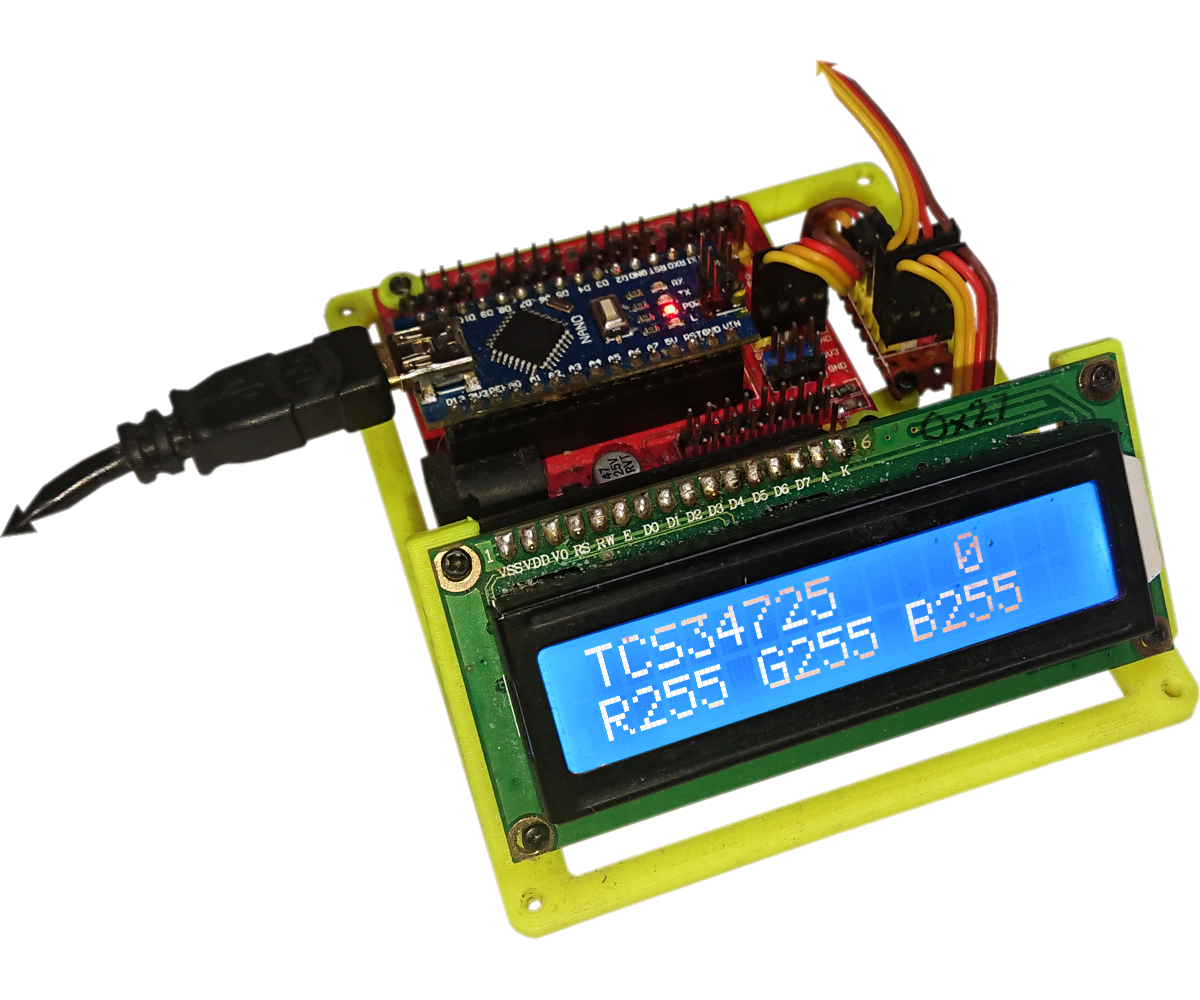
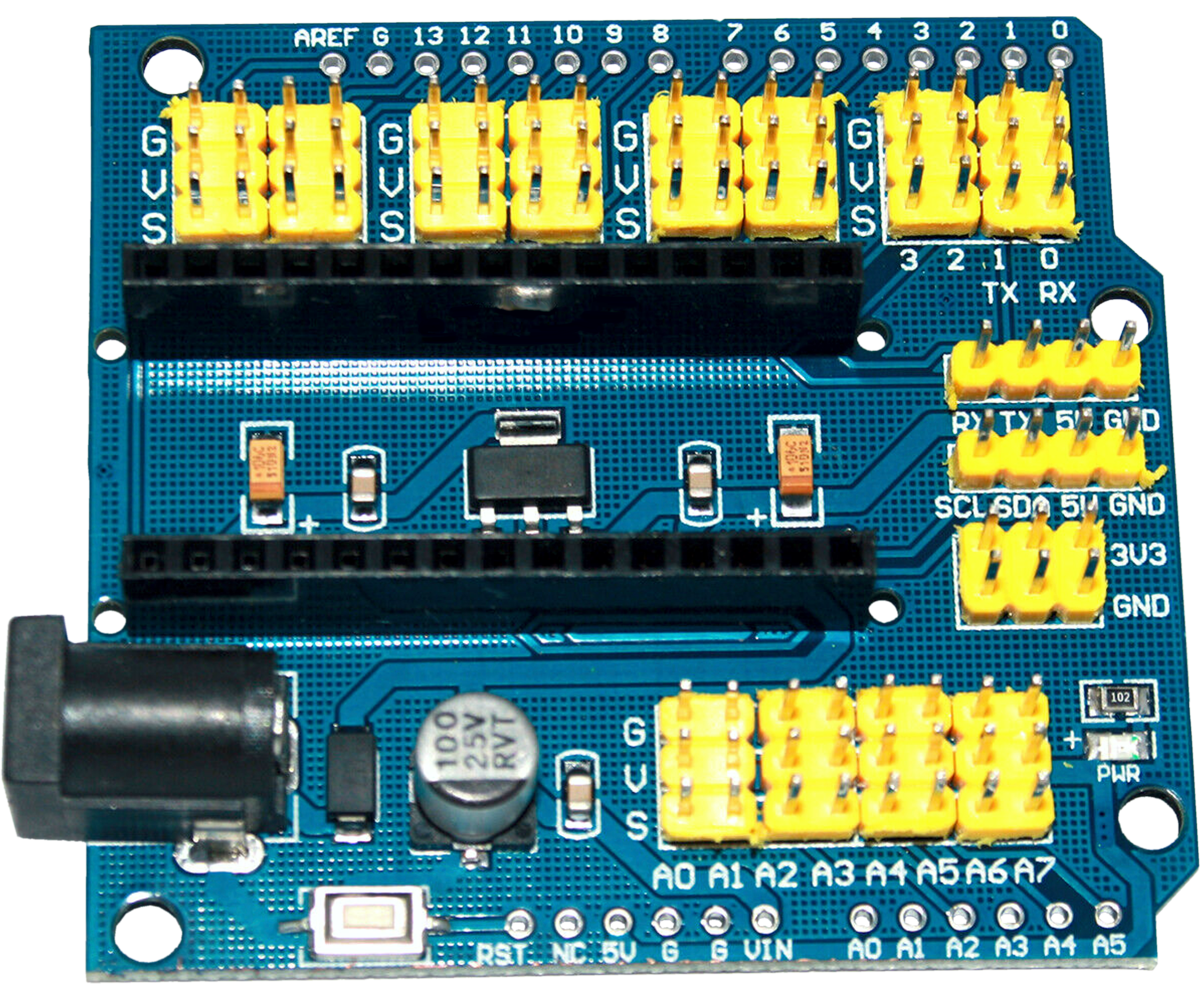
The exact parts you need will depend on how you build your setup. I developed and tested this project using an Arduino Nano mounted on a breakout board with a 3D‑printed holder and an I2C LCD, but this Instructable is written as if you’re assembling everything on a solderless breadboard (and I’ll include a Fritzing diagram).
TCS34725 Colour Sensor Module
Any breakout version will work — Adafruit, eBay, AliExpress, etc. This is the main colour‑sensing component.
- eBay, Adafruit or AliExpress.
SK9822 Intelligent RGB LED
I used a single SMD LED on a breakout board, but you can make life easier by using a short strip section. These LEDs give you a stable, controllable light source for calibration and colour capture.
- eBay, Adafruit or AliExpress.
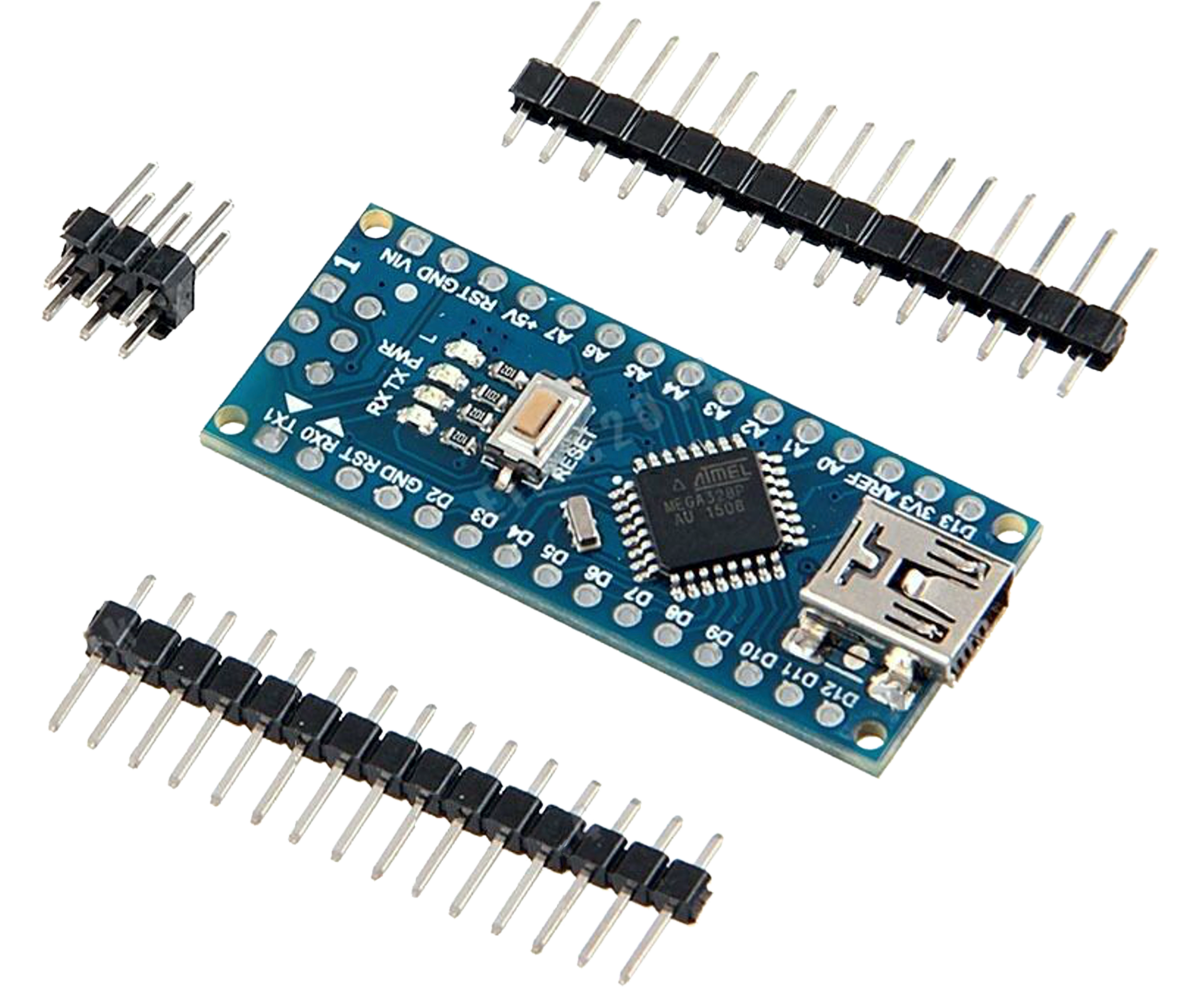
5V Logic Microcontroller (Arduino‑compatible)
The project is written using the Arduino IDE and standard Arduino libraries. Any 5‑volt Arduino‑compatible board will work (Uno, Nano, Pro Mini 5V, etc.). I used an Arduino Nano.
- eBay, Adafruit or AliExpress.
I2C 1602 LCD (16×2)
This is optional but very helpful for debugging and seeing live RGB values. Look for the version with the I2C backpack.
- eBay, Adafruit or AliExpress.
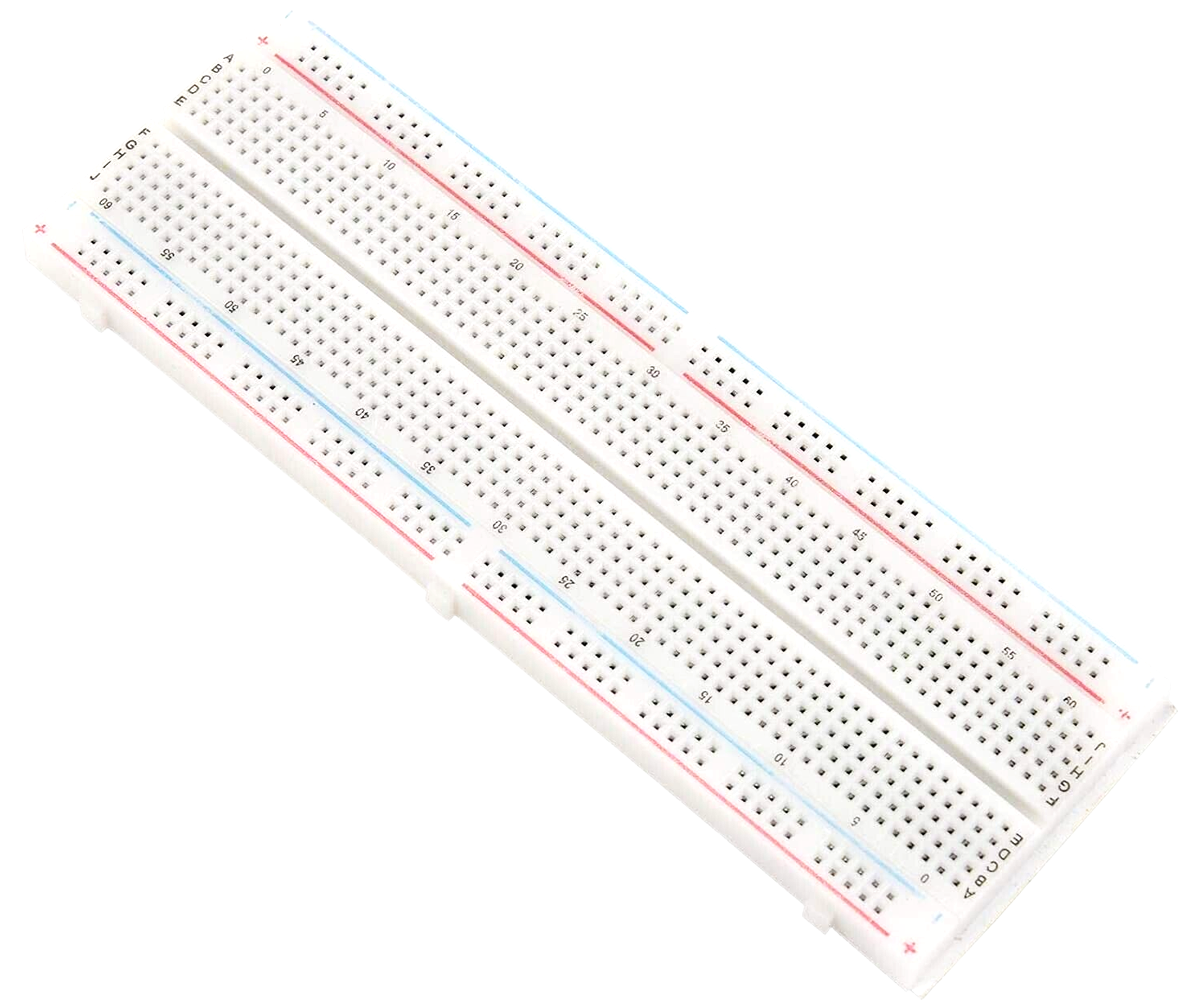
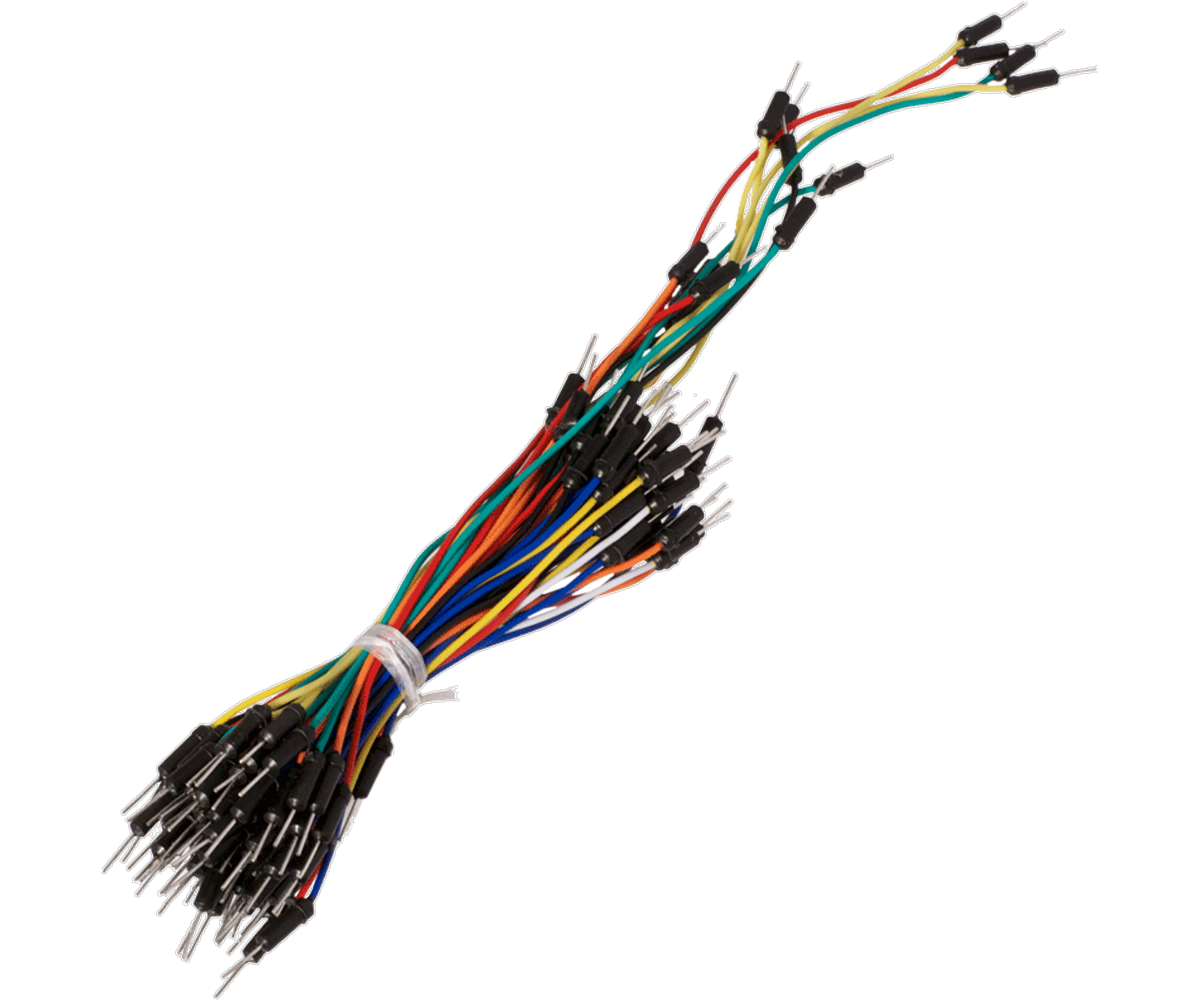
Solderless Breadboard + Jumper Wires
Any standard breadboard kit will do. You’ll need enough wires to connect the sensor, LED, and LCD to your microcontroller.
- eBay, Adafruit or AliExpress.
USB Cable + 5V Power Source
For powering and programming the Arduino.
Software
The companion application for this project is available on the Microsoft Store — no warnings from Windows about unknown publishers! You can download it here:

🧩 Fritzing Setup


This is the full wiring layout for the project, built exactly as you’d assemble it on a solderless breadboard. The diagram shows how the Arduino Nano, TCS34725 colour sensor, SK9822 LED, and I2C 1602 LCD all connect together 🔌✨.
The TCS34725 is placed off to the side with long wires so you can position it over different surfaces while keeping the rest of the circuit stable 🎨🔍. The SK9822 is wired as a single LED module, giving you a clean, controlled light source for colour calibration 💡🌈.
Everything runs from 5 V logic, and the I2C LCD plugs straight into the Nano’s SDA/SCL pins, keeping the wiring tidy and beginner‑friendly 🧼📟. If you follow this layout, your hardware will match the code perfectly — no surprises, no magic smoke 😄🔥.
🧠 Firmware Overview
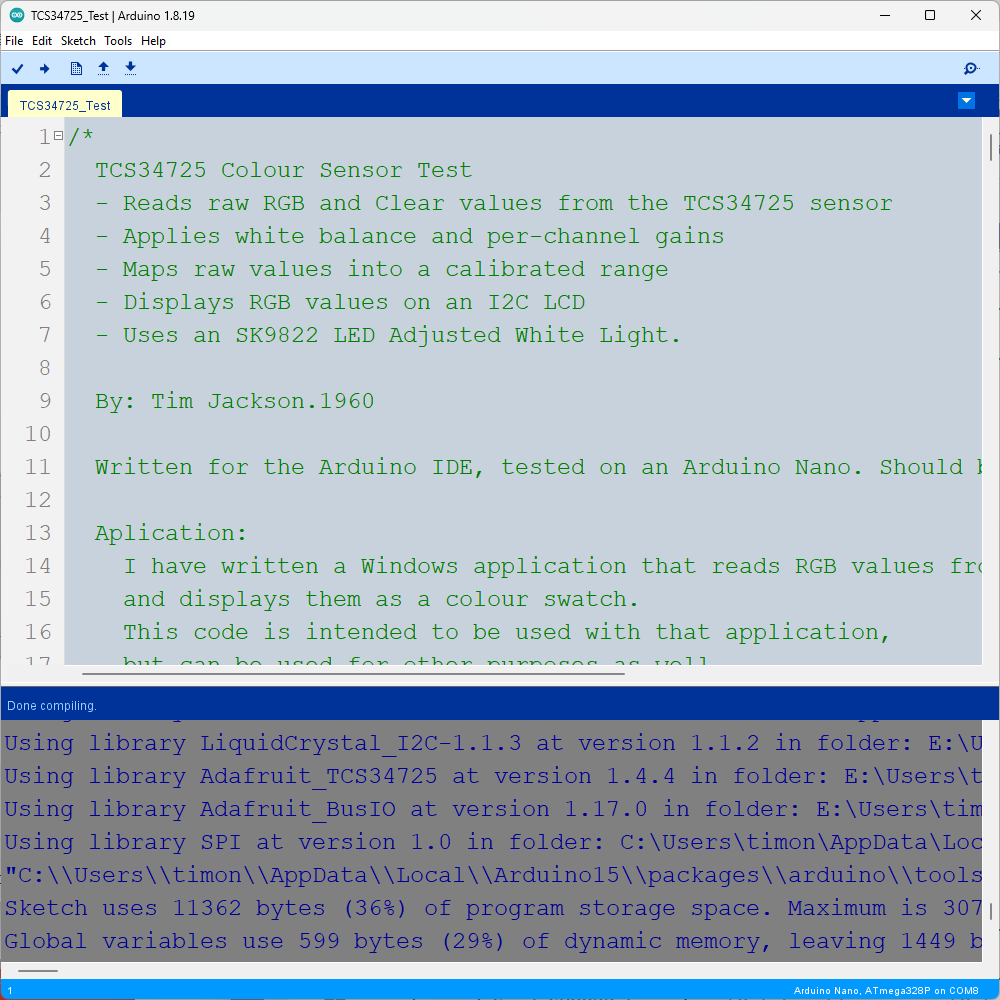
This project runs on an Arduino‑compatible microcontroller and brings together three key elements: the TCS34725 colour sensor, a SK9822 RGB LED, and a Windows application that displays the detected colour in real time 🎨💻. The firmware handles everything from reading raw sensor data to applying white‑balance correction, mapping values into a calibrated range, and sending clean RGB output over serial.
The code is written in the Arduino IDE and uses well‑maintained open‑source libraries — credit where credit is due 🙌. If you’re new to the Arduino ecosystem, full installation and setup instructions can be found at: Arduino Docs
Each part of the firmware has a specific job, so in the next steps we’ll break the sketch down into clear sections:
- 📦 Definitions & Libraries — what each include, constant, and setting is for
- ⚙️ Setup() — how the sensor, LED, LCD, and serial interface are initialised
- 🔁 Loop() — how each reading is processed, calibrated, displayed, and transmitted
- 🧩 Helper Functions — SK9822 control, colour mapping, white balance, serial output, etc.
By the end of this section, you’ll understand exactly how the firmware works and how each part contributes to stable, accurate colour capture — whether you’re experimenting on a breadboard or feeding colours into a 3D scanner 🖨️🌈.
The ".ino" File needs to be placed in a folder of the same name without the extension.
Downloads
Libraries & Definitions 📦
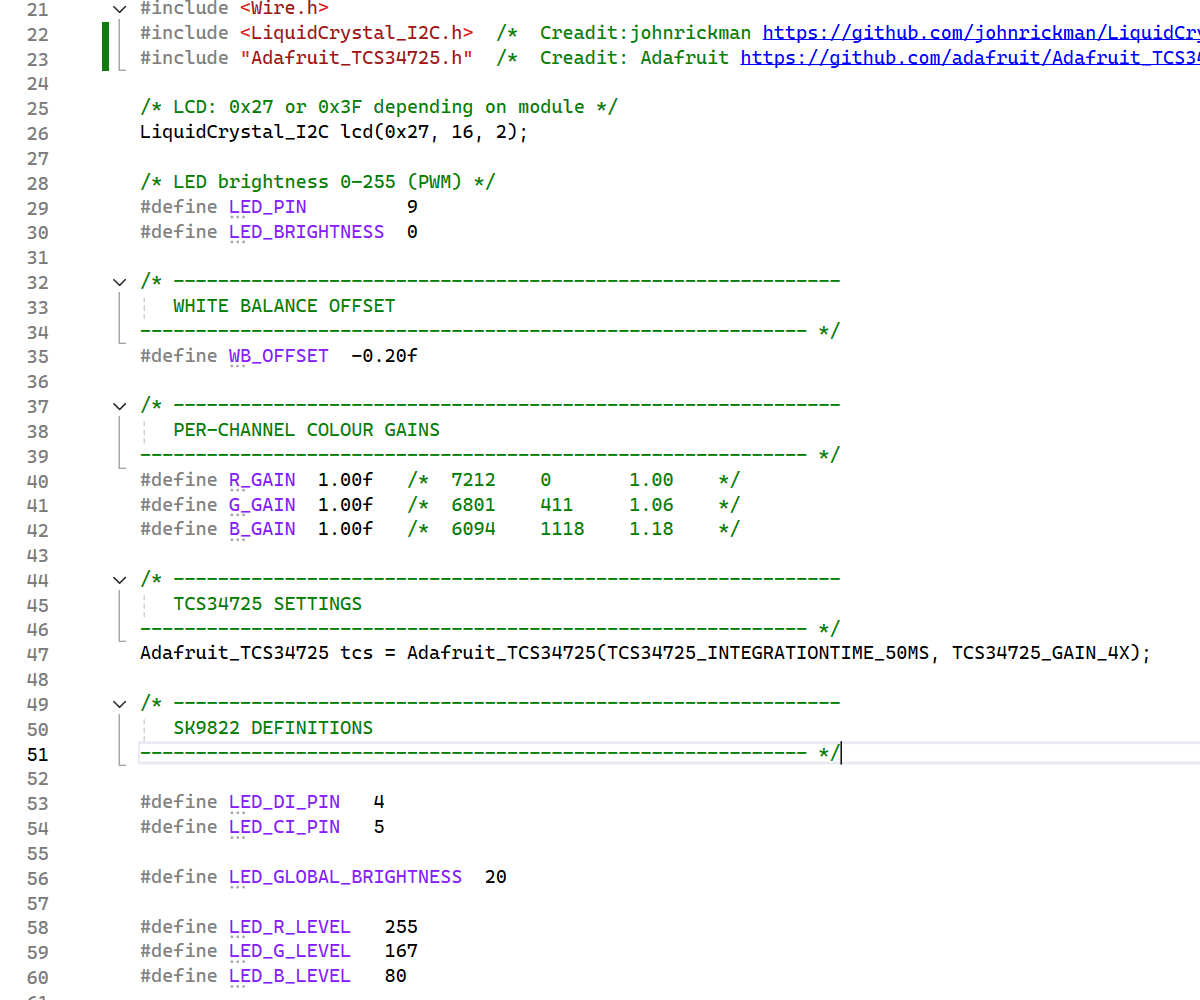
This section sets up everything the firmware needs before the Arduino even reaches setup(). These are the building blocks that make the rest of the project work smoothly. Each library, constant, and definition has a specific purpose, and understanding them makes the later steps much easier to follow.
📚 Included Libraries
These three libraries give the project its core functionality:
- Wire.h — enables I2C communication. Both the TCS34725 sensor and the I2C LCD rely on this bus.
- LiquidCrystal_I2C.h — drives the 1602 LCD using only two wires (SDA/SCL). Credit: johnrickman
- Adafruit_TCS34725.h — handles the colour sensor, including integration time, gain, and raw RGBC readings. Credit: Adafruit
These libraries save a huge amount of work — instead of manually handling registers and timing, you get clean, readable functions that “just work” 👍.
🔤 LCD Setup
- 0x27 is the most common I2C address for 1602 LCD backpacks.
- 16, 2 means 16 characters × 2 rows. This gives you a simple way to display live RGB values while testing.
💡 LED Brightness (PWM)
This is the on‑board white LED on many TCS34725 modules. You’re not using it for illumination (the SK9822 handles that), so brightness is set to 0.
⚪ White Balance Offset
This shifts all three colour channels equally. It’s your “white‑cap calibration” adjustment — similar to how cameras correct for warm or cool lighting. A negative value pulls the colours slightly darker and more neutral.
🎨 Per‑Channel Colour Gains
These correct the sensor’s natural bias. The TCS34725 doesn’t respond equally to all wavelengths, and your SK9822 LED mix isn’t perfectly neutral either. These gains let you fine‑tune each channel so white looks white and colours look balanced.
🔧 TCS34725 Sensor Settings
- 50ms integration time — fast enough for real‑time scanning
- 4× gain — boosts sensitivity without saturating the sensor
These settings give a good balance between speed and accuracy.
🌈 SK9822 LED Definitions
- DI and CI are the SK9822’s data and clock pins
- LED_GLOBAL_BRIGHTNESS controls the internal SK9822 brightness (0–31)
- LED_R/G/B_LEVEL define the calibrated white mix you created
This LED is your controlled light source, which is essential for stable colour readings.
🎛️ Raw and Processed Colour Variables
- r, g, b, c — raw 16‑bit sensor readings
- R8, G8, B8 — processed 8‑bit values for display and serial output
- hexColor — web‑style #RRGGBB string
- PNG32 — 32‑bit ARGB value for your Windows app
These give you multiple ways to use the colour data depending on your needs.
📏 Calibration Range
You only use Range_max (from the white reference). Range_min stays at zero because you’re not tracking black — a deliberate design choice for scanner‑style stability.
💡 SK9822 LED Control
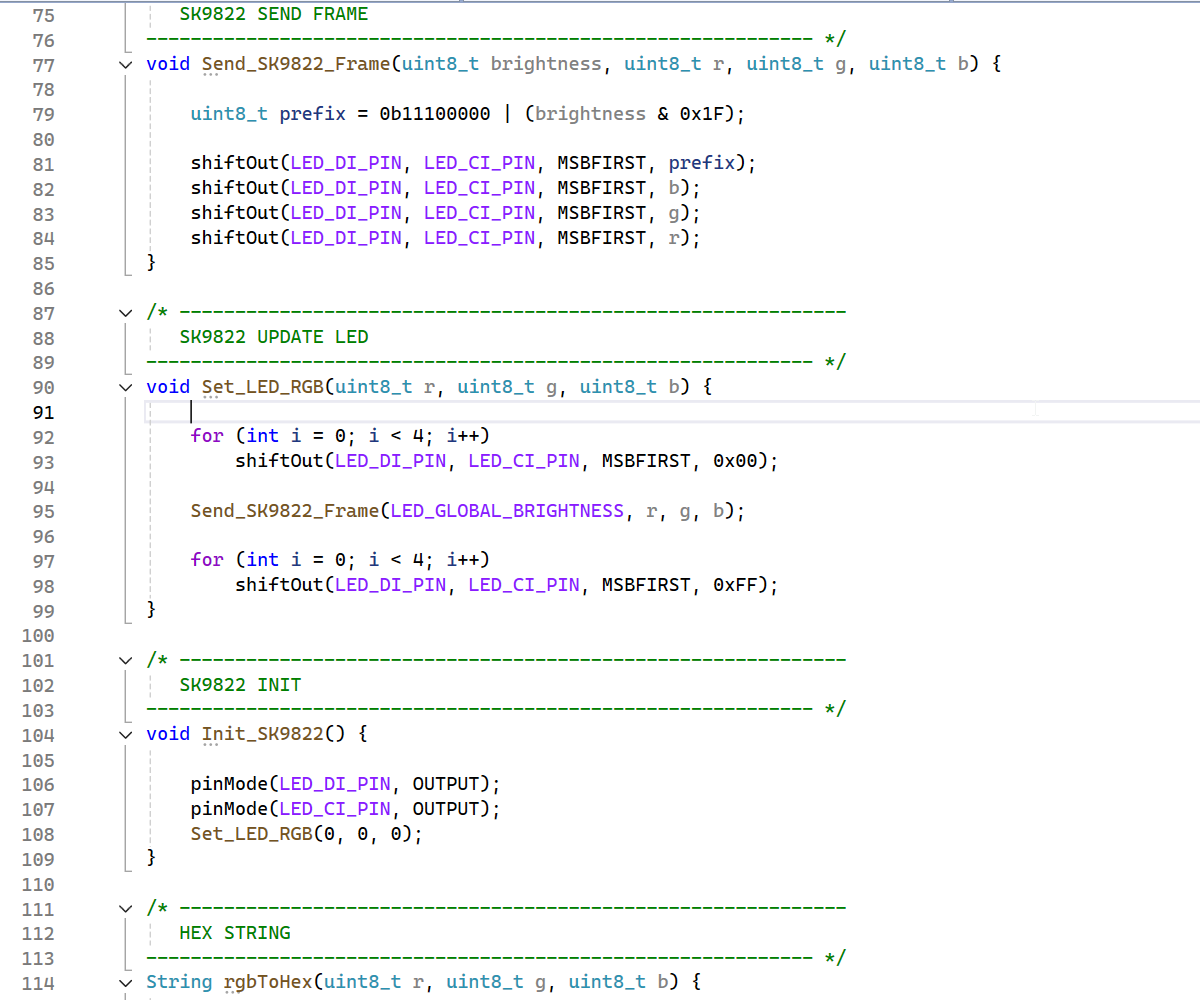
The SK9822 is your controlled light source, and it plays a huge role in getting stable, repeatable colour readings from the TCS34725. Instead of relying on ambient light (which changes constantly), the SK9822 gives you a consistent, calibrated illumination every time the sensor takes a reading. This is exactly how professional colour meters and 3D scanners maintain accuracy.
The firmware includes three small but important functions that handle everything the SK9822 needs: sending data frames, updating the LED colour, and initialising the LED hardware.
🔄 How the SK9822 Works (Quick Overview)
The SK9822 uses a simple clock + data protocol:
- CI — Clock input
- DI — Data input
Each LED receives a 32‑bit frame:
- 3 bits: 111 (start of frame)
- 5 bits: global brightness (0–31)
- 8 bits: Blue
- 8 bits: Green
- 8 bits: Red
This is why the code sends the colour bytes in B, G, R order — it matches the SK9822’s internal format.
📨 Sending a Frame
This function builds and sends the 32‑bit LED frame:
- prefix sets the global brightness
- The next three bytes set Blue → Green → Red
This is the lowest‑level function — everything else builds on top of it.
🎛️ Updating the LED Colour
This function handles the full SK9822 update sequence:
- Sends 4 zero bytes (start frame)
- Sends the LED frame
- Sends 4 bytes of 0xFF (end frame)
Even though you’re only using one LED, the SK9822 protocol always expects these start/end frames.
This is where your calibrated “white” mix is applied:
These values give you a neutral white illumination, tuned specifically for your sensor and enclosure.
🟦 SK9822 Initialisation
This prepares the LED pins and ensures the LED starts off before you set the calibrated white level.
🌈 Why This Matters for Colour Accuracy
The SK9822 is the heart of your colour stability:
- It removes ambient‑light variability
- It ensures every reading uses the same spectrum
- It makes your white‑cap calibration meaningful
- It gives you consistent results across different rooms, times of day, and materials
Without this LED, the TCS34725 would give wildly different readings depending on the environment. With it, you get scanner‑grade consistency.
🎨 Colour Processing Functions
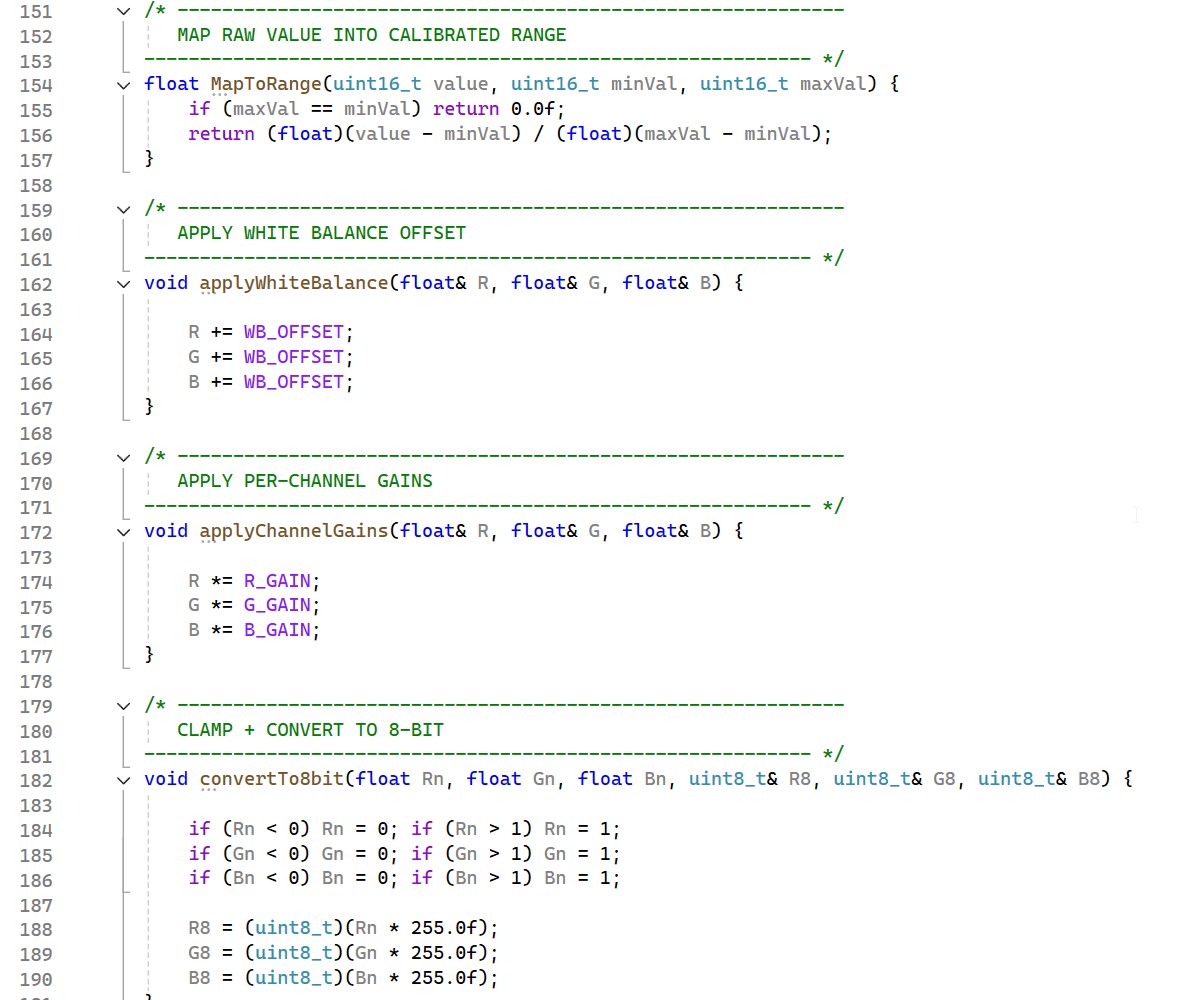
This part of the firmware is where the raw sensor readings are transformed into clean, stable, display‑ready RGB values. The TCS34725 gives you raw 16‑bit RGBC data, but that data needs several processing steps before it becomes a usable colour. These functions handle normalisation, white balance, per‑channel correction, and conversion to 8‑bit output.
Each function plays a specific role in making your colour readings consistent and scanner‑ready.
📏 Mapping Raw Values Into a Range
This converts a raw 16‑bit reading into a 0.0–1.0 floating‑point value.
- minVal is fixed at 0 in your design
- maxVal is captured from the white reference during startup
- The result is a brightness‑normalised value that behaves consistently across different lighting conditions
This is the foundation of your “white‑cap calibration” system.
⚪ White Balance Offset
This shifts all three channels equally. It’s your manual white‑balance correction — similar to how cameras compensate for warm or cool lighting.
A negative offset darkens the channels slightly and helps neutralise overly warm illumination.
🎛️ Per‑Channel Gains
These gains correct the sensor’s spectral bias and the LED’s colour mix.
- The TCS34725 responds differently to red, green, and blue
- Your SK9822 “white” mix isn’t perfectly neutral
- These multipliers let you fine‑tune each channel so white looks white and colours look natural
This is essential for accurate colour reproduction.
🎚️ Clamping and 8‑Bit Conversion
After normalisation and correction, the values are still floating‑point numbers. This function:
- Clamps them to the valid range
- Converts them into 8‑bit integers
- Produces values suitable for:
- LCD display
- Serial output
- Your Windows colour viewer
- PNG32 ARGB formatting
This is the final step before the colour is ready to use.
🌈 Why These Functions Matter
Together, these functions:
- Stabilise brightness
- Correct colour temperature
- Balance the sensor’s response
- Convert raw data into usable RGB
- Ensure consistent results across sessions
- Make the system suitable for 3D scanning and colour capture
They turn the TCS34725 from a noisy raw sensor into a proper colour‑measurement device.
⚙️ Setup()
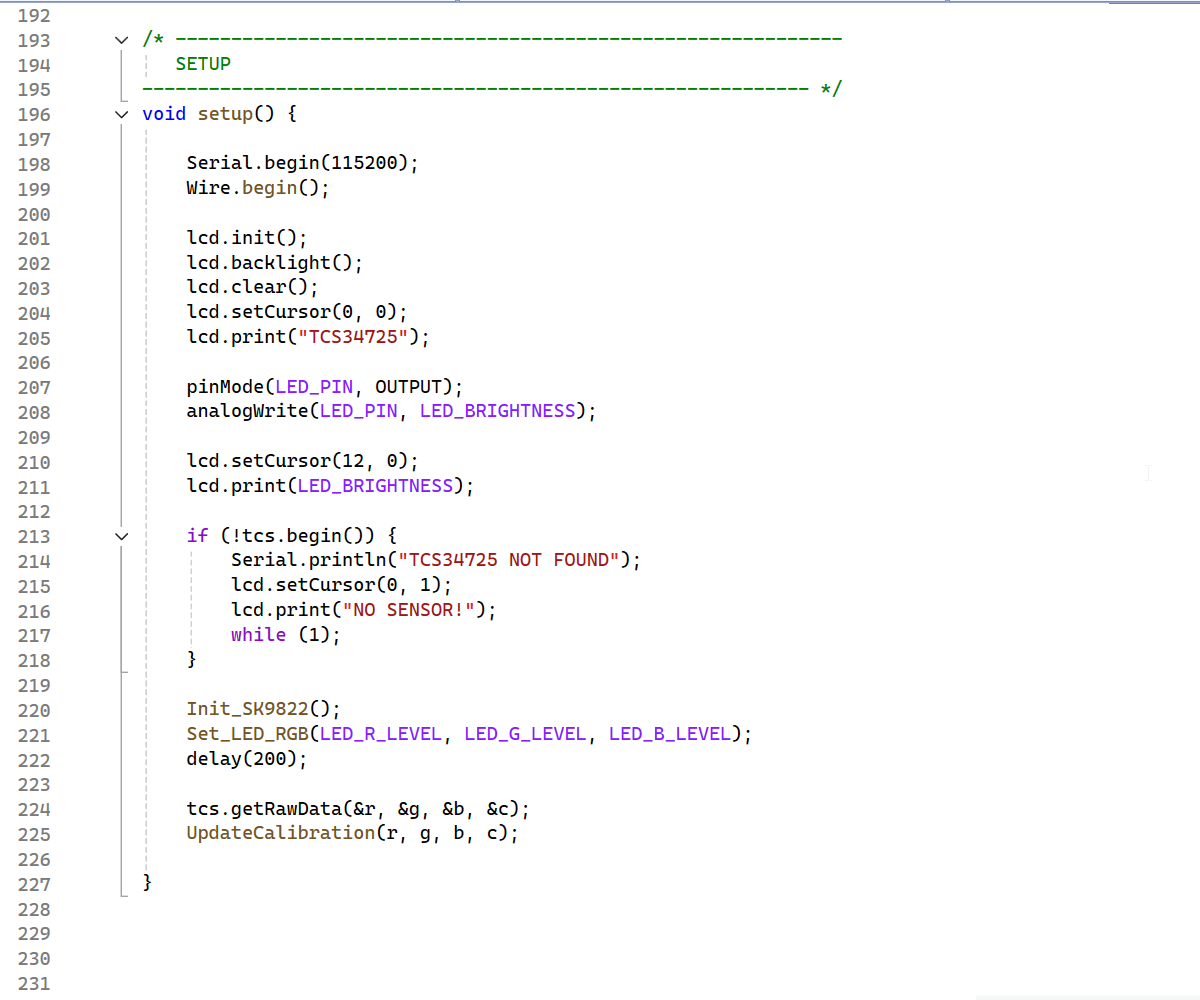
The setup() function is where the entire system comes to life. This is the one‑time initialisation stage that prepares the LCD, the TCS34725 sensor, the SK9822 LED, the serial interface, and your calibration reference. Once this runs, the firmware is ready to start taking stable, repeatable colour readings.
🔌 Starting Serial & I2C
- Serial.begin(115200) opens the USB serial connection so your Windows app can receive colour data in real time.
- Wire.begin() starts the I2C bus, which both the LCD and TCS34725 rely on.
This is the communication backbone of the project.
🖥️ Initialising the LCD
The LCD is brought online and displays a simple start-up message. This gives you immediate visual confirmation that the firmware is running.
💡 Disabling the On‑Board LED
Many TCS34725 breakout boards include a bright white LED. You’re not using it — the SK9822 provides your controlled illumination — so this sets it to 0 brightness.
- Instead of connecting the allocated pin on the microcontroller to LED Pin on the Sensor Module, I have just connected the LED Pin on the sensor module to GND.
🔍 Checking the TCS34725 Sensor
If the sensor isn’t detected:
- A message appears on the LCD
- A message is printed to serial
- The firmware halts
This prevents the system from running with invalid data.
🌈 Initialising the SK9822 LED
- The LED pins are configured
- The LED is set to your calibrated “white” mix
- A short delay ensures the LED stabilises before taking the first reading
This is essential for your white‑cap calibration.
⚪ Capturing the White Reference
This is the heart of your calibration system:
- A single reading is taken from the white surface
- Range_max is set based on the clear channel
- This becomes the brightness ceiling for the entire session
This is exactly how professional colour meters and scanners initialise themselves.
🧩 What Setup() Achieves
By the time setup() finishes:
- The LCD is ready
- The sensor is verified
- The SK9822 is producing calibrated white light
- The system has captured its white reference
- The serial link is open
- All variables are initialised
From this point on, the firmware can take stable, consistent colour readings — ready for the main loop.
🔁 Loop()
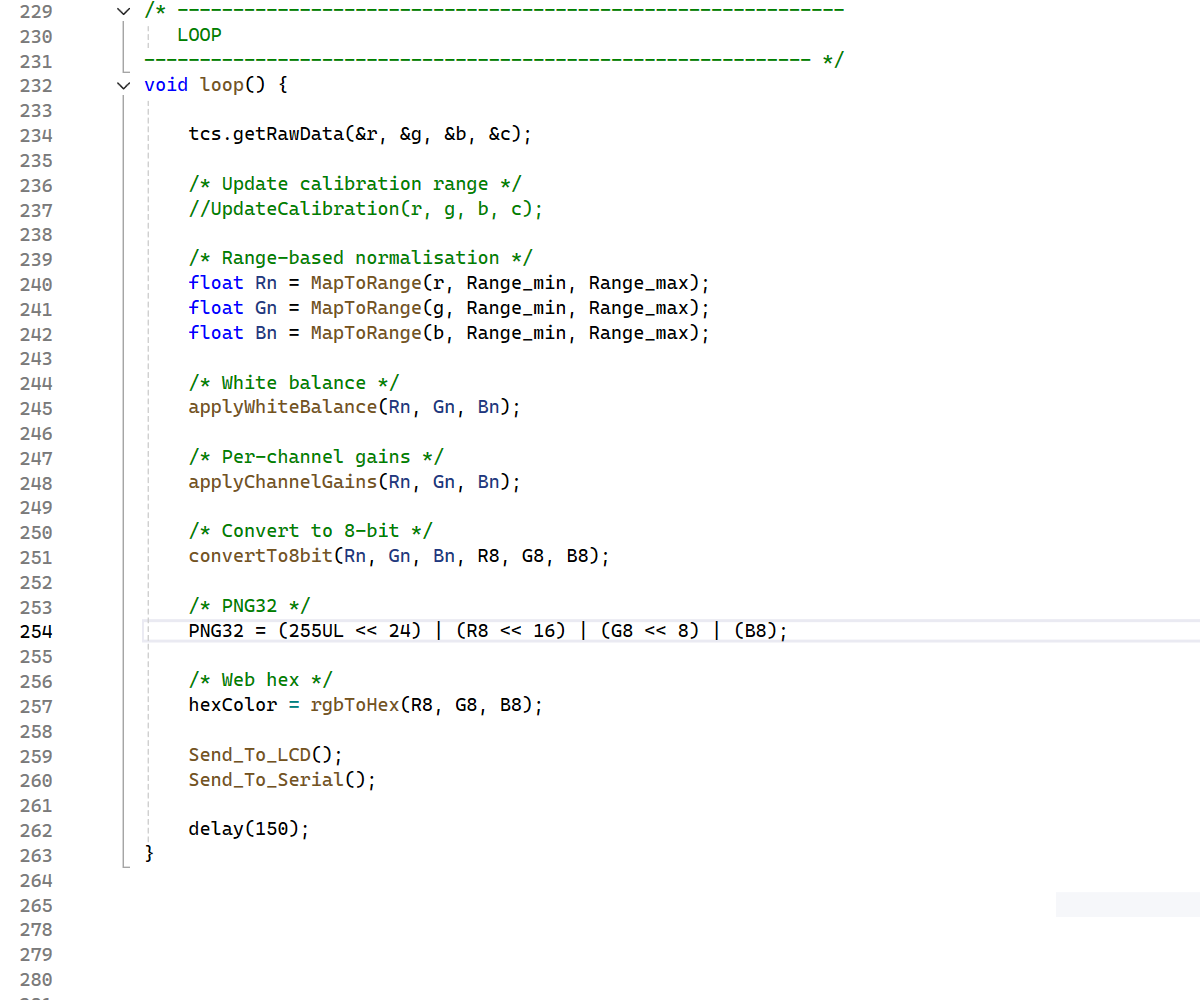
The loop() function is the beating heart of the firmware. Once the system has been initialised and calibrated in setup(), the loop runs continuously, taking fresh readings from the TCS34725, processing them, displaying them, and sending them to your Windows application. Every pass through the loop produces one complete colour sample.
🎨 1st — Read Raw Sensor Values
The TCS34725 returns four 16‑bit values:
- R — red channel
- G — green channel
- B — blue channel
- C — clear (overall brightness)
These are the untouched, unprocessed sensor readings. Everything else in the loop builds on this data.
📏 2nd — Normalise the Raw Values
This converts the raw values into 0.0–1.0 floats, using:
- Range_min = 0
- Range_max captured from the white reference in setup()
This step stabilises brightness so your readings don’t drift with environmental changes.
⚪ 3rd — Apply White Balance
This shifts all three channels equally using your WB_OFFSET. It corrects for warm/cool lighting and helps keep whites neutral.
🎛️ 4th — Apply Per‑Channel Gains
Each channel is multiplied by its gain value:
- Corrects the sensor’s uneven spectral response
- Compensates for the SK9822’s LED colour mix
- Helps ensure that white looks white and colours look natural
This is your fine‑tuning stage.
🎚️ 5th — Convert to 8‑Bit RGB
This clamps the values to 0–1 and converts them into 0–255 integers. These are the values used for:
- LCD display
- Serial output
- PNG32 formatting
- Your Windows colour viewer
This is the final usable colour.
🧱 6th — Build PNG32 and Web Hex Formats
Two formats are generated:
- PNG32 (ARGB) — used by your Windows app
- Web hex (#RRGGBB) — human‑friendly and easy to debug
This makes the colour data flexible and portable.
🖥️ 7th — Update the LCD
The LCD shows:
- R
- G
- B
This gives you instant feedback while testing on the bench.
💻 8th — Send Data to the Windows App
This prints:
- Calibration range
- Raw RGBC values
- PNG32
- Web hex
Your Windows application reads this stream and displays a live colour swatch.
⏱️ 9th — Loop Delay
A short delay keeps the update rate smooth and prevents overwhelming the serial port.
🌈 What Loop() Achieves
Every cycle of the loop:
- Reads fresh sensor data
- Normalises it
- Applies white balance
- Applies channel gains
- Converts to 8‑bit
- Displays it
- Sends it to the PC
This creates a stable, real‑time colour‑capture pipeline, perfect for experiments, robotics, or feeding colour into your 3D scanner.
💻 Serial Output for the Windows App

The Send_To_Serial() function is a special part of your firmware because it acts as the communication bridge between the Arduino and the Windows colour‑viewer application. Unlike the LCD output, which is just for human eyes, the serial output must follow a strict, predictable format so the PC software can parse each value correctly and display the right colour swatch.
This step explains why the format matters and how the notes in the code define the exact structure the Windows app expects.
🧾 Why the Serial Format Must Be Exact
The Windows application isn’t “guessing” what the Arduino is sending. It reads the serial stream line‑by‑line and looks for specific patterns:
- Range_min: and Range_max:
- RAW R: G: B: C:
- PNG32:
- WEB:
If any of these labels change — even slightly — the PC parser would no longer know:
- where each value begins
- where it ends
- which number belongs to which channel
- how to reconstruct the colour
That’s why my comment block is so important: it documents the contract between the Arduino and the Windows app.
🔌 The Function Itself
Each block is designed to be machine‑readable:
- The first line gives the calibration range
- The second line gives the raw sensor values
- The third line gives the 32‑bit ARGB colour
- The fourth line gives the web‑style hex colour
The Windows app reads these lines in order and updates the colour swatch instantly.
🧠 Why This Matters for Your Project
Because my Windows application is going to be part of a larger 3D‑scanner ecosystem, the serial format becomes a protocol — a fixed language both sides must speak. This ensures:
- consistent colour capture
- predictable parsing
- no mismatched values
- no corrupted colour data
- smooth real‑time updates
It also means anyone using this Instructable can build the same PC tool or extend it, knowing exactly what the Arduino sends.
📝 In Summary
You can describe this step like this:
The Send_To_Serial() function outputs the colour data in a strict, structured format that a Windows application expects. Each line begins with a specific label (such as RAW R: or WEB:), allowing the PC software to parse the values correctly and display the colour swatch. Changing this format would break compatibility, so the output must remain exactly as shown.
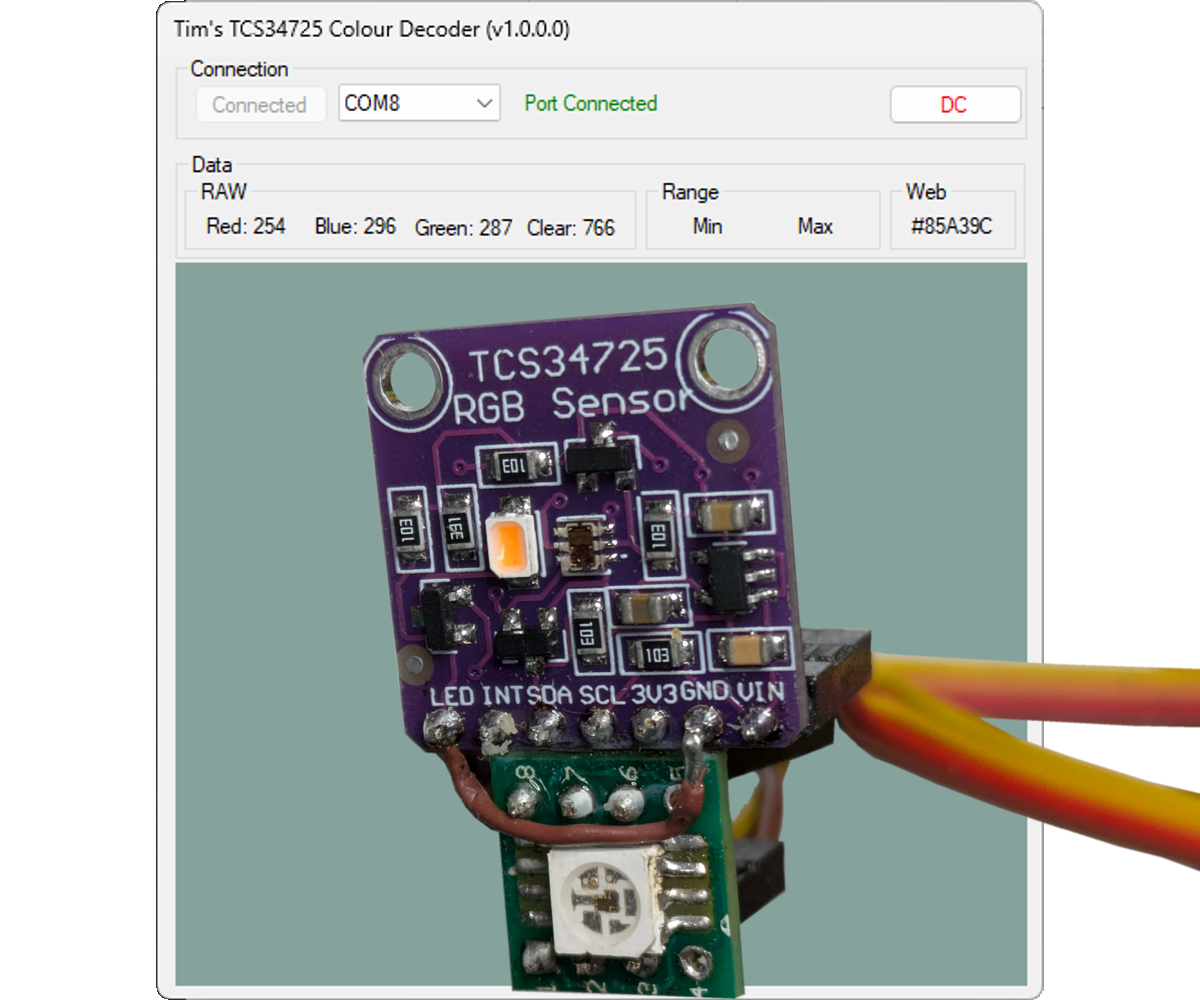
🪟 Tim’s TCS34725 Colour Decoder (Windows Application)
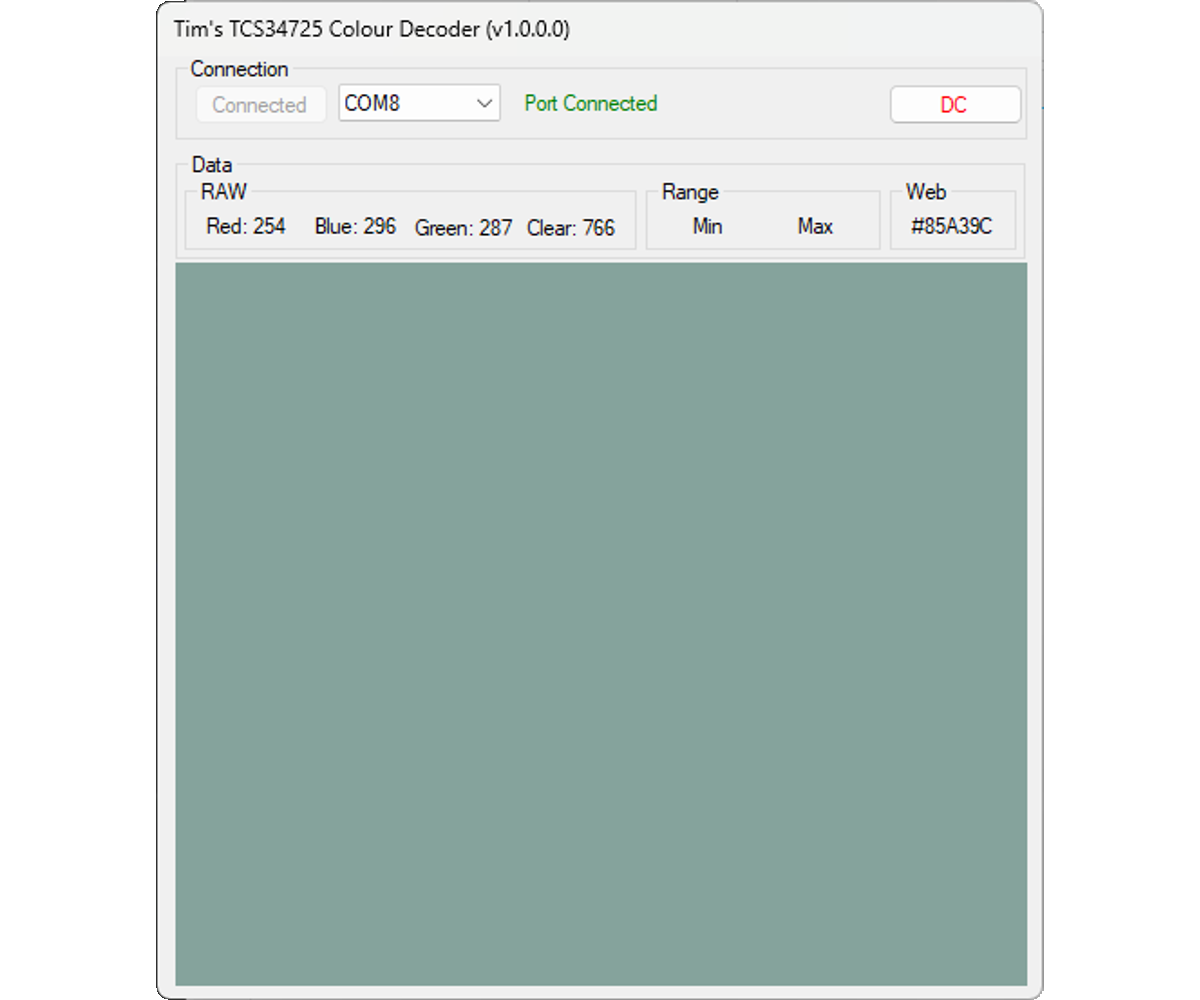
This final step ties the whole project together. The firmware you’ve built is designed to stream clean, structured colour data over USB, and Tim’s TCS34725 Colour Decoder is the Windows application that reads that stream and turns it into a live colour swatch on your PC. It’s the visual front‑end of your colour‑capture system, and it makes testing, tuning, and experimenting far easier than relying on raw numbers alone.
🎯 What the Application Does
The Windows app listens to the Arduino’s serial output and extracts:
- Range_min / Range_max
- Raw RGBC values
- PNG32 ARGB value
- Web hex colour (#RRGGBB)
It then displays:
- A live colour swatch
- The numeric RGB values
- The hex code
- The ARGB value
This gives you instant visual confirmation of what the sensor is seeing, which is especially useful when calibrating the LED mix, adjusting gains, or testing different materials.
I have placed this Application on my Microsoft Store.
- (Currently awaiting Approval on the Store)
- This means no nagging messages of: "Unknown Publisher I want to stop you installing it" from Windows.
- My Microsoft Store
To use the application
- Plug the USB from the microcontroller into your PB.
- In the application choose the COM port that the USB is connected to.
- Click connect.