Unexpected Encounter
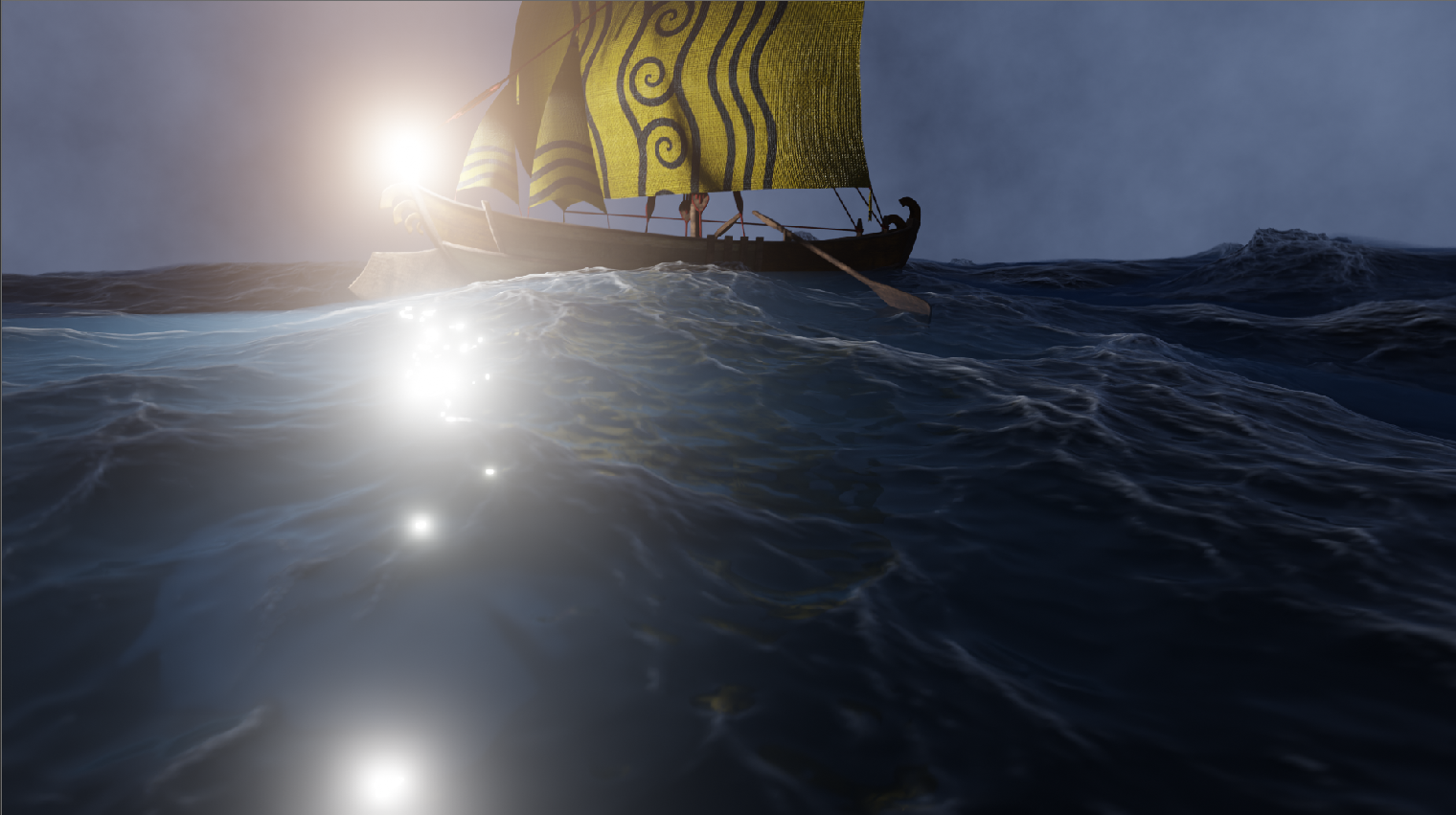
Over the years, I have been a fan of 3D design and 3D Printing, so when I saw this contest, I knew I wanted to do this. Not only can I create a 3D animation, but I can also win a 3D printer as a grand prize! I made an ocean with a Greek Trireme floating on it, featuring the mythological creature, Charybdis. I hope you enjoy!
Supplies


.jpg)
I mainly used Blender 4.3.2 for this project, but I also used freesound and Sketchfab for the audio and one of the models.
Making the Ocean
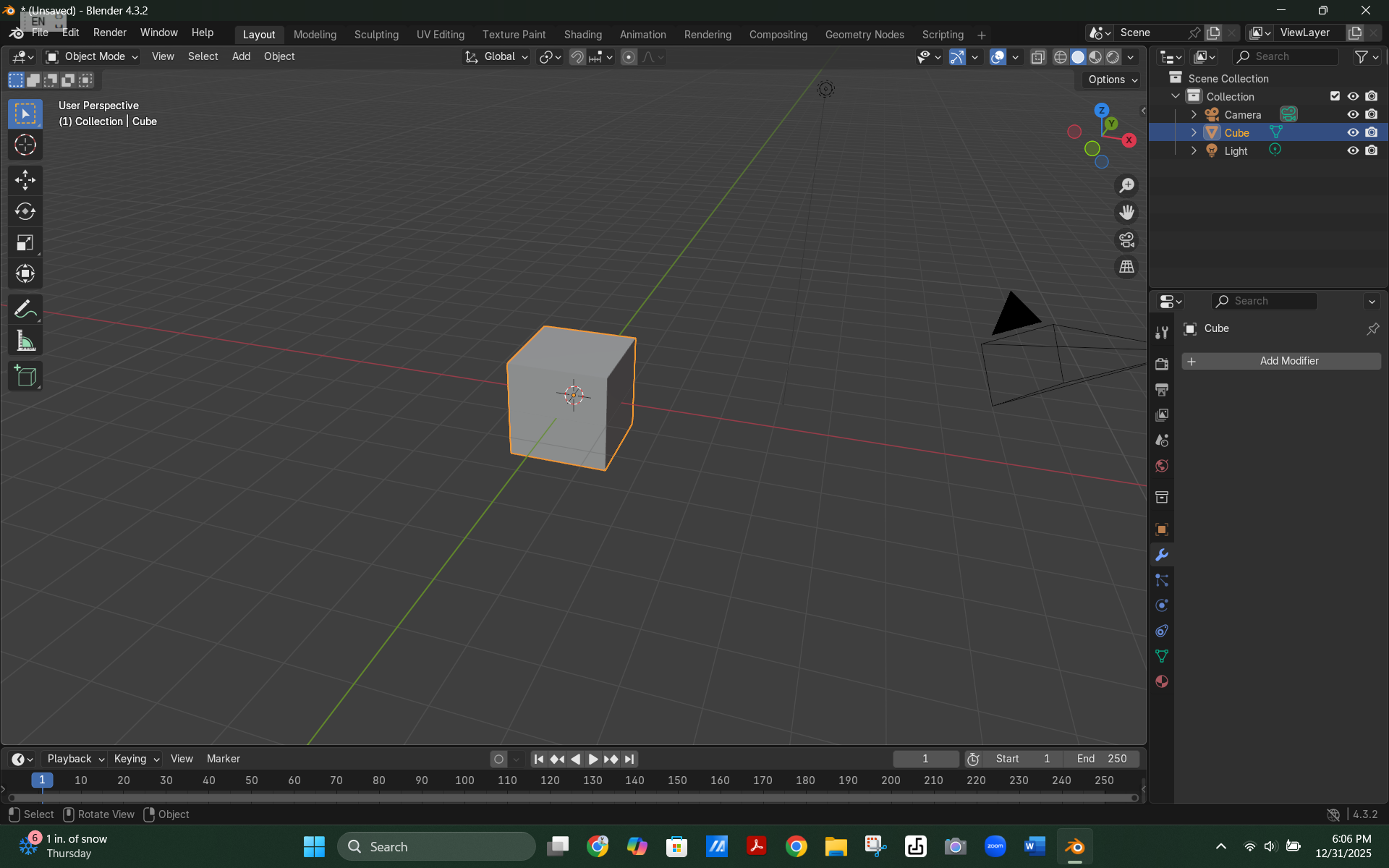
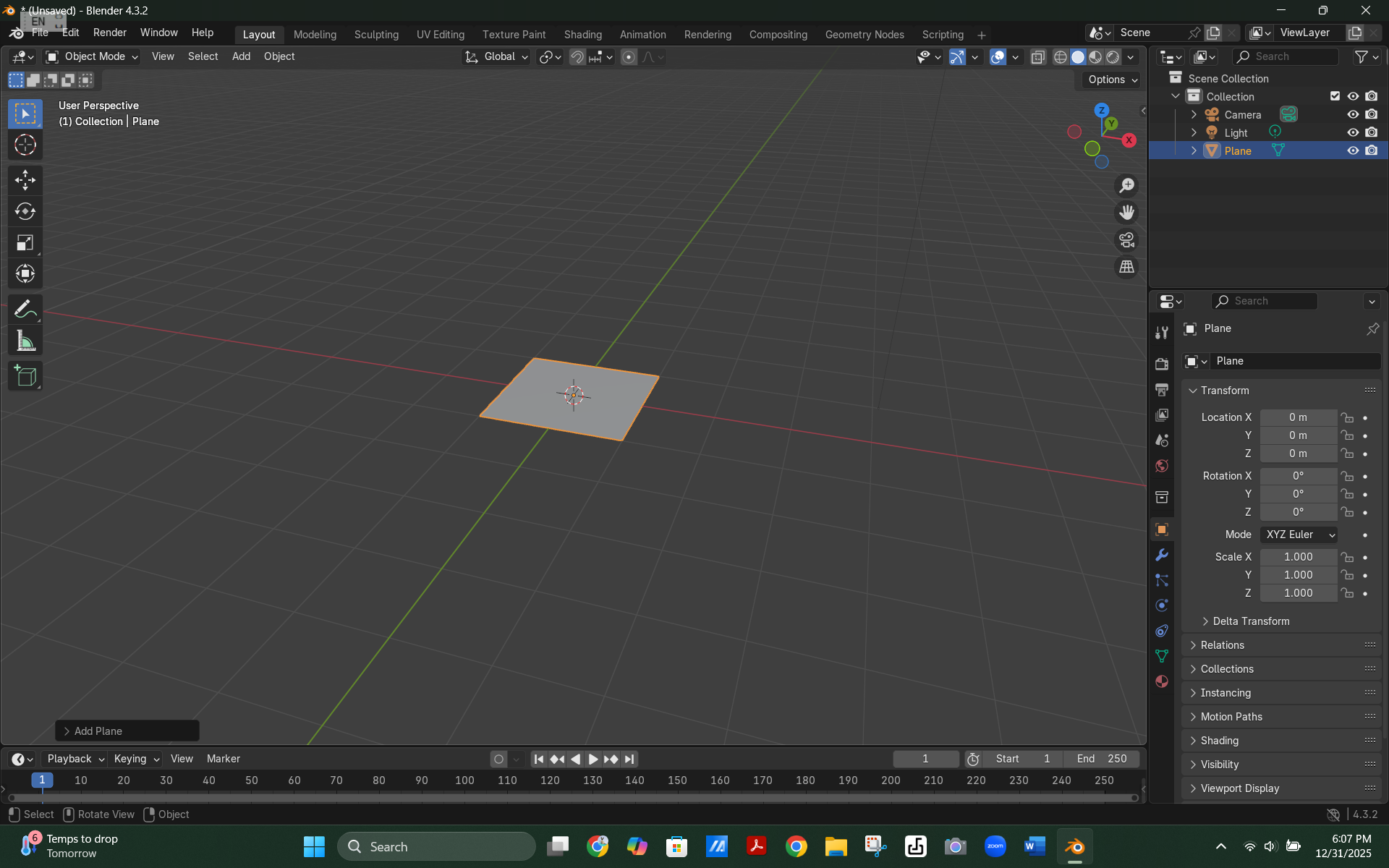
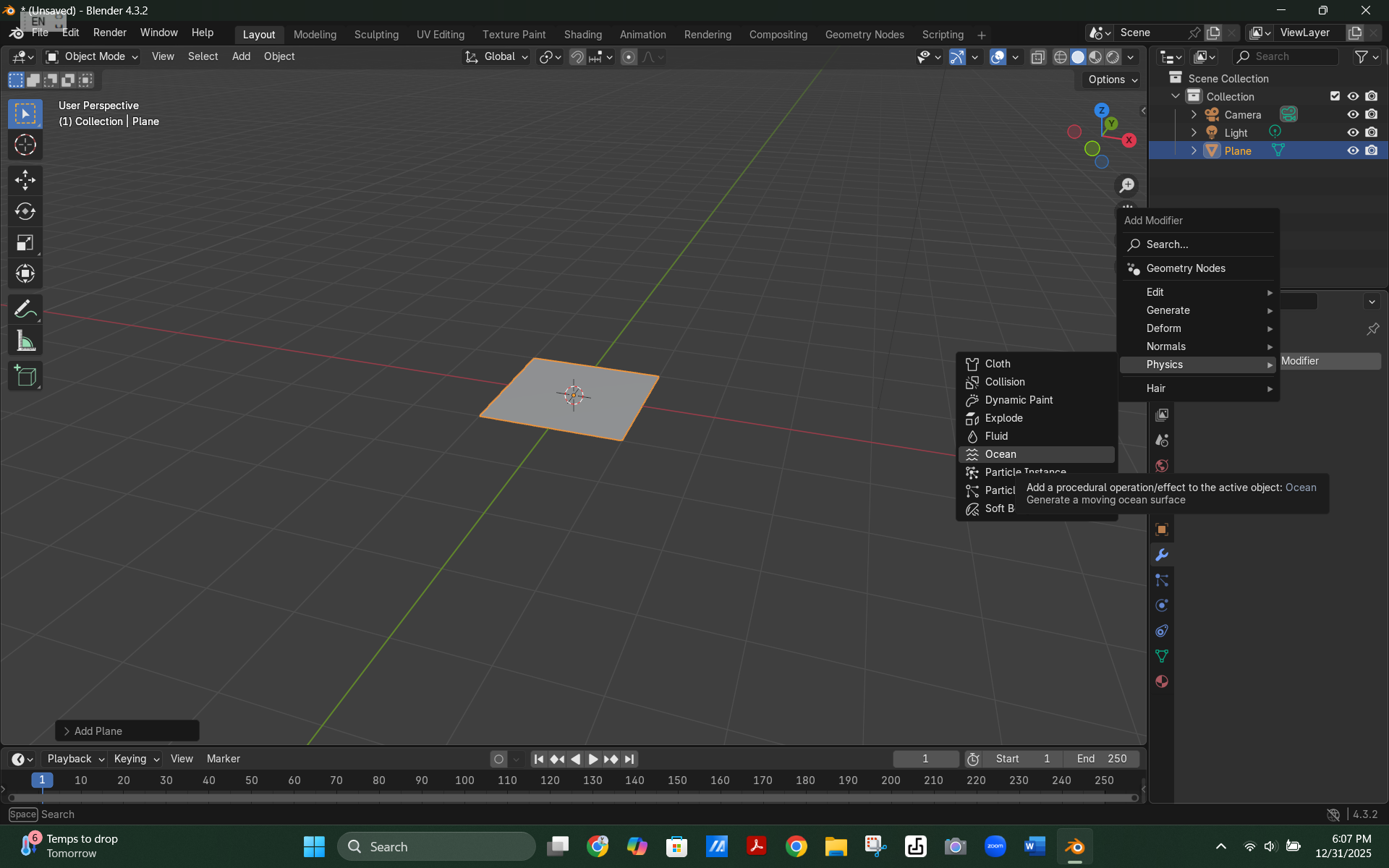
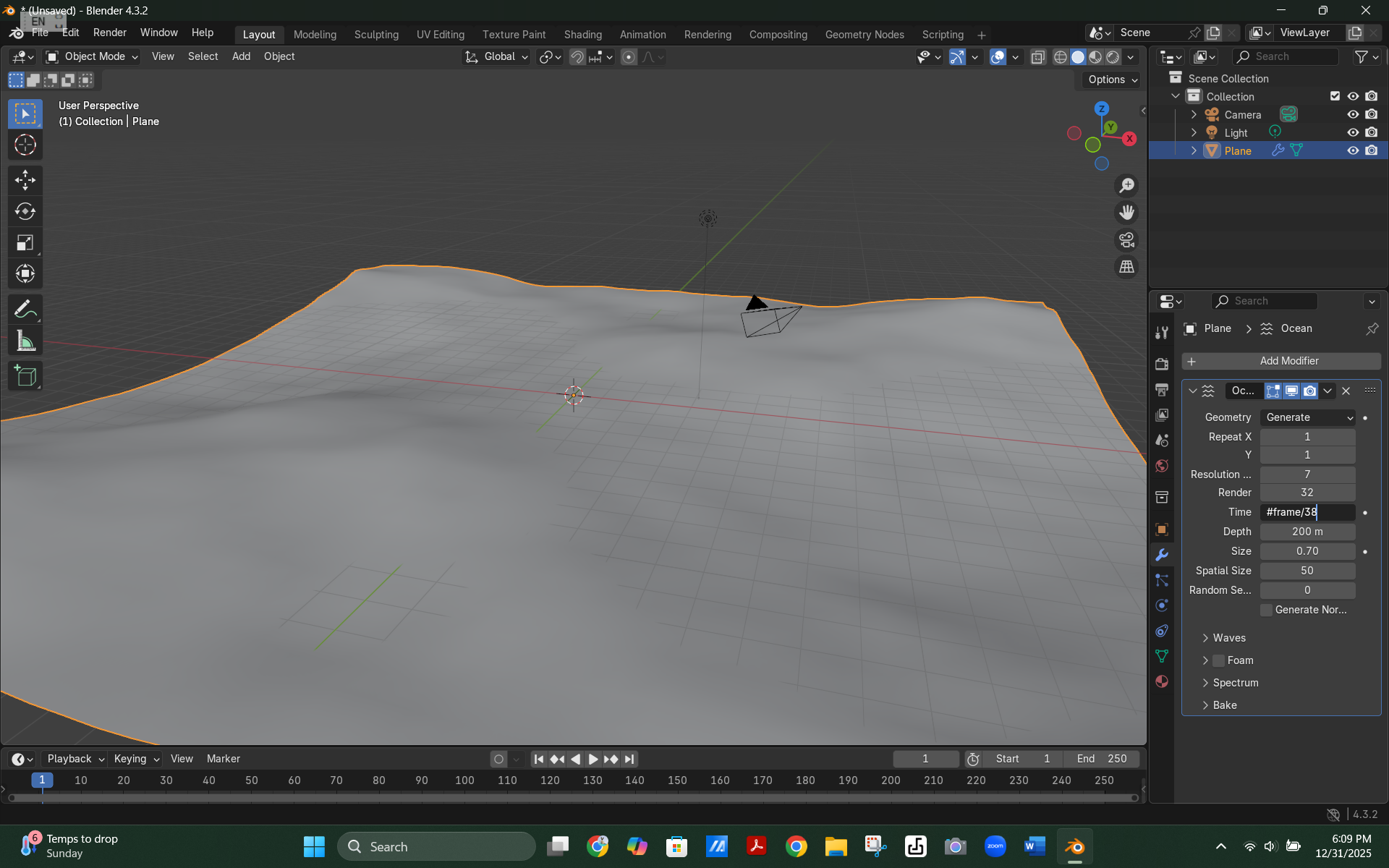
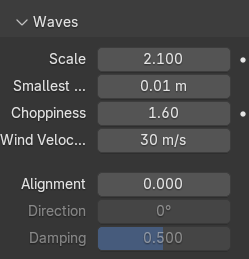
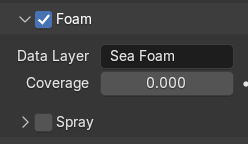
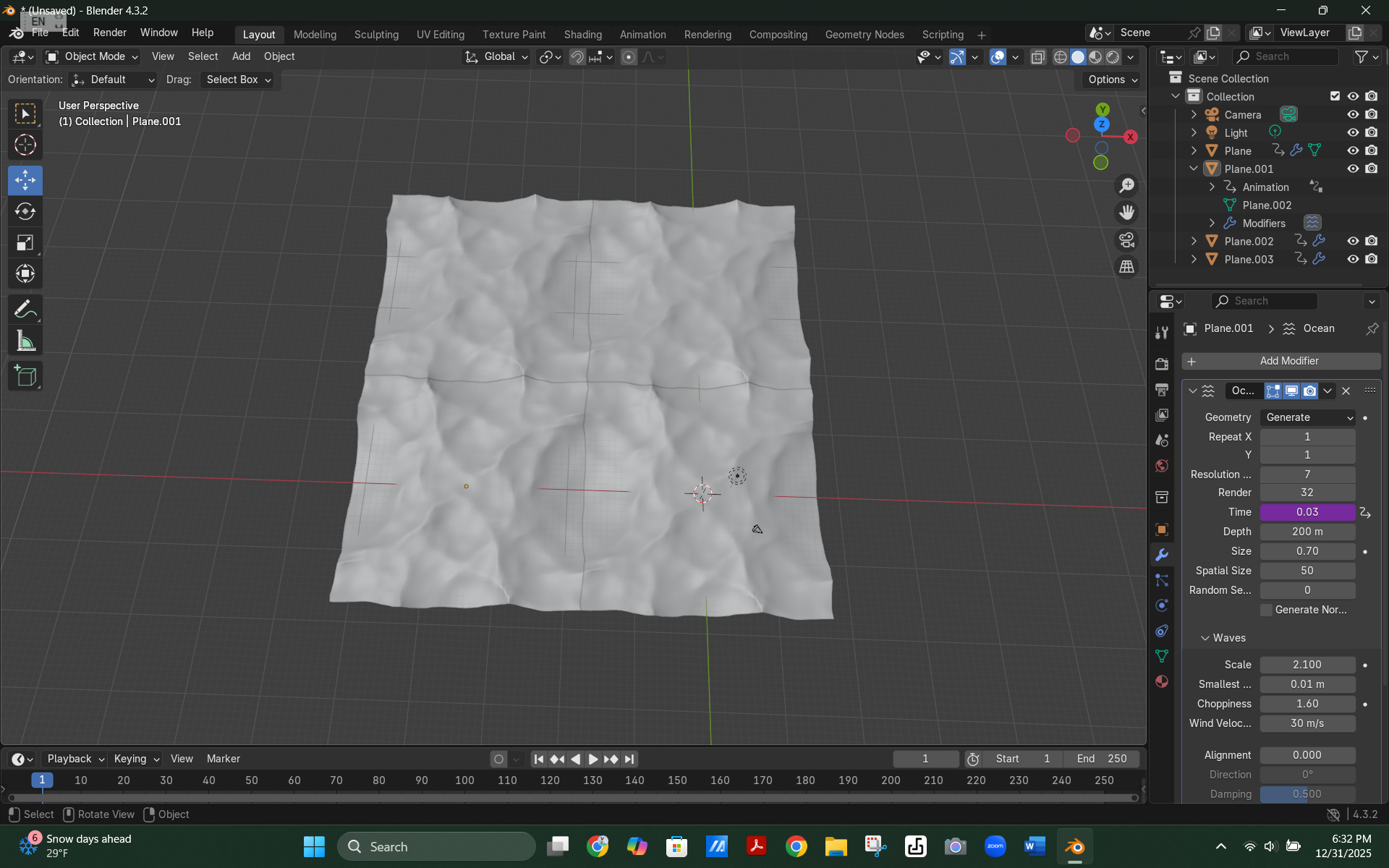

For Step 1, you will want to remove the cube and replace it with a plane. Then go into the modifiers tab and select physics. Inside physics there are multiple choices, choose ocean. Next, you will want to type #frame/38 in where the time is. If you go down, there will be a tab that say Waves. In the Waves tab, you will want to type in 2.100 for Scale, 0.01 m for Smallest Wave, 1.60 for Choppiness, 30 m/s for Wind Velocity, 0.00 for Alignment, 0 for Direction and 0.500 for damping. If you go down again, there will be a tab that says Foam. In it, type a name for the Data Layer and type 0.000 for Coverage. After all of that, click Shift D and X to duplicate it and line it up perfectly, and when you click X make sure to also click in 35 and the - symbol. At the top of the modifying tab, there will be a repeat Y (when looking for this, it will just be Y), click it until the number two shows up. Next select the original plane, click Shift D and Y then type in 35. Finally make the resolution of everything but the original plane Resolution 7 and Render 15. You have completed the first step!
Syncing the Camera
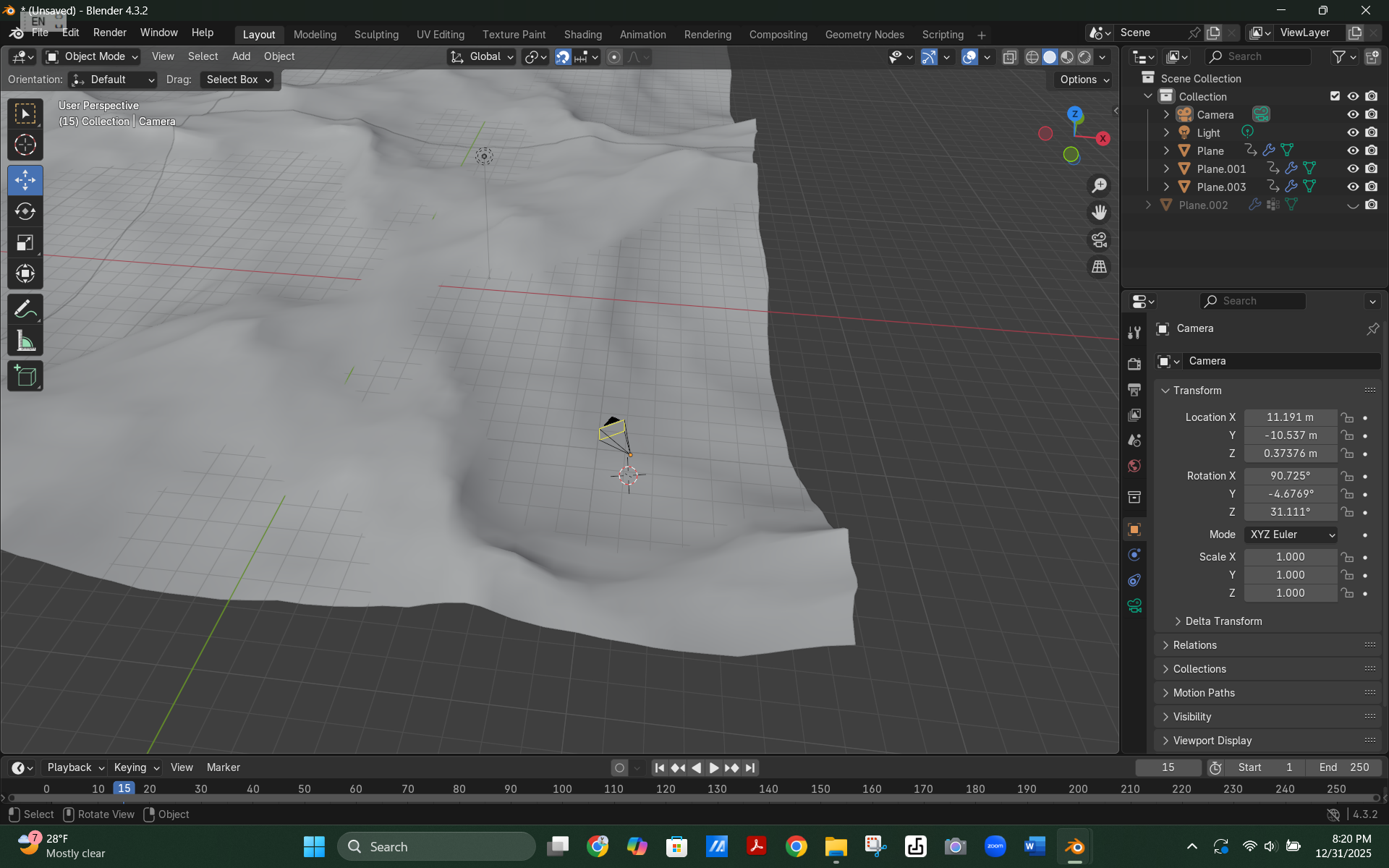
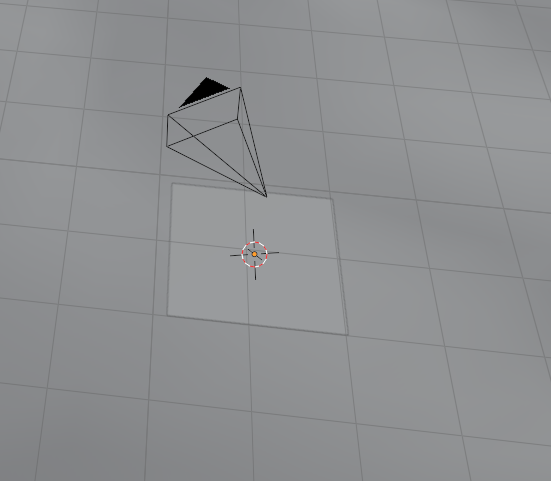
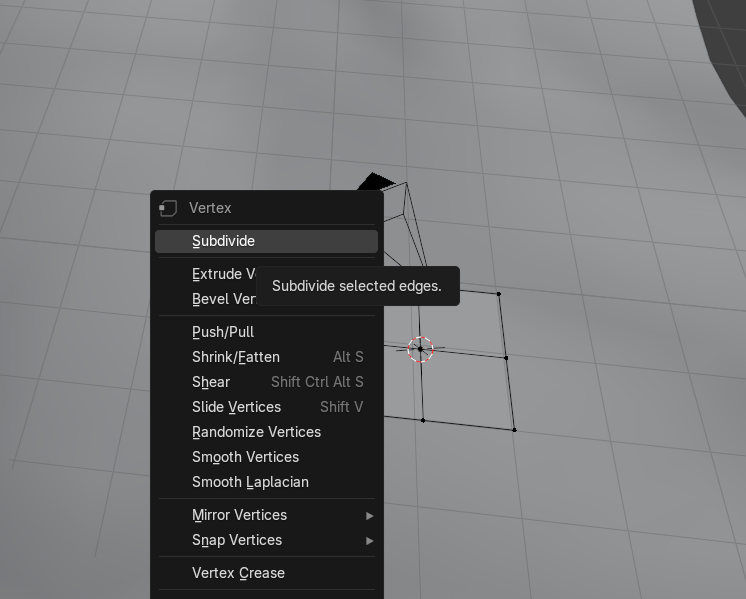
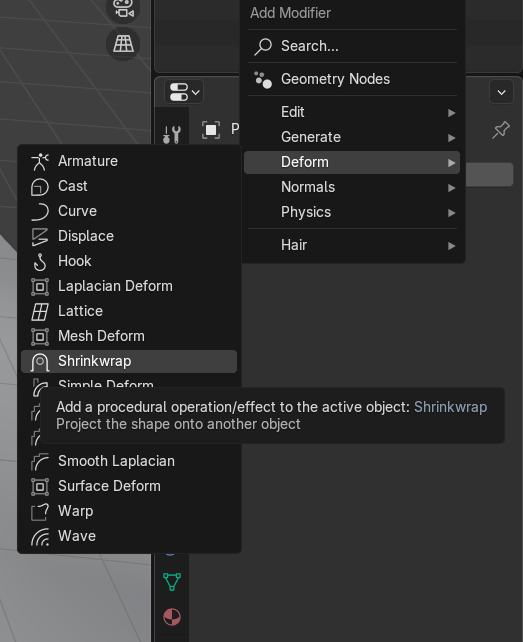
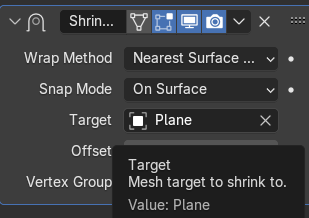
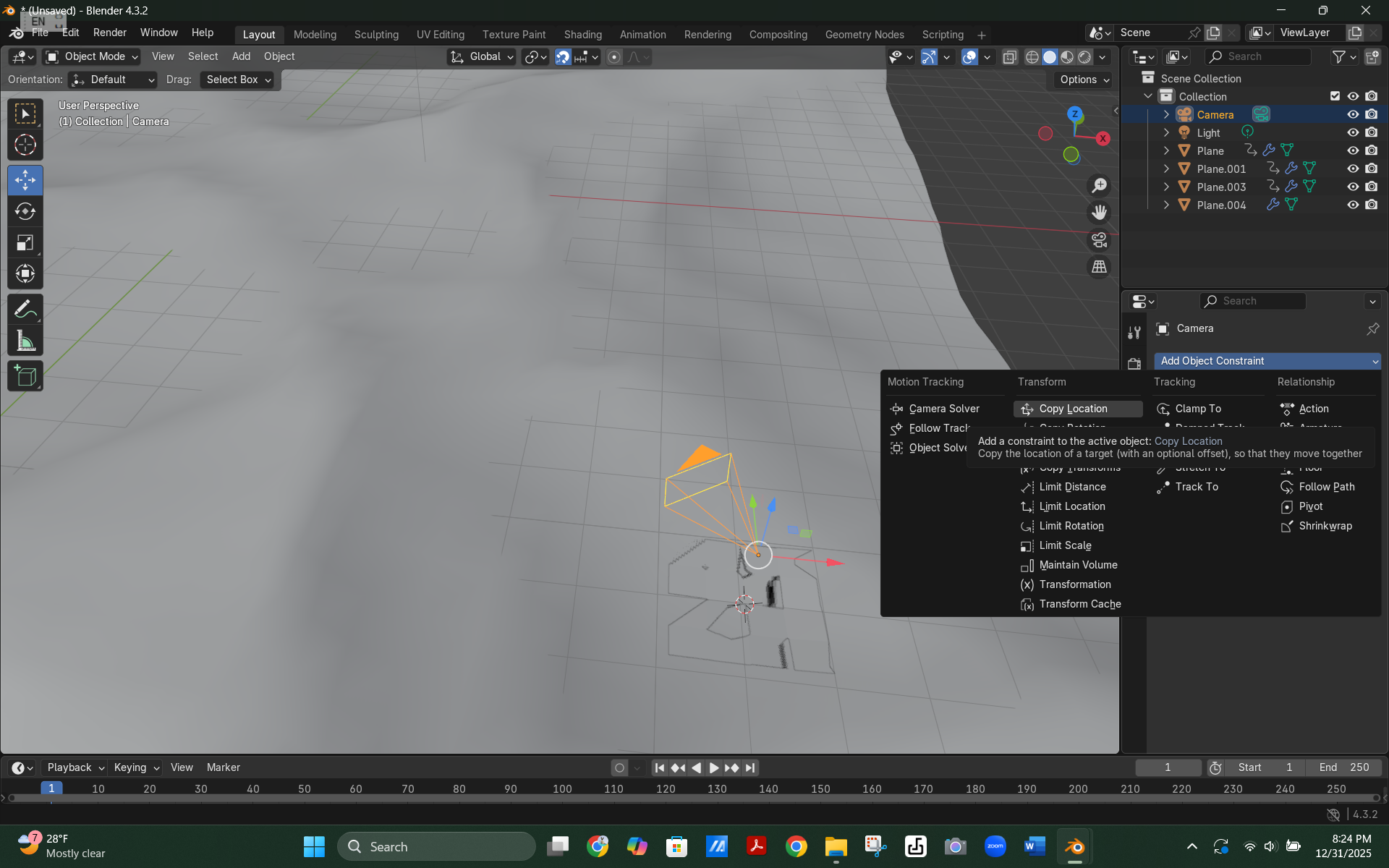
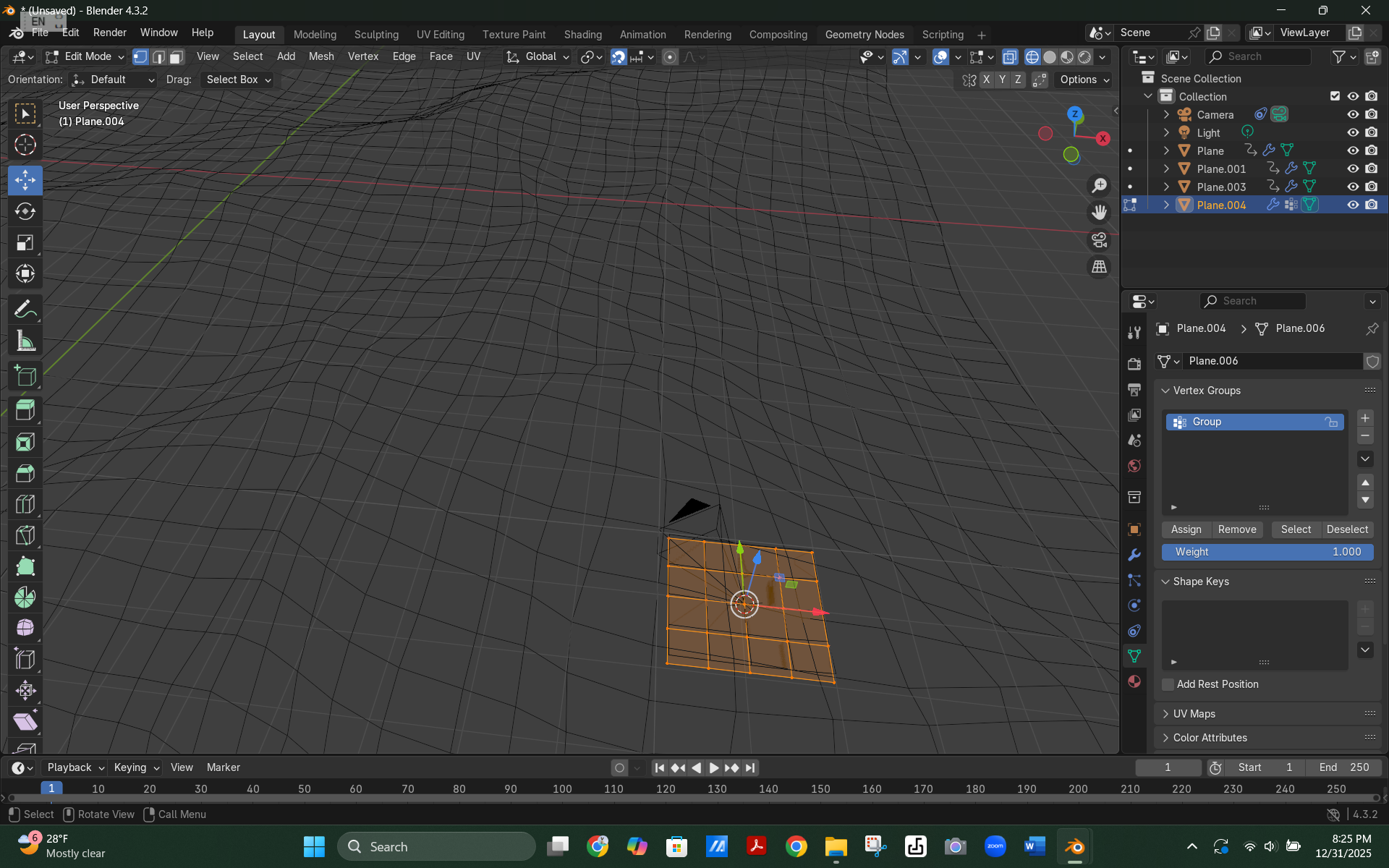
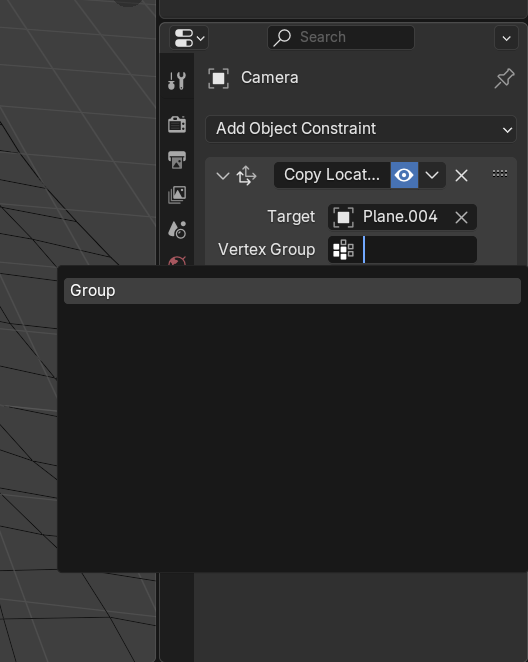
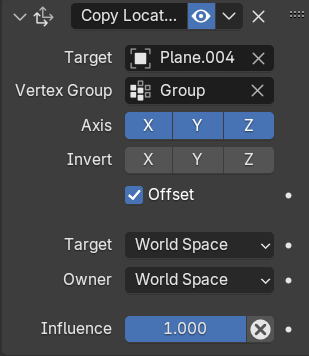
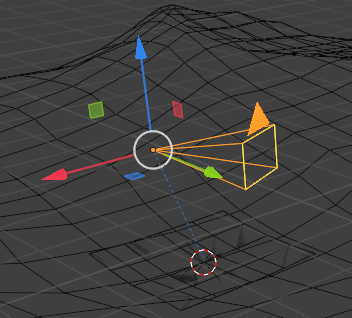
First, you will want to move the origin to somewhat of the corner on the original plane. Then create a new plane and subdivide it twice. Then select plane and make a vertex group. Add a Shrinkwrap modifier, target the new plane and type in the name of your vertex group. Then add Object Constraint for the camera and make a copy location constraint. make the target your plane, type in the vertex group and click offset. Finally move the camera in a position that you please. You competed the second step!
Set Up the Camera
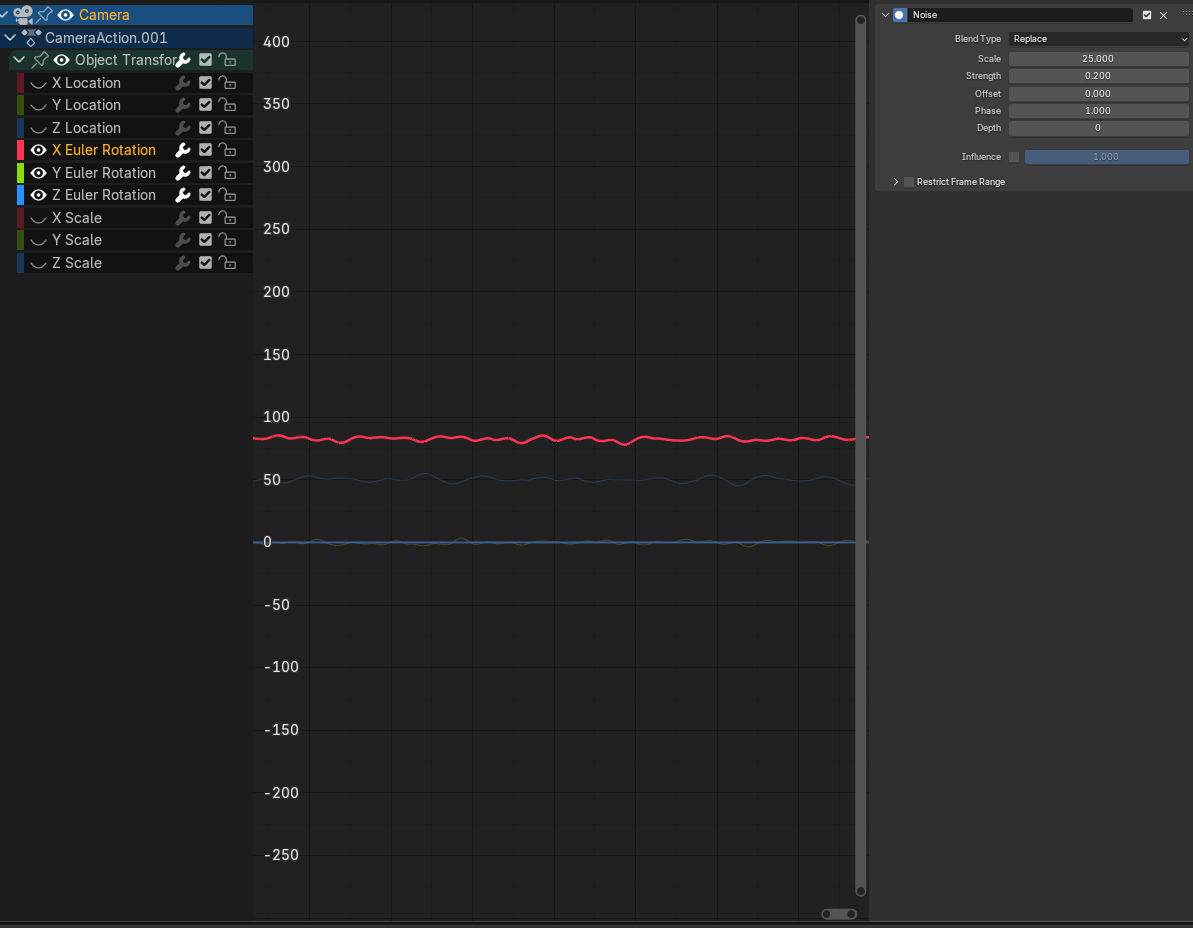
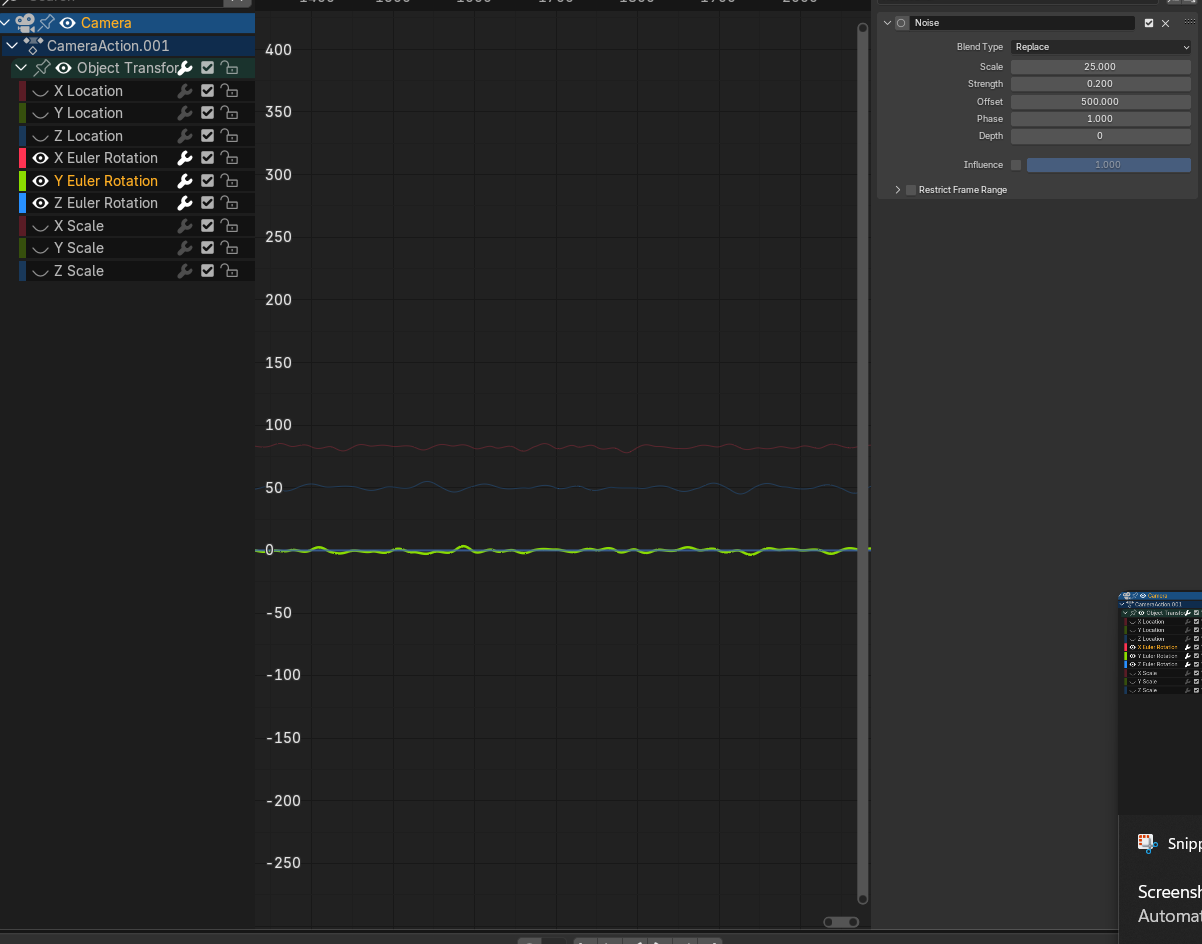
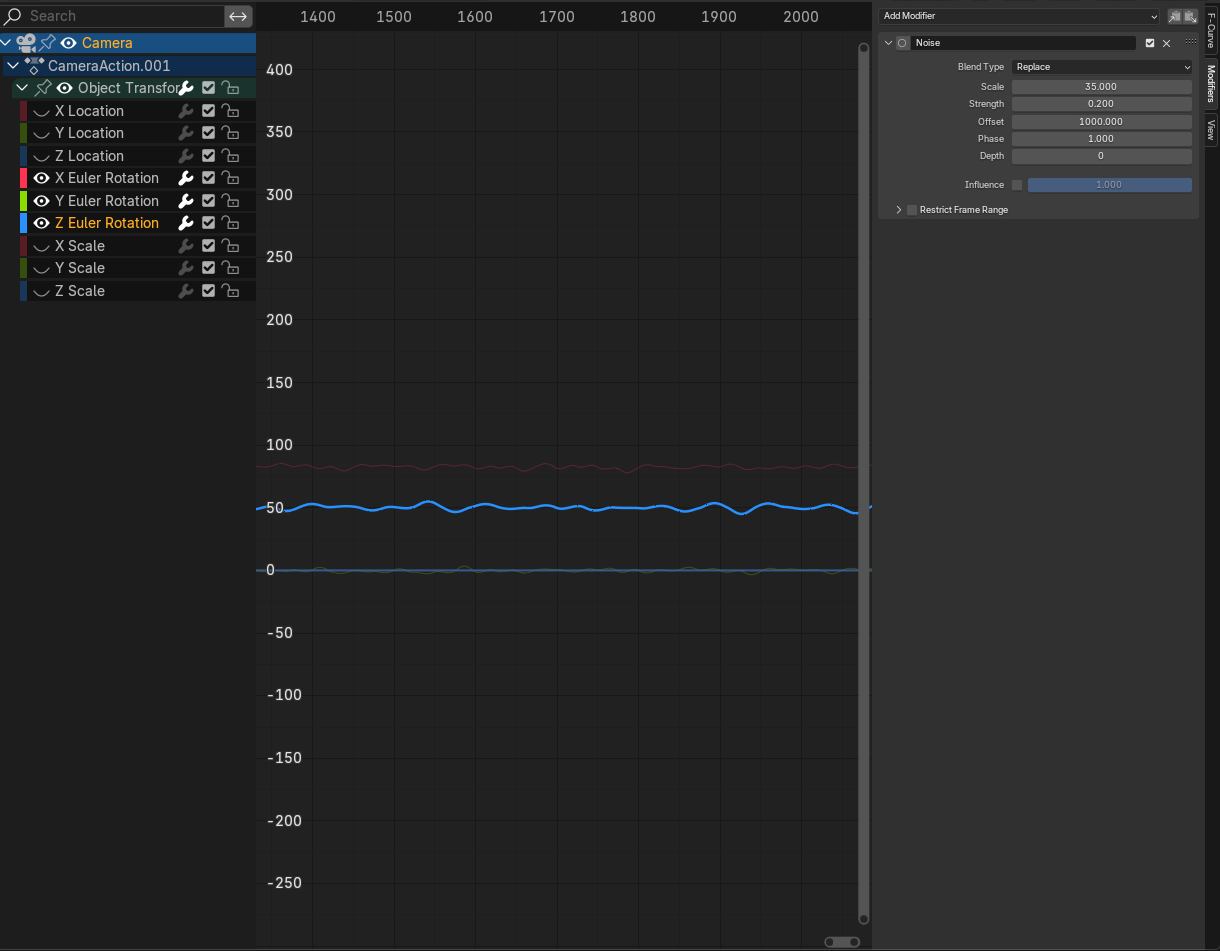





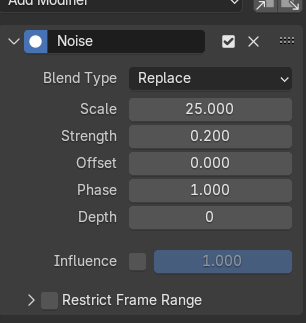
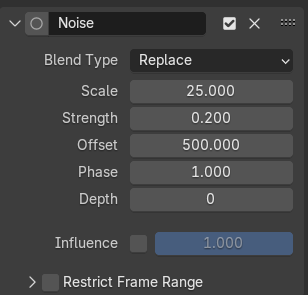
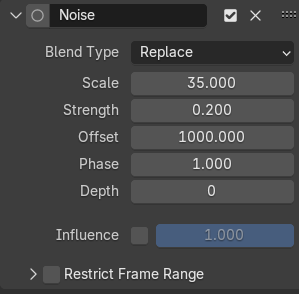
First, go to Graph Editor and click on the X Euler Rotation. Make the Blend Type Replace, the Scale to 25, the Strength to 0.2, the Offset to 0, the Phase to 1, the Depth to 0, and the influence to 1. Y and Z will be mostly the same but the offset is 500 and 1000 instead of 0. You have now completed the third step!
Inputting the Greek Trireme
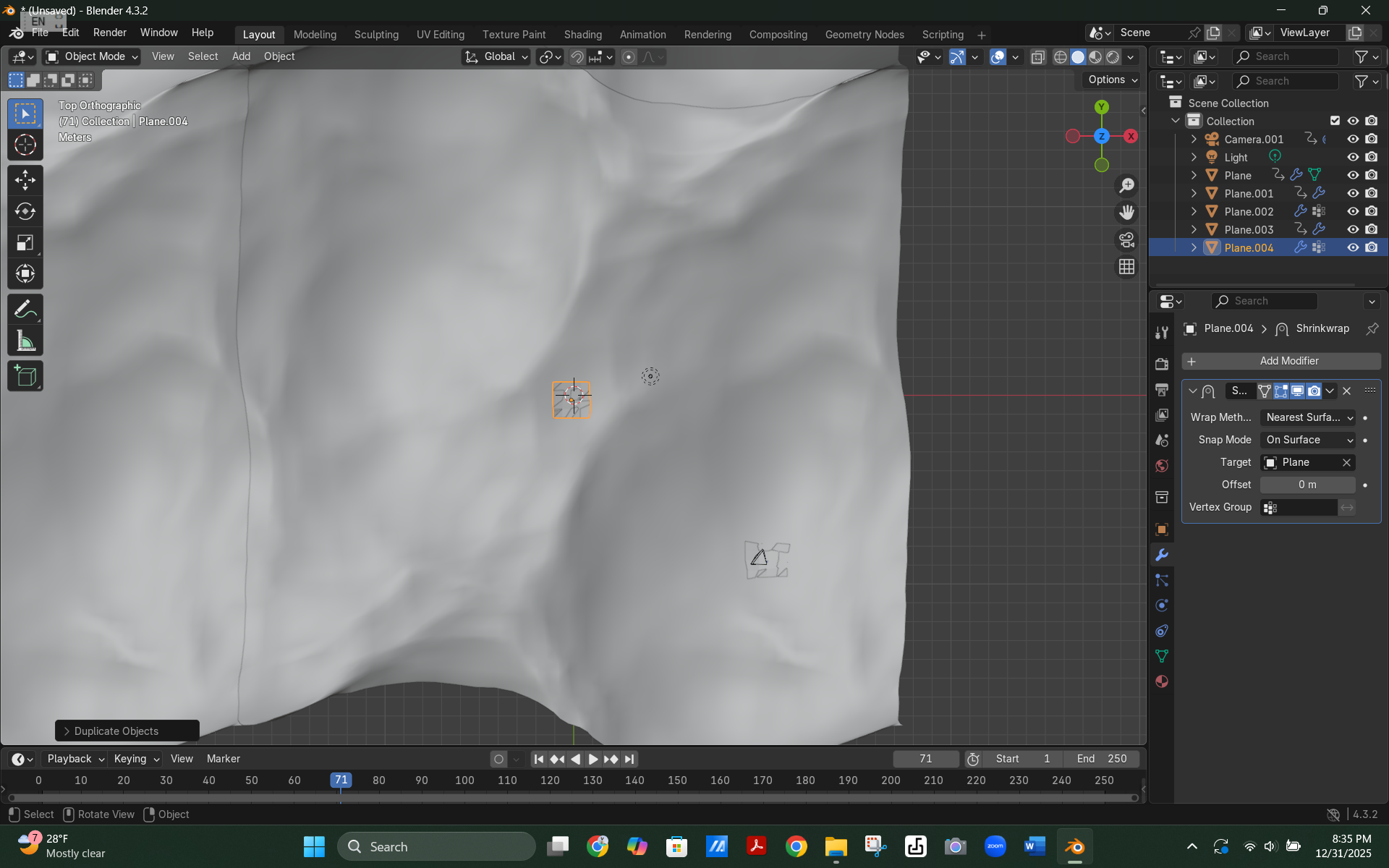
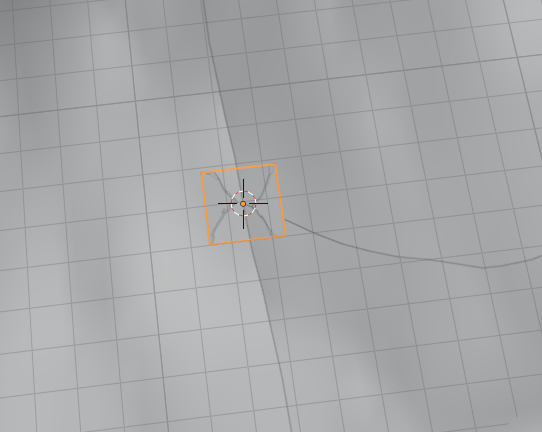


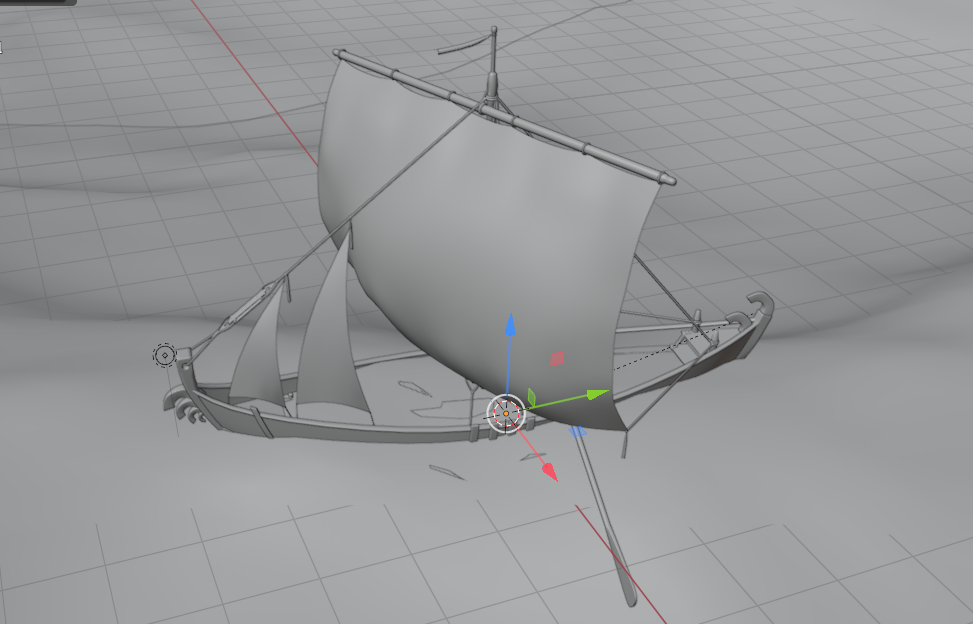
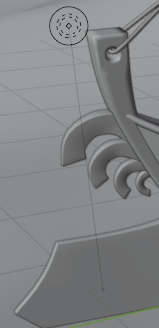
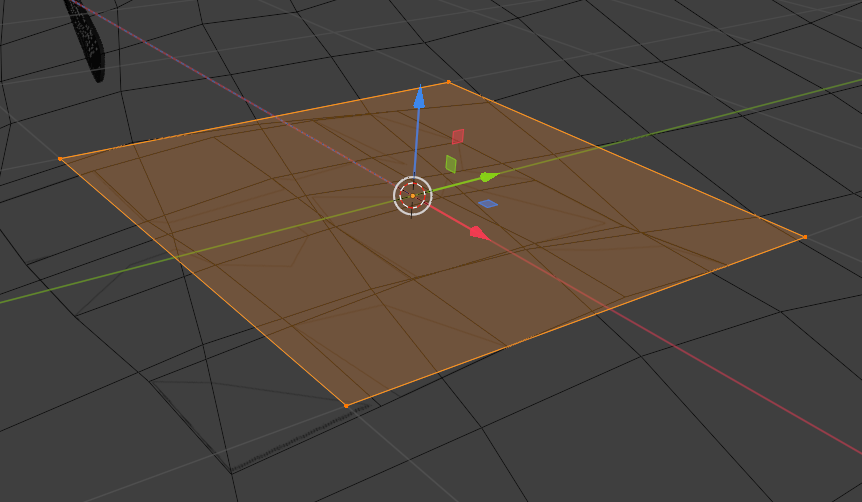
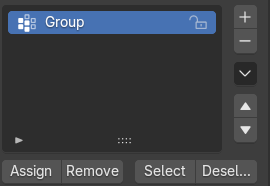

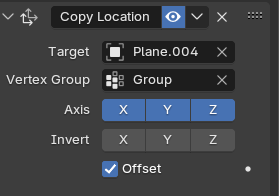

First, duplicate the plane from the previous step and move it in the middle of the original plane. Then go into the File tab on the top and chose append. Click your model and place it above the plane. Optional: you can move the light to the prow of the trireme if you want a mystical feeling. Now, once again, make a vertex group for your plane. Add a Copy Location Object Constraint from your model and then target the plane, select your vertex group and click offset. Important: make sure to change both of the Shrinkwraps to Project instead of the Nearest Surface Point. Congrats! You have completed the fourth step!
Making the Underwater Part of the Ocean
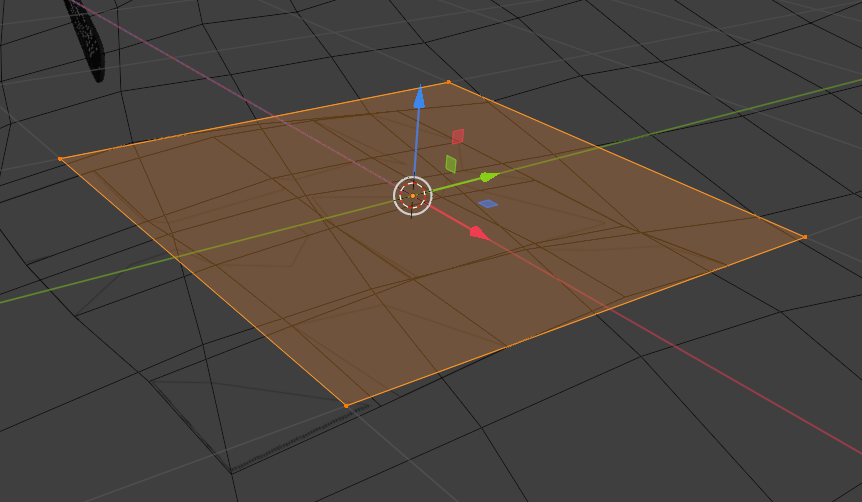
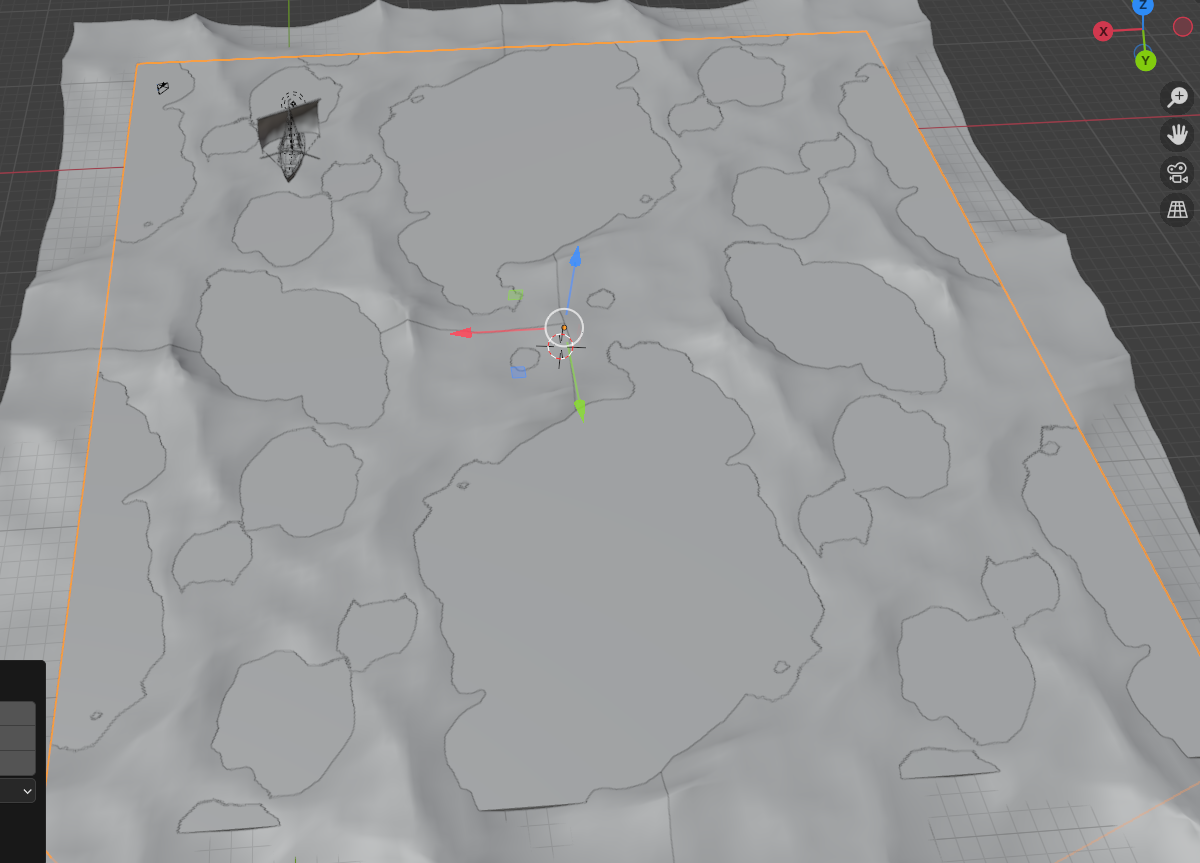
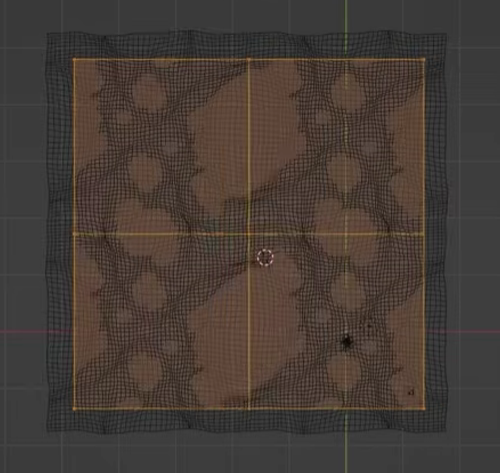
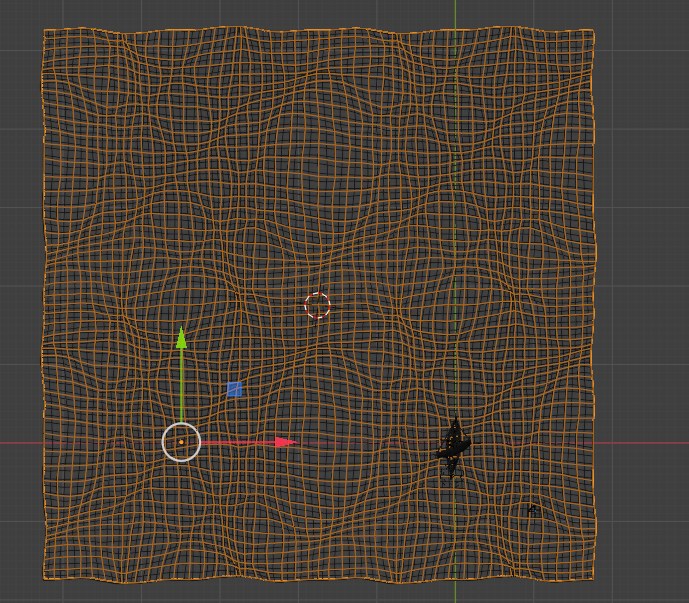
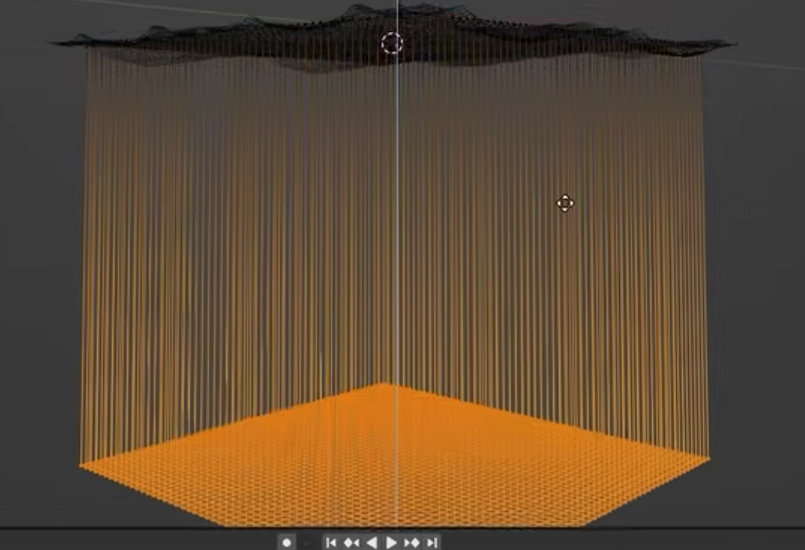
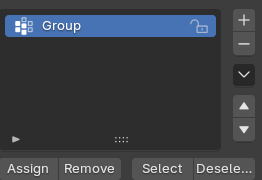
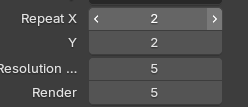
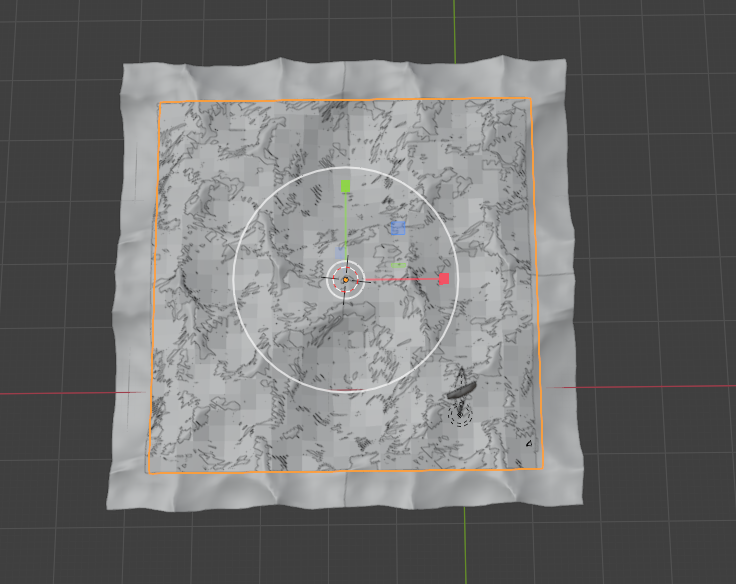


First, you will want to make a new plane about the size of the entire ocean, but make sure to leave some space on the sides. Then subdivide the plane so it has 50 cuts. select the top of the giant cube and make a vertex group. Before you continue to the next step, select the the ocean that has a sum of two planes together. Make sure it has two for repeat Y. Click the tab that says repeat X. There should be two for repeat X as well. Name the object Volume Shrinkwrap. Go to the modifier tab and change both the resolution and render to a value of 5. Turn it off in both the view and the render. Select the cube and go to the modifier tab. Click on the Shrinkwrap and select the Volume Shrinkwrap as its target and select the vertex group you made earlier for Vertex Group. You have now finished the fifth step!.
Making Our Monster
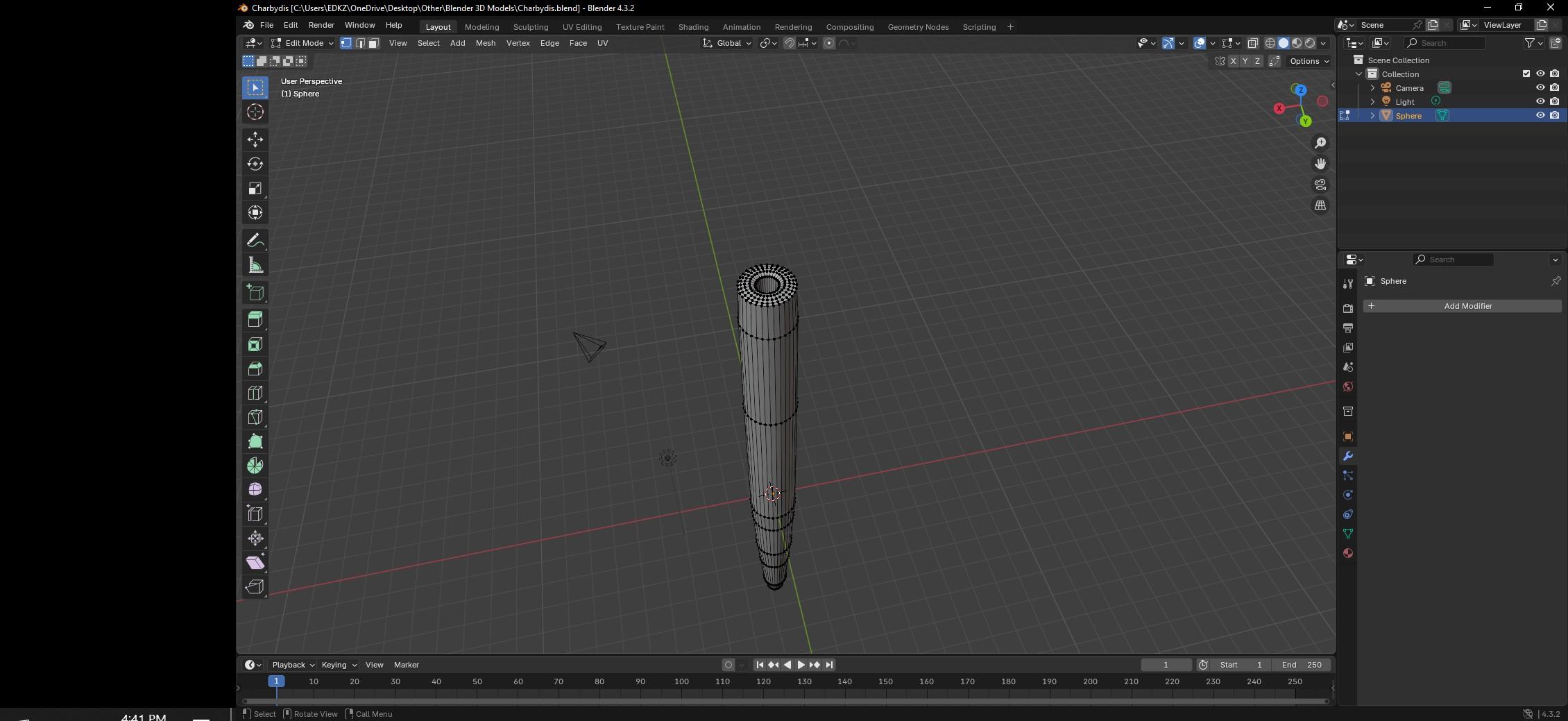
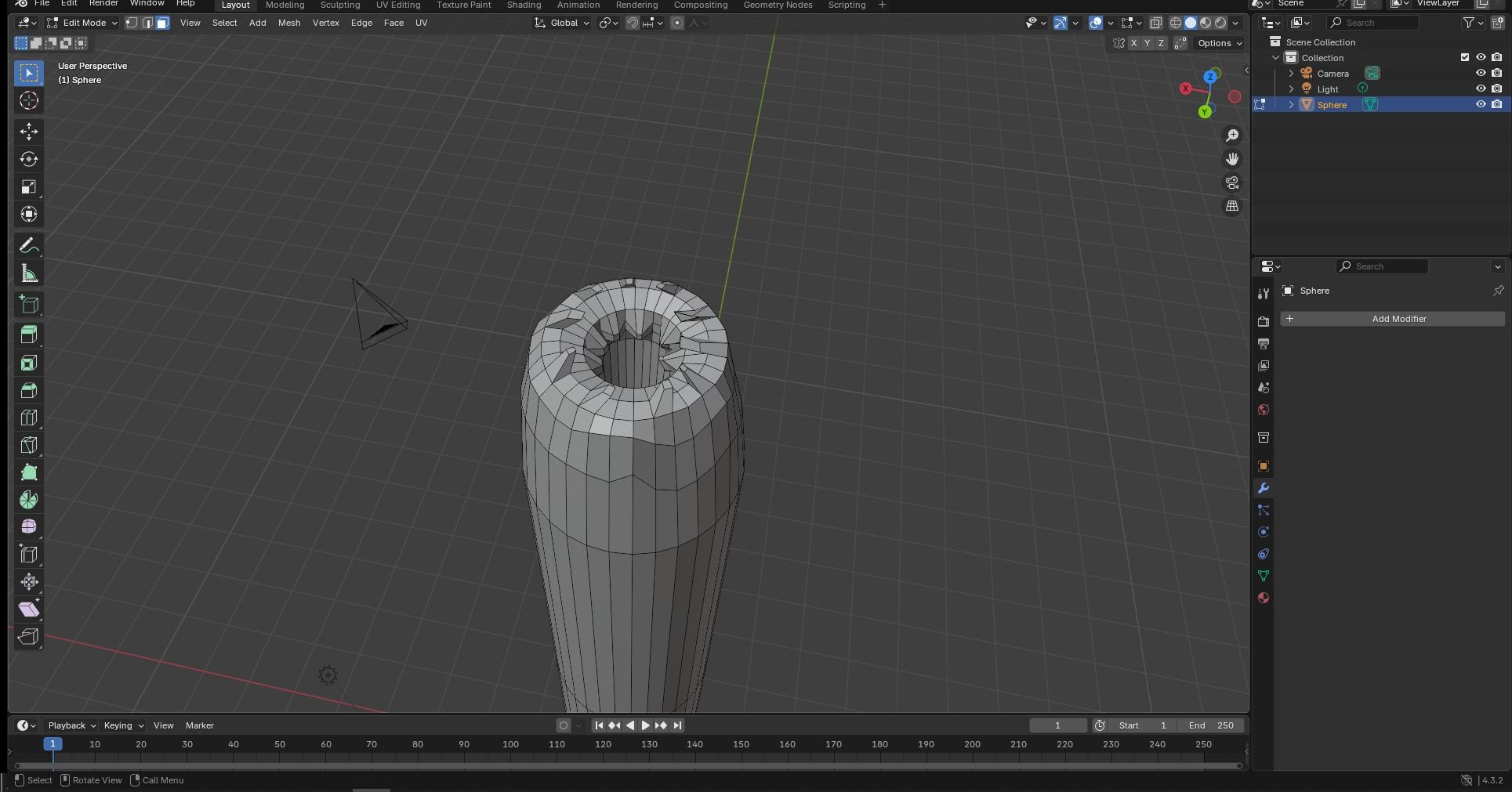
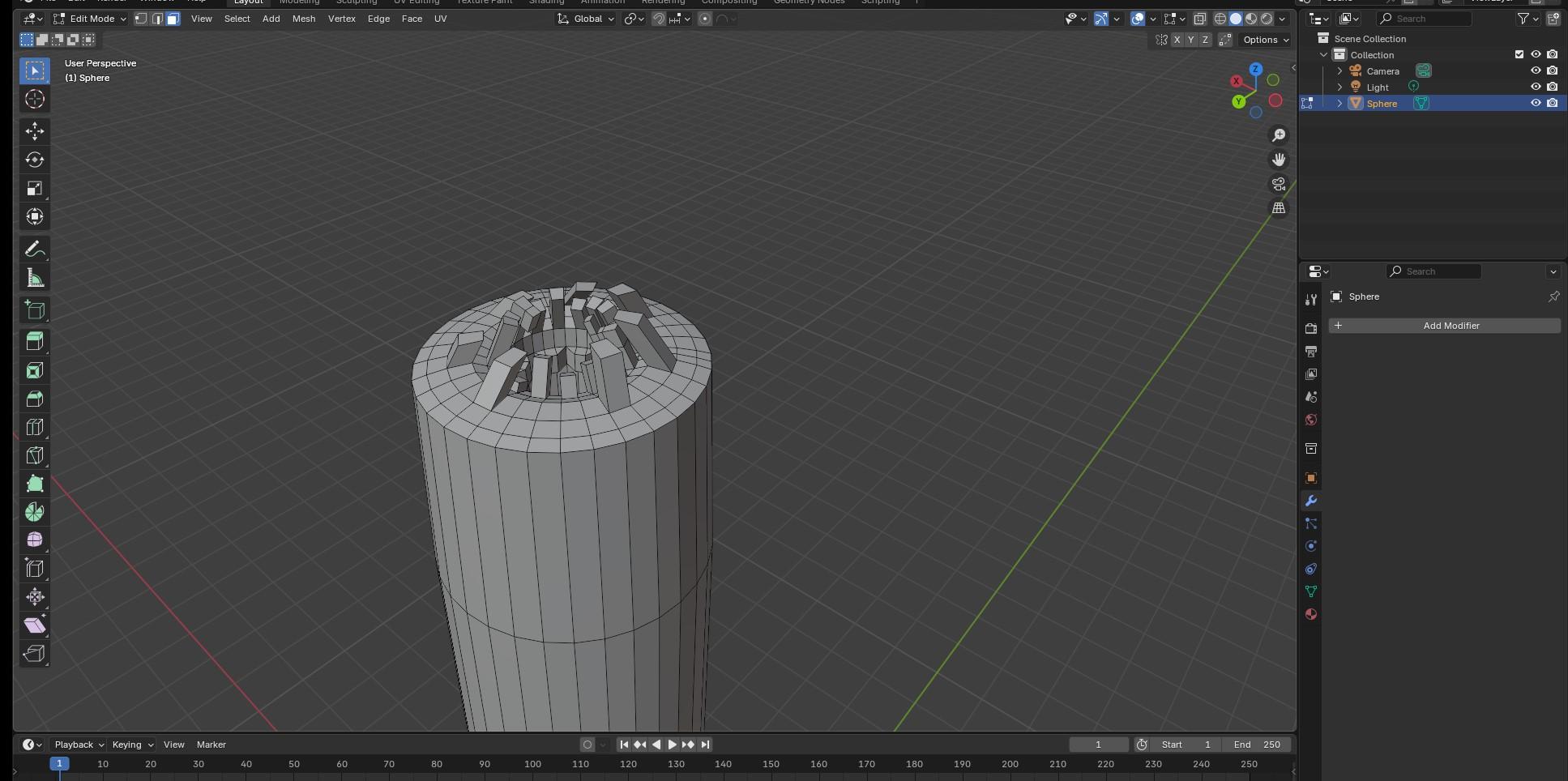
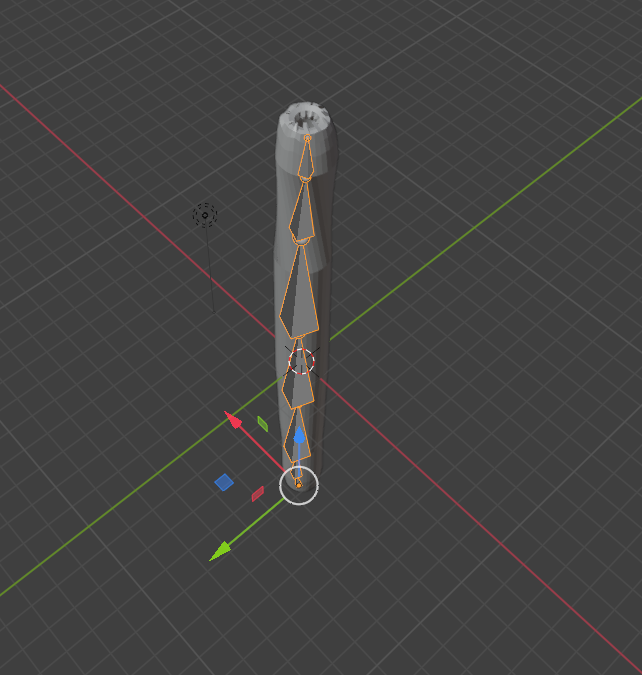




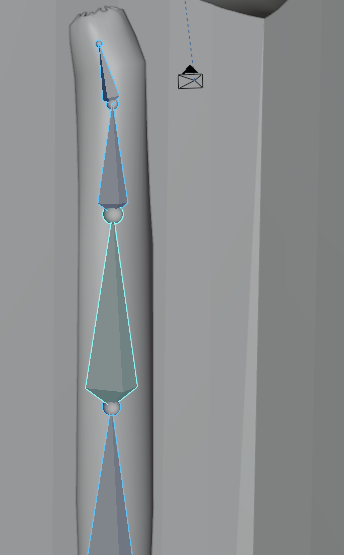
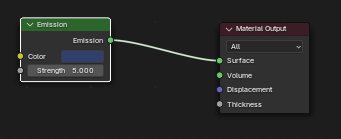
First, make a new window for the Monster. Next use the sculpting tools and edit to make it into the desired shape. I wanted teeth for my monster so I extruded them and used the sculpting tools again to make it uneven. Then I added an armature for the monster so I could rig it. I saved it and inserted it into my main window. I also inserted keyframes and animated the creature so that the monster would "come to life". Finally I added Emission and Material Output so that my creature would glow (makes sure to follow the last image). You have completed the sixth step!
Making It Rain
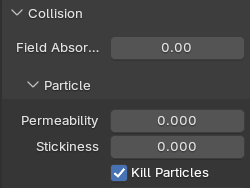
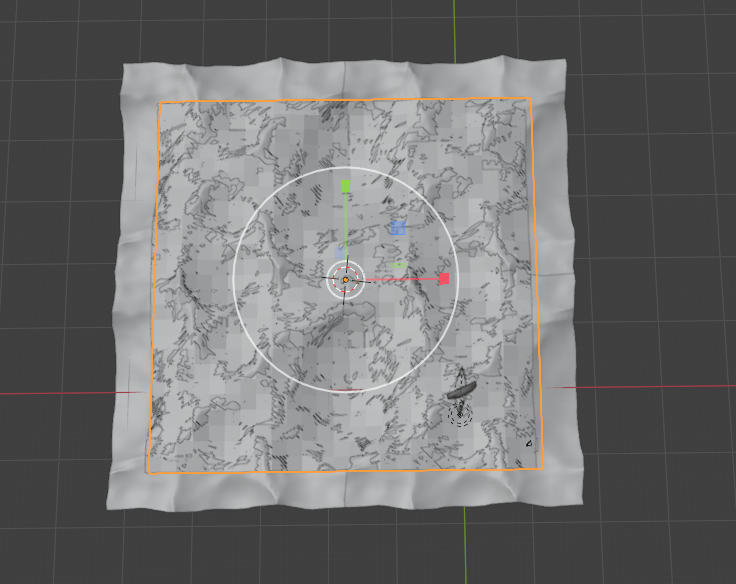
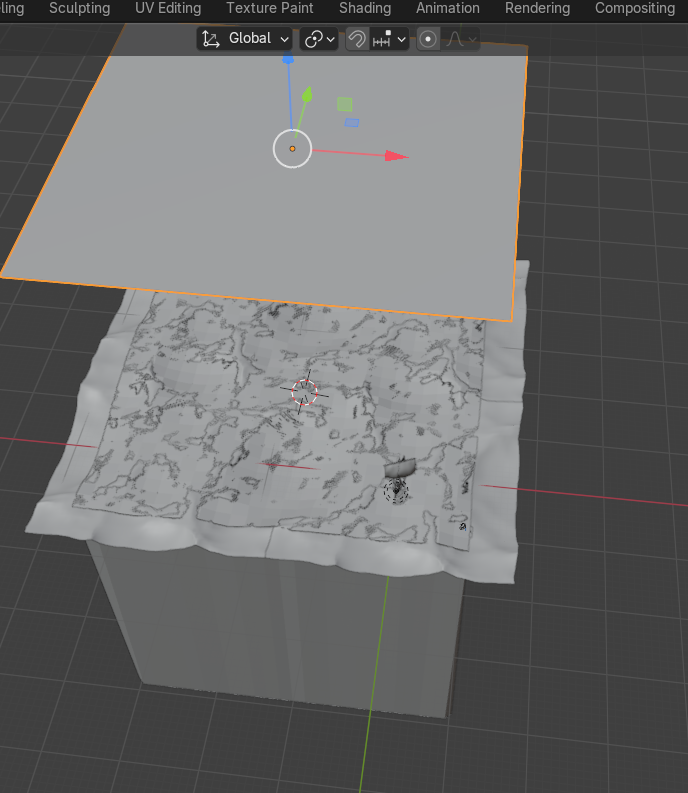
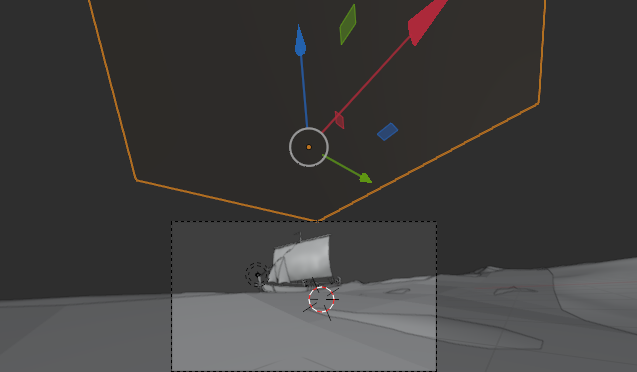

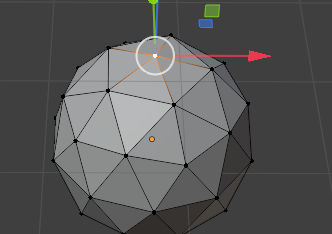

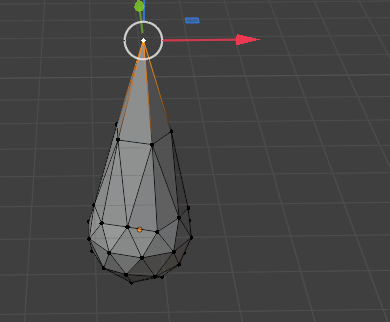

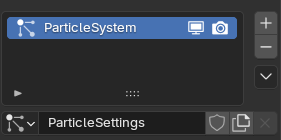
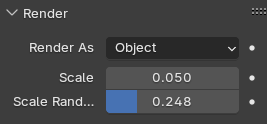



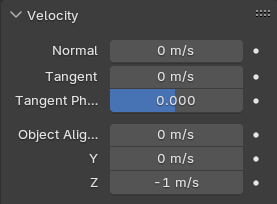

First, lets make another plane. Size it up to about the size of the entire ocean and bring it upwards. Make sure the plane is a bit higher than the camera view so you cannot see it in the complete product. Next make an Ico Sphere, select the top vertex, select Proportional Editing Objects, move it higher, and shade smooth. Go to particle settings, make a new one, go down to render and choose render as object. After all of that, go down to instant object and use the eyedropper to select the Ico Sphere. Also make their lifetime 100, Frame Start as -60, and End as 400. In the Velocity tab, make Normal 0 m/s, Tangent 0 m/s, Tangent phase 0.000, Object Aligned X 0 m/s, Y 0 m/s, and Z -1 m/s. Go to the physics tab and enable collision. Turn on kill particles and Turn off Show Emitter. You have now finished Step seven!
Time to Render
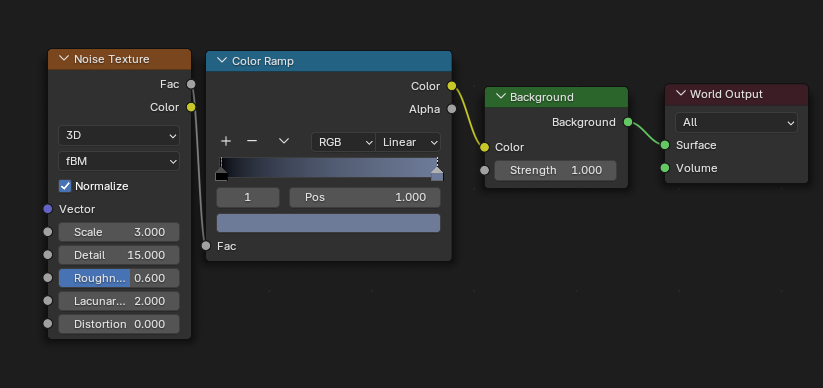
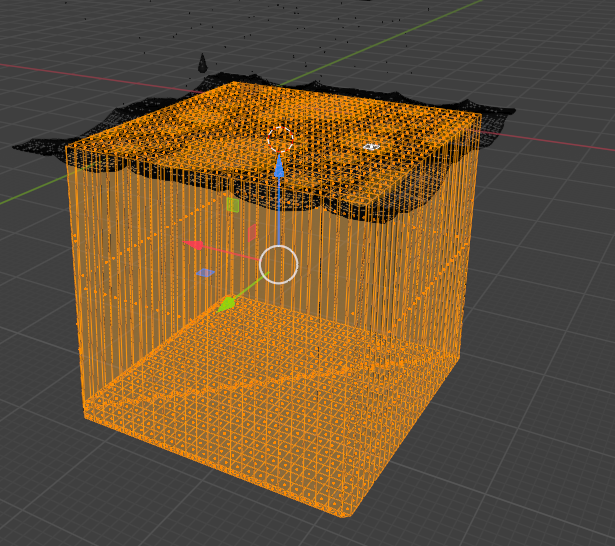

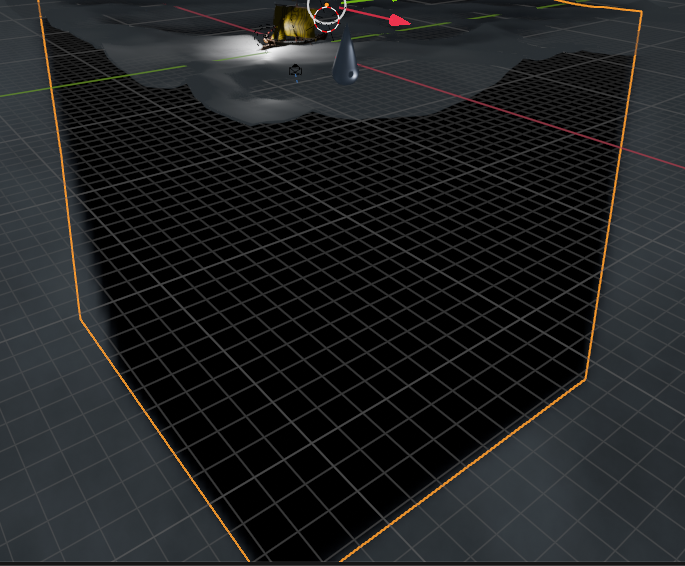
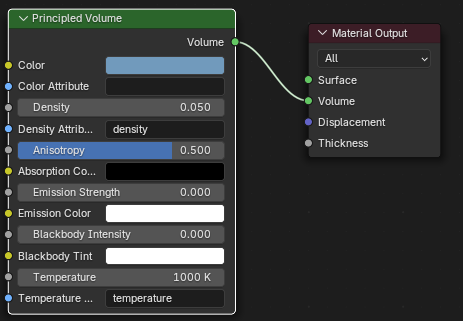
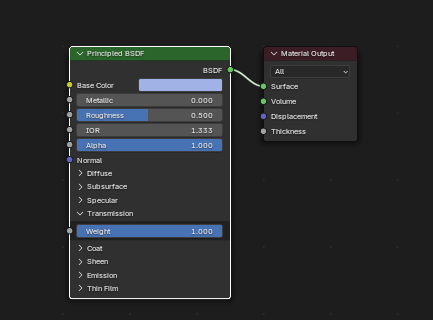
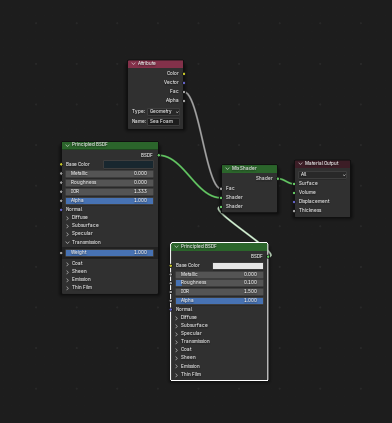


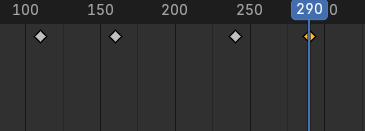
First, go to shader editor. Make sure to switch to world. Then follow reference image 1. Go to edit mode and select the entire giant cube. Then Recalculate Normals (Shift+N) and Follow reference image 5. Select the Ico Sphere and follow reference image 6. Follow reference image 7 (Sea Foam is the name I used for Foam) and name the material Ocean. Make sure you use the Ocean material of all the oceans. Also hide the planes you constrained (the planes you have the camera and ship on), the Volume Shrinkwrap, the Armature, the plane for rain, and the Ico Sphere. Once you are done, select your camera and insert a keyframe (I or K) and click location. For every few frames (10 to 70) you want to make it go underwater and resurface. You have completed the eighth step!
Finishing Up

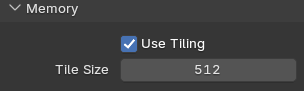

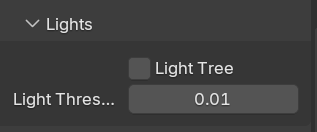
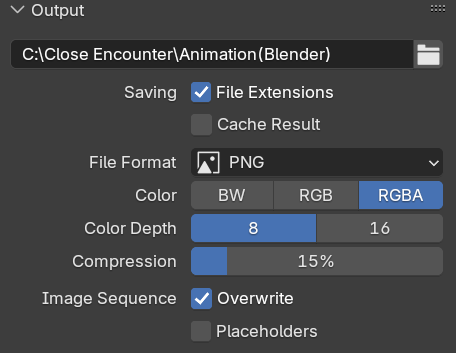
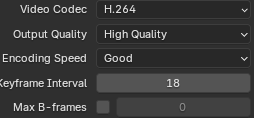
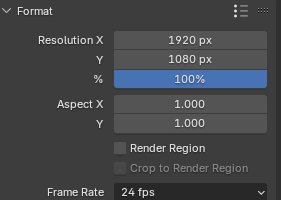


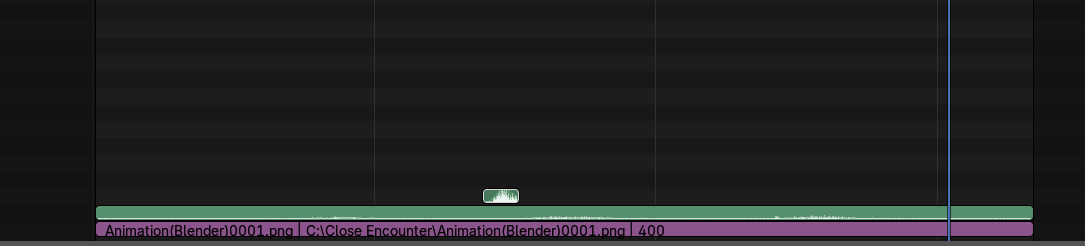
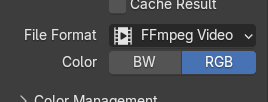
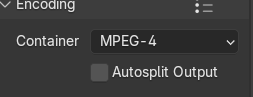

First, go to final render and turn on Persistent Data. Then go to memory turn on Use Tiling and make the Tile size 512. Go to pixel filter and make the type Blackman-Harris. The width is 1.00 px. Go to lights and turn off light tree. Make the light threshold 0.01. When you go to Output, name your folder and make the file format PNG (reference image 5). Now go to reference image 6 and 7 (make sure to copy the steps and look at 7's notes!) Render the animation (in the render tab). Now you should have 400 pictures for the 400 frames. Finally go to Video Editor. Click Add and add Image/Sequence to add the animation. If you have audio add the sound. There should be settings on the right, if not look at the top, add Video Editor and it should be there. follow the last 4 pictures. Finally go back to the Output, change the file format to FFmpeg and go to encoding. Inside encoding, change the container to MPEG-4. Go back to render animation and you should be complete!
You have completed the final and last step!
Final
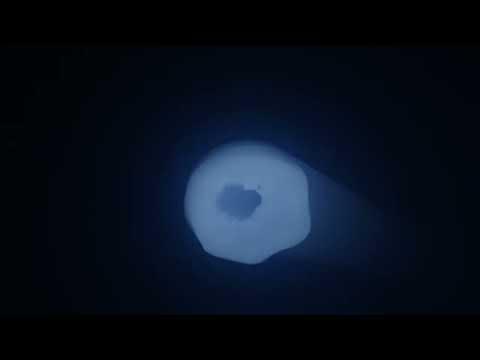
You are now done!