Use ATX PSU With Proprietary HP Motherboard & PSU (Add a GPU) SIMPLFIED
by bm_00 in Circuits > Computers
1859 Views, 4 Favorites, 0 Comments
Use ATX PSU With Proprietary HP Motherboard & PSU (Add a GPU) SIMPLFIED
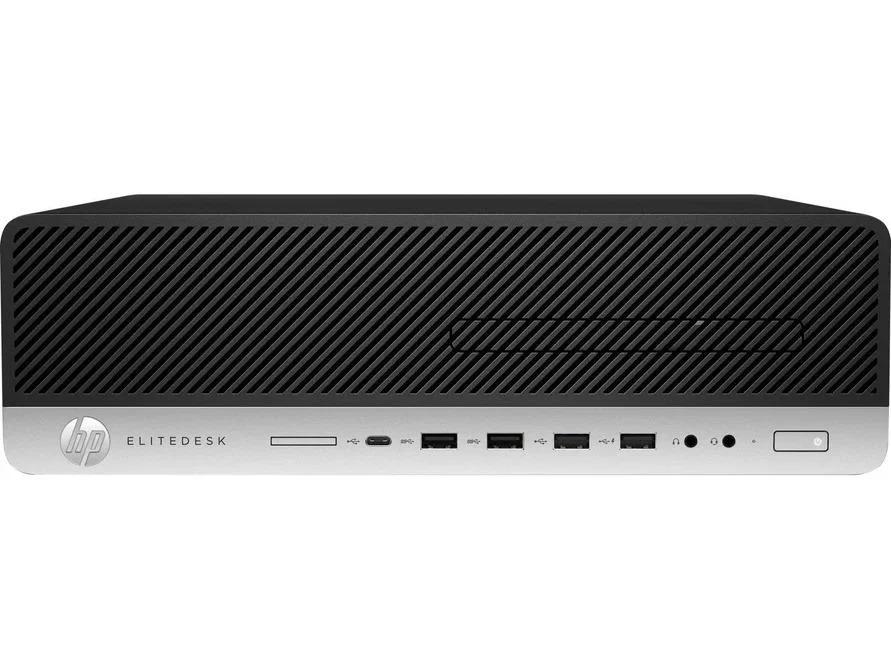
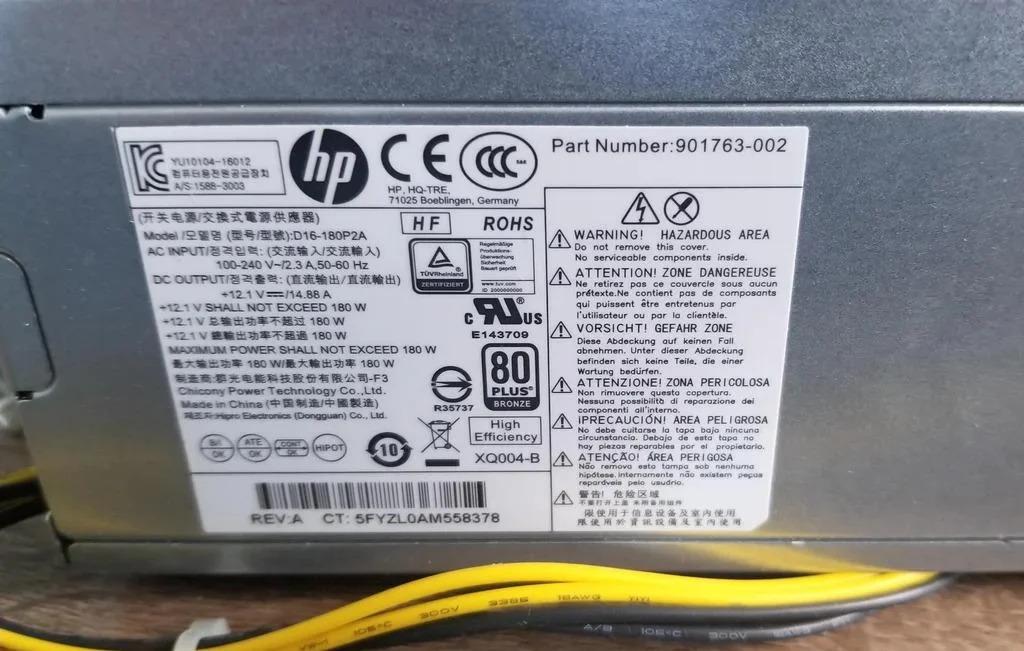
This is the 4th revision of this project. This greatly simplifies the required parts & wiring.
Many newer HP Desktops come with a proprietary PSU (Power Supply) & Motherboard. These PSU's are often low wattage leaving little room for system expansion. Higher wattage PSUs can be purchased but are expensive & still limited. A PSU upgrade will allow for a Graphics Card (GPU) in your system or even replace a broken PSU for cheap.
Many of the HP desktops can be booted with a standard ATX PSU but result in the PSU always running. This is typically fine but can cause issues. Luckily this can be fixed by following this guide.
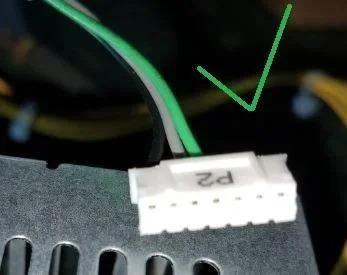
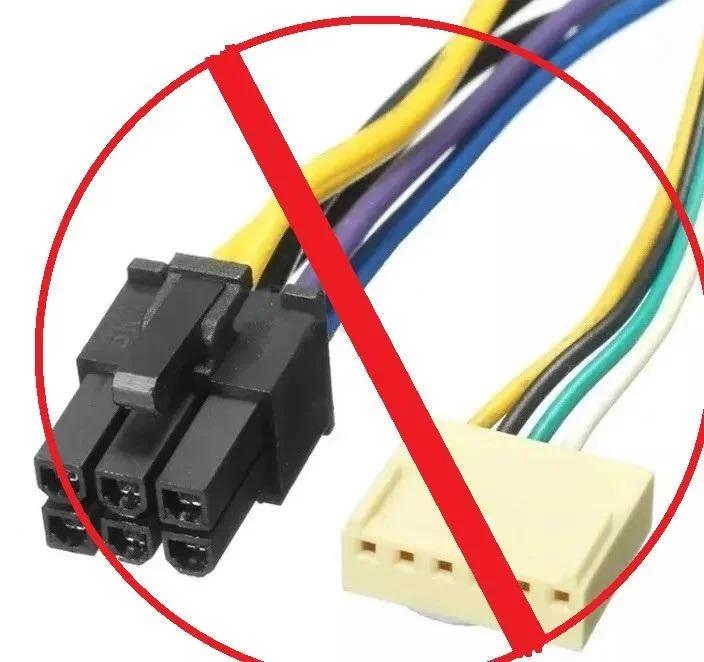
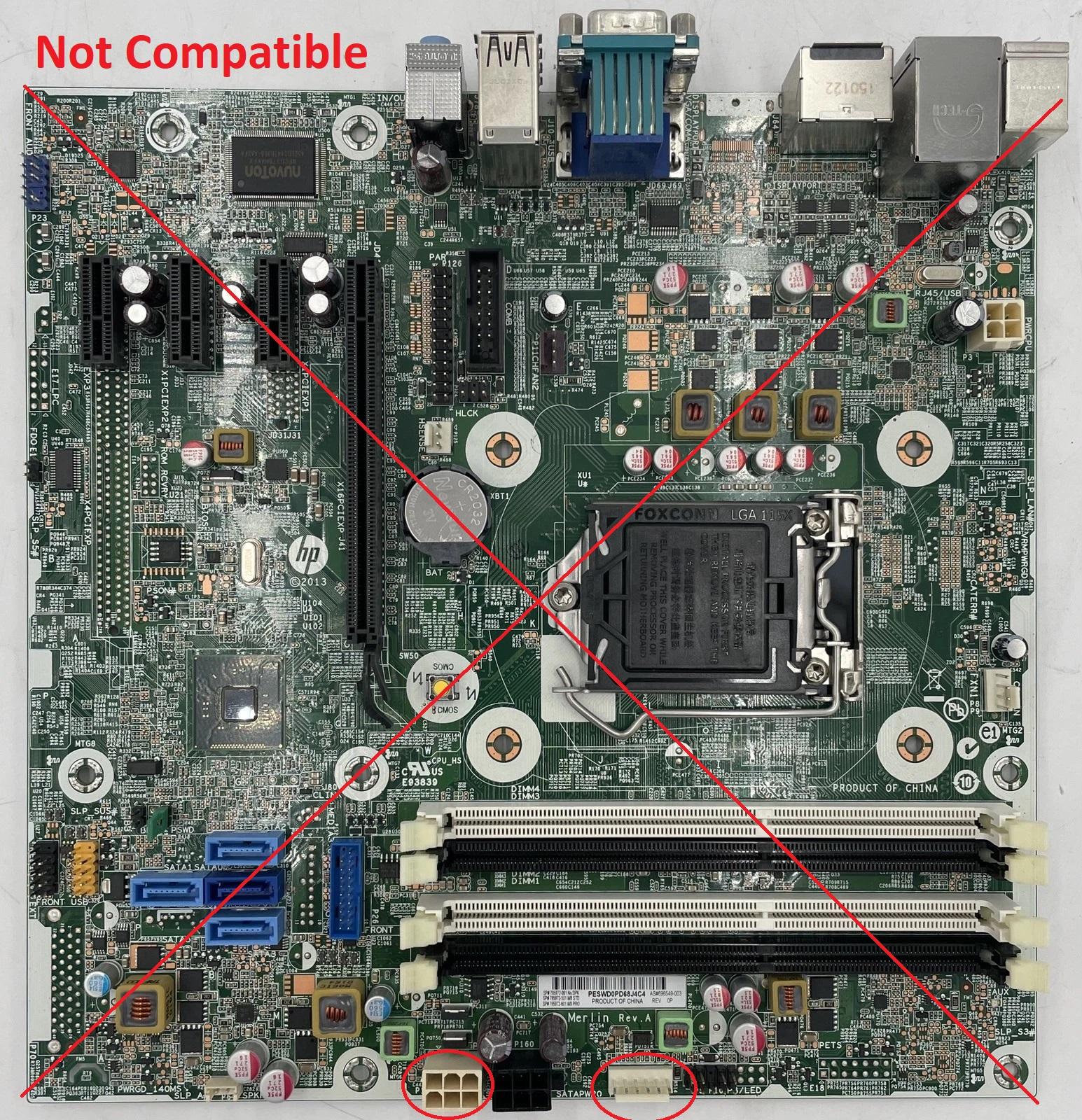
This guide will only work with HP PSU's that use 2 4 Pin(CPU Power style) connectors for power & a 7 pin connector for the motherboard. (See Step #2 ). This will NOT work with 6 pin HP power supplies
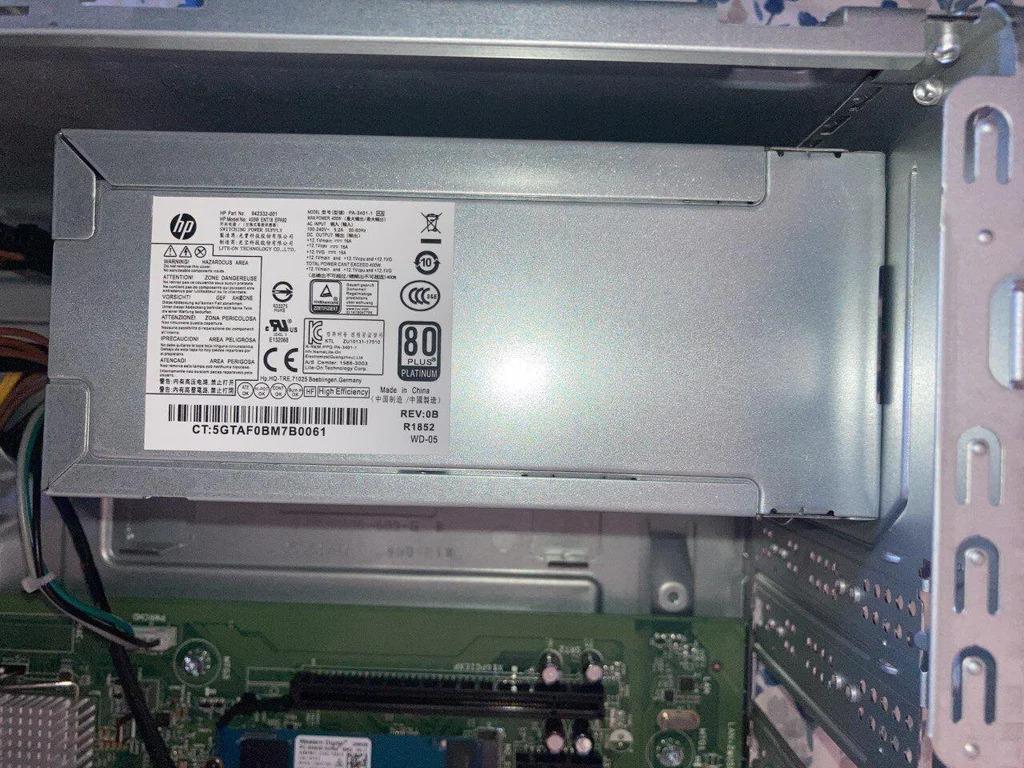
Confirmed Compatible PSU Models:
D16-180P2A*
PA-3401-1
DPS-310AB
D19-180P-1A*
PA-1181-3HK (L70044-004)
*= Personally Confirmed
Supplies

Materials:
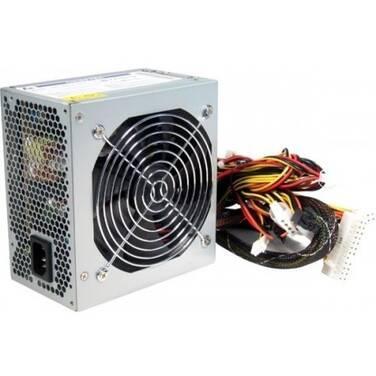
1: PSU:
- ATX, TXF, Flex ATX, etc. Just needs to follow ATX standard with a 20 or 24 pin connector.
- Minimum 2 amps on 5v VSB rail. Not a problem on modern supplies.
- Look for one with hefty 12v rail(s). The entire PC will be powered off 12v. If using a GPU this is extremely important.
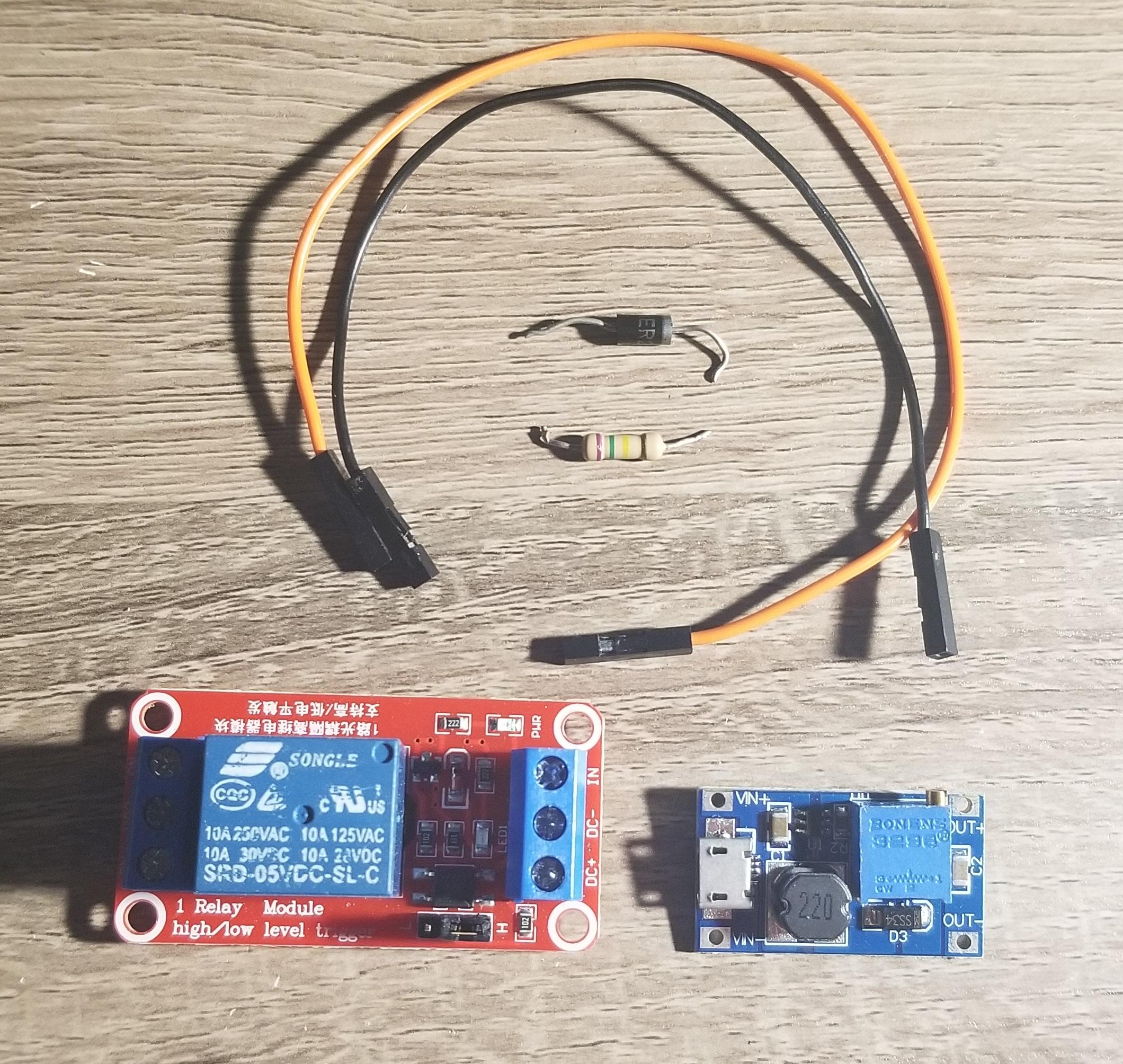
2: Boost converter module:
- Needs to support 5v input & 12v output. Minimum 2 amps output.
- MT3608 & Xl6009 are common choices.
3: Relay module:
- 5v is preferred. 12v will work but requires a few modifications (See step #12).
- Common relay modules are rated at 10 amps. 10 amps is plenty.
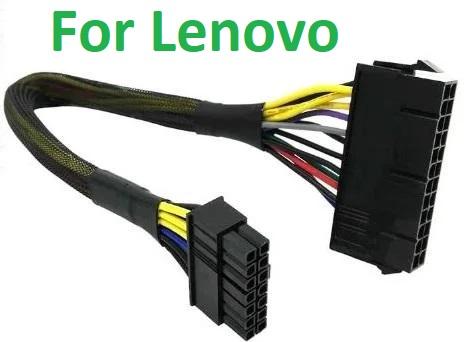
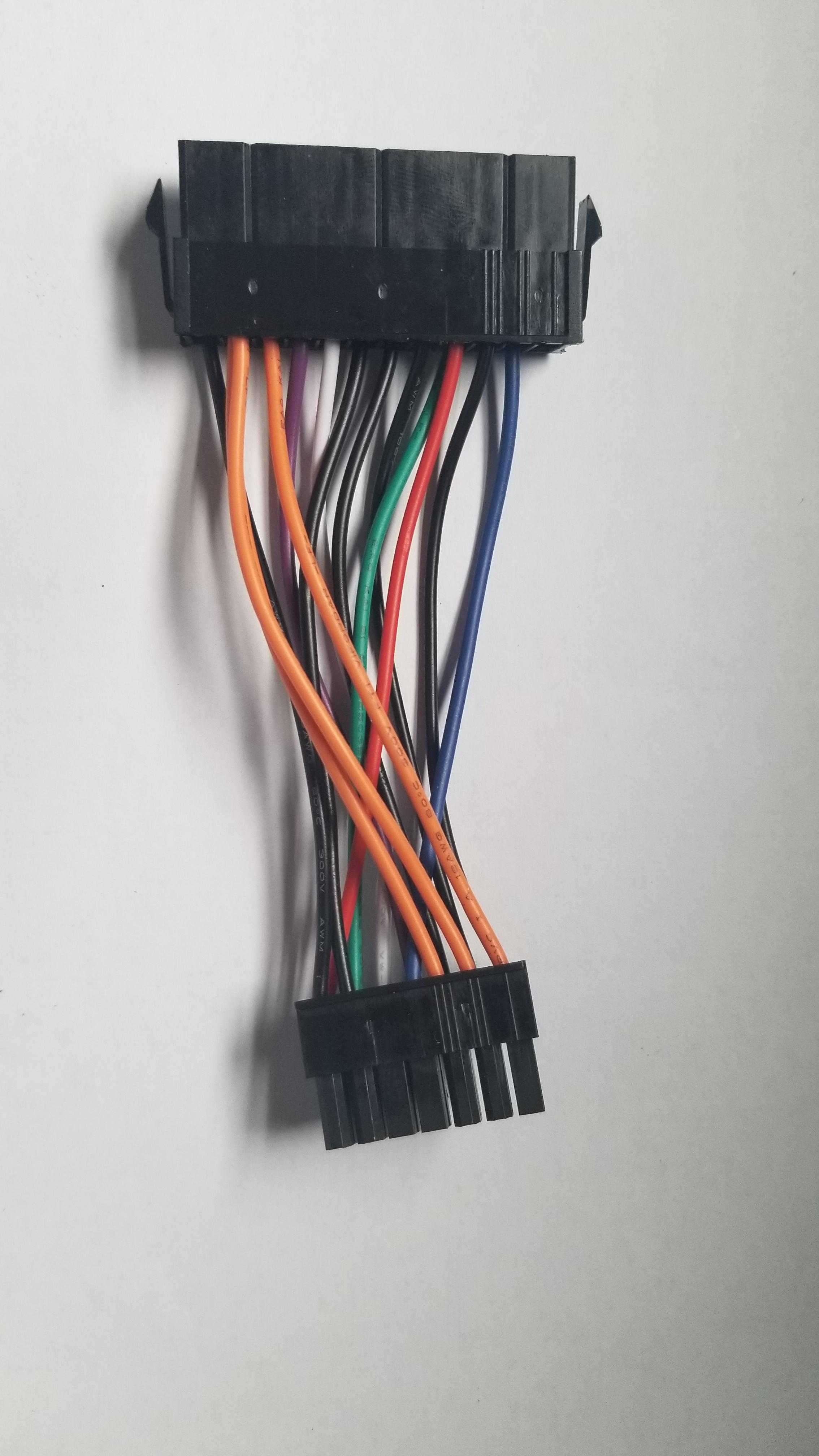
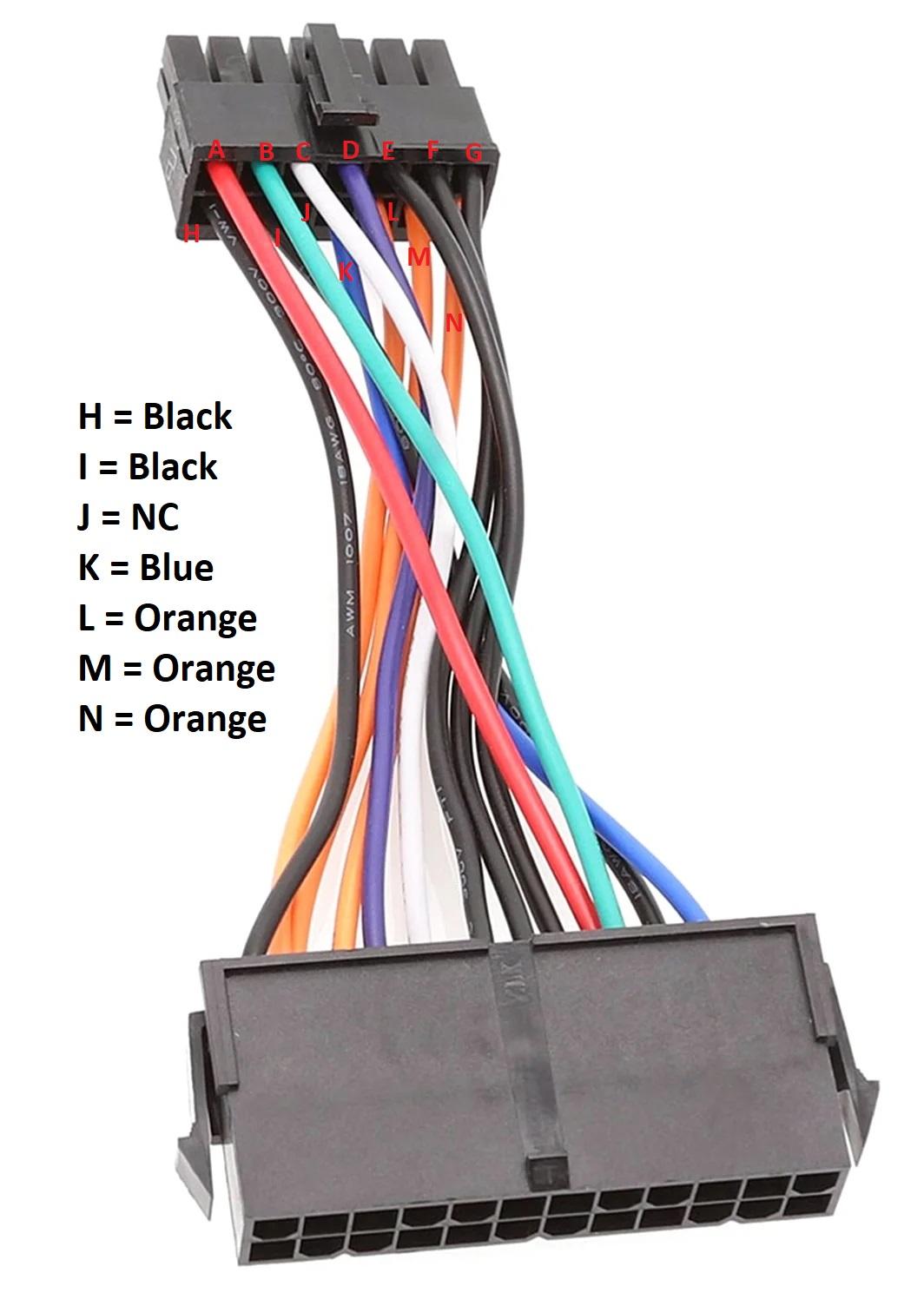
4: 24 Pin to 14 Pin ATX Wire (For Lenovo PC's)
- Converts female 24 pin ATX to a 14 pin connector commonly used on Lenovo Desktops.
- Must be for Lenovo PC's not Dell. They look similar. The Dell ones will not work.
- This adapter was chosen because it has all the necessary wires broken out & the 14 pin connector is compatible with HP.
- Some wire colors may vary due to different manufactures. Please use wire positions vs colors to confirm.
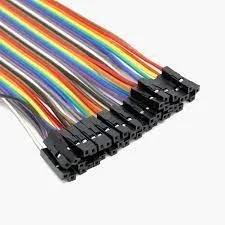
5: 2 Dupont Wires
- Female to Female preferred. Male to Female will work but will require soldering.
- Can cut the PWRCMD connector off original HP PSU instead of the Dupont wires.
- Can also purchase a ST PHR-7 2.0 connector instead
- 3 wires may be needed. (See step #7)
6: 1 Schottky Diode
- 1 amp rating minimum
7: 1 Resistor
- Value depends upon your PSU & Motherboard
- See Step #10 for resistor calculation
- 1/4 watt minimum
8: Mounting Block & Screws
- You will want to secure the components down. Anything NON conductive will work. I used scrap wood.
Tools:
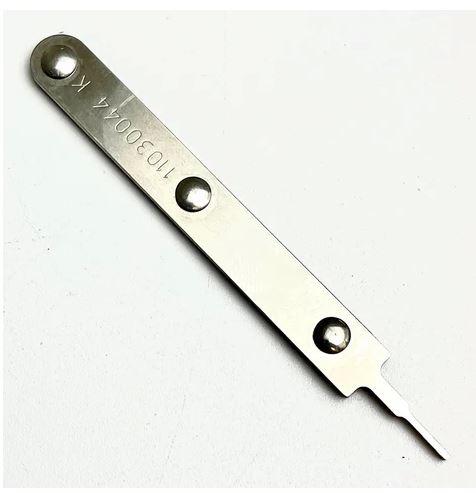
1: Molex/ATX Connector Extractor/Removal tool
- You will need to remove wires from the 14 pin connector. The tool can be picked up for around $10. If you don't have one, 2 flat staples will work (YouTube for help).
You can avoid pin removal if you purchase a 4 Pin CPU Extension cable instead & splice it in. See step #12.
2: Small Screwdrivers:
- A small Philips or flat headed screwdriver to turn the relay screw blocks.
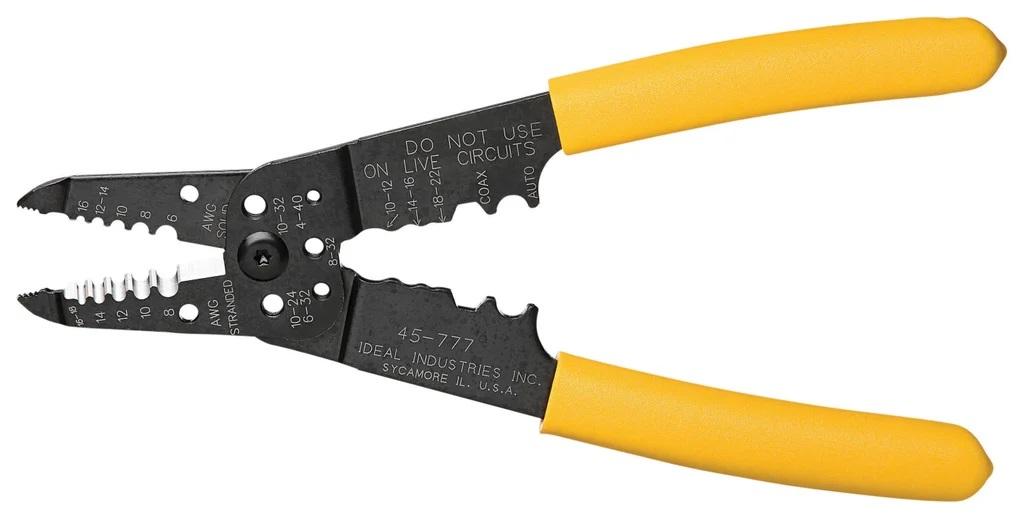
3: Wire Strippers/Scissors:
- Someway to strip & cut wire.
4: Solder Iron & Solder:
- The Boost converter needs to be soldered. Won't hurt the resistor & diode either.
- Required if splicing rather then using the Molex Extractor Tool.
This guide uses an ATX PSU, MT3608 Boost Converter, 5v 10 Amp relay, 750k OHM resistor, & HER205 Diode. These parts are what I had on hand & can be substituted depending upon what you have available.
Terminology
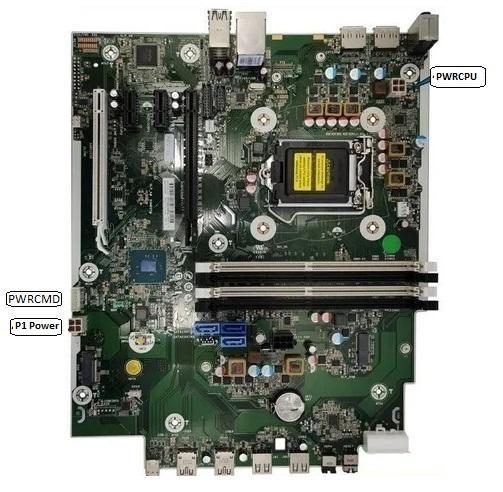
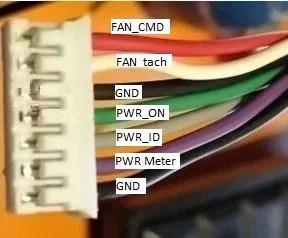
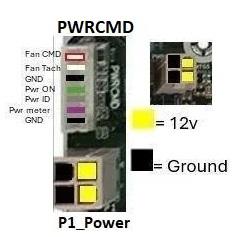
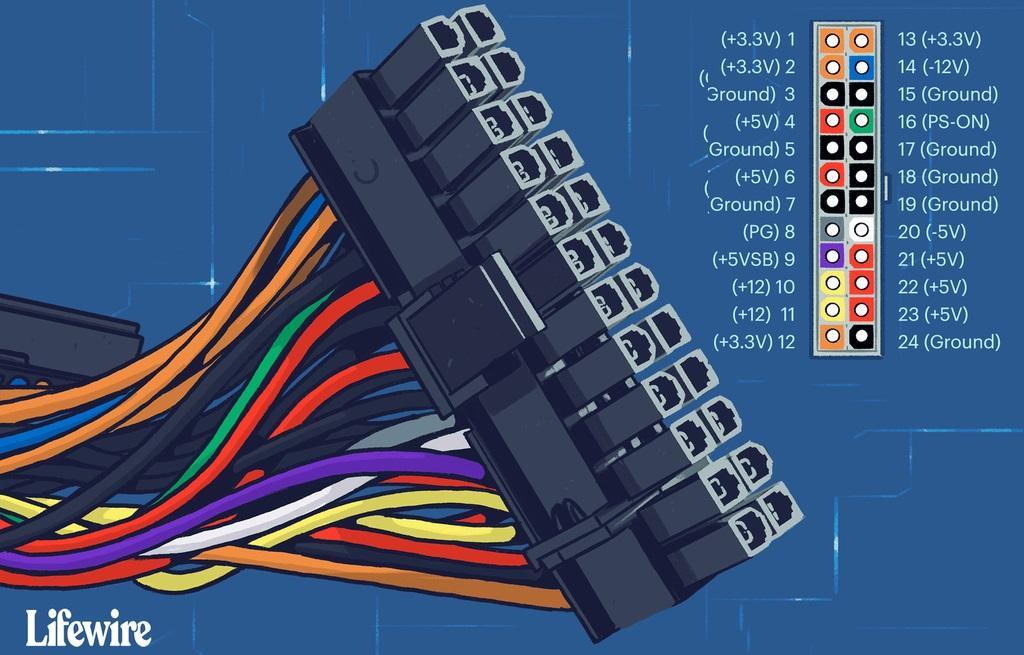

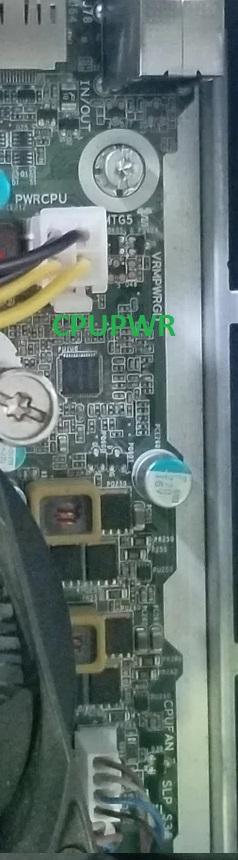
To make this tutorial easier to follow the below terminology will be used.
Adapter Board = The adapter made in this tutorial.
Connectors:
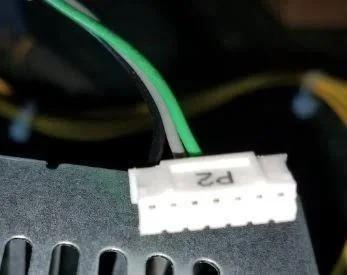
PWRCMD Connector = 7 pin connector on HP motherboard. HP PSU connects to it. Not all PSU's populate all 7 pins. Some only use 3.
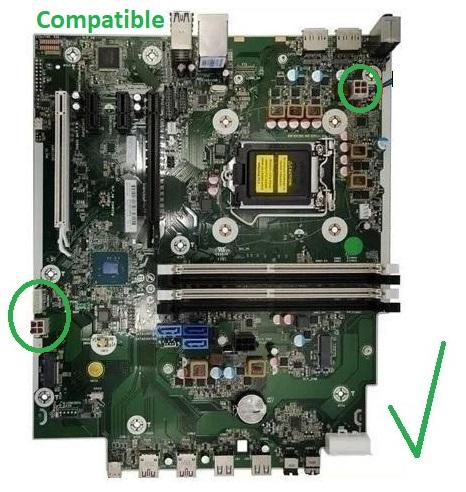
P1_Power = 4 Pin connector closest to the PWRCMD connector. Location depends on motherboard. Typically is closest to the PSU, HDD Power Header, & SATA Ports.
CPUPWR = 4 Pin connector closest to the CPU. Sometimes under a plastic fan shroud. Location depends on motherboard. Typically is closest to rear I/O ports.
Wiring:
ATX PSU:
PS_ON = Green wire on ATX PSU that turns on PSU when connected to ground.
PWR_OK = Grey wire on ATX PSU that tells PC the Power supply is started up and ready.
5V_VSB = Purple wire on ATX PSU. Supplies 5v to the PC even when powered off.
HP Motherboard/PSU:
PWR_ON = Green wire on HP PSU that motherboard uses to power on. Is 3.0 - 4.0v when PC is off. 0v when PC is on.
PWR_ID = Grey wire on HP PSU that motherboard uses to ensure PSU is correct. Required to boot.
FAN_TACH = White wire on HP PSU. Used by motherboard to control the PSU fan. Not present on all systems. If present will need to be bridged to a fan TACH pin (Step #7)
Electronics:
NO = Normally Open. Terminal that is not connected to output by default. Is connected when signal is applied.
NC = Normally Closed. Terminal that is connected to output by default. Is disconnected when signal is applied.
COM = Common. Terminal that either the NO or NC terminal gets connected to depending upon signal presence.
Relay #1 = Relay that switches between 12v boost converter & ATX PSU 12v when HP motherboard is powered on.
How It Works?
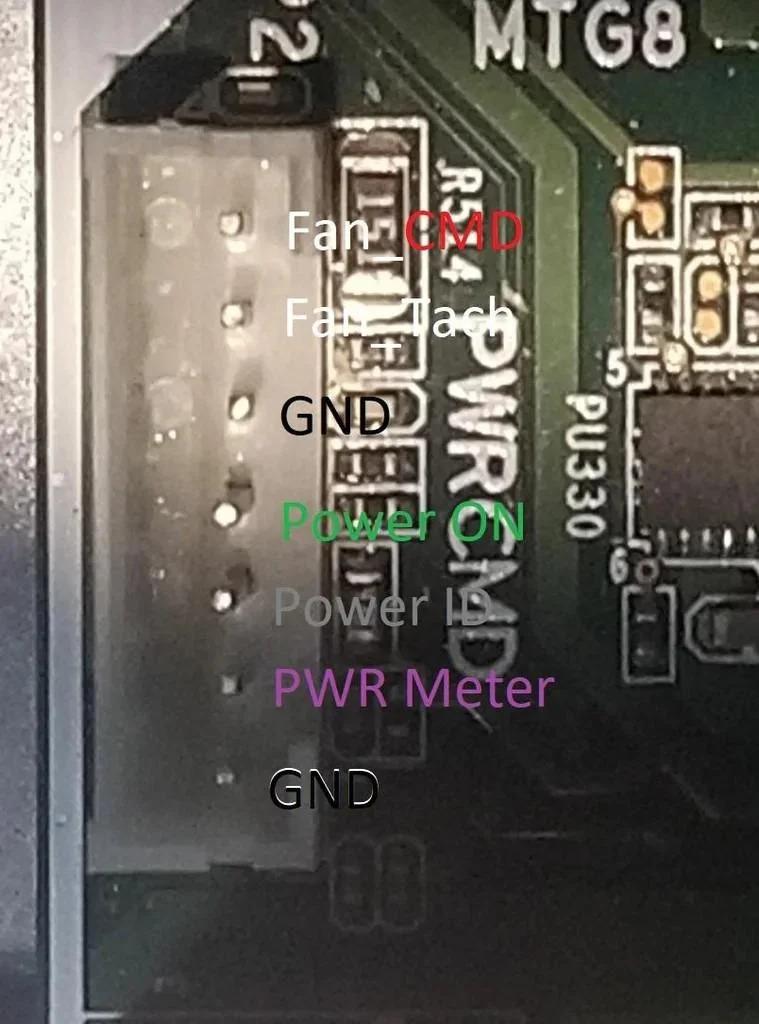
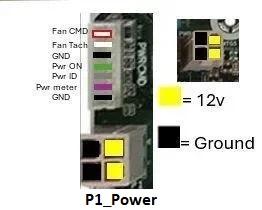
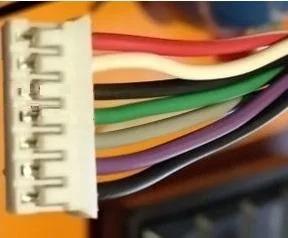
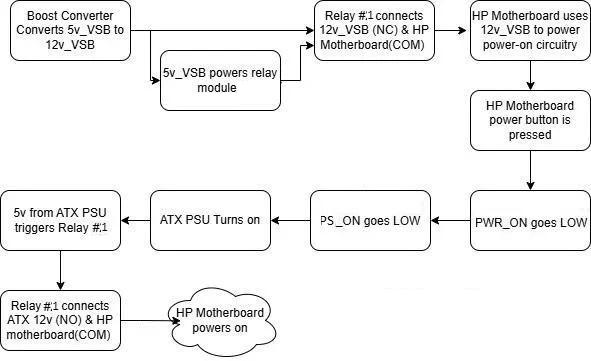
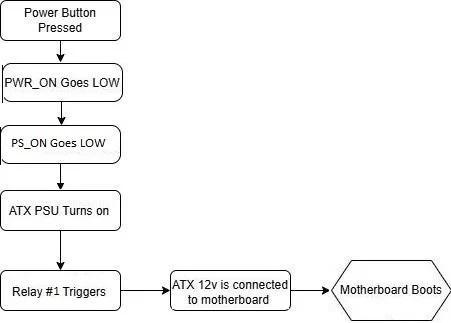
The original HP PSU always outputs 12v to the two 4 pin connectors (P1_POWER & PWRCPU). This is the equivalent of keeping the green & black lines on an ATX PSU jumped.
When the motherboard power button is pressed it pulls pin #4 (PWR_ON) of PWRCMD connector LOW. Pin stays LOW until the PC is shut off or power is lost. It then returns to HIGH. This is the equivalent of ATX PS_ON.
Pin #3 (PWR_ID) of the PWRCMD connector is the equivalent of ATX PWR_OK. If the line is never OK (HIGH) the PC won't boot. Used by HP to identify the connected power supply. This wire is connected to the PSU 12v rail via a resistor. The resistor value varies depending upon HP PSU model. See Step #11 for finding the correct resistor value.
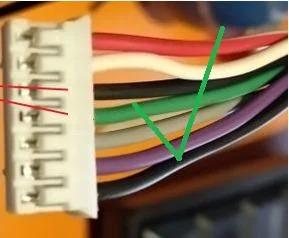
The PWRCMD connector pins are:
#1 Ground (Black wire)
#2 PWR Meter (Purple wire)
#3 PWR_ID (Grey wire)
#4 PWR_ON (Green wire)
#5 Ground (Black wire)
#6 Fan_Tach (White wire)
#7 Fan_CMD (White & red striped wire)
Not every PSU uses all 7 pins. Many only use 3 (GND, PWR_ID, PWR_ON). I have not found any issue leaving PWR_METER & Fan_CMD disconnected if present.
How this project works:
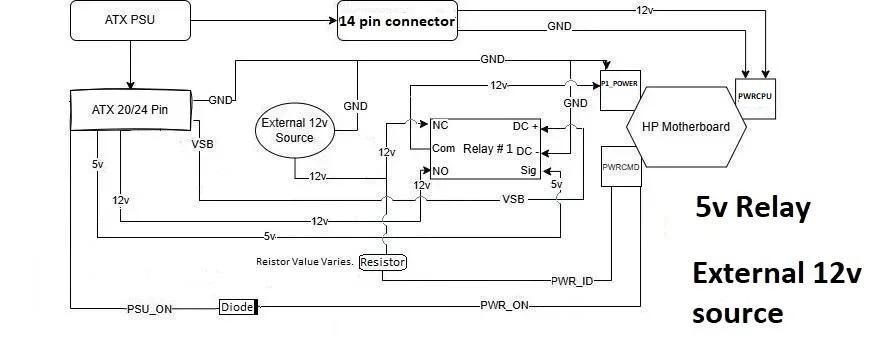
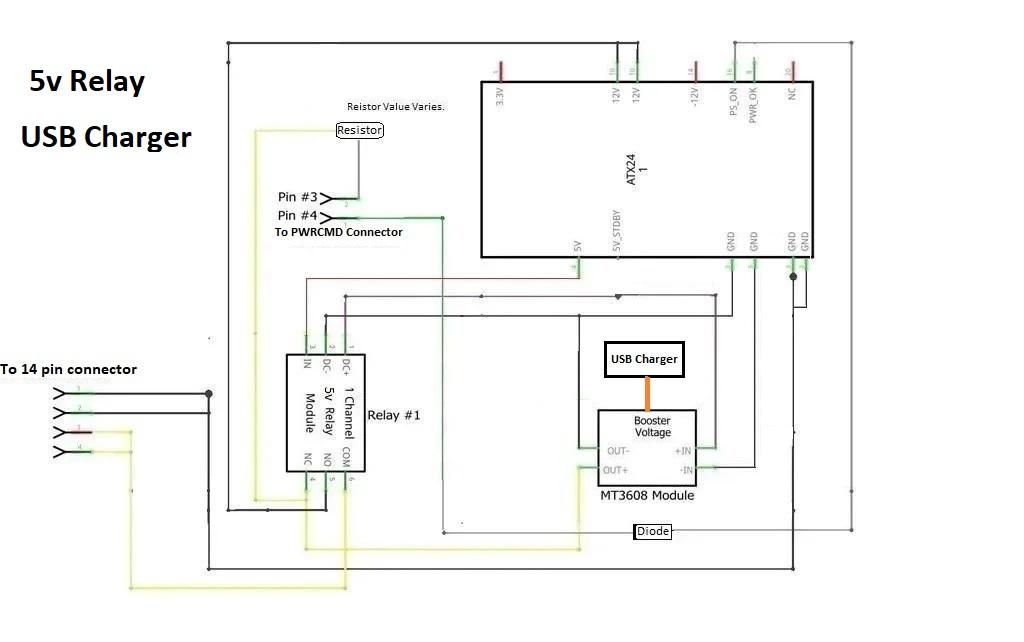
The relay module is powered off the ATX 5v_VSB line.
The ATX PSU PS_ON wire is connected to the HP PWR_ON wire via a diode. Diode cathode is facing motherboard PWR_ON pin.
The boost converter input is connected to the ATX 5v_VSB line.
The HP PWR_ID is connected to the boost convertor 12v output via the approrpiate resistor.
Relay #1 has the COM terminal connected to the 12v pins of the P1_Power connector on the motherboard. The NC relay terminal is connected to the boost converter 12v output. The NO relay terminal is connected to the 12v line(s) of the ATX PSU. The relay IN pin connects to a 5v line(Not standby).on the ATX PSU
The boost convert supplies constant 12v to the P1_Power connector. When the power button is pressed PWR_ON is drawn LOW, which brings PS_ON LOW, which switches on the ATX PSU. Once the PSU is on it triggers relay #1 (via the 5v line) which connects the ATX PSU's 12v lines to the motherboard, disconnecting the boost converter.
Disassembling ATX Plugs
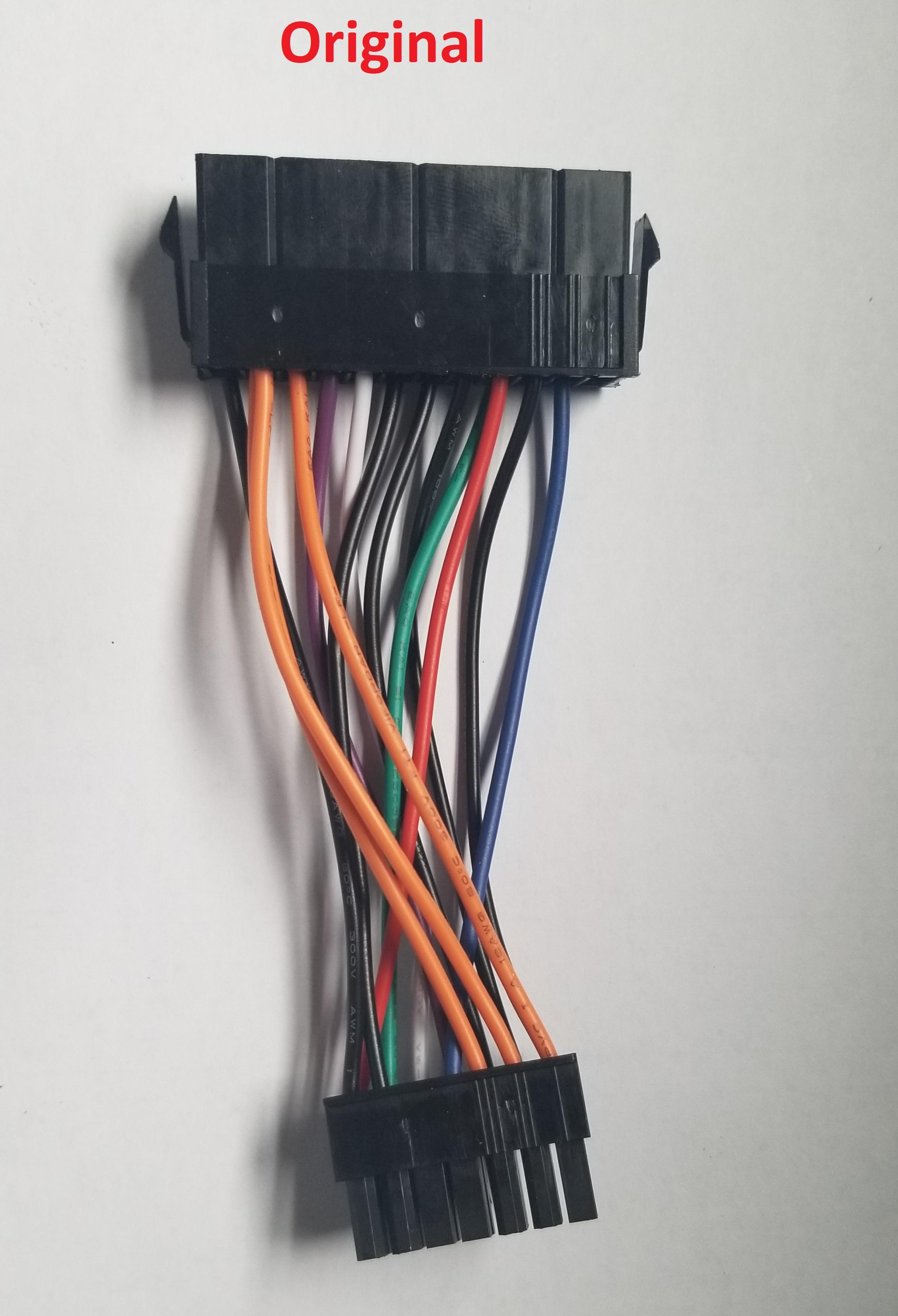

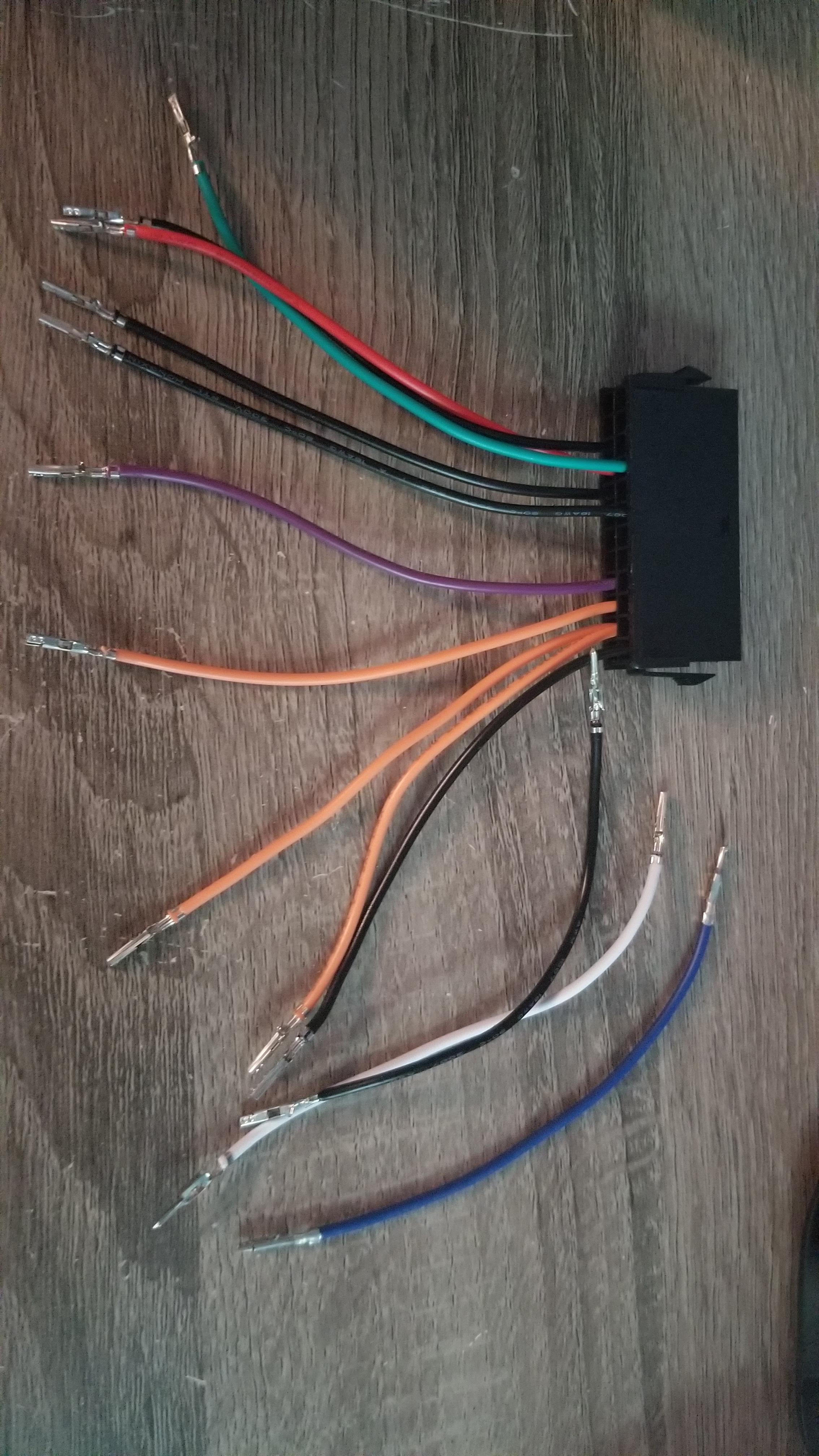
The hardest part of this tutorial is getting the pesky pins out of the connector. This tutorial assumes you know how to do that. If not a web search should help. Wire colors may slightly vary so both color that maybe found are listed.
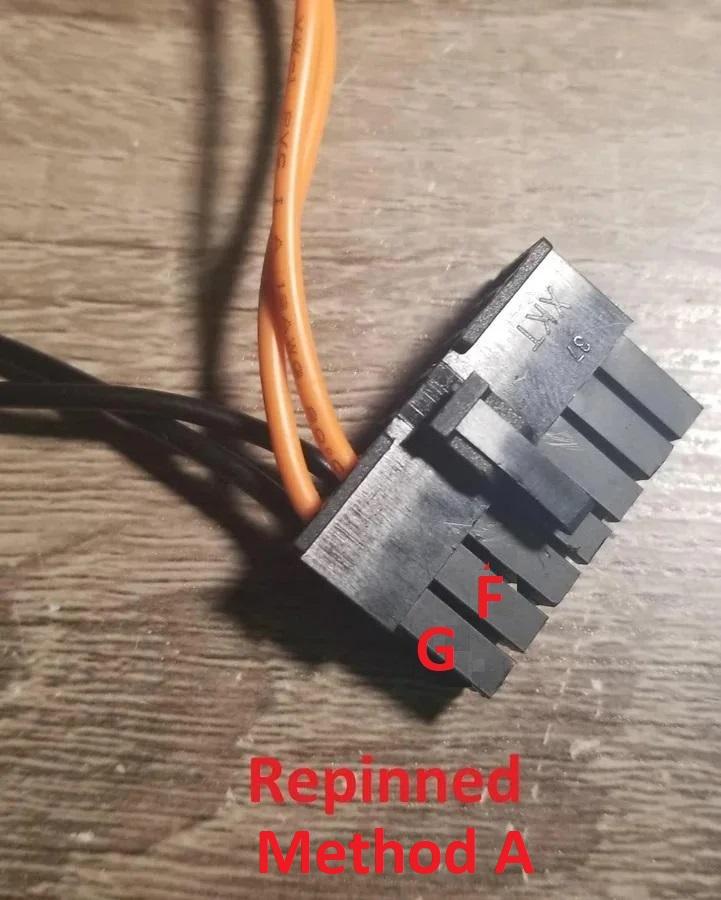
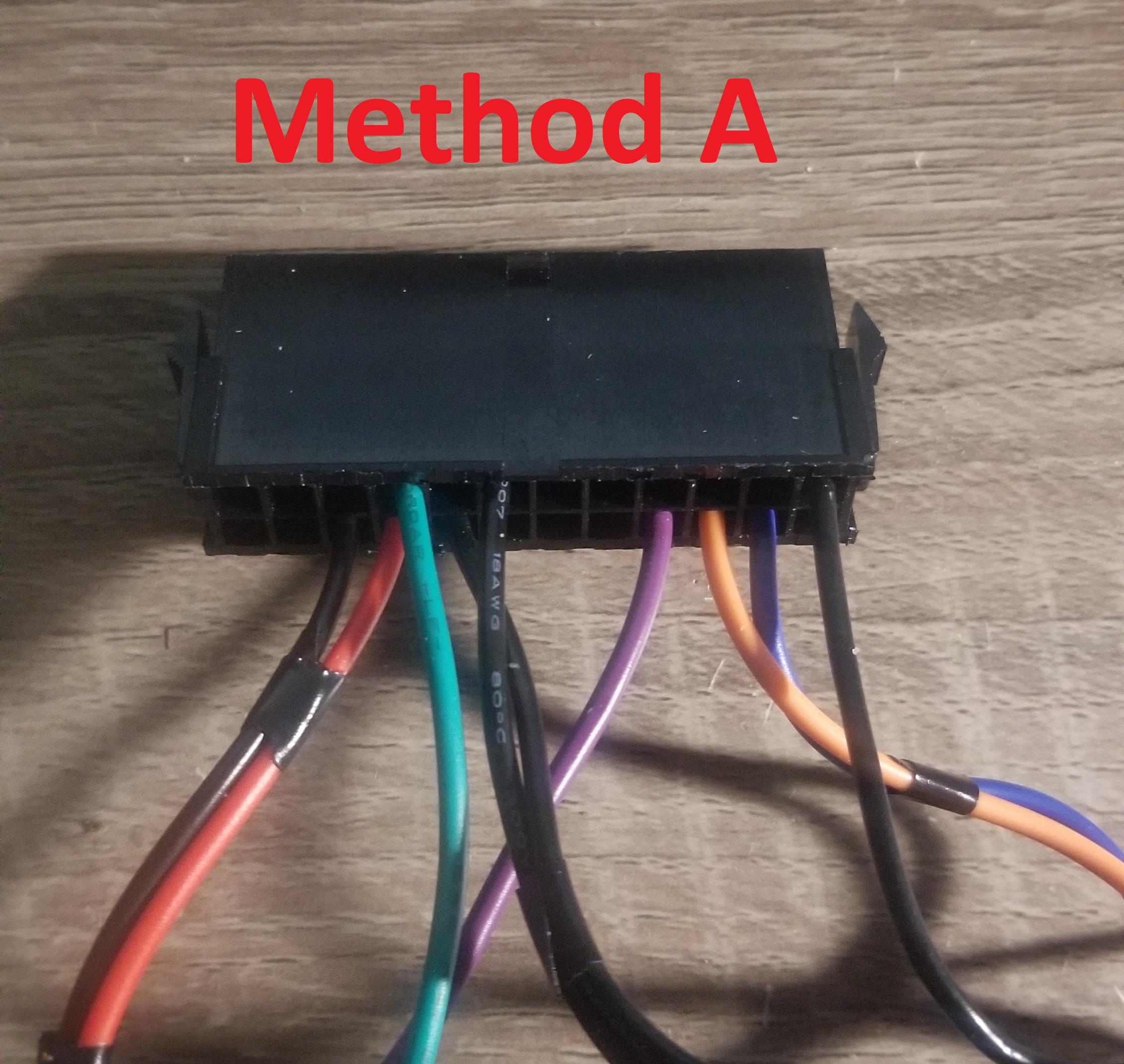
Method A:
- All the pins in the 14 pin connector need to be removed
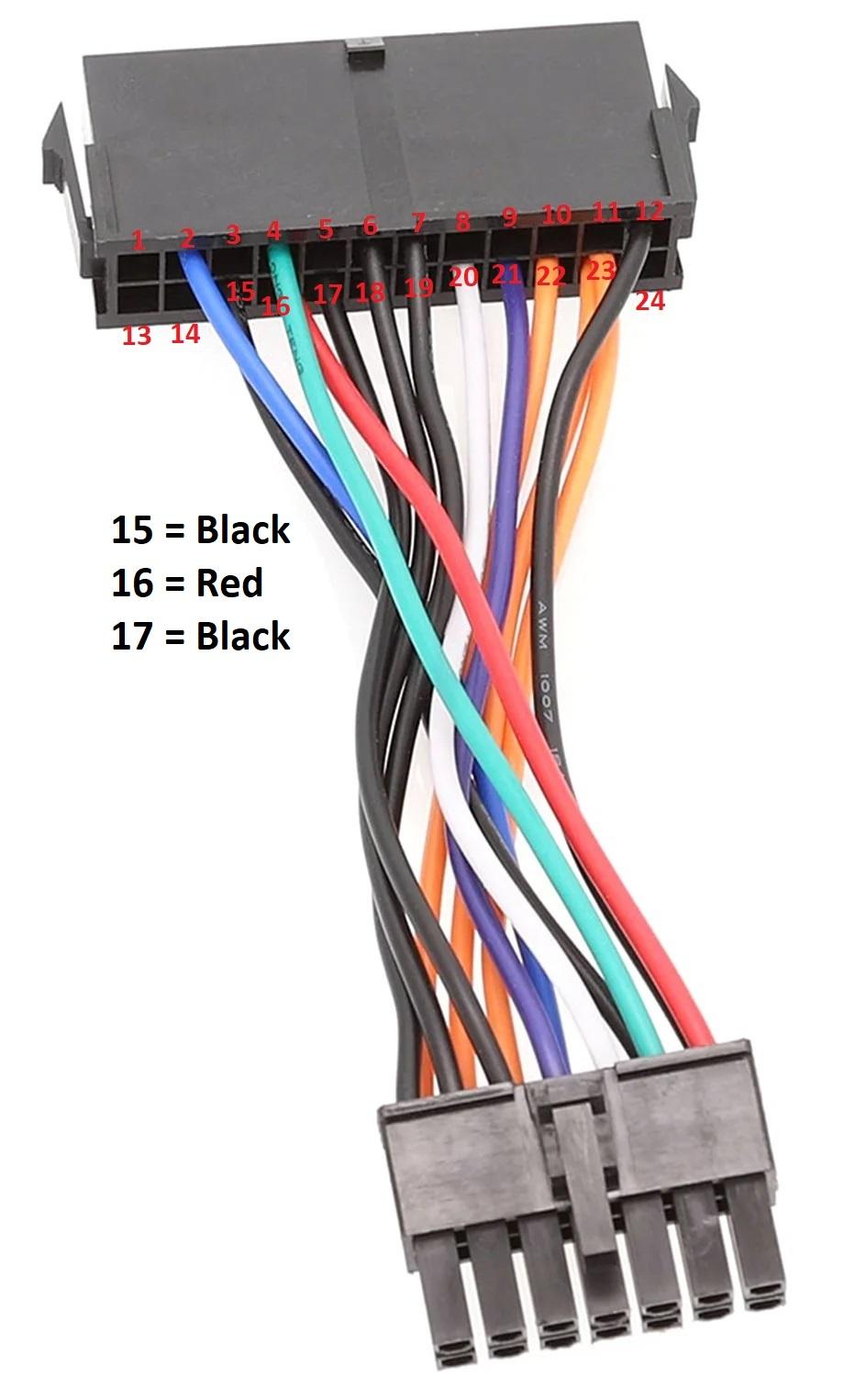
- The blue (2), black (7), white/grey (20), & double orange/yellow (23) need to be removed from the 24 pin ATX connector.
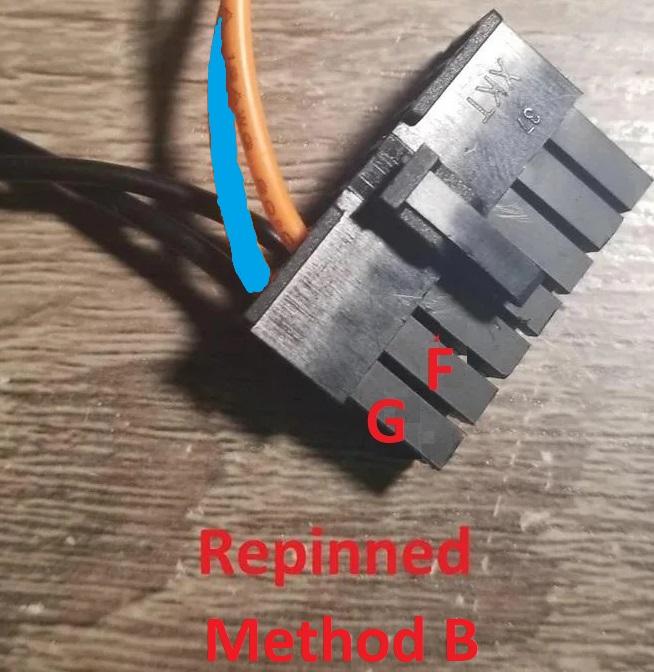
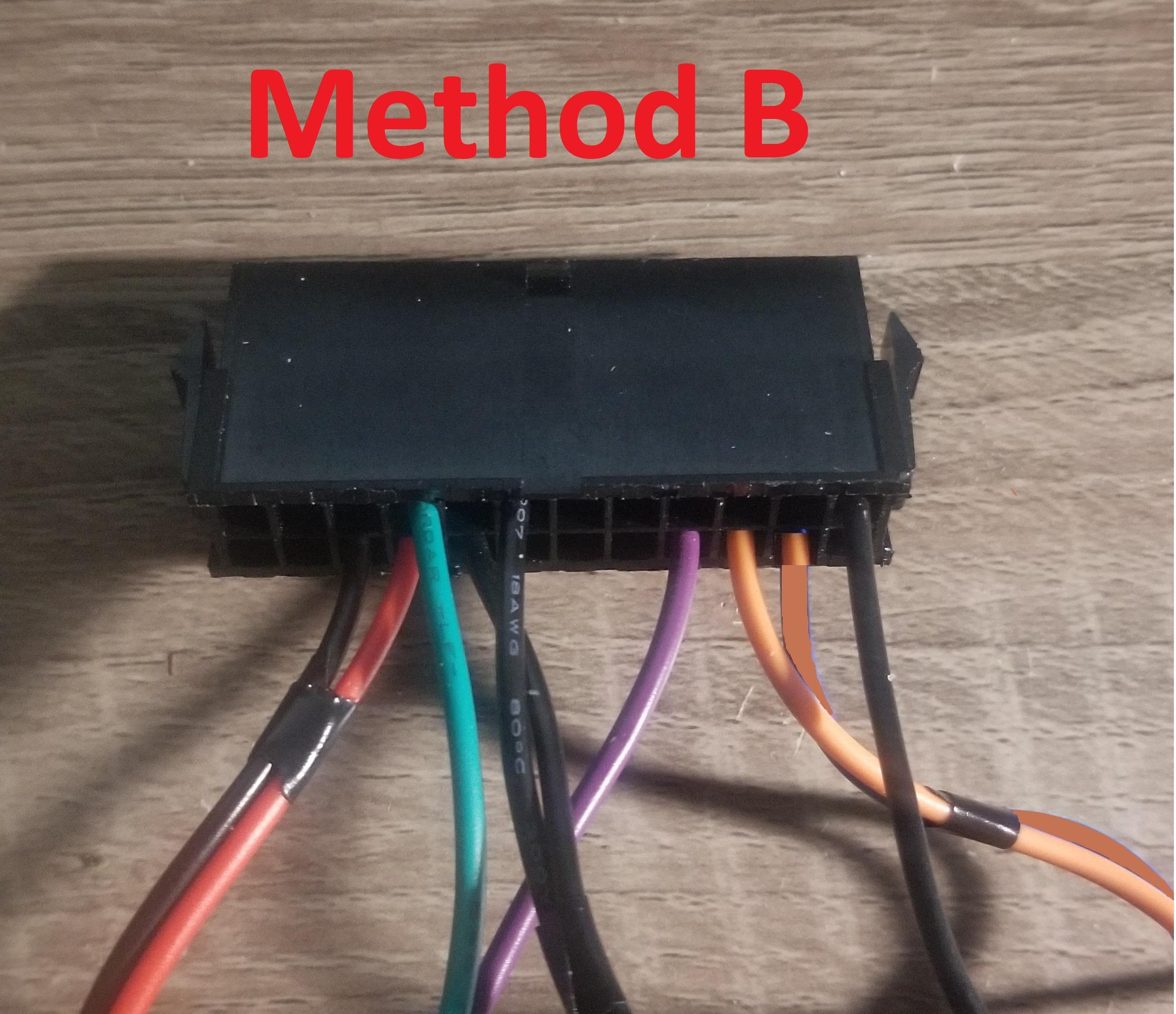
Method B:
If your don't want to remove all the pins....
- Cut all the wires off the 14 pin connector except for the 3 orange/yellow (L M N) , 2 black (any 2), & blue (K) which must be removed instead. Try to cut as close to the connector as possible.
- 1 side of the black, white/grey wire (20), blue (2) & One wire of the double orange/yellow (23) wires on the 24 pin connector can be cut. Make sure to NOT cut both orange/yellow wires
Finishing Up:
You should have a white/grey, black, blue & orange/yellow wire(s) not connected to anything once removal is complete. The white/grey & black need both ends removed. Keep the end(s) on the blue & orange/yellow wires.
- Method A will result in a standalone blue wire with 2 ends & anorange/yellow wire with 2 ends.
- Method B will result in a standalone blue wire with 1 end & an orange/yellow wire with 1 end present.
Performance will be the same in each method. The final wiring will be slightly different.
Reassembling ATX Plugs


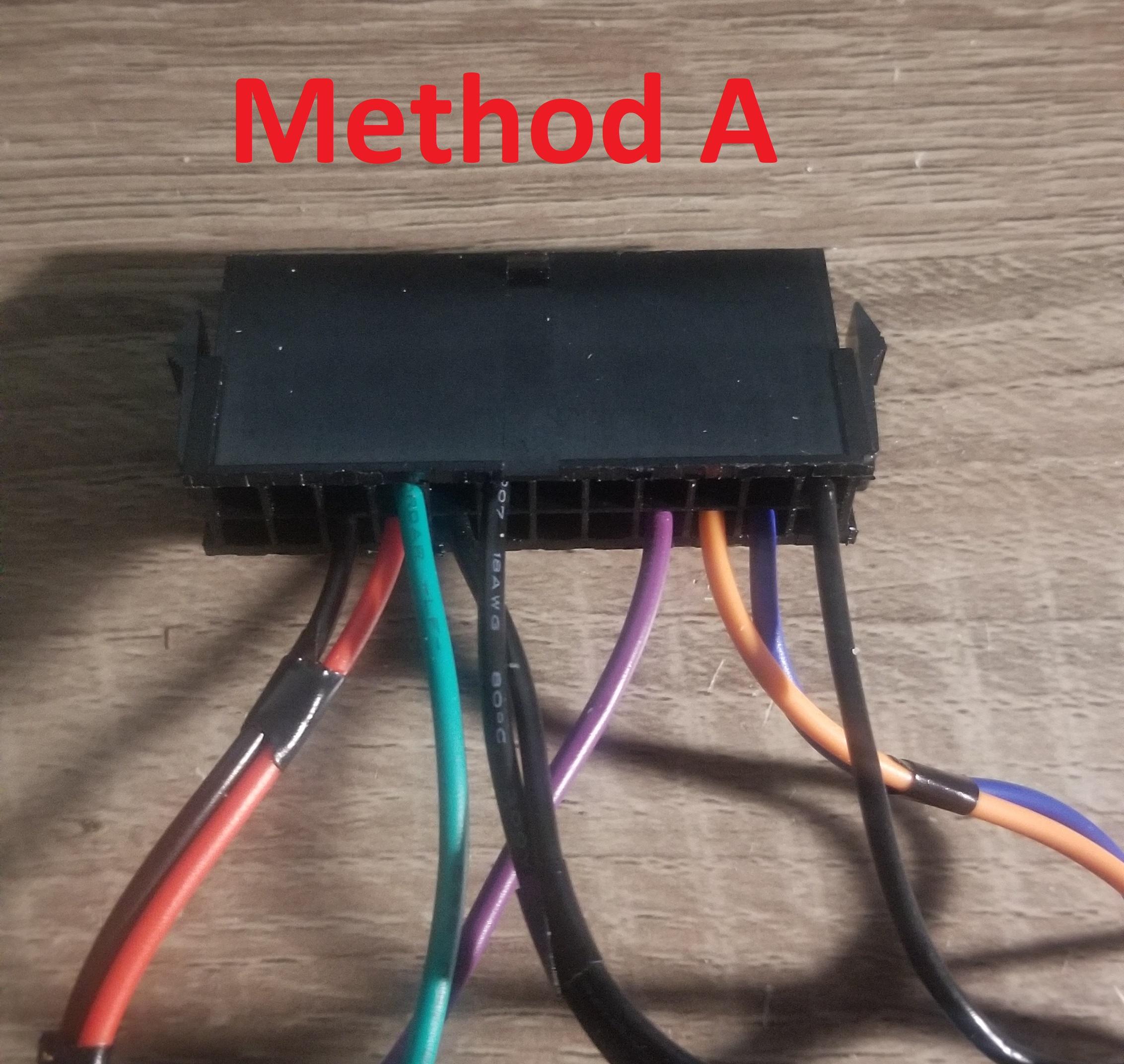
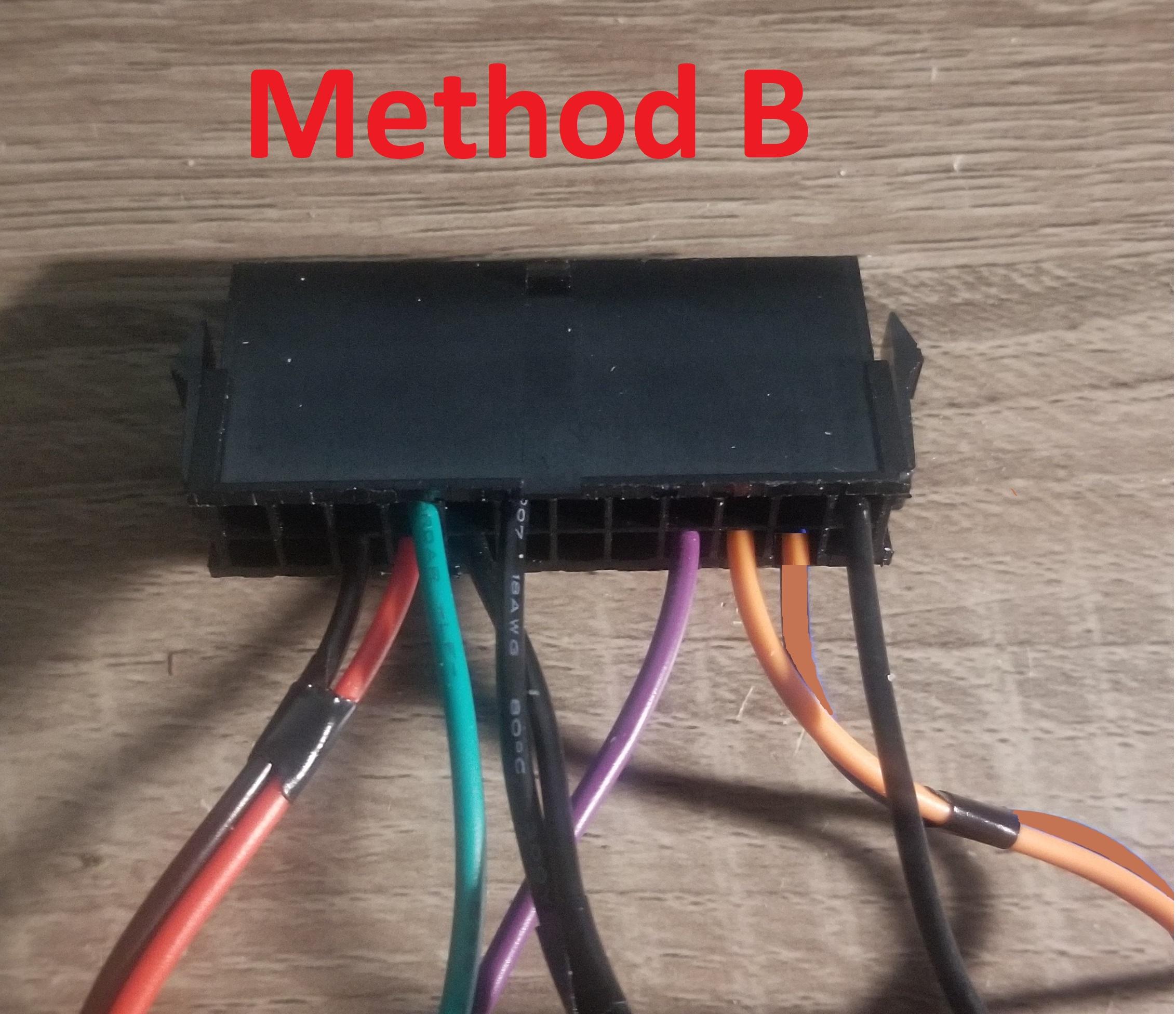
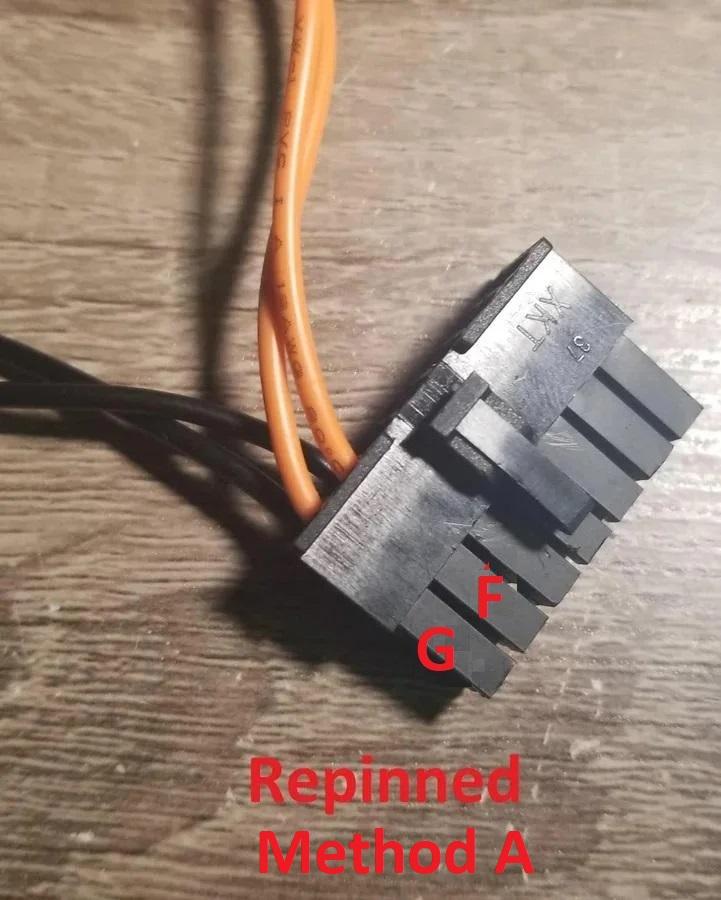

If you used method A:
14 pin connector:
Position F: Orange Wire
Position G: Orange Wire
Position M: Black Wire
Position N: Black Wire
ATX Connector:
Position 23: Blue Wire
If you used method B:
14 pin connector:
Position F: Orange Wire
Position G: Blue Wire
Position M: Black Wire
Position N: Black Wire
Wire It Up
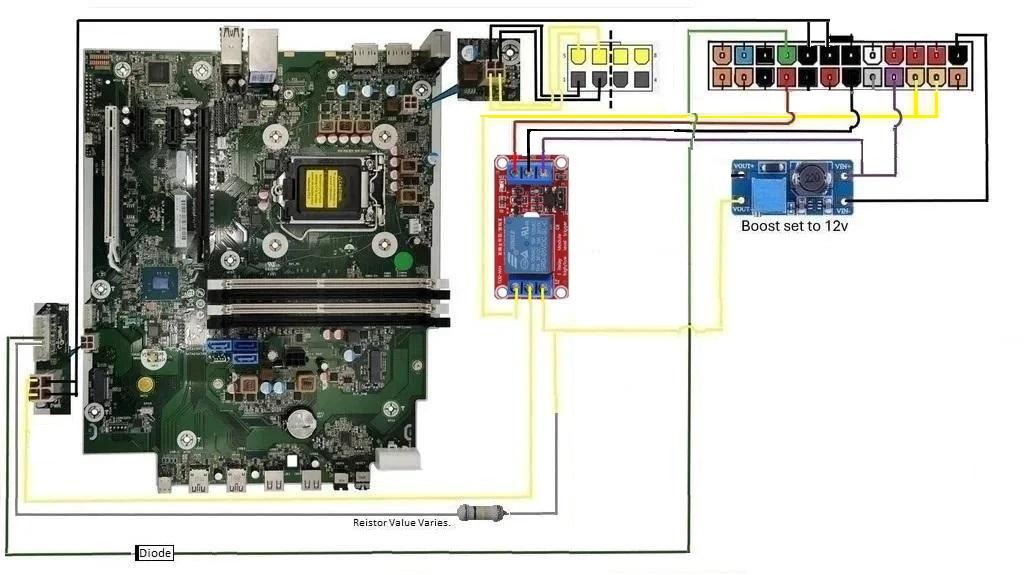
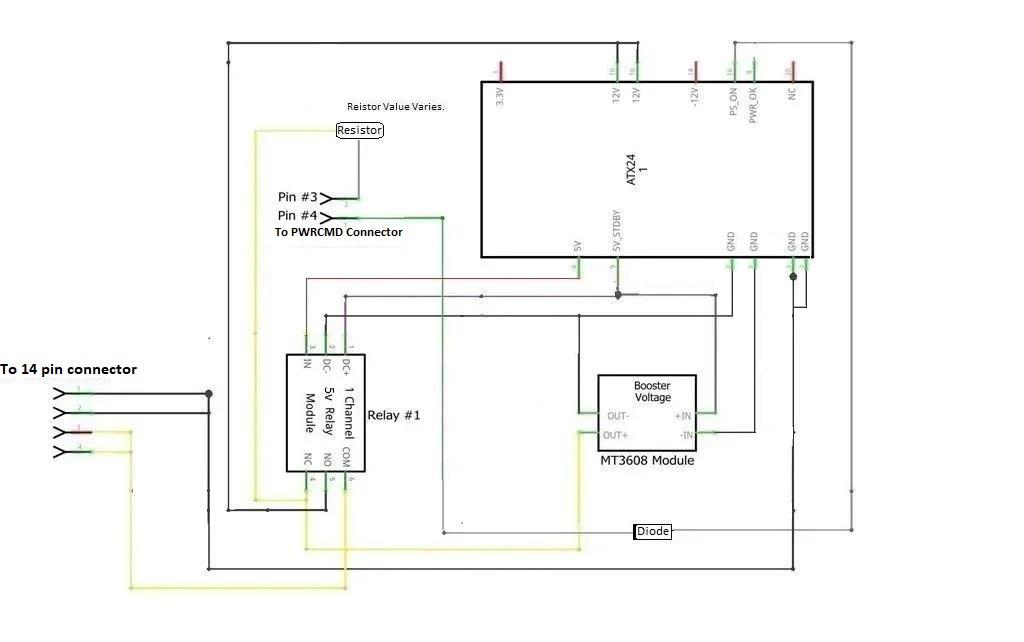
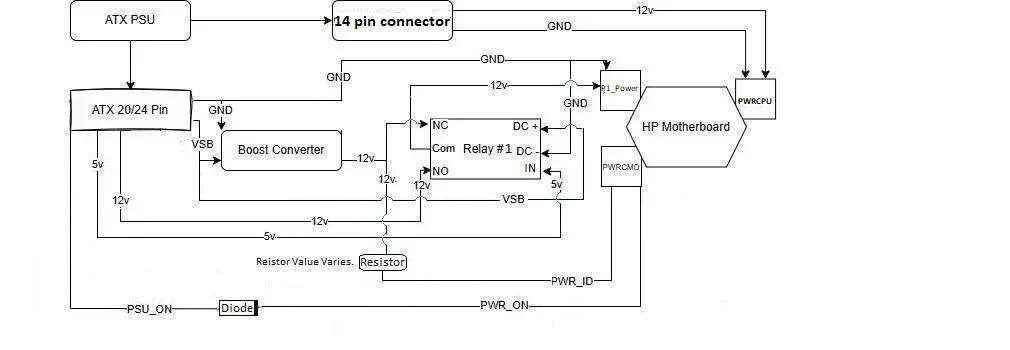
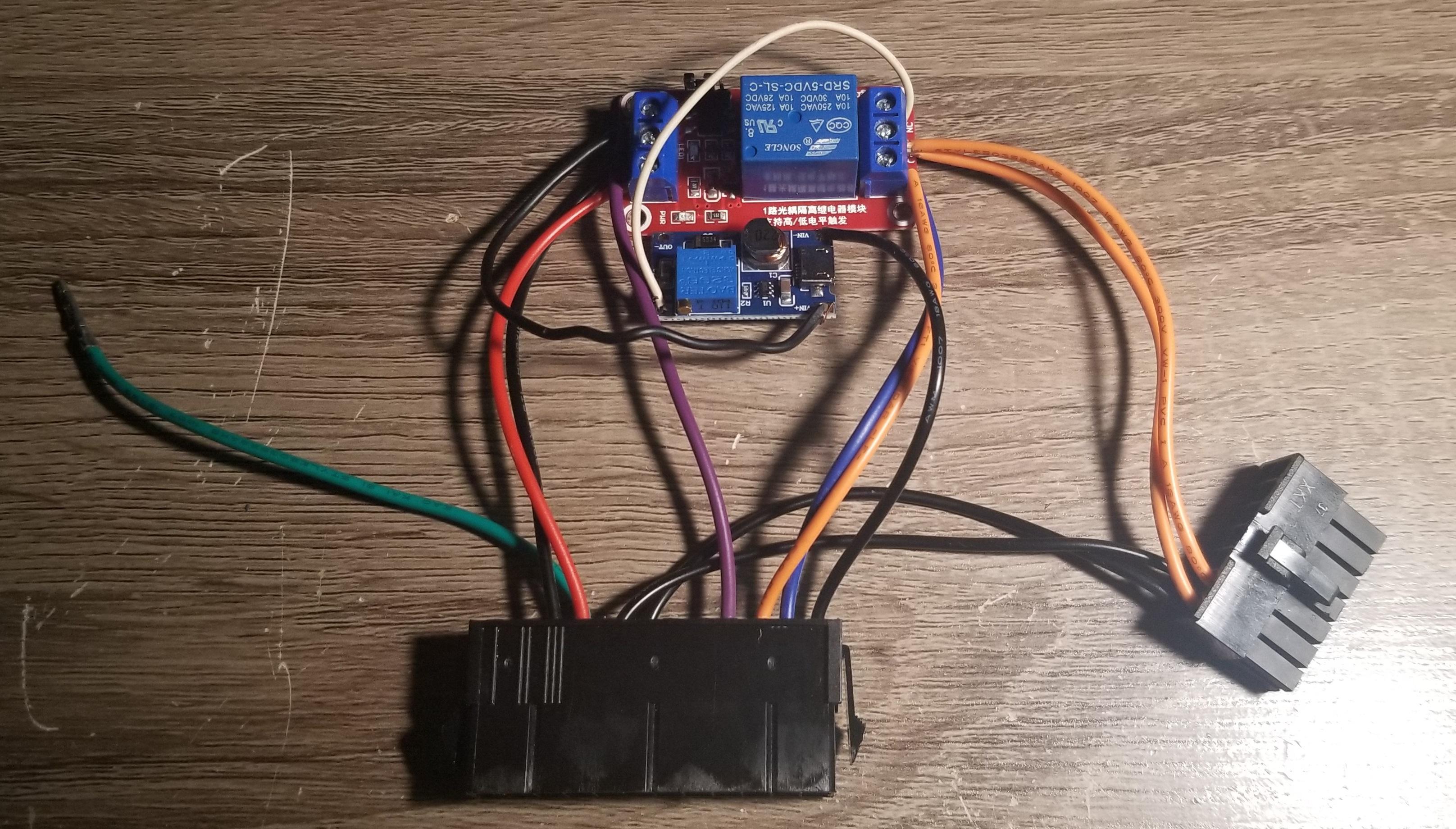
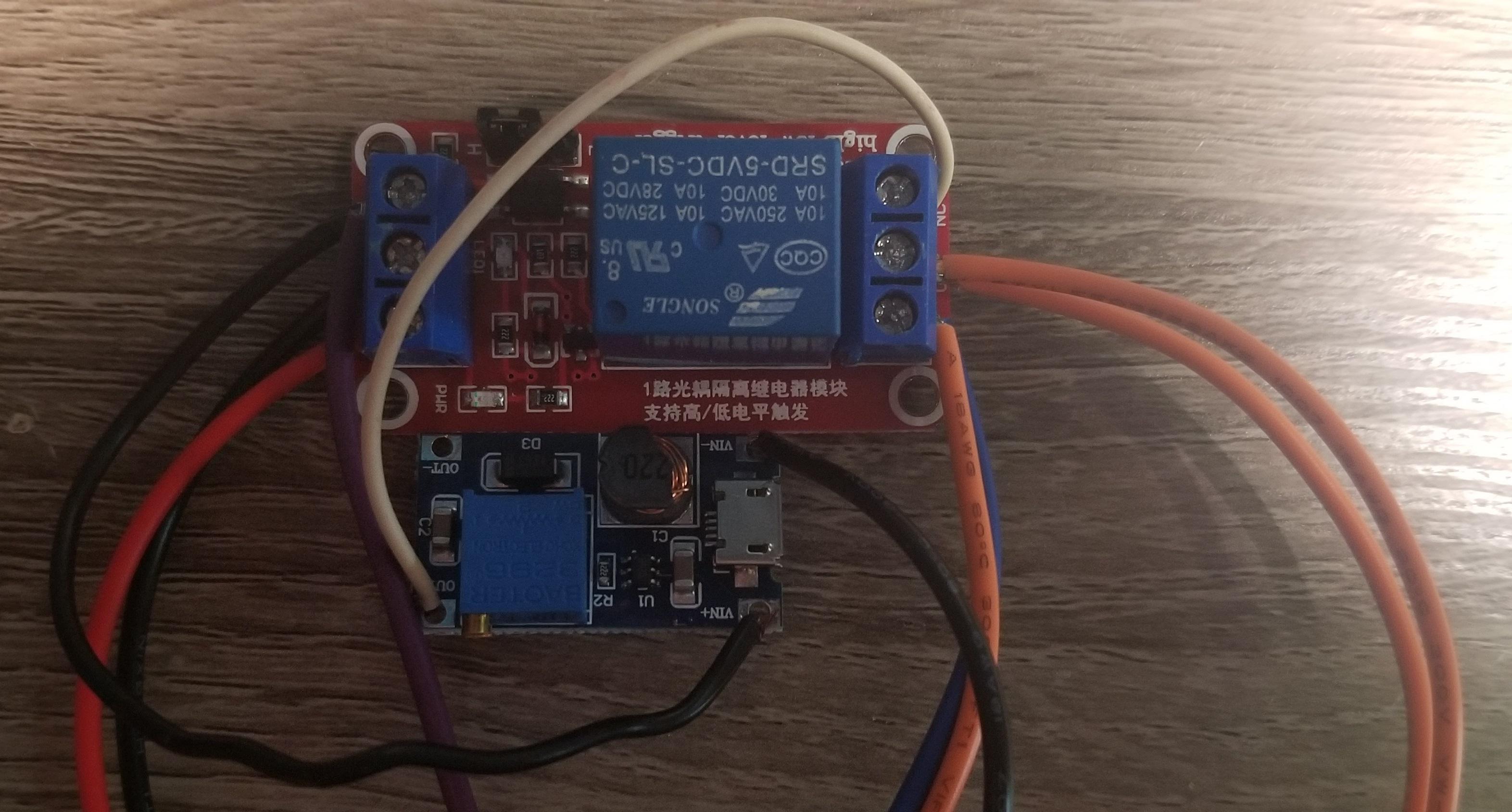
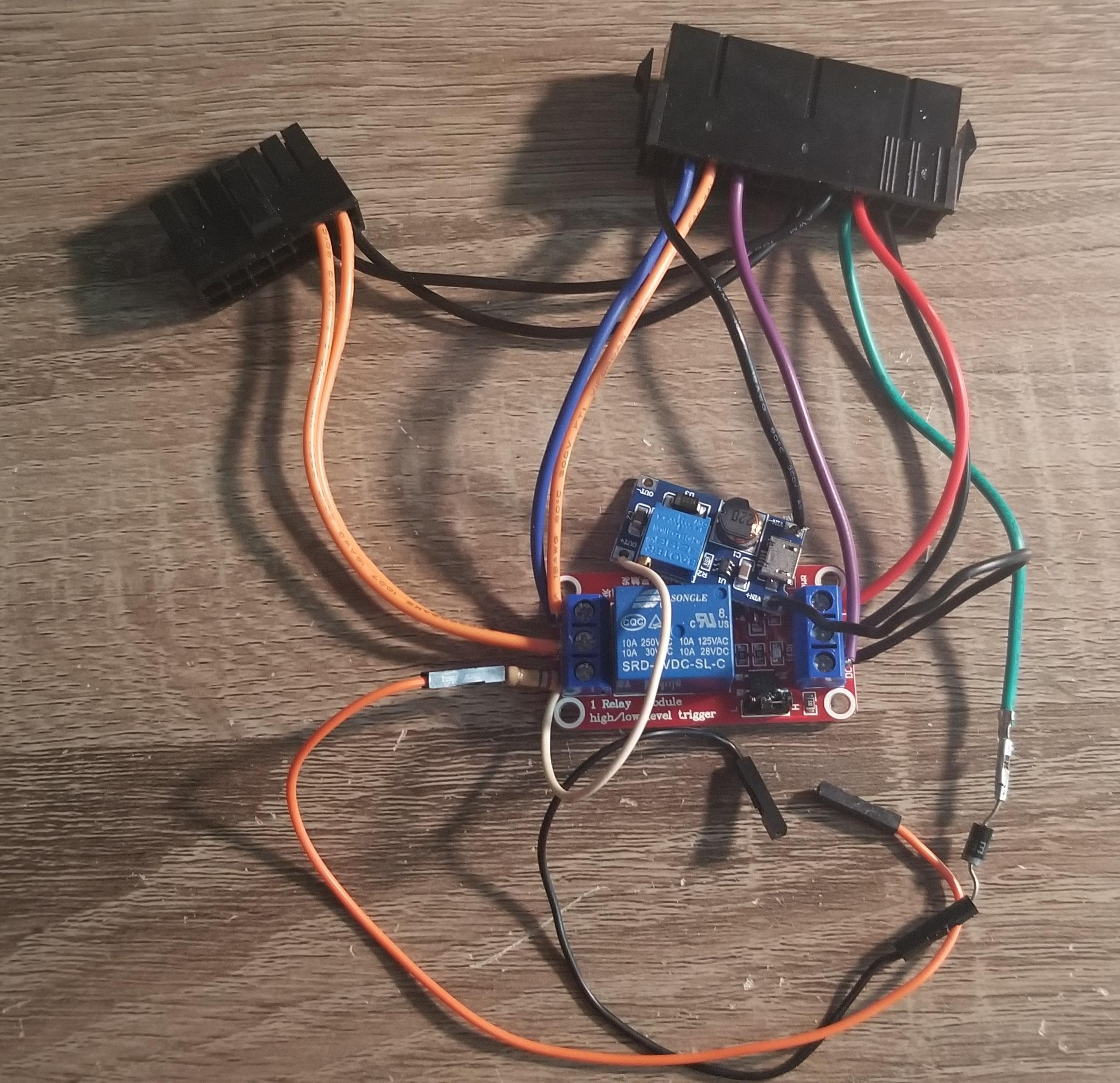
Make sure the boost converter output is set to 12v before assembly! 12.2v is the absolute maximum to set.
From 24 Pin Connector:
- Connect the red wire(16) to the relay IN terminal
- Connect a black wire(15) to the relay DC - terminal
- Connect the purple wire (21) & the cut black wire to the relay DC + terminal
- (Method A) Connect the orange/yellow wires(22) & the blue wire(23) to the relay NO terminal.
- (Method B) Connect the two orange/yellow wire(22 & 23) to the relay NO terminal.
- Connect 2 black wires to the side of the 14 pin connector positions M & N. They are opposite the latch.
- (Method A) Connect the two cut orange (G& F) wires to the relay COM terminal.
- (Method B) Connect the cut orange (F) & blue (G) wires to the relay COM terminal.
- Connect the other end of the cut orange & blue wires to positions F & G on the 14 pin connector. Opposite the 2 black from above.
From Boost Converter:
- Connect other end of cut black wire to the VIN + pin
- Connect the remaining black wire from the 24 pin connector to VIN - pin
- Connect the cut white wire to OUT + Pin
- Connect the other end of the cut white wire to the Relay NC pin
Resistor & Diode:
- Calculate the correct resistor value by visiting step # 10
- Connect one end of the resistor to the relay NC terminal (Shares with cut white wire).
- Connect the other end of the resistor to a Dupont wire.
- Connect the diodes anode to the green wire on the ATX 24 pin connector.
- Connect the diodes cathode (stripe) to the other Dupont wire
I made many revisions to my adapter throughout the process. Some images & videos may be inconsistent due to changes/improvements. The behavior is the same across all adapter revisions.
NOTE: The blue & orange wires can be swapped in the adapter. Some images maybe different. Either way will work. It is preference only.
Hooking It Up

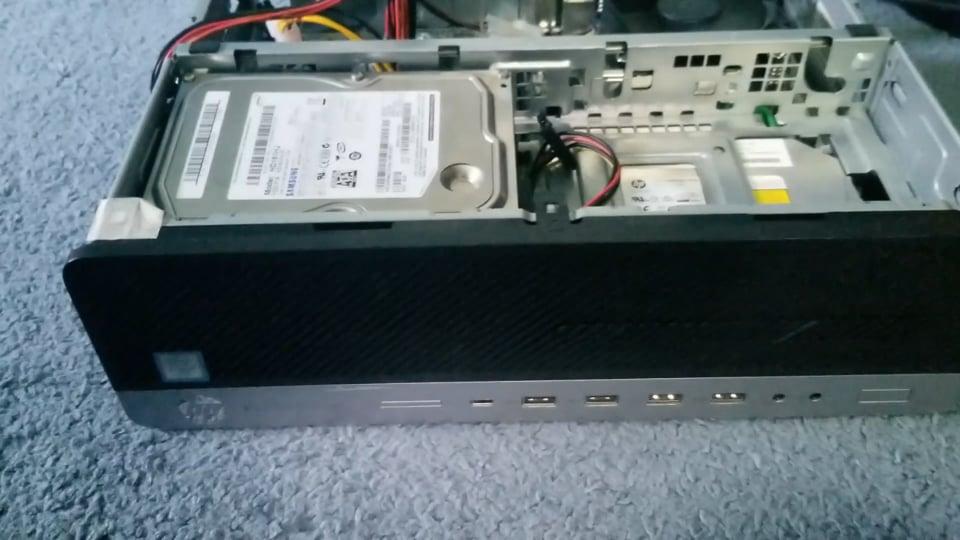
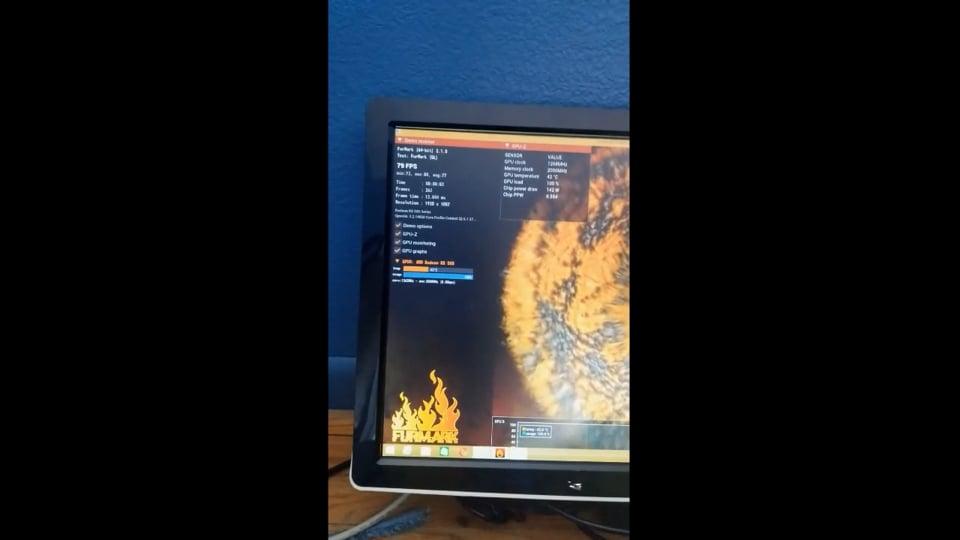
1. Make sure PSU is unplugged from AC Main Power.
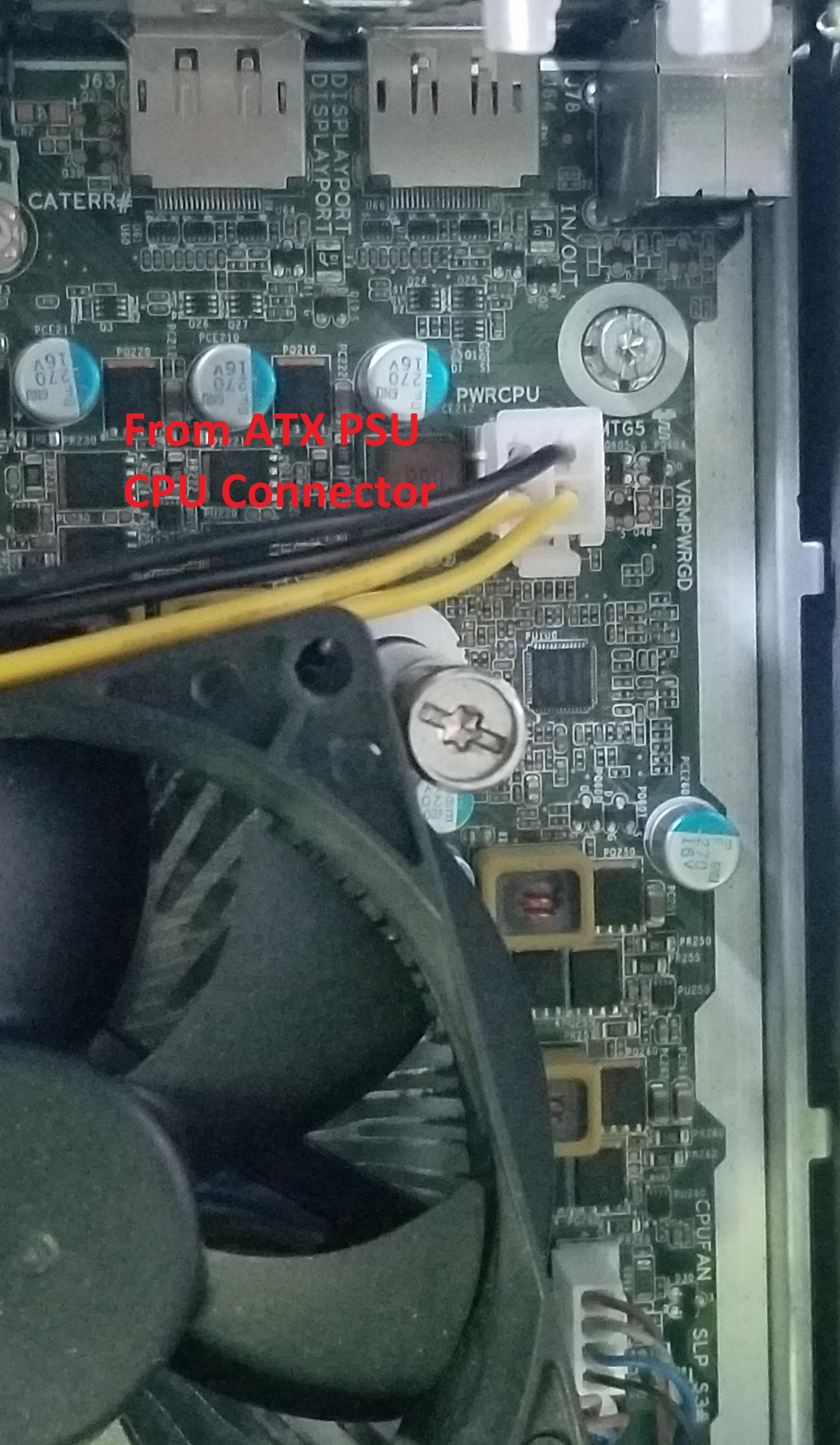
2. Plug the 4 pin or half the ATX PSU's 8 pin(4+4) CPU connector into the PWRCPU connector.
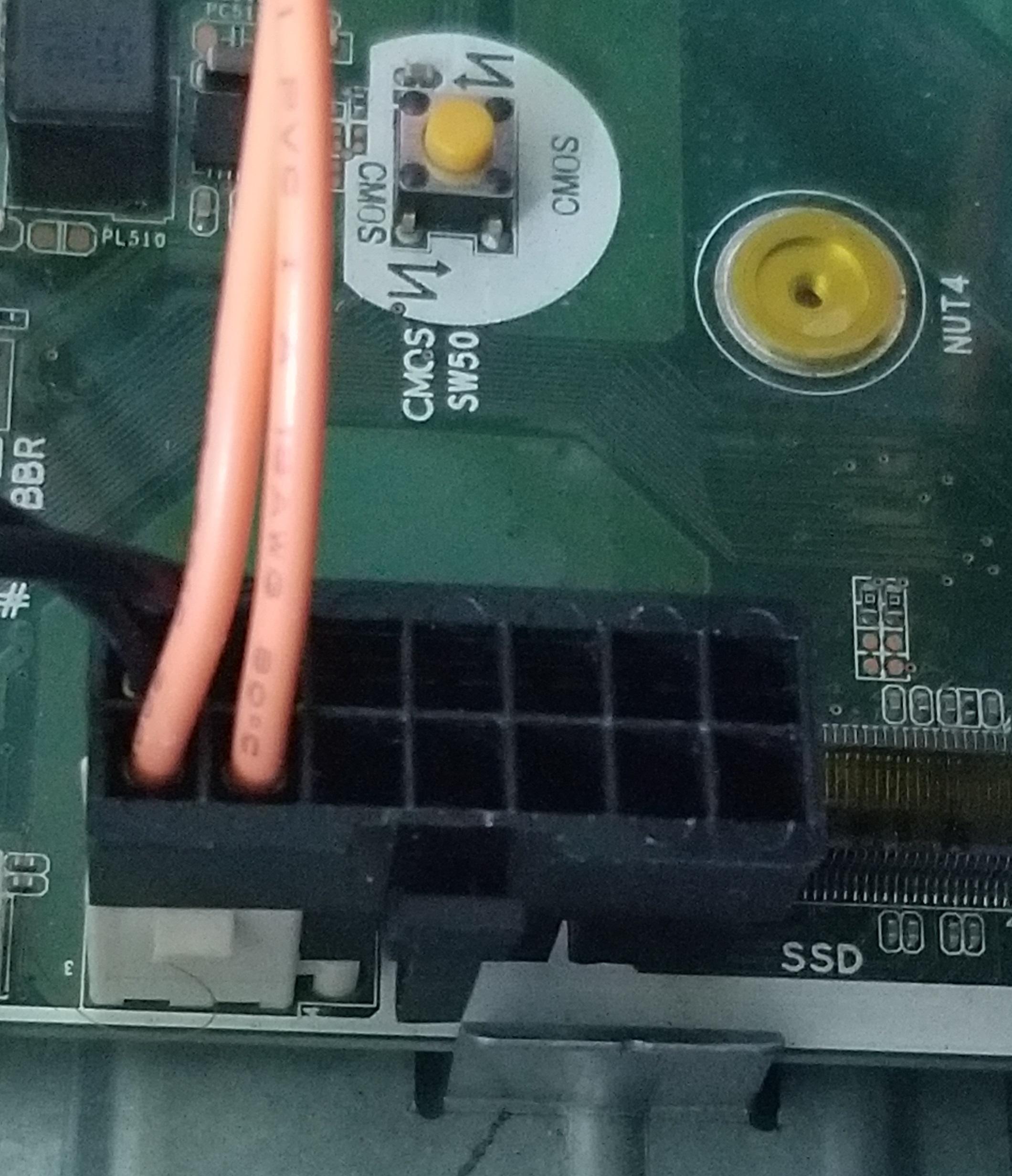
3. Plug the 14 pin connector into the P1_Power connector. Orient the connector so the latch is towards the latch jacks catch. Connector will only fit one way/position. Orange/yellow wires should be closest the latch catch.
NOTE: The latch will not align with the catch. This is fine.
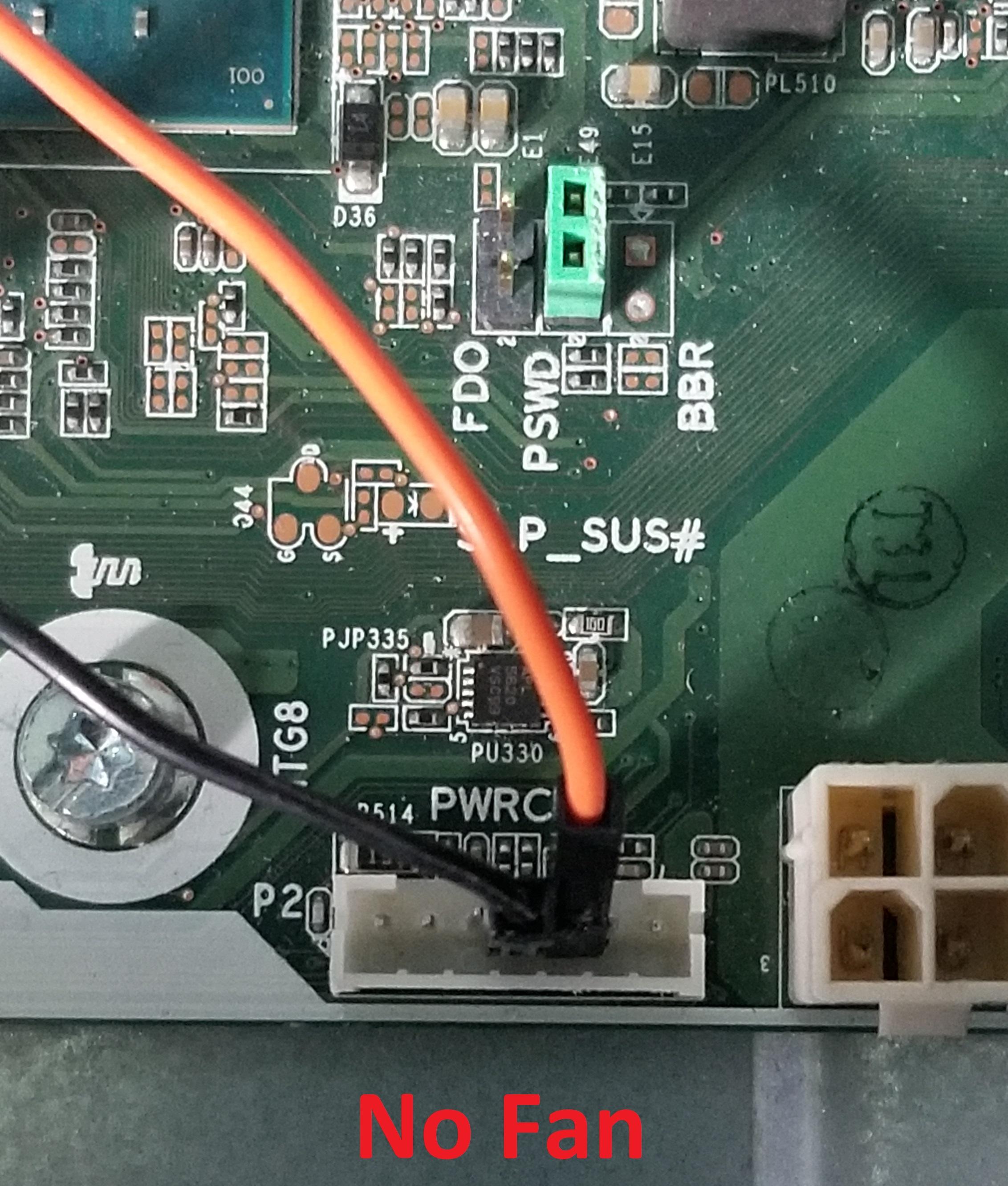
4. Connect the Dupont wire with the diode to the PWR_ON pin on the PWRCMD connector.
5. Connect the Dupont wire with the resistor to the PWR_ID on the PWRCMD connector.
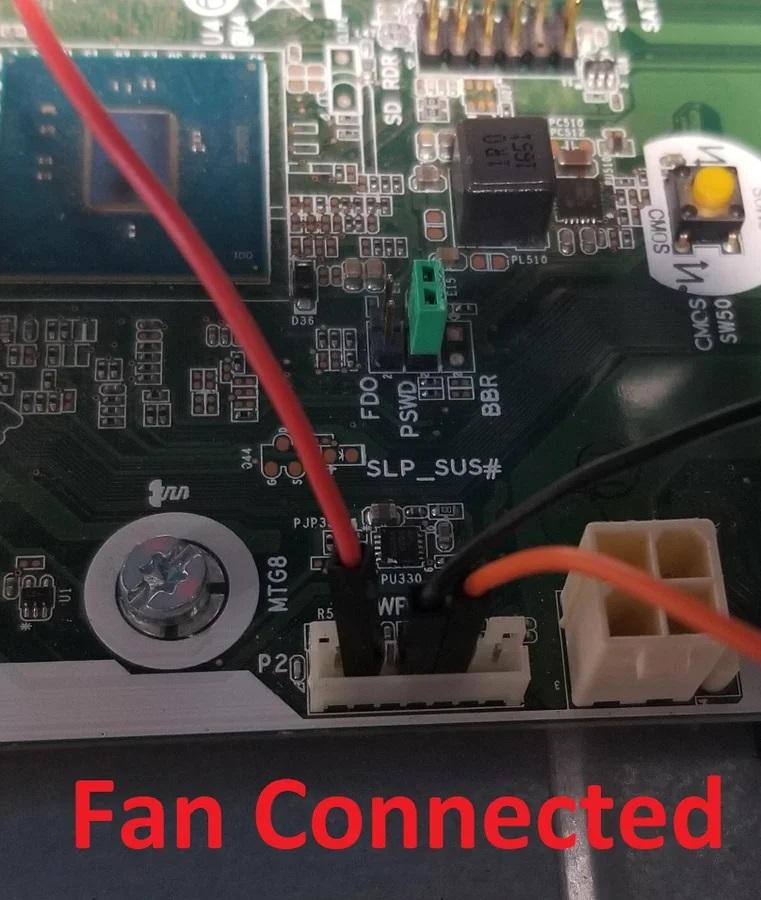
5b. Connect FAN_Tach pin on the PWRCMD connector to the corresponding fan pin(if needed. See Step #7).
6. Connect the 24 pin ATX connector of the ATX PSU to the 24 Pin Female connector.
7. Attach any 6/8 pin connectors to GPU & any SATA/Molex connectors to HDD/SSD's.
8. Plug the PSU into AC Main power
9. Press the motherboard power button
The PC should power up! Success!!? If not see Step #8 Debugging.
Fan Error
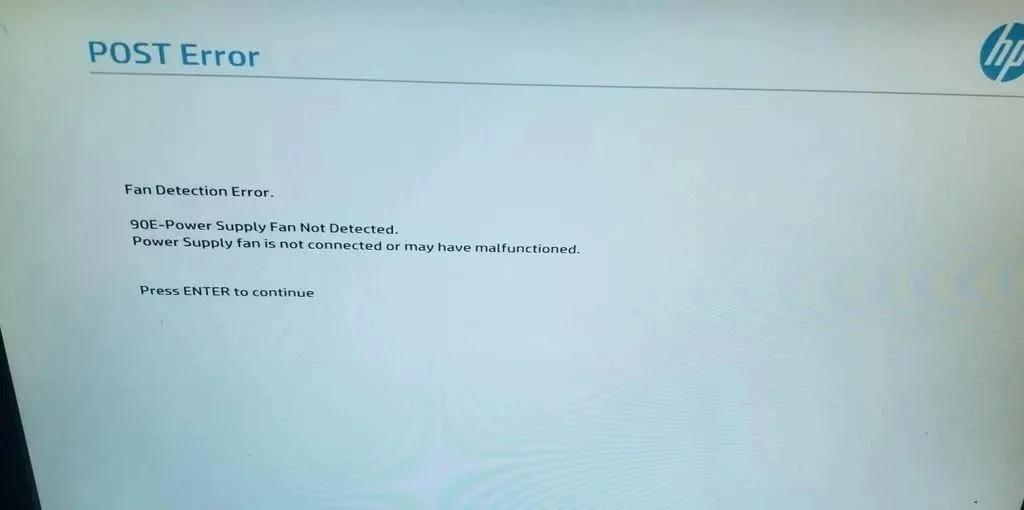
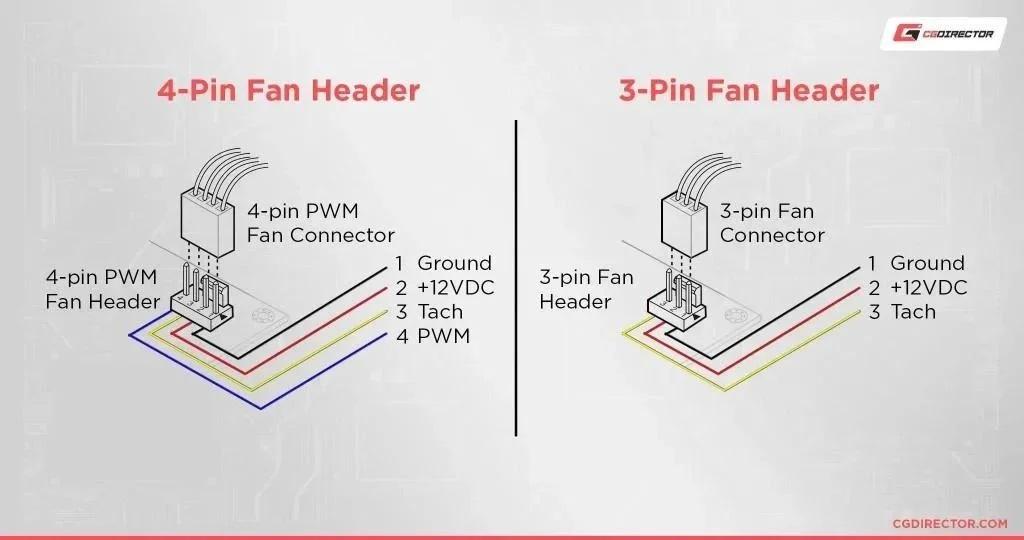

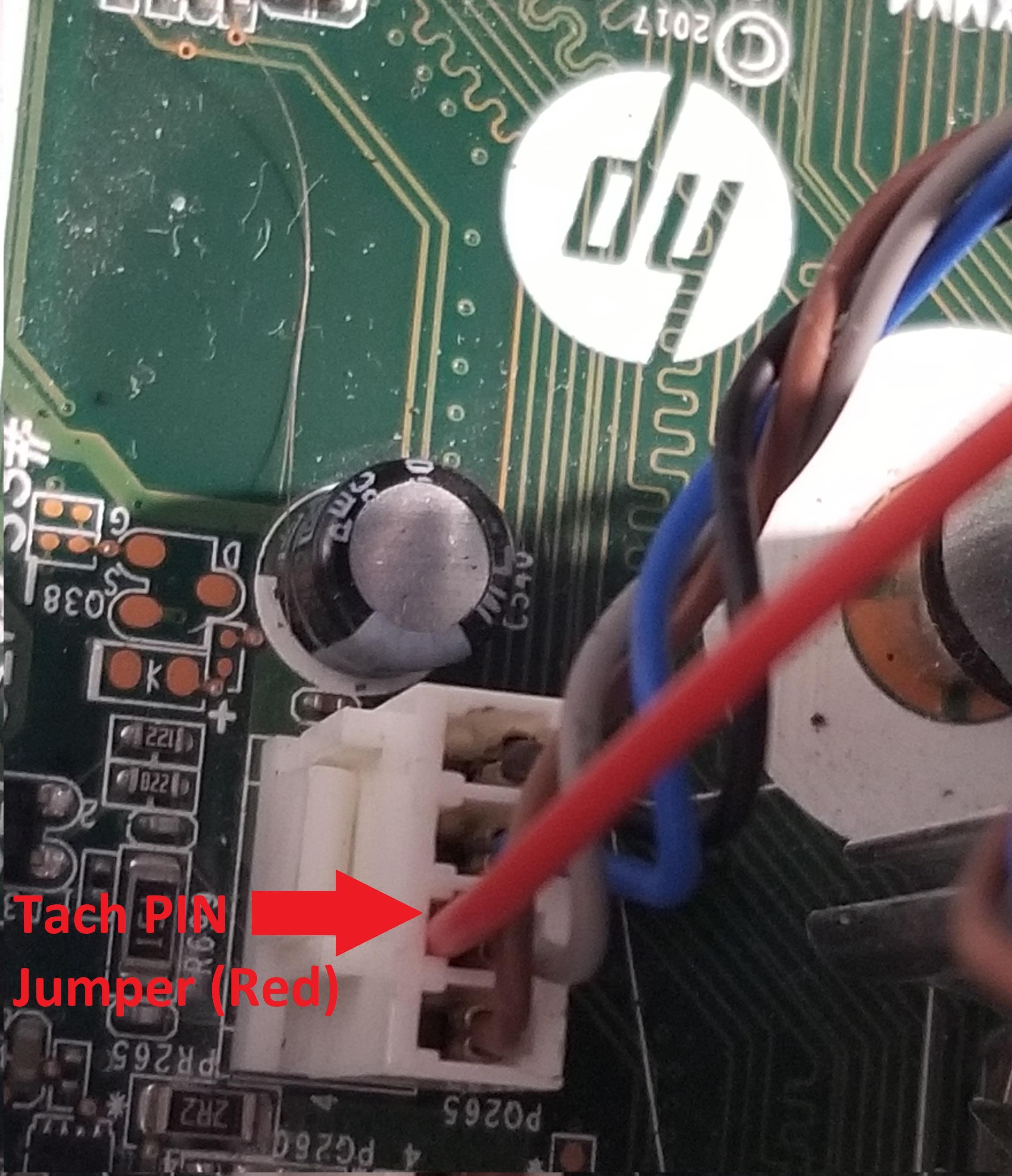
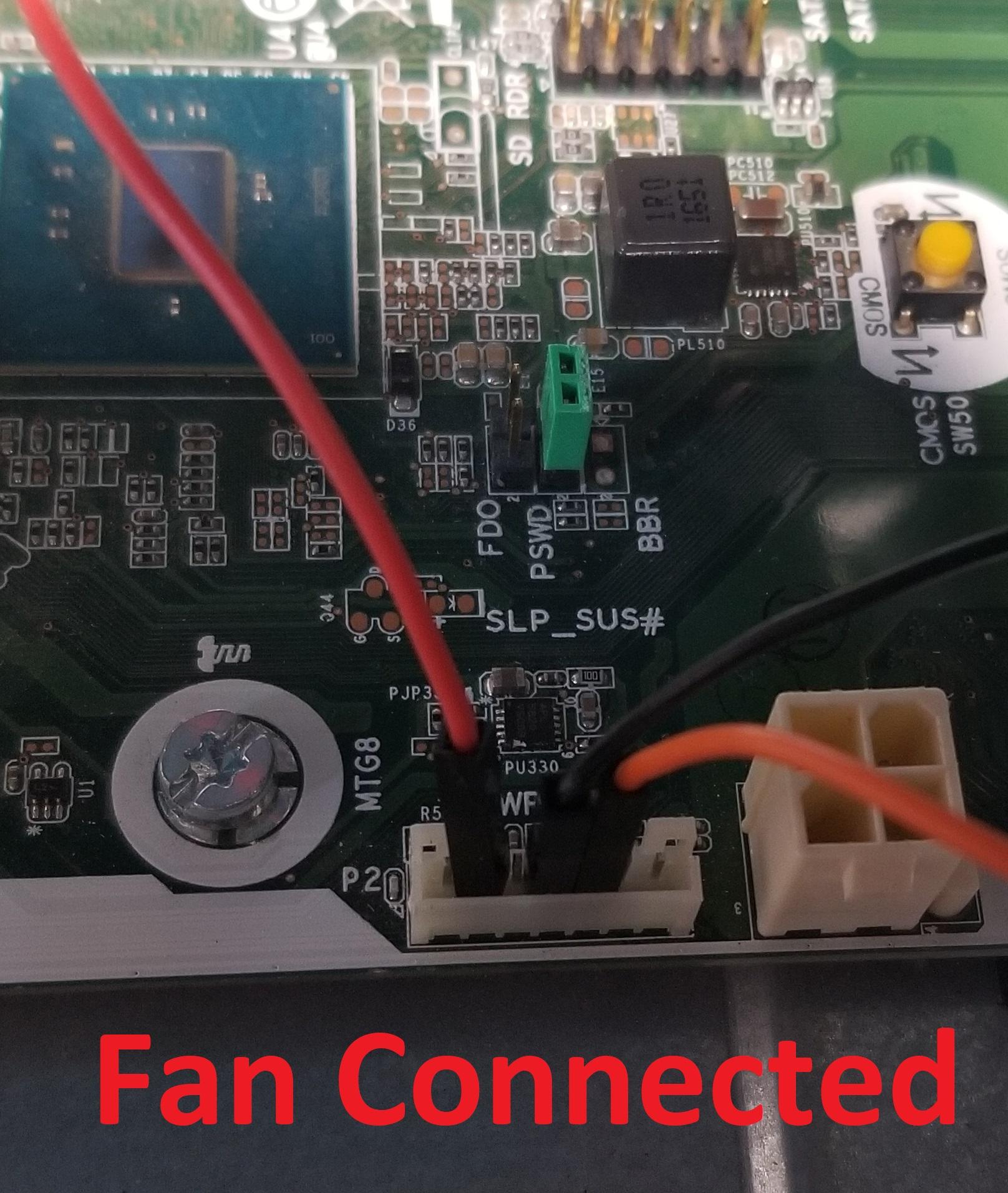
On some HP PSU's the PSU fan is used as a system fan. Without this fan present the PC will present error 90E on POST saying a PSU fan is not present. The PC will still boot but the error is annoying.
A quick way to tell if you need the fan modification is to determine if there is a wire in position #6 (Fan_Tach) on the PWRCMD connector. If so you will need to follow this modification step. The example Elitedesk 800 G3 requires this fan mod.
The PSU fan communicates with the motherboard via Pin #6 (Fan_Tach) on the PWRCMD connector. This pin is looking for a Tach signal from a fan. You have a few options:
- Run a jumper wire from a fans Tach pin to the Fan_Tach pin. Any spinning fan will do, even the CPU fan.
- Rig up a new fan. Tie into any 12v & Ground source to power the fan. Connect the Tach pin to the Fan_Tach pin on the PWRCMD connector. Fan will always run full speed.
- . Remove the original fan from the ATX PSU & swap in a new 3 or 4 pin fan with Tach support. Run a wire outside for the Tach connection. Connect to the Fan_Tach pin on the PWRCMD connector
CAUTION: Be careful when opening an ATX PSU. Dangerous voltages are present & lethal.
Both 3 & 4 pin fans will work. On a 4 pin fan the PWM pin will remain unused.
Basic Debugging
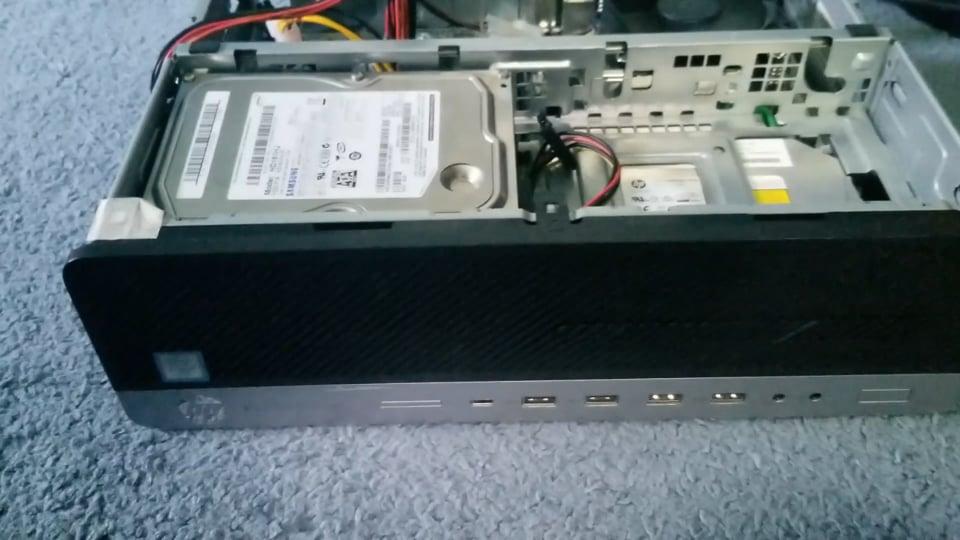


If your PC will not start up with the adapter board here are some common issues:
PC tries to boot but immediately powers down:
- Make sure all wires are tightly connected and connectors are fully seated.
- Make sure PWRCPU is connected.
- Make sure PWR_ID wire is connected.
- Make sure the boost converter is set to 12v output. A lower voltage can cause issues.
Relay keeps triggering/light flashes:
- Double check all wiring.
- Make sure the wires are connected correctly & securely in the PWRCMD connector. Reversed or missing wires are common.
Red Light on HP Power Button:
- Are PWR_OK/PWR_ID & PWR_ON correct?
- Check all wiring and connections. A loose PWRCPU connector can cause this.
- Try using a larger gauge wire
- Boost converter is not supplying enough current. Try a different one or see Step #10.
- See last heading in this step.
OEM PSU Fan Running Full Blast:
- Ensure Fan_Tach pin on the PWRCMD connector is connected. Without it the fan always runs full speed.
Relay triggers, fans spin, but quickly powers down :
- Is the resistor between 12v & PWR_ID the correct value?
- Try a different value resistor
- Try adding a 100uF or 1000uF capacitor in parallel with the boost converter output.
Attached Videos demonstrate some common issues.
More Debugging
Motherboard & relay lights flashing, CPU fan spinning briefly(Pulses):
- Check if PWR_ID & PWR_ON connectors on PWRCMD connector are reversed.
- Check if PWR_ID Wire is disconnected.
- Try the following:
- Unplug the ATX PSU from main power.
- Disconnect the 12v output of the boost converter from the rest of the circuit
- Plug back in ATX PSU to main power.
- Connect the 12v output of the boost converter to the circuit.
If it boots, it is a boost converter issue.
Everything Worked fine until I added a GPU:
- Make sure the GPU 6 or 8 pin connector(s) are all fully connected.
- Try a power ATX riser. (Uses Sata, Molex, or 6 Pin).
If it boots with the riser installed congrats. Some boards limit the PCIE slot wattage. I do not know any workarounds besides a powered riser.
Everything works fine until randomly powers off:
Power or heat issue
- Ensure adequate cooling & airflow.
- If the fan error was bypassed (Step #7) additional case airflow may be needed.
- PSU is not enough wattage. Too low 12v amperage. Try a larger PSU
- Try moving any HDD/SSD to the ATX PSU connectors. The HP motherboard converts 12v to 5v for the SATA power connectors. By connecting the HDD/SSD's to the ATX PSU directly the 12v rail load is reduced.
Debugging Power Rails
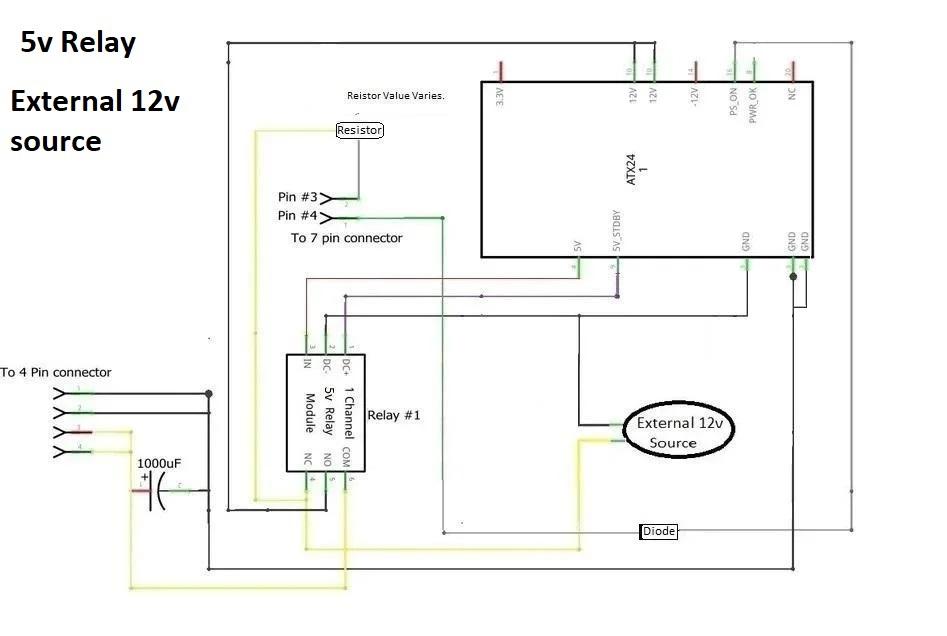

Most issues I find result from low current on the boost converter 12v standby. This is due to a low 5v_VSB rail current or a poor quality boost converter. The following are ways to eliminate the boost converter as an issue:
Eliminate boost converter:
You will need:
- Adapter board from this tutorial
- 12v power supply. 2+ amps. The OEM HP PSU will work (The yellow wires are 12v & black are ground).
- Unplug the ATX PSU from the mains power.
- Disconnect the boost converter from the circuit.
- Connect the ground of the 12v power supply to the ground of your adapter.
- Connect the 12v positive of the 12v power supply to the relay NC terminal.
- Plug in the ATX PSU & the 12v Power supply into AC mains power.
- Press the power button on the HP motherboard
This replaces the boost converter with a steady 12v source. If it boots, the issue is boost converter related.
The quality of boost converters vary greatly. It does not hurt to purchase a few and swap them around to debug.
Eliminate 5v_VSB not enough current:
You will need:
- Adapter board (from this tutorial)
- 5v Cell Phone charger. 2+ amps. Either micro USB or USB-C depending upon the MT3608 converter.
- If using a MT3608 without USB or a XL6009 an old phone charger with end cut off will work.
- Disconnect the 5v_VSB wire between the ATX PSU & the boost converter VIN+ pin.
- Connect the USB cell phone charger to the boost converter via the micro or USB-C cable.
- Plug in the ATX PSU & the USB cell phone charger into AC mains power.
- Press the power button on the motherboard
This replaces the boost converters 5v_VSB input with the 5v from the USB Cell Phone charger. This will help determine if the ATX 5v VSB line current is too low.
If it boots it means the issue is related to the ATX 5v_VSB line.
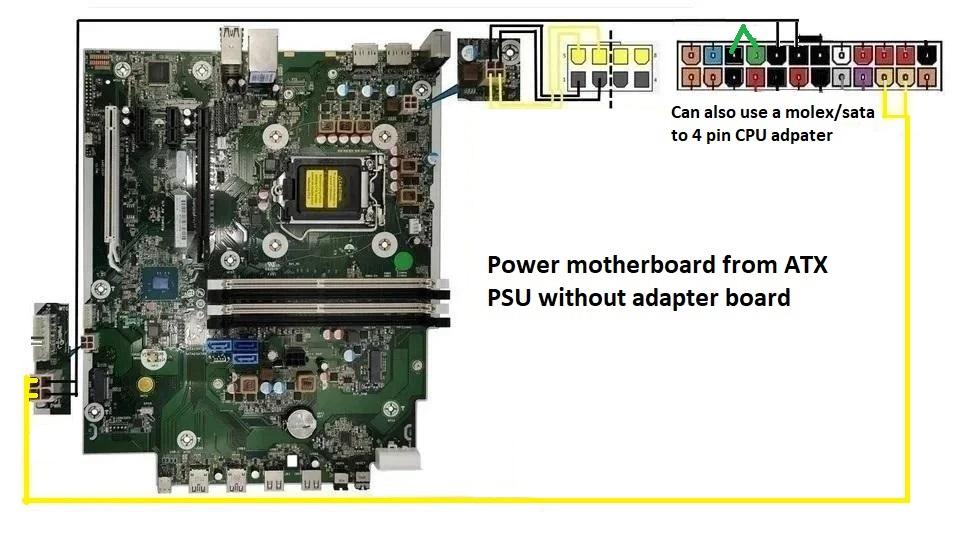
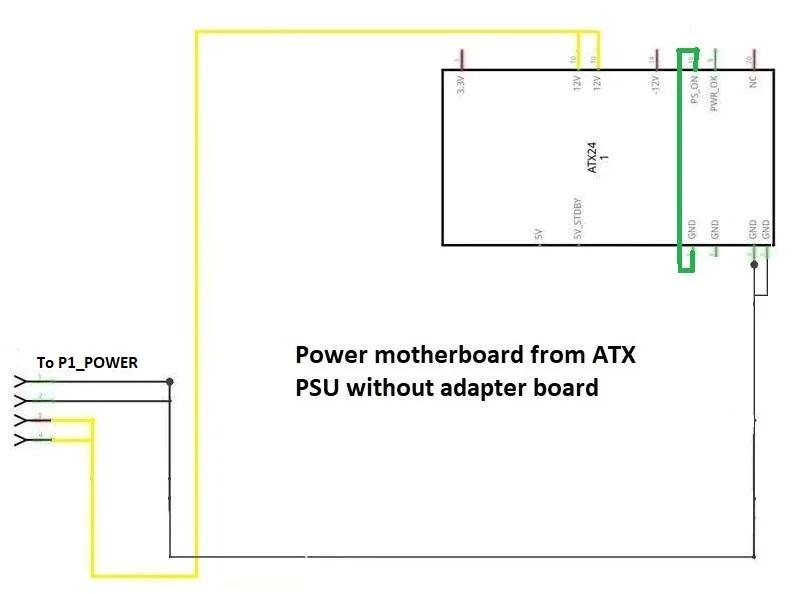
To boot the HP Motherboard from an ATX PSU without an adapter board:
- Plug in the 4 pin (or 8(4+4)) CPU connector to PWRCPU connector.
- Connect 12v & GND lines from the ATX PSU to the P1_Power connector
- Connect the ATX PS_ON & GND with a jumper.
- ATX PSU will always be on. Needs to be unplugged to power off. HP motherboard should work as intended asides from sleep & hibernate functions.
What Resistor for PWR_ID?
Thank you to user Kapuninja for your submission on using a resistor for the PWR_ID pin. This is how the OEM supplies work.
Below are some power supply models & their corresponding resistor values. The resistor may vary depending on PSU. If so please comment so I can add it to the list.
HP PSU Model: OEM Resistor Code: OEM Resistor Value: Value Tested With:
D16-180P2A 57D 383K ohm 330K ohm
D19-180P1A 86D 786K ohm 750K ohm
PA-1181-3HK (L70044-004) -- 766K ohm, 750K ohm
HP Z2 G4 PC was confirmed working with a 100K ohm resistor. PSU model is unknown.
HP Elitedesk 805 confirmed working with 750K ohm resistor. PSU model (L70044-004)
To find your resistor value without PSU disassembly:
- Disconnect HP PSU from AC main power
- Disconnect all HP PSU connectors from motherboard
- Stick a multimeters positive(red) probe into one of the two yellow wire plugs on the PSU P1_PWR plug.
- Press the negative(black) multimeter probe against the PWR_ID (grey) pin on the PSU PWRCMD connector.
- Set the meter to 2M
- Read the value. Iread .378 for my power supply.
- Multiply your value by 1 Million (1,000,000). I calculated 378,000 (378K)
- Find the closest resistor value. Visit: https://neurophysics.ucsd.edu/courses/physics_120/resistorcharts.pdf
- That is the resistor value you need. There is some tolerance with values required.
I read a value of 378K ohm. The closest available is 390K. I had a 330K on hand and it worked fine.
Alternatively, you can try connecting the ATX PWR_OK & HP PWR_ID pins directly. These are different voltages, so be careful.
Downloads
Some Ideas & Concepts
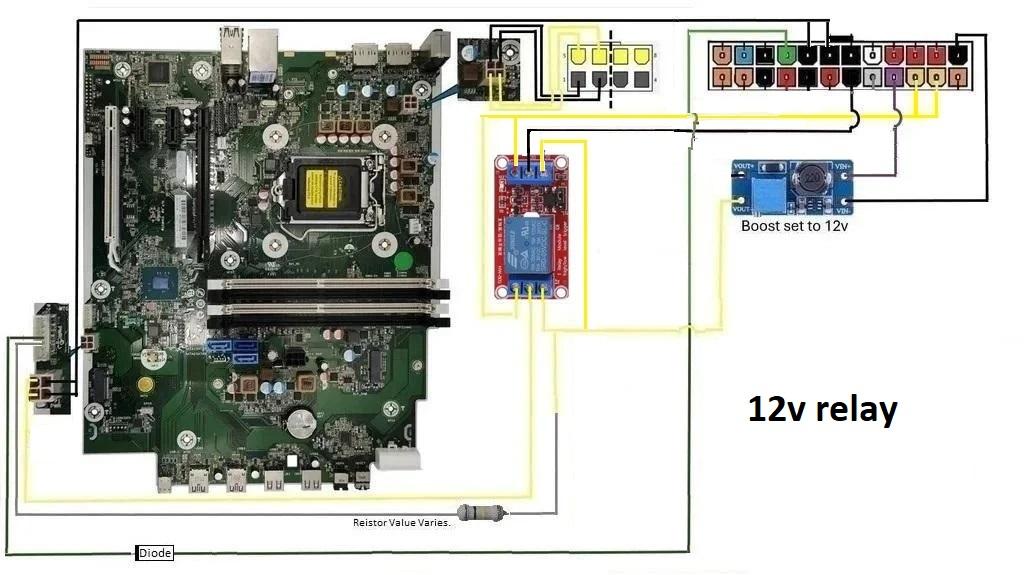

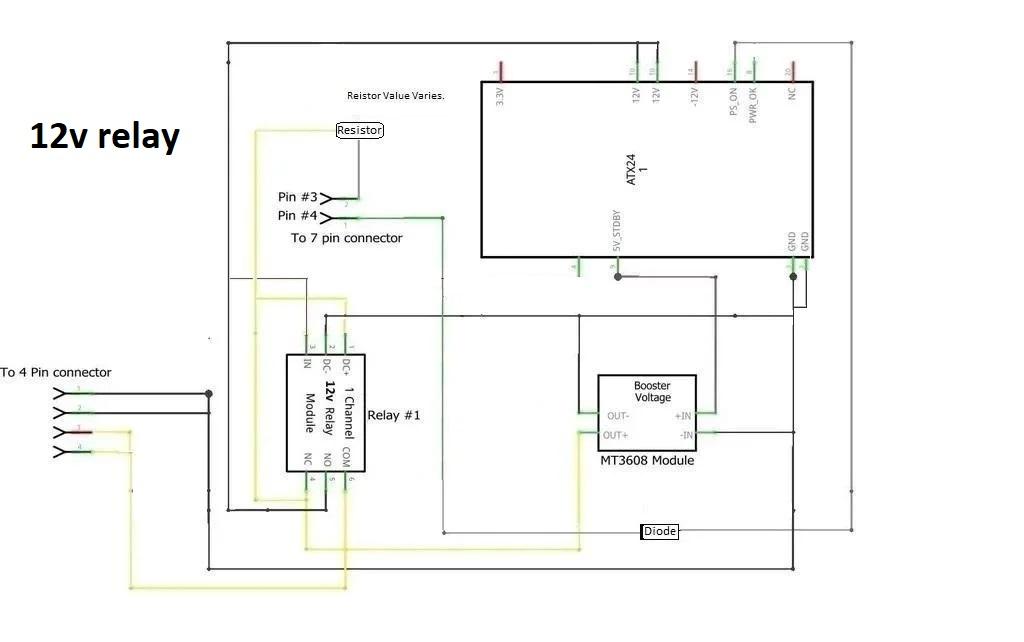
- I designed my adapter to be compact & mount out of the way. You can design yours however.
- The Molex & Sata wires from the ATX PSU can be used for storage drives eliminating the need for HP's proprietary cable.
- Feel free to cut off the extra 10 unused pins on your adapter.
- A 4 pin CPU extension cable can be swapped in instead of using & repining the 14 pin connector:
- Cut the female end of the CPU extension cable off
- Splice the CPU extension yellow wires to the 2 orange/yellow ones on the female 24 pin ATX.
- Splice the CPU extension black wires to the 2 black ones on the female 24 pin ATX.
- A 12v relay can be used instead of 5v:
- Do NOT connect the red 5v line from the 24 pin ATX female connector to the relay module IN pin.
- Connect a 12v line from the 24 pin ATX female connector to the relay module IN pin.
- Do NOT connect the relay modules DC+ pin to the boost converts VIN+.
- Connect the boost converter OUT+ to the relay modules DC+ pin. A jumper from the relay module NC to DC+ pins will work.
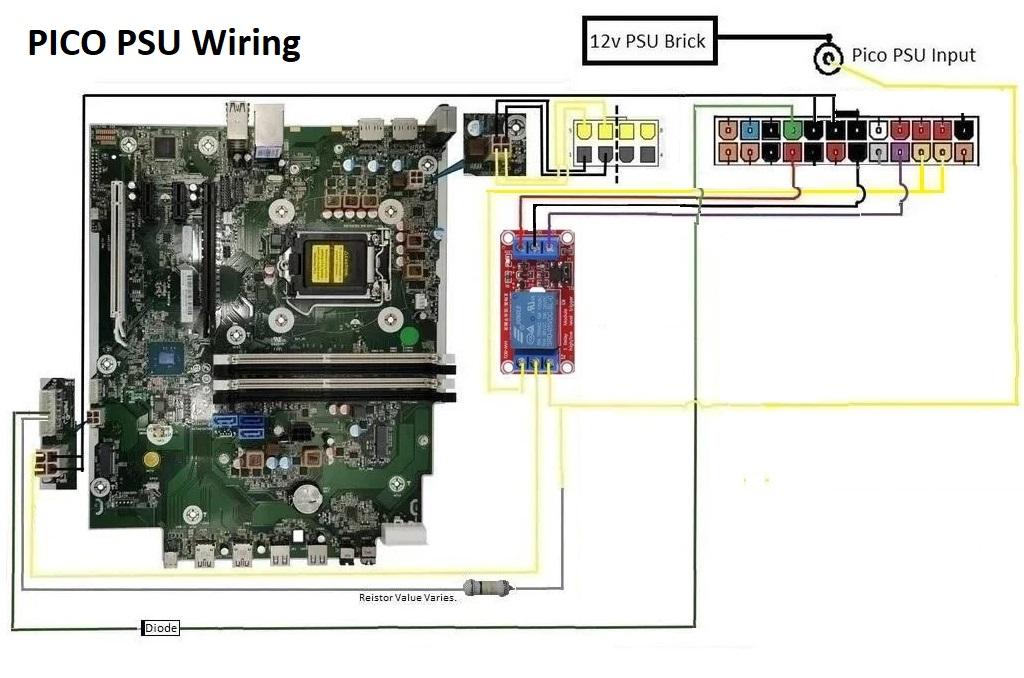
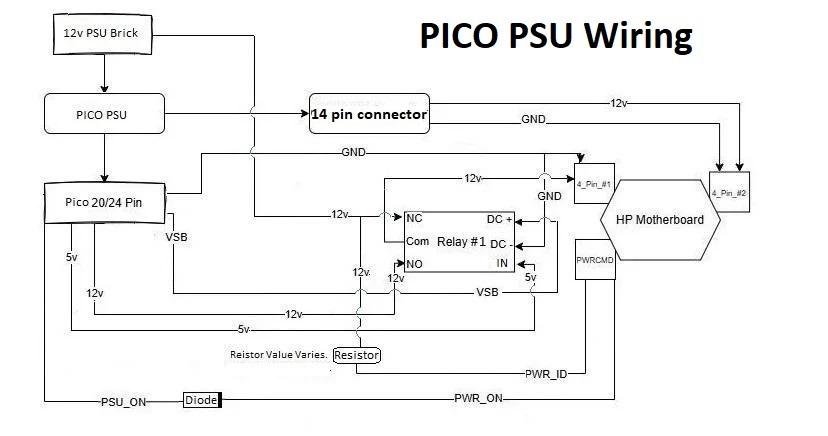
Pico PSU:
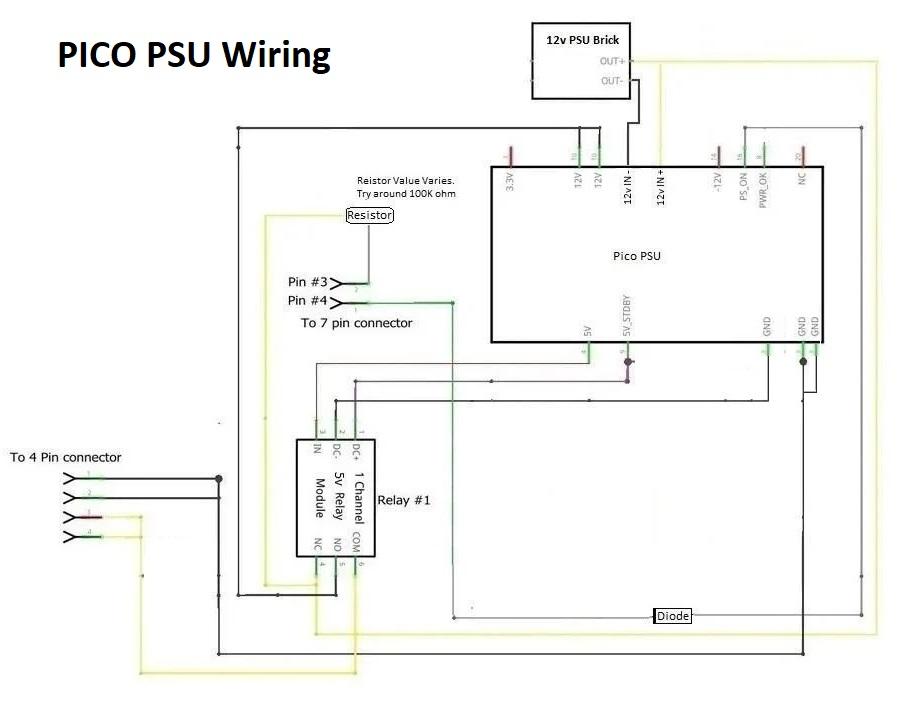
A PicoPSU can be used. Make the adapter according to this guide except instead of a boost converter connect the 12v input from the PicoPSU to the relay modules NC pin. Great for a PSU replacement without modifying the PC case.
Thanks To
Many images were taken by me. Those that were not are from the following sources:
ATX PSU:
https://www.computeralliance.com.au/power-supplies
HP White Desktop:
https://www.hp.com/us-en/shop/pdp/hp-pavilion-desktop-tp01-3025t-bundle-pc
HP Elitedesk:
https://www.amazon.com/HP-EliteDesk-800-G3-DVD-Writer/dp/B01N27S6NF
Dupont Wires:
https://www.rexqualis.com/product/120pcs-multicolored-dupont-wire-40pin-male-to-female-40pin-male-to-male-40pin-female-to-female-breadboard-jumper-wires-for-arduino-raspberry-pi-2-3/
Solder Iron:
https://www.temu.com/8pcs-digital-display-80w-electric-soldering-iron-kit-180-450-degree-adjustable-adjustable-temperature-button-for-electronic-diy-kits-with-5-tips-solder-wire-tip-cleaner-g-601099522270700.html
Screw Drivers:
https://i.ebayimg.com/images/g/x1QAAOSwGqtjxGly/s-l1200.jpg
MultiMeter:
https://www.superiorelectric.us/superior-electric-t3000-digital-multimeter-ac-dc-volt-test-volt-ohm-meter-vom
Wire Strippers:
https://www.lowes.com/pd/IDEAL-Wire-Strippers/3370008
3 vs 4 pin fan diagram:
https://www.cgdirector.com/3-pin-vs-4-pin-pc-case-fans/
HP Prodesk 600 G1 Motherboard
https://www.ebay.com/itm/324515357119
HP 7 Pin plug:
https://superuser.com/questions/1713585/how-did-hp-made-their-power-on-bottom-work-with-no-vsb-standby-on-their-pro-29
HP 3 Pin Plug:
https://h30434.www3.hp.com/t5/Desktop-Hardware-and-Upgrade-Questions/Power-Supply-Upgrade-for-an-HP-590-P0033W/td-p/6987299
COMeap 24 pin to 14 pin for Lenovo
https://www.amazon.com/COMeap-Adapter-Braided-Sleeved-Servers/dp/B01M2BKWIK
ATX Pin Removal Tool
https://www.mnpctech.com/products/atx-pin-removal-tool?variant=31369778364482
Resistor Value Chart:
https://neurophysics.ucsd.edu/courses/physics_120/resistorcharts.pdf
Circuit schematics were created in: Fritzing & draw.io.
The original design & circuit layout is 100% original to myself. Pinouts & functionality was discovered by disassembly & probing of the original HP components. No 3rd party was involved.
Questions & Feedback
Hope this has helped out! Please leave a comment with any questions/suggestions. I will do my best to help.
If you know models of HP Motherboards & PSU's this adapter works with please comment so I can add them to the list.
If making one of these adapter boards is beyond your ability & you are located in the USA drop a comment & I can possibly assemble one for you.