📍Raspberry Pi Arcade Console for TV – Retro Gaming Setup Guide
by TylerDDDD in Circuits > Raspberry Pi
463 Views, 4 Favorites, 0 Comments
📍Raspberry Pi Arcade Console for TV – Retro Gaming Setup Guide

In this project, I’ll show you how to build a Raspberry Pi Arcade Console for your TV using RetroPie.
This DIY retro gaming setup allows you to play classic arcade games, NES, SNES, Sega and more directly on your HDMI TV.
Perfect for retro gaming fans who want a clean, simple and affordable arcade console build.
Supplies

Required Core Components
- 3D printer.. or ask a friend or your school !!
- PLA filament. I like it black to look .. professional
- Raspberry Pi 4 (or 3) , or Raspberry Pi 5, with power supply
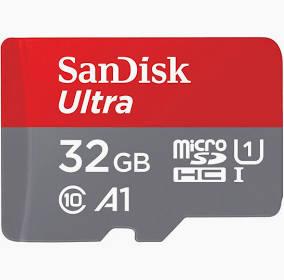
- MicroSD card (16GB or larger)
- USB controllers (2 for multiplayer)
- HDMI cable
- RetroPie software
- Internet connection (for initial setup)
- Game ROMs (legally owned)
- TV with HDMI input
Optional Upgrades
- Retroflag MegaPi Case / Arcade-style enclosure – Professional look
- Passive or Active cooling kit (fan + heatsinks) – Better performance
- Premium Bluetooth Controllers (8BitDo M30 / SF30) – Wireless comfort
- Joystick + Arcade buttons – For true arcade feel
Explanations :
- The Raspberry Pi is a compact, affordable computer popular for educational and hobbyist projects.
- RetroPie is a software platform that transforms a Raspberry Pi into a retro gaming console, capable of emulating classic systems like NES, SNES, and Sega Genesis. It includes tools like EmulationStation for easy game browsing and customization. With RetroPie, users can play thousands of retro games using USB controllers.
Together, they create a portable and customizable solution for nostalgic gaming enthusiasts.
🔧 Setup the Raspberry PI
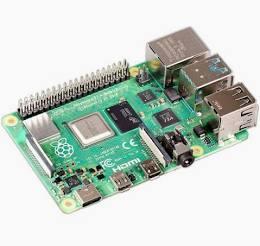
Before diving into RetroPie, make sure you have the Raspberry Pi set up with a working Raspbian OS.
- Download the Raspberry Pi OS:
- Visit the official Raspberry Pi Downloads page and download the Raspberry Pi Imager. Use it to write the latest Raspberry Pi OS to your microSD card.
- Insert the microSD Card:
- Insert the microSD card into the Raspberry Pi.
- Connect peripherals:
- Connect a USB keyboard, HDMI cable to the TV, and plug in the power supply to turn the Raspberry Pi on.
- Network Setup:
- Set up Wi-Fi or connect the Raspberry Pi to the internet via Ethernet for downloading updates.
🌐 Install RetroPie
RetroPie is an emulator software that allows you to play retro games from various consoles. Here’s how to install it on your Raspberry Pi:
- Download RetroPie:
- Go to the official RetroPie website and download the RetroPie image that matches your Raspberry Pi model.
- Burn the RetroPie Image:
- Use Raspberry Pi Imager or a tool like Etcher to write the RetroPie image to your microSD card.
- Boot RetroPie:
- Insert the microSD card into the Raspberry Pi, then power it on. RetroPie will boot into its first-time setup process. This may take a few minutes.
- Configure the Controller:
- RetroPie will ask you to configure a controller. If you’re using USB game controllers, plug them in and follow the on-screen prompts to map the buttons.
📦 Add Game ROMs
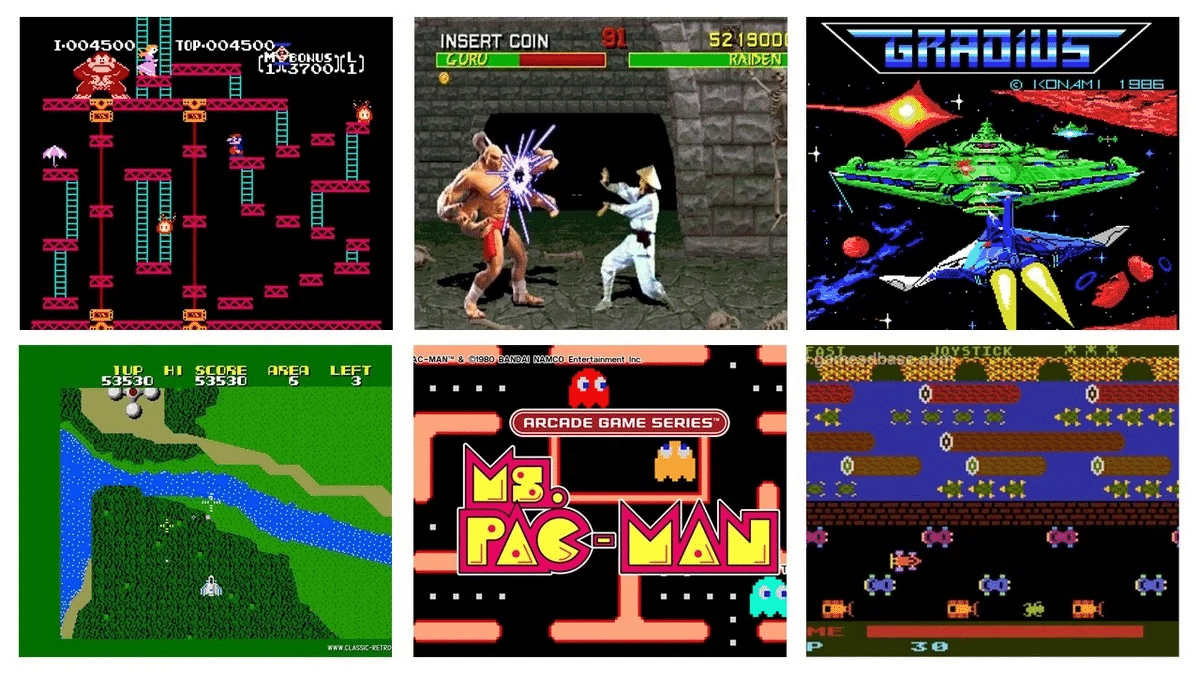
To play games, you'll need ROM files (digital copies of games). You must legally own these games to download and play them.
- Transfer ROMs to Raspberry Pi:
- There are several ways to transfer ROMs to your Raspberry Pi:
- Using a USB drive:
- Plug a USB drive into your Raspberry Pi.
- Navigate to the /retropie/roms/ folder (either via the RetroPie menu or a file manager like WinSCP).
- Copy the ROMs into the appropriate folder for each console (e.g., NES ROMs go into the "nes" folder).
- Network transfer (via FTP or Samba):
- Connect your Raspberry Pi to your network.
- Access the RetroPie network share from your computer using an FTP client or via Windows Explorer (by typing \\retropie in the file explorer).
- Launch RetroPie:
- Once you’ve transferred the ROMs, restart RetroPie. The games should automatically appear in the RetroPie menu.
🧠 Customize Retropie (optional)
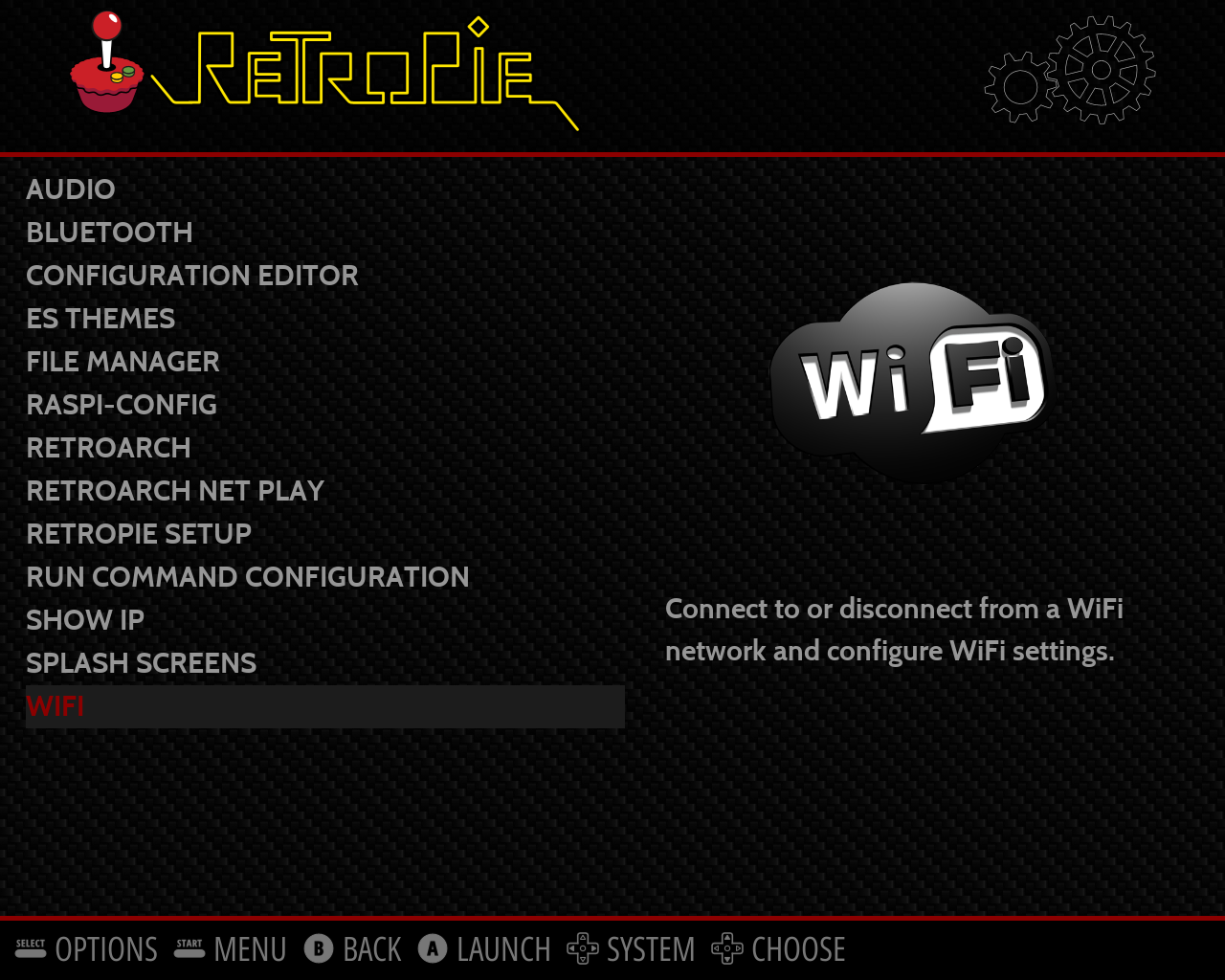
To make your arcade console feel truly vintage, you can customize RetroPie’s interface, settings, and appearance.
- Change the Theme:
- Go to RetroPie settings → UI Settings → Theme. You can choose from a variety of themes, including some that mimic the look of old arcade machines.
- Add Custom Artwork:
- You can add custom artwork, such as game box art or background images, to give it a more nostalgic arcade feel. Simply add images to the respective folders in /home/pi/RetroPie/roms/.
- Configure Advanced Options:
- If you want to tweak game performance (e.g., for faster emulation), go to RetroPie settings and adjust overclocking options or emulator settings.
🚀 Connect to Your TV, Play :)

TV connection :
- HDMI Cable: Plug your Raspberry Pi into your TV using the HDMI cable.
- TV Settings: Turn on your TV and select the corresponding HDMI input to display the RetroPie menu.
Now that everything is set up, you can start playing your favorite retro games :
- Select a Game:
- From the RetroPie menu, scroll through the available consoles and select the game you want to play.
- Multiplayer:
- If you have more than one controller, you can connect multiple players and enjoy local multiplayer. Just ensure both controllers are recognized in the RetroPie settings.
🏁 Why This Build Beats Generic Consoles
Most store-bought retro consoles are closed systems with limited games and no customization.
With this DIY Raspberry Pi Arcade Console, you get:
- Full access to RetroPie + thousands of classic titles
- Easy updates, customizable controller mapping
- Ability to upgrade hardware or add features like Bluetooth controllers
- A project you can build, learn and share
If you enjoyed this build, save this project, share your photos and check out the parts list above for the best accessories — it helps me create more guides like this!
Keywords
Raspberry Pi
RetroPie
Arcade
Retro Gaming
Emulation
MAME
DIY Console
HDMI
TV Gaming
Gaming Setup
Retro Console
Raspberry Pi 4