Vision Tracker | AI-Powered Smart Tracking Camera
by Mukesh_Sankhla in Circuits > Cameras
541 Views, 8 Favorites, 0 Comments
Vision Tracker | AI-Powered Smart Tracking Camera
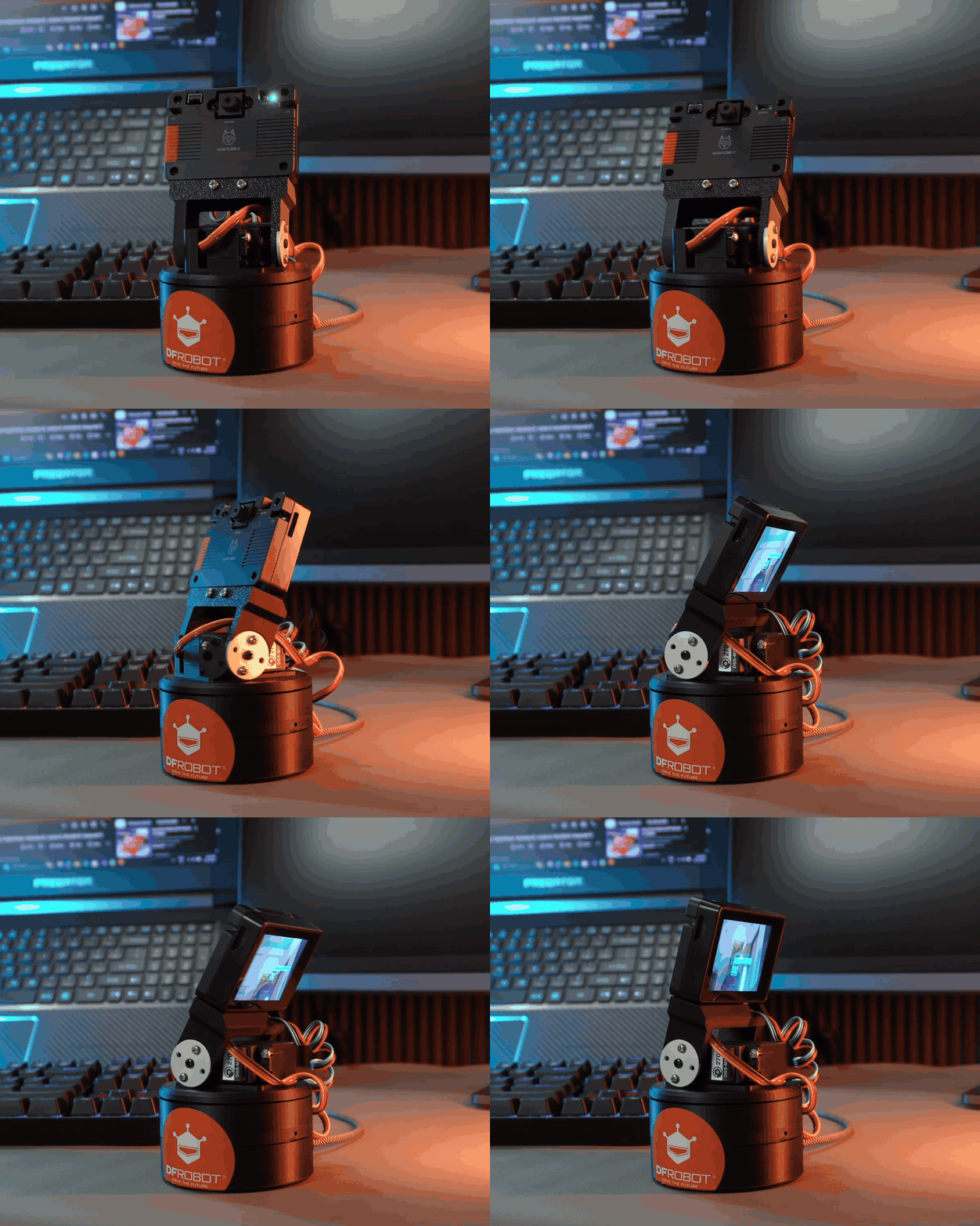

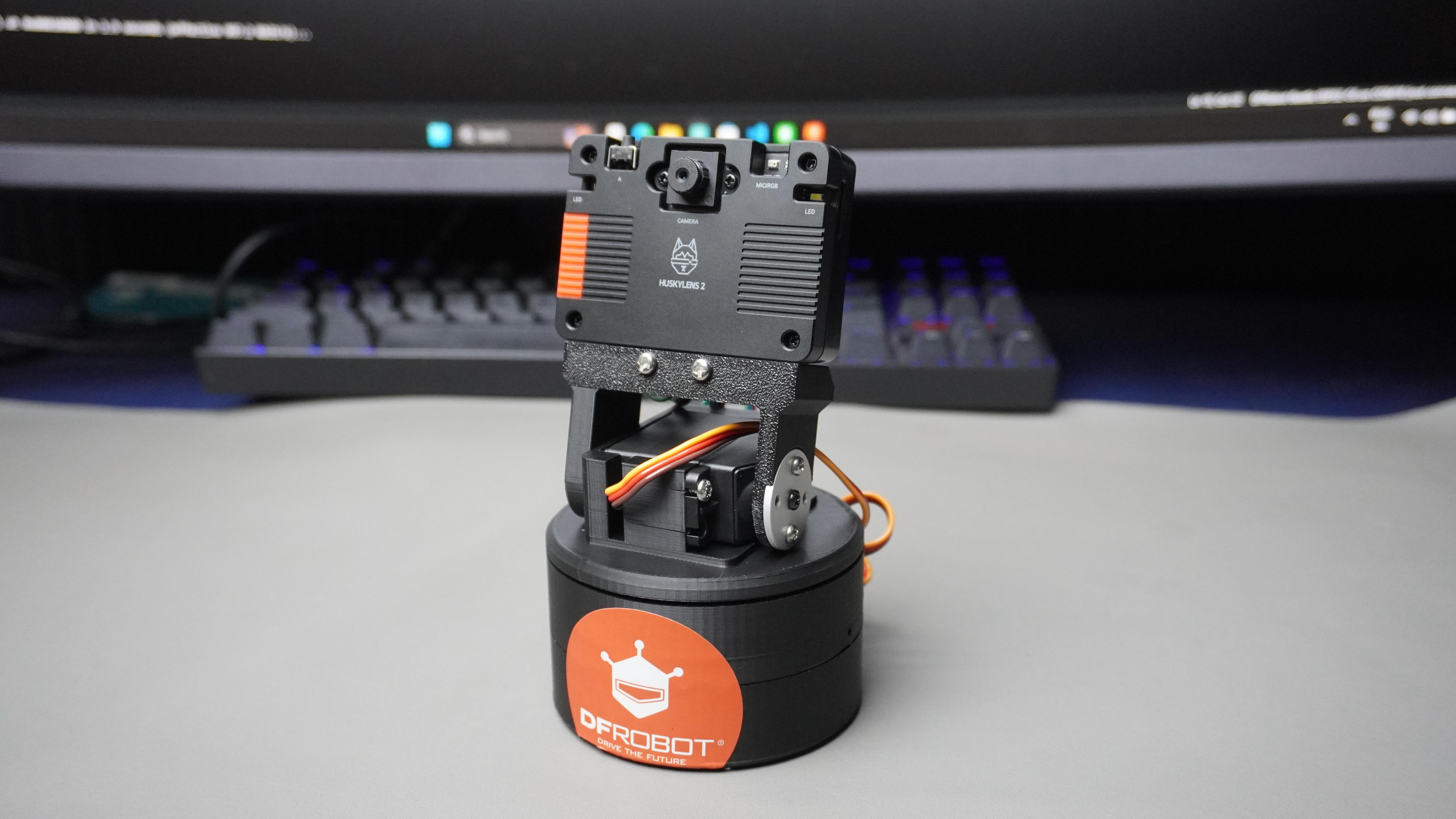
In this project, we’re going to build a smart pan-and-tilt tracking system for the HuskyLens V2 — turning it into an interactive AI vision module that can physically follow what it sees.
The HuskyLens V2 is already a powerful standalone AI camera with built-in models for face recognition, object tracking, hand gesture detection, pose estimation, and more. But what if it could do more than just detect? What if it could react and move in real time?
That’s exactly what we’re building.
Using two servo motors and an ESP32-C6, we’ll create a smooth pan-and-tilt mechanism that allows the HuskyLens V2 to physically track a target. As the AI detects a face, object, hand, or pose, the ESP32-C6 reads the tracking data and adjusts the servo angles accordingly — keeping the subject centered in the frame.
This project extends the capabilities of HuskyLens beyond simple detection and brings it into the physical world. Instead of just identifying objects, the system actively follows them — opening possibilities for:
- Smart surveillance systems
- Interactive robots
- Auto-tracking cameras
- AI-powered turrets
- Smart classroom or lab demonstrations
By the end of this tutorial, you’ll have a fully functional AI-powered tracking camera system that combines embedded systems, servo control, and real-time machine vision — perfect for makers, robotics enthusiasts, and AI explorers.
Let’s get started!
Supplies


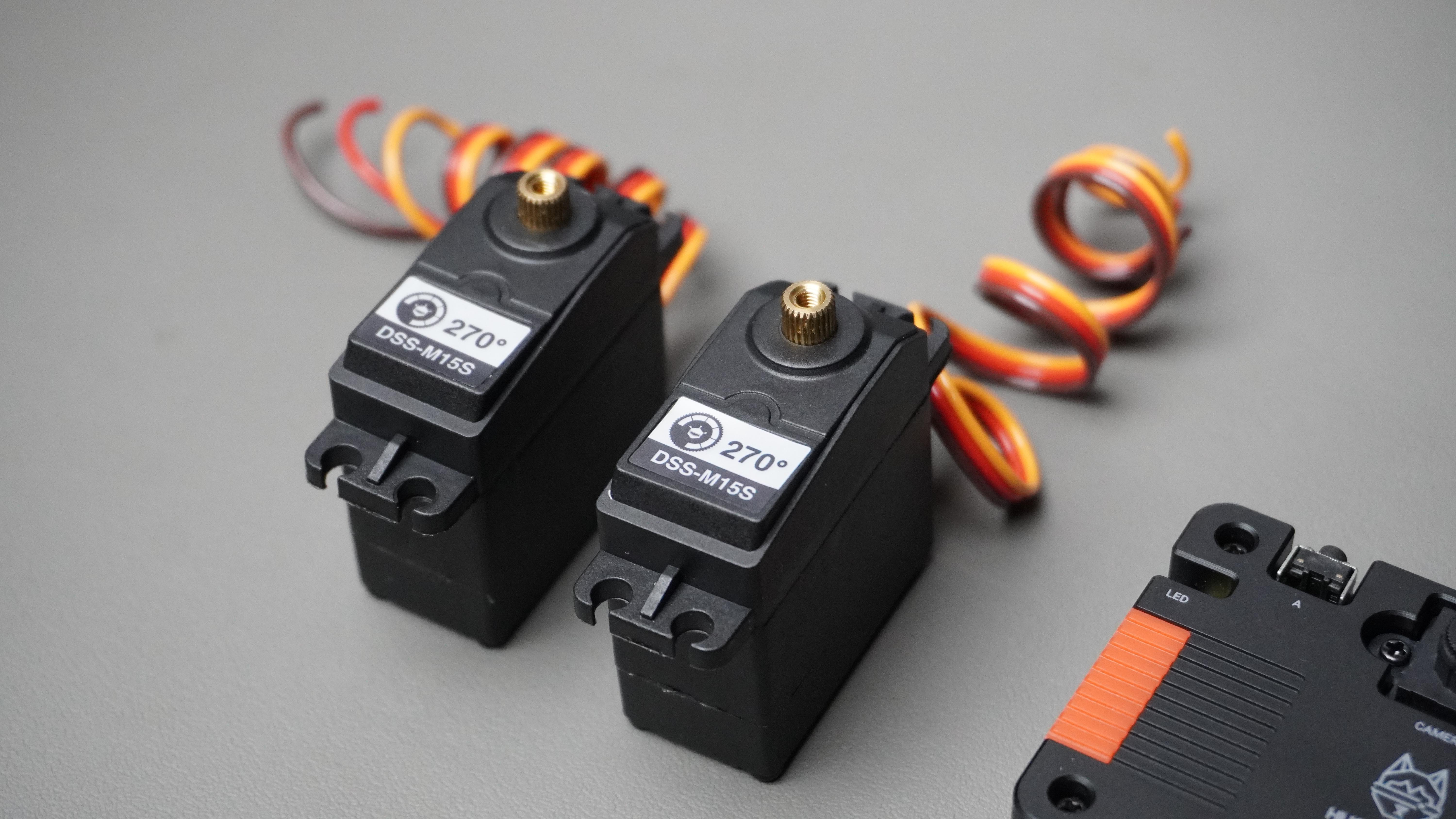
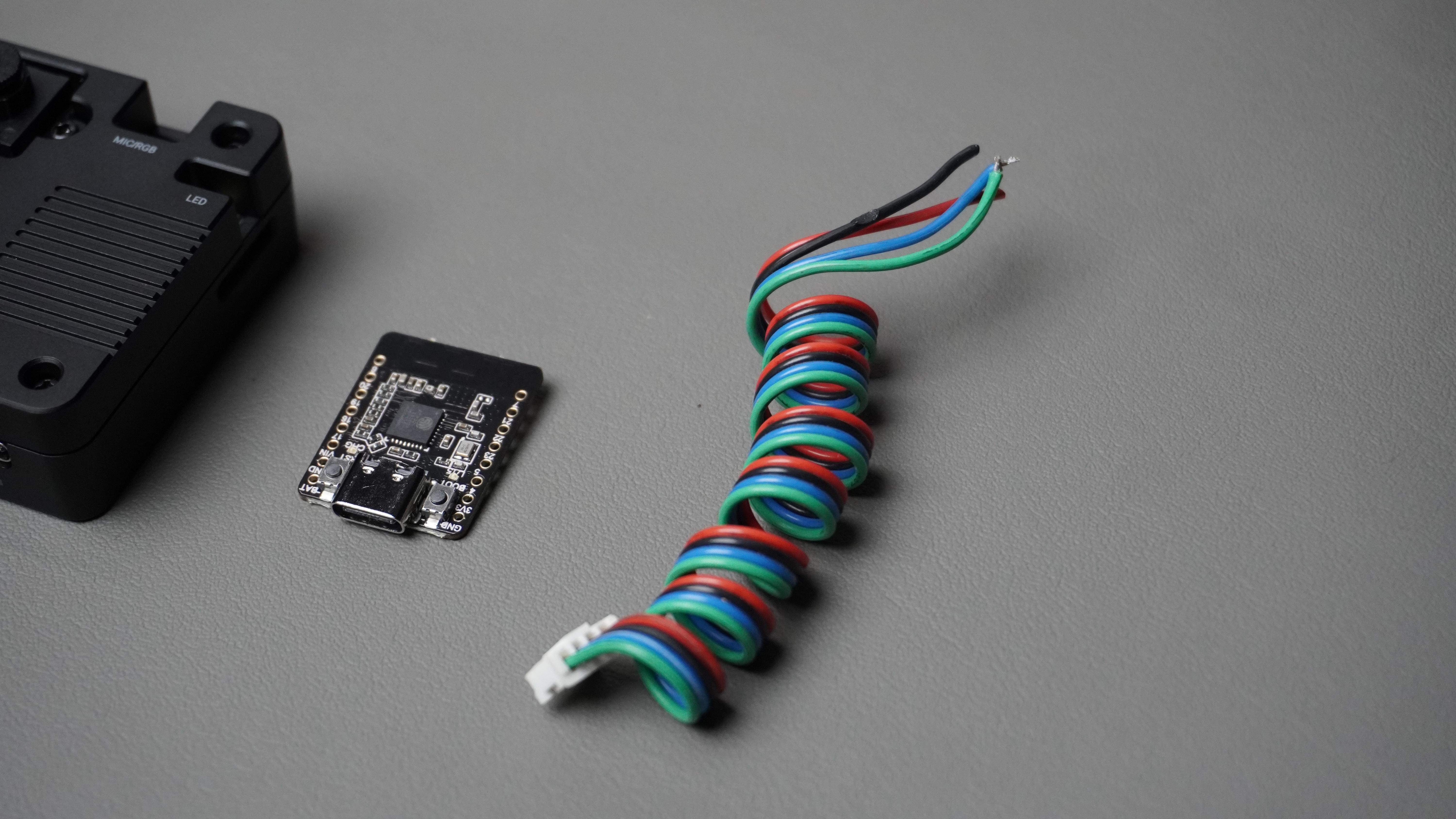

1x HuskyLens V2 — Vision AI camera module
1x ESP32-C6 — Microcontroller for servo control and HuskyLens communication
2× DSS-M15S Servo Motors — For pan and tilt motion
About HuskyLens V2
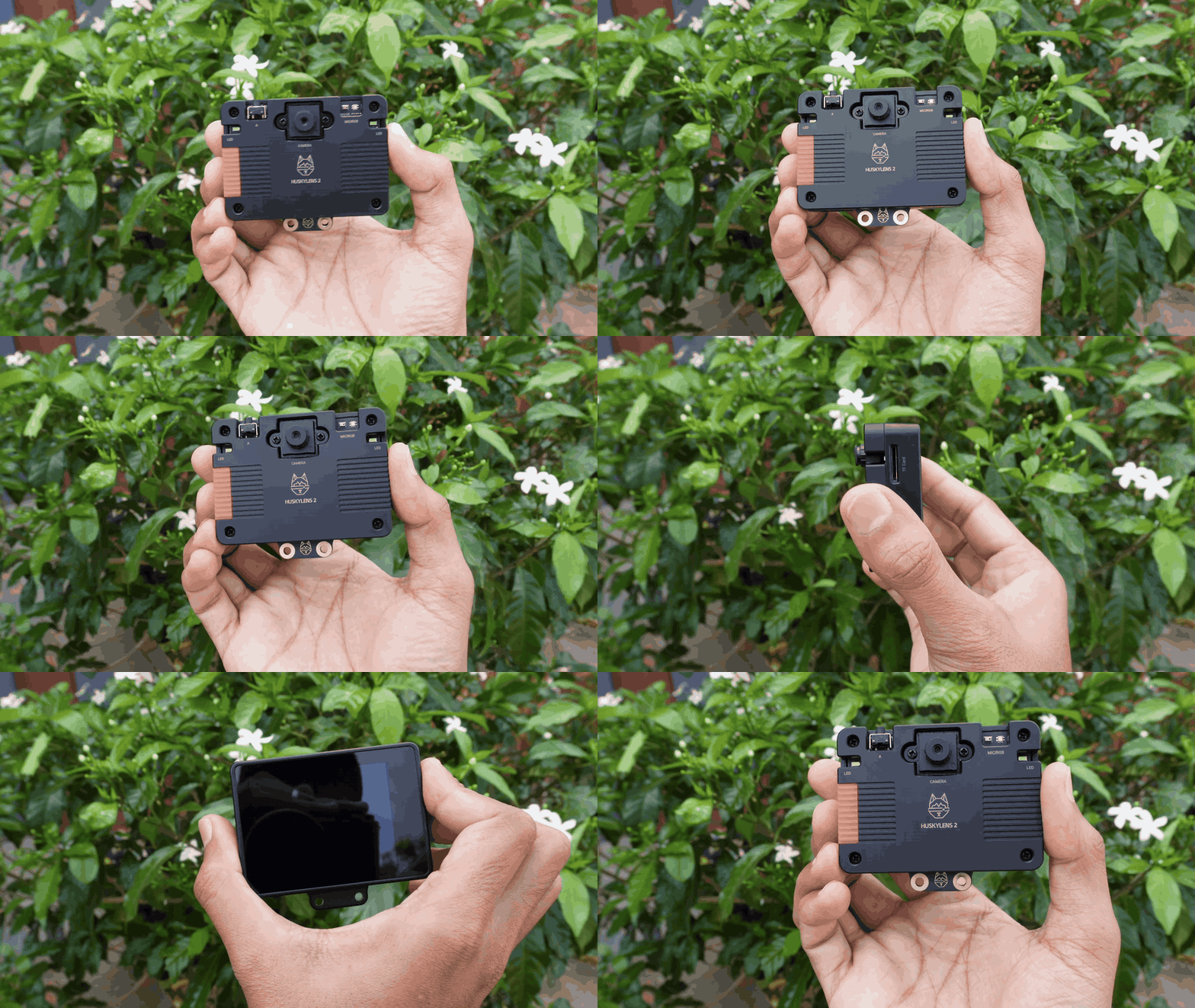

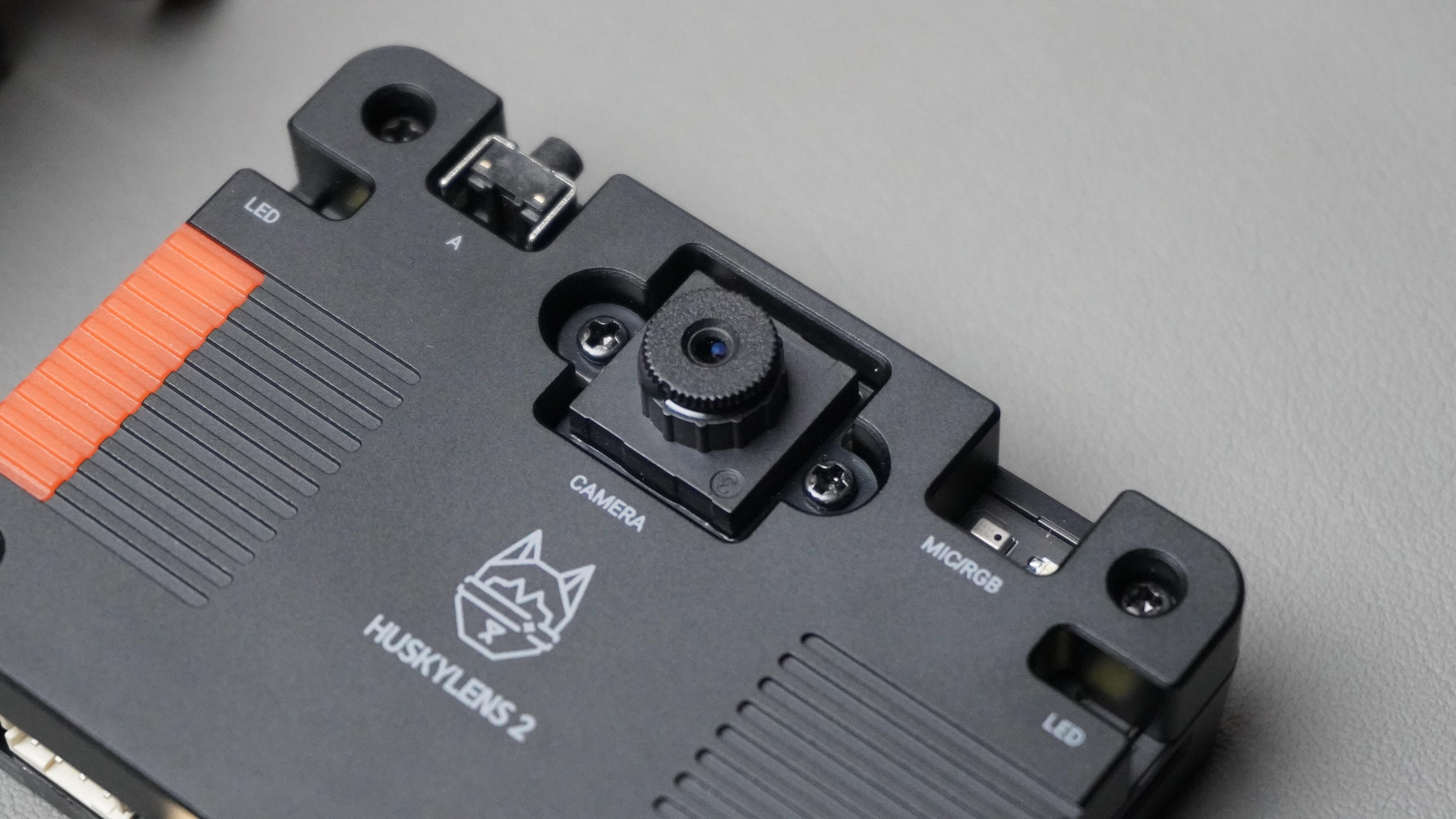
The HuskyLens V2 is an embedded AI vision module designed for makers and projects that require real-time visual intelligence. Unlike traditional cameras that simply capture images, HuskyLens V2 processes vision tasks on-device using its built-in AI capabilities — there’s no need for an external computer or cloud connection.
Key Technical Features
- Dual-core Kendryte K230 Processor – Provides dedicated AI acceleration with up to 6 TOPS performance for efficient edge inference.
- 1 GB LPDDR4 Memory – Ensures smooth model execution and real-time processing.
- 8 GB eMMC 5.1 Storage – Stores models, configurations, and logs without external storage.
- 2 MP Camera Sensor – High-quality image capture optimized for AI detection and tracking.
- 20+ Built-in AI Models – Ready-to-use vision algorithms, including:
- Face detection and recognition
- Object tracking
- Hand gesture detection
- Pose estimation
- Color detection
- Tag recognition, and more
- Custom Model Support – Ability to train your own AI models and deploy them directly to the device.
- Interactive Touch Display – 2.4″ touchscreen UI for easy configuration and real-time feedback.
- Communication Interfaces – USB-C for direct connection, UART/I²C for microcontroller integration, and optional Wi-Fi module support.
HuskyLens V2 runs AI inference locally — meaning video frames are processed on the device itself using optimized neural network models. When a target (e.g., face or object) is detected, HuskyLens calculates positional data such as X/Y coordinates relative to the frame center. This data can be shared with a microcontroller like the ESP32-C6 over UART or I²C, enabling real-time motion control — which is exactly what we’ll use for this pan-and-tilt tracking setup.
CAD & 3D Printing


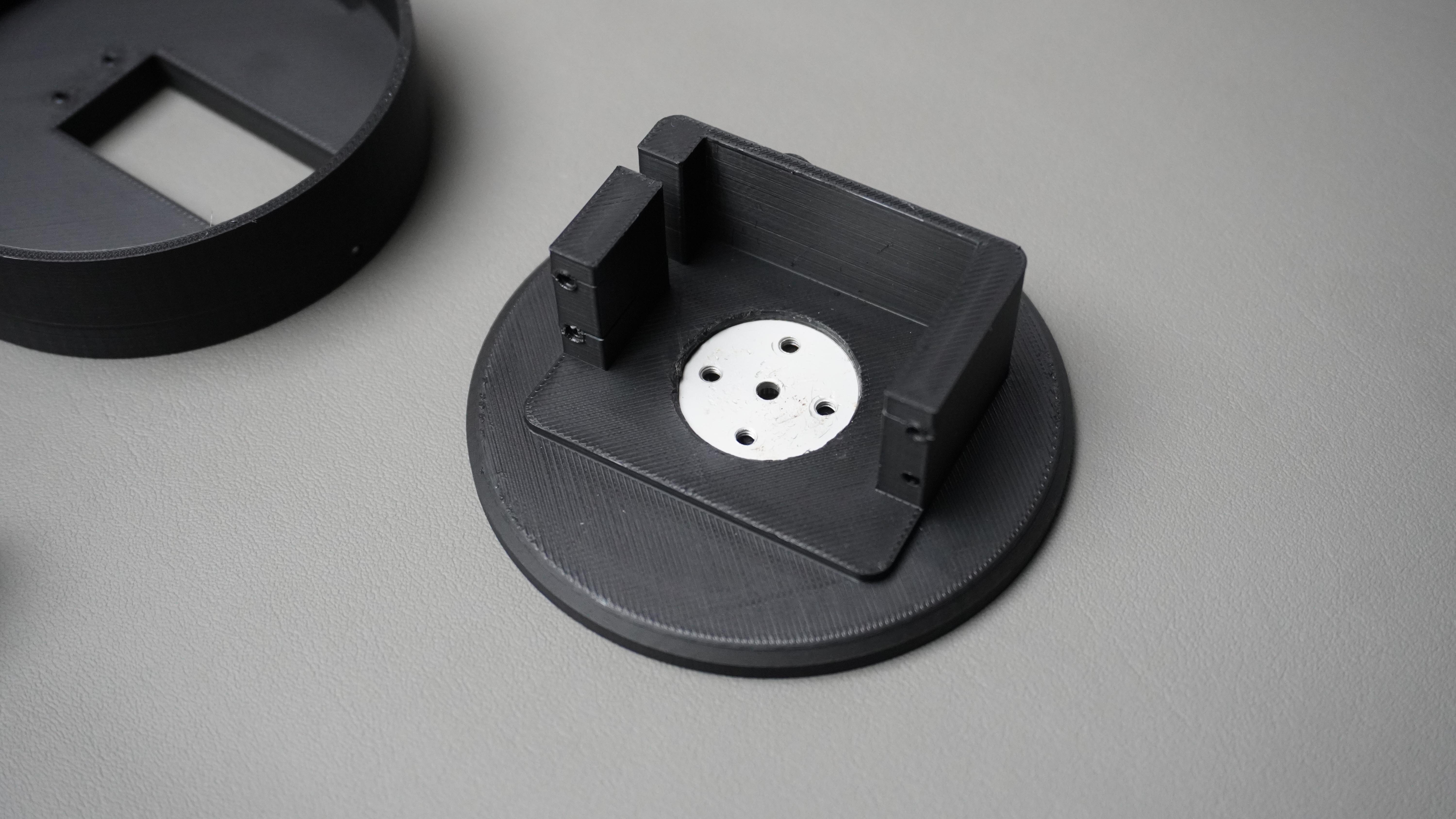


To build a clean and compact tracking system, I designed the complete pan-and-tilt assembly in Autodesk Fusion 360. The design focuses on stability, proper weight distribution, and easy assembly while keeping wiring neatly managed inside the structure.
The mechanism consists of four main parts:
Part 1 – Pan Motor Mount
- This part securely holds the pan servo motor in place. It ensures proper alignment and provides a rigid base so the entire system rotates smoothly without wobble.
Part 2 – Pan Base
- The pan base attaches directly to the pan motor horn. It rotates along with the motor and includes a dedicated mounting provision for the tilt servo motor. This creates the second axis of movement.
Part 3 – Bottom Housing
This is the structural foundation of the system. It serves multiple purposes:
- Houses the ESP32-C6
- Holds the pan motor securely
- Provides internal space to tuck in extra wires for clean cable management
- Includes a precise cutout for the Type-C port of the ESP32-C6 for easy programming and power access
Part 4 – Tilt Arm
The tilt mechanism is designed as a two-part assembly:
- It mounts directly onto the tilt servo horn
- The top section holds the HuskyLens V2, secured using two screws
This structure keeps the camera stable while allowing smooth vertical motion.
All parts were printed on my Bambu Lab P1S using Black PLA.
You can:
- Download the ready-to-print STL files and print them directly
- Or download the original Fusion 360 file to modify dimensions, adapt to different servos, or customize the mounting system based on your requirements
Pan Motor Assembly


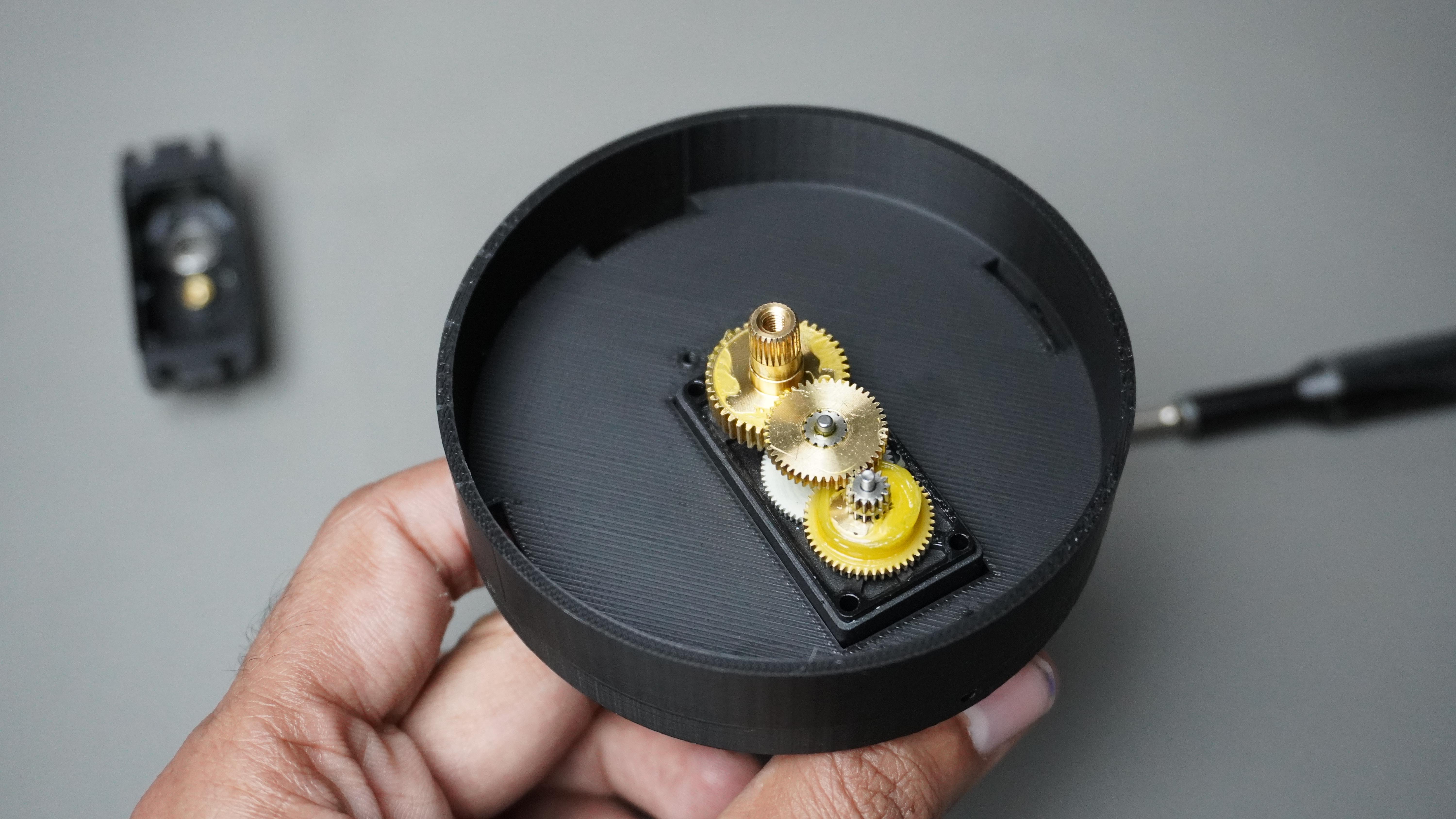

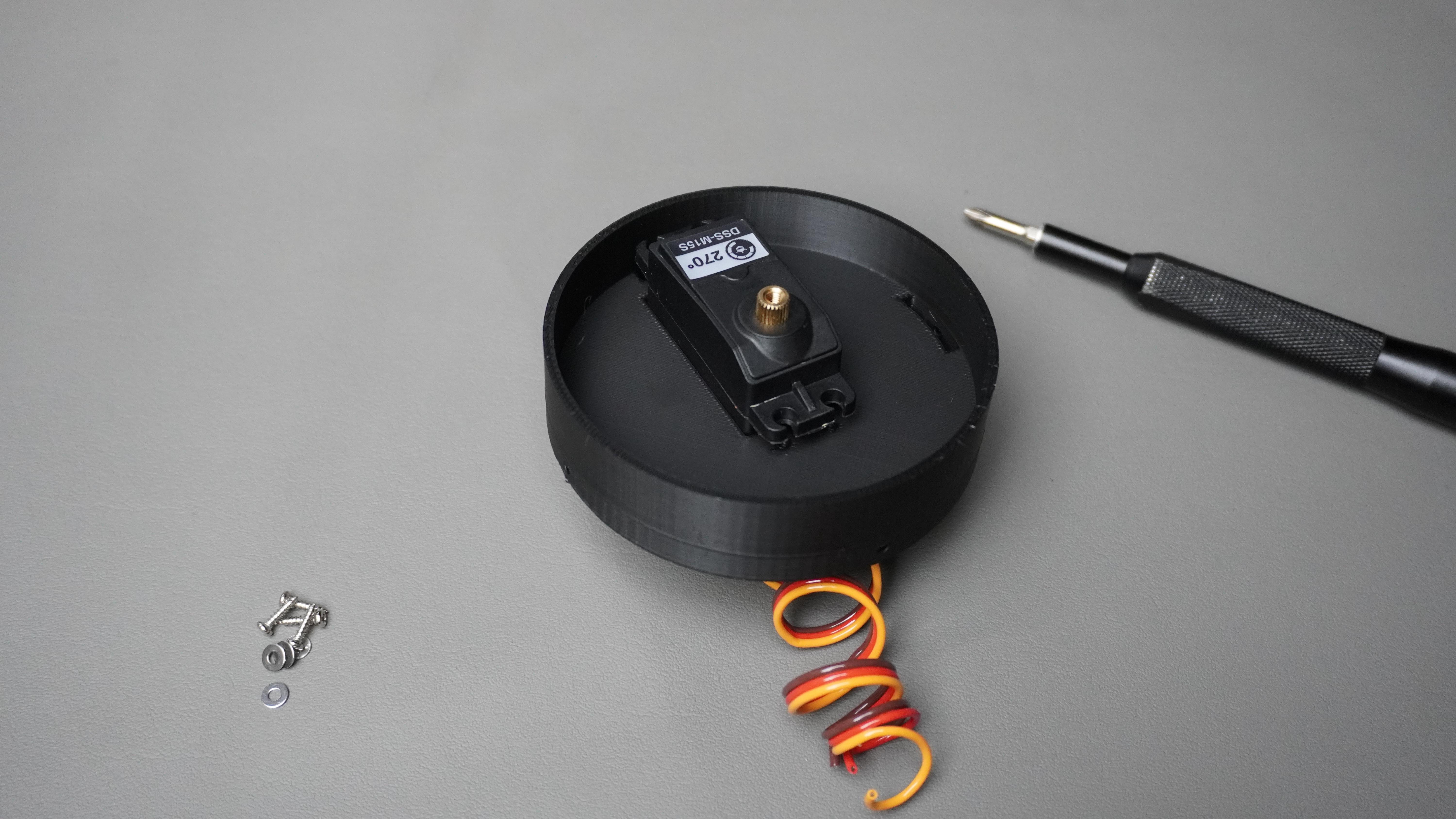
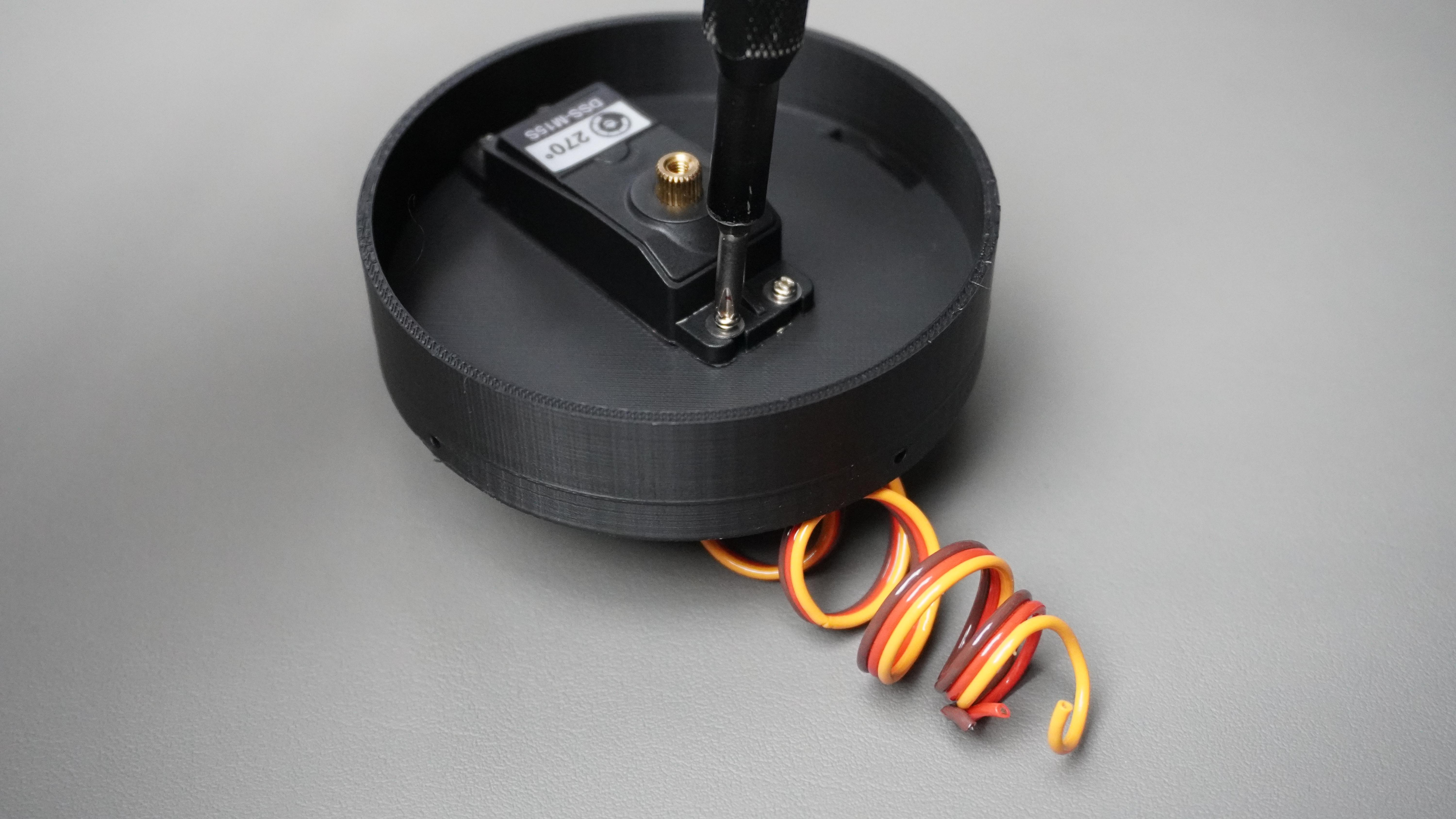
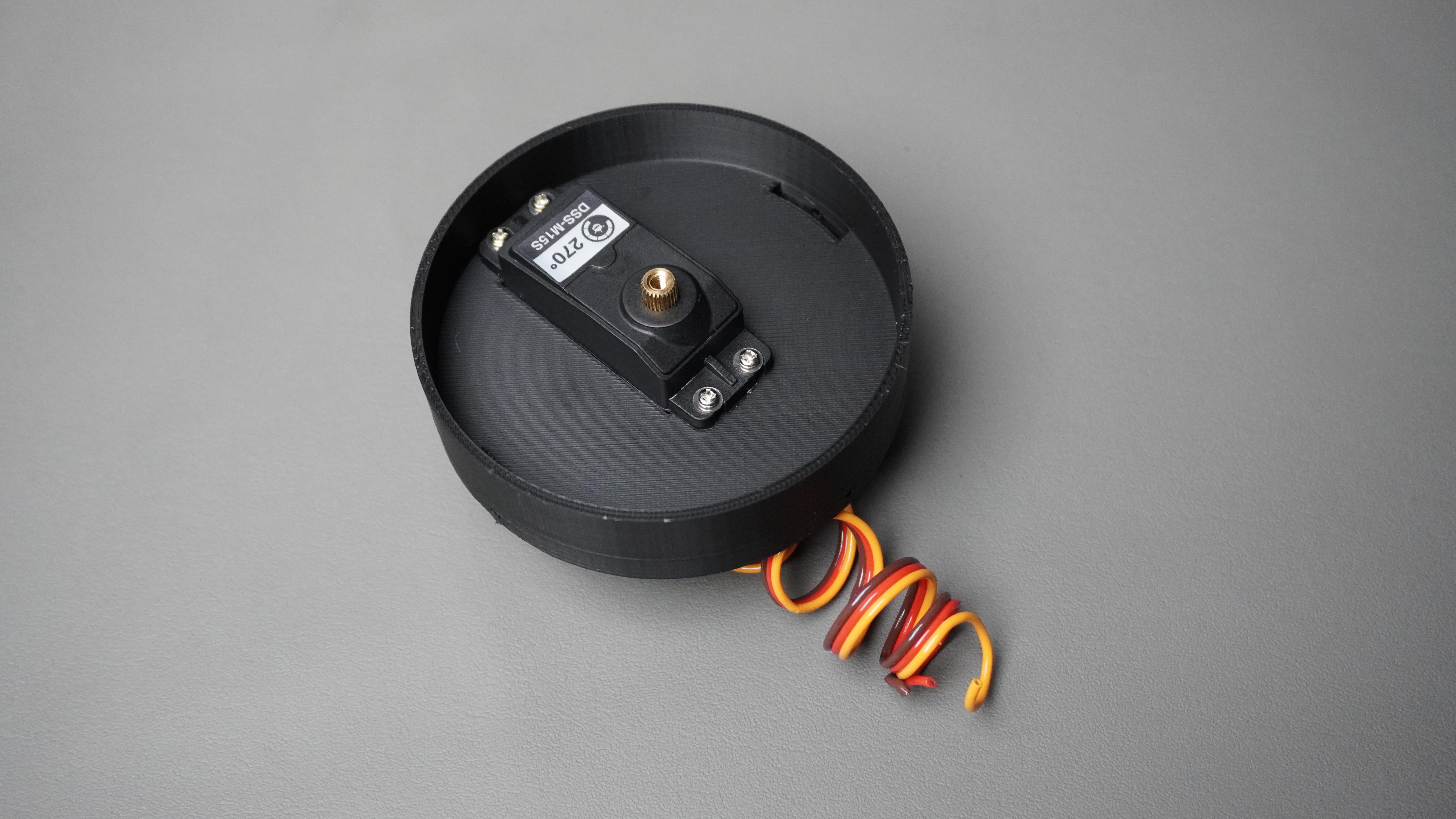
- Take Part-1 (Pan Motor Mount) and one DSS-M15S servo motor.
- Remove the small screws from the servo casing
- Insert the servo motor into Part-1 so it sits firmly in the mounting slot.
- Reinstall and tighten the screws to close the servo casing.
- Use 4x mounting screws to secure the servo firmly to Part-1.
- Check that the servo is properly aligned and does not move inside the mount.
Circuit Connection
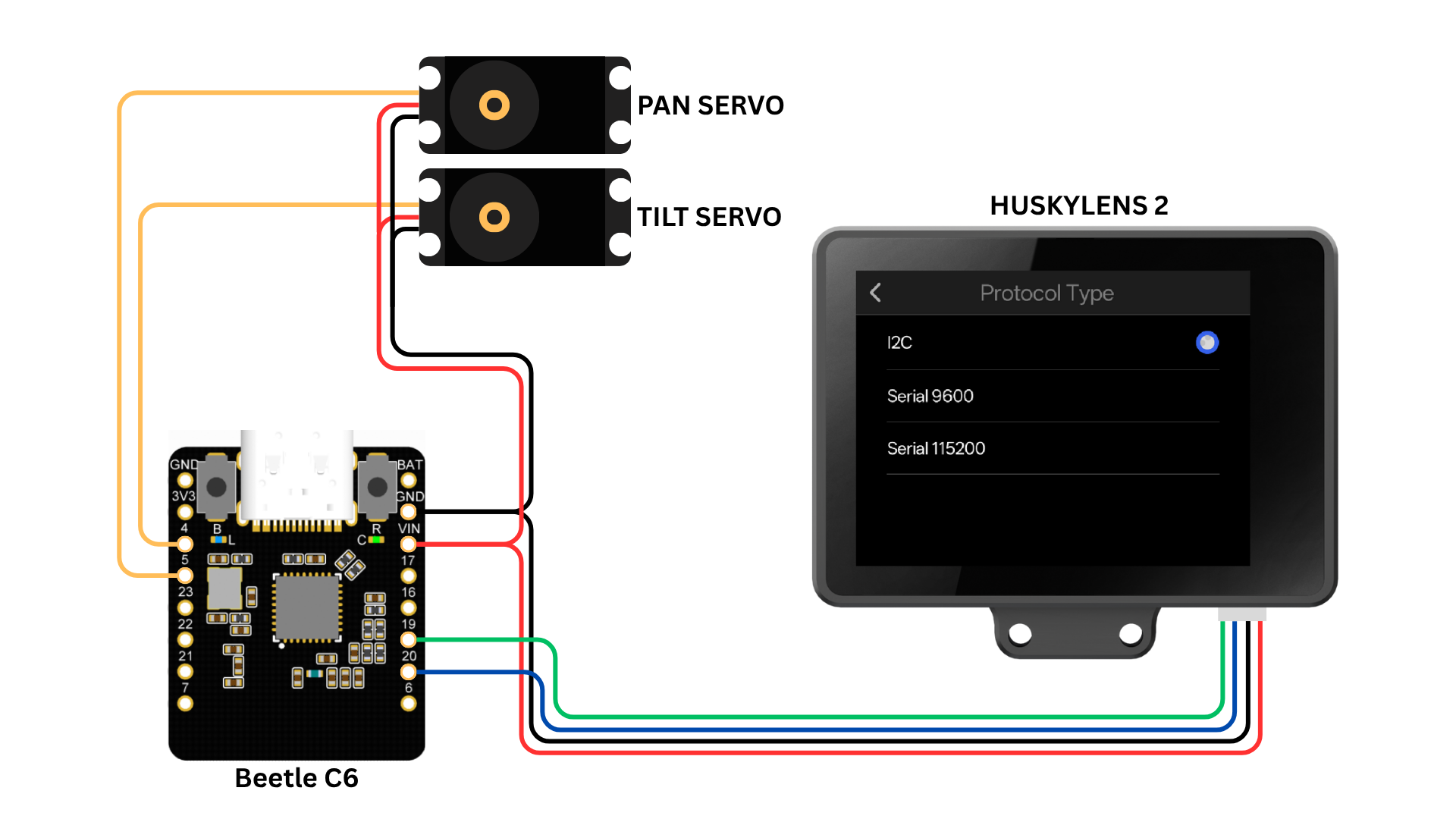


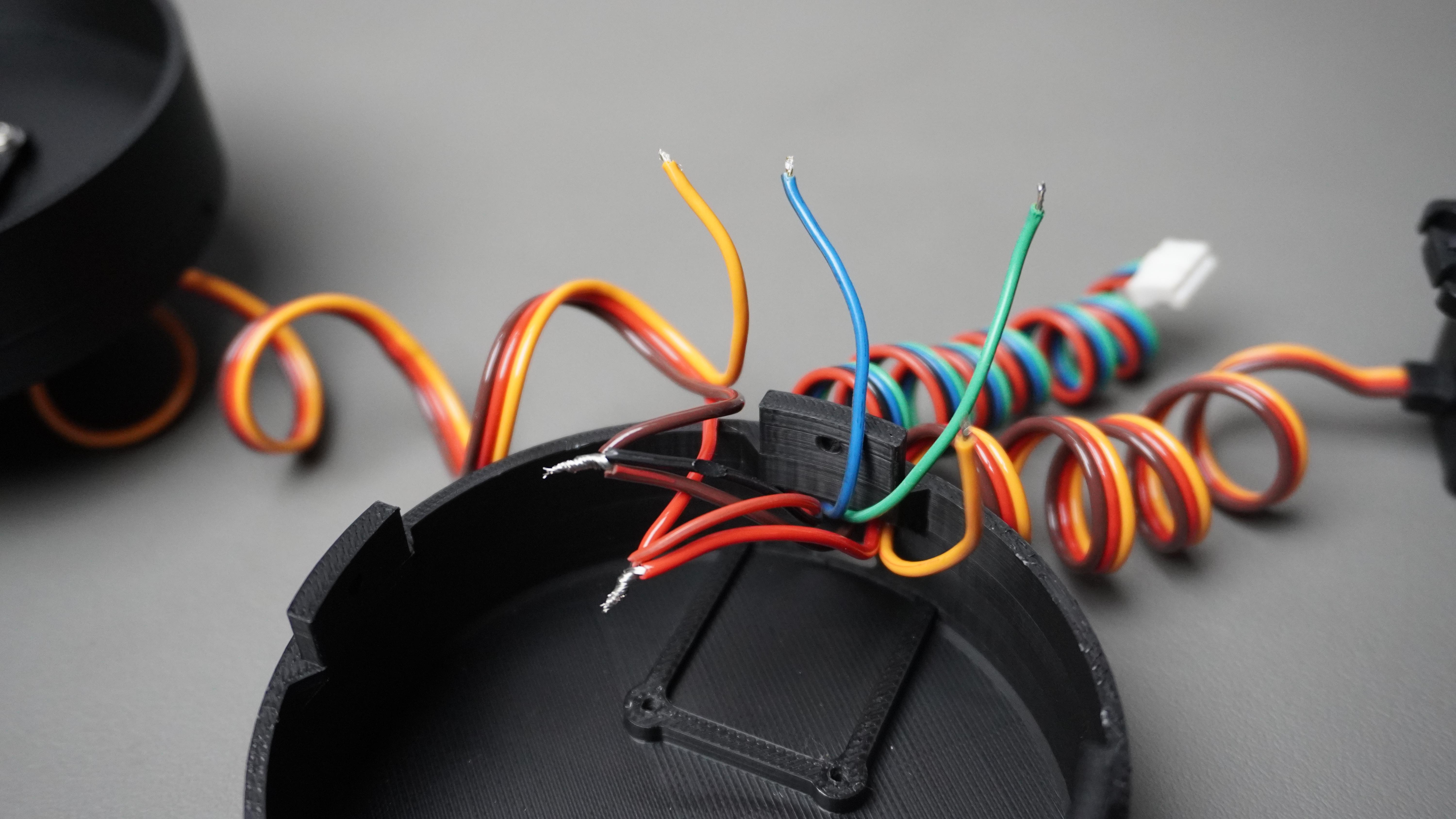

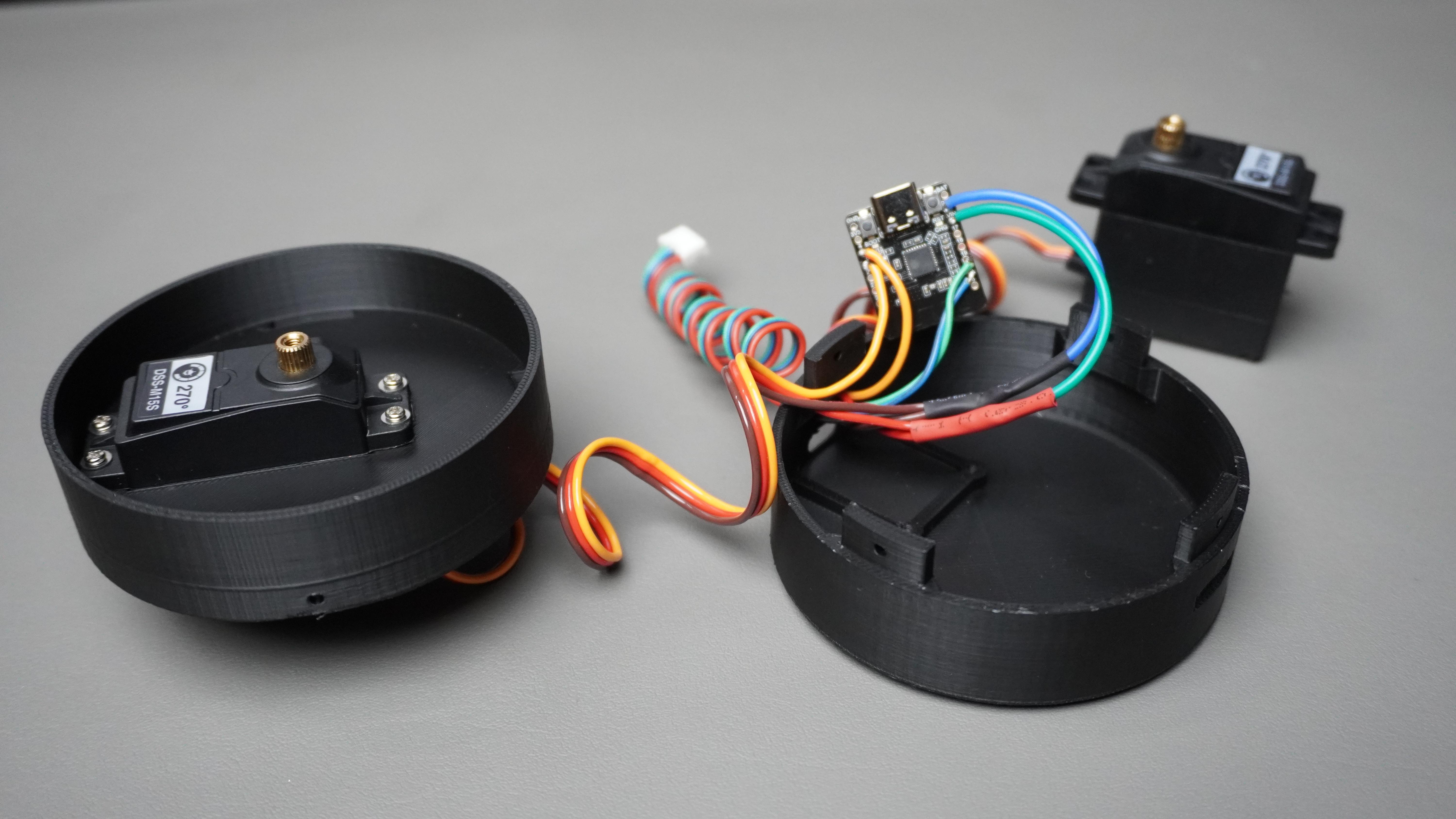

Now let’s connect everything together as shown in the diagram.
1. Servo Connections (Pan & Tilt)
Both servos have three wires:
- Red → VCC (5V / VIN)
- Black/Brown → GND
- Yellow/Orange → Signal
Pan Servo
- Signal → GPIO 5 of the Beetle ESP32-C6
- VCC → VIN
- GND → GND
Tilt Servo
- Signal → GPIO 4 of the Beetle ESP32-C6
- VCC → VIN
- GND → GND
Important: Make sure all GNDs are connected together (ESP32 + both servos + HuskyLens).
2. HuskyLens V2 Connection (I2C Mode)
On the HuskyLens V2:
- Go to Settings → Protocol Type
- Select I2C
Now connect using the 4-pin Gravity cable:
- Green (SDA) → GPIO 19 (ESP32-C6 SDA)
- Blue (SCL) → GPIO 20 (ESP32-C6 SCL)
- Red (VCC) → VIN
- Black (GND) → GND
3. Power
- The ESP32-C6 can be powered using the Type-C port.
- VIN powers both servos and the HuskyLens.
If using high-torque servos, consider using an external 5V supply for stable operation.
Route all wires through the opening in Part-3 (bottom housing) before final assembly.
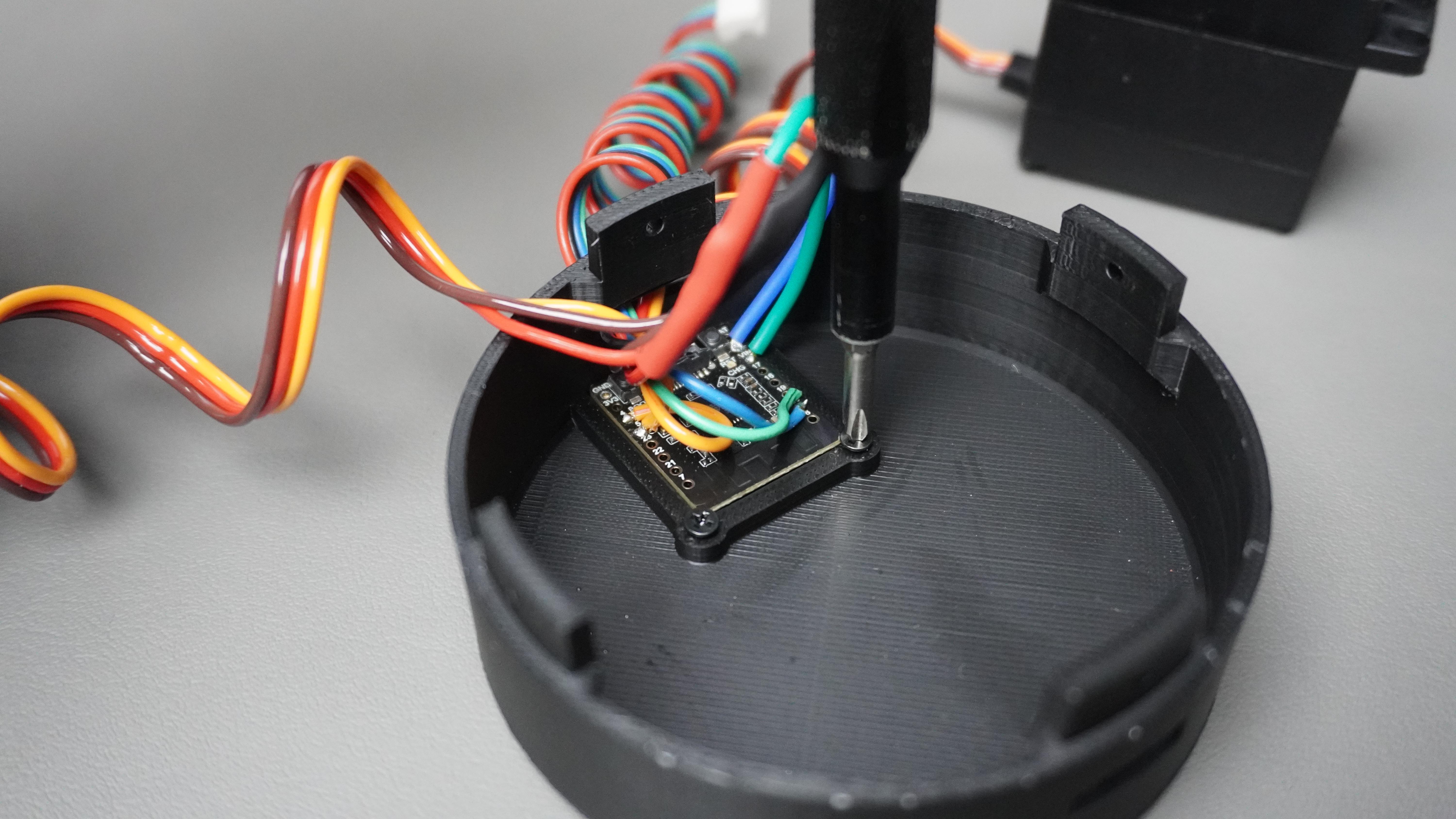
- Place the ESP32-C6 inside its dedicated slot in Part-3.
- Align the Type-C port with the side opening of the housing.
- Use 2× M2 screws to secure the ESP32-C6 firmly in place.
Pan Base Assembly
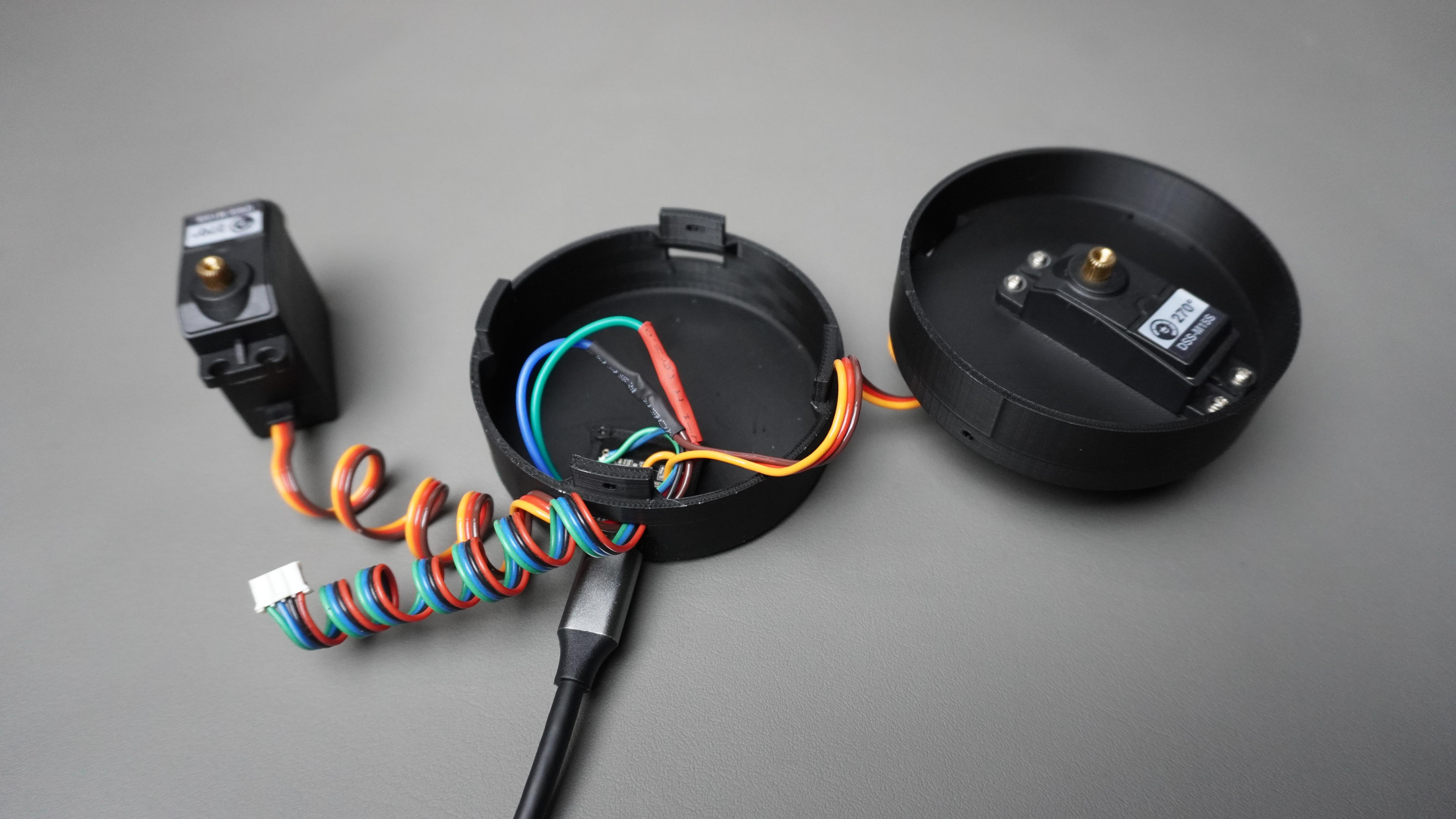
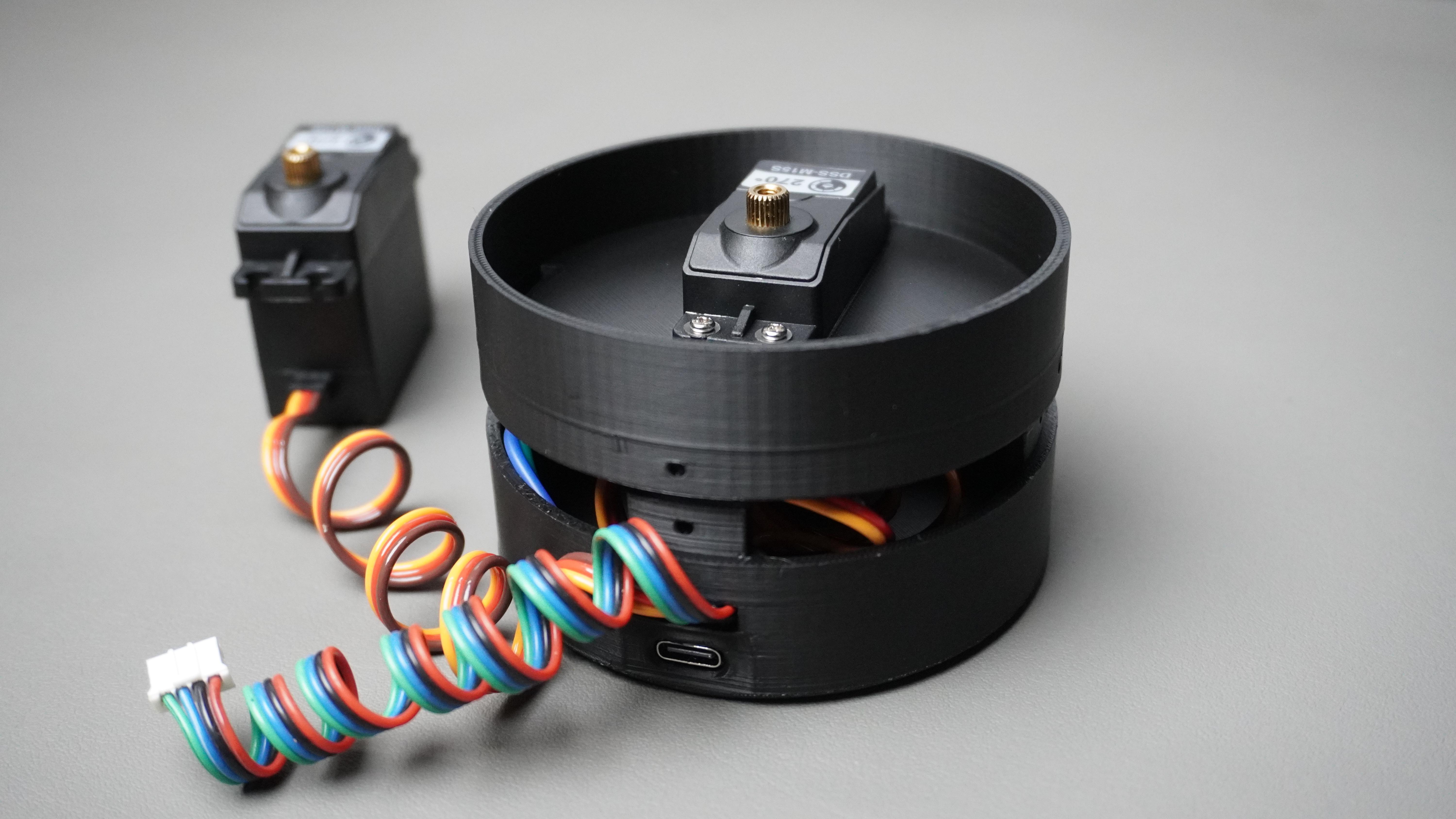


1. Initialize the Servos
Before closing the assembly, we need to center both servos.
- Connect the ESP32-C6 to your PC using the Type-C cable.
- Open the Arduino IDE (or your preferred environment).
- Upload the servo initialization code.
This code moves both the pan and tilt servos to their center position.
⚠️ Centering the servos before mechanical assembly is important. It ensures proper alignment and prevents limited rotation or strain after mounting.
Wait until both servos move to their center position.
2. Attach the Bottom Housing (Part-3)
- Take Part-3 (Bottom Housing).
- Carefully route the wires inside if not already positioned.
- Snap Part-3 onto the existing pan motor assembly.
Make sure it:
- Fully covers the exposed pan motor section
- Sits flush without pinching wires
- Aligns properly with the Type-C opening
Once snapped in place, the base structure is complete and ready for the tilt assembly in the next step.
Tilt Motor Assembly


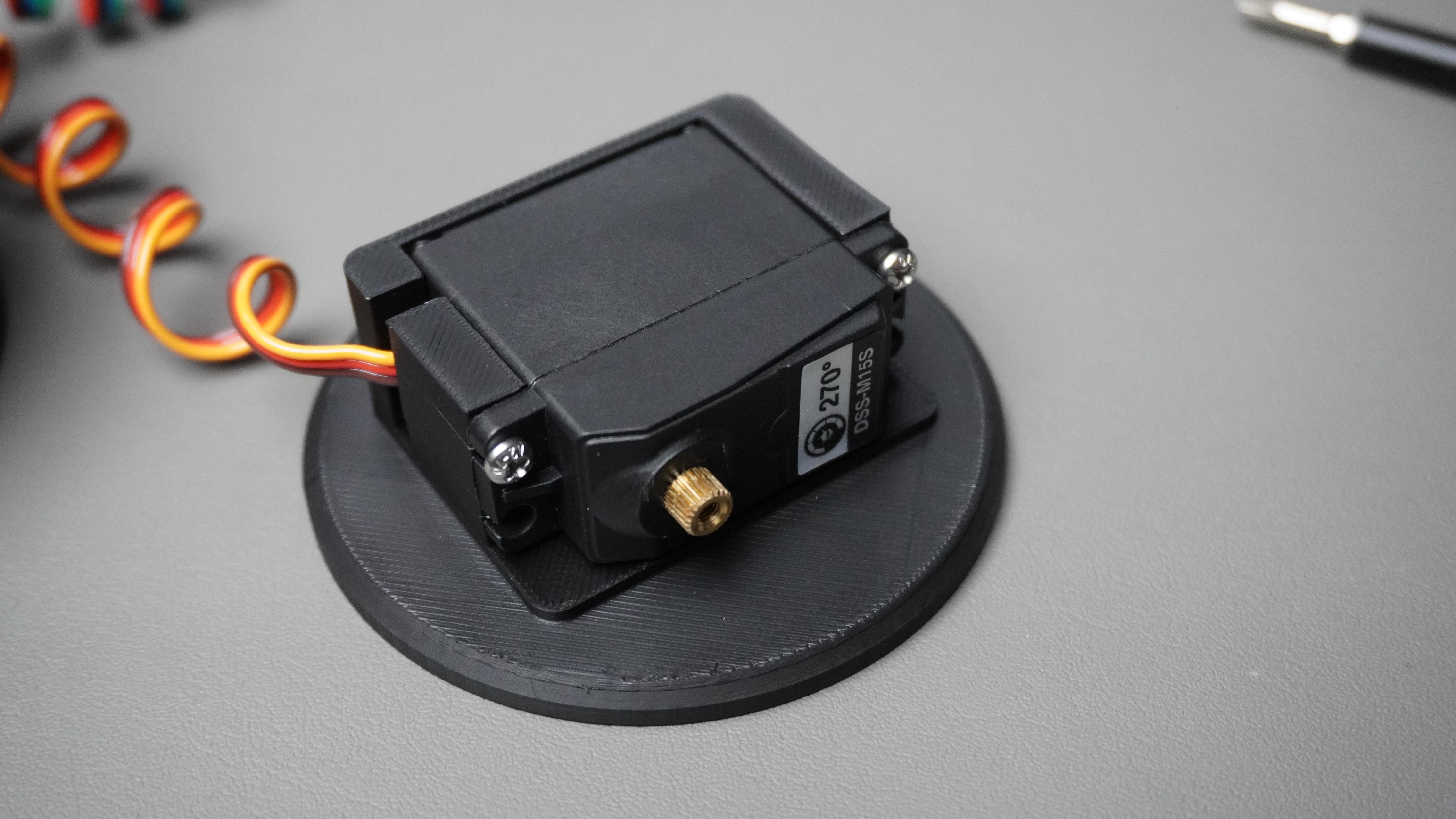
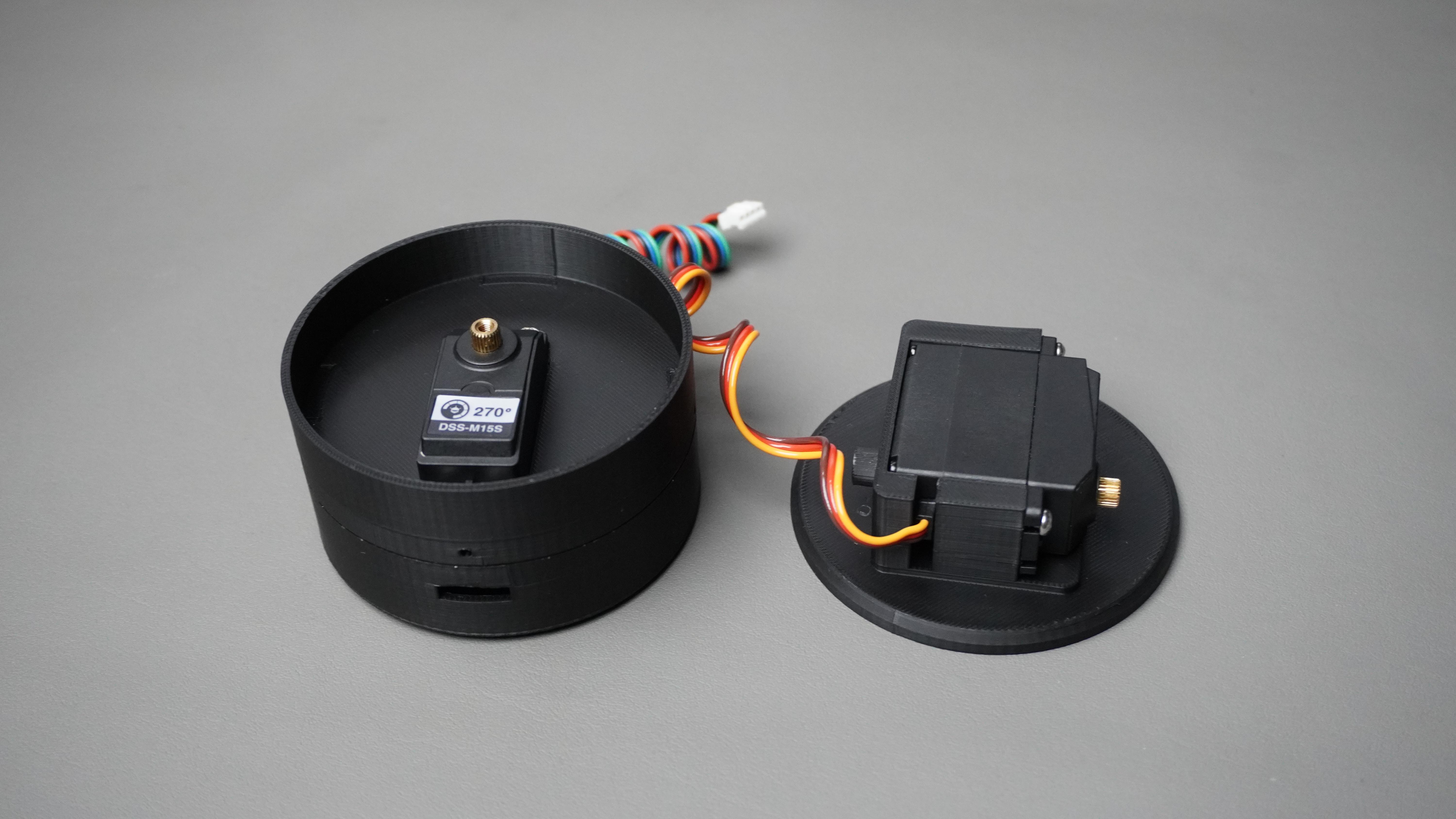

1. Install the Tilt Servo
- Take Part-2 (Pan Base with Tilt Mount).
- Insert the tilt servo motor into the dedicated slot in Part-2.
- Use 4 screws to firmly secure the servo in place.
2. Attach the Pan Base to the Pan Servo
- Take the assembled base (with centered pan servo).
- Align Part-2 with the pan servo horn.
- Carefully place it onto the servo shaft.
Tilt Assembly
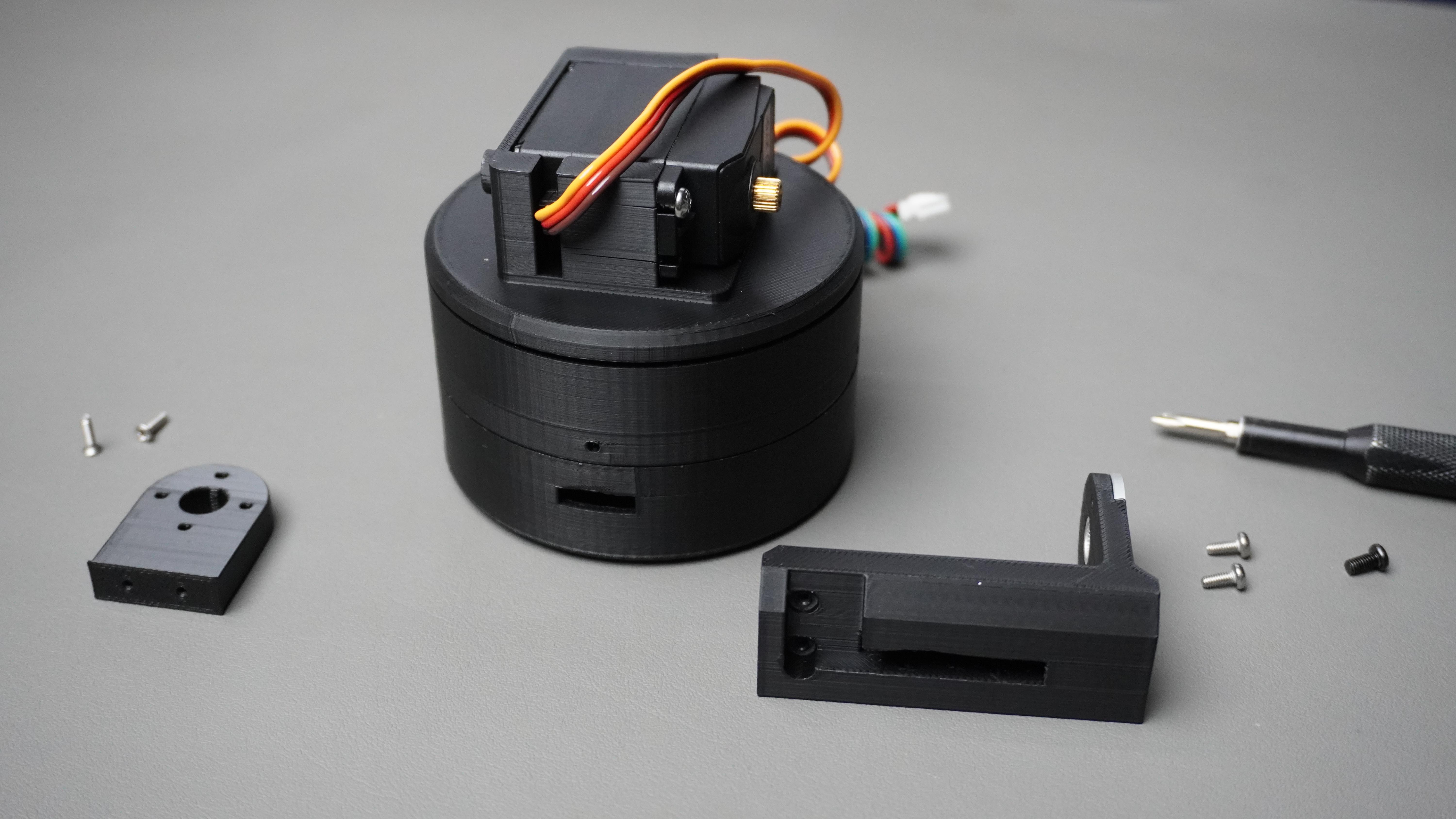


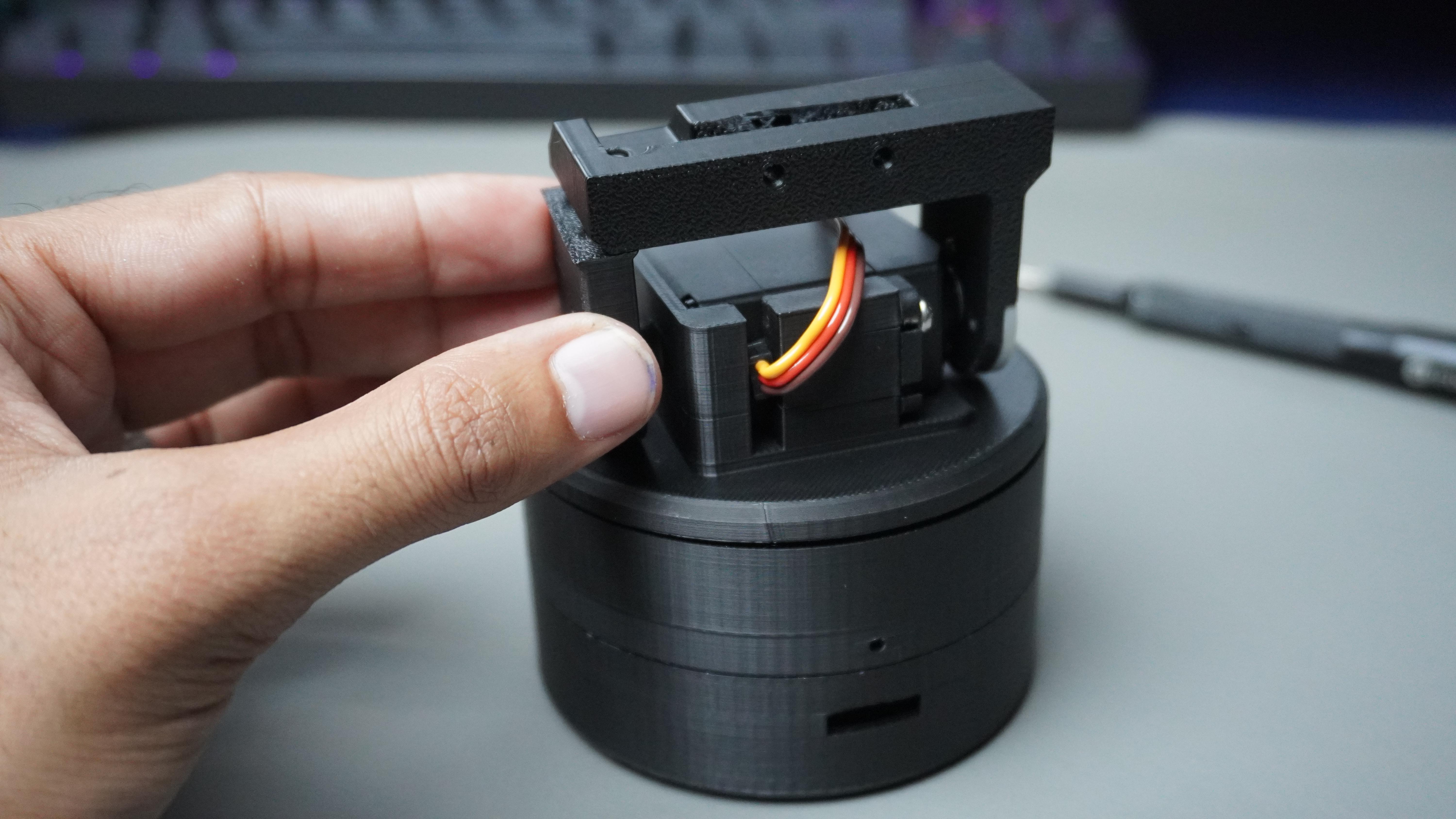

1. Install the Servo Horn
- Take the tilt arm main part.
- Insert the disc servo horn into the provided slot inside the part.
- Use 2 screws to secure the horn firmly in place.
- Make sure the horn sits flat and does not move.
2. Attach to the Tilt Servo
- Ensure the tilt servo is still in the center (90°) position.
- Align the tilt arm with the servo shaft.
- Carefully place it onto the servo spline.
- Insert and tighten the center screw to lock it in place.
⚠️ Make sure the arm is straight before tightening, so the movement range is balanced.
3. Attach the Second Tilt Arm Part
- Take the second tilt arm piece.
- Align it with the mounted tilt arm section.
- Use 2 screws to secure both parts together (as shown in the images).
Once tightened, check the movement manually to ensure smooth tilt motion without obstruction.
The tilt mechanism is now complete and ready for mounting the HuskyLens V2.
HuskyLens Mount Assembly
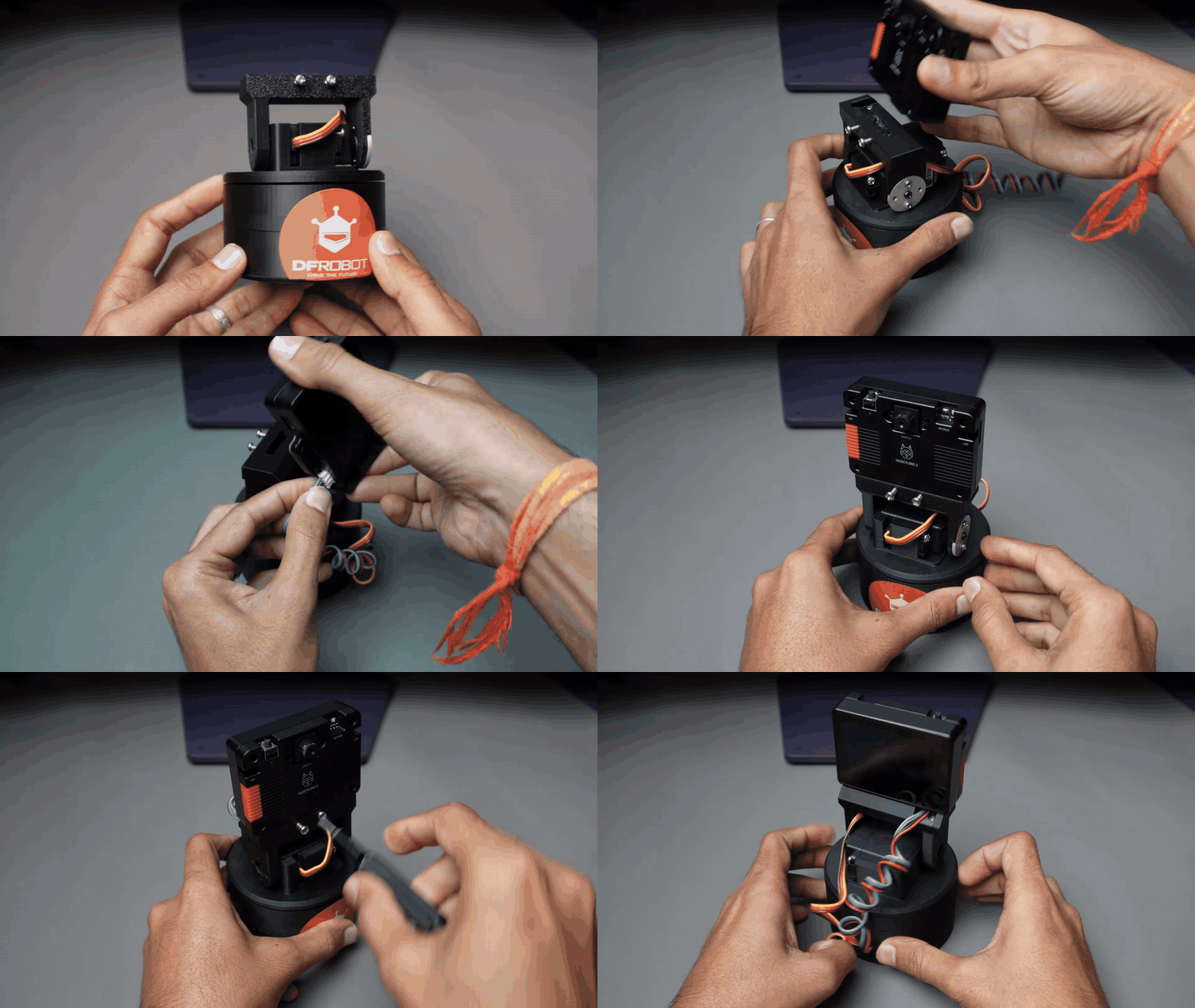


1. Connect the Gravity Cable
- Take the Gravity I2C cable coming from the ESP32-C6.
- Connect it to the HuskyLens V2 Gravity port.
- Ensure the connector is fully inserted and properly aligned.
- Gently route the cable so it does not interfere with tilt movement.
2. Mount the HuskyLens V2
- Place the HuskyLens V2 onto the top mounting holes of the tilt arm.
- Align the mounting holes.
- Insert 2× M3 screws through the bracket.
- Tighten the screws securely, but do not over-tighten.
Code and Working

1. Upload the Tracking Code
- Open Arduino IDE on your PC.
- Copy and paste the provided tracking code into a new sketch.
- Go to Tools → Board → Select “Beetle ESP32-C6”.
- Select the correct COM Port from Tools → Port.
- Click Upload.
Wait for the code to compile and upload successfully.
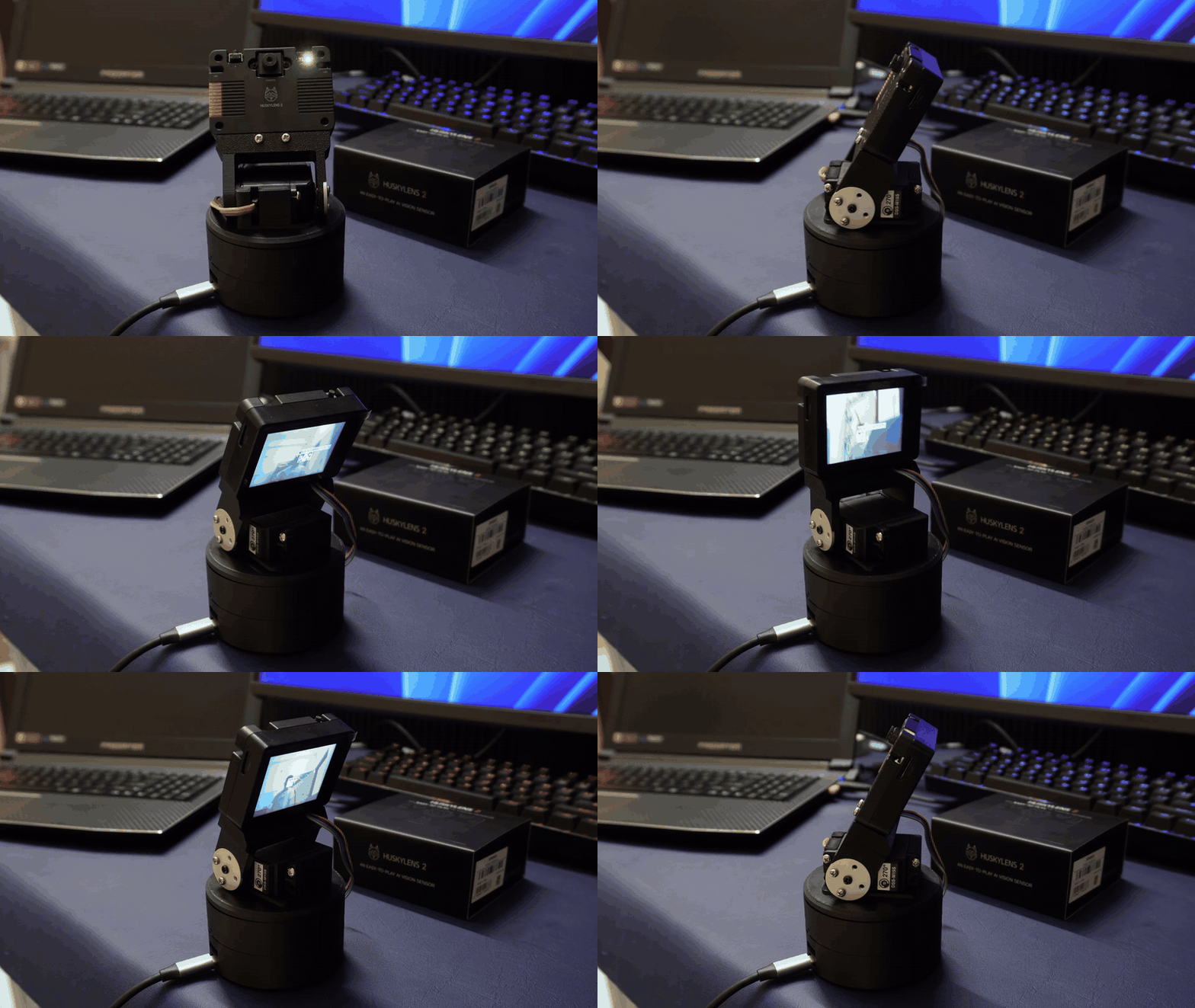
2. How It Works
Once the code is uploaded:
- Power on the system.
- Open any AI mode on the HuskyLens V2 — for example:
- Face Tracking
- Object Tracking
- Hand Gesture
- Pose Detection
As soon as a target is detected:
- The HuskyLens V2 sends bounding box and tracking data (X, Y coordinates and ID) to the ESP32-C6 over I2C.
- The ESP32-C6 processes this data and calculates how far the object is from the center of the frame.
- Based on the position difference, it adjusts the pan and tilt servo angles.
This keeps the detected subject centered in real time.
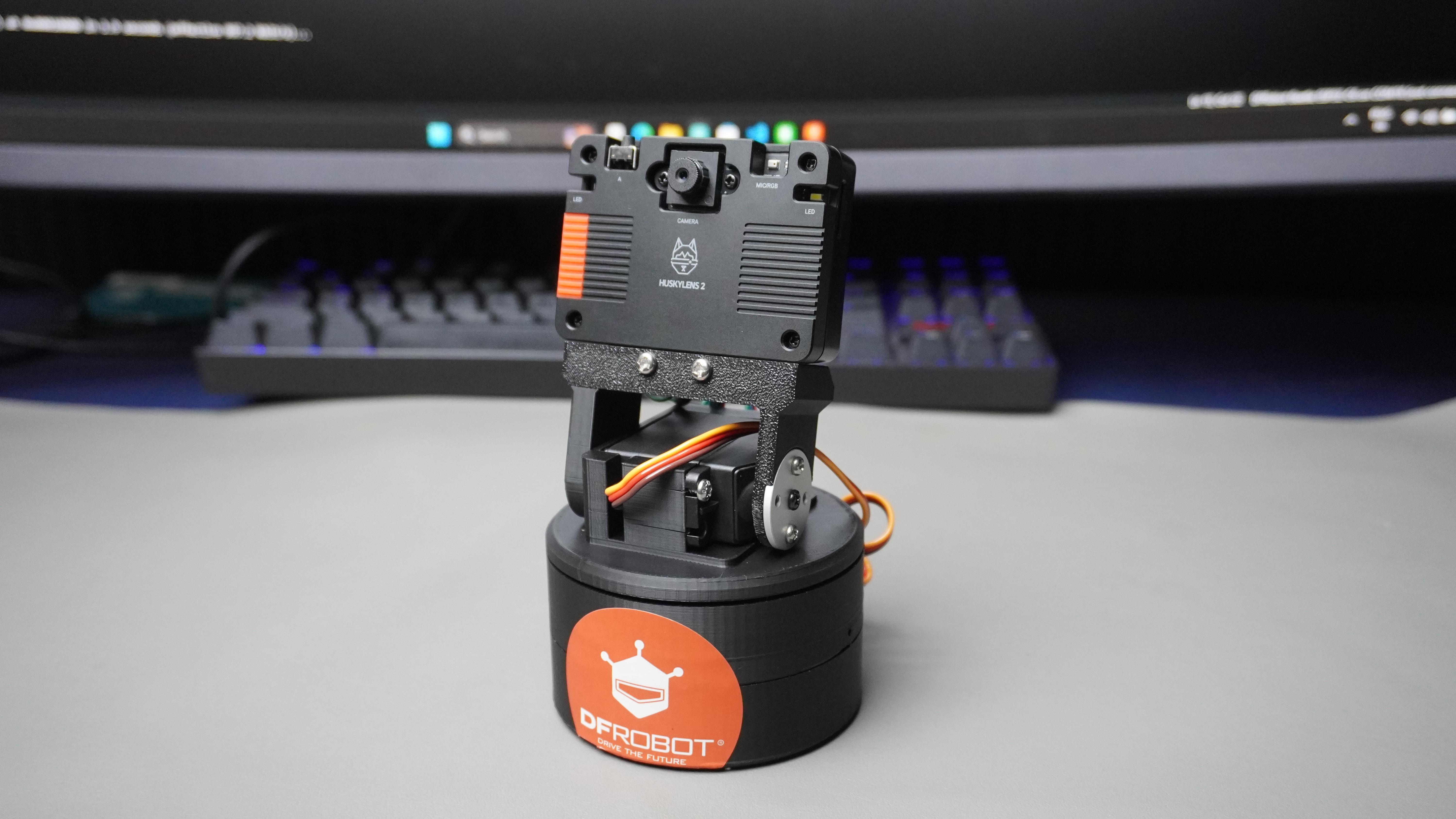
The system now acts as a fully AI-powered smart tracking camera — capable of physically following faces, objects, hands, or poses using real-time vision data.
Face Recognition
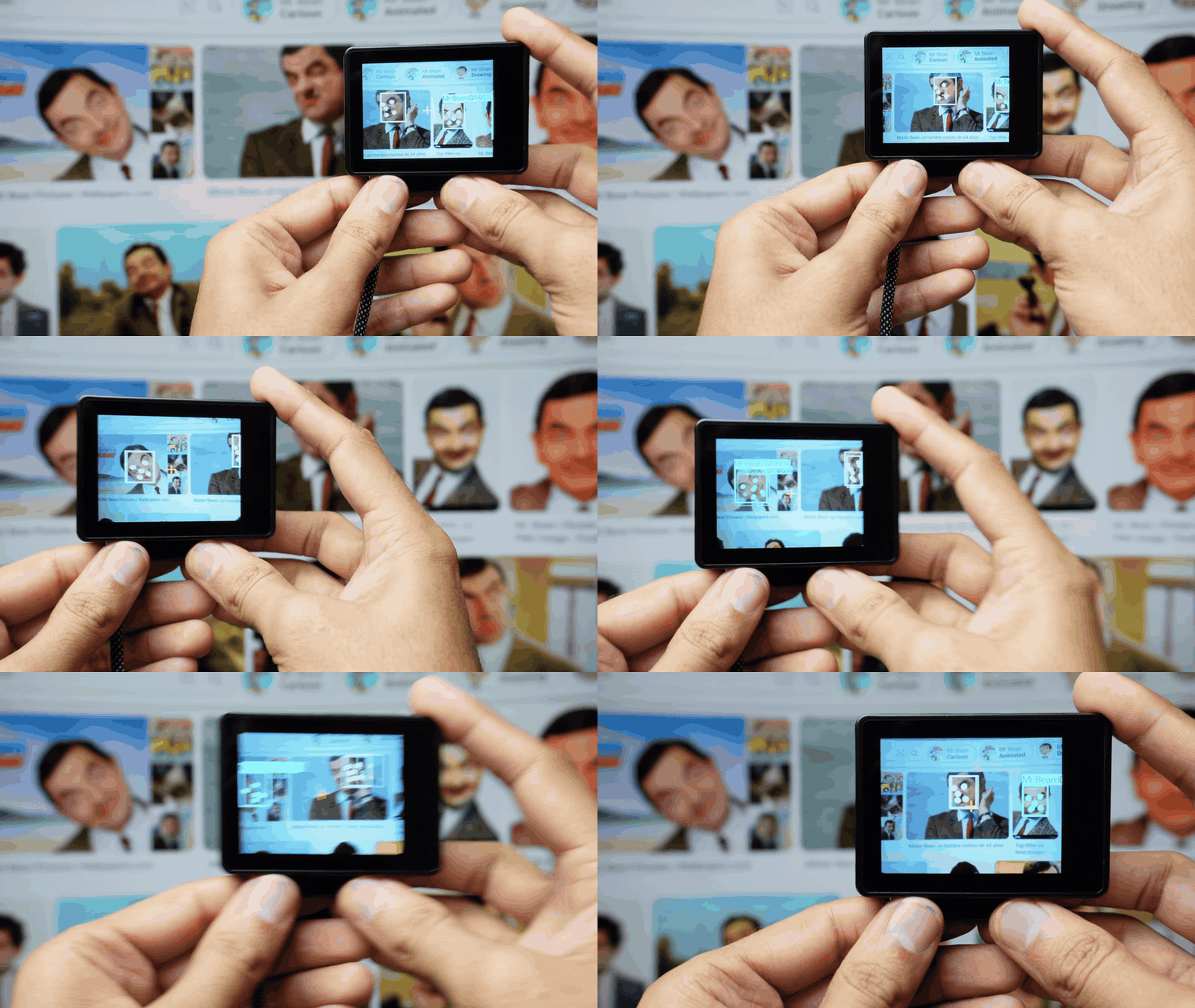
Face Recognition detects faces, shows facial key points (eyes, nose, mouth), and can learn & recognize multiple people.
- White box → Face detected
- Colored box + ID + % → Face recognized
- Example: Face ID1 97%
- ID1 = First learned face
- 97% = Confidence level
RGB Status Light (Back Side):
- 🔵 Blue → Face detected
- 🟡 Yellow → Learning face
- 🟢 Green → Recognized face
How to Learn a Face
- Select Face Recognition mode
- Align face inside white box
- Make sure center crosshair is inside box
- Press Button-A (top-right)
- Face saved as ID1, ID2, etc.
Important Parameters (Quick Guide)
- Forget IDs → Deletes all learned faces
- Multi-Face Acceleration → Faster tracking (slightly lower accuracy)
- Detection Threshold
- Low → Detects easily (may detect false faces)
- High → Strict detection
- Recognition Threshold
- Low → Easy matching (more false matches)
- High → Strict matching
- NMS Threshold → Removes duplicate overlapping boxes
- Face Features → Show/hide key points
- Set Name → Assign custom name to ID
- Display Name → Show/hide name on screen
- Restore Defaults → Reset everything
- Export Model → Save learned faces (up to 5 models)
- Import Model → Load saved faces into another HuskyLens
Export / Import (Quick Flow)
Export:
Face Recognition → Export Model → Select model number → Save
Import:
Copy .json & .bin files → Paste into new device → Import Model → Select same number
Object Recognition
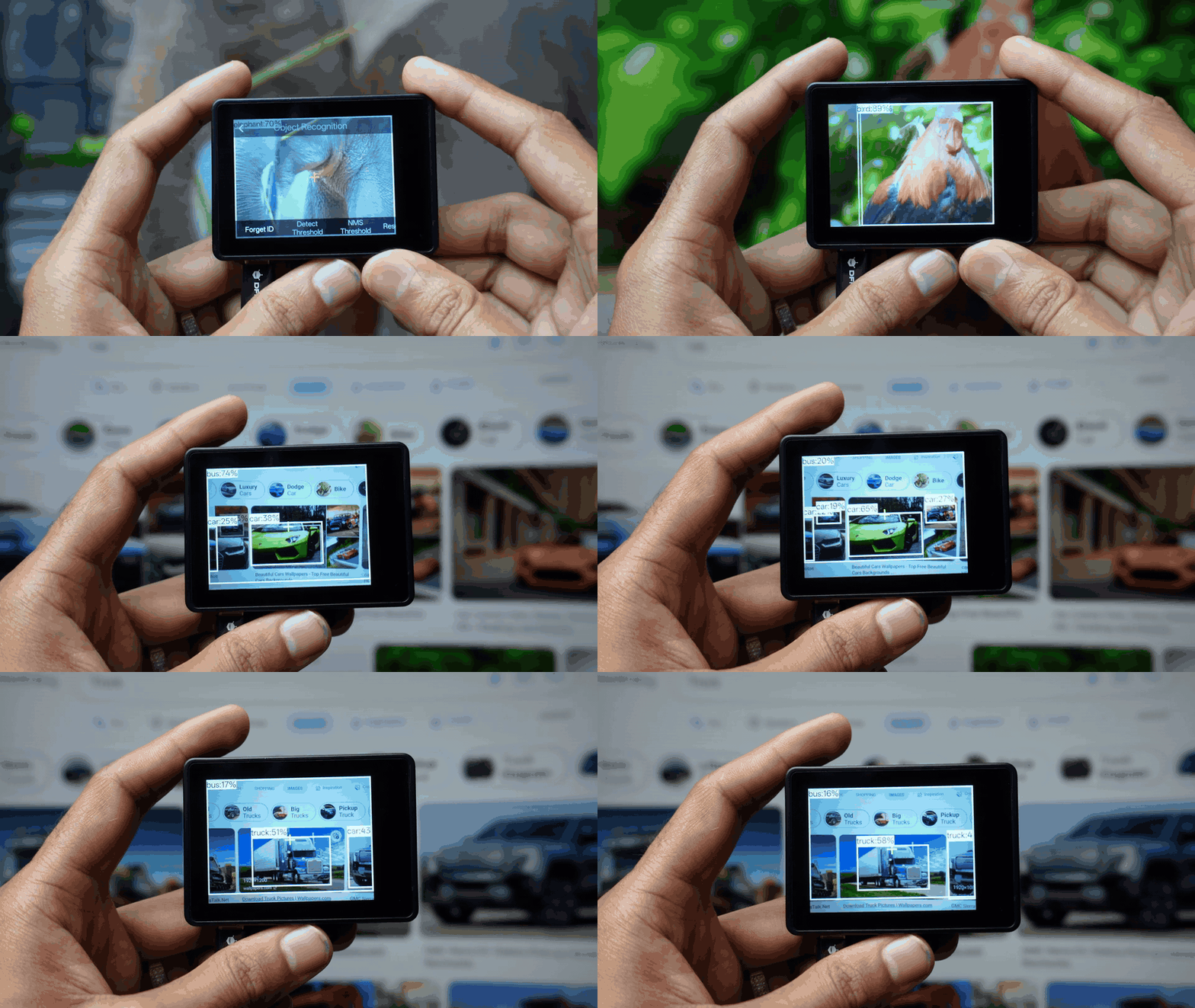
The object Recognition feature of HUSKYLENS 2 can identify 80 types of fixed objects.
During detection, it automatically frames the target object and displays its name along with a confidence score
Object Tracking
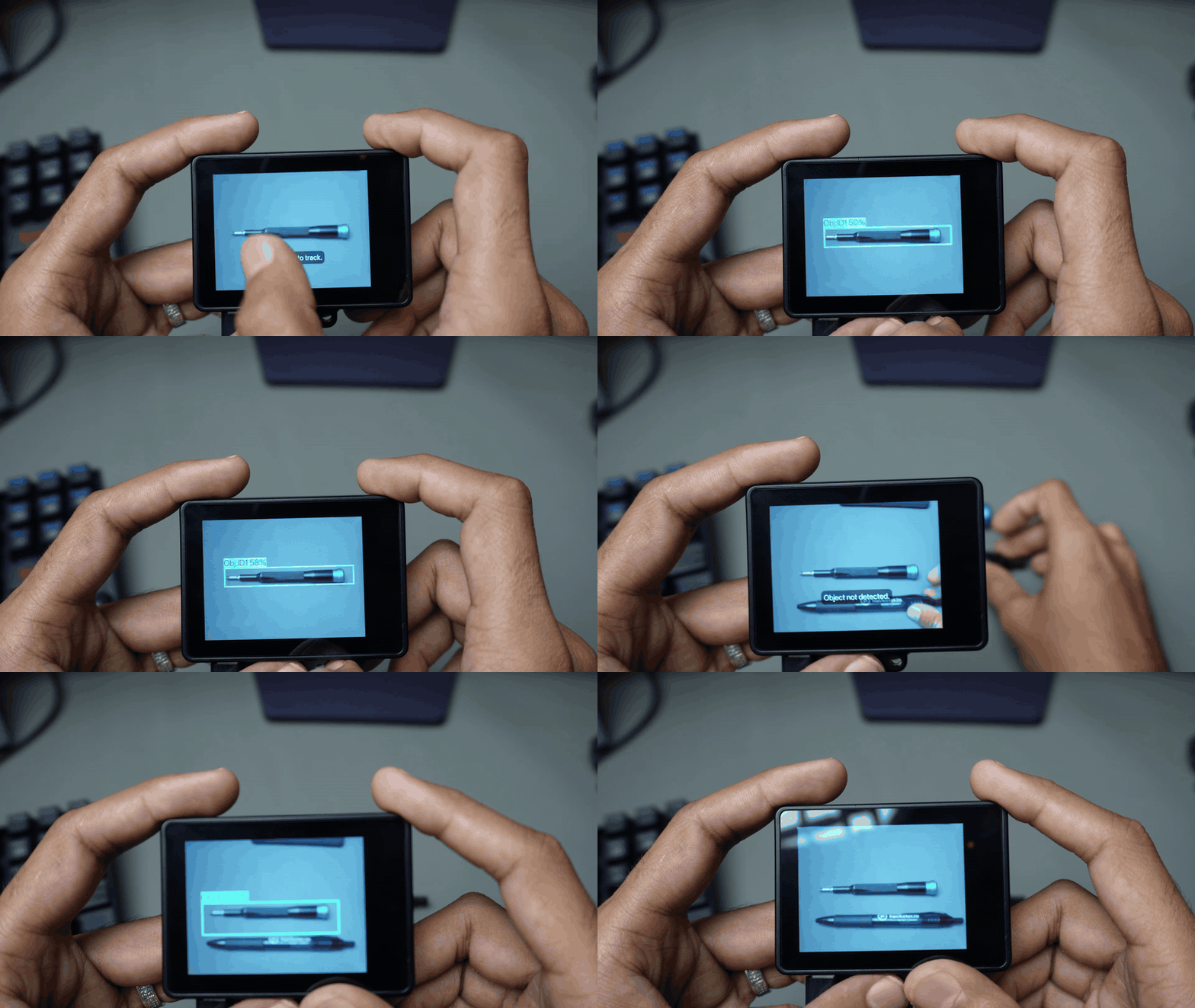
Object Tracking allows you to learn and track one custom object at a time.
How to Learn an Object
- Enter Object Tracking mode
- Align camera with target object
- Touch & drag on screen to frame the object
- Release to complete learning
Tracking Result
When the learned object appears:
- Screen shows a colored bounding box
- Displays: Obj: ID1 66%
Where:
- Obj = Default name
- ID1 = First learned object
- 66% = Confidence level
Color Recognition

This function enables detection, learning, recognition, and tracking of specified colors.
Object Classification

- Classifies objects into 1000 predefined categories
- Uses built-in AI model (no training required)
- Displays object name + confidence level
- Example: Laptop 92%
⚠ Unlike Object Recognition:
- Does NOT show bounding boxes
- Does NOT provide object position (no X–Y coordinates)
Best for: Identifying what an object is, not where it is.
Self-Learning
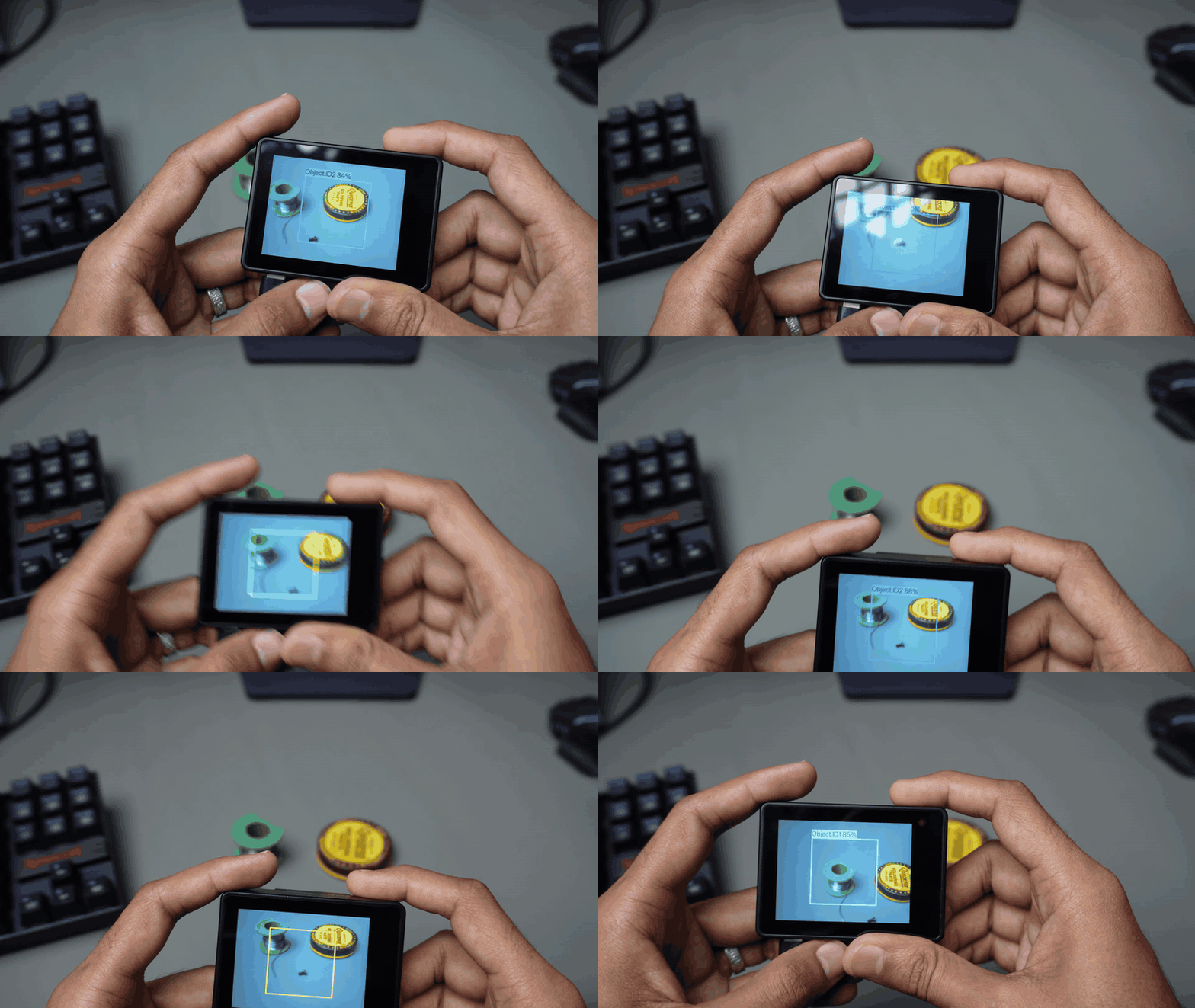
This feature allows capturing multi-angle images of any object, learning, and recognizing any custom object.
Instance Segmentation
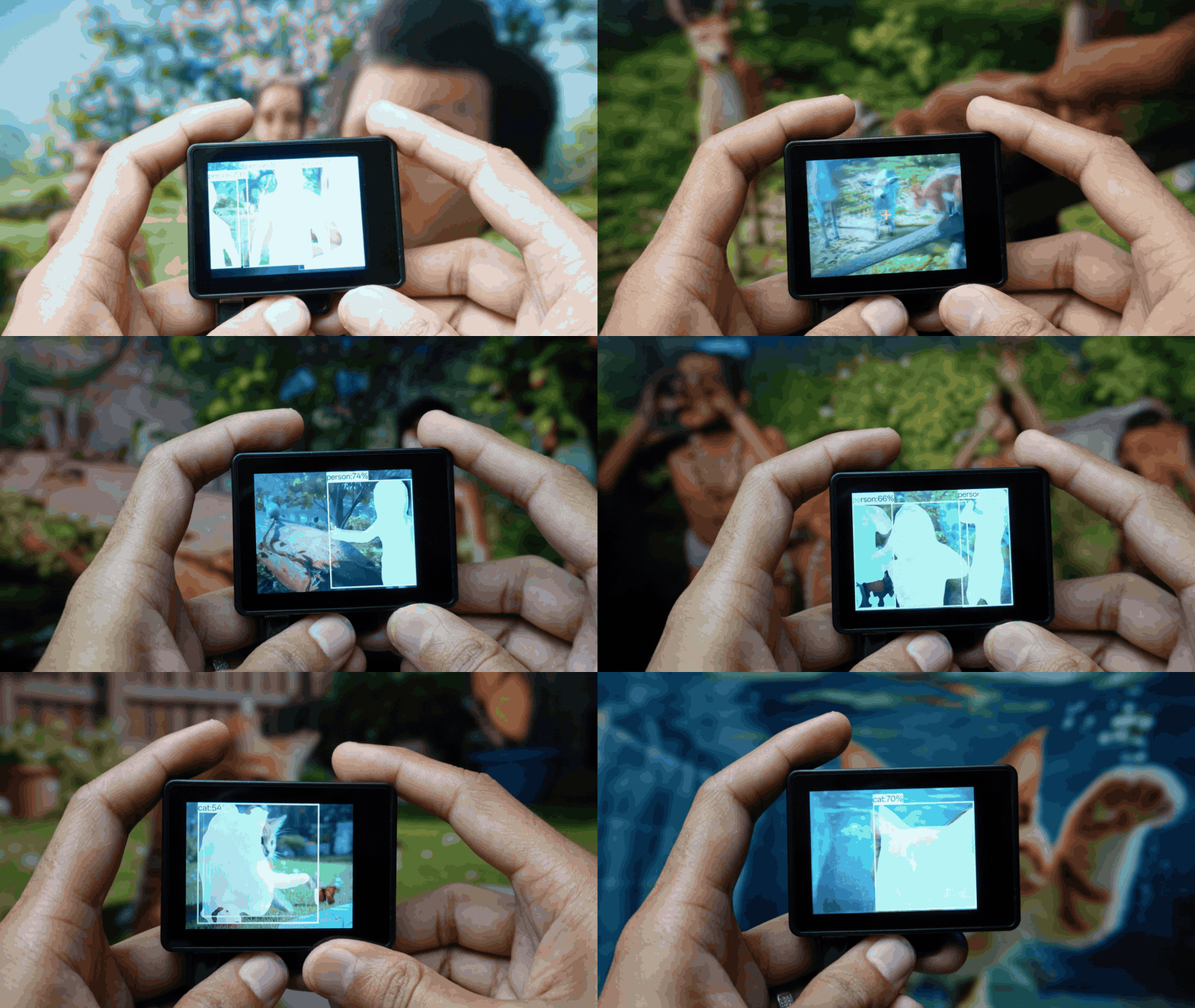
- Detects objects and outlines their exact shape (contours)
- Assigns a unique mask to each detected object
- Helps in measuring object area and shape
- Supports up to 80 object categories
- Categories are the same as Object Recognition mode
Unlike simple bounding boxes, this feature marks the precise boundary of each object for better visual understanding.
Hand Gesture Recognition
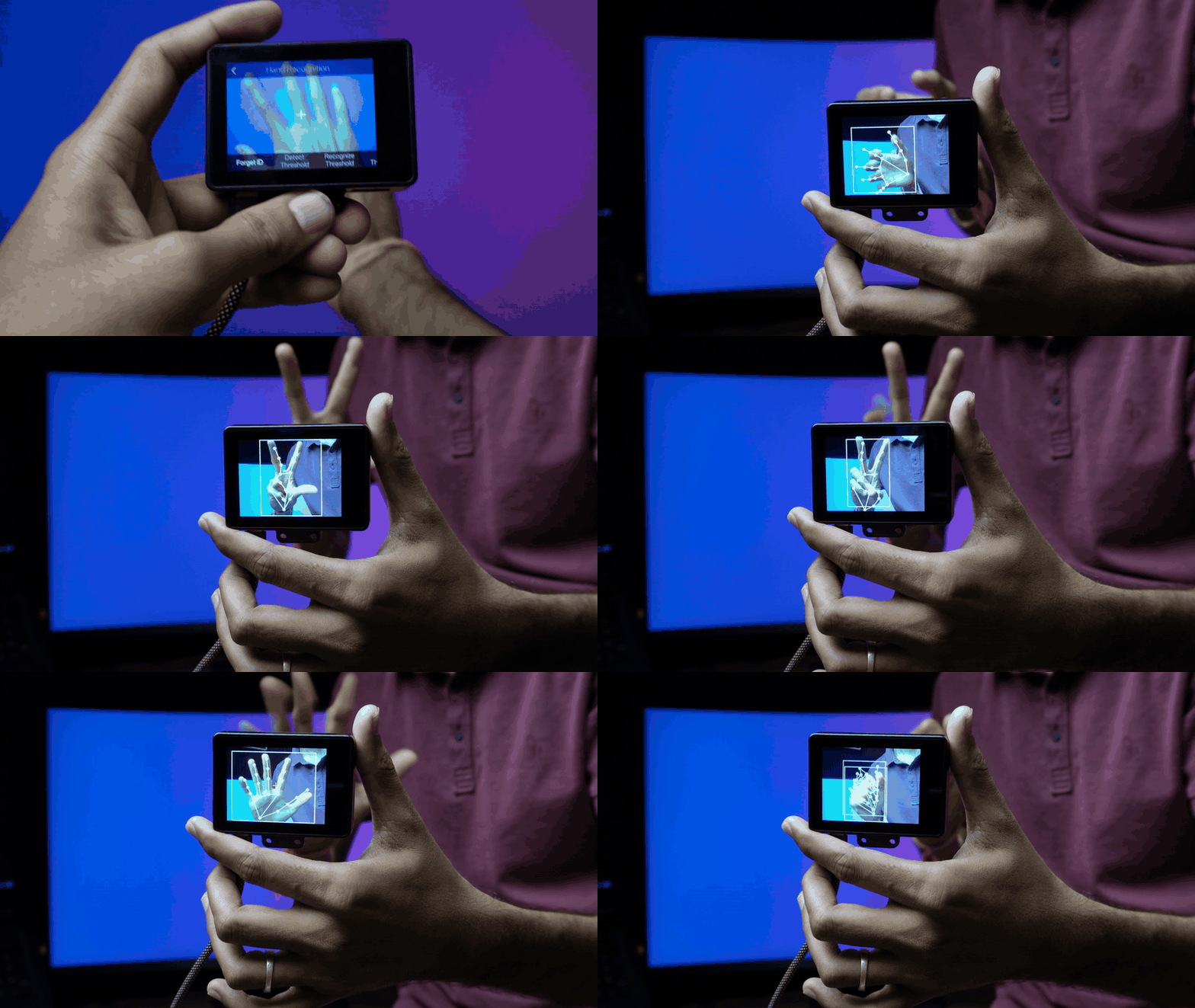
- Detects the palm and 21 key points
- Shows all finger joints in real-time
- Supports learning, recognizing, and tracking gestures
21 Key Points Include:
- 1 Wrist
- 4 joints per finger:
- Thumb
- Index finger
- Middle finger
- Ring finger
- Little finger
(Each finger has: root, first joint, second joint, fingertip)
Perfect for gesture control and interactive AI projects
Pose Recognition

- Detects human body in the image
- Identifies and plots 17 body key points
- Can learn, recognize, and track different poses
- Detects multiple people at the same time
- Works from different angles
- Can predict some hidden (occluded) joints
17 Key Points Include:
- Nose
- Eyes (Left & Right)
- Ears (Left & Right)
- Shoulders (Left & Right)
- Elbows (Left & Right)
- Wrists (Left & Right)
- Hips (Left & Right)
- Knees (Left & Right)
- Ankles (Left & Right)
Great for fitness tracking, gesture control, and smart interaction projects.
License Plate Recognition

- Detects vehicle license plates in the scene
- Displays the plate number on screen
- Supports learning specific license plates
- Can recognize and track learned plates
- Shows ID and confidence level
Useful for parking systems, smart gates, and access control.
Character Recognition (OCR)
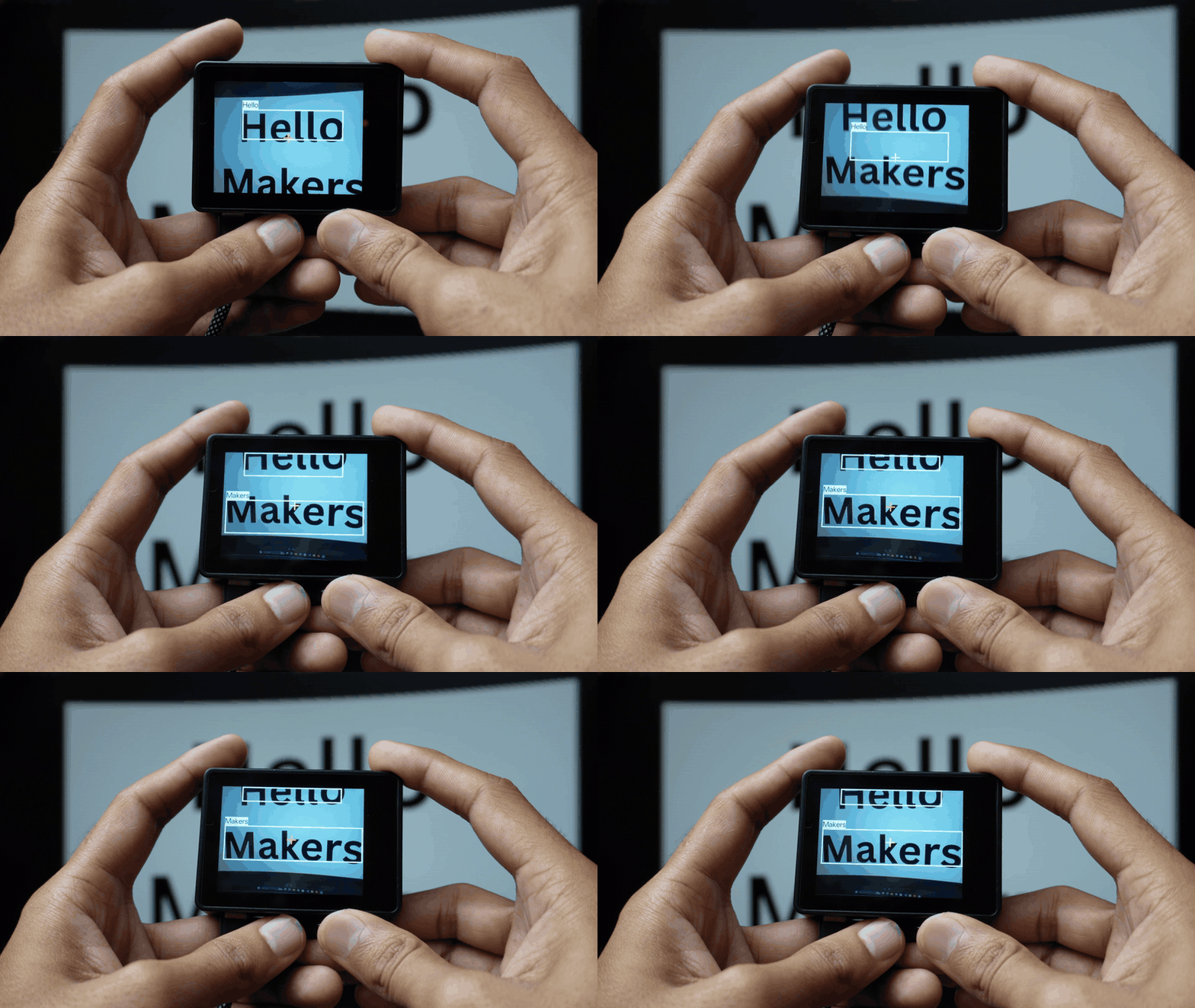
- Uses OCR (Optical Character Recognition)
- Detects Chinese and English text on screen
- Displays the recognized text content
- Can learn, recognize, and track characters
- All detected text areas are shown with bounding boxes
- Only the text block closest to the center crosshair is recognized
- Recognized text appears at the top-left of the box
Useful for smart readers, label scanning, and text-based automation projects
Line Tracking
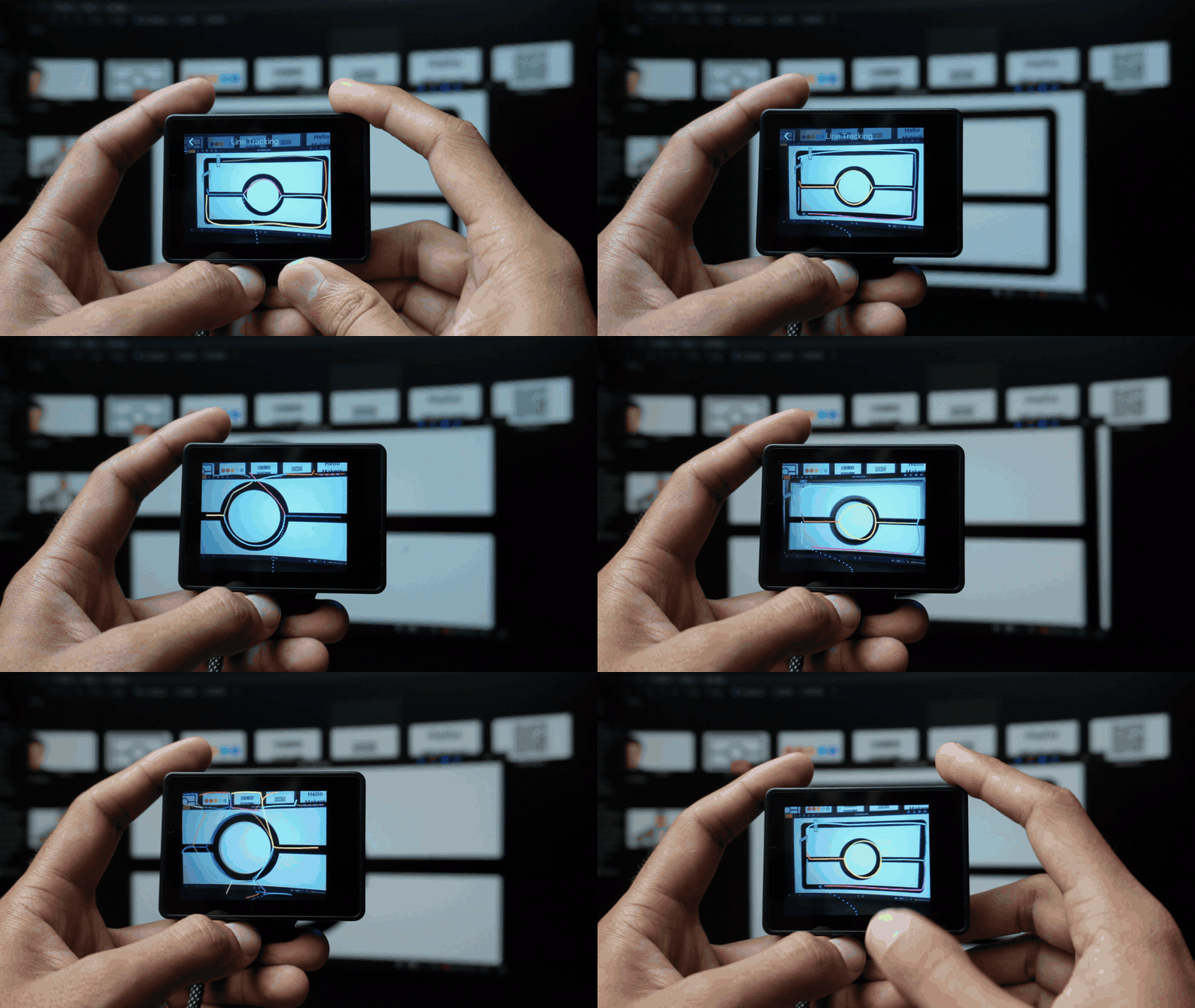
- Detects lines with strong color contrast from the background
- Marks different detected paths with different colors
- Works in real-time
- Ideal for line-following robots and path tracking projects
Perfect for smart cars and autonomous navigation
Face Emotion Recognition
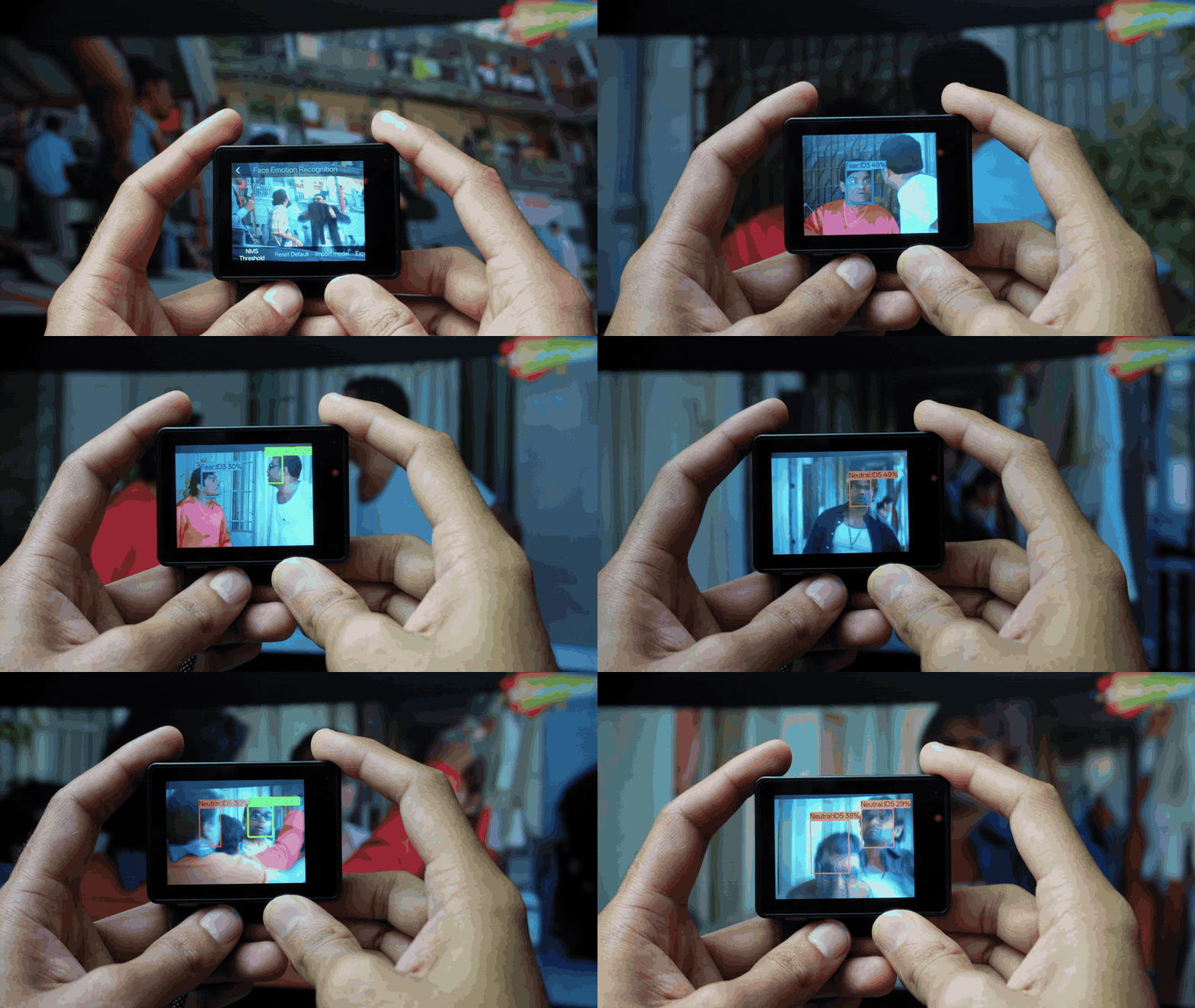
- Recognizes 7 facial expressions:
- Anger
- Disgust
- Fear
- Happiness
- Neutral
- Sadness
- Surprise
- Expressions are pre-trained at factory
- No manual learning required
- Displays detected emotion on screen
Great for emotion-based AI interaction projects.
QR Code Recognition

- Detects and reads QR codes
- Displays the encoded information on screen
- Can learn and recognize specific QR codes
- Supports tracking detected QR codes
- Allows users to assign custom names
Perfect for smart login systems, inventory tracking, and interactive projects
Barcode Recognition

- Detects barcodes in the scene
- Displays the encoded information
- Supports learning and recognizing specific barcodes
- Can track detected barcodes
- Allows custom naming of barcodes
Useful for billing systems, inventory management, and automation projects
RTSP Video Streaming
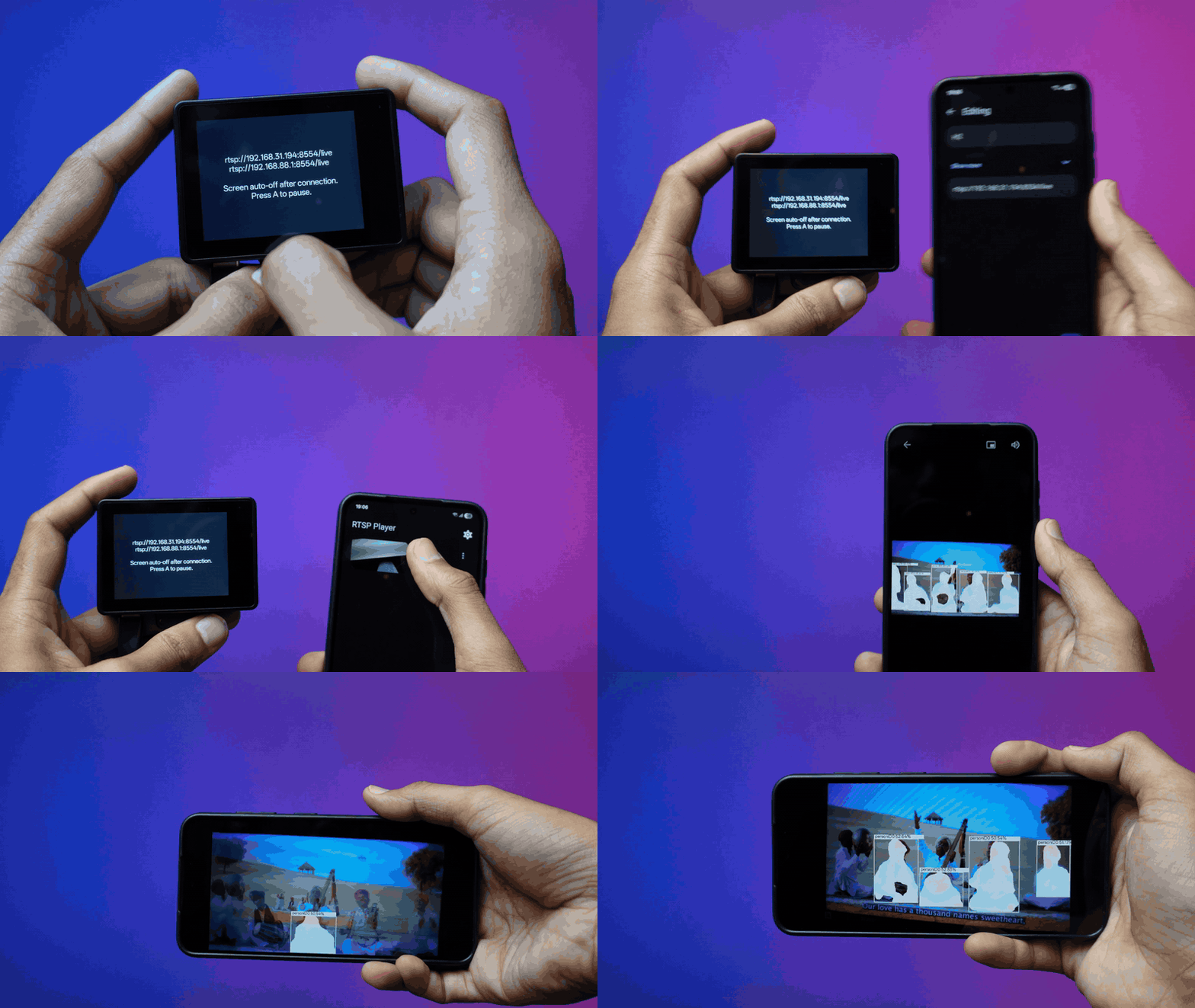
- Streams live video wirelessly using RTSP
- View camera output on mobile, laptop, or PC
- Works with RTSP-supported apps (e.g., VLC)
- See real-time AI detection results on other devices
Perfect for monitoring, demos, and remote AI projects
HUSKYLENS 2 Microscope Lens Module


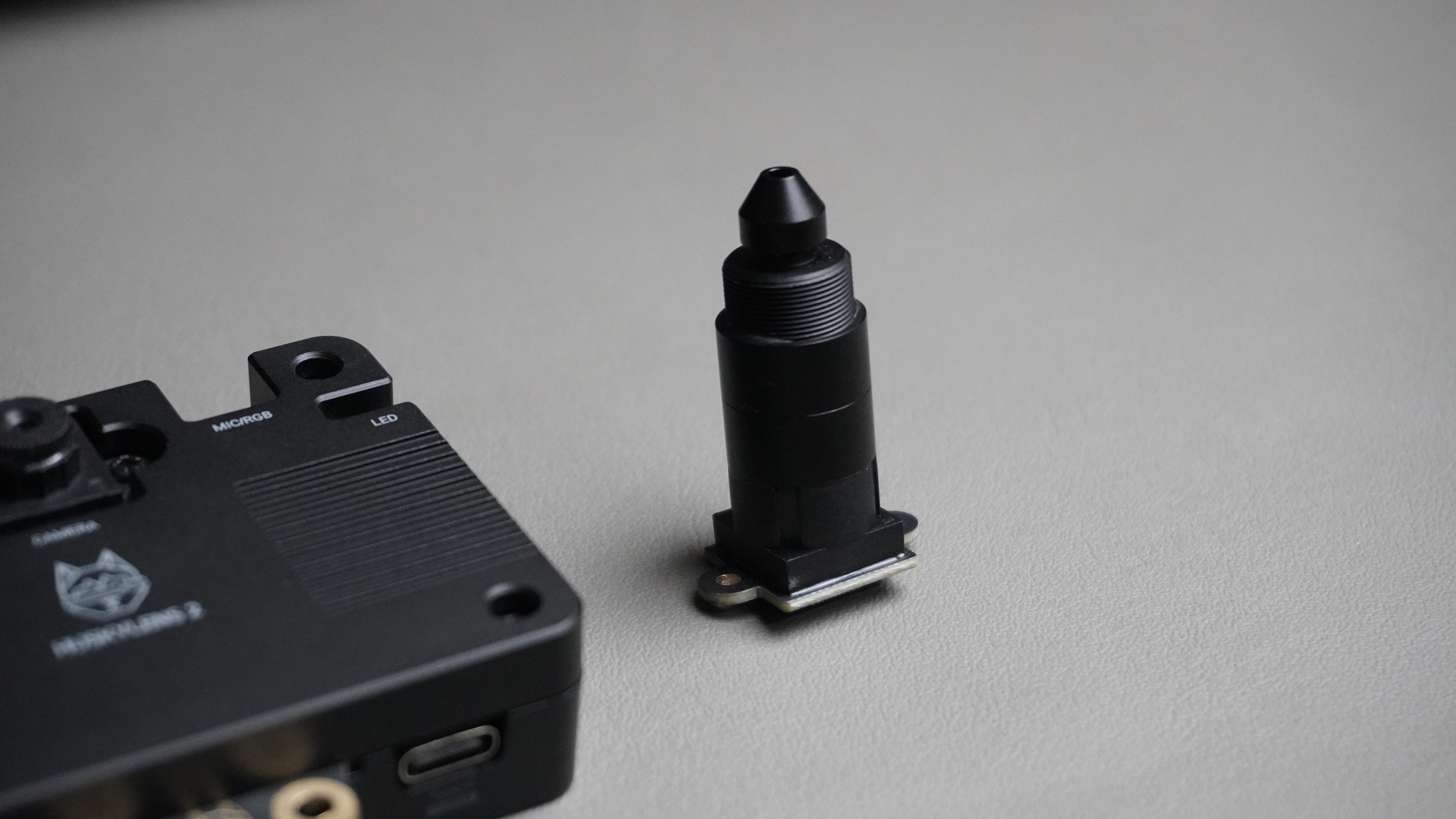


The HUSKYLENS 2 Microscope Lens Module is a special attachment designed to convert the HUSKYLENS 2 into a smart digital microscope.
- Uses a 6mm focal length lens
- Provides 30× magnification
- Equipped with 2MP GC2093 sensor
- Can detect details as small as ~3 μm
This allows the device to not only observe microscopic objects but also identify them using AI.
It expands HUSKYLENS 2 from a vision sensor to an AI-powered microscope system.
3D Printed Microscope Stand for HUSKYLENS 2


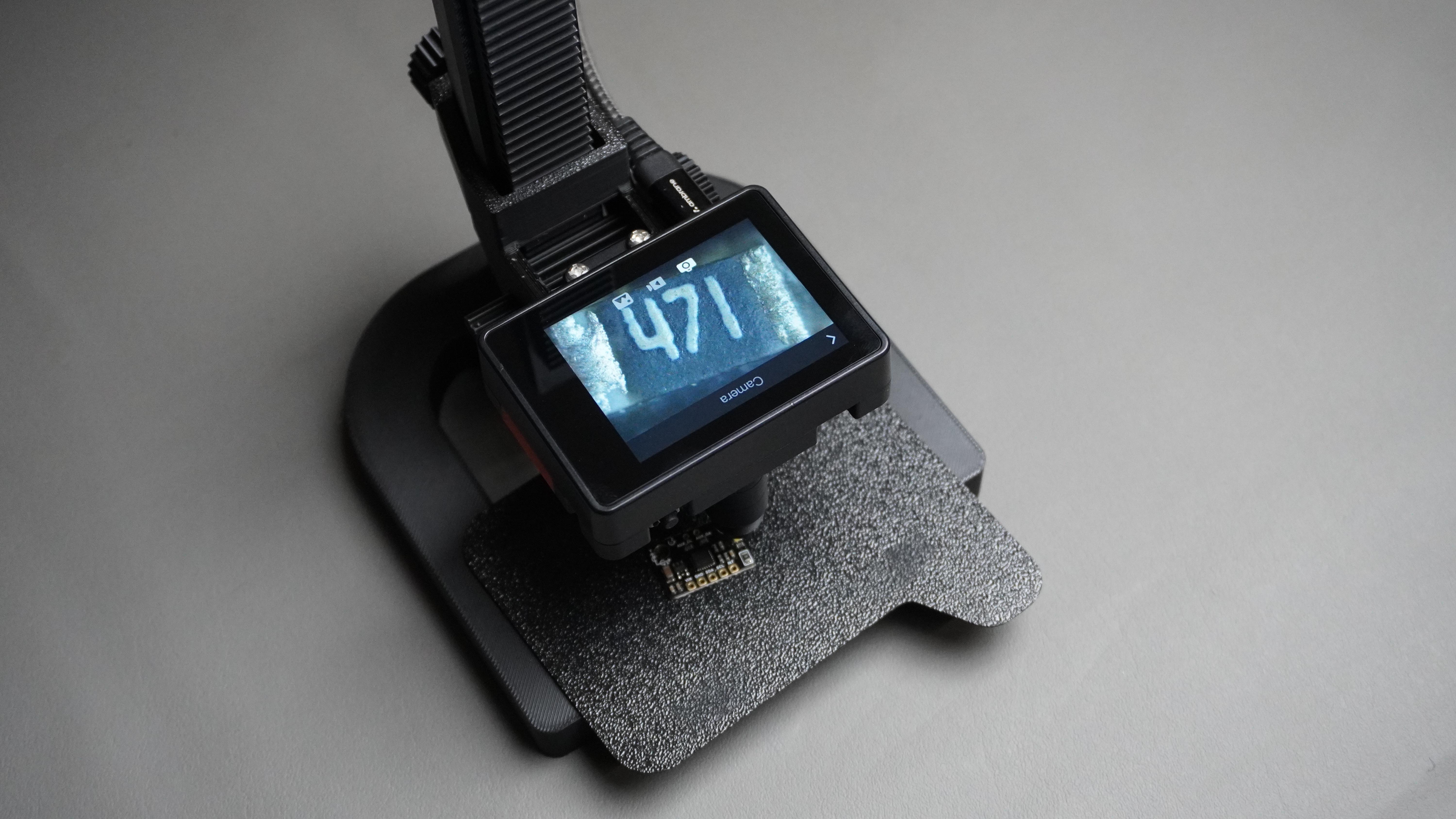
I designed a 3D printed microscope stand specially for HUSKYLENS 2.
- Provides stable vertical mounting
- Maintains proper focus distance
- Ideal for microscopic observation and inspection
Since HUSKYLENS 2 supports custom model installation, you can:
- Train your own AI image model
- Deploy it directly on the device
- Perform AI-based microscopic analysis
This enables powerful applications like:
- Smart biology experiments
- Automated micro quality inspection
- AI-powered STEM learning
The stand transforms HUSKYLENS 2 into a complete AI Microscopy System
Conclusion
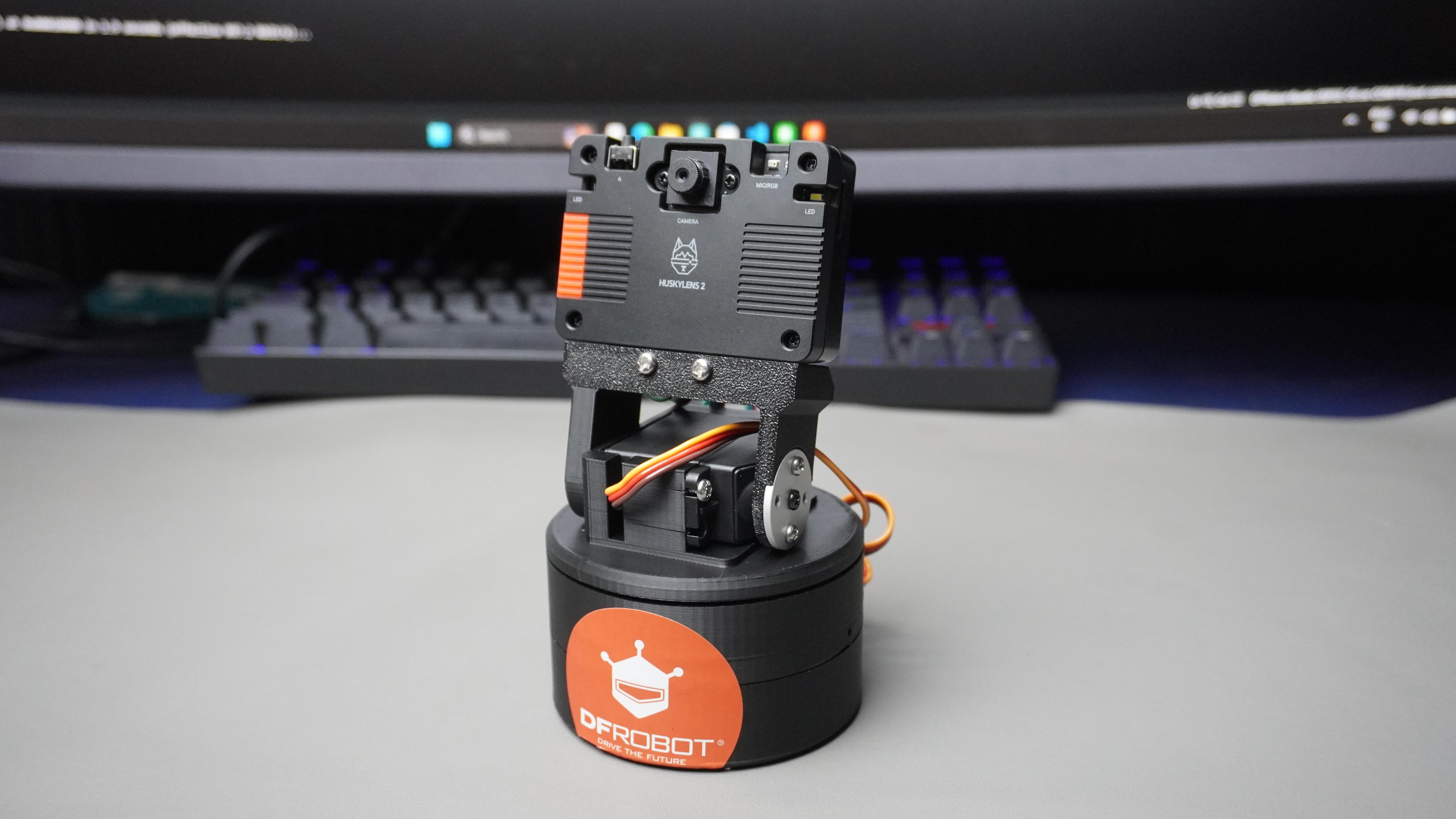
In this project, we transformed the HUSKYLENS 2 from a powerful AI camera into a physically interactive tracking system.
By integrating two servo motors with the ESP32-C6, we built a smooth pan-and-tilt mechanism that allows the camera not just to detect — but to react and follow in real time.
The system now:
- Reads AI detection data
- Adjusts servo angles dynamically
- Keeps the subject centered automatically
What started as a vision module has become a complete AI-powered tracking platform.
This project demonstrates how embedded systems, servo control, and machine vision can work together to bridge the gap between digital intelligence and physical movement.
With this foundation, you can expand into:
- Smart surveillance
- Interactive robotics
- Auto-tracking cameras
- AI-based classroom demos
- Advanced maker and research projects
You’ve now built more than just a tracker — you’ve built a system where AI doesn’t just see… it moves.
Keep building. Keep experimenting.