WATER LEVEL (INTERNAL TEMPERATURE AND MOTION SENSOR)
by S69935 in Circuits > Sensors
37 Views, 0 Favorites, 0 Comments
WATER LEVEL (INTERNAL TEMPERATURE AND MOTION SENSOR)
 IOT COMPUTING GROUP 7.png)
 - IOT COMPUTING - GROUP 7)
Our project is an Internet of Things (IoT) system designed to monitor water level, internal temperature and motion using multiple sensors connected to a Raspberry Pi Pico. The hardware setup includes a breadboard, wires, LCD display, motion sensor and distance sensor. All sensor data is transmitted to Things peak, where we created a custom dashboard to visualize the readings in real time through graphs. To evaluate performance, we allowed the system to run continuously for seven days, collecting data that demonstrates how the sensors interact and provide useful monitoring information. The water level monitoring feature is supported by three LEDs and a buzzer for clear alerts. The green LED lights up when the water level is below 40%, the yellow LED indicates levels between 40% and 80%, and the red LED warms when the level reaches 80% or higher. At this critical stage, the buzzer is activated to signal potential overflow. Alongside this, the temperature sensor records internal heat conditions and the motion sensor detects activity in the surrounding area. Together, these components form a complete IoT system that combines sensing, data logging and visualisation, showing how technology can be applied to improve safety and environmental monitoring.
Supplies
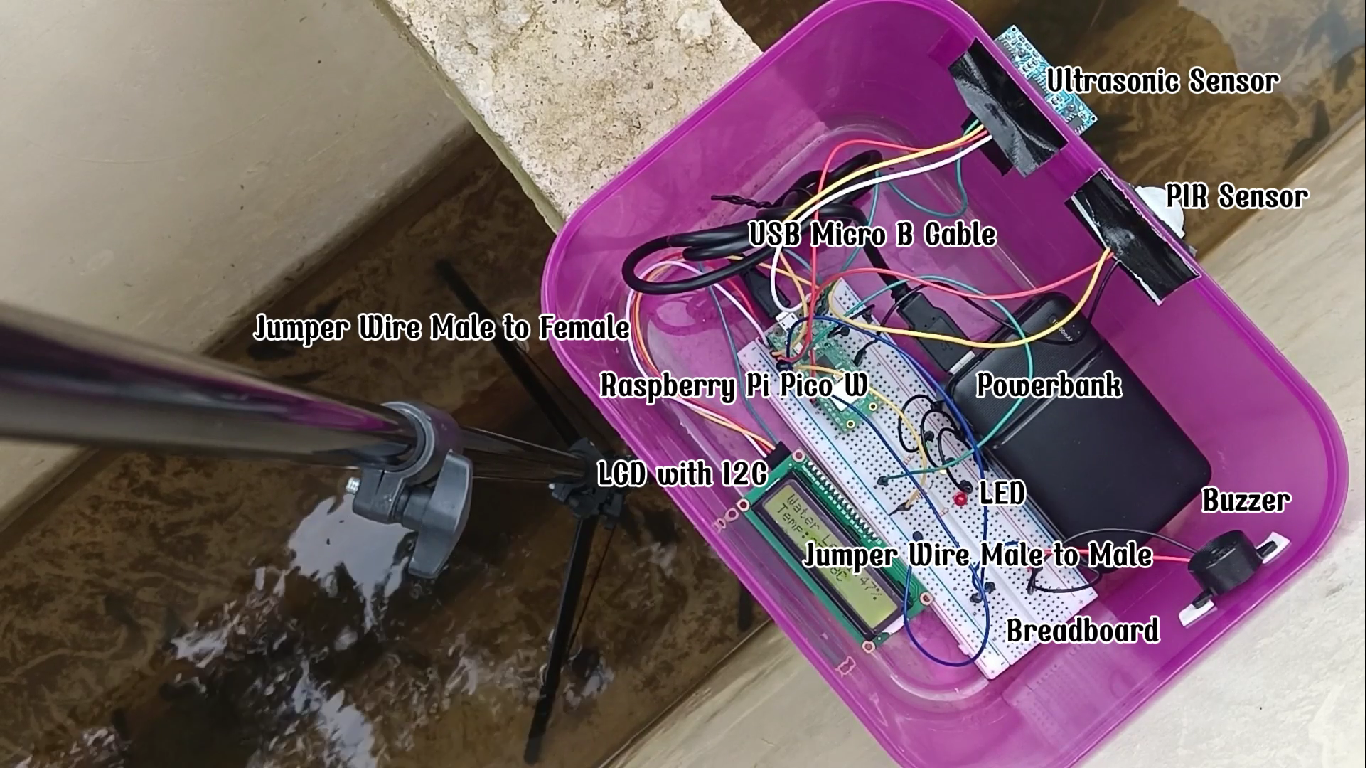
1 * Raspberry Pi Pico W
1 * Breadboard
2 * Male to Male Jumper Wire
2 * Male to Female Jumper Wire
1 * Buzzer
3 * LED
1 * PIR Sensor
1 * Ultrasonic Sensor
3 * Resistor
1 * USB Micro B Cable
1 * LCD with I2C
Combine IoT Kit
Combine all of the IoT kit from members.
Installation
.jpg)
.jpg)
.jpg)
Begin the installation of the IoT step by step.
Developing Code in the Thonny
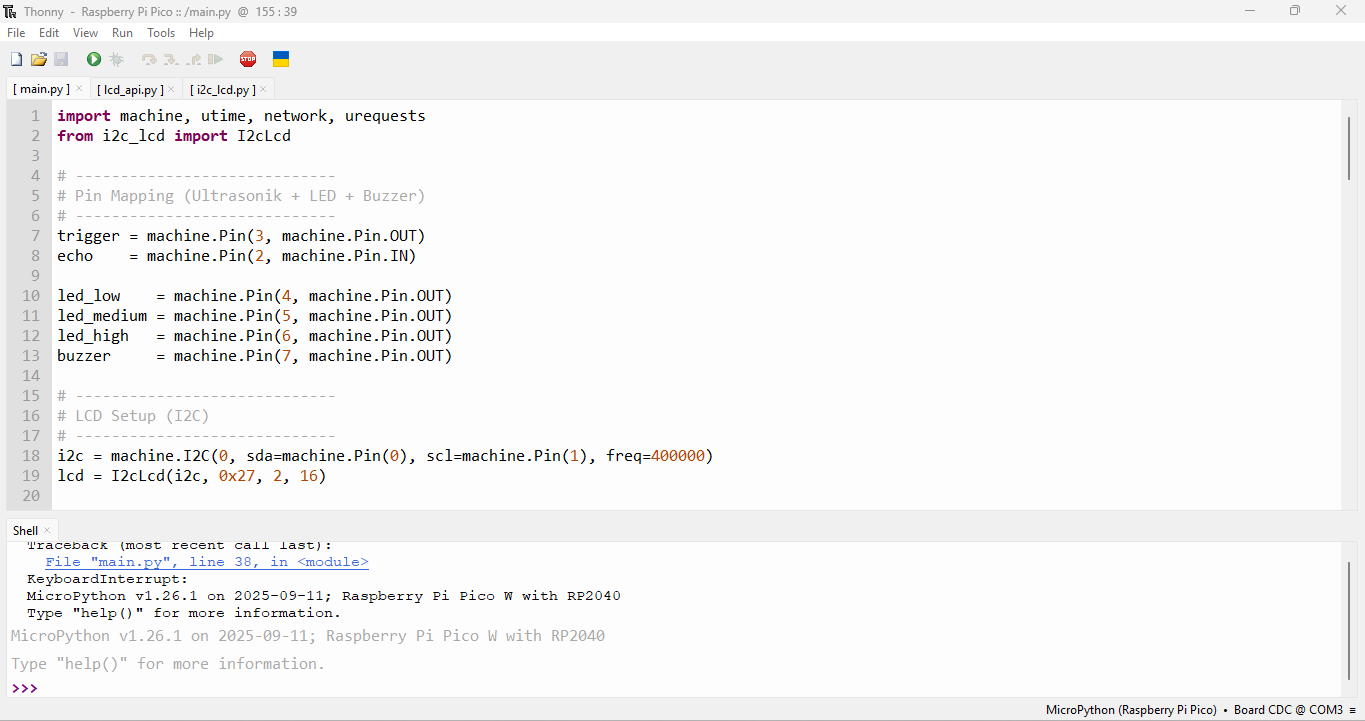
After the installation, develop code in the Thonny software.
Developing Graph Using ThinkSpeak
.png)
.png)
Make the graph using ThinkSpeak website.
Developing HTML Code
.png)
.png)
Develop the HTML code for the dashboard. Then, connect with the ThinkSpeak using API key.
Testing
.jpg)
.jpg)
.jpg)
.jpg)
Test the code and the function of IoT using a tupperware and water.
Deployment
.jpg)
.jpg)
After the testing success, we will deploy to the suitable environment.