Wireless Mini Mac From a Maclock
by jelarg in Circuits > Raspberry Pi
65 Views, 1 Favorites, 0 Comments
Wireless Mini Mac From a Maclock
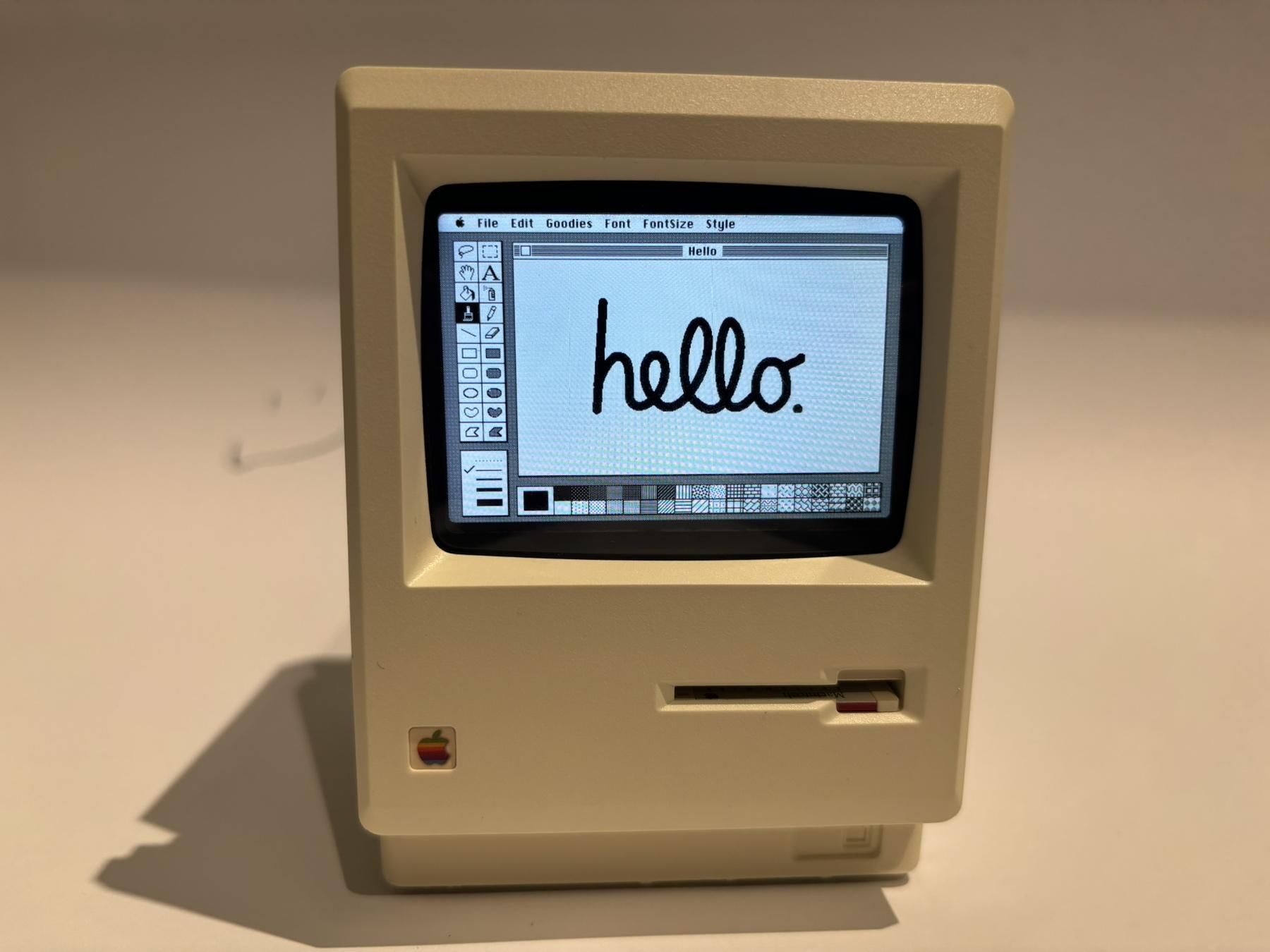


This is an instruction on how to make a wireless version of the 1984 Mac using a Maclock, a Raspberry Pi Zero, and the vMac emulator, running the authentic OS. No 3D printing or soldering is required. Most of the setup information has already been covered in a similar tutorial, so I will mostly provide references.
When I bought the Maclock, I found the design to be very accurately reproduced. Inspired by tutorials from cgenko and hide-key, I thought it would be great to create a wireless version of the mini 1984 Mac. I’m not very experienced with DIY projects, so I tried to find the simplest way to do it — with minimal effort and without 3D printing or soldering.
While I was waiting for the parts to arrive, This Does Not Compute and Mac84 published their videos, which were also interesting to watch and helpful for learning more about the process.
Everything you do is at your own risk, so please be careful when working with power supplies.
Supplies


I already had some of the required supplies listed below. You can also use alternatives if you know how to adapt them. Keep in mind that the space inside the Maclock is limited, so size is important.
Supplies:
- Maclock
- Raspberry Pi Zero 2 W with Pre-Soldered GPIO Header (if you don't want to solder)
- Waveshare 480x640 LCD display
- Micro SD card at least 16GB and class 10
- Small USB Hub with micro-USB OTG cable (to connect wireless mouse/keyboard USB dongles)
- Wireless mouse and keyboard with USB dongles or keyboard with touch-pad with USB dongle
- Smallest Power Bank with 5V output (and UPS function to charge Raspberry Pi even when charging itself)
- Short micro-USB cable (to power the Raspberry Pi from the power bank)
- USB Type C Female to USB Type C/micro-USB Male cable (depends from input port of your power bank)
- Heatsink for Raspberry Pi Zero (recommended for cooling the CPU)
- Audio Module or Waveshare USB Sound Card (if you need sound, Bluetooth speaker is a bad alternative)
Tools:
- Small Wire Cutters
- Ceramic Tweezers
- Knife or Box cutter
- Mini cross screwdriver or even Opening Tool Kit (to simplify Maclock opening)
- Some electrical tape glue gun or glue (to secure internal components)
Flash Raspberry Pi OS


The Mini vMac created by the Gryphel Variations Service is not fully supported by the latest versions of Raspberry Pi OS. Therefore, you either need to build your own Mini vMac or use a legacy OS version such as Bullseye from the debian.rutgers.edu repository.
If you want to use the Desktop version of Raspberry Pi OS, you will need to configure Mini vMac to start automatically using a Desktop Entry. I chose Raspberry Pi OS Lite because it boots faster and consumes less power.
I encountered an issue when starting the Mini vMac emulator on the latest Trixie OS (at the time this tutorial was written), so I installed the previous version — Bookworm.
Here are the instructions on how to flash Raspberry Pi OS Bookworm Lite:
- Insert your SD card into your desktop computer.
- Download and run Raspberry Pi Imager.
- In the Device step, select “Raspberry Pi Zero 2 W.”
- In the OS step, select “Raspberry Pi (other)” and choose “Raspberry Pi OS (Legacy, 32-bit) Lite.”
- In the Customization step, configure the hostname, user login/password, Wi-Fi, and enable SSH access.
- In the Storage step, select your SD card and click Write.
Note: The Customization step allows you to access the OS via SSH from your desktop computer. Otherwise, you will need to connect the Raspberry Pi to a display (the Waveshare display is not accessible before configuration) using a Mini HDMI adapter and configure the OS directly on the Raspberry Pi.
Assemble Raspberry Pi Zero


Board Assembly
First, if you have a heatsink, attach it to the Raspberry Pi CPU to reduce the risk of hardware failure due to overheating.
Then create a “sandwich” using the Raspberry Pi, the audio module, and the Waveshare display. Connect the audio module to the Raspberry Pi’s 40-pin GPIO header. After that, carefully connect the Waveshare display to the audio module’s 40-pin GPIO header. Do not push it all the way down, because the audio module has speakers that require a small amount of space.
If you are using the Waveshare USB sound card instead, insert it into the USB hub and connect only the Waveshare display to the Raspberry Pi’s 40-pin GPIO header.
If you plan to use a Bluetooth speaker, connect it from the command line or desktop. You can also connect the speaker to the USB hub via a USB cable for power. However, keep in mind that Bluetooth speakers usually play a connection sound and many of them automatically turn off after a period of inactivity. This can be inconvenient if the speaker is stored inside the Mini Mac case, which is why it may be better to keep it separate.
Connecting Peripherals
Insert the keyboard and mouse USB dongles into the USB hub, then connect the hub to the Raspberry Pi’s micro-USB OTG port (the one closest to the mini HDMI port).
Remove the flashed SD card from your desktop computer and insert it into the Raspberry Pi.
Finally, connect the power bank to the Raspberry Pi using a micro-USB cable. Use the micro-USB port labeled “PWR IN.” You can also use a standard power adapter, but make sure it provides 5V and 2A.
The Raspberry Pi should power on and the green LED indicator should light up. If it does not, the cause could be a power supply issue, an improperly flashed OS, or a hardware problem.
Don’t worry if the Waveshare display and the audio module are not working yet — we still need to configure them.
Setup Raspberry Pi Environment


Let's connect to the Raspberry Pi for environment setup. Use the following commands with caution.
To simplify file transfers, you can connect using CyberDuck. You can also download all the files directly on your Pi Zero, but be aware that it may be very slow.
Connect to the Raspberry Pi
Open a command-line terminal on your desktop computer and make an SSH connection. Use the username (pi), hostname (raspberrypi), and the password defined in Step 1: Flash Raspberry Pi → Customization.
When prompted with “Are you sure you want to continue connecting?”, type yes and enter your password.
If you cannot connect, you probably made a mistake during the Customization step. In that case, connect the Raspberry Pi to a desktop display using a Mini HDMI adapter or cable to see what is happening.
Configure the Display and Audio Module
The Raspberry Pi does not enable DPI output by default, so display overlays are required. See the Waveshare 2.8-inch DPI LCD wiki for more details. Download and unpack the overlays:
Now update the GPIO display and audio module settings. Run the following command to modify config.txt:
On legacy OS versions, this file may be located at: /boot/config.txt
Scroll to the end of the file, add the following lines, and press Ctrl+O and Ctrl+X to save the changes. The last line enables sound for the audio module. If you are using a Waveshare USB sound card instead, follow the Step 5: USB Sound Card Settings from this tutorial for that device.
Since the Raspberry Pi cannot detect the physical orientation of the display, it outputs the image for the Waveshare 480×640 screen in its native portrait orientation. Run the following command to modify cmdline.txt:
On legacy OS versions, this file may be located at: /boot/config.txt
Add the following to the end of the first line, then press Ctrl+O and Ctrl+X to save:
Setup Auto Login
Configure console auto-login to simplify access and check the results.
In the Raspberry Pi Software Configuration Tool:
- Open System Options → Auto Login
- Select Yes, then OK
- Choose Finish
Reboot the system:
After rebooting, you should hear sound from the audio module and see the boot console output on the Waveshare display in horizontal orientation. Auto-login should also be enabled, and you will see a command-line prompt.
From this point on, you can continue the setup directly on the device instead of using SSH, or keep using SSH to copy and paste commands more easily.
Install Software
First, update the OS:
Mini vMac typically requires a graphical environment (such as startx / X11) because it emulates the original graphical Macintosh computer, which relied entirely on a bitmap GUI. The emulator therefore needs a system capable of creating and managing a window to display that interface.
Install the minimal graphical components required to run a windowed environment on Raspberry Pi OS Lite:
When prompted with “Do you want to continue?”, type y.
Create Mini Mac

We need to run the Mini vMac emulator before adjusting the screen inside the Maclock during the hardware assembly. The Maclock is shaped like the 1984 Macintosh Classic, so I decided to use the authentic operating system from that period. Of course, you can also install a newer system such as System 7 (Read Step 9: Setting Up Mini VMac on Your Pi from this tutorial for more details). Below are the steps to install System 1.
Build the Mini vMac Emulator
Pre-built versions of Mini vMac are not fully compatible with the latest versions of Raspberry Pi OS, so it is necessary to build the emulator directly on Raspberry Pi OS.
Start by downloading the Mini vMac source code:
Then build Mini vMac using your preferred options. I recommend using default, the original Macintosh screen resolution of 512×342.
For example, if you use 640×480, applications may still open in the smaller 512×342 window (like MacPaint in the screenshot), and some programs may even crash.
I used the following options:
- -br 38 — build configuration preset (Mini vMac build revision)
- -t larm — target platform: Linux on ARM (Raspberry Pi)
- -m 512Ke — emulate the Macintosh 512Ke “Fat Mac” model (you can also use -m 128K)
- -fullscreen 1 — start the emulator in fullscreen mode
- -speed z — run the emulator at the original performance speed of that era
Note: Make sure that libx11-dev was installed earlier in Step 3: Setup Raspberry Pi Environment → Install Software.
Now move the Mini vMac binary to your home directory and make it executable:
Configure the Graphical Interface
Use xrandr to configure the display in the X Window System so that Mini vMac runs correctly.
The following settings create a virtual framebuffer that scales the emulator to fullscreen and rotates the display to horizontal orientation.
Create the xinit configuration file:
Add the following lines and press Ctrl+O and Ctrl+X to save.
The last line starts the Mini vMac emulator. Parameter --scale can be updated later to adjust mounted screen better.
Boot Mini Mac
)
Mini vMac requires ROM and disk image files to run. Use your own Mac ROM for legal and compatibility reasons. You can read the final section of Step 2: Preparation for Mini VMac from this tutorial to learn how to obtain these binaries for personal use.
Place the files “vMac.ROM” and “disk1.dsk” (with these exact names) in the home directory, in the same folder as the emulator.
Run the Emulator
Now it is time to start the emulator and verify that it fills the entire screen and that you hear the startup beep.
Run the following command directly from the Raspberry Pi console (not via SSH):
When Mini vMac boots successfully and you see the “Happy Macintosh” icon, you should hear also beep sound. At this point, also ensure that your mouse and keyboard are working correctly inside the Mini Mac environment. Test all buttons and keys to confirm that the USB dongles are properly recognized and that input is responsive before proceeding with autostart or final assembly.
Press the following keys in sequence: Ctrl + Q + Y to quit Mini vMac.
Mini Mac Autostart
If you want Mini vMac to start automatically when the system powers on or reboots, do the following.
Create a .bash_profile file:
Add the following lines. This starts the graphical session safely (preventing X from starting twice and ensuring the user is logged in on the main physical console).
If you want your Mini Mac to shut down after exiting the emulator, replace clear with sudo shutdown now.
Press Ctrl+O and Ctrl+X to save.
Clean Up Boot Messages (Optional)
If you want to remove Raspberry Pi boot messages, apply the following modifications. Be careful when making these changes. Edit cmdline.txt again:
Change:
to:
This moves the system console to virtual terminal 3.
Then add the following to the end of the first line to reduce boot messages, display only errors, remove the logo, and hide the blinking cursor.
Add consoleblank=0 to the end of the existing line of text if you would like to disable also Screen Blanking.
Save the file using Ctrl+O and Ctrl+X.
Suppress login messages:
Modify how the system starts on TTY1 so it auto-logs in silently. Make sure auto-login was enabled earlier in Step 3: Setup Raspberry Pi Environment.
Edit the autologin configuration file:
Add --skip-login --noissue before %I $TERM in the last line.
The file should look similar to this (depending on your username):
Reload systemd and reboot to verify the clean boot:
After rebooting, your Mini Mac should start without boot logs in less than 30 seconds — just as Steve would probably appreciate =)
Previously, when launching Mini vMac from the Desktop on the full Raspberry Pi OS, the startup time was longer (as shown in the video). Now, running from the console on Raspberry Pi OS Lite, the system boots in about 20 seconds. It can be made even faster by disabling unnecessary services — but that’s another story.
Disassemble Maclock


Let’s start with the hardware part. Opening the Maclock case is the most challenge step. Do not touch the decorative screws — they are purely cosmetic. Instead, focus on detaching the front panel.
I recommend using an Opening Tool Kit and starting from the bottom. In my case, I made tool marks visible in the photos, which I will need to polish later.
Here are some useful references for opening/disassembling the Maclock: video 1 and video 2.
Next, remove the wired harness—but do not discard anything, as you may need it later.
Steps to remove components from the front panel:
- Unplug the wires (1) and (2) connecting the front and back panels.
- Unplug the switcher mini board (3).
- Be careful with the switcher board (3), as its wires are weakly connected. It is better to unscrew it completely for now.
- Remove the screws securing the main circuit board and carefully lift it out.
- Remove the screen secured by screws in the corners. Some screws (4) and (5) are hidden under a cover.
- Finally, unscrew and unplug the charging board (6) from the back panel. This board is not needed because it supplies 3.7V from the battery, whereas the Raspberry Pi requires 5V.
You can also remove the battery, but it is strongly glued in place. I left it in my setup for now.
Assemble Front Panel


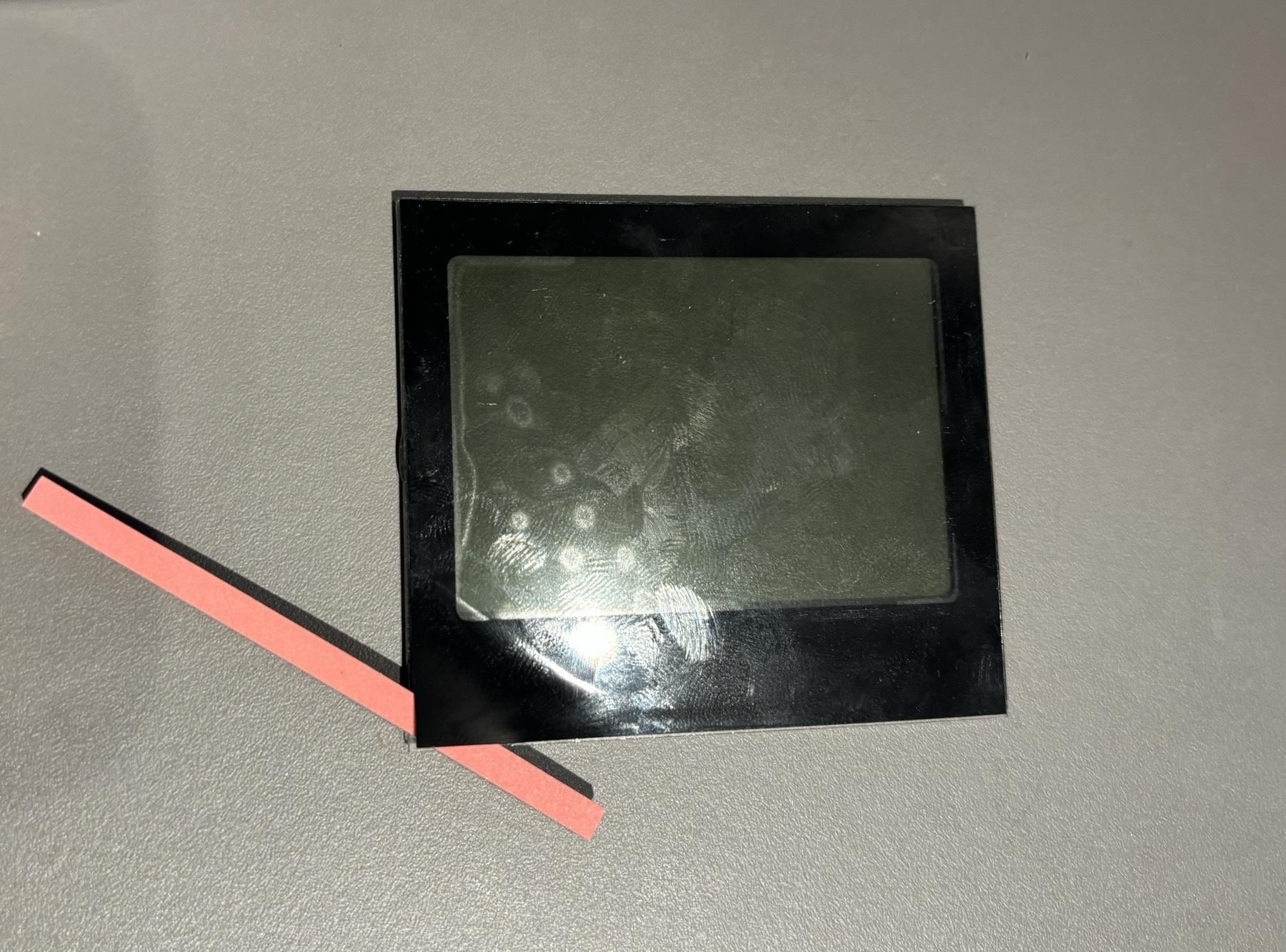
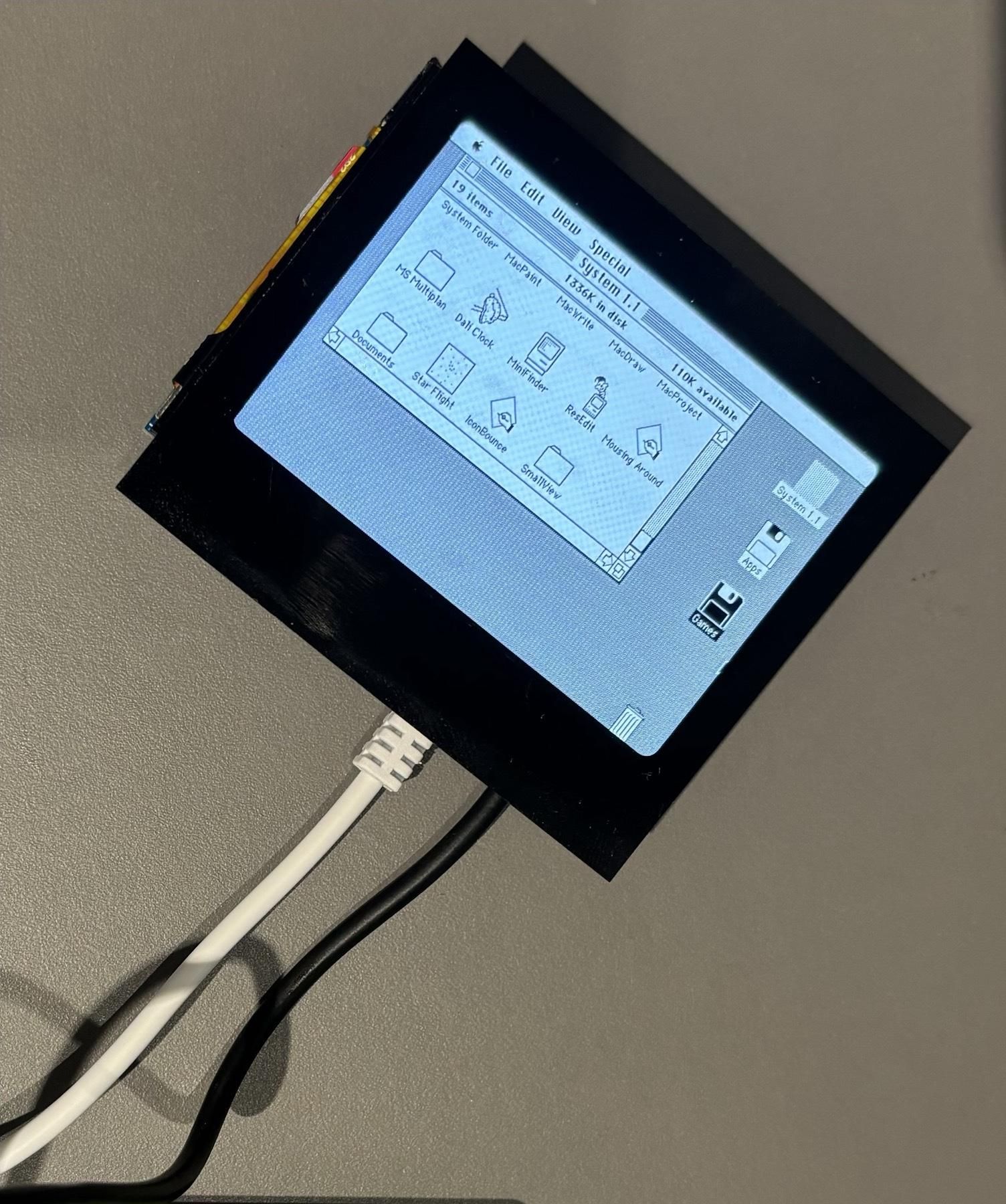


Let’s begin with assembling the front part of the Maclock. This step is crucial because it determines how well the display fits and how clean the final build will look.
Screen Adjustment
Some plastic on the front bezel needs to be trimmed for the screen to fit. See photos 1 & 2 in the attachments.
Power on your Raspberry Pi build and place it over the curved plastic lens. Adjust the screen so that all OS interface elements are fully visible.
To improve the appearance, you can reuse the protective film from the disassembled Maclock LCD screen (photo 3). Carefully peel off the film and stick it onto the Waveshare display, like applying a screen protector on a phone (photo 4).
Securing the Display
After adjusting the screen, secure it using parts from the disassembled Maclock LCD screen. Refer to photo 5 for the required components.
- Take the pink protective liner stripe (1) and place it above the display, as shown in photo 6.
- Cut a stripe from the backlight diffuser (2) and screw it over the display using the same screws (photo 7).
- Cut strips from the black adhesive pad on the diffuser (3) and stick them on both sides of the display (photo 7).
- Reinstall the Maclock board over the display (photo 8) to secure the bottom side. Make sure the brightness dial is properly positioned.
Finally, adjust the screen again to ensure all OS interface elements are fully visible (photo 9). I was able to fix the display firmly in place.
Power Supply Setup


The idea is to make a wireless Mac that can be powered and charged via a USB Type-C port. To achieve this, the power supply needs to be prepared carefully.
Prepare the Power Port
First, we need to prepare the power port. I used a USB adapter, but I recommend using a USB cable instead, as it simplifies the connection to the USB hub.
The mother USB Type C port is mostly encapsulated in plastic, which must be trimmed to fit the charging hole. Carefully cut off the excess plastic, as shown in photo 1.
Secure the prepared USB adapter or cable port into the charging hole using glue (photos 2–3).
Next, connect your power bank to the mounted USB adapter/cable and connect the power bank to the Raspberry Pi build installed in the front panel. Insert the USB Type-C power plug into the mounted adapter/cable. Verify that the power bank is charging and that the Raspberry Pi can be powered on.
Boot from the Disk
Optionally, you can make your Mini Mac start by “inserting” a fake floppy disk. Be careful when working with power supplies.
- Remove the connector from the small switch board (photo 4).
- Unplug the micro-USB cable from the power bank and carefully strip the outer insulation near the micro-USB plug.
- Expose the inner wires and cut the red (5V power) wire, but do not touch the black (ground) wire (photo 4).
- Remove some of the plastic coating from the end of the red wire and twist it together with the wires from the switch board (photo 5).
- Wrap the twisted wires carefully with electrical tape to prevent short circuits (photo 6).
- Screw the small switch board back onto the front panel and ensure that inner spring is in the place.
- Reconnect the modified micro-USB cable to the power bank and Raspberry Pi. Photo 7 shows an example (I reused an old power bank which has a broken case).
- Insert the fake system disk into the floppy reader to verify that the Mini Mac starts.
Complete Mini Mac


Final Assembly
Next, it’s time to assemble everything together. Ensure that all components are properly connected and seated.
Place the power bank and USB hub with the connected USB dongles inside the Mini Mac case. Secure them carefully using some glue and/or electrical tape to prevent movement during use.
Carefully attach the front panel to the case, making sure it aligns correctly and all clips are properly engaged. Once everything is in place, your wireless Mini Mac build is complete and ready to use!
Take a moment to double-check all connections, confirm that the Raspberry Pi powers on correctly, and that the display and audio are functioning as expected.
Software
Installing applications and games is straightforward: just copy the disk image of the app or game to the Raspberry Pi and mount it in Mini vMac. You can create multiple disk images to keep your apps organized, just like swapping floppy disks on a real 1984 Macintosh. With this setup, classic software from the original Mac era runs as intended, giving you an authentic retro experience. Read Step 11: Adding Software from this tutorial for more details.
Project Overview

Improvements
I’m already thinking about ways to enhance this Mini Mac build:
- Adding extra batteries to extend playtime and determine how many the Mini Mac case can safely hold.
- Replacing the fake floppy disk reader with a functional SD card reader for easier loading of software and games.
- Attaching an HDMI port (instead of one of the button at the bottom) to connect an external display and even run RetroPie alongside Mini vMac for extra fun.
- Making the brightness dial functional and linking the top button to control display brightness directly.
Since I already have all the necessary supplies, these upgrades should be relatively straightforward. I’m excited to see how far I can push this compact retro Mac project while keeping it wireless, portable, and fun to use in everyday life.
Summary
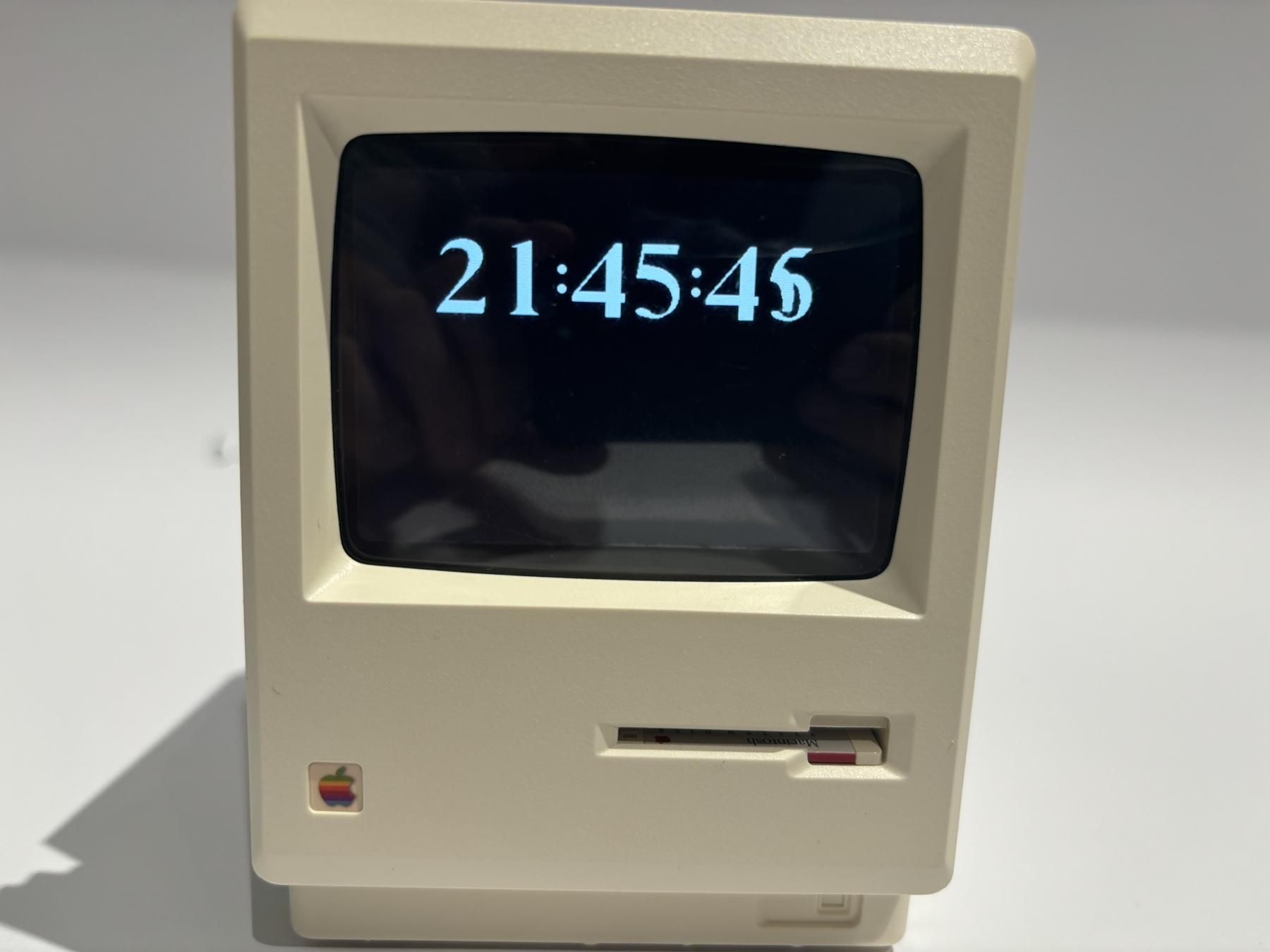
I loved seeing the original Mac interface come alive in a tiny, modern setup. Using the mouse and keyboard with Mini vMac felt surprisingly authentic, and getting everything to boot seamlessly from the console on Raspberry Pi OS Lite gave me a deep appreciation for the elegance of these old systems. Beyond just building it, I plan continue to use this Mini Mac as a desk clock and also as perfect for quick retro programming sessions, casual games, or just enjoying the nostalgic Mac experience while working at my desk. This project reinforced how much attention to detail matters when working with retro software and small modern electronics, and it was satisfying to combine both worlds.